An Excel Table - the structured range you get from Insert > Table, with a header row, banded formatting, and defined columns - is a data structure, not a container that changes how images behave. Pictures still float above the grid exactly as they do on any ordinary range; a Table doesn't offer a way to embed an image genuinely inside one of its cells any more than a plain worksheet does.
What people usually want when they ask about inserting images into a table is the same thing they'd want on a plain range: a picture correctly positioned over the row belonging to a specific product, part, or contact, sized to match that row's height, and staying with its row if the table is later sorted or filtered - which Tables, helpfully, handle a bit more gracefully than plain ranges because sorting a Table keeps rows intact as units.

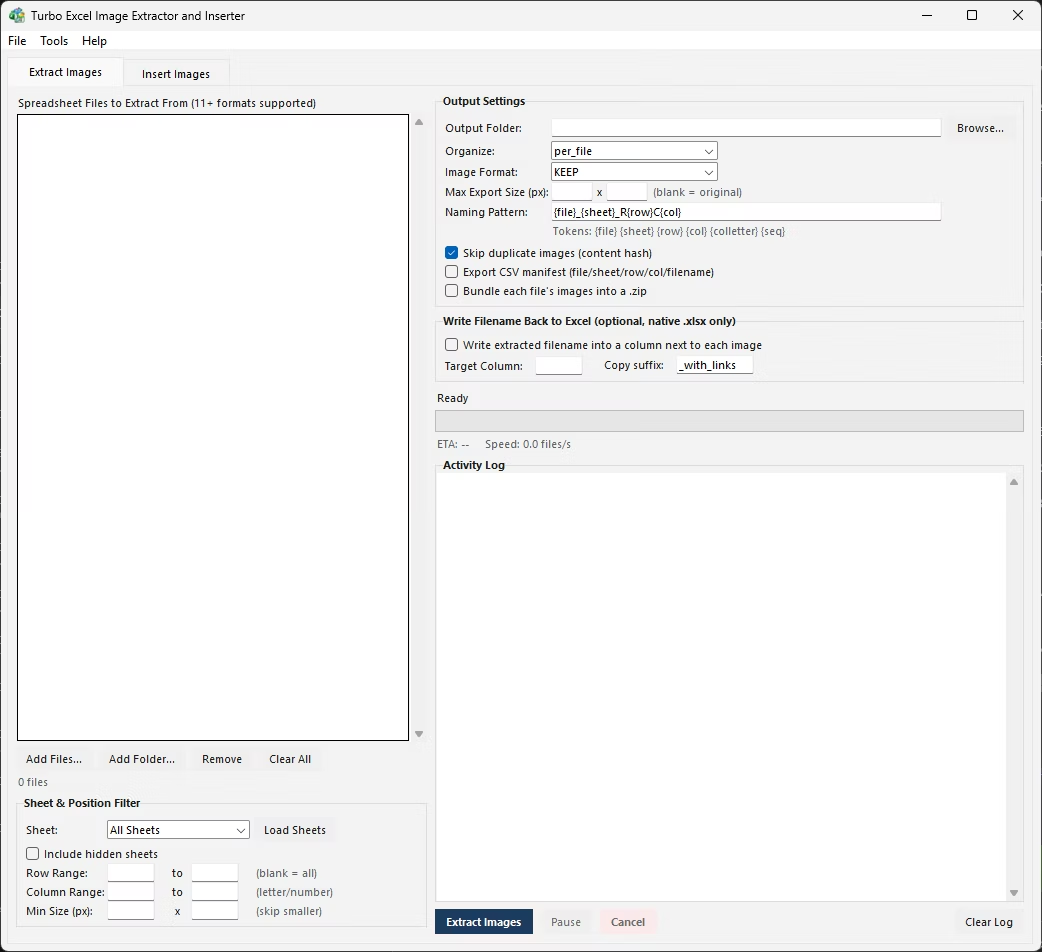
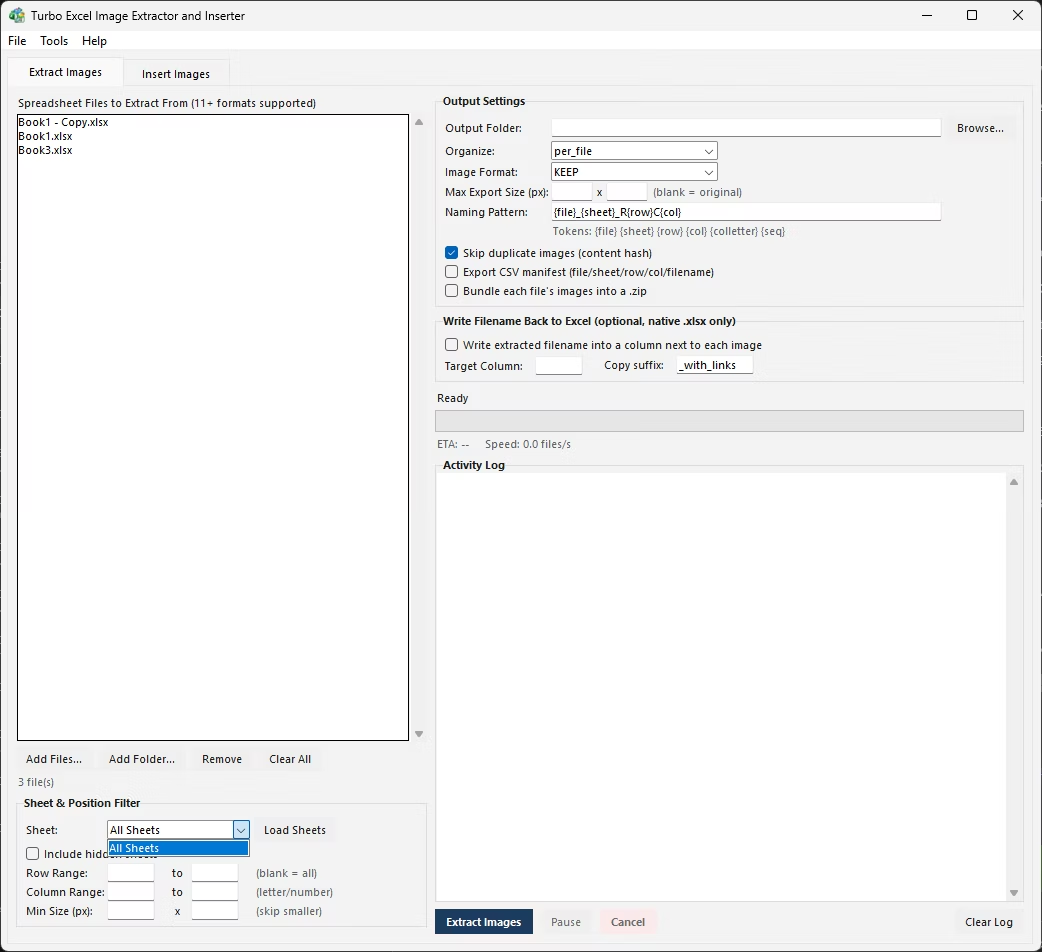
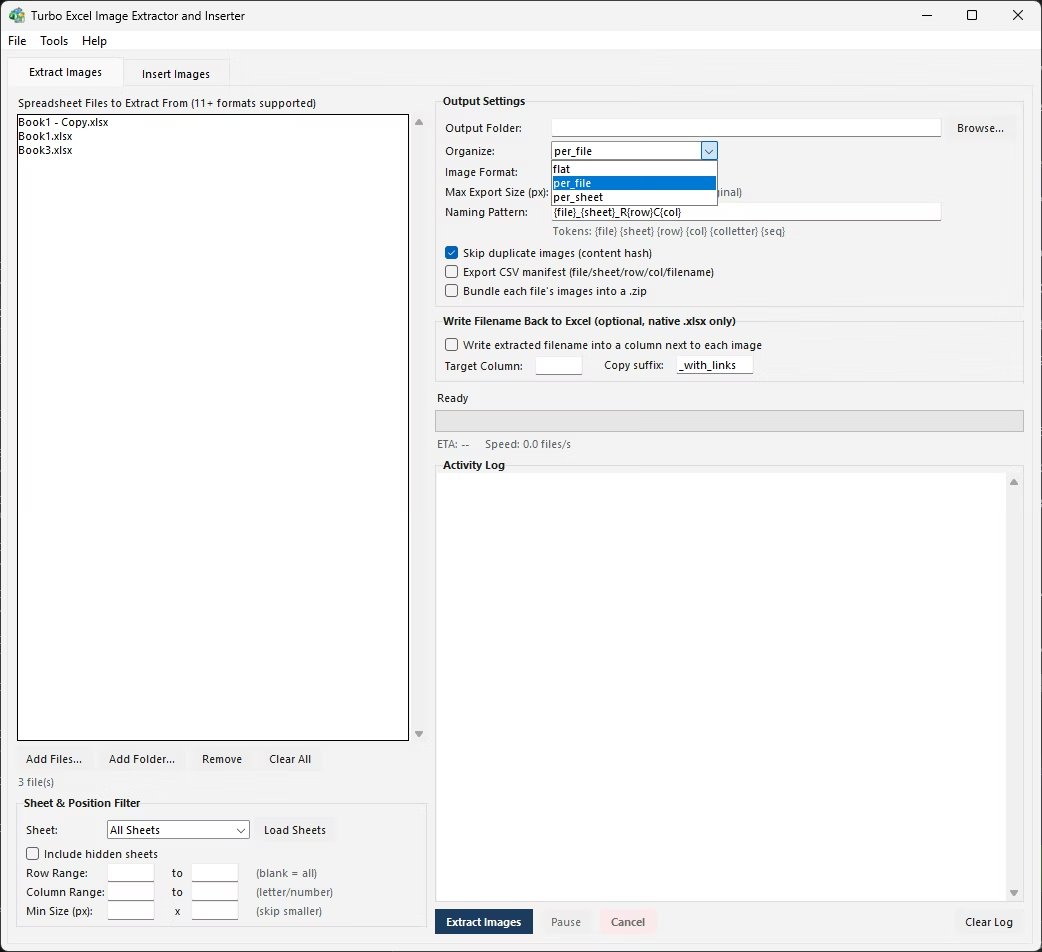
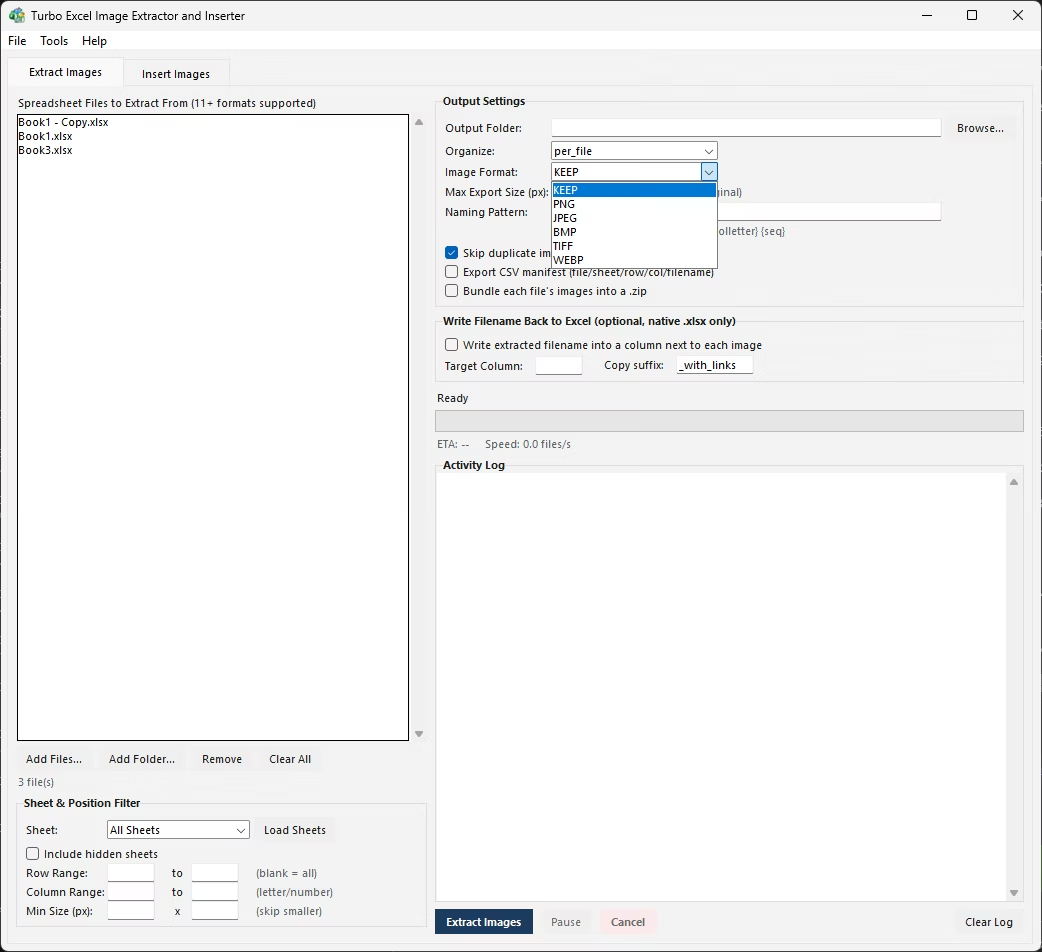
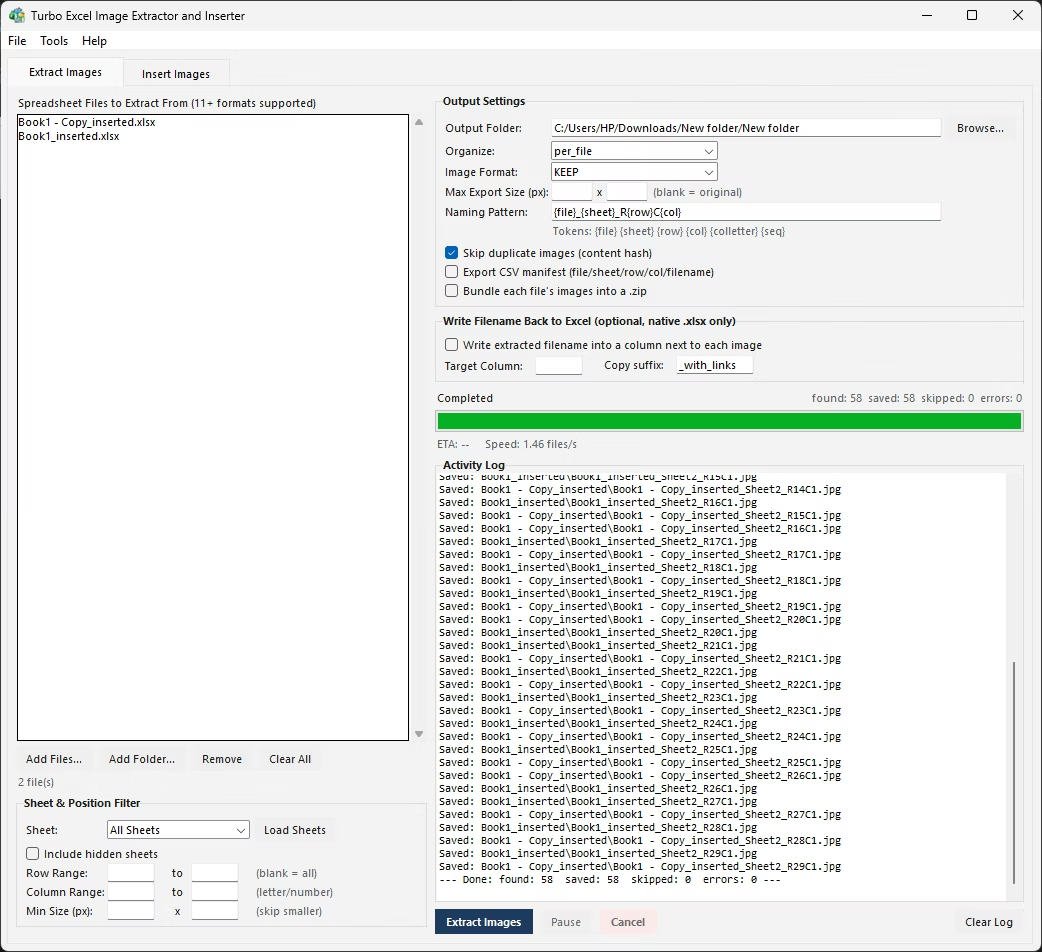
The manual process is identical to inserting into a plain range: insert the picture, drag it into position over the correct row, resize it to the row height, and set Move and size with cells so it stays anchored. The one added consideration with a Table is that inserting or deleting rows inside the Table's structured range can shift things in ways a floating image won't automatically follow, so images tend to need re-checking after any Table structure changes.
For a product table with a hundred rows, each needing a matching photo, this manual process means finding each row's photo, positioning it, resizing it, and repeating - the same bottleneck as any other large-scale manual insertion job, just inside a Table's more rigid structure.
- Identify the Table row that needs an image, using its key column value (SKU, ID, etc.) to find the right photo.
- Insert the picture via Insert > Pictures, then drag and resize it to sit over that row.
- Right-click the image and set Move and size with cells to keep it anchored to the row.
- Repeat for every row in the Table that needs a matching image.
- Re-check image positions after adding, removing, or resorting Table rows.
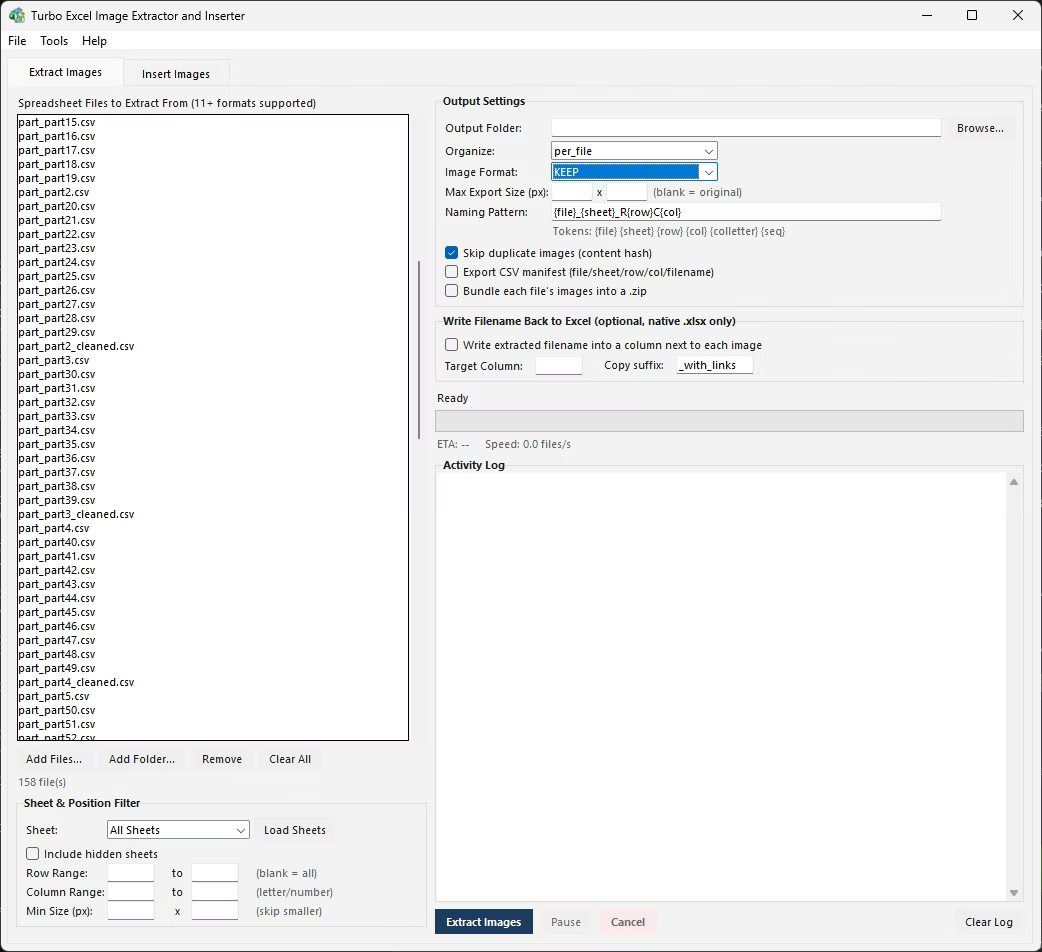
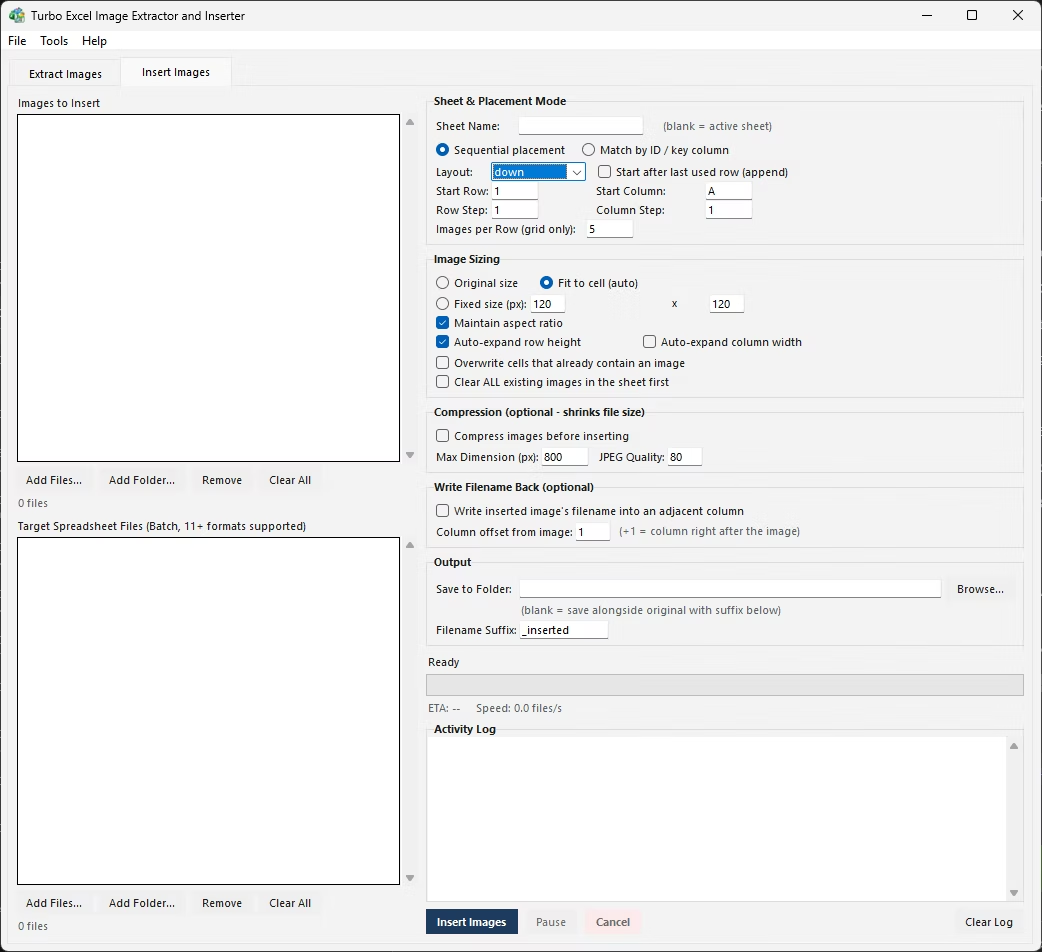
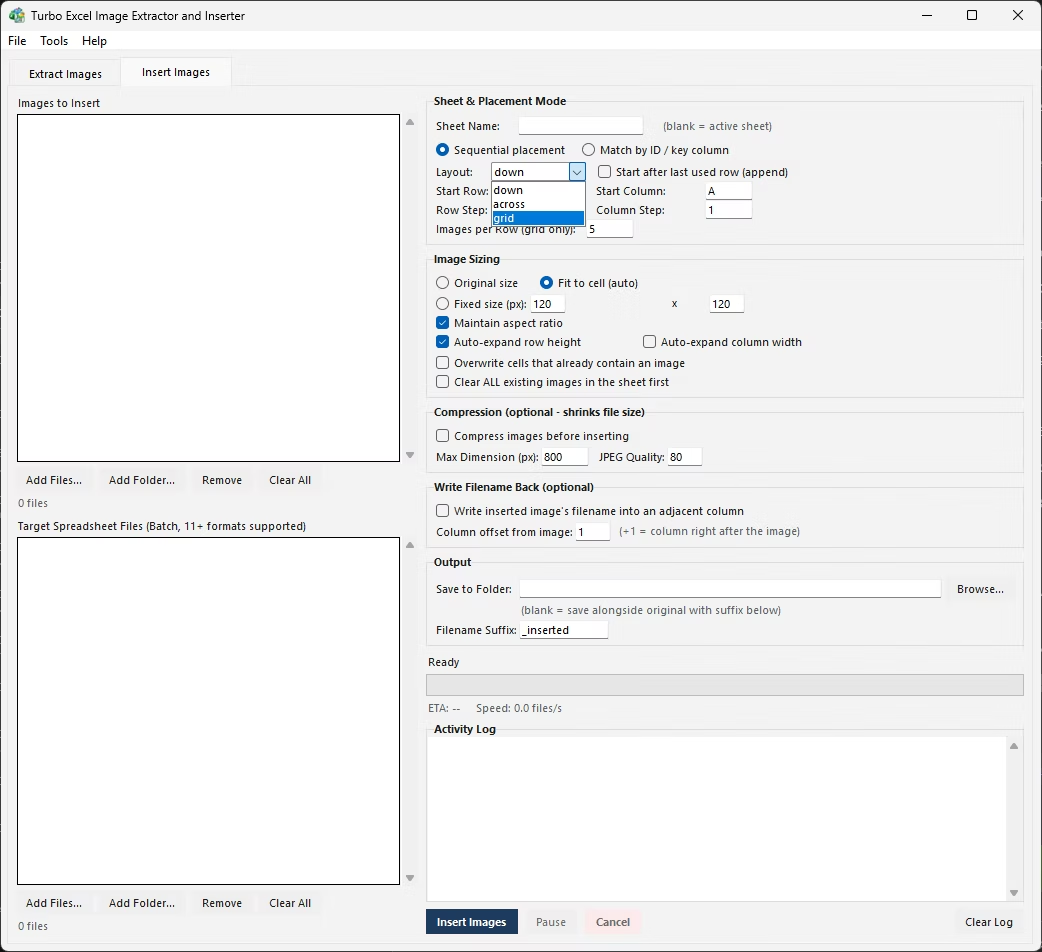
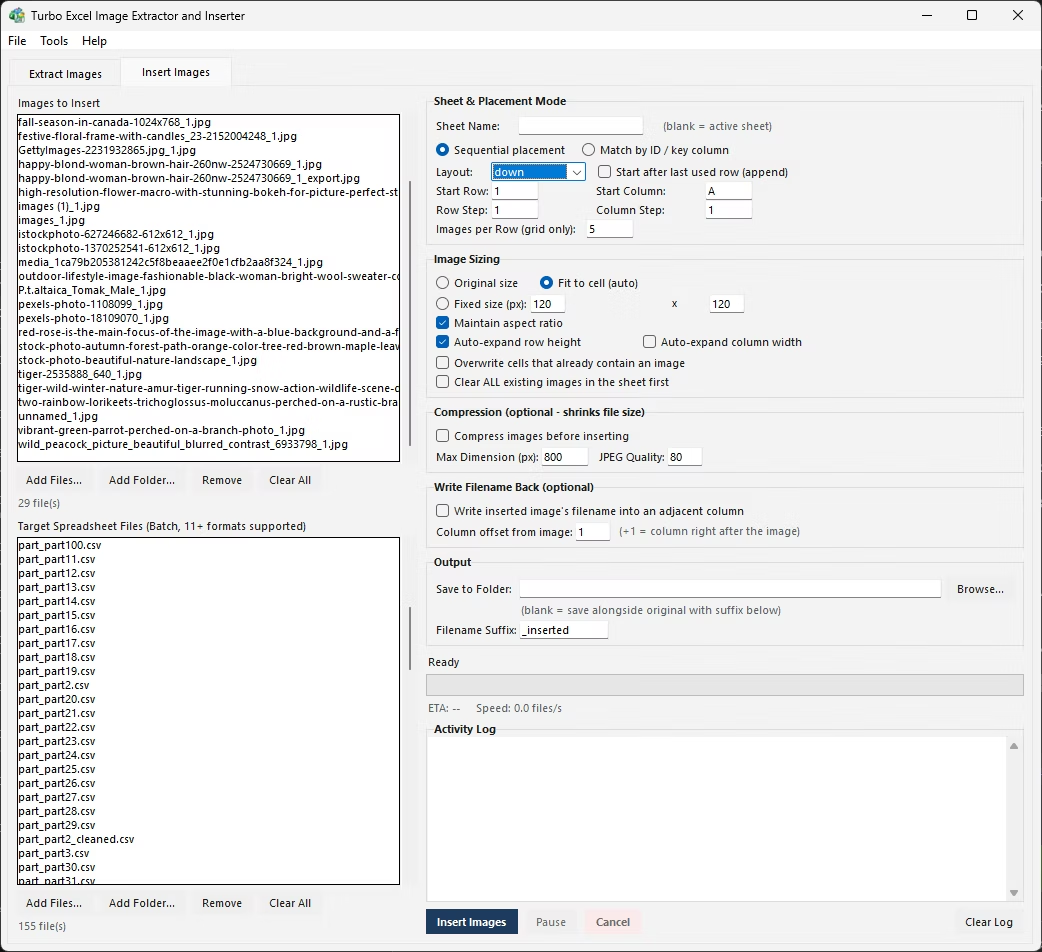
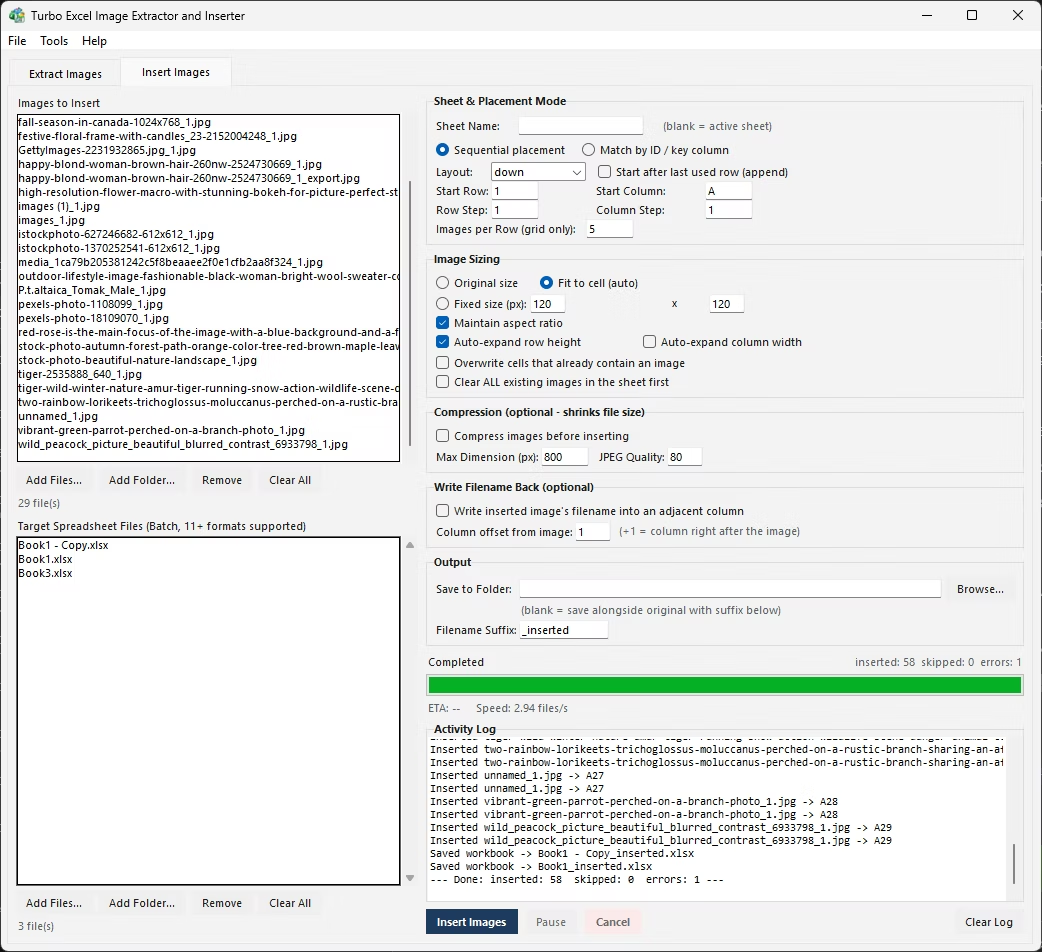
This is exactly the scenario Match mode in the Insert Images tab handles well: point it at the key column of your table - a SKU, part number, employee ID, or barcode column - and a folder of images named to match those values, and every image is inserted into its correct row automatically, without manual row-by-row positioning. Existing-image handling lets you skip rows that already have a photo, overwrite them, or clear every existing image from the sheet first before the new batch goes in.
Fit to Cell sizing keeps every image proportioned consistently to its row regardless of how the table's row heights vary, and the same batch engine processes an entire folder of target spreadsheets in parallel - useful when the same product or inventory table structure repeats across several files that all need matching photo inserts.
A warehouse inventory table with columns for part number, description, quantity, and location often needs a photo column added so staff can visually confirm they've picked the right item - especially for parts that look similar but aren't interchangeable. Adding that photo column manually, part by part, across a table with thousands of rows isn't realistic to do by hand.
With the part number as the key column and a folder of part photos named to match, Match mode inserts every photo into its correct table row in one batch run, and re-running the same setup after inventory updates - new parts added, old ones removed - keeps the photo column current without redoing the matching work from scratch each time.
- Match mode compares image filenames to a key column automatically
- Works with SKU, part number, employee ID, or barcode style key columns
- Skip, overwrite, or clear existing images before inserting new ones
- Fit to Cell sizing adapts to varying row heights across a table
- Processes many target spreadsheets with the same table structure in parallel
- No manual row lookup or positioning required
Can an image be embedded literally inside an Excel Table cell?
No, Tables don't change how images work in Excel - pictures remain floating objects anchored above the grid, whether they sit over a plain range or a structured Table.
Does sorting a Table move images along with their rows?
Only if the image's anchor is set to Move and size with cells; even then, images placed manually can need re-checking after Table structure changes like added or removed rows.
How does Match mode find the right row in a table?
It compares each image's filename to the values in a key column you specify - a SKU, ID, or barcode column - and inserts the image into whichever row's value matches.
Can I overwrite existing product images in a table with a new batch?
Yes, the existing-image handling setting lets you choose to skip cells that already contain an image, overwrite them, or clear every existing image from the sheet before inserting the new batch.
Ready to handle images in bulk, offline, with full privacy?