TurboSoftlogo TurboSoft
Turbo Batch Image Converter & Resizer Pro

Batch Image Converter + Batch Image Resizer

Offline Bulk Image Converter & Resizer — Supports All Major Formats

  • Fastest Batch Image Converter in the Market
  • Supports JPG, JPEG, PNG, HEIC, HEIF, RAW, AVIF, BMP, TIFF, TIF, GIF & WEBP
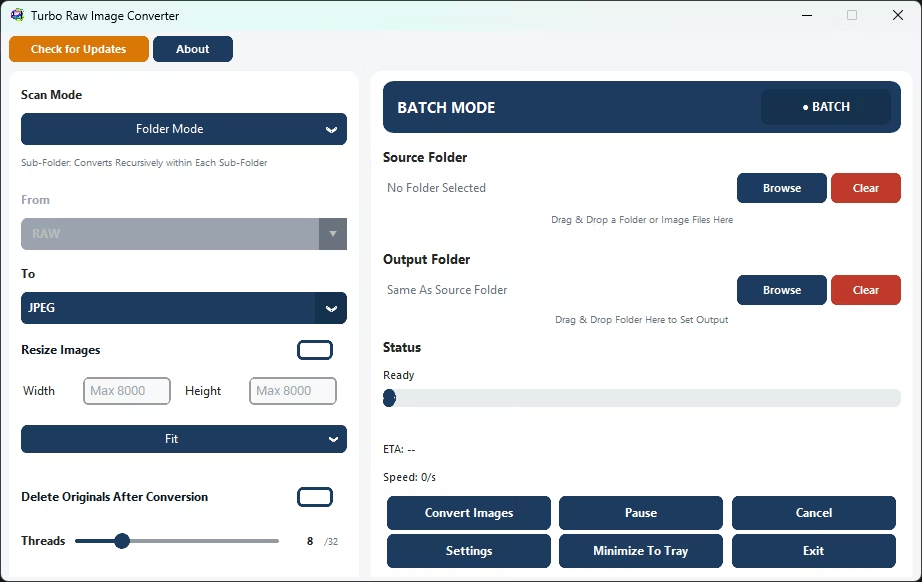
  • Supports 47 RAW input Formats
  • Worker Based Conversion Speed Control
  • Auto-Delete Original Files after Conversion
  • Nested Sub-Folder Auto Conversion
  • Drag & Drop Input, Output Folders
  • Supports Heavy Workloads - 100K+ Images
  • High Speed Bulk Image Converter
  • High Speed Bulk Image Resizer
  • Portable Application
  • Offline
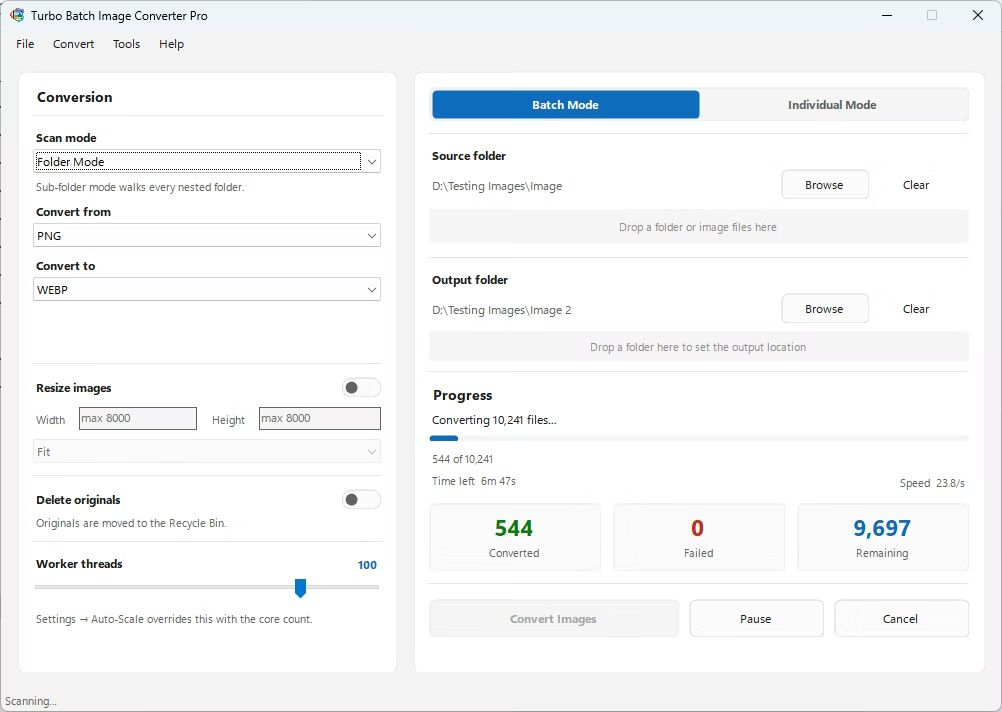
  • Real Time ETA & Conversion Speed
  • Lossy & Lossless Compression Settings
  • Lifetime License Validity
  • Windows Application
Download Setup Download Portable One-time · Lifetime License
Turbo batch image converter software for windows Turbo batch image resizer jpg to png converter multiple image resizer download raw to jpg converter software for windows 10
32 Max Workers
100K+ Images/Batch
12 Input Formats
9 Output Formats
Offline · No Limits
Supported Input Formats
JPEG JPG PNG HEIC HEIF AVIF WEBP GIF BMP TIFF TIF RAW
Supported RAW Input Formats (47 formats)
3FRARIARW BAYCRWCR2 CR3CAPDCS DCRDNGDRF EIPERFFFF GPRIIQK25 KDCMDCMEF MOSMRWNEF NRWORFPEF PTXPXNR3D RAFRAWRW2 RWLRWZSR2 SRFSRWX3F RW1RWL2SRW2 CS1STXTIFRAW BMQRMOS

Supported Output Formats
JPEG PNG WEBP AVIF HEIC GIF BMP TIFF SVG
Output Quality Settings
FormatQuality Control
JPEGQuality 1–100
PNGCompression 0–9
WebPQuality 1–100  ·  Lossless / Lossy mode
HEICQuality 1–100
GIFColors 2–256
TIFFLZW · ZIP · JPEG compression
Major Features

Batch Image Resizing

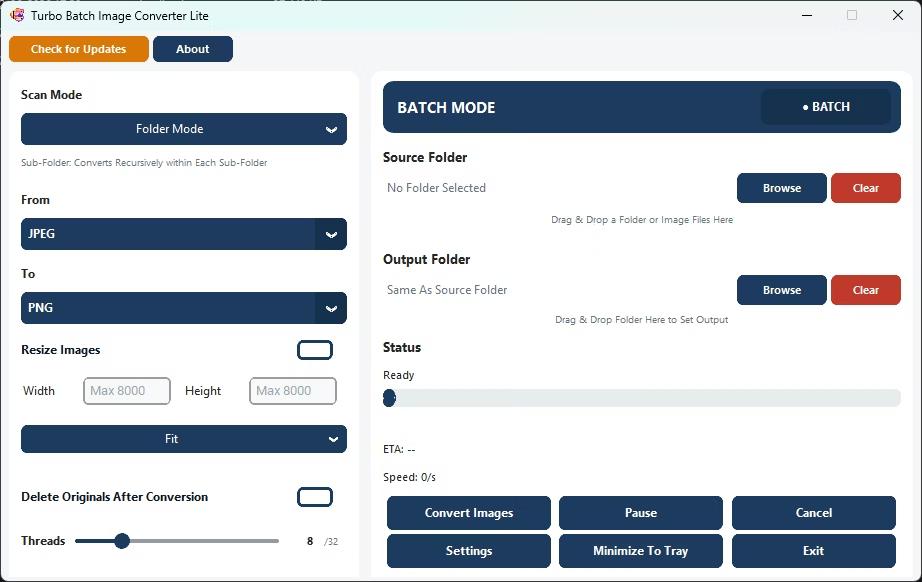
Resize hundreds or thousands of files using Fit, Fill, or Stretch modes while preserving workflow speed.

Automatic Nested Sub-Folder Conversion

Activate Sub-Folder Mode to recursively process all nested folders. No manual selection needed — scans entire directory trees automatically.

Safe Delete Original Files

Files are moved to the Recycle Bin — not permanently deleted. Clean up originals after conversion safely. Perfect for PNG→WebP replacement workflows.

Parallel Workers

Use up to 32 workers for faster conversion speed across modern multi-core Windows systems.

High-Speed Batch Processing Engine

Multi-threaded engine handles 1,000 to 100,000+ files with consistent speed and stability. Auto-Scale Workers dynamically optimizes CPU usage.

Advanced Batch Image Resizer

Professional resize modes built-in: Fit (aspect-safe), Fill (smart crop), Stretch (forced exact dimensions).

Real-Time Conversion Dashboard

Live display of processed files, success/failed counts, real-time speed (files/sec), ETA remaining, and current status.

High Volume Batch Stability

Engineered for 10,000–100,000+ image workloads. Stable across extended high-volume sessions without performance degradation.

Drag & Drop Input / Output

Drop folders directly into the app window or browse manually. Automatic scanning of all supported image formats in the selected folder.

Offline Processing — No Limits

All conversion occurs 100% locally on your PC. No cloud uploads. No internet required. No file size limits. Unlimited batch size.

Convert Images in Bulk

A fast and dependable offline image converter for large-scale format conversion without cloud uploads or waiting times.

Bulk Image Resizer

Apply custom dimensions to complete folders at once. Ideal for e-commerce, websites, catalogs, and content teams.

Safety & Reliability
Safe Multi-Threaded Architecture — Designed for concurrent processing without unsafe thread collisions.
No Race Conditions — Each file task is isolated to prevent conflicts during high-speed batch operations.
File Integrity Protection — Prevents output corruption during simultaneous multi-file conversions.
Safe Delete to Recycle Bin — Originals moved to Recycle Bin rather than permanently deleted (optional).
Conversion Continuity — Single-file failures do not stop the entire batch. Skipped files are reported.
Controlled Pause / Resume Safety — Jobs can be paused and resumed without restarting entire queues.
Stable Under Heavy Loads — Continues operating reliably during extended high-volume sessions.
🏢Ideal for Sensitive Environments — Corporate offices, legal firms, medical records teams, air-gapped networks.
🔒Privacy First — No image uploads · No remote scanning · No cloud transfer · No third-party access.
Demo Videos

Watch detailed demos illustrating Turbo's capabilities and workflow.

Demo Video 1

Batch Conversion & Nested Sub-Folder Conversion

Demo Video 2

RAW Image Conversion

Demo Video 3

HEIC Image Conversion

Performance & Speed

Multi-Core Optimized Engine

Scales from entry-level systems to workstation CPUs. Runs well on dual-core laptops and 32-core workstations alike.

Extreme CPU Scaling

Supports up to 32 concurrent workers for maximum throughput on powerful processors. Auto-detection assigns optimal worker count.

Failure Isolation

If one file is corrupted, unsupported, or in use — only that task fails. Remaining conversions continue uninterrupted.

Massive Batch Capability

Suitable for e-commerce catalogs, photography archives, design libraries, scanned document repositories, and enterprise media folders.

Real-Time ETA Calculation

Dynamic remaining time prediction based on current throughput, updated live during processing.

Low Overhead Architecture

Optimized memory and thread usage for sustained long-duration conversions without degradation or memory leaks.

Security & Privacy

Turbo Batch Image Converter is a fully local desktop application. All image conversion, resizing, and compression tasks are completed on your own computer. No files are uploaded, scanned remotely, or shared with third parties. It is a trusted offline image converter for personal, commercial, and enterprise use.

Does not log, analyze, track, or store your image data
No integration with third-party analytics, advertising trackers, or background telemetry
Internet used only for license validation — request contains no personal data, file names, or image content
Ideal for photographers, businesses, designers, medical institutions, and enterprises
Complete confidentiality for personal, professional, and commercial workflows
Minimum System Requirements
Operating SystemWindows 8 (64-bit)
Processor1 – 2 CPU cores
Memory2 GB RAM
Storage500 MB free disk space
Recommended System Requirements
Operating SystemWindows 10 or later (64-bit recommended)
Processor4 or more CPU cores
Memory4 GB RAM or more
Storage TypeSSD recommended for best batch performance
Free Disk Space2 GB or more
App Info
Platform Windows
Category Image Converters & Resizers
License Lifetime
Sold via Gumroad (powered by Stripe)
Conversions
JPG · JPEG PNGAVIFHEICBMPTIFFSVGGIFWEBP
PNG JPGAVIFHEICBMPTIFFSVGGIFWEBP
HEIC · HEIF JPGPNGAVIFBMPTIFFSVGGIFWEBP
RAW JPGPNGAVIFHEICBMPTIFFSVGGIFWEBP
AVIF JPGPNGHEICBMPTIFFSVGGIFWEBP
BMP JPGPNGAVIFHEICTIFFSVGGIFWEBP
TIFF · TIF JPGPNGAVIFHEICBMPSVGGIFWEBP
GIF JPGPNGAVIFHEICBMPTIFFSVGWEBP
WEBP JPGPNGAVIFHEICBMPTIFFSVGGIF
Batch Image Format Converter

Turbo Batch is a professional batch image converter and batch image format converter built for demanding Windows workflows. As a complete bulk image format converter, it handles every major format in a single fast desktop tool — no plugins, no cloud services, no limits. Need a jpg to png converter for website assets? A tiff to jpg converter software solution for scanned document archives? A dependable picture format converter jpeg to png for product listings? Turbo Batch covers all of these use cases with ease. It also serves as a reliable avif to jpg converter for broader browser compatibility, and as a raw to jpg converter software for windows 10 and Windows 11 users working with camera RAW files. With support for 47 RAW formats and every modern image type, the batch image resizer engine handles large volumes without slowing down.

Offline Bulk Image Converter

Turbo Batch is a true offline bulk image converter — all processing happens locally on your computer, with no uploads, no waiting queues, and no file-size restrictions. As a fully offline image converter, it is the go-to choice for photographers, businesses, and privacy-conscious users who need to convert large image libraries without sending files to the cloud. It also doubles as a fast group image resizer, letting you apply consistent dimensions across entire folders and subfolders in a single run. Wondering how to convert multiple images to jpg on windows without a web app? Or how to convert multiple photos from heic to jpg on windows straight from your iPhone backup? Turbo Batch handles both tasks quickly and efficiently — entirely on your own PC. It also works as a heic to jpg converter bulk tool, making it ideal for processing large iPhone photo exports in one click.

Bulk Image Converter Tool

Turbo Batch is a high-performance bulk image converter tool powered by a multi-threaded engine that supports up to 32 parallel workers. If you are looking for a multiple image resizer download that can both convert and resize in a single pass, Turbo Batch is built for exactly that — no separate tools needed. As a professional bulk image resizer, it offers Fit, Fill, and Stretch modes with output dimensions up to 8000 px, making it suitable for e-commerce, content teams, and high-volume workflows. It is also a fully native batch image converter windows 11 application, optimized for modern multi-core CPUs so it gets faster the more cores your machine has. Whether you need a standalone batch image resizer or a complete batch image converter with format conversion and resizing combined, Turbo Batch delivers both in one lightweight desktop install.

Frequently Asked Questions

Common Questions About Turbo Batch

Is it a good jpg to png converter for bulk files?

Yes. As a dedicated jpg to png converter, Turbo Batch handles thousands of JPG files at once, preserving quality while outputting lossless PNG. You can control PNG compression (0–9) per batch run.

Can it work as an avif to jpg converter?

Absolutely. Turbo Batch includes a built-in avif to jpg converter — just select AVIF as your input format and JPG as the output. Batch process entire AVIF libraries in minutes, fully offline.

Does it work as a batch image converter on Windows 11?

Yes. Turbo Batch is fully optimized as a batch image converter windows 11 application. It runs natively on Windows 11 (64-bit) and takes full advantage of modern multi-core CPUs for maximum throughput.

How do I convert multiple HEIC photos to JPG on Windows?

Learning how to convert multiple photos from heic to jpg on windows is simple with Turbo Batch: drag your HEIC folder into the app, select JPG as the output, and click Convert. The app handles all files in the folder — including sub-folders — automatically. Also great as a heic to jpg converter bulk tool for large iPhone photo exports.

Can it convert RAW files to JPG on Windows 10?

Yes. Turbo Batch is a full raw to jpg converter software for windows 10 that supports 47 RAW formats including CR2, CR3, NEF, ARW, DNG, and more. Convert camera RAW files to JPG, PNG, or WebP in bulk without any editing software.

Is there a TIFF to JPG converter feature?

Yes. The built-in tiff to jpg converter software handles both TIFF and TIF input files and outputs high-quality JPEGs with adjustable compression. Ideal for scanned document archives and medical imaging workflows.

Ratings & Reviews
Leave a Review
Community Reviews