Microsoft Excel has included a picture-saving command for a long time, and it works the same way across recent desktop versions - 2016, 2019, 2021, and Microsoft 365. Right-click any picture, choose Save as Picture, pick a location and format, and Excel writes that single image out as a standalone file.
That command has stayed essentially unchanged for years because it does the one job it was built for well - saving a single selected picture. What it has never done, in any version, is offer a way to select many pictures and save them all together, or automatically sweep an entire sheet or workbook for embedded images.
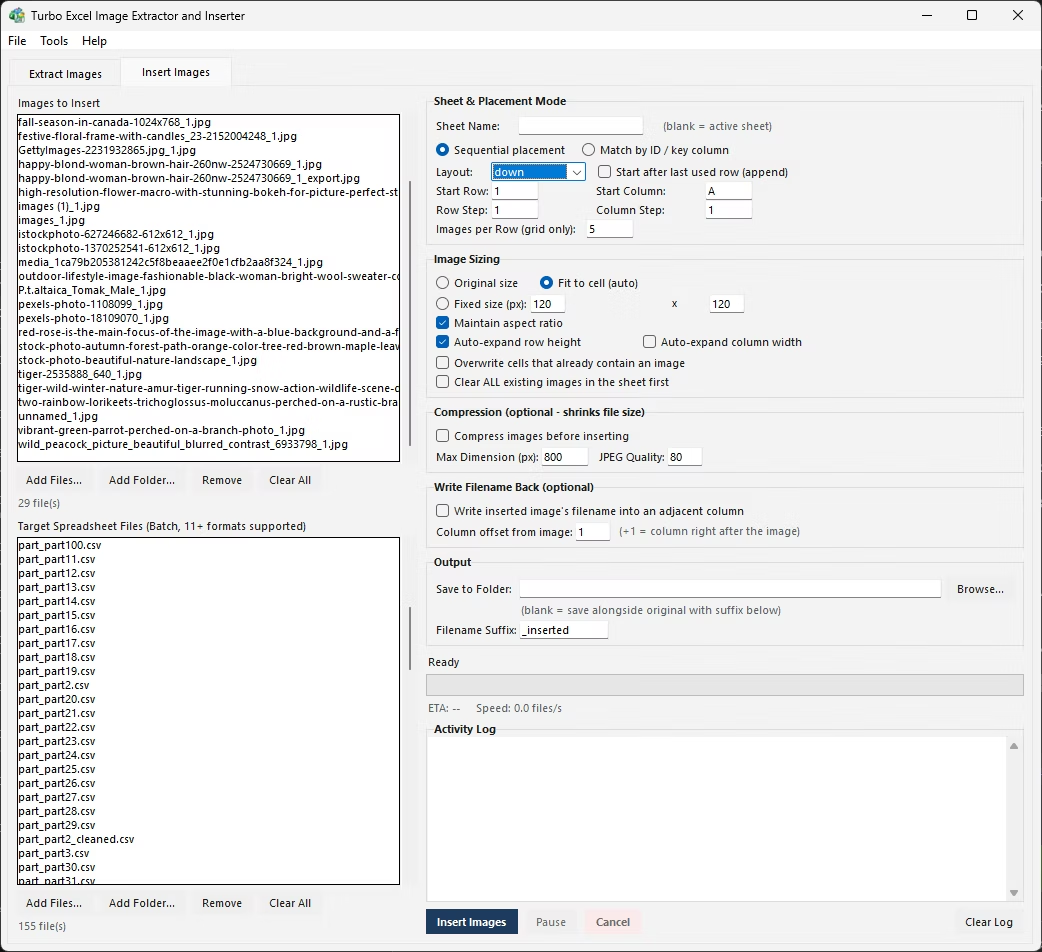
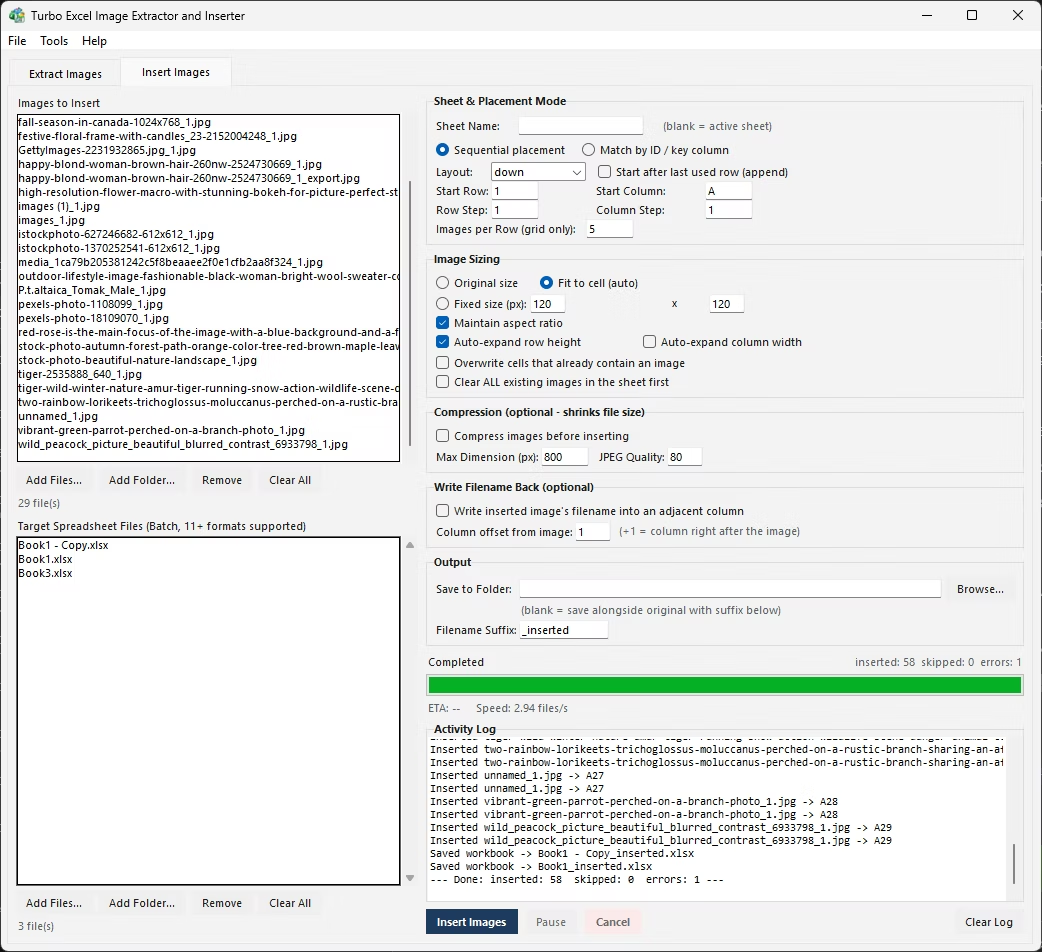
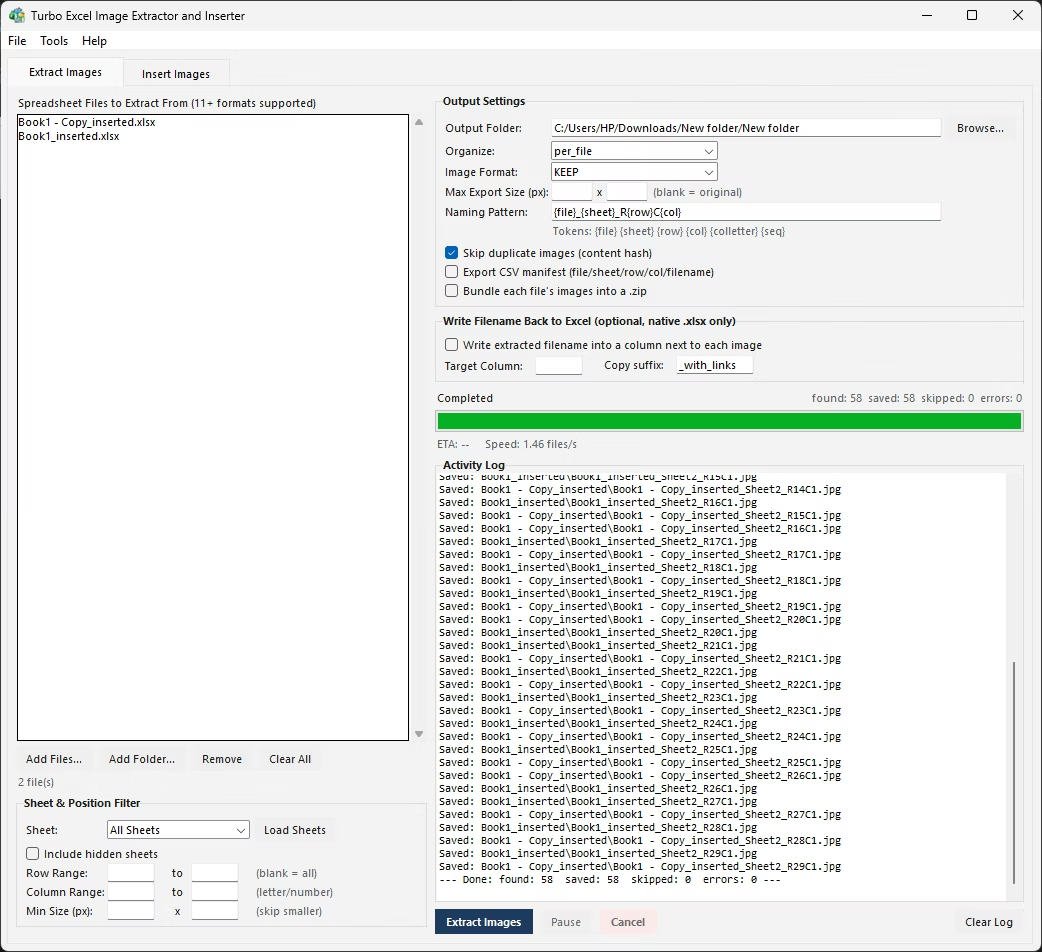
For a single company logo or a one-off chart image, Save as Picture is genuinely the fastest option - faster than opening any external tool for a single file. The limitation shows up the moment there is more than a handful of images to deal with, since MS Excel offers no multi-select, no batch save, and no way to point it at a whole workbook and say 'save everything.'
The other native-ish option some people reach for is renaming a .xlsx file to .zip and browsing into its xl/media folder, which does pull every embedded image out of a workbook at once - but the files that come out have generic sequential names with no link back to which sheet, row, or cell each one originally occupied.
- Click once on the picture in your worksheet to select it.
- Right-click the selected picture.
- Choose Save as Picture from the context menu.
- In the dialog, pick a destination folder and a file format such as PNG or JPEG.
- Type a filename and click Save.
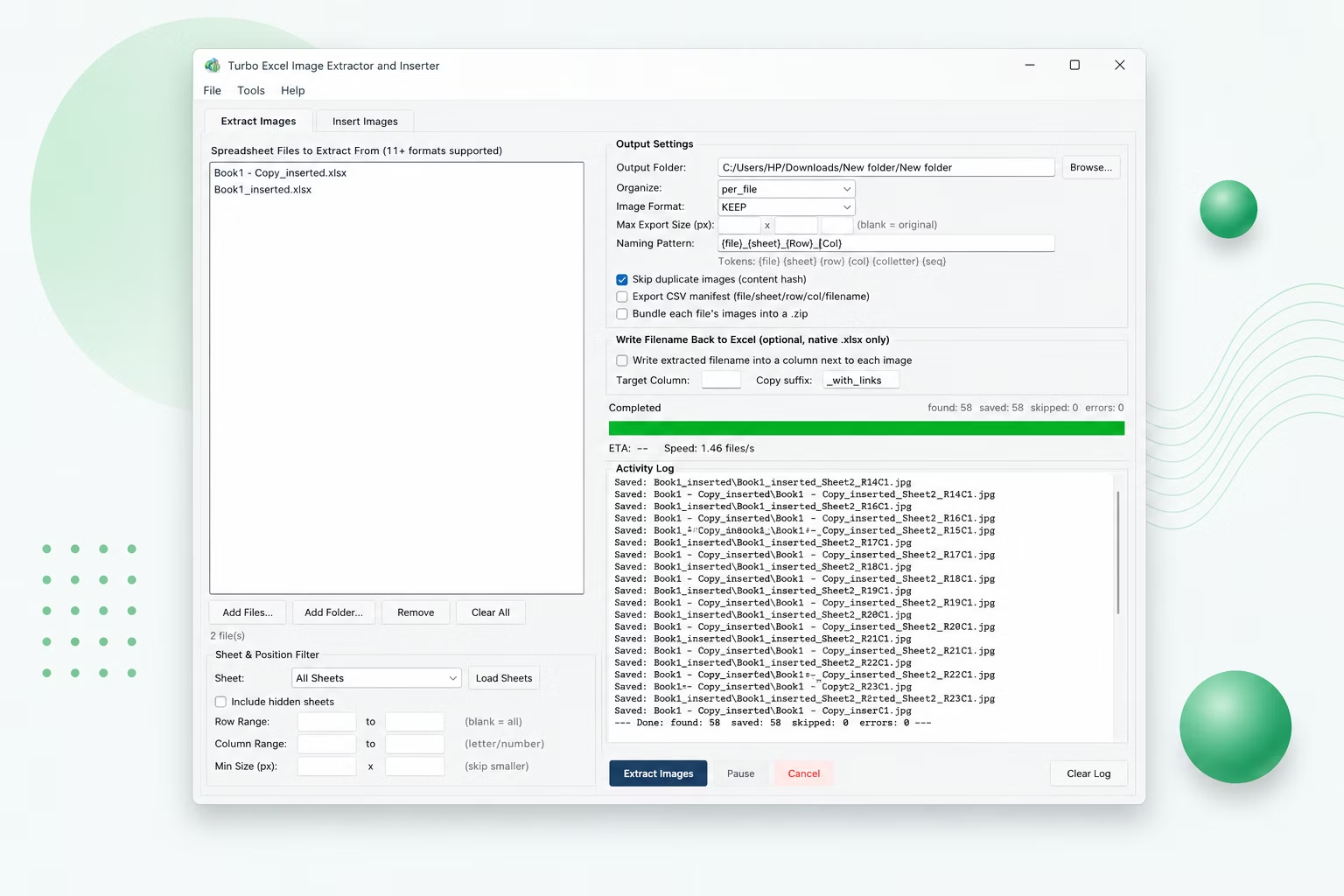
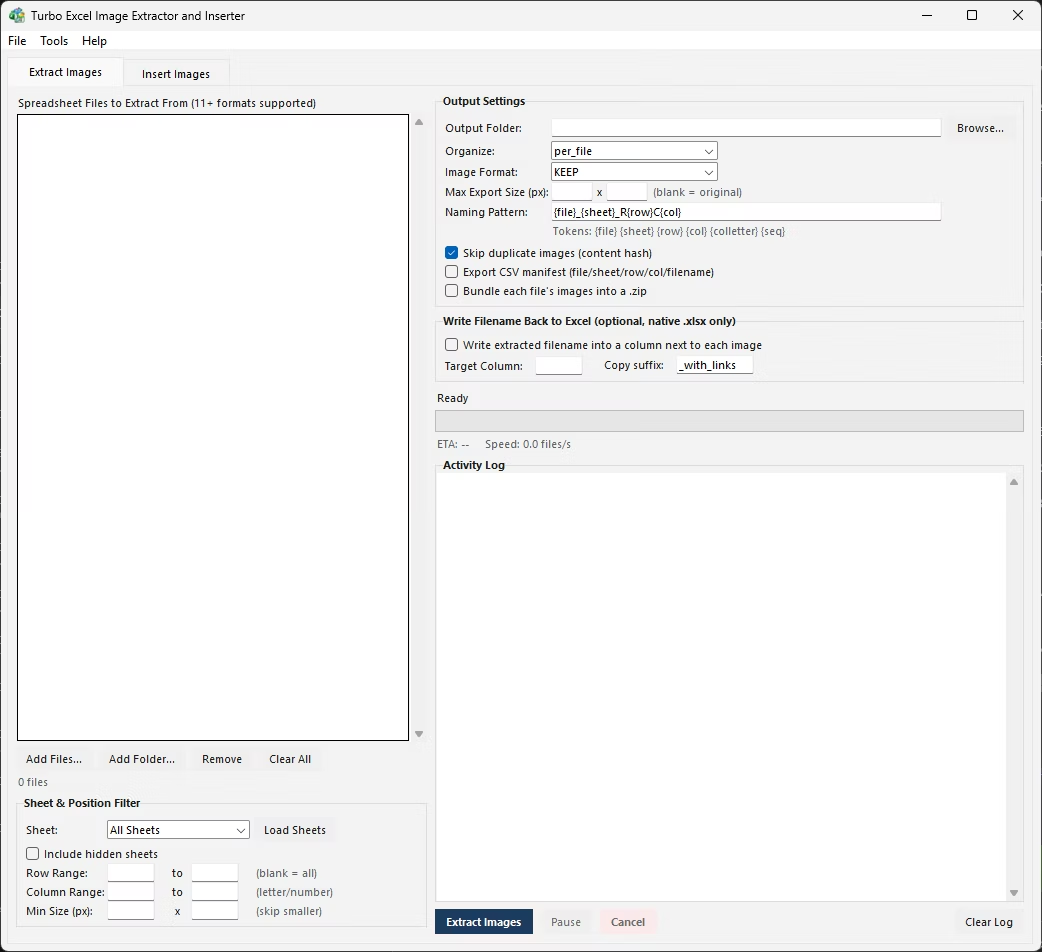
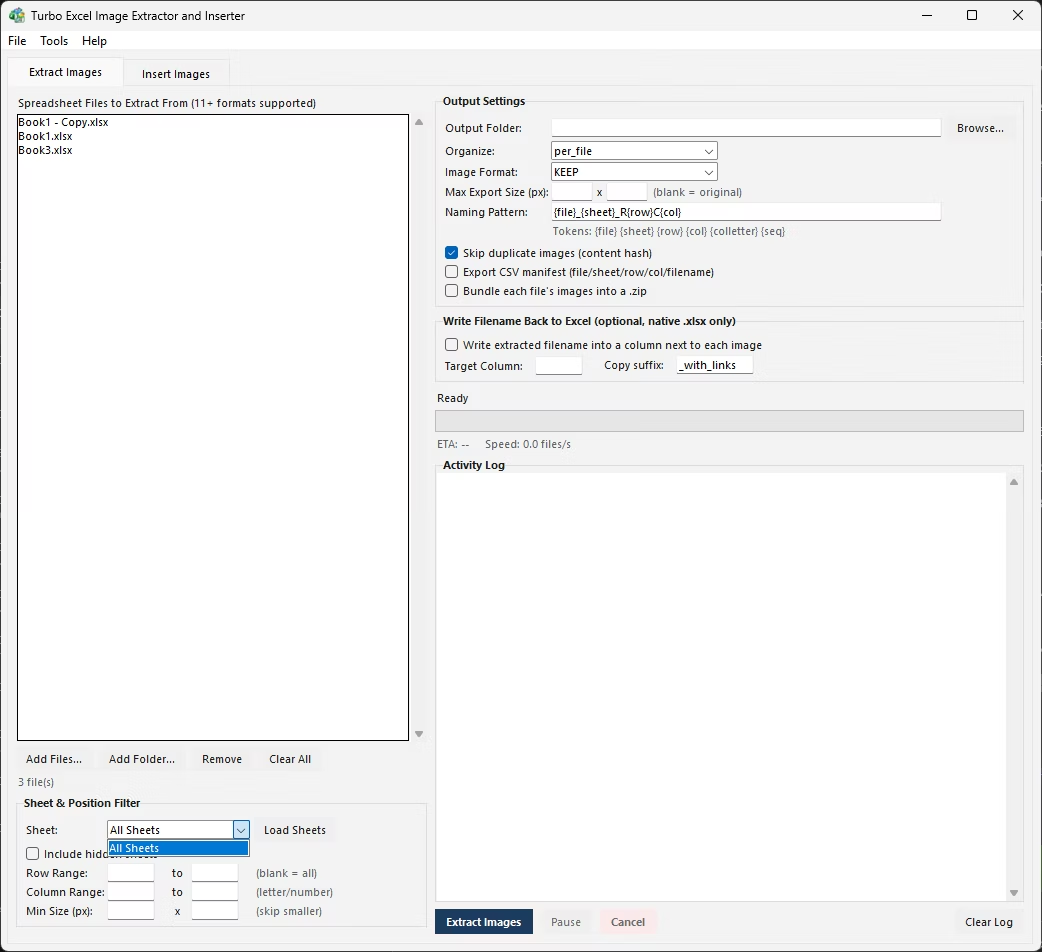
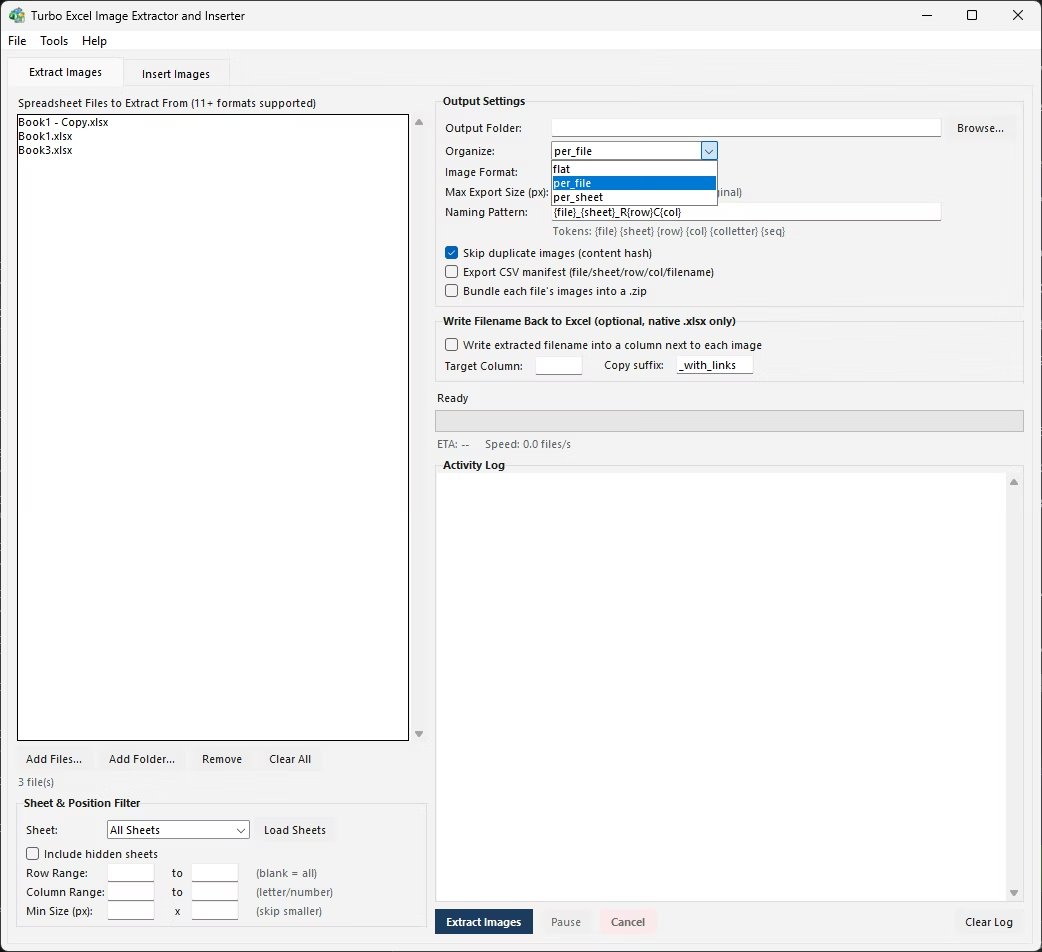
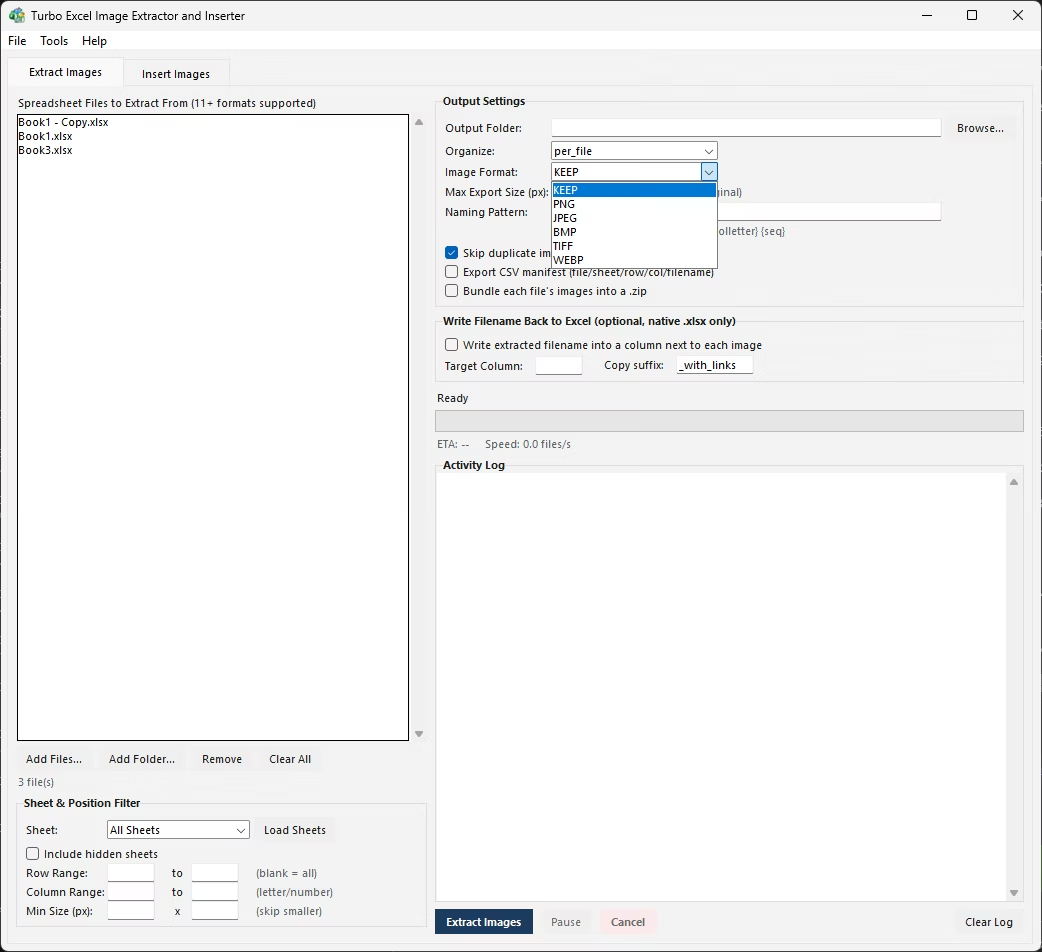
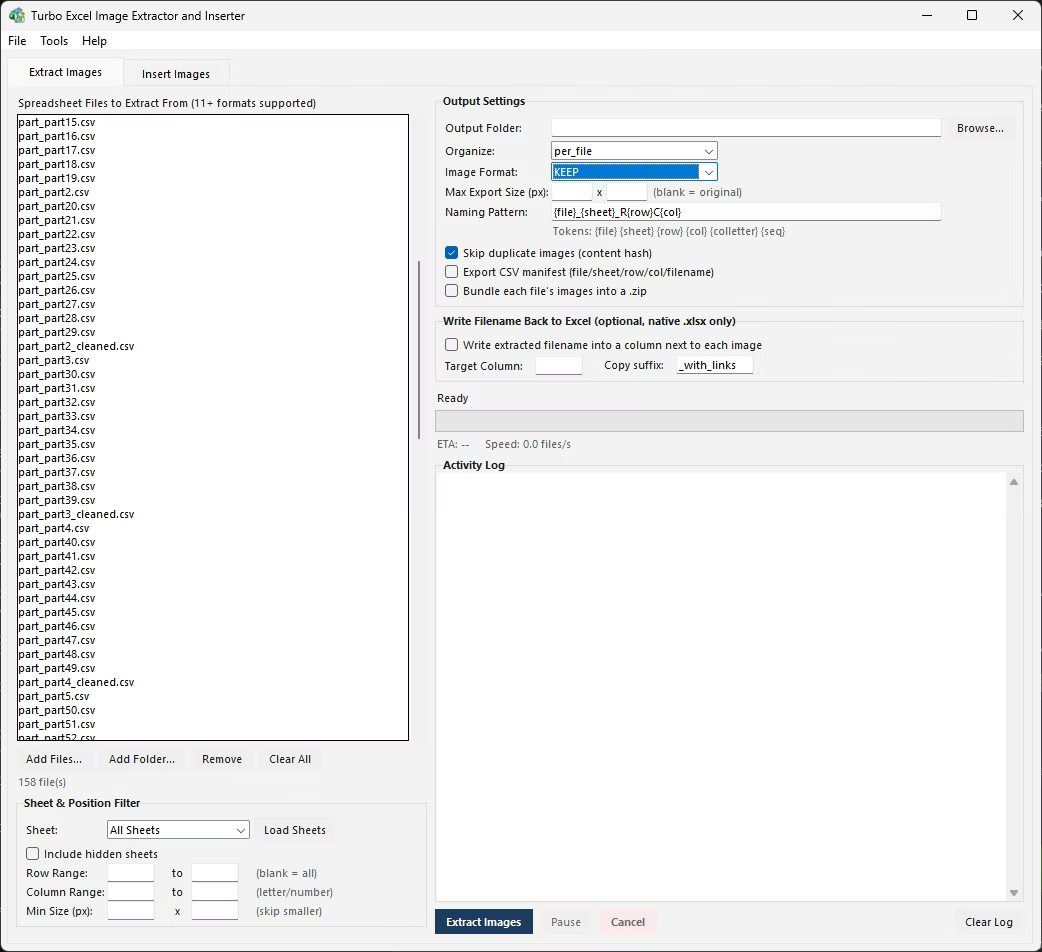
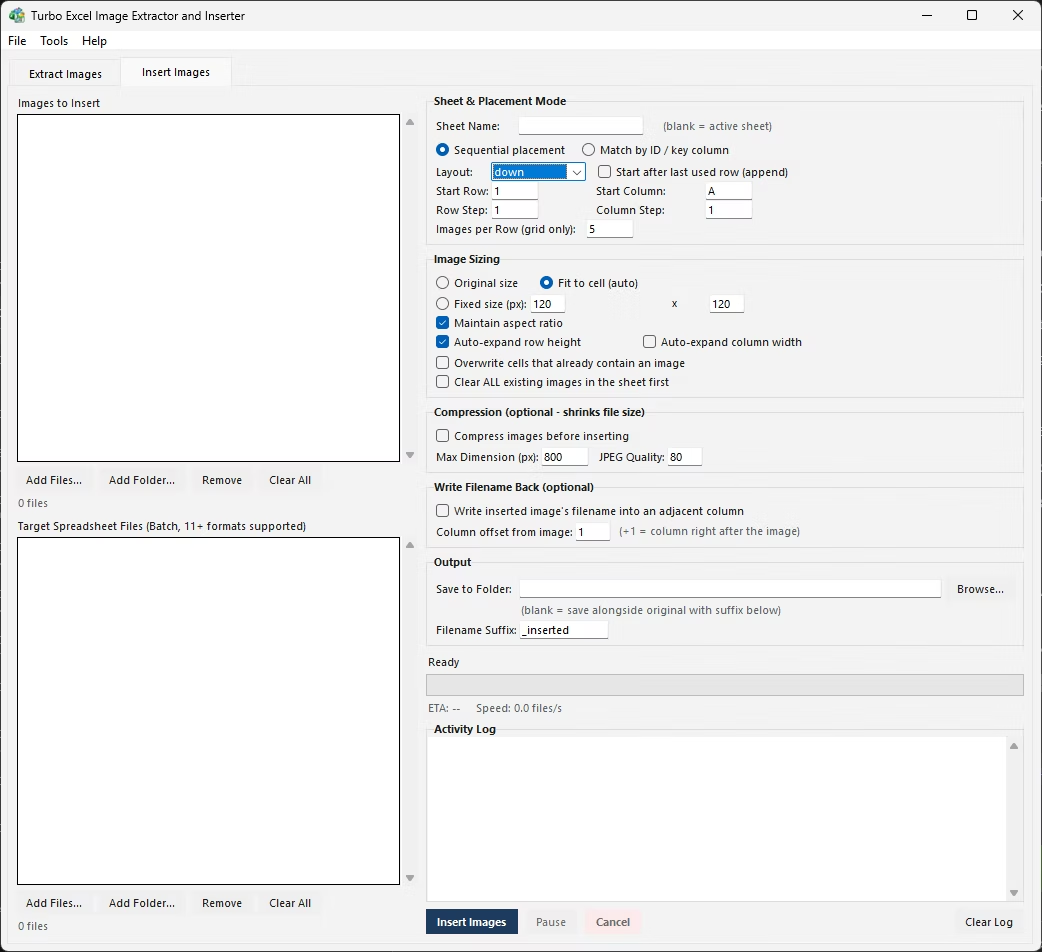
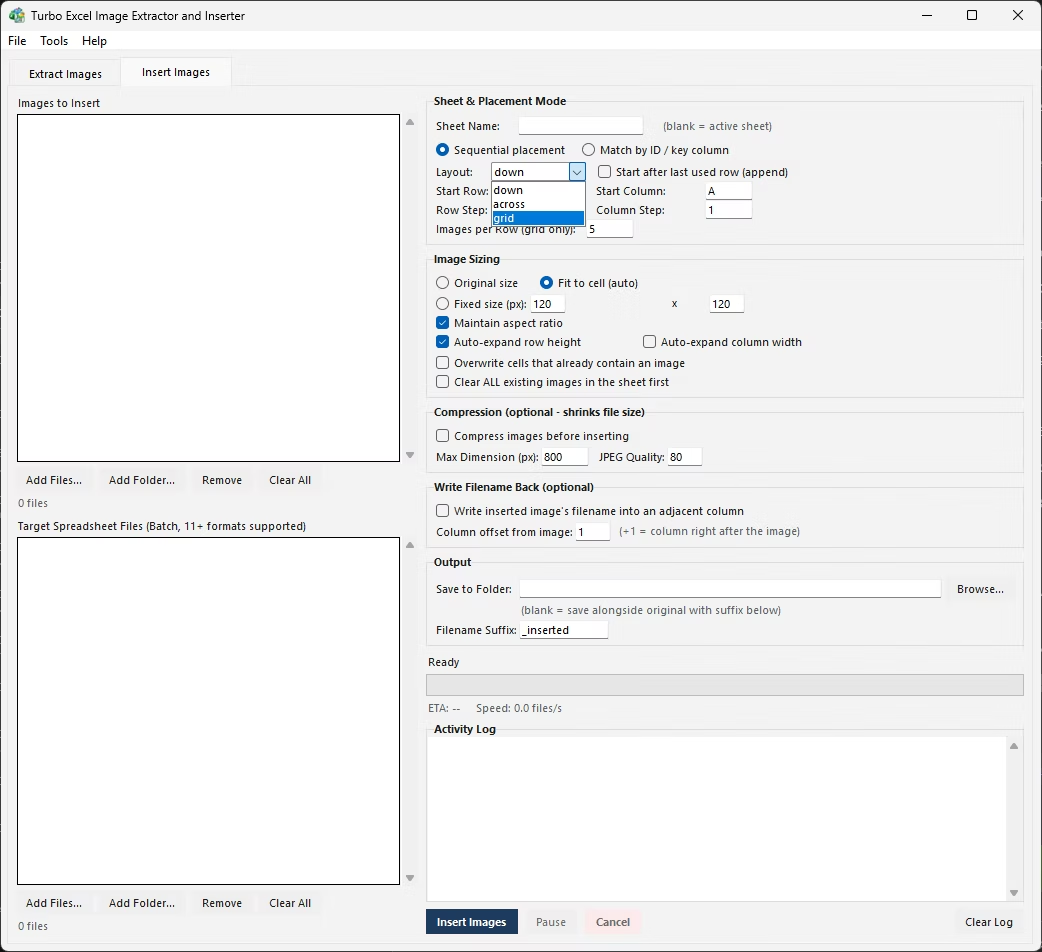
Turbo Excel Image Extractor and Inserter picks up exactly where Save as Picture stops - it reads every embedded image's real cell anchor across an entire workbook, or a whole folder of workbooks, and saves them all out automatically with filenames built from a pattern that includes the source file, sheet, row, and column. It runs the same regardless of which version of Microsoft Excel was used to create the original workbook, since it works directly with the file format itself rather than driving Excel as an application.
Sheet selection (including hidden sheets), row and column position filters, a minimum size filter, format conversion, deduplication, folder organization, an optional CSV manifest, and optional per-file ZIP bundling are all available in the same Extract Images tab - the full batch equivalent of manually repeating Save as Picture hundreds of times, done in one pass across native Excel workbook formats (.xlsx, .xlsm, .xltx, .xltm, .xlam).
For a genuinely one-off job - a single workbook, a handful of images, no need for cell-accurate filenames - the rename-to-zip trick can actually be faster than installing or opening any tool, since it needs nothing beyond a file manager that understands zip archives, which is built into both Windows and macOS.
It stops being worth it the moment you need more than a handful of images extracted, need to know which image came from which cell, or need to repeat the process across more than one file - at that point the generic filenames and complete lack of batch support in the zip method cost more time reconstructing context than a proper extraction tool would take to run the whole job automatically.
A middle-ground case worth mentioning: if you only need to confirm that a workbook contains a certain number of embedded images, or want a quick look at what's inside without extracting anything permanently, browsing the zip archive without copying files out is a genuinely useful, low-commitment way to check before deciding whether a full extraction is worth setting up.
- Extracts every embedded image automatically, not one at a time
- Works the same regardless of which Excel version created the file
- Cell-accurate filenames instead of generic sequential names
- Format conversion, dedup, and manifest logging built in
- Processes an entire folder of workbooks in one batch
- No Excel installation required - the file format is read directly
Does Save as Picture work the same in every version of MS Excel?
Yes, the command has stayed essentially unchanged across Excel 2016, 2019, 2021, and Microsoft 365 - right-click a picture and choose Save as Picture to save it as a standalone file.
Can MS Excel select and save multiple images at once?
No. Save as Picture is a single-image, per-click command in every current version of Excel, with no built-in multi-select or batch export option.
Do I need Microsoft Excel installed to batch-extract images from workbooks?
No. A tool that reads the workbook's file format directly, rather than automating Excel as an application, works the same whether or not Excel is installed on the machine.
Which native Excel file types can images be batch-extracted from?
Native Excel workbook formats - .xlsx, .xlsm, .xltx, .xltm, and .xlam - since these store embedded images in a readable XML/ZIP structure that a batch tool can scan directly.
Ready to handle images in bulk, offline, with full privacy?