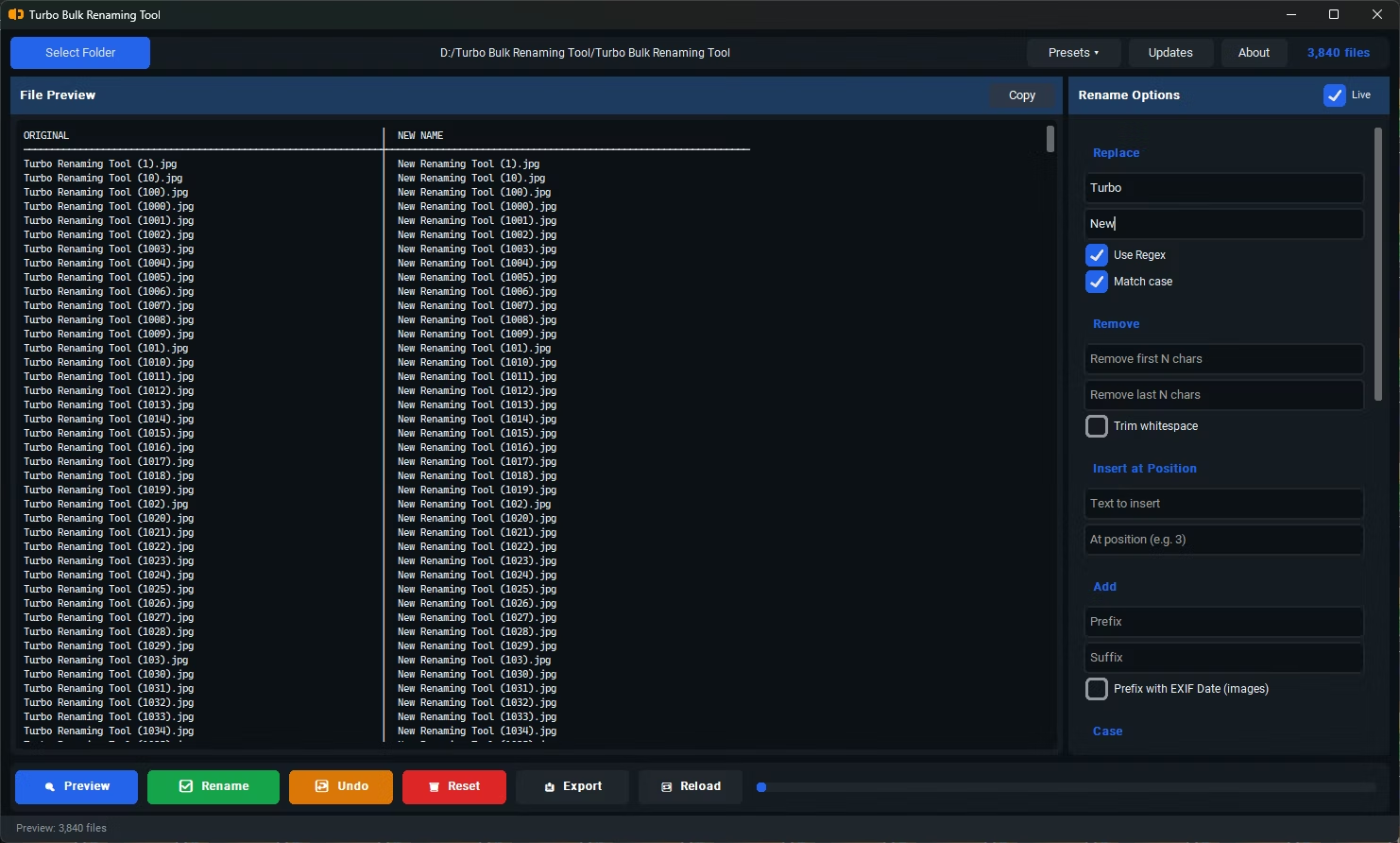
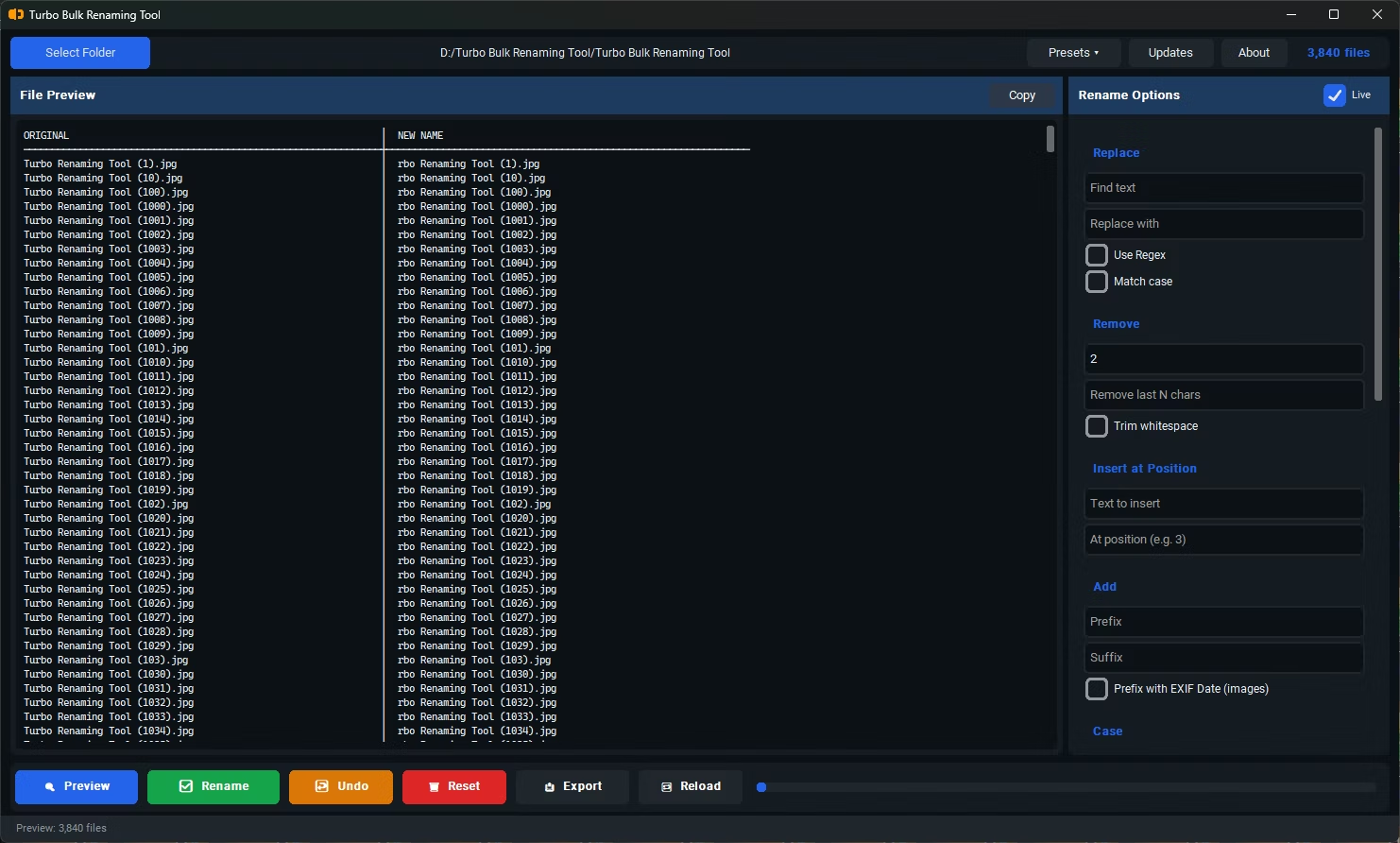
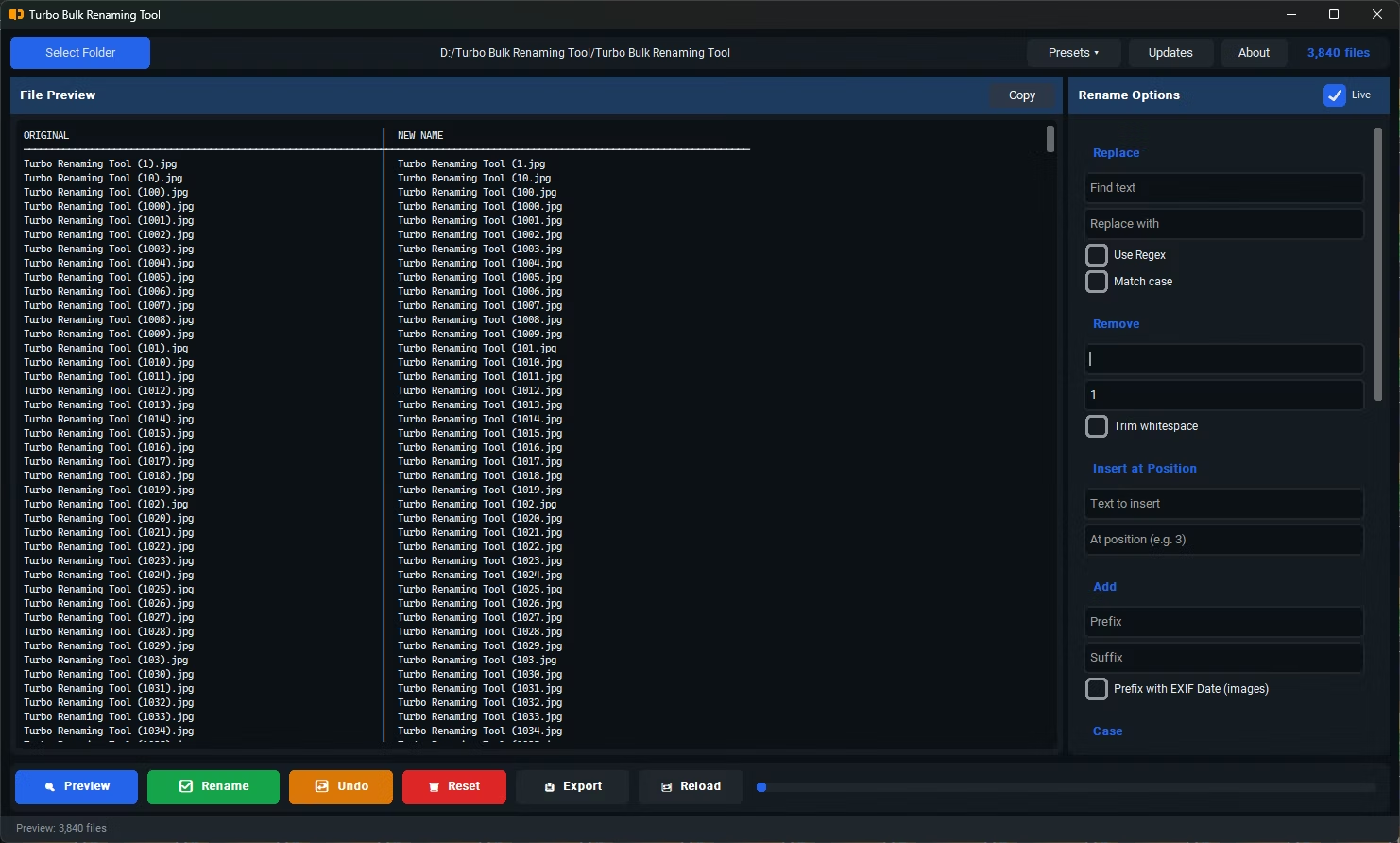
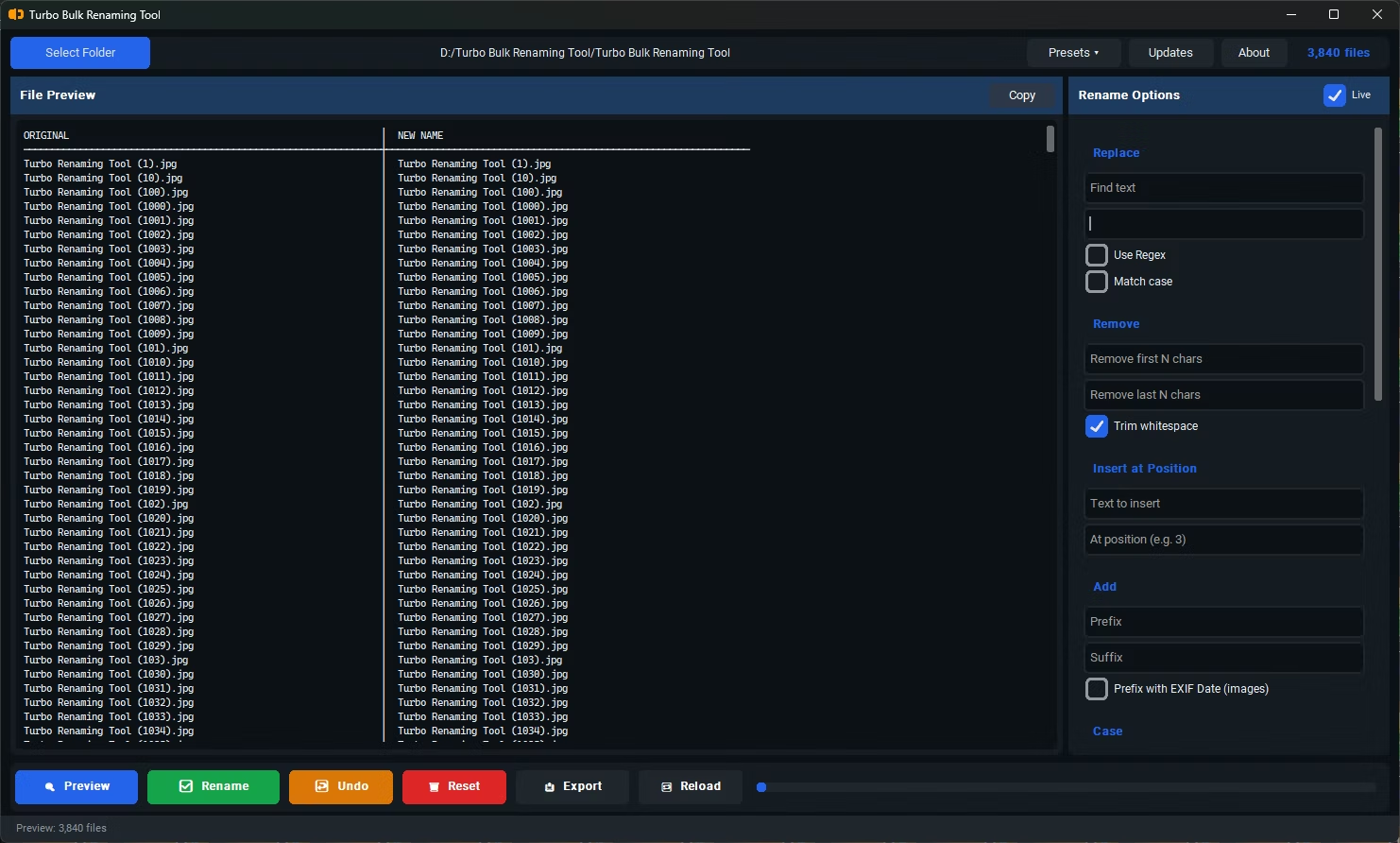
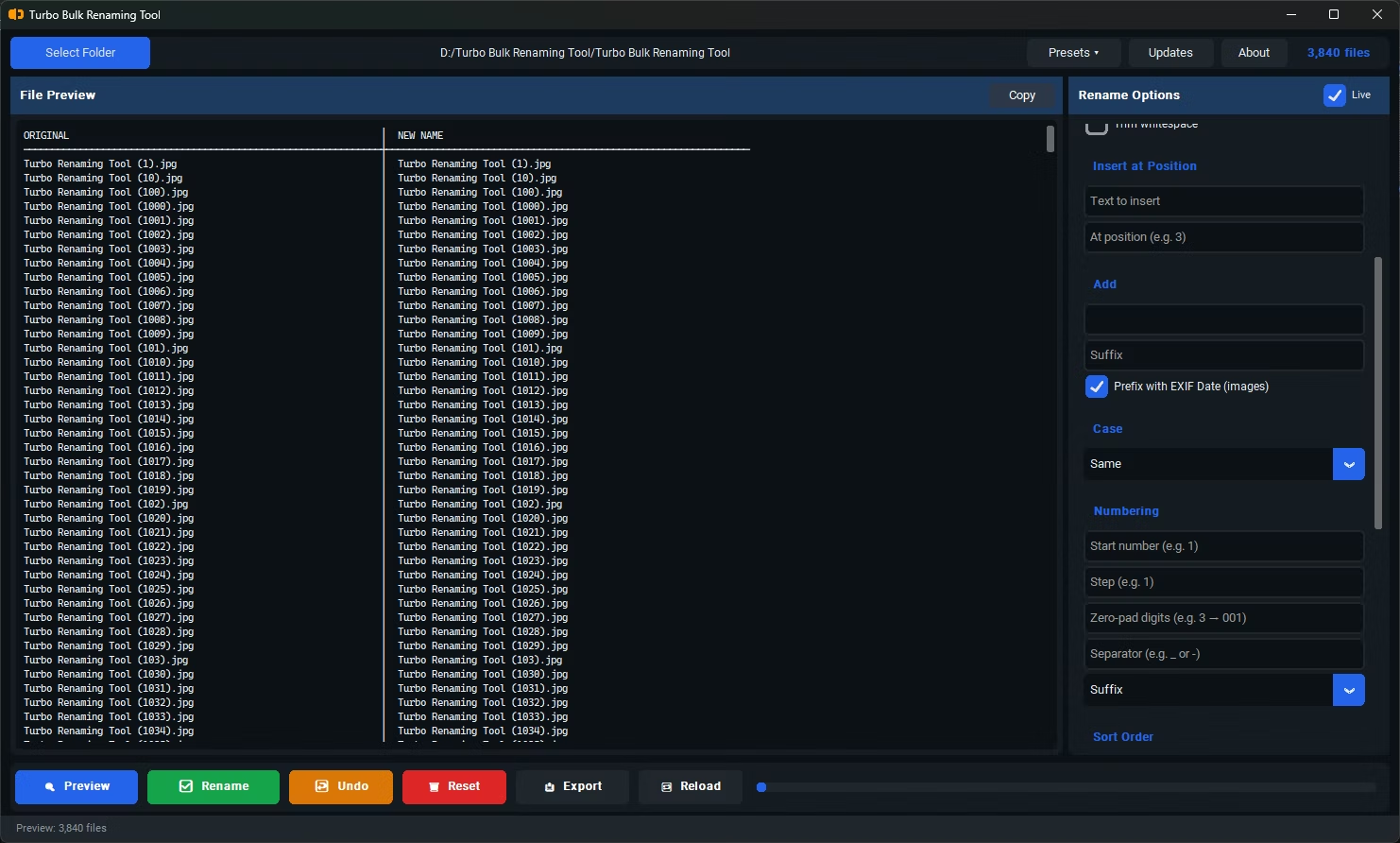
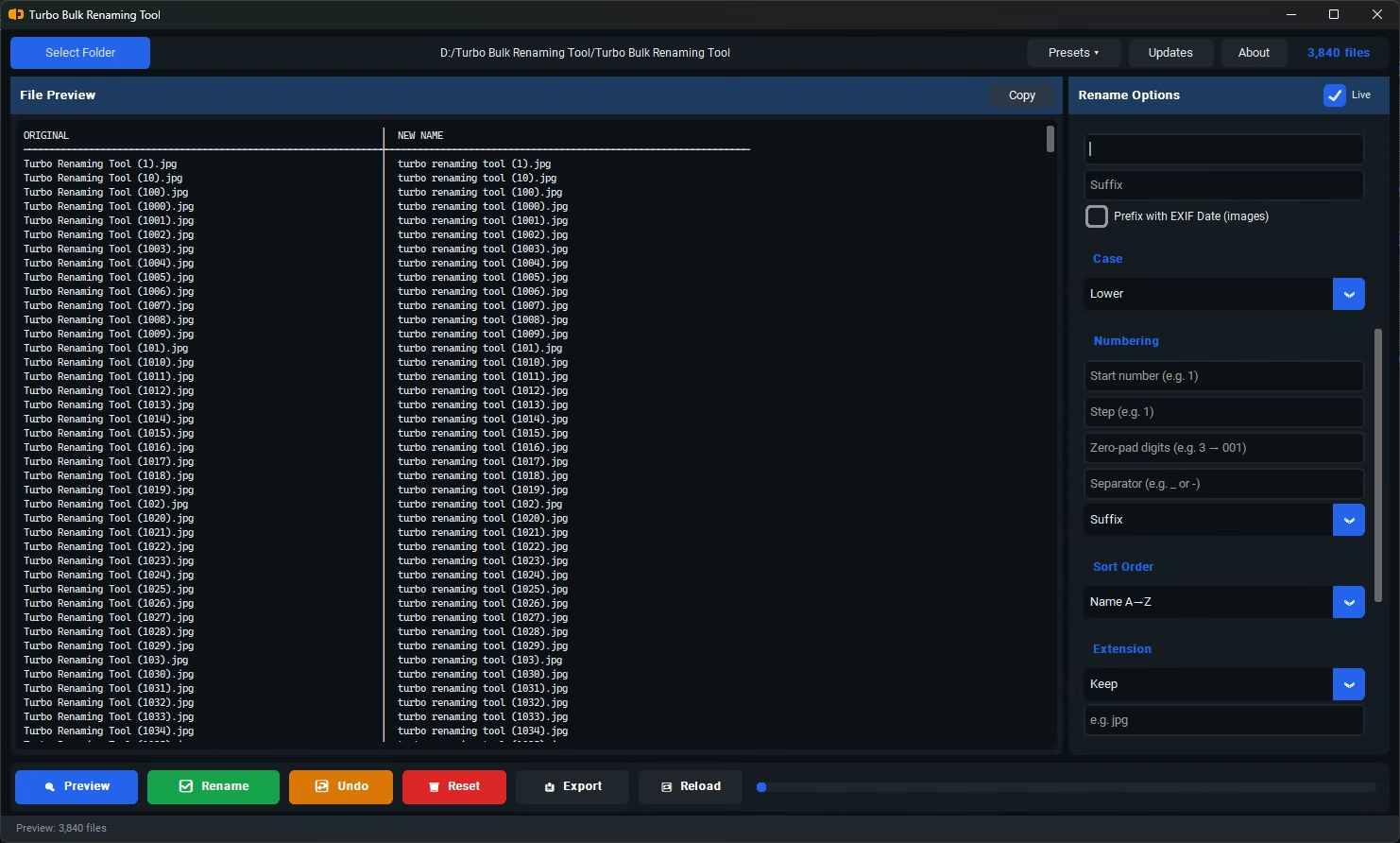
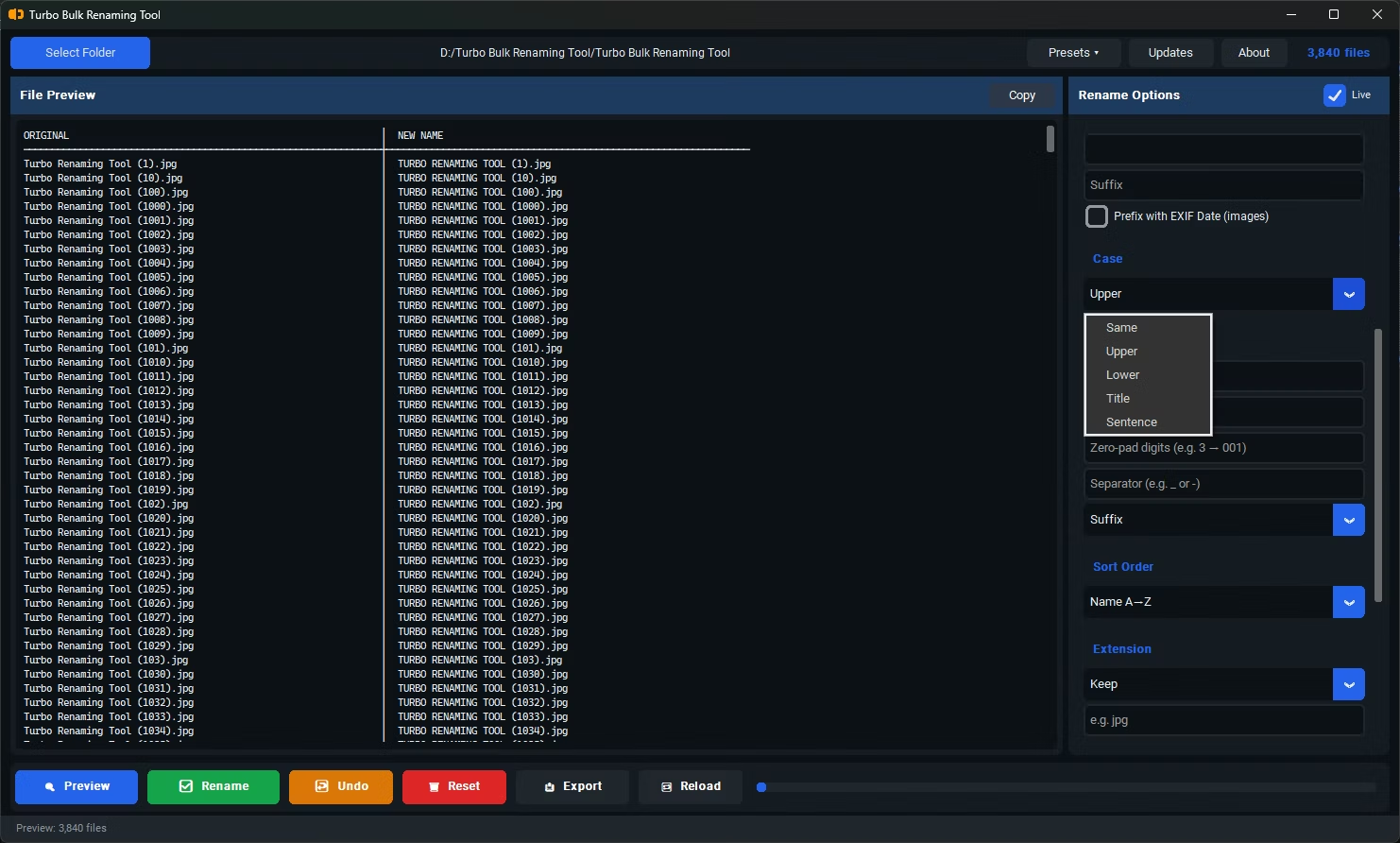
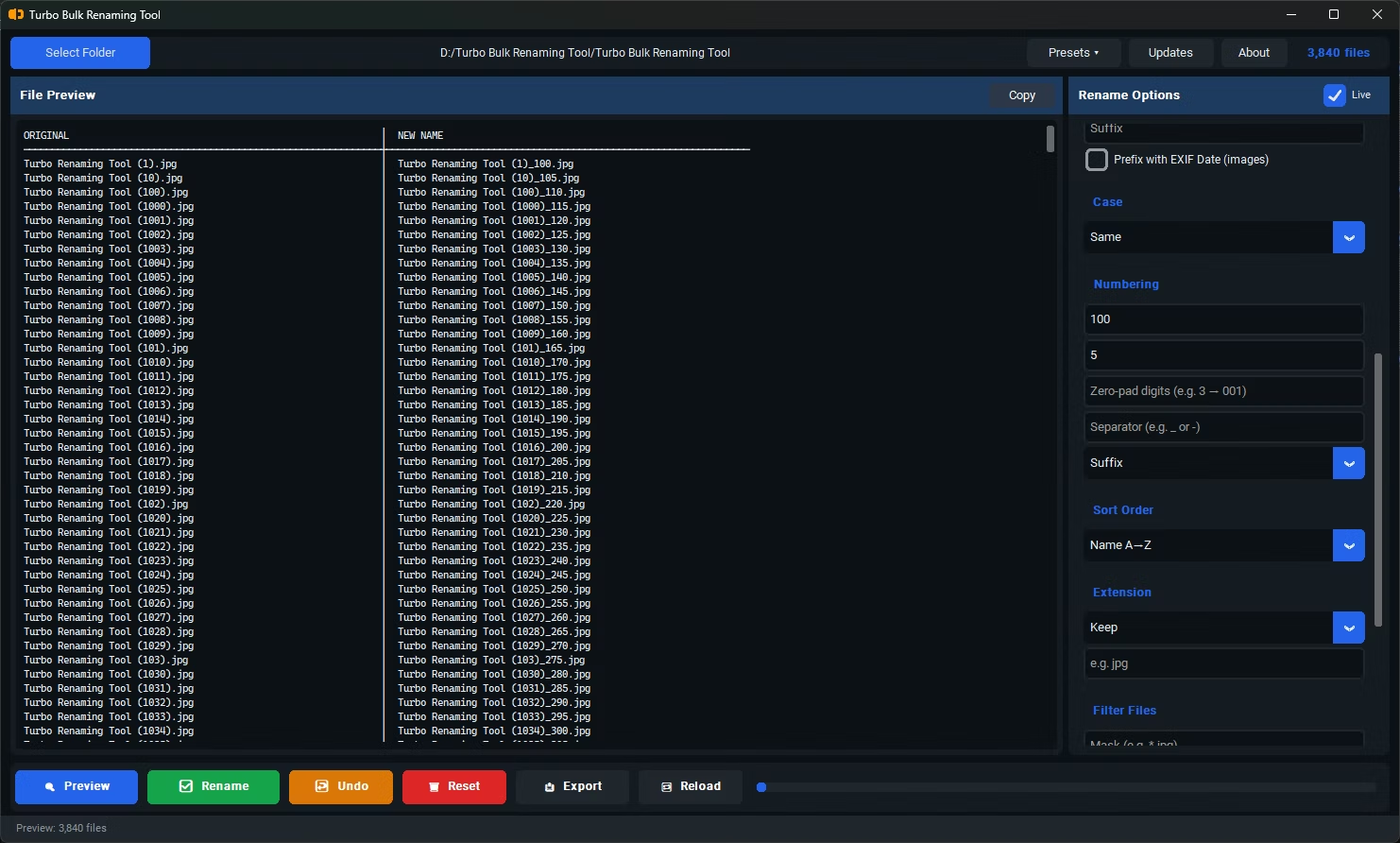

Rename Rules
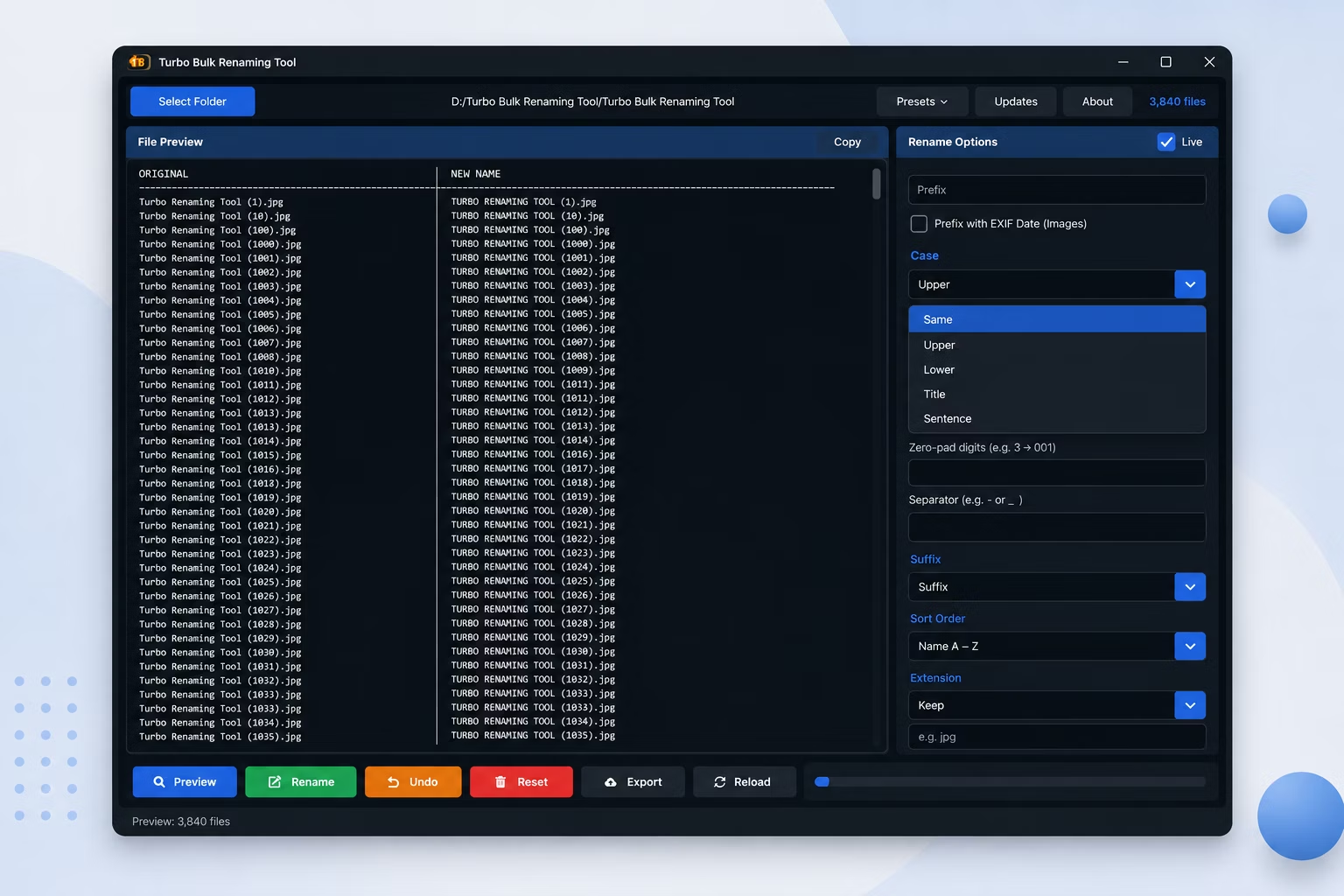
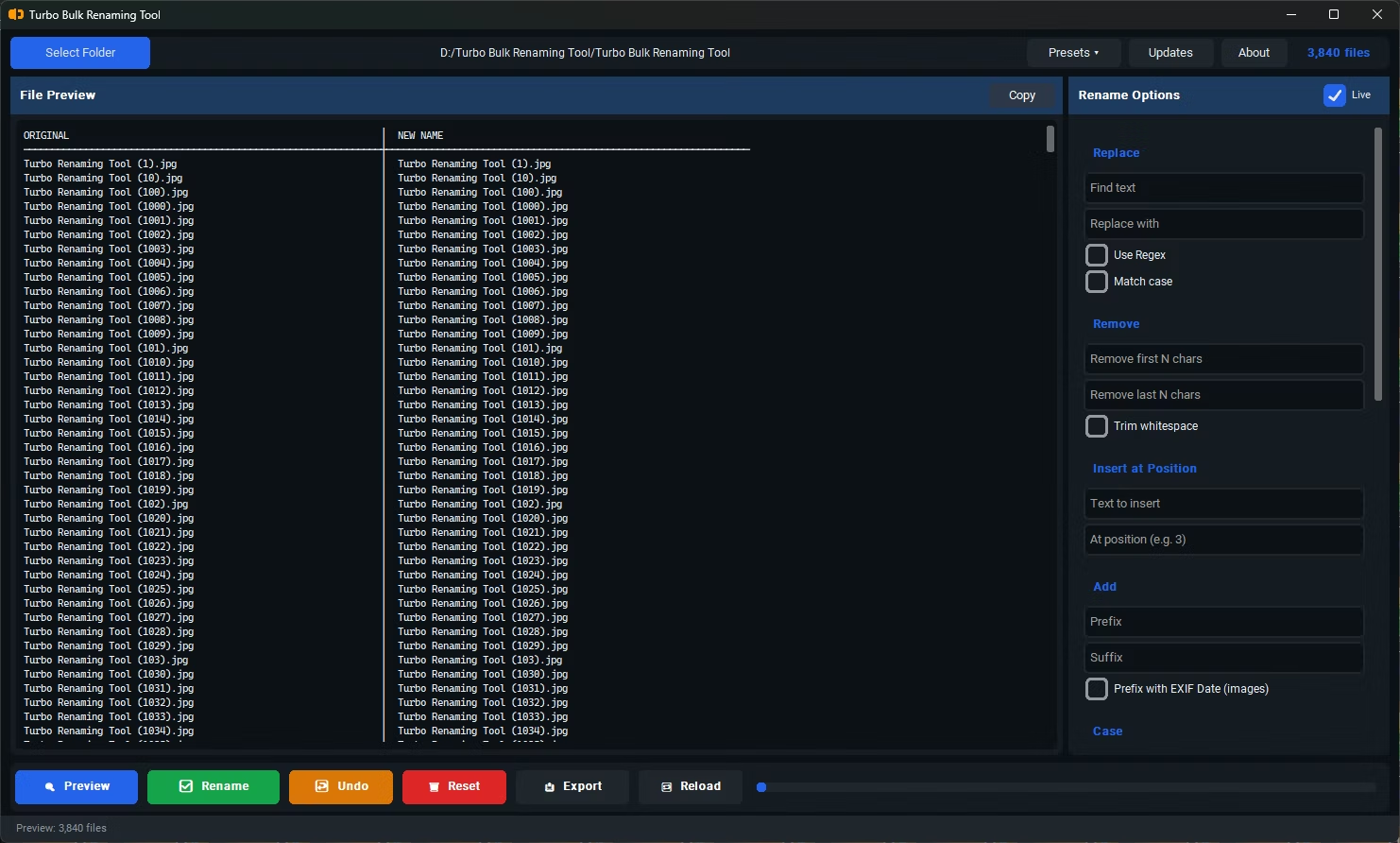
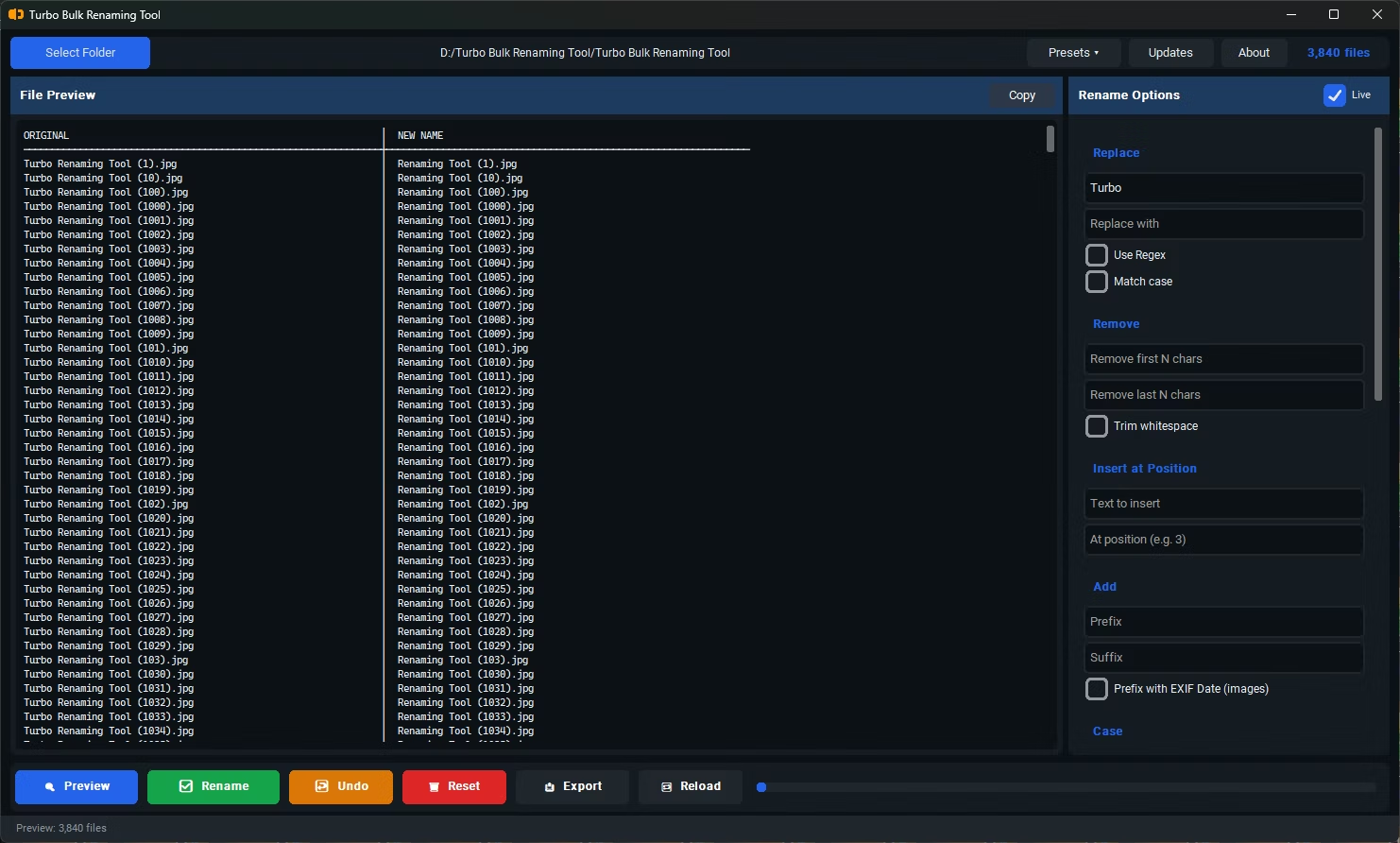
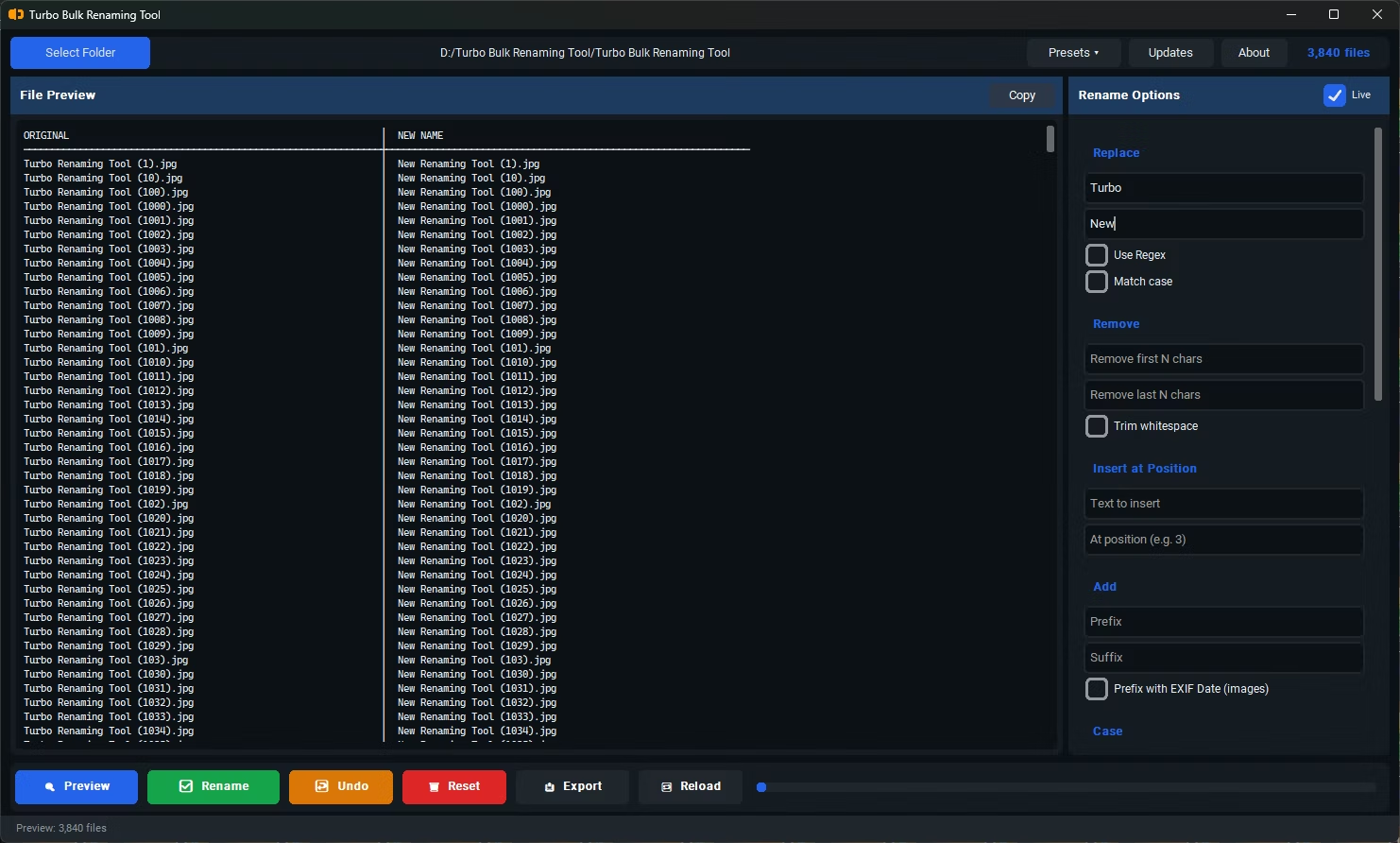
Turbo Bulk Renaming Tool packs 15 rename rules into this batch renaming software, letting you combine Find & Replace, numbering, case conversion, and more in a single pass.
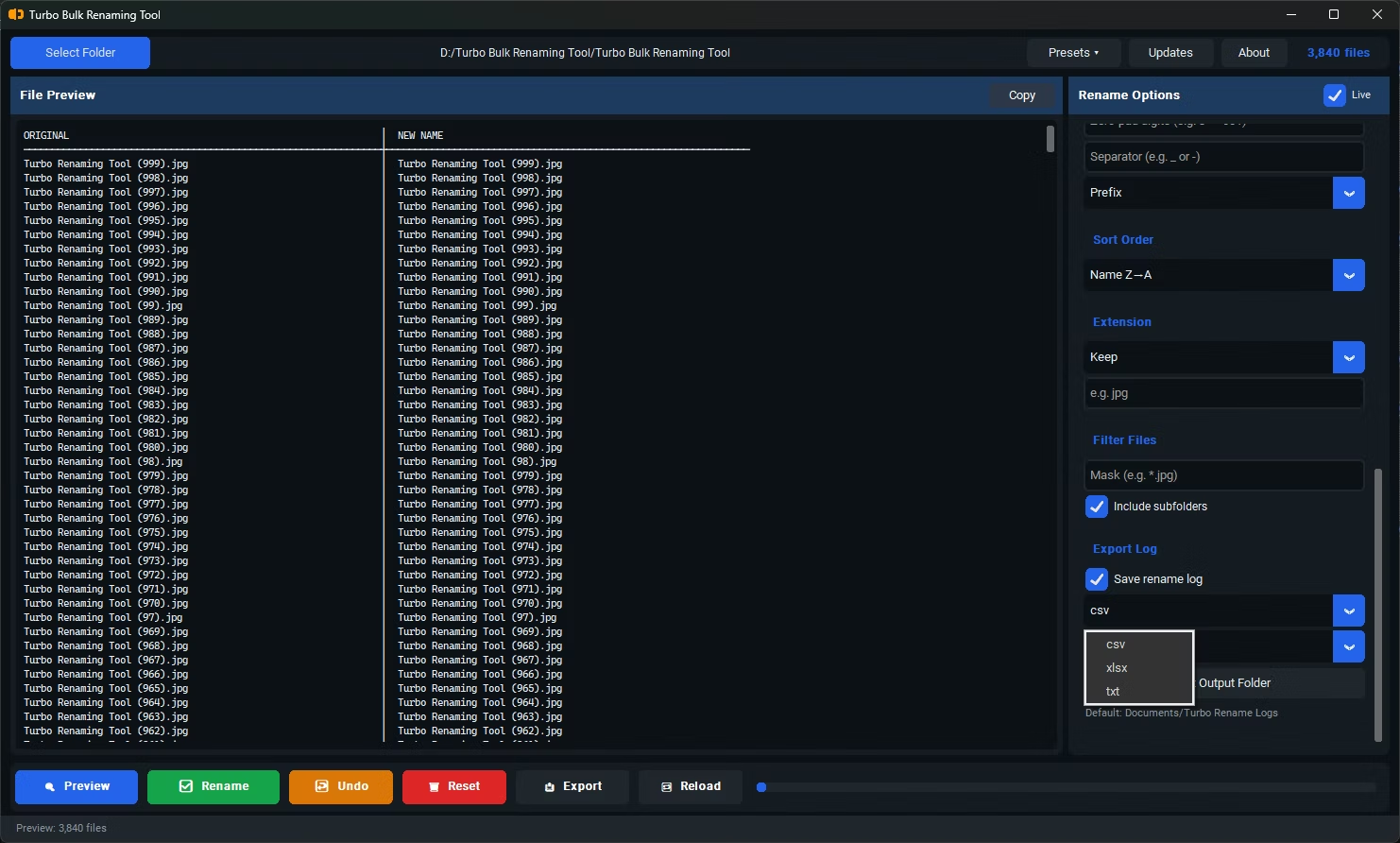
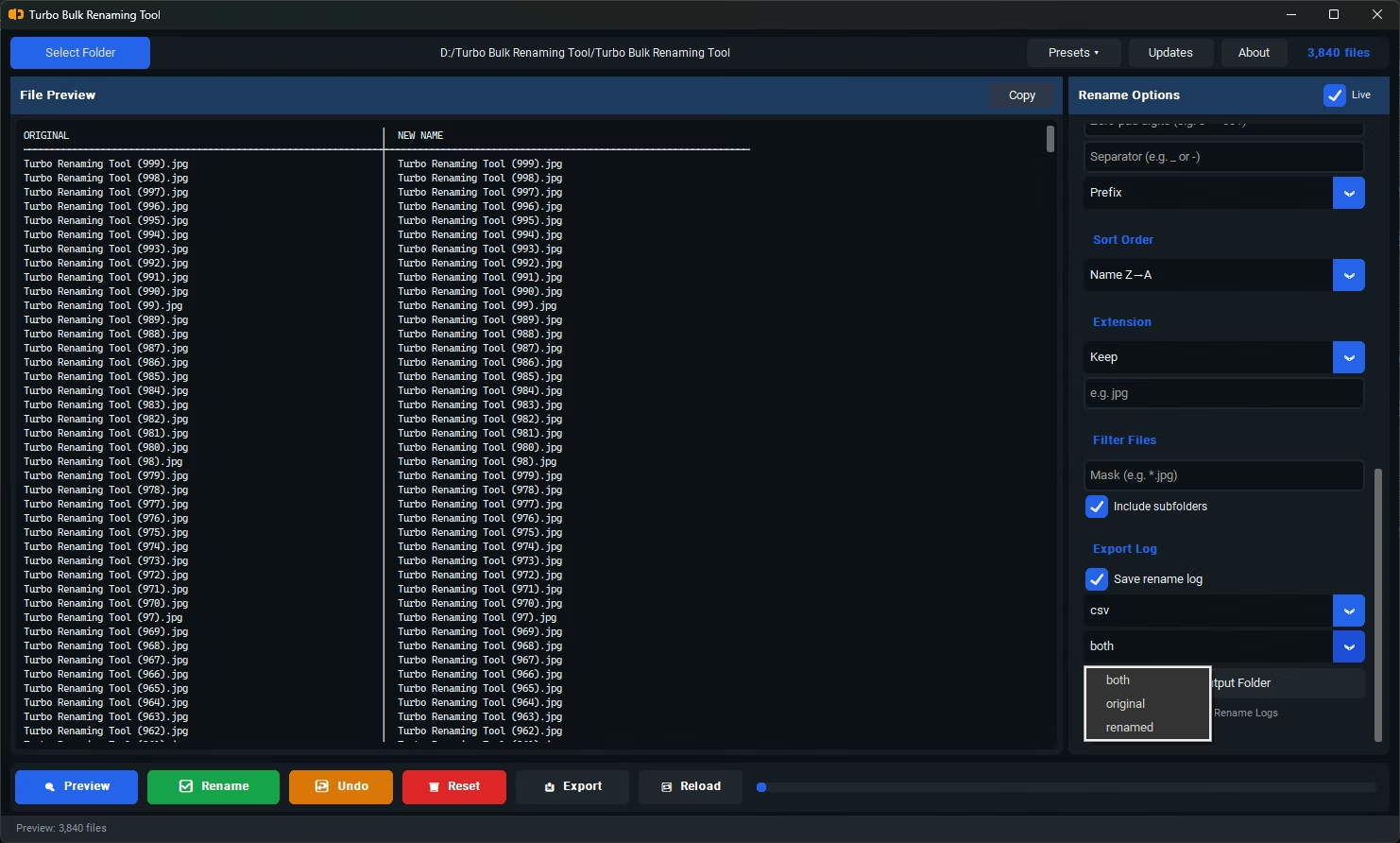
Rename Log Export Formats
Renaming Rule Details
Below is a full breakdown of every rule available in this bulk file renaming tool, including the exact order in which each one is applied.
4 turns IMG_photo.jpg into photo.jpg. If N equals or exceeds the base length, the base becomes an empty string. Non-integer values are silently ignored. Applied after Find & Replace and before EXIF Date.
3 on photo_raw.jpg yields photo_.jpg. Only applied when N is strictly less than the base name length - if N is greater than or equal to the length, the rule is skipped to avoid producing an empty name.
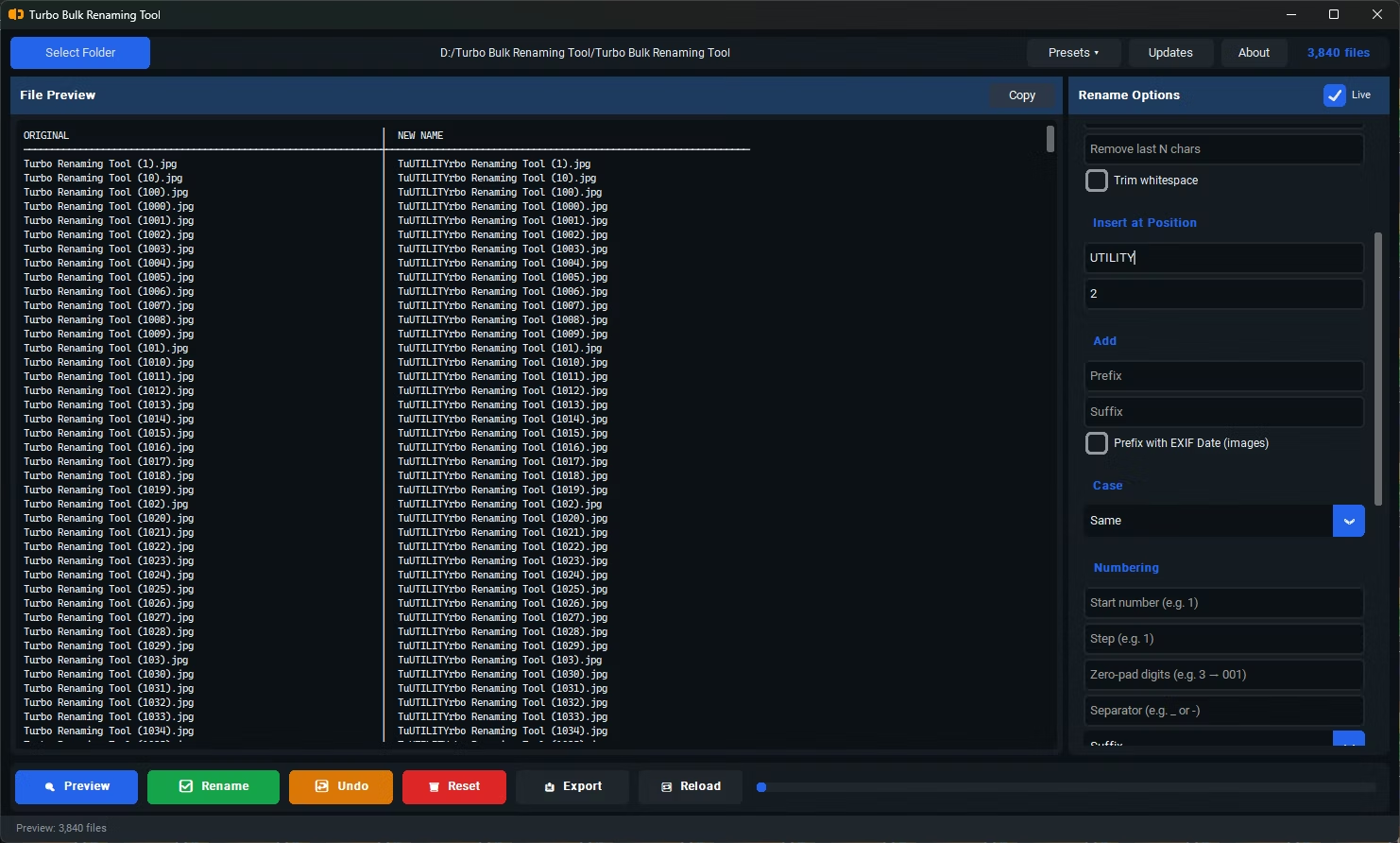
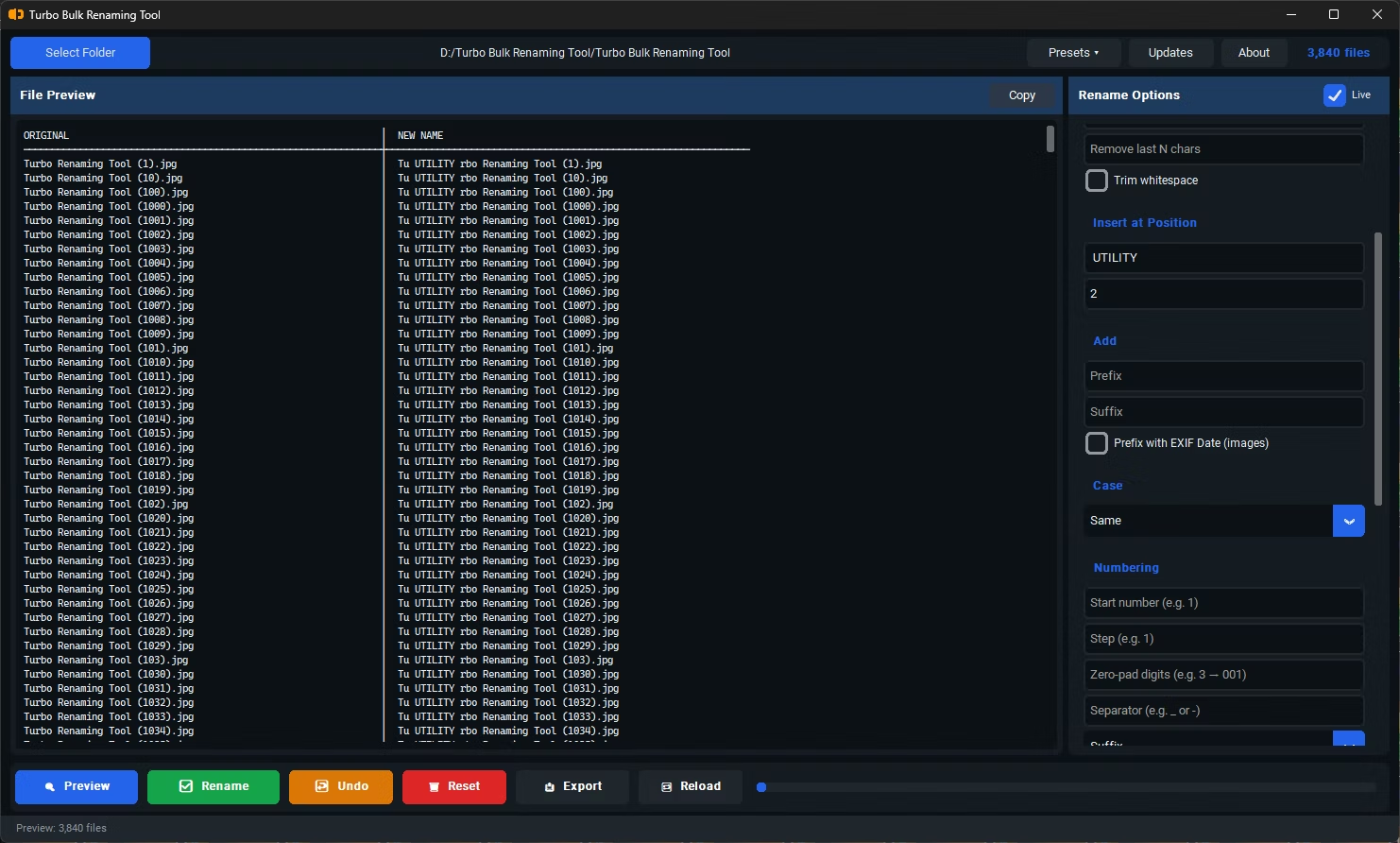
0 inserts before the first character (same effect as a prefix); a position equal to the base length appends to the end (same as suffix). Positions beyond the base length are clamped to the end automatically. Applied after Remove operations and Trim Whitespace, and before EXIF Date Prefix.
YYYYMMDD_HHMMSS_ format. Supported file types: JPG, JPEG, TIFF, and TIF only. PNG, BMP, RAW formats, AVIF, WEBP, HEIC, and all non-image files are silently skipped - they are still renamed, but without a date prefix. Results are cached per session so each file is opened only once. For folders over 100 files, EXIF reading is disabled during Preview (to prevent UI slowdown) but runs fully during the actual Rename.
EXIF_DATE_PREFIX_base_SUFFIX.
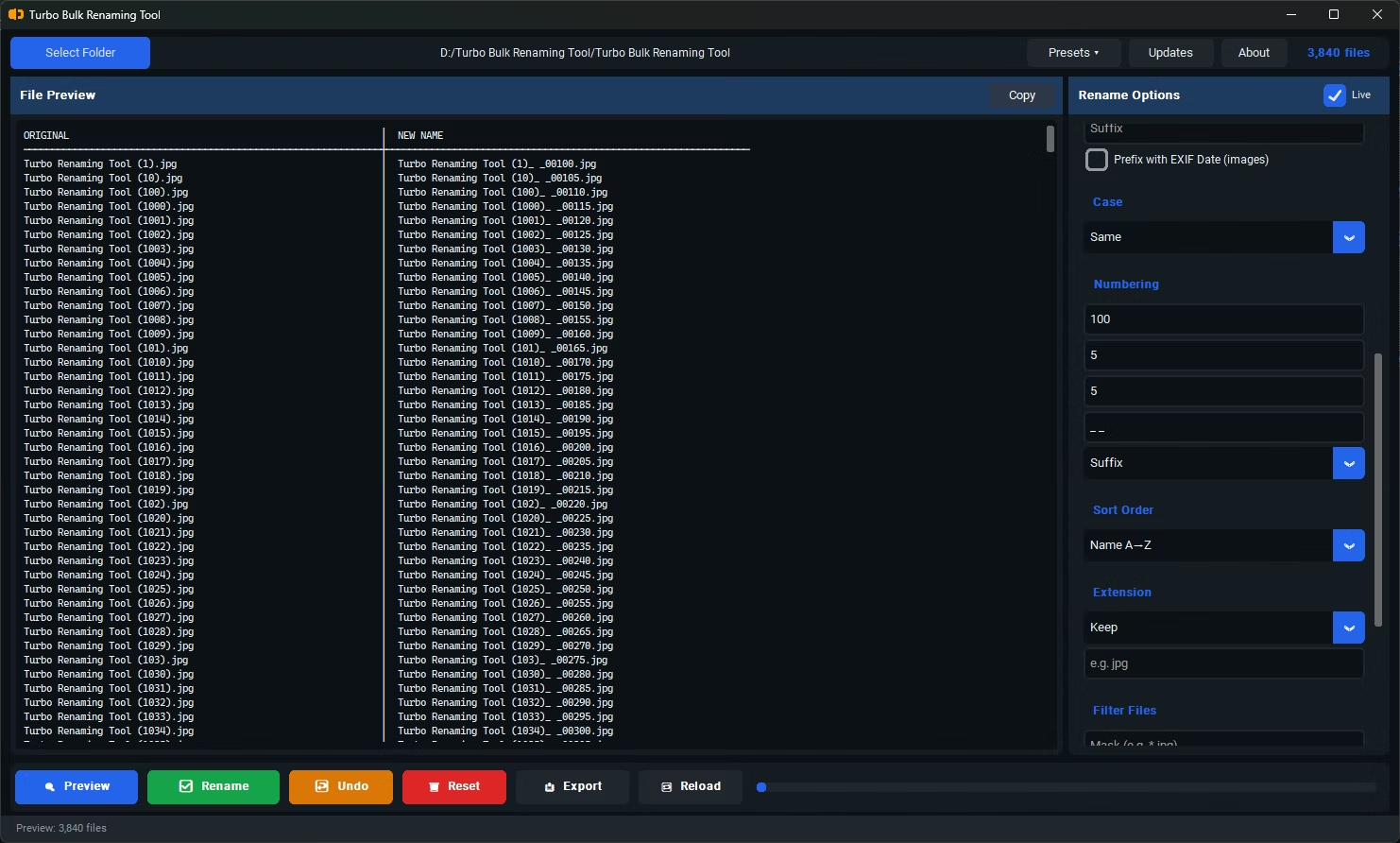
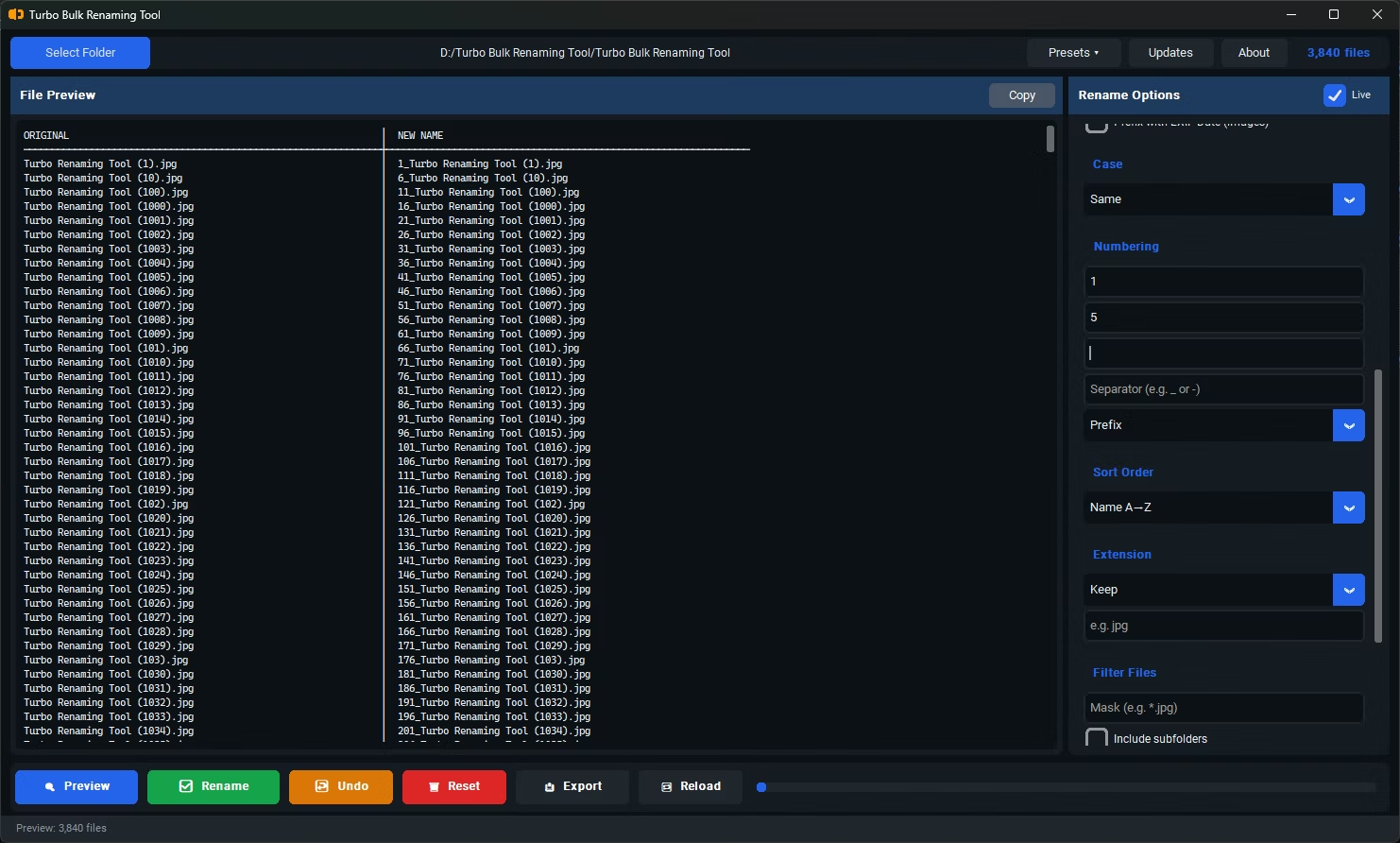
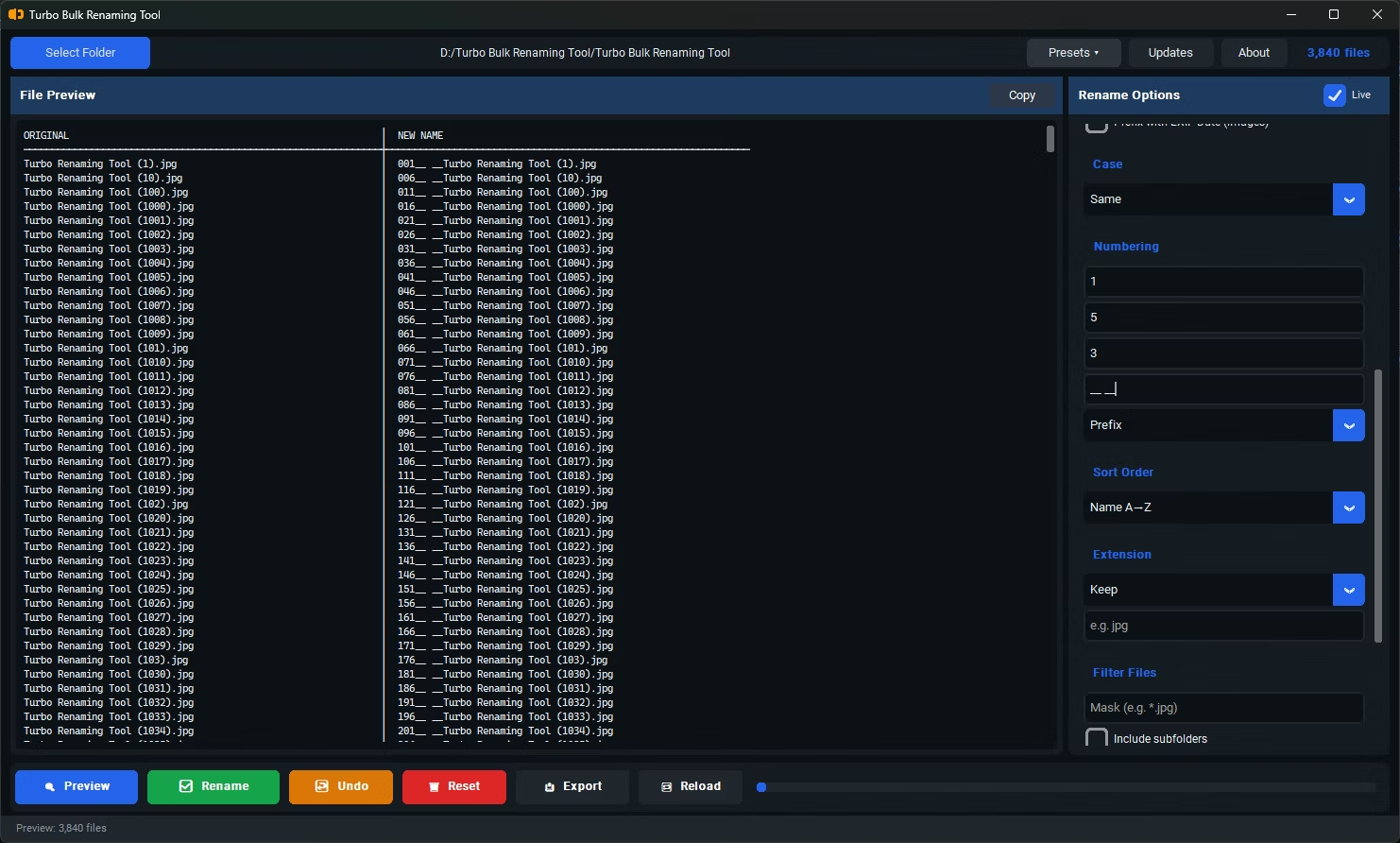
2 gives 1, 3, 5…; defaults to 1), Zero-pad digits (minimum digit width - e.g. 3 formats as 001, 010, 100; leave empty for no padding), Separator (text between the number and the name, e.g. _, -, .), and Position (Prefix puts the number before the name; Suffix puts it after). Files are numbered in the order determined by the Sort Order setting.
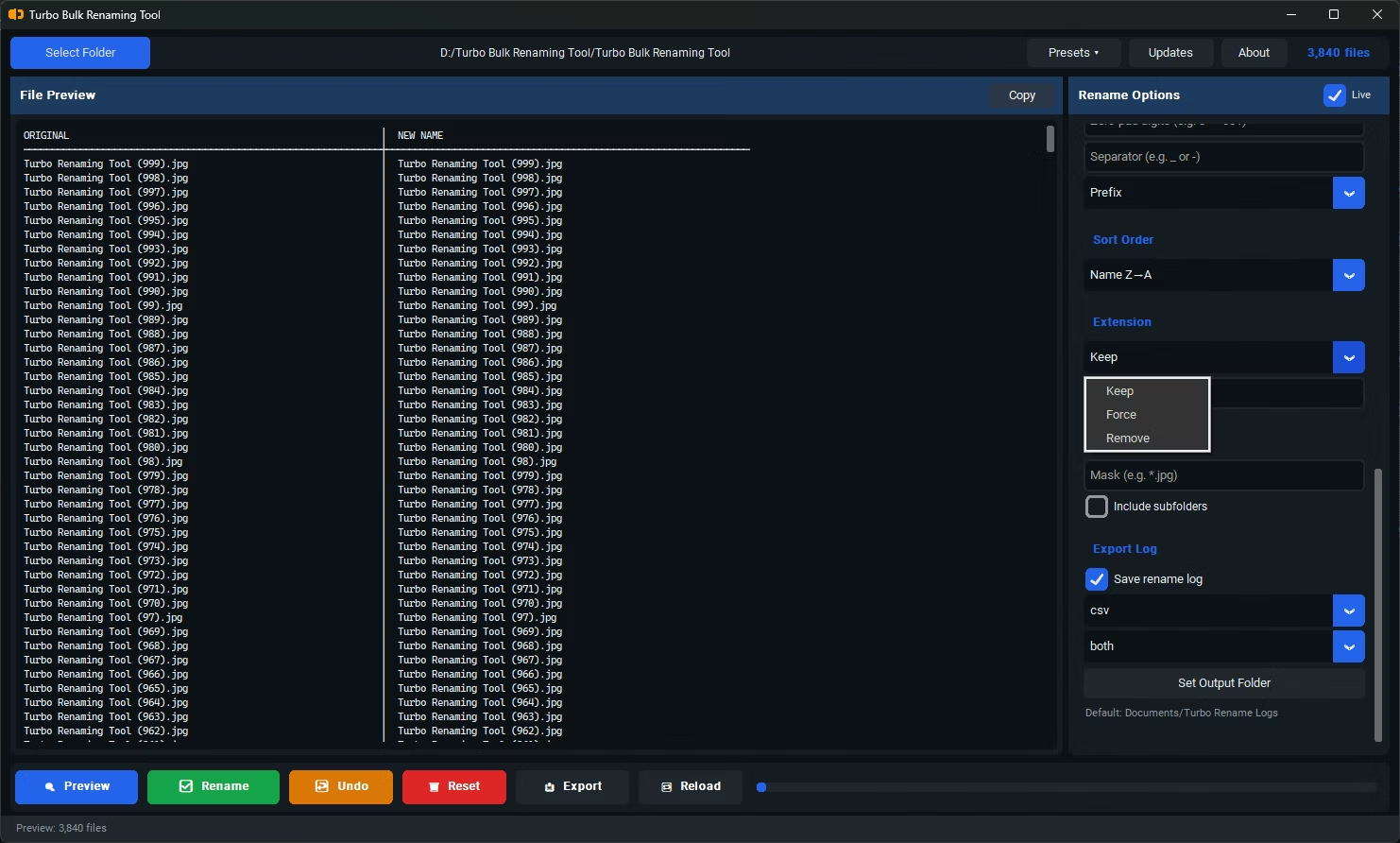
jpg), and Remove (strips the extension entirely, producing an extensionless filename). Force and Remove modes are applied last, after all base-name transformations. Important: these modes change only the filename label - they do not re-encode or convert file content.
*.jpg loads only JPEG files; IMG_* loads only files whose names start with IMG_; * (default) loads all files. The filter is applied at load time - only matching files appear in the preview list and are included in any rename or export operation. Files beginning with turbo_output_ are always excluded regardless of the mask.
subfolder/photo.jpg) and the directory structure is preserved during renaming - only the filename portion is transformed; the folder path remains unchanged. When unchecked (default), only files directly inside the selected folder are loaded.
Rename Processing Order (Pipeline)
All active rules are applied to each filename in a fixed sequence within a single pass. Understanding the order matters when combining rules - earlier steps affect the input seen by later ones. This predictable pipeline is what makes Turbo Renamer a dependable batch file renaming tool for complex, multi-rule workflows.
Illegal Windows filename characters (<>:"/\|?*) in the resulting name are automatically replaced with _ as a final sanitization step before the file is written.
Key Features
These are the core capabilities that make Turbo Renamer a complete bulk file renamer for Windows, from live preview to automatic rollback.
Live Rename Preview
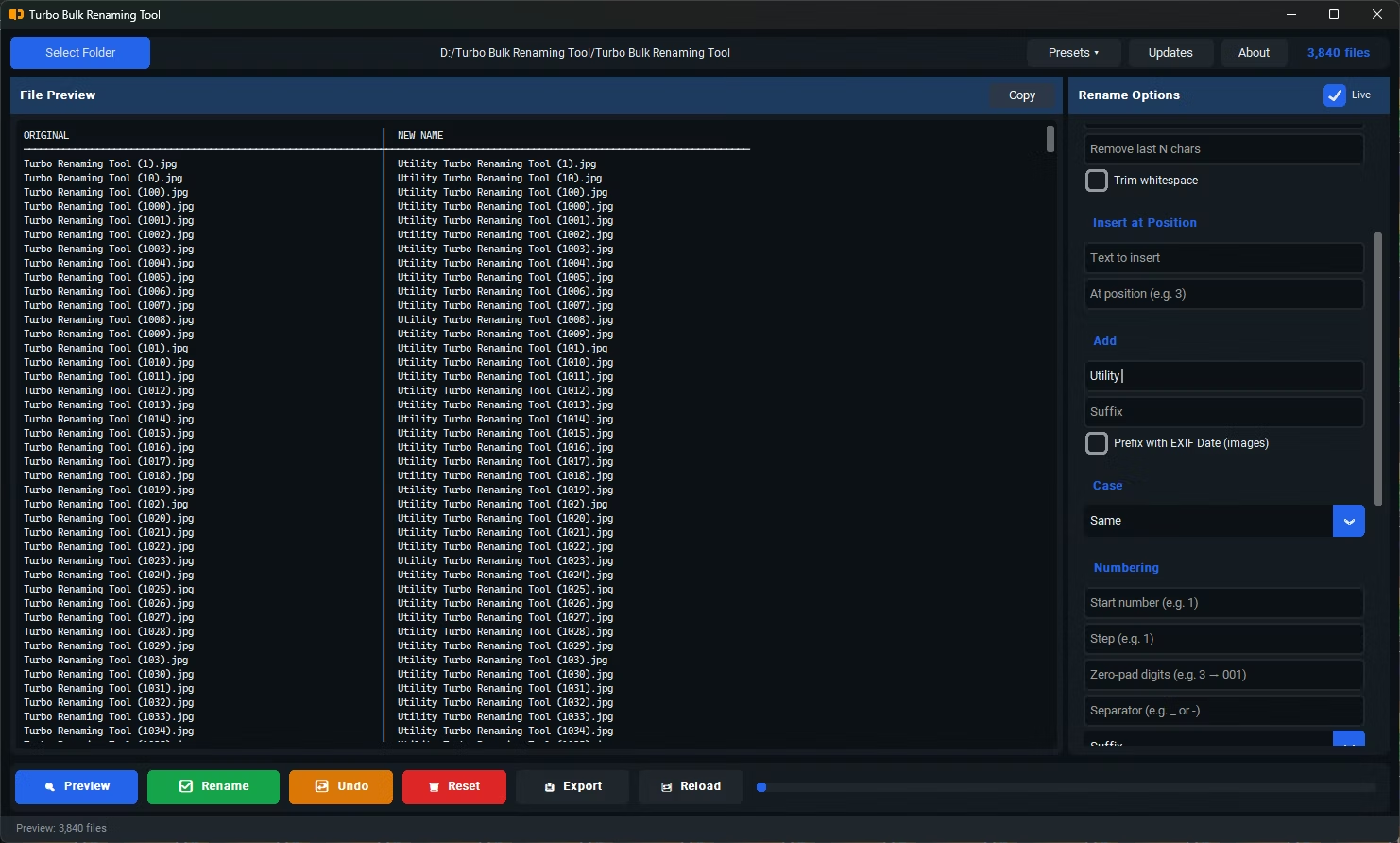
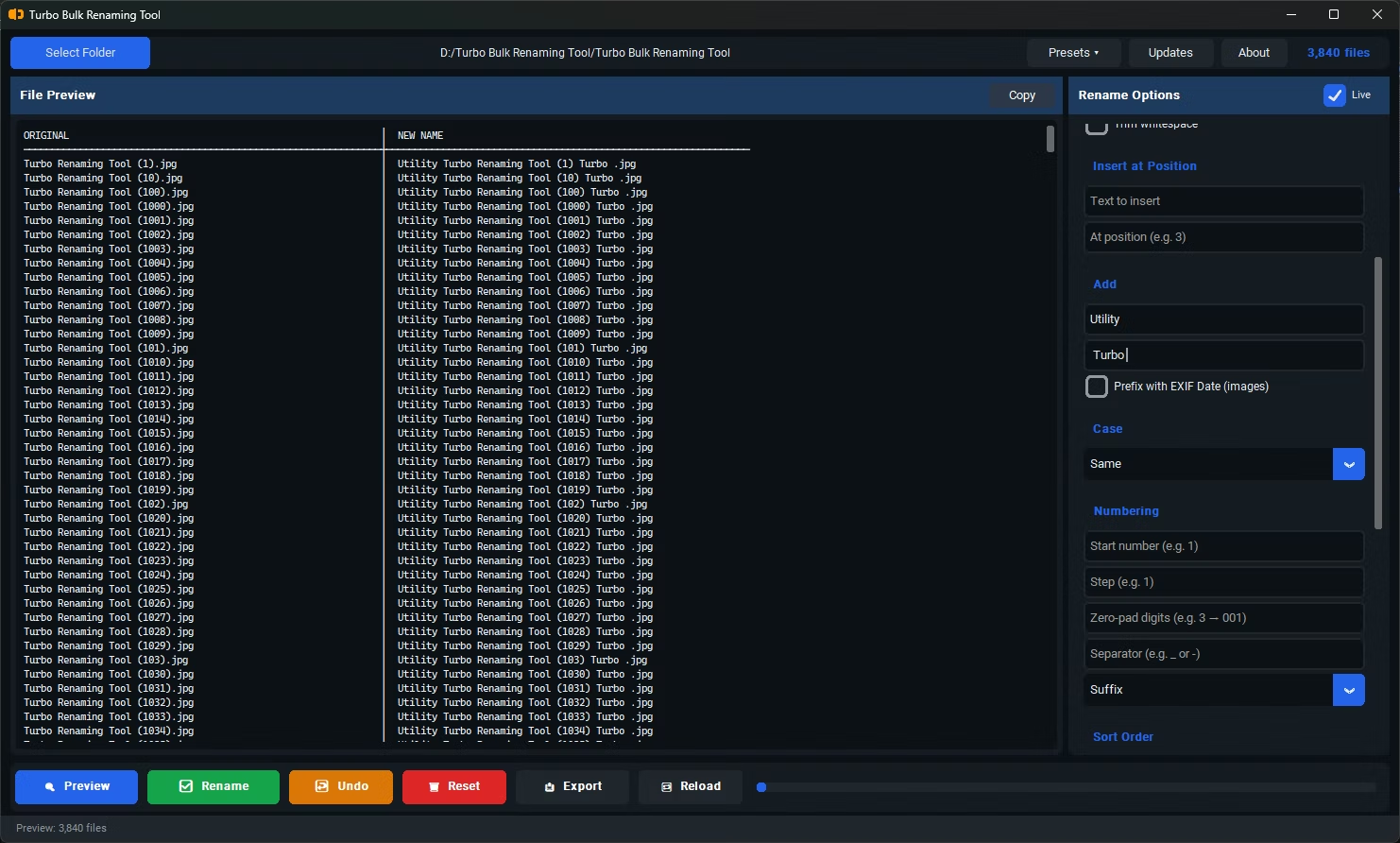
Toggle Live mode to see the two-column preview update automatically as you type or change settings. Or click Preview manually for a full side-by-side view of original vs. proposed new names before any files are touched. Duplicate or conflicting names are flagged with a ⚠ warning marker.
Two-Pass Rename Engine (No Brackets)
All files are first renamed to random unique temporary names, then to their final computed names. This completely eliminates the collision scenario that causes Windows Explorer to append (1) or (2) - no two files share a name at any point during the rename, so Windows never adds brackets or parentheses.
Bulk File Renaming Engine
Renames thousands of files within seconds using fast OS-level operations - no file copying, no data written. Files are processed in the order set by the Sort Order control for consistent, repeatable numbering every time.
Undo Last Rename
Instantly revert the most recent rename session. The original → new filename pairs are stored in an undo stack and re-applied in reverse. One undo level is available per session - successive renames each create a new undo entry.
Automatic Duplicate Final Name Protection
After computing a final name, the app checks whether that path already exists on disk. If it does, a numeric counter (_1, _2, …) is appended incrementally until a free path is found. This runs independently of the two-pass engine for extra safety.
Insert at Position
Insert any text string at an exact character position within the filename base. Position 0 inserts at the start; a position equal to the name length appends to the end. Positions beyond the name length are clamped automatically. Combined with Remove and Replace rules, this allows precise name edits without regex.
Sort Order Control
Choose from 7 sort modes that determine list order and numbering sequence: Name A→Z, Name Z→A, Date Modified (oldest or newest first), Extension A→Z, and File Size (smallest or largest first). The sort is applied at load time and governs the order in which sequential numbers are assigned.
Subfolder Support
Enable Include subfolders to recurse through all nested directories. Files are collected as relative paths, and only the filename portion is renamed - the directory structure is preserved throughout. When disabled, only files directly inside the selected folder are processed.
Save and Load Rename Presets
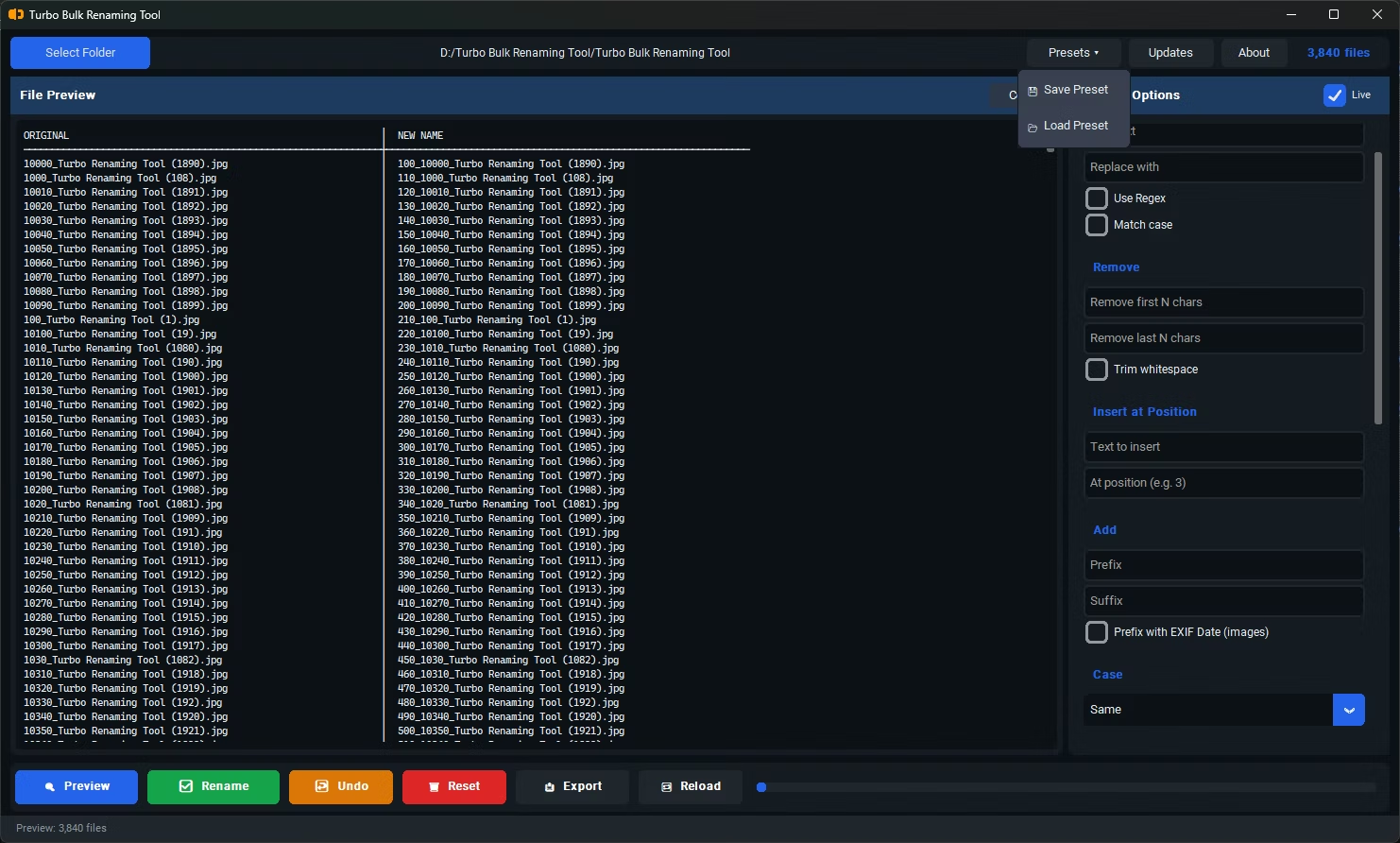
Store complete rule configurations - all fields including mask, separator, case mode, regex toggle, sort order, and export settings - as preset files. Load any preset with one click to instantly restore a previous workflow.
Drag and Drop Folder Support
Drop any folder directly into the app window or preview panel to load all matching files instantly. The file counter shows the exact batch size. Works on both the main app window and the preview text area.
Export Rename Logs
A log is automatically saved after every rename to your Documents folder. Filename includes the source folder path and a timestamp for unique identification. Also available on demand via the Export Only button. Supports CSV, XLSX, and TXT formats with three column modes.
Export Only Mode
Generate a filename log without performing any rename. When Preview has been run, the export reflects the proposed new names. Otherwise, the current original filenames are exported. Ideal for auditing a folder's contents or sharing a rename plan before committing changes.
Offline Processing - No Limits
All renaming happens 100% locally. No internet required. No file size limits. No cloud upload. Works on any file type - not just images. Files beginning with turbo_output_ are auto-excluded so the app never renames its own export logs.
Technical Notes
How Fast Is Renaming
Renaming is a pure filesystem metadata operation - no file bytes are copied or written. On an SSD, 10,000 files can be renamed in under 10 seconds. The two-pass approach doubles the number of rename calls (temporary name → final name), but both passes are OS-level moves. The main performance factor is the total file count, not file size. EXIF reading is the only step that adds real disk I/O - each image must be opened to read its metadata tag. This kind of raw speed is what you should expect from modern batch renaming software running entirely on your local machine.
Why EXIF Preview Is Disabled Above 100 Files
Reading EXIF from image files requires opening each file individually. For a folder of 500 JPEGs, the preview would need to open 500 files before displaying results, potentially freezing the UI for several seconds. The 100-file threshold is a performance guard: above it, the preview shows filenames without the EXIF prefix, but a warning dialog is shown. The actual Rename operation reads EXIF normally for all files regardless of count, using a per-session cache so each file is opened at most once.
Sort Order and Numbering Sequence
Before any rename or preview, files are sorted according to the Sort Order setting selected in the options panel. The default is case-insensitive alphabetical order. This is the order in which sequential numbers are assigned. Other modes sort by date modified, extension, or file size, all using standard filesystem attribute lookups. The sort runs once at load time and produces consistent results regardless of how the operating system returns directory entries.
Automatic Rollback on Error
If the second rename pass (temporary name → final name) fails for any file, the app automatically attempts to rename all temporary files back to their original names. This prevents a partial rename state where some files have been finalized and others are still stuck with temporary names. If a rollback rename also fails, that file's temporary name is left on disk and an error dialog is shown.
How Turbo Bulk Renaming Tool Works
The whole workflow is built around a simple idea: see exactly what will happen before anything is changed on disk. You load a folder, stack up as many rename rules as you need, watch the preview update, and only then commit - with a one-click undo waiting in case you change your mind.
1. Select a Folder
Click Select Folder and point the app at the directory you want to work on. Optionally tick Include subfolders to pull in every matching file from nested directories as well, with each file tracked by its path relative to the folder you chose.
2. Filter the File List
Use the File Mask Filter (for example *.jpg or IMG_*) to load only the files you care about. Anything that does not match the mask is left out of the preview, the rename, and the log entirely.
3. Stack Your Rules
Fill in any combination of the rule groups - Replace, Remove, Insert, Add, Case, Numbering, Sort Order, and Extension. Every rule you set feeds into a single pipeline pass, so complex transformations happen in one run rather than several.
4. Preview the Result
The preview shows each original name next to its proposed new name. Turn on the Live toggle to have the preview refresh automatically as you type, or leave it off and refresh manually - useful for very large folders where you want full control over when it recalculates.
5. Check for Conflicts
If two files would end up with the same name, the preview flags them with a warning marker and a conflict count, so you can adjust your rules before committing rather than discovering a clash afterward.
6. Rename and (If Needed) Undo
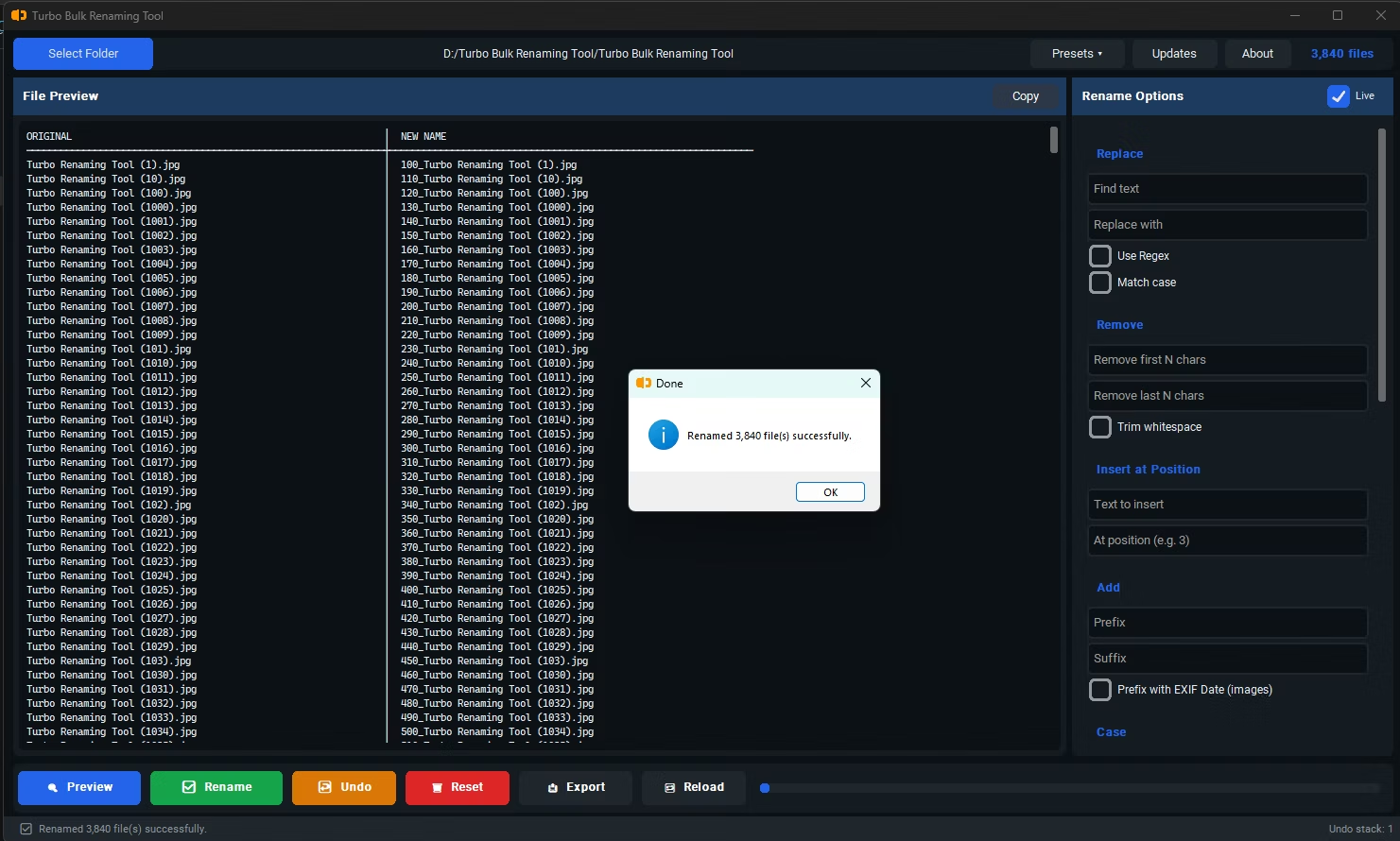
Click Rename to apply the changes. A progress bar tracks the run, a rename log is written in your chosen format, and the whole batch is pushed onto the undo stack so a single click of Undo restores the previous names.
Interface Walkthrough
The window is laid out as a single, dark-themed workspace so everything you need is visible at once - no nested menus to hunt through. Here is what each part of the interface does.
Top Bar
Holds Select Folder, the current path, a live file count, and the Presets menu. It is the starting point for every session - choose your folder here and the file list populates immediately.
Preview List
The central panel showing original names beside their new names. A Copy button places the current name list on your clipboard, which doubles as a quick way to copy all the file names in a folder for pasting elsewhere.
Live Preview Toggle
A checkbox that, when enabled, recomputes the preview automatically as you edit any rule. When disabled, the preview updates only when you refresh it - handy for keeping a huge folder responsive while you set up rules.
Rules Panel
The right-hand column where the rule groups live, each in its own labelled section: Replace, Remove, Insert at Position, Add, Case, Numbering, Sort Order, Extension, Filter Files, and Export Log.
Presets Menu
Save the full set of rules you have configured under a name, then load it again later in a click. Presets capture every rule setting so you can reproduce a complex renaming recipe across sessions without rebuilding it by hand.
Action Bar
The bottom strip with Preview, Rename, and Undo buttons, a progress bar, and a status line reporting how many files were processed and how deep the undo stack currently is.
Who Uses It and Why
Because the rules combine freely, the same tool fits a wide range of jobs - anywhere a folder full of inconsistently named files needs to become clean, ordered, and predictable.
Photographers
Prefix images with their EXIF capture date and add sequential numbering so an entire shoot sorts chronologically and reads cleanly - 20240612_145201_wedding_001.jpg instead of IMG_4521.jpg. Sort by Date Modified before numbering to lock in shooting order.
Developers and IT
Use regex Find & Replace to normalize asset names, force consistent extensions, strip unwanted prefixes with Remove First N, and export a CSV log as an audit trail of exactly what changed.
Content and Marketing Teams
Batch-apply campaign codes, client names, or version tags as prefixes and suffixes across hundreds of exported assets in one pass, keeping shared drives tidy and searchable.
Administrative and Office Staff
Clean up scanned documents and downloads - trim stray whitespace, standardize case, and number files in a logical order - without touching each name individually.
Researchers and Data Teams
Rename data files and figures into a consistent, sortable scheme, include subfolders to process a whole project tree at once, and keep the exported log alongside the data for reproducibility.
Freelancers and Consultants
Save a preset per client so their preferred naming convention is one click away, then reuse it on every new batch of deliverables for a consistent, professional handoff.
Anyone With a Messy Folder
Even for a one-off cleanup, the live preview and single-click undo make it safe to experiment - you always see the outcome first and can reverse the last rename instantly.
Known Limitations
Turbo Bulk Renaming Tool is designed as reliable, straightforward batch renaming software for everyday use. The following are known design constraints and current limitations:
- Single-threaded, sequential processing. Files are renamed one at a time in the selected sort order. There are no parallel workers. For very large folders (100,000+ files) this will take longer than a parallel engine would, though OS-level renaming is still fast per file.
- EXIF date prefix supported on 4 image formats only. Works on
.jpg,.jpeg,.tiff, and.tif. PNG, BMP, RAW, AVIF, WEBP, HEIC, and all non-image files are silently skipped - they are renamed normally without a date prefix, with no warning per file. - EXIF Preview disabled for folders over 100 files. The 100-file threshold prevents UI freezing during Preview. EXIF is still applied during Rename. A single warning dialog is shown when the threshold is crossed.
- One undo level per session. The undo stack stores each rename batch as a single entry. You can undo the most recent rename, but you cannot undo through multiple successive renames back to the original state.
- Extension Force or Remove changes label only - does not convert file content. Forcing or removing an extension changes the filename suffix only. The internal file format and bytes are unchanged. A file renamed from
.bmpto.jpgvia Force mode is still a BMP internally. - Regex errors silently skip the Replace rule for all files. If the regex pattern is syntactically invalid, the entire Find & Replace step is skipped for every file in the batch. No per-file error is reported. Test patterns in Preview before executing Rename.
- Preset files store all settings but not the source folder path. Saved presets capture all rule configurations but do not remember which folder was last selected. You must re-select the folder manually after loading a preset.
EXIF Date Photo Renaming
Digital photographs contain EXIF metadata recording the exact date and time of capture. Turbo Renamer reads the DateTimeOriginal tag from supported image files and prepends it as YYYYMMDD_HHMMSS_ to the filename base, enabling chronological sorting of photo libraries without any manual effort.
If no EXIF tag is found in a file (e.g. screenshots, edited images with stripped metadata, or unsupported formats), the file is renamed normally - the EXIF prefix is simply omitted for that file, with no error shown. EXIF reads are cached per session so repeated Preview runs do not re-open the same files. It's one more reason photographers choose this bulk file renaming tool to keep large photo libraries in perfect chronological order.
Safety and Undo System
Safety is built into every layer of this bulk file renamer, so you can rename thousands of files with confidence.
- Two-Pass Rename Engine - All files are renamed to unique temporary names first, then to final names. Eliminates all mid-batch collision risk and prevents Windows from ever adding brackets or parentheses.
- Automatic Rollback on Error - If the second pass fails, all temporarily-named files are automatically restored to their original names.
- Duplicate Final Name Protection - If a computed final name already exists on disk, a numeric counter (
_1,_2, …) is appended until a free path is found. - Undo Last Rename - Stores the original → new mapping from the last session. Click Undo to reverse the entire batch in one operation.
- Live Preview & Conflict Detection - Full two-column preview of all original vs. proposed new names before any files are touched. Duplicate or conflicting new names are highlighted with a ⚠ marker.
- Own Export Files Auto-Excluded - Files starting with
turbo_output_are never included in the file list, so the app cannot accidentally rename its own logs. - Illegal Character Sanitization - Characters invalid in Windows filenames (
<>:"/\|?*) in computed names or separators are auto-replaced with_. - UI Locked During Rename - All controls are disabled while a rename is in progress to prevent duplicate operations.
- Background Processing - Renaming runs in a background thread, keeping the UI responsive and the progress bar live throughout.
- Offline and Local - No filenames, folder paths, or file contents leave your machine. No cloud connection required.
Export and Output Options
Every rename session in this batch file renaming tool can be logged and exported, giving you a complete audit trail for compliance or record-keeping.
CSV Export
Generates a UTF-8 comma-separated file with a header row and one row per file. Column choices: both names (Original + Renamed), Original only, or Renamed only. Ideal for spreadsheet import, audit trails, and compliance records.
XLSX Export
Exports the rename log as an Excel workbook. All cells are saved as text to prevent Excel from misinterpreting numeric filenames as numbers. Share rename records with teams or archive for compliance.
TXT Export
Plain text file with one entry per line, columns separated by | . Lightweight and human-readable. Suitable for log pipelines, search tools, diff comparisons, and scripting workflows.
Flexible Export Modes
Three data modes across all three formats: Both (original + new name columns), Original only, or Renamed only. Combine any format with any mode for nine distinct output configurations.
Custom Export Folder
By default, logs save to your Documents folder under a dedicated subfolder. Select any custom folder via the Export section. Each filename includes the source folder path (sanitized) plus a YYYYMMDD_HHMMSS timestamp for unique identification.
Export Only Button
Generate a filename log without renaming anything. If Preview was run, the export reflects proposed names. Otherwise, the current original filenames are exported. Ideal for auditing, asset inventory, or building rename reference sheets before committing changes.
Security and Privacy
Turbo Bulk Renaming Tool is a fully offline desktop application. All renaming, previewing, and log exporting happens locally on your machine. No filenames, folder paths, or file contents are transmitted to any server. Choosing offline-first bulk renaming software like this keeps sensitive filenames and folder structures completely private.
- Does not log, analyze, track, or transmit your filenames or folder contents
- No integration with third-party analytics, advertising trackers, or background telemetry
- Internet is used only for license key validation - the request contains no personal data, filenames, or file content
- License data is saved locally in your AppData folder as an encoded file
- Ideal for professionals handling confidential file naming conventions, legal records, medical archives, and corporate file systems
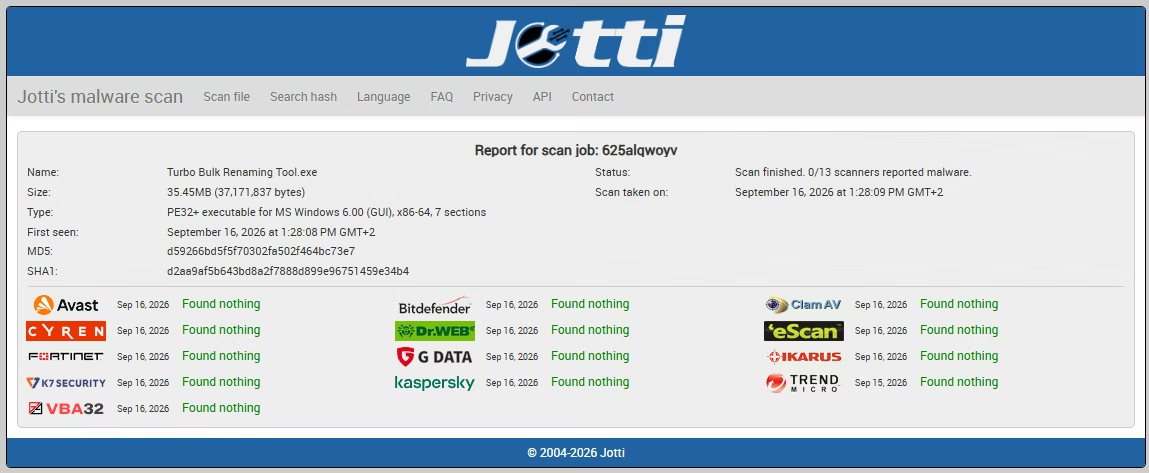
Minimum System Requirements
These are the baseline specs needed to run this bulk renaming software smoothly.
| Operating System | Windows 8 (64-bit) |
| Processor | 1–2 CPU cores |
| Memory | 2 GB RAM |
| Storage | 500 MB free disk space |
Recommended System Requirements
For the best experience with this bulk file renaming tool on very large batches, we recommend the following configuration.
| Operating System | Windows 10 or later (64-bit) |
| Processor | 4 or more CPU cores |
| Memory | 4 GB RAM or more |
| Storage Type | SSD recommended for best performance on large batches |
| Free Disk Space | 2 GB or more |
App Info
Quick reference details for this batch file renaming tool, including version and licensing information.
| App Name | Turbo Bulk Renaming Tool |
| Current Version | v5.2 |
| Platform | Windows |
| Category | Rename Tools |
| License Management | Managed by Gumroad |
Frequently Asked Questions
Common Questions About Turbo Bulk Renaming Tool
How do I rename multiple files with sequential numbers on Windows 11 without brackets?
Use the Numbering rule: enter a Start value (e.g. 1), a Separator (e.g. _), choose Prefix or Suffix, preview, and click Rename. Turbo Renamer uses a two-pass engine so no two files share a name at any point - Windows never adds brackets. Files are numbered in case-insensitive alphabetical order by default.
Does Turbo Bulk Renaming Tool support regex renaming?
Yes. Enable the Use Regex checkbox to use full regular expression patterns in the Find field. Supports capture groups, lookaheads, and character classes. Invalid patterns are silently skipped without stopping the batch.
How do I rename multiple files with different names on Windows 11?
Combine Find & Replace, Prefix/Suffix, and Regex rules. All rules are applied simultaneously in a single pipeline pass, so you can strip old prefixes, add new ones, change case, and number files all at once - no scripting required.
How do I batch rename files on Windows 10 without brackets or parentheses?
Turbo Renamer's two-pass engine renames all files to unique temporary names first, then to final names. This completely eliminates the collision scenario that causes Windows Explorer to append (1) or (2). Every file gets exactly the name you specified.
How do I copy all file names in a folder on Windows 11?
Load any folder, then click Export Only to generate a CSV, XLSX, or TXT file containing every filename. Choose "Original only" mode to get just the current names, or "Both" to also include the proposed new names side by side. Ideal for auditing, inventory management, or building rename reference sheets.
Does the EXIF Date Prefix work on all image types?
It works on JPG, JPEG, TIFF, and TIF only. PNG, BMP, RAW, AVIF, WEBP, HEIC, and non-image files are renamed normally without a date prefix. For folders over 100 files, EXIF is skipped during Preview to avoid UI slowdown, but runs fully during Rename. Files without an EXIF tag are also renamed normally.
Does Turbo Renamer process sub-folders recursively?
Yes, optionally. Enable the Include subfolders checkbox to recurse through all nested directories. Files are collected as relative paths and only the filename portion is renamed - the directory structure is fully preserved. When the checkbox is unchecked (default), only files directly inside the selected folder are processed.
Can I insert text at a specific position in a filename?
Yes. Use the Insert at Position rule. Enter the text to insert and the zero-based character position within the filename base. Position 0 inserts before the first character; a position equal to the base length appends to the end. Positions beyond the length are automatically clamped.
Does sequential numbering support zero-padding and custom step values?
Yes. The Numbering rule includes a Zero-pad digits field - enter 3 to format numbers as 001, 010, 100. The Step field controls the increment between numbers (e.g. 2 produces 1, 3, 5…). Both fields are optional; leave them empty for plain sequential numbering with no padding.
Is Turbo Renamer a good bulk file renaming tool for large photo libraries?
Yes. As a dedicated bulk file renaming tool, it combines EXIF date prefixes, sequential numbering, and case conversion in one pass, making it ideal for organizing thousands of photos at once.
What makes this different from other batch renaming software?
Most batch renaming software stops at simple prefix and suffix rules. Turbo Renamer adds a two-pass, collision-free rename engine, live preview, automatic rollback, and detailed export logs - all in one lightweight application.
Can I use this as bulk renaming software for client or project file organization?
Absolutely. Many studios and agencies use this bulk renaming software to apply consistent prefixes, suffixes, and sequential numbers across client deliverables, then export a CSV or XLSX log for their records.
Is there a batch file renaming tool that supports regex and EXIF dates together?
Yes - Turbo Renamer is a batch file renaming tool that lets you combine regex-based Find & Replace with EXIF Date Prefix in the same pipeline pass, so both rules apply to every file in one operation.
Does this bulk file renamer work without an internet connection?
Yes. This bulk file renamer runs 100% offline - no files, filenames, or folder paths are ever uploaded. An internet connection is only used briefly to validate your license key.
Can I preview the new names before renaming anything?
Yes, and it is the recommended workflow. The preview list shows every original filename beside its proposed new name. Turn on the Live toggle to have it refresh automatically as you edit rules, or refresh it manually. Nothing on disk changes until you click Rename.
What happens if two files would end up with the same name?
The preview flags any clashes with a warning marker and shows a conflict count so you can fix your rules first. If a collision still occurs at rename time, the engine automatically appends a numeric suffix such as _1 or _2 so no file is ever overwritten.
Can I undo a rename if I make a mistake?
Yes. Every rename batch is stored on an undo stack, and clicking Undo restores the previous names in one step. Note that undo covers the most recent rename as a single entry, so it is best to preview carefully rather than relying on undoing through many successive runs.
How does the rename engine avoid corrupting files during reordering?
It uses a two-phase approach. First every file is renamed to a unique temporary name, then each temporary file is renamed to its final name. This prevents one file from clobbering another when names are being swapped or reordered, and if anything fails mid-run the tool rolls back the changes it made.
Can I save my rename settings and reuse them?
Yes. The Presets menu lets you save the full set of rules you have configured under a name and load it again later in a click. This is ideal for repeatable workflows such as a specific client's naming convention. Presets store the rule settings but not the last-used folder, so you re-select the folder after loading.
In what order are the rename rules applied?
Always in a fixed pipeline: Find & Replace, then Remove First/Last, then Trim Whitespace, then Insert at Position, then EXIF Date prefix, then Case conversion, then Prefix/Suffix, then Sequential Numbering, and finally Extension changes. Knowing the order helps you predict exactly how combined rules interact.
Can I control the order files are numbered in?
Yes, through the Sort Order setting. You can sort by Name (A to Z or Z to A), Date Modified (oldest or newest first), Extension, or Size (smallest or largest first). Sequential numbers are then assigned in that order, so the sort you pick determines which file becomes number one.
Does renaming a file's extension change its actual format?
No. The Extension rule (Keep, Force, or Remove) changes only the filename label, not the file's contents. Forcing a .bmp file to .jpg does not convert the image - it is still a BMP internally. Use a dedicated converter if you need to change the real format.
Can I copy all the filenames in a folder to the clipboard?
Yes. The preview panel has a Copy button that places the current list of names on your clipboard, so you can paste them into a spreadsheet, document, or script. It is a quick way to grab a folder's file names without renaming anything.
What formats can the rename log be exported in?
Three: CSV, XLSX, and TXT. You can also choose whether the log records the original names, the new names, or both. By default the log is saved to a Turbo Renamer Logs folder in your Documents, or you can set a custom output folder.
Is there a limit on how many files I can rename?
The full version places no file-count limit on a rename operation - you are bound only by your disk and folder size. Files are processed one at a time in the chosen sort order, so very large folders take proportionally longer, but there is no artificial cap.
How is the tool licensed?
Turbo Bulk Renaming Tool is licensed through Gumroad. A free demo lets you try it with a limited number of rename operations; activating with your purchase email and license key unlocks unlimited renaming. The license is validated once and then cached locally, so it keeps working offline afterward.
What is the difference between the demo and the full version?
The demo is fully functional but caps the number of rename operations you can run so you can evaluate every feature first. The full version removes that cap for unlimited renaming. All rules, preview, undo, presets, and log export are available in both.
Which operating systems does it run on?
It is a Windows desktop application for Windows 10 and Windows 11, distributed as a standalone program. It runs entirely on your PC with a dark, modern interface and does not require any browser or online account to function.
Batch File Rename Software and Bulk File Rename Utility for Windows
Turbo Bulk Renaming Tool is professional batch renaming software and a bulk file renaming tool for Windows 10 and 11, built for photographers, developers, content teams, and system administrators who need a reliable offline solution for any renaming workflow - from simple prefix additions to complex regex-based transformations. Unlike Windows Explorer's built-in rename feature, which automatically appends brackets and parentheses to duplicate filenames, Turbo Renamer's two-pass engine eliminates all collision risk and delivers clean, bracket-free filenames every time, making it the definitive batch file renaming tool for anyone who wants to rename files on Windows without brackets or parentheses. As a dependable bulk file renamer and genuinely simple bulk renaming software, it also preserves your folder structure automatically when subfolders are included.
As a complete bulk renaming software solution for Windows, the app processes entire folders - including sub-folders - in a single operation with no file count limits, applying up to 13 rename rules simultaneously in one pipeline pass: Find & Replace (with optional regex), Remove First N Characters, Remove Last N Characters, Trim Whitespace, Insert at Position, EXIF Date Prefix, Case Conversion (with Sentence case), Prefix, Suffix, Sequential Numbering (with step and zero-pad), Sort Order, Extension Control (Keep / Force / Remove), and File Mask Filter. All renaming happens 100% locally with no internet required, no uploads, and no file size restrictions - which is exactly what you want from any serious bulk file renaming tool. Rename configurations can be saved as presets for repeatable workflows, and every session from this batch file renaming tool automatically generates a detailed log in CSV, XLSX, or TXT format, covering original and new filenames for full audit trail support. Whether you call it a bulk file renamer or a batch renaming software package, Turbo Renamer is built to save you hours of manual work.