Sometimes the goal isn't matching images to existing data rows but simply laying a set of pictures out across a sheet in some organized order - a photo gallery, a simple visual index, or a grid of thumbnails with no pre-existing key column to match against. This is a layout task rather than a data-matching one, and Excel handles it the same manual way it handles any other insertion: one image at a time, dragged into position.
For a dozen images arranged loosely, that's manageable. For a genuinely large set that needs a clean, evenly-spaced down-a-column, across-a-row, or grid arrangement, doing it by eye with a mouse gets imprecise fast, and keeping consistent spacing between images becomes its own separate challenge.
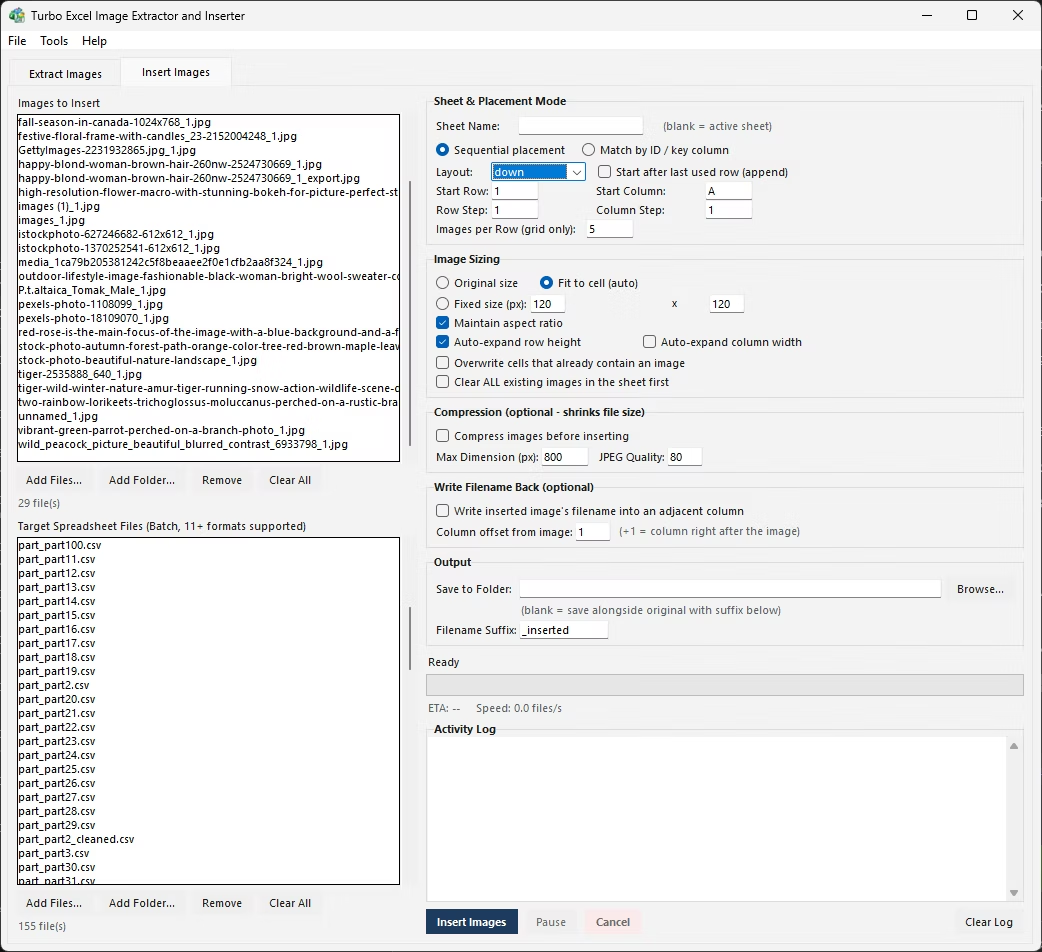
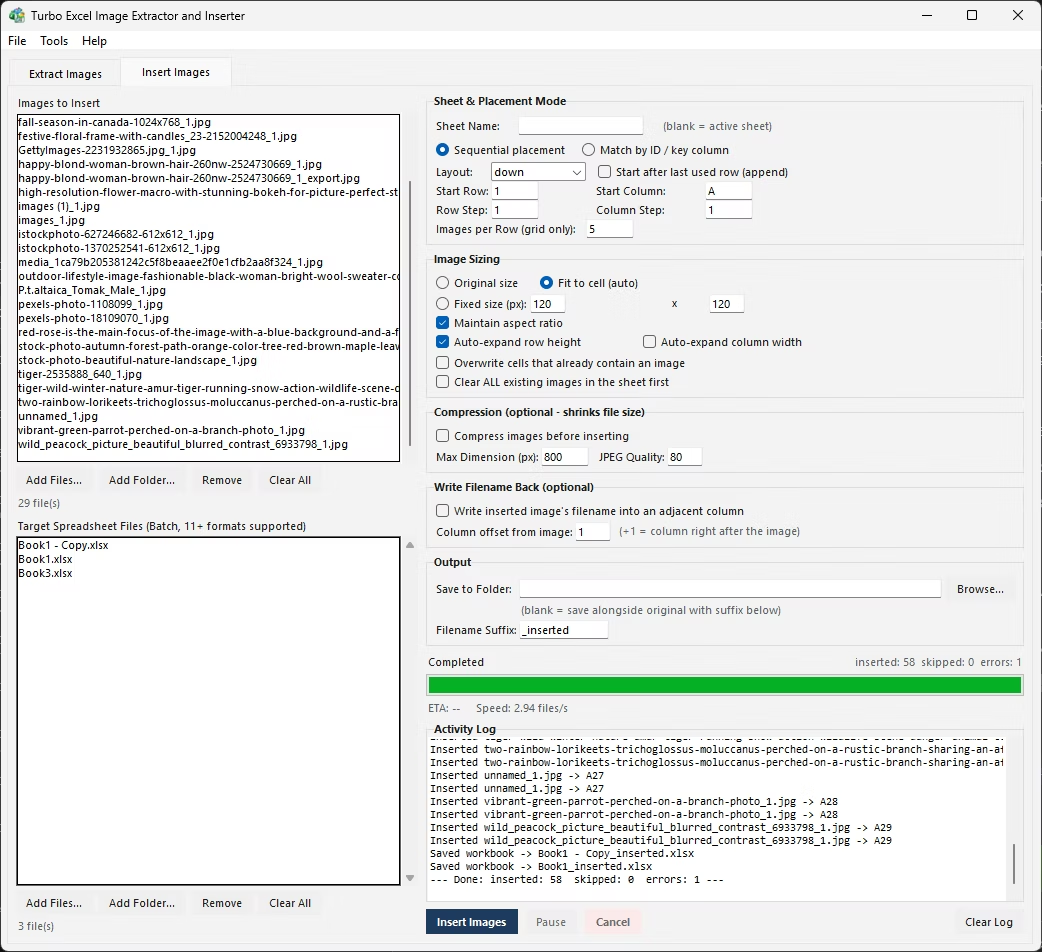
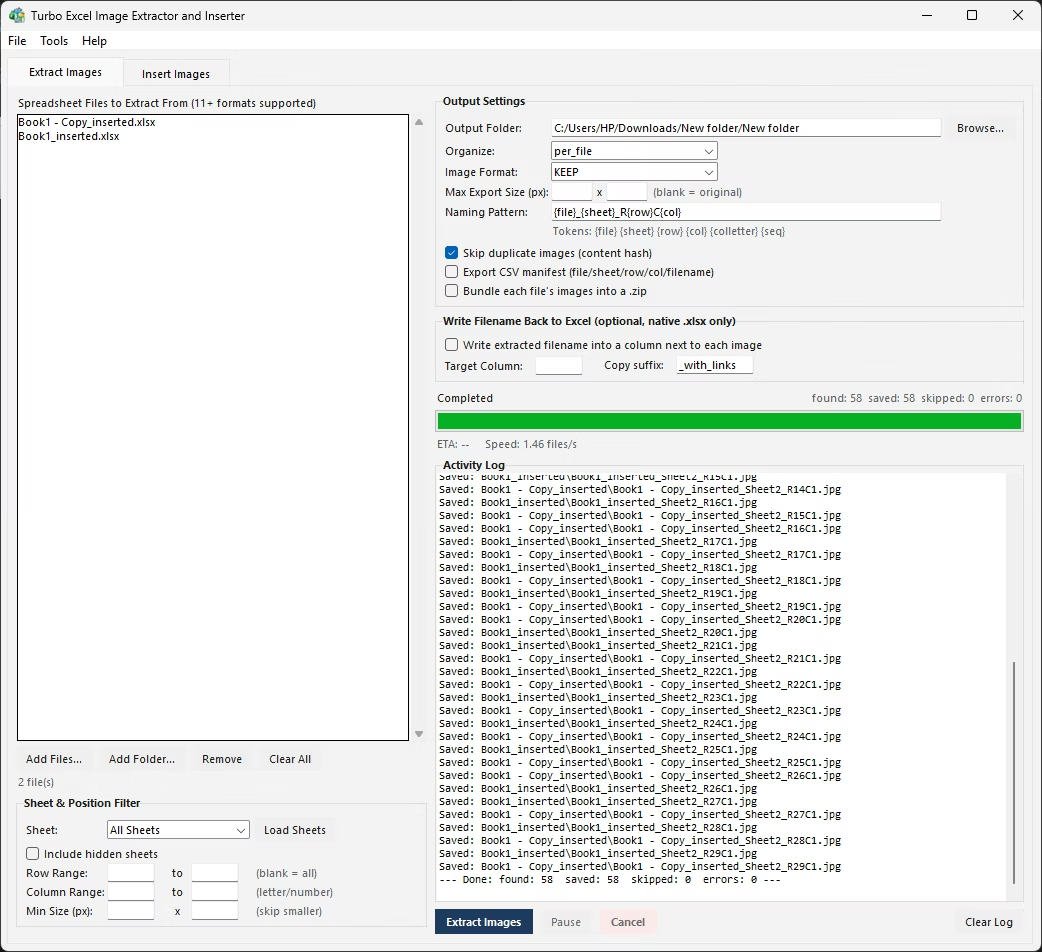
Down-a-column layout means inserting each image and dragging it to sit in the next row down from the last, keeping a consistent row height so spacing looks even. Across-a-row layout is the same idea sideways, one image per column. A grid layout combines both, wrapping to a new row after a set number of columns - the most visually organized option, but also the most fiddly to build by dragging images one at a time.
Keeping spacing genuinely consistent by eye, especially across a grid with many rows and columns, usually means periodically zooming out to check the whole layout and nudging individual images that have drifted slightly out of alignment with their neighbors.
- Decide on a starting cell and how many images should appear per row.
- Insert the first image and position it over the starting cell, resizing it to a consistent size.
- Insert the next image and position it in the next column over, matching the same size.
- Once the row is full, start the next row directly below the first image, repeating the same spacing.
- Continue until every image is placed, periodically checking overall alignment.
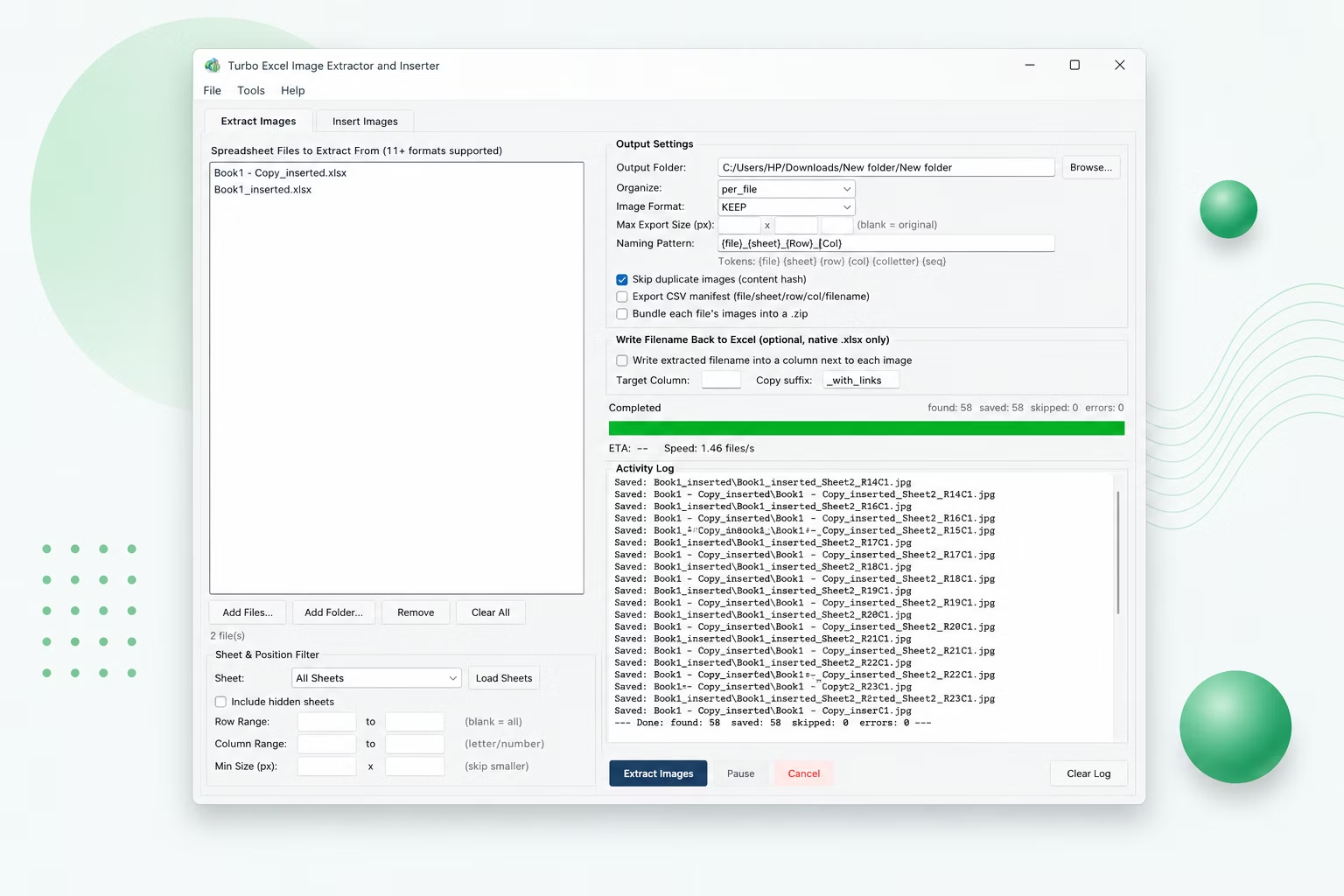
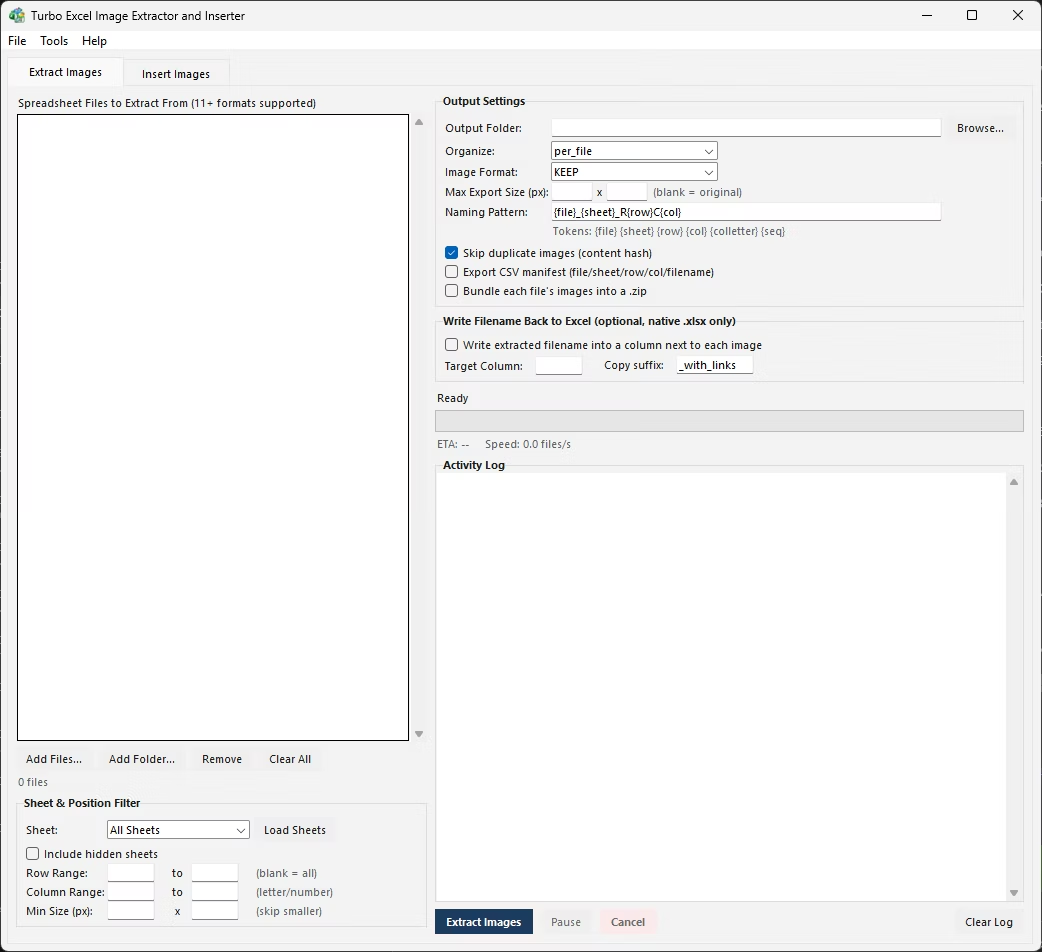
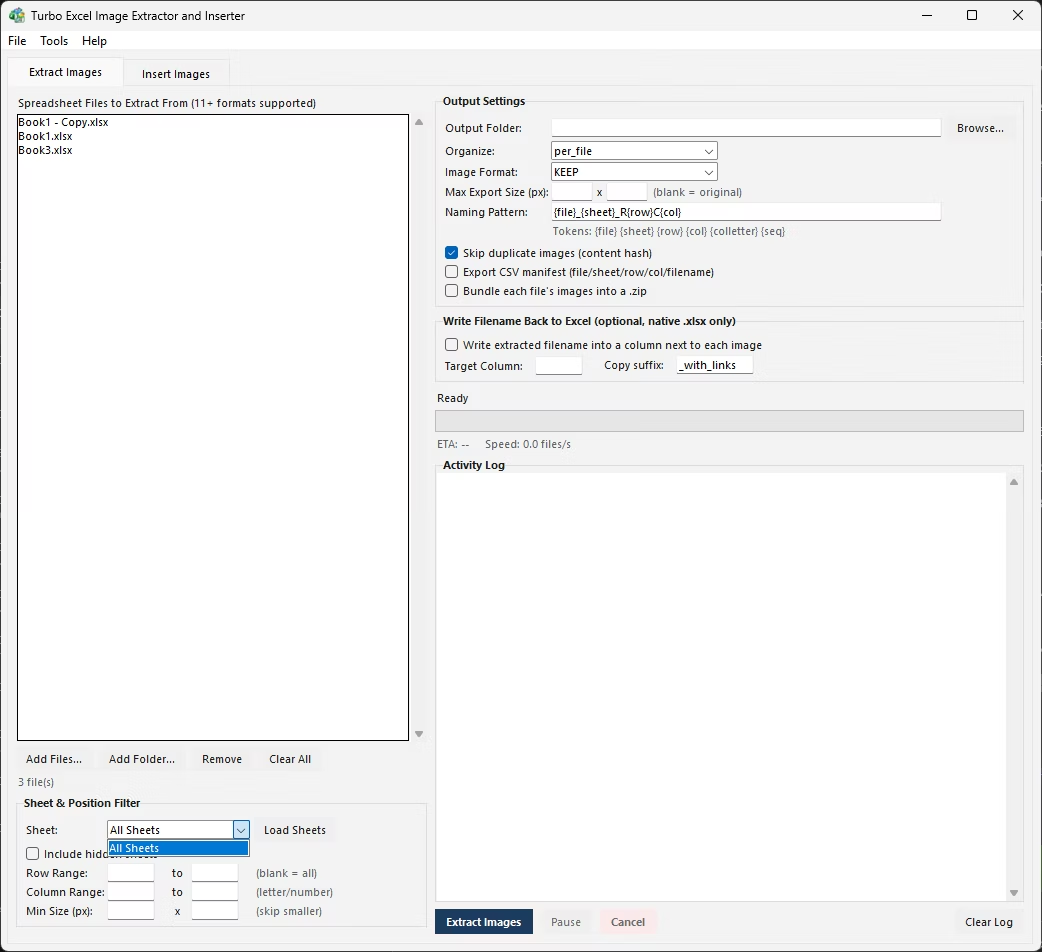
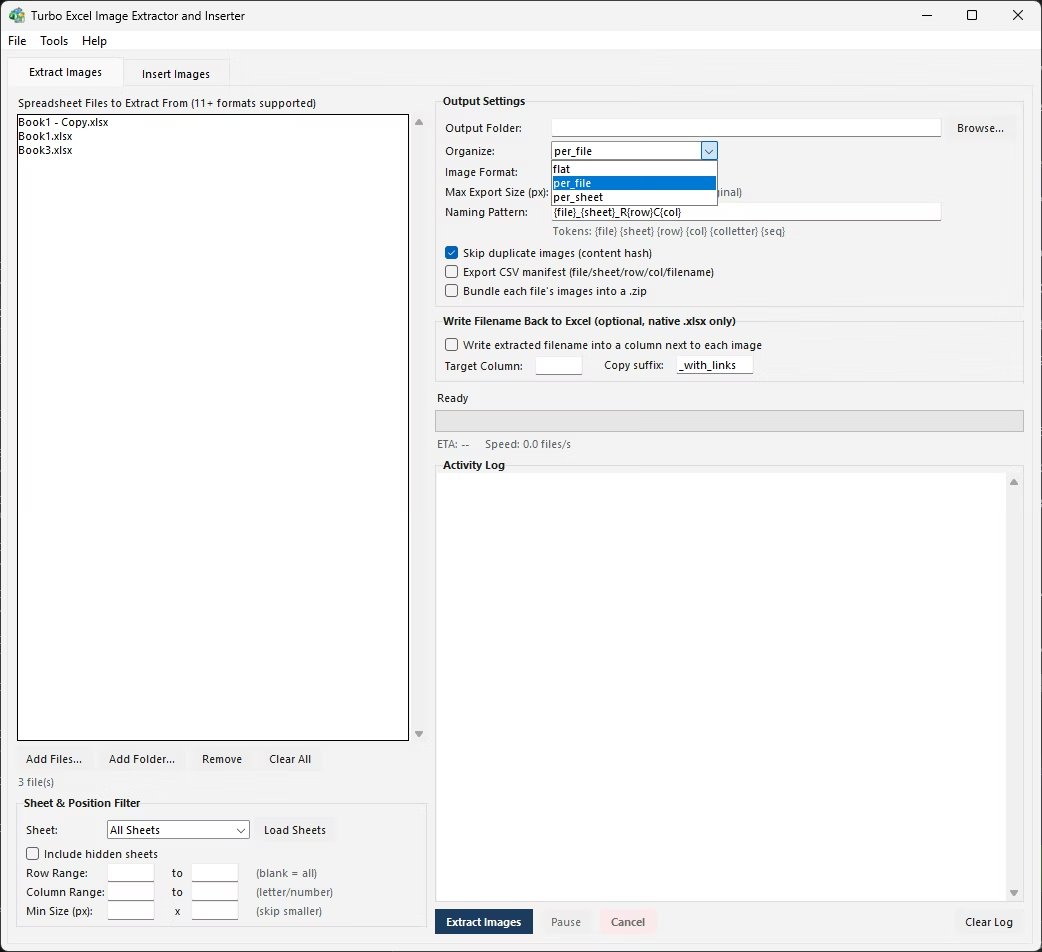
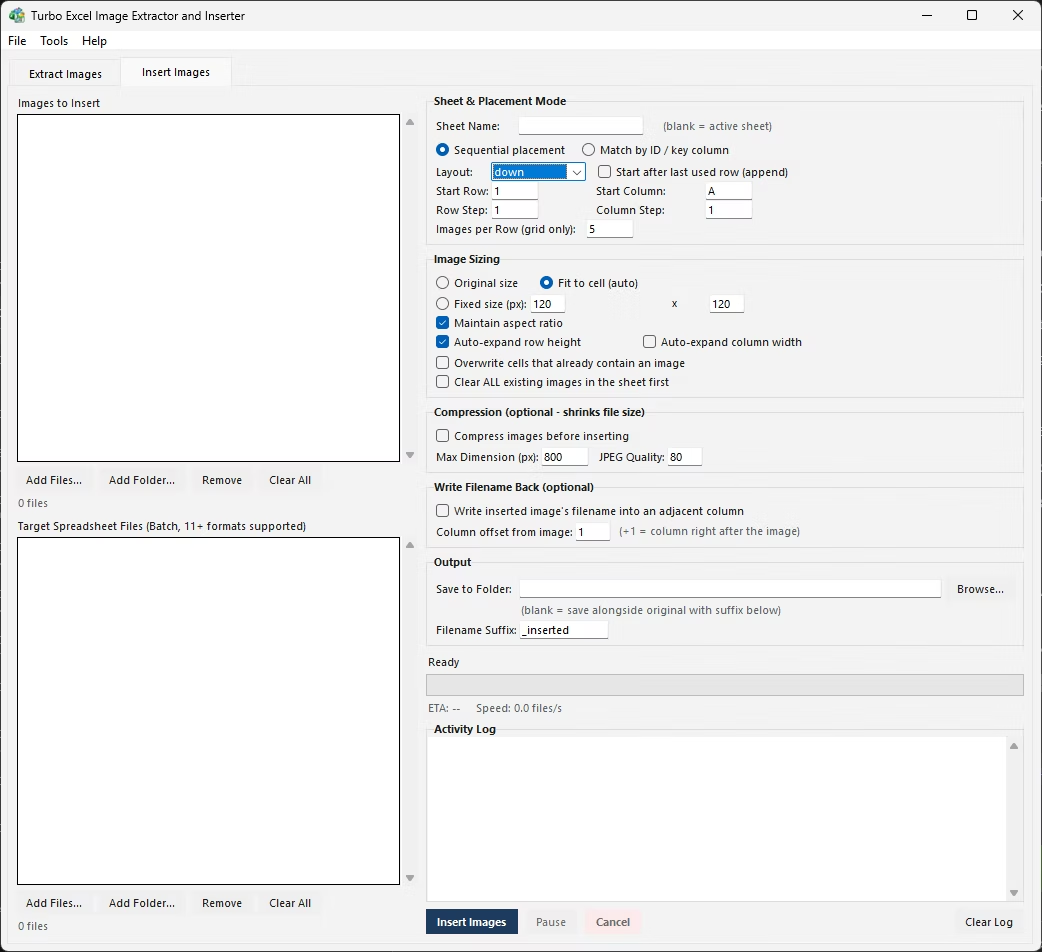
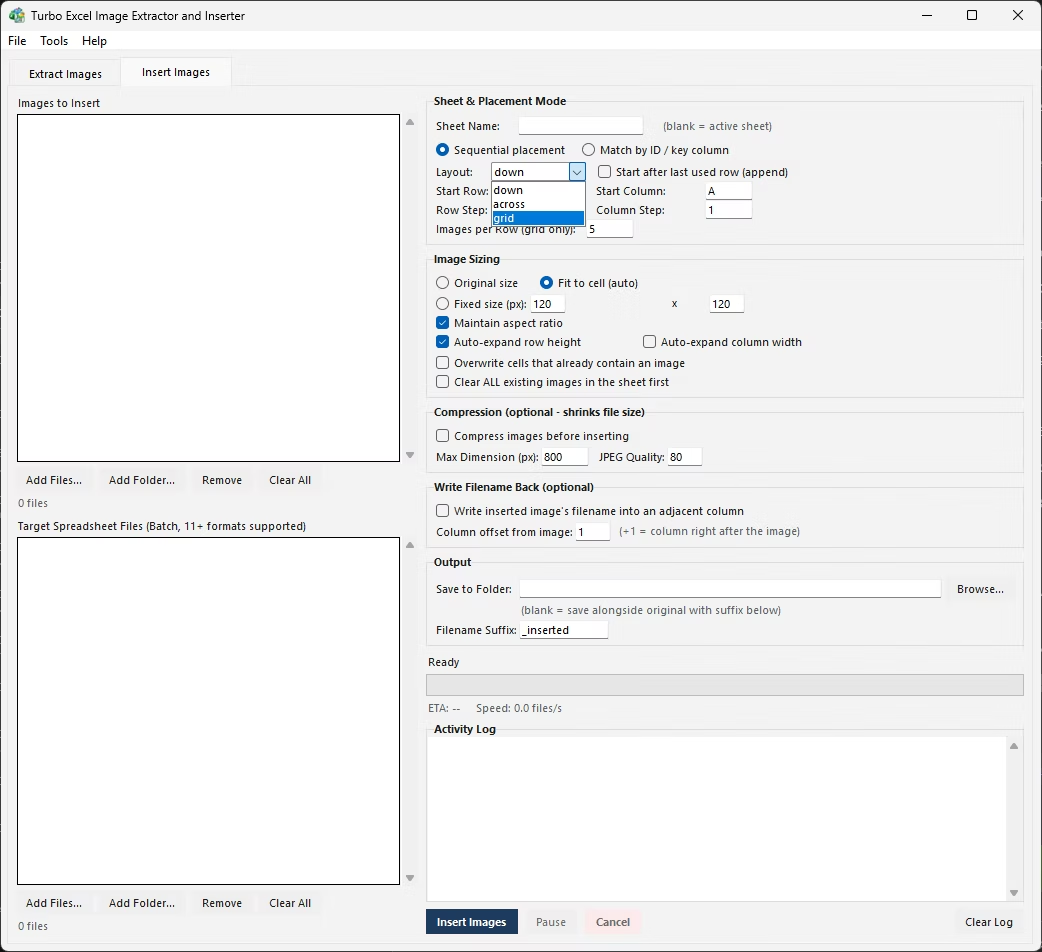
Sequential mode in Turbo Excel Image Extractor and Inserter's Insert Images tab builds exactly this kind of layout automatically: choose down a column, across a row, or in a grid, set a starting cell (or let it auto-detect and append right after the last used row), and every image in the queue is placed in order with consistent, even spacing - no manual dragging or eyeballing alignment required.
Sizing is applied uniformly across the whole layout using the same three modes available throughout the app - original, Fit to Cell, or fixed size with aspect ratio locked - so a grid of a hundred images comes out evenly sized and evenly spaced in one run. Rows or columns can auto-expand as needed to accommodate the layout you've chosen.
A grid layout is a natural fit for building a visual index or lookup sheet - a page where someone can scan rows and columns of thumbnails to find a specific item by sight rather than by searching a text list. Product catalogs, team directories, and inventory overview sheets are common uses for this kind of layout.
Setting a sensible number of images per row - often four to six, depending on how large each thumbnail needs to be to stay recognizable - keeps the grid readable on a normal screen without excessive horizontal scrolling. Combined with Fit to Cell sizing, the grid stays evenly proportioned regardless of how many images end up in the final layout.
Because Sequential mode doesn't require any key column or filename matching, it's also a quick way to build a placeholder gallery sheet before the underlying data even exists - useful for mocking up a layout or template that will later be populated with matched, data-driven images once the real dataset is ready.
- Down-a-column, across-a-row, or grid layout in one setting
- Start from a chosen cell, or auto-append after the last used row
- Consistent, even spacing applied automatically across the whole layout
- Uniform sizing mode applied to every image in the layout
- No key column or filename matching required for this mode
- Handles any number of images without manual alignment checking
Do I need a key column in my data to use Sequential mode?
No. Sequential mode doesn't compare filenames to any column - it simply lays images out in order down a column, across a row, or in a grid, which is useful when there's no data to match against.
Can a sequential layout start automatically after my existing data?
Yes, leaving the starting position on auto-detect places the first image right after the last used row in the target sheet, so images don't overlap existing content.
How does grid layout decide when to start a new row?
You set how many images should appear per row (or column, depending on orientation), and the layout automatically wraps to the next row once that count is reached.
Will all images in a sequential layout be the same size?
Yes, the sizing mode you choose - original, Fit to Cell, or fixed size - is applied uniformly to every image placed in the sequence, keeping the layout visually consistent.
Ready to handle images in bulk, offline, with full privacy?