Inserting images into a single spreadsheet by hand is manageable for a small job, but scaling that up to dozens of workbooks, or a single workbook with hundreds of rows needing pictures, calls for a dedicated insertion tool that can handle the volume without the manual copy-paste-resize cycle for every image.
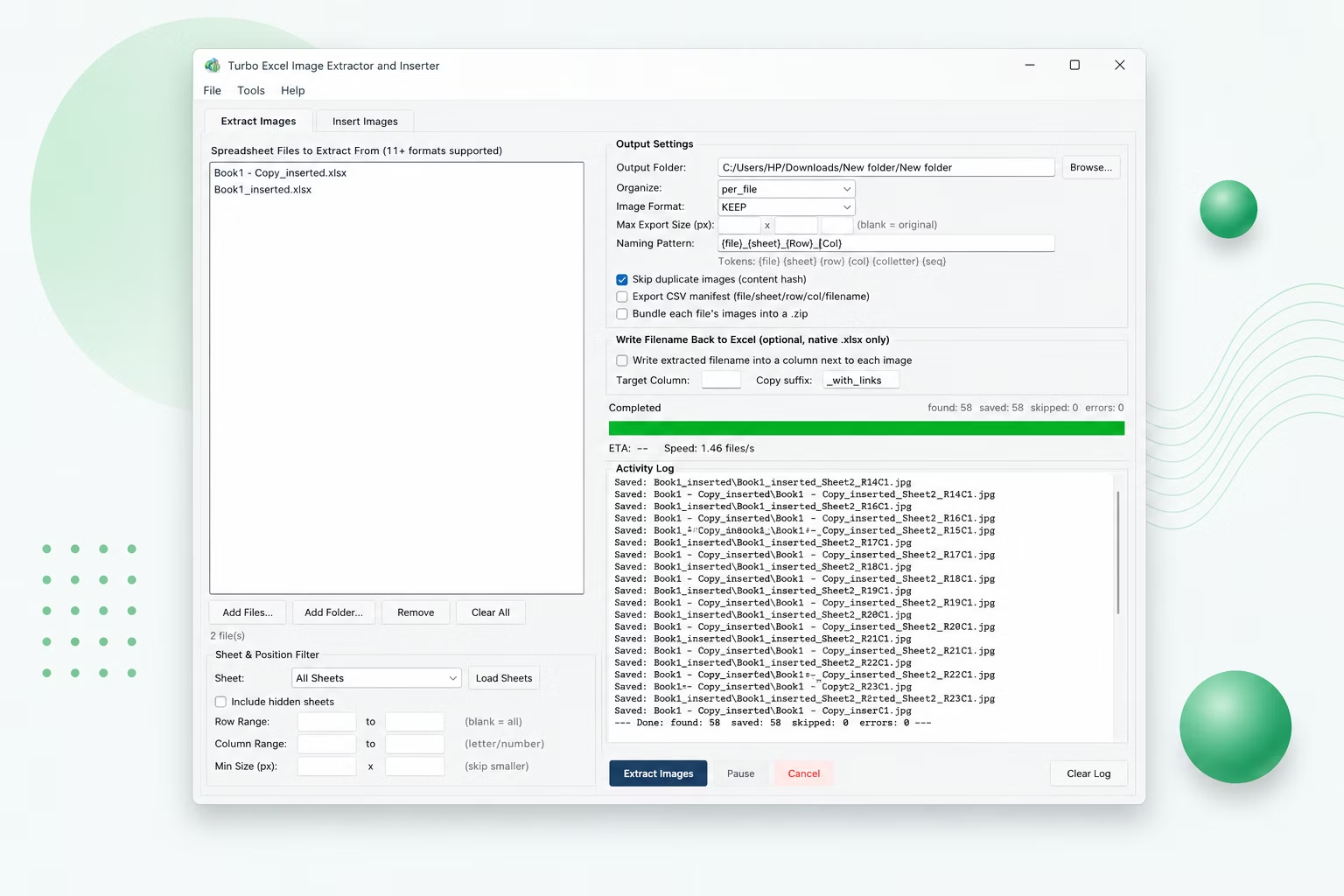
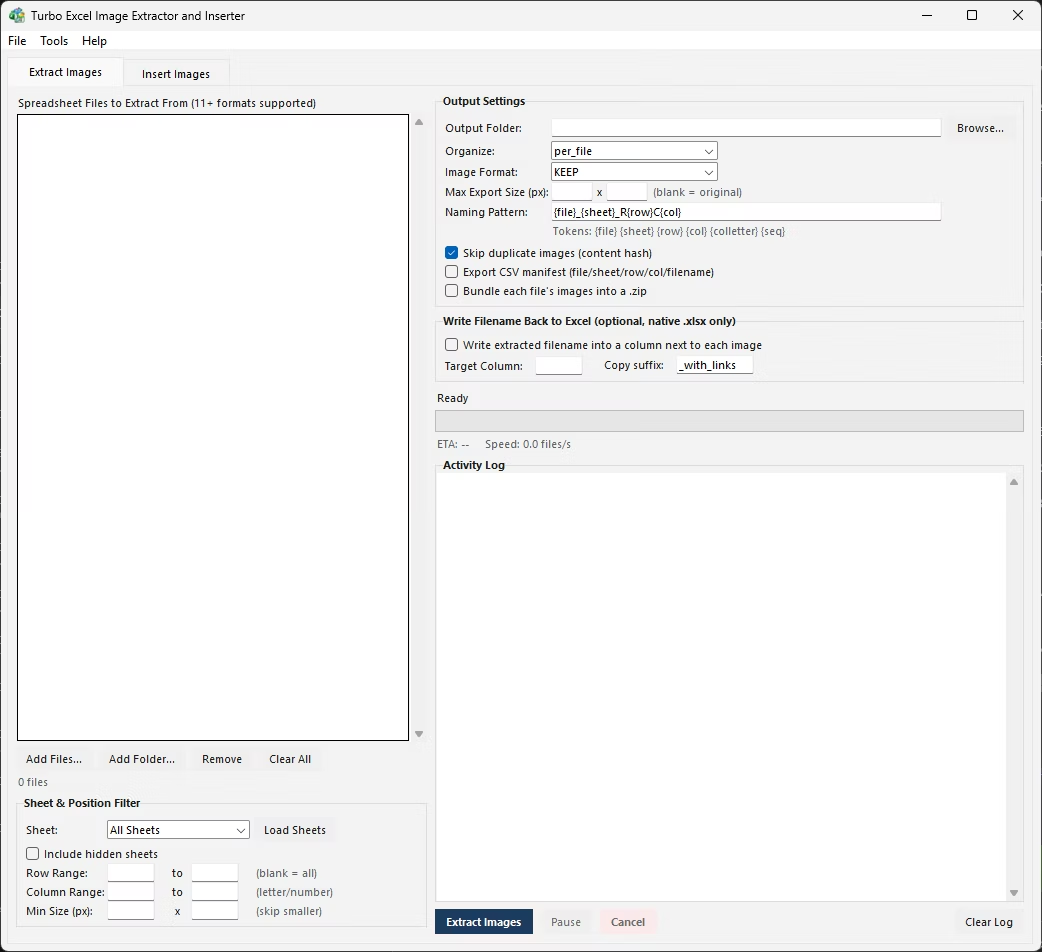
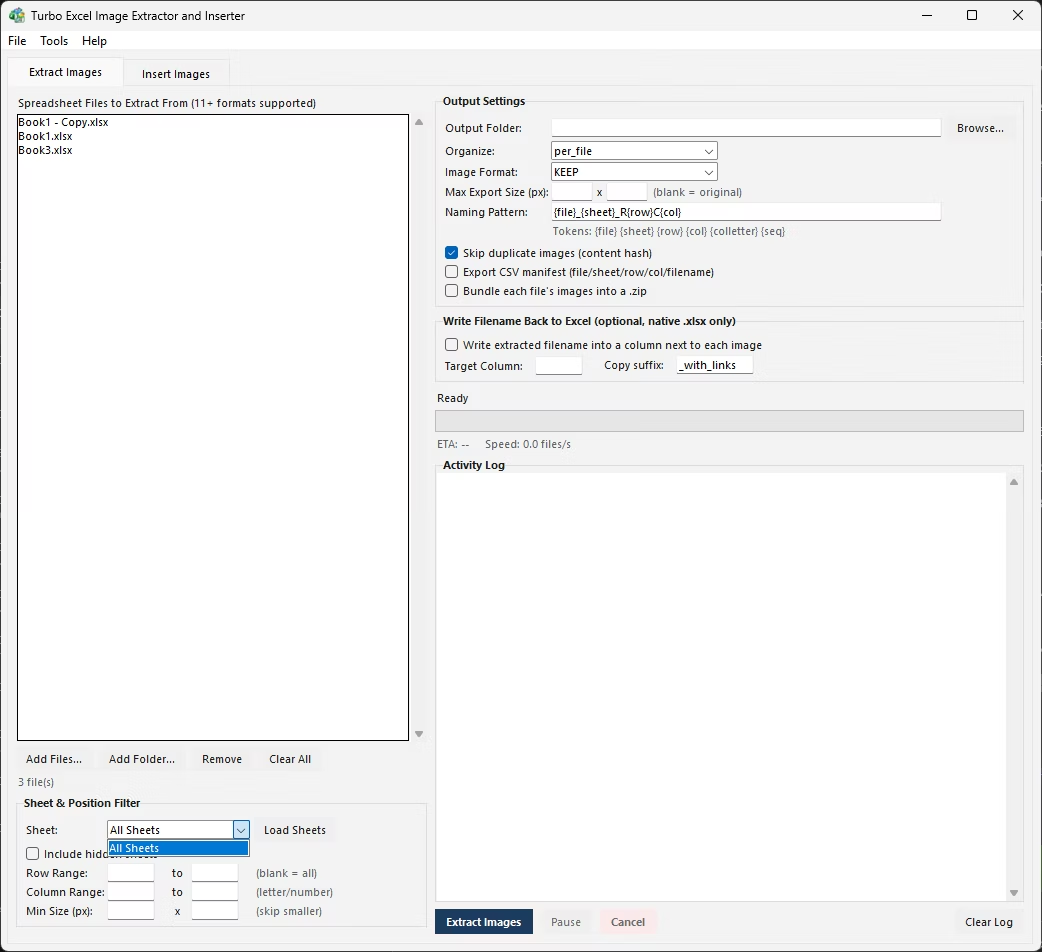
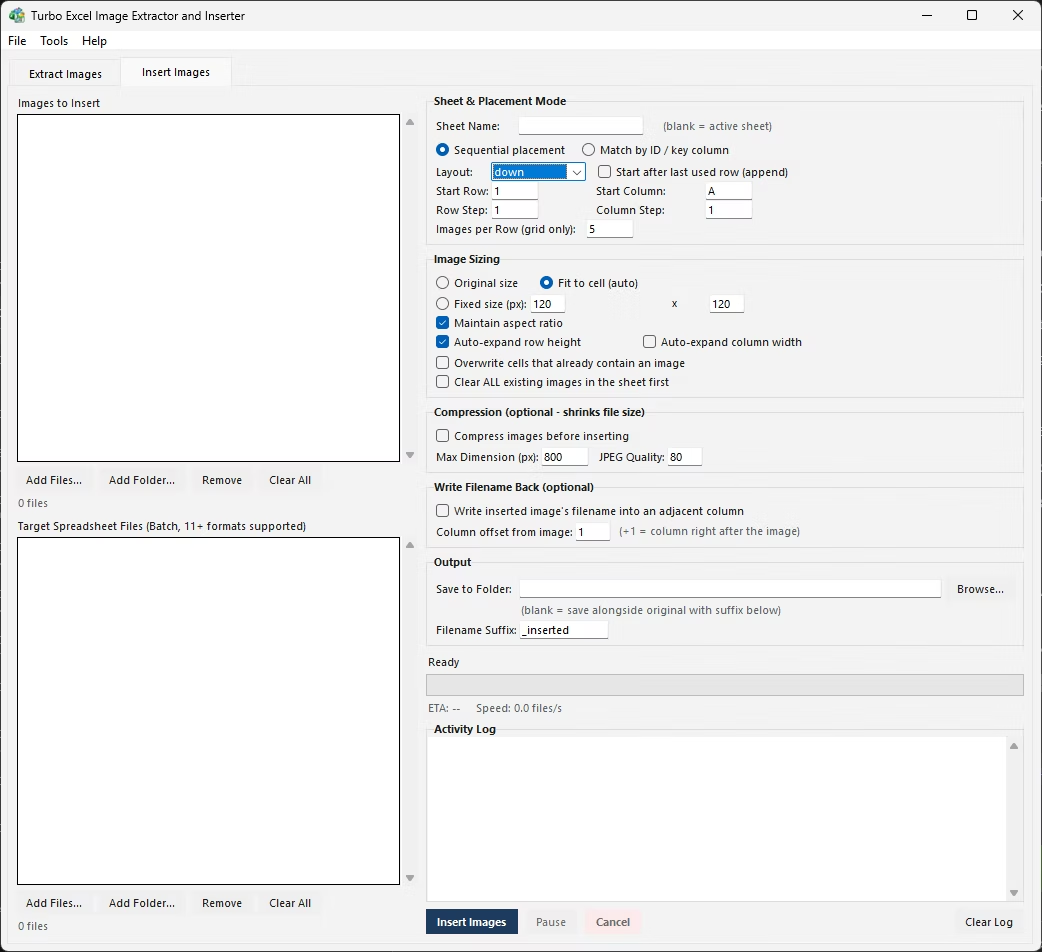
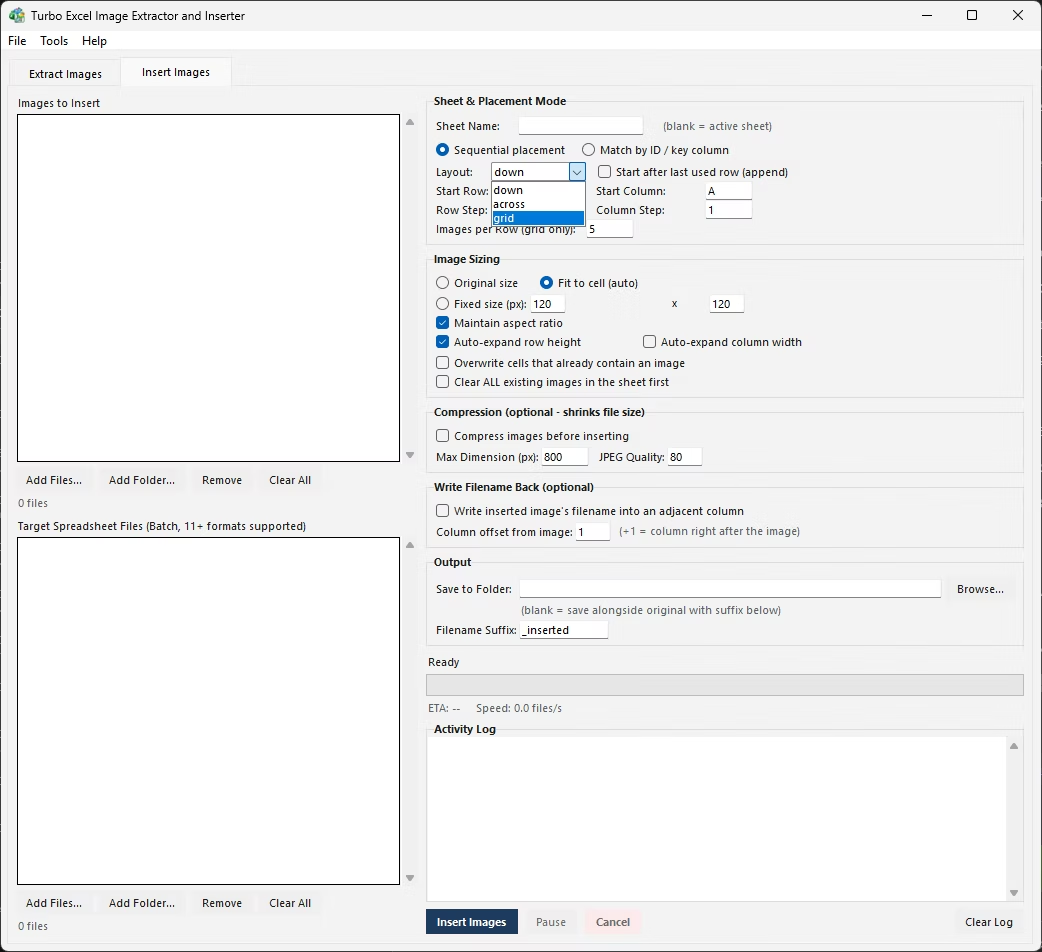
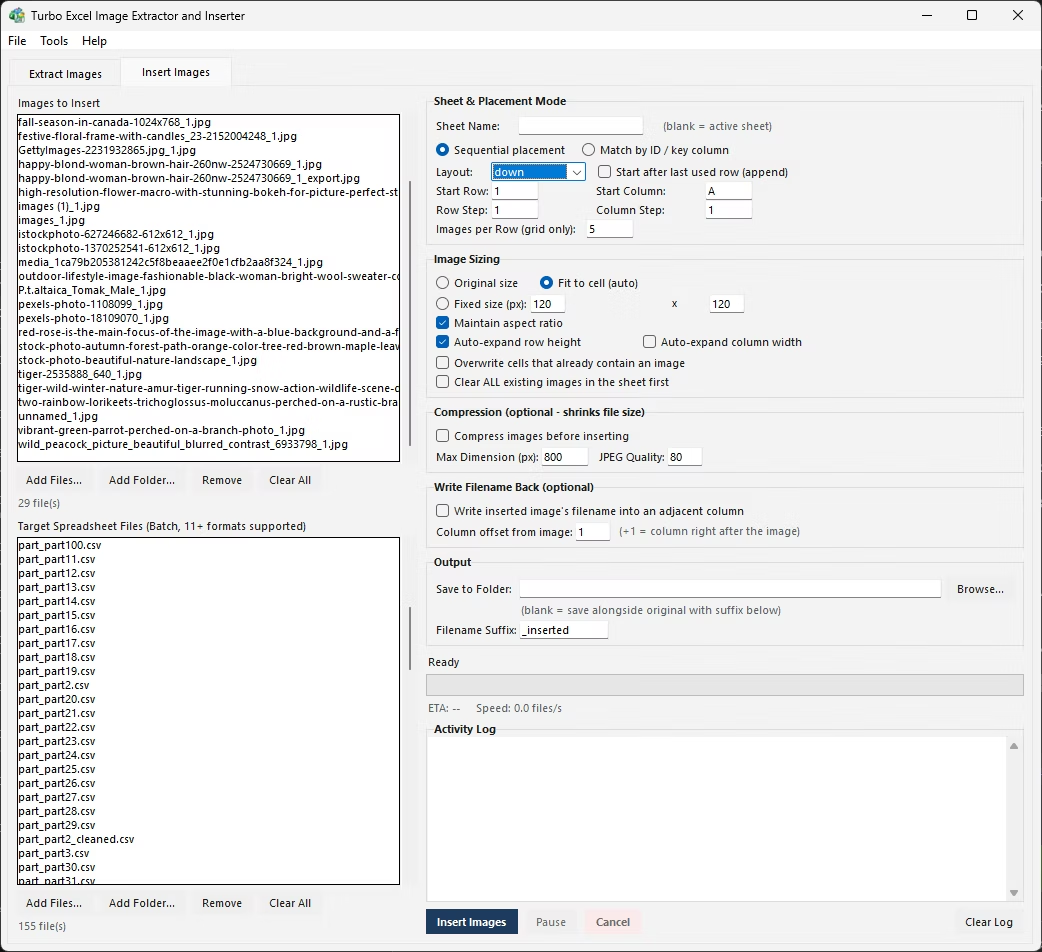
Turbo Excel Image Extractor and Inserter is built for exactly that. From the Insert Images tab, it places a folder of pictures into one workbook or many target workbooks at once, either in a simple sequential layout or matched precisely to the correct row by comparing filenames against a key column such as a SKU, part number, employee ID, or barcode.
Images are automatically sized as they're inserted, fit to cell, a fixed size, or a size that preserves the original aspect ratio, with optional compression to keep resulting files manageable. Because match mode relies on filenames, images don't need pre-sorting into a specific order before a bulk insertion job.
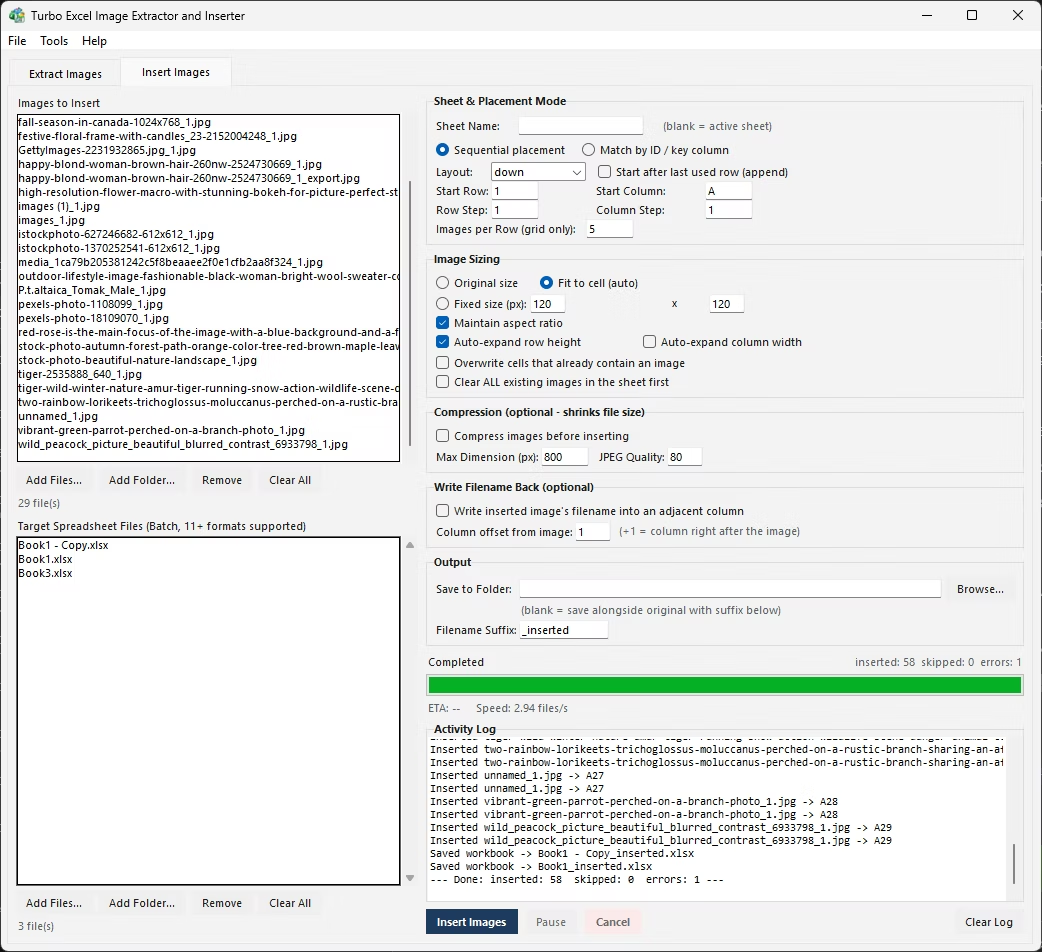
A live progress bar, files-per-second speed readout, and activity log let you track a large insertion job as it runs, with support for pausing, resuming, or cancelling at any point. Everything runs locally, so bulk insertion jobs involving sensitive images never touch an external server.
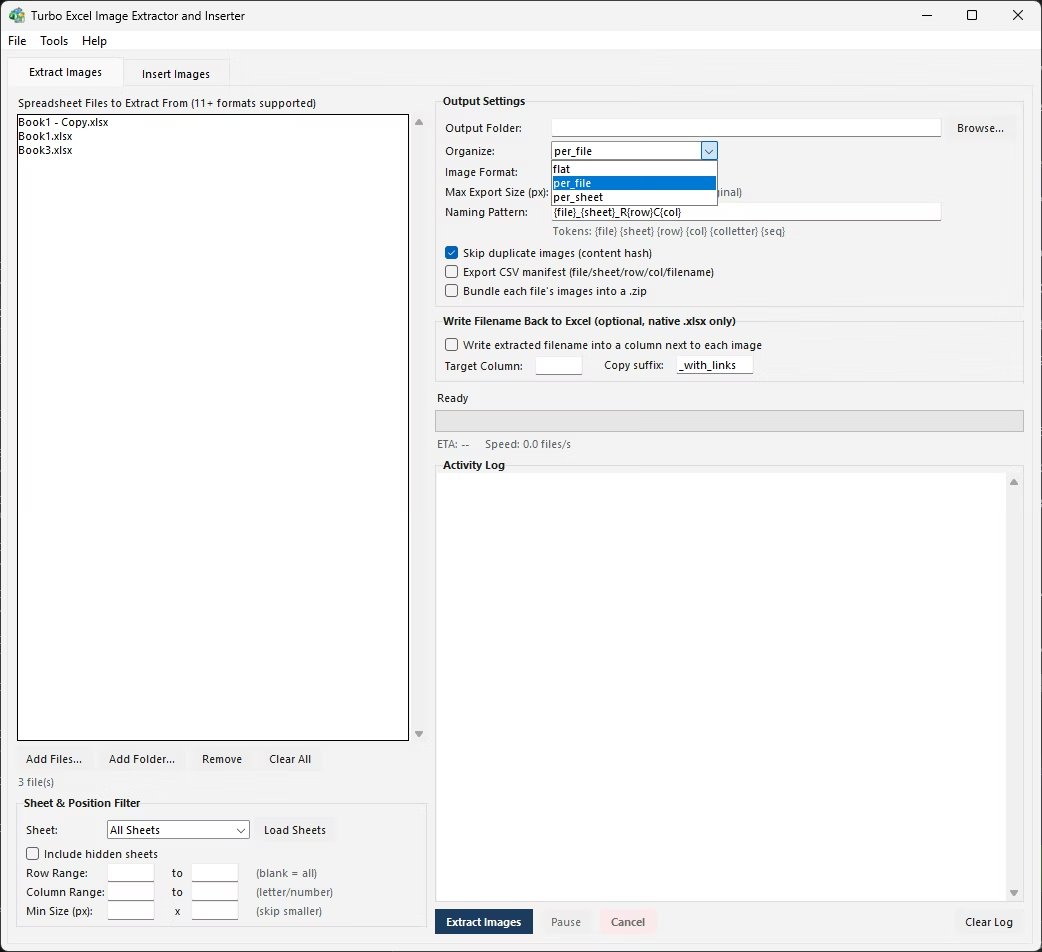
Beyond the core workflow built for excel Image Insertion Tool, Turbo Excel Image Extractor and Inserter includes the full toolkit found throughout the application: content-hash deduplication that compares actual pixel data rather than filenames, per-format quality and compression controls, folder organization on output, and a license activation system tied to a single one-time purchase. Any of these can be combined with the workflow described above, so a job that starts simple can grow into a fully configured pipeline without switching tools.
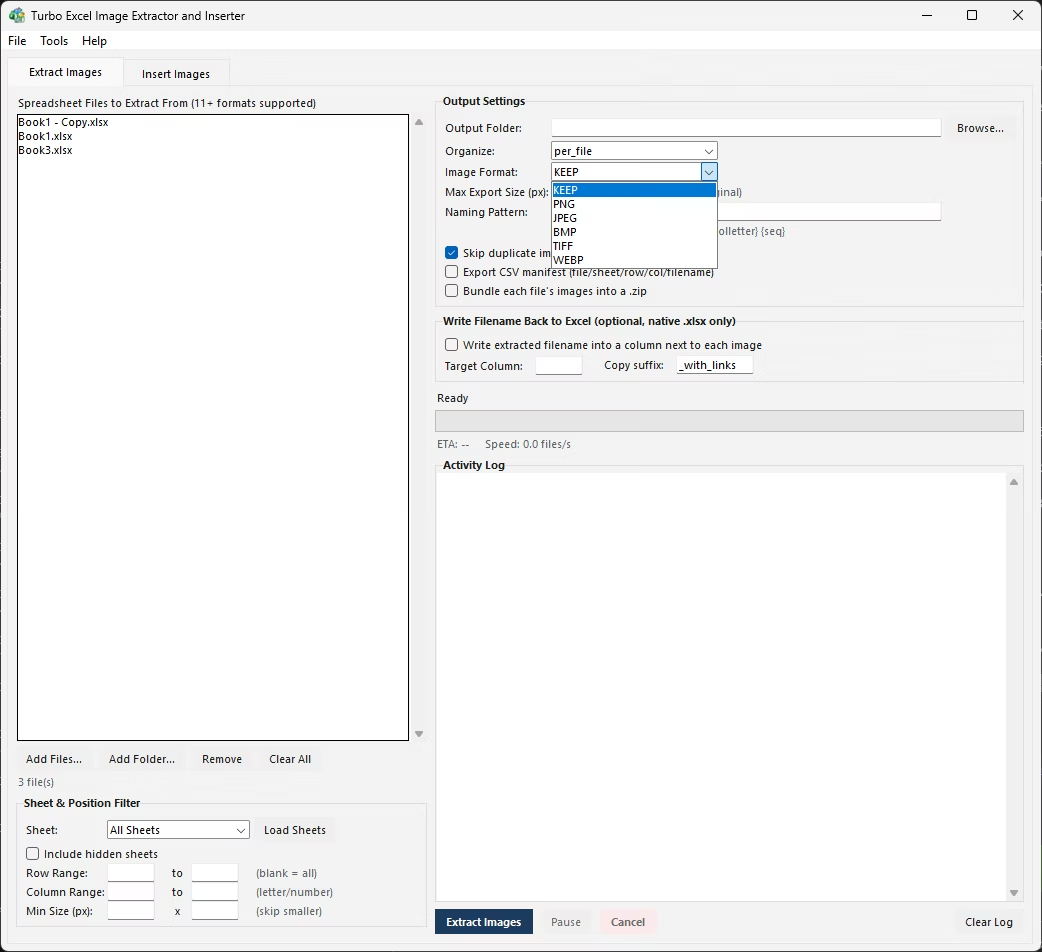
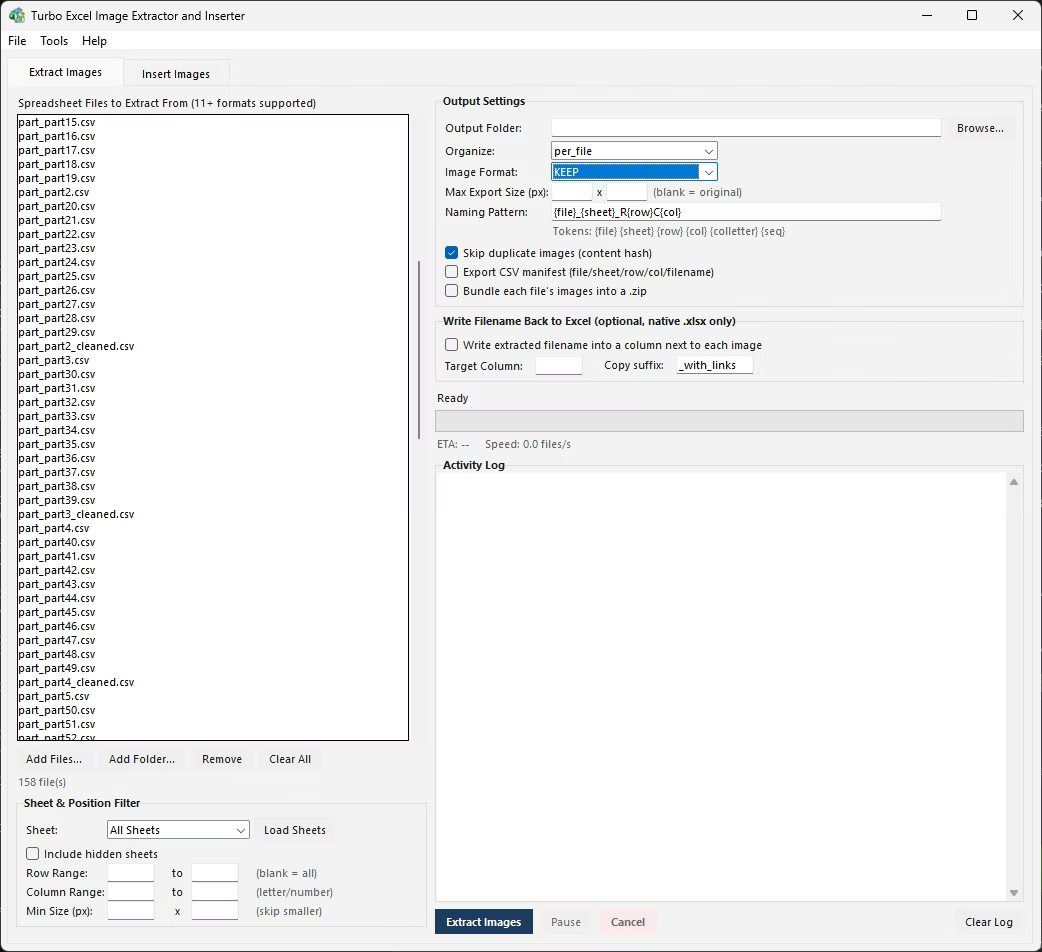
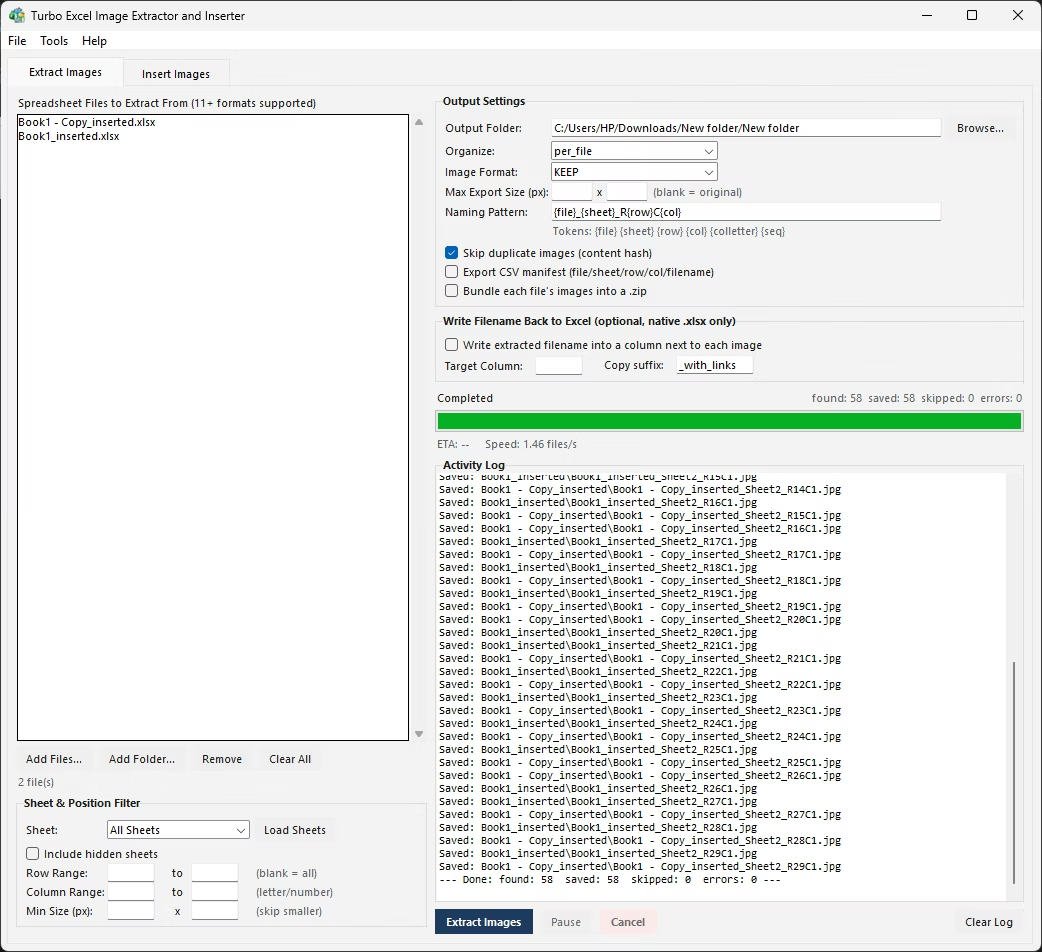
The application itself is a one-time purchase for Windows, with no subscription and no watermarks added to extracted or inserted images, and no data ever leaving your PC during a run. Every extraction can be documented with a CSV manifest recording the source file, sheet, row, column, cell reference, saved filename, and pixel dimensions for each image, and every insertion job can be paused, resumed, or cancelled, giving you full control over even a very large batch.
- Install Turbo Excel Image Extractor and Inserter on your Windows PC.
- Open the Insert Images tab.
- Add your folder of images to the queue.
- Add one or more target workbooks to the file queue.
- Choose sequential layout or match mode by key column.
- Set your image sizing and compression options.
- Click Start and monitor the live progress bar.
- Check the completed workbooks once the batch finishes.
- Double-check the activity log for any files or images that need a second look.
- Repeat the process on additional workbooks or folders as your workflow requires.
- Inserts images in bulk into one workbook or many at once
- Match mode links filenames to a key column for accurate placement
- Automatic sizing: fit to cell, fixed size, or aspect ratio preserved
- Optional compression before insertion for smaller files
- Live progress bar and activity log during large batches
- Pause, resume, or cancel a job at any point
- Runs fully offline with no upload limits
- One-time purchase for Windows, with no subscription or watermarks
- Content-hash deduplication compares actual pixel data, not just filenames
- Works with files on local drives, external drives, and network shares
Can I insert images into several target workbooks in one job?
Yes, multiple target workbooks can be queued and processed together in the same bulk insertion run.
Does bulk insertion still match images to the correct rows?
Yes, match mode works the same way at any scale, comparing filenames against your chosen key column for every image.
How large a batch can this tool handle?
There's no fixed limit; the multi-threaded engine is built to process large numbers of images and workbooks in a single run.
Can I stop a bulk insertion job partway through?
Yes, jobs can be paused, resumed, or cancelled at any point during processing.
Does this work on both Windows 10 and Windows 11?
Yes, Turbo Excel Image Extractor and Inserter is built and tested for both Windows 10 and Windows 11.
Is my data safe when using this tool?
Yes, all processing happens locally on your PC; no workbooks or images are ever uploaded, so proprietary or sensitive content stays fully under your control.
Can I cancel a job partway through if I need to?
Yes, both extraction and insertion jobs support pausing, resuming, and cancelling at any point during processing.
Can I use this on files stored on an external or network drive?
Yes, workbooks and image folders on local drives, external drives, or mapped network shares all work the same as any local folder.
Is there a trial version available before buying?
Check the product page on turbo-soft.com for current trial availability and details.
Ready to insert images in bulk into your Excel workbooks, fully offline?