PNG's lossless compression and transparency support make it the right choice for graphics, logos, and diagrams extracted from a workbook, especially when the picture needs to stay editable or be placed over a different background later. Extracting images and separately converting them to PNG afterward is an unnecessary extra step.
Turbo Excel Image Extractor and Inserter extracts Excel images and converts them to PNG in the same pass. It walks through every embedded picture in a workbook, filtered by sheet, row, column, or minimum size, and writes each one out directly as a PNG file, preserving any transparency the original image had.
A naming pattern controls how PNG files are named on the way out, deduplication catches repeated pictures, and a CSV manifest documents the sheet, row, and column each extracted PNG came from. Doing the format conversion during extraction rather than as a separate pass keeps the whole job faster.
Extraction runs on a multi-threaded engine, processing an unlimited number of workbooks in parallel, with a live progress bar and activity log so you can track PNG files being produced as the batch runs. Everything happens locally, with no images uploaded during the process.
Beyond the core workflow built for extract Excel Images to PNG, Turbo Excel Image Extractor and Inserter includes the full toolkit found throughout the application: content-hash deduplication that compares actual pixel data rather than filenames, per-format quality and compression controls, folder organization on output, and a license activation system tied to a single one-time purchase. Any of these can be combined with the workflow described above, so a job that starts simple can grow into a fully configured pipeline without switching tools.
The application itself is a one-time purchase for Windows, with no subscription and no watermarks added to extracted or inserted images, and no data ever leaving your PC during a run. Every extraction can be documented with a CSV manifest recording the source file, sheet, row, column, cell reference, saved filename, and pixel dimensions for each image, and every insertion job can be paused, resumed, or cancelled, giving you full control over even a very large batch.
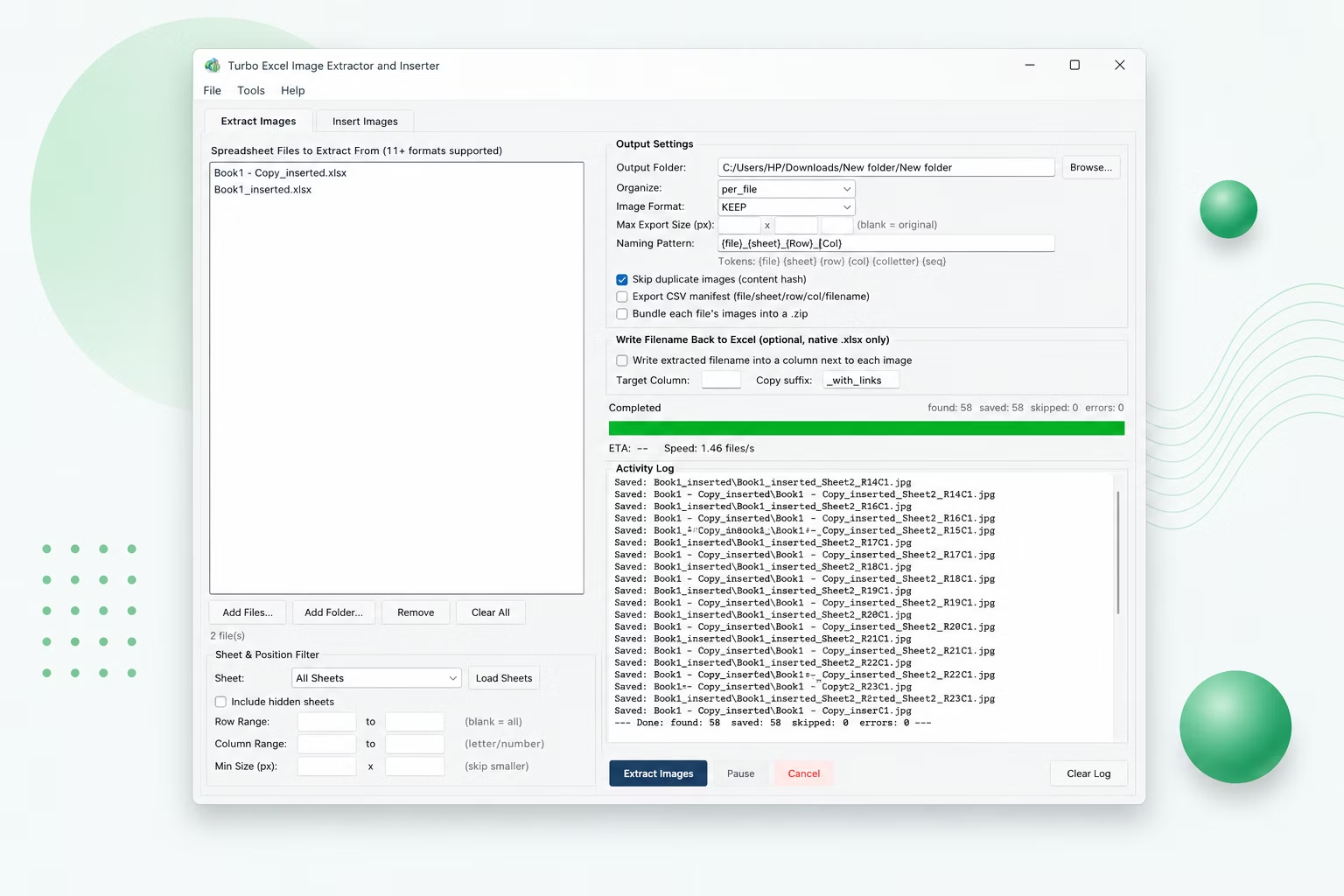
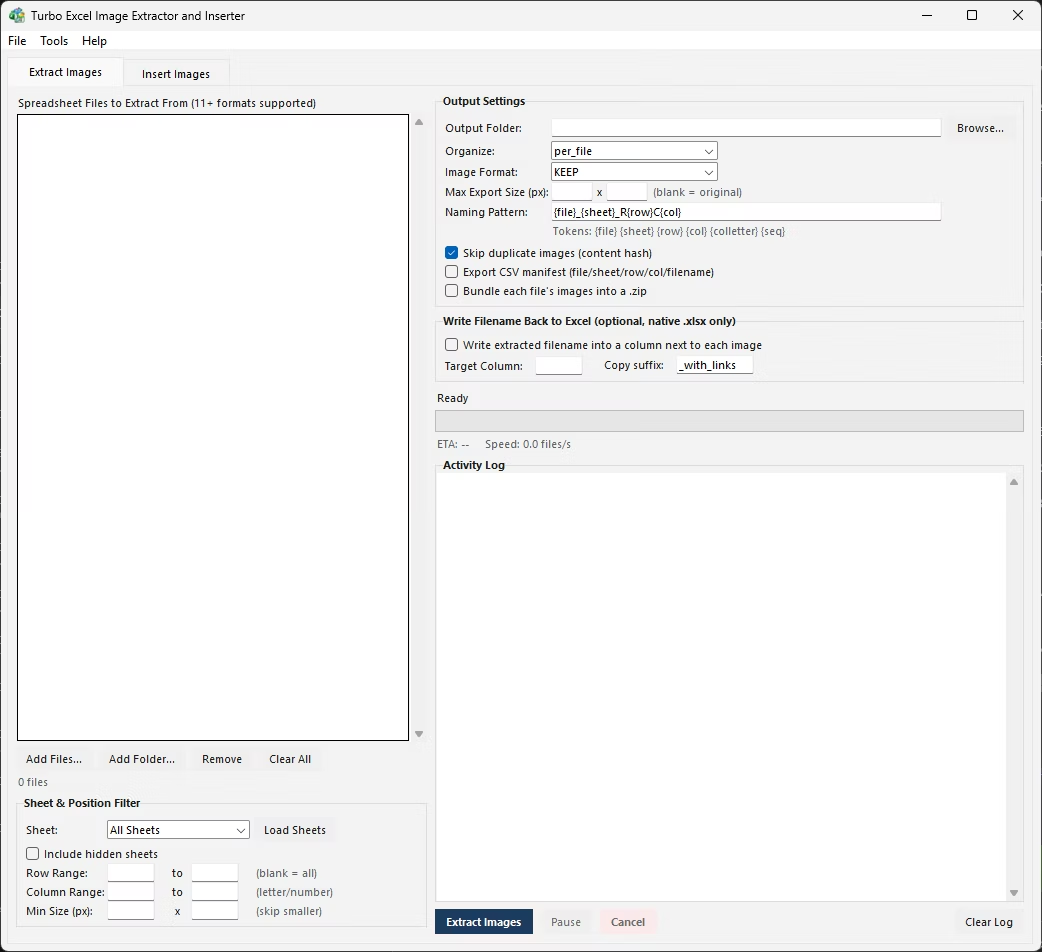
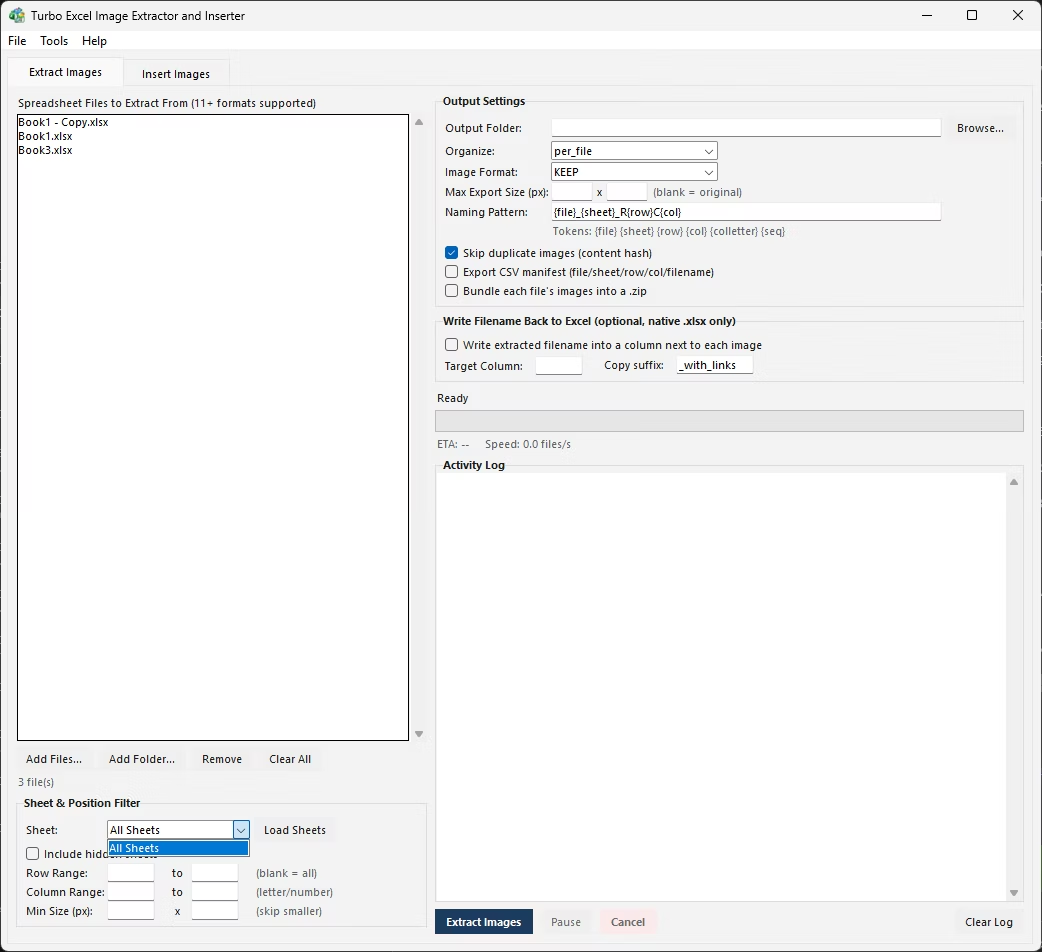
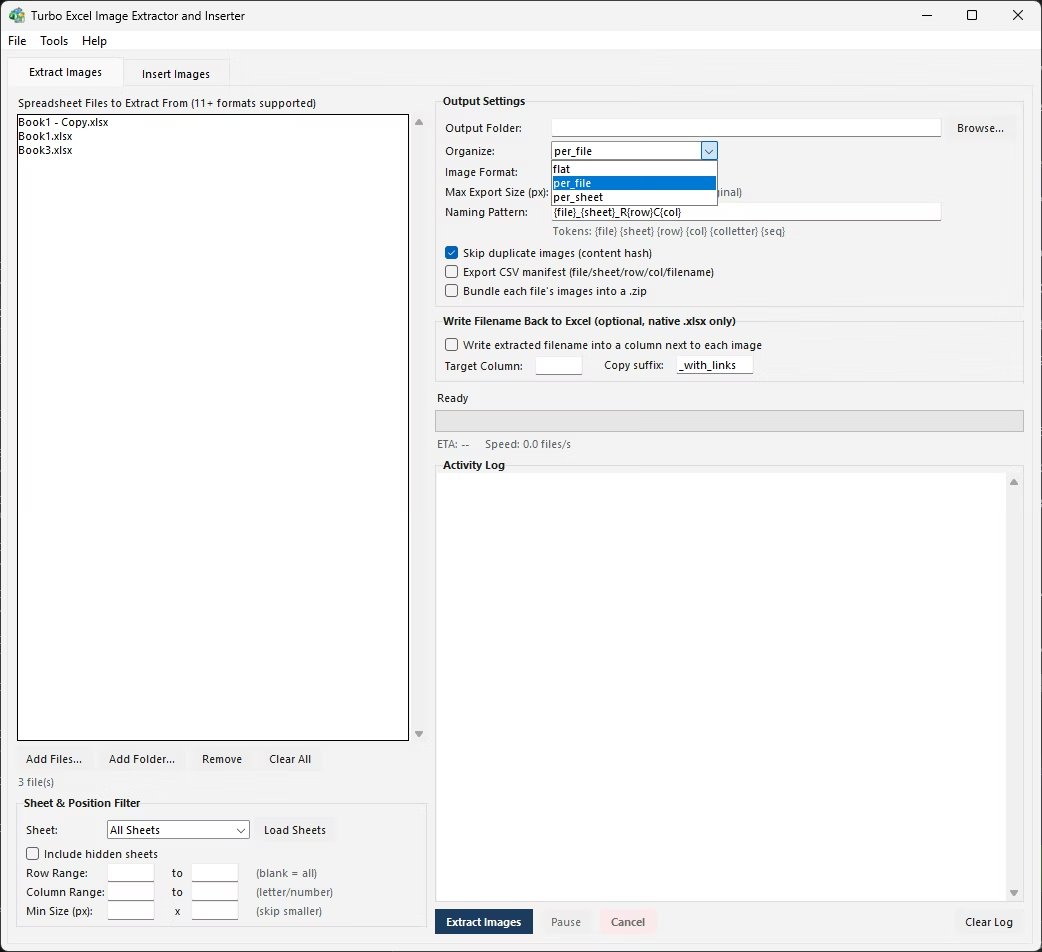
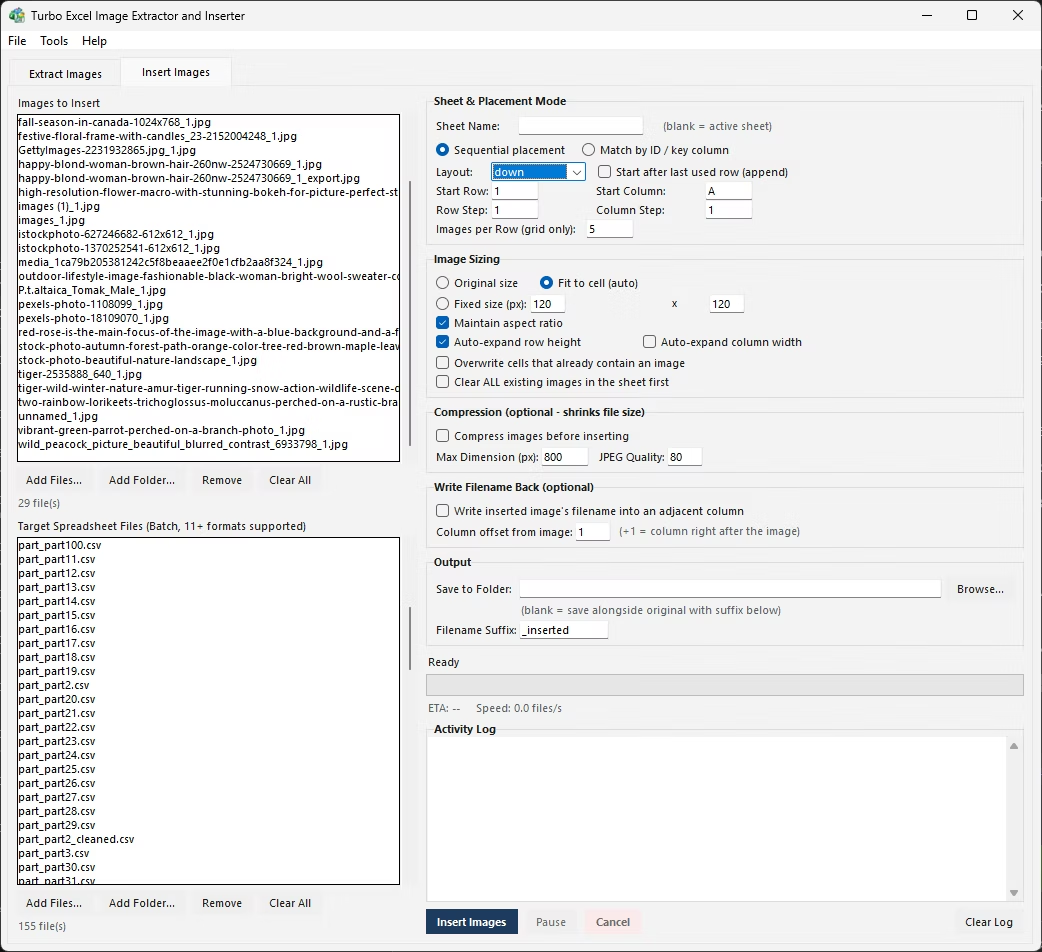
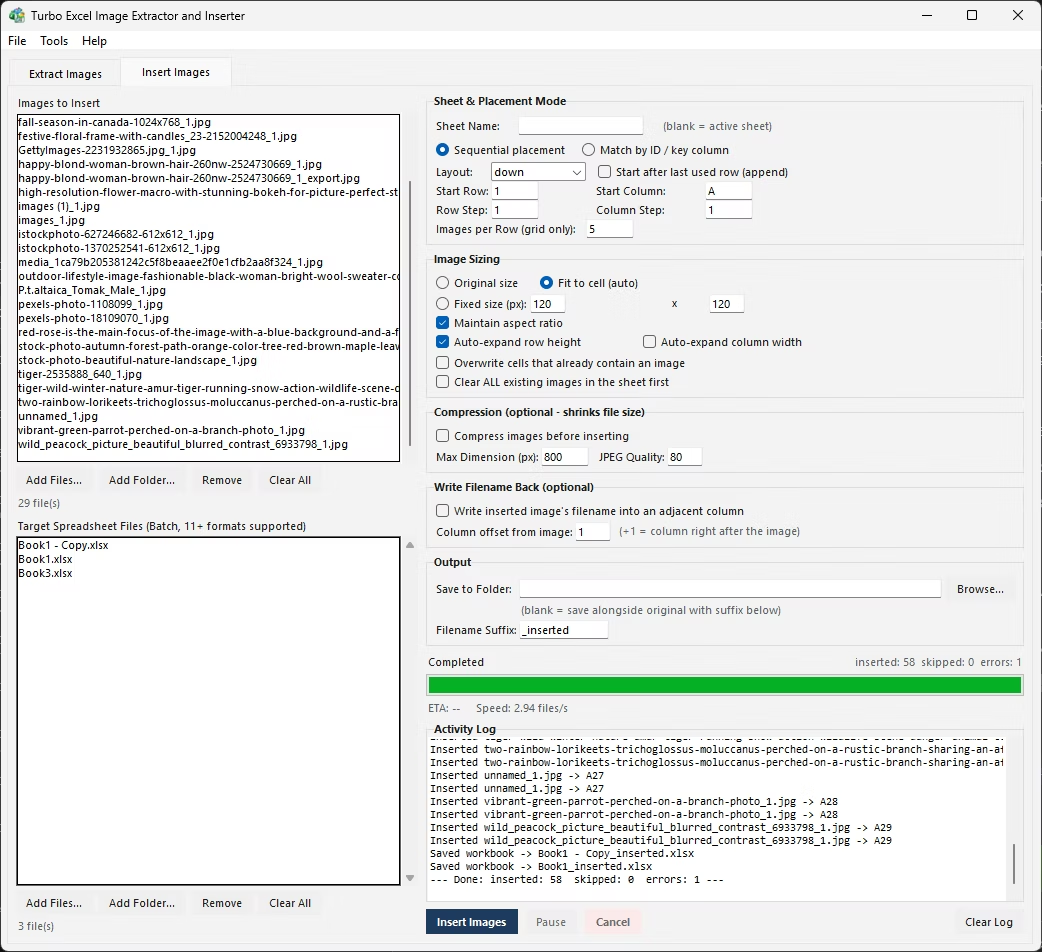
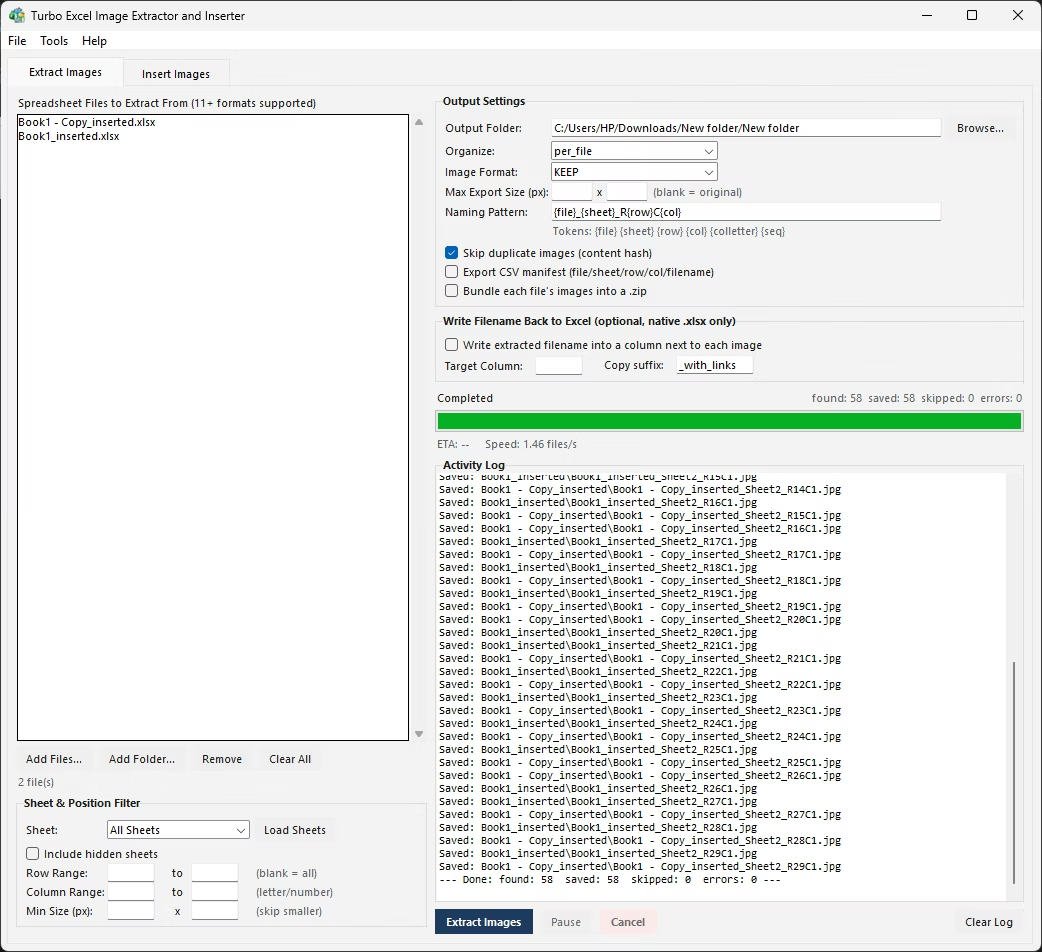
- Install Turbo Excel Image Extractor and Inserter on your Windows PC.
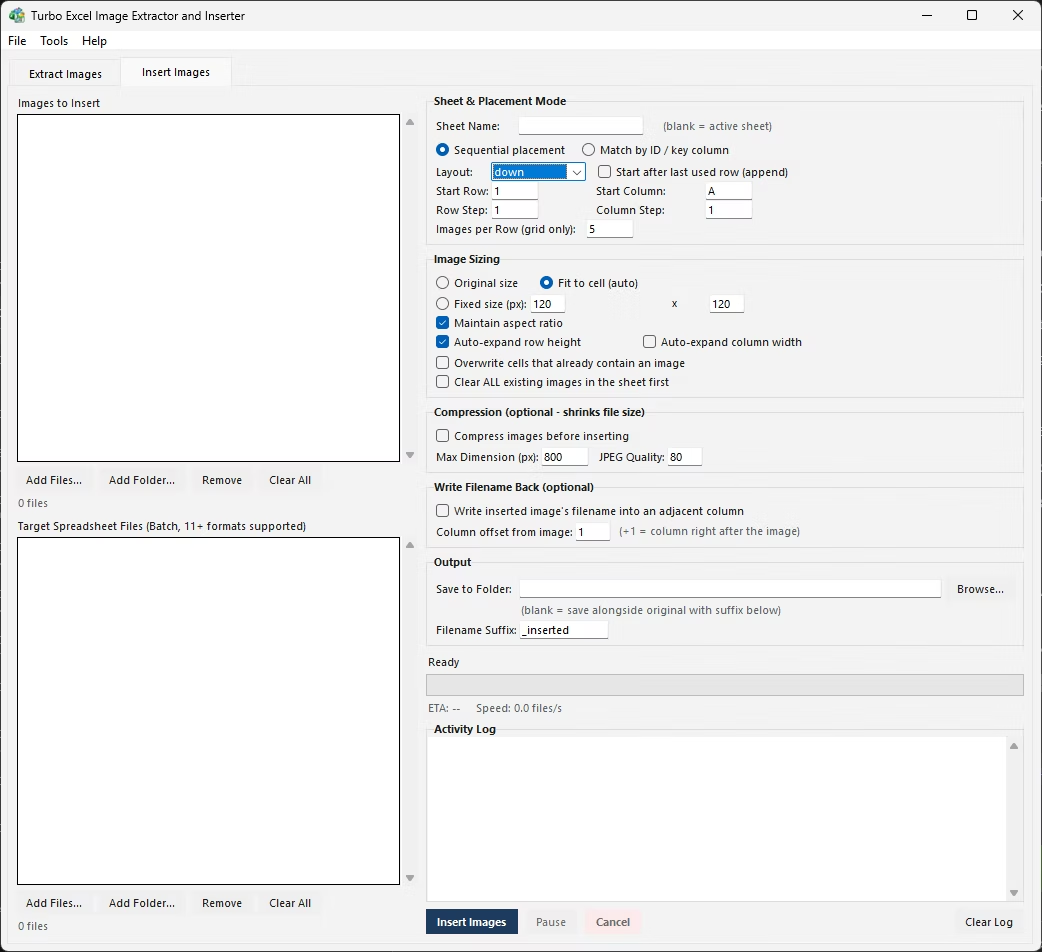
- Open the Extract Images tab.
- Add the workbook or workbooks you want to extract from.
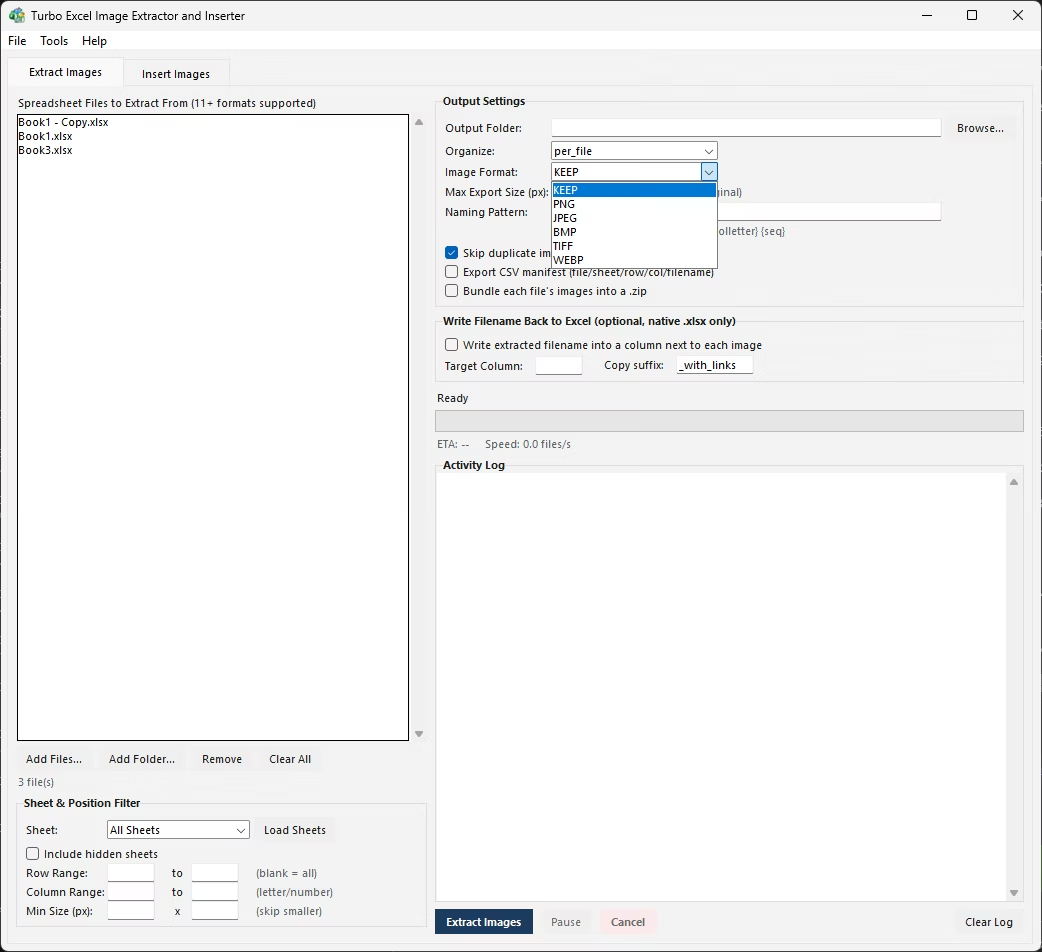
- Set the output image format to PNG.
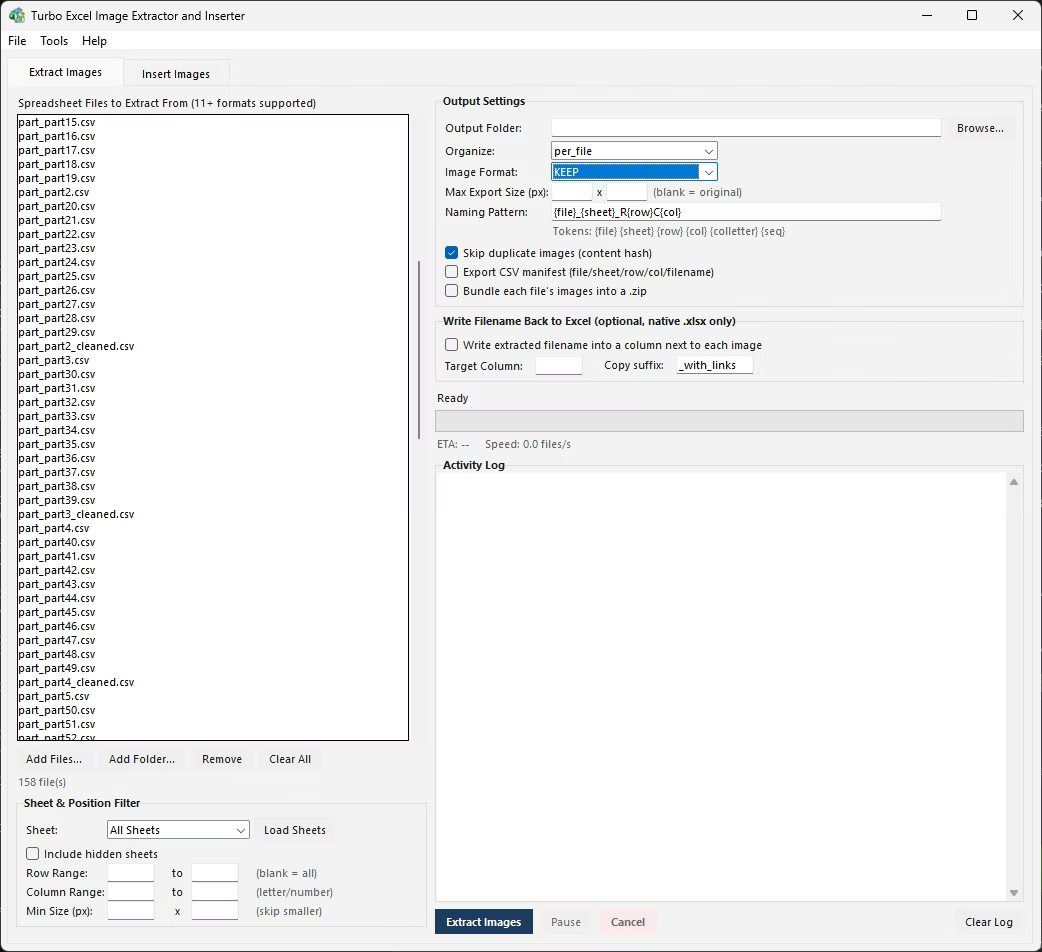
- Set sheet, row, column, or minimum size filters if needed.
- Choose your naming pattern.
- Click Start and monitor the live progress.
- Collect your PNG files and the CSV manifest from the output folder.
- Double-check the activity log for any files or images that need a second look.
- Repeat the process on additional workbooks or folders as your workflow requires.
- Extracts embedded images and converts them to PNG in one pass
- Preserves transparency present in the original embedded images
- Filter by sheet, row, column, or minimum image size
- Custom naming patterns and automatic deduplication
- CSV manifest documents the source of every extracted PNG
- Multi-threaded engine for unlimited workbooks in parallel
- Runs fully offline with no upload limits
- One-time purchase for Windows, with no subscription or watermarks
- Content-hash deduplication compares actual pixel data, not just filenames
- Works with files on local drives, external drives, and network shares
Will transparent areas in the original image stay transparent in the PNG?
Yes, transparency is preserved when the output format is PNG, as long as the original embedded image had transparency.
Is PNG a good choice for logos or diagrams extracted from Excel?
Yes, PNG's lossless compression and transparency support suit graphics, logos, and diagrams well, better than a lossy format like JPG.
Do I need to convert images separately after extraction?
No, PNG conversion happens during extraction itself, so there's no separate conversion step required.
Can extracted PNG files be organized into folders automatically?
Yes, folder organization settings apply the same way regardless of which output format you choose.
Does this work on both Windows 10 and Windows 11?
Yes, Turbo Excel Image Extractor and Inserter is built and tested for both Windows 10 and Windows 11.
Is my data safe when using this tool?
Yes, all processing happens locally on your PC; no workbooks or images are ever uploaded, so proprietary or sensitive content stays fully under your control.
Can I cancel a job partway through if I need to?
Yes, both extraction and insertion jobs support pausing, resuming, and cancelling at any point during processing.
Can I use this on files stored on an external or network drive?
Yes, workbooks and image folders on local drives, external drives, or mapped network shares all work the same as any local folder.
Is there a trial version available before buying?
Check the product page on turbo-soft.com for current trial availability and details.
Ready to extract your Excel images straight to PNG, fully offline?