HEIC to JPG Converter for Windows — Offline, Batch, Fast
The fastest offline batch HEIC to JPG converter for Windows 10 & 11 — no cloud uploads, no file size limits, no subscriptions. Convert iPhone HEIC photos individually or batch-convert entire folder trees with up to 32 parallel threads. Supports 21 input formats and 20 output formats including JPEG, PNG, WEBP, AVIF, SVG, ICO, EXR, TGA, HDR and more.
- 100% Offline — Files Never Leave Your PC
- Batch & Bulk HEIC to JPG in Seconds
- Handles 100K+ Images Per Run
- Drag & Drop HEIC Folders
- Nested Sub-Folder Auto-Scan
- Up to 32 Parallel Threads
- 21 Input Formats — Including All RAW
- 20 Output Formats — JPEG, PNG, WEBP, AVIF, SVG, ICO & More
- JPEG Quality Control 1–100
- Batch & Individual Conversion Modes
- Pause & Resume Conversion Mid-Run
- Batch Resize While Converting (Fit / Fill / Stretch)
- Safe Delete Originals to Recycle Bin
- Real-Time ETA, Speed & Progress Display
- System Tray Minimize Support
- HEIC, HEIF & iPhone Photo to JPG
- Windows 10 & Windows 11 (64-bit)
- Lifetime License — One-Time Payment
- Version 6.2 — Free Download Included
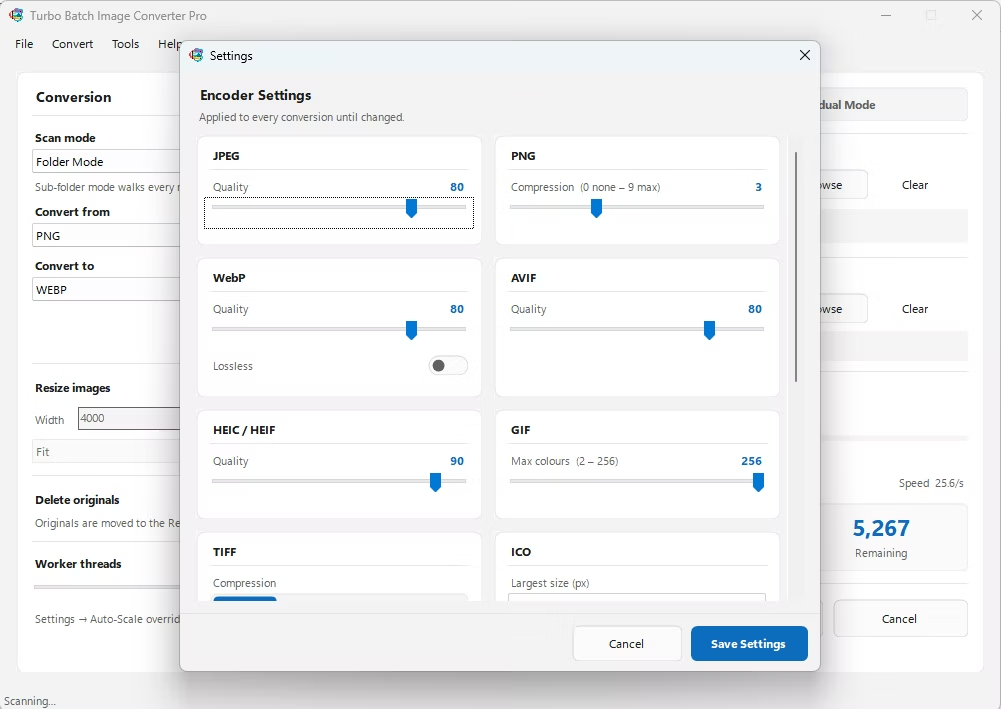
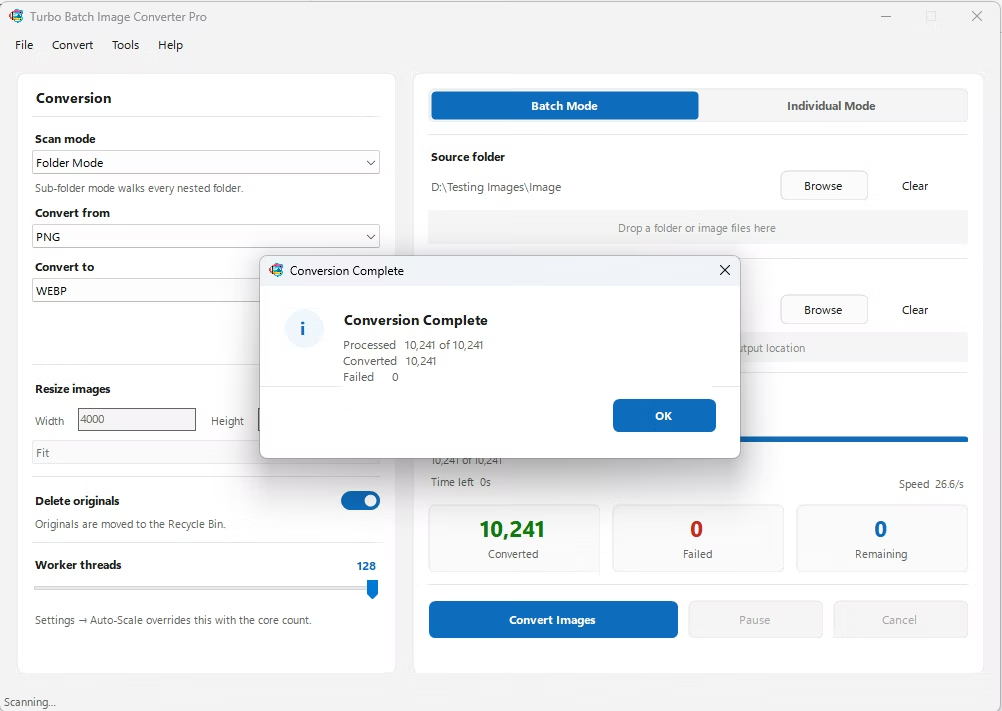
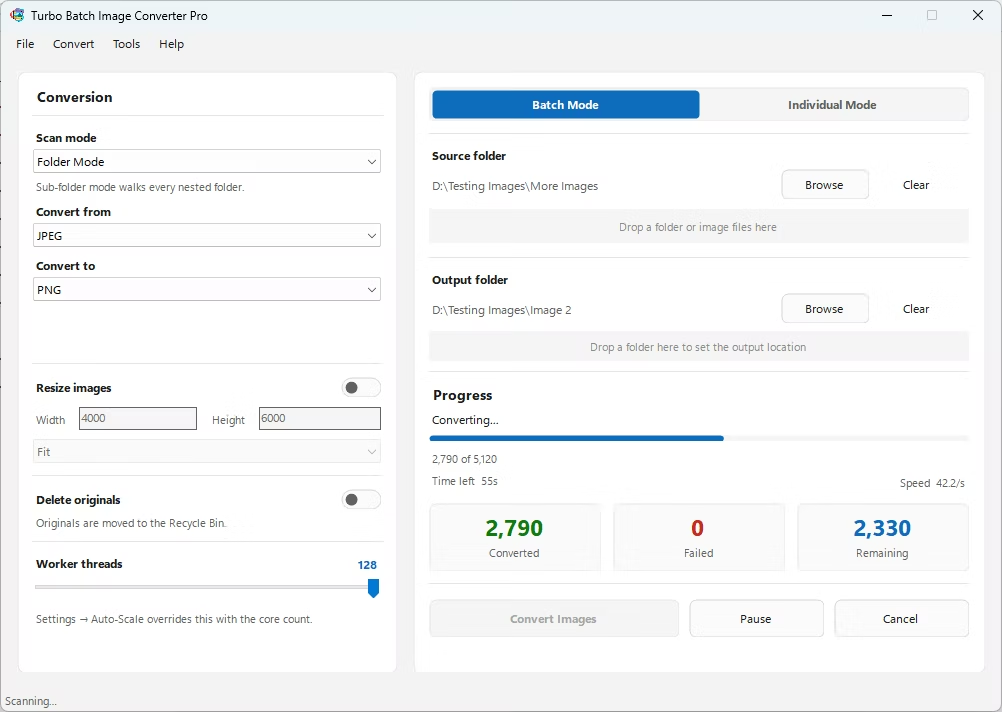
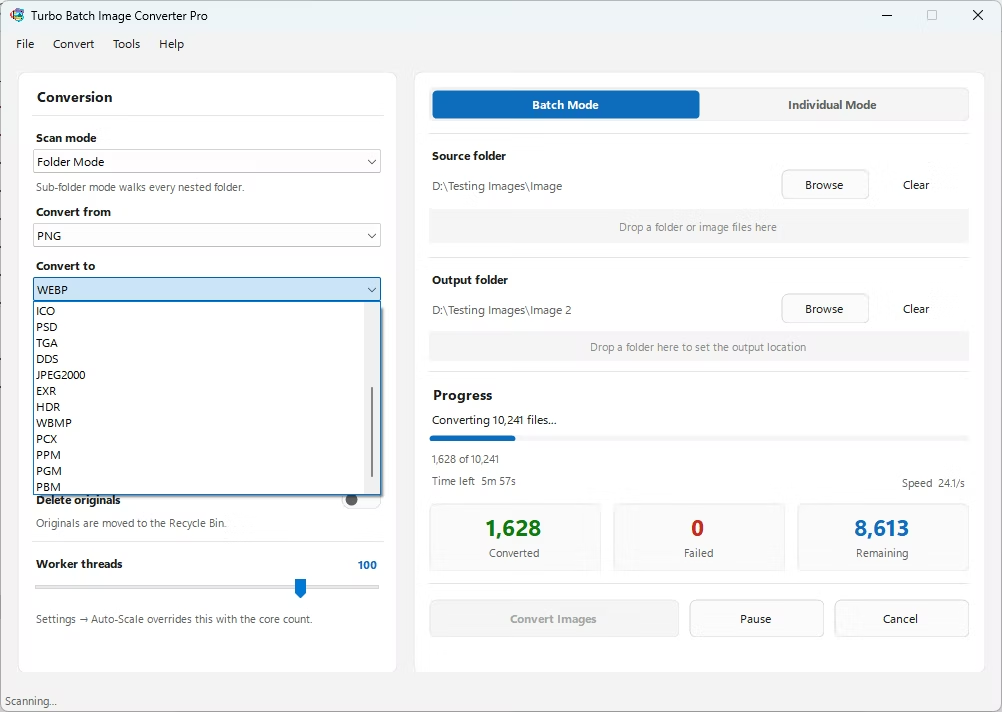
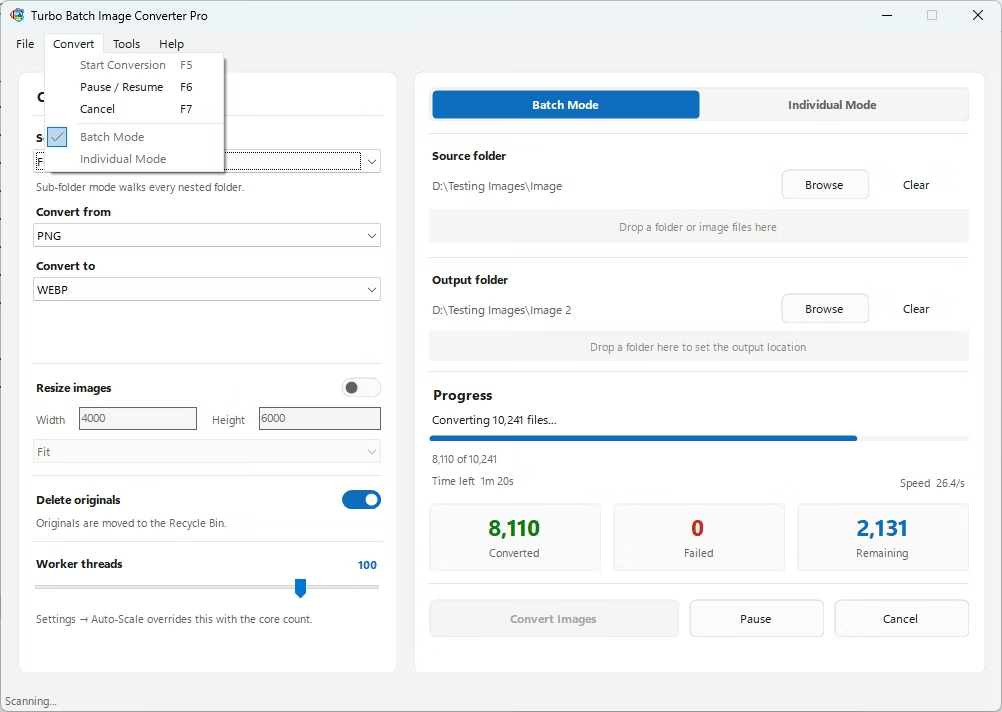
See the full interface of Turbo Batch Image Converter Pro — from the main conversion panel and format selectors to the resize controls, settings window, and progress display. Click any screenshot to enlarge.
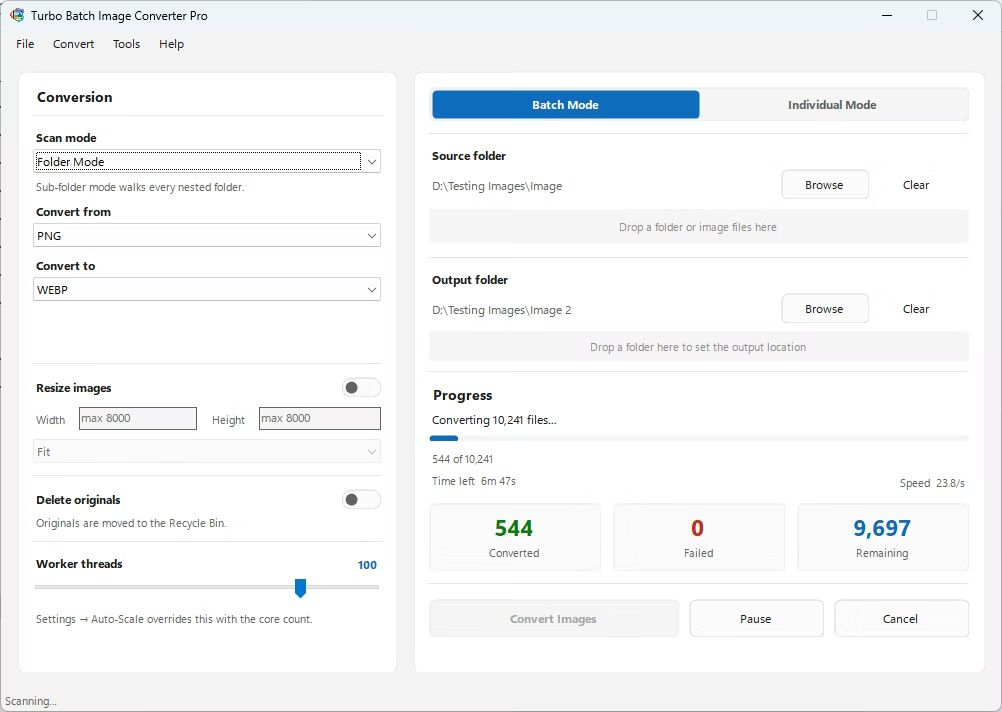 ⤢ Enlarge
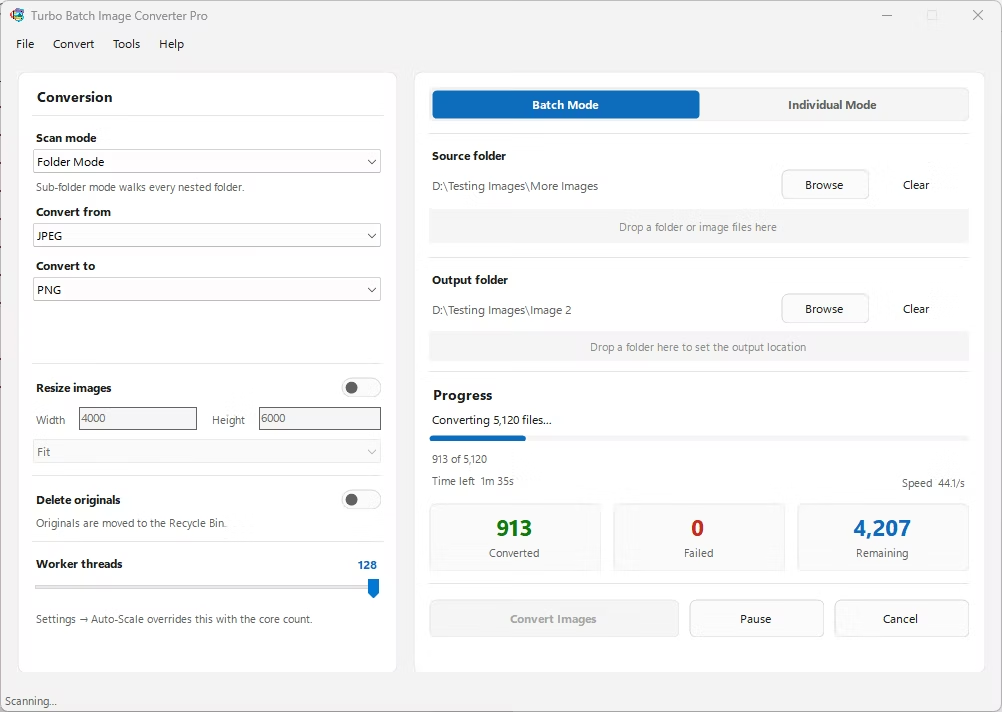 ⤢ Enlarge
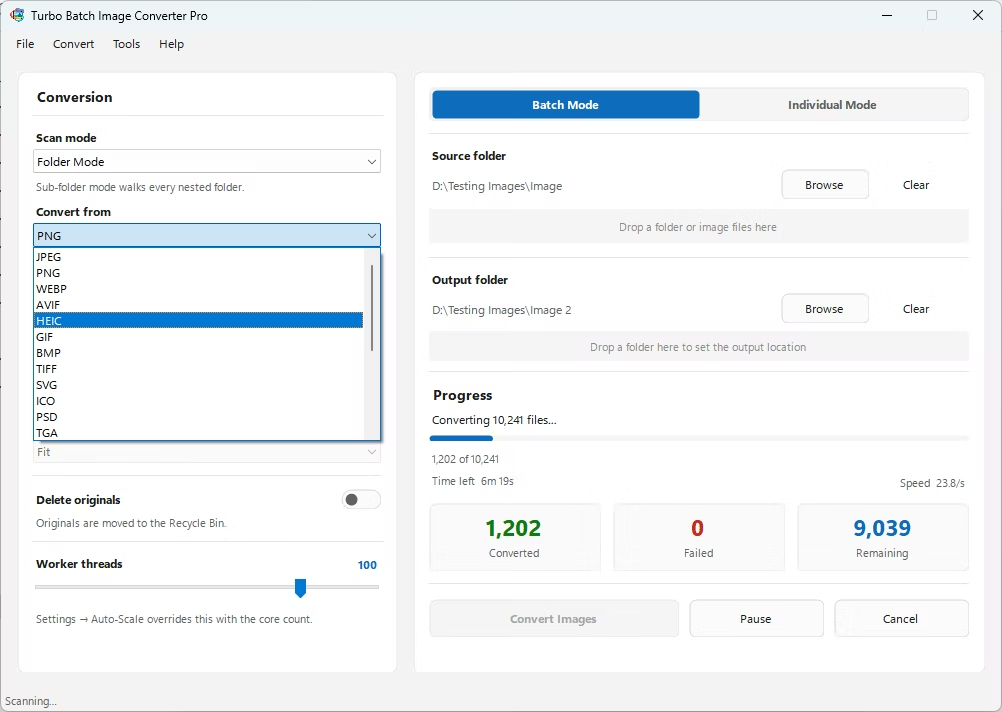 ⤢ Enlarge
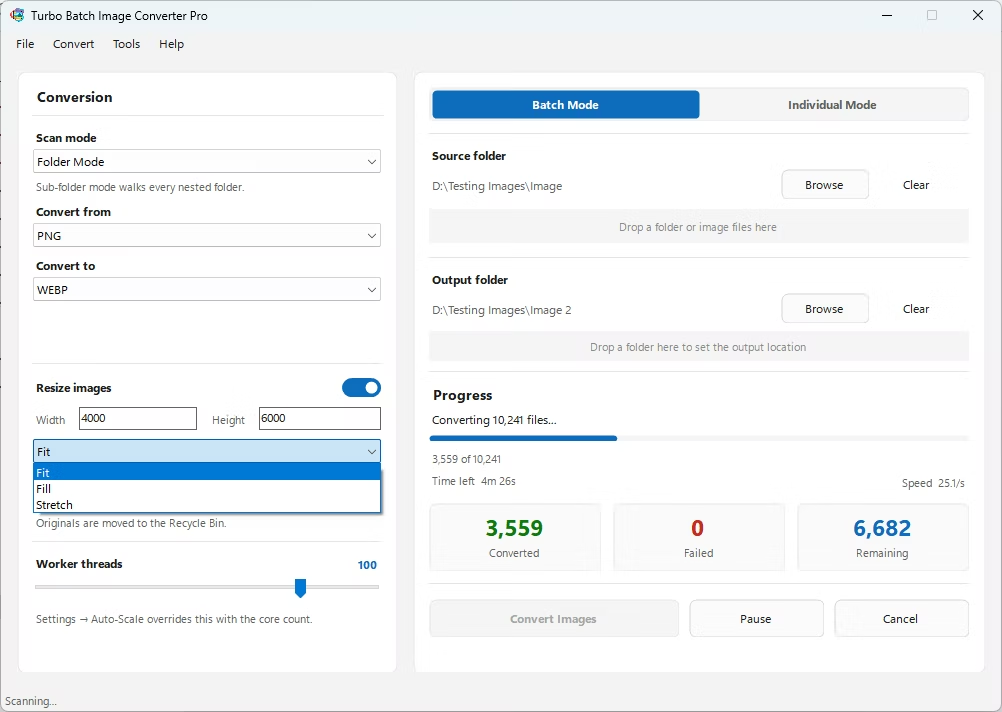 ⤢ Enlarge
 ⤢ Enlarge
 ⤢ Enlarge
 ⤢ Enlarge
 ⤢ Enlarge
 ⤢ Enlarge
⤢ Enlarge
⤢ Enlarge
 ⤢ Enlarge
 ⤢ Enlarge
Click any screenshot to enlarge — use the arrow buttons to browse all 12 images.
Why Convert HEIC to JPG on Windows?
HEIC (High Efficiency Image Container) is Apple's default photo format for iPhones and iPads. It delivers excellent compression and quality, but it is not natively supported by most Windows applications, websites, social media platforms, and printers. When you transfer iPhone photos to a Windows PC, you are often left with HEIC files that many programs simply cannot open.
JPEG (JPG) is the universally compatible format accepted by virtually every application, website, printer, and device on the planet. Converting your HEIC to JPG — performing a HEIC to JPEG convert — unlocks your iPhone photos for use anywhere. This is especially important for iPhone users, photographers shooting with Apple devices, and anyone receiving HEIF images from iOS contacts.
For iPhone users, Apple device owners, photographers, and Windows power users sitting on thousands of HEIC files, batch converting HEIC to JPG is a common but tedious task. Turbo Batch Image Converter Pro is dedicated HEIC to JPG converter software for Windows that eliminates the repetition — entirely offline, with no internet required and no file size limits.
Whether you need an iOS HEIC to JPG converter, a HEIF to JPG converter for Windows, a bulk HEIC to JPG converter for processing hundreds of iPhone photos at once, or a batch HEIC to JPG converter that works without subscriptions, Turbo Batch covers every scenario. It supports multi-HEIC jobs, Apple bulk convert workflows, and produces high-quality JPEG output entirely on your local PC.
Turbo Batch accepts 21 input formats in a single conversion job. Use it as a dedicated HEIC to JPG converter, a HEIF to JPG converter, or mix any supported formats in one batch run. The scrollable format selector in the app lists all available input options.
RAW camera formats supported as input — decoded via rawpy with 8-bit output for maximum compatibility across all major camera manufacturers:
Convert your HEIC files to JPG or any of the 20 supported output formats in a single batch pass. From universal web formats to professional imaging standards, Turbo Batch covers every workflow. RAW is input-only — all 20 raster output formats are fully supported for write.
Each output format has dedicated quality and compression controls accessible via the Settings panel. The output format is selected from a scrollable dropdown with instant switching between all 20 options.
When converting HEIC to JPG or any other format, precise quality control is critical. Turbo Batch gives you full command over every output parameter to balance file size against visual fidelity. All settings are accessible through the Settings window in the app.
| Output Format | Quality / Compression Control | Default Value |
|---|---|---|
| JPEG / JPG | Quality slider 1–100 — fine-tune compression per batch. Subsampling set to 0 for best chroma quality. | Quality: 80 |
| PNG | Compression level 0–9 — 0 = no compression (fastest), 9 = maximum compression (smallest file). Lossless output only. | Compress: 3 |
| WebP | Quality slider 1–100 plus a Lossless toggle. In lossless mode, quality is ignored and the image is encoded without any data loss. | Quality: 80, Lossy |
| AVIF | Quality slider 1–100 with encoder speed set to 8 (fast with excellent quality). AVIF supports RGBA and RGB images. | Quality: 80 |
| HEIC / HEIF | Quality slider 1–100 using HEVC encoding via pillow-heif. Values are clamped to valid encoder range automatically. | Quality: 90 |
| GIF | Maximum color palette size 2–256 colors. GIF uses an optimized palette quantizer with transparency support. | Colors: 256 |
| TIFF | Compression mode selector: LZW, ZIP, JPEG, or None. Supports 8-bit, 16-bit, and 32-bit TIFF variants including multi-frame files. | LZW |
| ICO | Maximum icon size selector: 16, 32, 48, 64, 128, or 256 px. Generates a multi-size ICO pyramid automatically from the source image. | Max: 256 px |
| JPEG2000 | Quality slider 0–100 where 0 = lossless and 1–100 maps to lossy compression ratios. | Quality: 80 |
| TGA | Optional RLE (Run-Length Encoding) compression toggle. TGA RLE reduces file size for images with large flat color regions. | RLE: Off |
| EXR | Compression algorithm selector: NONE, RLE, ZIP, PIZ, PXR24, B44, or DWAA. EXR support requires OpenEXR or imageio library. | ZIP |
| HDR | No additional settings — HDR always outputs in RGBE 32-bit format (Radiance HDR). Ideal for high dynamic range lighting data. | RGBE 32-bit |
| SVG | Raster image is embedded as base64-encoded PNG data inside the SVG container. Preserves RGBA transparency. | PNG embed |
| WBMP / PCX / PPM / PGM / PBM | Standard output with no additional quality parameters. Each format writes in its native encoding. | Native |
Processing & Worker Settings
| Setting | Description | Default |
|---|---|---|
| Threads (Workers) | Slider from 1 to 32 parallel threads. Each thread processes an independent file simultaneously. More threads = faster conversion on multi-core CPUs. | CPU count (auto) |
| Autoscale Workers | When enabled, the app automatically adjusts worker count based on available CPU cores and current load. Can be toggled in the Settings window. | Off |
| Max Dimension | Resize output cap: up to 8,000 px per side and a maximum of 64 megapixels total to prevent memory overloads. | 8000 px / 64 MP |
Everything a Professional Needs in a Batch Image Converter
▶ Batch Mode & Individual Mode
Toggle between Batch Mode for converting entire folders and Individual Mode for converting a single selected file. The prominent mode toggle in the interface switches contexts instantly. In Individual Mode, the input format is auto-detected from the file extension — no manual selection needed.
▶ Drag & Drop HEIC Folders
Drag your source folder directly into the app window, then drag your output folder. No file dialogs or navigation required. Drag-and-drop works for both the input folder and the output destination, including via Windows Explorer.
▶ Folder Mode & Sub-Folder Mode
Choose Folder Mode to process only the top-level files in a directory, or enable Sub-Folder Mode to recursively scan every nested subfolder at any depth. This is essential for converting large iPhone photo library exports with complex folder structures.
▶ Up to 32 Parallel Threads
A slider control lets you set anywhere from 1 to 32 concurrent threads. Each thread processes a separate file simultaneously using Python's ThreadPoolExecutor. On modern multi-core Windows machines, this delivers dramatically faster throughput than single-threaded converters.
▶ Pause & Resume Conversion
Pause an in-progress batch conversion at any time and resume exactly where it left off. The app accurately tracks paused duration so that ETA and speed metrics remain accurate even after resuming. Cancel is also available to stop the job and clean up gracefully.
▶ Batch Resize While Converting
Enable resizing and set target width and height (up to 8,000 px per side). Choose from three resize modes: Fit (maintain aspect ratio within bounds), Fill (crop to exact dimensions), or Stretch (ignore aspect ratio). Resize and format conversion happen in a single pass — no extra step needed.
▶ Real-Time ETA, Speed & Progress
A live progress bar shows current file count, total files, percentage complete, conversion speed in images per second, and estimated time remaining. Paused time is excluded from speed and ETA calculations. You always know exactly where your batch job stands.
▶ Safe Delete Originals to Recycle Bin
After conversion, optionally enable Delete Originals After Conversion. Original files are sent to the Windows Recycle Bin using send2trash — not permanently deleted. Recover your originals from the Recycle Bin at any time. A confirmation prompt is shown before deletion begins.
▶ 21 Input / 20 Output Formats
All 21 input formats and 20 output formats are available from scrollable dropdowns. The input format selector includes all 47 RAW camera extensions under the RAW entry. In Individual Mode, input format detection is automatic. Mixing input formats in a single batch run is fully supported.
▶ Collision-Safe File Naming
The output naming engine automatically detects filename collisions and appends numeric suffixes to avoid overwriting existing files. Sub-folder structure is preserved in the output directory when Sub-Folder Mode is active, maintaining your original folder hierarchy.
▶ Handles 100K+ Images Per Batch
The engine streams files through the conversion pipeline efficiently using a queued submit model, avoiding memory overloads even on batches exceeding 100,000 HEIC files. No batch size cap is enforced. Jobs of any size are processed without UI freezes or memory errors.
▶ System Tray Minimize
Minimize Turbo Batch to the Windows system tray during long conversion jobs. The app runs silently in the background and can be restored from the tray icon. Tray support uses pystray and works on Windows 10 and 11.
▶ Settings Window — Per-Format Quality Control
A dedicated Settings window provides per-format sliders and controls: JPEG quality, PNG compression level, WebP quality + lossless toggle, AVIF quality, HEIC quality, GIF color palette size, TIFF compression mode, ICO max size, JPEG2000 quality, TGA RLE toggle, and EXR compression algorithm. All settings persist between sessions.
▶ HEIC / HEIF Full Support
HEIC and HEIF decoding is handled via pillow-heif with lazy registration for fast startup. HDR-to-8-bit conversion is applied automatically. Both HEIC input (convert FROM HEIC to any format) and HEIC output (convert TO HEIC from any format) are supported.
▶ RAW Camera Format Decoding
RAW images from 47 camera formats are decoded using rawpy with 8-bit output via LibRaw. Output BPS is normalized to 8-bit for maximum compatibility with all raster output formats. All major manufacturers — Canon, Nikon, Sony, Fuji, Olympus, Leica, Panasonic, and more — are covered.
▶ SVG Input & Output
SVG input is rasterized via pyvips for accurate rendering of complex vector graphics. SVG output embeds the raster image as a base64-encoded PNG inside the SVG container, preserving RGBA transparency. Both directions are fully supported.
▶ TIFF Multi-Frame & High-Bit Support
The TIFF loader handles multi-frame files (uses the first frame), 16-bit and 32-bit integer and floating-point TIFF variants (normalized to 8-bit), and all standard color modes. CMYK TIFFs are converted to RGB automatically. All LZW, ZIP, JPEG, and uncompressed TIFF variants are handled.
▶ Lifetime License & Gumroad Verification
License activation is handled via the Gumroad API with your purchase email and license key. Once verified, the license is saved locally in encoded form in AppData so re-verification is not required on every launch. One-time purchase — no renewals, no subscriptions.
Your HEIC Files Stay on Your Machine — Always
Online HEIC to JPG converters require you to upload your images to a remote server. This creates serious risks for anyone handling personal iPhone photos, client files, confidential business images, or private documents photographed on Apple devices. Once your files leave your machine, you have no control over how they are stored, shared, or retained.
- Zero data transmission — HEIC files are processed entirely on your local Windows PC. No network traffic is generated during conversion.
- No account or login required — install and convert immediately without creating any online profile or account.
- No file size restrictions — online tools cap uploads; Turbo Batch has no file size or batch size limits whatsoever.
- No internet required after installation — works on air-gapped PCs, studio workstations, and offline enterprise environments.
- GDPR and privacy compliant — because no data ever leaves your network or machine.
- Error log stored locally — any conversion errors are logged to your local AppData folder, never transmitted anywhere.
- Online tools store your HEIC images on third-party servers — Turbo Batch never does this.
For iPhone users protecting personal photos, photographers handling Apple device exports, businesses managing employee-submitted images, and IT teams processing HEIC archives, a fully offline HEIC to JPG converter is not just a convenience — it is a security requirement.
Convert Thousands of HEIC Files to JPG in One Click
Turbo Batch operates as a true batch conversion engine, accepting entire folders — including all nested sub-folders — and processing every HEIC file inside them in a single job. The multi-threaded worker system assigns files to up to 32 parallel threads via Python's ThreadPoolExecutor, each running on a separate CPU core. On a modern 8-core Windows machine, this translates to up to 8× faster conversion vs. single-threaded tools.
This architecture is ideal for iPhone users converting thousands of HEIC photos after a device backup, photographers processing an entire year's archive, design agencies standardizing client deliverables, or media teams converting HEIF assets for web upload.
Turbo Batch vs Online HEIC to JPG Converters
| Feature | Turbo Batch Pro (Windows) | Typical Online Converter |
|---|---|---|
| Files Stay on Your PC | Yes — 100% local | No — uploaded to server |
| Batch Size Limit | 100K+ images | Typically 20–100 files |
| File Size Limit | No limit | Usually 50–100 MB cap |
| Processing Speed | Multi-core parallel (up to 32 threads) | Limited by upload/download speed |
| Sub-Folder Support | Yes — recursive scanning | Usually not available |
| Internet Required | No — fully offline | Yes — mandatory |
| Input Formats | 21 formats including RAW | Typically 1–5 formats |
| Output Formats | 20 formats | Typically JPG or PNG only |
| Batch Resize + Convert | Yes — Fit / Fill / Stretch in one pass | Separate tools required |
| Pause & Resume | Yes — mid-conversion control | Not available |
| Individual File Mode | Yes — single-file conversion | Limited |
| Windows 10 & 11 Support | Yes — native desktop app | Browser only |
| License Type | Lifetime — one-time payment | Subscription or per-image billing |
Real Workflows, Real Users
iPhone & iOS Users
Every photo taken on a modern iPhone is saved as HEIC by default. When transferred to a Windows PC, these files often can't be opened by standard apps. Turbo Batch processes an entire photo library in minutes without any cloud upload, converting HEIC to universally compatible JPG with full quality control.
Photographers
Studios and freelancers shooting on Apple devices accumulate thousands of HEIC and HEIF files. Batch converting to JPG, PNG, or TIFF for client sharing, gallery uploads, print delivery, or archival is a weekly task that Turbo Batch handles at full CPU speed with a single click.
Graphic Designers
Design teams receiving assets from iPhone-equipped clients frequently encounter HEIC files incompatible with Adobe applications or web publishing tools. Turbo Batch converts entire asset folders to JPG, PNG, or WEBP in one pass, ensuring immediate compatibility across every tool in the workflow.
Marketing & Content Teams
Social media and digital campaigns often rely on iPhone photography. Batch converting and resizing HEIC files to JPG or WEBP in a single pass saves hours of manual editing before scheduled content drops. The Fit and Fill resize modes produce platform-ready dimensions automatically.
Windows Power Users
Anyone who regularly receives photos from Apple device users benefits from a fast, offline HEIC to JPG tool. No browser required, no subscription, no upload wait time — just a desktop application using the full power of your local multi-core CPU at up to 32 parallel threads.
Businesses & IT Teams
Organizations handling employee-submitted photography or customer images from iOS devices frequently need to standardize to JPG for internal systems, document management, or compliance requirements. An offline batch converter protects sensitive assets while enabling large-scale HEIC migrations with no data leaving the network.
Faster Than Any Online HEIC to JPG Converter
Online converters are limited by your internet speed. Even a fast connection adds seconds per image. For 1,000 HEIC files, that delay is significant. For 10,000 files, it becomes completely impractical. Turbo Batch eliminates this bottleneck entirely by processing files locally with its ThreadPoolExecutor-based engine — 1 to 32 parallel threads, each processing an independent file simultaneously.
Up to 32 Parallel Threads
Configure thread count to match your CPU core count using the Threads slider. Modern multi-core Windows systems see dramatic performance gains over single-threaded or online converters. The default is set to your CPU's core count automatically.
Real-Time Speed Monitoring
A live dashboard shows conversion speed (images per second), total elapsed time, remaining estimate, and file count. Paused time is excluded from all calculations so metrics remain accurate after a pause — resume. You always know exactly how long the job will take.
Queued Pipeline — No Memory Bottlenecks
Files are submitted to the thread pool in a queued model rather than loaded all at once. This streams files through the conversion pipeline efficiently, avoiding memory overloads on batches exceeding 100,000 HEIC files even on machines with modest RAM.
Autoscale Worker Option
Enable Autoscale in Settings to let the app automatically adjust thread count based on CPU core count and current system load. Autoscale uses cpu_count÷2 for CPU-bound tasks to avoid thread contention on hyperthreaded CPUs.
Pause & Resume Without Data Loss
Pause and resume large conversion jobs without losing progress. The engine tracks exactly which files have been processed and which remain, so resuming always picks up from the precise point where the job was paused.
Background Tray Mode
Minimize the app to the Windows system tray and let conversion run silently in the background. The main window can be restored at any time while processing continues uninterrupted. Ideal for large overnight batch jobs.
Convert HEIC Files to JPG in 5 Steps
| Step | Action |
|---|---|
| 1 | Set Scan Mode — Choose Folder Mode to scan only the top-level folder, or Sub-Folder Mode to recursively convert all HEIC files in every nested subfolder. |
| 2 | Select Input Format — Choose HEIC (or any other supported format) from the From dropdown. In Individual Mode this is auto-detected. |
| 3 | Select Output Format — Choose JPEG (or any of the 20 output formats) from the To dropdown. Open Settings to adjust quality, compression, and format-specific options. |
| 4 | Set Folders — Drag and drop your HEIC source folder into the input area, and drag your output folder into the output area. Or use the Browse buttons. Optionally enable Resize Images with target dimensions and mode (Fit / Fill / Stretch). |
| 5 | Click Convert Images — The conversion starts immediately. Monitor live progress, speed, and ETA. Use Pause to temporarily halt, Cancel to stop, or minimize to the system tray while the job runs in the background. |
- Operating System: Windows 10 (64-bit) or Windows 11 (64-bit) — native desktop application
- Processor: Any modern x64 CPU — more cores = faster batch conversions with the parallel thread engine
- RAM: 4 GB minimum · 8 GB or more recommended for very large batches of 10,000+ HEIC files
- Storage: ~50 MB installation size · additional space for converted JPEG output files · license stored in AppData
- Internet: Not required for conversion — fully offline after installation. Internet needed only for license activation (one-time).
- Optional libraries: OpenEXR or imageio for EXR output · pyvips for SVG input rasterization · all included in the portable build
- License: One-time purchase · Lifetime validity · Single machine · Verified via Gumroad API
- Version: v6.2 — available as Installer (.exe) or Portable (.zip, no installation required)
Common Questions About HEIC to JPG Conversion
Start Converting HEIC to JPG — Offline, Fast, Private
Download Turbo Batch Image Converter Pro v6.2 and convert unlimited HEIC files to JPG — plus 19 other output formats — on Windows 10 and 11. Entirely on your local machine, with no cloud upload, no file size limits, and no recurring subscription. 21 input formats · 20 output formats · Up to 32 threads · Lifetime License · Offline · 100K+ Images.
Download Setup (.exe) Download Portable (.zip) Buy License Official Website