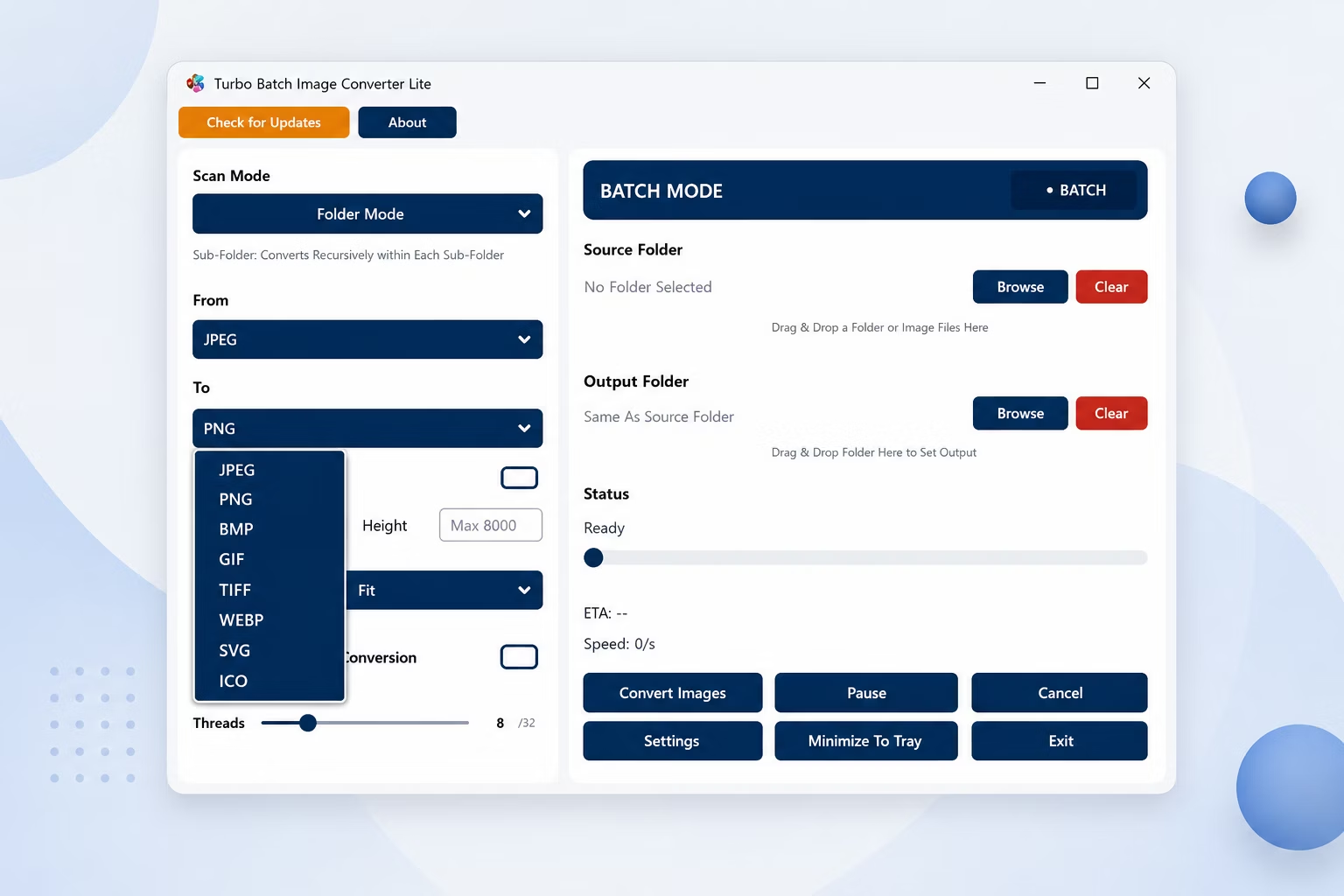
Supported Input Formats (8 Formats)
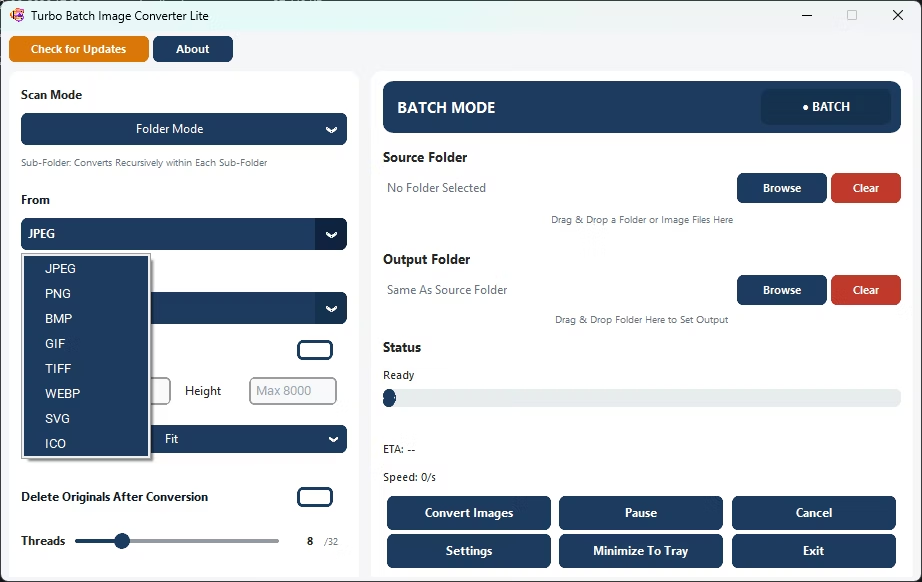
The "From" dropdown groups these into 8 input format families - JPEG (covering both .jpg and .jpeg), PNG, WebP, GIF, BMP, TIFF (covering both .tif and .tiff), SVG, and ICO. Every one of these can also be an output format, so Lite converts freely in any direction between all eight.
Supported Output Formats (8 Formats)
The 8 Formats and What Each Is Best For
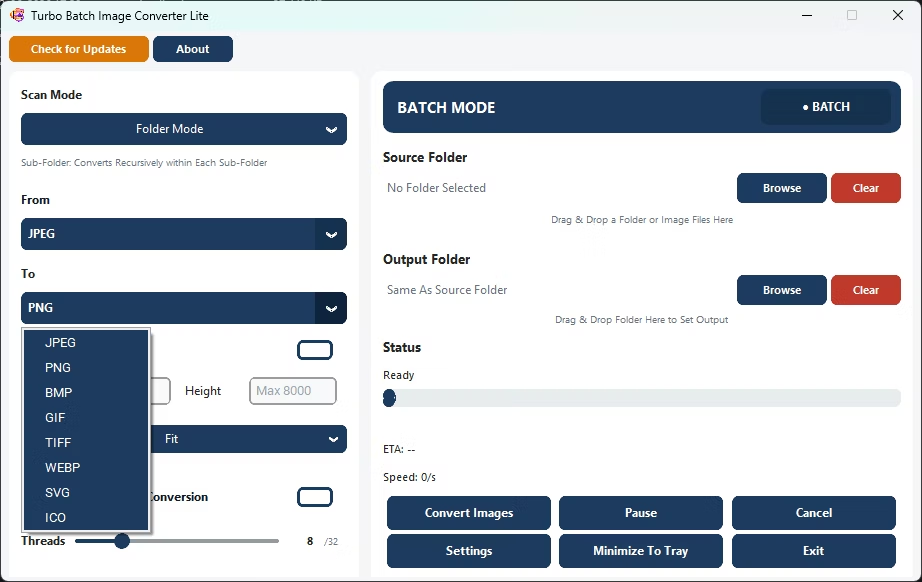
Every one of these eight formats can act as both input and output, so Lite converts freely in any direction. Here is a quick guide to when each format makes sense, to help you pick the right "To" format for the job.
JPEG (.jpg, .jpeg)
The universal choice for photographs and web images. It offers small file sizes with adjustable quality (1-100), and Lite preserves EXIF metadata on output. Best when you want compact files and don't need transparency.
PNG (.png)
A lossless format with transparency support, ideal for logos, screenshots, and graphics with sharp edges. Compression level runs from 0 to 9 so you can balance file size against encode time without ever losing quality.
WebP (.webp)
A modern web format that produces noticeably smaller files than JPEG or PNG at similar quality. Choose lossy with a quality slider, or flip on Lossless for perfect fidelity. Great for cutting page weight on websites.
GIF (.gif)
A palette-based format for simple graphics and legacy compatibility, with a Max Colors control from 2 to 256. Useful when a downstream system specifically expects GIF or when you want a tiny, few-color image.
BMP (.bmp)
An uncompressed bitmap that stores raw pixel data with no quality loss. Handy for older Windows software and pipelines that require plain, unencoded images.
TIFF (.tif, .tiff)
A flexible archival format common in scanning, publishing, and document workflows. Lite offers LZW, ZIP, JPEG, or no compression, and reads multi-frame and high-bit-depth TIFFs, normalizing them to standard 8-bit output.
SVG (.svg)
A vector-container format. On input, SVG files are rasterized at 96 DPI using their declared viewport size; on output, your image is embedded inside a valid SVG wrapper so it can be used wherever an SVG file is expected.
ICO (.ico)
The Windows icon format. Lite builds a proper multi-resolution ICO with a size pyramid up to your chosen maximum (16 to 256 px), so a single icon file stays crisp everywhere it appears.
Key Features
▶ Single Mode
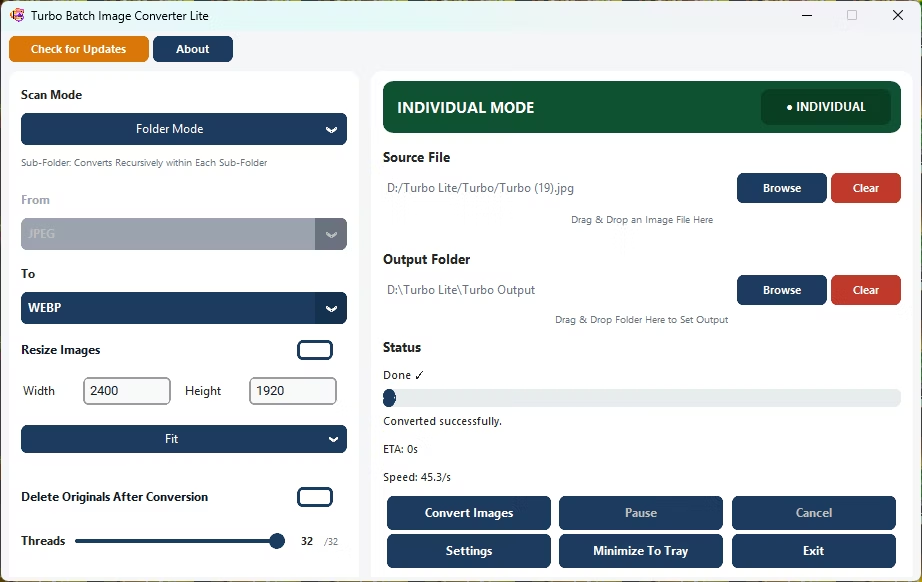
Convert a single or individual image file to any supported output format in one click. Browse or drag-and-drop any image directly into the app. The input format is detected automatically - no manual "From" selection needed. All 8 output formats are available. Resize options, quality settings, and delete-original all work in Single Mode. Progress is shown live with a status bar and filename. Ideal for quick one-off conversions without setting up a full batch job.
▶ Batch Mode
Convert an entire folder (or folder tree) of images in a single run. Select a source folder, choose your input and output formats, set an optional output folder, and click Convert. The app scans all matching files and processes them across multiple parallel workers simultaneously. Real-time progress shows files converted, speed, failures, and estimated time remaining. Supports Pause, Resume, and Cancel at any point. Handles 1,000 to 100,000+ files stably in a single session.
Batch Image Resizing
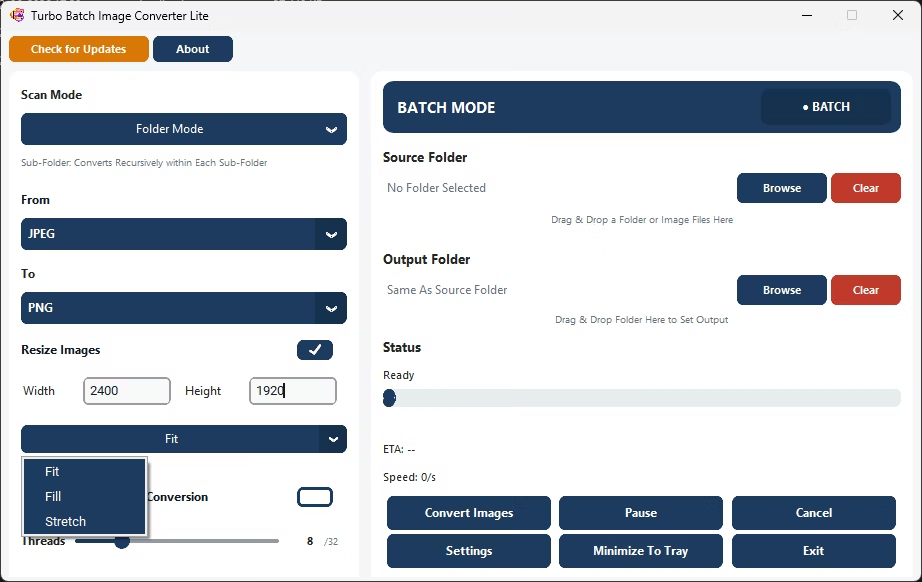
Set custom width and height (up to 8,000 px). Choose Fit, Fill, or Stretch mode. Resize hundreds of images across nested sub-folders at once - convert and resize in a single pass.
Nested Sub-Folder Recursive Conversion
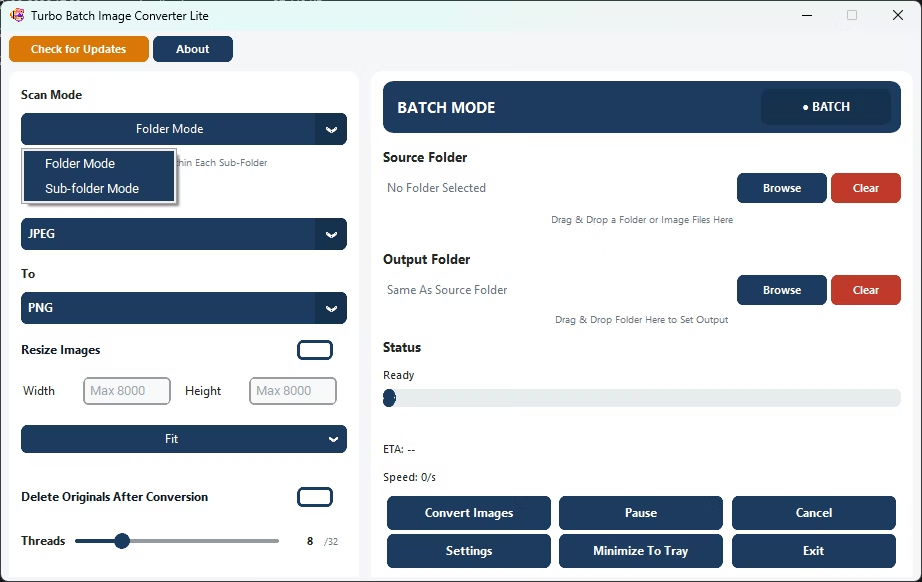
Enable Sub-Folder Mode to recursively process all nested folders. No manual selection needed - the app scans entire directory trees automatically and mirrors the folder structure in the output.
Safe Delete Original Files After Conversion
Original files are moved to the Recycle Bin - not permanently deleted. Safe for cleanup after conversion. Perfect for replacing PNG files with WebP in bulk.
Up to 32 Parallel Workers
Scale up to 32 concurrent workers to maximize speed. Auto-scale mode assigns the optimal worker count for your CPU. Dramatically reduces processing time on large batches.
High-Speed Batch Processing Engine
Multi-threaded engine handles 1,000 to 100,000+ files with consistent speed and stability. Smart worker management keeps processing fast throughout the entire session.
Real-Time Conversion Dashboard
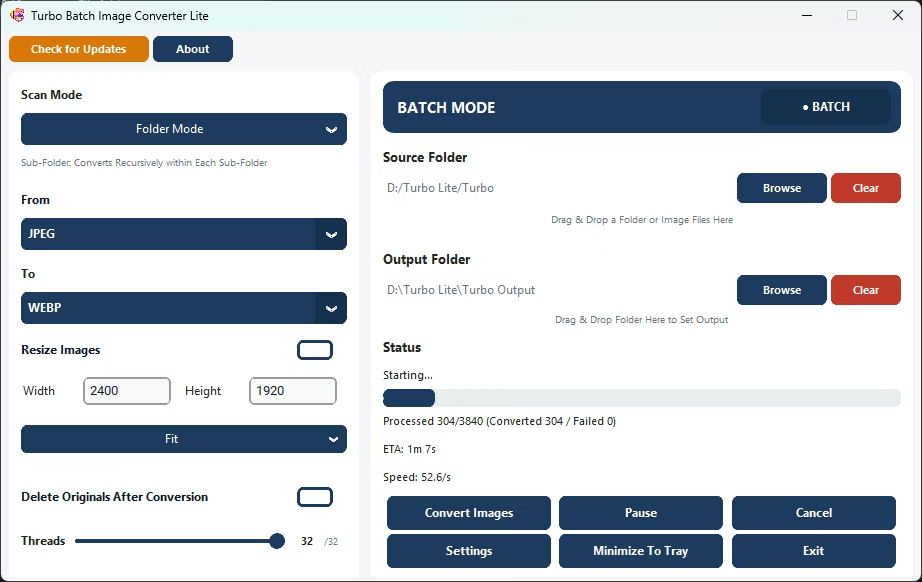
Live display of files processed, success and failure counts, real-time speed in files per second, estimated time remaining, and the current filename - updated every 250 ms.
Drag and Drop Input / Output
Drop folders directly into the app window or browse manually. The app automatically scans all supported image formats in the selected folder.
100% Offline - No Internet Required
All conversion happens locally on your PC. No cloud uploads, no file size limits, no internet connection needed during conversion. Unlimited batch size.
Advanced Batch Image Resizer
Professional resize modes built-in: Fit (aspect-safe), Fill (smart crop), and Stretch (forced exact dimensions). Dimensions up to 8,000 px per side.
Lightweight Install
Minimal system footprint. Optimized for everyday use on standard hardware. No background services, no bloat - just install and convert.
Technical Notes
Naming Conflict Resolution During Parallel Conversion
When two or more source files share the same base name (e.g. photo.gif and photo.png in the same folder), the app detects the conflict before converting and appends the original extension to each output filename - producing photo_gif.jpg and photo_png.jpg rather than overwriting one another. If the output path still collides with an existing file, a numeric suffix is added incrementally (photo_png_1.jpg, photo_png_2.jpg, …) until a free filename is found.
How Parallel Processing Works
Batch conversion dispatches all queued files simultaneously up to the configured worker limit (1–32). Each worker independently loads, optionally resizes, and saves a single image - workers never share data with each other, ensuring safe parallel operation. The live progress counter updates as each file completes, and the dashboard refreshes every 250 ms to show current speed and ETA. When Auto-Scale Workers is enabled, the worker count is set to match your CPU's core count at startup. Memory is managed automatically to maintain consistent speed across long sessions.
Input Format Auto-Detection in Single Mode
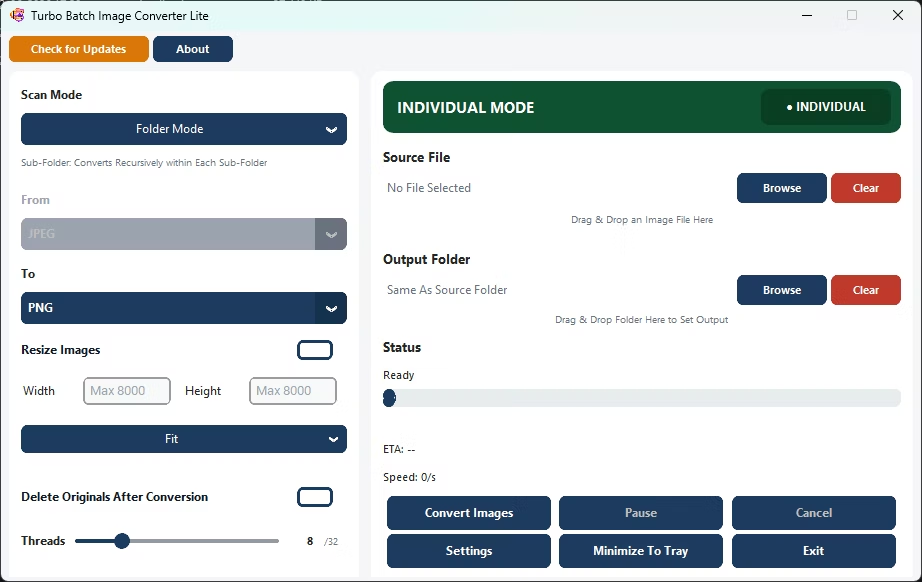
In Single or Individual Mode, the "From" format selector is automatically disabled because the app reads the file extension from the selected file path to determine the correct decoder. This eliminates user error from selecting the wrong input format and allows any of the 8 supported input format families to be loaded without any manual format selection. The same image loader used in Batch Mode handles all format-specific decoding - including SVG, multi-frame TIFF, and GIF - identically for single-file conversions.
SVG Conversion Handling
SVG files are rendered to a pixel-based image at 96 DPI before conversion. The output resolution is determined by the SVG's declared viewport dimensions and the 96 DPI render scale. When converting raster images to SVG output, the image content is embedded inside a valid SVG wrapper, preserving full visual fidelity in a vector container format.
How Turbo Batch Image Converter Lite Works
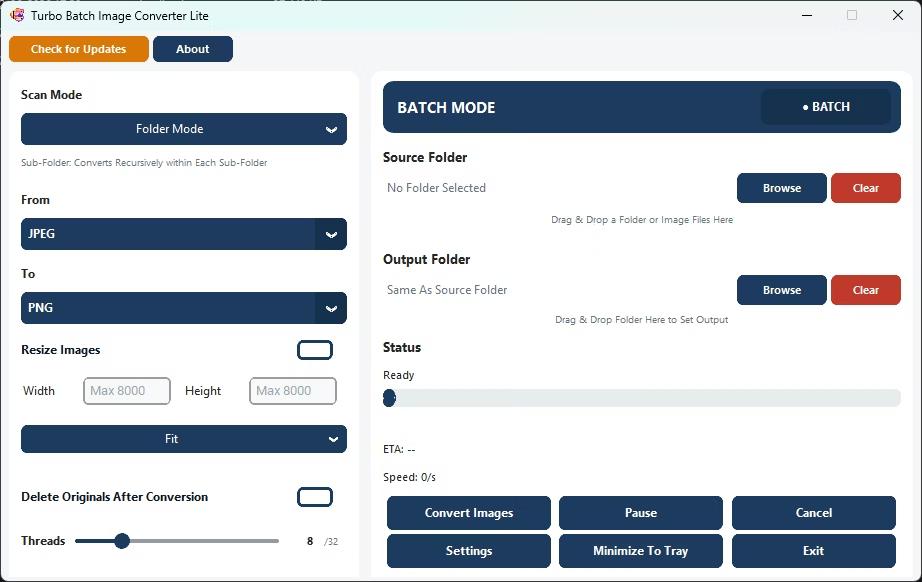
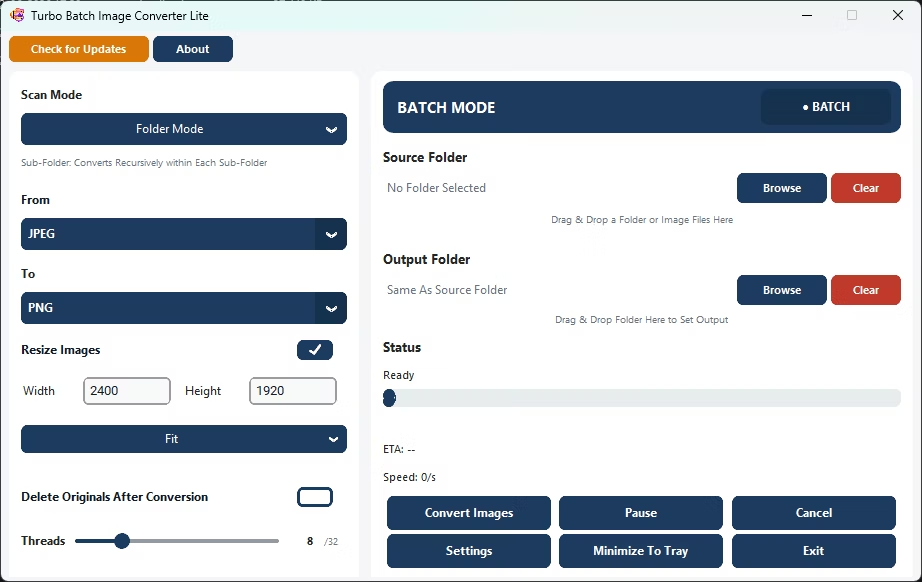
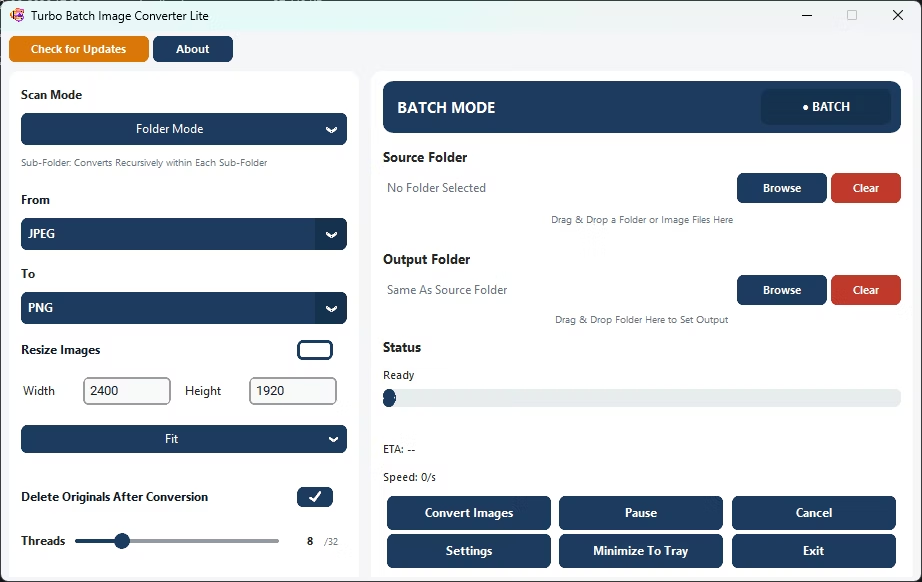
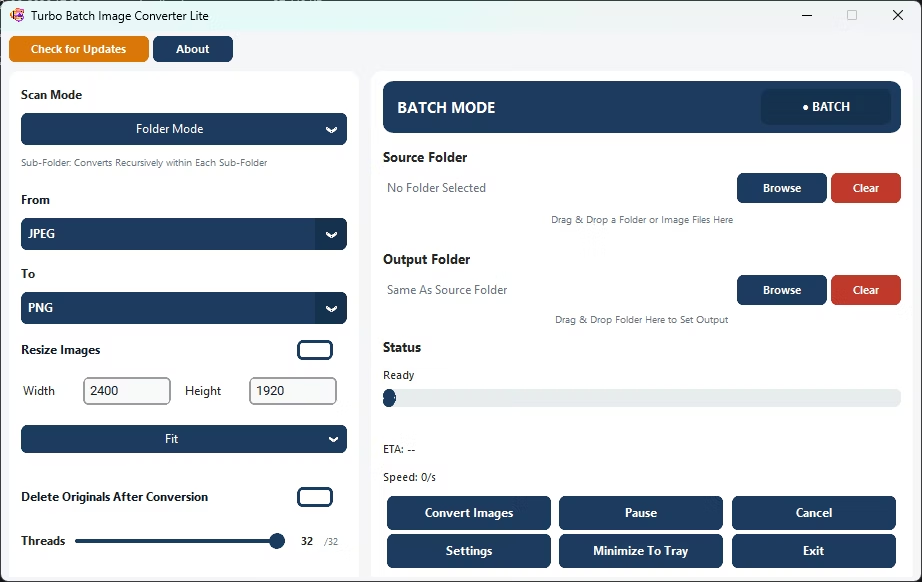
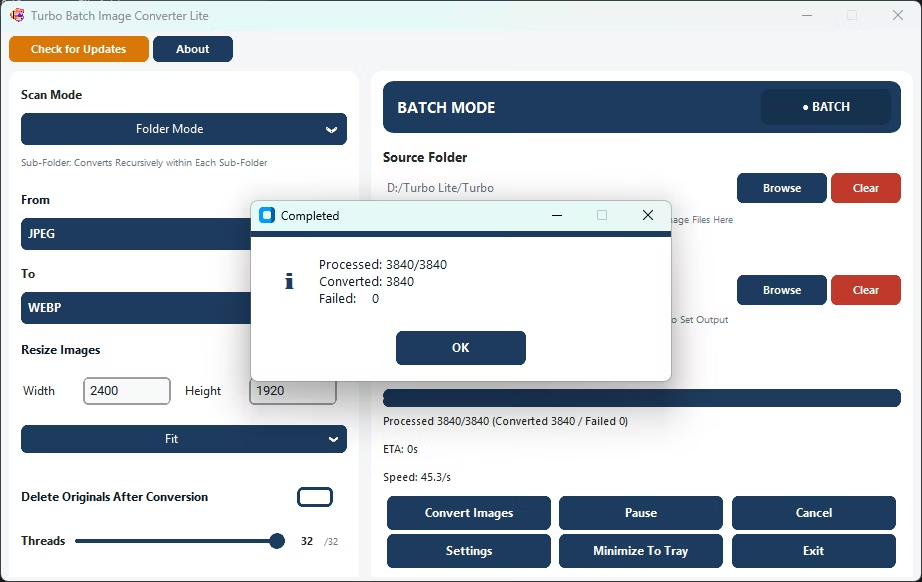
Lite opens on a single window split into two panels. The left panel holds the settings that control how files are converted - scan mode, input and output format, resizing, delete-original, and the thread count. The right panel controls what gets converted - the Batch/Individual toggle, the source folder or file, the live progress dashboard, and the action buttons. You set your options on the left, point the app at your files on the right, and press Convert. There is no project to set up, no queue file to manage, and no account to create.
Batch Mode Workflow
1. Choose a Scan Mode
Pick Folder Mode to convert only the images sitting directly inside the folder you select, or Sub-folder Mode to walk the entire directory tree recursively. Sub-folder Mode mirrors your original folder structure in the output, so nested albums stay organized.
2. Select From and To Formats
Use the "From" dropdown to tell the app which input type to scan for and the "To" dropdown to pick the output format. Both cover all eight formats. Only files that match the chosen input type are picked up, so a folder holding several formats is handled cleanly.
3. Point the App at Your Files
Click Browse to choose a source folder, or drag and drop a folder or image files straight onto the window. You can set a separate output folder, or let the app write converted files next to the originals. A Clear button resets the selection instantly.
4. Set Resize, Delete and Threads
Optionally enable Resize and enter a width and height with a Fit, Fill, or Stretch mode. Optionally tick Delete Originals After Conversion. Drag the Threads slider to choose how many files convert in parallel, and fine-tune per-format quality in Settings if you want.
5. Convert and Monitor
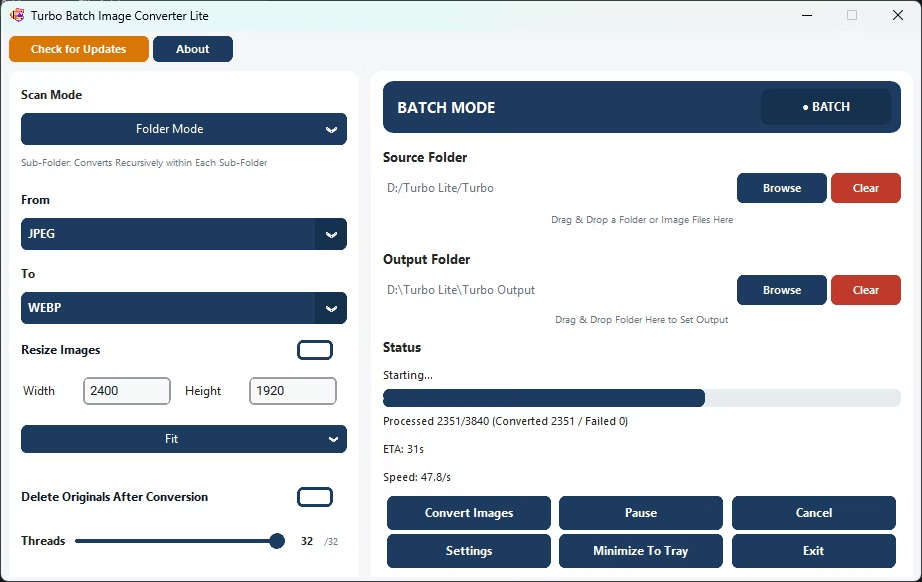
Press Convert Images. The dashboard shows a progress bar, a "Processed X / Total (Converted / Failed)" counter, live conversion speed, and an ETA. You can Pause, Resume, or Cancel at any moment without corrupting the output.
6. Review the Result
When the run finishes, a summary reports how many files converted and how many failed. Failed files (corrupt, locked, or unreadable) are counted separately and never stop the rest of the batch. If Delete Originals was on, sources are sent to the Recycle Bin.
Individual Mode Workflow
Flip the prominent toggle in the top-right of the app from BATCH MODE to INDIVIDUAL MODE when you only need to convert one file. In this mode the "From" selector is disabled because the input format is detected automatically from the file you choose. Select a single image by browsing to it, pick your output format, set any resize or quality options, and click Convert. It's the fastest path for a one-off conversion - no folder scanning, no queue, just one file in and one file out. Because single-file work completes almost instantly, the Pause and Cancel buttons are disabled in this mode.
Per-Format Quality and Compression Settings
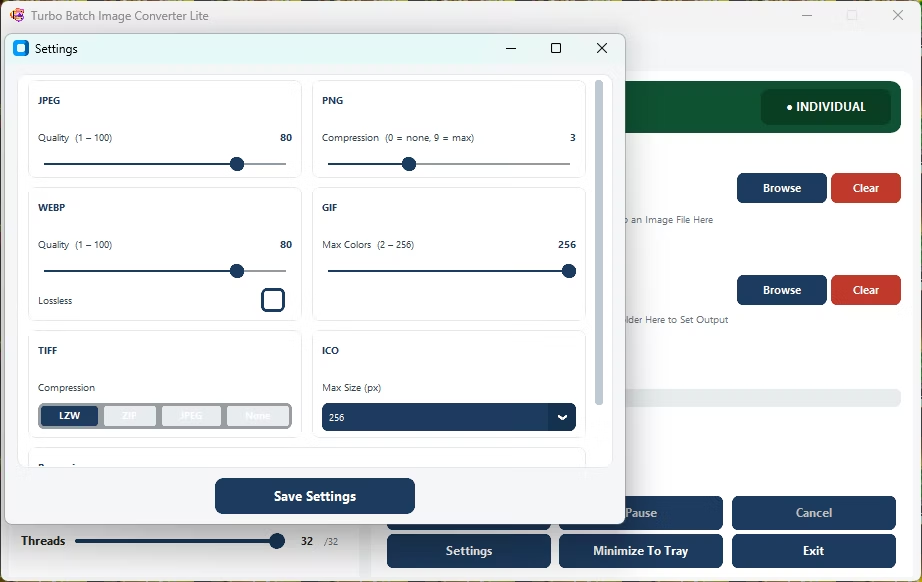
A dedicated Settings window gives each output format its own quality or compression control, so you are never forced into a single global quality slider. Set your preferences once and they apply to every file in the batch. The controls below are exactly what Lite exposes.
JPEG Quality
A quality slider from 1 to 100 (default 80). Lower it to shrink files for the web, or keep it high to preserve detail. Original EXIF metadata is carried into the JPEG output when present.
PNG Compression
A compression-level slider from 0 to 9 (default 3), where 0 is none and 9 is maximum. PNG output stays fully lossless at every level; higher values trade a little encode time for smaller files.
WebP Quality and Lossless
A quality slider from 1 to 100 (default 80) plus a dedicated Lossless checkbox. Turn Lossless on for perfect-fidelity WebP, or leave it off for smaller lossy files at your chosen quality.
GIF Max Colors
A palette control from 2 to 256 colors (default 256). Lower the color count for smaller GIFs and simple graphics; keep it high for photographic content.
TIFF Compression
Choose between LZW (default), ZIP, JPEG, or None. LZW and ZIP are lossless and ideal for archives and scanned documents; JPEG yields smaller TIFFs where some loss is acceptable; None writes uncompressed.
ICO Max Size
Select the largest icon size in the multi-resolution pyramid (16, 32, 48, 64, 128, or 256 px, default 256). Lite builds a proper multi-size ICO so your icon stays sharp at every scale.
BMP and SVG
BMP is written as a standard uncompressed bitmap and needs no settings. SVG output wraps your image in a valid vector container, so no extra options are required for either format.
Auto-Scale Workers
Tick "Auto-Scale Workers (use all available CPU cores automatically)" and Lite picks the worker count from your processor's core count, so you don't have to tune it yourself.
Batch Resize Engine: Fit, Fill and Stretch
Resizing runs in the same pass as conversion - there is no separate step. Enable Resize, type a target width and height (each up to 8,000 px), and choose one of three modes. High-quality Lanczos resampling is used throughout for crisp results, and an overall ceiling of 64 megapixels protects memory on extreme dimensions.
Fit (Aspect-Safe)
Scales each image to fit inside your width and height while keeping its original aspect ratio. Nothing is cropped or distorted - the image is made as large as it can be without exceeding either dimension. Ideal for thumbnails, previews, and web galleries where proportions must stay correct.
Fill (Smart Crop)
Scales the image to completely cover the target box, then center-crops the overflow so the output exactly matches your dimensions. Perfect for uniform product grids, avatars, and card layouts that need identical image sizes with no letterboxing.
Stretch (Exact Dimensions)
Forces the image to your exact width and height, ignoring the original aspect ratio. Use it when a downstream system requires a precise pixel size and mild distortion is acceptable, such as fixed-size banners or placeholders.
System Tray and Background Operation
A Minimize To Tray button tucks the app into the Windows system tray so a long batch can keep running quietly in the background while you work on other things. The tray icon lets you restore the window or quit the app, keeping large conversions out of your way without interrupting them. Combined with Pause and Resume, this makes it easy to fit bigger jobs around the rest of your day even on a light, everyday machine.
Safety and Reliability
- Safe Multi-Threaded Architecture - Designed for concurrent processing. Each file task runs independently, preventing conflicts during high-speed batch operations.
- File Integrity Protection - Prevents output corruption during simultaneous multi-file conversions.
- Safe Delete to Recycle Bin - Original files are moved to the Recycle Bin rather than permanently deleted (optional).
- Conversion Continuity - A single failed file does not stop the entire batch. Skipped files are reported in the dashboard.
- Pause / Resume Safety - Jobs can be paused and resumed at any point without restarting the entire queue.
- Stable Under Heavy Loads - Continues operating reliably during extended high-volume sessions without performance degradation.
- Ideal for Sensitive Environments - Corporate offices, legal firms, medical records teams, and air-gapped networks.
- Privacy First - No image uploads · No remote scanning · No cloud transfer · No third-party access.
Demo Videos
High-Speed Batch Image Conversion Demo
Performance and Speed
Lite uses the same multi-threaded engine found across the Turbo converter range, tuned to stay fast and stable on ordinary hardware. Conversion speed scales with the number of workers you allow and the number of cores your machine has, and the live dashboard makes it easy to see exactly how a run is progressing.
Multi-Core Optimized Engine
Scales from entry-level laptops to multi-core workstations. Runs well on dual-core systems and 32-core processors alike.
Up to 32 Concurrent Workers
Supports up to 32 workers for maximum throughput. The thread slider defaults to your CPU's core count, and Auto-Scale Workers can assign the count automatically for your hardware.
Failure Isolation
If one file is corrupted or unsupported - only that task fails. All remaining conversions continue uninterrupted, and the failure is tallied separately in the dashboard.
Massive Batch Capability
Suitable for e-commerce catalogs, photography archives, and large media folders. Handles 100,000+ images smoothly in a single session.
Real-Time ETA Calculation
Remaining time is predicted dynamically based on current throughput and updated live during processing, alongside a files-per-second speed readout.
Low-Overhead Architecture
Optimized for low system resource usage - ideal for everyday computers and laptops without slowing down other tasks.
Live Progress Dashboard
A progress bar and a "Processed X / Total (Converted / Failed)" counter update continuously, so you always know how far along a batch is and whether any files were skipped.
Pause, Resume and Cancel
Interrupt a running batch to free up your machine and pick it up again later without restarting the queue, or cancel cleanly at any point. Elapsed timing correctly excludes any paused stretches.
Consistent Over Long Sessions
Memory is managed automatically as files complete, so speed stays steady from the first image to the last even on very large, long-running jobs.
Security and Privacy
Turbo Batch Image Converter Lite is a fully offline image converter. All conversions, resizing, compression, and format transformations run locally on your machine. No images are uploaded to cloud servers, no files are scanned externally, and no image metadata is transmitted at any point.
- Does not log, analyze, track, or store your image data
- No integration with third-party analytics, advertising trackers, or background telemetry
- Internet is used only for license validation - the request contains no personal data, file names, or image content
- Ideal for photographers, businesses, designers, medical institutions, and enterprise teams
- Complete confidentiality for personal, professional, and commercial workflows
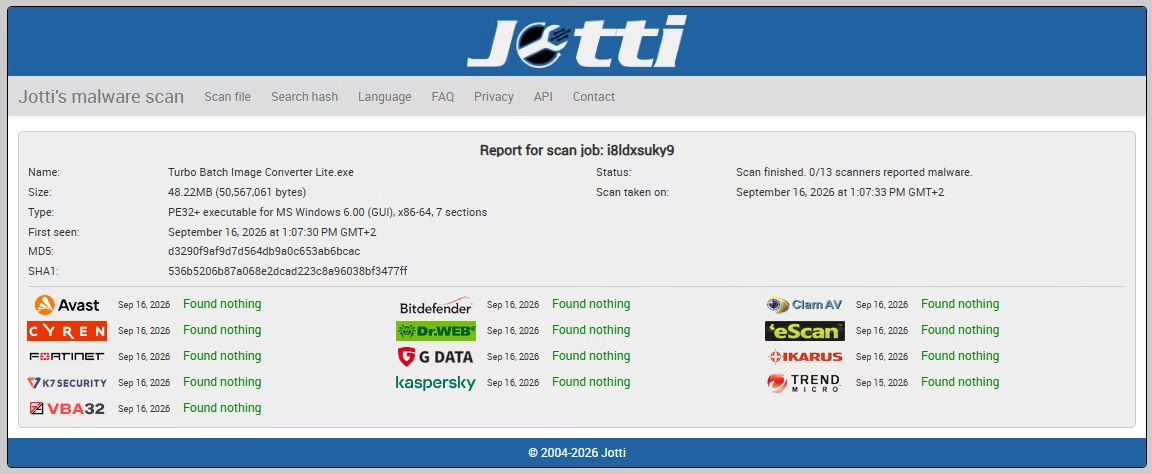
Minimum System Requirements
| Operating System | Windows 8 (64-bit) |
| Processor | 1–2 CPU cores |
| Memory | 2 GB RAM |
| Storage | 500 MB free disk space |
Recommended System Requirements
| Operating System | Windows 10 or Windows 11 (64-bit) |
| Processor | 4 or more CPU cores |
| Memory | 4 GB RAM or more |
| Storage Type | SSD recommended for best batch performance |
| Free Disk Space | 2 GB or more |
App Info
| App Name | Turbo Batch Image Converter Lite |
| Version | 6.4 |
| Platform | Windows (64-bit) |
| Category | Image Tools |
| Formats | 8 formats, input and output (JPEG, PNG, WebP, GIF, BMP, TIFF, SVG, ICO) |
| Max Parallel Workers | 32 |
| Max Resize Dimension | 8,000 px (64 MP ceiling) |
| Processing | 100% offline / local |
| License Management | Gumroad |
Getting Started and Licensing
Turbo Batch Image Converter Lite is a standalone Windows desktop app - there's no browser extension, no cloud account, and no background service. Setup takes a minute, and after a one-time activation the app runs entirely offline.
1. Install and Open
Download the app from its Gumroad page, install it, and launch. The single-window interface loads immediately with Batch Mode selected by default, so you can start pointing it at folders right away.
2. Activate Your License
Enter the email address you purchased with and your license key in the License Activation window. The key is verified once against Gumroad, and on success your details are saved locally so you won't be asked again.
3. Work Offline Thereafter
Once activated, the license is cached on your PC and no further internet connection is needed to convert images. The only time the app reaches the network is that initial verification, which never sends your file names or image content.
4. Configure Once, Reuse Often
Set your preferred output quality and compression in the Settings window and your thread count on the main panel. Those choices stick for the session, so repeated batch jobs run exactly the way you want with no re-setup.
This is a paid, licensed product with no watermarks and no artificial file-count limits. For help with activation or usage, see the Support page.
Supported Conversions
| JPG | to | PNG, BMP, TIFF, SVG, GIF, WEBP, ICO |
| JPEG | to | PNG, BMP, TIFF, SVG, GIF, WEBP, ICO |
| PNG | to | JPG, BMP, TIFF, SVG, GIF, WEBP, ICO |
| BMP | to | JPG, PNG, TIFF, SVG, GIF, WEBP, ICO |
| TIFF | to | JPG, PNG, BMP, SVG, GIF, WEBP, ICO |
| TIF | to | JPG, PNG, BMP, SVG, GIF, WEBP, ICO |
| GIF | to | JPG, PNG, BMP, TIFF, SVG, WEBP, ICO |
| WEBP | to | JPG, PNG, BMP, TIFF, SVG, GIF, ICO |
| SVG | to | JPG, PNG, BMP, TIFF, GIF, WEBP, ICO |
| ICO | to | JPG, PNG, BMP, TIFF, SVG, GIF, WEBP |
Common Use Cases
PNG to JPG Converter - High Quality
Convert PNG files to JPG with full control over JPEG quality (1–100). Batch convert entire folders offline with no watermarks and no file count restrictions.
Bulk JPG to PNG Converter
Convert hundreds of JPG files to lossless PNG in one operation. Processes entire folders at once - fully offline, preserving full image detail.
Batch Convert PNG to JPG Offline
Convert entire PNG libraries to JPG entirely on your PC. No internet required, no cloud uploads - just fast, private, local processing.
PNG to JPEG in Bulk
Convert PNG to JPEG in bulk with full control over compression. Use high-quality settings to preserve detail or reduce file sizes for web use.
How to Resize Images Without Losing Quality
Use Fit resize mode to preserve aspect ratios while scaling to your target dimensions. High-quality resampling keeps resized images sharp and accurate at any scale.
TIFF to JPG Converter
Convert entire TIFF archives to compressed JPG files in bulk without uploading anything online. Supports both TIFF and TIF input formats, including multi-frame and 16-bit files.
Who Uses It and Why
Web and Content Teams
Replace heavy PNG and JPG assets with modern WebP in bulk to cut page weight, then send the originals to the Recycle Bin to finish the migration in a single run. Fit-mode resizing produces clean, correctly proportioned images for galleries and articles.
E-commerce and Catalog Owners
Standardize product photos to one format and one exact size with Fill mode's smart crop, producing uniform grids for storefronts. No per-image editing and no upload limits, even across thousands of items.
Office and Admin Users
Turn scanned TIFF documents into compact, easy-to-share JPGs, or convert BMP exports from older systems into modern formats - all offline, which suits confidential and internal document workflows.
Designers and Icon Makers
Export multi-resolution ICO files for apps and websites, move between PNG, WebP, and TIFF while keeping quality under control, and rasterize SVG artwork to pixels at a predictable 96 DPI.
Everyday Windows Users
Convert a stray screenshot, a batch of photos, or a folder of downloads without hunting for an online tool. Lite installs light, opens fast, and does the common jobs without any subscription or account.
Privacy-Conscious Users
Because every conversion runs on your own machine, nothing leaves your PC. There are no cloud uploads and no file-size caps, making Lite a safe choice for sensitive or personal images.
Fast and Reliable Bulk Image Converter for Windows
Turbo Batch Image Converter Lite is a professional batch image converter, batch image format converter, and bulk image converter designed for everyday Windows workflows. It processes everything locally on your computer - no uploads, no cloud services, no file-size limits, no waiting queues - making it ideal for photographers, businesses, e-commerce teams, content creators, and privacy-conscious users. As a complete batch image converter for Windows 11 and Windows 10, it supports the 8 most common image formats - JPEG, PNG, WEBP, GIF, BMP, TIFF, SVG, and ICO, functioning as a powerful JPG to PNG converter, TIFF to JPG converter, PNG to JPEG converter, and ICO converter. Powered by a multi-threaded engine with up to 32 parallel workers, it can convert multiple images at once and resize entire folders and sub-folders in a single run. It's also a professional bulk image resizer and batch image resizer, with Fit, Fill, and Stretch resize modes and output dimensions up to 8,000 px - all in one lightweight desktop install, with no separate tools, plugins, or web apps required.
Lite vs Pro: Which One Should You Choose?
Lite and Turbo Batch Image Converter Pro share the same core engine, interface, and workflow. Lite keeps things simple and affordable by focusing on the eight everyday formats, while Pro adds RAW, HEIC, AVIF, and a range of professional formats along with a higher worker ceiling. If you ever outgrow Lite, everything you already know carries straight over to Pro.
| Capability | Lite | Pro |
|---|---|---|
| Everyday formats (JPEG, PNG, WebP, GIF, BMP, TIFF, SVG, ICO) | Yes | Yes |
| Modern formats (HEIC, AVIF) | No | Yes |
| Professional formats (PSD, TGA, DDS, JPEG 2000, EXR, HDR, WBMP, PCX, PPM, PGM, PBM) | No | Yes |
| 47 RAW camera formats as input | No | Yes |
| Batch and recursive sub-folder conversion | Yes | Yes |
| Batch and Individual modes | Yes | Yes |
| Fit / Fill / Stretch resizing (up to 8,000 px) | Yes | Yes |
| Per-format quality and compression settings | Yes (8 formats) | Yes (all formats) |
| Maximum parallel workers | 32 | 32 |
| Delete originals to Recycle Bin | Yes | Yes |
| Minimize to system tray | Yes | Yes |
| 100% offline processing | Yes | Yes |
Choose Lite if you work with common web and office image formats and want a light, low-cost tool. Step up to Pro if you need RAW conversion, HEIC or AVIF, professional and HDR formats, or the extra headroom of up to 32 workers on a high-core machine. If RAW is all you need, Turbo RAW Image Converter is a focused option, and for cleaning up filenames in bulk there's the Turbo Bulk Renaming Tool.
Frequently Asked Questions
Common Questions About Turbo Batch Image Converter Lite
Is it a good JPG to PNG converter for bulk files?
Yes. Turbo Batch Image Converter Lite handles thousands of JPG files at once, preserving quality while outputting lossless PNG. You can control PNG compression (0–9) per batch run. All processing happens fully offline on your PC.
Can it batch convert PNG to JPG offline?
Absolutely. Select PNG as your input format and JPG as the output, point the app to your folder, and click Convert. It processes all PNG files without uploading anything to the internet. JPEG quality is adjustable from 1 to 100.
Does it work as a batch image converter on Windows 11?
Yes. Turbo Batch Image Converter Lite is fully compatible with Windows 11 (64-bit) and Windows 10. It runs natively and takes full advantage of modern multi-core CPUs for maximum throughput across all 8 supported formats.
How do I resize images without losing quality?
Use the built-in Fit resize mode, which preserves the original aspect ratio while scaling to your target dimensions using high-quality resampling. Set width and height up to 8,000 px per side. You can resize and convert the format in the same single pass.
Does it include a TIFF to JPG converter?
Yes. Select TIFF (or TIF) as the input format and JPG as the output to batch convert entire TIFF archives to compressed JPEGs. The app supports multi-frame TIFF and handles 16-bit and 32-bit TIFF files with automatic normalization to 8-bit output.
What is the difference between Single Mode and Batch Mode?
Single Mode converts a single image file you select or drag into the app - ideal for quick one-off conversions where you don't need to process a whole folder. Batch Mode converts an entire folder (or folder tree) of images simultaneously using multiple parallel workers, with real-time progress, Pause, Resume, and Cancel controls.
How many parallel threads does Lite support?
The thread slider runs from 1 to 32 workers and defaults to your CPU's core count. Raise it for more throughput on multi-core machines or lower it to keep your PC responsive for other work. An Auto-Scale Workers option can set the count automatically from your processor.
Can I control output quality and compression?
Yes. A Settings window gives each output format its own control: JPEG and WebP quality sliders (1-100), a PNG compression level (0-9), GIF max colors (2-256), TIFF compression (LZW, ZIP, JPEG or None), and ICO maximum size. WebP also offers a Lossless option. Your settings apply to every file in the batch.
Can I convert SVG files, and export images as SVG?
Yes. SVG input files are rendered to pixels at 96 DPI before conversion, using each file's declared viewport dimensions. When you choose SVG as the output format, the image is embedded inside a valid SVG wrapper so it stays viewable as a vector-container file. Both directions work in Batch and Individual modes.
What happens to my original files?
By default your originals are left untouched. If you tick "Delete Originals After Conversion," the source files are moved to the Windows Recycle Bin rather than permanently erased, so you can always restore them. The app asks for confirmation before deleting.
Does Lite work completely offline?
Yes. All conversion, resizing, and compression run entirely on your computer. No images are uploaded, scanned remotely, or shared. The only internet use is a one-time license check, and that request never contains your file names or image data.
What is the difference between Lite and Pro?
Lite covers the eight everyday formats and supports up to 32 workers. Pro adds RAW (47 camera formats), HEIC, AVIF, and professional formats like PSD, EXR, and HDR, and raises the worker ceiling to 32. Both share the same interface and workflow, so upgrading is seamless.