What is Gwen?
Gwen is a lightweight clipboard manager that runs quietly in the system tray and remembers everything you copy on Windows — text, images, files, and even hex color codes. Press a global hotkey and a small popup opens right next to your cursor, showing your recent copies newest-first. Pick one and it's pasted straight back into whatever window you were working in.
Why a Clipboard Manager Changes How You Work
The Windows clipboard only remembers one thing at a time. The moment you copy something new, whatever was there before is gone. Anyone who works with text, images, or files all day runs into this constantly: you copy a paragraph, then need an address you copied two minutes ago, and it has already been overwritten. Gwen fixes that single, universal frustration by quietly keeping a history of what you copy, so nothing you clip is ever more than a hotkey away.
Gwen is modeled on the same idea as Maccy on macOS - a small, fast, keyboard-driven clipboard history that stays out of your way until you summon it. It does not try to be a note-taking suite or a sync service. It does one job, does it quickly, and keeps everything on your own machine. Press the hotkey, see your recent copies newest-first, pick one, and it is pasted straight back into whatever window you were in.
What Problems It Solves
- Losing something you copied earlier because a newer copy overwrote it.
- Re-copying the same snippets over and over throughout the day.
- Hunting back through emails, documents, or browser tabs to find a value you already had on the clipboard once.
- Pasting an image or file path you copied a few steps ago without breaking your flow.
- Grabbing a hex color you copied from a design tool minutes ago, complete with a visible swatch.
- Keeping clipboard history private and offline instead of trusting it to a cloud service.
Who Should Use Gwen
Developers copying snippets, commands, and error messages; writers and editors juggling quotes and references; designers pulling hex colors and image assets; support and admin staff pasting the same canned responses and details repeatedly; researchers collecting excerpts from many sources; and anyone on Windows who copies and pastes enough that losing a clip is a daily annoyance. If your work lives in copy and paste, Gwen gives that workflow a memory.
What Gwen Remembers
Copy something and Gwen captures it automatically the moment it lands on the clipboard. Copied images get a real thumbnail preview in the list, and hex color codes like #FE92F5 are detected and shown with a live color swatch — no setup required.
Key Features
▶ Global Hotkey Popup
Press Ctrl+Shift+V (fully configurable in Preferences) from anywhere in Windows to instantly open a borderless, always-on-top popup right next to your cursor — no need to switch windows or dig through menus first.
▶ Full Clipboard History
Every copy — text, images, files, and colors — is saved to a local SQLite database at %LOCALAPPDATA%\Gwen. History is kept persistent by default, so it's there whenever you need to reach back for something you copied earlier.
Live Search & Filter
Start typing in the popup to instantly filter your clipboard history down to matching items — no need to scroll through dozens of old entries to find the one you want.
Keyboard-First Navigation
Use ↑ / ↓ to move the selection, Enter or a click to paste, and number keys 1–9 to jump straight to a row and paste it immediately.
Hex Color Detection
Copy a hex color code as text — with or without the # — and Gwen automatically recognizes it and displays a live color swatch preview right in the history list.
Smart Duplicate Detection
Each capture is fingerprinted (a hash for images, the raw string for text and files), so a single copy that fires the clipboard event twice — common with images — is only ever recorded once.
Near-Zero Idle CPU Usage
Gwen polls a lightweight Windows clipboard-sequence counter rather than repeatedly re-reading clipboard contents, so it can run in the background all day without noticeable CPU or battery impact.
System Tray Integration
Lives quietly in the tray with quick access to Open, Clear All, Preferences, About, Start-with-Windows, and Quit — no taskbar clutter, no visible window until you need it.
Configurable Preferences
Change the hotkey, maximum history size, and clipboard poll interval — all applied live, with no restart needed. A scrollable Preferences window keeps Save/Cancel reachable on any display or DPI setting.
Start with Windows
Toggle autostart from Preferences or the tray menu so Gwen is ready and watching your clipboard the moment you log in — no manual launching required.
Clear History on Restart (Optional)
History persists by default, but a dedicated toggle lets you wipe it automatically on every restart — useful if you sometimes copy passwords, tokens, or other sensitive text.
Single Instance Enforcement
A named Windows mutex check ensures only one copy of Gwen ever runs at a time. A second launch attempt gets a native "already running" message instead of spinning up a duplicate tray icon.
Delete Individual Entries
Select any item in the popup and press Delete to remove just that entry from history — no need to clear everything to get rid of one unwanted copy.
Instant Popup Open
The popup shows immediately with whatever it last displayed, then refreshes content a moment later — so opening Gwen never feels like it's waiting on a database read first.
Distinct Taskbar & Title Bar Icon
A dedicated app icon appears consistently across every window's title bar, the tray, and the taskbar — instead of being grouped under a generic default icon.
100% Offline Clipboard Storage
Your clipboard history is stored only on your own PC. Nothing is uploaded or synced anywhere — Gwen's only network call is a one-time license check.
Keyboard Shortcuts
| Ctrl+Shift+V | Open the Gwen popup near your cursor (configurable) |
| ↑ / ↓ | Move the selection up or down the history list |
| Enter | Copy the selected item back to the clipboard and auto-paste it |
| 1–9 | Jump straight to that row and paste it immediately |
| Delete | Remove the selected item from history |
| Esc | Close the popup without pasting anything |
| Type anywhere | Filter/search history live as you type |
Under the Hood
- Sequence-Number Polling — watches Windows' cheap clipboard-change counter instead of constantly re-reading clipboard data, keeping idle CPU use effectively at zero.
- SQLite-Backed History — history lives in a small local database, with images cached as PNGs plus an inline base64 thumbnail for fast list rendering.
- Newest-First Ordering — the list always shows your most recent copies at the top, and resets scroll position to the top every time it opens.
- Cached Thumbnails — image previews are decoded once and cached for the life of the popup instead of being redecoded on every open.
- Automatic History Trimming — older unpinned entries beyond your configured maximum are trimmed automatically, along with their cached image files.
How Gwen Works, Step by Step
Gwen runs continuously in the background and does its work in two directions: capturing what you copy, and pasting back what you pick.
1. It Watches the Clipboard
A background thread checks Windows' clipboard-change counter a few times a second. When the counter moves, Gwen reads what changed - and only then.
2. It Identifies the Type
Each capture is sorted into text, image, file, or color. A copied hex code becomes a color entry; a copied picture becomes an image entry with a thumbnail.
3. It Saves to Local History
The entry is written to a small SQLite database on your PC, newest-first. Images are cached as PNGs alongside a tiny inline preview thumbnail.
4. You Press the Hotkey
From any app, Ctrl+Shift+V opens the popup right by your cursor, showing recent copies. Start typing to filter instantly.
5. You Pick an Entry
Click, press Enter, or hit a number key 1-9. Gwen writes that item back to the clipboard in the right format.
6. It Pastes for You
The popup closes, focus returns to your previous window, and the chosen item is pasted - so you are back to work without a manual paste step.
The Four Things Gwen Captures
Gwen recognizes four distinct kinds of clipboard content and handles each in the way that makes it most useful to get back later.
Text
Any plain text you copy is stored as-is, with the row showing a truncated preview so long snippets stay readable. Picking a text entry writes it straight back to the clipboard and pastes it.
Images
Copied images are decoded, cached as a full-size PNG on disk, and given a small inline thumbnail so the list shows a real preview. Re-selecting an image writes it back as a bitmap ready to paste into image-aware apps.
Files
When you copy files in Explorer, Gwen records the path or paths - a single path, or a "3 files" style summary for multiple. Re-selecting a file entry pastes its path back as text.
Colors
A copied six-digit hex code, with or without the leading #, is recognized as a color and shown with a live swatch of that exact shade in the list - handy when you copy colors out of a design tool.
Every capture is fingerprinted so a single copy that fires the clipboard event more than once - common with images - is only ever recorded and cached once, keeping the list clean and the disk cache small.
Inside the Popup
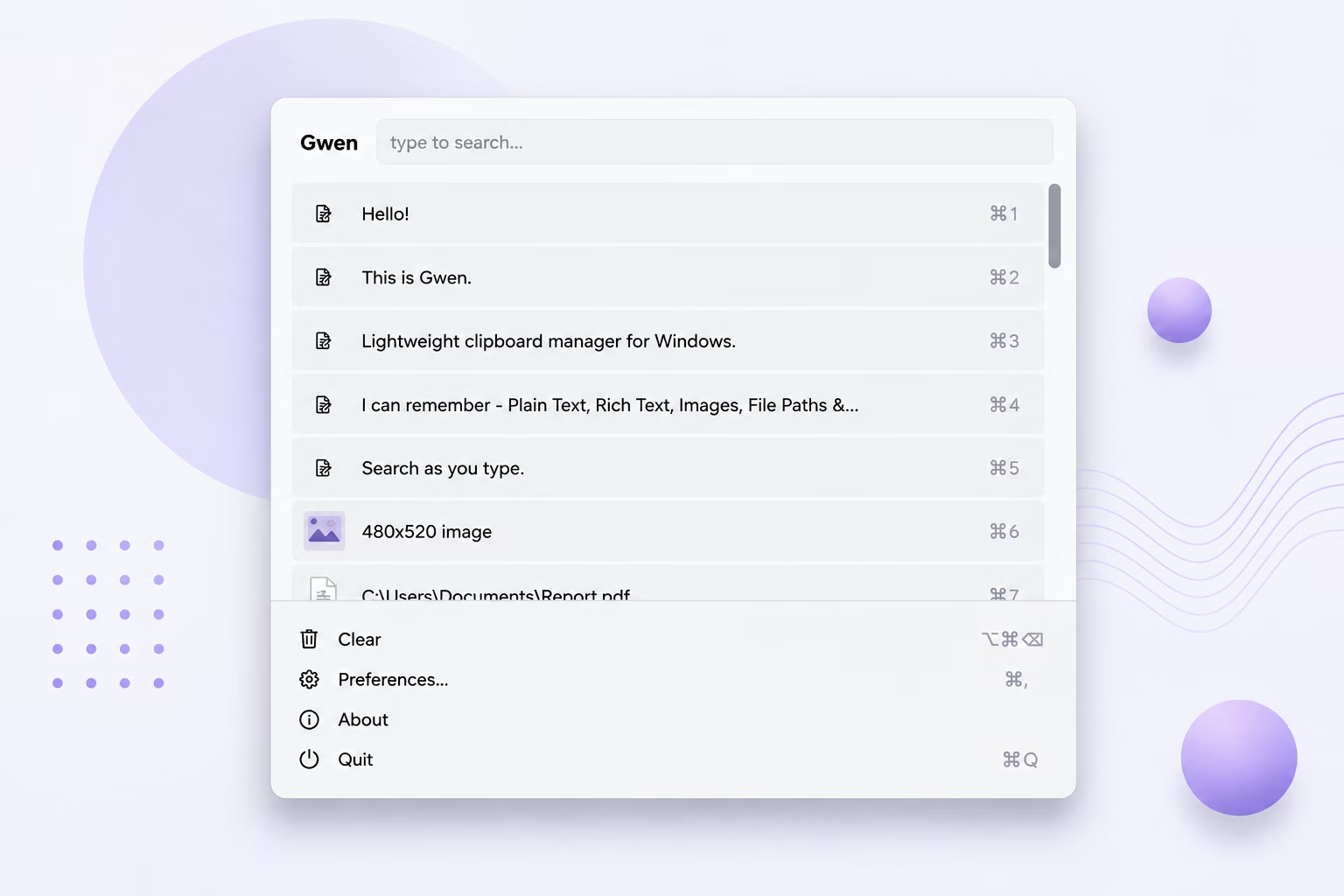
The popup is deliberately plain and fast - a borderless, always-on-top window with a flat, native-Windows grey look and no distracting accent color. It appears next to your cursor the instant you press the hotkey.
- Search box - labeled "Gwen" at the top; type to filter history live by content or preview text.
- History list - your copies newest-first, each row showing a type icon (or image thumbnail), a preview, and a number shortcut for the first nine rows.
- Color swatches - color entries render an actual colored square so you can spot the shade at a glance.
- Bottom menu - quick access to Clear, Preferences, About, and Quit right where the Maccy reference layout puts them.
- Instant open - the window paints immediately with what it last showed, then refreshes a moment later, so opening never feels like it is waiting on a database read.
- Auto-dismiss - clicking away or pressing Escape closes the popup without pasting, keeping it out of your way.
Preferences You Can Actually Change
Everything that shapes how Gwen behaves is adjustable in a scrollable Preferences window, and changes apply live without a restart. Each setting has a short inline hint plus a hover tooltip.
Global Hotkey
Change the key combination that opens the popup from the default Ctrl+Shift+V to whatever suits your muscle memory. The new hotkey takes effect immediately.
Max History Items
Set how many entries Gwen keeps - 200 by default. Older entries beyond the limit are trimmed automatically, along with their cached image files.
Poll Interval
Tune how often Gwen checks the clipboard, in milliseconds (300 by default). Lower is more responsive; higher is even lighter on resources.
Start with Windows
Toggle autostart so Gwen launches and begins watching the moment you log in. It writes a standard entry to the Windows Run registry key.
Clear on Restart
Optionally wipe history every time Gwen restarts - useful if you sometimes copy passwords, tokens, or other sensitive text you would rather not keep.
License Section
See who the app is activated to and use "Change License..." to re-activate. About shows the version and a Check for Updates button.
How Different People Use Gwen
Because copy and paste is universal, a clipboard history helps almost anyone who spends their day in Windows - here are some of the clearest fits.
Developers
Keep recent commands, code snippets, stack traces, and tokens a hotkey away instead of re-copying them from terminals and editors.
Writers and Editors
Hold several quotes, links, and passages at once while drafting, and paste each back exactly where it belongs.
Designers
Copy hex colors from mockups and see them as swatches in the history, and pull recently copied image assets straight back.
Support and Admin
Reuse canned replies, account details, and boilerplate throughout the day without retyping or re-copying each one.
Researchers and Students
Collect excerpts, citations, and figures from many sources into one running history, then assemble them into your document.
Data and Ops
Shuttle IDs, paths, config values, and query fragments between tools without losing the one you copied three steps ago.
Marketers
Juggle headlines, UTM links, and copy variants across tabs and apps, pasting the right version into each channel.
Anyone Multitasking
If you routinely copy one thing, get interrupted, and lose it to a newer copy, Gwen simply gives that back.
Everyday Workflows
Reusing a Snippet You Copied Earlier
You copied an address, then copied several other things. Instead of hunting for the original, press Ctrl+Shift+V, type a word from it to filter, and press Enter - it is pasted back instantly.
Grabbing a Color From a Design Tool
Copy a hex value like #FE92F5 out of your design app. Gwen shows it in the list with a live swatch, so later you open the popup, spot the exact shade, and paste the code into your stylesheet.
Pasting the Third-From-Last Thing
You know the item you want is a couple of copies back. Open the popup and press its number key - 3, say - to jump straight to that row and paste it, no scrolling or searching required.
Keeping Sensitive Copies Out of History
If you regularly copy passwords or tokens, turn on Clear on Restart so history wipes each session, or press Delete on any single entry in the popup to remove just that one immediately.
Tips and Best Practices
Pick a Hotkey You Won't Fumble
The default Ctrl+Shift+V works well, but if it clashes with an app you use, set something you can hit without looking in Preferences.
Right-Size Your History
200 items suits most people. Raise it if you reference older copies often; lower it if you prefer a shorter, tidier list.
Search Instead of Scroll
For a long history, typing a distinctive word is almost always faster than scrolling - the list filters as you type.
Use Number Keys for Speed
The most recent nine items each have a number. For quick repeats, the number key is the fastest path to paste.
Turn On Clear for Sensitive Work
When you handle credentials, enable Clear on Restart so nothing sensitive lingers between sessions.
Enable Start with Windows
Let Gwen launch at login so your clipboard history is being kept from the very first copy of the day.
Scope and Limitations
Gwen is a focused tool. Knowing its boundaries helps set the right expectations.
- It is a Windows application. It is not available for macOS or Linux.
- It captures plain text, images, files, and hex colors - it does not preserve rich text or HTML formatting.
- Re-selecting a file entry pastes the file path as text; it does not perform a native file-drop paste into Explorer.
- History and image cache are stored locally only. There is no cloud sync or cross-device history.
- Only one copy of Gwen runs at a time, enforced by a single-instance check; a second launch simply reports that it is already running.
- Activation requires a one-time online license check; after that, Gwen runs locally.
A Closer Look at Real Situations
The value of a clipboard history shows up most clearly in the small, repetitive moments that make up a working day. Here are a handful of concrete situations where Gwen quietly saves time.
The Developer Debugging Across Windows
You copy an error message to search it, then copy a command to run, then a file path, then a config value. Each copy would normally erase the last. With Gwen, all four are waiting in history, so you can paste the error into a browser, jump back and paste the command into a terminal, and drop the path into your editor without re-copying anything. Number keys make the most recent items a single keystroke away.
The Designer Building a Palette
While pulling a color scheme together, you copy several hex codes from a mockup. Gwen shows each as a labeled entry with a live swatch, so instead of squinting at raw codes you can recognize the exact shade visually, then paste the right one into your stylesheet. Copied logo and asset images sit in the same history with thumbnail previews, ready to paste into your layout.
The Support Agent Reusing Boilerplate
Across a shift you paste the same greetings, troubleshooting steps, and account details over and over. Rather than keeping a separate document open, you let those snippets live in your clipboard history and recall them with a quick search-and-Enter, keeping each reply fast and consistent.
The Researcher Gathering Sources
Collecting quotes and links from a dozen tabs usually means a frantic paste after every single copy so nothing is lost. With a history in place, you can copy several passages in a row and then paste them into your notes in one focused pass, using search to pull each one back by a distinctive word. When you are done, Clear on Restart or a few Delete presses tidy the history back up.
Gwen vs. the Default Windows Clipboard
| Task | Default Clipboard | Gwen |
|---|---|---|
| Remembering past copies | Only the single most recent item | A full history, newest-first, up to your configured limit |
| Finding an old copy | Not possible once overwritten | Type to search, or scroll the list |
| Copied colors | Just text | Recognized and shown with a live swatch |
| Images in history | One at a time, no preview list | Cached with thumbnail previews in the list |
| Pasting a specific item | Manual re-copy required | Hotkey, then click, Enter, or a number key - auto-pasted |
| Privacy of history | Cloud history is an option some tools push | Stored only on your PC; no upload or sync |
| Idle resource use | n/a | Sequence-counter polling keeps idle CPU near zero |
Why Choose Gwen
A clipboard manager only earns a place in your daily workflow if it is fast, unobtrusive, and trustworthy with your data. Gwen is built around exactly those priorities.
Fast Where It Counts
The popup opens instantly and filters as you type. Getting an old copy back takes a hotkey and a keystroke or two, not a hunt through menus.
Truly Lightweight
By watching a clipboard-change counter instead of polling contents, Gwen sits at effectively zero idle CPU, so it is comfortable to leave running all day.
Private by Design
History and image cache never leave your PC. There is no account, no cloud, and no sync - just a local database only you can see.
Keyboard-First
Hotkey to open, arrows to move, number keys to jump, Enter to paste, Delete to remove. You can drive the whole thing without touching the mouse.
Handles More Than Text
Images get thumbnails, files keep their paths, and colors show a real swatch - so the history is useful across the kinds of things you actually copy.
Configurable, Live
Hotkey, history size, and poll interval all change on the fly. There is no restart, and the settings you are most likely to touch are right up front.
Stays Out of the Way
No taskbar clutter and no visible window until you summon it - Gwen lives in the tray and appears only when you press the hotkey.
One-Time Purchase
Licensed once through Gumroad, with no subscription. Activate it and it keeps working locally, checking its license quietly in the background.
Built to Run All Day Without Getting in the Way
Because a clipboard manager runs constantly, small engineering choices add up to a big difference in how it feels to live with. Gwen is designed to be dependable and quiet.
Change-Counter Watching
Gwen polls a cheap Windows counter that ticks only when the clipboard actually changes, so it does nothing expensive until there is genuinely something new to capture.
Fingerprinted Captures
Each item is hashed or matched so the same copy is never stored twice, keeping both the list and the on-disk image cache lean.
Inline Thumbnails
A tiny base64 preview is generated once at capture time, so the list can show image previews without decoding full-size cached PNGs every time it renders.
Cached Row Rendering
Thumbnails are decoded once and reused for the life of the popup, so repeated opens stay snappy even with an image-heavy history.
Automatic Trimming
When history passes your configured maximum, the oldest entries are dropped along with their cached files, so storage never grows without bound.
Single-Instance Safety
A named Windows mutex guarantees just one Gwen runs, avoiding duplicate tray icons, hotkeys, and watchers competing over the clipboard.
Getting Started
1. Install and Activate
Download Gwen from Gumroad and run it. On first launch, enter the email and license key from your purchase. Gwen verifies the license, saves it locally, and then starts - the tray icon, hotkey, and clipboard watcher all come up once activation succeeds.
2. Start Copying
Just use your PC normally. Every text snippet, image, file, and hex color you copy is captured into history automatically, newest-first, with no action needed on your part.
3. Recall With the Hotkey
Press Ctrl+Shift+V to open the popup by your cursor. Type to filter, use the arrow or number keys to choose, and press Enter or click to paste the item back into whatever you were working in.
4. Make It Yours
Open Preferences to set your hotkey, history size, and poll interval, and to toggle Start with Windows and Clear on Restart. Everything applies live, so you can fine-tune Gwen without ever restarting it.
System Tray and Windows Integration
Gwen is designed to feel like a native part of Windows rather than a heavy application you manage. It lives in the tray, respects your login preferences, and presents a consistent icon everywhere Windows shows it.
Always-Available Tray Icon
A tray icon named Gwen stays running with a right-click menu for Open, Clear All, Preferences, About, Start with Windows, and Quit - so the app is reachable even when no window is open.
Tuned Tray Visibility
The tray icon is brightened for saturation and contrast, because the same muted tone that looks right in a window title bar can disappear against the taskbar tray at small sizes.
Consistent Title-Bar Icon
The app's icon is applied to every window - the popup, Preferences, About, and the license dialog - so each one carries Gwen's identity instead of a generic default.
Distinct Taskbar Grouping
Gwen sets an explicit application identity at startup so Windows gives it its own taskbar button and icon rather than folding it under a generic host process.
Login Autostart
Enabling Start with Windows writes a standard entry under the current user's Run key, so Gwen comes up at login and starts watching immediately.
Clean Single Launch
If you try to open Gwen while it is already running, it tells you so and exits, so you never end up with competing copies fighting over the clipboard.
Clipboard Managers, Explained
What is a clipboard manager?
A clipboard manager is a small utility that keeps a history of everything you copy, instead of letting each new copy erase the last. When you need something you copied earlier, you open the manager, find it, and paste it - turning the clipboard from a single slot into a searchable list. Gwen is a clipboard manager built specifically for Windows.
Why not just use the built-in Windows clipboard?
The standard clipboard holds one item at a time, and the moment you copy something new the previous item is gone. That is fine for a single copy-paste, but it falls apart the instant you need two things at once or want something from a few minutes ago. A dedicated manager like Gwen fills that gap with a persistent, searchable history and a hotkey to reach it.
Is a clipboard history safe to keep?
It is as safe as where it is stored. Gwen keeps everything locally on your own PC with no cloud sync, so your history is not exposed to a third-party service. For extra caution with sensitive copies, you can enable Clear on Restart to wipe history each session or delete individual entries on the spot.
How is Gwen different from a notes app?
A notes app is where you deliberately save things you want to keep. A clipboard manager captures automatically as a by-product of copying, so it is there for the countless small clips you never think to save but suddenly need again. Gwen focuses on that fast, automatic recall rather than long-term organization.
Security and Privacy
Gwen is a fully local desktop application. Your clipboard history — including anything you copy, whether text, images, files, or colors — is stored only in a local SQLite database on your own PC. Nothing is uploaded, scanned remotely, or shared with any third party.
- All clipboard history stays on your own computer, never uploaded anywhere
- No background telemetry, analytics, or third-party tracking
- Internet is used only for one-time license validation — no clipboard content is ever sent
- Optional "Clear history on restart" toggle for sensitive copies like passwords or tokens
- Single-instance enforcement prevents duplicate background processes
Where Your Data Lives
Everything Gwen keeps sits in your own user profile under %LOCALAPPDATA%\Gwen. The history itself is a single SQLite database file, and any images you copy are cached as ordinary PNG files in a cache subfolder next to it. Because these are plain files on your machine, you remain in full control: clearing history from the popup or tray removes the entries and their cached images, and trimming happens automatically as new copies push older ones past your configured limit.
There is no account to create and no server that holds a copy of what you clip. The only time Gwen reaches the network is to verify your license on activation and re-check it quietly on later launches, and that exchange never includes any of your clipboard content. For workflows that touch credentials or other secrets, combining Clear on Restart with prompt deletion of individual entries gives you a simple, predictable way to keep sensitive material from lingering.
Minimum System Requirements
| Operating System | Windows 8 (64-bit) |
| Processor | Any modern dual-core CPU |
| Memory | 2 GB RAM |
| Storage | 100 MB free disk space (plus space for cached images) |
Recommended System Requirements
| Operating System | Windows 11 (64-bit) |
| Processor | Any modern multi-core CPU |
| Memory | 4 GB RAM or more |
| Free Disk Space | 500 MB or more for larger image history |
App Info
| App Name | Gwen — Clipboard Manager |
| Version | 1.0.1 |
| Platform | Windows |
| Category | Utilities / Productivity |
| Default Hotkey | Ctrl + Shift + V |
| History Storage | Local SQLite (%LOCALAPPDATA%\Gwen) |
| Captured Types | Text, Images, Files, Colors |
| License Management | Gumroad |
| Autostart | Optional, via Preferences or tray menu |
A Lightweight Clipboard History Manager for Windows
Gwen is a dedicated clipboard manager for Windows that solves a problem Windows itself only half-solves: keeping a real, searchable history of everything you copy. Instead of losing a copied item the moment you copy something new, Gwen keeps a persistent, offline clipboard history for text, images, files, and even hex color codes, all accessible instantly through a configurable global hotkey. It's built for anyone who copies and pastes constantly throughout the day — developers pulling snippets from documentation, designers grabbing hex codes, writers referencing multiple passages, or anyone juggling more than one copied item at a time. Unlike cloud-based clipboard tools, Gwen stores everything locally in a lightweight SQLite database, so there's no upload, no account, and no internet dependency beyond a one-time license check. Check out our other TurboSoft tools, including Turbo Batch Image Converter Pro for bulk image conversion and Turbo Bulk Renaming Tool for batch file renaming.
Frequently Asked Questions
Common Questions About Gwen
What is Gwen?
Gwen is a lightweight clipboard manager for Windows that keeps a searchable history of everything you copy — text, images, files, and hex colors — accessible instantly with a global hotkey.
Does clipboard history survive a restart?
Yes, by default. History is stored in a local SQLite database and persists across restarts. A "Clear history on restart" toggle in Preferences is available if you'd rather nothing persist.
Does Gwen use a lot of CPU running in the background?
No. Gwen polls a lightweight Windows clipboard-sequence counter instead of re-reading clipboard contents, so idle CPU usage is effectively zero.
Can Gwen detect hex color codes copied as text?
Yes. When you copy a hex color code such as FE92F5 or #FE92F5 as text, Gwen automatically detects it and shows a color swatch preview next to it in the history list.
Can I change the hotkey?
Yes. The global hotkey, maximum history size, and clipboard poll interval can all be changed from the Preferences window, and apply immediately without restarting the app.
Does Gwen support pasting files, not just text?
Copied files are stored and re-selectable from history. Selecting a file entry currently pastes its path as text; native file-drop paste is a planned addition.
Is Gwen a one-time purchase?
Yes. Gwen is licensed as a one-time purchase through Gumroad, verified once on activation and re-checked silently on future launches.
What exactly is Gwen?
Gwen is a lightweight clipboard manager for Windows. It runs in the system tray, keeps a history of what you copy - text, images, files, and hex colors - and lets you paste any recent item back with a global hotkey.
How do I open my clipboard history?
Press the global hotkey, which is Ctrl+Shift+V by default. A small popup opens next to your cursor showing your recent copies newest-first. You can change the hotkey in Preferences.
What kinds of content can Gwen store?
Four types: plain text, images, copied files (as their paths), and six-digit hex color codes. Colors are shown with a live swatch and images with a thumbnail preview.
Does Gwen keep rich text or formatting?
No. Gwen captures plain text, so fonts, colors, and other rich formatting are not preserved. It stores the underlying text content, images, file paths, and hex colors.
Where is my clipboard history stored?
In a small local SQLite database under %LOCALAPPDATA%\\Gwen, with copied images cached as PNG files in a subfolder. Everything stays on your own PC.
Is my clipboard history uploaded anywhere?
No. History and cached images are stored only on your computer. Gwen does not sync or upload your clipboard. Its single network action is a one-time license check.
How do I paste an item from history?
Open the popup, then click the item, press Enter on the selected row, or press its number key for the first nine rows. Gwen writes it back to the clipboard and pastes it into your previous window.
Can I search my clipboard history?
Yes. Just start typing in the popup and the list filters live to matching items, so you do not have to scroll through older entries to find one.
How do I delete a single entry?
Select the entry in the popup and press Delete. Only that item is removed; the rest of your history stays intact.
How do I clear the whole history?
Use Clear from the popup's bottom menu or Clear All from the tray menu to wipe the history in one step.
Can Gwen clear history automatically?
Yes. Turn on Clear on Restart in Preferences and Gwen wipes history each time it restarts - useful if you sometimes copy passwords or other sensitive text.
How many items does Gwen keep?
By default it keeps up to 200 items. You can change this in Preferences; older entries beyond your limit are trimmed automatically along with their cached image files.
Can I change the hotkey?
Yes. Open Preferences and set any key combination you like. The change applies live, with no restart needed.
Does changing settings require a restart?
No. Hotkey, history size, and poll interval changes all take effect immediately from the Preferences window.
What is the poll interval setting?
It controls how often Gwen checks the clipboard for changes, in milliseconds, defaulting to 300. Lower feels more responsive; higher is even lighter on resources.
Will Gwen slow down my PC?
No. It watches a cheap Windows clipboard-change counter rather than constantly re-reading clipboard data, so idle CPU use is effectively zero.
Can Gwen start automatically with Windows?
Yes. Toggle Start with Windows in Preferences or the tray menu and Gwen launches at login, ready to capture from your first copy of the day.
Does Gwen show images in the list?
Yes. Copied images are cached and displayed with a small thumbnail preview in the history list, so you can recognize them at a glance.
How does Gwen handle copied colors?
If you copy a six-digit hex code, with or without the leading #, Gwen recognizes it as a color and shows a live swatch of that shade next to the entry.
What happens when I copy files?
Gwen records the file path, or a short summary like \"3 files\" for multiple. Re-selecting a file entry pastes its path back as text.
Does Gwen avoid duplicate entries?
Yes. Each capture is fingerprinted, so a single copy that fires the clipboard event more than once - common with images - is recorded only once.
Why does the popup appear at my cursor?
So you can pick and paste without moving your hands or eyes far. The borderless, always-on-top window opens right where you are working.
Does the popup feel instant?
Yes. It shows immediately with what it last displayed and refreshes content a moment later, so opening never blocks on a database read.
Can I run more than one copy of Gwen?
No. A single-instance check allows only one running copy. A second launch shows a native \"already running\" message and exits.
Which Windows versions does Gwen support?
Gwen is a Windows desktop application. It runs on modern Windows using standard system features for the clipboard, tray, and autostart.
Is Gwen available for Mac or Linux?
No. Gwen is Windows-only. It draws on the same idea as Maccy on macOS but is built specifically for Windows.
How do I activate my license?
On first launch, enter the email and license key from your Gumroad purchase. Gwen verifies it and saves a local license file, then re-checks silently on later launches.
What if license activation is cancelled?
If you cancel the activation dialog, Gwen exits without starting - the tray icon, hotkey, and watcher only start once a valid license is confirmed.
How do I check for updates?
Open About and click Check for Updates, which opens Gwen's Gumroad page in your browser so you can grab the latest version.
Does closing the popup paste anything?
No. Pressing Escape or clicking away closes the popup without pasting. Only choosing an item writes it back and pastes it.
Is my history safe if I copy sensitive data?
History is local to your PC. For extra caution, use Clear on Restart to wipe it each session, or Delete individual entries you would rather not keep.