Handling image format conversion across a whole project, product catalog, or media library means processing many formats consistently, not just converting a single file type once. Dedicated conversion software applies the same rules across every format your project touches.
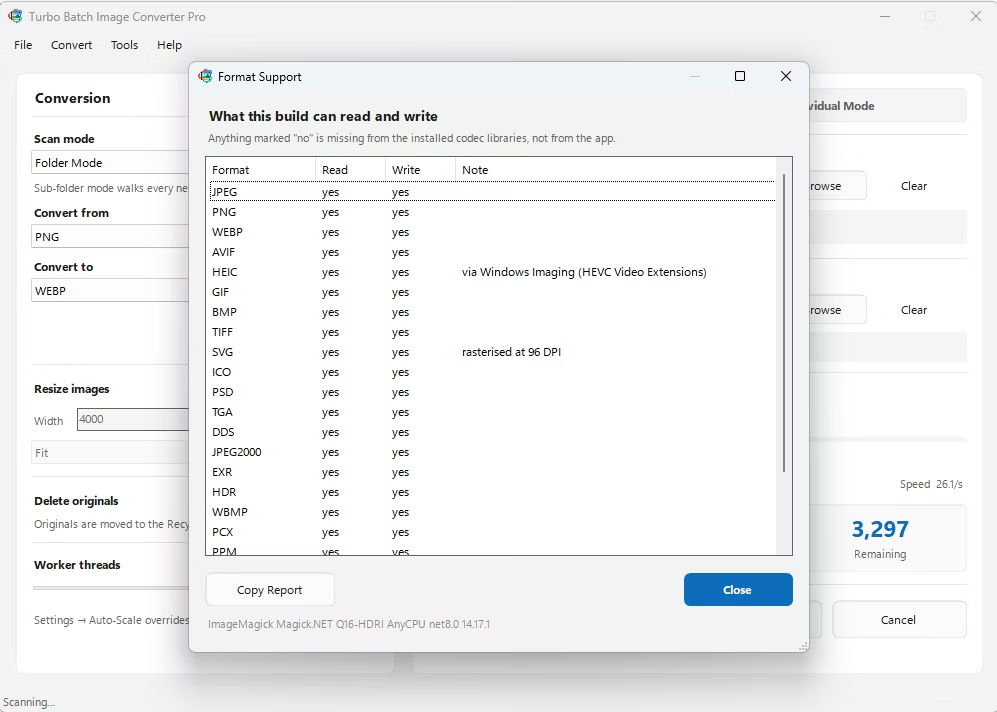
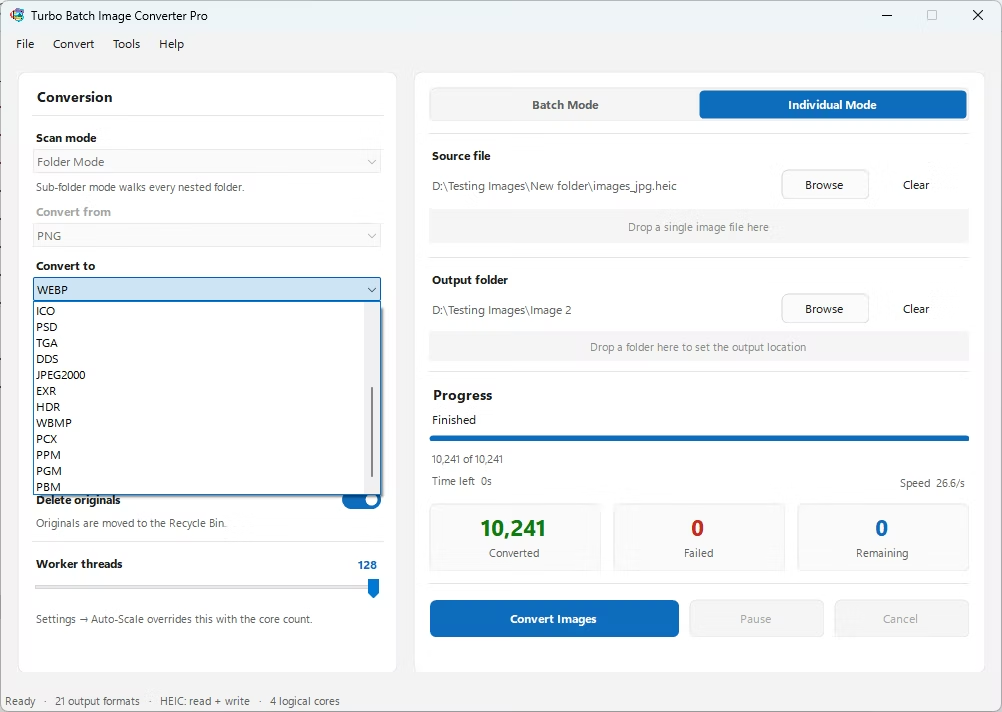
Turbo Batch Image Converter Pro handles bulk image processing across 22 input format families and 21 output formats, standardizing mixed-format folders into a single consistent output in one pass.
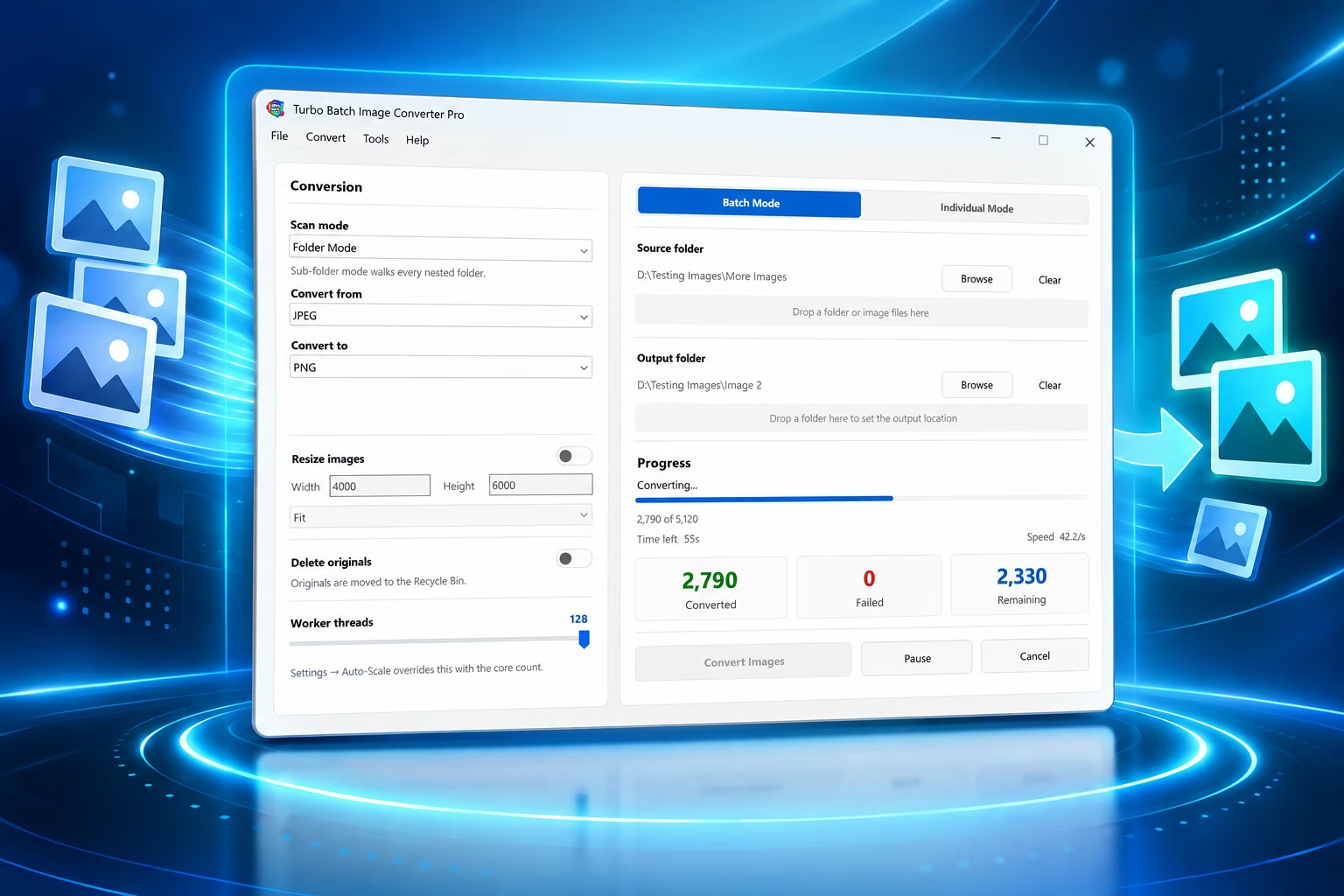
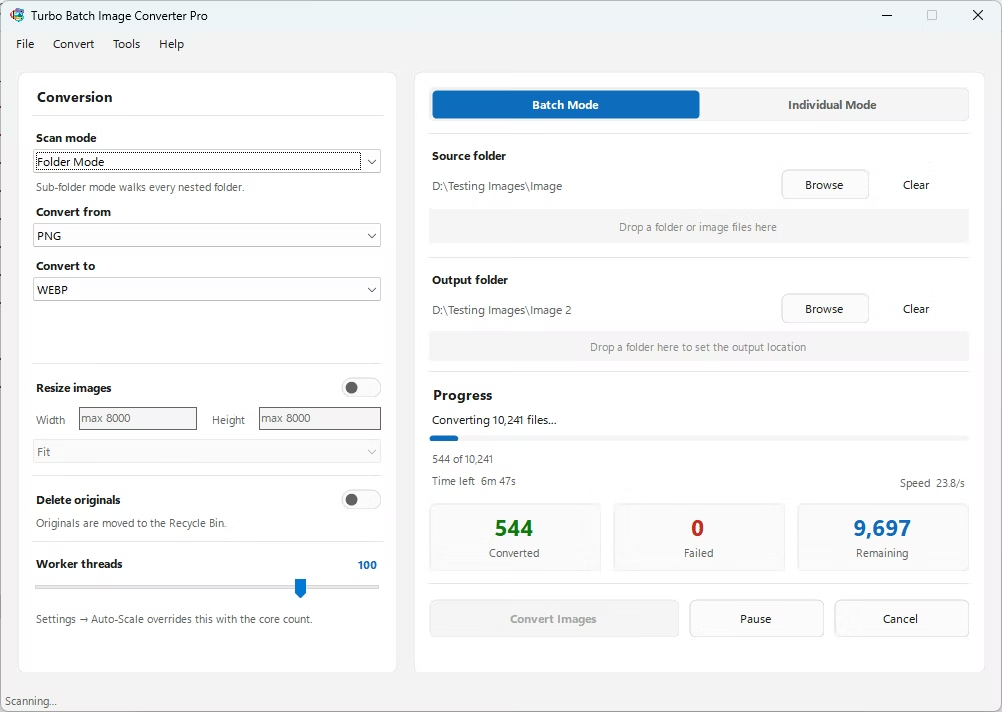
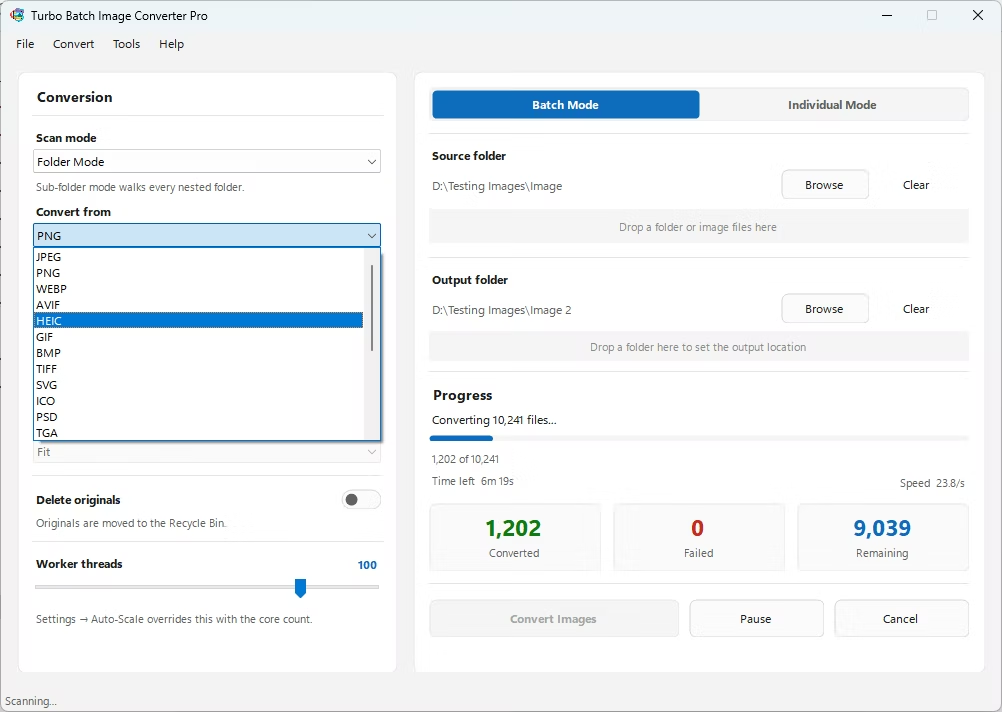
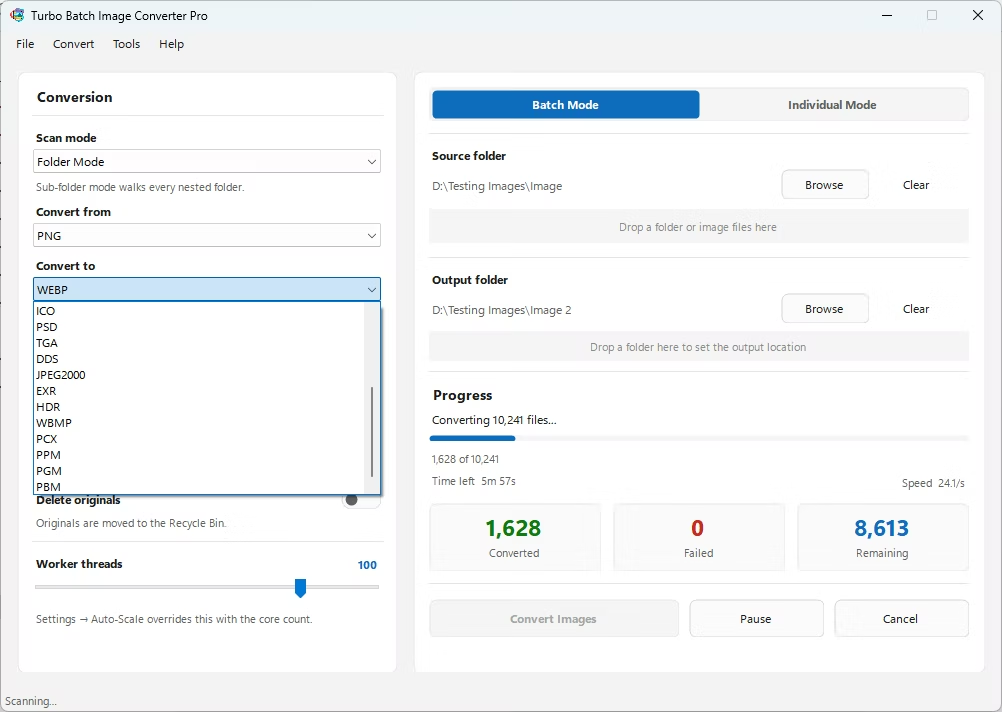
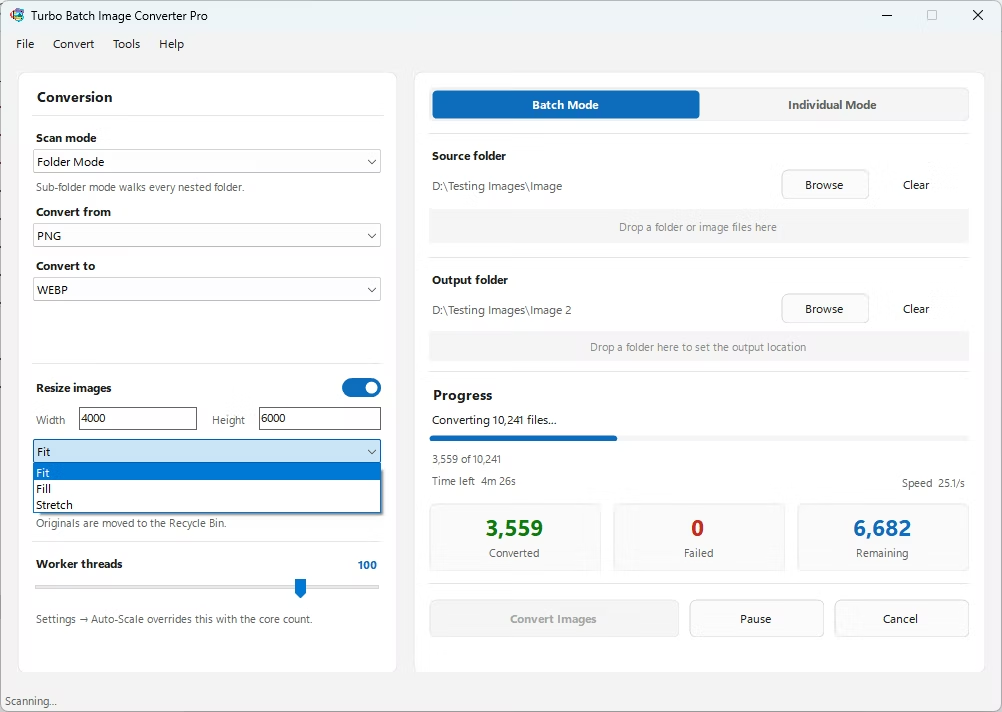
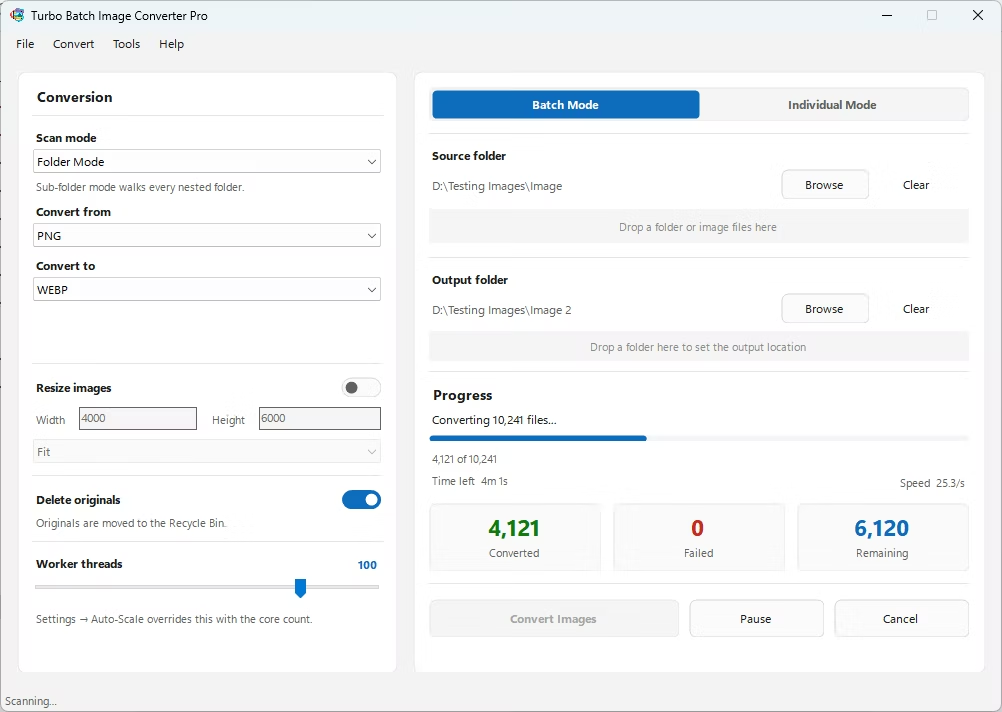
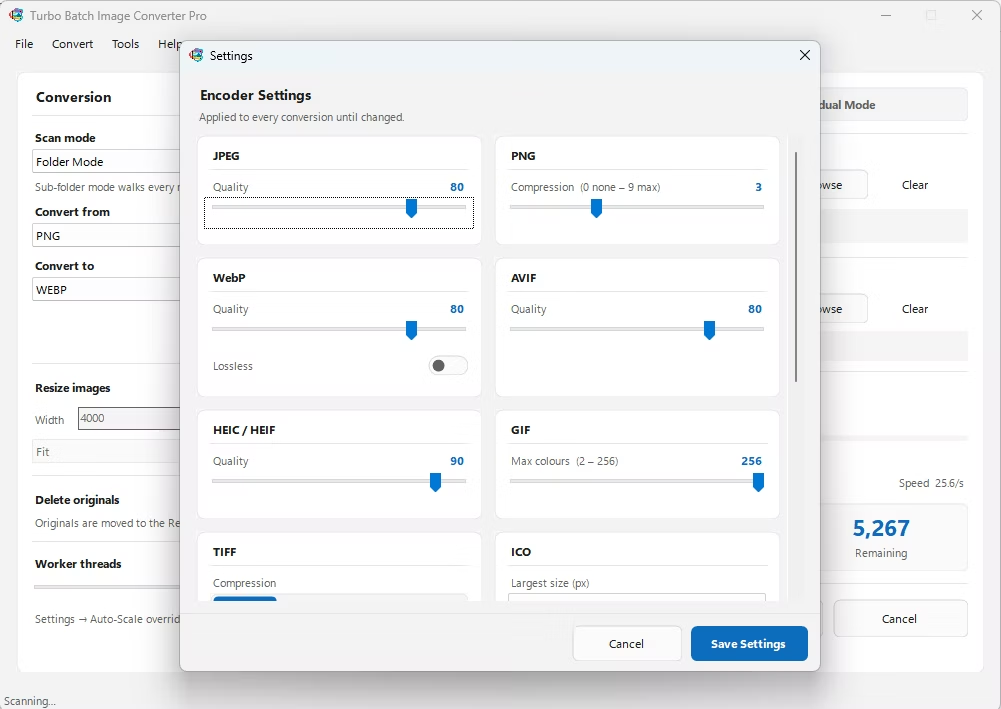
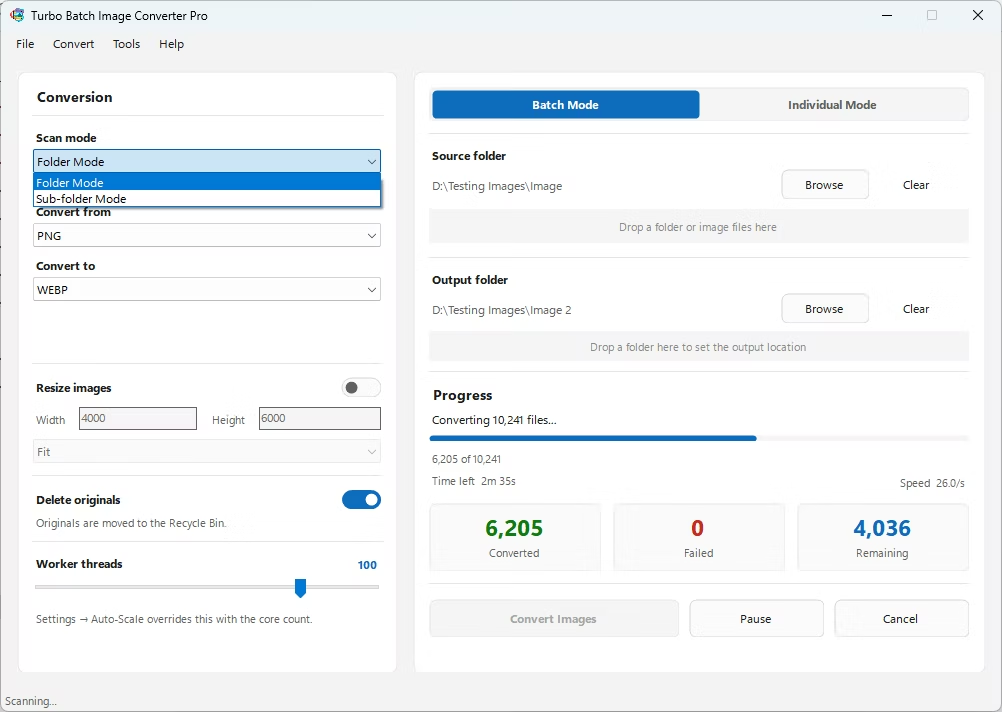
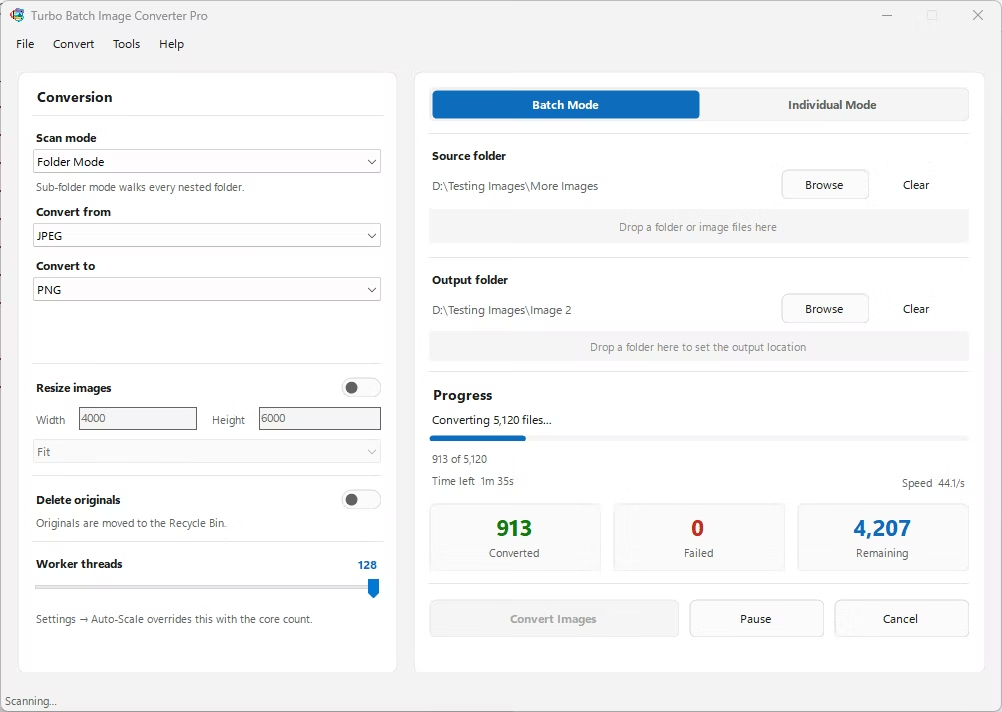
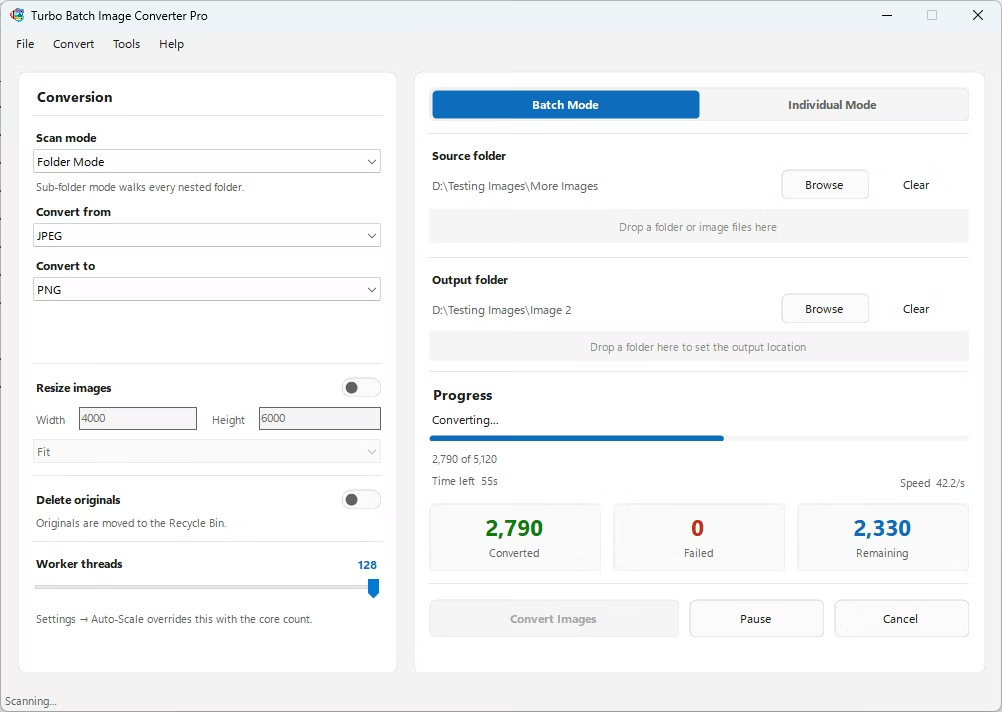
- Install Turbo Batch Image Converter Pro on your Windows PC.
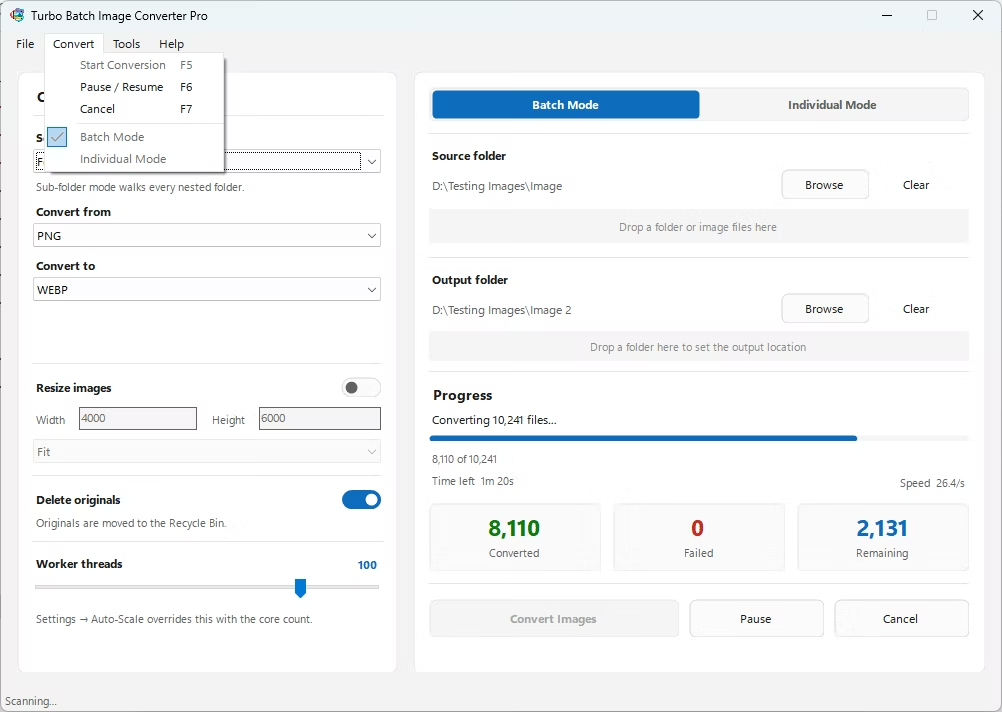
- Open Batch Mode and select your mixed-format folder.
- Leave the "From" format on auto-detect to handle multiple source formats.
- Set a single "To" format for consistent output.
- Adjust quality settings for your chosen output format.
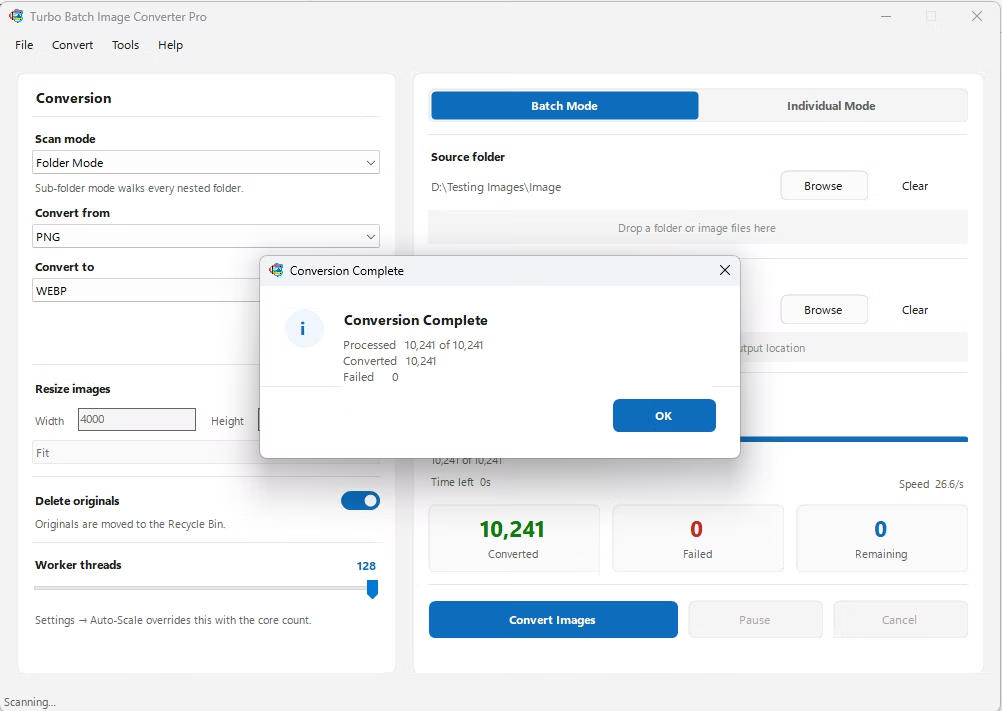
- Click Convert to bulk-process the entire folder.
- Processes 22 input formats and 21 output formats
- Auto-detects mixed formats within a single folder
- Standardizes an entire library into one consistent format
- Runs fully offline with no upload limits
- Multi-core engine scales up to 128 parallel workers
Can it process a folder containing several different image formats?
Yes, auto-detect handles mixed-format folders, converting every recognized format to your chosen output.
How many formats does the software support in total?
It supports 22 input format families and 21 output formats.
Is bulk processing suitable for an entire product catalog?
Yes, the app is designed to standardize large folders, such as a product image catalog, into a single consistent format in one run.
Ready for bulk image format processing, fully offline?