Convert RAW Camera Files to Everyday Image Formats - in Bulk, Offline
Turbo Raw Image Converter is a Windows desktop application that turns proprietary RAW camera files into standard, shareable image formats - one at a time or thousands at once. It reads 47 RAW formats from every major camera brand and writes JPEG, PNG, WEBP, GIF, BMP, TIFF, or SVG, decoding each file locally on your PC with no uploads, no queues, and no file-size limits.
Why This Tool Exists
RAW files preserve everything a camera sensor captured, which makes them ideal for editing but awkward for everything else. They are large, they will not open in most viewers or web pages, and each manufacturer uses its own variant - Canon's CR3, Nikon's NEF, Sony's ARW, Fujifilm's RAF, and dozens more. When a shoot produces hundreds or thousands of these files, converting them by hand, one at a time, is slow and tedious. Turbo Raw Image Converter exists to make that conversion fast, consistent, and completely offline, so a full card of RAW photos becomes a folder of ready-to-use JPEGs or PNGs in a single run.
What Problems It Solves
- RAW files that will not open or preview in ordinary apps, browsers, or on the web.
- Converting an entire shoot to JPEG or PNG without processing each file individually.
- Handling many different camera RAW formats in one place instead of separate tools.
- Resizing images at the same time as converting them, in a single pass.
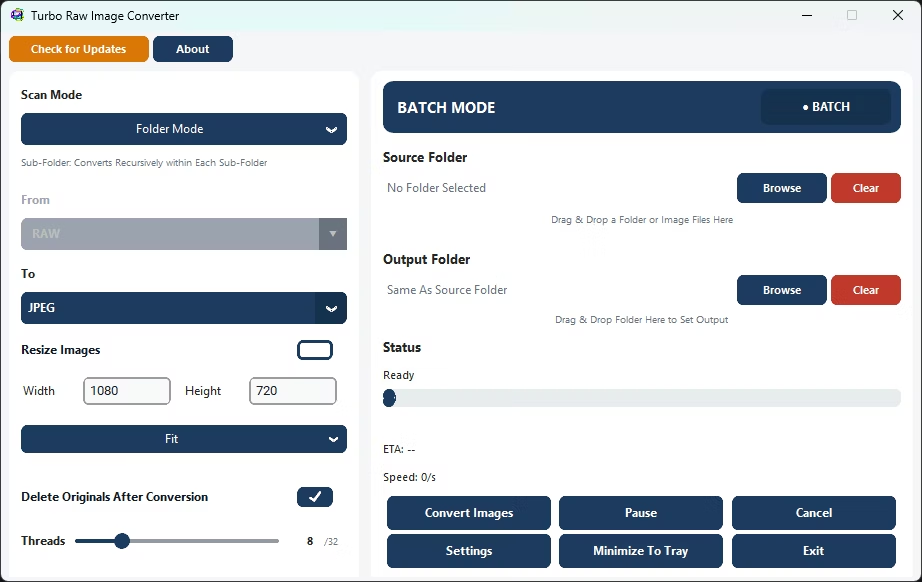
- Cleaning up bulky RAW originals after conversion by sending them to the Recycle Bin.
- Doing all of this on private client work that must never be uploaded to a cloud service.
Who Should Use It
Photographers and photo studios processing shoots, e-commerce and product teams preparing catalog images, real-estate and event photographers with high volumes, designers and marketers who need web-ready files, archivists standardizing large image libraries, and anyone who receives RAW files and simply needs them in a common format. If you regularly work with camera RAW files on Windows, this converter is built for exactly that job.
Supported RAW Input Formats (47 Camera Formats)
47 RAW Digital Camera Formats
Understanding the RAW Image File Format
Every camera maker stores an unprocessed photo in raw format using its own proprietary raw image file format - Canon uses CR2 and CR3, Nikon uses NEF, Sony uses ARW, and so on. A picture raw format like these keeps the full sensor data untouched, with no in-camera sharpening, white balance baking, or compression applied, which is why files are large and why so many everyday tools cannot open them directly.
DSLR Images and Why the Format Varies by Camera
Most dslr images shot on an enthusiast or professional body are saved as RAW rather than JPEG by default, because photographers want to preserve every bit of sensor data for editing later. A Nikon D3200, for example, saves nikon d3200 images as .NEF files rather than a universal format, which is typical of how dslr images are handled across brands - each manufacturer picks its own extension and internal structure. Turbo Raw Image Converter reads 47 different camera formats, so dslr images from virtually any brand or body, including nikon d3200 images, convert to JPEG, PNG, or another everyday format in one batch.
iPhone RAW Photos and Mobile RAW Capture
Modern iPhones can also shoot in a raw image file format - Apple ProRAW saves an iphone raw photo as a DNG file instead of the usual HEIC or JPG, giving mobile shooters similar editing latitude to a DSLR. Because DNG is one of the 47 supported RAW input formats, an iphone raw photo runs through the same batch conversion pipeline as a Nikon or Canon file.
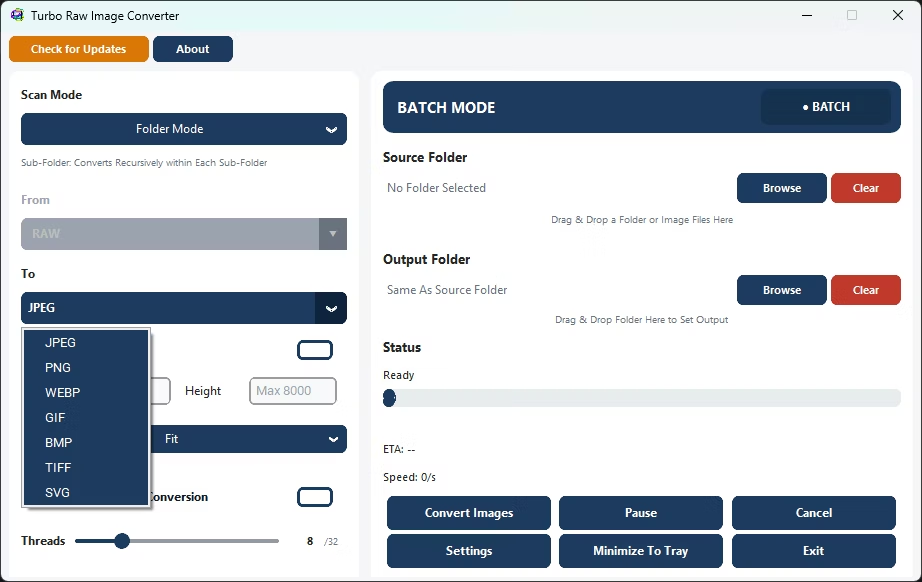
Supported Output Formats (7 Formats)
How It Works: From RAW to Ready in a Few Clicks
The workflow is designed so that a first-time user and a busy professional both reach the same clean result quickly. Everything happens on your own machine.
1. Choose Single or Batch
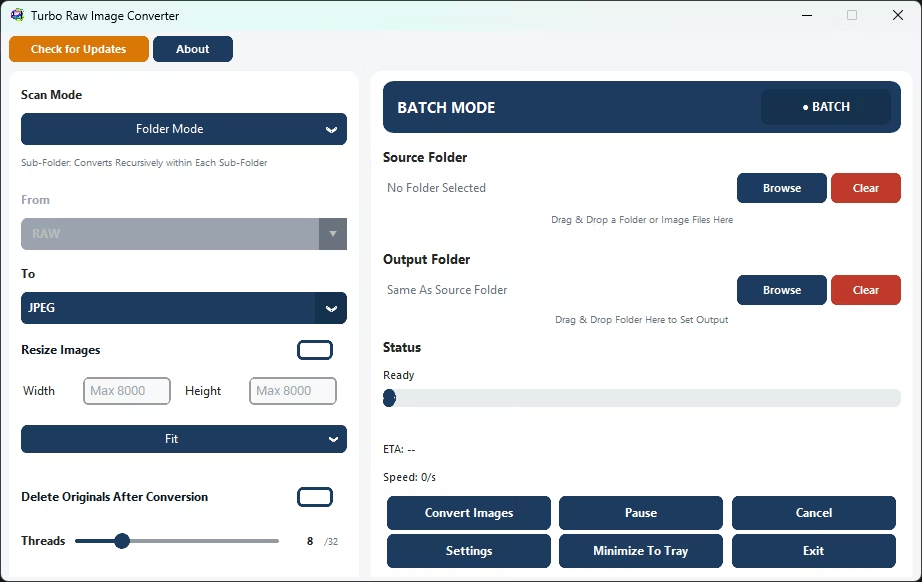
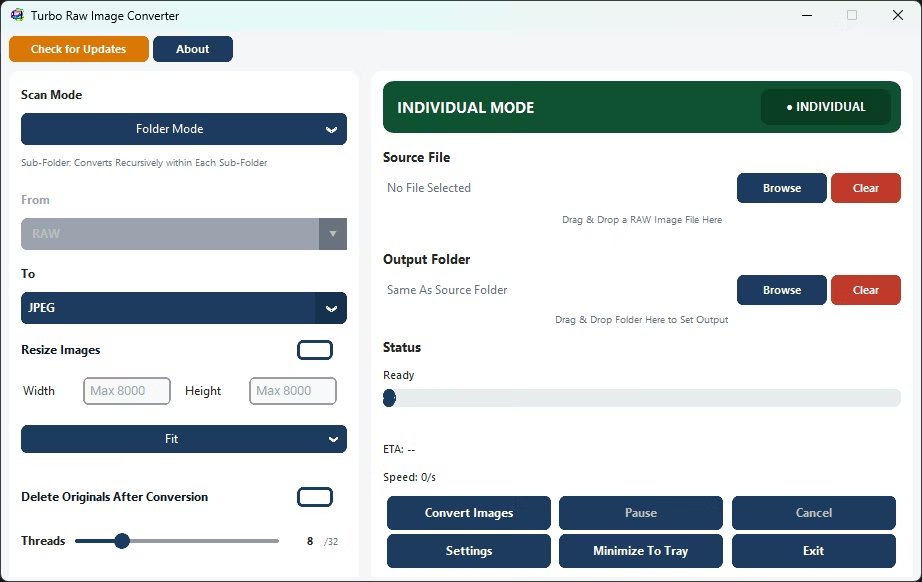
Pick Individual mode for a single RAW file, or Batch mode to convert an entire folder - or a whole folder tree - in one run.
2. Add Your Files
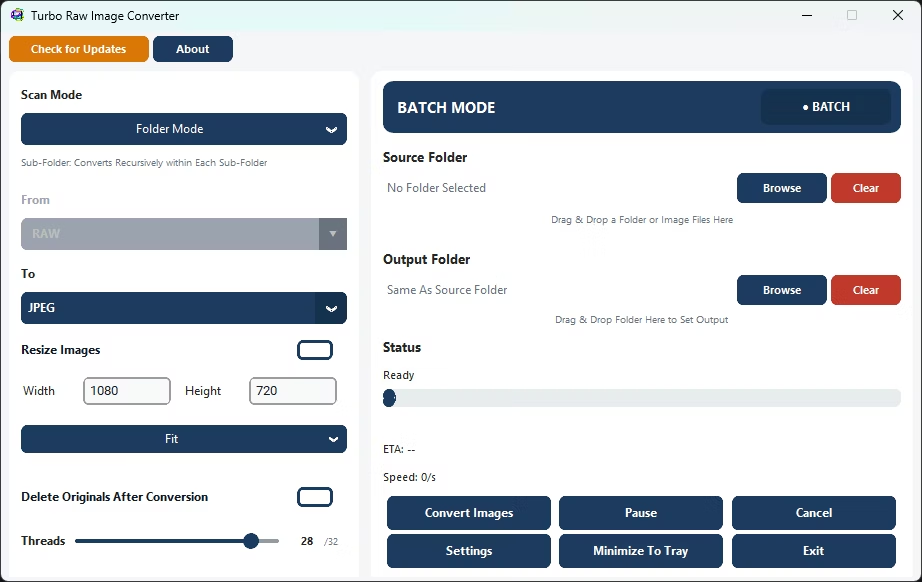
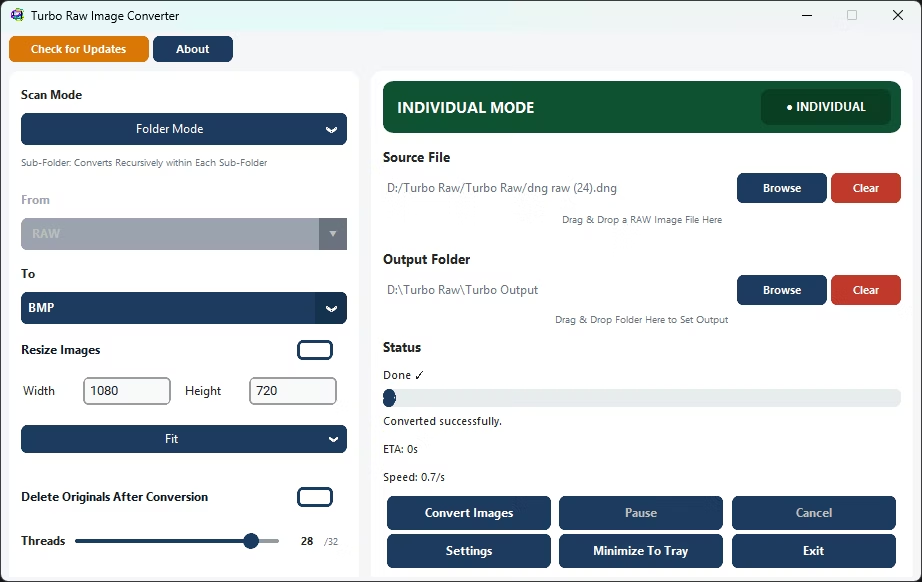
Browse to a file or folder, or drag and drop it straight onto the window. The app automatically scans for all 47 supported RAW formats; there is no manual "From" format to set.
3. Pick an Output Format
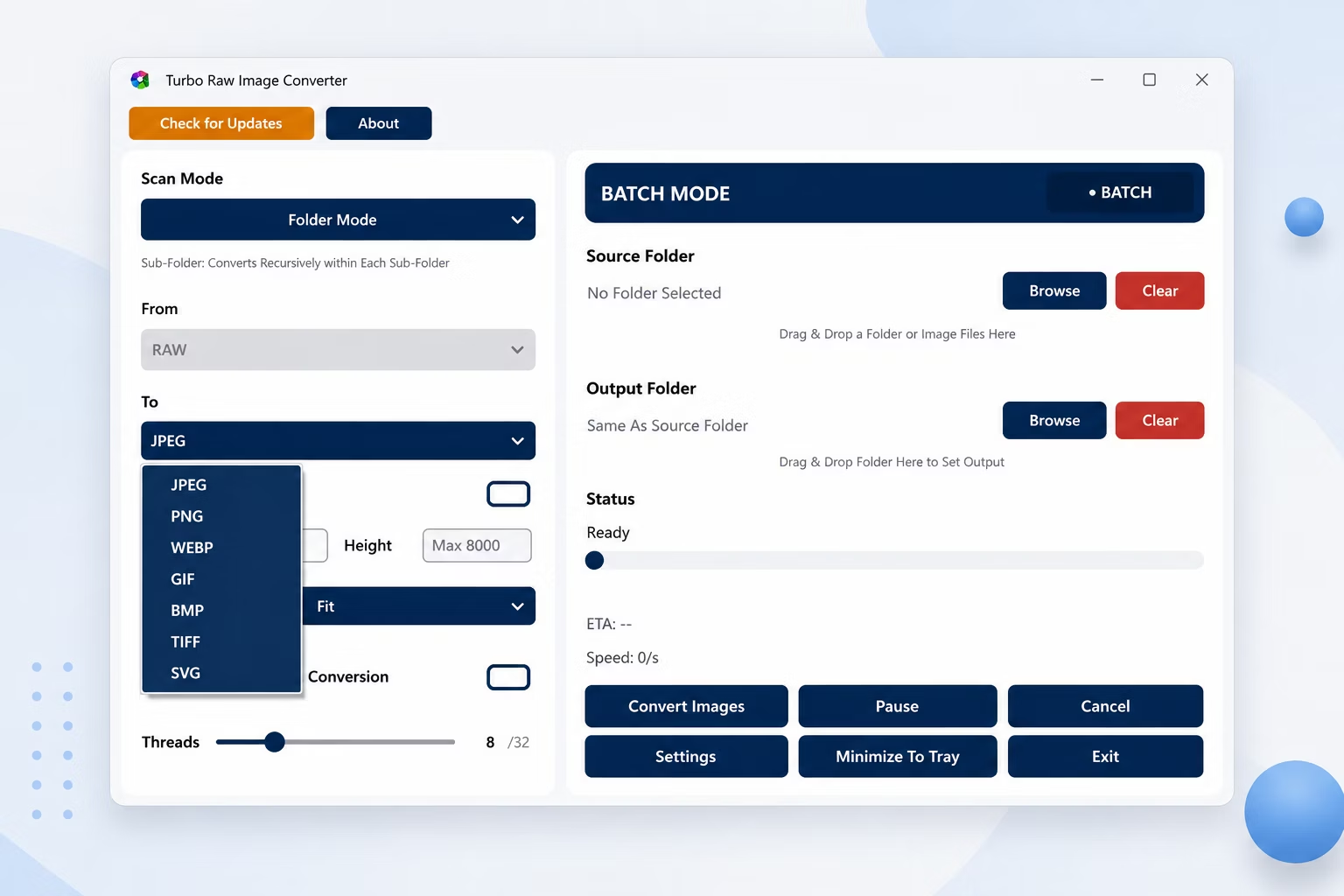
Select the target format - JPEG, PNG, WEBP, GIF, BMP, TIFF, or SVG - and, if you want, open Settings to fine-tune quality and format-specific options.
4. Set Options
Optionally enable resizing, choose an output folder, turn on Sub-Folder mode for nested directories, and decide whether originals should go to the Recycle Bin afterward.
5. Convert
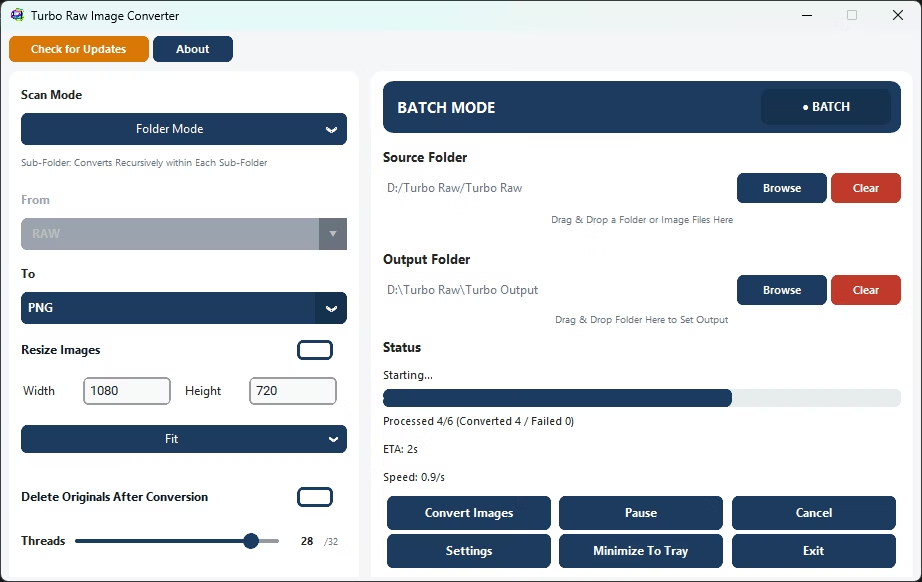
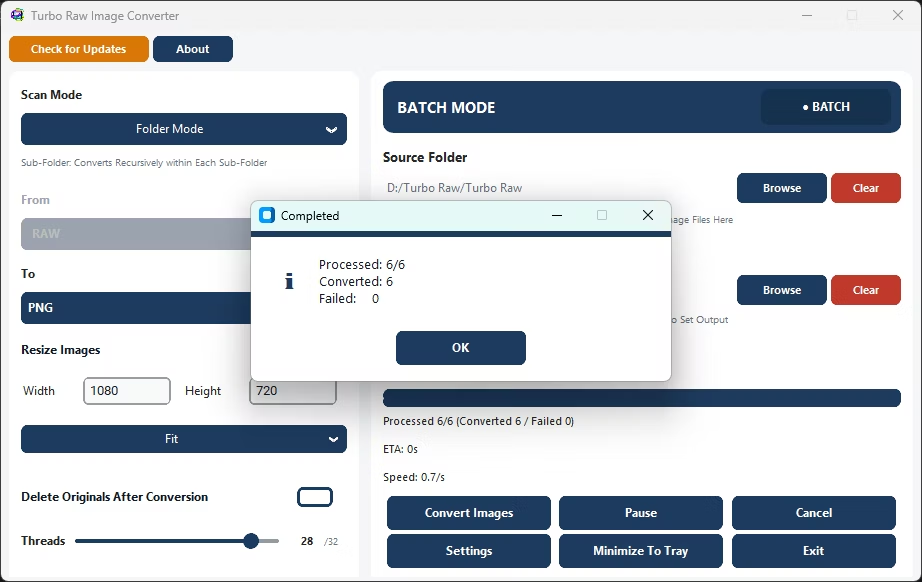
Click Convert and watch the live dashboard: files processed, success and failure counts, speed in files per second, ETA, and the current filename, all updating as the batch runs.
6. Pause, Resume, or Cancel
Take control of a running job at any point. Pause and resume without rebuilding the queue, or cancel cleanly with remaining files reported - no half-written mess left behind.
Modes and Settings: A Guided Tour
Individual Mode
For a quick one-off, Individual mode converts a single RAW file to any supported output format in one click. Full RAW decoding, resize, quality settings, and delete-original are all available, so you get the same quality on one file as on a batch of thousands, without setting up a full job.
Batch Mode
Batch mode converts an entire folder in a single run. Select a source folder, choose the output format and an optional destination folder, and the app scans every matching RAW file and processes them across multiple parallel workers. The real-time dashboard reports progress, speed, failures, and time remaining, and the engine is built to run stably from a thousand files to well over a hundred thousand in one session.
Folder and Sub-Folder Modes
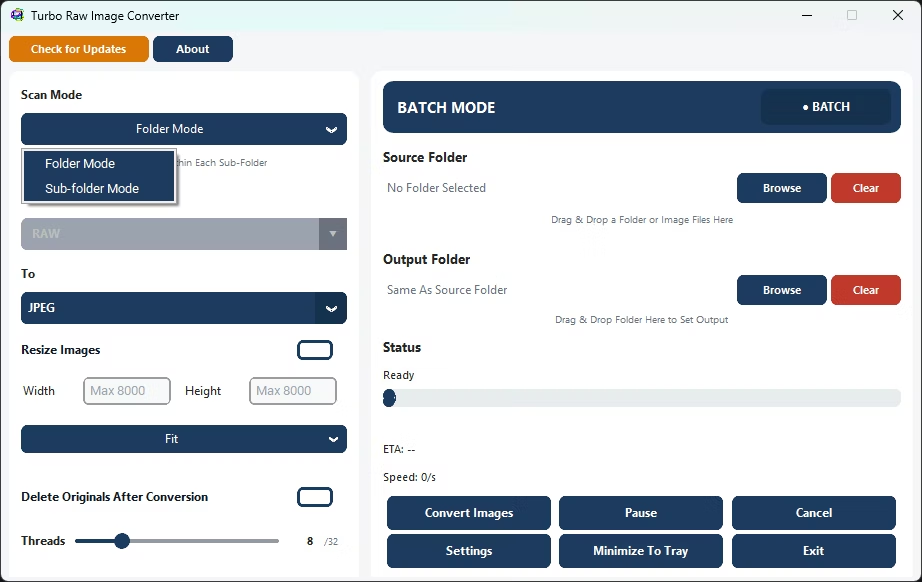
Folder mode processes the files directly inside the folder you choose. Switch to Sub-Folder mode and the app walks the entire directory tree, converting RAW images in every nested folder and mirroring that folder structure in the output, so your organized archive stays organized after conversion.
The Settings Window
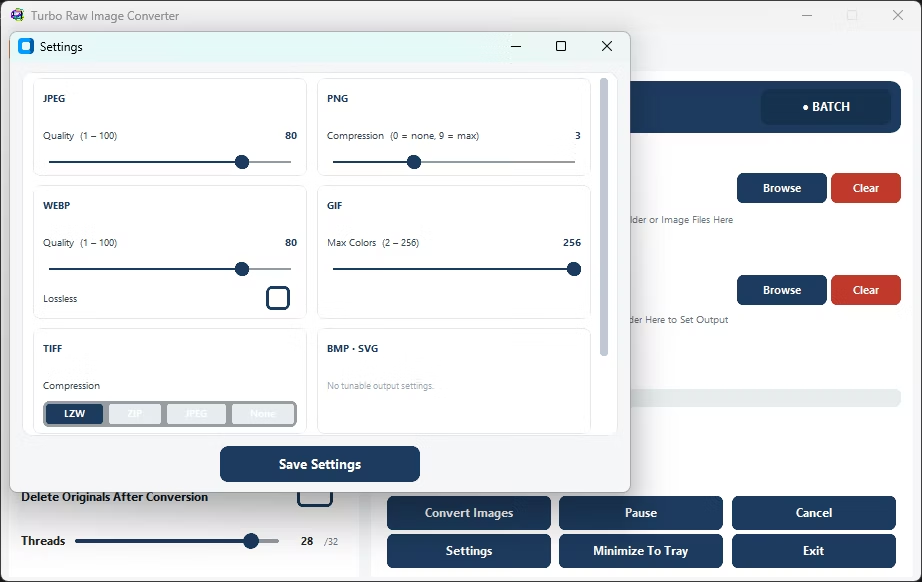
The Settings window exposes the format-specific controls that determine output quality and size:
- JPEG quality - an adjustable quality level so you can balance file size against visual fidelity for JPEG output.
- WEBP quality - a separate quality control for WEBP, which can produce noticeably smaller files than JPEG at similar quality.
- GIF colours - control the colour count used when writing GIF output.
- TIFF compression - choose the compression applied to TIFF output for archival or print workflows.
- Auto-Scale Workers - let the app pick the worker count from your available CPU cores automatically, or set it manually up to 32.
Choosing the Right Output Format
Each of the seven output formats suits a different purpose. Here is when to reach for each one.
JPEG
The default choice for sharing, proofing, and the web. Small files, near-universal support, and an adjustable quality setting to trade size against detail - ideal for delivering a shoot to clients.
PNG
Lossless output that preserves fine detail with no compression artefacts. Best when image fidelity matters more than file size, such as editing masters or graphics work.
WEBP
Modern web format that typically produces smaller files than JPEG at similar quality, with its own quality control. A strong pick for fast-loading websites and galleries.
TIFF
A print and archival standard with selectable compression. Suits studios and workflows that hand files to prepress or long-term storage.
BMP
An uncompressed raster format for tools and pipelines that specifically require plain bitmap input.
GIF
A widely supported indexed-colour format with a configurable colour count, useful where a simple, compatible raster is needed.
SVG
Wraps the converted image inside an SVG container that embeds the raster, handy when a workflow or CMS expects an .svg file to drop in.
Resize While You Convert
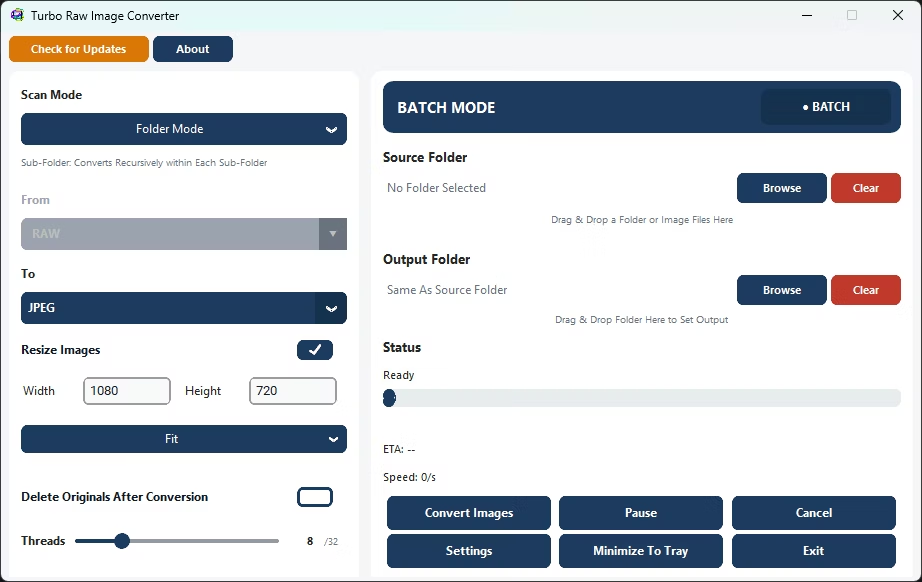
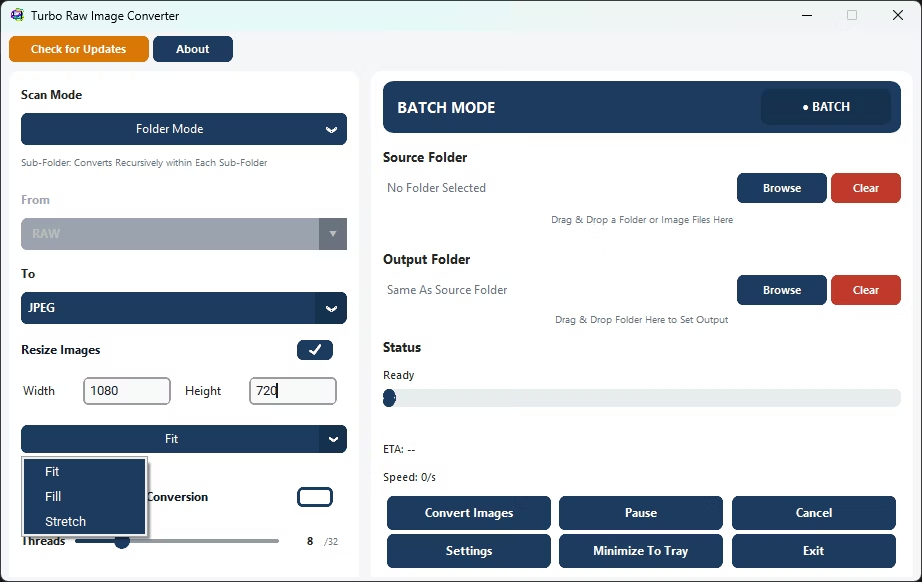
Enable Resize Images to shrink or standardize dimensions in the same pass as the conversion - no second tool, no second run. Set a target width and height up to 8,000 pixels and choose one of three modes, all using high-quality Lanczos resampling.
Fit
Scales the image to sit entirely within your target width and height while preserving its aspect ratio, so nothing is cropped or distorted. Best when you need every image under a maximum size.
Fill
Scales to cover the target dimensions and centre-crops the overflow, producing images that exactly match the requested size - ideal for uniform thumbnails or grid layouts.
Stretch
Forces the image to the exact width and height you enter, ignoring aspect ratio. Use it when a downstream system demands precise pixel dimensions.
Resizing during conversion is a real time-saver for the web: a single run can turn a folder of full-resolution RAW files into correctly sized, correctly formatted images ready to upload.
Key Features
▶ Single Mode
Convert a single RAW file to any supported output format in one click. Browse or drag-and-drop any RAW image directly into the app. The input format is detected automatically - no manual "From" selection needed. Full RAW decoding, resize options, quality settings, and delete-original are all available. Progress is shown live with a status bar and filename. Ideal for quick one-off RAW conversions without setting up a full batch job.
▶ Batch Mode
Convert an entire folder (or folder tree) of RAW files in a single run. Select a source folder, choose an output format, set an optional output folder, and click Convert. The app scans all matching RAW files and processes them across multiple parallel workers simultaneously. Real-time progress shows files converted, speed, failures, and estimated time remaining. Supports Pause, Resume, and Cancel at any point. Handles 1,000 to 100,000+ RAW files stably in a single session.
47 RAW Camera Formats Supported
Covers Canon (CR2, CR3, CRW), Nikon (NEF, NRW), Sony (ARW), Fujifilm (RAF), Panasonic (RW2), Olympus (ORF), Pentax (PEF, PTX), Leica (DNG), Hasselblad (3FR), Phase One (IIQ), Samsung (SRW), Sigma (X3F), RED (R3D), and many more from every major camera brand.
Batch Image Resizing
Enable "Resize Images" to activate bulk resizing alongside conversion. Set custom width and height (up to 8,000 px) and choose Fit, Fill, or Stretch mode. Converts and resizes RAW files in a single pass - no separate tools needed.
Nested Sub-Folder Recursive Conversion
Enable Sub-Folder Mode to process RAW images inside all nested folders automatically. No manual selection needed - the app scans entire directory trees and mirrors the folder structure in the output.
Safe Delete Original Files After Conversion
Original RAW files are moved to the Recycle Bin - not permanently deleted. Safe for post-shoot cleanup. Perfect for RAW to JPG replacement workflows.
Up to 32 Parallel Workers
Scale up to 32 concurrent workers to maximize throughput. Auto-scale mode assigns the optimal worker count for your CPU. Worker count is automatically reduced for heavy format combinations to prevent system overload.
High-Speed Batch Processing Engine
Multi-threaded engine handles 1,000 to 100,000+ RAW files with consistent speed and stability. Smart worker management keeps the engine running fast throughout the entire session.
Real-Time Conversion Dashboard
Live display of files processed, success and failure counts, real-time speed in files per second, estimated time remaining, and the current filename - updated every 250 ms.
Drag and Drop Input / Output
Drop RAW folders directly into the app window or browse manually. The app automatically scans all 47 supported RAW formats in the selected folder.
100% Offline - No Limits
All conversion happens locally on your PC. No cloud uploads, no internet required during conversion, no file size limits. Unlimited batch size. Private by design.
Pause · Resume · Cancel
Full control over running conversions at any point. Pause and resume jobs without restarting queues. Cancel cleanly at any time without data loss. Remaining files are cleanly reported.
Technical Notes
How Worker Count Is Managed
Because decoding a RAW file is CPU-intensive - every file needs a full demosaic pass to reconstruct the image from the camera sensor's data - the app caps the number of parallel workers at your CPU's core count when the input is RAW, even if you request more. This keeps the machine responsive and avoids oversubscribing the processor on very large batches. You can set the worker count manually up to 32, or enable Auto-Scale Workers to let the app use the available CPU cores automatically.
How RAW Decoding Works
Each RAW file is decoded with the LibRaw engine using the camera's own white balance, a fast LINEAR demosaic, and no automatic brightness adjustment, producing consistent colours across large batches. The output uses the sRGB colour space at 8-bit depth with standard sRGB gamma. The decoded image is converted directly to the chosen output format without any intermediate copy, maximising throughput for large sessions.
Naming Conflict Resolution During Parallel Conversion
When two or more RAW files share the same base name (e.g. shot.cr2 and shot.nef in the same folder), the app detects the conflict before loading and appends the original extension to each output filename - producing shot_cr2.jpg and shot_nef.jpg rather than overwriting. If the output path still collides with an existing file, a numeric suffix is added incrementally (shot_cr2_1.jpg, shot_cr2_2.jpg, …) until a free filename is found.
How Parallel Processing Works
Batch conversion dispatches all queued RAW files simultaneously up to the configured worker limit (1–32). Each worker independently loads, demosaics, optionally resizes, and saves one RAW image - workers never share data with each other, ensuring safe parallel operation. The live progress counter updates as each file completes, and the dashboard refreshes every 250 ms to show speed and ETA. When Auto-Scale Workers is enabled, the worker count matches your CPU's core count. Memory is managed automatically to maintain consistent speed across long sessions.
Who Uses Turbo Raw Image Converter and How
RAW files show up wherever a camera does serious work. Because the converter combines format choice, resizing, and batch processing, the same app fits very different needs.
Wedding and Event Photographers
Convert an entire day's shoot from CR3, NEF, or ARW to JPEG overnight, resize to a client-delivery size in the same pass, and send originals to the Recycle Bin once the JPEGs are confirmed.
Product and E-commerce Studios
Turn RAW product shots into uniform, web-ready images with Fill-mode resizing for consistent thumbnails, then output WEBP for fast-loading catalog pages.
Real-Estate Photographers
Process high volumes of RAW property photos into JPEG galleries quickly, using Sub-Folder mode to convert one folder per listing while keeping the structure intact.
Photojournalists and Agencies
Batch-convert RAW captures to JPEG or TIFF for fast filing, entirely offline, which matters when working on sensitive or embargoed material.
Designers and Marketing Teams
Get PNG or WEBP versions of camera RAW files for layouts and campaigns without opening a heavyweight editor, resizing to spec on the way out.
Archivists and Libraries
Standardize a sprawling collection of mixed-brand RAW files into consistent TIFF or PNG masters, mirroring the original folder tree for a clean, browsable archive.
Print Labs and Prepress
Convert RAW to TIFF with the compression setting that suits the print pipeline, processing whole job folders at once.
Hobbyists and Enthusiasts
Quickly make shareable JPEGs from a camera's RAW output without a subscription or a steep learning curve - drag a folder in, pick JPEG, and convert.
Real-World Workflows
Deliver a Shoot as Web-Ready JPEGs
After a shoot, point Batch mode at the folder of RAW files, choose JPEG, set the quality level, enable Resize with a Fit width suitable for the web, and convert. A card full of NEF or CR3 files becomes a clean set of correctly sized JPEGs in one run, ready to upload or email.
Standardize a Mixed-Brand Archive
A library holds RAW files from several cameras - ARW, RAF, ORF, DNG, and more. Turn on Sub-Folder mode, choose TIFF or PNG as the archival master, and convert the whole tree at once. Every format is handled by the same engine, and the output mirrors the original structure.
Build Uniform Product Thumbnails
For a catalog, choose Fill-mode resize with the exact thumbnail dimensions, output WEBP for small file sizes, and batch-convert the product RAW files. Every image comes out at the same size, cropped to fill, ready to drop into the store.
Clean Up After Conversion
When disk space is tight after a big shoot, enable Delete Original Files. Once each RAW file is converted, the original is moved to the Recycle Bin rather than erased, so you reclaim space while keeping a safety net until you empty the bin.
Best Practices and Tips
Match the Format to the Job
Use JPEG or WEBP for sharing and the web, PNG or TIFF when you need lossless quality, and reserve BMP, GIF, or SVG for the specific pipelines that require them.
Test on a Small Folder First
Before a huge batch, run a handful of files to confirm the output format, quality, and resize settings look right - then point the same settings at the full set.
Keep Delete-Original Off Until You are Sure
Leave originals in place for the first run, verify the converted output, and only enable Delete Original Files once you trust the result. It uses the Recycle Bin, but confirming first is safer.
Let Auto-Scale Handle Workers
If you are unsure how many workers to use, enable Auto-Scale Workers and let the app match your CPU. Manual tuning up to 32 is there if you want it.
Use Sub-Folder Mode for Organized Archives
When your RAW files are sorted into folders, Sub-Folder mode preserves that organization in the output instead of flattening everything into one directory.
Resize Once, Not Twice
Set your target dimensions during conversion rather than converting first and resizing later - one pass saves time and avoids an extra round of re-encoding.
Scope and Limitations
Being clear about what the tool does and does not do helps set the right expectations.
- Input is RAW camera files only - it is a dedicated RAW converter, not a general any-to-any image converter.
- Output is limited to JPEG, PNG, WEBP, GIF, BMP, TIFF, and SVG. It does not write RAW or DNG; DNG is supported only as an input format.
- RAW decoding uses a fast LINEAR demosaic tuned for batch throughput rather than a slow, maximum-quality demosaic, with camera white balance and no auto-brightness for consistent results.
- Because RAW decoding is CPU-intensive, the effective worker count is capped at your CPU core count for RAW input even if a higher number is requested.
- SVG output embeds the converted raster inside an SVG wrapper; it does not vectorize the photograph.
- Drag-and-drop and system-tray minimize depend on optional components being present in the build.
Turbo Raw Image Converter vs. Manual Methods
| Task | Manual / Editor Approach | Turbo Raw Image Converter |
|---|---|---|
| Convert 2,000 RAW files | Open and export each in an editor, or wait on a slow queue | Point at the folder, pick a format, convert the whole batch in one run |
| Handle many camera brands | Separate tools or plug-ins per format | 47 RAW formats read by one engine |
| Resize while converting | A second tool and a second pass | Fit, Fill, or Stretch resizing built into the same pass |
| Process nested folders | Repeat the job per folder | Sub-Folder mode walks the whole tree and mirrors it |
| Reclaim disk space | Manually delete originals afterward | Optional move-to-Recycle-Bin after each conversion |
| Track progress | Guesswork on long jobs | Live count, speed, ETA, and failure reporting |
| Keep work private | Web converters require uploading files | 100% offline; nothing leaves your computer |
The Benefits: Time, Consistency, and Control
Beyond simply changing file formats, a dedicated batch RAW converter changes how much time a shoot costs you and how consistent the results are across hundreds or thousands of images.
Massive Time Savings
Converting an entire folder in one run replaces the slow cycle of opening, exporting, and saving each RAW file by hand. A job that would take hours of manual exporting finishes as a single unattended batch, freeing you to work on something else while it runs.
Consistent, Repeatable Output
Because every file passes through the same decoding pipeline with camera white balance and no auto-brightness, colour and tone stay consistent across the whole batch - no drift between the first image and the thousandth, and no per-file guesswork.
Fewer Manual Errors
Setting the format, quality, and size once and applying it to the whole folder removes the small mistakes that creep in when exporting files individually - a wrong size here, a missed file there. The preview and live dashboard make it obvious that every file was handled.
One Pass, Two Jobs
Converting and resizing together means you are not re-encoding images twice or juggling a second tool. The output lands in the right format at the right dimensions the first time.
Predictable Large-Batch Behaviour
The engine is built to stay stable from a thousand files to well over a hundred thousand, with failure isolation so a single unreadable file is reported and skipped rather than halting the run.
Full Control While It Runs
Pause when you need the CPU back, resume without losing progress, and cancel cleanly with the remaining files reported - you are never locked into a job once it starts.
Safety and Reliability
- Safe Multi-Threaded Architecture - Each file task runs independently, with no conflicts during read or write operations across parallel RAW decoding tasks.
- File Integrity Protection - Prevents file corruption even during high-speed batch conversions with up to 32 concurrent workers.
- Safe Delete to Recycle Bin - Original RAW files are moved to the Recycle Bin rather than permanently deleted (optional).
- Conversion Continuity - If a single RAW file is corrupted or unsupported, only that task fails. All remaining conversions continue uninterrupted.
- Pause / Resume Safety - Jobs can be paused and resumed at any point without restarting the entire queue.
- Stable Under Heavy Loads - Continues operating reliably during extended sessions of 10,000–100,000+ RAW files without performance degradation.
- Ideal for Sensitive Environments - Corporate offices, legal firms, medical records teams, and air-gapped networks.
- Privacy First - No image uploads · No remote scanning · No cloud transfer · No third-party access.
Demo Videos
High-Speed Batch Image Conversion Demo
Performance and Speed
Multi-Core Optimized RAW Engine
Scales efficiently from dual-core laptops to 32-core workstations. RAW decoding is CPU-bound, so more cores means proportionally faster throughput.
Up to 32 Concurrent Workers
Supports up to 32 workers. When the input is RAW, the worker count is automatically capped at your CPU core count because RAW decoding is CPU-intensive, keeping the system responsive during large batches.
Failure Isolation
If one RAW file is corrupted, truncated, or in an unsupported variant - only that task fails. All remaining conversions continue uninterrupted.
Massive Batch Capability
Handles complete photography sessions, wedding archives, studio shoots, and enterprise media folders with 100,000+ RAW files in a single stable run.
Real-Time ETA Calculation
Remaining time is predicted dynamically based on current RAW throughput, updated live during processing. Paused time is excluded from ETA calculations.
Low-Overhead Architecture
Memory is managed automatically after each file. Sustained long-duration sessions remain stable without performance degradation or crashes.
Security and Privacy
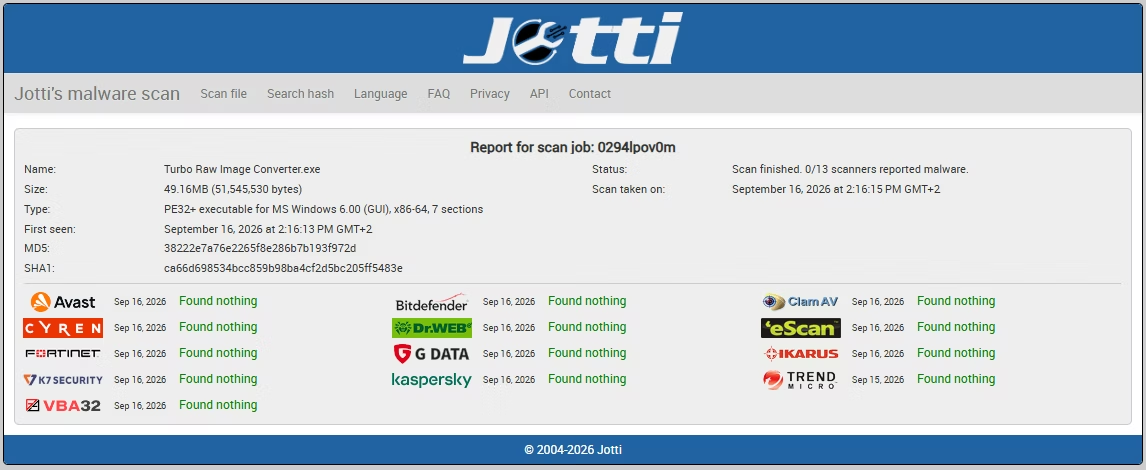
Turbo Raw Image Converter is a fully offline image processing application. All conversions, resizing, compression, and format transformations run locally on your machine. No images are uploaded to cloud servers, no files are scanned externally, and no image metadata is transmitted at any point.
- Does not log, analyze, track, or store your image data
- No integration with third-party analytics, advertising trackers, or background telemetry
- Internet is used only for license validation - the request contains no personal data, file names, or image content
- Ideal for photographers, studios, businesses, medical institutions, and enterprises handling sensitive RAW libraries
- Complete confidentiality for personal, professional, and commercial workflows
Minimum System Requirements
| Operating System | Windows 8 (64-bit) |
| Processor | 1–2 CPU cores |
| Memory | 2 GB RAM |
| Storage | 500 MB free disk space |
Recommended System Requirements
| Operating System | Windows 10 or later (64-bit) |
| Processor | 4 or more CPU cores |
| Memory | 4 GB RAM or more |
| Storage Type | SSD recommended for best batch performance |
| Free Disk Space | 2 GB or more |
App Info
| App Name | Turbo Raw Image Converter |
| Version | 6.2 |
| Platform | Windows 10, Windows 11 |
| Category | Image Tools |
| RAW Input Formats | 47 camera RAW formats |
| Output Formats | JPEG, PNG, WEBP, GIF, BMP, TIFF, SVG |
| Parallel Workers | Up to 32 (Auto-Scale available) |
| Processing | 100% offline / local |
| License Management | Gumroad (one-time purchase) |
Supported RAW Conversions
| RAW (all 47) | to | JPG, PNG, WEBP, GIF, BMP, TIFF, SVG |
| CR2 | to | JPG, PNG, WEBP, GIF, BMP, TIFF, SVG |
| CR3 | to | JPG, PNG, WEBP, GIF, BMP, TIFF, SVG |
| NEF | to | JPG, PNG, WEBP, GIF, BMP, TIFF, SVG |
| NRW | to | JPG, PNG, WEBP, GIF, BMP, TIFF, SVG |
| ARW | to | JPG, PNG, WEBP, GIF, BMP, TIFF, SVG |
| DNG | to | JPG, PNG, WEBP, GIF, BMP, TIFF, SVG |
| RAF | to | JPG, PNG, WEBP, GIF, BMP, TIFF, SVG |
| ORF | to | JPG, PNG, WEBP, GIF, BMP, TIFF, SVG |
| RW2 | to | JPG, PNG, WEBP, GIF, BMP, TIFF, SVG |
| PEF | to | JPG, PNG, WEBP, GIF, BMP, TIFF, SVG |
| PTX | to | JPG, PNG, WEBP, GIF, BMP, TIFF, SVG |
Getting Started and Licensing
Turbo Raw Image Converter is a one-time purchase through Gumroad - there is no subscription and no online account to maintain. Setup takes a minute, and after activation the app runs entirely on your own Windows machine.
1. Purchase and Download
Buy a license through Gumroad using the Buy Now button on this page. You receive the download along with your purchase email and license key.
2. Install on Windows
Run the installer on Windows 10 or 11. No browser or server is required - it is a native desktop application.
3. Activate Once
Enter the purchase email and license key from your Gumroad receipt. Activation is a one-time step, after which the converter opens ready to use.
4. Convert Your First Batch
Drag a folder of RAW files onto the window, pick an output format, and click Convert. Open the output folder when it finishes to see your results.
Why Choose Turbo Raw Image Converter
It does one thing exceptionally well: turning proprietary RAW camera files into the everyday image formats you actually use, in bulk, without sending anything to the cloud. Instead of exporting files one by one in a heavyweight editor or trusting a web service with private work, you get a fast, focused desktop tool that handles an entire shoot in a single run.
- 47 RAW camera formats from every major brand, read by one engine.
- Seven output formats - JPEG, PNG, WEBP, GIF, BMP, TIFF, and SVG - with per-format quality and compression controls.
- Batch and Individual modes, plus recursive Sub-Folder processing that preserves your structure.
- Built-in resizing with Fit, Fill, and Stretch, up to 8,000 pixels, in the same pass.
- Up to 32 parallel workers with Auto-Scale, a live progress dashboard, and pause, resume, and cancel.
- Optional move-to-Recycle-Bin cleanup of originals, and fully offline processing for private work.
If your work regularly produces folders of RAW files that need to become shareable images, Turbo Raw Image Converter turns that recurring chore into a couple of clicks. Purchase a license through Gumroad above and start converting your RAW photos today.
Fast and Reliable Bulk RAW Image Converter for Windows
Turbo Raw Image Converter is a professional batch image converter and offline bulk image converter built specifically for RAW camera workflows on Windows 10 and Windows 11. All image processing happens locally on your PC - no uploads, no waiting queues, and no file size restrictions - making it a secure choice for photographers, studios, and professionals handling sensitive RAW image libraries. As a complete RAW converter, it accepts 47 RAW input formats and converts them to 7 output formats including JPEG, PNG, WEBP, BMP, TIFF, SVG, and GIF. Canon photographers can use it as a dedicated CR2 to JPG converter, CR3 to JPG converter for Windows 11, and CR2 to PNG converter. Nikon users can rely on it as a fast NEF to JPG bulk converter and NEF to PNG converter. Sony users can use it as a high-quality ARW to JPG converter with no subscription. The built-in DNG to JPG engine preserves colour accuracy and dynamic range per batch run. It also supports RAF to JPG conversion for Fujifilm cameras, along with formats from Panasonic, Olympus, Pentax, Leica, Hasselblad, Phase One, Samsung, Sigma, and RED. In addition to RAW conversion, it functions as a bulk image resizer with Fit, Fill, and Stretch modes up to 8,000 px. For advanced rename workflows, it pairs well with Turbo Batch File Rename Tool, and converted files can be further processed using Turbo Batch Image Converter Lite.
Frequently Asked Questions
Common Questions About Turbo Raw Image Converter
Does it convert nikon d3200 images specifically?
Yes. A Nikon D3200 saves nikon d3200 images as .NEF files, and NEF is one of the 47 supported RAW input formats, so nikon d3200 images convert to JPEG, PNG, or any other supported output in the same batch as files from other cameras.
What does it mean to save a photo in raw format?
Saving a photo in raw format means the camera writes the sensor's raw, unprocessed data to a file instead of a compressed JPEG. A photo in raw format preserves the most detail for later editing, but most everyday apps and websites cannot open it until it's converted to JPEG, PNG, or another common format.
Can I open a picture raw format file without Photoshop?
Yes. You don't need Photoshop or Lightroom to open a picture raw format file - Turbo Raw Image Converter reads the picture raw format directly and converts it to JPEG, PNG, WEBP, TIFF, BMP, GIF, or SVG in one click, without editing software installed.
What is a raw image file format, exactly?
A raw image file format is the manufacturer-specific container a camera uses to store unprocessed sensor data - CR2/CR3 for Canon, NEF for Nikon, ARW for Sony, and DNG as a more universal raw image file format used by several brands and by iPhone ProRAW.
Can it convert an iphone raw photo?
Yes. An iphone raw photo captured with ProRAW is saved as a DNG file, and DNG is fully supported, so an iphone raw photo converts to JPEG, PNG, or any other output format the same way a DSLR RAW file does.
Is it a good CR2 to JPG converter for bulk files?
Yes. Turbo Raw Image Converter handles thousands of Canon CR2 files at once with adjustable JPEG quality from 1 to 100. It also works as a CR2 to PNG converter for lossless output and can convert CR2 to TIFF, WEBP, BMP, GIF, or SVG. DNG is supported as an input RAW format alongside CR2. All processing is fully offline on Windows.
Can it work as a CR3 to JPG converter on Windows 11?
Absolutely. Turbo Raw Image Converter is a fully native CR3 to JPG converter for Windows 11, optimised for modern Canon mirrorless cameras. It runs natively on Windows 11 (64-bit) and takes full advantage of multi-core CPUs for fast batch throughput.
How do I convert NEF to PNG in bulk on Windows?
Drag your NEF folder into the app, select PNG as the output format, and click Convert. The app processes the entire folder - including nested sub-folders - automatically without any plugins or manual exports.
How does the converter decide how many workers to use?
You can set the number of parallel workers up to 32, or enable Auto-Scale Workers to use the available CPU cores automatically. Because RAW decoding is CPU-intensive, when the input is RAW the app caps the effective worker count at your CPU's core count even if you request more, which keeps the machine responsive and stable throughout very large batches.
Does it include an ARW to JPG converter?
Yes. Turbo Raw Image Converter includes a built-in ARW to JPG converter available via a one-time purchase. Sony ARW files are converted with full quality control, fully offline, with no subscription required.
Can it convert DNG to JPG with high-quality output?
Yes. The built-in DNG to JPG converter preserves dynamic range, colour accuracy, and fine detail during conversion using camera white balance and sRGB colour space output. Output JPEG quality is fully adjustable per batch run.
Which RAW formats does it support?
It reads 47 RAW camera formats, including Canon CR2, CR3, and CRW, Nikon NEF and NRW, Sony ARW, SR2, and SRF, Fujifilm RAF, Panasonic RW2, Olympus ORF, Pentax PEF and PTX, Adobe and Leica DNG, Hasselblad 3FR and FFF, Phase One IIQ and CAP, Samsung SRW, Sigma X3F, RED R3D, and many more.
Which output formats can it write?
Seven: JPEG, PNG, WEBP, GIF, BMP, TIFF, and SVG. You pick the target format per job, and format-specific options like JPEG and WEBP quality, GIF colours, and TIFF compression are available in Settings.
Can it convert a whole folder of RAW files at once?
Yes. Batch mode converts an entire folder in a single run, processing files across multiple parallel workers. Enable Sub-Folder mode to include every nested folder as well, with the output mirroring your original folder structure.
Can it resize images while converting?
Yes. Turn on Resize Images, set a target width and height up to 8,000 pixels, and choose Fit, Fill, or Stretch. Resizing happens in the same pass as the conversion using high-quality Lanczos resampling, so there is no separate step.
What is the difference between Fit, Fill, and Stretch?
Fit scales the image to sit inside your dimensions while keeping its aspect ratio. Fill scales to cover the target size and centre-crops the overflow for uniform results. Stretch forces the exact width and height you enter, ignoring aspect ratio.
Does it delete my original RAW files?
Only if you choose to. With Delete Original Files enabled, each RAW file is moved to the Windows Recycle Bin after it is converted - not permanently erased - so you can recover it until you empty the bin.
How many parallel workers can it use?
Up to 32. You can set the number manually or enable Auto-Scale Workers to use your available CPU cores automatically. For RAW input, the effective count is capped at your CPU core count because RAW decoding is CPU-intensive.
Can I pause and resume a large conversion?
Yes. A running batch can be paused and resumed without rebuilding the queue, or cancelled cleanly at any time. When you cancel, the remaining files are reported so you know exactly where the job stopped.
How does it decode RAW files?
Each RAW file is decoded with the LibRaw engine using the camera's own white balance, a fast LINEAR demosaic, and no automatic brightness adjustment, with output in the sRGB colour space at 8-bit depth and standard sRGB gamma. This keeps colour consistent across large batches.
Does it work offline?
Yes. All decoding and conversion happen locally on your PC. Nothing is uploaded and no internet connection is needed during conversion, which makes it suitable for confidential client work. The only online step is a one-time license check.
Is there a limit on how many files I can convert?
There is no artificial batch-size or file-size limit. The engine is built to run stably from a thousand files to well over a hundred thousand in a single session, bounded only by your disk space and time.
Can I set a separate output folder?
Yes. You can convert in place or choose a dedicated output folder. In Sub-Folder mode, the original directory structure is recreated inside the output folder so your organization is preserved.
Can I convert a single RAW file quickly?
Yes. Individual mode converts one RAW file to any supported format in a click, with the same decoding quality, resize, and quality settings available as in a full batch - ideal for a quick one-off.
Does it support drag and drop?
Yes, where the optional drag-and-drop component is present in your build. Drop a RAW file or a folder straight onto the window and the app scans it for all 47 supported RAW formats automatically.
What does the SVG output actually produce?
SVG output wraps the converted image inside an SVG container that embeds the raster, so you get a valid .svg file for workflows that expect one. It does not trace or vectorize the photograph into shapes.
Can I control JPEG and WEBP quality?
Yes. Both JPEG and WEBP have their own adjustable quality settings in the Settings window, so you can balance file size against visual fidelity independently for each format.
How is it licensed?
Turbo Raw Image Converter is a one-time purchase through Gumroad - no subscription. Activate once with your purchase email and license key, and the app then runs locally on your Windows PC.
Which operating systems does it run on?
It is a Windows desktop application built for Windows 10 and Windows 11. It does not require a browser or an online account to run.
Why do a few files sometimes fail in a batch?
A file can fail if it is corrupt, truncated, or in a RAW variant the underlying decoder does not recognize. The converter reports failures separately in the live dashboard and continues with the rest of the batch, so one bad file never stops the whole job.
Can it convert CR3 to JPG on Windows 11?
Yes. Canon CR3 is one of the 47 supported RAW formats. Add the file or folder, choose JPEG, adjust quality if you like, and convert - it works the same on Windows 10 and Windows 11.
Does it change my originals when converting?
No. Conversion reads each RAW file and writes a new image in the format you chose, leaving the original untouched unless you specifically enable Delete Original Files, which then moves originals to the Recycle Bin.
Can I keep my folder structure when converting nested folders?
Yes. In Sub-Folder mode the app recreates your original directory tree inside the output folder, so files stay organized exactly as they were rather than being flattened into one directory.