PNG files are great for screenshots and graphics, but they're often much larger than they need to be for everyday photos. JPG uses smart compression to shrink file size dramatically while still looking great, which makes it the right choice when you need to save disk space, speed up uploads, or attach images to emails without hitting size limits.
Doing this one file at a time is painful if you have a folder full of PNGs. A bulk PNG to JPG converter lets you point the tool at an entire folder — or a folder full of sub-folders — and convert everything in one pass, with consistent quality settings applied across the whole batch.
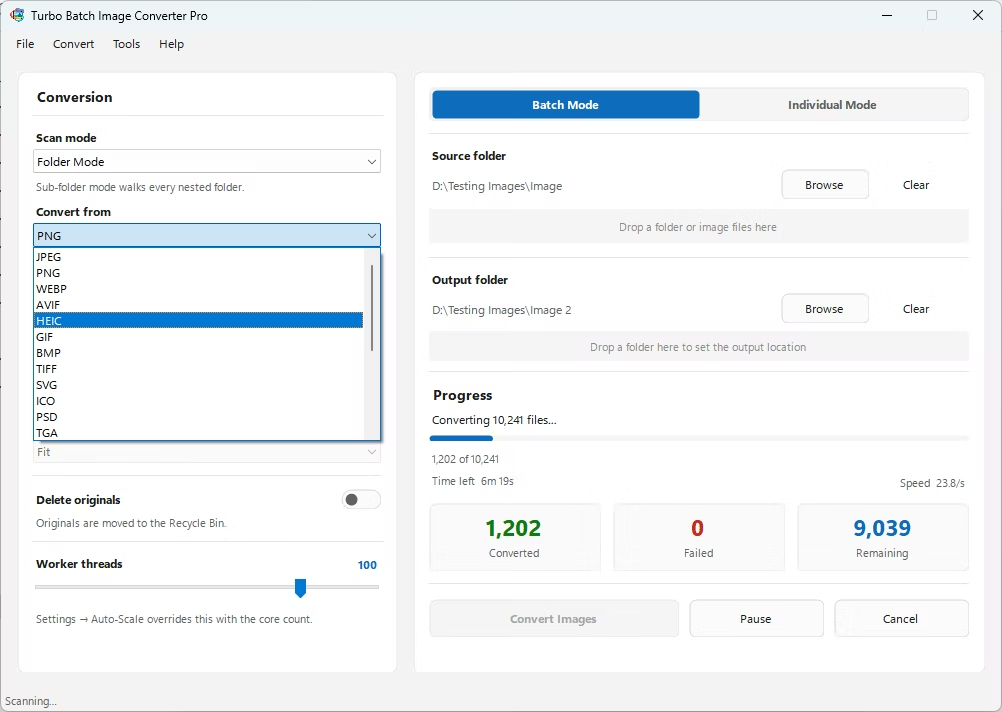
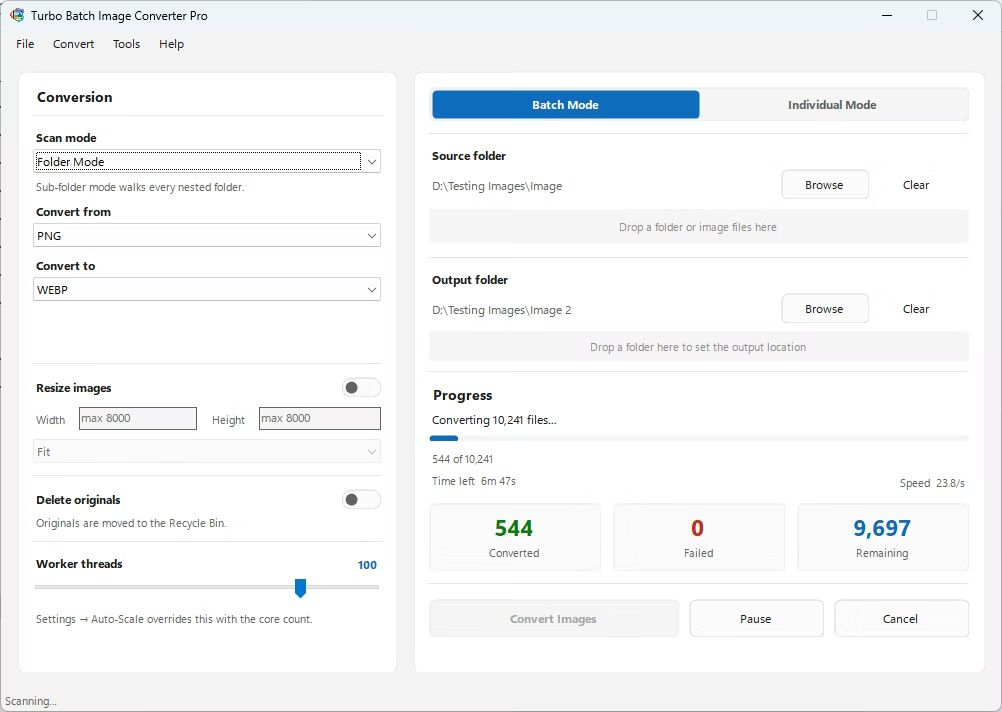
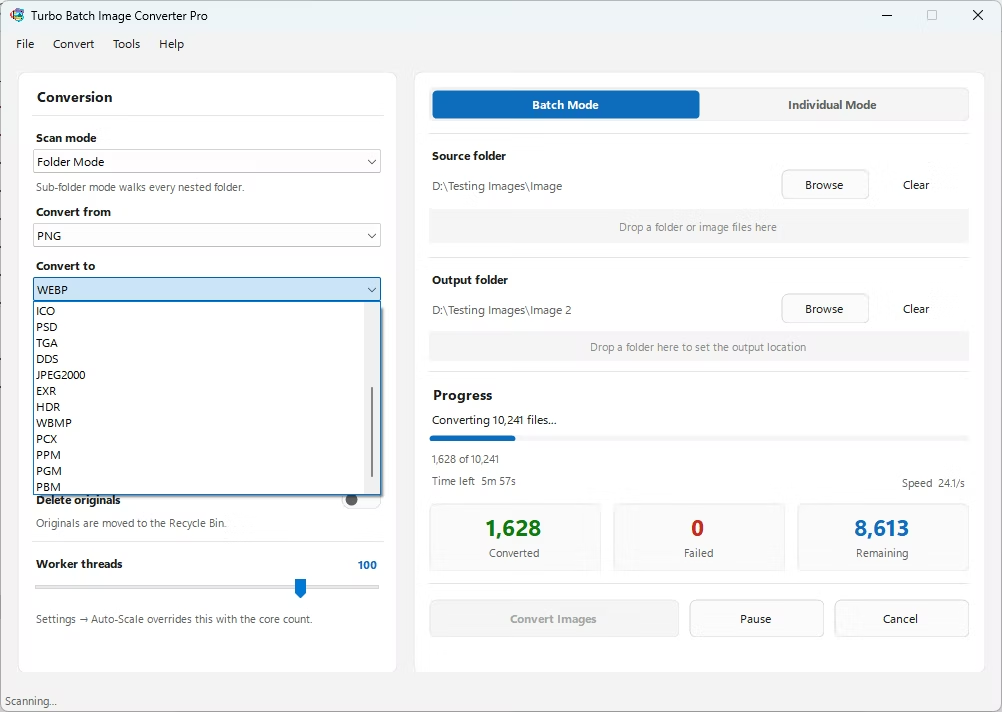
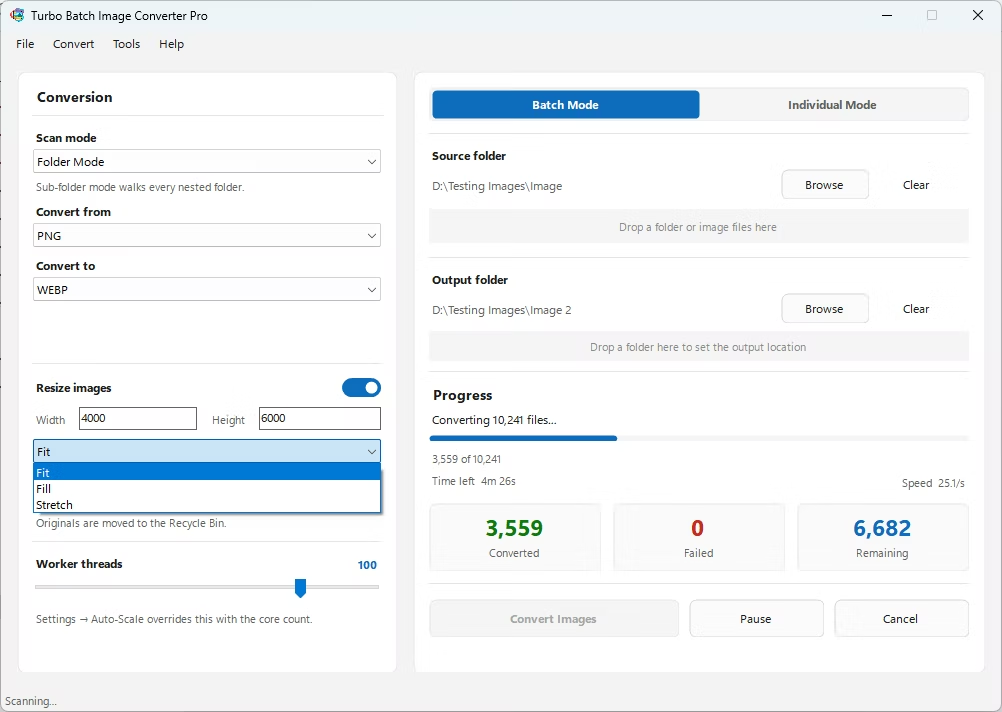
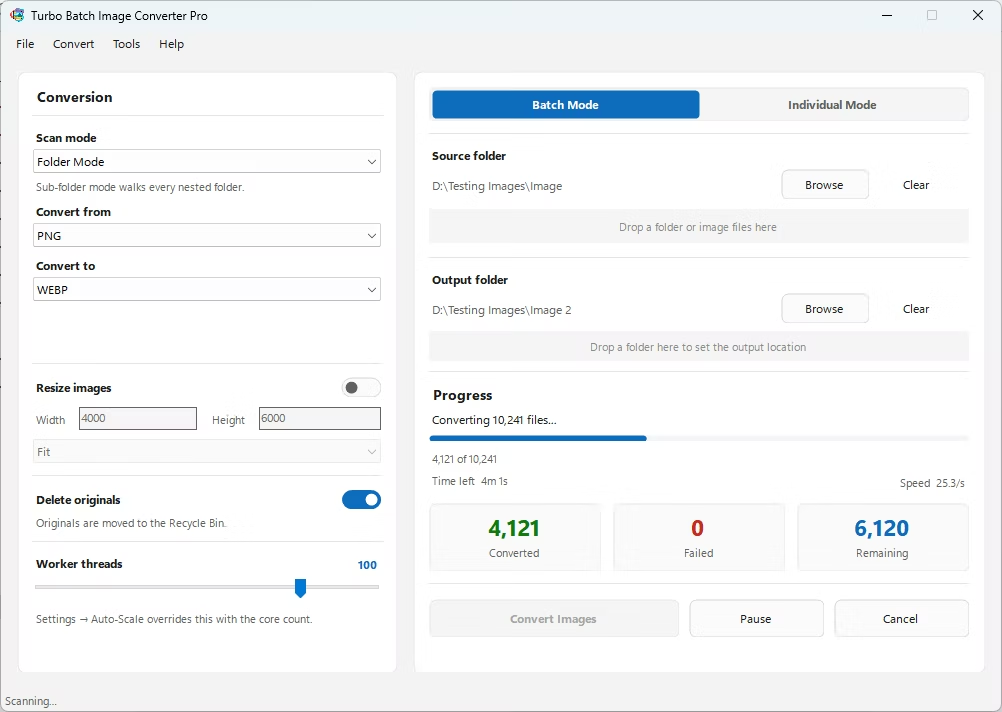
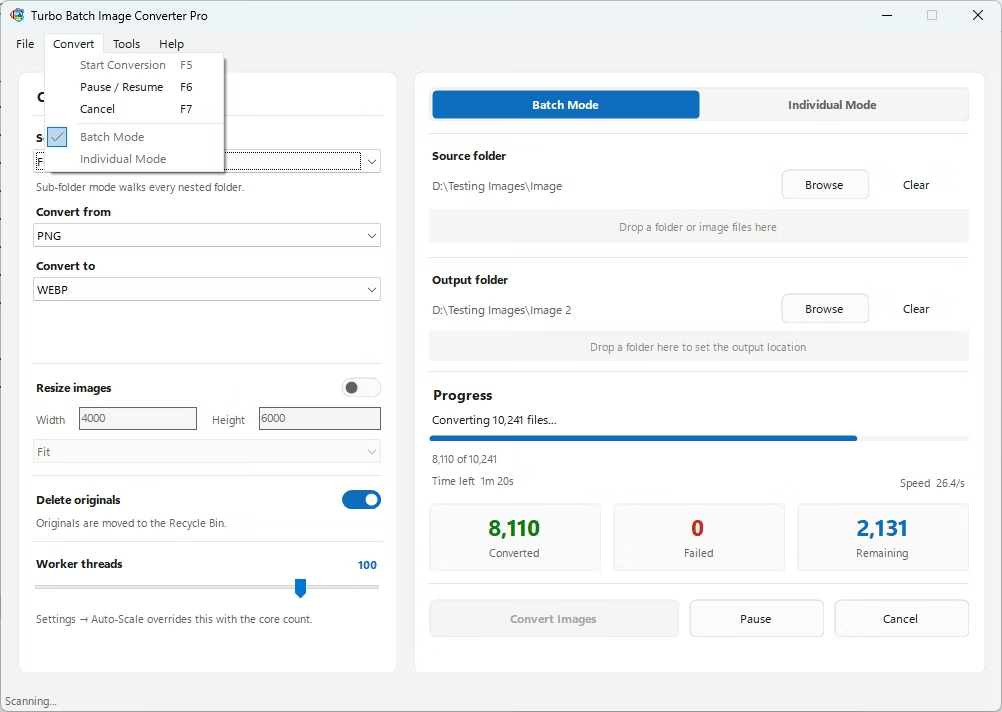
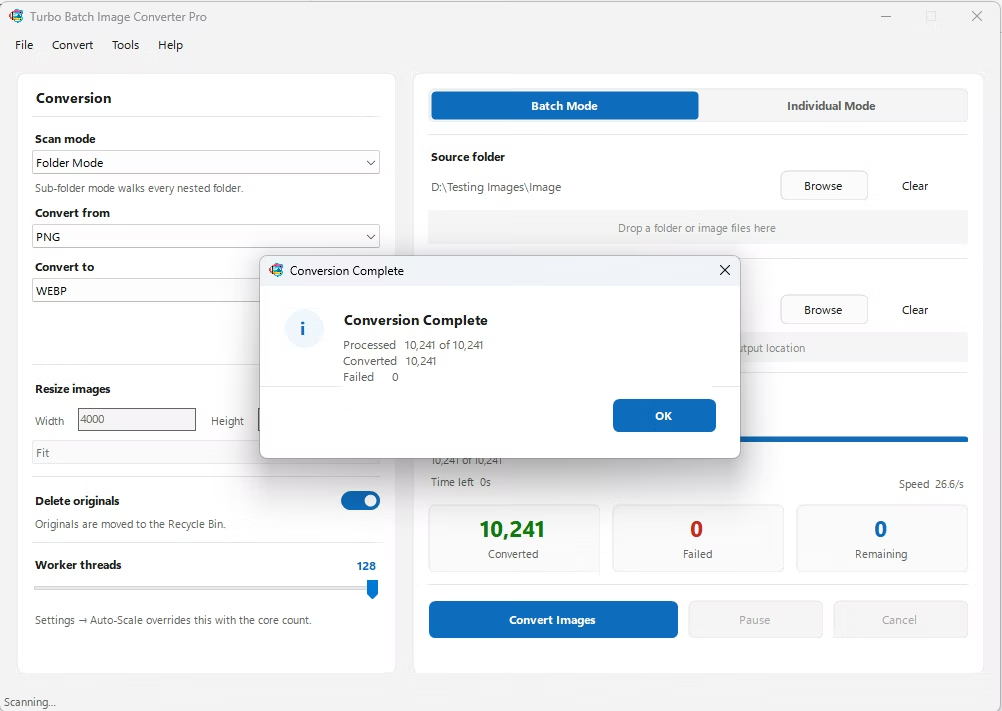
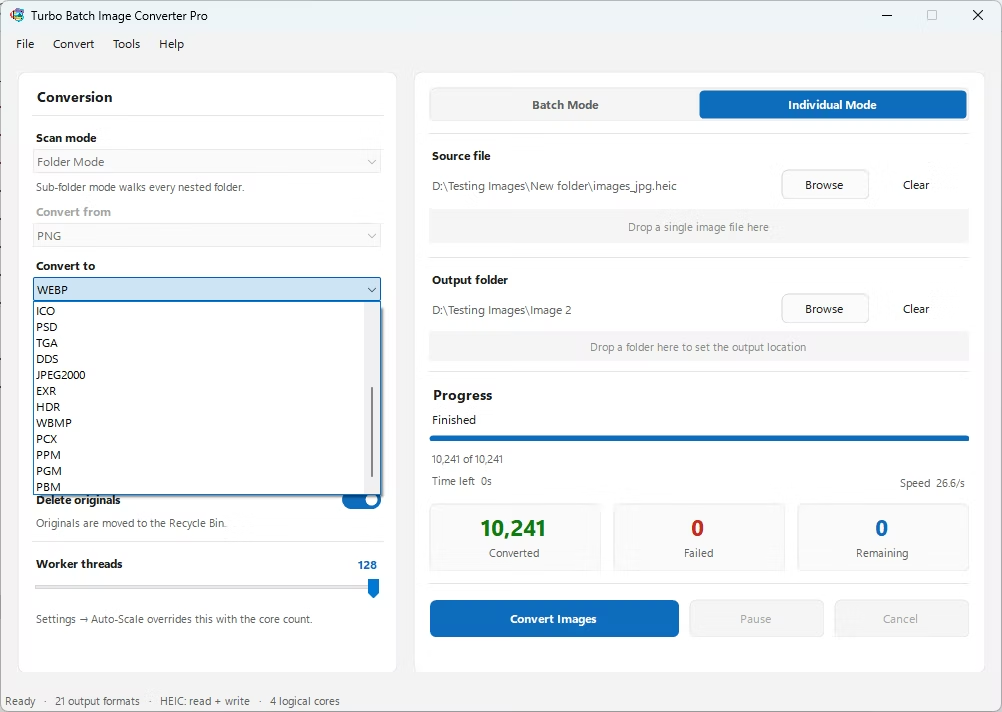
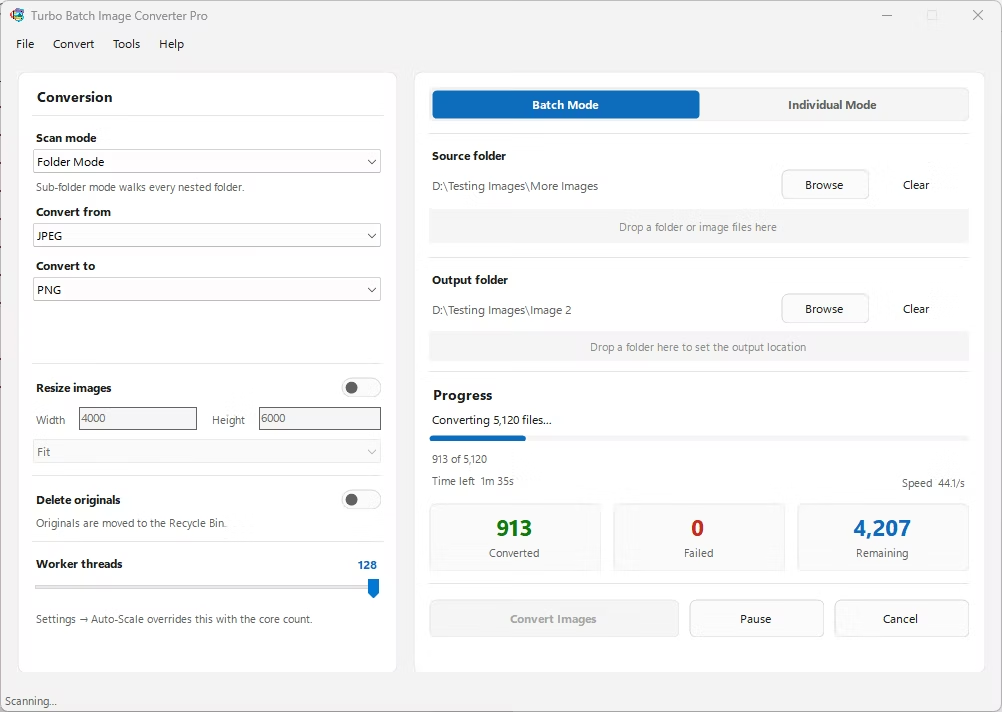
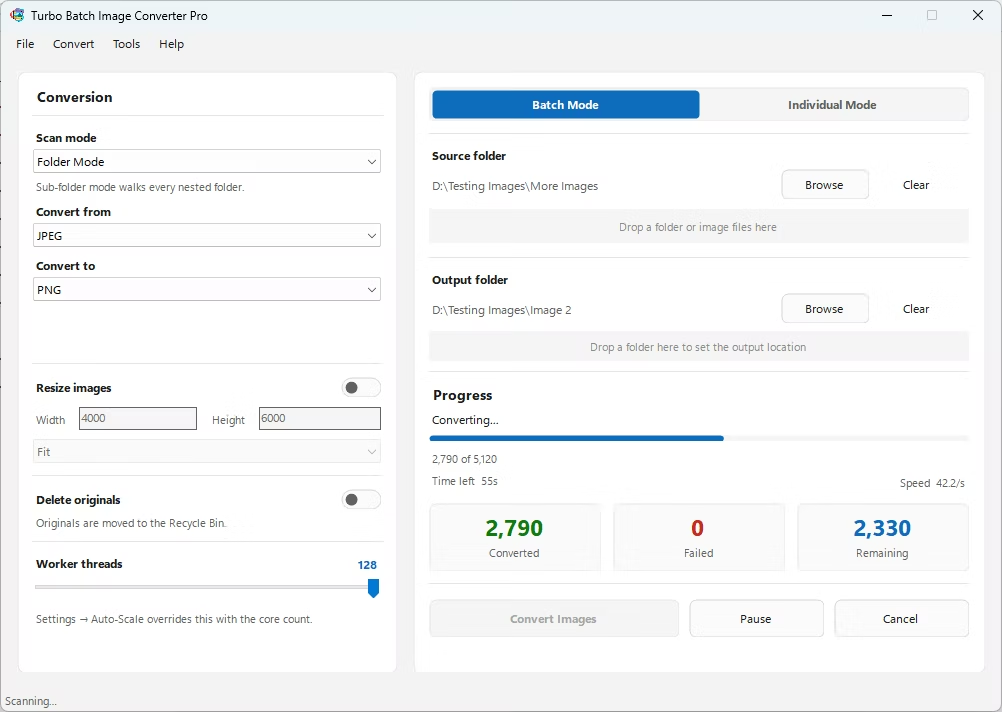
- Install Turbo Batch Image Converter Pro on your Windows computer.
- Launch the app and select Batch Mode for converting multiple files at once.
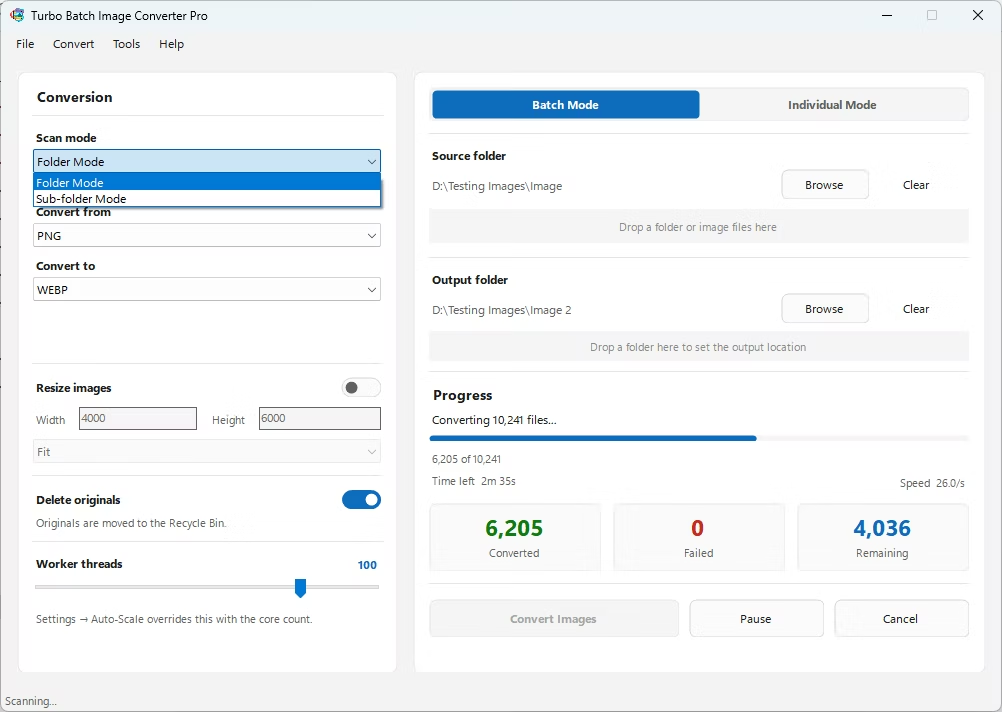
- Drag your folder of PNG images into the app. Turn on recursive sub-folder scanning if your images are organized into nested folders.
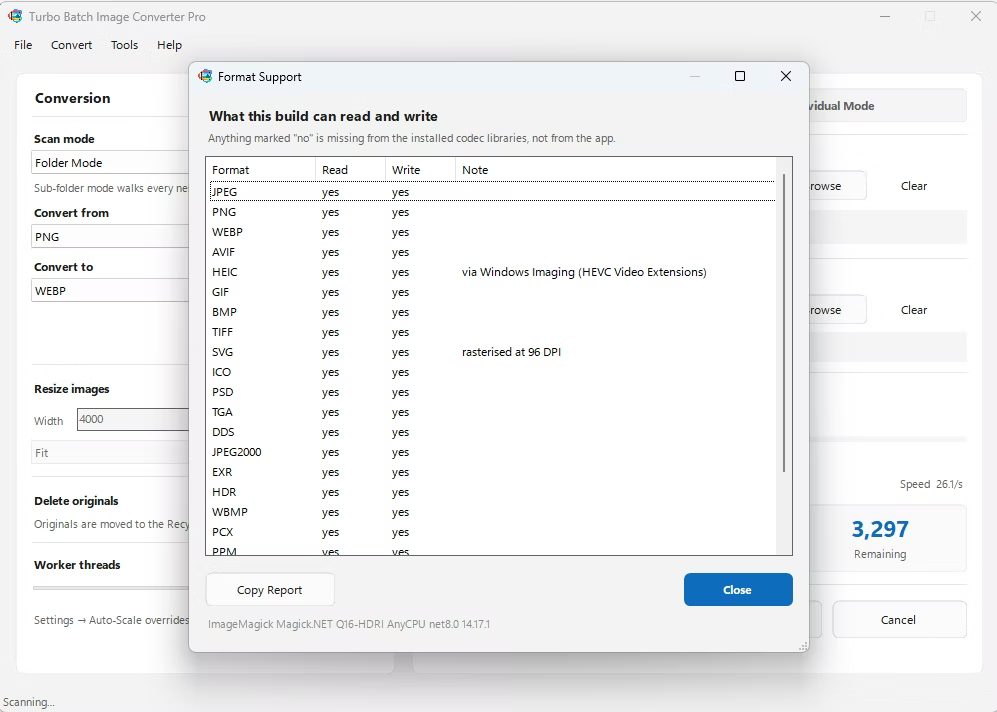
- Set the input format to PNG and the output format to JPG.
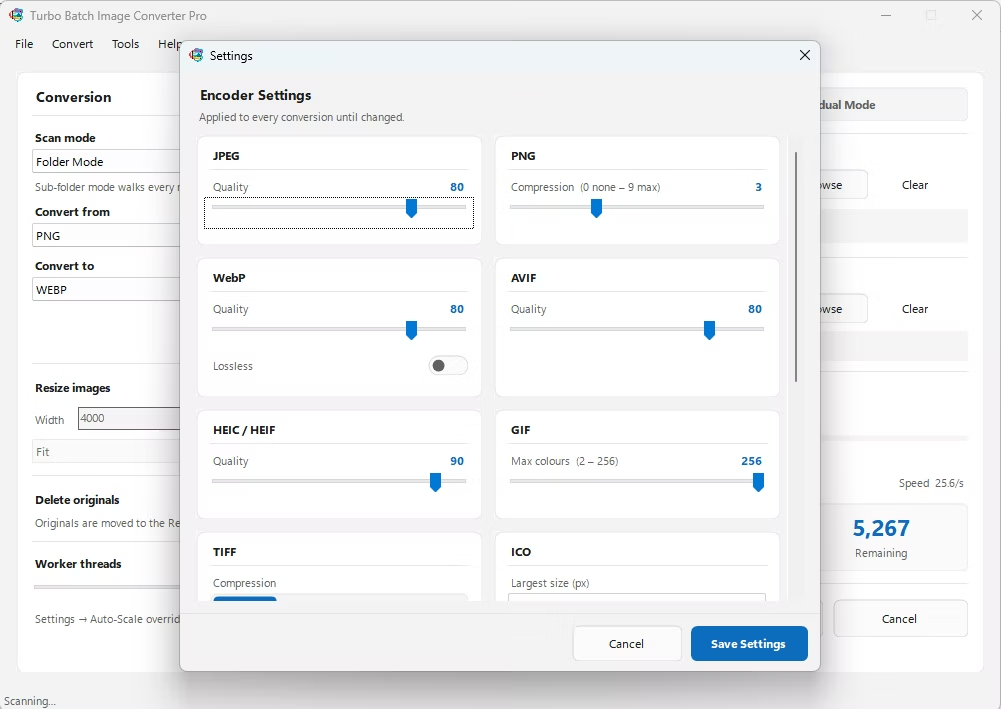
- Adjust the JPG quality/compression slider to balance file size against image quality, based on your needs.
- If needed, enable batch resizing to standardize image dimensions across the whole set.
- Click Convert and let the app process the entire batch using multiple CPU cores at once.
- Convert thousands of PNG files in a single batch job
- Recursive folder support pulls images from nested sub-folders automatically
- Adjustable JPG compression to control output file size
- Concurrent worker scaling for fast multi-core processing
- Optional resizing applied during the same conversion pass
- Option to automatically delete original PNG files after conversion completes
Will converting PNG to JPG reduce file size significantly?
Yes, in most cases. JPG's compression typically produces much smaller files than PNG, especially for photographic images, while keeping visual quality high at moderate compression settings.
What happens to transparent areas in my PNG files?
JPG doesn't support transparency, so transparent areas are filled with a solid background color during conversion. If you need to keep transparency, PNG or WebP would be a better target format.
Can I convert an entire folder structure with sub-folders?
Yes. Recursive folder conversion is built in, so the app finds and converts PNG files inside nested sub-folders without you having to flatten your folder structure first.
Ready to convert your images offline, in bulk, with full privacy?