HEIC is the default photo format on modern iPhones and some Android devices. It compresses well, but a lot of Windows software, older editing tools, and web platforms still don't open it properly. PNG is universally supported and lossless, which makes it a dependable target format when you need your iPhone photos to open cleanly everywhere, especially for graphics, screenshots, or images you intend to edit further.
Most "HEIC to PNG converter" sites ask you to upload your photos to their server first. That's a privacy concern for personal photos, and it's painfully slow once you have more than a handful of images. Converting offline with a desktop app avoids both issues entirely.
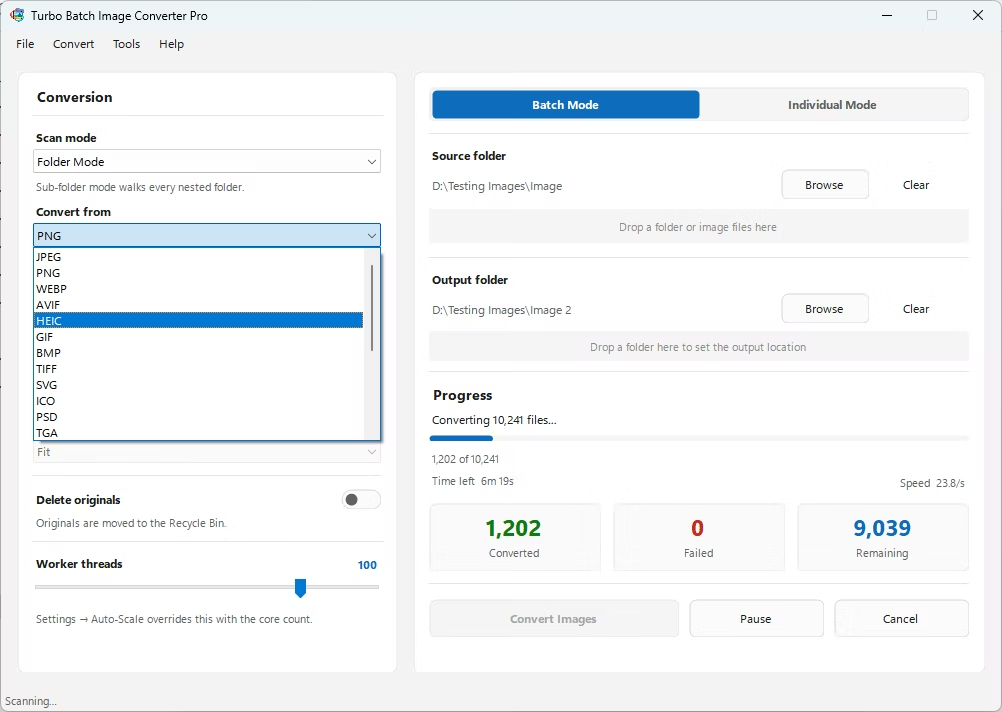
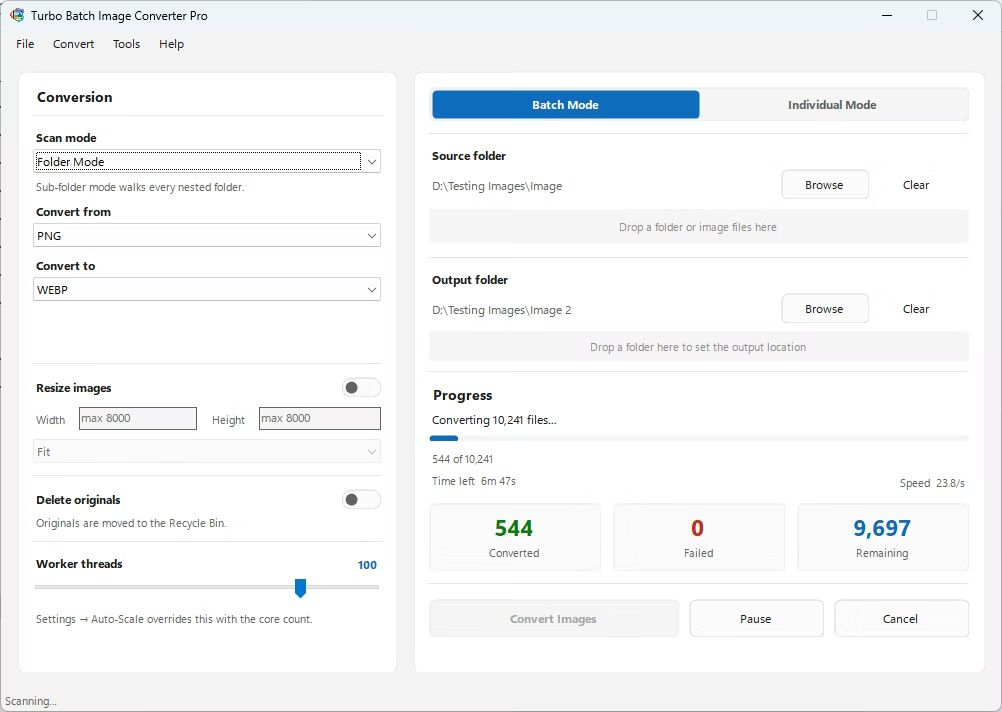
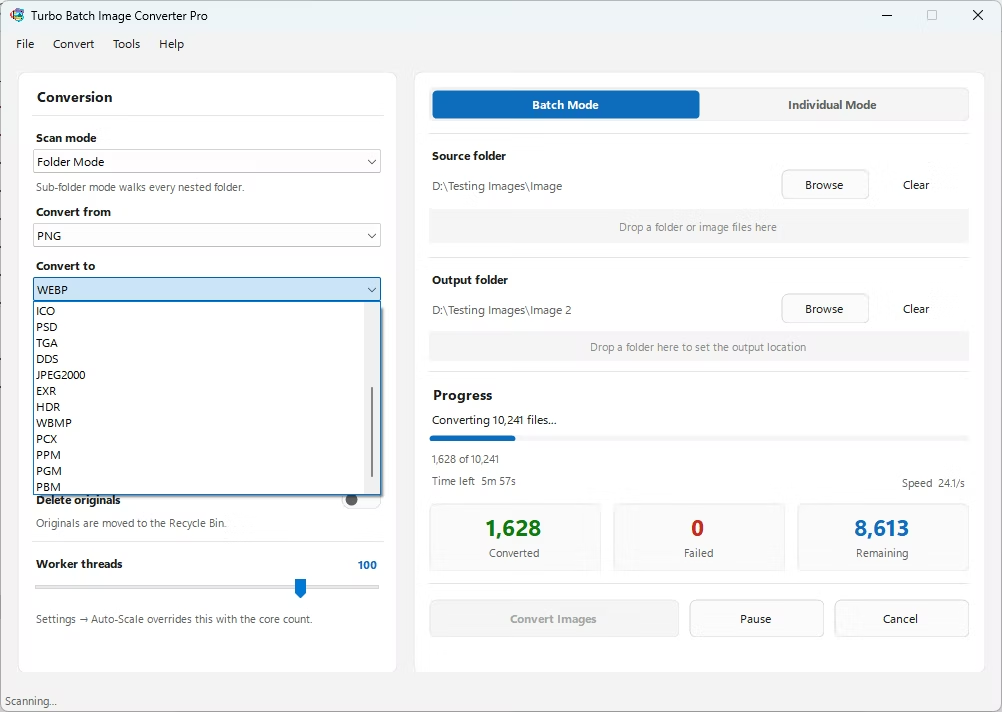
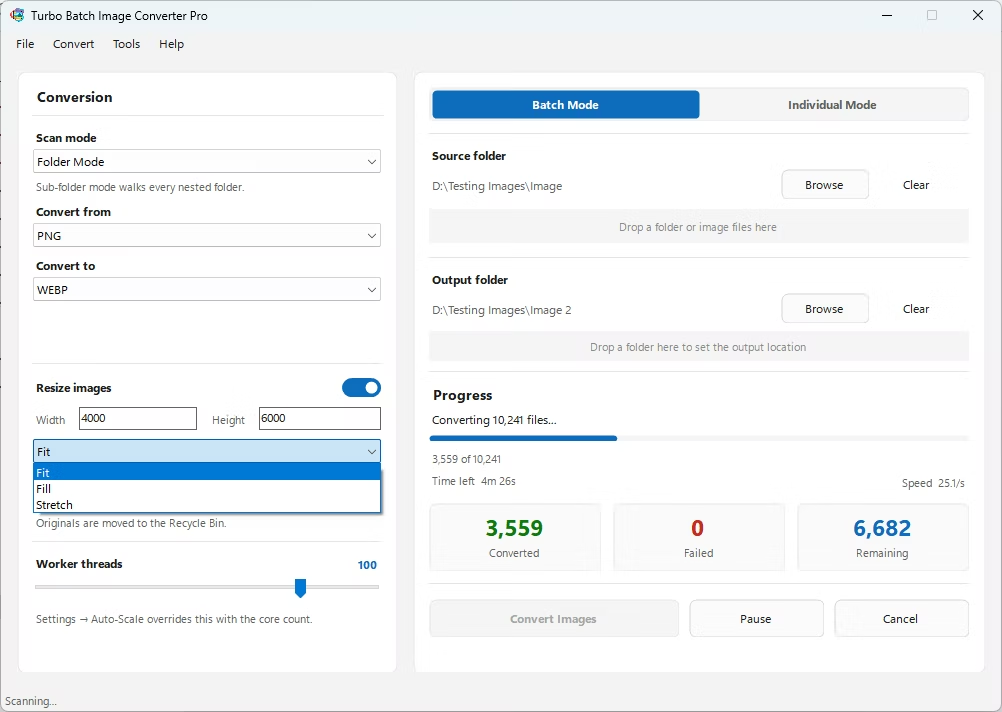
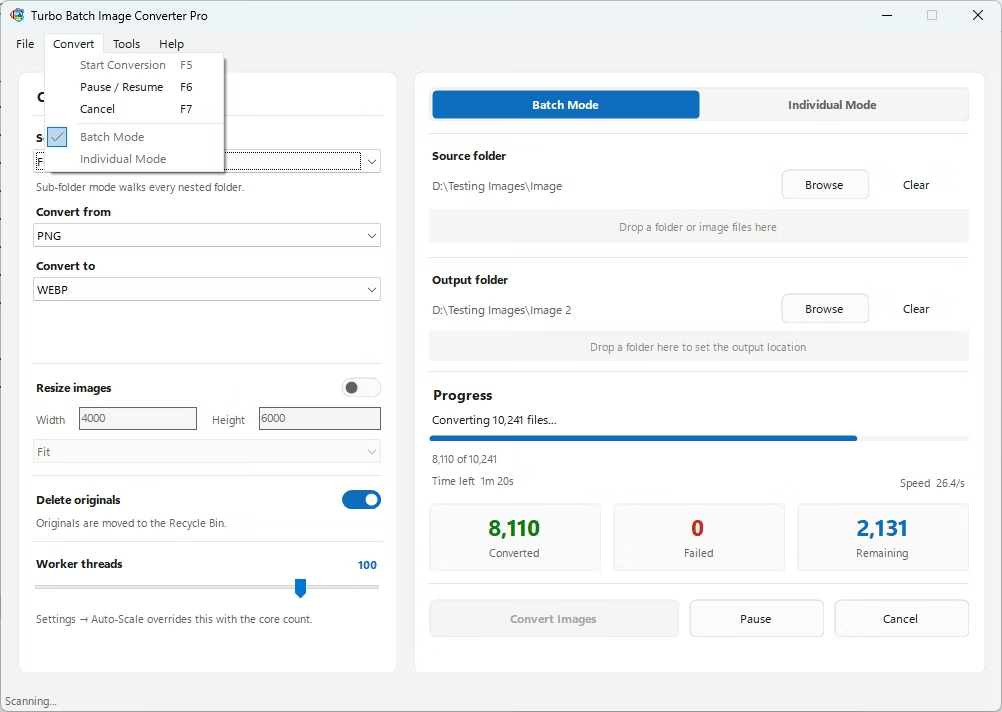
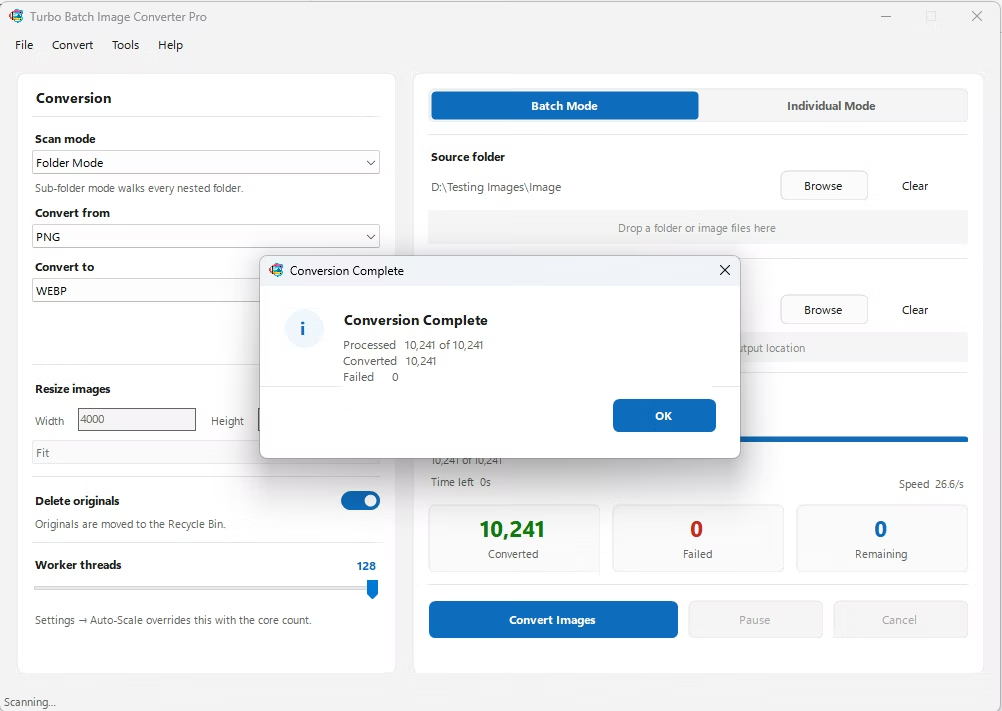
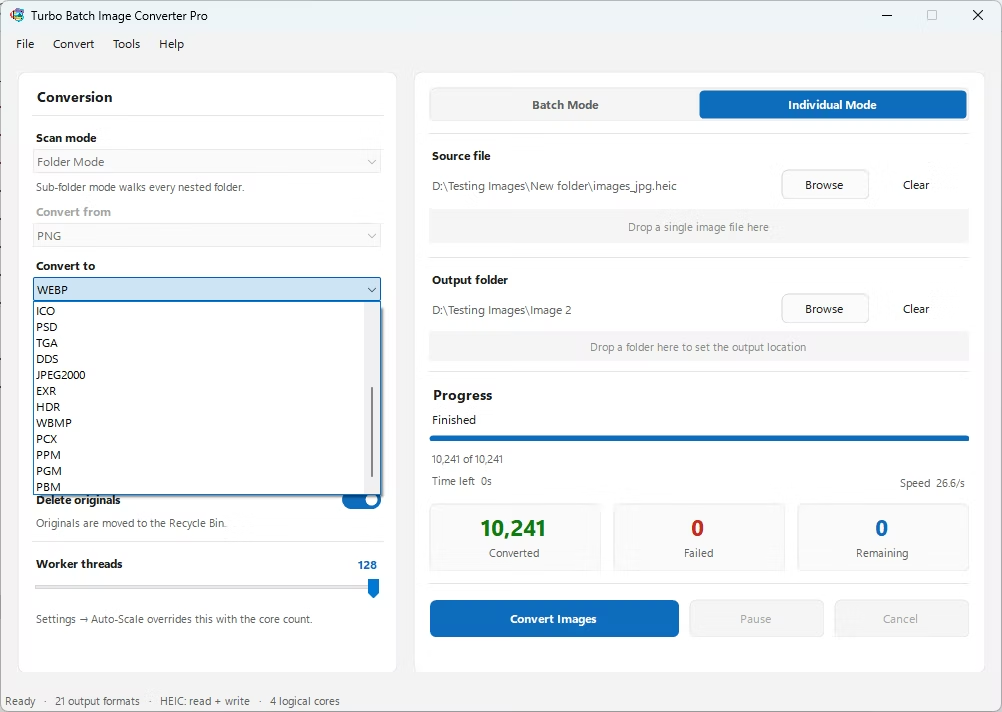
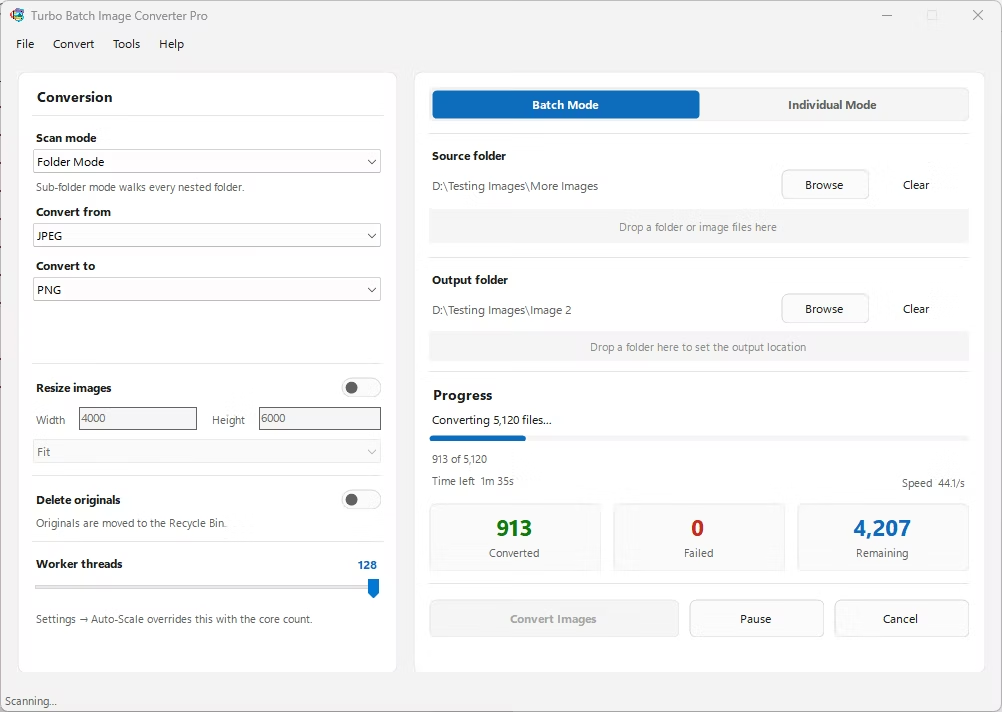
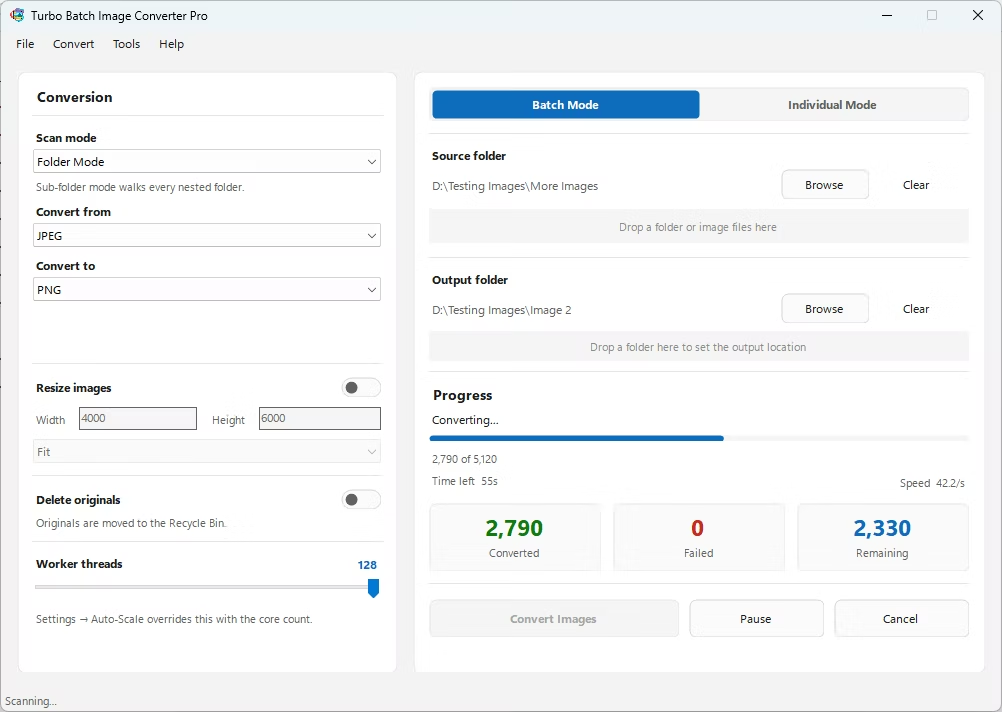
- Download and install Turbo Batch Image Converter Pro on Windows. No account or internet connection is needed to convert your files.
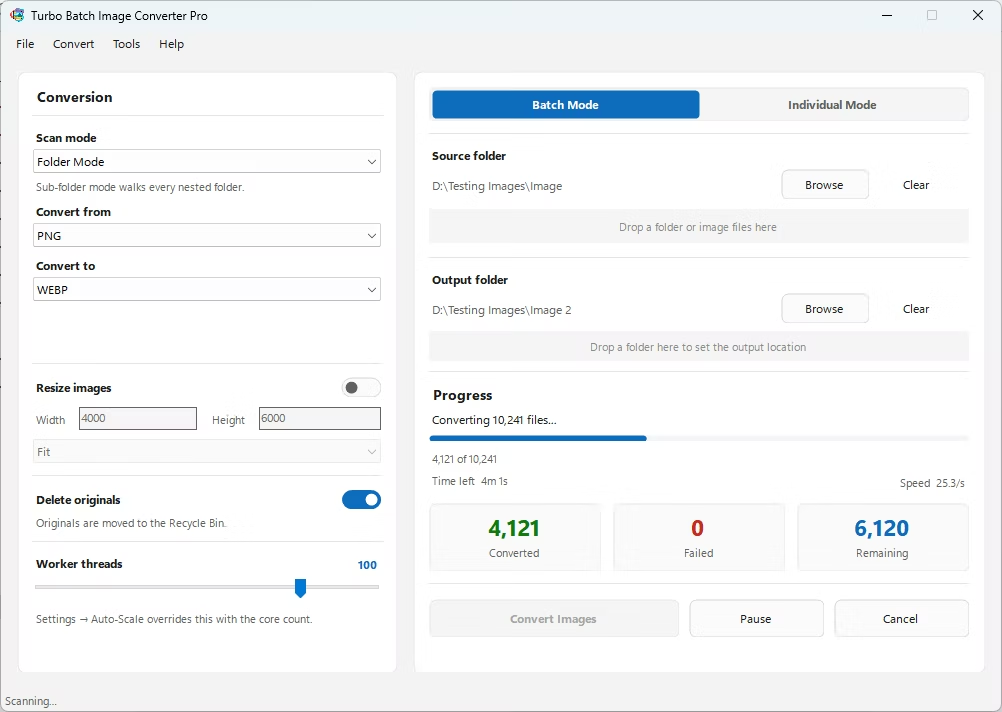
- Open the app and choose Batch Mode if you're converting a whole photo library, or Individual Mode for a single HEIC file.
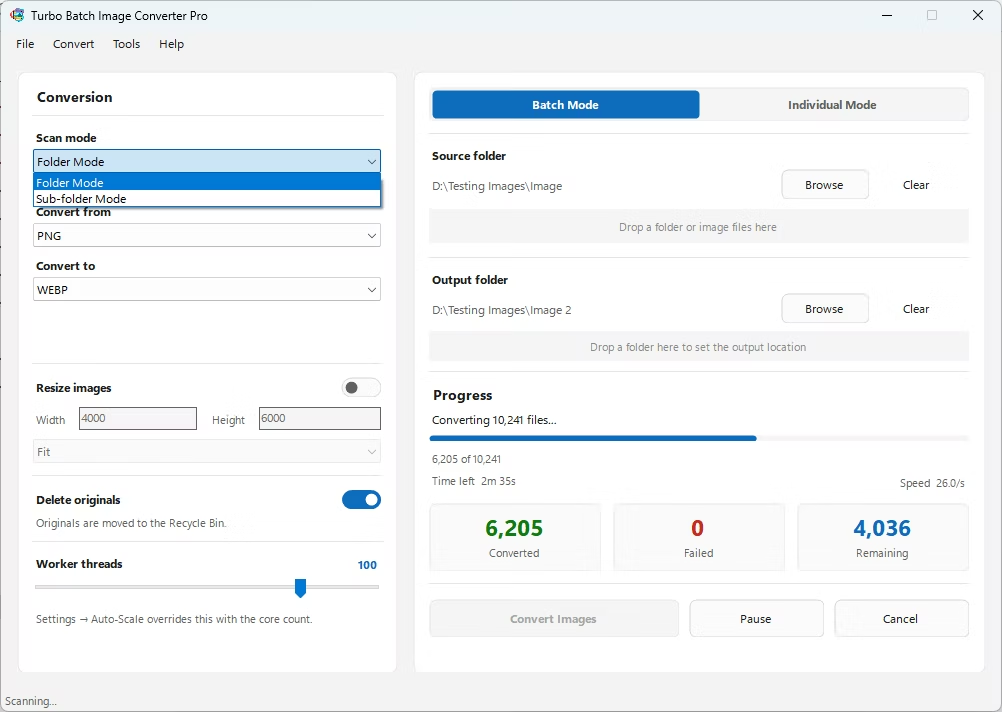
- Drag in your HEIC photos or the folder containing them. Enable recursive sub-folder scanning if your iPhone backup is organized into dated folders.
- Set "From" to HEIC and "To" to PNG.
- Optionally resize your images during the same step if you want smaller dimensions for sharing or storage.
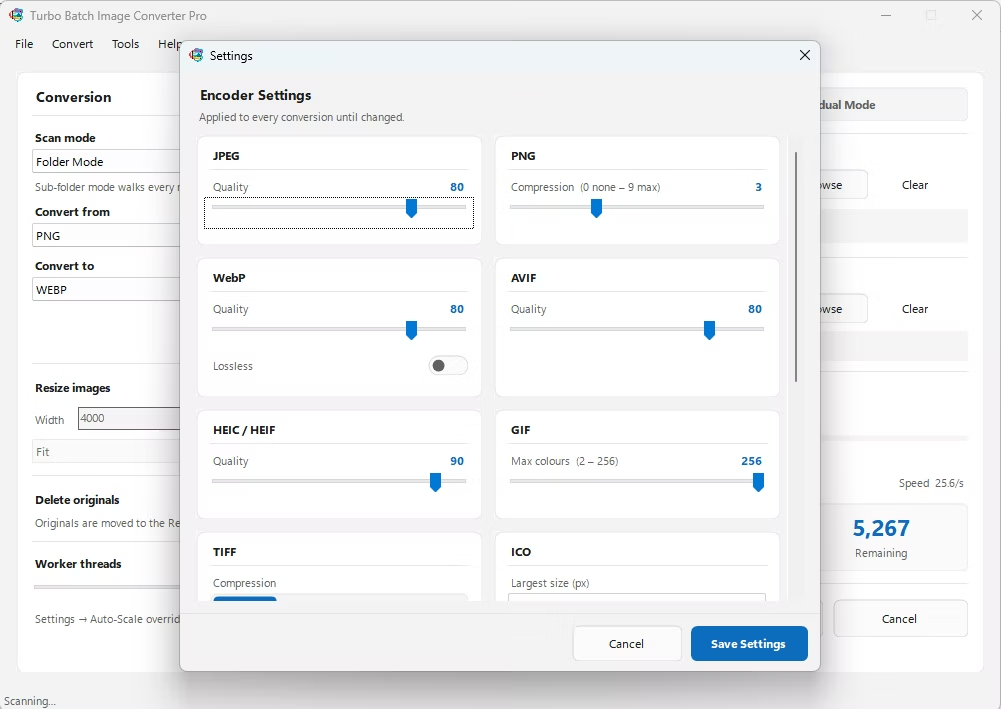
- Click Convert. The app decodes each HEIC file locally and writes standard PNG files to your output folder — nothing is ever uploaded.
- Fully offline conversion — your personal photos never leave your PC
- Bulk-convert entire iPhone photo backups in one batch
- Recursive folder support for nested photo library structures
- No file-count or file-size limits like many web-based converters impose
- Multi-core processing for fast conversion of large photo libraries
- Option to delete original HEIC files automatically after conversion
Why won't my HEIC photos open on Windows?
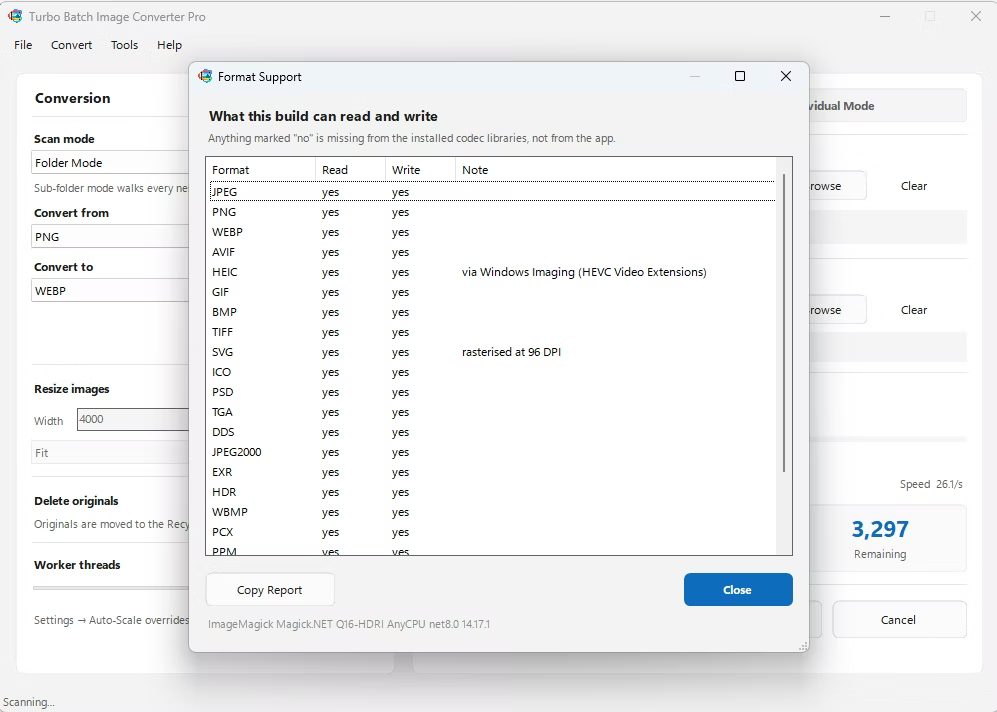
HEIC support on Windows is inconsistent across versions and often requires an extra codec pack. Converting to PNG sidesteps that entirely, since PNG is supported natively everywhere.
Will I lose image quality converting HEIC to PNG?
PNG is a lossless format, so once the HEIC file is decoded, no further compression artifacts are introduced during the conversion itself.
Can this handle my entire iPhone photo backup at once?
Yes. Batch Mode with recursive sub-folder scanning is designed for exactly this — converting large, nested photo collections in a single run.
Ready to convert your images offline, in bulk, with full privacy?