Simple Find & Replace works well when you're swapping one exact piece of text for another, but it falls short for more complex patterns — removing any sequence of digits, matching text that appears in slightly different forms across files, or restructuring a filename based on its parts. Regular expressions (regex) let you describe a pattern instead of an exact string, so the same rule can match variations across an entire batch of files.
Regex renaming is especially useful for cleaning up files exported from cameras, scanners, or software that generate filenames with inconsistent but pattern-following text, such as varying timestamp formats or session IDs.
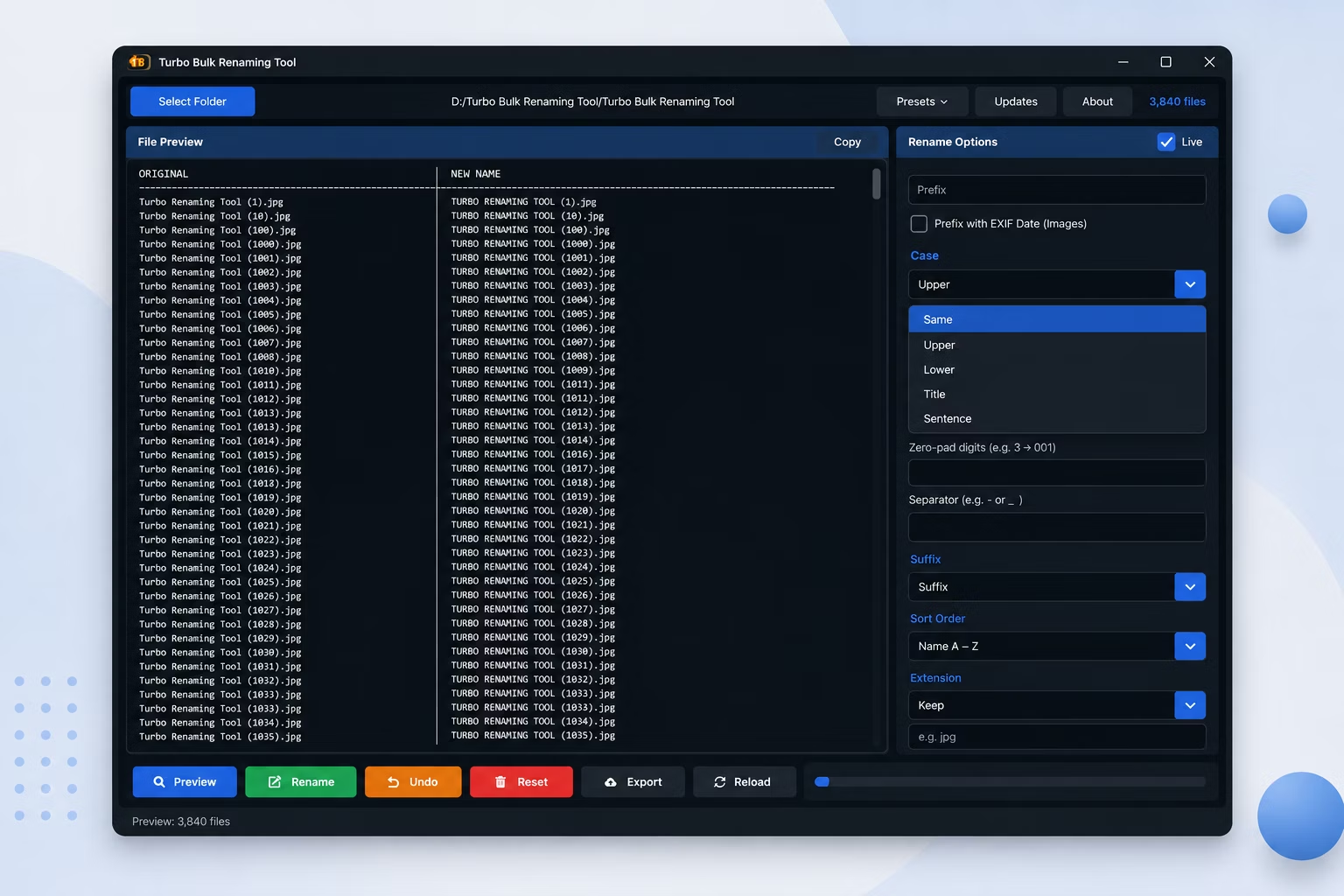







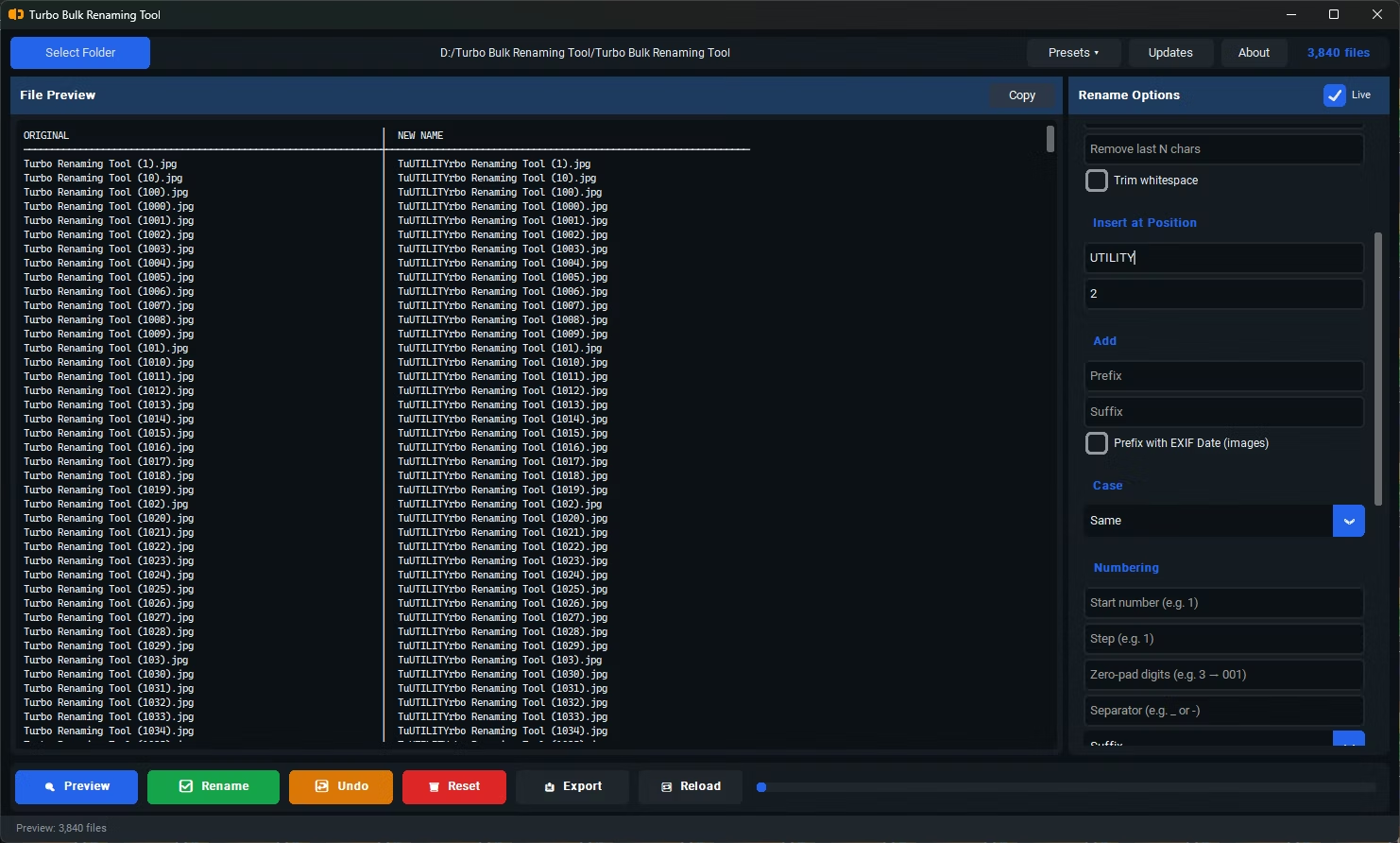
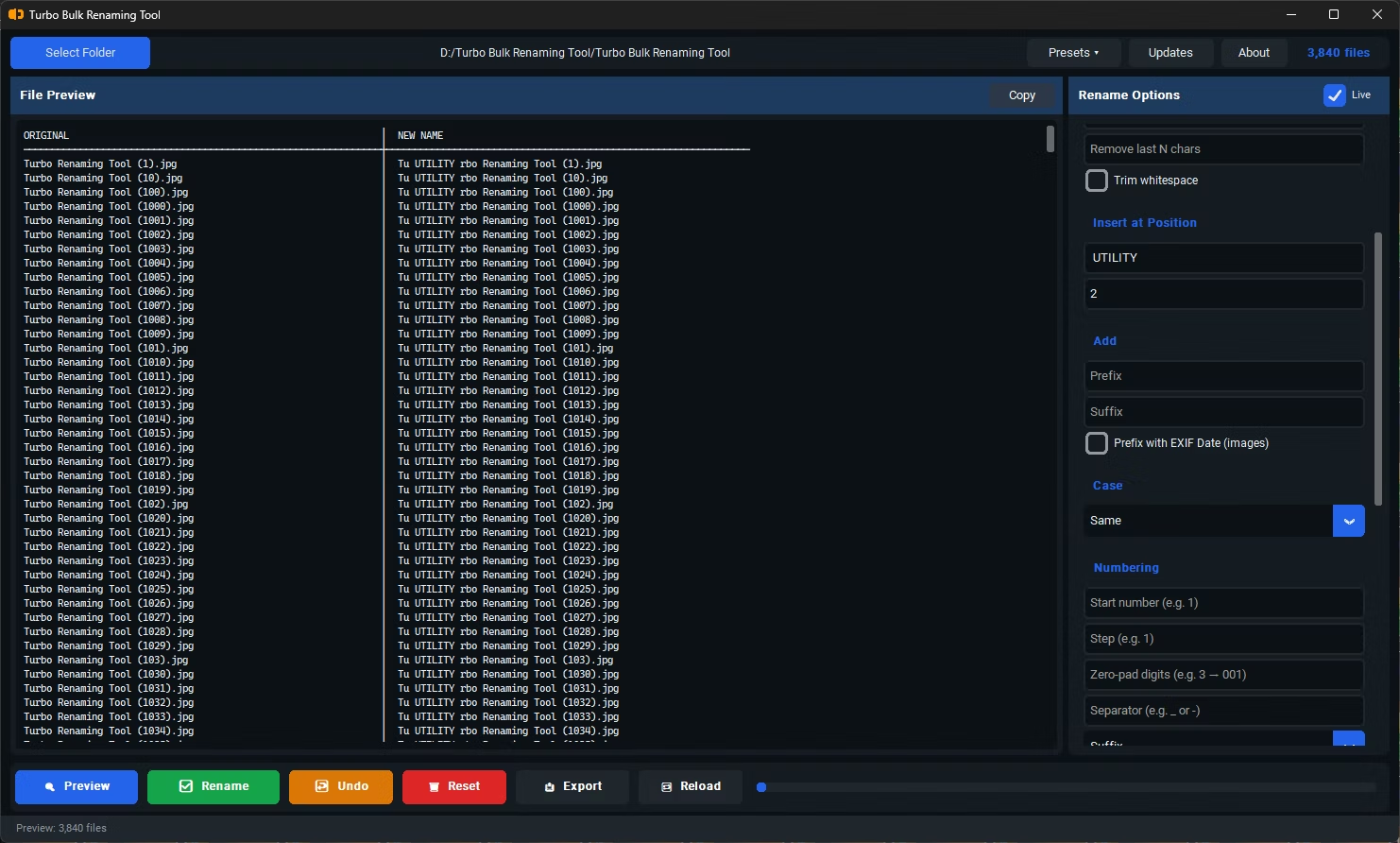
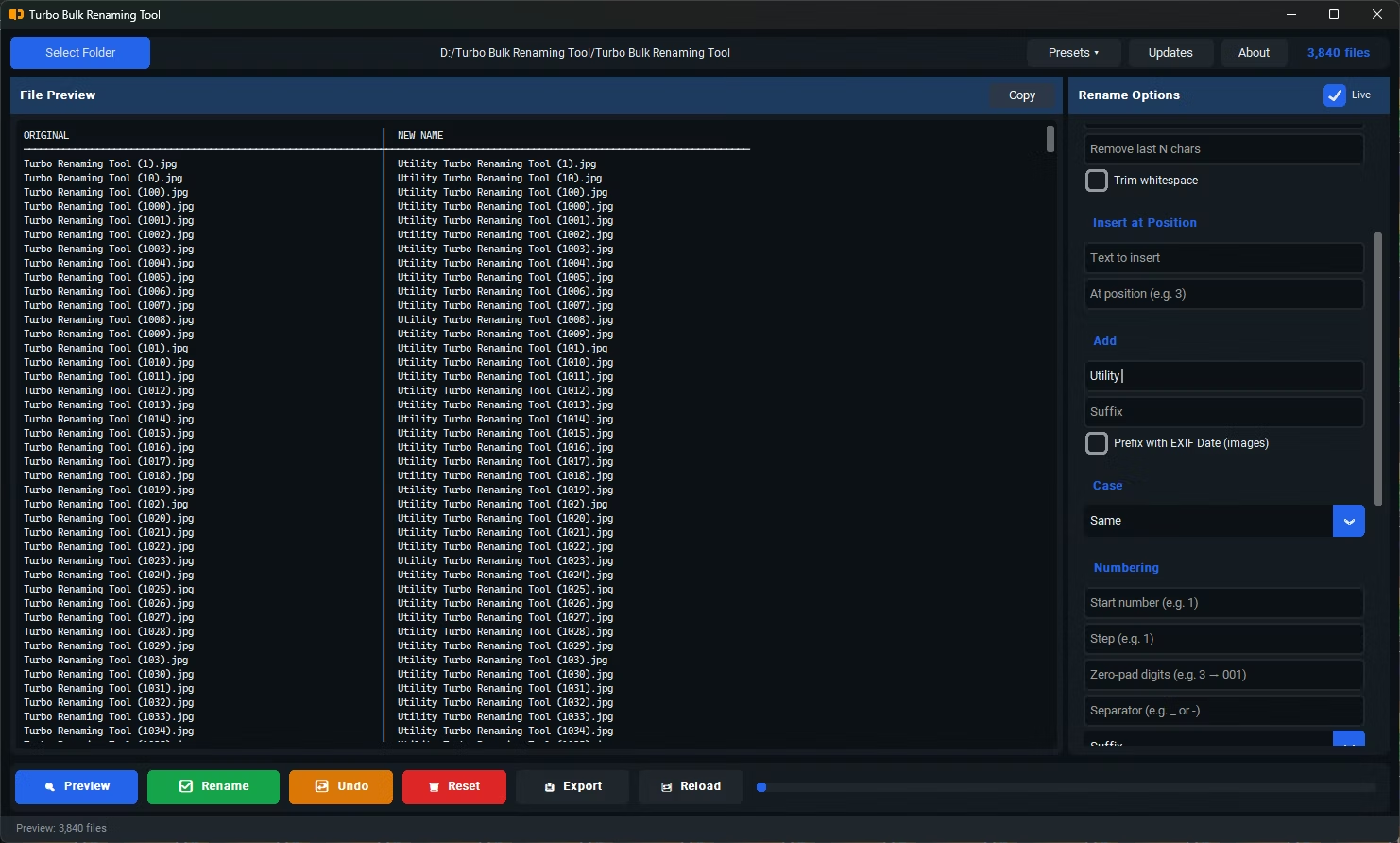
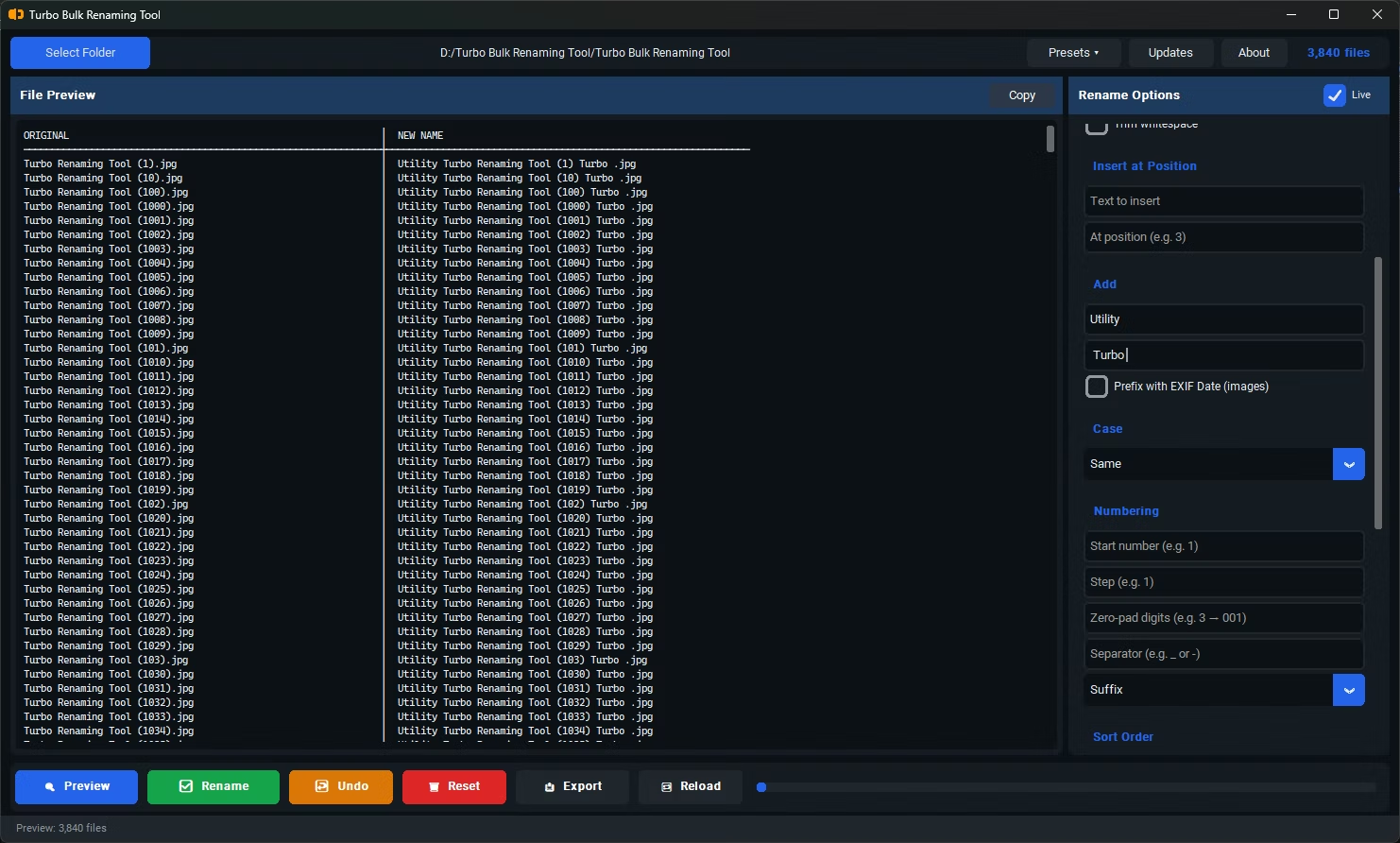

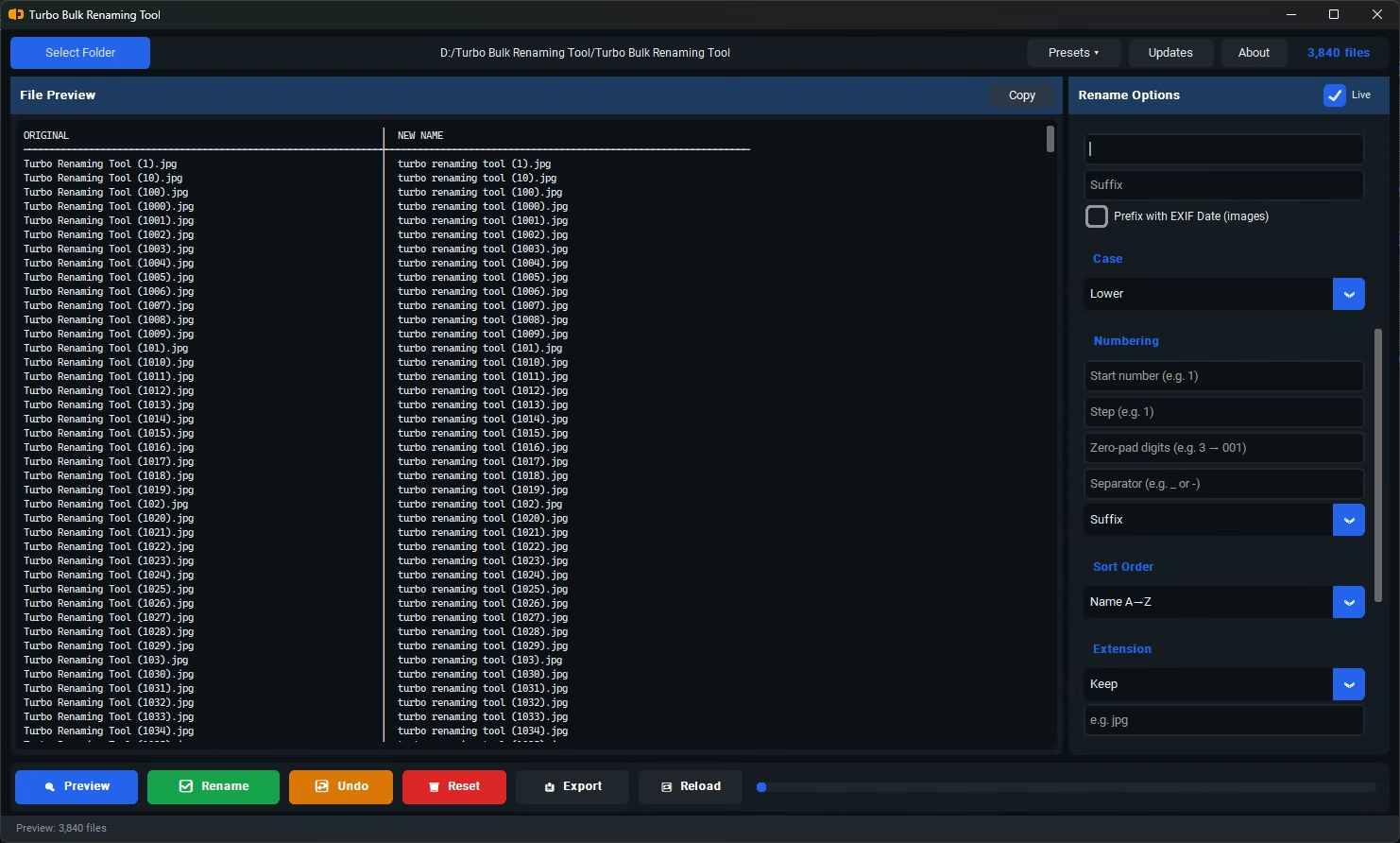
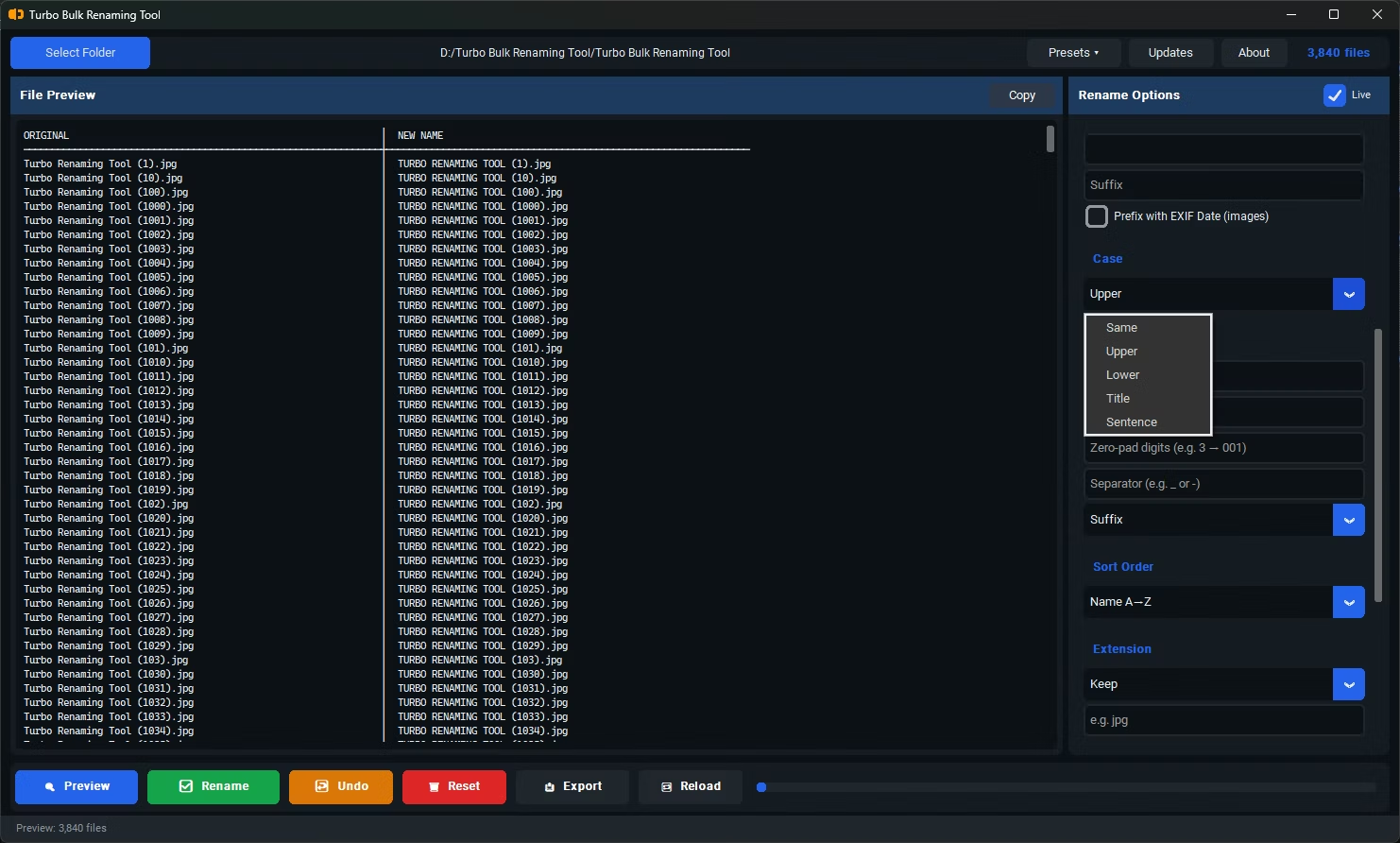
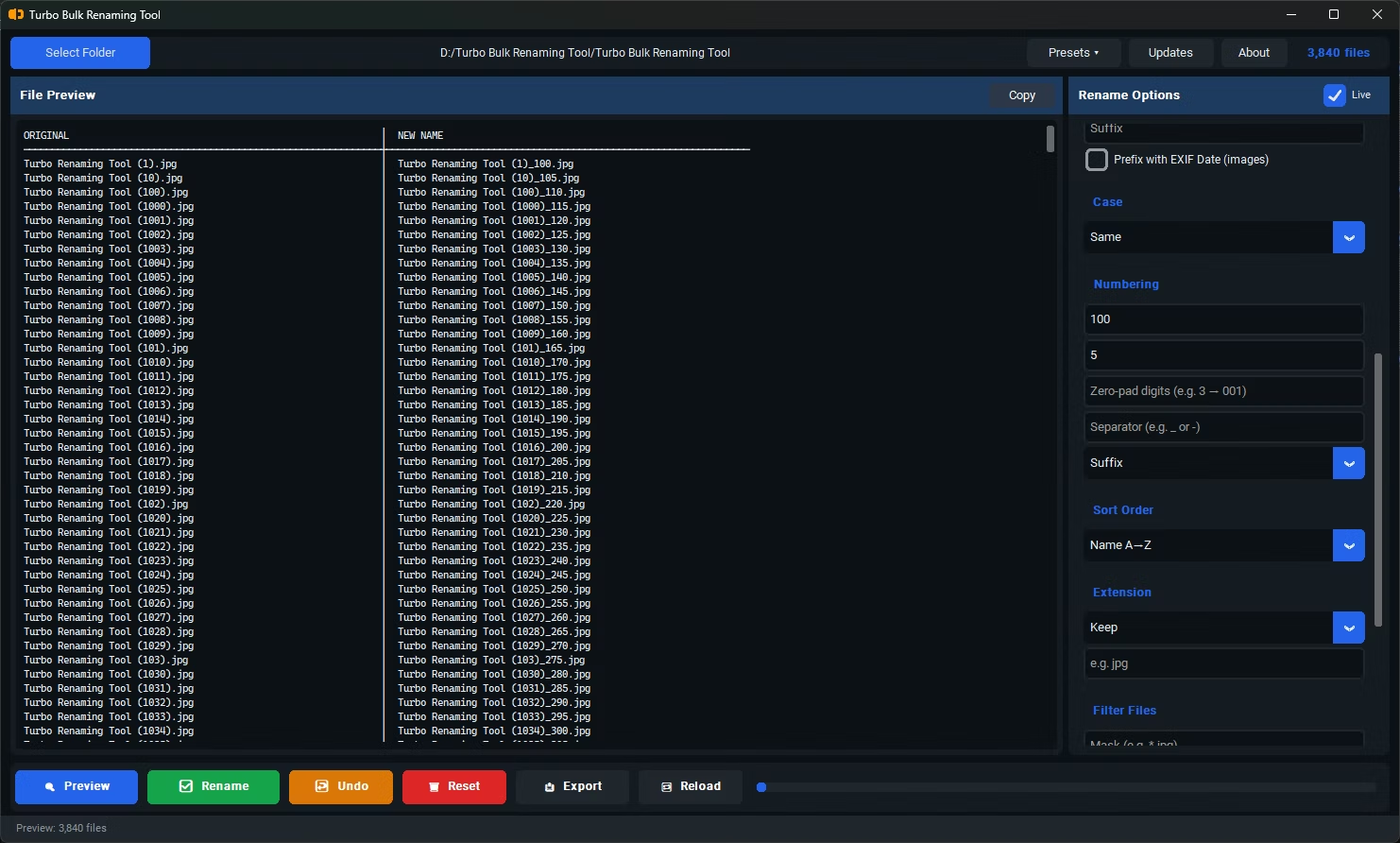
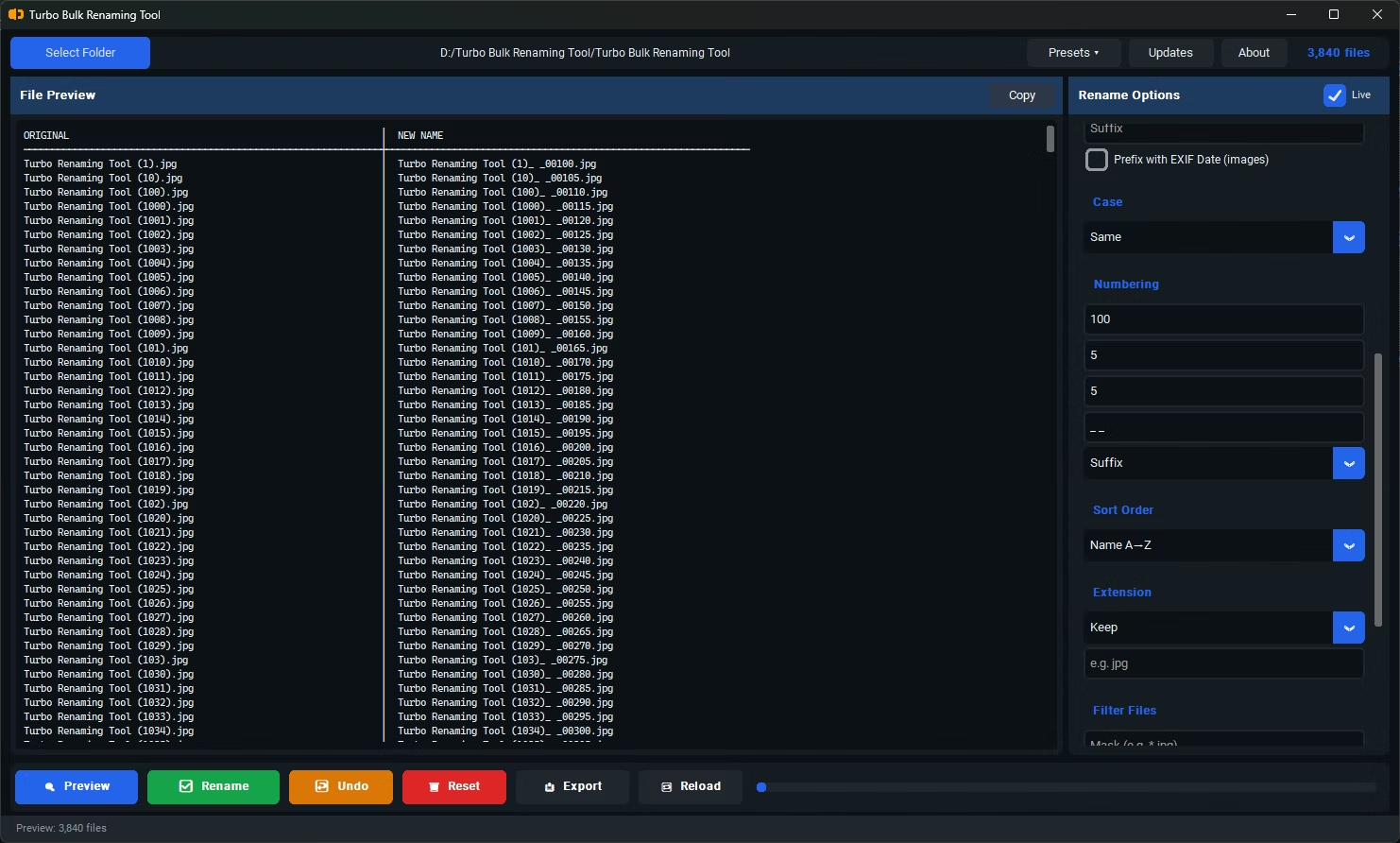
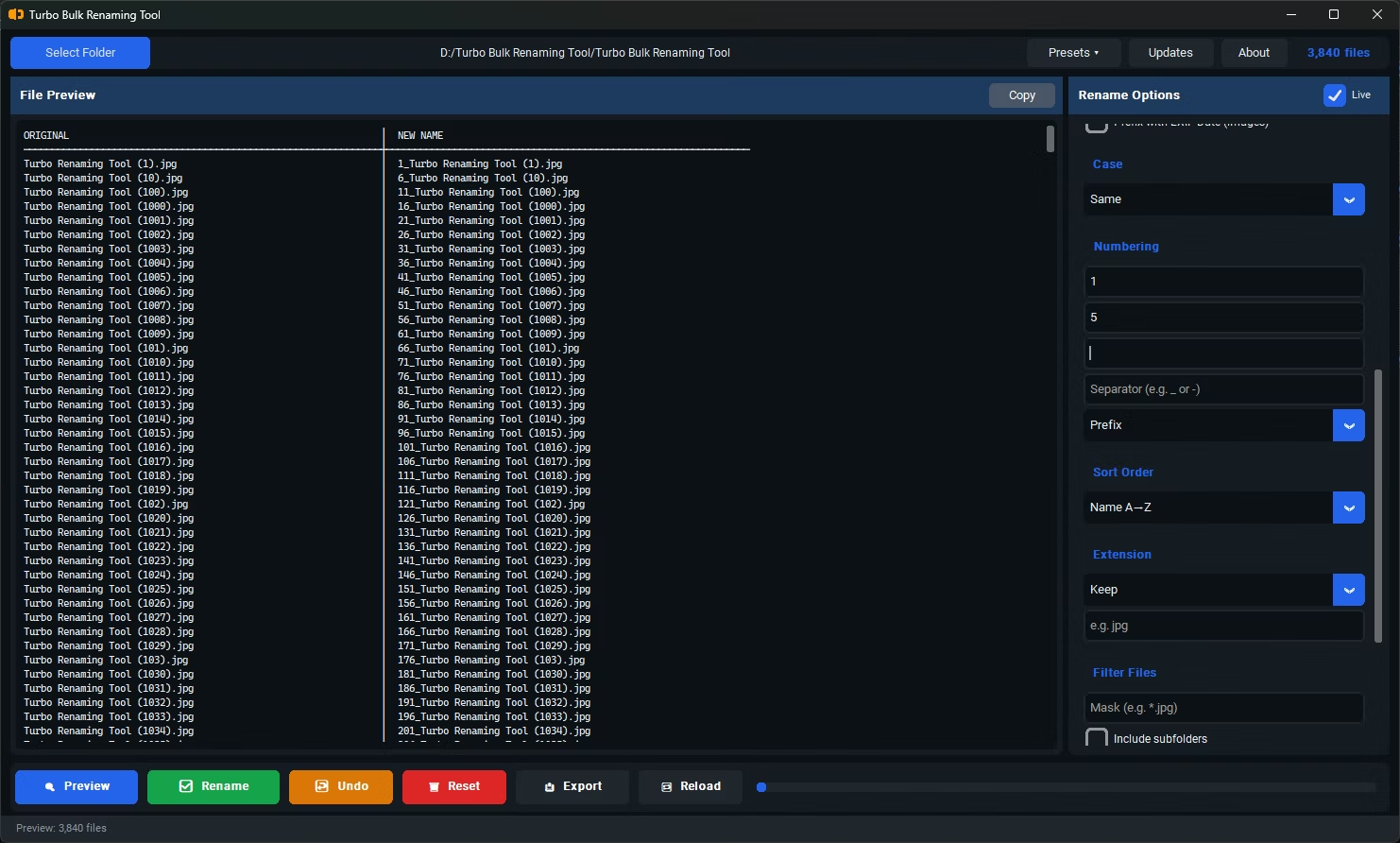
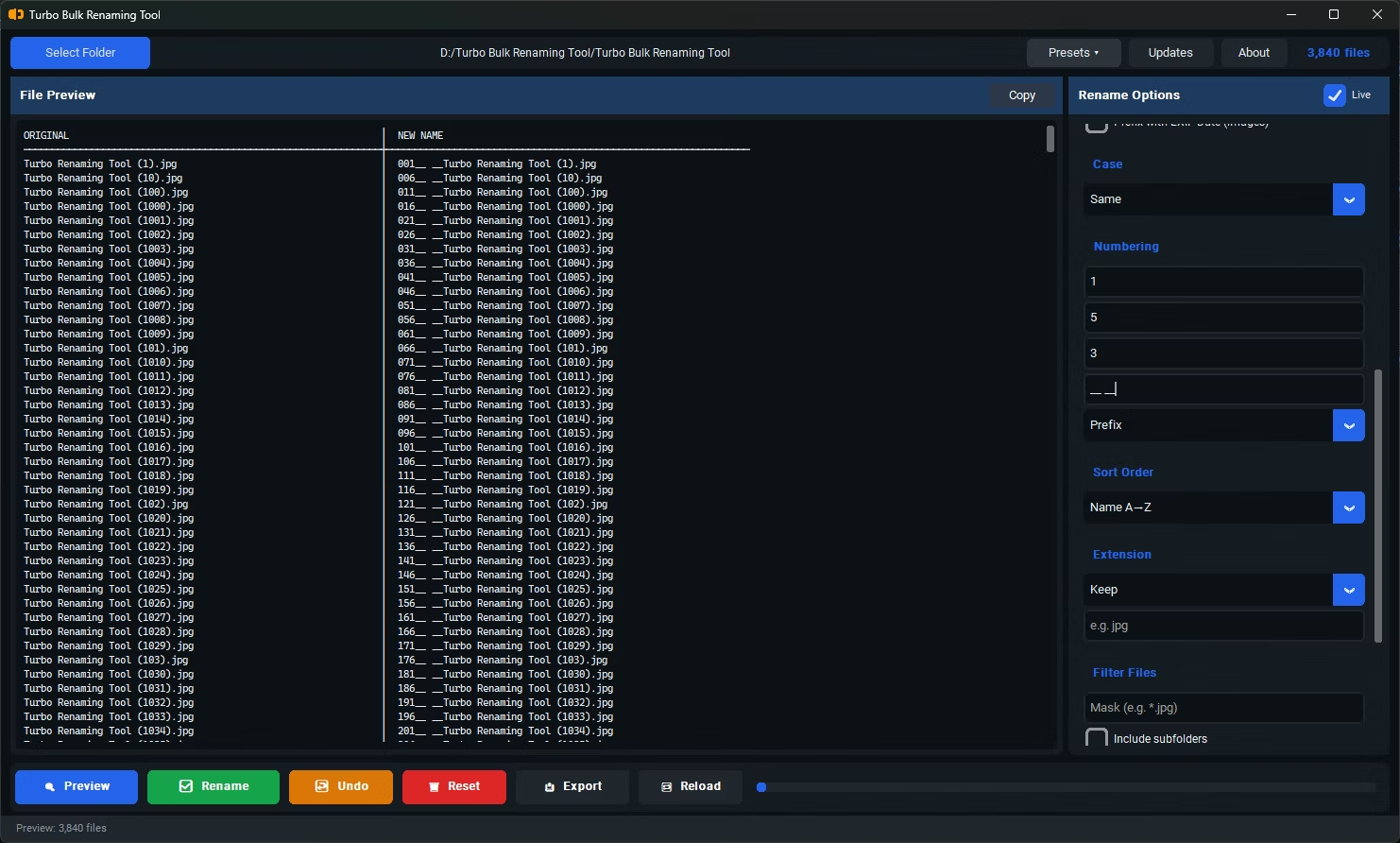

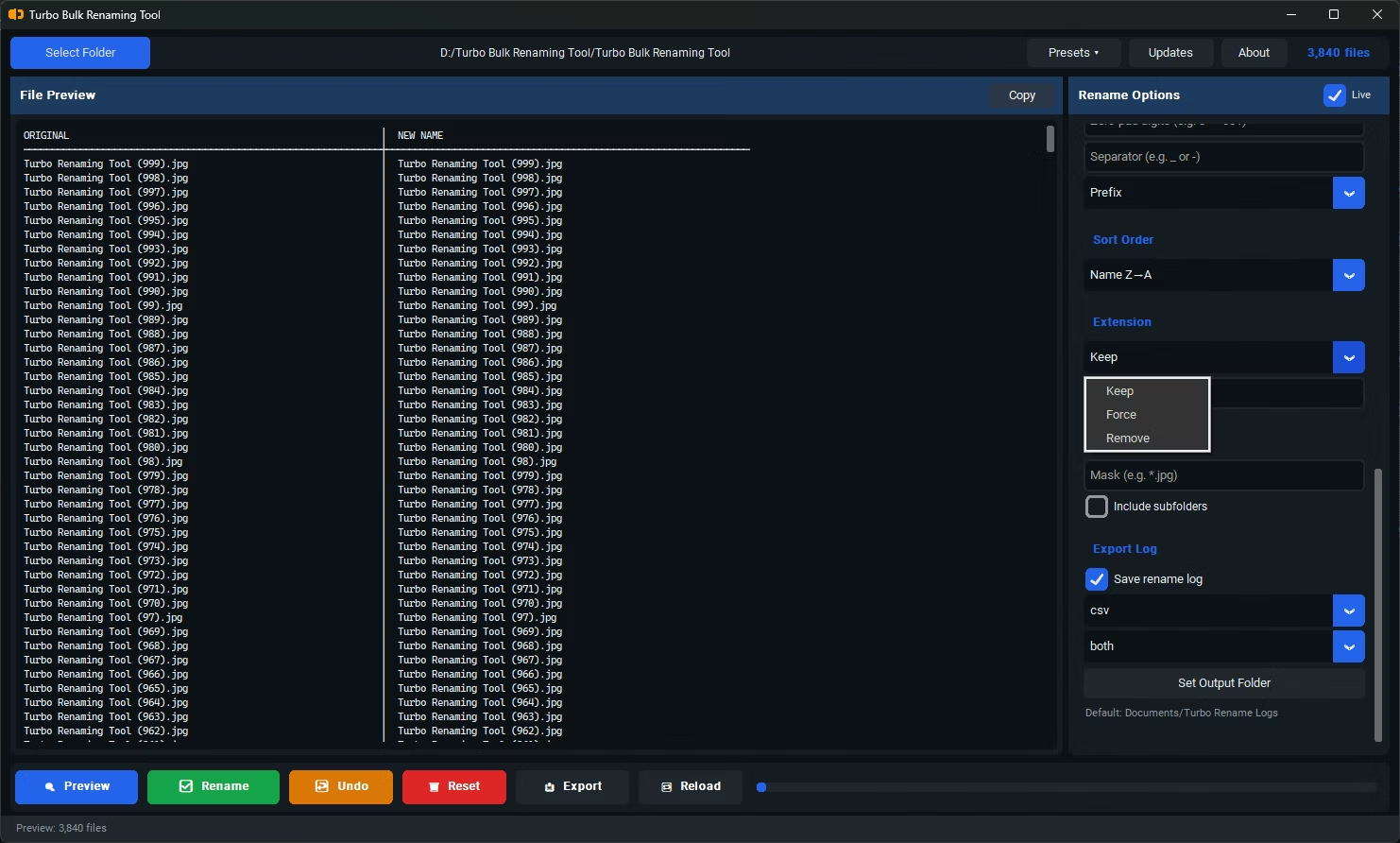
- Install Turbo Bulk Renaming Tool on your Windows PC.
- Open the app and load the folder containing the files you want to rename.
- Select the Find & Replace renaming rule and enable the "Use Regex" checkbox.
- Enter your regular expression pattern in the Find field, using capture groups if you need to reference matched text in the replacement.
- Enter your replacement text, referencing capture groups where needed.
- Check the live preview to confirm the pattern matches correctly across your files.
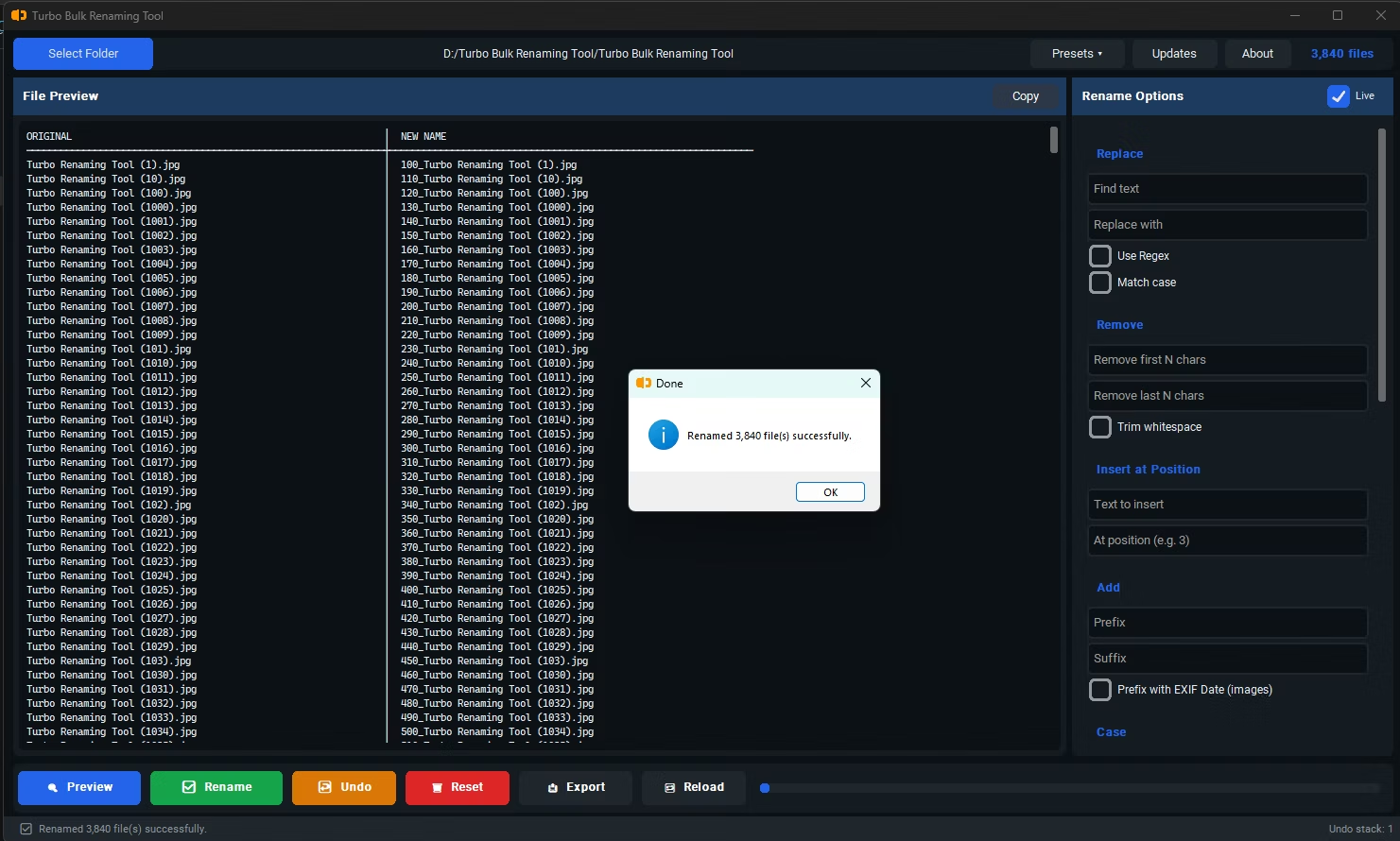
- Click Rename to apply the regex-based change to every matching file at once.
- Full regular expression support, including capture groups and lookaheads
- Character classes let you match flexible patterns like digits or whitespace
- Invalid patterns are silently skipped without stopping the rest of the batch
- Live preview confirms exactly which files match before you commit
- Recursive sub-folder support for applying regex patterns across nested directories
- Runs fully offline, keeping your file structure private during the process
Do I need to know regex syntax to use this feature?
Basic familiarity with regex patterns helps, but simple use cases like matching digits or specific text sequences are straightforward even with limited regex experience.
What happens if my regex pattern is invalid?
Invalid patterns are skipped silently for the affected files rather than stopping the entire batch, so the rest of your rename operation still completes.
Can I use capture groups in the replacement text?
Yes, capture groups from your regex pattern can be referenced in the replacement field, letting you rearrange or reuse parts of the original filename.
Ready to rename your files in bulk, offline, with full privacy?