PSD is Photoshop's native working format, storing layers, masks, and editing history in one file. That makes it great for editing but impractical for sharing — most browsers, phones, and review tools can't open a PSD file at all. JPG solves that instantly, giving you a small, universally viewable image you can send to a client, post online, or attach to an email.
Designers and photographers often need to export dozens or hundreds of PSD files at once after a project wraps. Opening each one in Photoshop to flatten and export manually doesn't scale. A dedicated batch converter reads the PSD file directly, flattens the visible layers, and writes a JPG — without needing Photoshop installed at all.
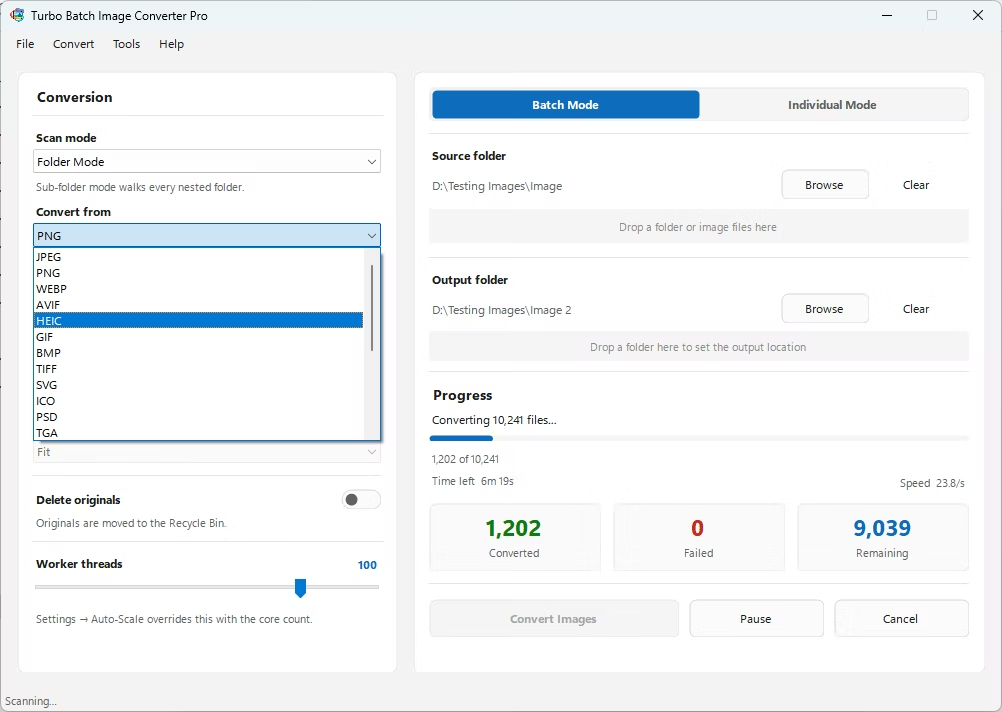
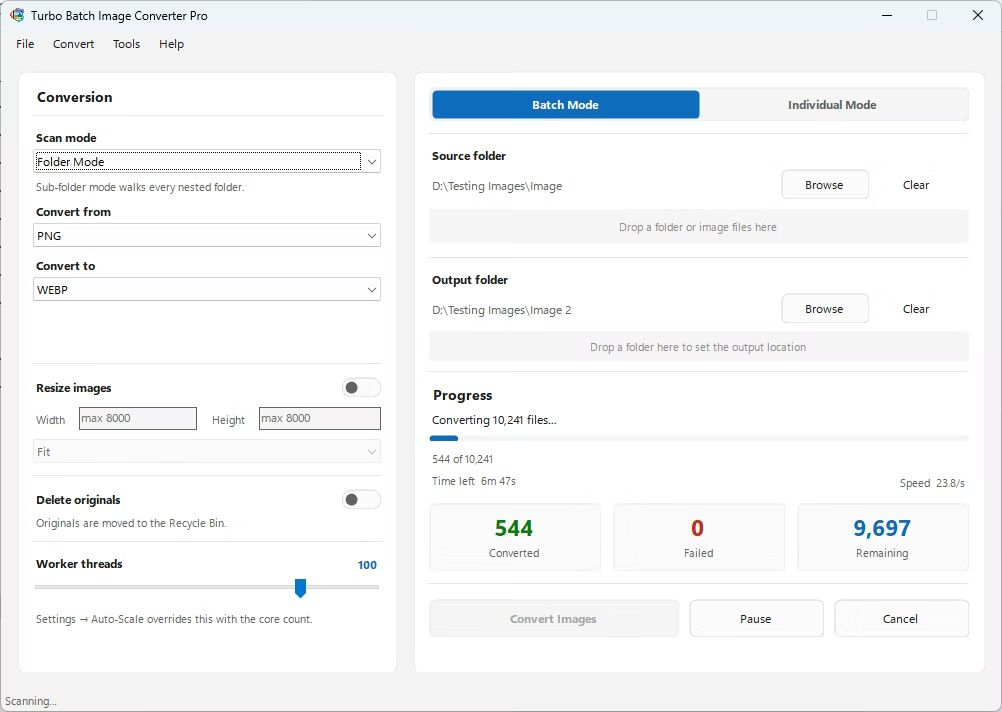
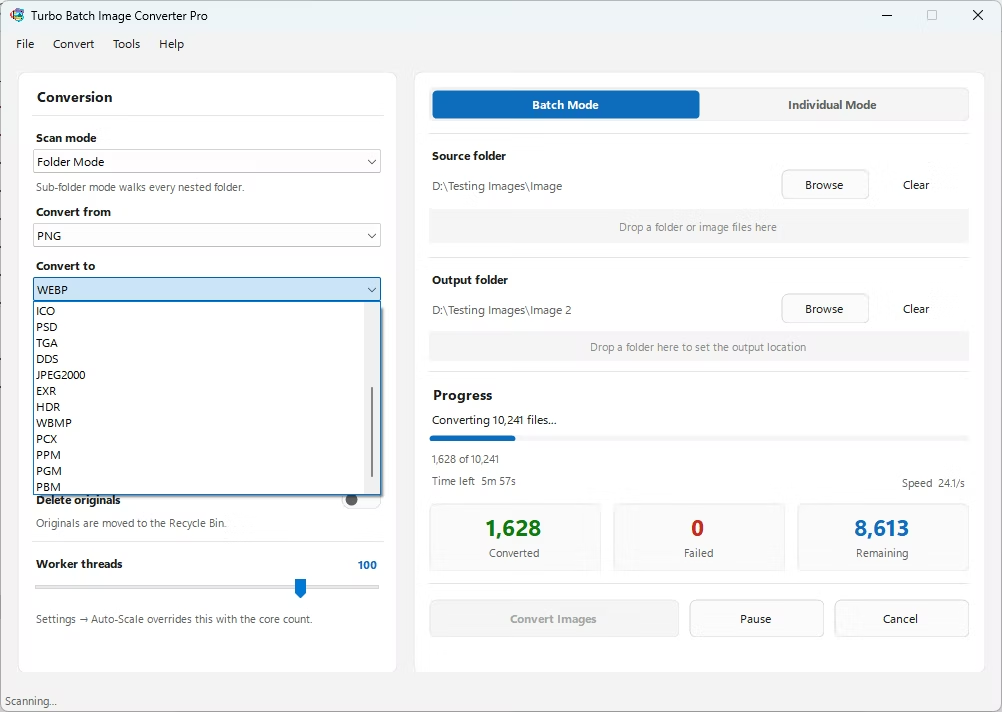
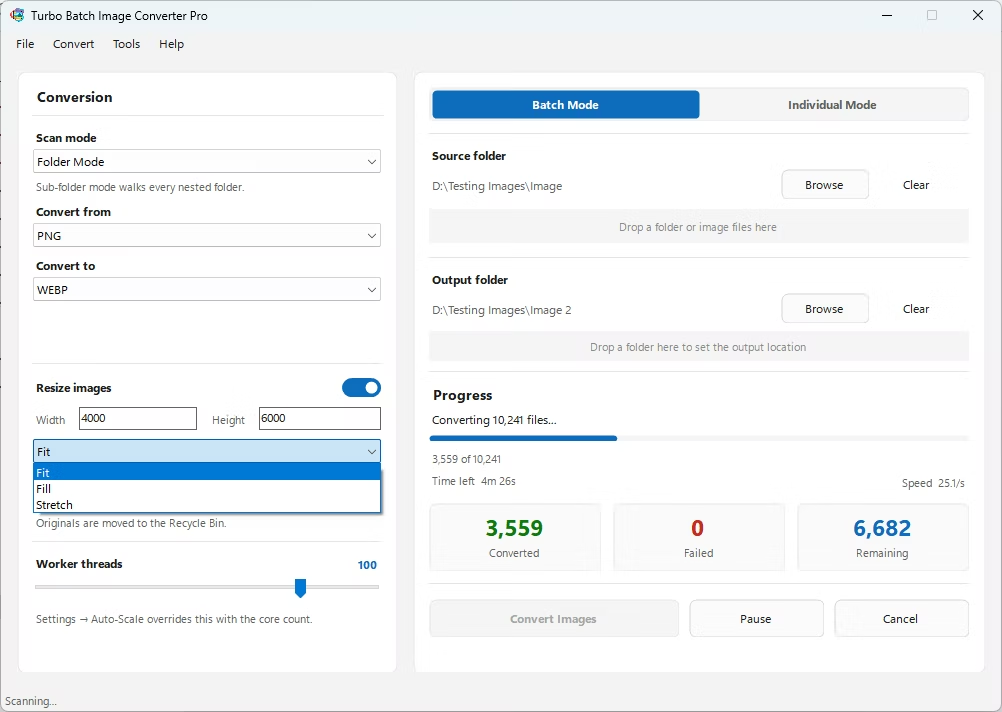
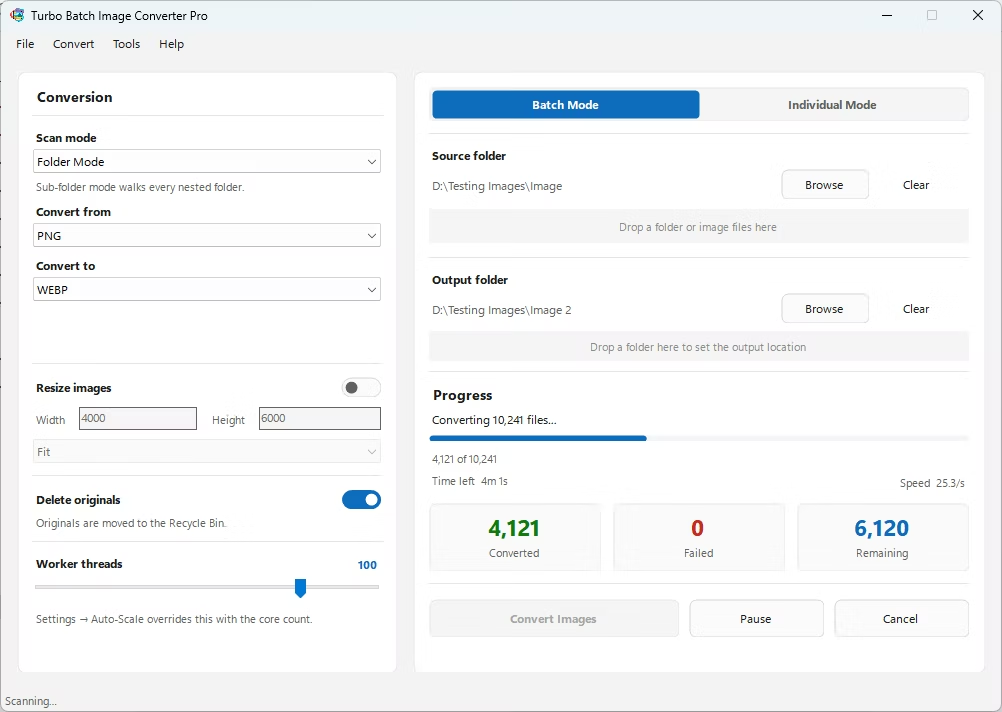
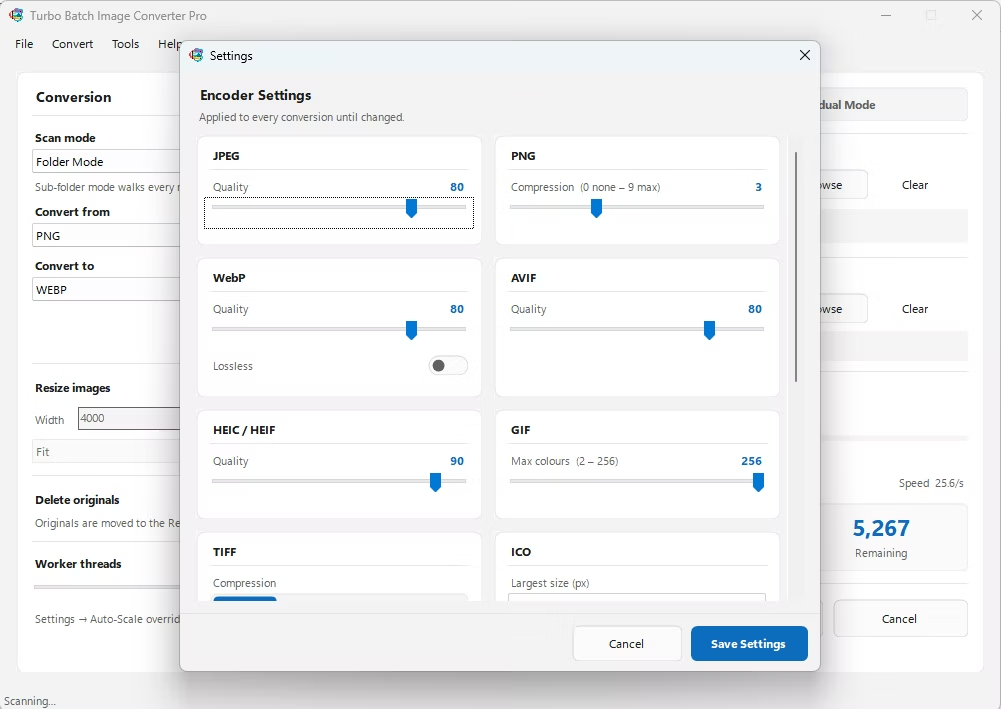
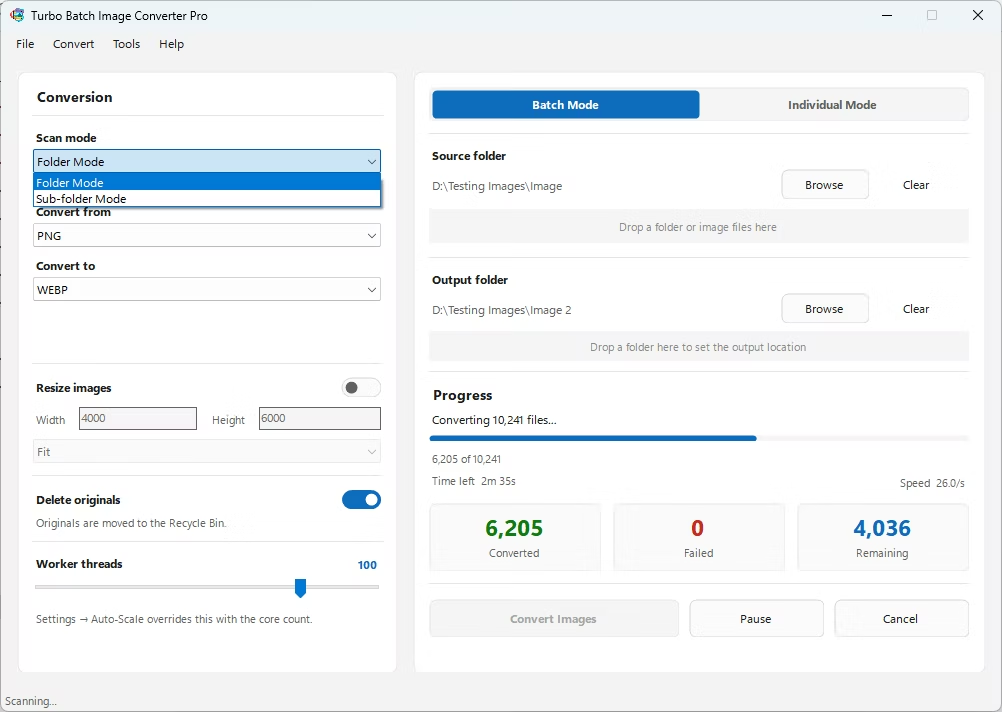
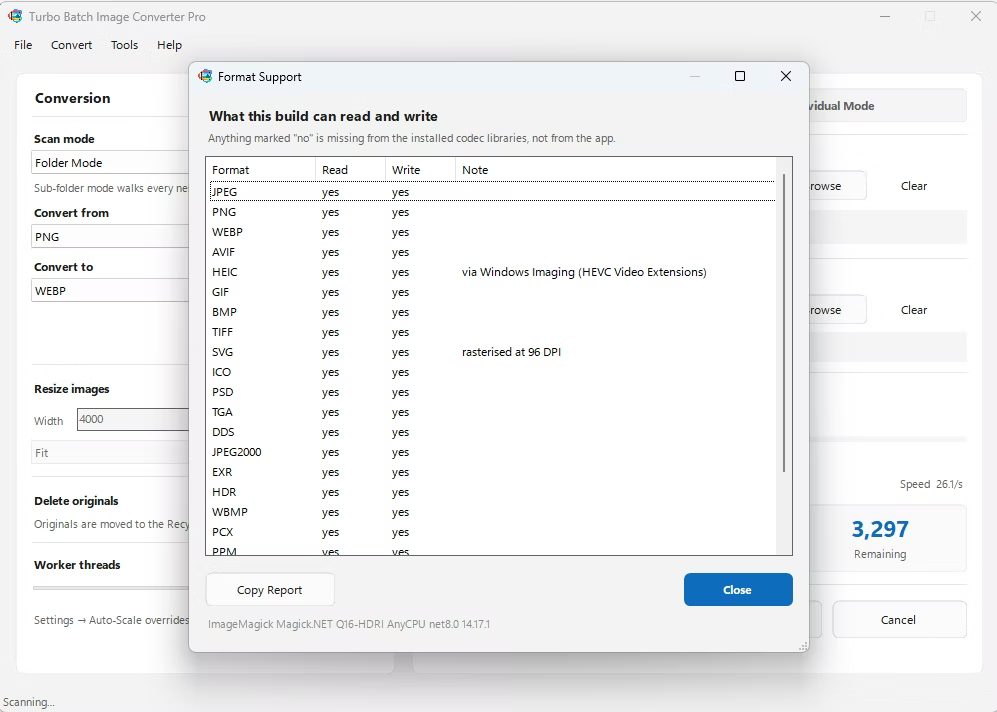
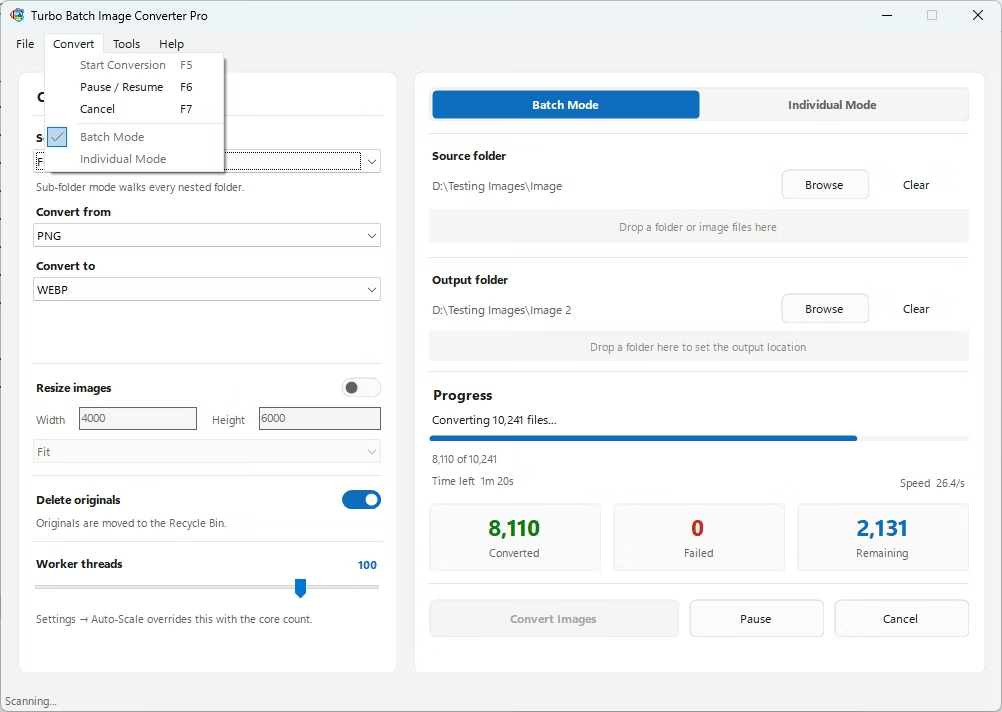
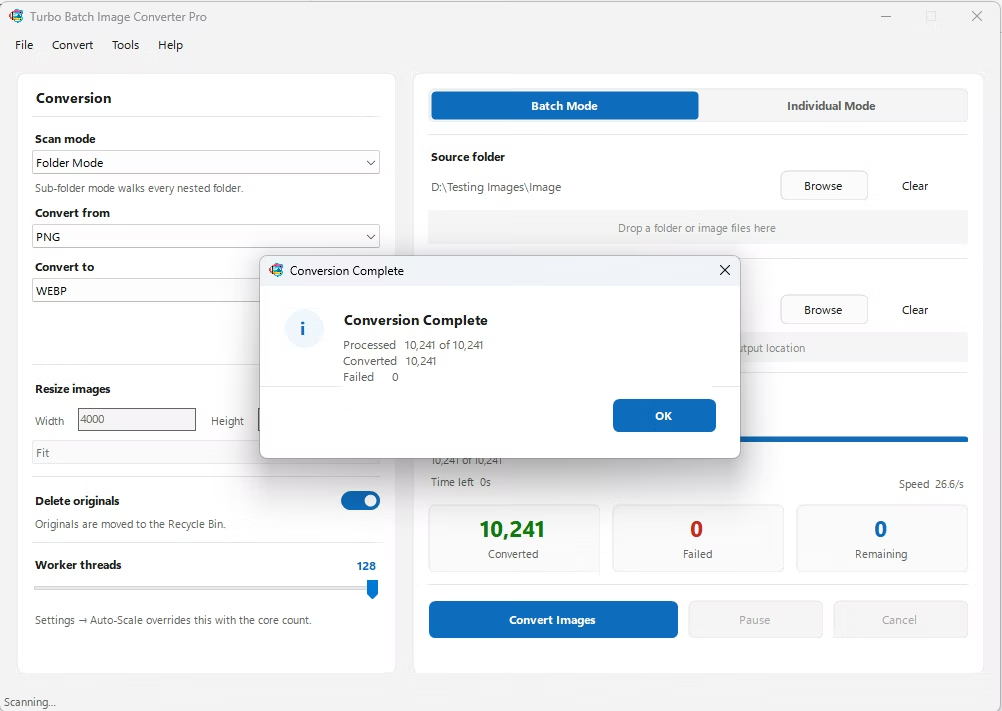
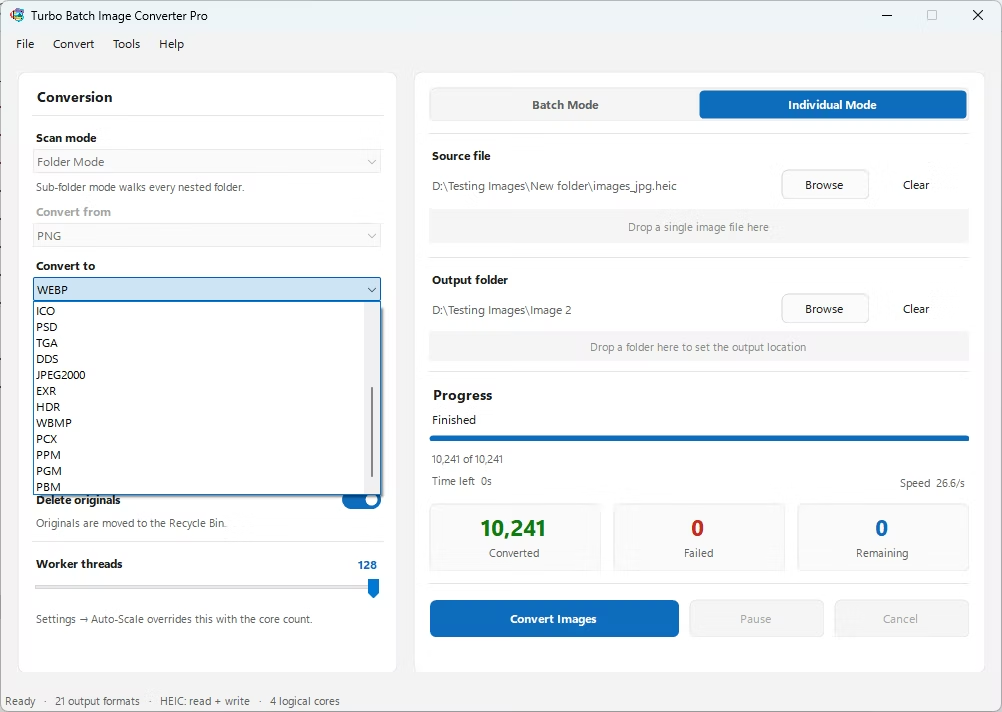
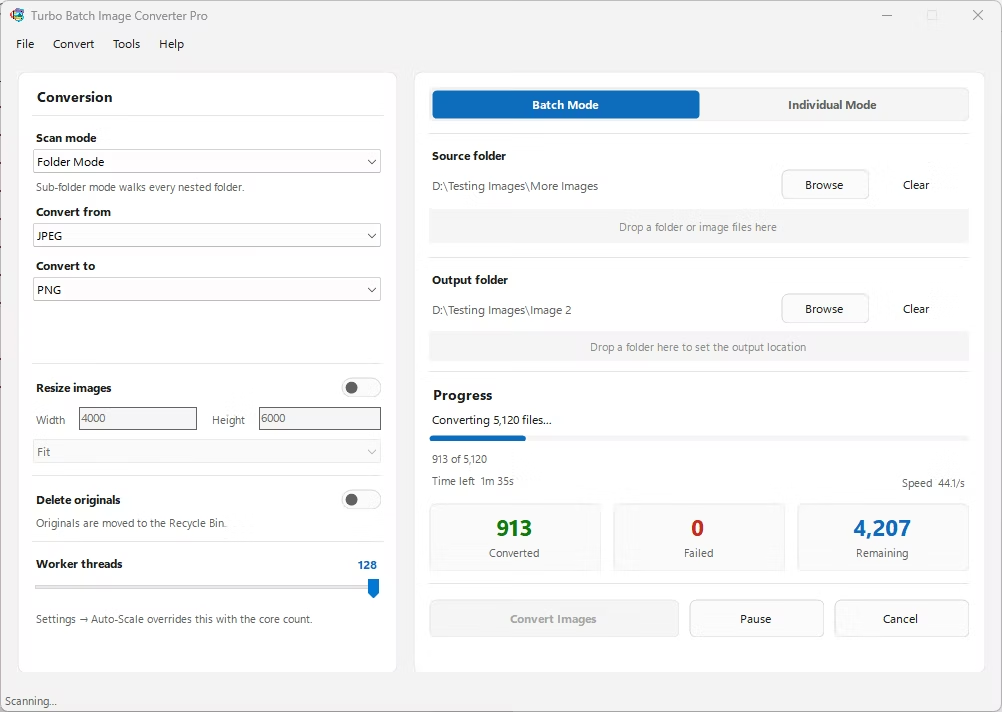
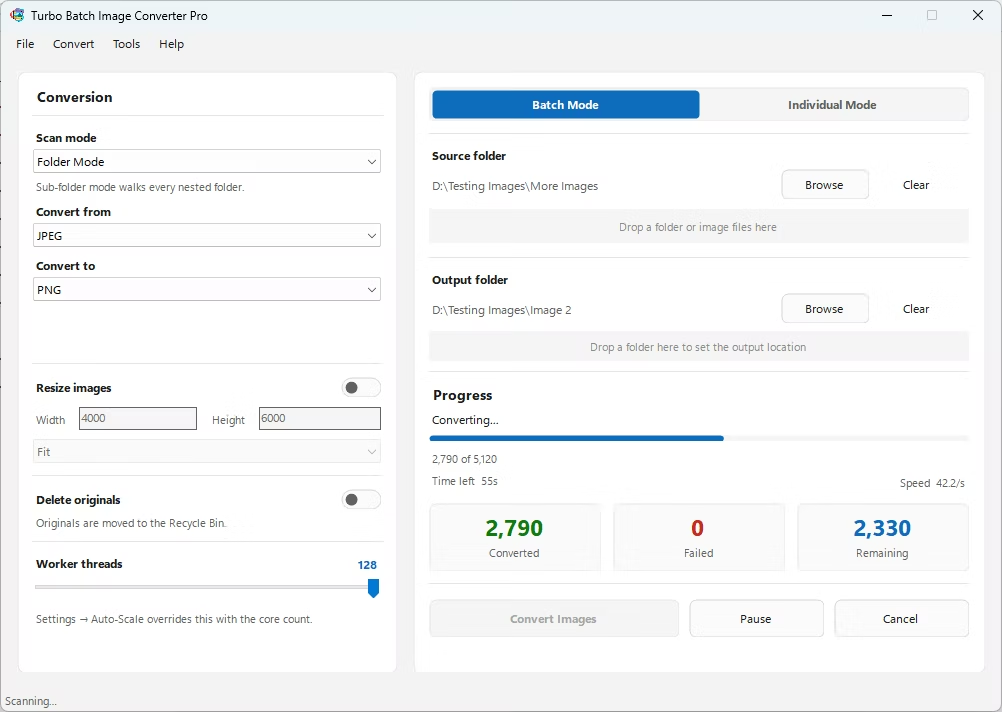
- Install Turbo Batch Image Converter Pro on your Windows PC. Photoshop is not required to convert PSD files.
- Open the app and select Batch Mode to process a whole folder of PSD files at once, or Individual Mode for a single file.
- Drag your PSD files or folder into the app window. Enable recursive sub-folder scanning if your project files are spread across multiple folders.
- Set the input format to PSD and the output format to JPG.
- Adjust the JPG quality slider to balance file size against visual quality for your delivery needs.
- Optionally resize the output if you need specific dimensions for web or print delivery.
- Click Convert. The app flattens each PSD's visible layers and exports a JPG locally — fully offline.
- No Photoshop license required to export PSD files to JPG
- Bulk-convert entire project folders in a single batch job
- Recursive sub-folder support for organized design archives
- Adjustable JPG compression for output quality control
- Runs fully offline, keeping unreleased design work private
- Multi-core processing for fast handling of large PSD batches
Do I need Photoshop installed to convert PSD files?
No. The converter reads the PSD file structure directly and flattens the visible layers itself, so Photoshop is not required.
What happens to layers and effects during conversion?
The visible layers are flattened into a single image, since JPG doesn't support layers. Hidden layers are excluded from the flattened output, matching what you'd see in the final composite.
Can I batch-convert an entire design project folder?
Yes. Batch Mode with recursive folder scanning lets you point the app at a top-level project folder and convert every PSD file inside, including nested sub-folders.
Ready to convert your images offline, in bulk, with full privacy?