JPG remains the most universally compatible photo format, accepted by every browser, phone, printer, and social platform, which is why most batch jobs end with converting into JPG. At the same time, a folder of existing JPG images sometimes needs to move the other way, into PNG for transparency or WebP for a faster website.
Turbo Batch Image Converter Lite handles both directions of JPG batch conversion: bringing PNG, WebP, GIF, BMP or TIFF into JPG, or converting an existing folder of JPG images out to a different format, all in a single batch run with adjustable JPG quality.
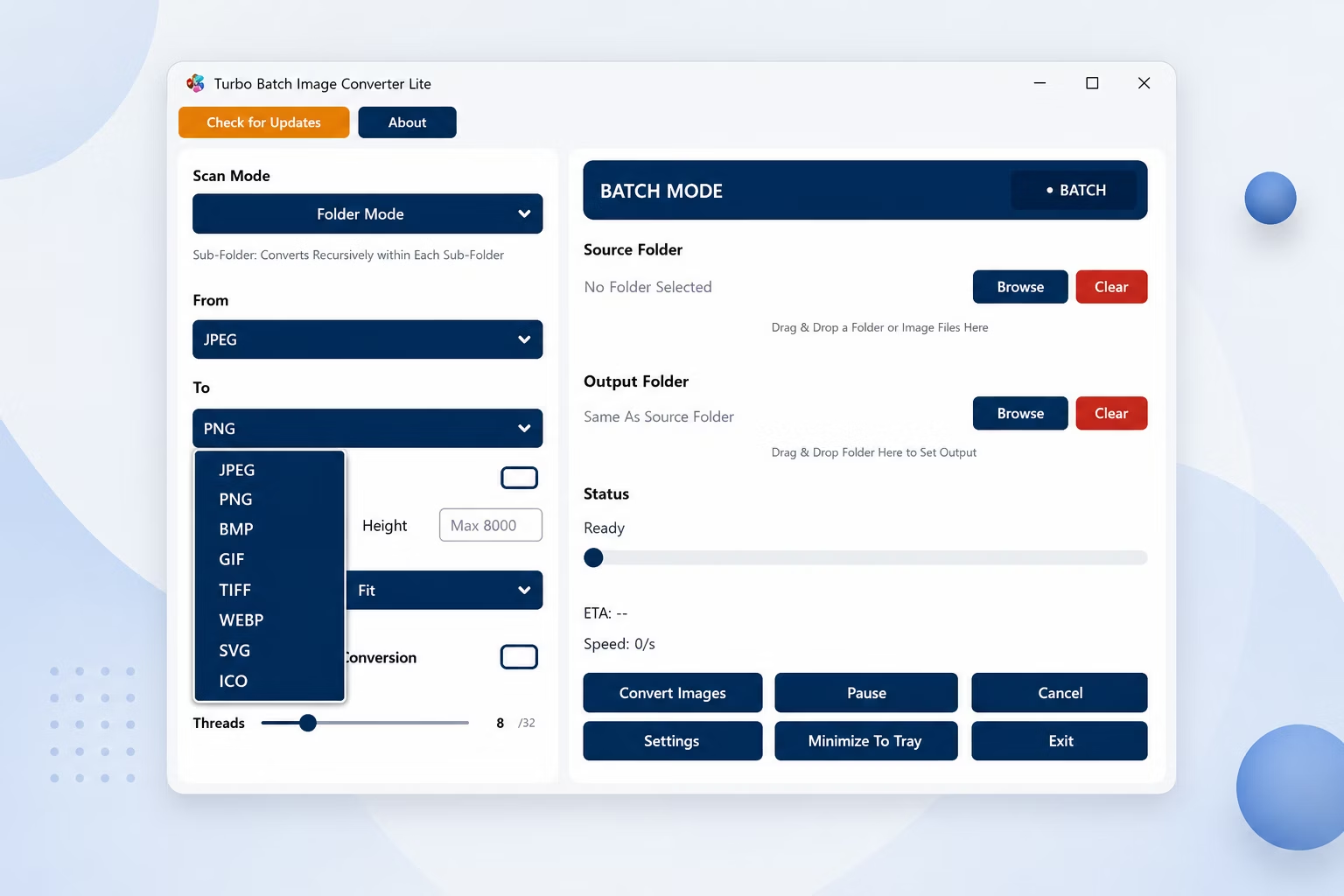
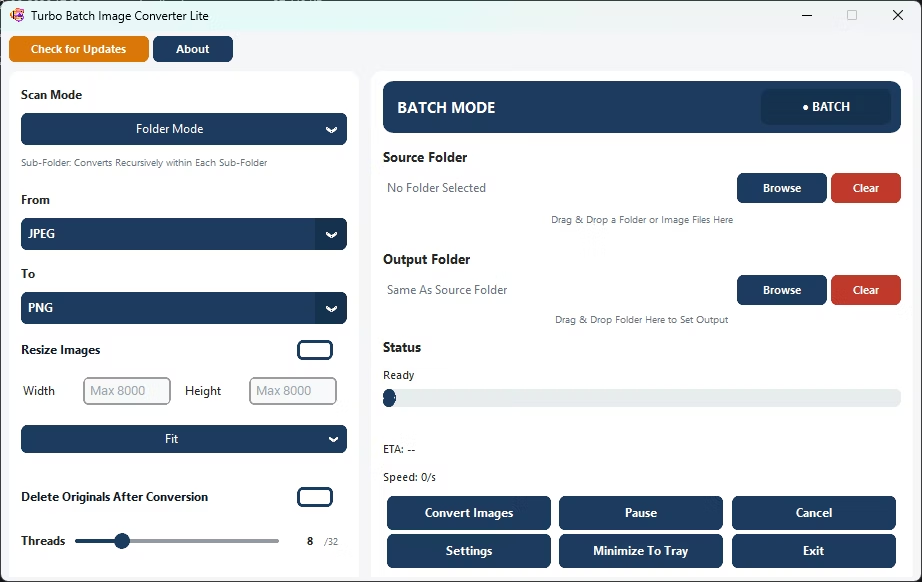
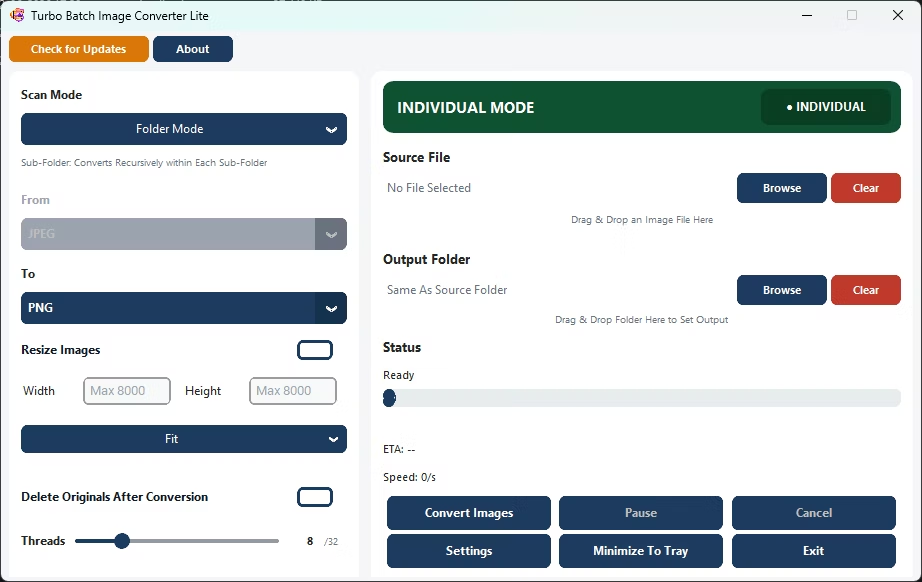
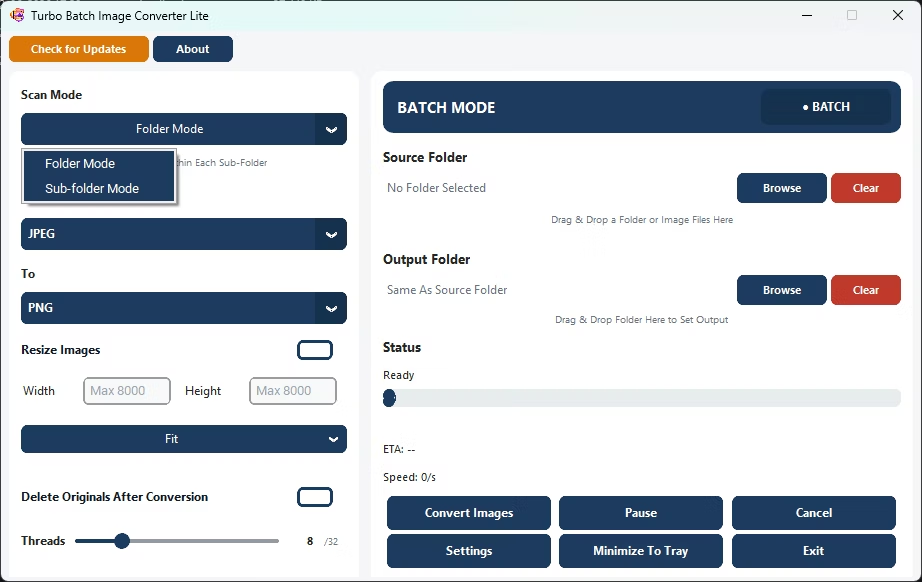
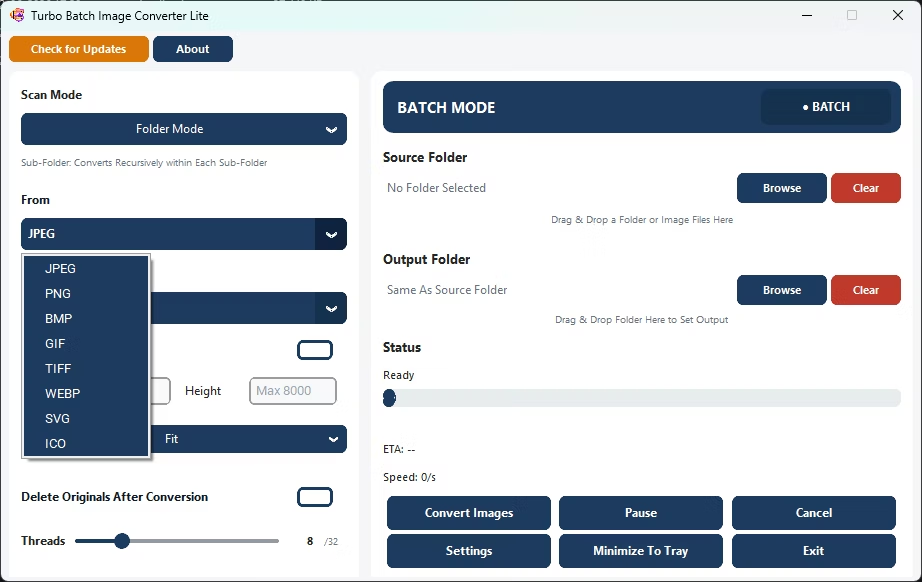
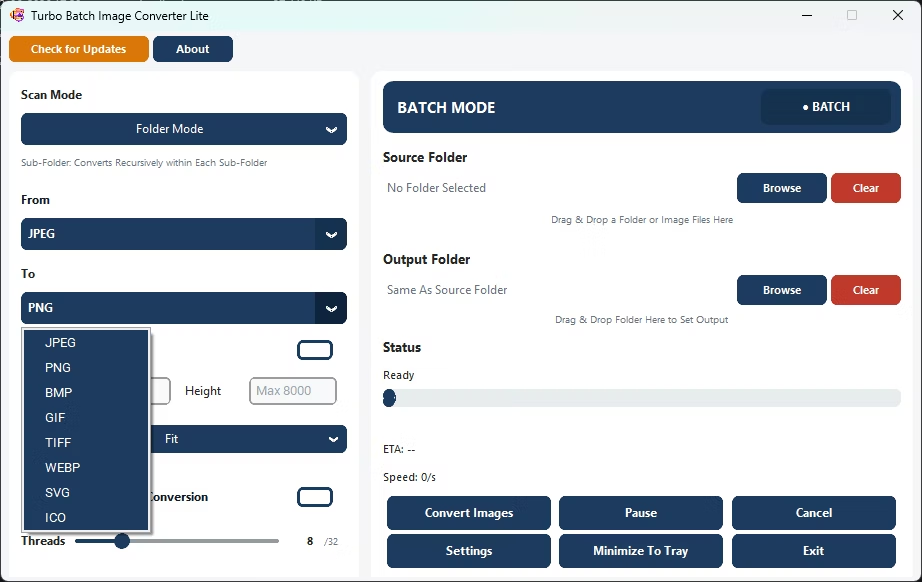
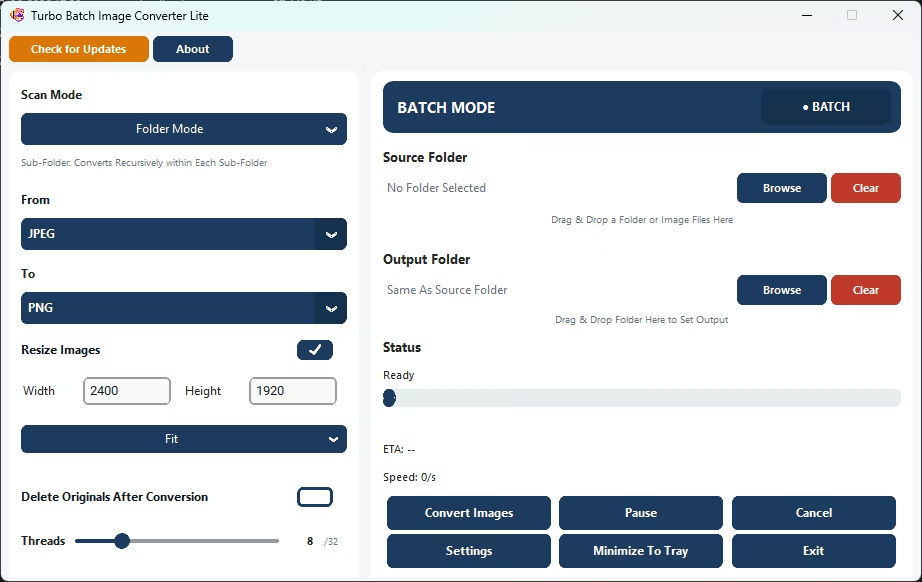
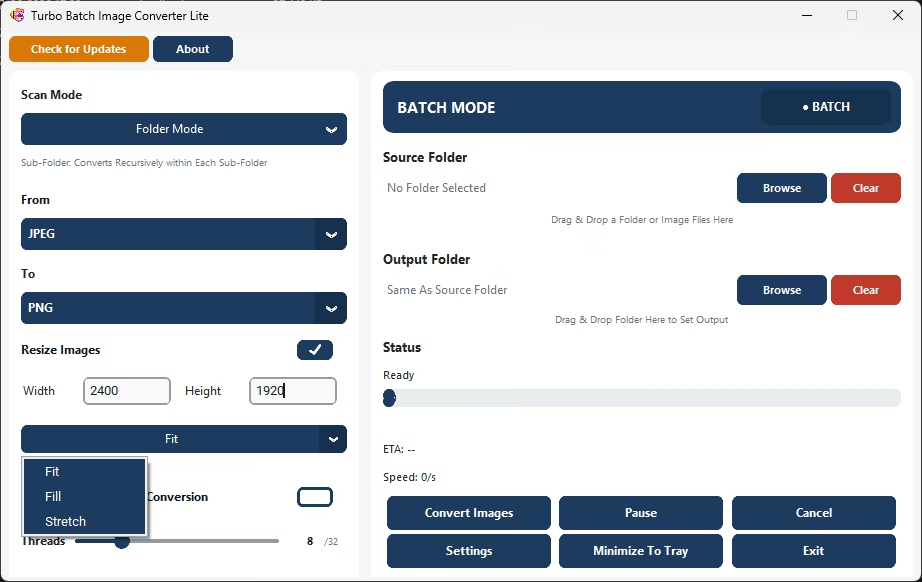
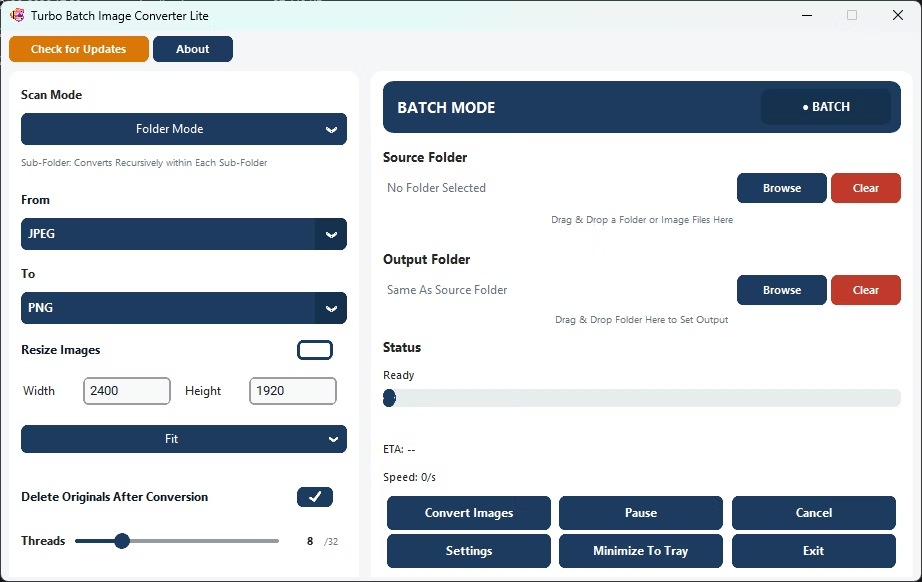
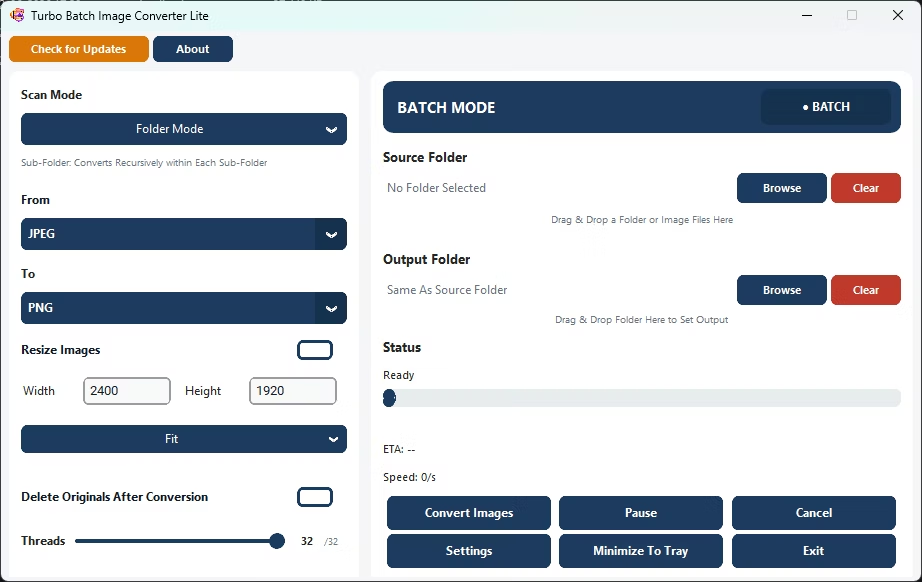
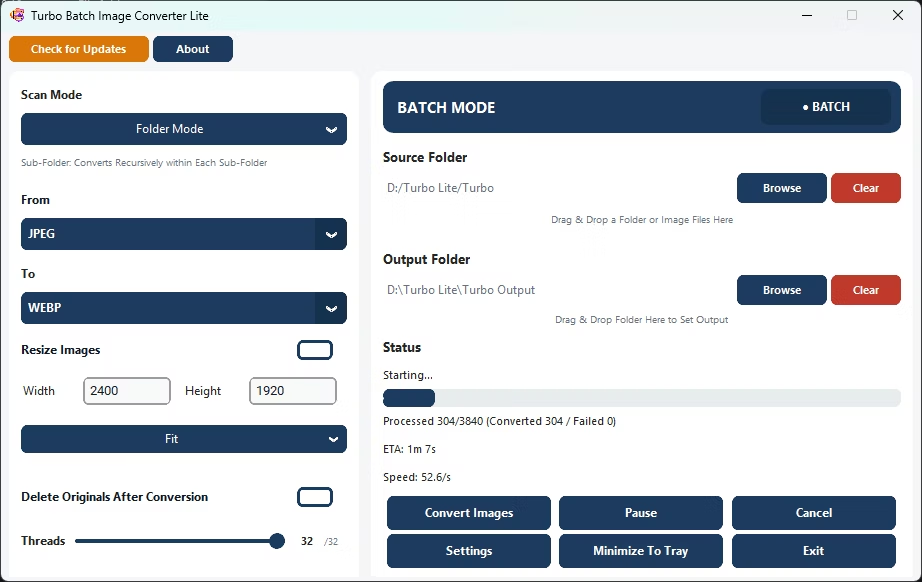
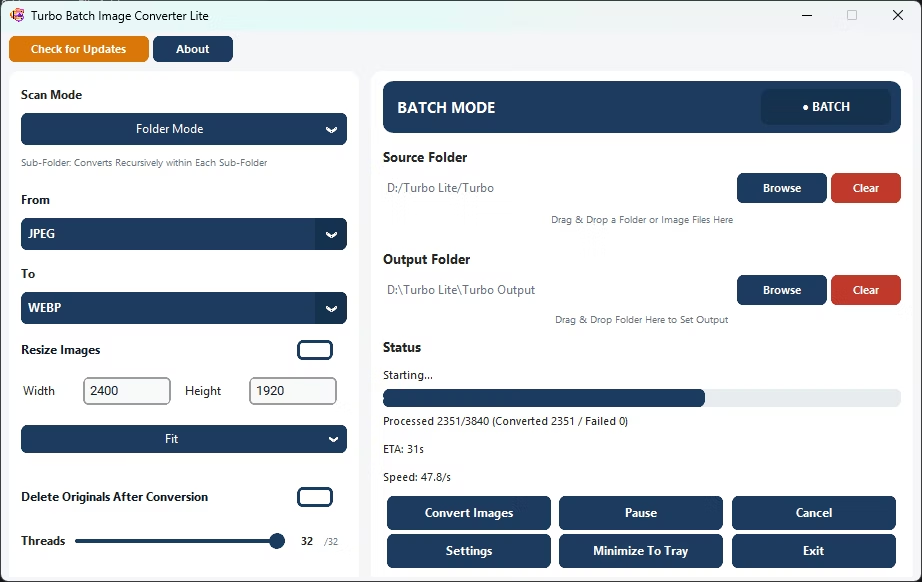
- Install Turbo Batch Image Converter Lite on your Windows PC.
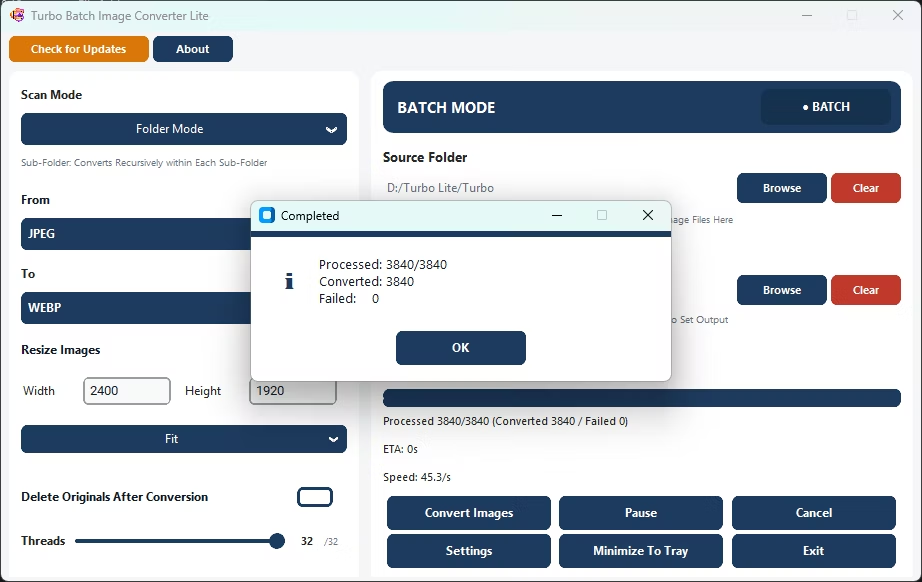
- Open Batch Mode and select your folder of images.
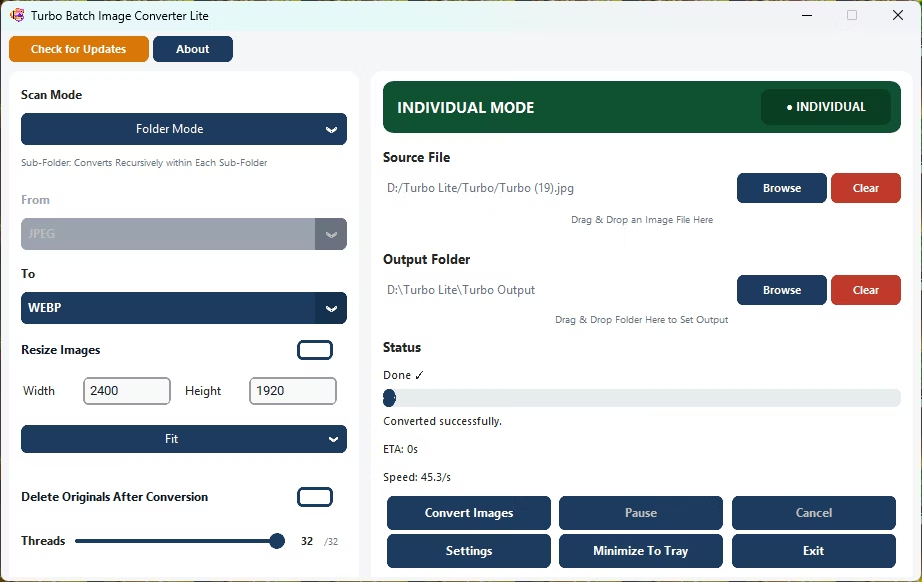
- Set JPG as the "From" format if converting existing JPGs, or as the "To" format if converting into JPG.
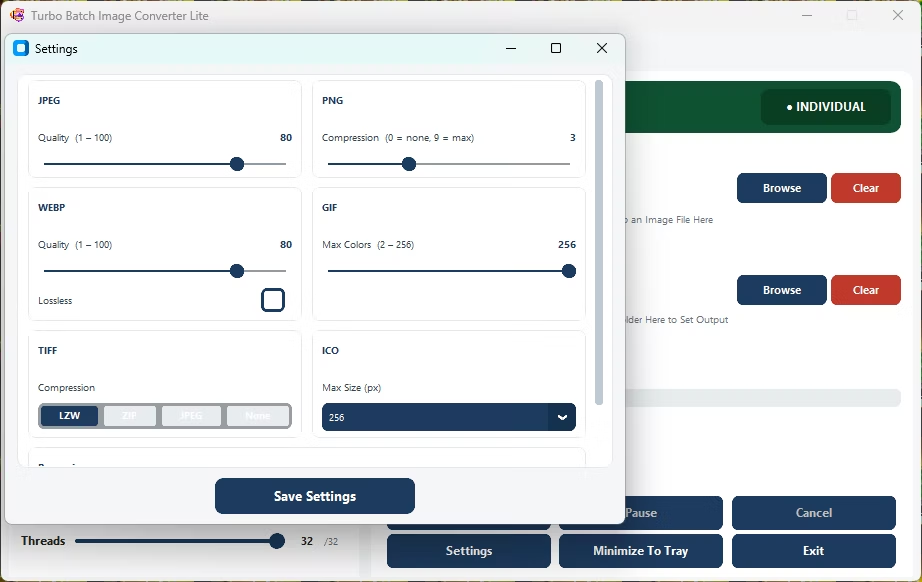
- Adjust the JPG quality slider to balance file size against detail.
- Optionally enable resizing for the whole batch.
- Click Convert to process every JPG file in the folder.
- Convert into JPG from PNG, WebP, GIF, BMP or TIFF
- Convert an existing folder of JPG images out to another format
- Adjustable JPG compression for the right size-to-quality balance
- Multi-core engine scales up to 32 parallel workers
- Runs fully offline with no upload limits
Can I convert a folder of JPGs to PNG or WebP instead?
Yes, set JPG as the "From" format and choose PNG, WebP, or any other supported output as the "To" format.
Does converting to JPG reduce image quality?
JPG uses lossy compression, but the quality slider lets you keep compression light for minimal visible quality loss.
Can I batch convert a large folder of JPG files at once?
Yes, Batch Mode has no artificial file count limit and processes folders using multiple parallel workers.
Ready to batch convert your JPG images, in either direction, fully offline?