HEIC is Apple's default photo format on iPhone and iPad, offering better compression than JPG, but it isn't reliably viewable on Windows, older software, or many websites without conversion. Anyone who has exported a large iPhone photo library to a PC has run into a folder full of HEIC files that need converting before they're usable.
Turbo Batch Image Converter Pro batch converts an entire HEIC export, camera roll backup, or iCloud download folder into JPG, PNG, or any other supported format in one pass, fully offline so private photos stay on your own PC.
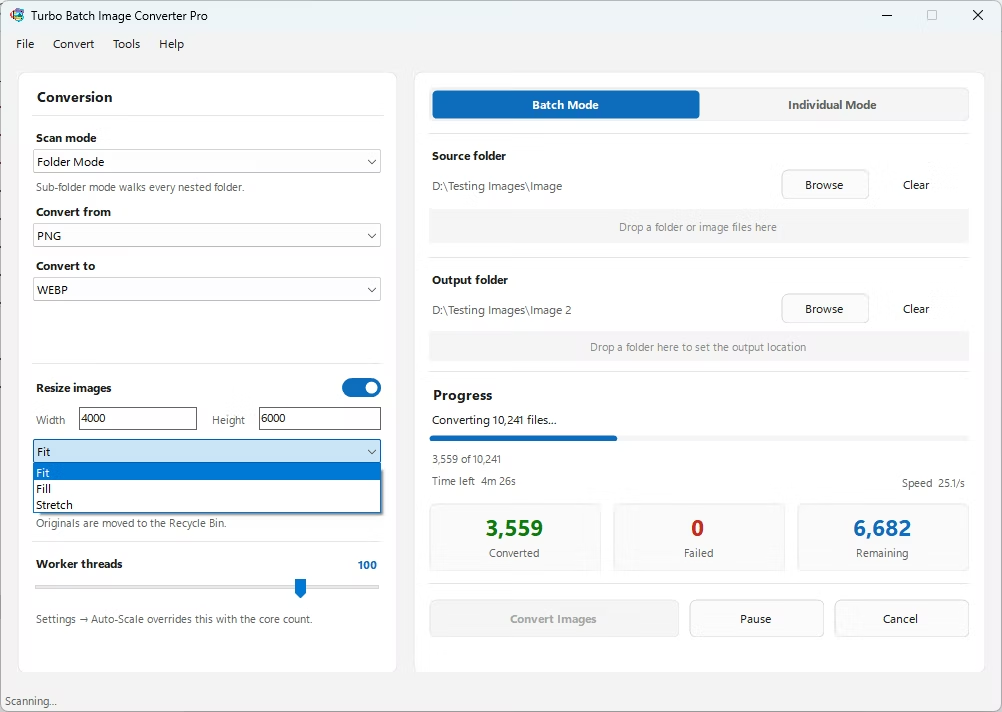
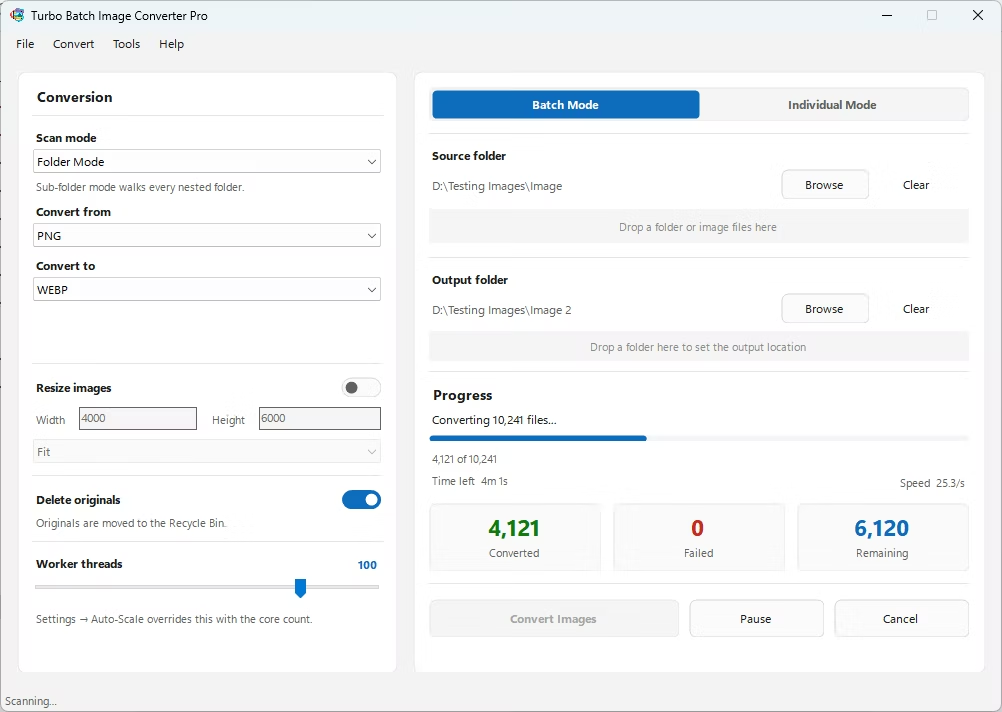
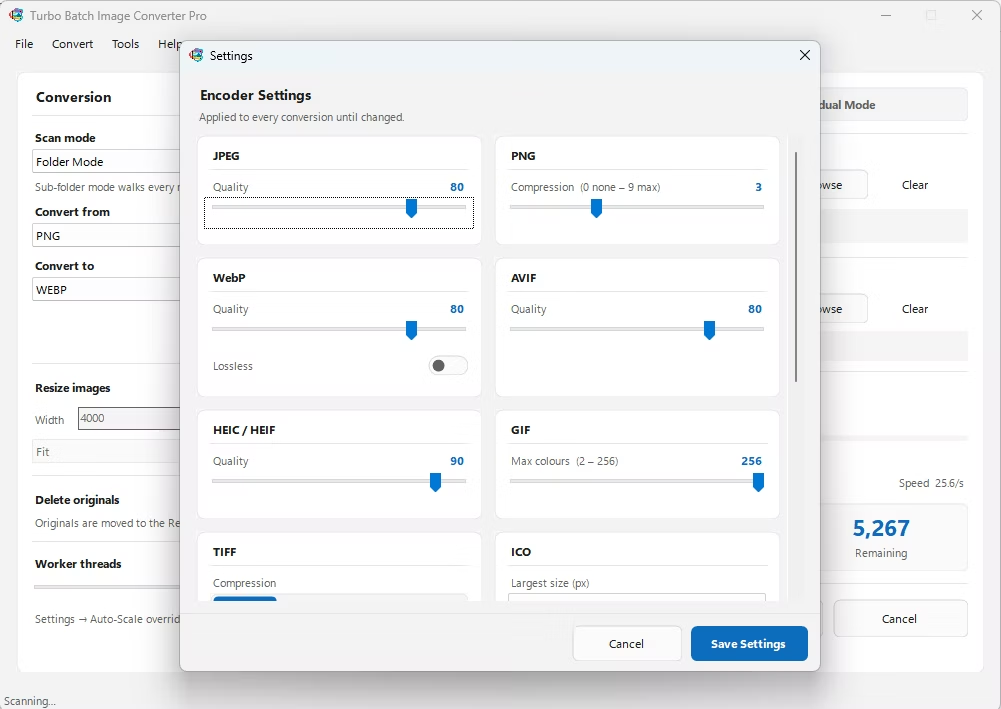
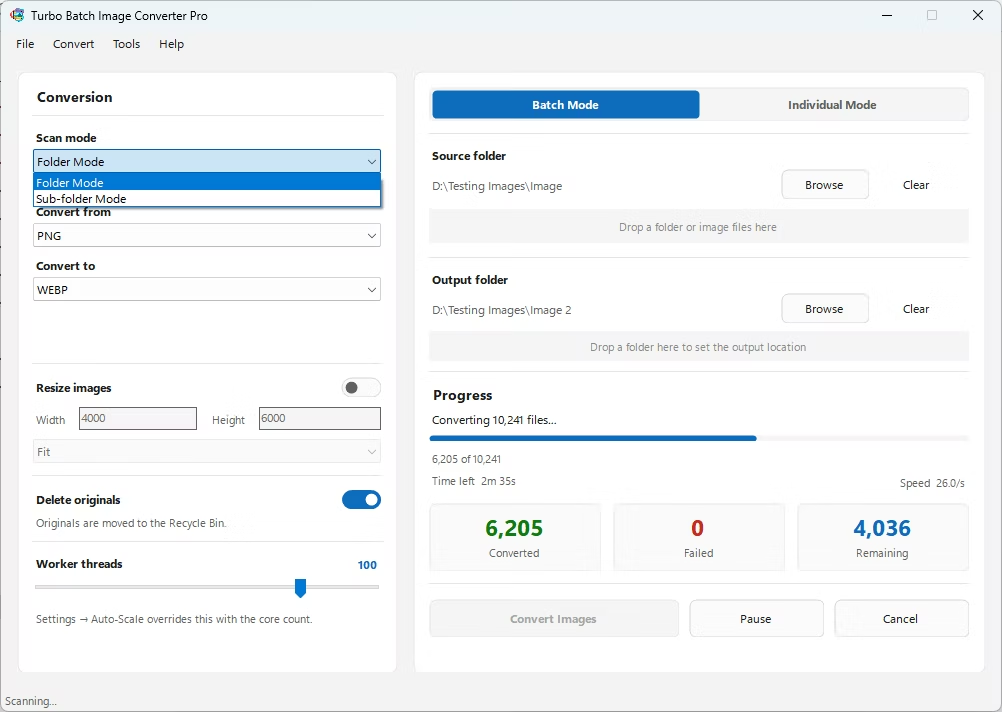
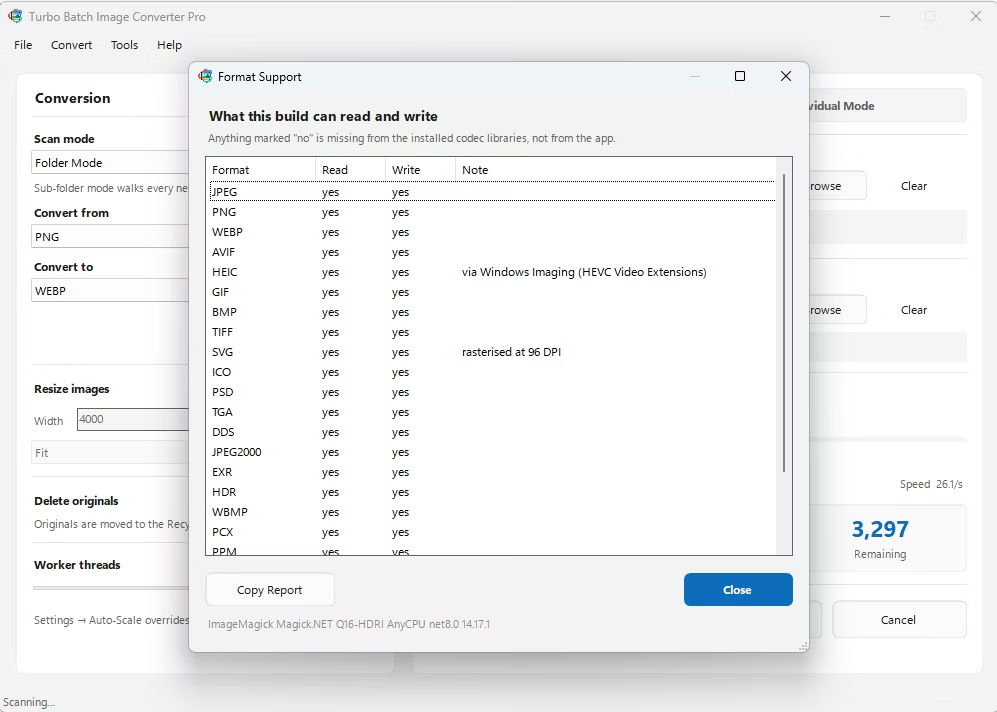
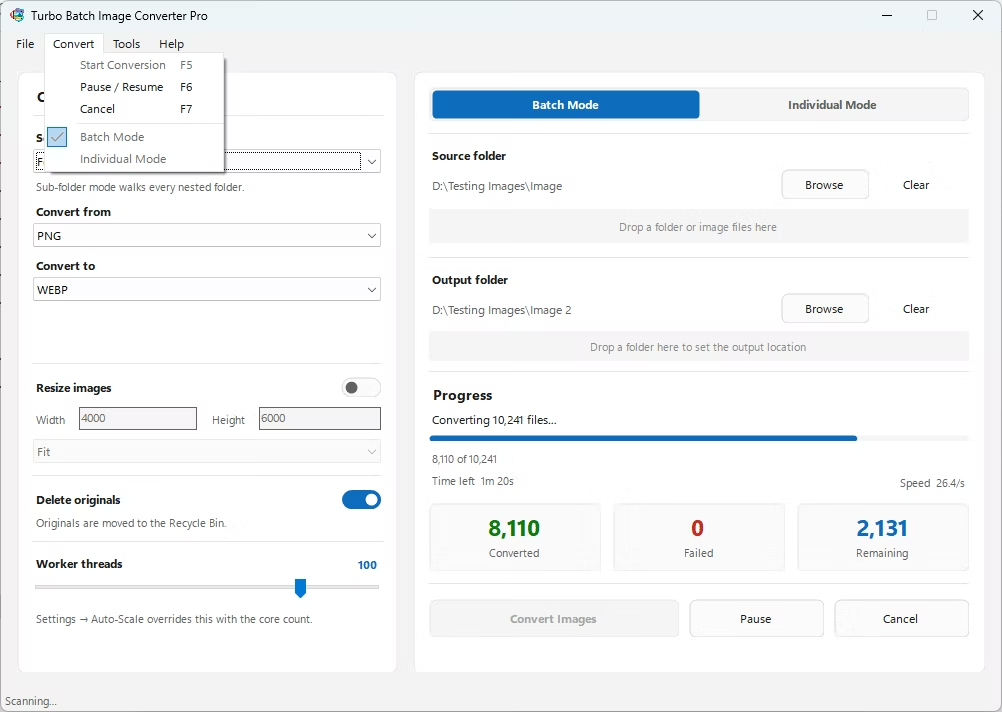
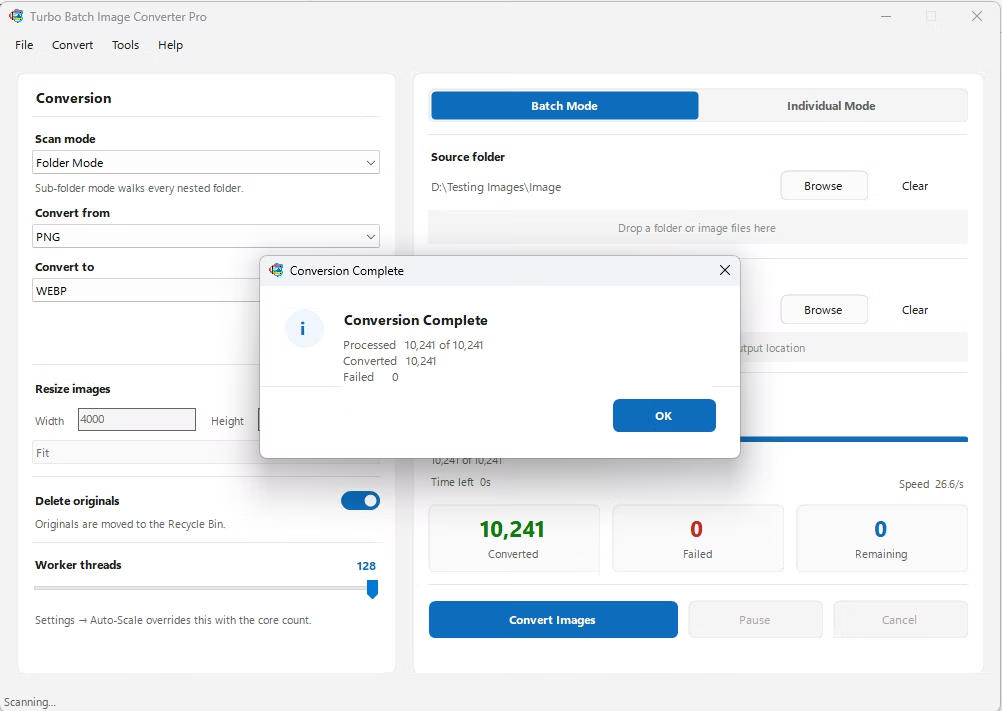
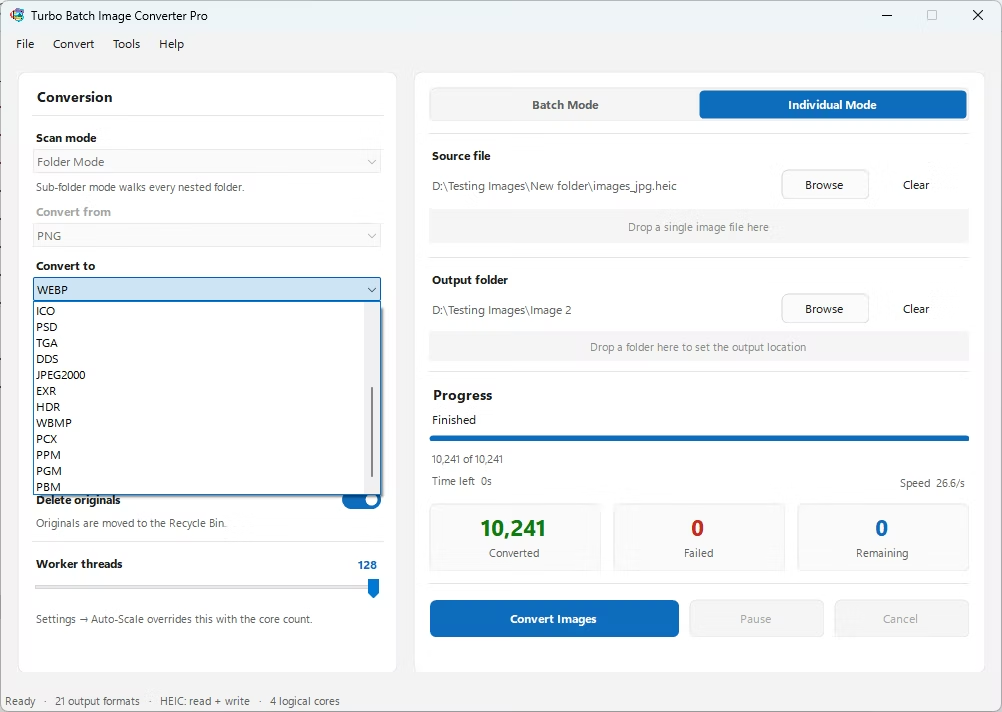
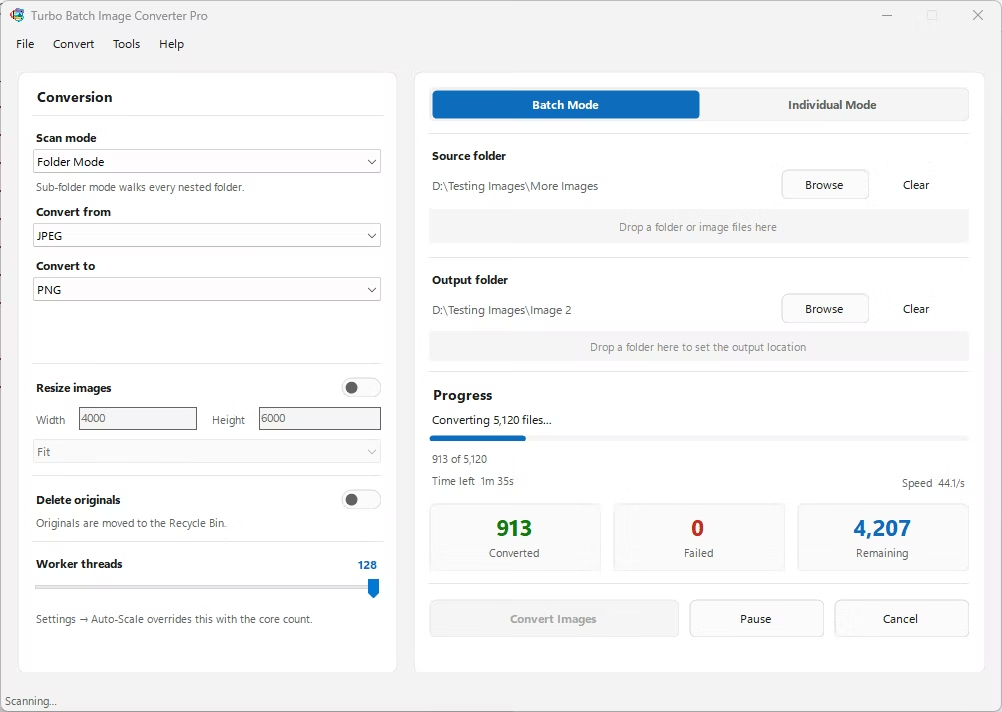
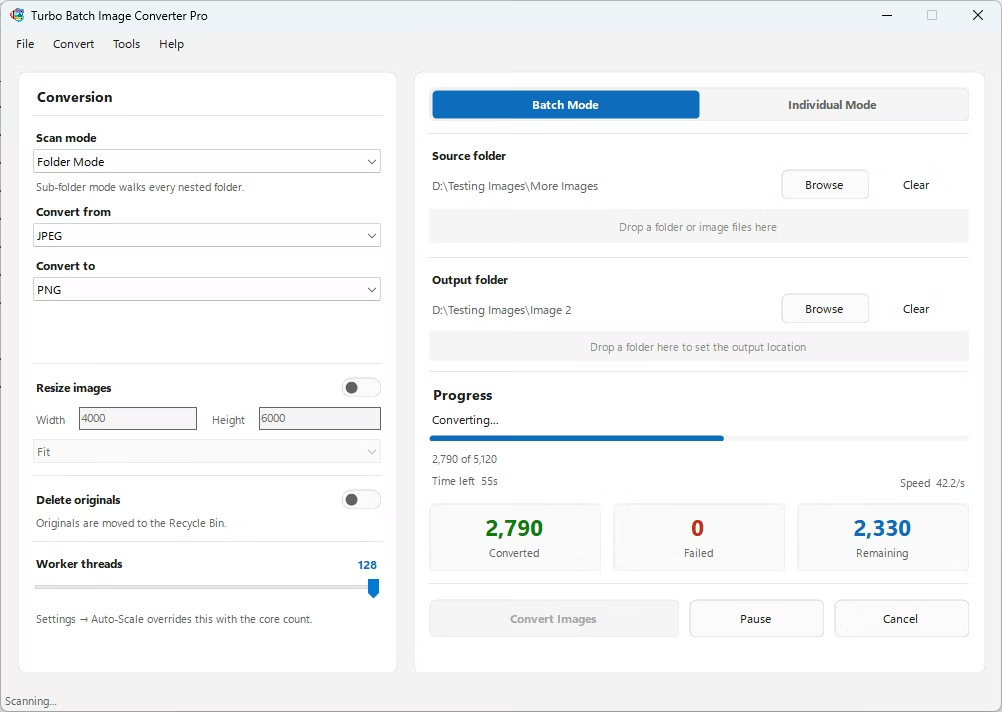
- Install Turbo Batch Image Converter Pro on your Windows PC.
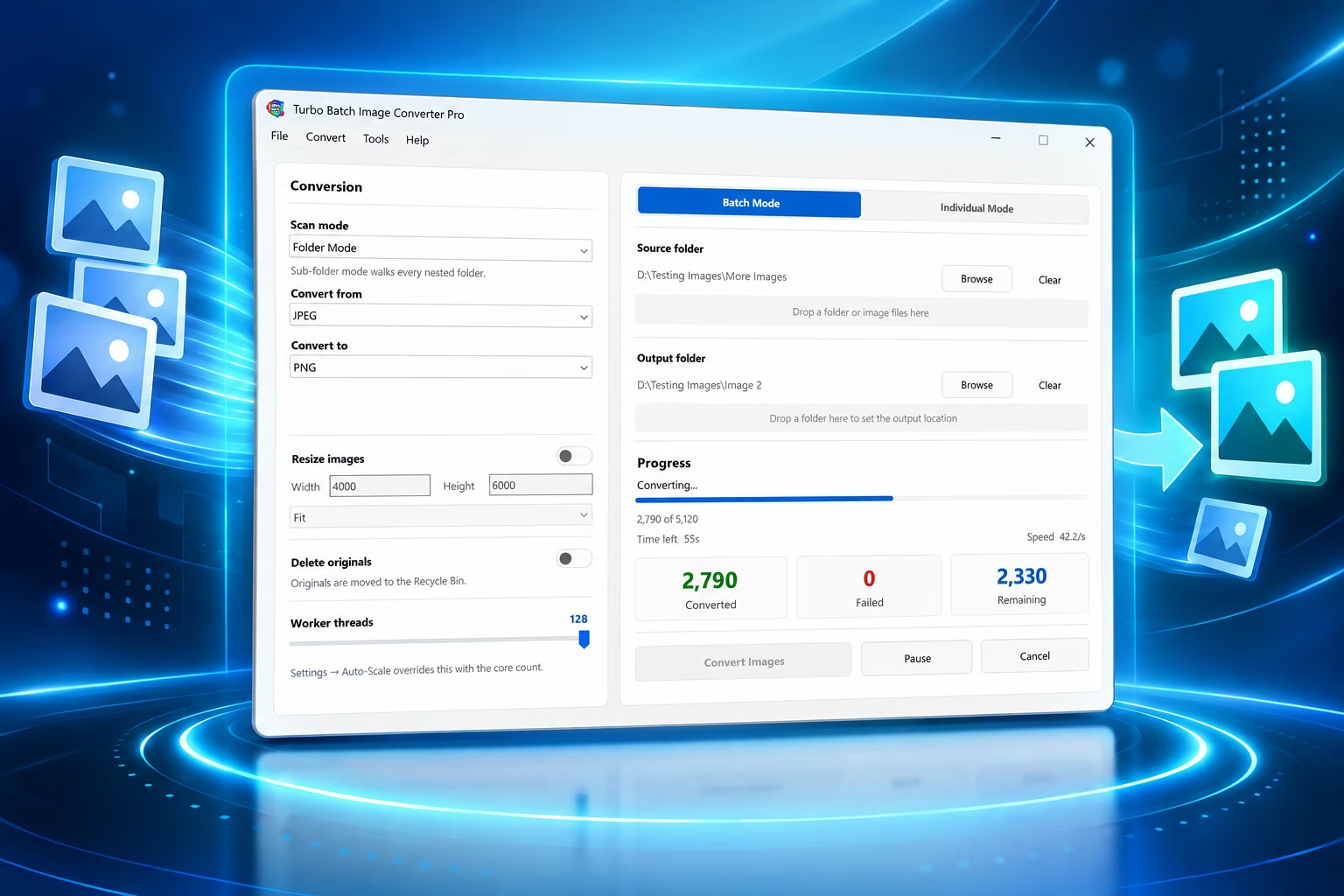
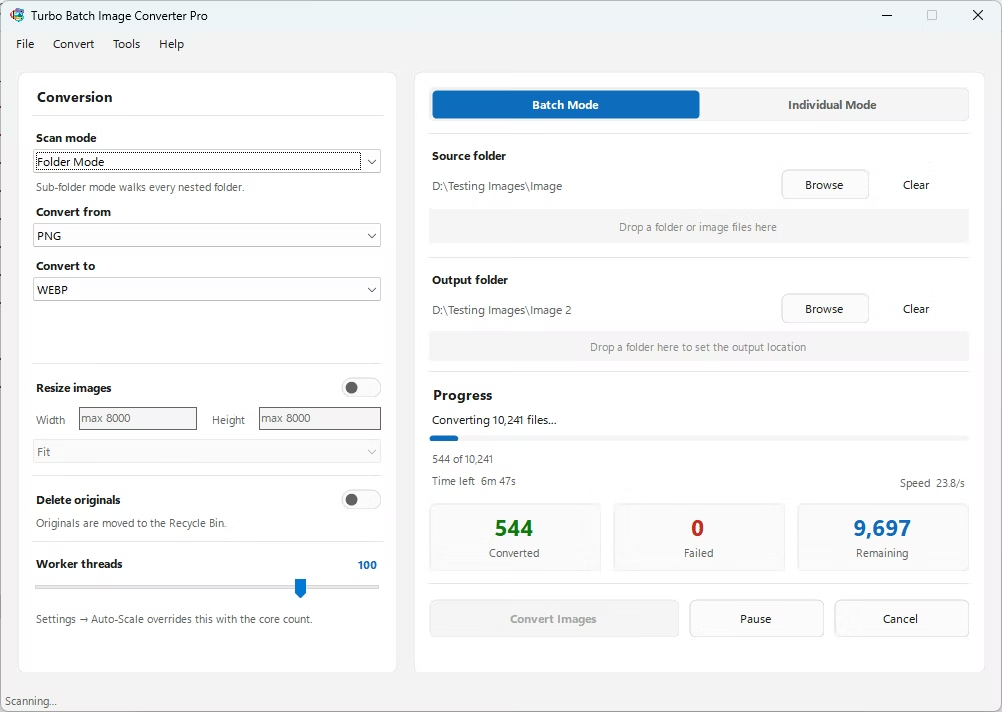
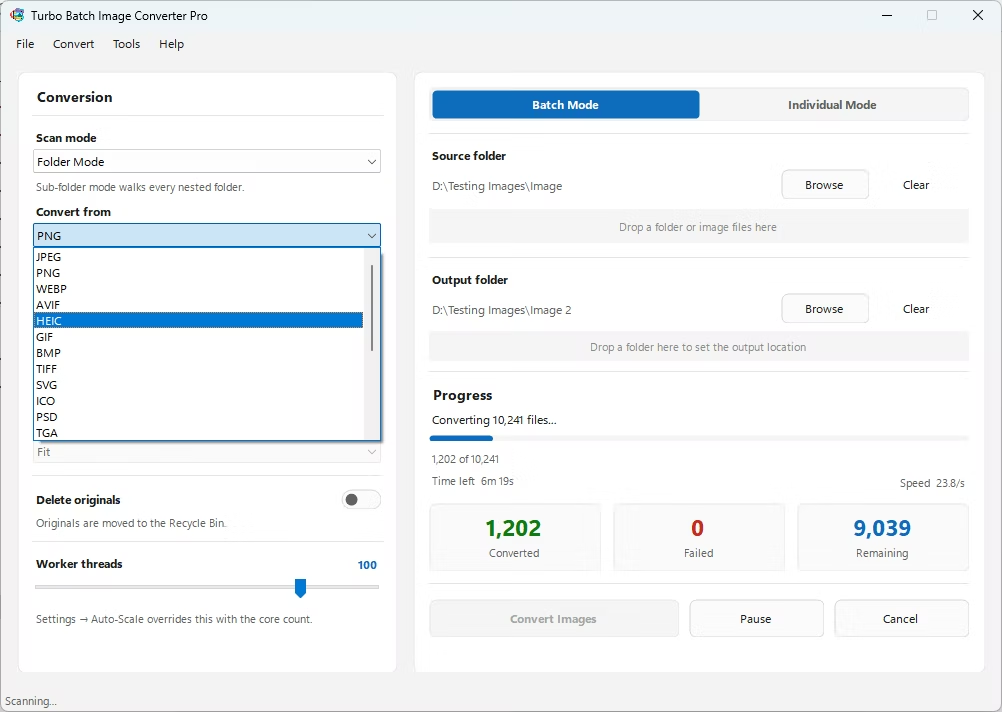
- Open Batch Mode and select your HEIC export or camera roll folder.
- Enable recursive scanning if photos are organized into date sub-folders.
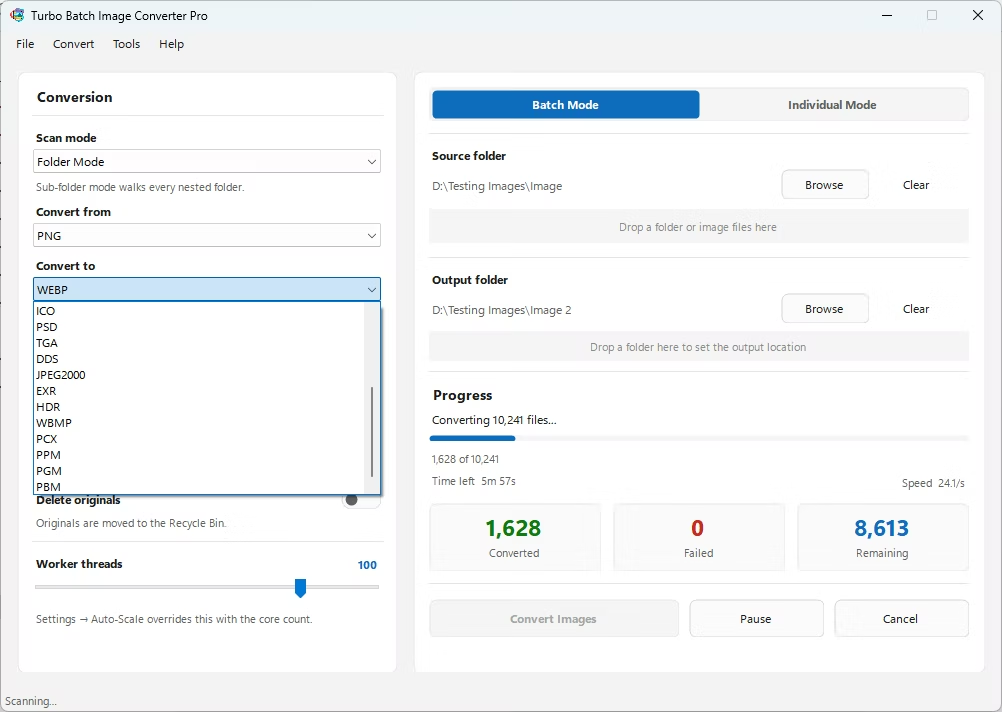
- Set the "To" format to JPG or PNG.
- Adjust output quality to match your needs.
- Click Convert to process the entire HEIC folder at once.
- Converts an entire iPhone or iPad HEIC export in one batch
- Handles date-organized sub-folders with recursive scanning
- Outputs to JPG, PNG, or any other supported format
- Runs fully offline, keeping personal photos private
- Multi-core engine scales up to 128 parallel workers for large libraries
Can this convert an entire iPhone photo library at once?
Yes, Batch Mode with recursive scanning can process an entire exported camera roll, including nested date sub-folders, in one run.
Do I need an internet connection to convert HEIC files?
No, conversion runs entirely on your own PC with no upload required.
Will converting HEIC to JPG lose photo quality?
You control the output quality with a compression slider, letting you keep quality loss minimal while gaining universal compatibility.
Ready to batch convert your HEIC photos, fully offline and in bulk?