When you have a whole folder of JPEG images that need to become PNG — for transparency support, lossless quality, or compatibility with a tool that expects PNG — converting each file individually wastes time you don't need to spend. A proper batch converter lets you select an entire group of JPEG files and turn them all into PNG in a single action.
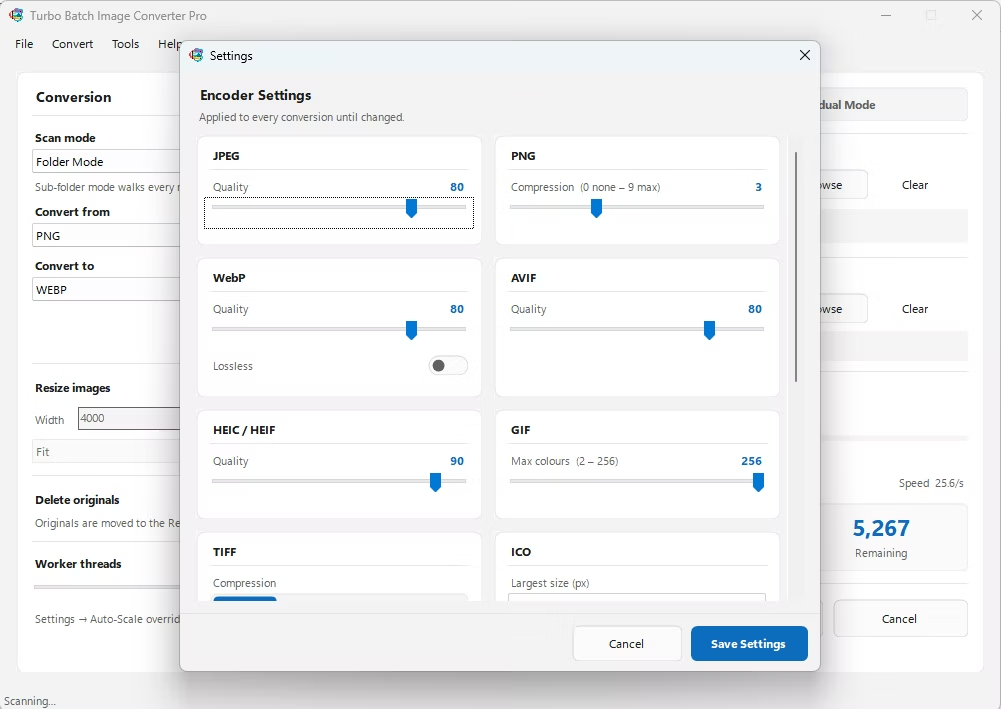
The key to a true "one click" workflow is a tool that remembers your format settings and applies them to every file in the batch automatically, rather than asking you to configure each conversion separately. That's exactly how a dedicated batch image converter is designed to work.
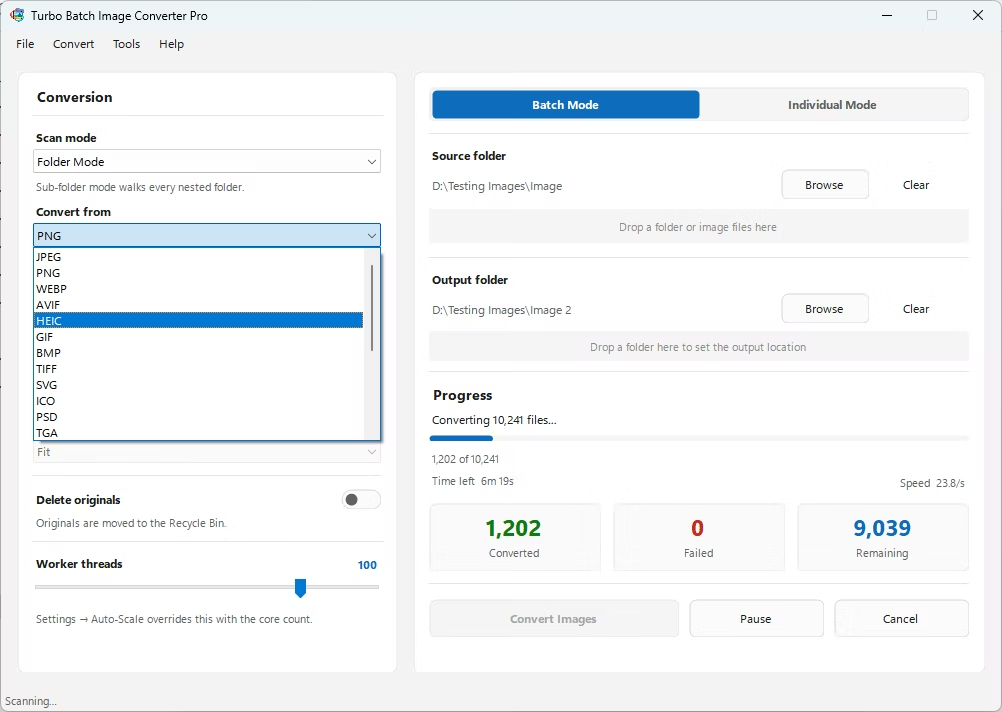
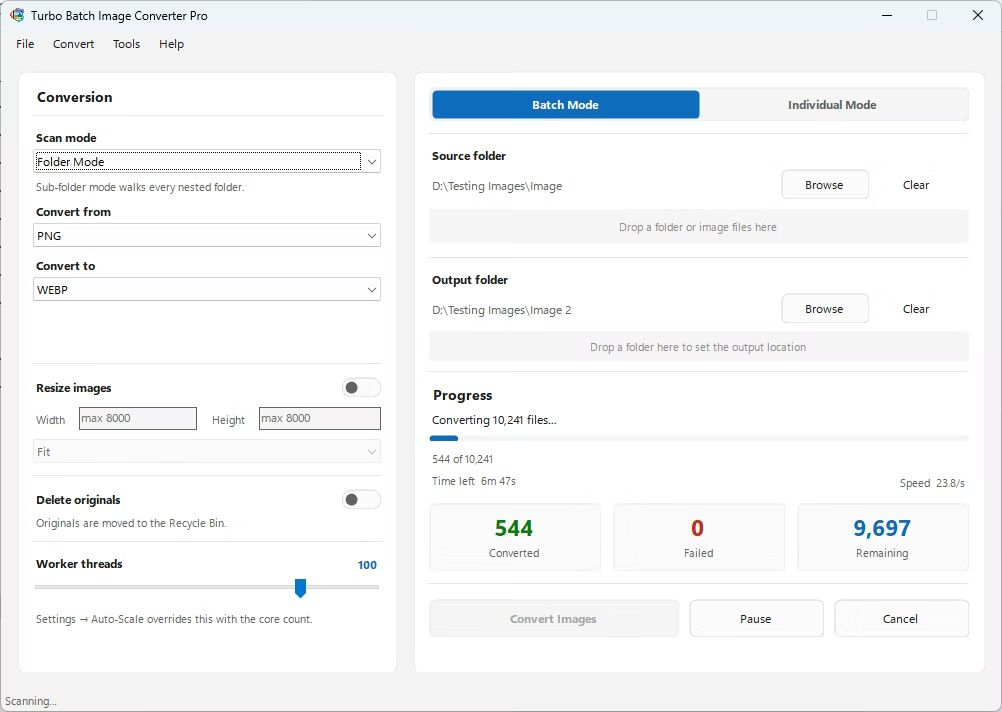
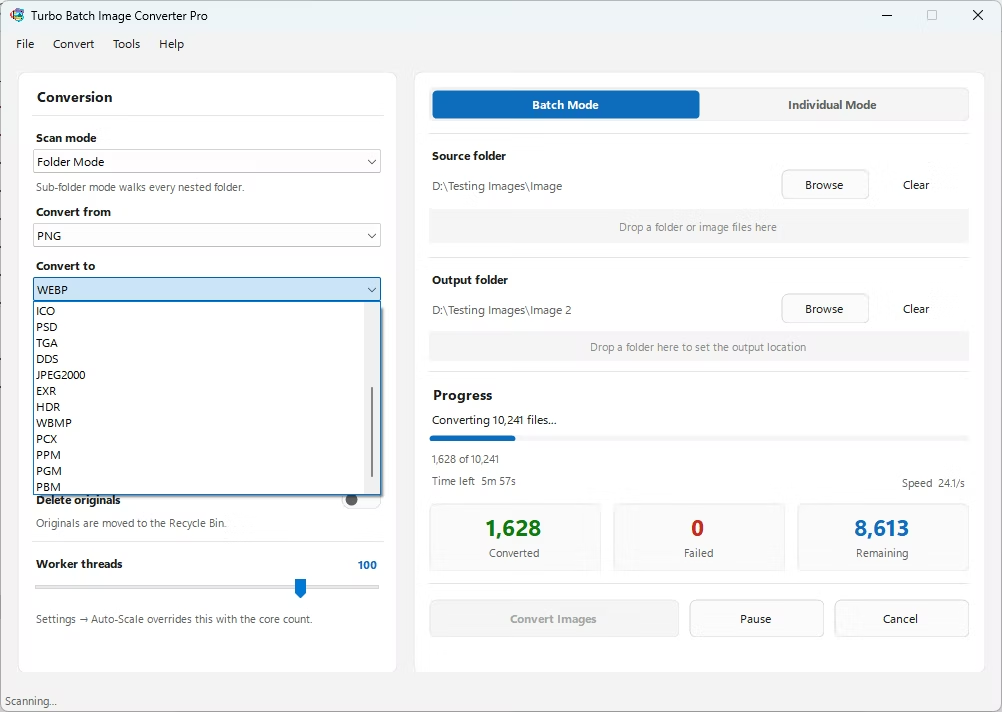
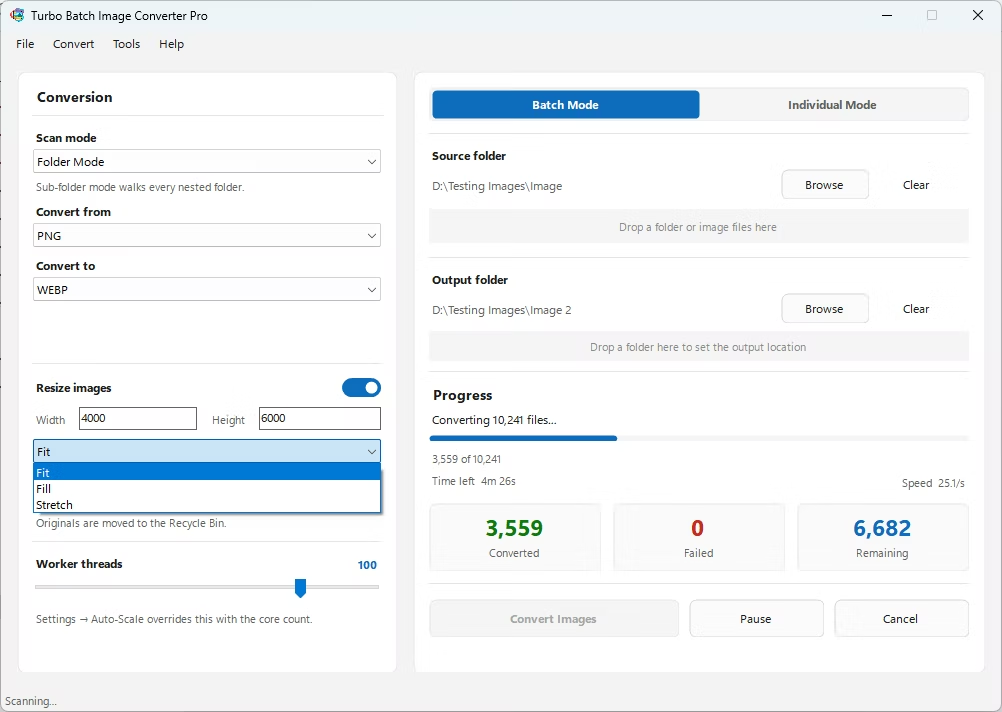
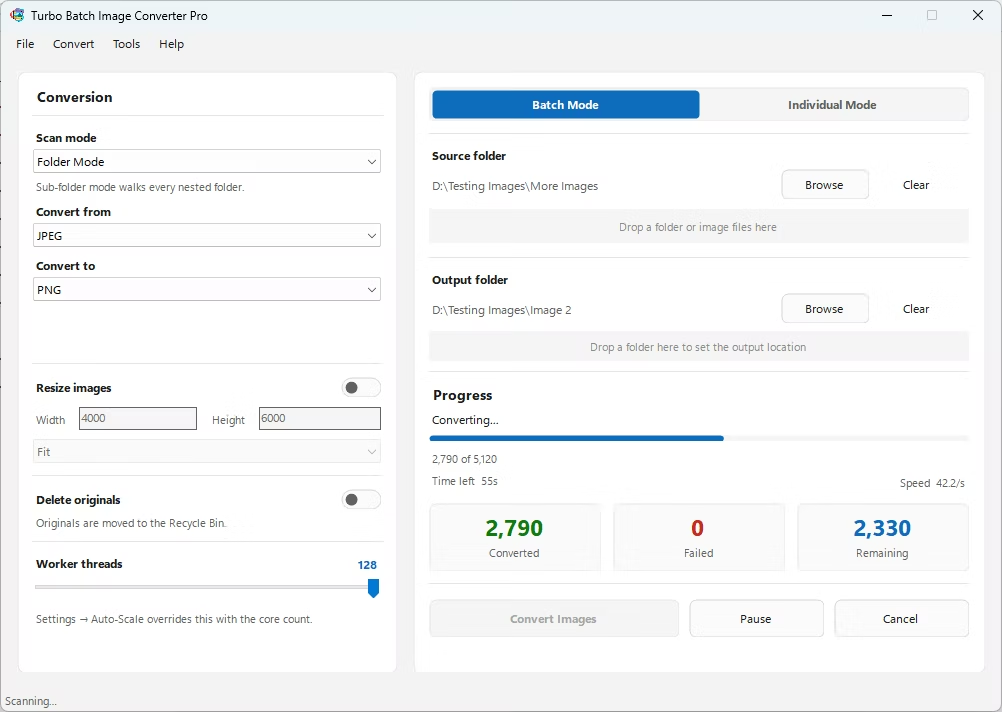
- Install Turbo Batch Image Converter Pro on your Windows PC.
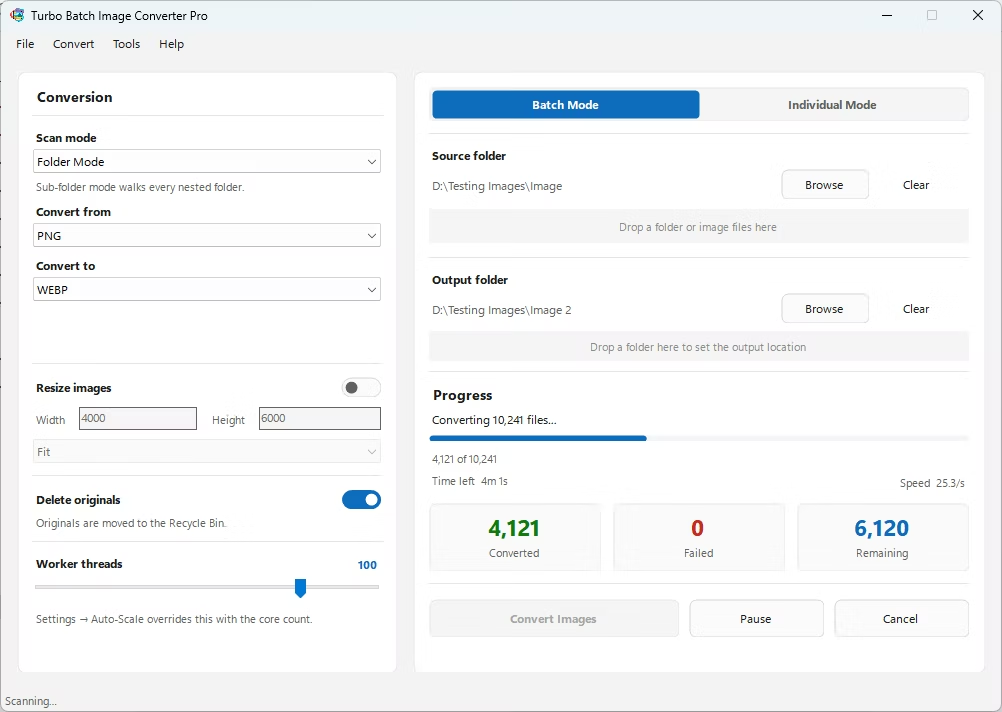
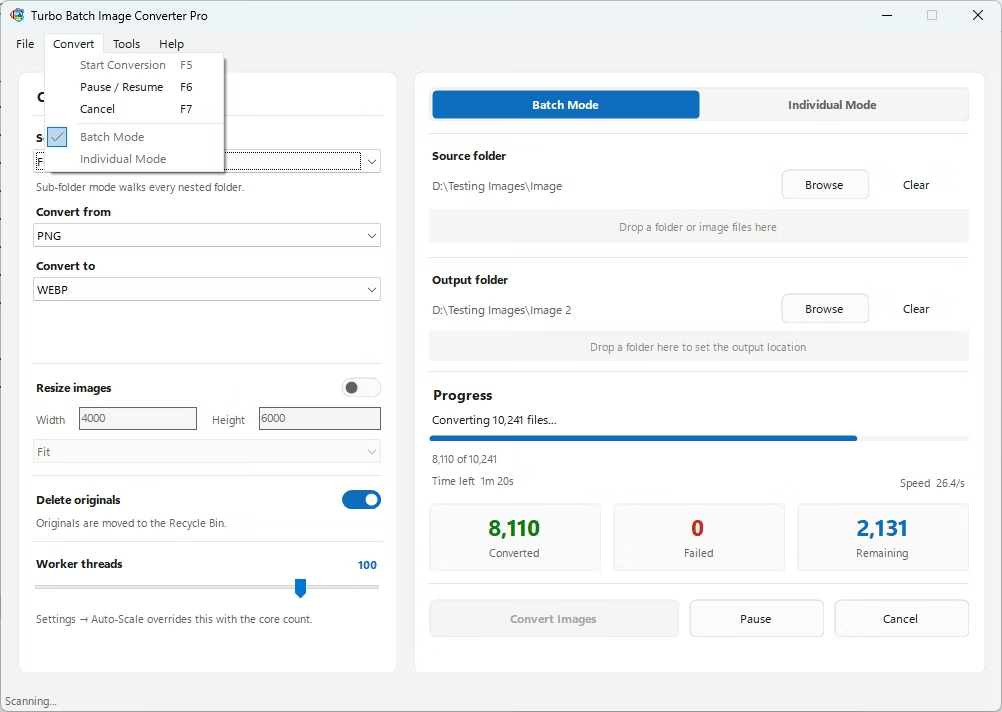
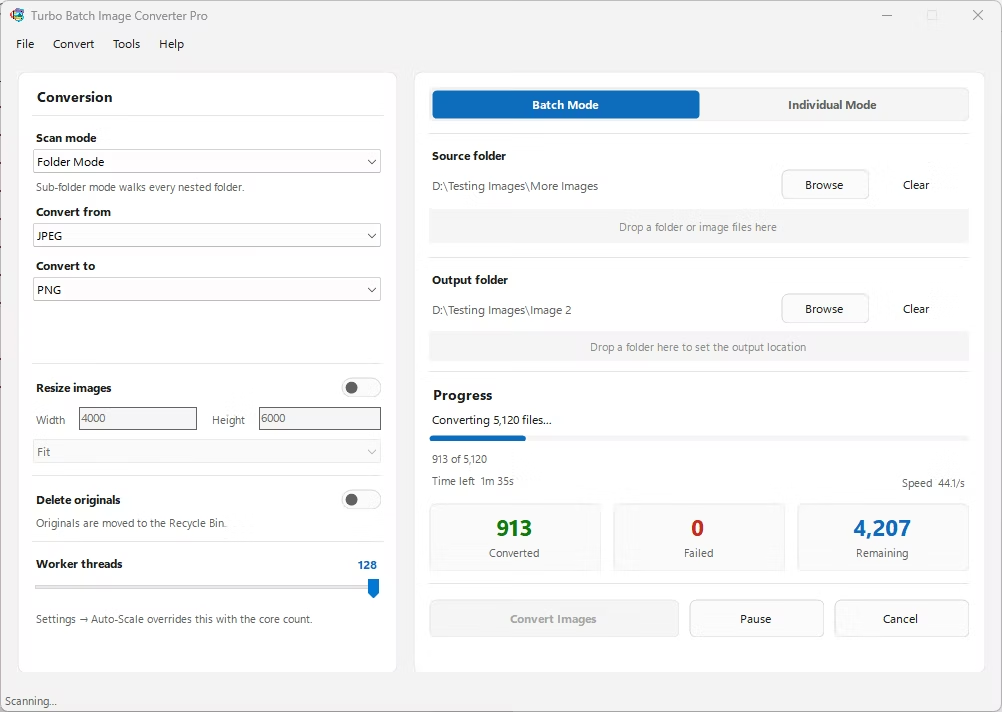
- Open the app and select Batch Mode, which is built for converting groups of files at once.
- Drag your group of JPEG images — or the folder containing them — into the app window.
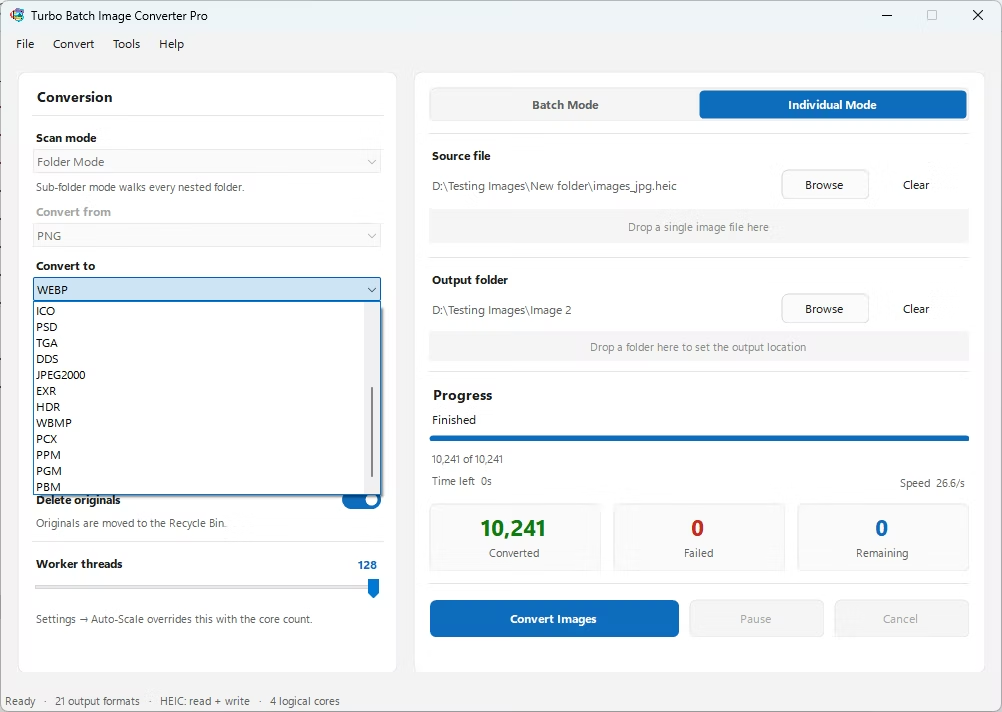
- Set the input format to JPEG and the output format to PNG. This setting applies to every file in the group automatically.
- Review the file list to confirm everything you want included is selected.
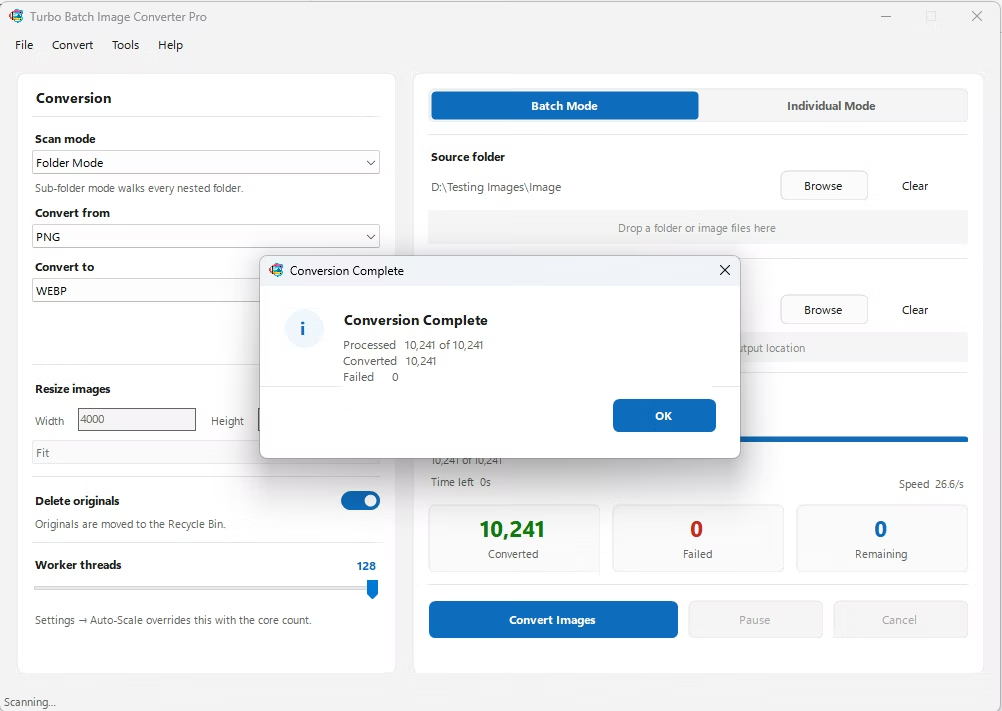
- Click Convert. The entire group is processed in one action, with all PNG files written to your chosen output folder.
- One format setting applies to the entire selected group automatically
- Drag-and-drop support for quickly loading a whole group of images
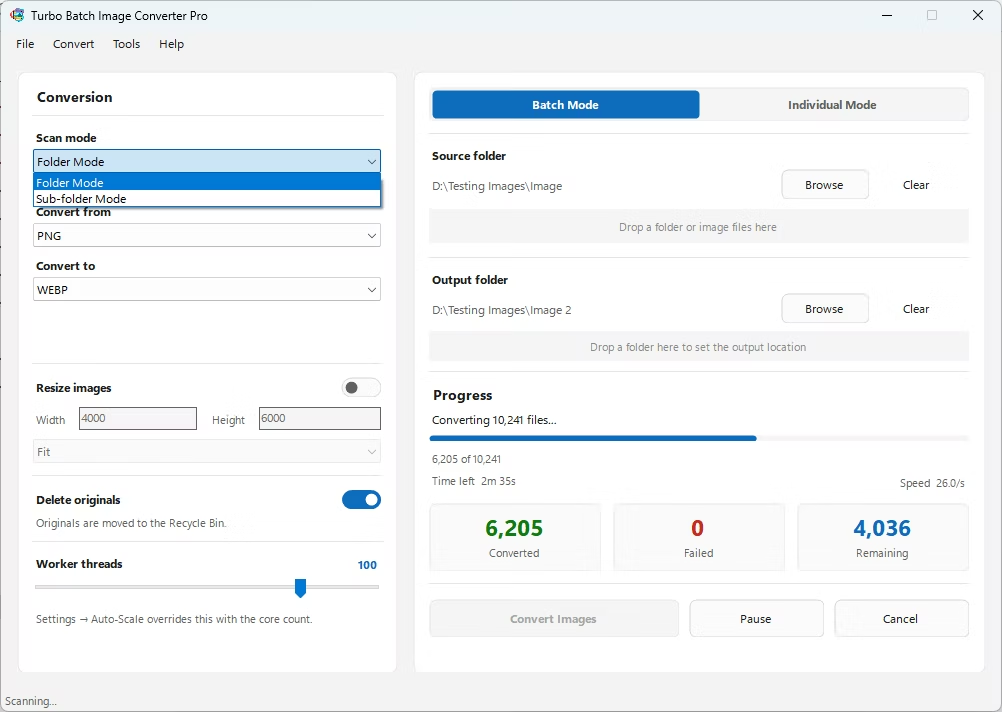
- Recursive sub-folder scanning if your group spans multiple folders
- Multi-core processing converts the whole group simultaneously, not one file at a time
- Fully offline — no upload step slowing down your one-click conversion
- Optional resizing applied to the entire group during the same step
How large of a group can I convert at once?
There's no artificial limit — the app is designed to handle anywhere from a handful of images to thousands in a single batch run.
Do I need to configure settings for each file individually?
No. You set the input and output format once, and that setting is applied automatically to every file in the group you've selected.
Can I mix file types in the same group?
The app is built around a defined input format per batch, so for the cleanest results, group files of the same input type together before converting.
Ready to convert your images offline, in bulk, with full privacy?