An Easy, Affordable Batch Image Converter
Not every conversion job needs a subscription or a heavyweight professional suite. Sometimes you just need an easy, affordable way to convert a folder of images without a learning curve or recurring costs.
Turbo Batch Image Converter Lite is a one-time purchase, with no subscription and no watermarks, that converts multiple images easily between JPEG, PNG, WebP, GIF, BMP, TIFF, SVG and ICO, entirely on your own PC.
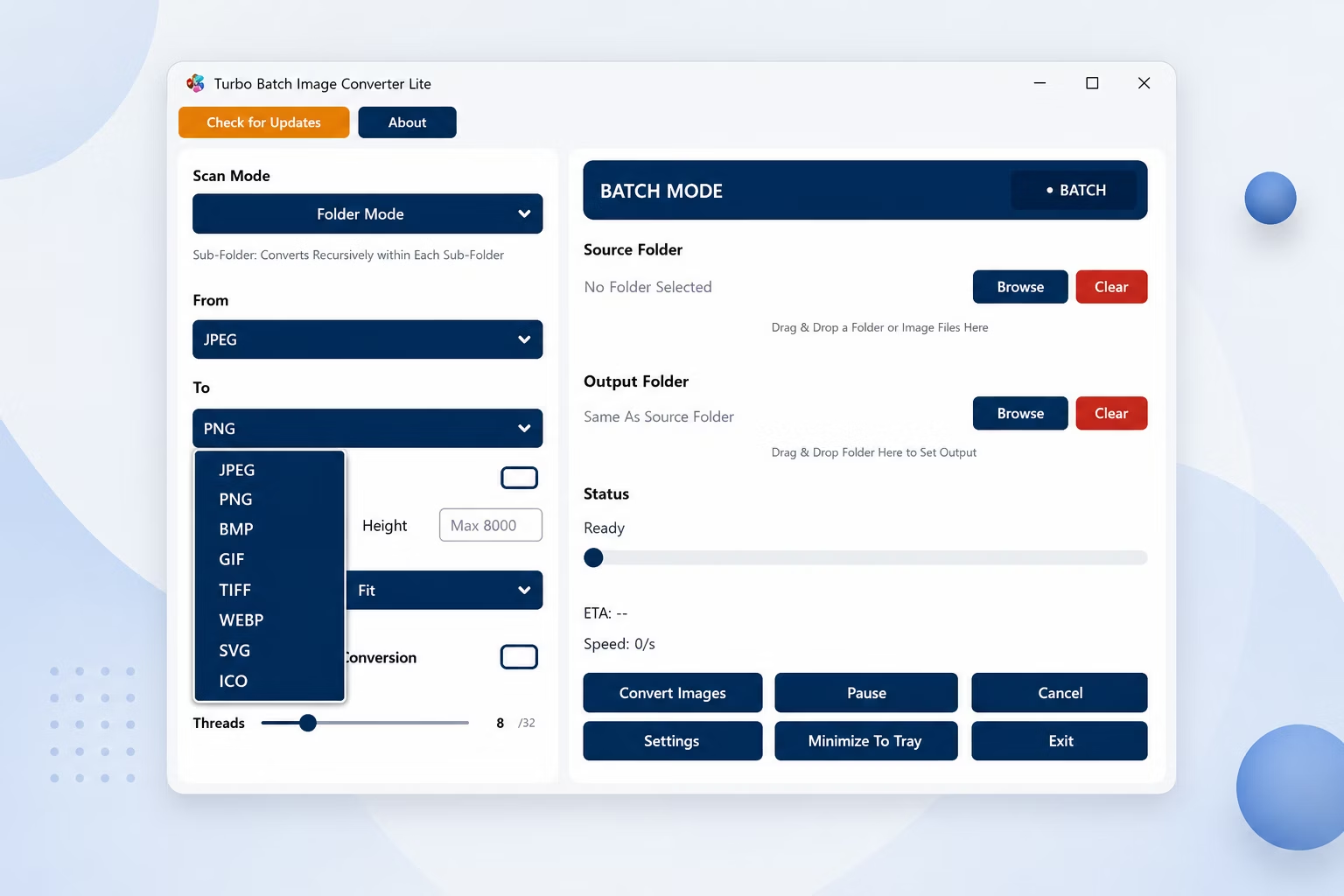
App Screenshots
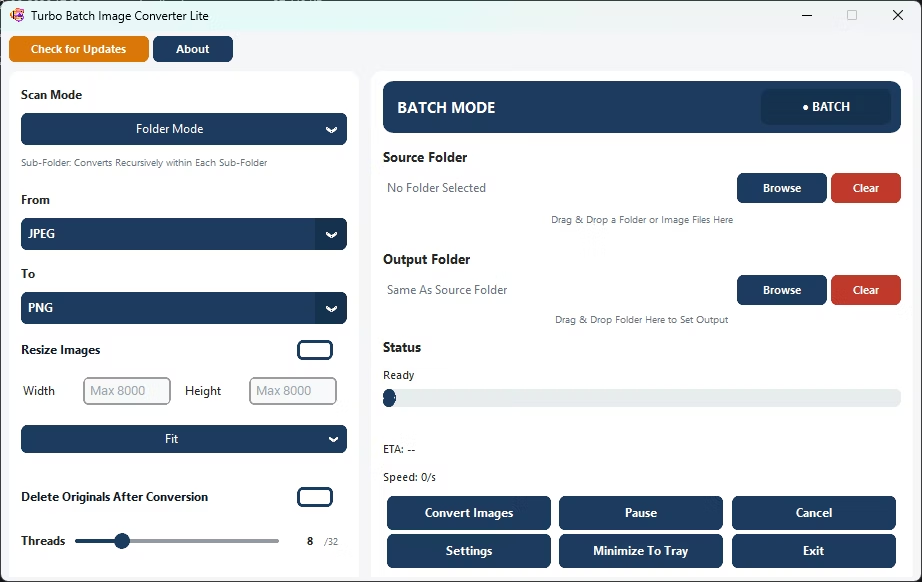
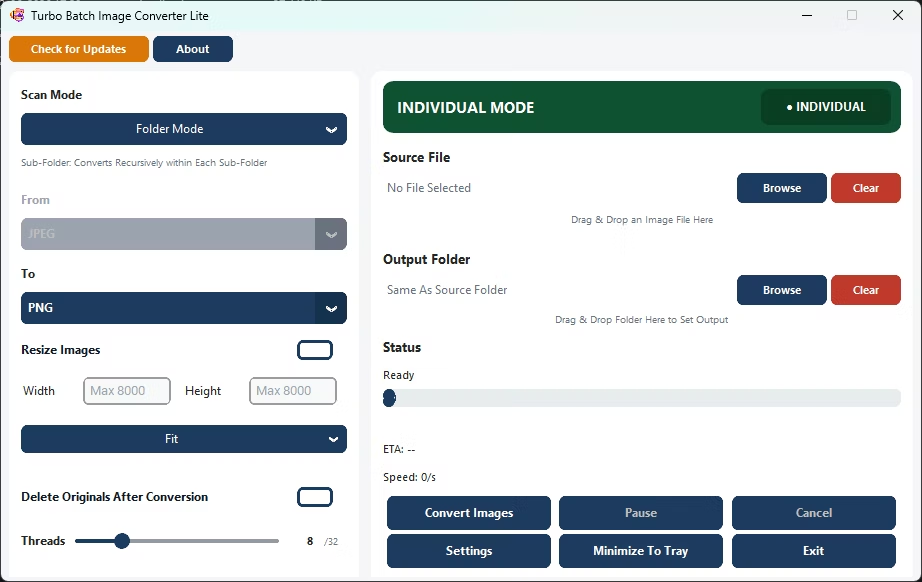
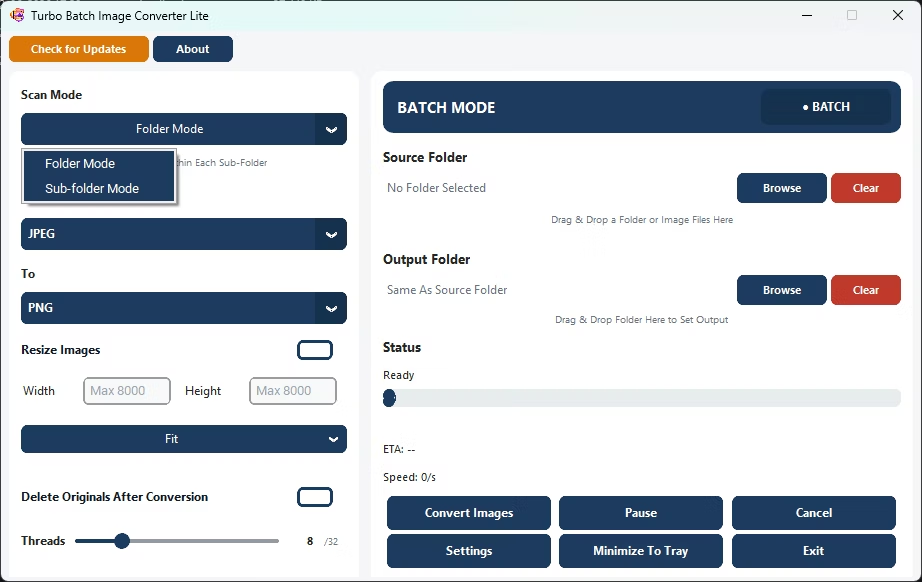
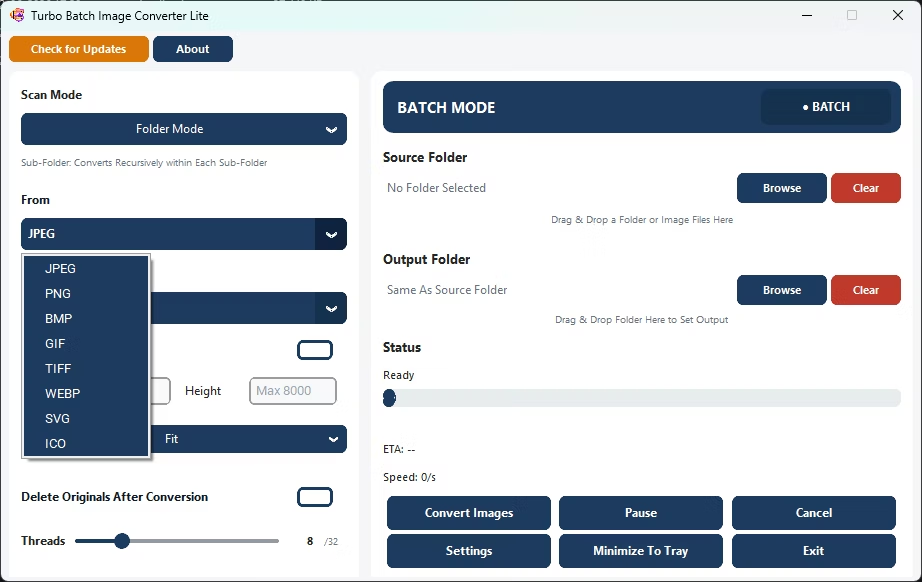
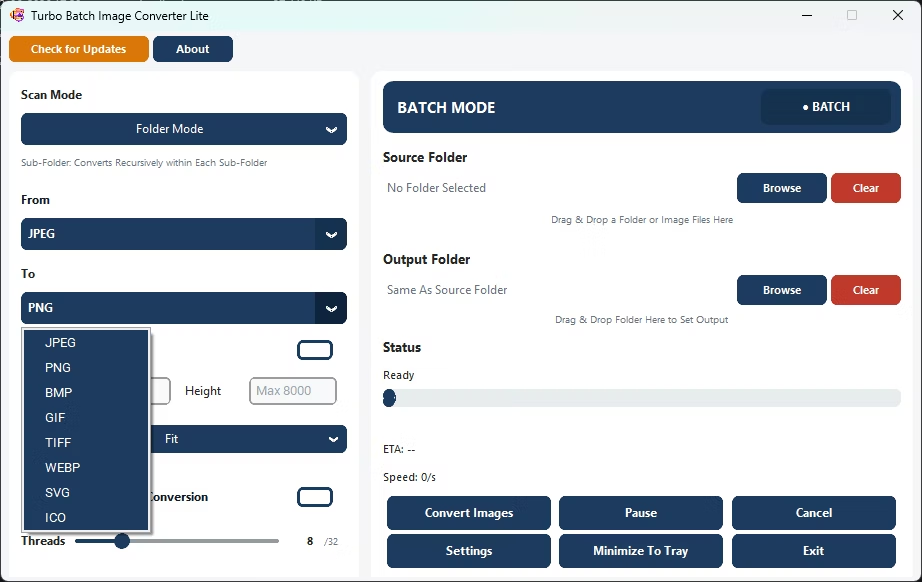
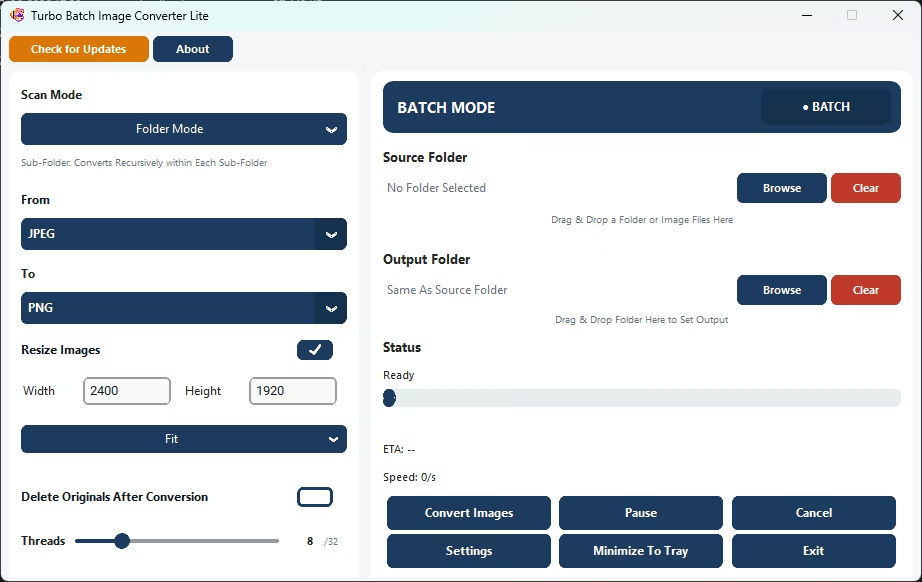
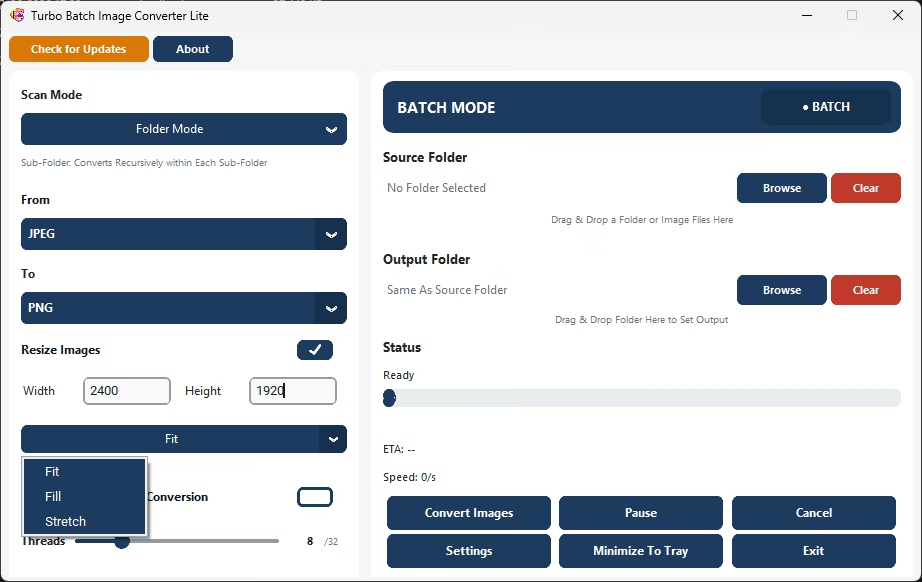
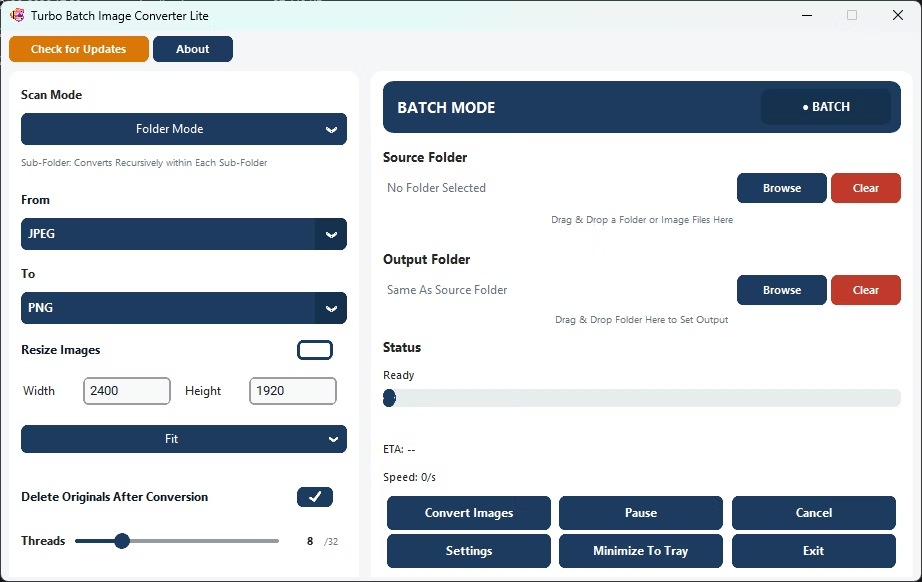
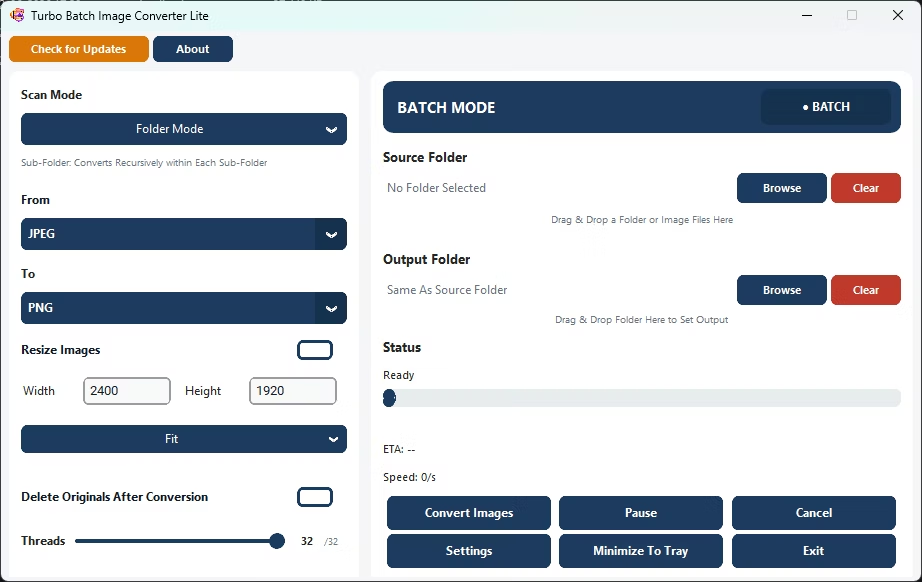
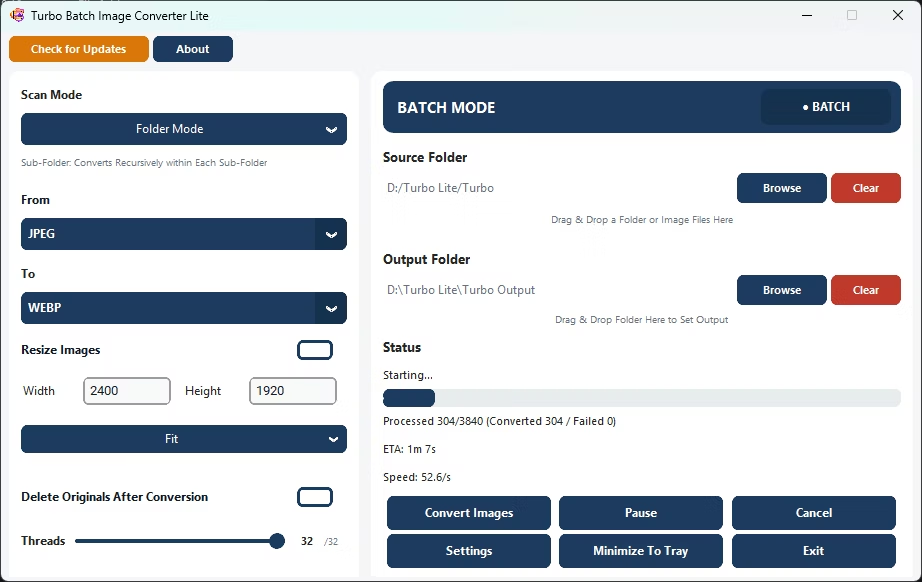
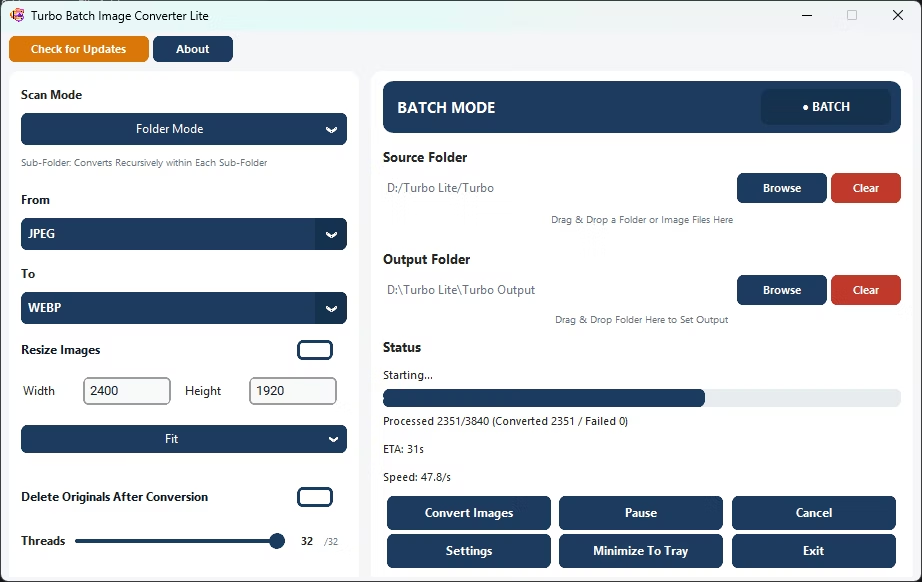
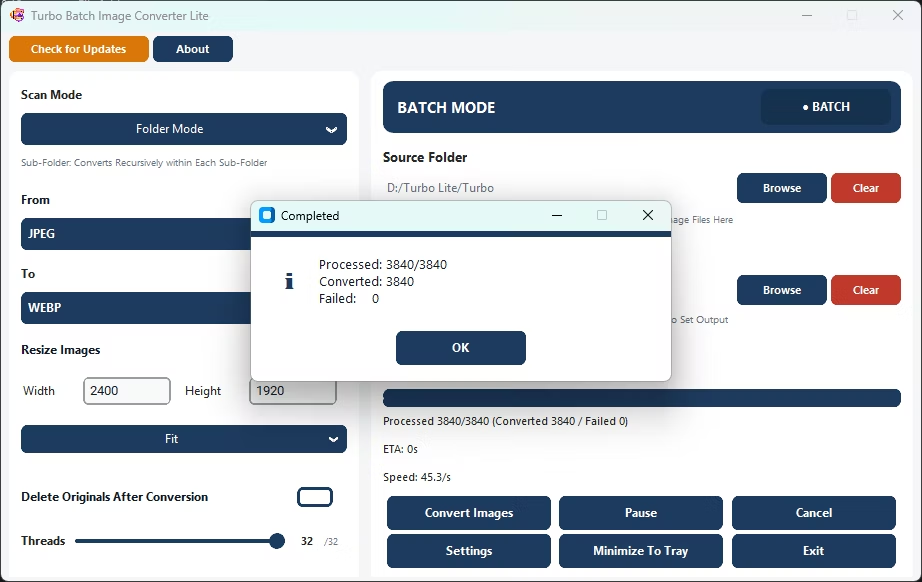
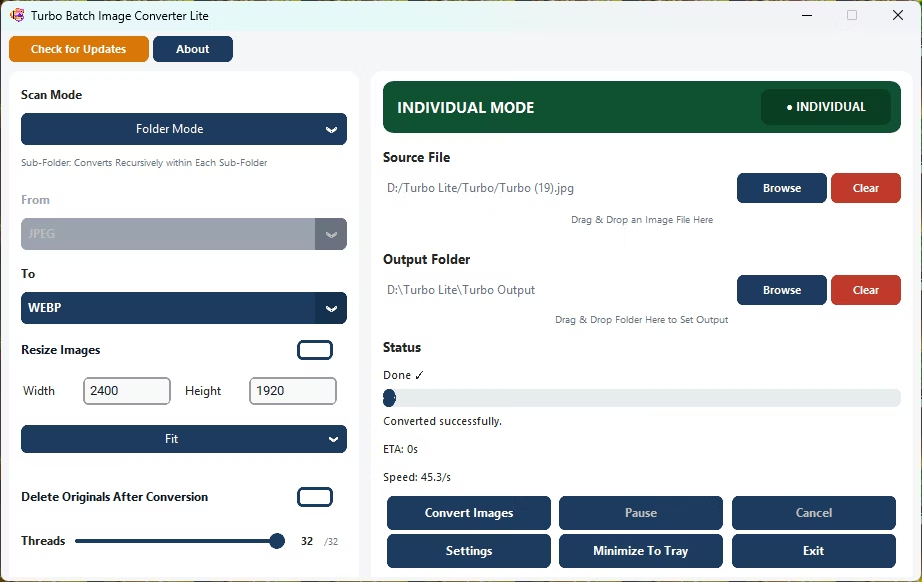
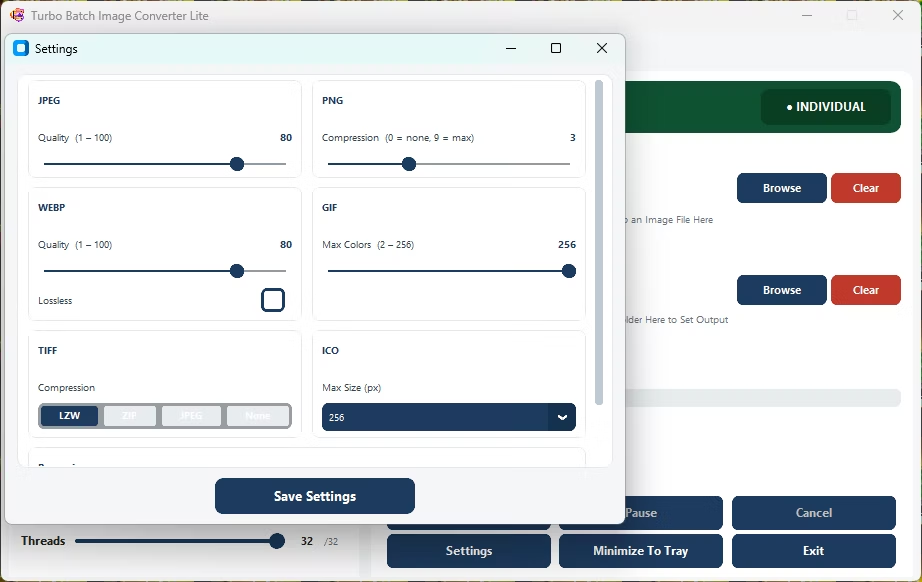
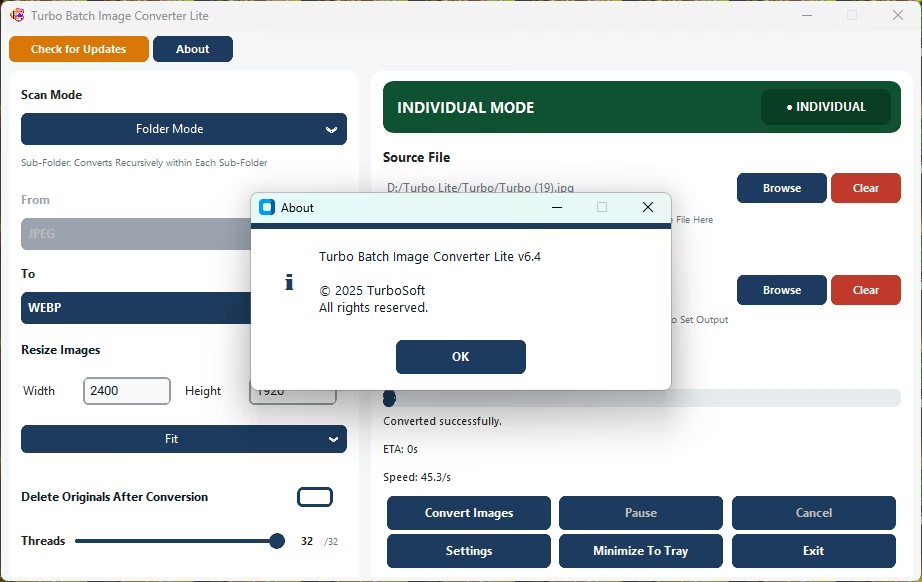
How to Easily Convert Multiple Images
- Install Turbo Batch Image Converter Lite on your Windows PC.
- Open Batch Mode and select your image folder.
- Choose your target format from the simple dropdown menu.
- Adjust quality settings if you want more control, or leave the defaults.
- Click Convert.
- Find your converted images in the output folder.
Why Use This Easy Batch Image Converter
- One-time purchase, no subscription required
- No watermarks added to converted images
- Simple interface with sensible defaults for quick conversions
- Covers the 8 formats most people actually use
- Runs fully offline with no upload limits
Frequently Asked Questions
Is this a subscription or a one-time purchase?
It's a one-time purchase; there's no recurring subscription fee.
Are there watermarks on the converted images?
No, converted files have no watermarks.
Is it easy to use for someone who isn't technical?
Yes, the interface uses simple dropdowns and sensible defaults, so most users can convert a folder without any special setup.
Ready to convert multiple images easily, with a simple one-time purchase?