Cloud-based converters queue files one at a time and often cap how much you can upload, which turns a large job into a slow, tedious task. A bulk image converter that runs locally and processes files in parallel finishes the same job far faster.
Turbo Batch Image Converter Lite uses a multi-threaded engine that scales up to 32 parallel workers, so a folder of images converts in minutes rather than hours, entirely on your own Windows PC with no uploads or watermarks.
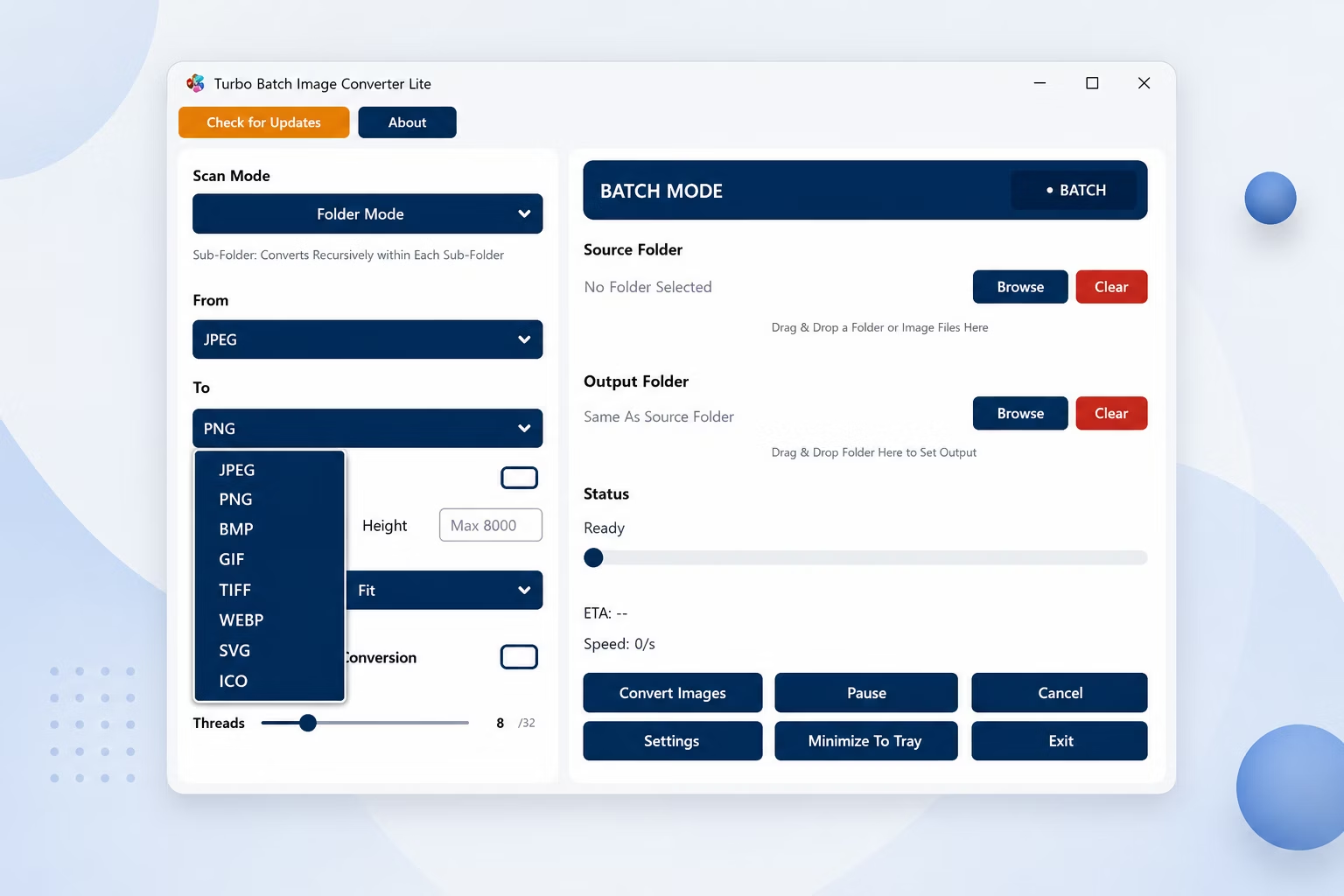
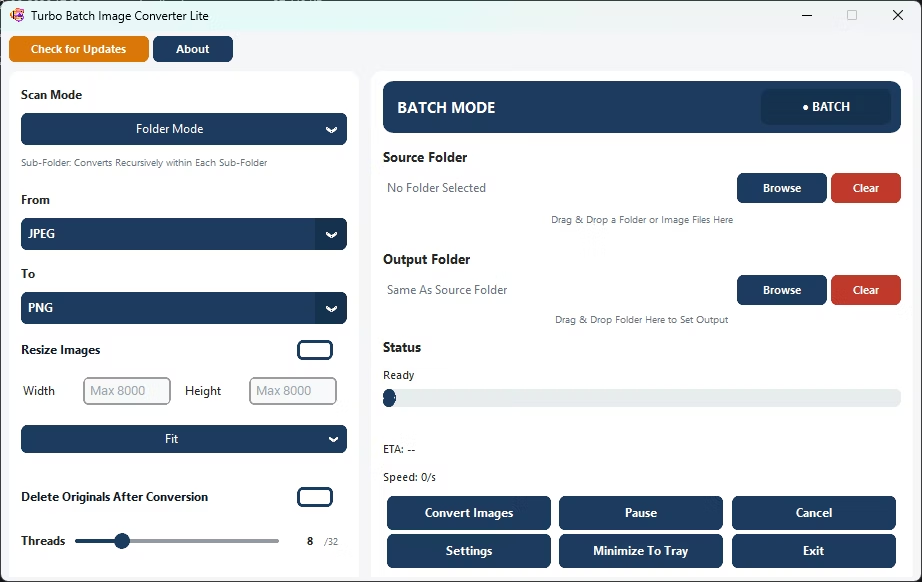
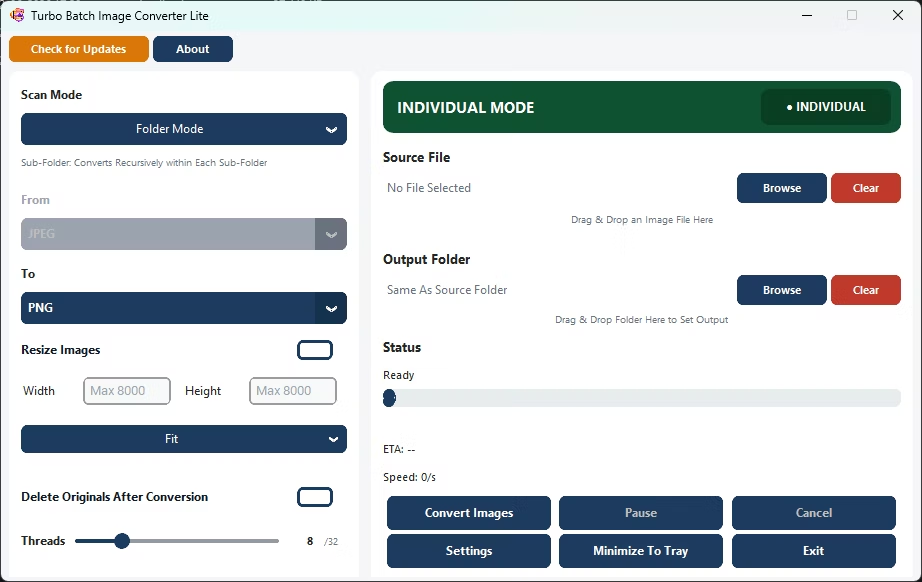
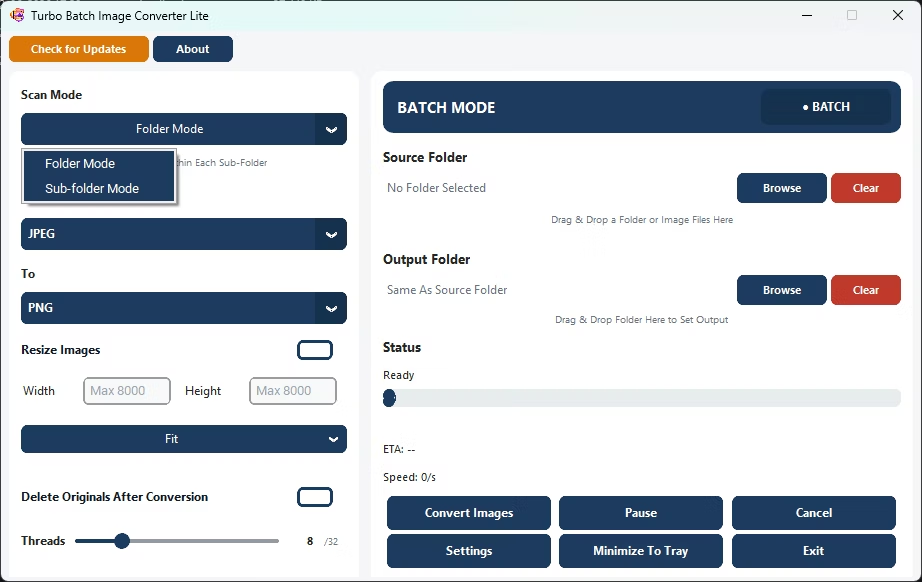
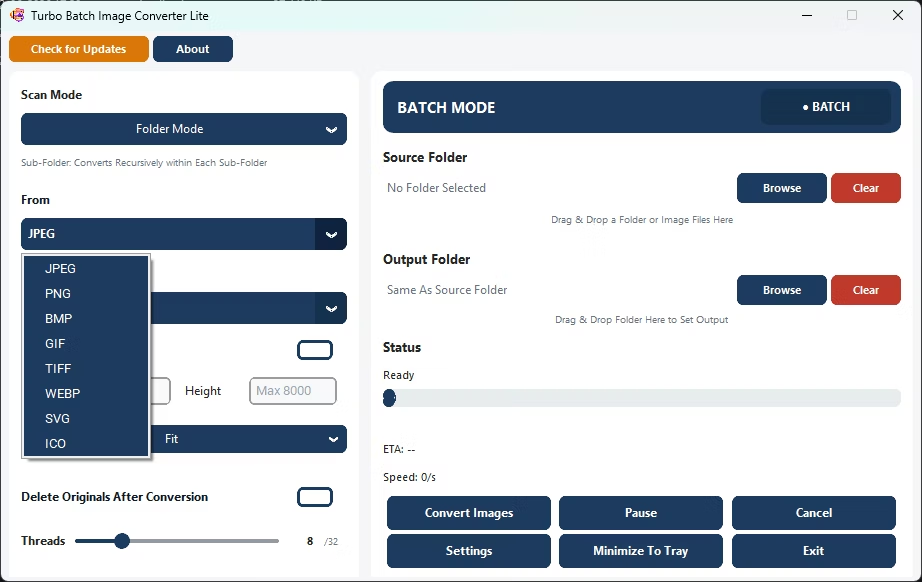
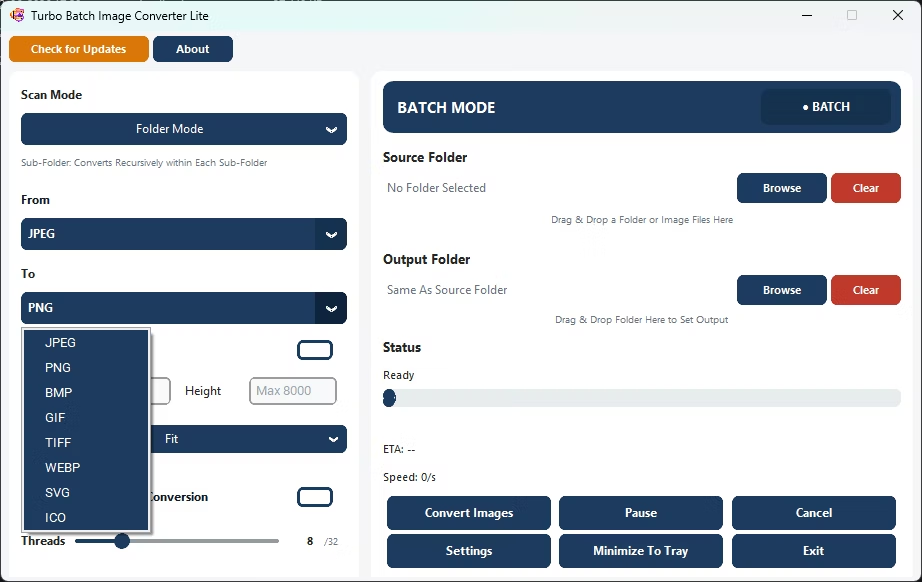
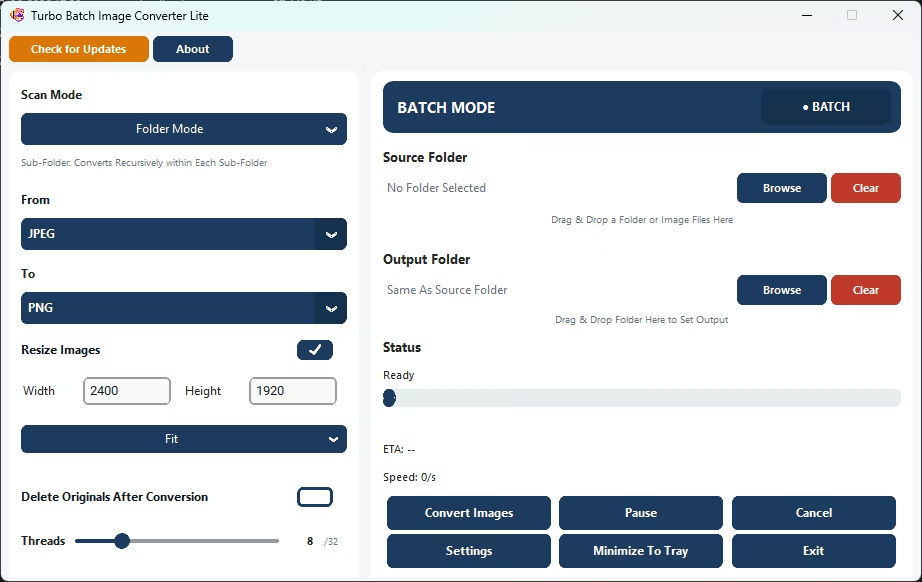
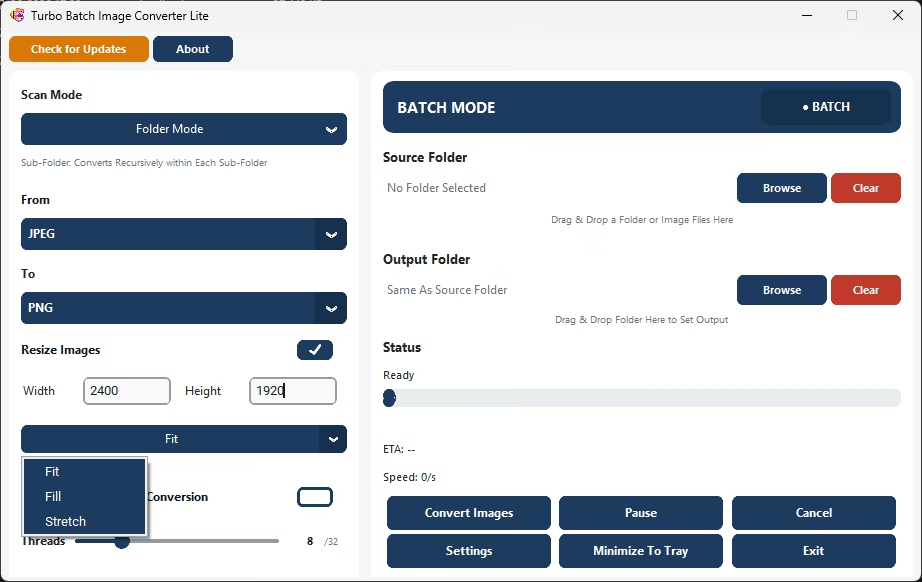
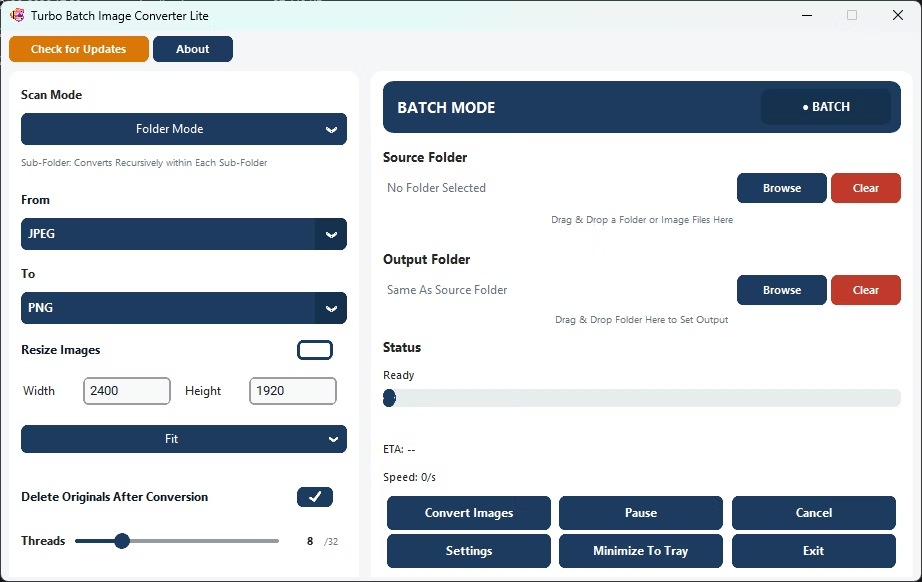
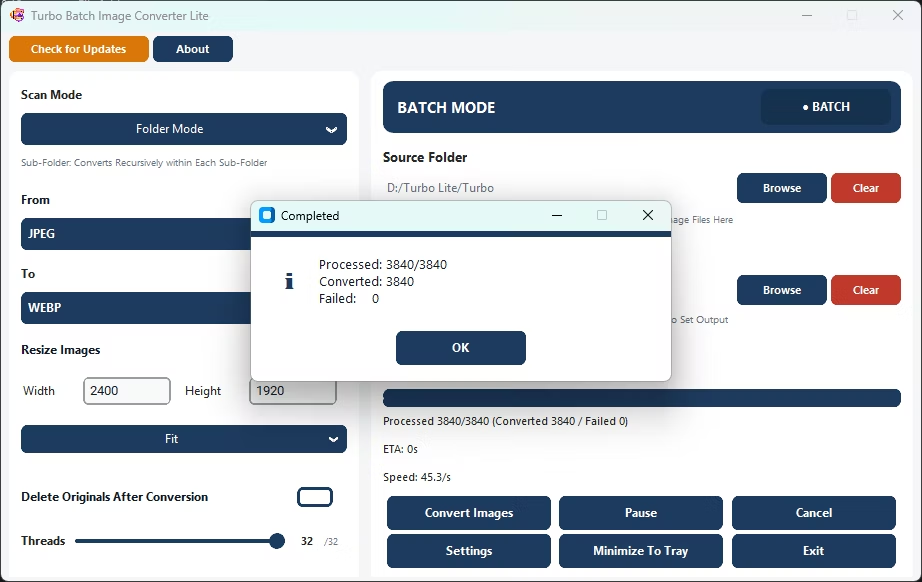
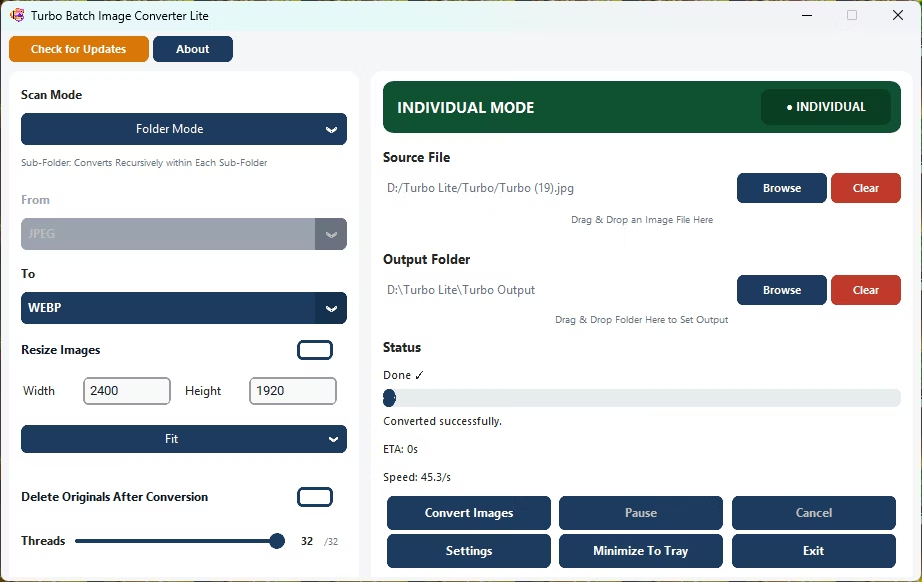
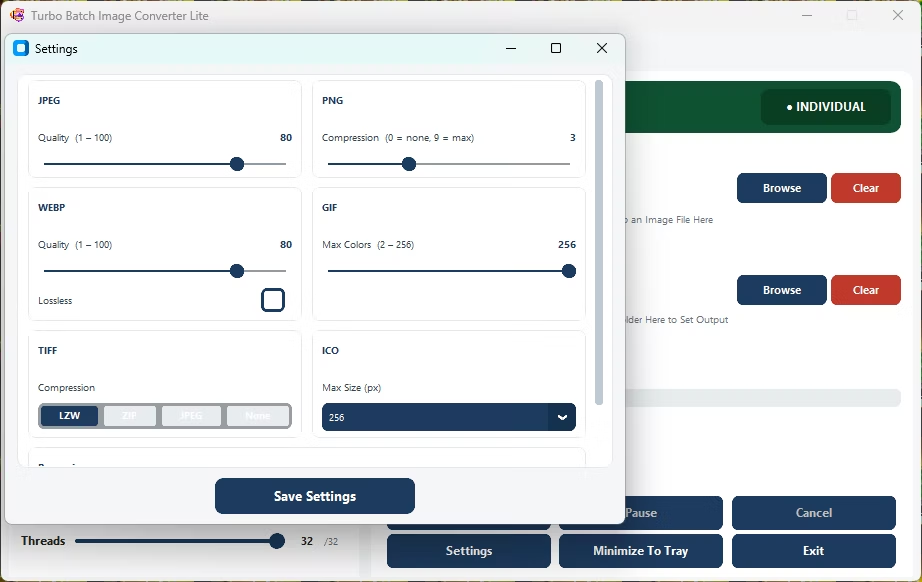
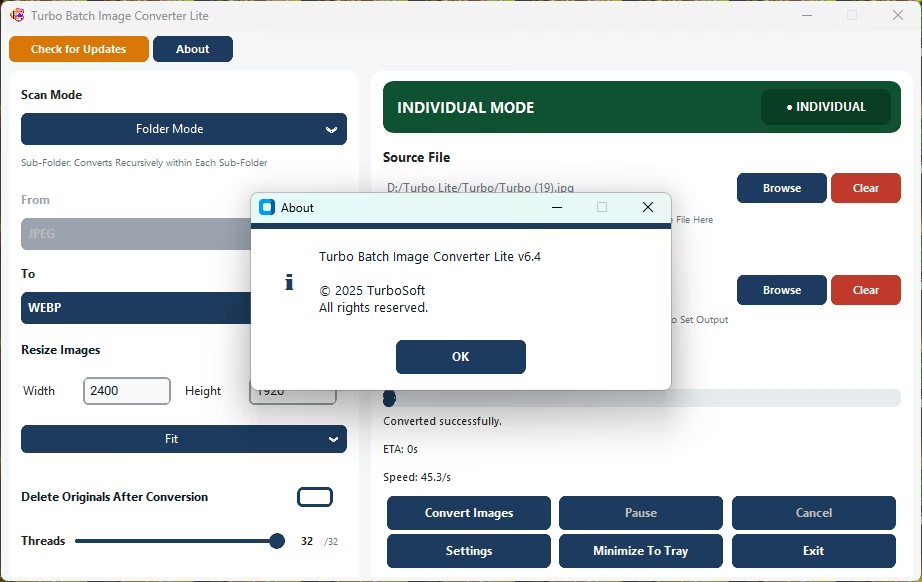
- Install Turbo Batch Image Converter Lite on your Windows PC.
- Open Batch Mode and point it at your image folder.
- Enable recursive scanning if your images are spread across sub-folders.
- Pick your output format from the 8 supported targets.
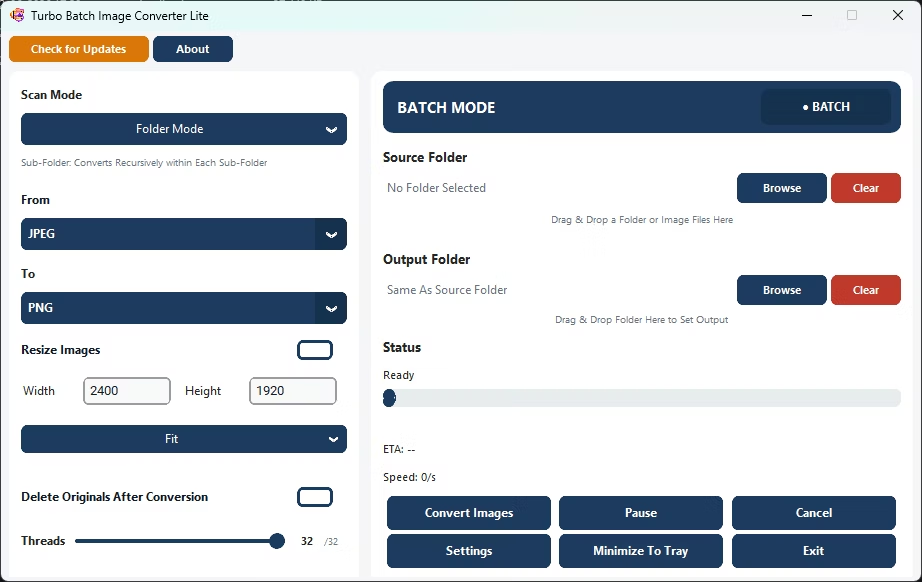
- Set the worker count under Settings to match your CPU, up to 32 parallel workers.
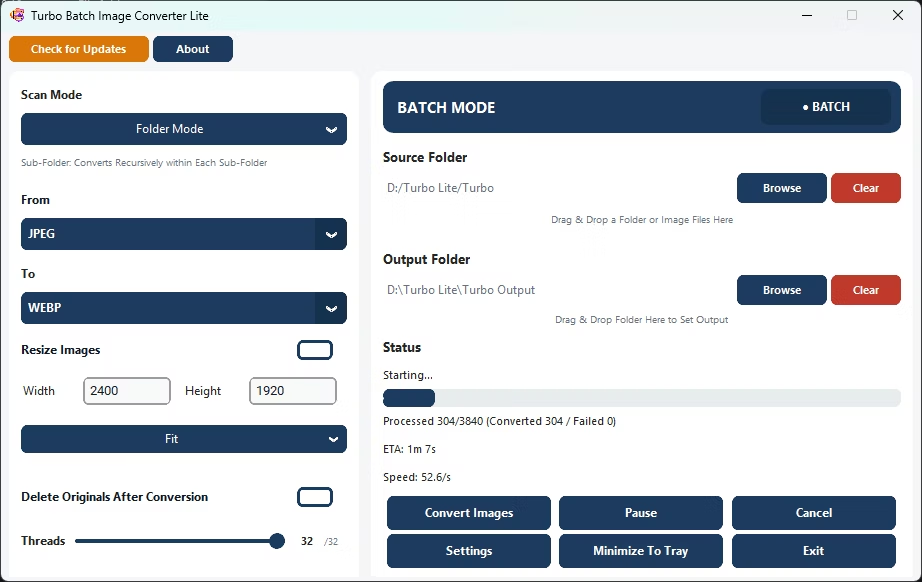
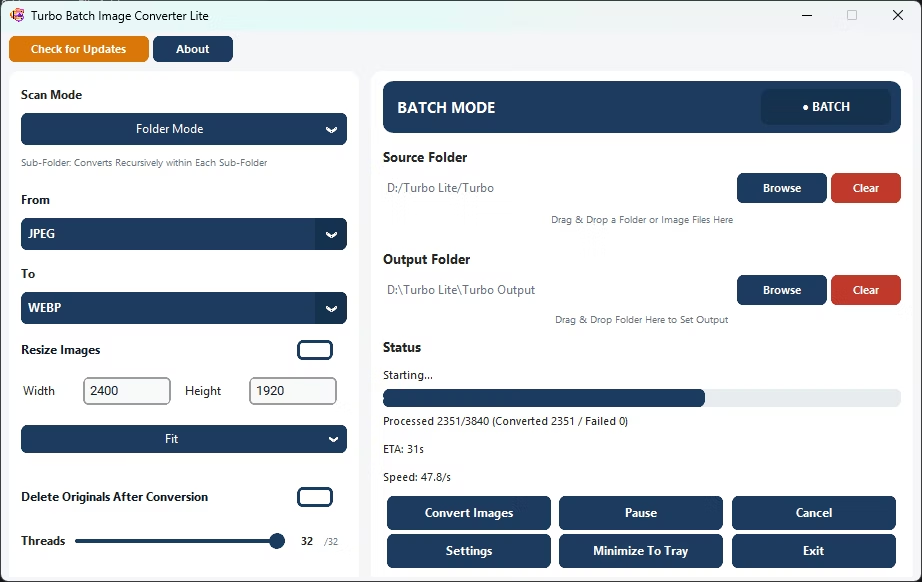
- Click Convert and let the app process the entire batch in one run.
- Multi-core engine scales up to 32 parallel workers
- Live dashboard shows conversion speed, progress, and time remaining
- No upload limits, watermarks, or per-file caps
- Covers all 8 everyday formats in one lightweight app
- Safe cancel support if you need to stop a batch midway
How fast is bulk conversion?
Speed depends on your CPU and chosen formats, but multi-core processing across many parallel workers converts large batches far faster than one file at a time.
Are there any watermarks on converted images?
No, output files have no watermarks added.
Is there a limit on how many images I can convert?
No artificial limit is enforced; the practical limit is your available disk space and processing time.
Ready to convert your images in bulk, without uploading a single file?