TIFF is the standard format for scanners and archives because it stores images with little or no compression, but that also means TIFF files are large and aren't practical to share or view on the web without converting them first.
Turbo Batch Image Converter Lite batch converts folders of scanned TIFF files into compact JPG or PNG for sharing, or converts other formats into TIFF for archival storage, all processed locally in one batch run.
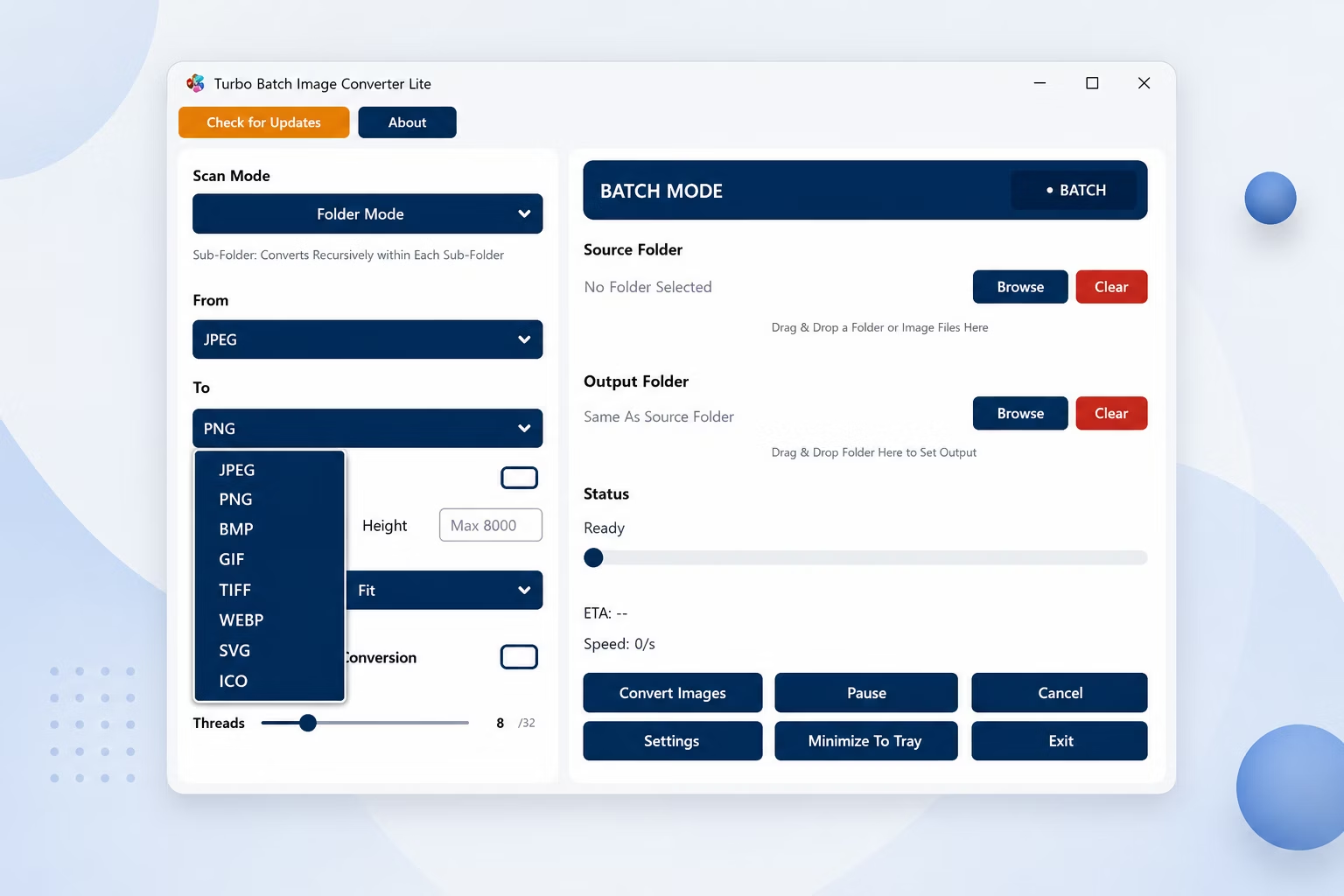
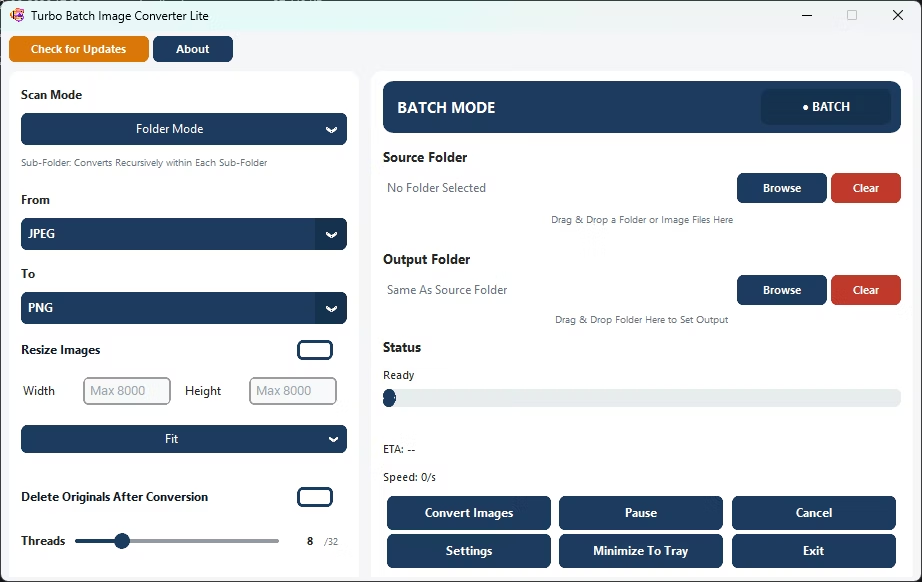
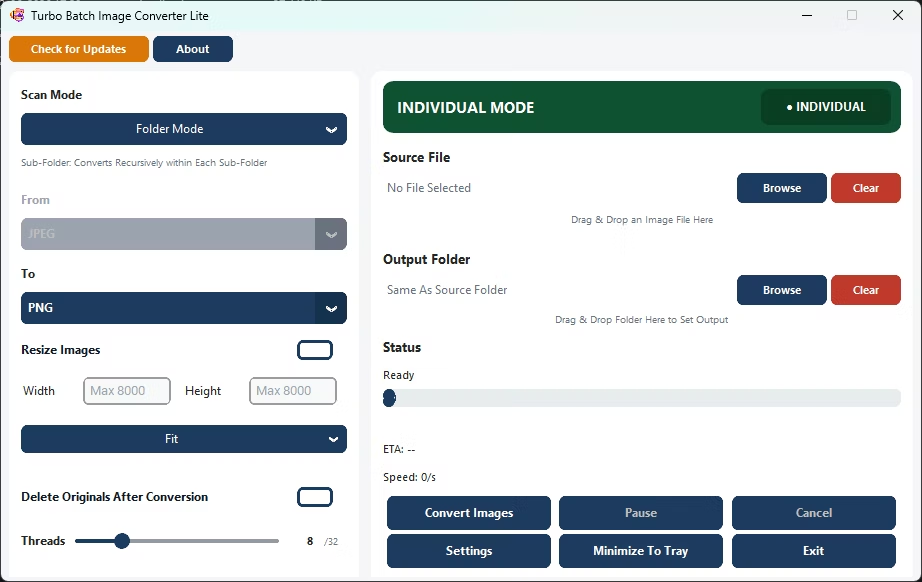
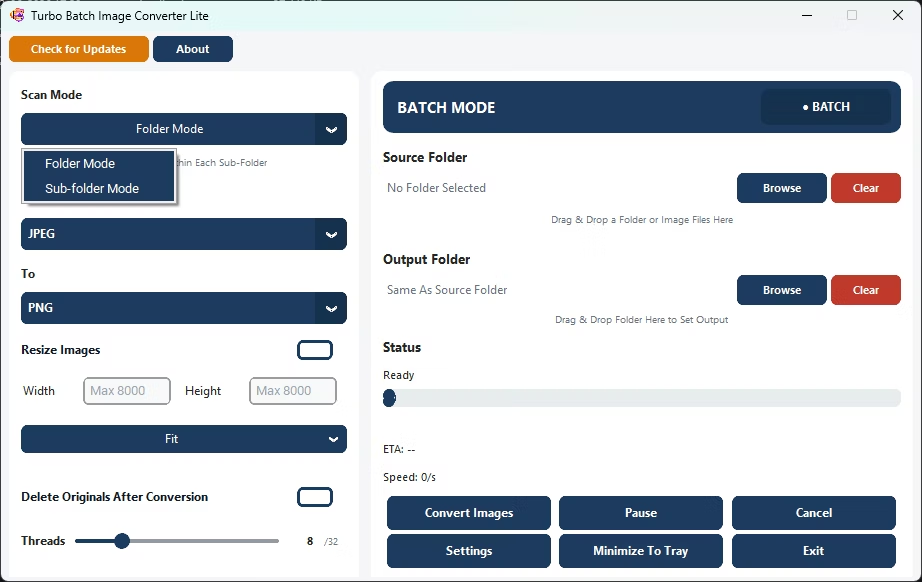
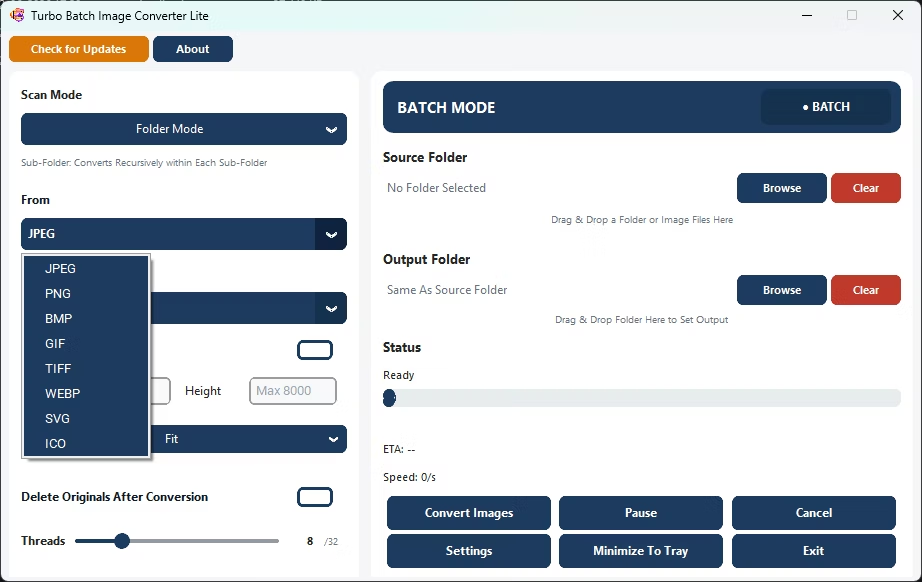
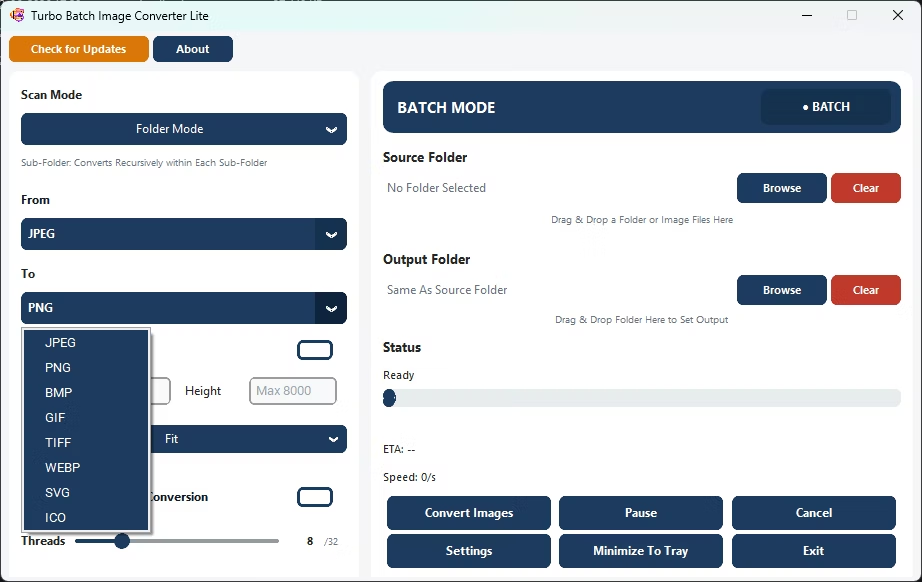
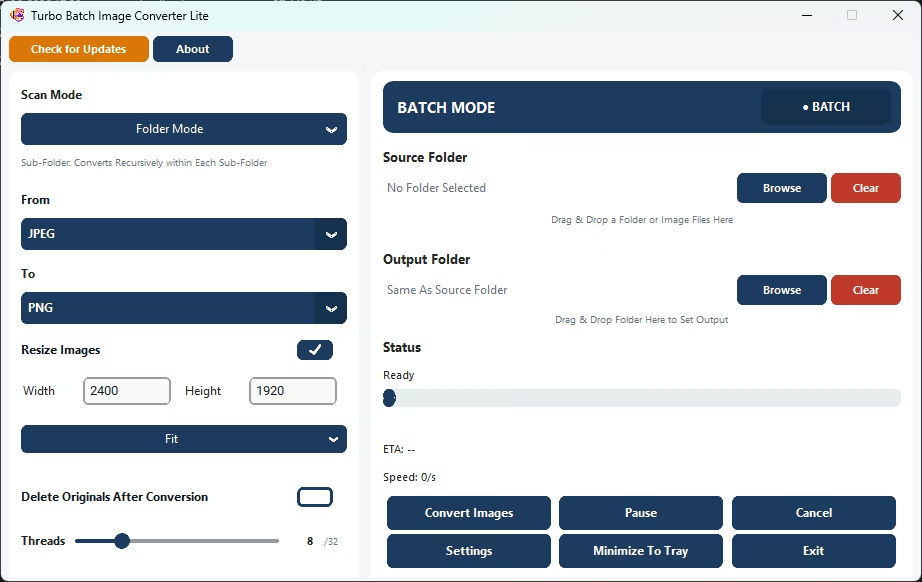
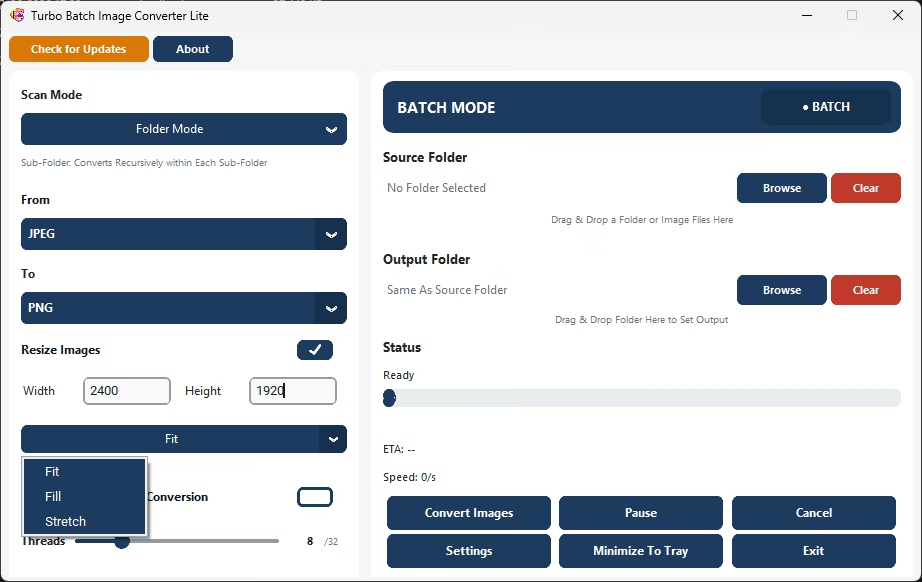
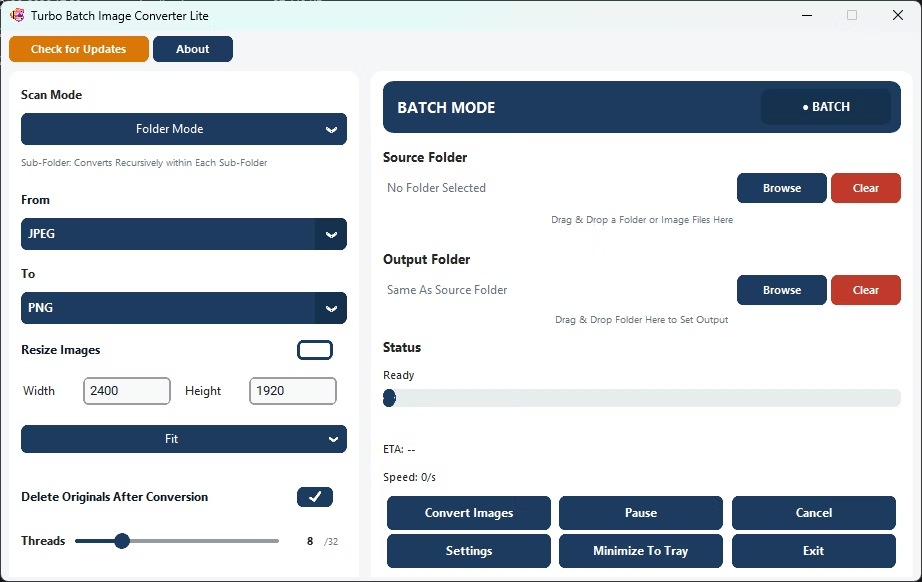
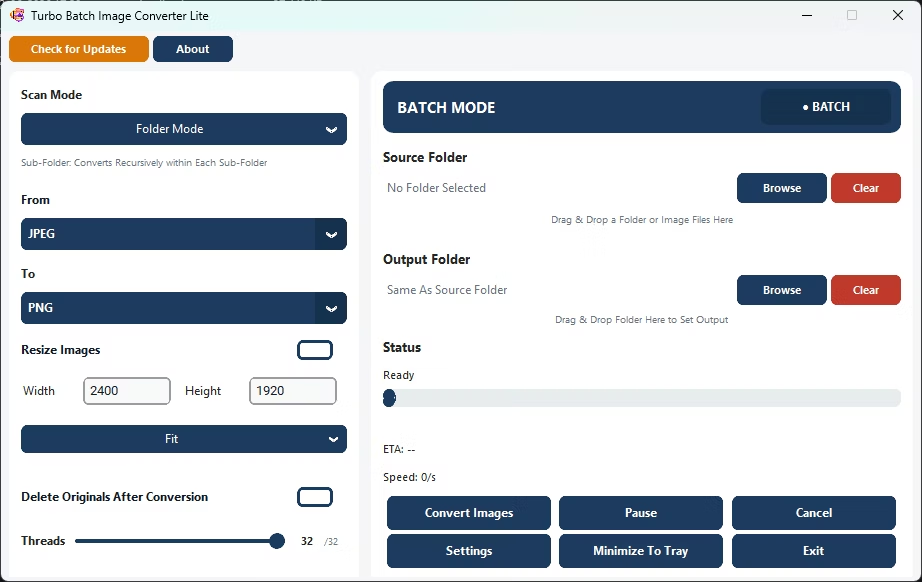
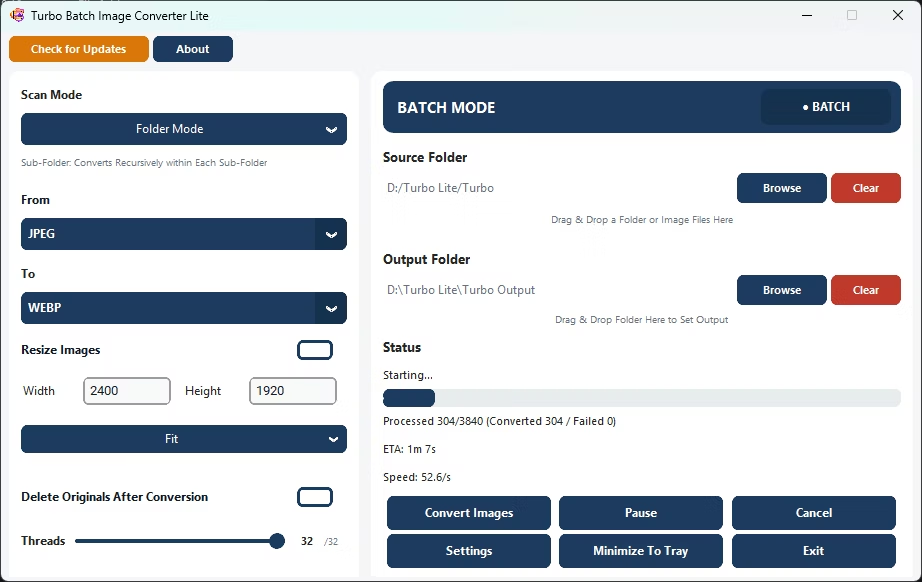
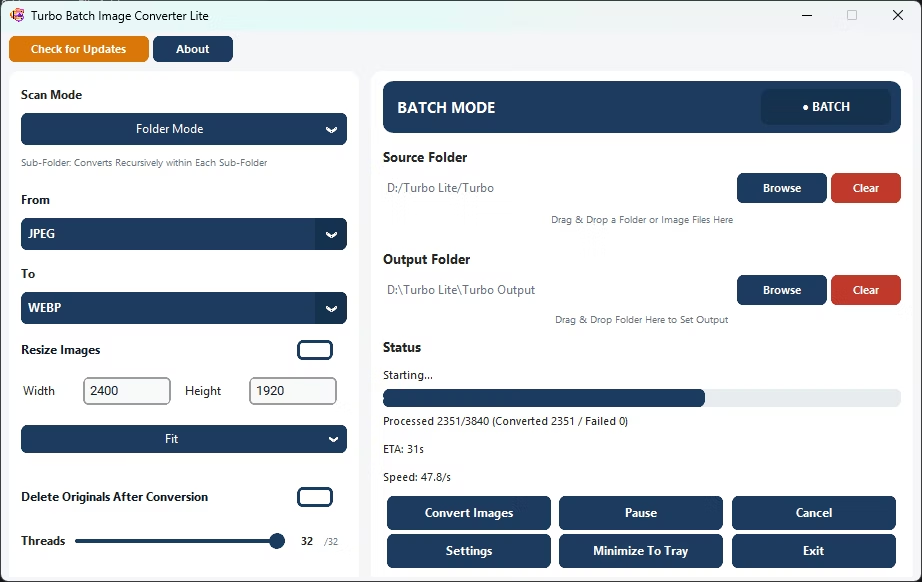
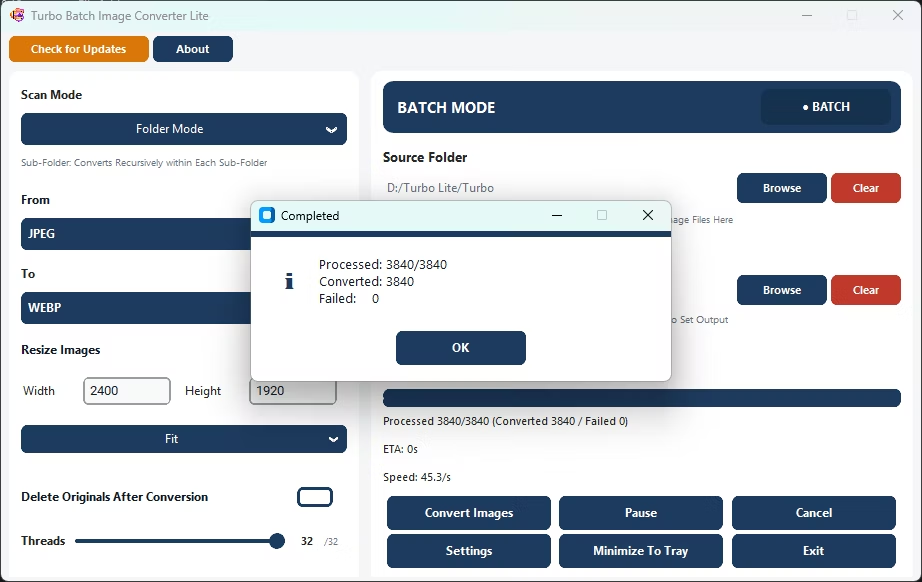
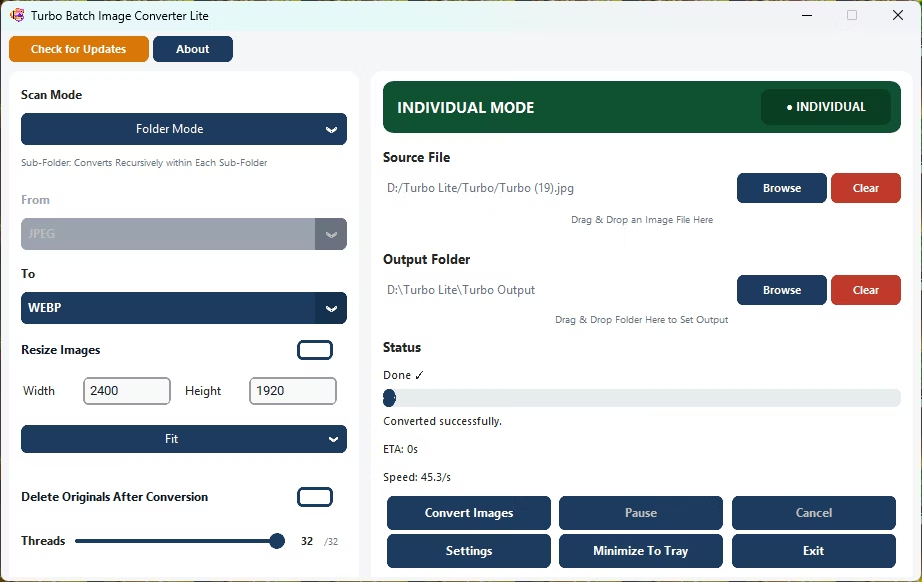
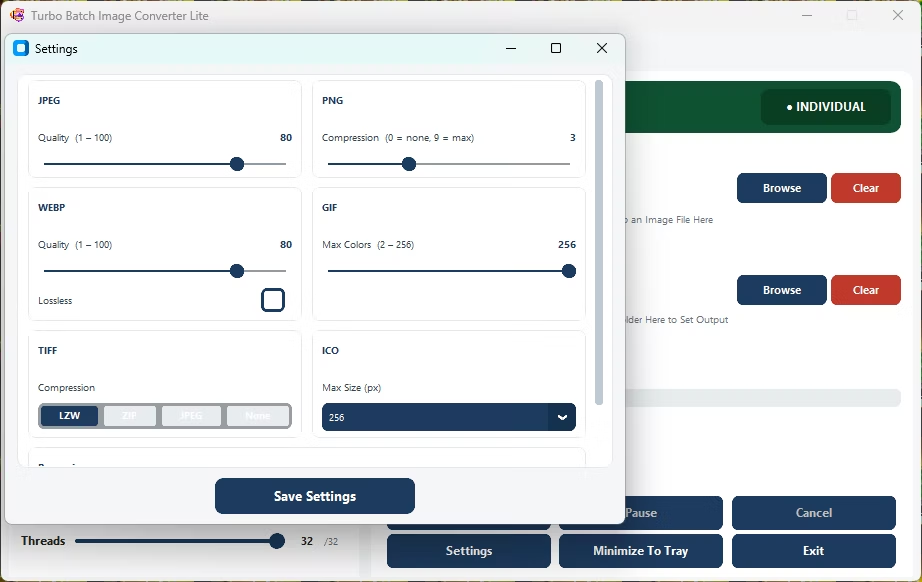
- Install Turbo Batch Image Converter Lite on your Windows PC.
- Open Batch Mode and select your folder of TIFF files, such as a scan export.
- Set TIFF as the "From" format to shrink files, or as the "To" format for archival output.
- Choose your target format and quality settings.
- Optionally resize the batch to a standard size.
- Click Convert to process the entire folder of TIFF files.
- Shrinks large scanned TIFF files into JPG or PNG
- Converts other formats into TIFF for archival workflows
- Processes an entire scan export folder in one batch
- Multi-core engine scales up to 32 parallel workers
- Runs fully offline, keeping scanned documents private
Why are TIFF files so much larger than JPG?
TIFF typically stores images with little or no compression to preserve maximum quality, which produces much larger files than compressed formats like JPG.
Can I batch convert an entire folder of scanned documents?
Yes, point Batch Mode at your scan export folder and every TIFF file will be converted in one run.
Can I convert other formats into TIFF for archiving?
Yes, set TIFF as the "To" format to produce archival-quality TIFF output from JPG, PNG, or other sources.
Ready to batch convert your TIFF files, fully offline and in bulk?