Professional workflows, whether in photography, e-commerce, or publishing, demand more control than a basic online converter offers: precise per-format quality settings, RAW camera support, reliable handling of large batches, and confidence that nothing gets uploaded or lost in the process.
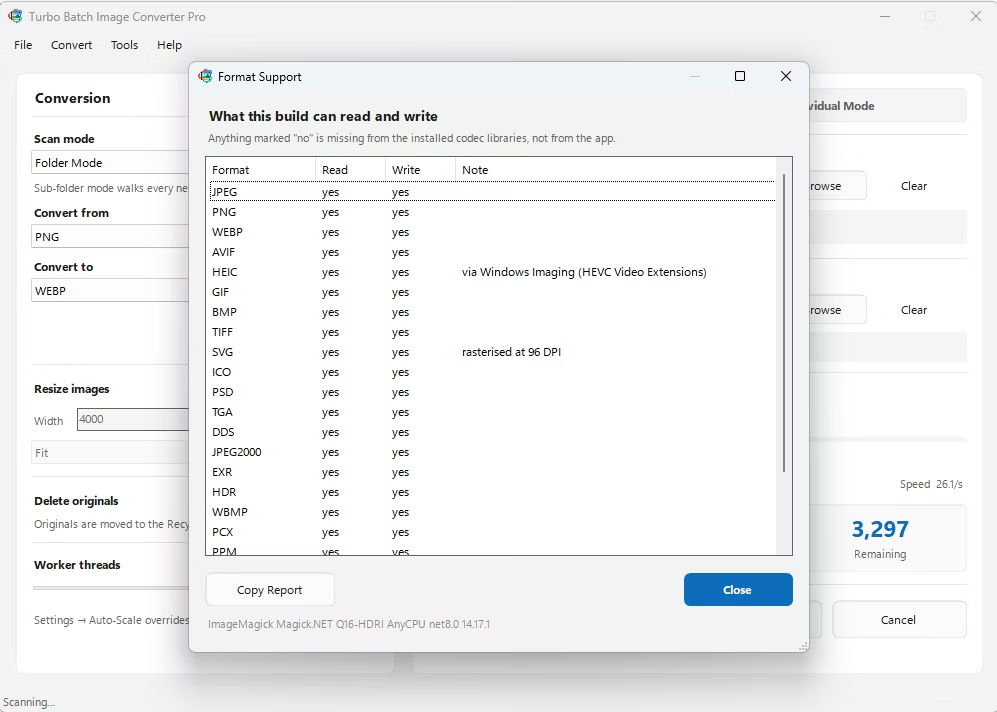
Turbo Batch Image Converter Pro gives professionals per-format quality and compression settings, support for 47 RAW camera formats, and a multi-threaded engine that scales up to 128 parallel workers, all running locally on Windows.
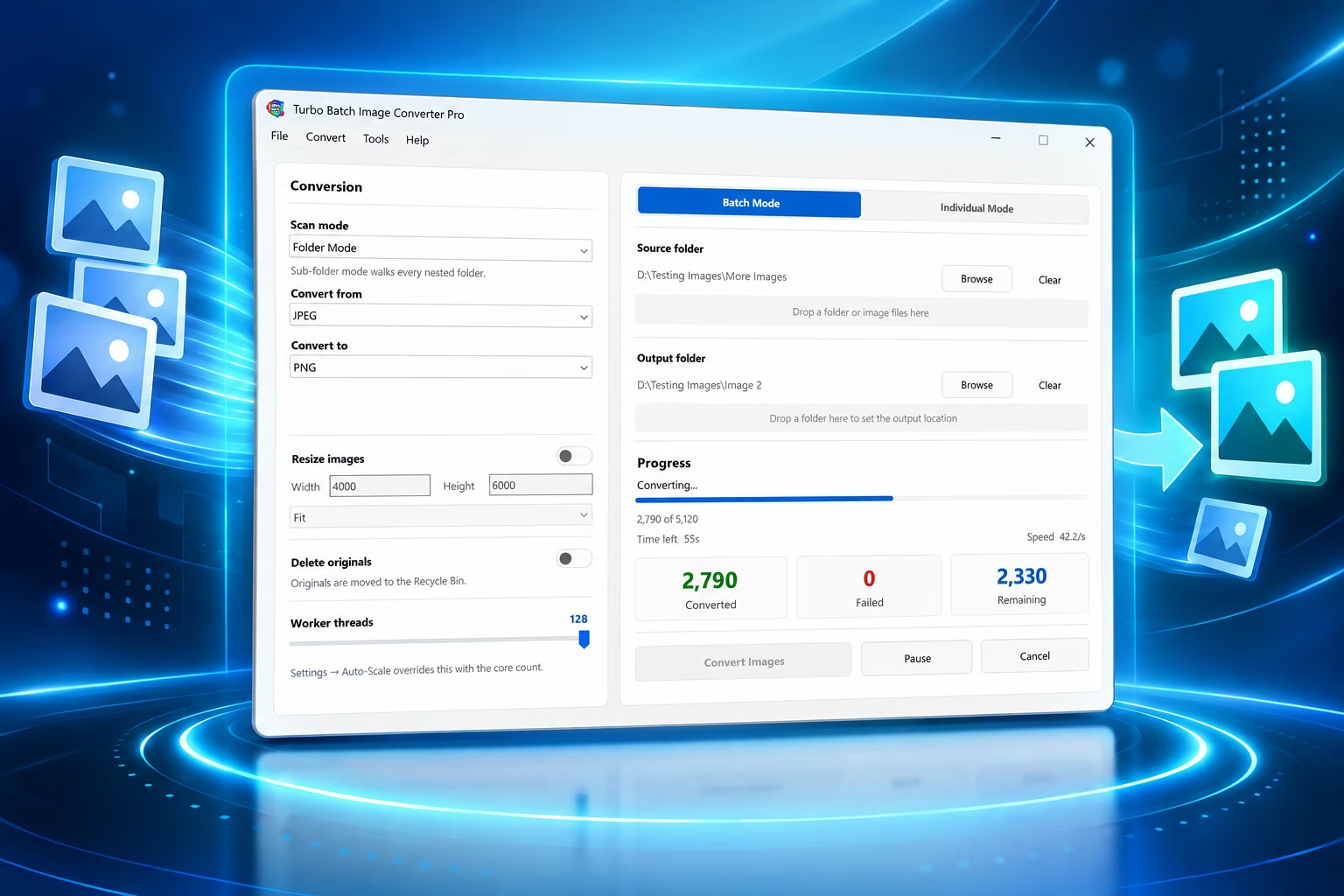
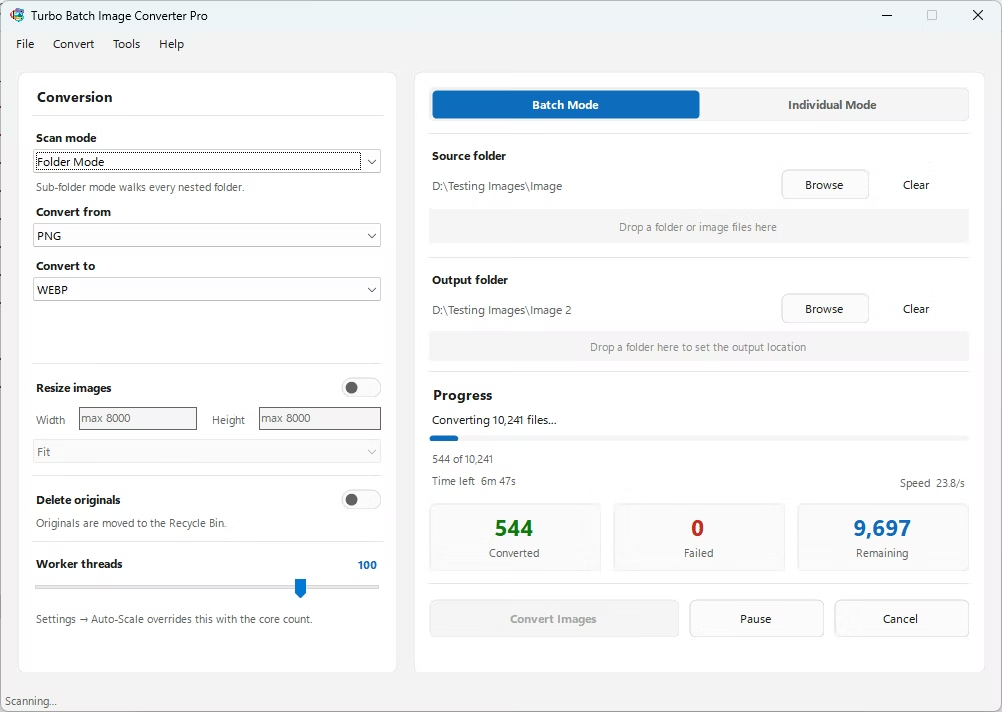
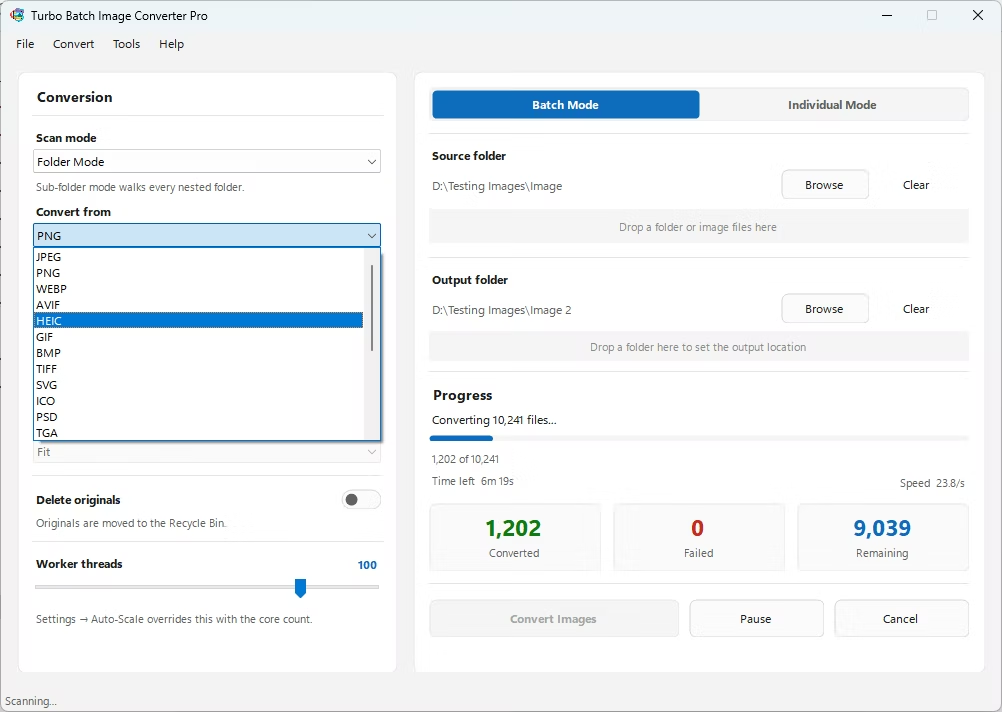
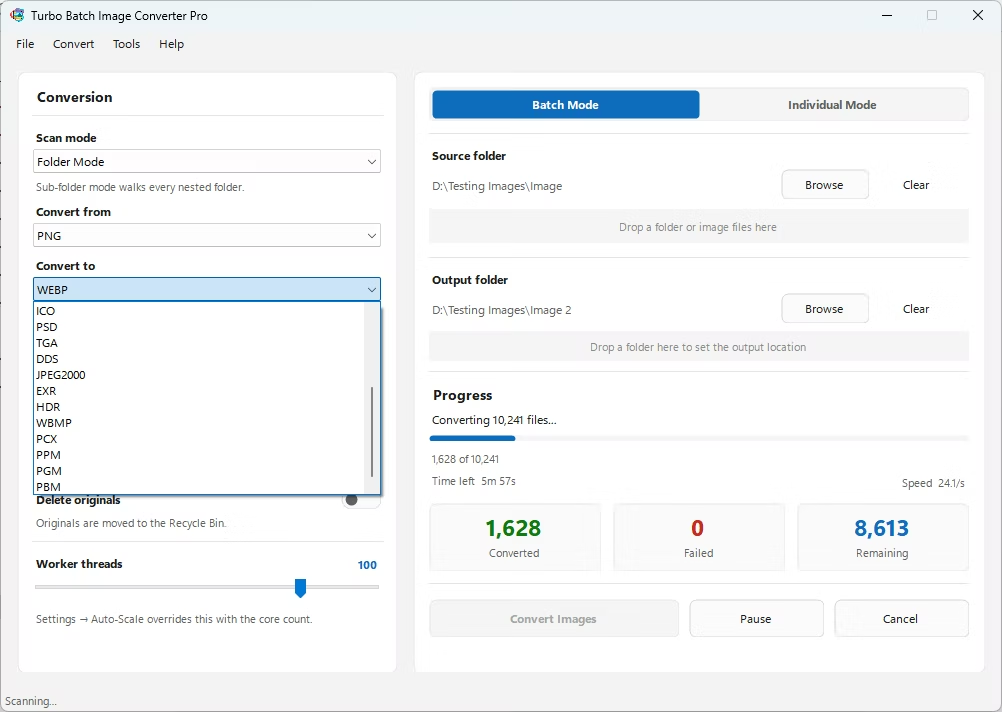
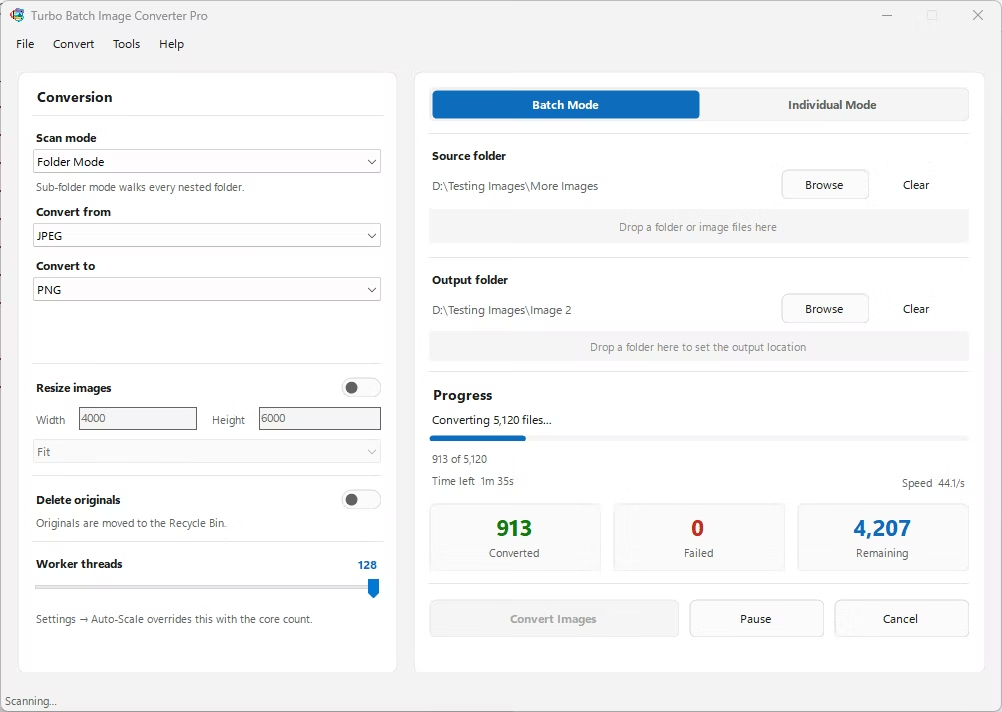
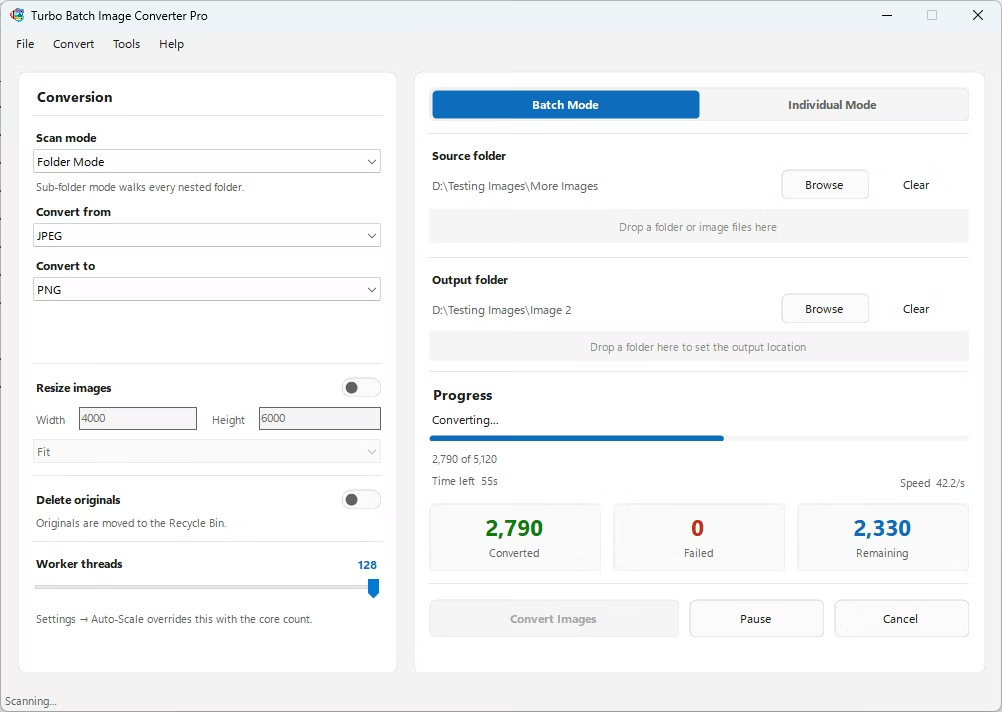
- Install Turbo Batch Image Converter Pro on your Windows workstation.
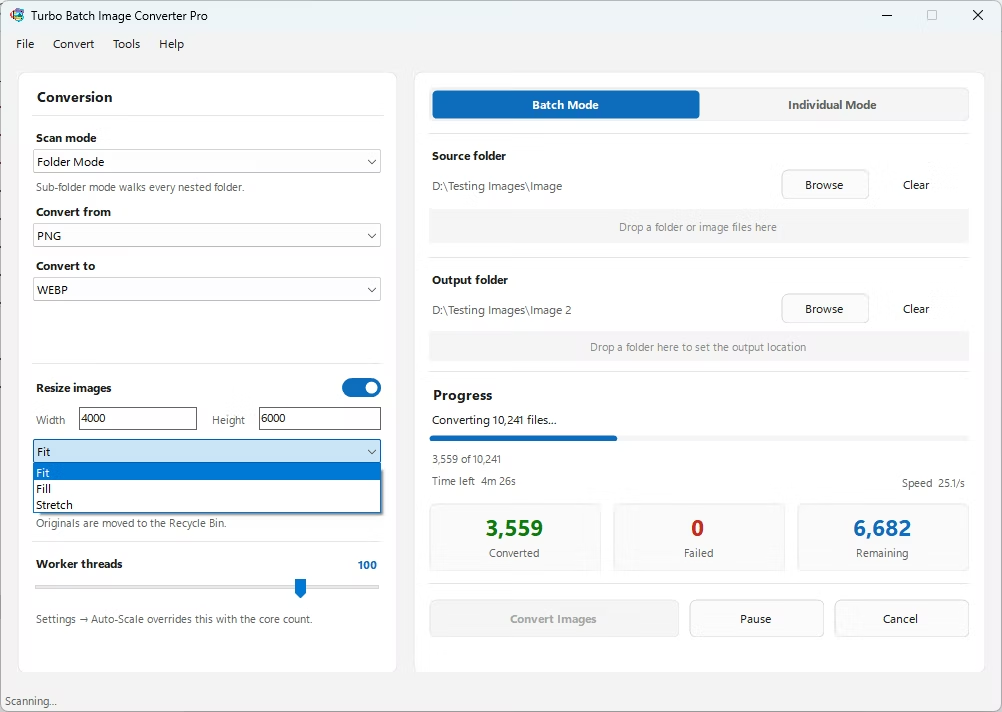
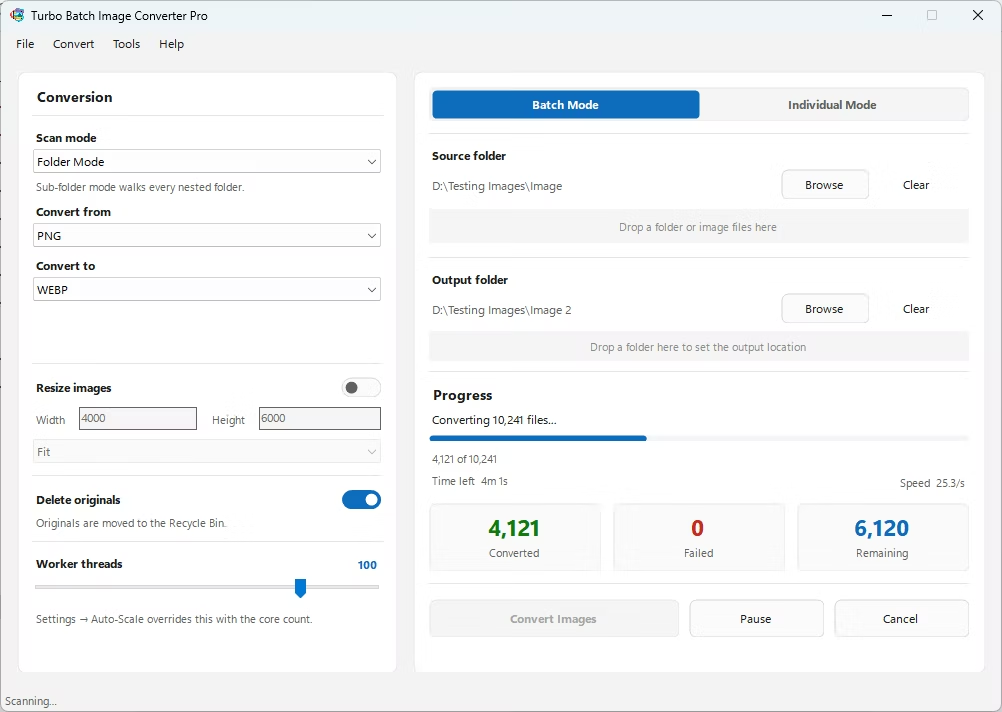
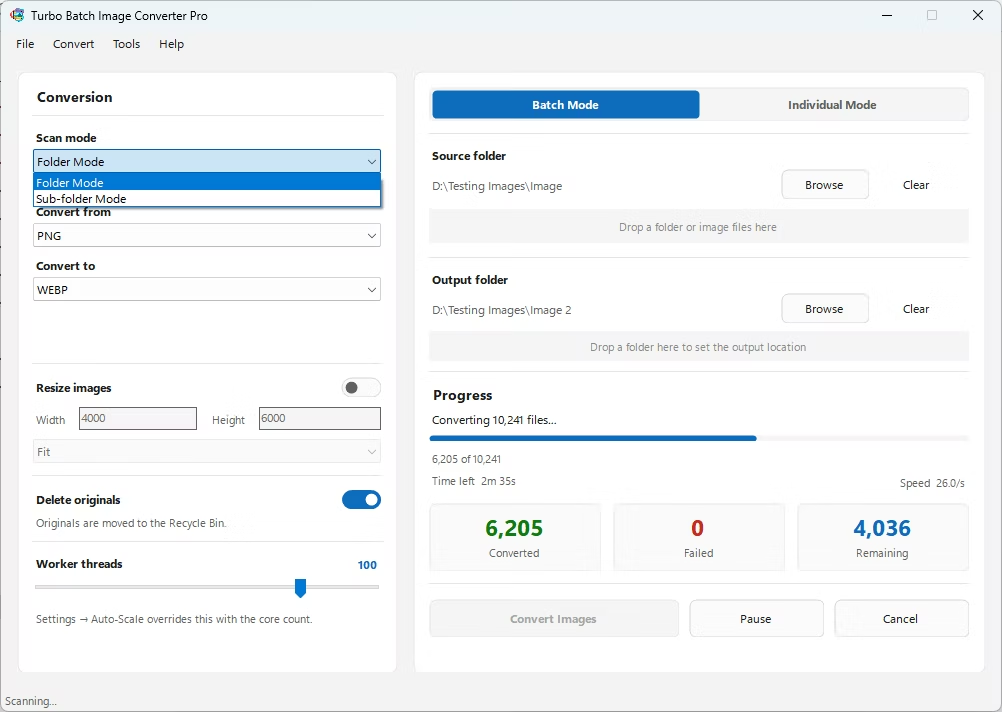
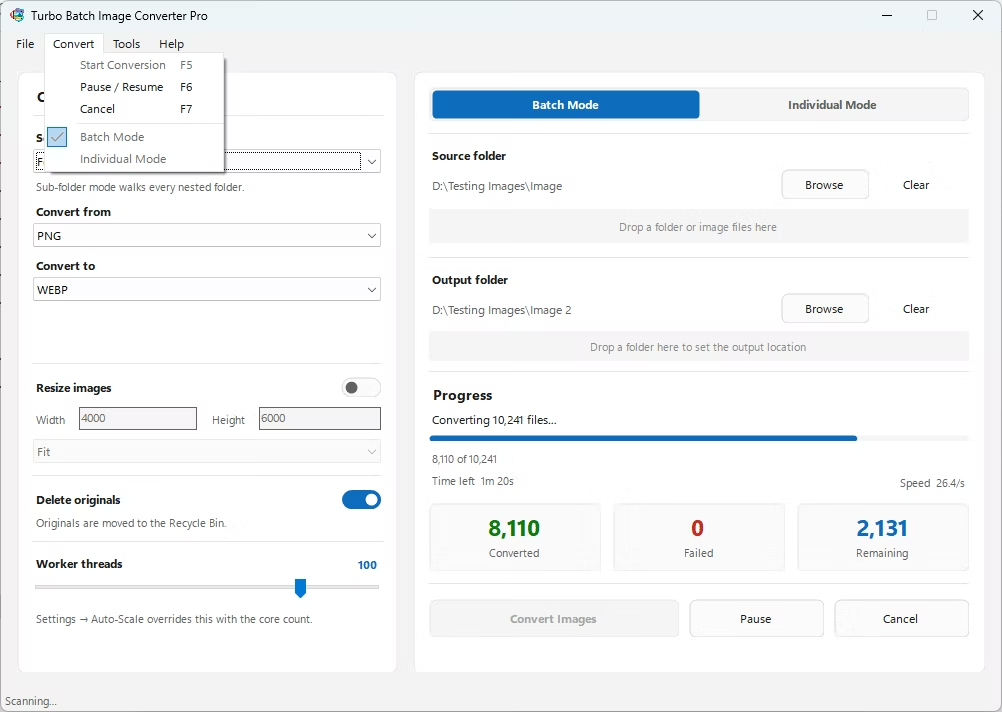
- Open Batch Mode and select your project folder.
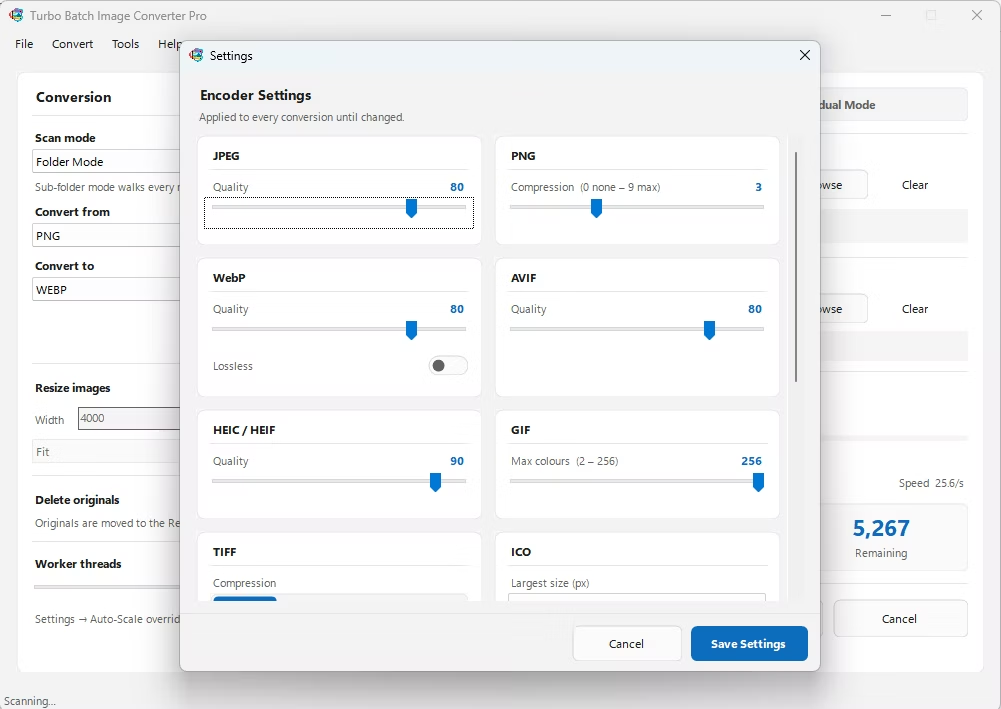
- Configure per-format quality settings for precise output control.
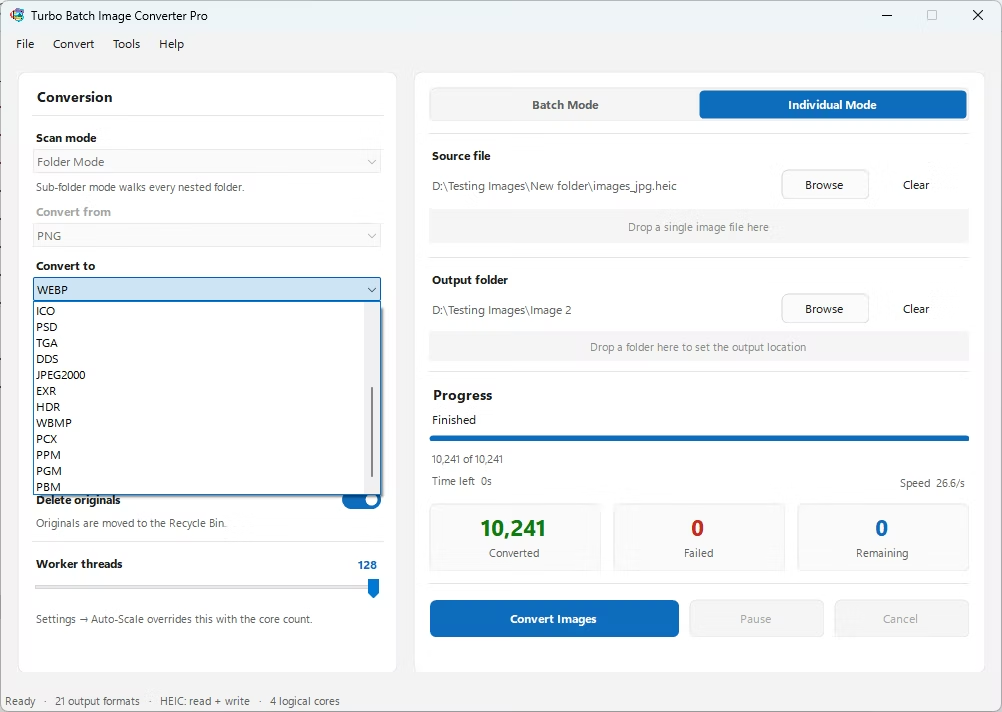
- Set your target format and, if needed, resize dimensions.
- Click Convert and monitor the live processing dashboard.
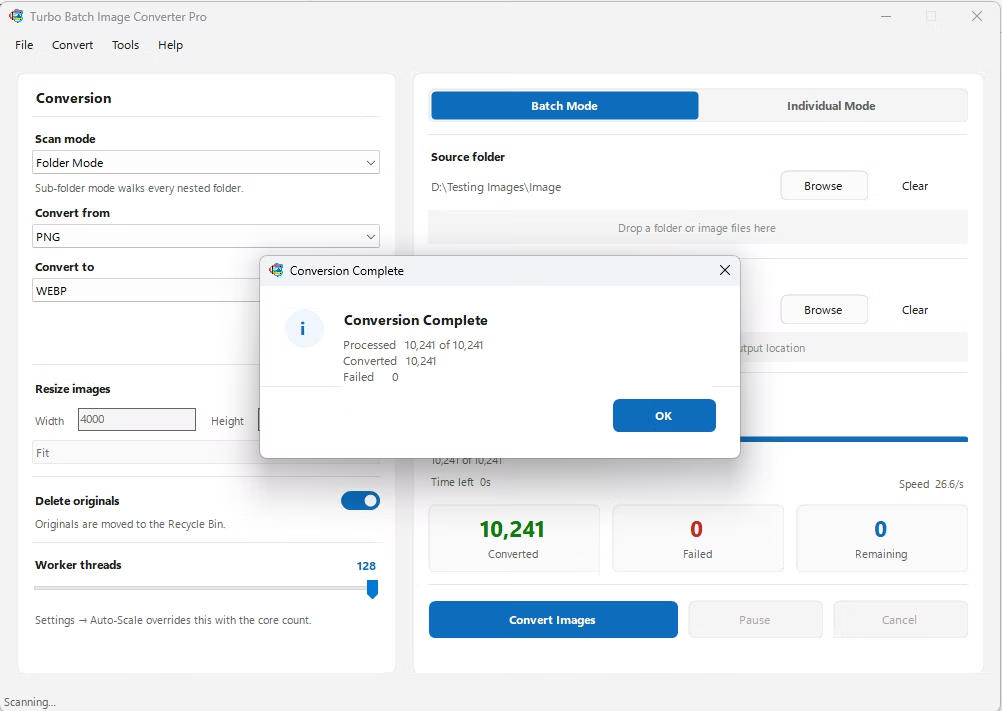
- Review the completion summary before delivering the finished files.
- Per-format quality and compression settings for precise control
- Supports 47 RAW camera formats for photography workflows
- Multi-core engine scales up to 128 parallel workers
- Runs fully offline, keeping client and unreleased work private
- Reliable handling of large, deadline-driven batches
Does the app support RAW files for professional photography work?
Yes, 47 RAW camera formats are supported across major camera brands.
Can I set different quality levels for different output formats?
Yes, per-format quality and compression settings let you control output precisely for each target format.
Is this suitable for client delivery deadlines?
The multi-core engine is built to process large batches quickly, and everything runs locally so there's no dependency on upload speed.
Ready for professional-grade batch image conversion on Windows?