Resizing and converting are usually two separate steps: convert the format, then open a different tool to resize. Doing both in one pass, across an entire folder, saves the extra round trip and keeps every file consistent in both format and dimensions.
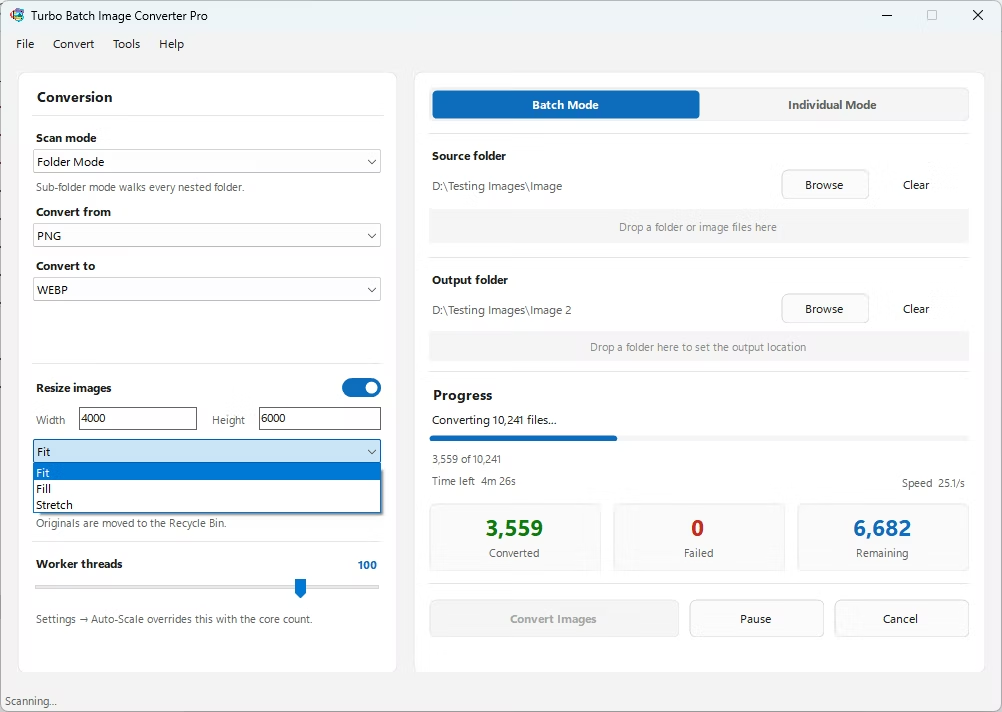
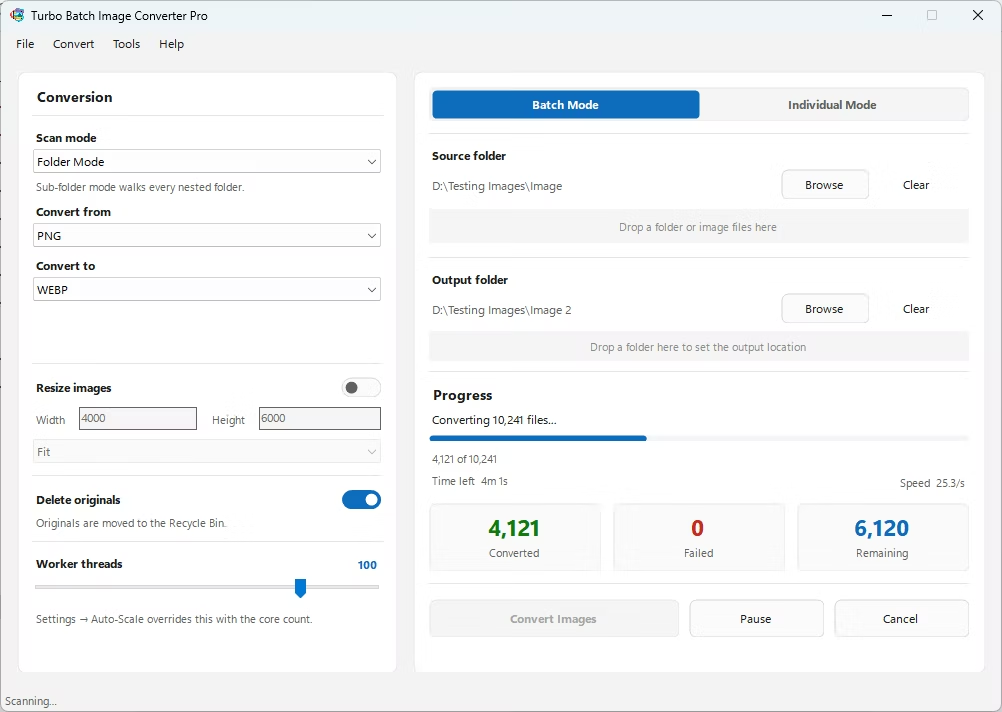
Turbo Batch Image Converter Pro combines format conversion with Fit, Fill, and Stretch batch resizing, so an entire folder of images can be resized and converted to a new format in a single batch run.
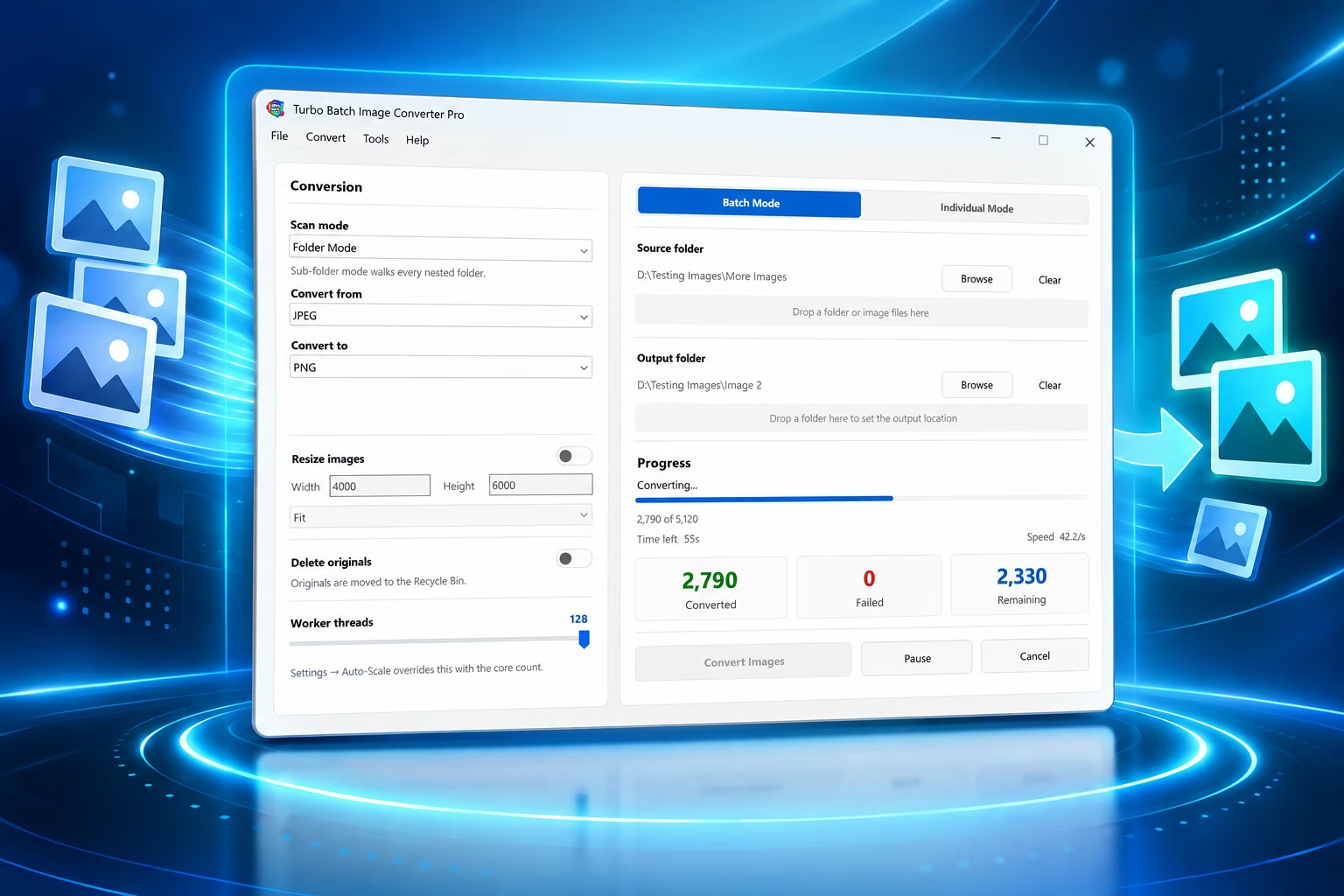
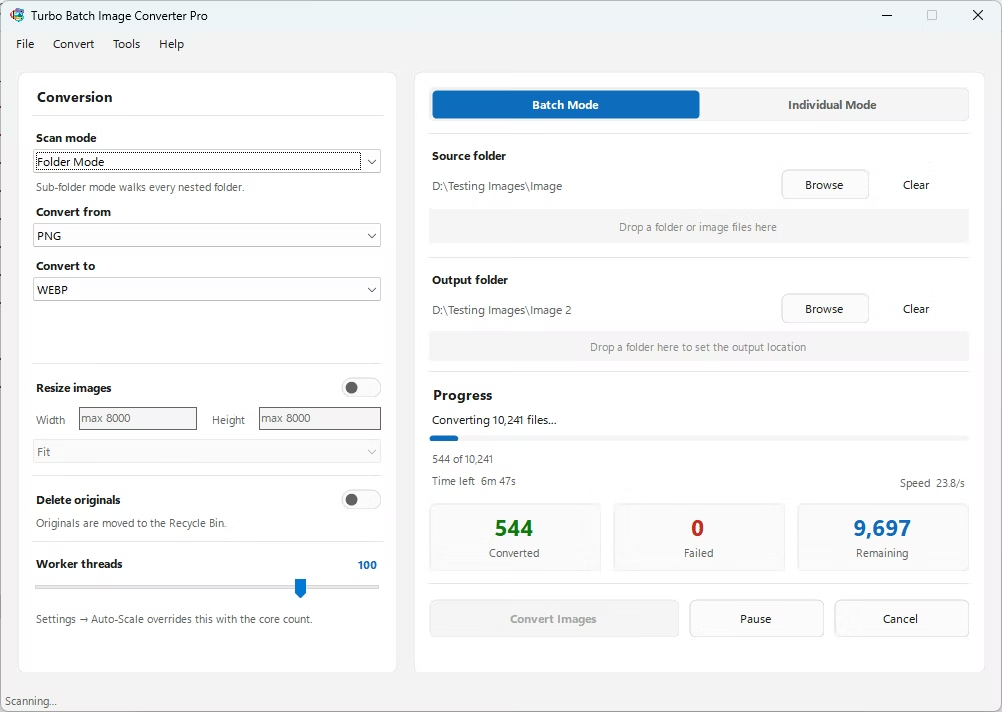
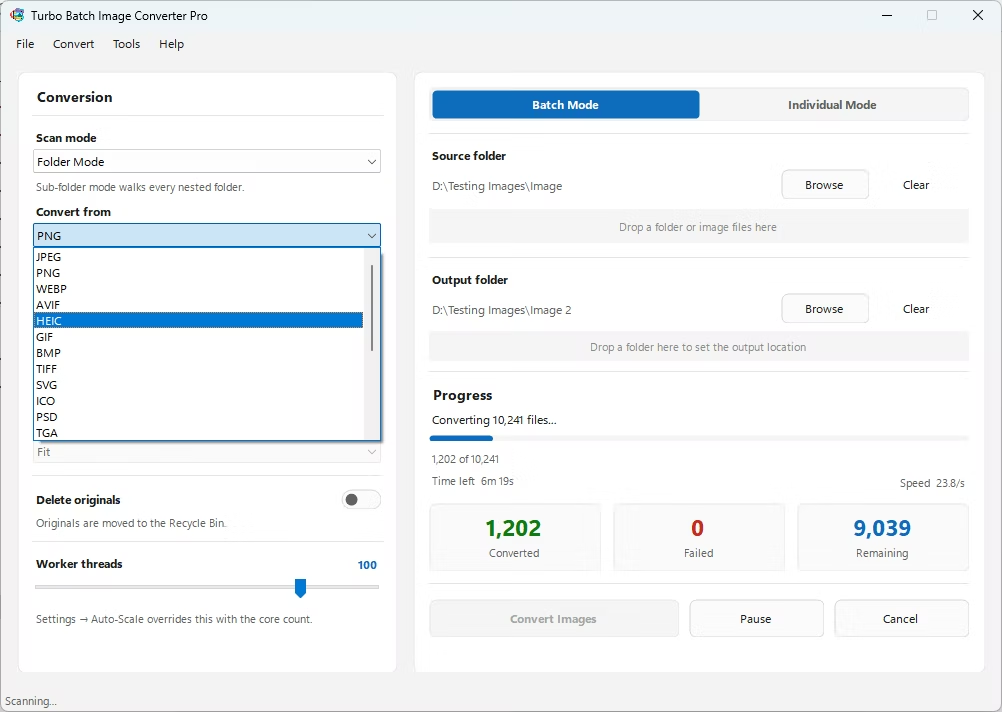
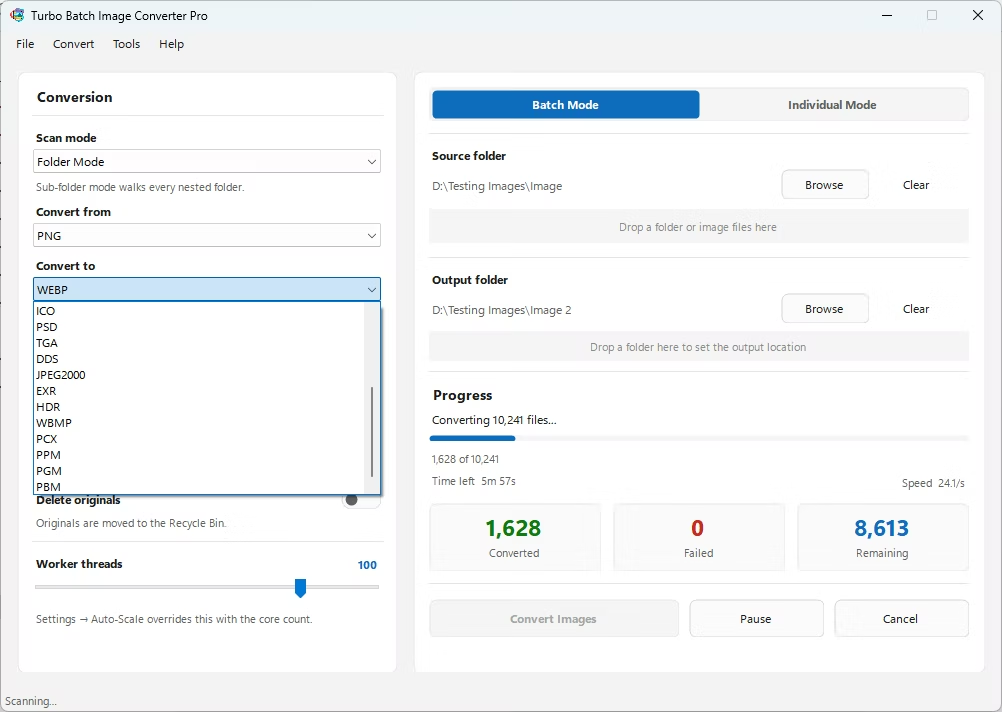
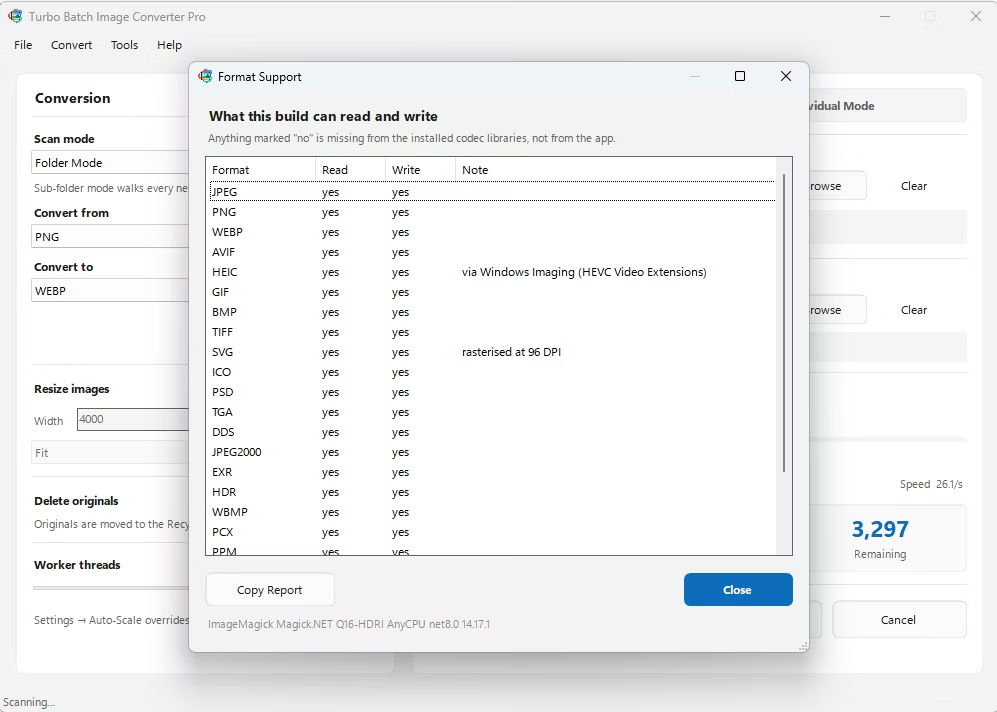
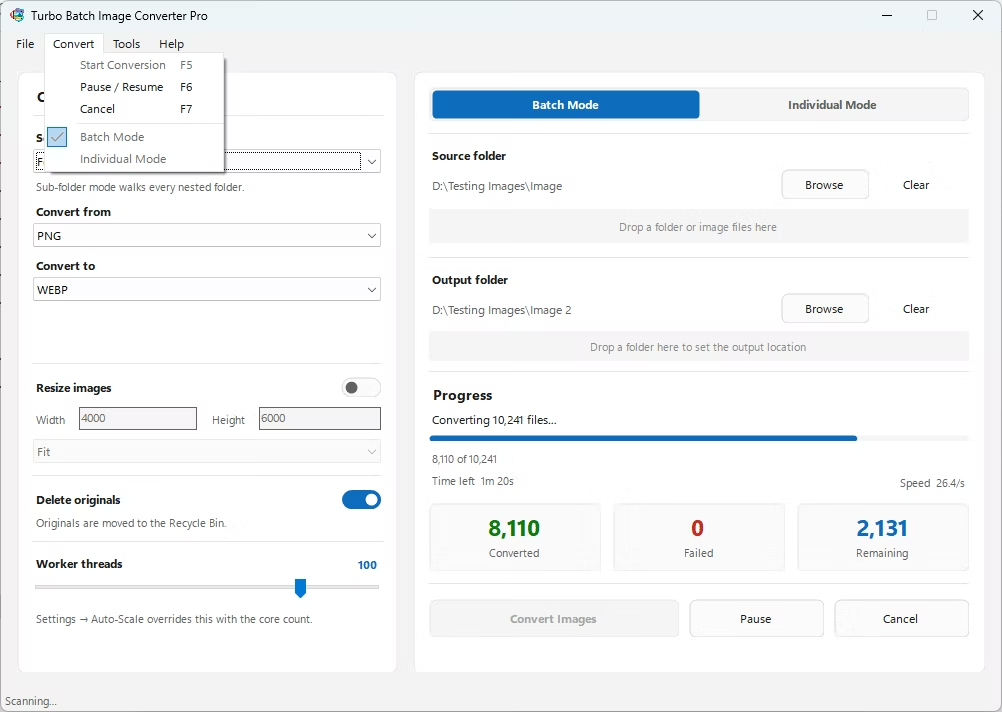
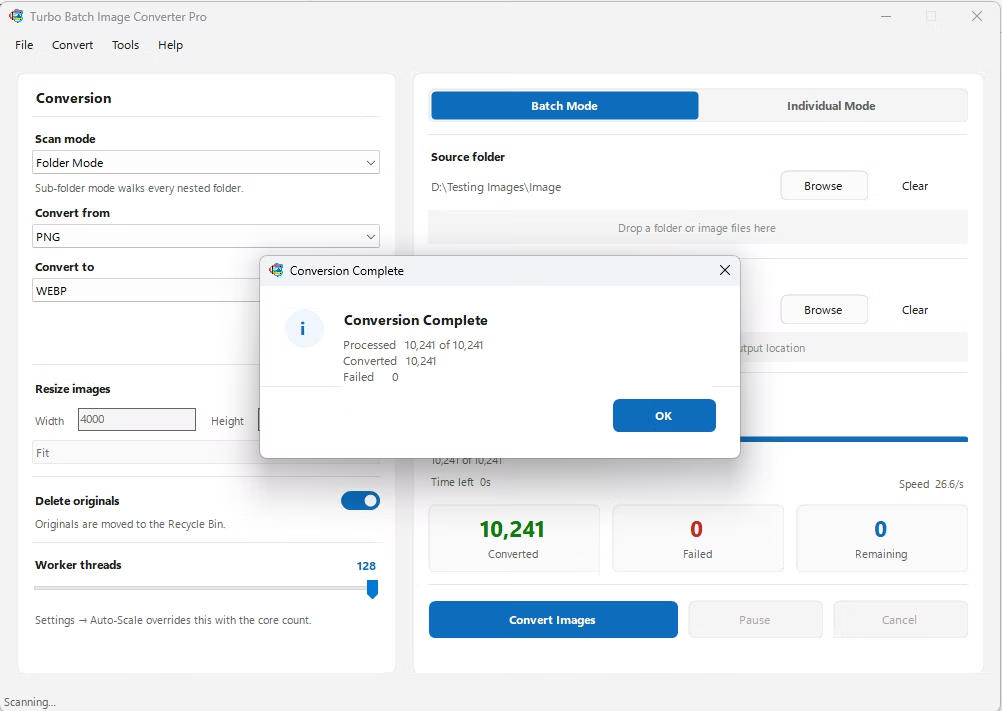
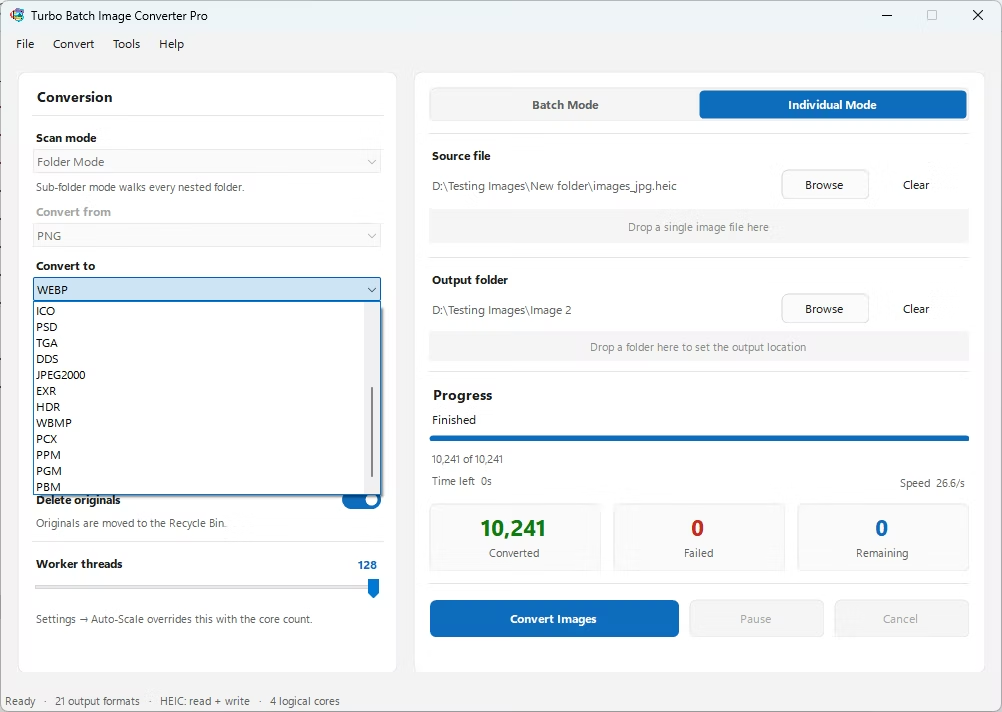
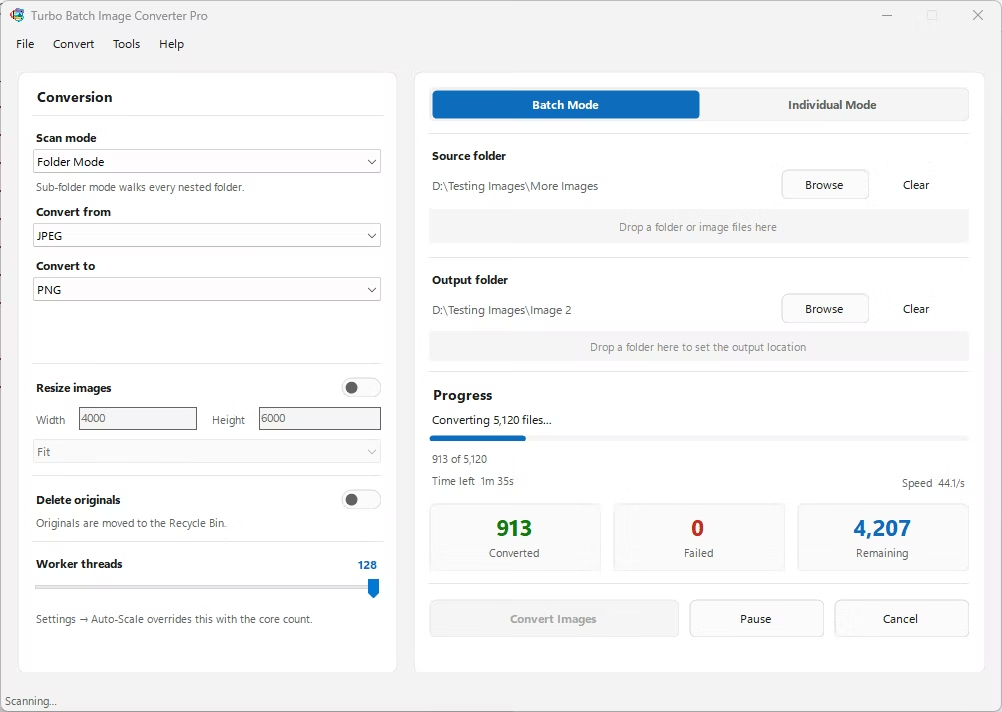
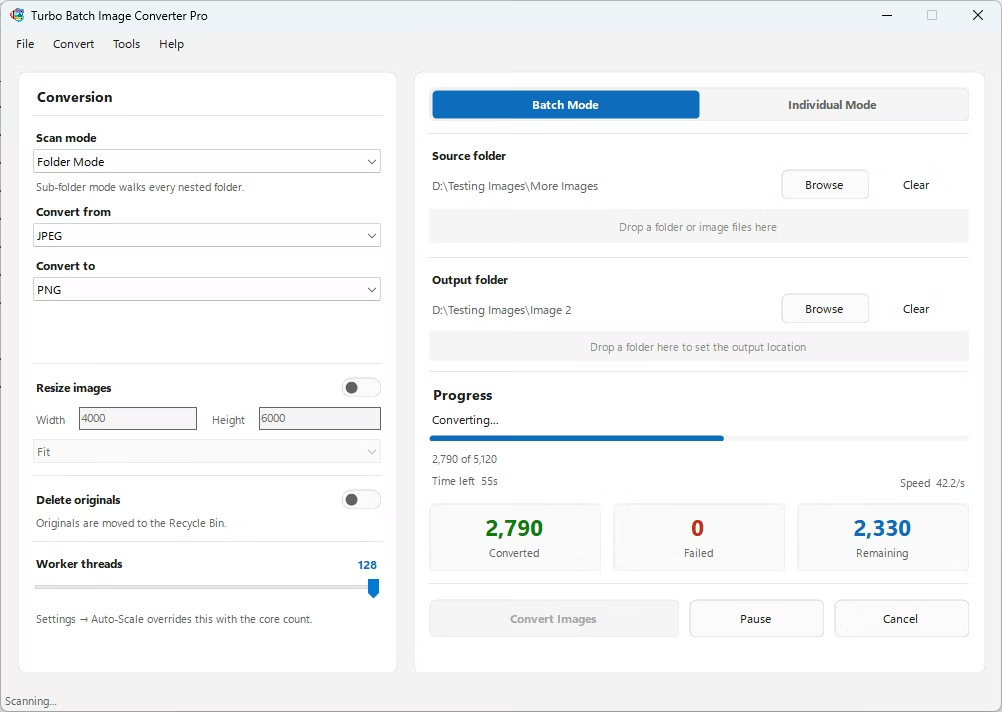
- Install Turbo Batch Image Converter Pro on your Windows PC.
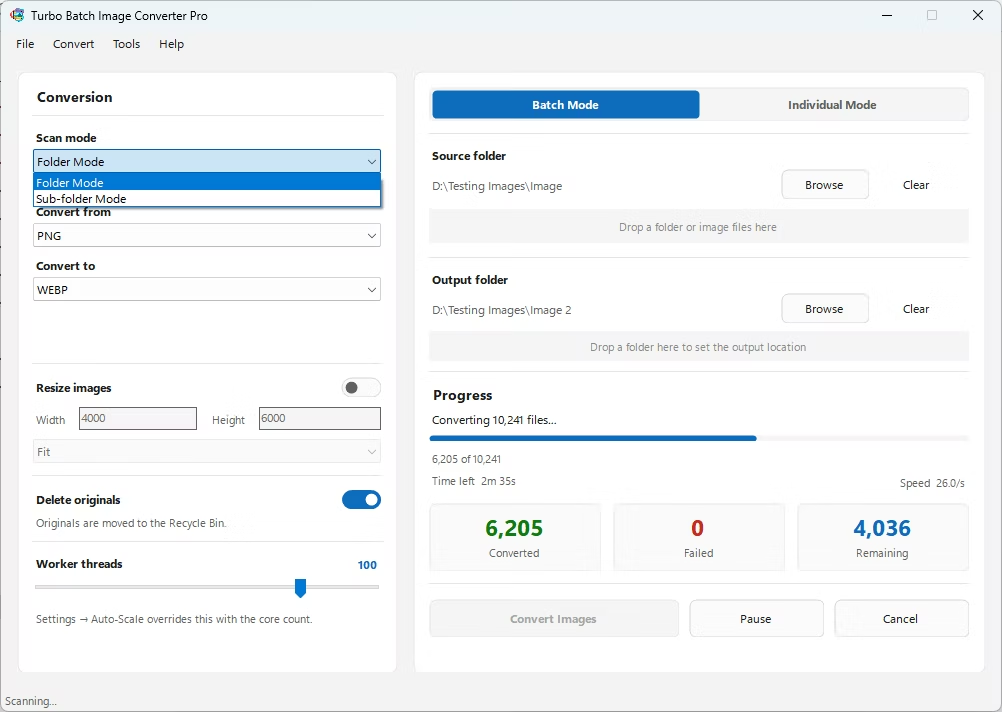
- Open Batch Mode and select your image folder.
- Choose your target format.
- Enable resizing and set your target width, height, and resize mode.
- Choose Fit, Fill, or Stretch depending on how you want dimensions handled.
- Click Convert to resize and convert the whole batch at once.
- Resize and convert format in a single batch pass
- Fit, Fill, and Stretch resize modes for different needs
- Consistent dimensions and format across an entire folder
- Runs fully offline with no upload limits
- Multi-core engine scales up to 128 parallel workers
What's the difference between Fit, Fill, and Stretch resizing?
Fit scales the image to stay within your target dimensions without cropping, Fill scales and crops to exactly fill the dimensions, and Stretch resizes to the exact dimensions without preserving aspect ratio.
Can I resize without changing the image format?
Yes, you can keep the source format and only apply resizing if you don't need a format change.
Does resizing and converting together take longer than converting alone?
Both operations happen in the same processing pass per file, so it's generally close to the same speed as conversion alone.
Ready to resize and convert your images together, fully offline?