Image Conversion Software That Works Offline
Not every location has a reliable internet connection, and not every job should depend on one. Offline image conversion software processes your files locally, so it works the same whether you're online or not.
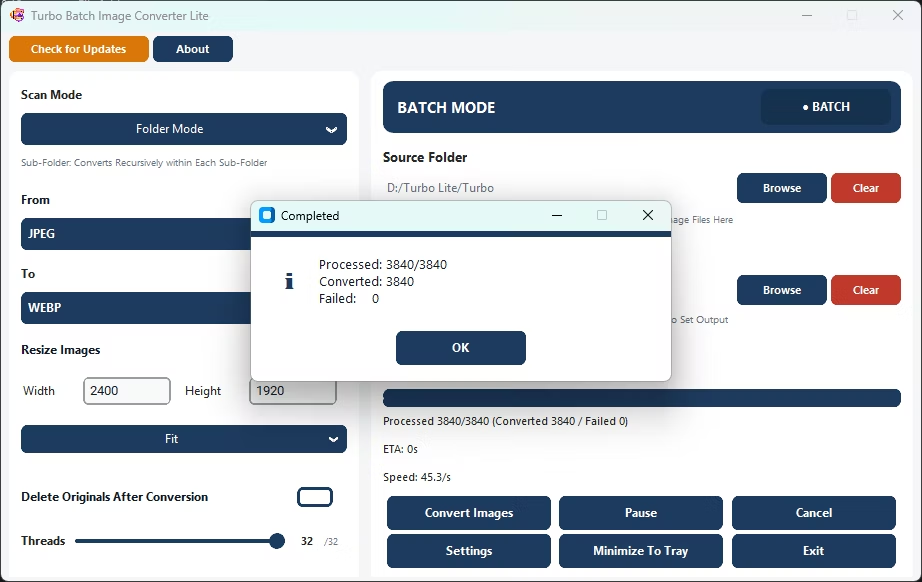
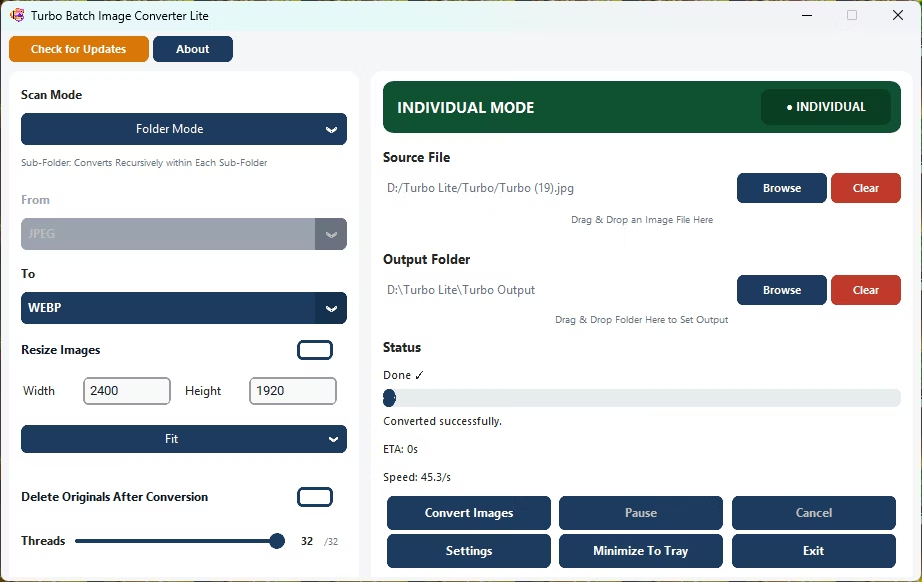
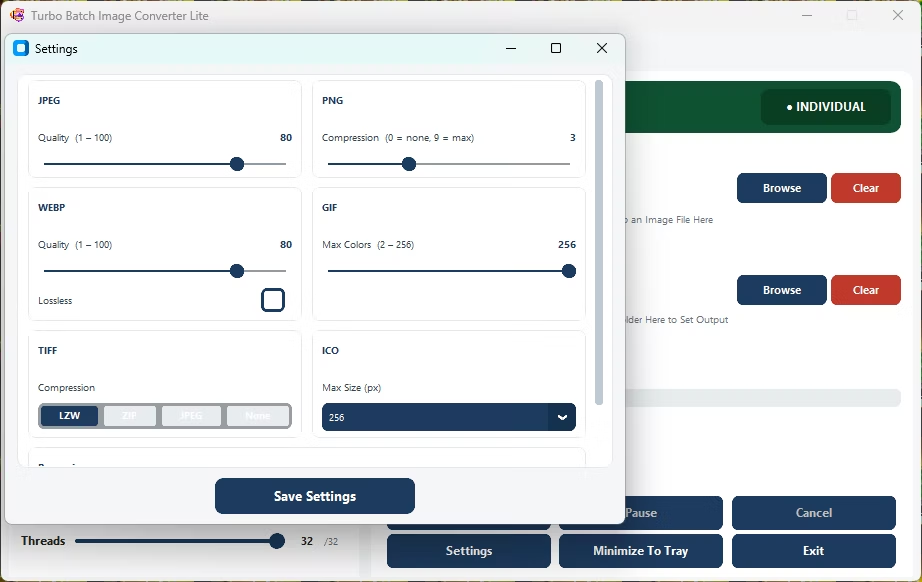
Turbo Batch Image Converter Lite converts images entirely locally with no internet connection required, covering JPEG, PNG, WebP, GIF, BMP, TIFF, SVG and ICO in one lightweight installer.
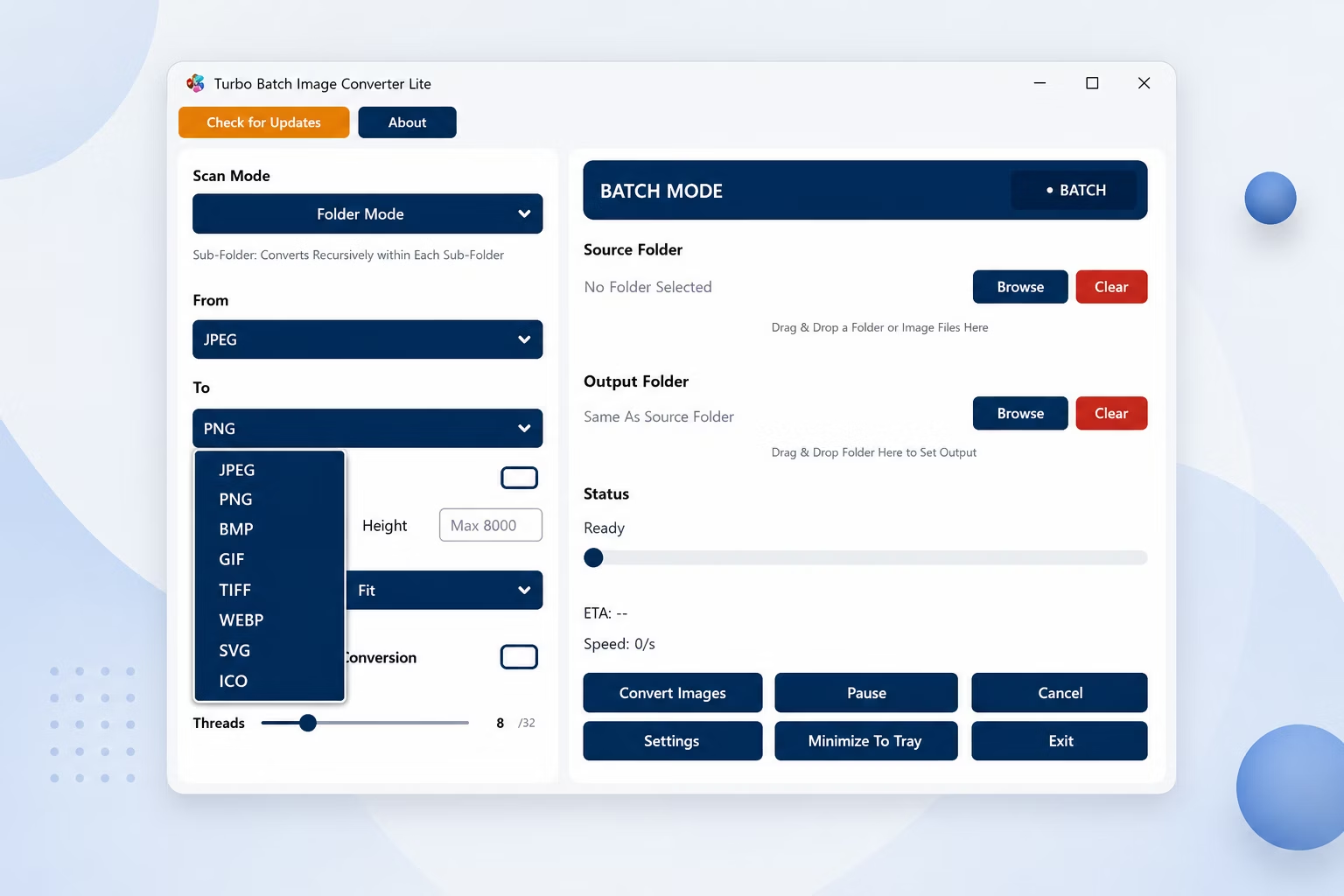
App Screenshots
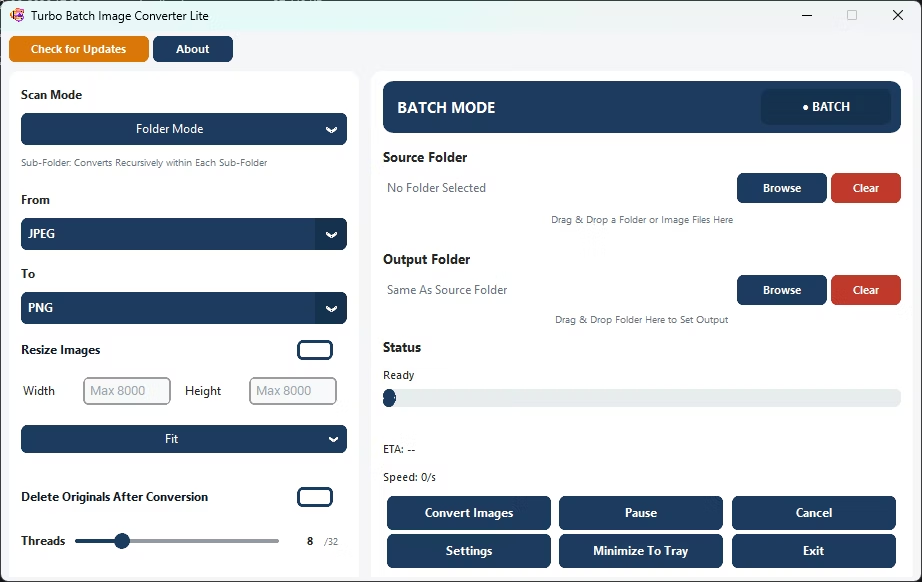
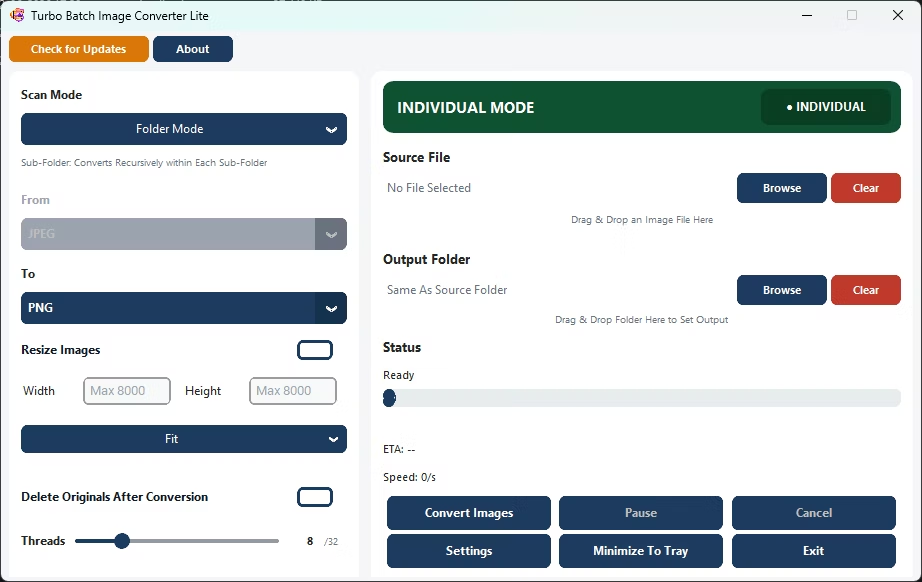
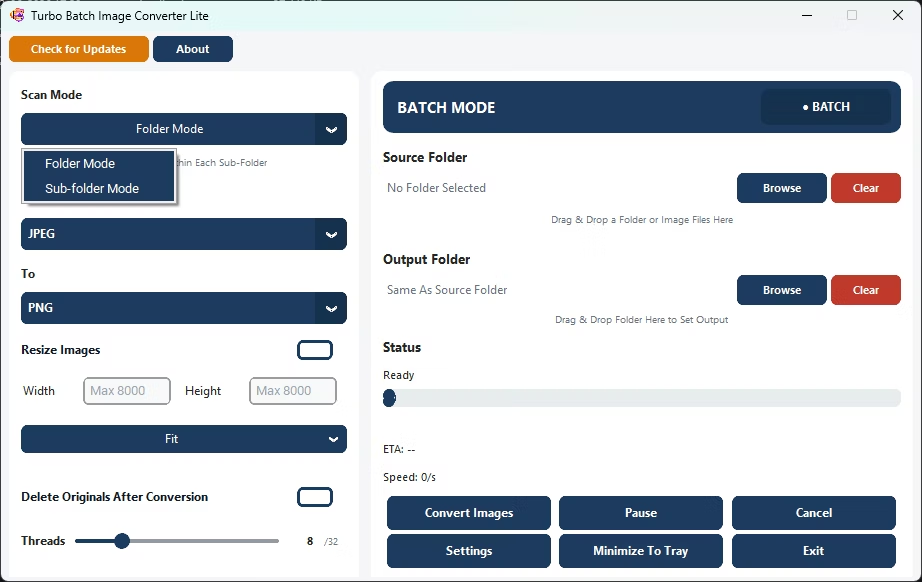
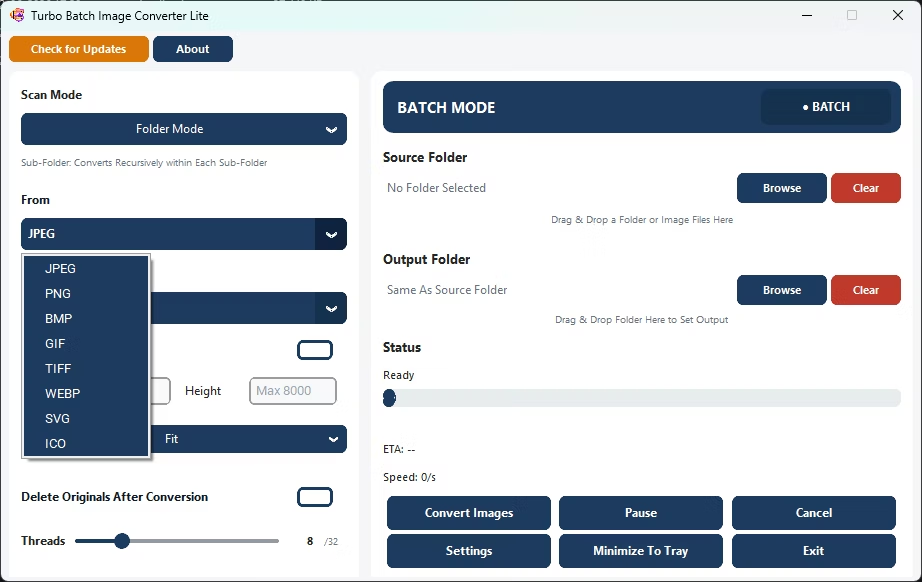
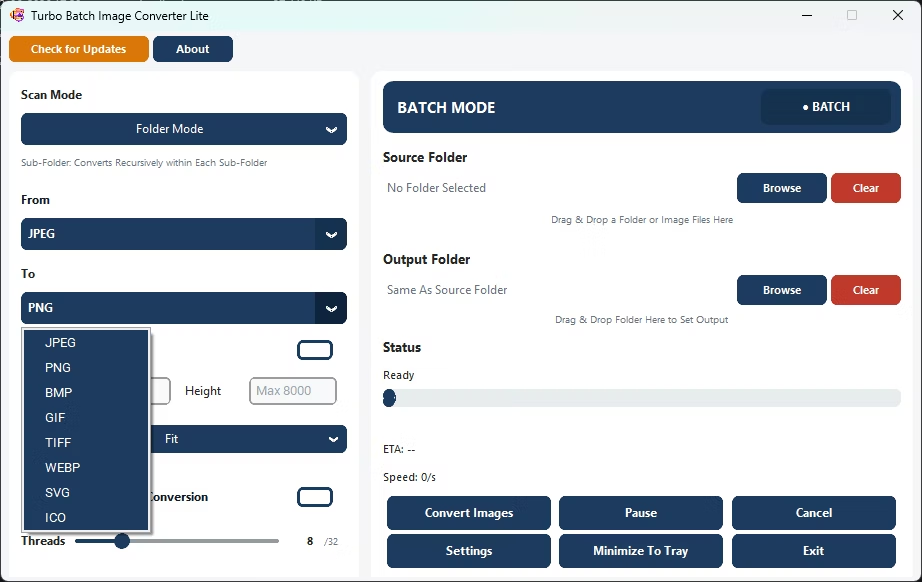
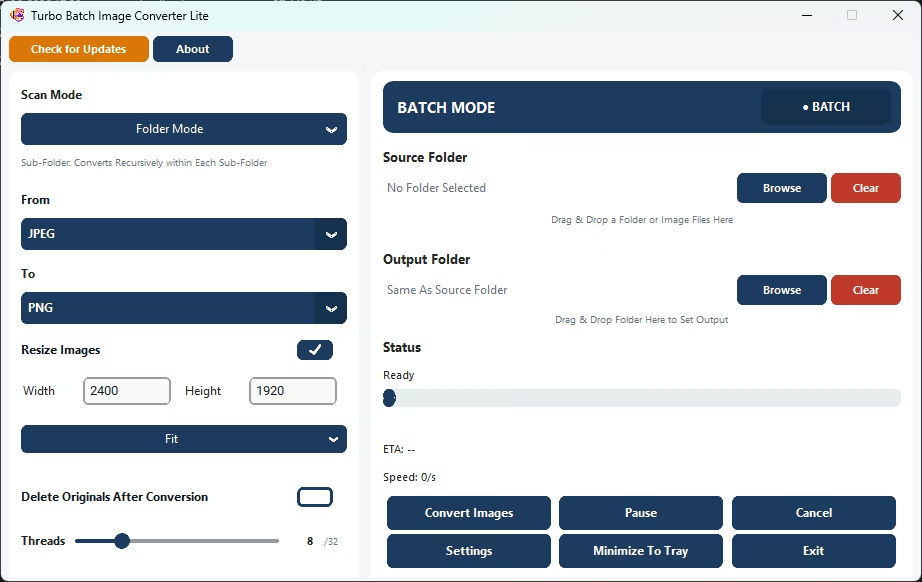
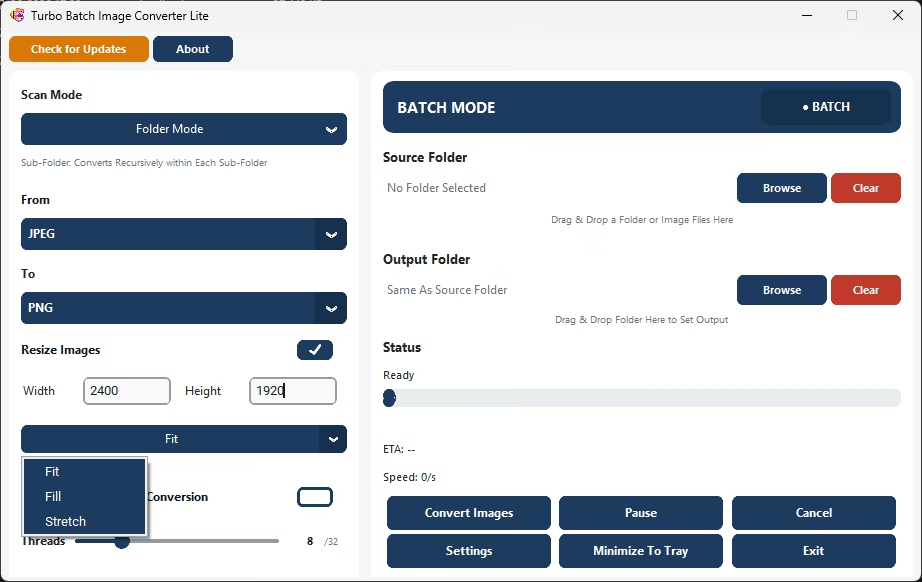
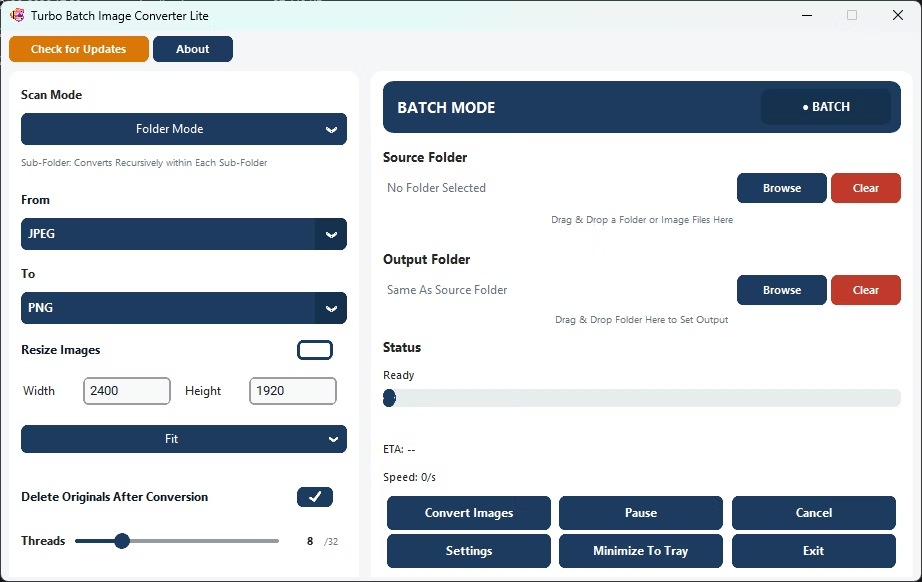
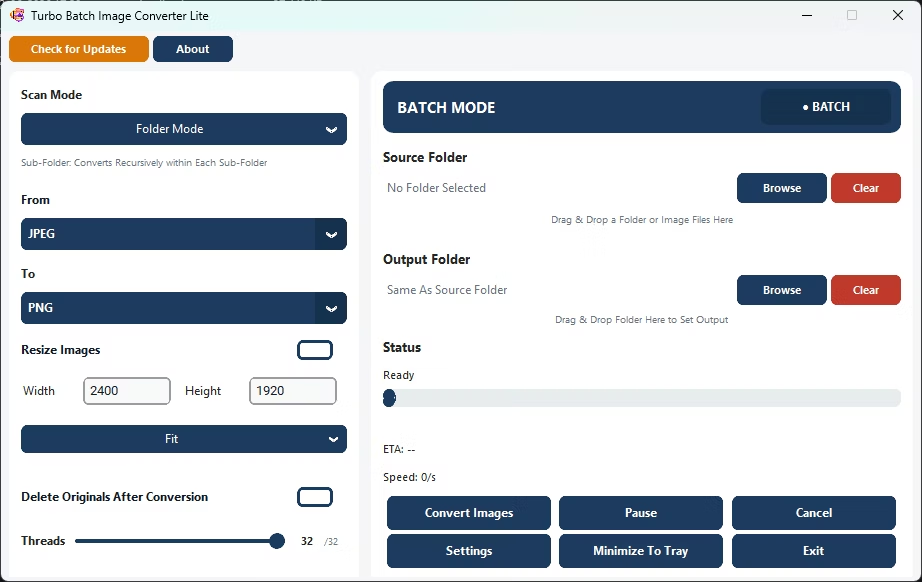
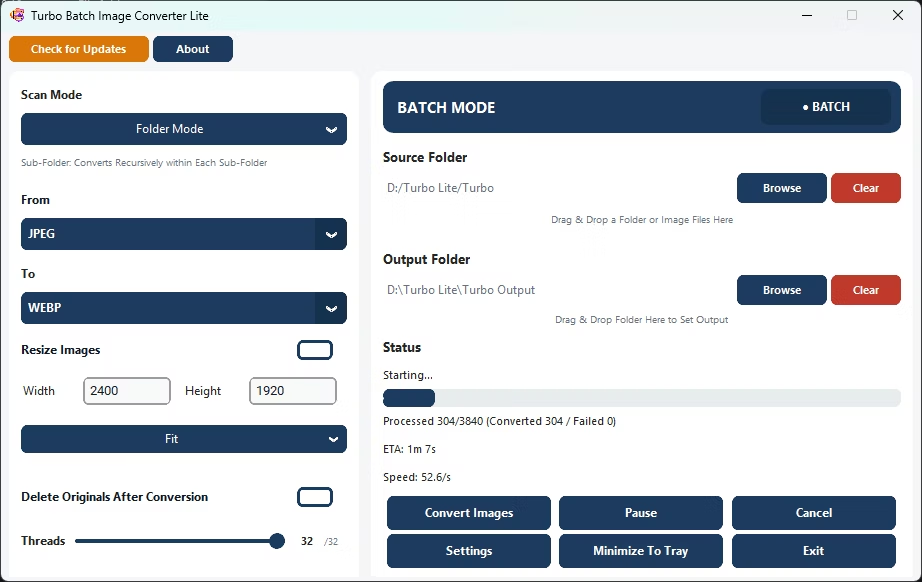
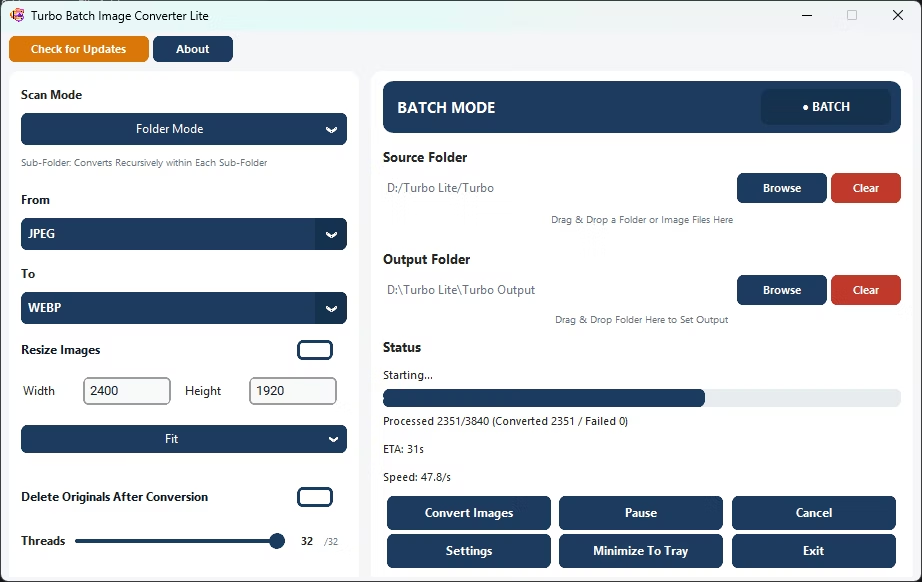
How to Convert Images Locally
- Install Turbo Batch Image Converter Lite on your Windows PC.
- Open Batch Mode or Single Mode.
- Select your image folder or file.
- Choose your target format and quality settings.
- Click Convert; the app processes everything locally, online or not.
- Find your converted files in the output folder.
Why Use This Offline Image Conversion Software
- Works with no internet connection required
- No files are ever uploaded to any server
- Covers 8 everyday formats
- No watermarks added to converted images
- Multi-core engine scales up to 32 parallel workers
Frequently Asked Questions
Does the software require an internet connection at all?
No, once installed, it works fully offline.
Are my images ever sent to a server?
No, all processing happens locally on your PC.
Are there watermarks on the converted files?
No, output files have no watermarks.
Ready to convert your images locally, with no internet connection needed?