Many image converters are either browser-based tools with upload limits or bulky apps that feel bolted onto Windows. A lightweight image converter built specifically for Windows integrates with the file system the way you'd expect, without the overhead of a full professional suite.
Turbo Batch Image Converter Lite is a native Windows 10 and Windows 11 desktop application, packaged as a small standalone installer, converting between 8 everyday formats entirely on your PC.
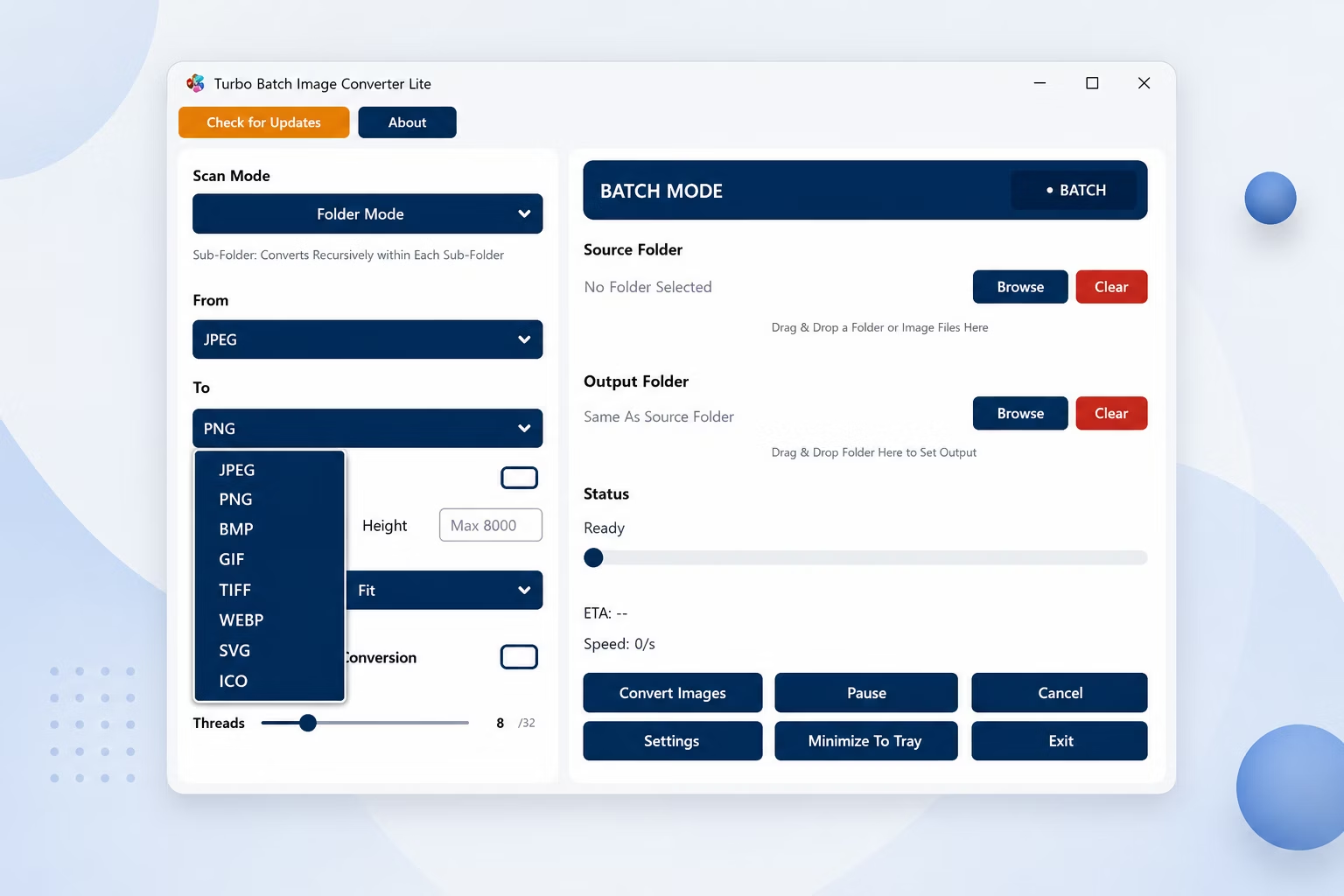
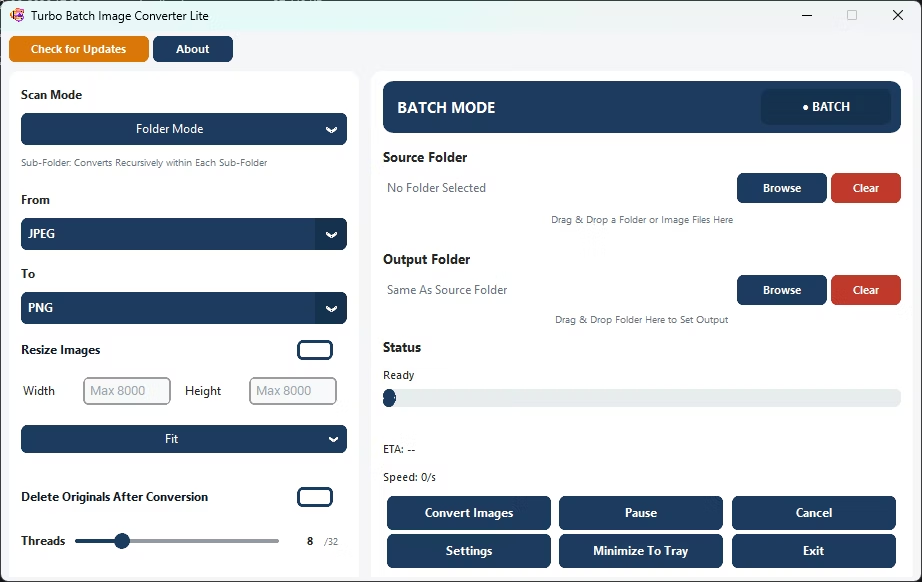
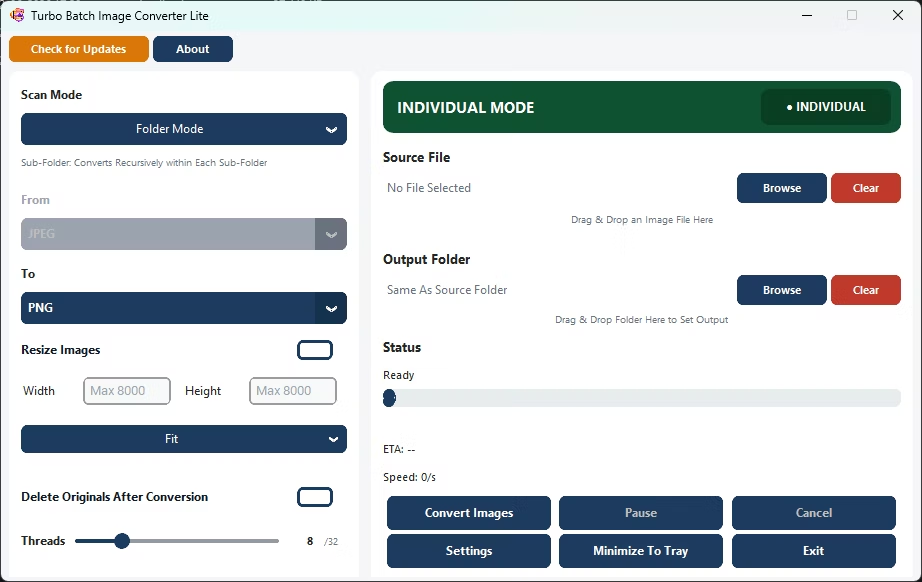
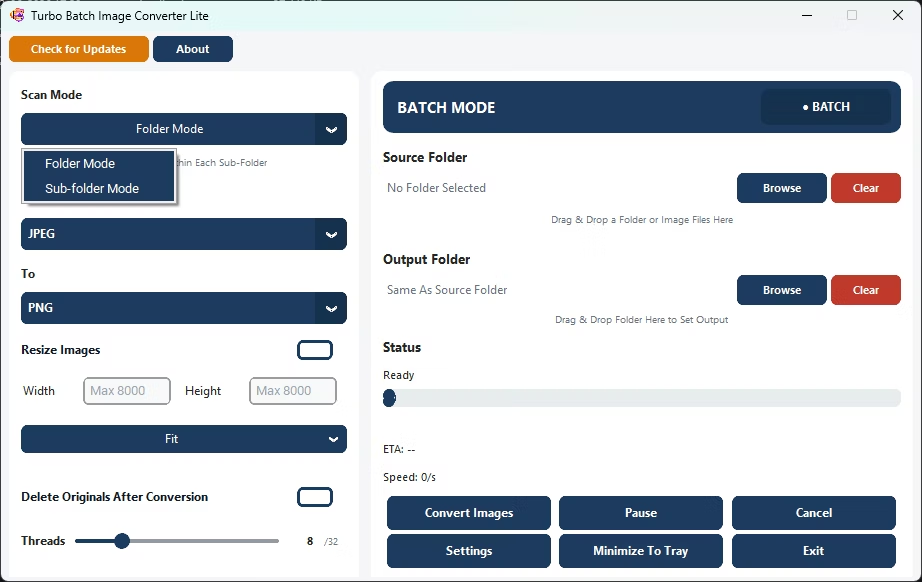
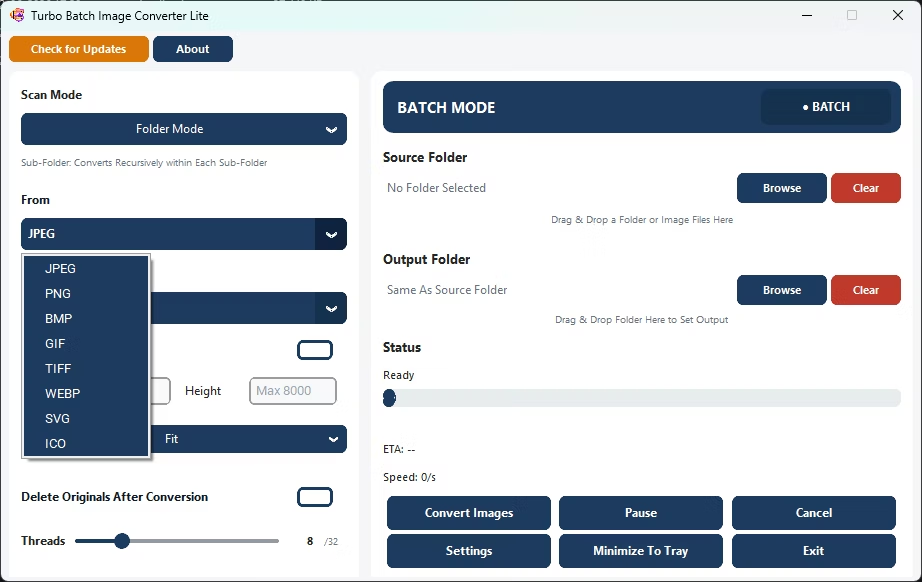
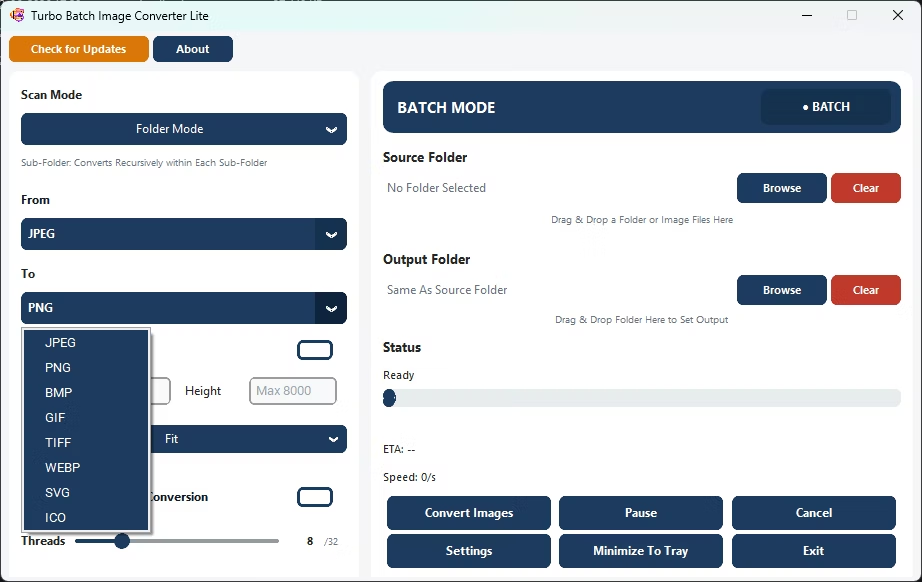
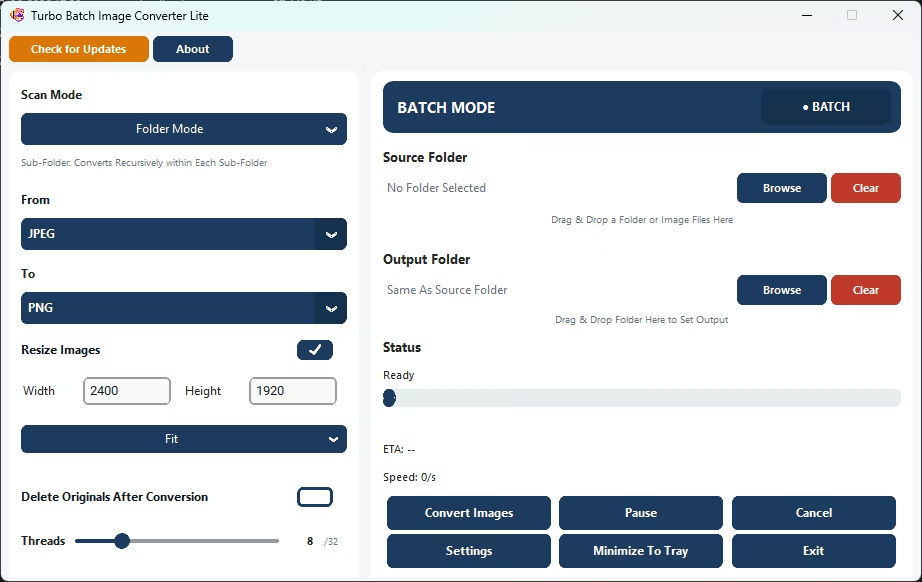
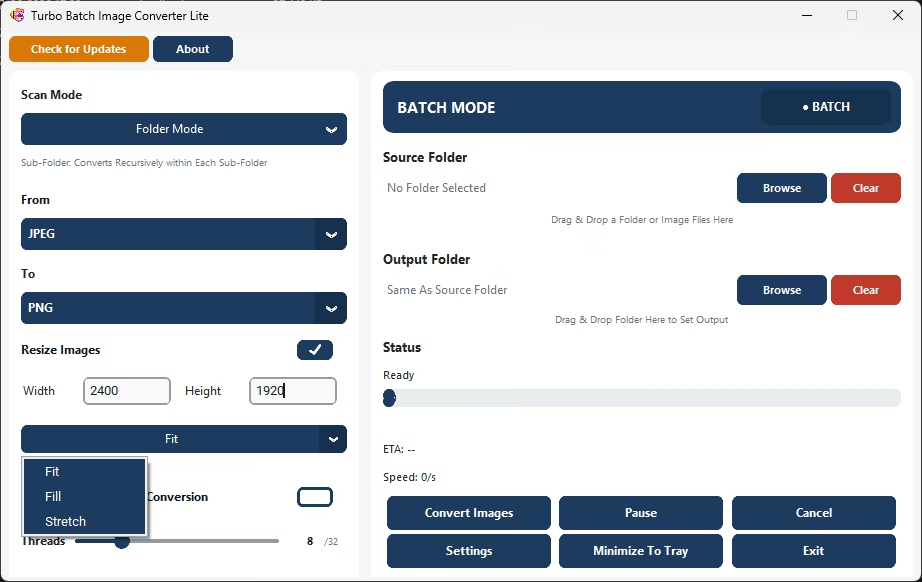
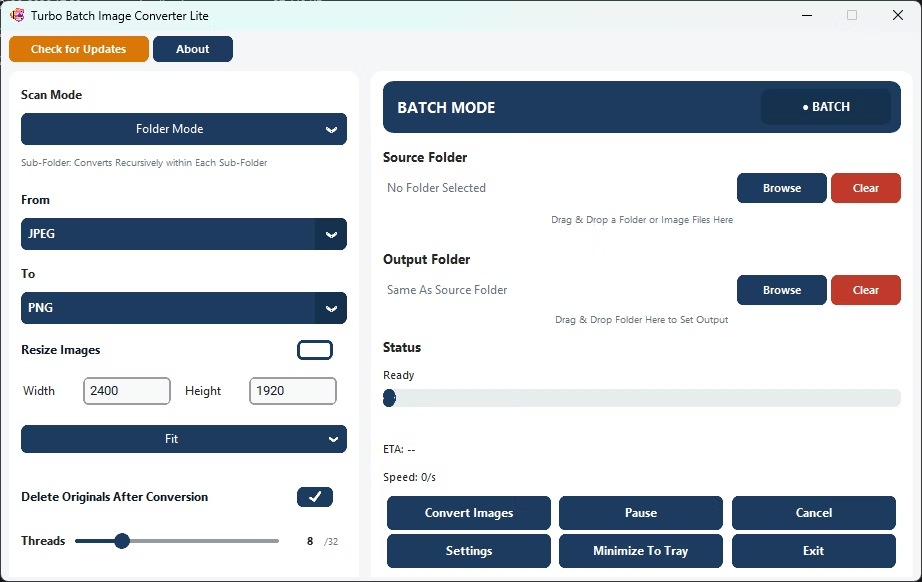
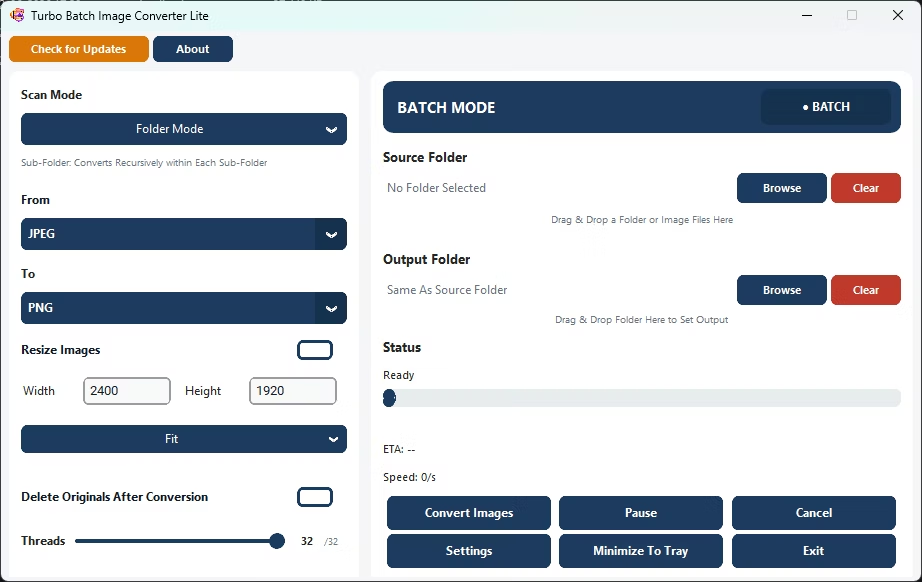
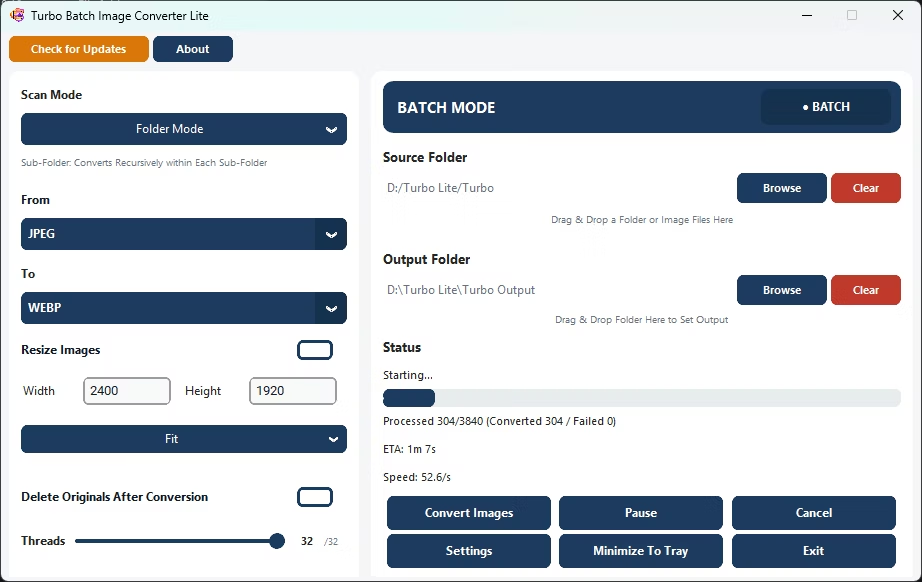
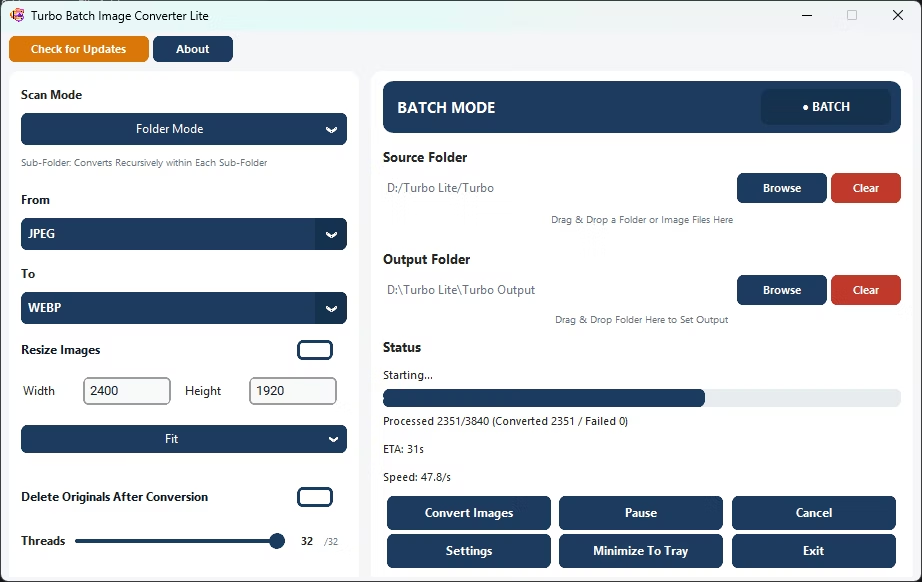
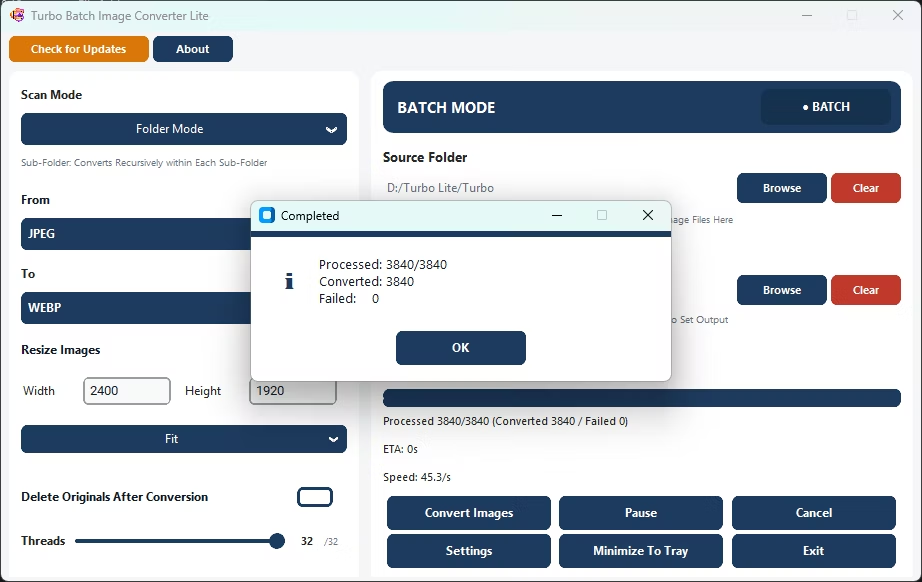
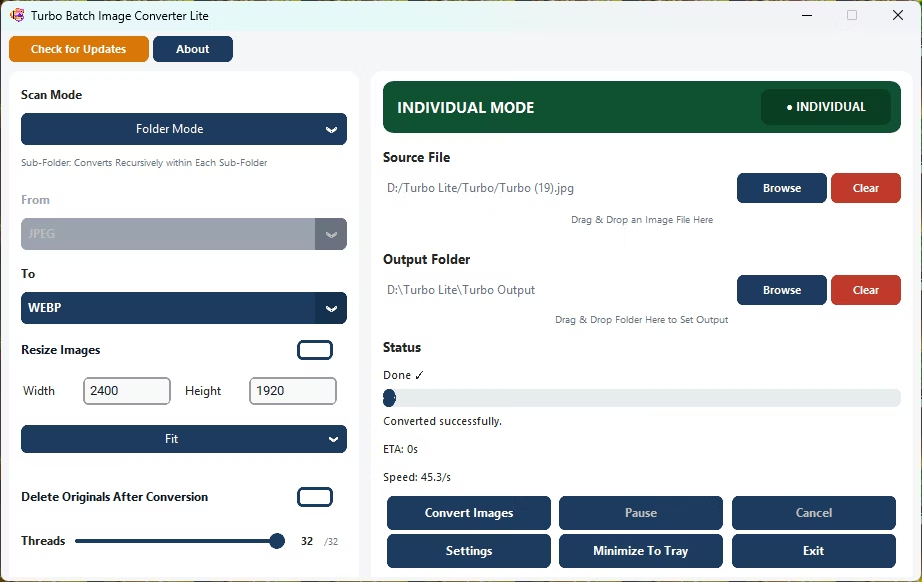
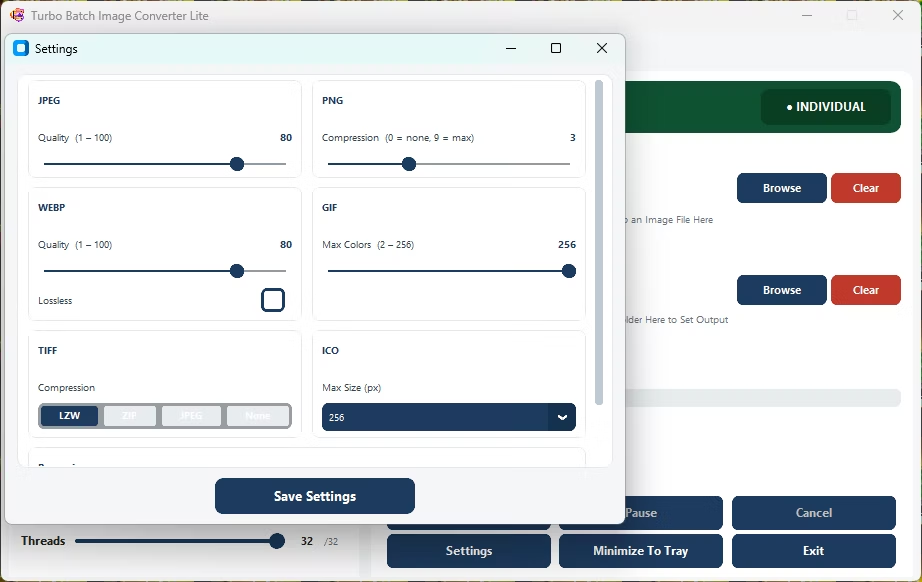
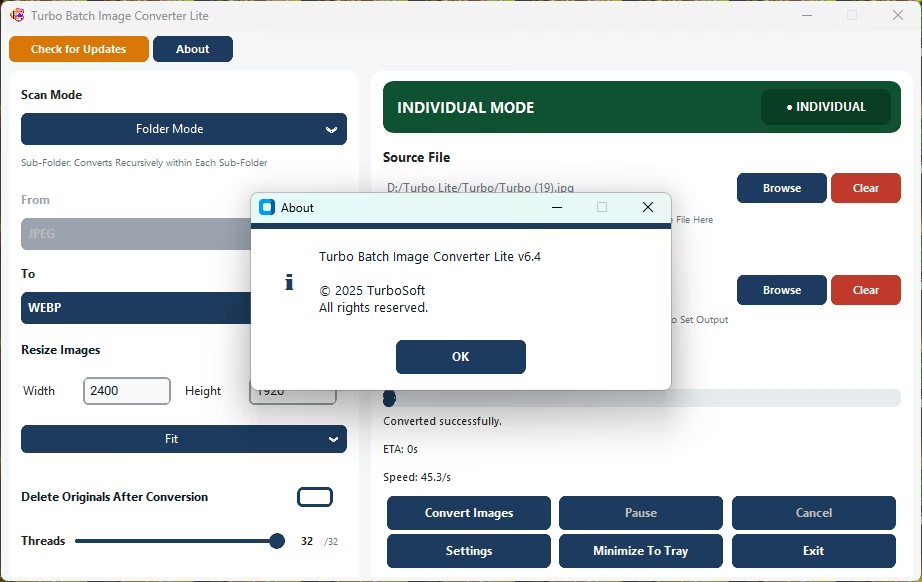
- Download and install Turbo Batch Image Converter Lite on your Windows 10 or Windows 11 PC.
- Launch the app; no additional setup or dependencies are required.
- Select Batch Mode for a folder, or Single Mode for one file.
- Choose your source and target formats.
- Adjust quality or resize settings as needed.
- Click Convert to process your images locally on Windows.
- Native Windows 10 and Windows 11 desktop application
- Small, standalone installer with no external dependencies
- Supports 8 everyday formats: JPEG, PNG, WebP, GIF, BMP, TIFF, SVG and ICO
- Works with local drives, external drives, and deep folder trees
- Runs fully offline with no upload limits
Does this work on both Windows 10 and Windows 11?
Yes, the app is built and tested for both Windows 10 and Windows 11.
Do I need to install any extra dependencies?
No, the installer includes everything needed to run the app out of the box.
Is this app lightweight compared to a full photo editing suite?
Yes, it's built to be a small, focused converter rather than a full editing suite.
Ready to convert your images with a lightweight Windows image converter?