A "large" CSV file usually means something different depending on who you ask, but in practice it's any file that's slow to open, crashes your spreadsheet program, or is simply too big to email. Files in the multi-gigabyte range, often with tens of millions of rows, need a tool built to handle that scale without loading everything into memory at once.
Turbo Large Data Splitter reads large CSV files in chunks rather than all at once, which means it can process files far bigger than your available RAM would normally allow. You choose whether to split by row count or file size, and the app streams through the data, writing out smaller files as it goes.
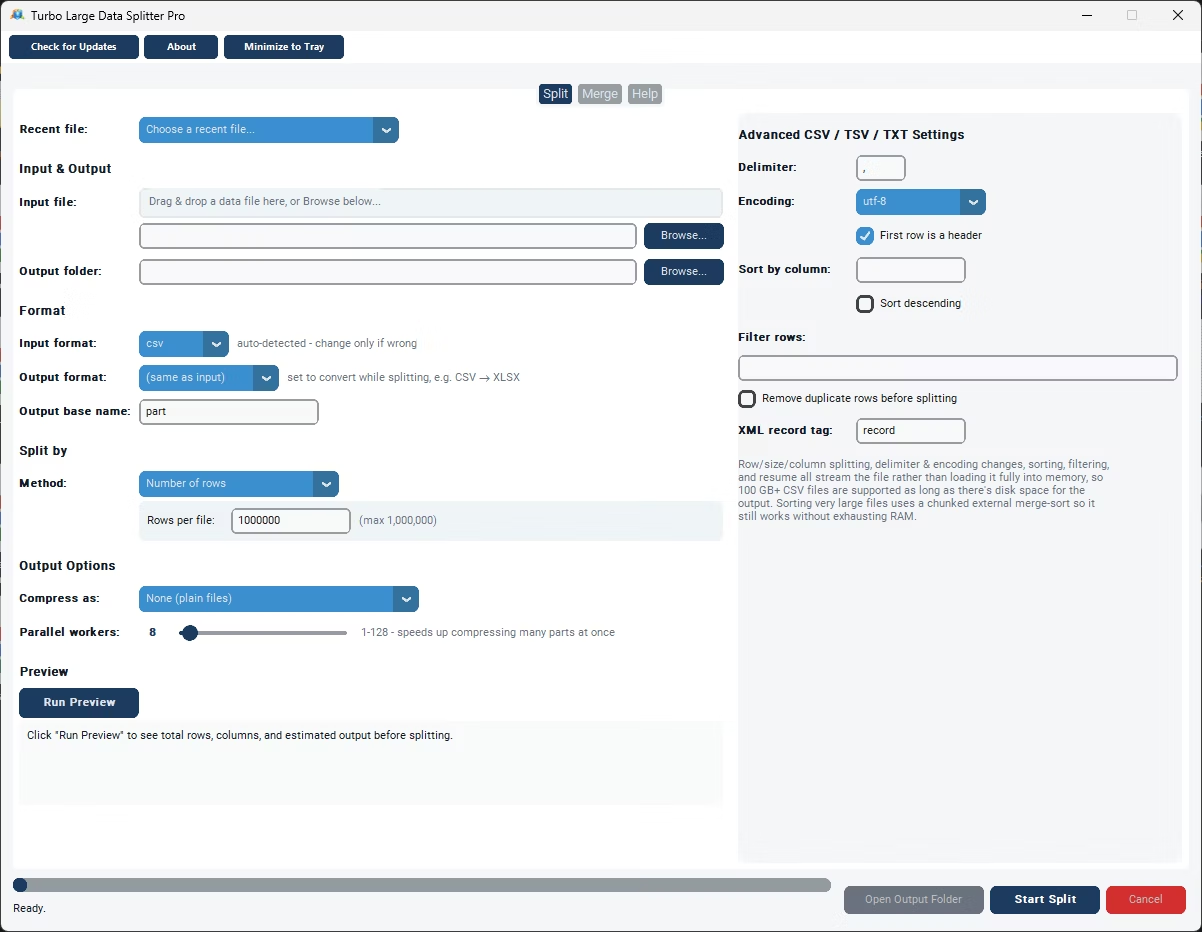
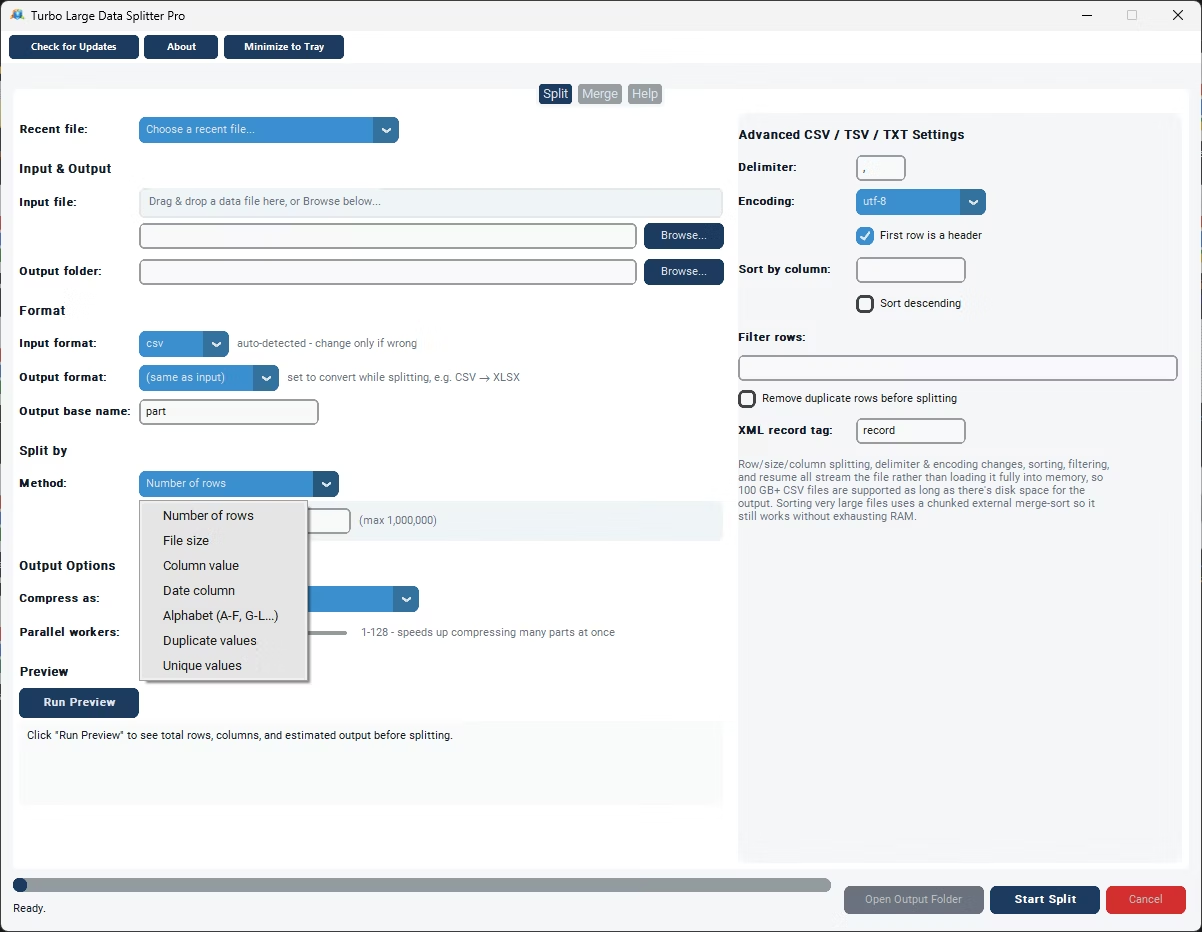
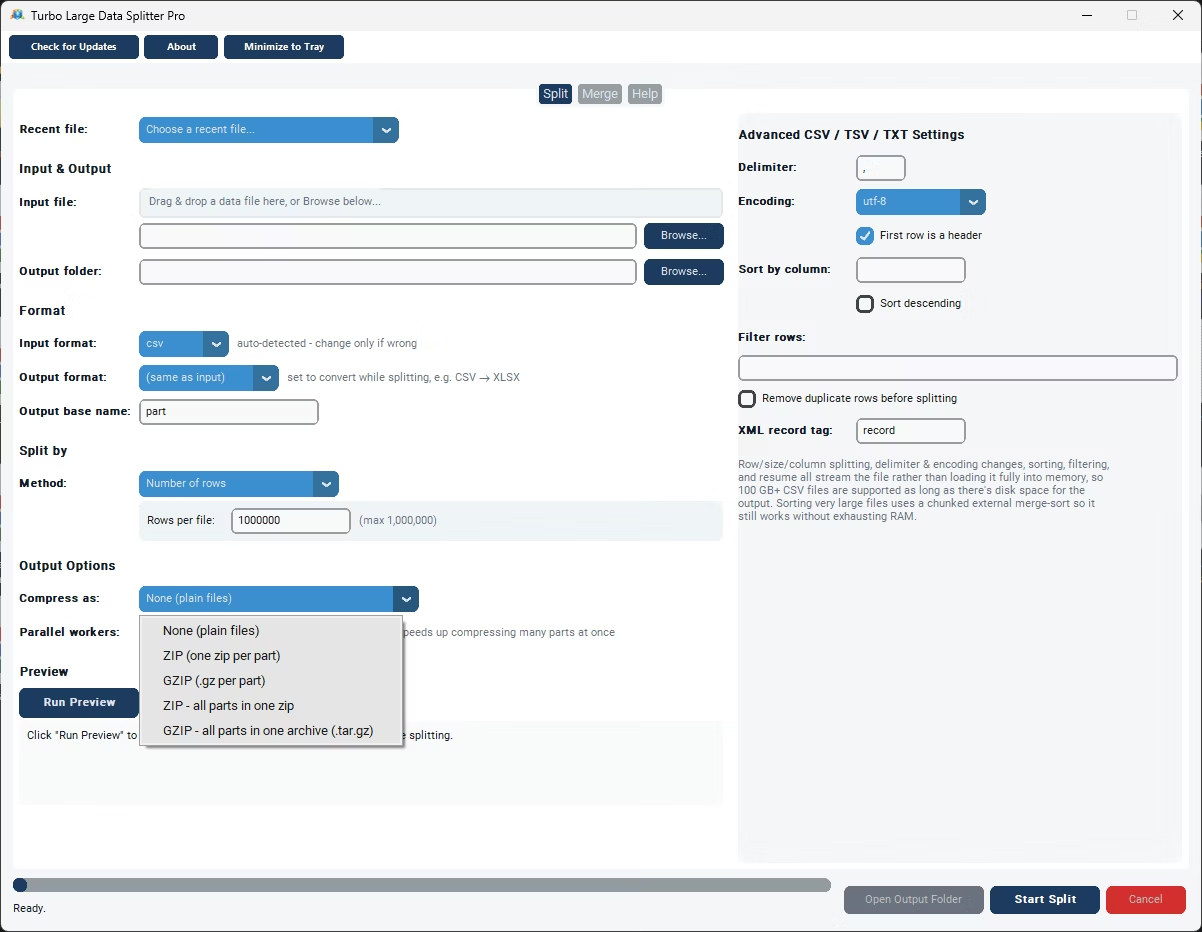
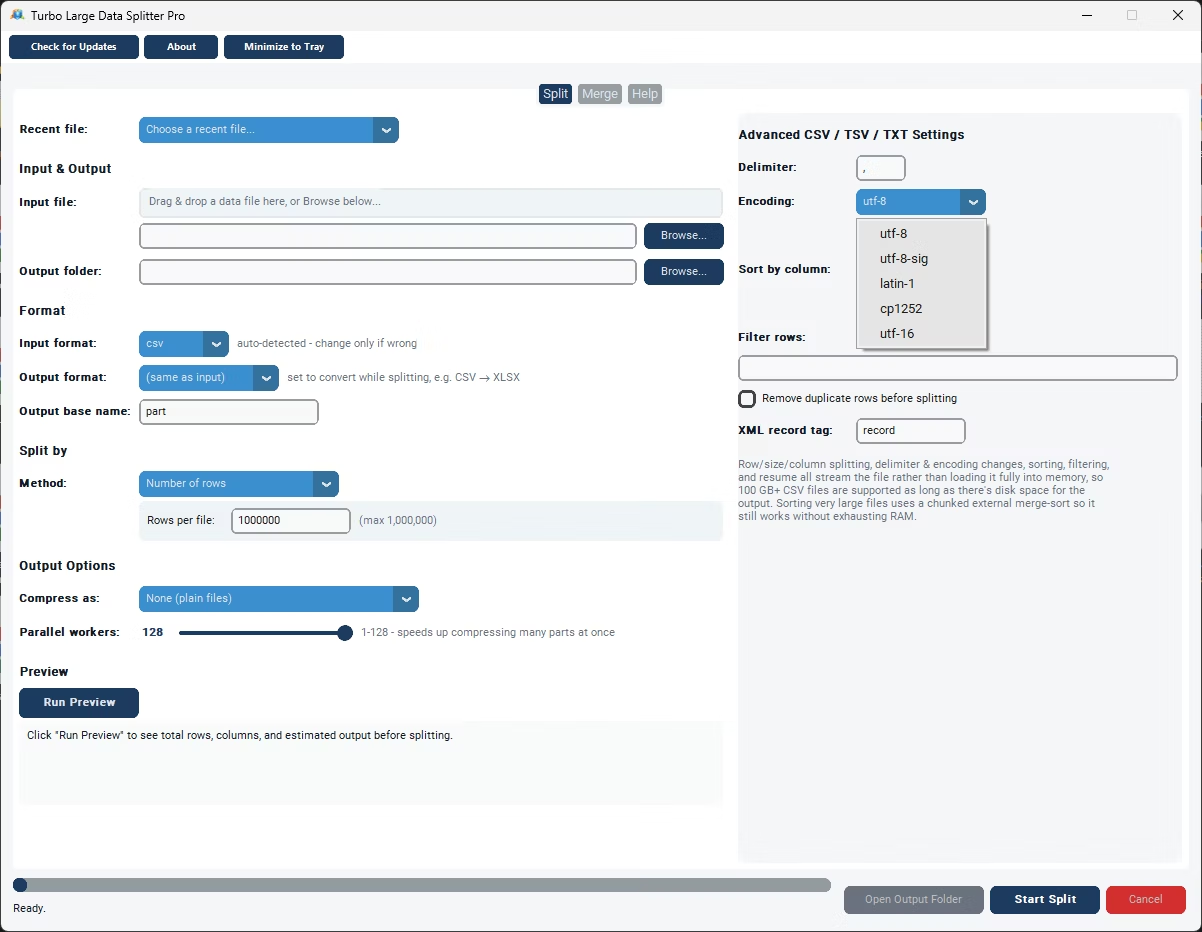
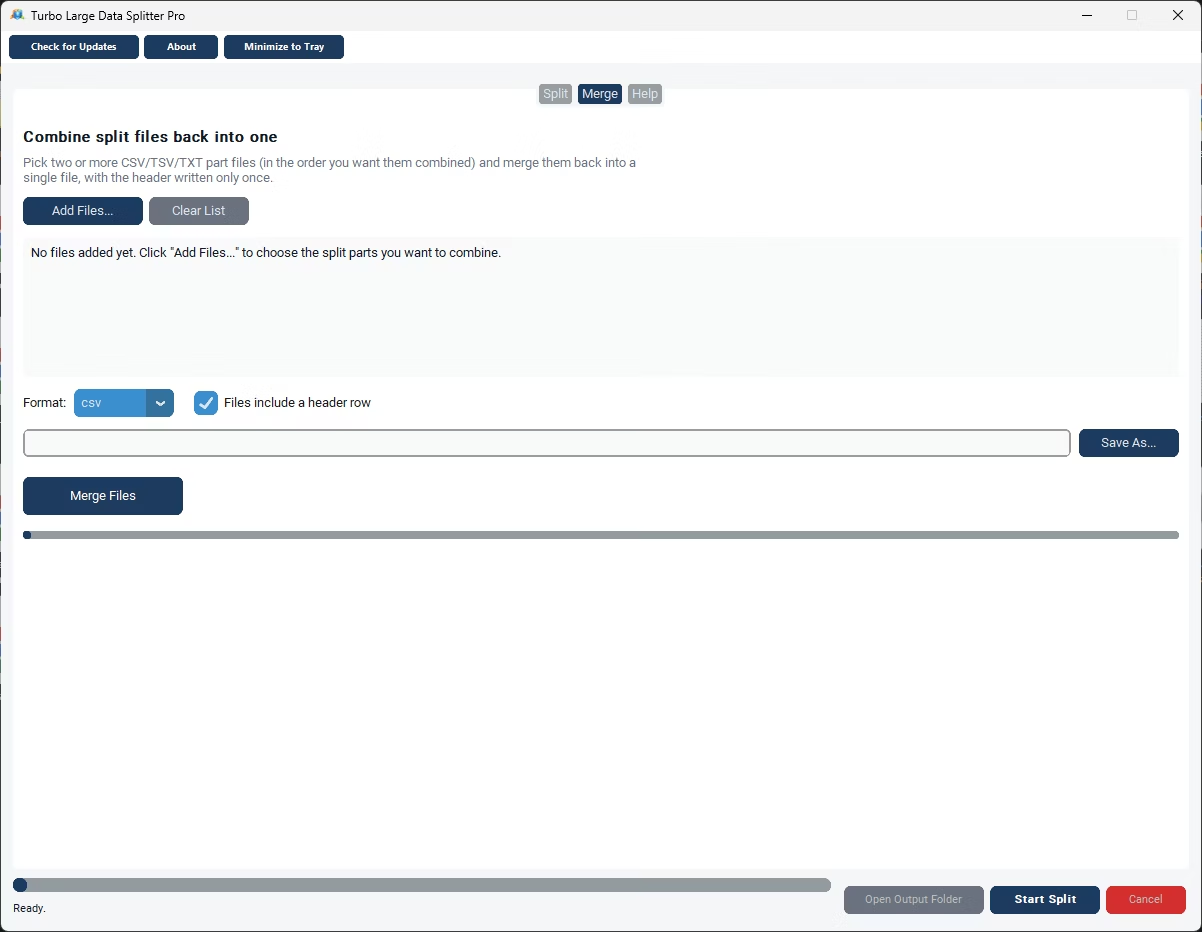
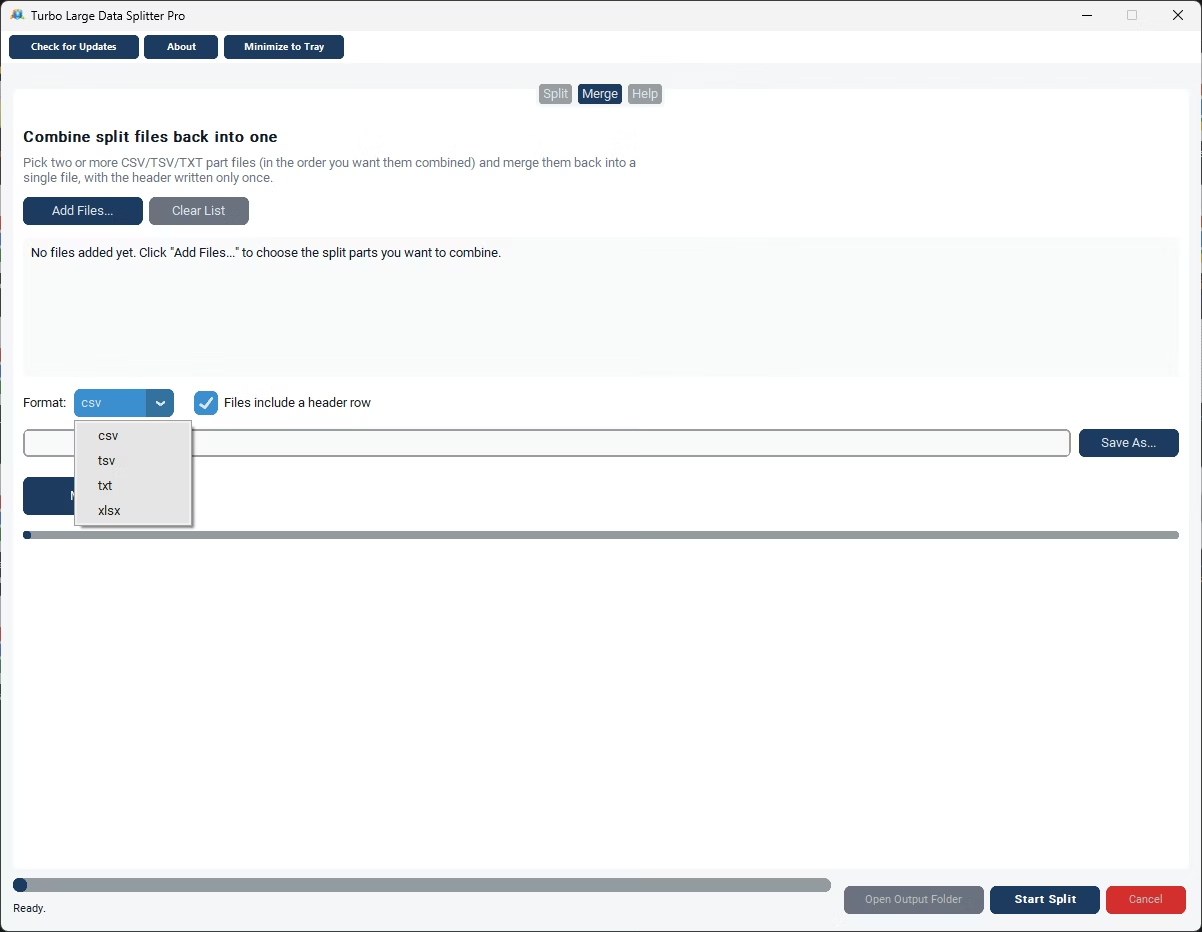
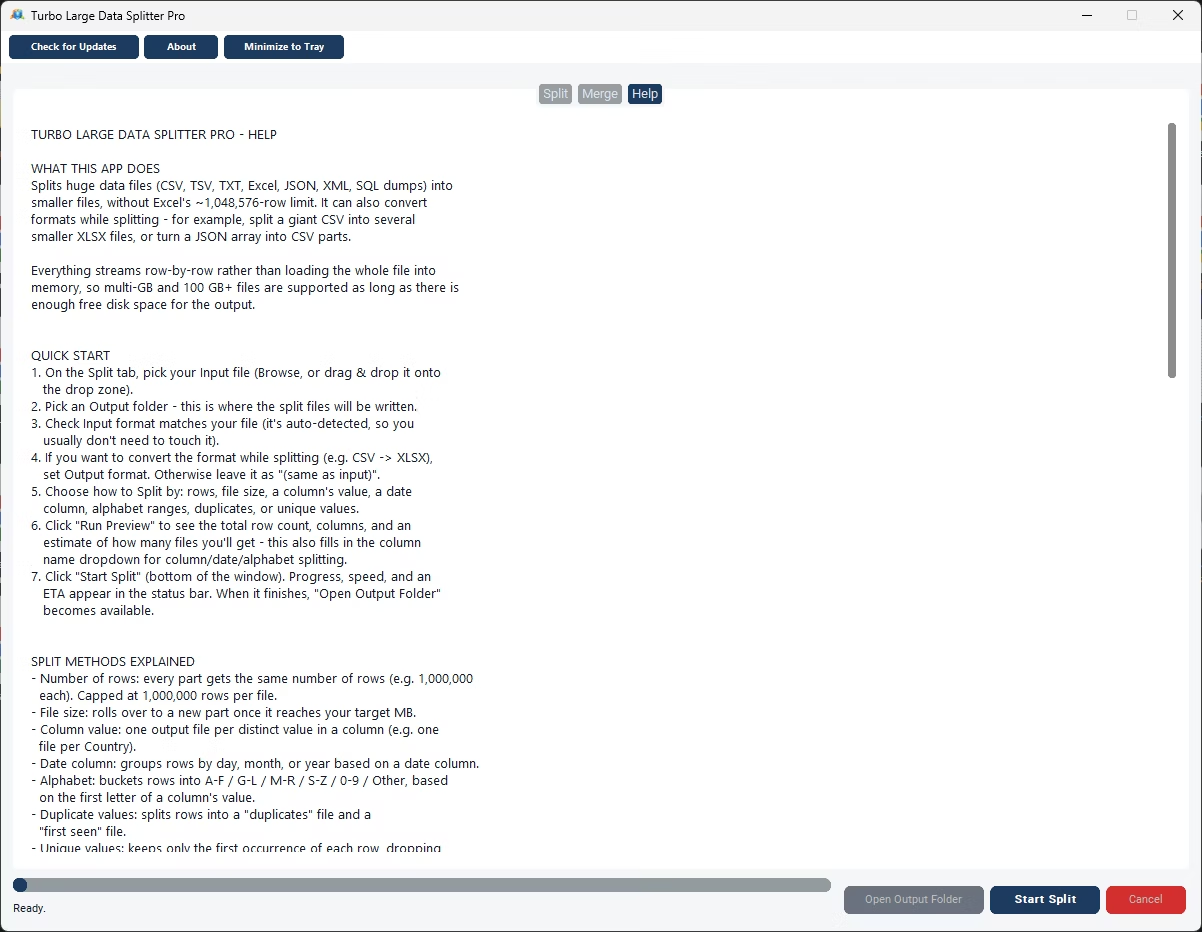
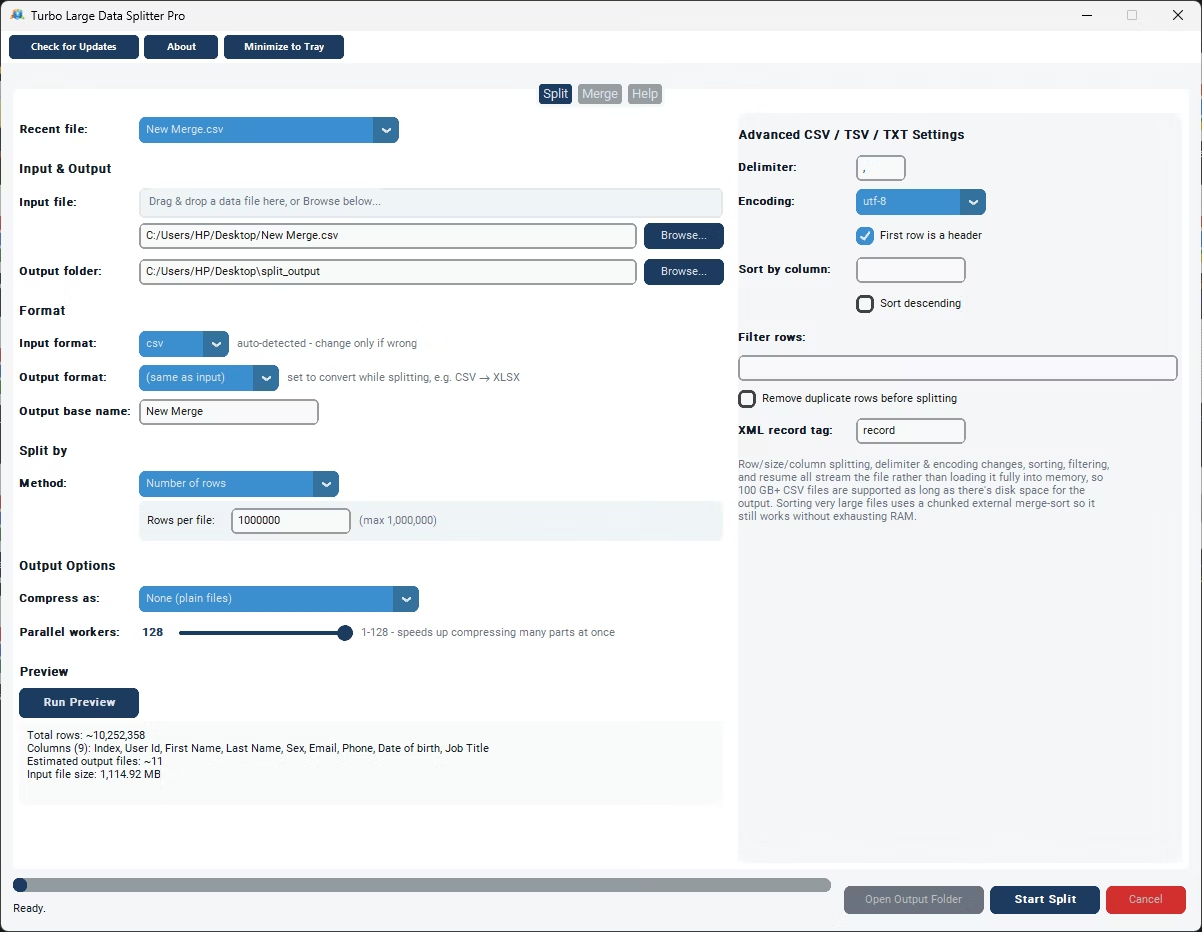
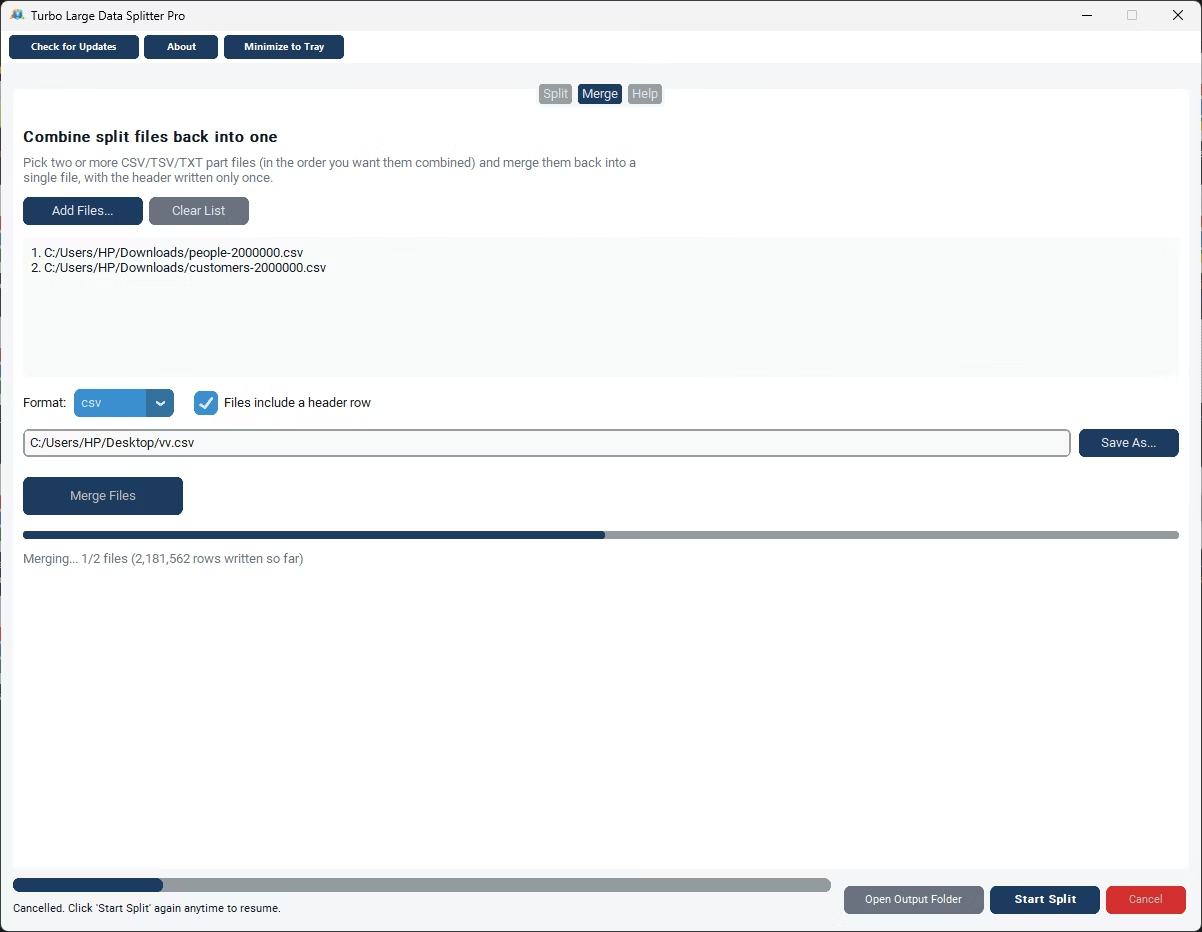
- Install Turbo Large Data Splitter on your Windows PC.
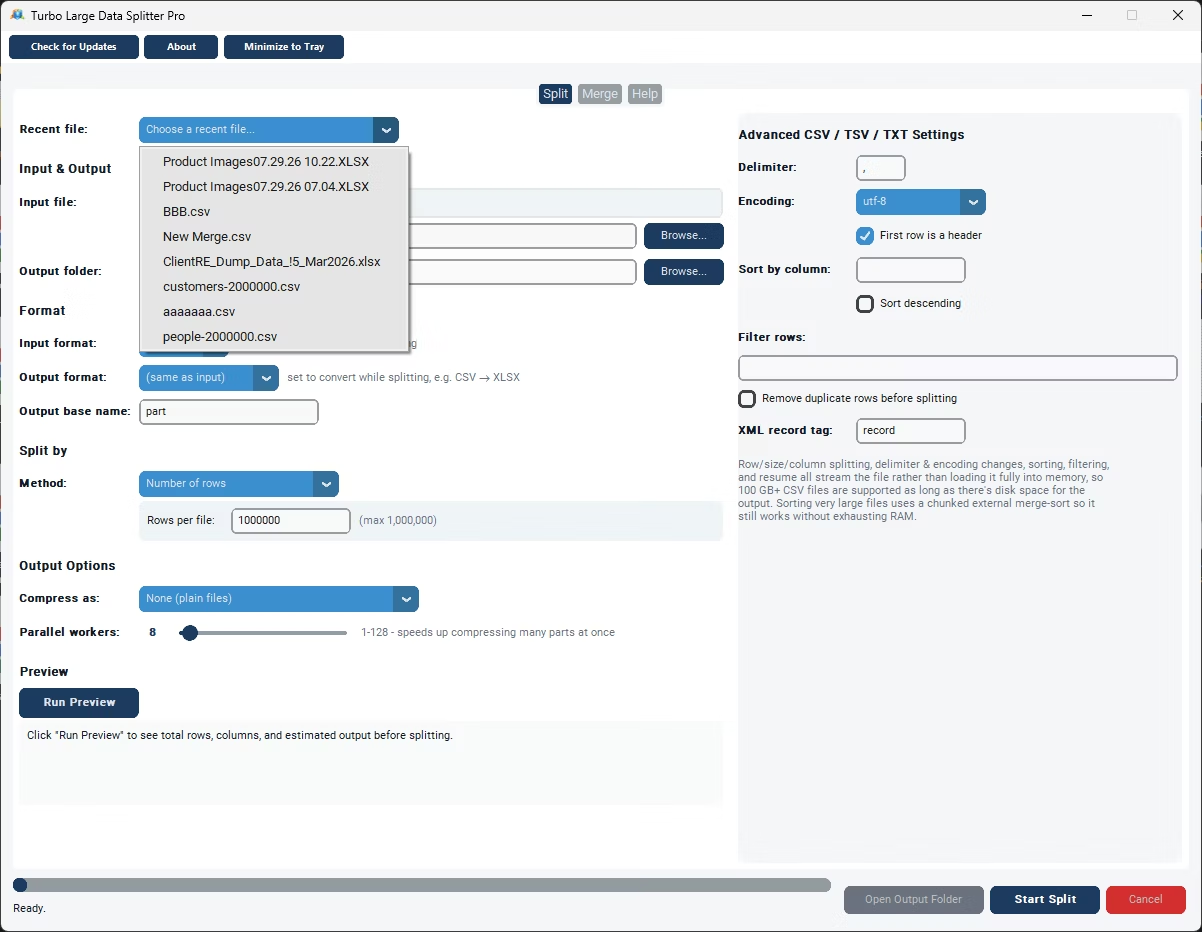
- Load your large CSV file into the app.
- Choose to split by row count or by file size in megabytes.
- Set the value you want for each output file.
- Click Split and let the app stream through the data in chunks.
- Collect your smaller, manageable CSV files from the output folder.
- Chunked reading keeps memory use low on huge files
- Handles CSV files several gigabytes in size
- Split by row count or target file size
- No risk of running out of RAM during processing
- Fast performance even on tens of millions of rows
- Fully offline, keeping large datasets private
How large a CSV file can this handle?
The app is designed to process CSV files up to 50 million rows using chunked reading, so file size alone doesn't cause it to slow down or crash.
Will splitting a large CSV file use up all my computer's memory?
No, because the app reads the file in chunks rather than loading it entirely into memory, RAM usage stays low regardless of the total file size.
Is there a faster way to split large CSV files than opening them in Excel first?
Yes, opening a very large CSV in Excel first is often slower and riskier, since Excel has its own row limit and can struggle with large files; splitting first avoids that step entirely.
Ready to split your large CSV file without running into memory limits?