When a workbook has several sheets and each one holds a different kind of picture - a Products sheet, a Logos sheet, a Team Photos sheet - saving images 'from a sheet' usually implies keeping that separation intact on disk too. A folder where every picture from every sheet has been dumped together defeats the purpose almost as much as not saving them at all, since you are back to eyeballing each one to figure out where it came from.
Excel's own Save as Picture dialog treats every image the same regardless of which sheet it is on - it just asks for a folder and a filename, with no awareness of sheet structure at all. Keeping sheets separated on disk is entirely up to you, done by manually creating and choosing a different folder for each sheet's images as you save them one by one.
The manual approach works like this: create a folder named after the sheet, switch to that sheet in Excel, right-click and save each picture into the matching folder, then move to the next sheet and repeat with a new folder. It is straightforward for two or three sheets with a few pictures each, but the bookkeeping compounds quickly once a workbook has ten or more sheets, some hidden, some with dozens of images.
It is also easy to lose track partway through a large sheet and save a picture into the wrong folder, especially when several sheets have visually similar images such as repeated logos or near-identical product angles.
- Create a destination folder and name it after the sheet, for example ProductPhotos.
- Click the matching sheet tab in Excel to make it active.
- Right-click each picture on that sheet and choose Save as Picture.
- Navigate to the folder you created and save the image there.
- Repeat for every picture on the sheet, then move to the next sheet and create its own folder.
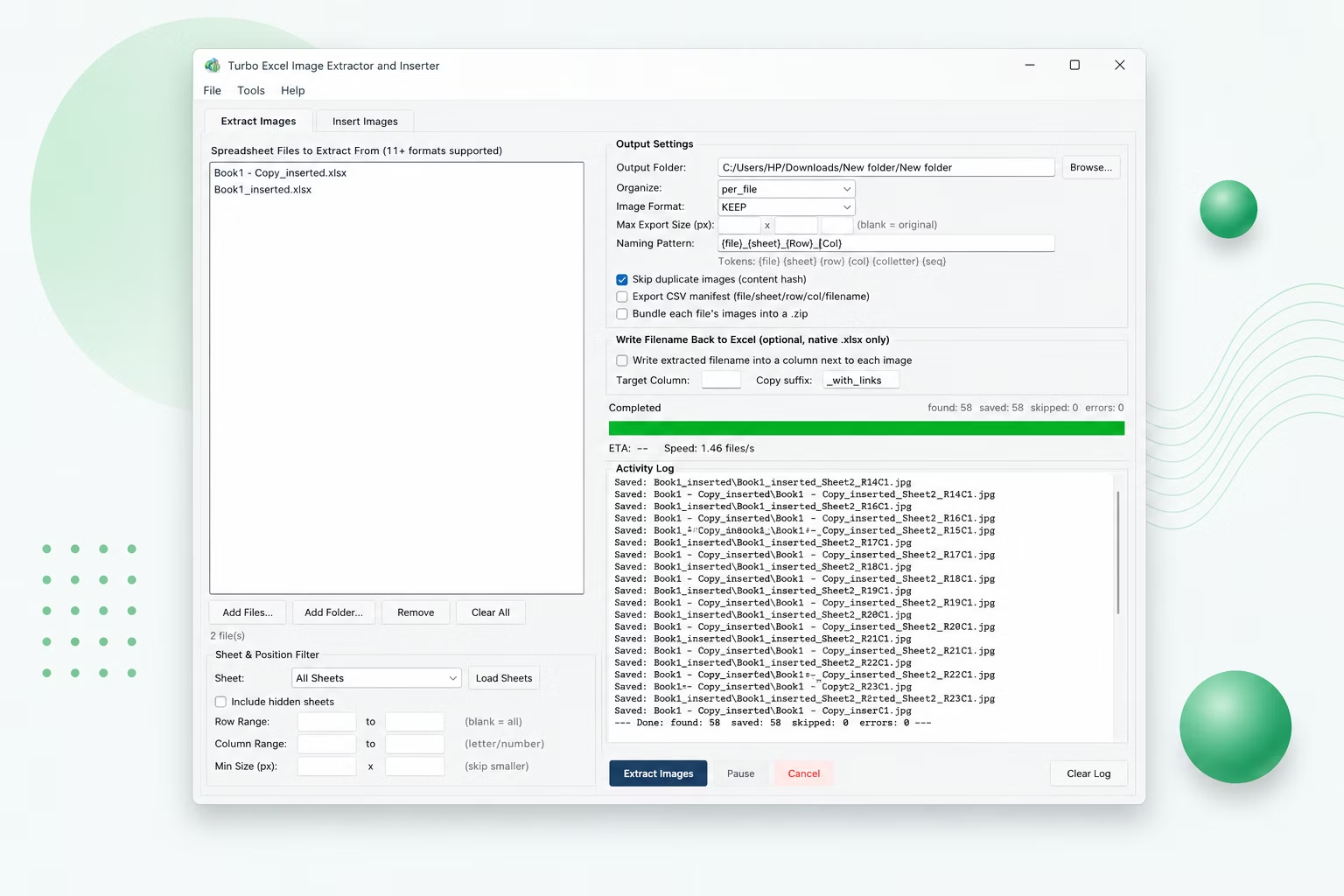
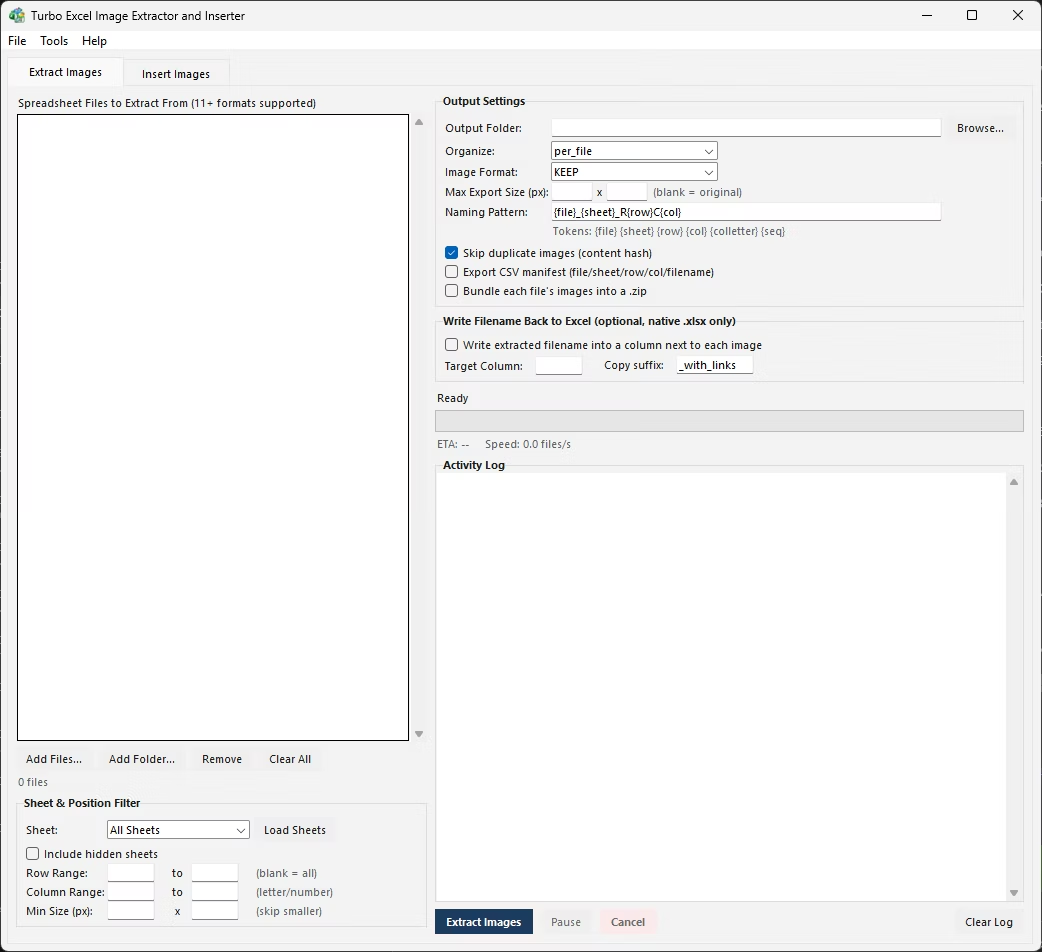
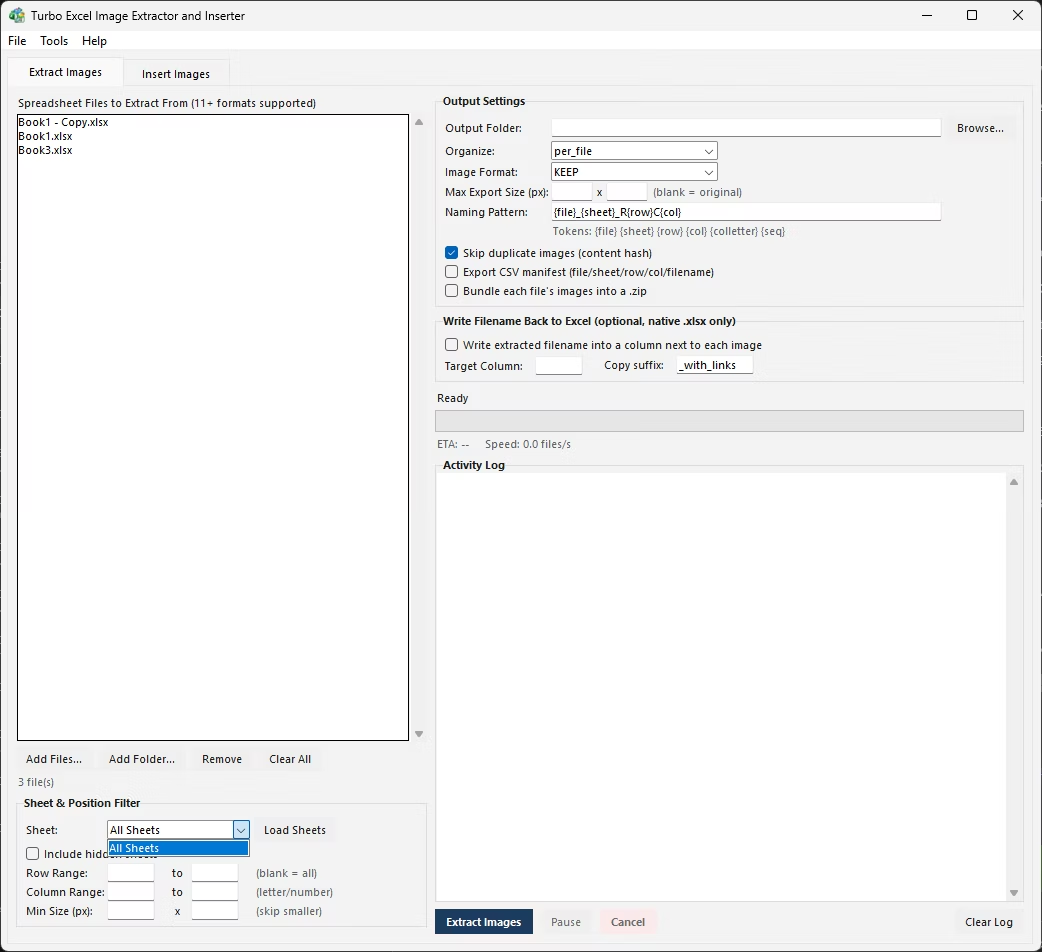
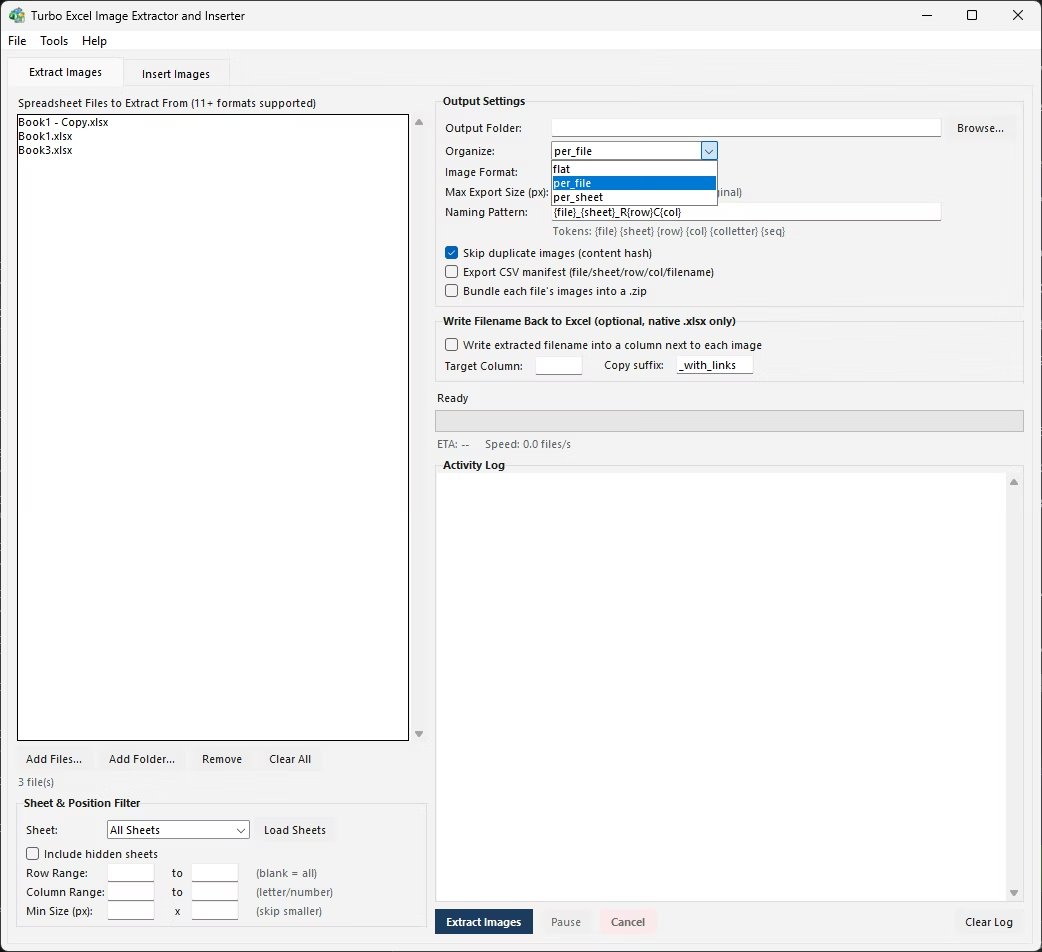
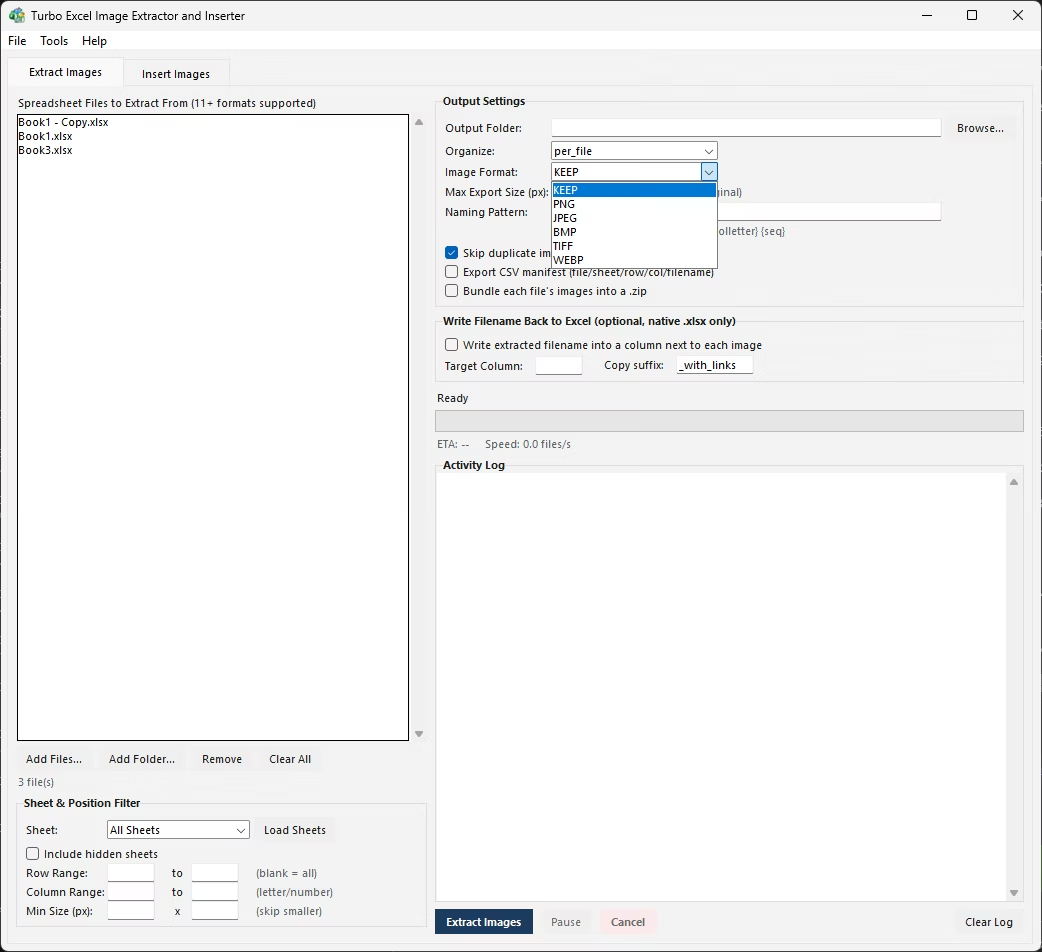
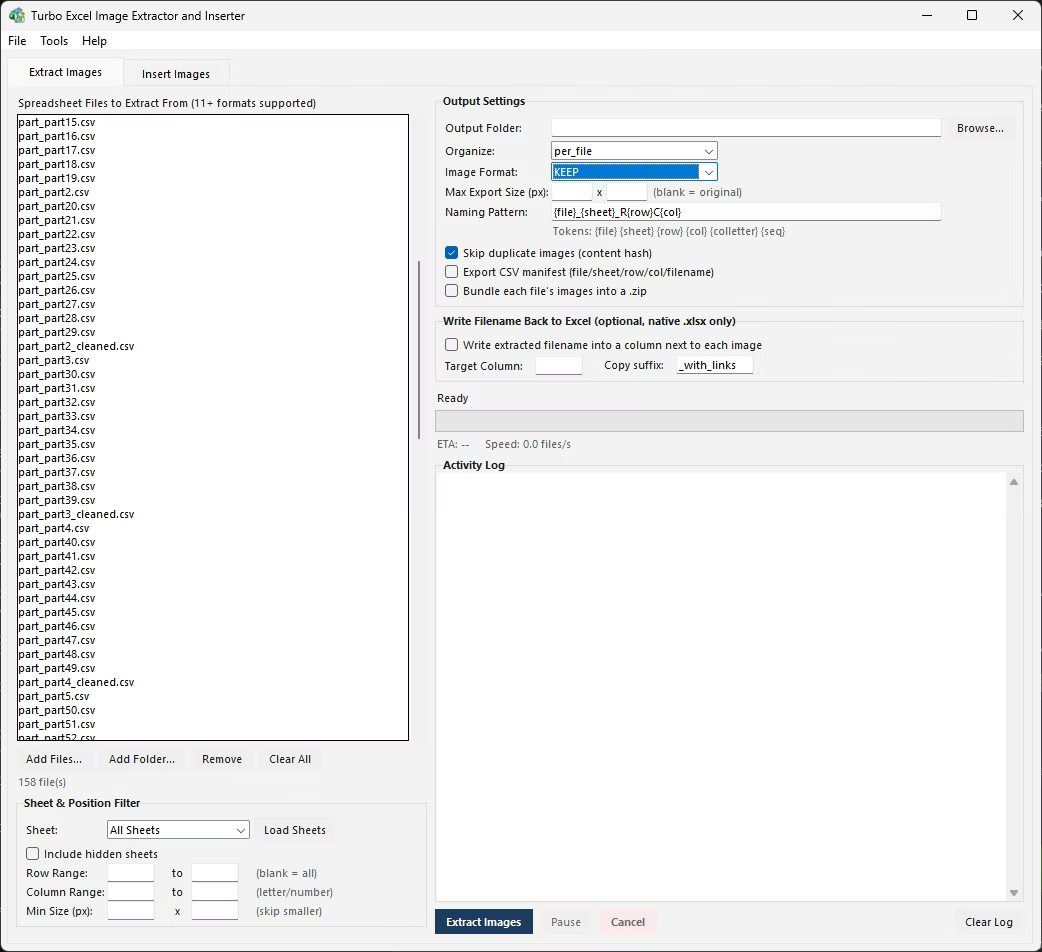
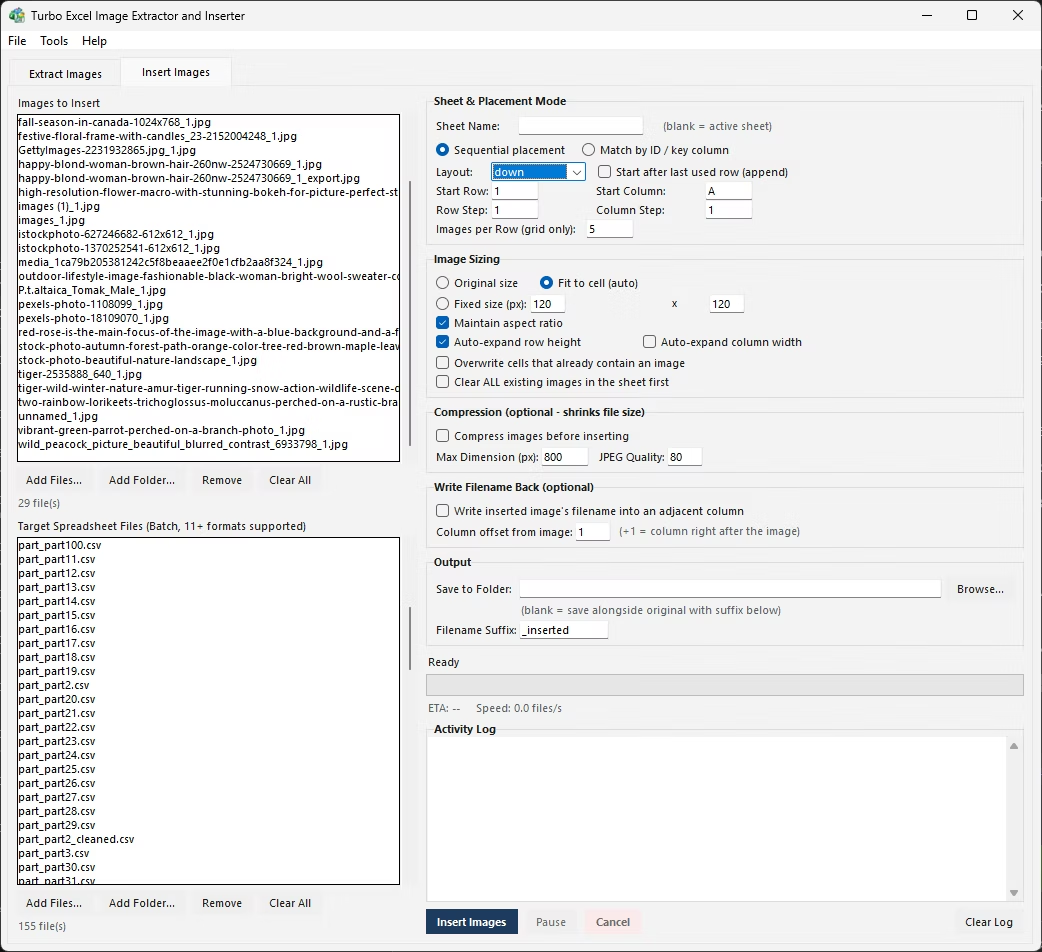
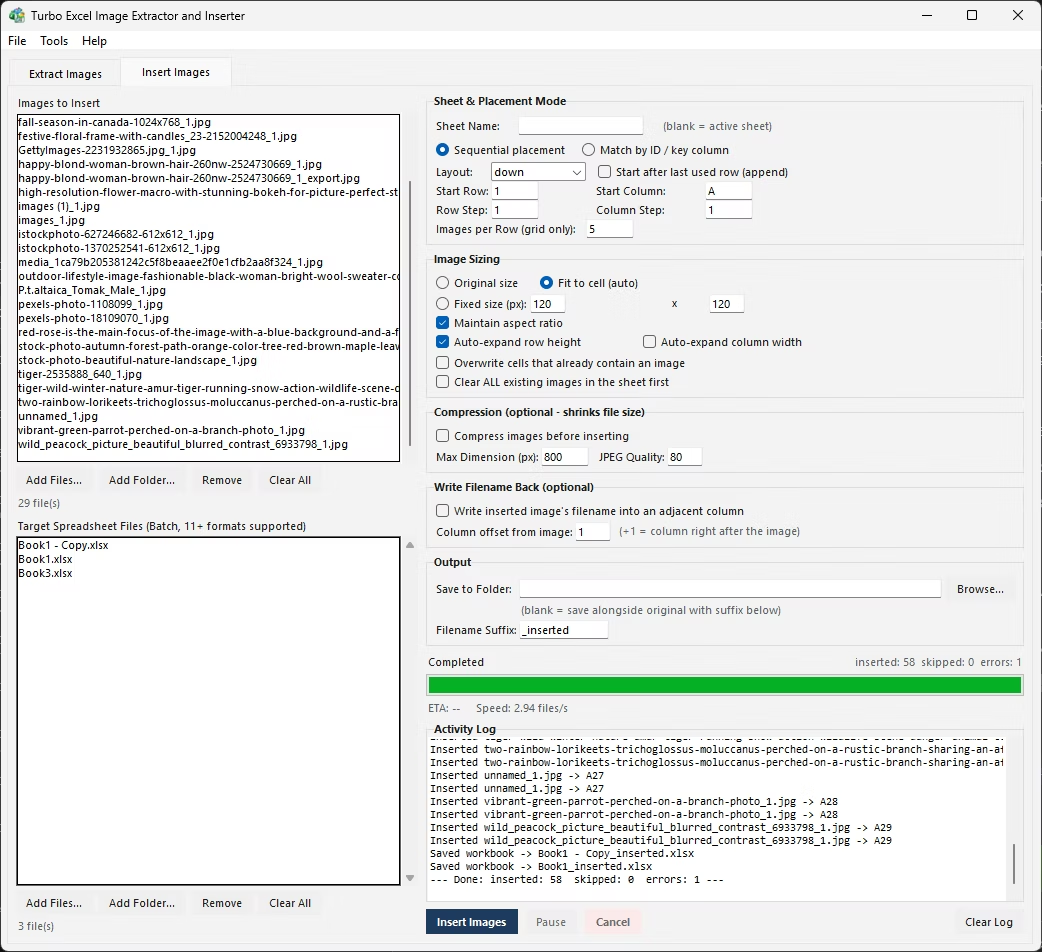
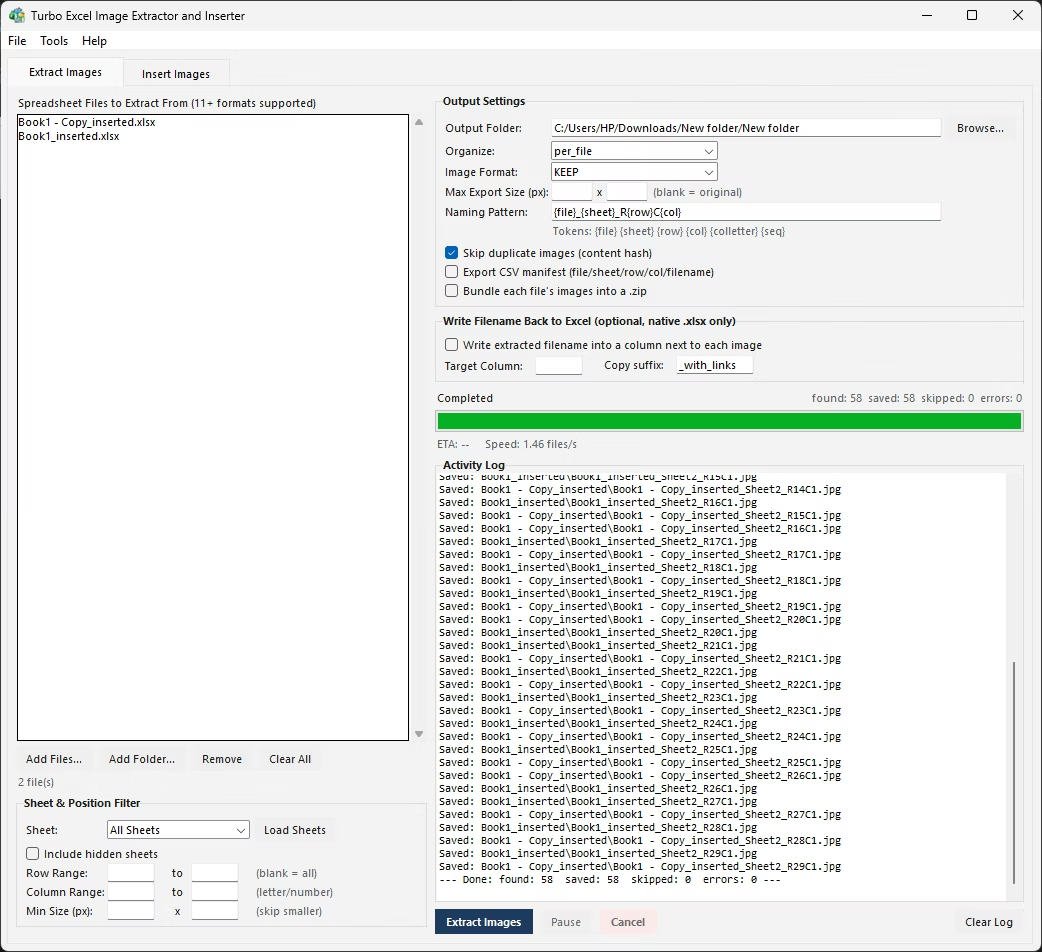
Turbo Excel Image Extractor and Inserter removes this bookkeeping entirely with a Per Sheet output folder mode: choose it, and the tool automatically creates a separate subfolder for every sheet that contains images, then routes each extracted picture into the correct one as it processes the workbook - no manual folder creation or sheet-by-sheet saving required.
This works identically whether you are extracting from a single workbook with several sheets or a whole batch of workbooks, each with their own sheet structure, loaded into the queue at once. Combined with the naming pattern's {sheet} token, filenames also carry their sheet name, giving you two independent, consistent ways to tell exactly which sheet each image came from once it lands on disk.
When the same job needs to be repeated across many workbooks - say, a monthly batch of reports that always includes a Photos sheet - the value of an automated per-sheet folder structure compounds over time. Doing it manually once is tedious; doing it manually every month, forever, is the kind of task that quietly eats hours nobody accounts for.
Setting the sheet name, folder mode, and naming pattern once and reusing the same settings for each new batch of files turns a recurring manual chore into a five-minute task: load the new folder of workbooks, run the batch, and the same clean per-sheet structure comes out every time without re-deciding anything.
This also makes it easy to hand the job off to someone else - the settings themselves describe the whole process, so a colleague can run the same extraction with the same folder-per-sheet result without needing to know the manual right-click-and-save routine at all.
- Per Sheet folder mode creates one subfolder per sheet automatically
- Works across a single workbook or an entire batch of workbooks
- {sheet} naming token doubles as a second way to trace each image's origin
- Hidden sheets excluded by default, included with a single checkbox
- No manual folder creation or sheet switching required
- Row and column filters narrow scope within any given sheet
Does Excel automatically separate saved images by sheet?
No. Save as Picture writes wherever you point it regardless of which sheet the image came from - keeping sheets organized into separate folders is entirely a manual step you have to manage yourself.
What is Per Sheet folder mode?
It is an output setting that automatically creates a separate subfolder for every sheet containing images, and routes each extracted image into the folder matching its source sheet, with no manual folder management needed.
Can I combine Per Sheet folders with a naming pattern?
Yes. The folder structure and the filename naming pattern work independently, so you can have both a per-sheet folder and a filename that also includes the {sheet} token for a second layer of traceability.
Does this work if I load several workbooks at once?
Yes. Per Sheet folder mode applies to every workbook in the batch, so each source file's sheets get their own subfolders without any extra setup per file.
Ready to handle images in bulk, offline, with full privacy?