A single Excel file can hold dozens of sheets, and it is common for images to be spread unevenly across them - a gallery of product photos on one sheet, a company logo repeated on several others, decorative graphics somewhere else entirely. Extracting 'the images from a sheet' really means being able to point precisely at one sheet and ignore the rest, or to sweep through every sheet in one go when you genuinely want everything.
Excel itself has no concept of 'extract images from this sheet only' as a menu command. Right-clicking and choosing Save as Picture saves whatever single picture you selected, regardless of which sheet it happens to sit on - there is no sheet-aware batch option built into the program.
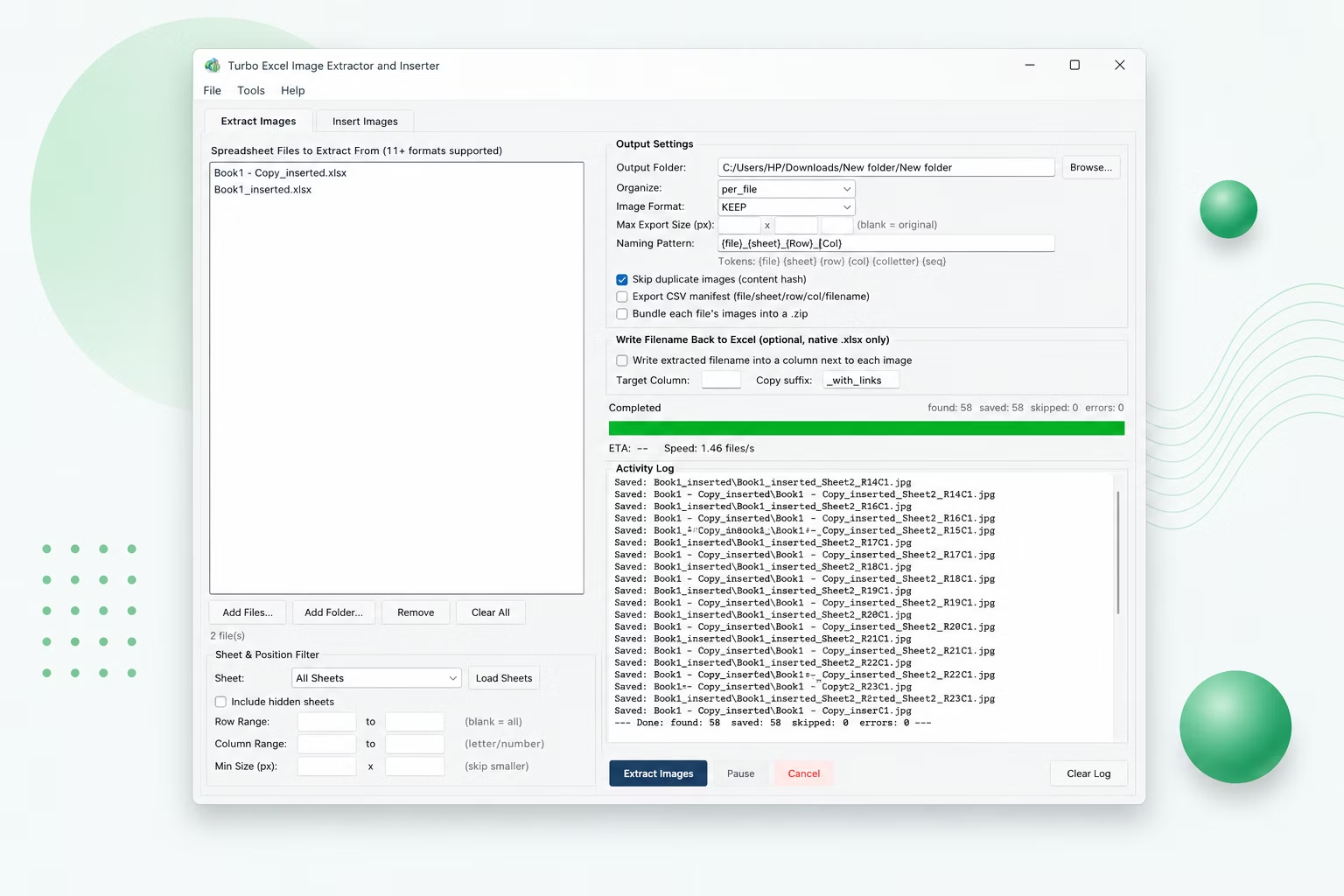
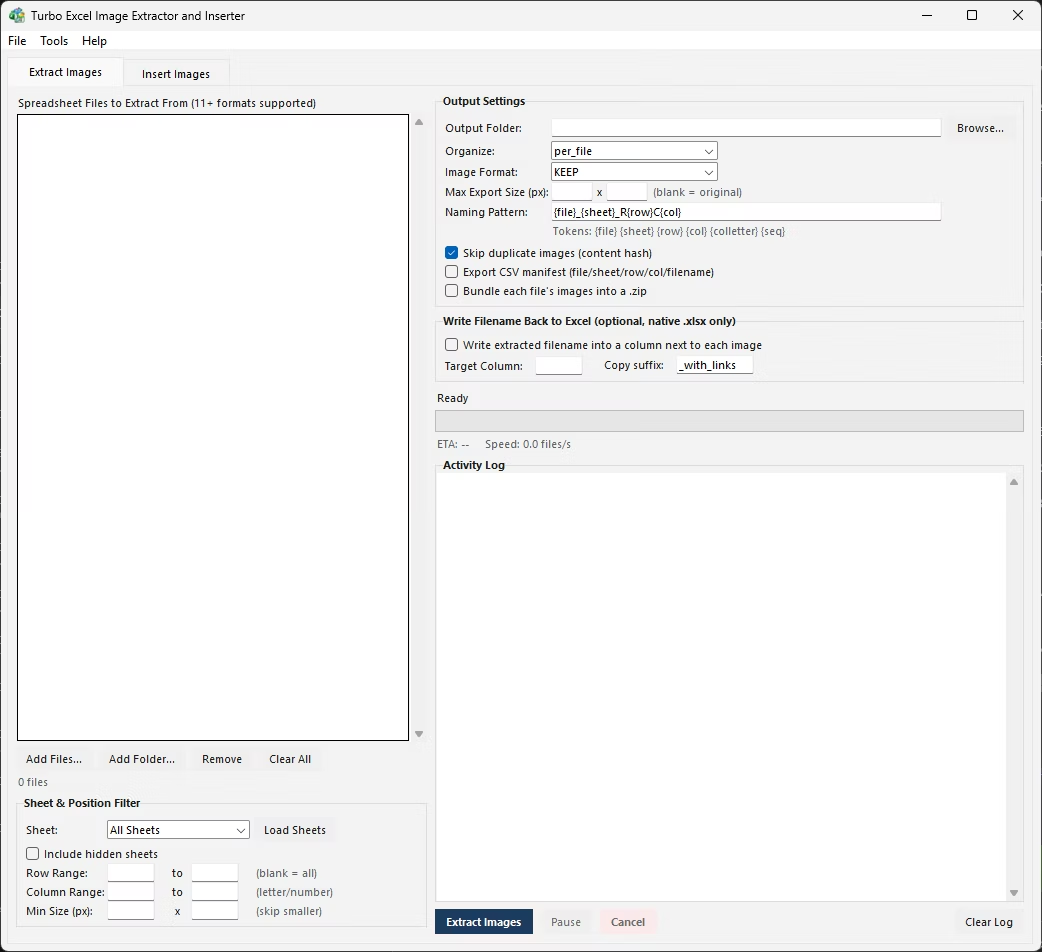
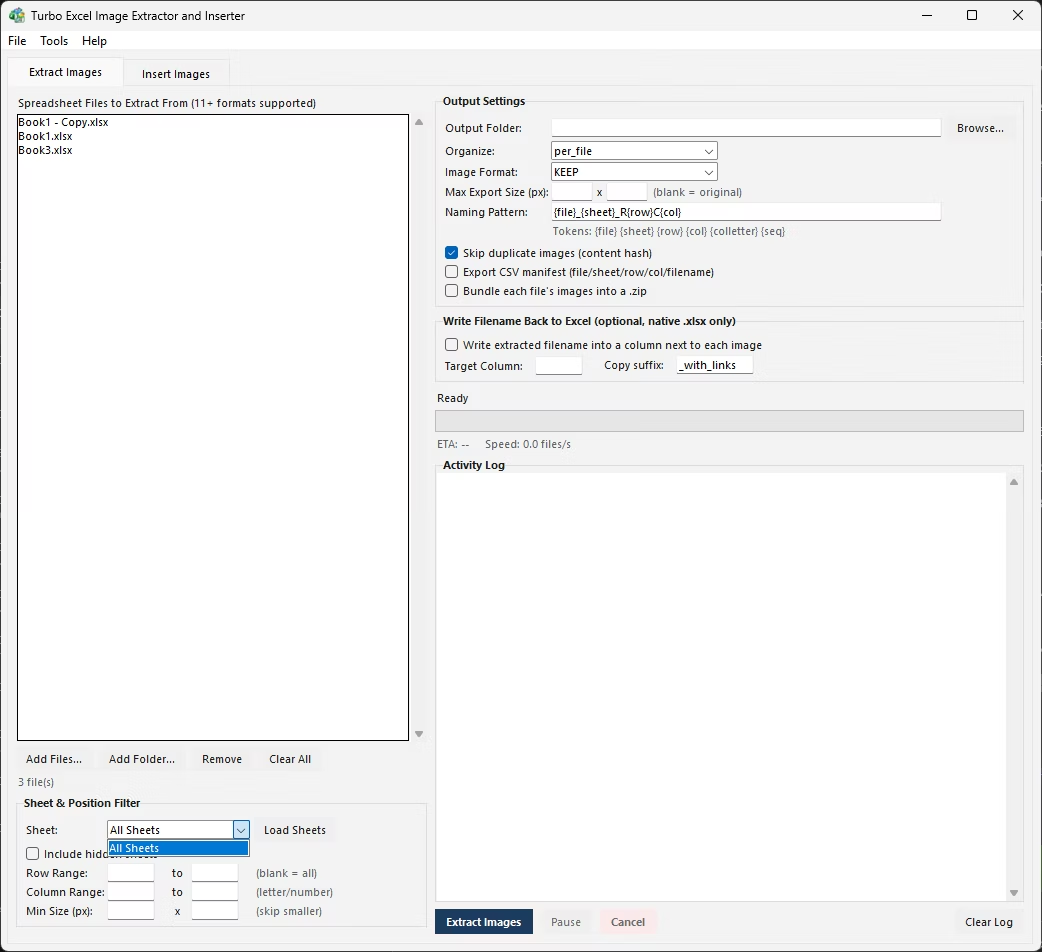
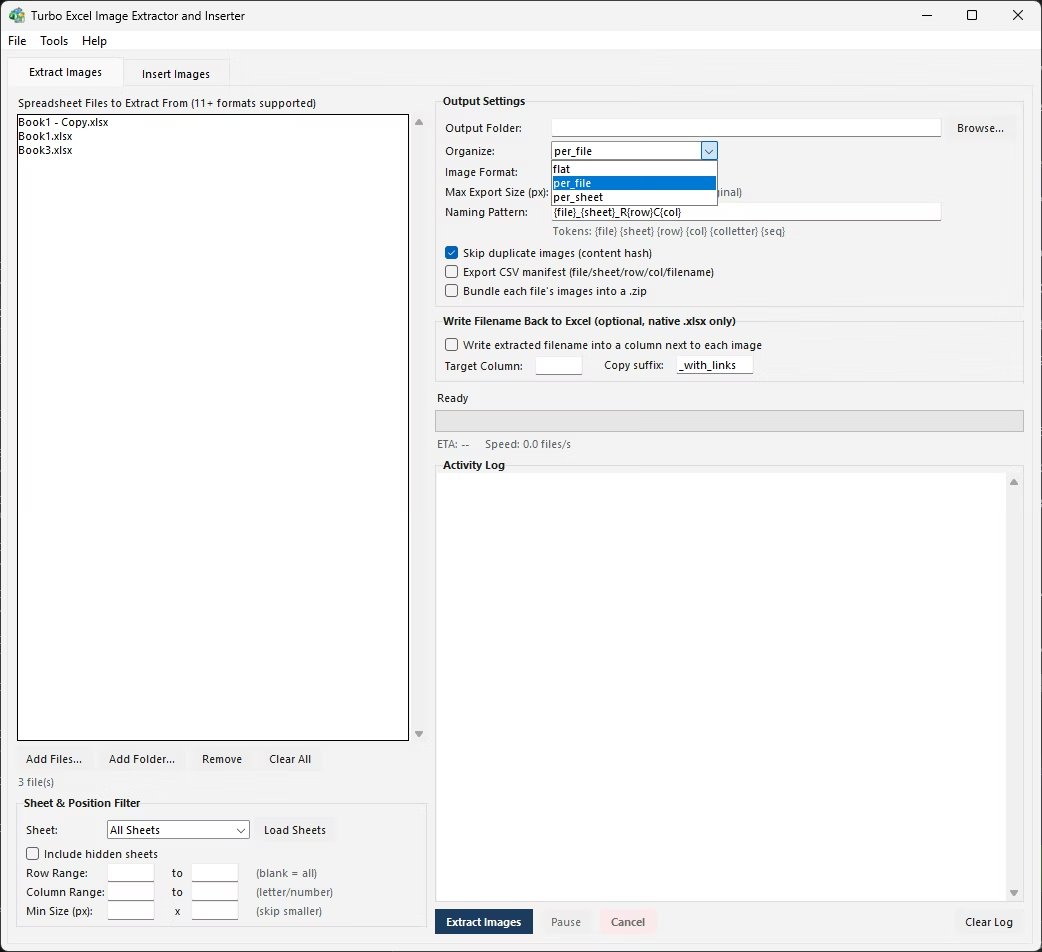
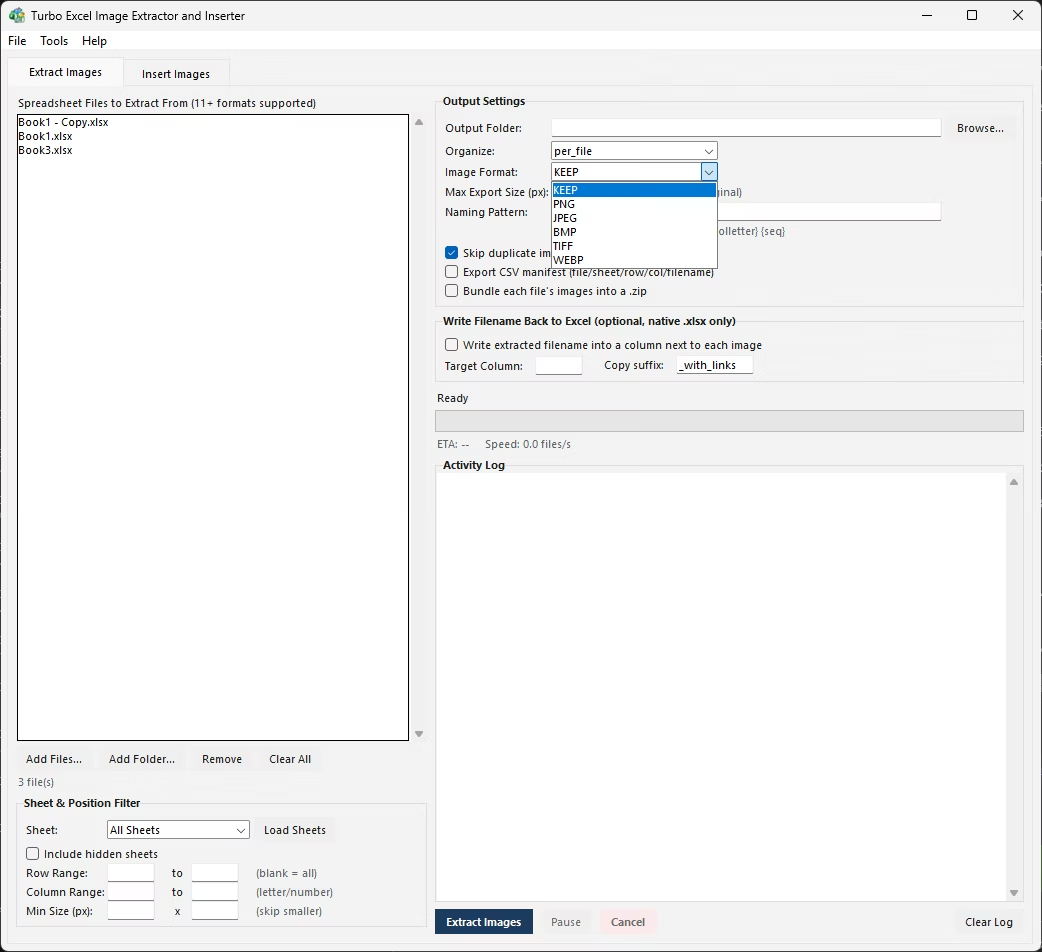
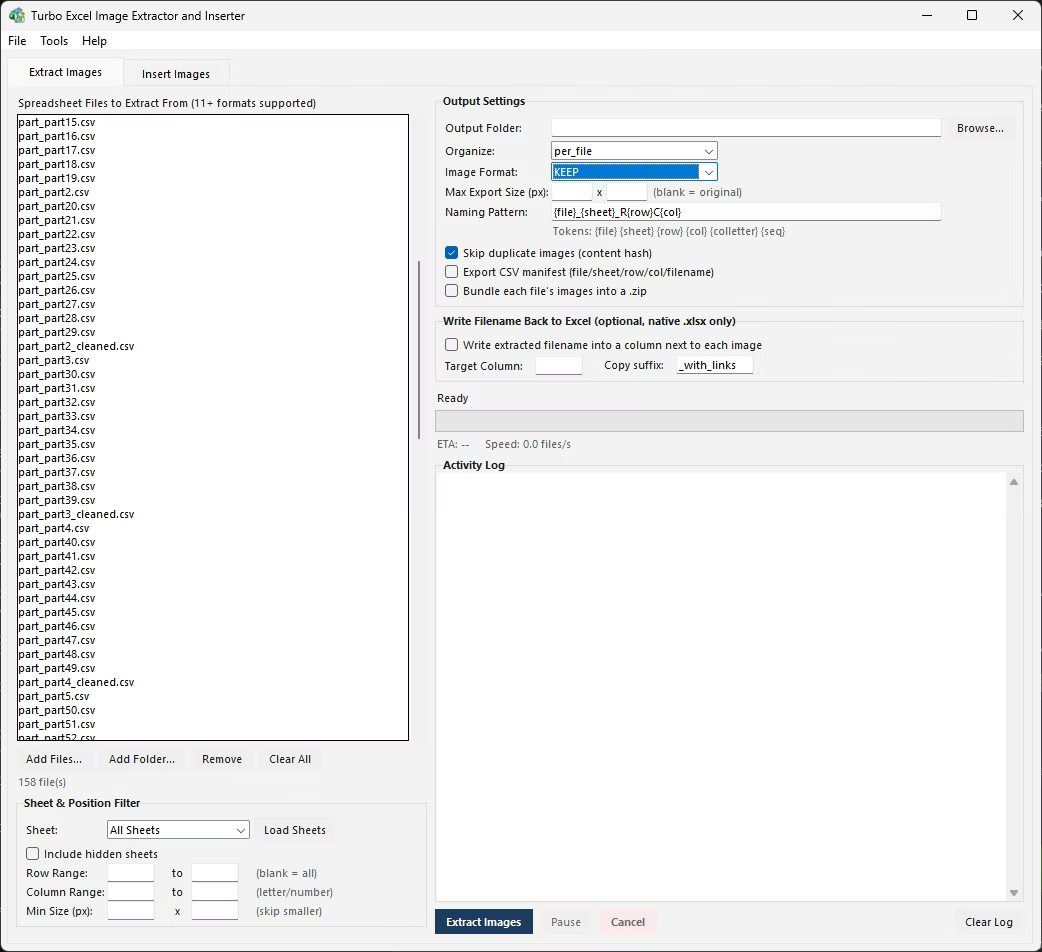
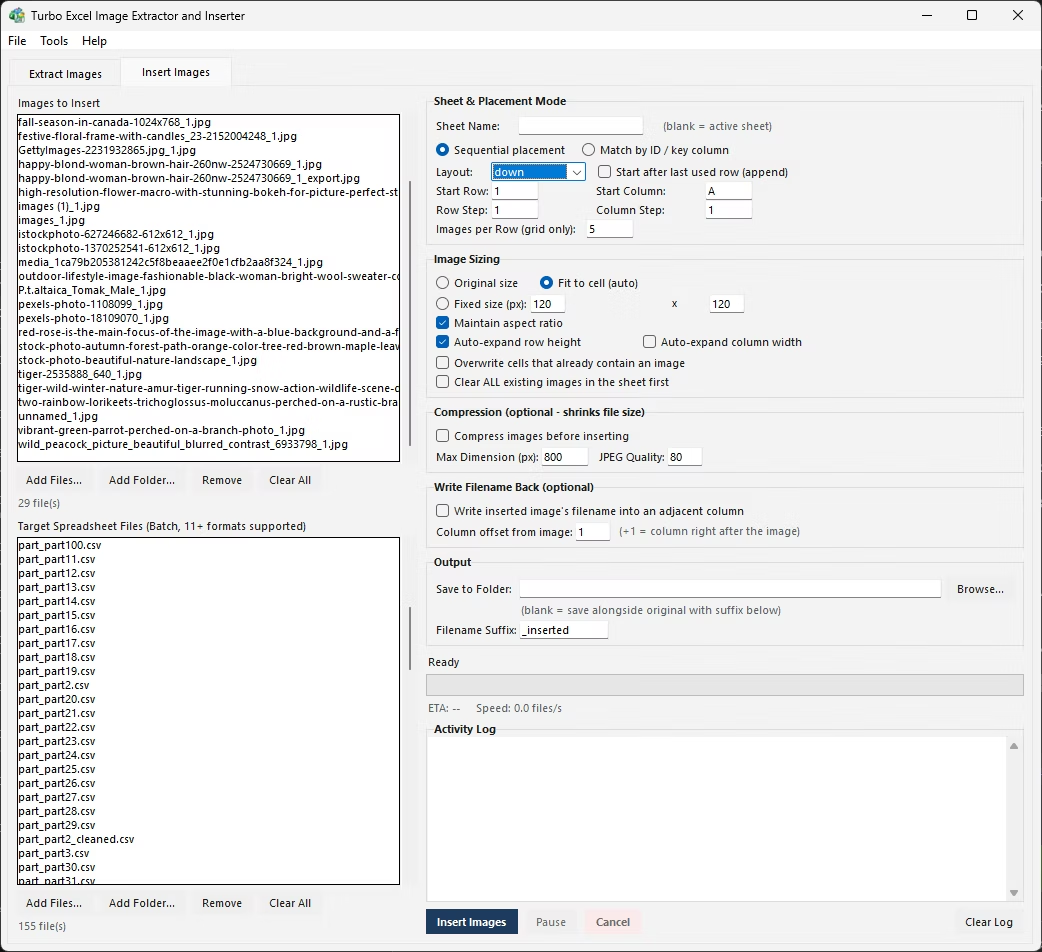
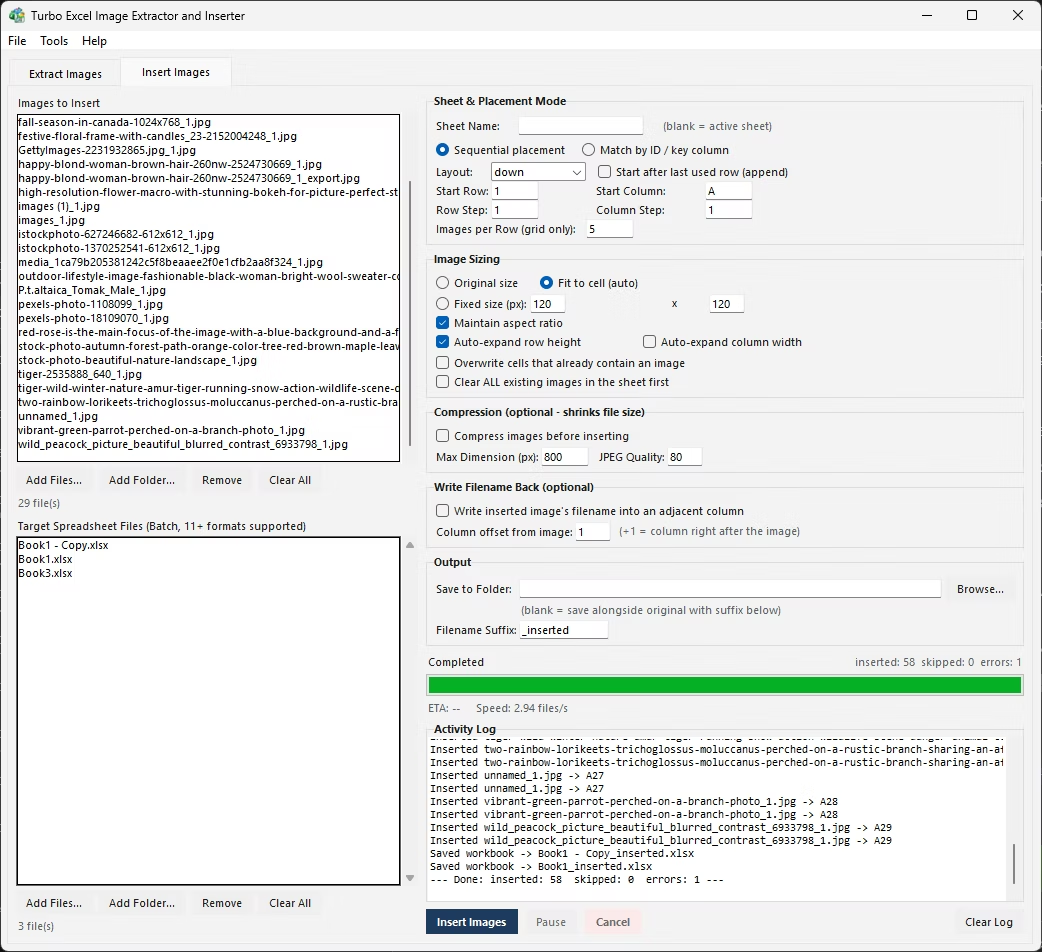
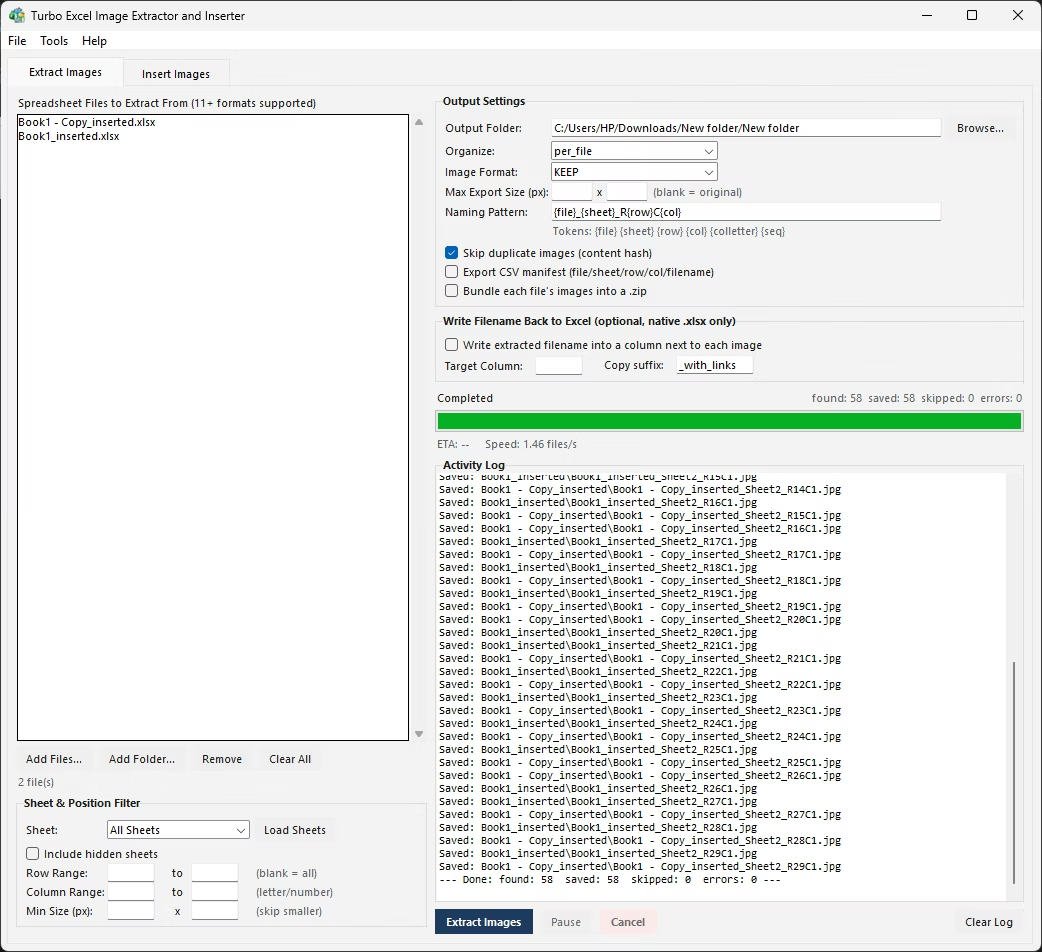
When you only want the images from one particular sheet - say, a 'Product Photos' tab in a workbook that also has pricing, inventory, and notes sheets full of unrelated pictures - you need a way to load the sheet list, pick the one sheet you care about, and extract only from it. Doing this manually means clicking into that sheet and only right-clicking pictures that live there, being careful not to accidentally grab one from an adjacent tab.
When you want everything, sweeping through every sheet in the workbook in a single pass saves considerably more time than visiting each tab individually. And a workbook can also contain hidden sheets - tabs that are not visible in the tab bar but still hold live data and pictures - which most manual and casual approaches skip entirely simply because nobody remembers they exist.
- Click the tab of the specific sheet you want to extract images from.
- Click each picture on that sheet to select it, one at a time.
- Right-click the selected picture and choose Save as Picture.
- Choose a destination folder and filename, then click Save.
- Repeat for every picture on that sheet - pictures on other sheets are left untouched since you never selected them.
The Extract Images tab loads the full sheet list from a workbook so you can pick exactly one sheet to extract from, or leave the scope set to every sheet if that is what you actually need. Hidden sheets are excluded by default - a safe default, since a sheet was hidden for a reason - with a single checkbox to bring them into scope when you deliberately want what is on them.
This sheet awareness carries through to the output too: choosing the Per Sheet folder organization mode creates a separate output subfolder for every sheet that contained images, so a workbook with a Photos sheet and a Logos sheet produces two clearly separated folders instead of one mixed pile. Combined with a naming pattern that includes the {sheet} token, every extracted file also carries its source sheet name right in the filename.
Real-world workbooks are rarely tidy. One file might have a sheet called 'Photos', the next 'Product Photos', another 'Images' - all meant to hold the same kind of content but named slightly differently by whoever built each file. Sheet-name targeting only works cleanly when the name matches exactly.
In that situation, extracting from all sheets in each workbook and using the {sheet} naming token to record where every image actually came from is often more practical than trying to target one exact sheet name across a batch of inconsistently structured files - you get everything, correctly labeled, and can sort out which sheet mattered afterward using the filenames or the CSV manifest.
- Load the sheet list and target one named sheet, or extract from all sheets
- Hidden sheets excluded by default, with a checkbox to include them
- Per Sheet folder mode keeps each sheet's images in its own folder
- {sheet} naming token records the source sheet in every filename
- Row and column filters narrow extraction further within a chosen sheet
- Runs across a whole folder of multi-sheet workbooks in one batch
Can I extract images from just one sheet and leave the rest of the workbook alone?
Yes. Loading the sheet list and selecting a single sheet name restricts extraction to just that sheet, leaving pictures on every other sheet in the workbook untouched.
Are hidden sheets included when extracting from a whole workbook?
By default, no - hidden sheets are skipped so you don't accidentally pull images from a sheet that was hidden intentionally, but a checkbox brings them into scope when you need them.
How can I keep each sheet's extracted images separate on disk?
Choosing the Per Sheet folder organization mode creates one output subfolder per sheet that contained images, so nothing from different sheets ends up mixed together.
Does Excel let me select all pictures on a sheet and save them together?
No. Excel's Save as Picture command works on one selected picture at a time, and there is no native way to multi-select pictures on a sheet and export them as a group.
Ready to handle images in bulk, offline, with full privacy?