Microsoft Excel's native way to insert a picture is the Insert tab's Pictures button, available in every current desktop version - 2016 through Microsoft 365. It opens a source picker, places the chosen image on the active sheet as a floating object, and leaves resizing and positioning to you afterward with the picture's own handles.
A frequent point of confusion is whether Excel can place an image genuinely 'inside' a cell the way text or a number lives inside one. On desktop Excel, it can't - inserted pictures are always anchored objects sitting above the grid. Excel for the web has offered a Place in Cell option and an =IMAGE() function for URL-based images in some builds, but neither is available in the standard desktop Insert Pictures workflow most people use.
Click a cell close to where you want the picture, open the Insert tab, and click Pictures. Depending on your Excel version and Microsoft 365 configuration, you'll see options like This Device, or online picture sources. Choosing a local file and clicking Insert places the picture on the sheet.
From there, resizing means dragging a corner handle, positioning means dragging the image body over the cell you want, and keeping the image correctly tied to that cell for future sorting or filtering means right-clicking and setting Move and size with cells under Format Picture. None of these are automatic - each is a manual step performed once per image.
- Click the cell where you want the image positioned.
- Open the Insert tab on the ribbon and click Pictures.
- Choose your image source and select the file you want to insert.
- Click Insert to place the picture on the active sheet.
- Drag to resize and reposition it over the target cell, then set Move and size with cells if it needs to follow that row.
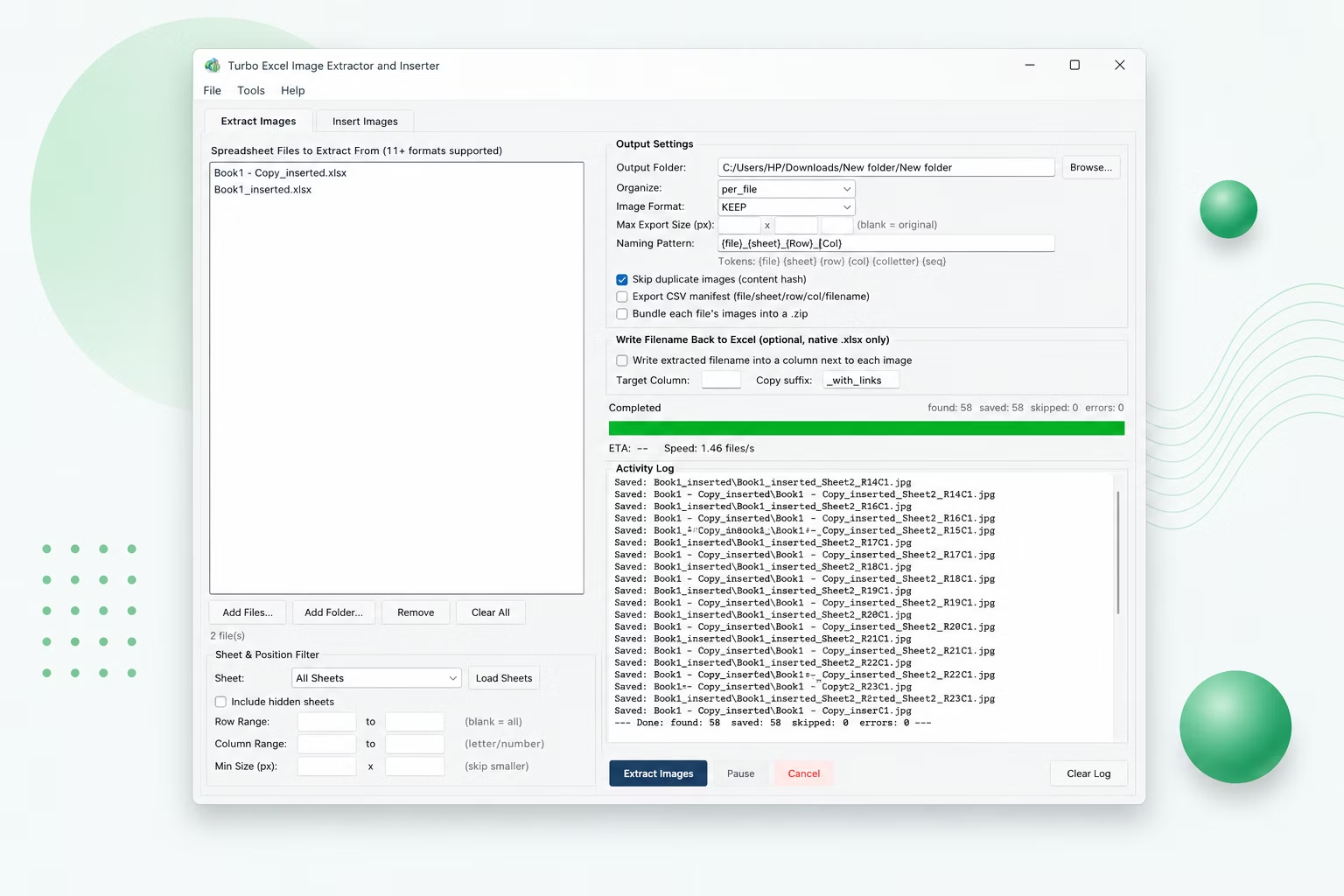
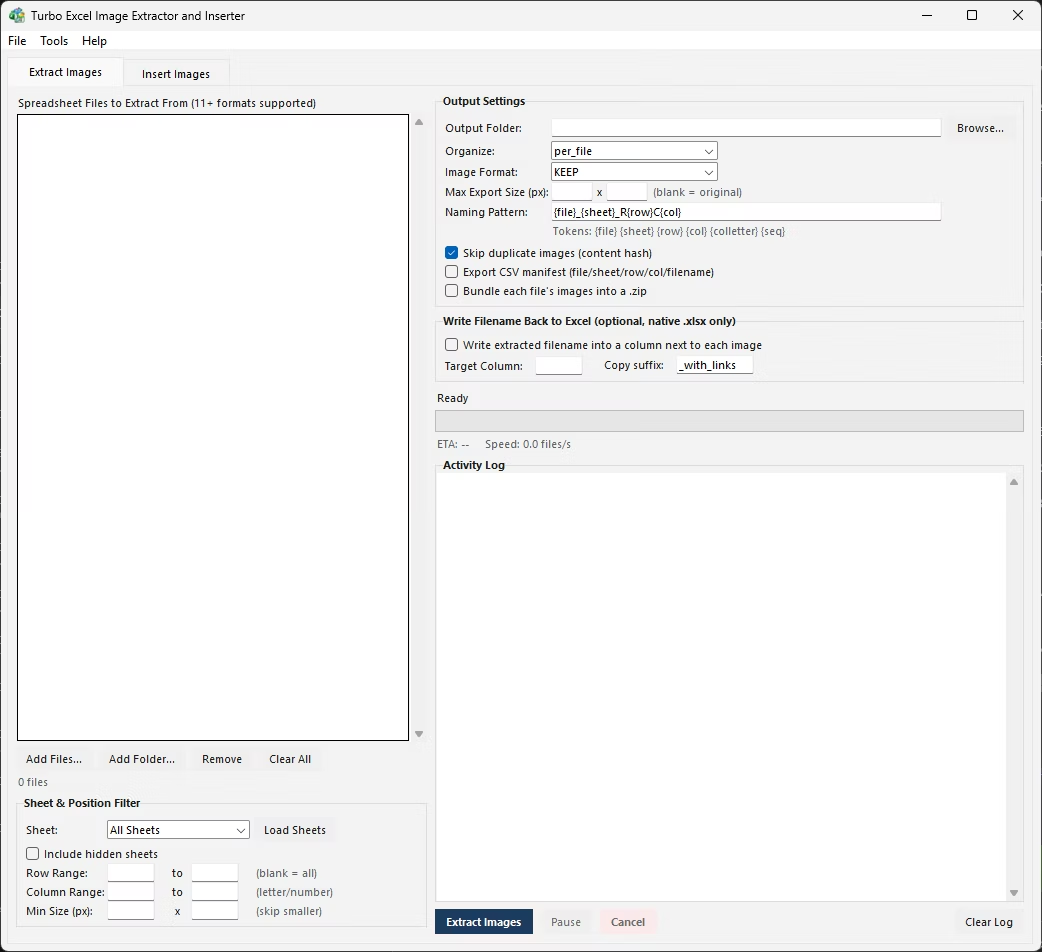
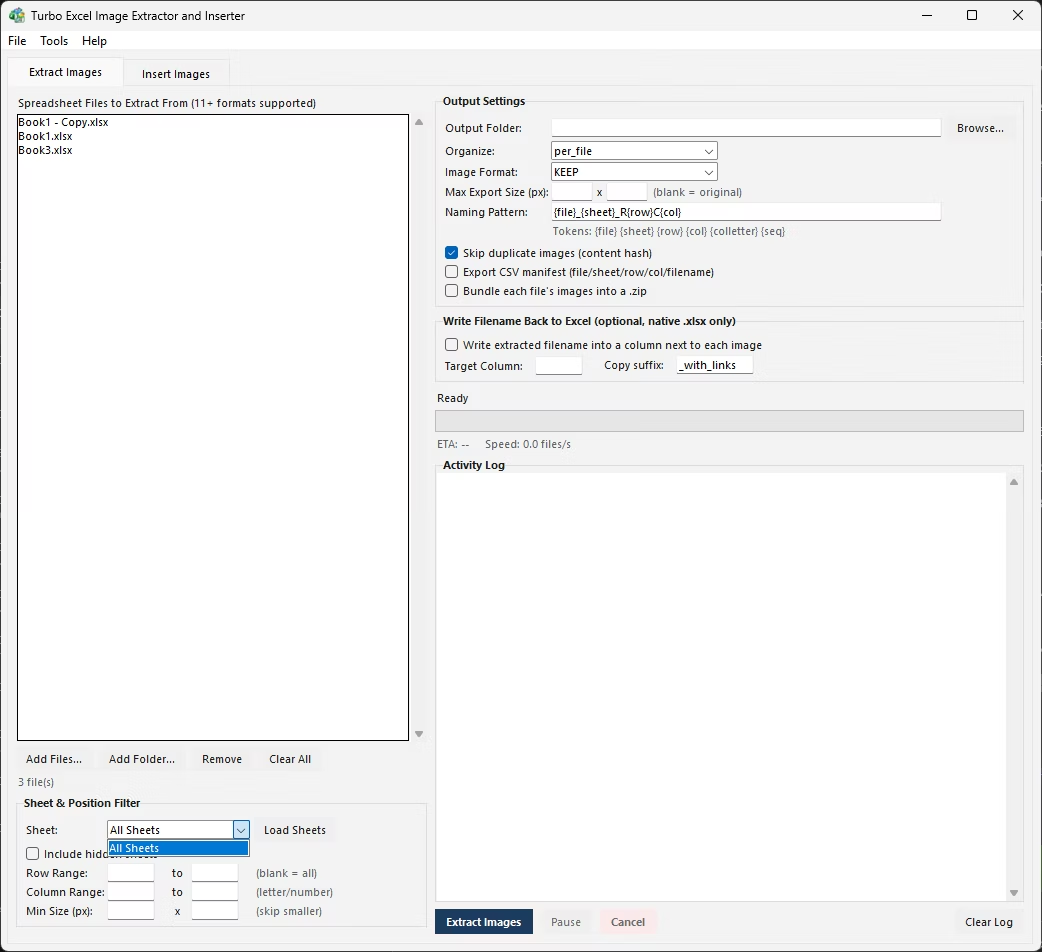
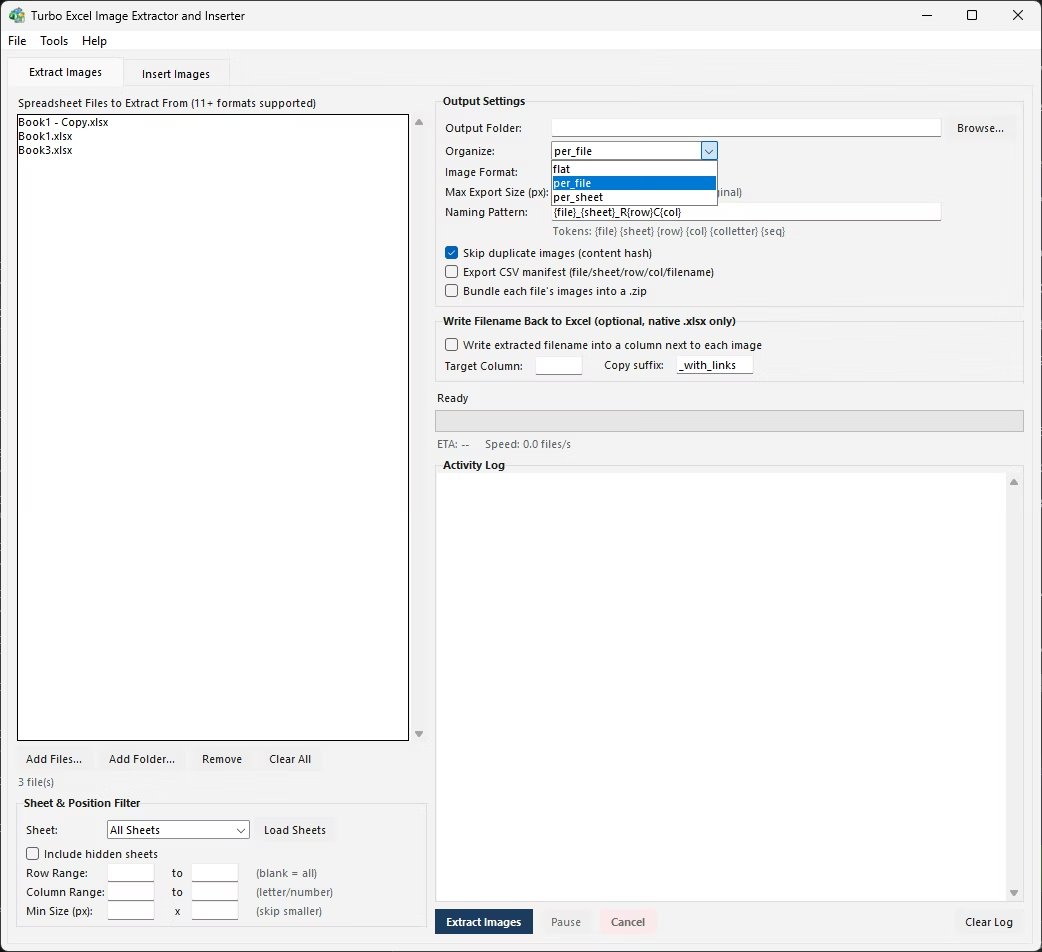
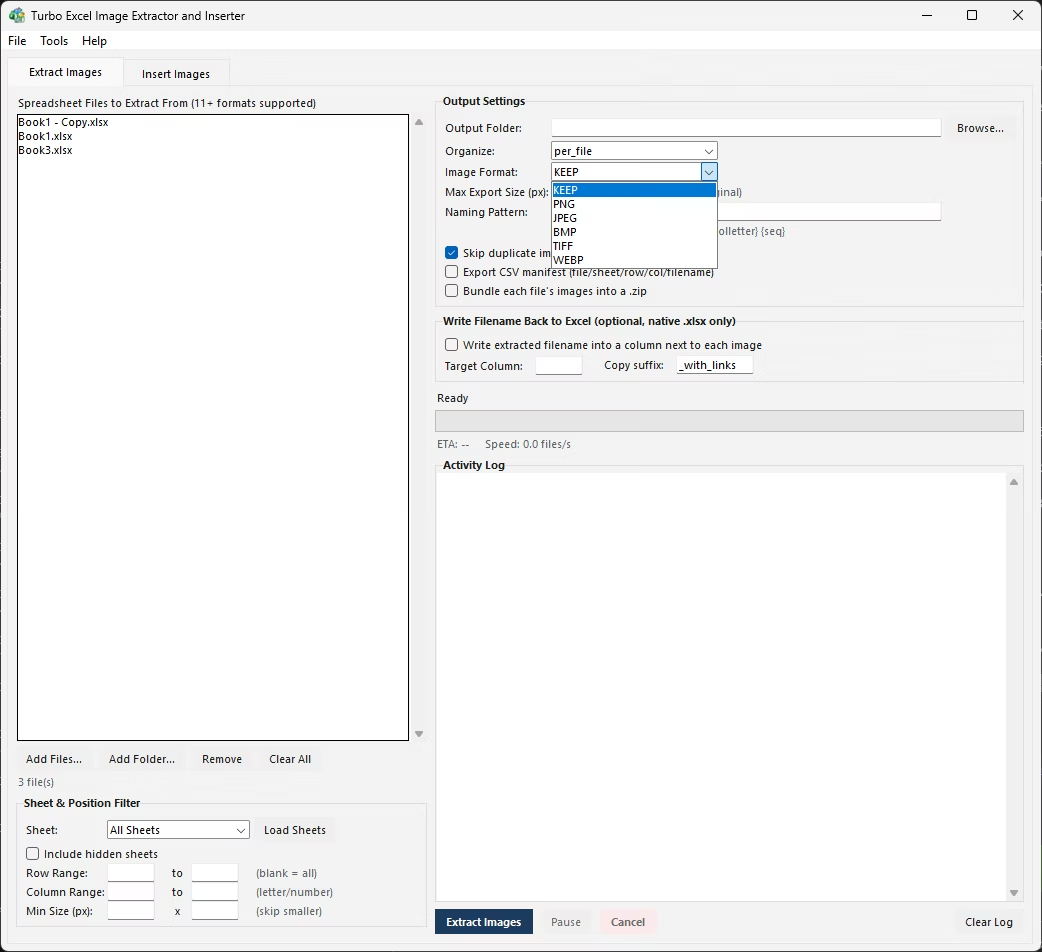
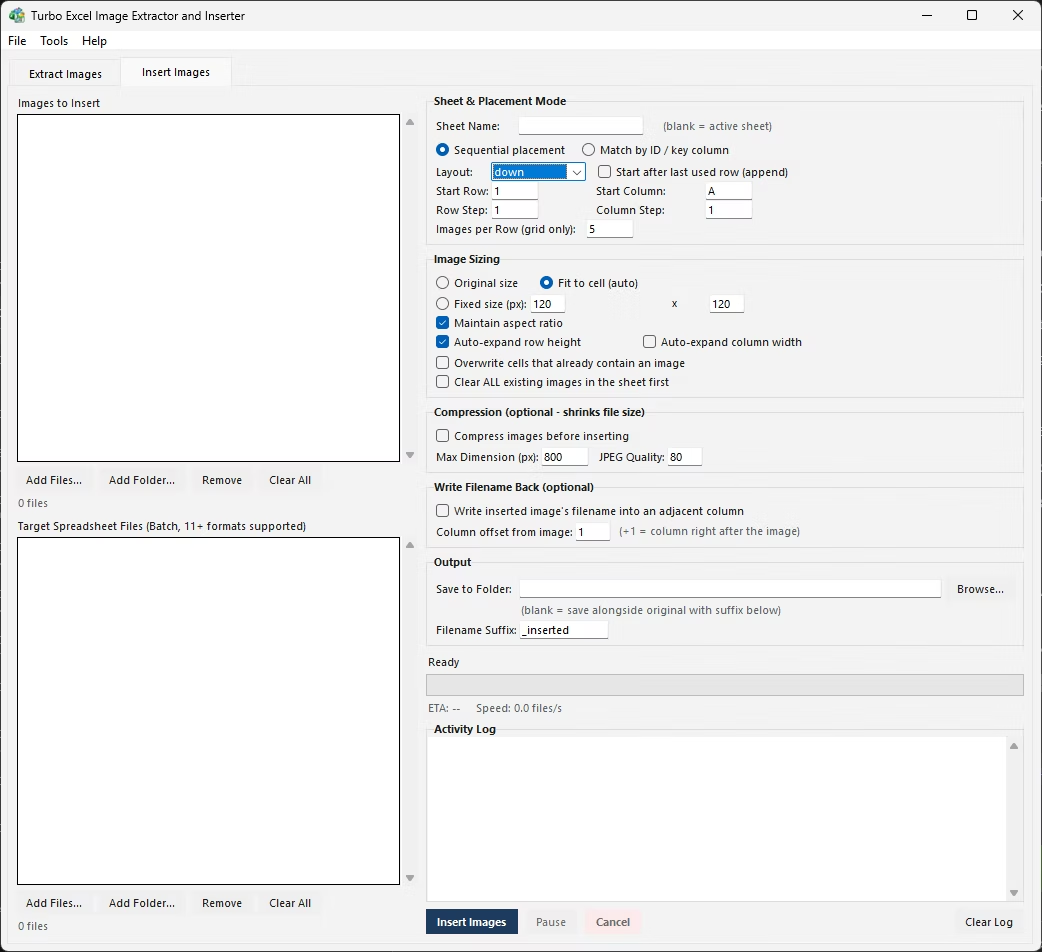
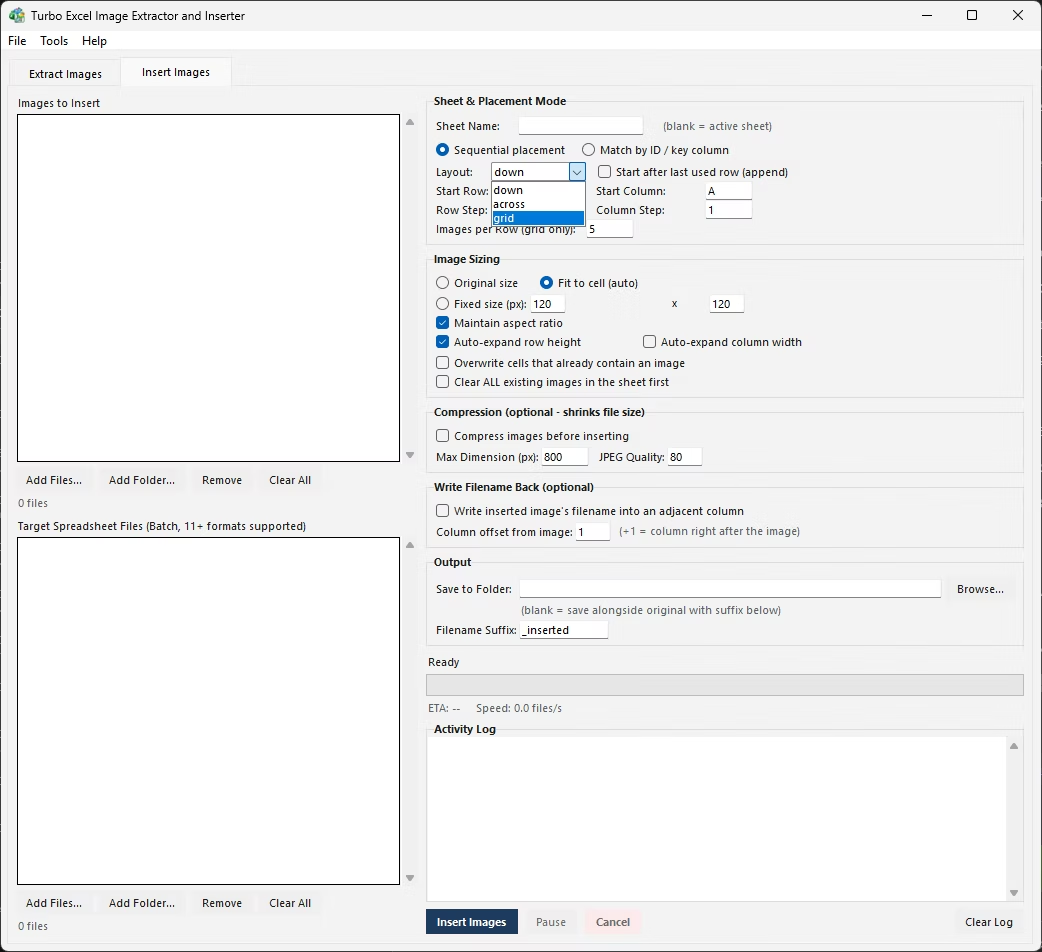
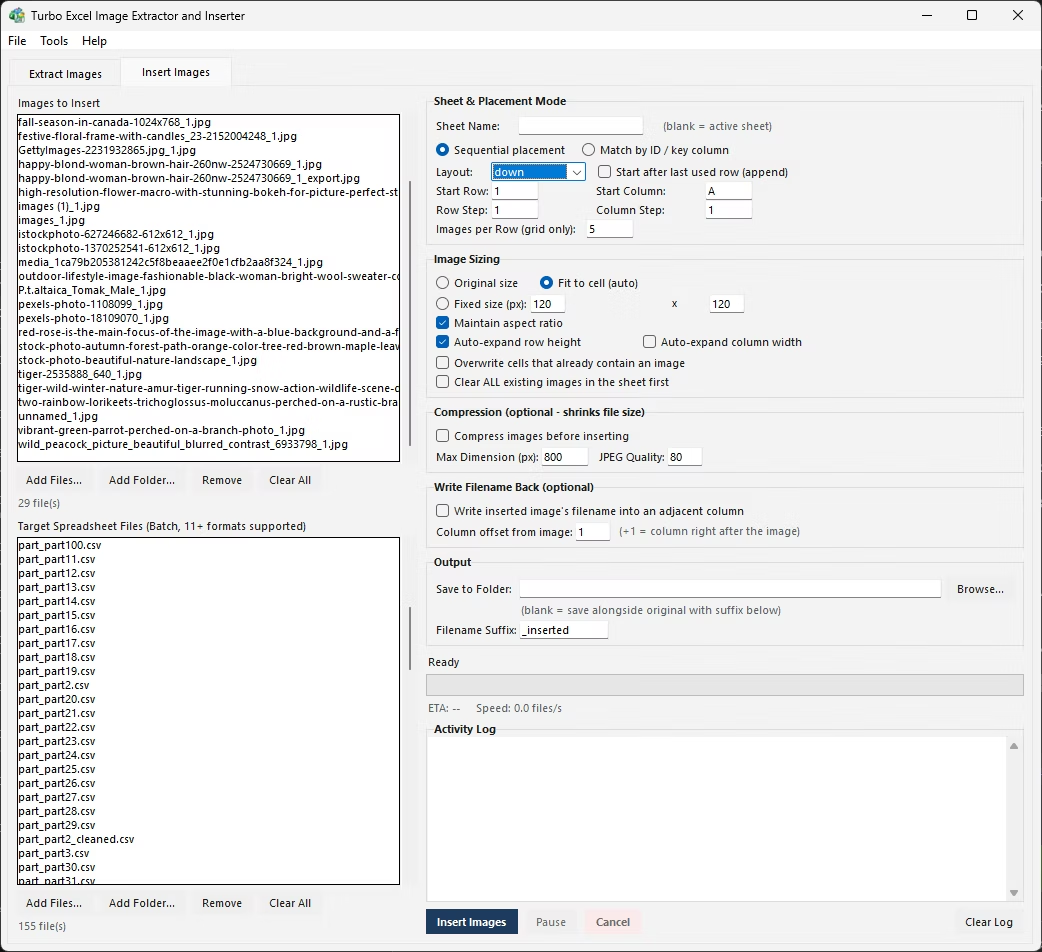
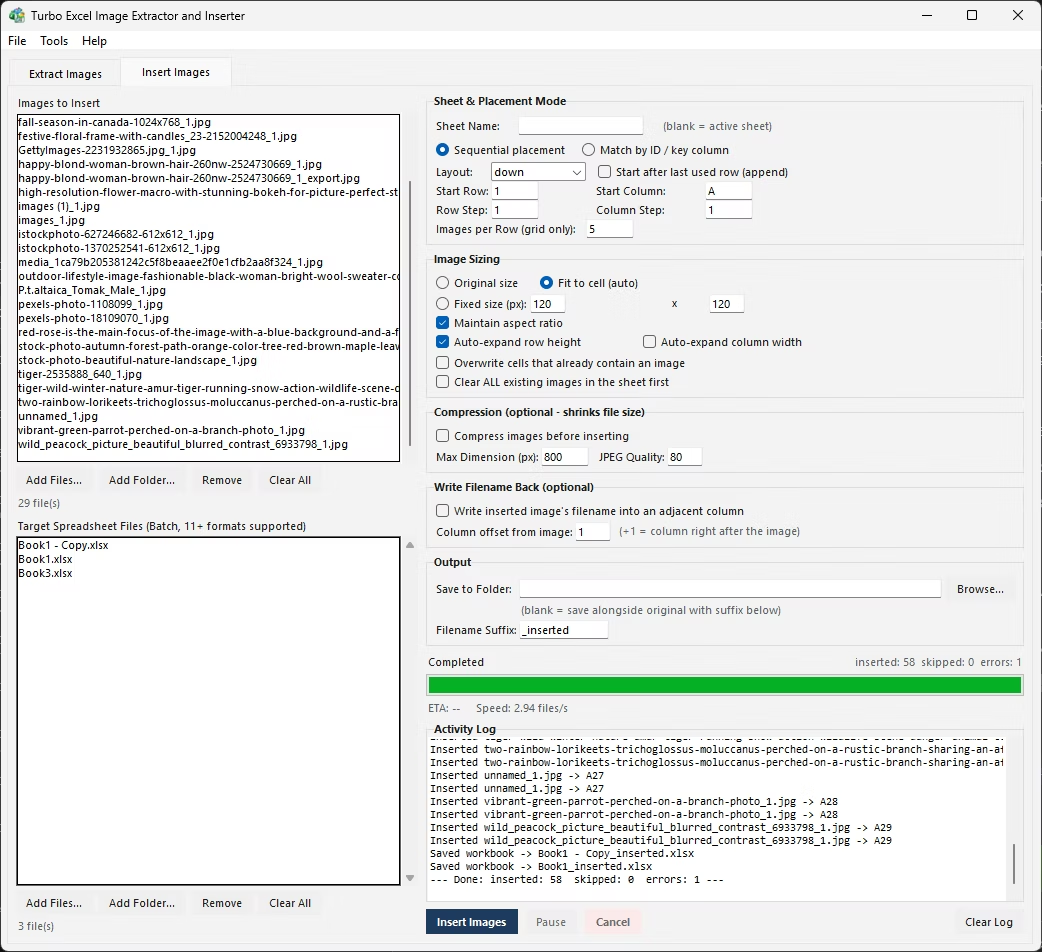
Turbo Excel Image Extractor and Inserter's Insert Images tab handles what the native command can't: placing many images automatically, either in a Sequential layout down a column, across a row, or in a grid, or matched precisely to rows using a key column and Match mode - comparing each image's filename to values like a SKU, employee ID, or barcode. Correct cell anchoring, sizing (original, Fit to Cell, or fixed size with aspect ratio locked), and existing-image handling are all applied automatically to every image, replacing what would otherwise be dozens or hundreds of repetitions of the native Insert Pictures steps above.
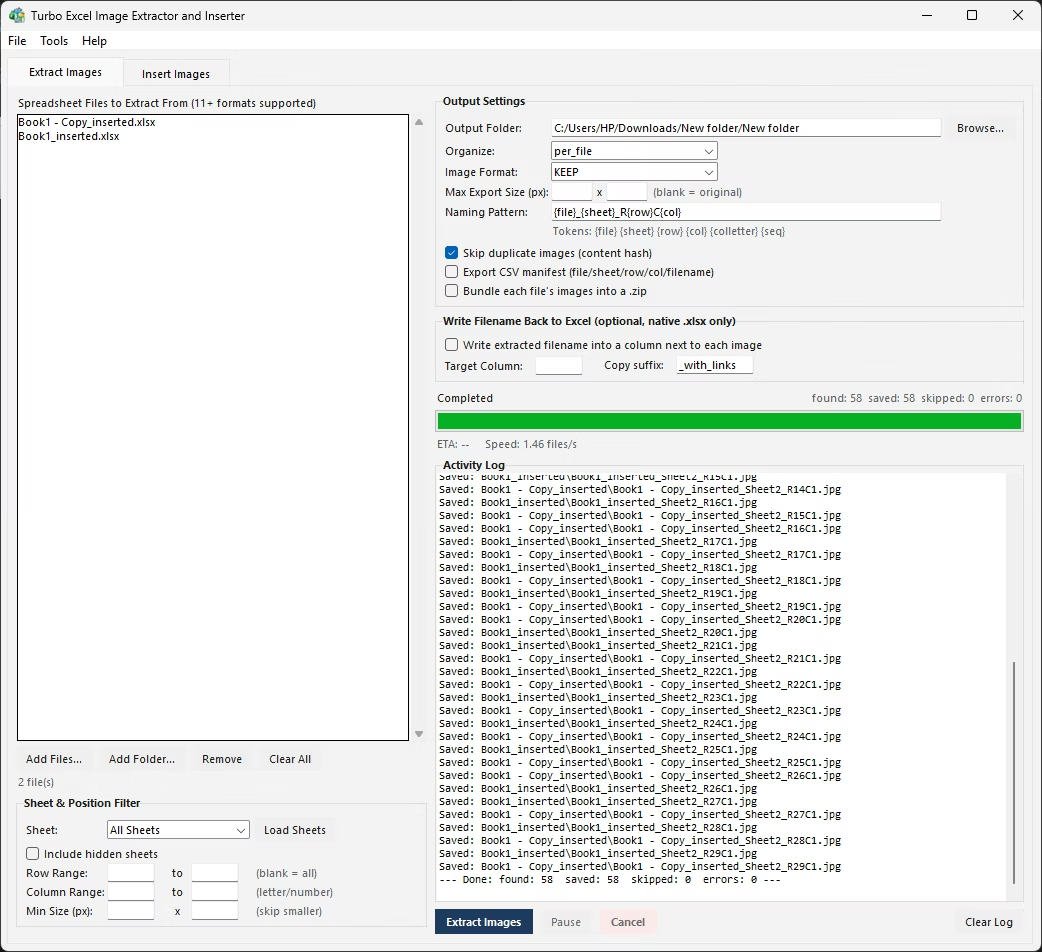
It works across 13 spreadsheet formats and processes an entire folder of target files in parallel with a live progress bar, so the equivalent of manually inserting into a hundred spreadsheets, one image at a time in each, finishes as a single unattended batch run instead.
For one or two images - a header logo, a single reference photo on a summary sheet - the native Insert Pictures command in MS Excel remains the fastest option, since opening any other tool for a job that small adds more overhead than it saves.
The crossover point tends to sit somewhere around a dozen or so images: past that, the repeated Insert > drag > resize > anchor cycle starts costing more time than setting up a batch job would, and by fifty or more images, manual insertion in MS Excel becomes the clear bottleneck in whatever larger task the spreadsheet is part of.
A useful rule of thumb: if the images need to be matched to specific rows by any kind of identifier - a SKU, an ID, a part number - batch insertion with Match mode is worth setting up even for a moderate image count, simply because manual filename-to-row matching by eye is where mistakes creep in fastest, regardless of how few images are involved.
- Inserts many images automatically instead of one manual placement at a time
- Match mode places images by comparing filenames to a key column
- Sequential mode builds down-column, across-row, or grid layouts automatically
- Correct cell anchoring set on every image without a manual Format Picture step
- Works across 13 spreadsheet formats, not just native .xlsx
- Processes many target files in parallel with live progress and ETA
Can MS Excel place an image literally inside a cell on desktop?
No, desktop Excel's Insert Pictures command places images as floating anchored objects above the grid; a true inside-the-cell placement isn't available in the standard desktop insertion workflow.
Is the Insert Pictures command the same across MS Excel versions?
Yes, the core Insert tab > Pictures workflow has stayed essentially the same across Excel 2016, 2019, 2021, and Microsoft 365, aside from minor differences in available online picture sources.
How can hundreds of images be inserted into MS Excel files without doing it manually?
A batch insertion tool that reads and writes the spreadsheet file format directly can place every image automatically using sequential or filename-matched placement, applied across an entire folder of target files in one run.
Which file formats support batch image insertion beyond native .xlsx?
Insertion works across 13 spreadsheet formats, including older .xls files, .xlsb, OpenDocument .ods and .ots files, and plain-text .csv, .tsv, and .txt files.
Ready to handle images in bulk, offline, with full privacy?