GIF's 256-color palette made sense decades ago for simple web graphics, but it's a poor fit for photos and modern imagery, producing banding and larger files than formats built for photographic content. Folders of static GIF images are usually best converted to JPG, PNG, or WebP for better quality and compatibility.
Turbo Batch Image Converter Lite batch converts an entire folder of static GIF images into a modern format in one pass, giving you full-color output without GIF's palette limitations, all processed offline on your own PC.
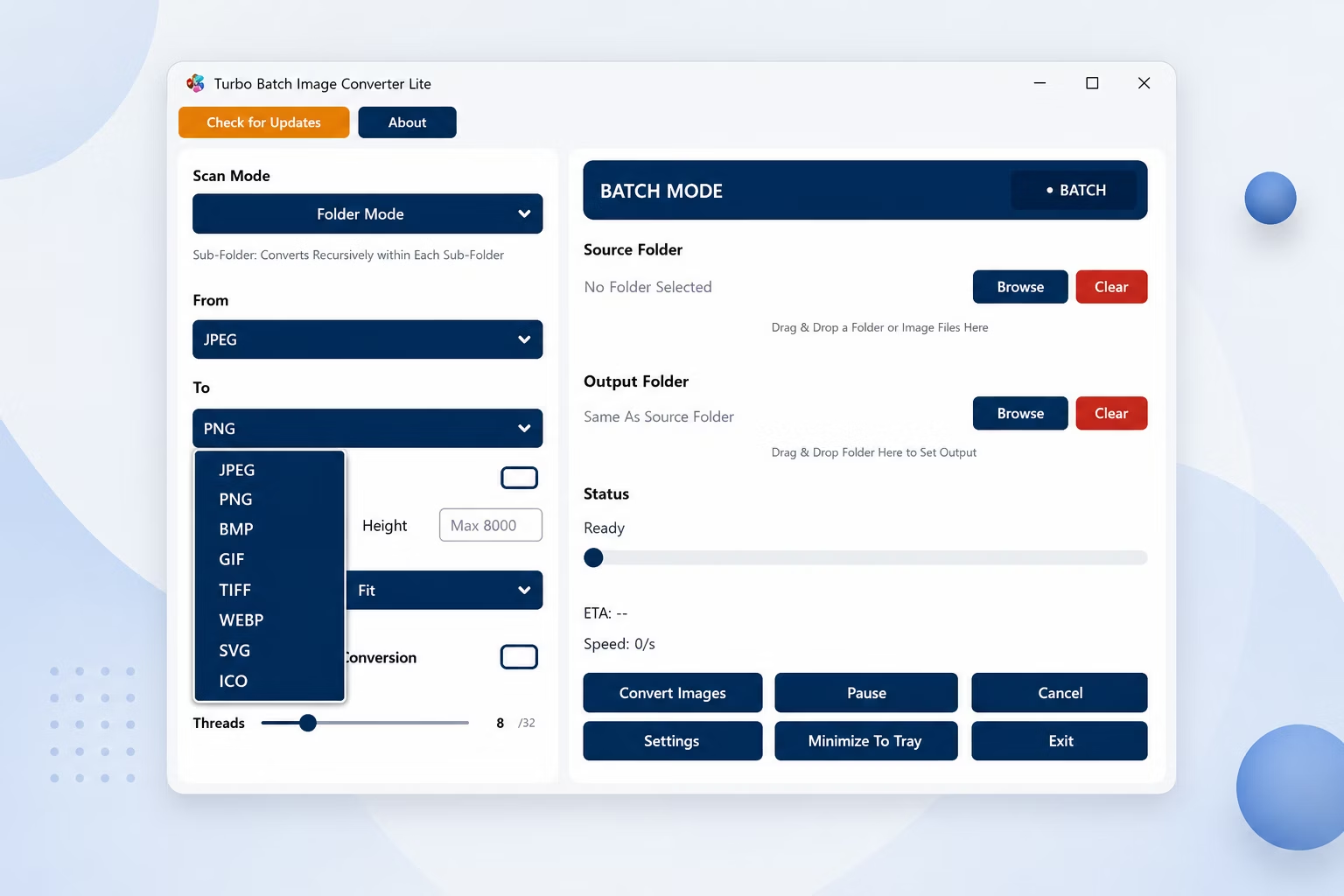
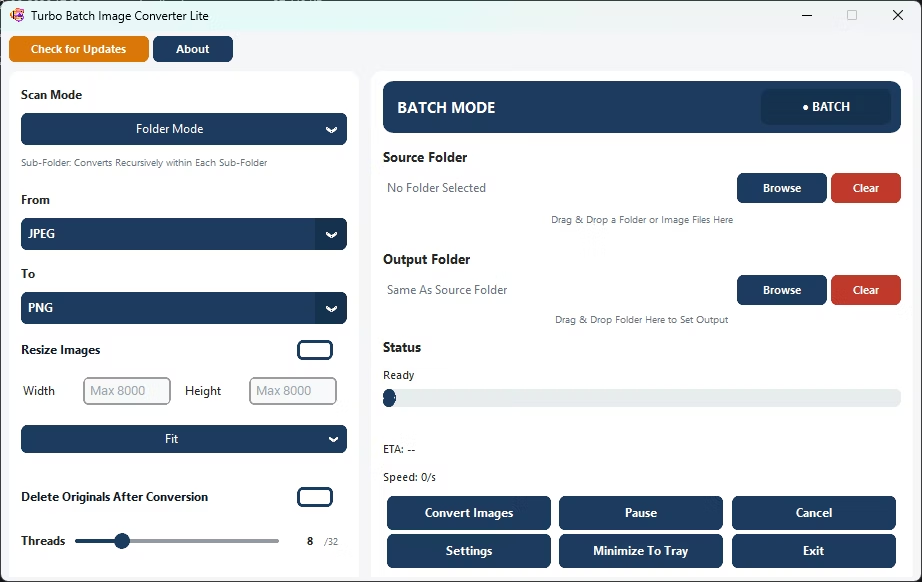
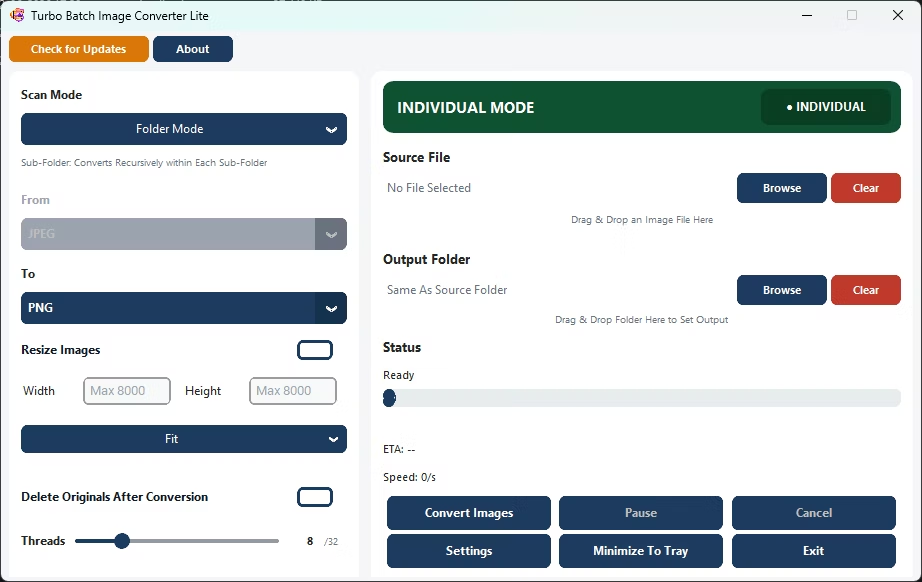
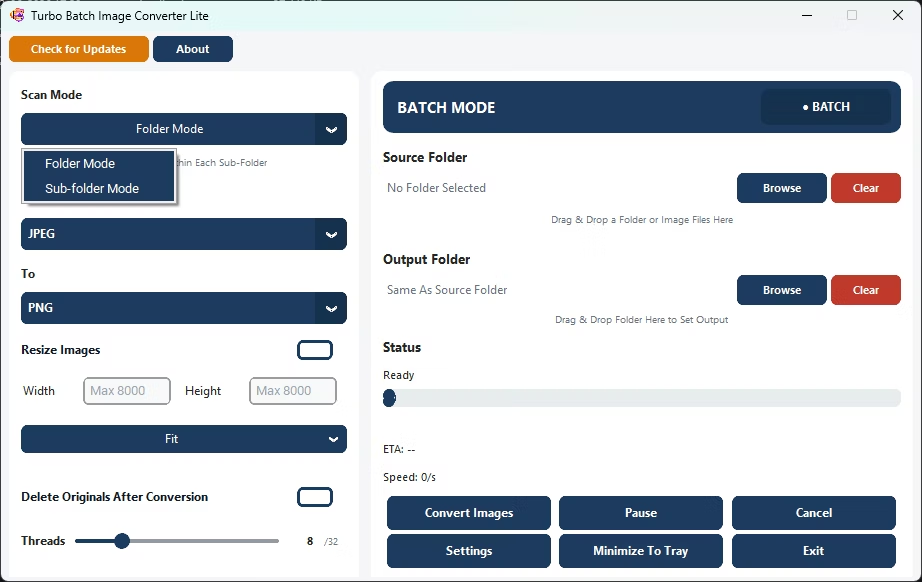
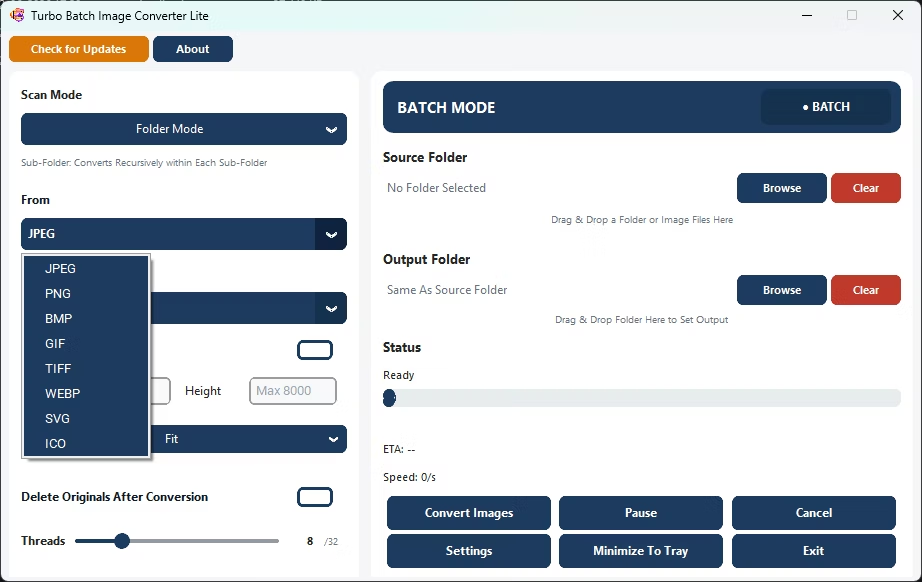
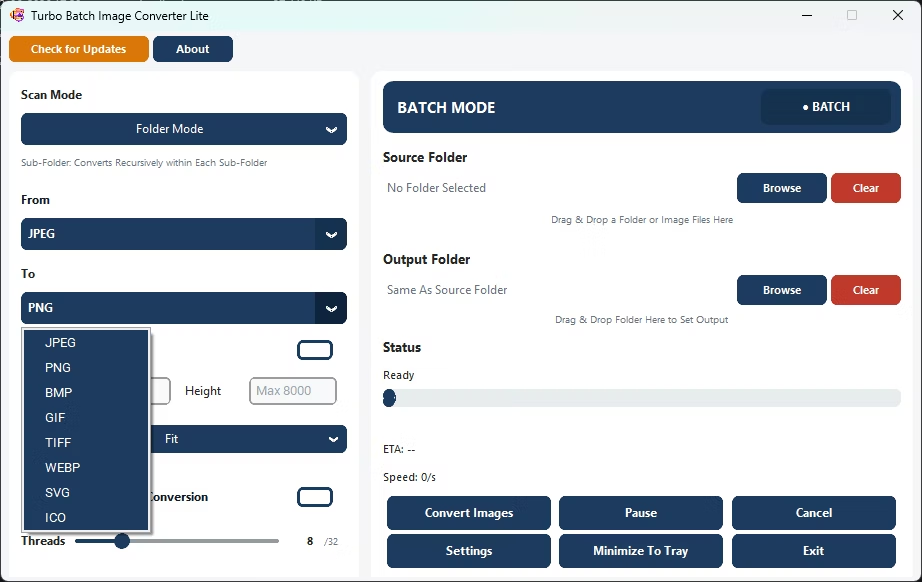
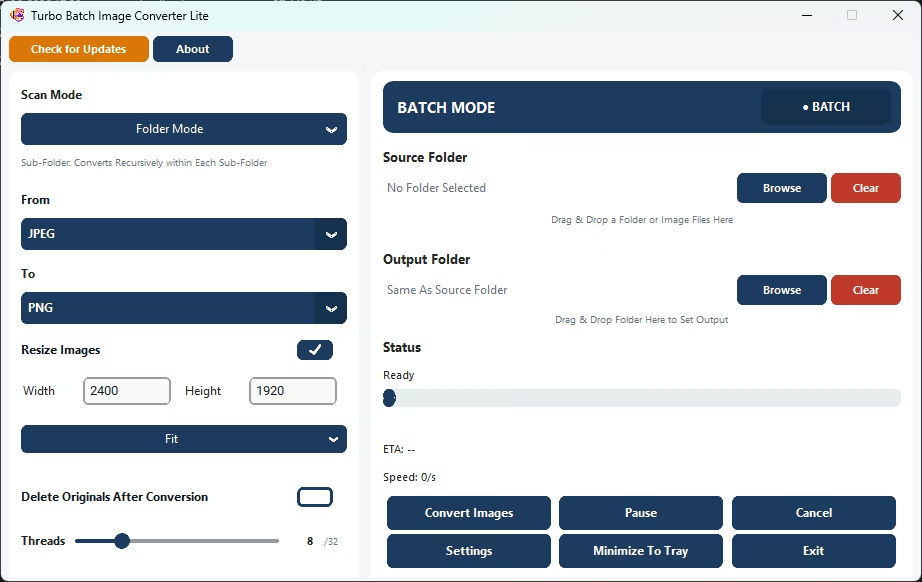
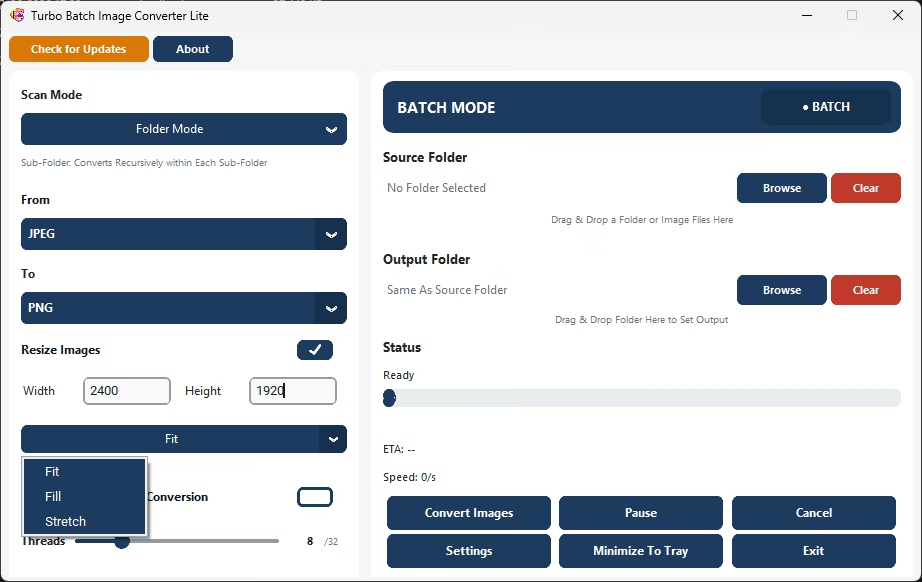
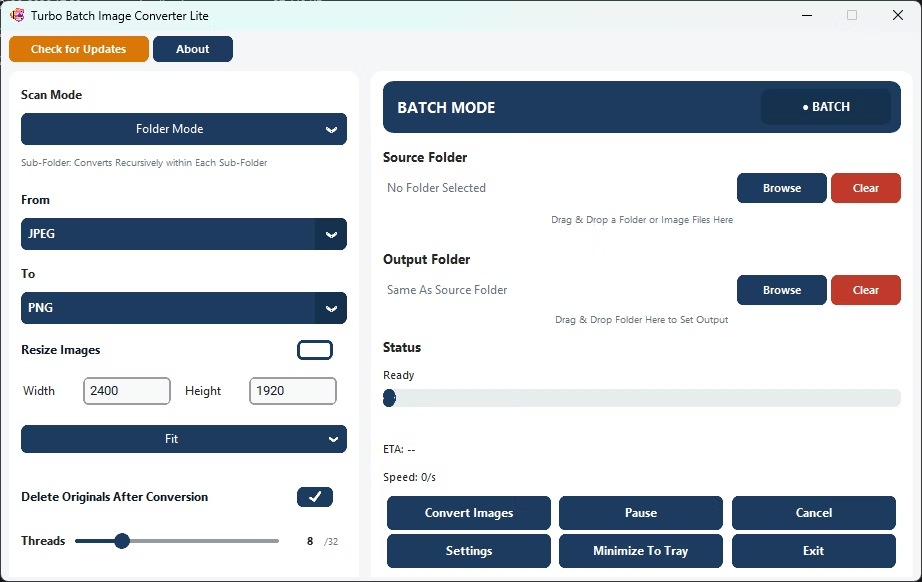
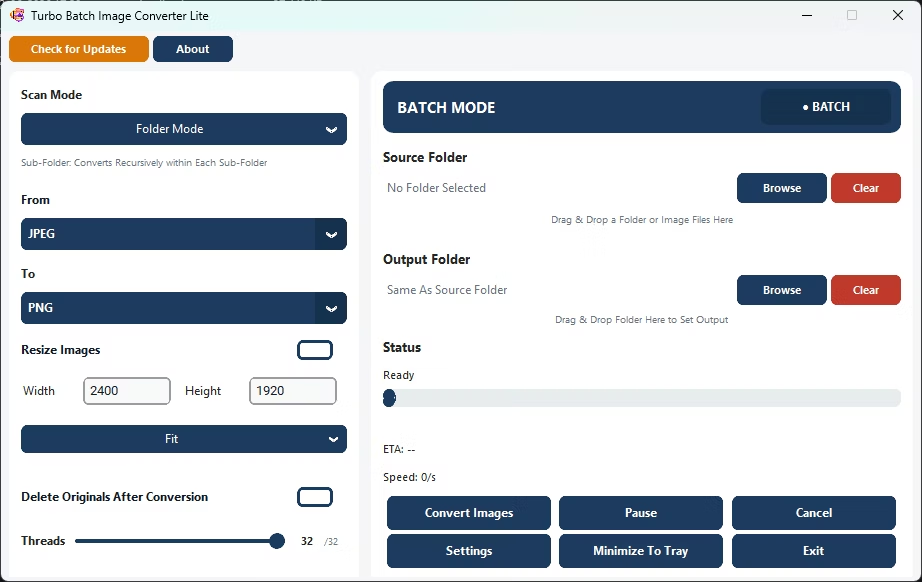
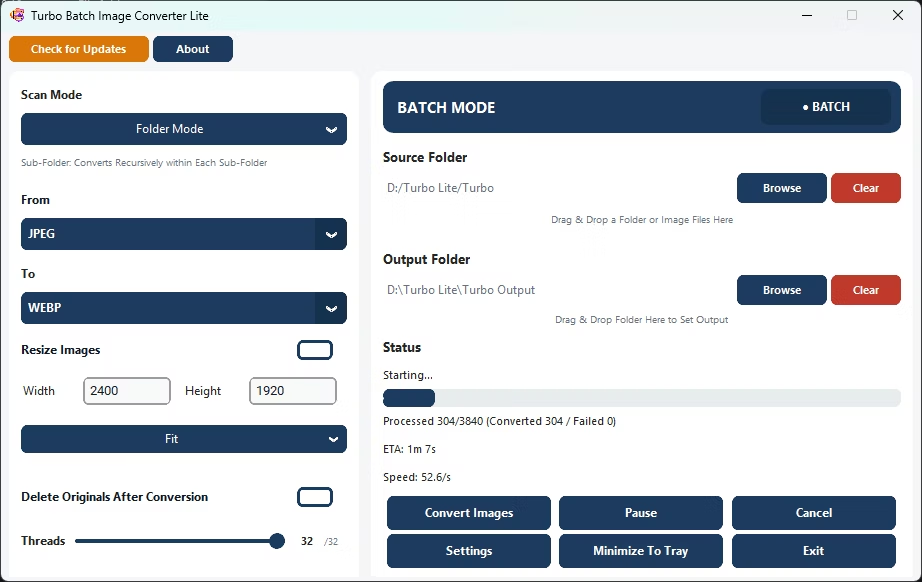
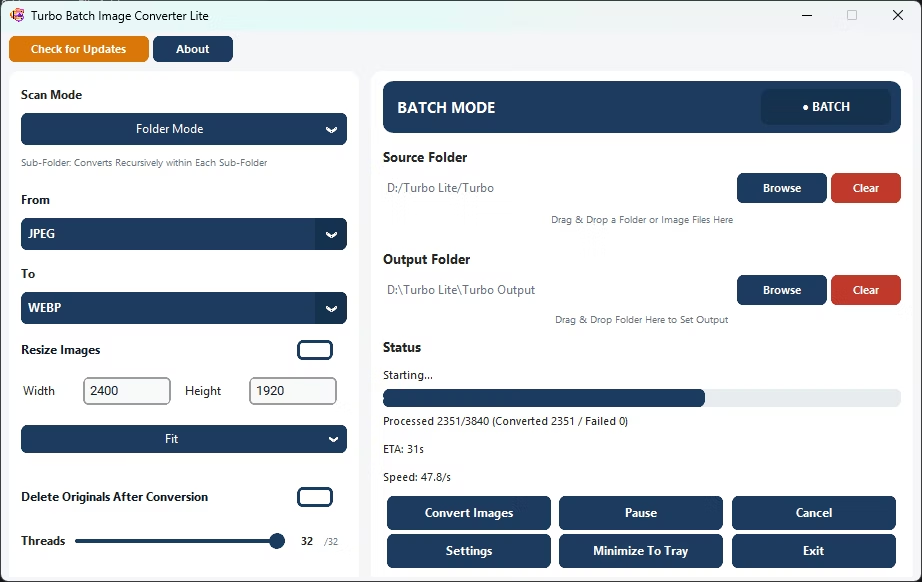
- Install Turbo Batch Image Converter Lite on your Windows PC.
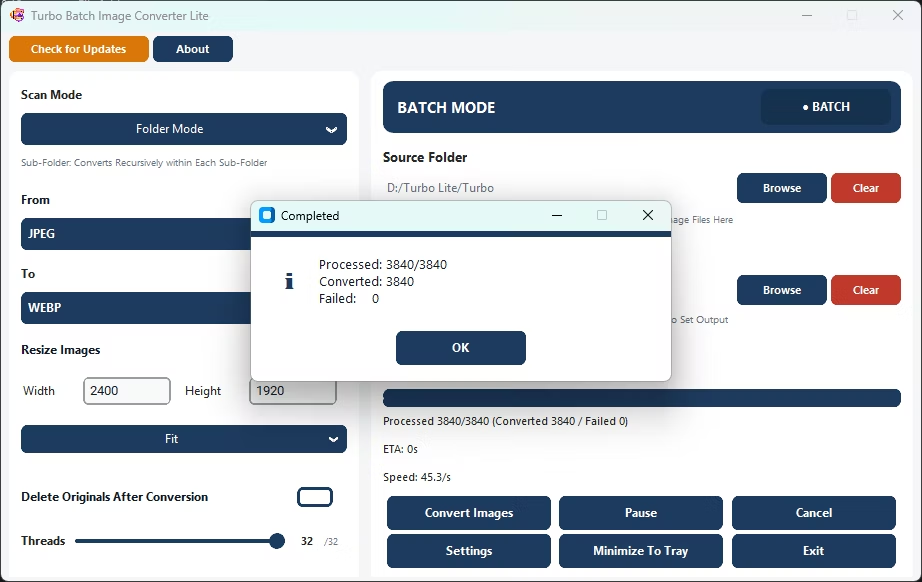
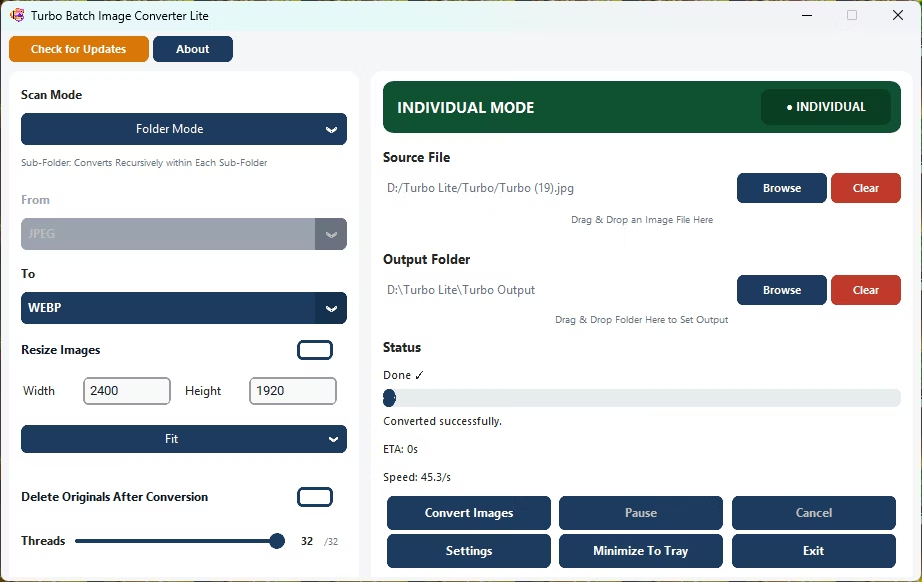
- Open Batch Mode and select your folder of GIF images.
- Set GIF as the "From" format.
- Choose JPG, PNG, or WebP as your target format.
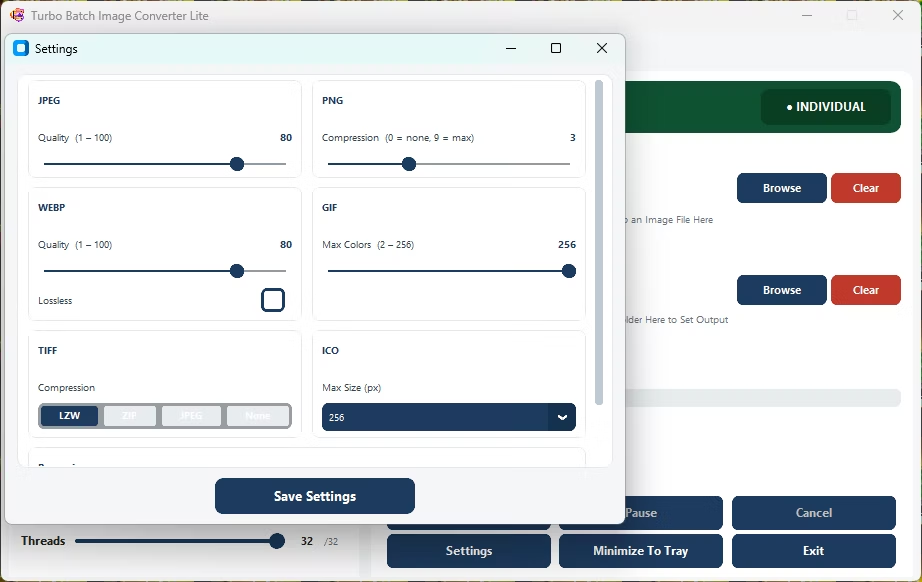
- Adjust quality settings for your chosen output.
- Click Convert to process the whole folder of GIF files.
- Converts static GIF images into full-color JPG, PNG, or WebP
- Processes an entire folder of legacy GIF graphics in one batch
- Removes GIF's 256-color palette limitation from the output
- Runs fully offline with no upload limits
- Multi-core engine scales up to 32 parallel workers
Does this convert animated GIFs frame by frame?
The converter is built for static image conversion; for animated GIFs, the app processes the image data as a still frame source.
Why do GIF images look banded or blocky compared to JPG?
GIF is limited to a 256-color palette, which can cause visible banding in photos and gradients that a full-color format like JPG or PNG avoids.
Can I batch convert a whole folder of old GIF graphics at once?
Yes, point Batch Mode at the folder and every GIF file is converted to your chosen format in one run.
Ready to batch convert your GIF images into a modern format, fully offline?