Dedicated Software for Bulk Photo Conversion
Converting a folder of photos one by one in a general photo viewer or editor doesn't scale. Dedicated bulk photo conversion software applies the same format and quality settings automatically across every photo in a folder.
Turbo Batch Image Converter Lite converts multiple photos automatically across JPEG, PNG, WebP, GIF, BMP, TIFF, SVG and ICO, all processed locally on your Windows PC with no manual per-file work.
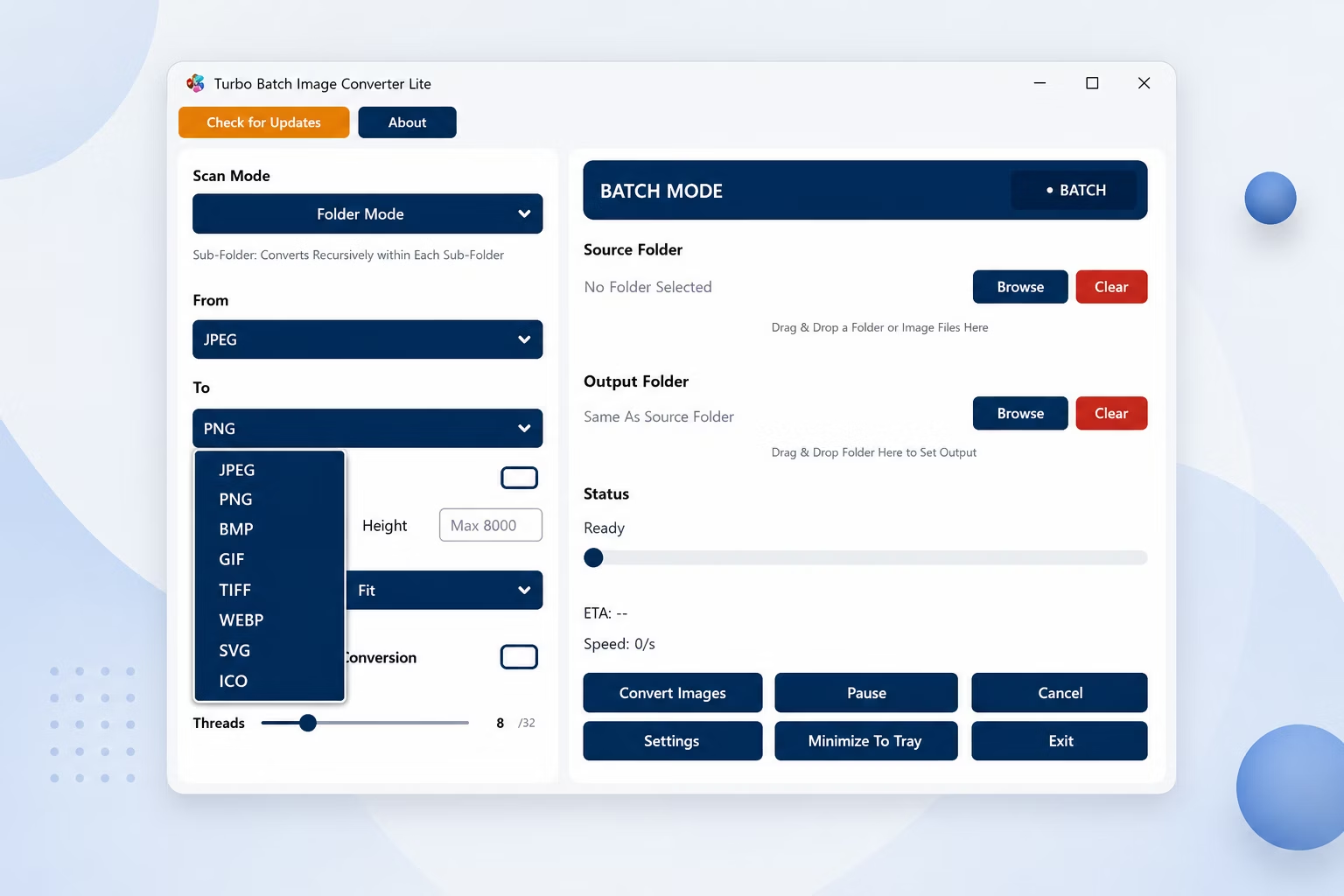
App Screenshots
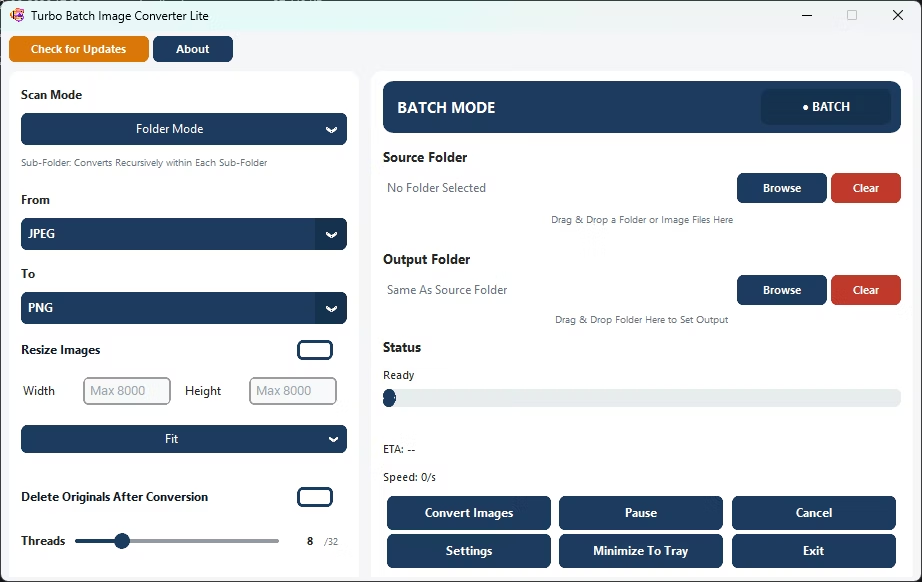
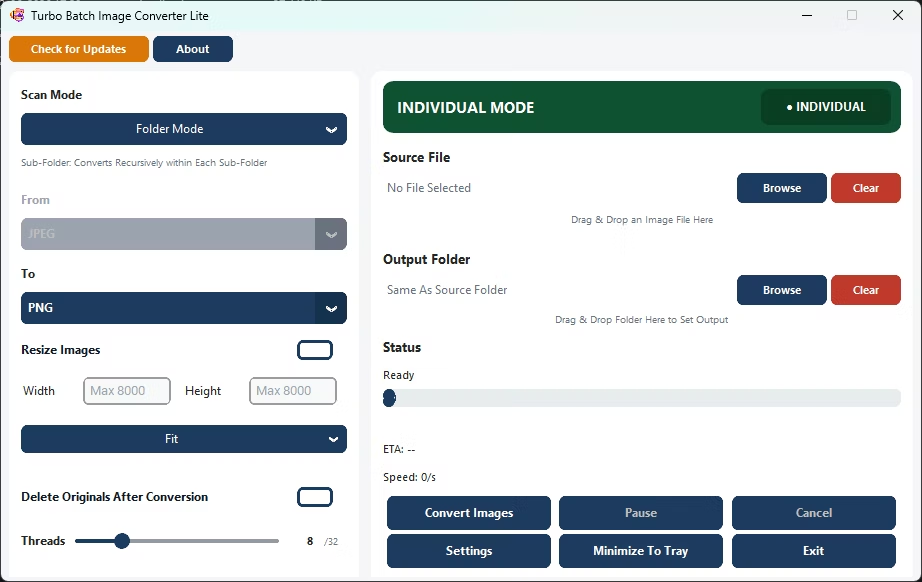
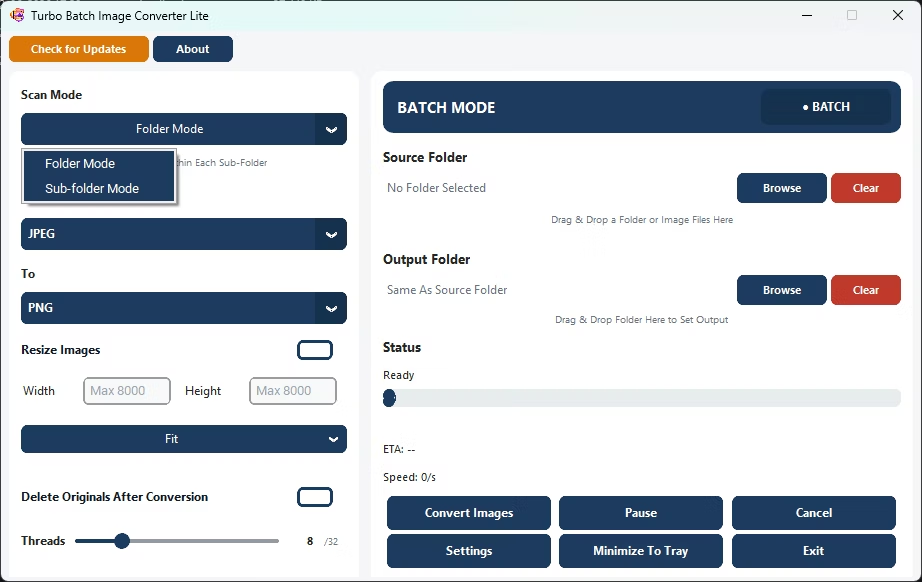
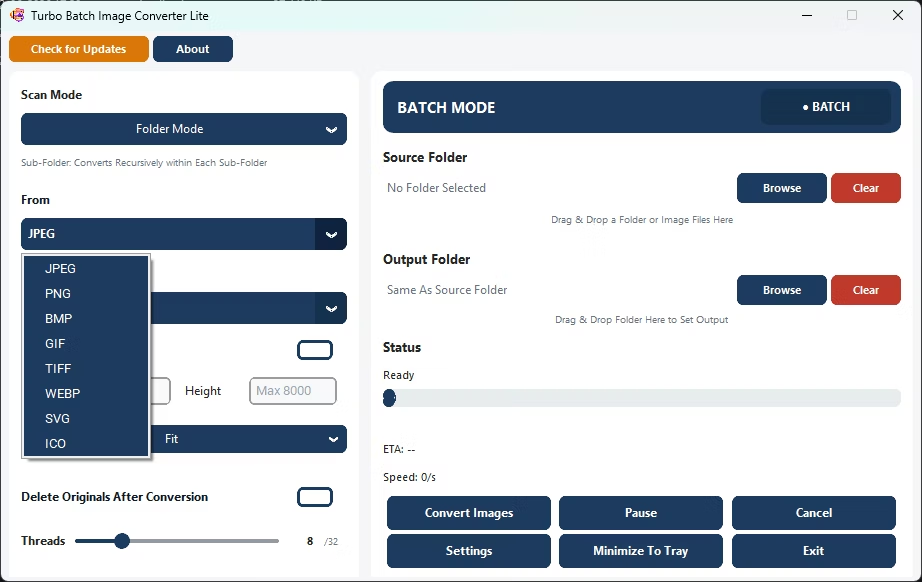
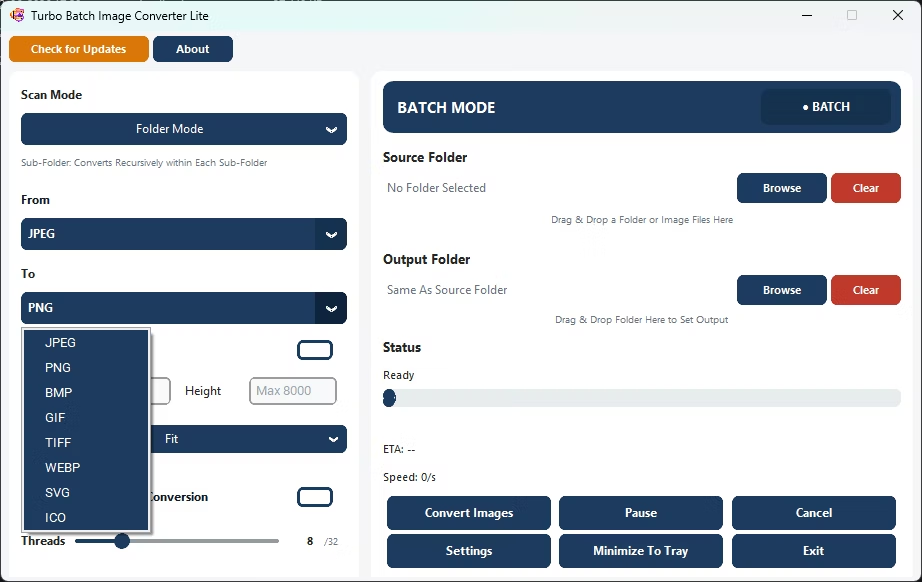
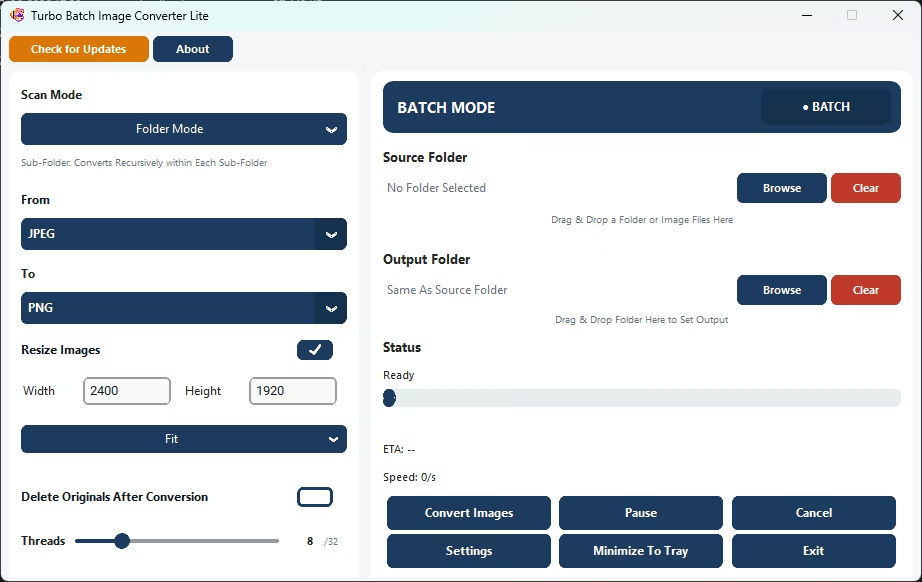
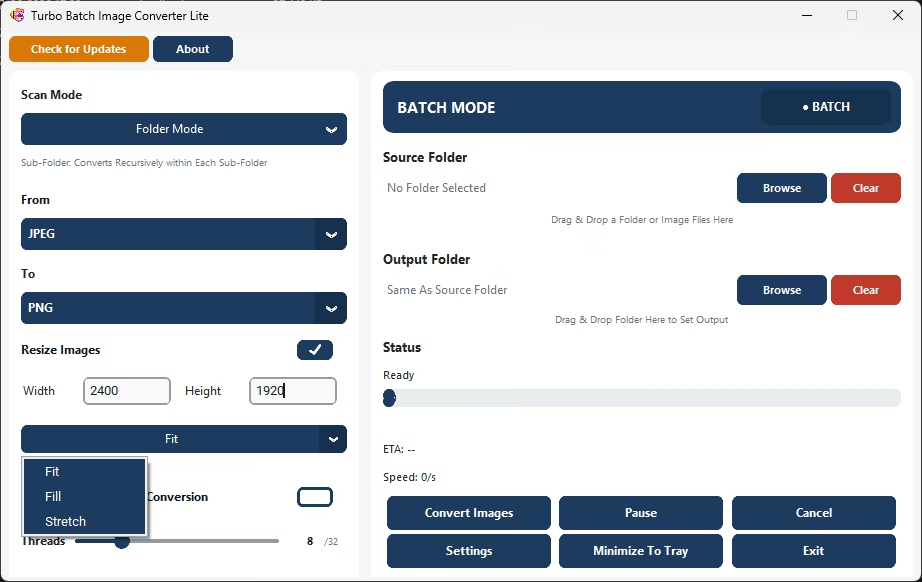
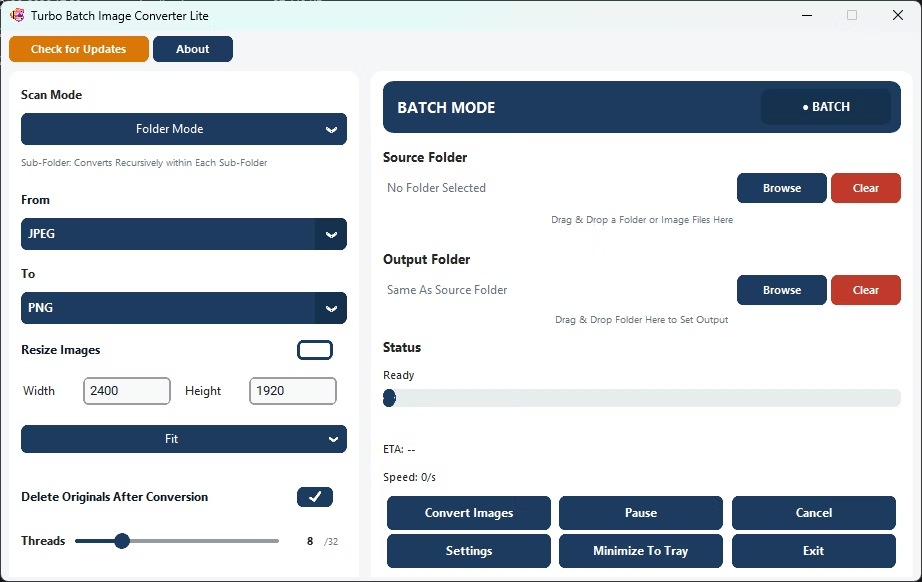
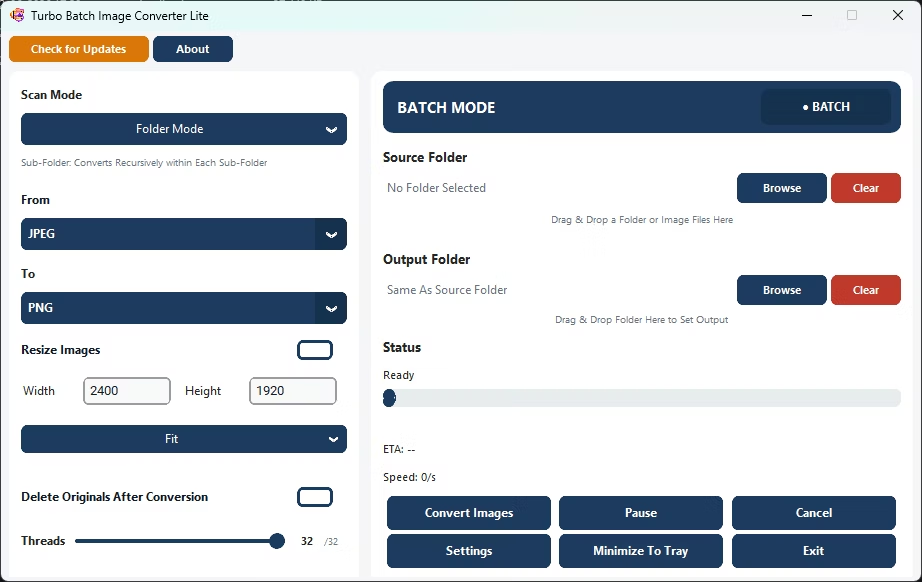
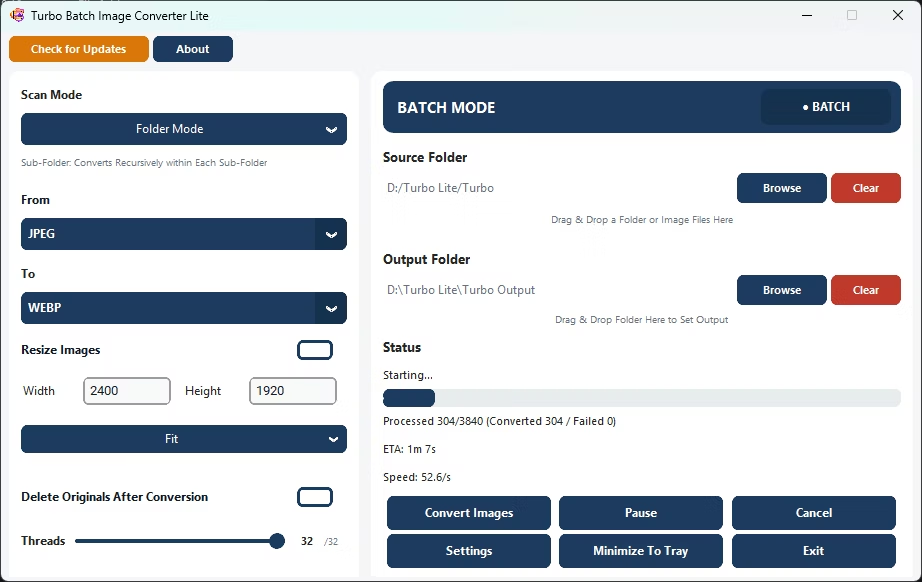
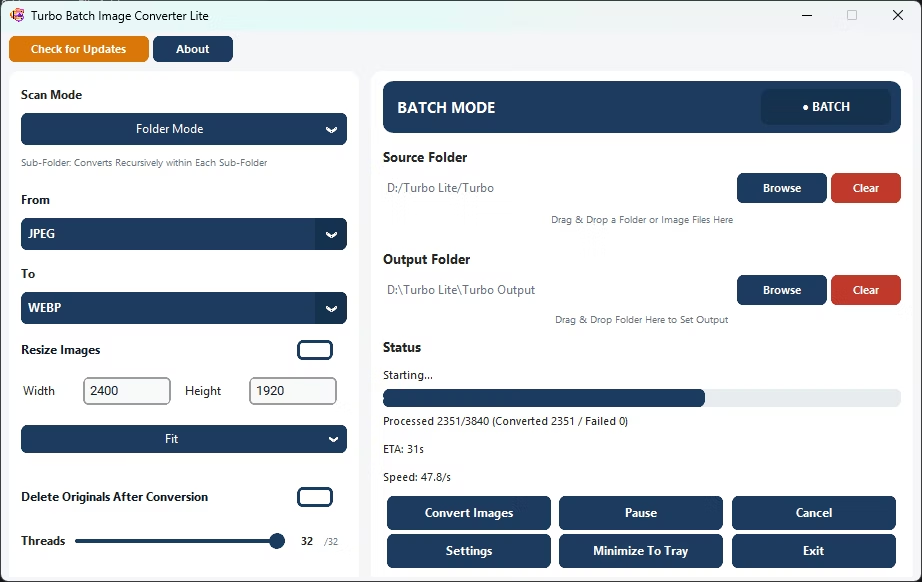
How to Bulk Convert Photos with This Software
- Install Turbo Batch Image Converter Lite on your Windows PC.
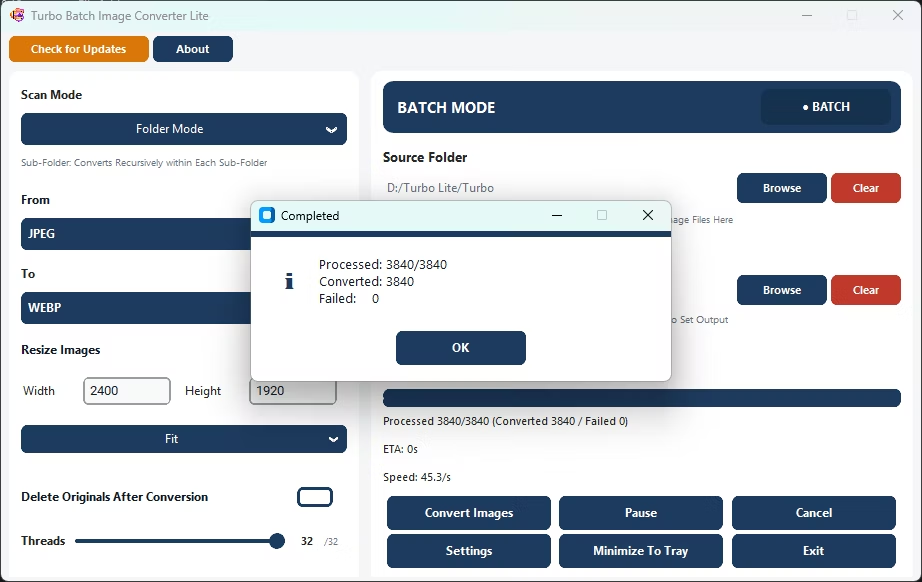
- Open Batch Mode and select your photo folder.
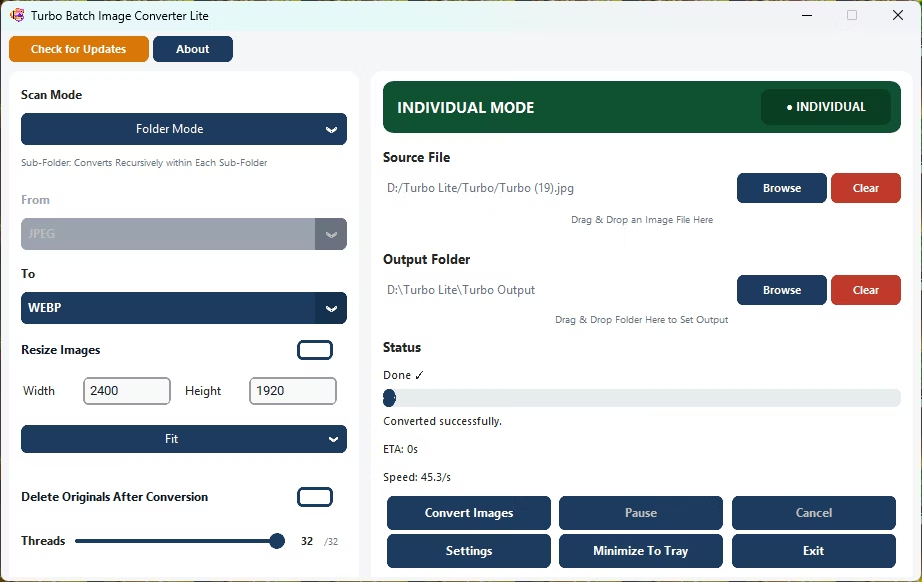
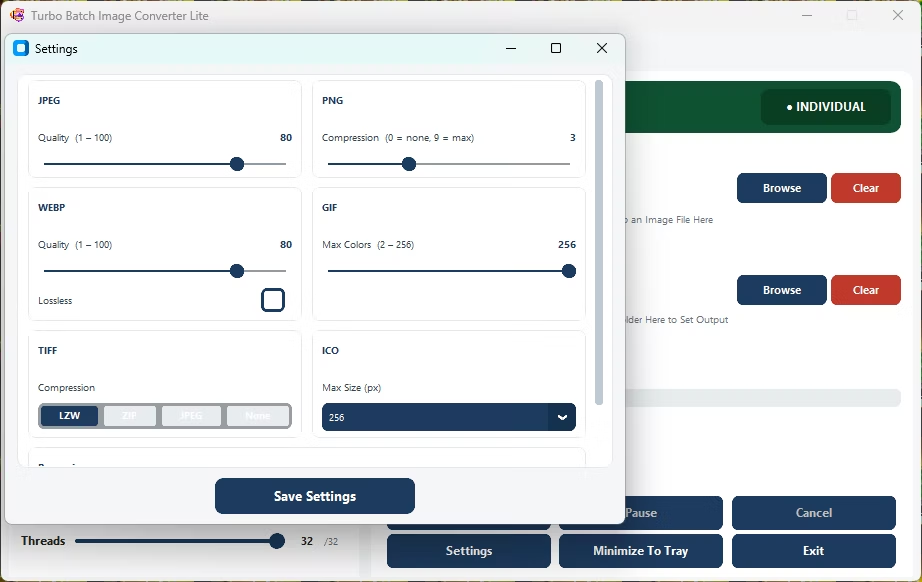
- Set your target format and quality once for the whole batch.
- Optionally enable resizing for consistent output dimensions.
- Click Convert to automatically process every photo.
- Review the completion pop-up once the batch finishes.
Why Use This Bulk Photo Conversion Software
- Automatically converts an entire folder of photos
- Covers the 8 formats most people actually use
- Optional batch resizing alongside format conversion
- Runs fully offline with no upload limits
- Multi-core engine scales up to 32 parallel workers
Frequently Asked Questions
Does this software work without manual clicking per photo?
Yes, once your settings are set, Batch Mode automatically processes every photo in the selected folder.
Can I resize photos while converting them?
Yes, Fit, Fill, and Stretch resize modes can be applied in the same batch as the format conversion.
Is there a subscription for this software?
No, it's a one-time purchase with no recurring fees.
Ready to convert multiple photos with dedicated lightweight software?