Datasets that exceed the roughly 1,048,576-row-per-sheet limit of the XLSX format put anyone working with Excel in a difficult position: the data exists, it's needed, but Excel itself has no built-in way to accept more rows than that ceiling allows on a single sheet.
Million by Million Rows Copier copies large Excel datasets safely by working within that constraint rather than fighting it. Load your Excel data, by pasting with Ctrl+V or loading an XLSX or XLS file, then copy it out in Excel-safe, 1,000,000-row chunks that never exceed a single sheet's row limit.
Each chunk pastes cleanly into a fresh Excel sheet, complete with its own header row included automatically, so building out a multi-sheet or multi-workbook copy of a massive Excel dataset becomes a repeatable click-and-paste process rather than a manual data-wrangling exercise.
Because your data lives in a local SQLite database once loaded, rather than in memory, the app stays responsive throughout, even when working with Excel datasets at the upper end of the app's 50,000,000-row capacity.
Every chunk is also saved to disk automatically in your chosen formats as it's copied, XLSX among them, so you end up with a permanent, split, Excel-ready record of the dataset in addition to whatever you've pasted manually.
Everything runs locally on your PC, aside from a one-time license check. Loading, chunking, and exporting all happen offline, with your Excel data never uploaded anywhere. Data analysts and engineers moving large extracts between tools, database administrators handing off query results, finance and accounting teams transferring big ledgers, operations and reporting staff assembling data from many sources, and anyone who has ever tried to paste more rows into Excel than it was willing to accept, all use the same underlying workflow. Virtual rendering keeps the loaded-data view smooth even at the upper end of the app's capacity, and every worker thread runs its own SQLite connection in WAL mode, so nothing here depends on your PC having an unusual amount of memory to spare.
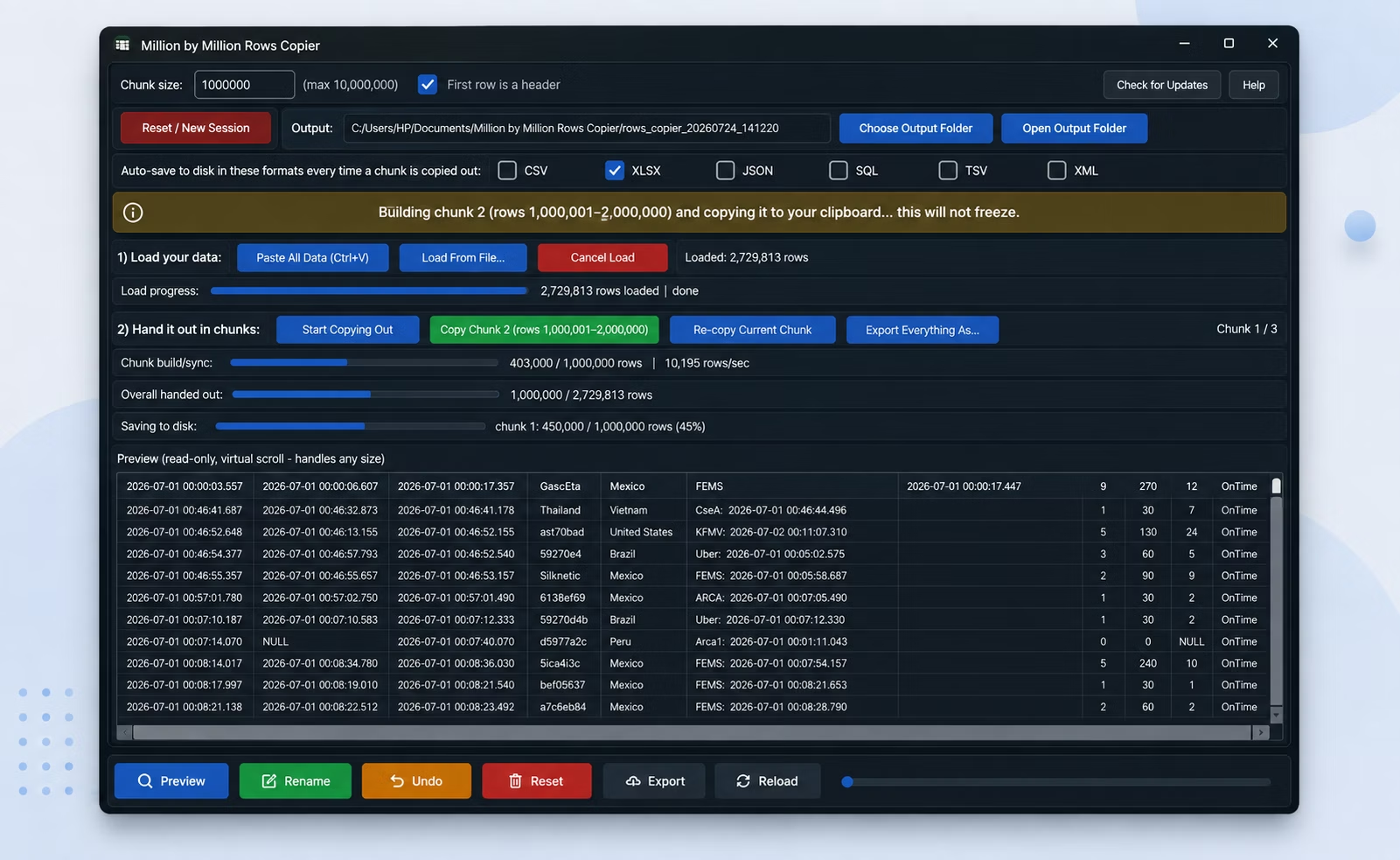
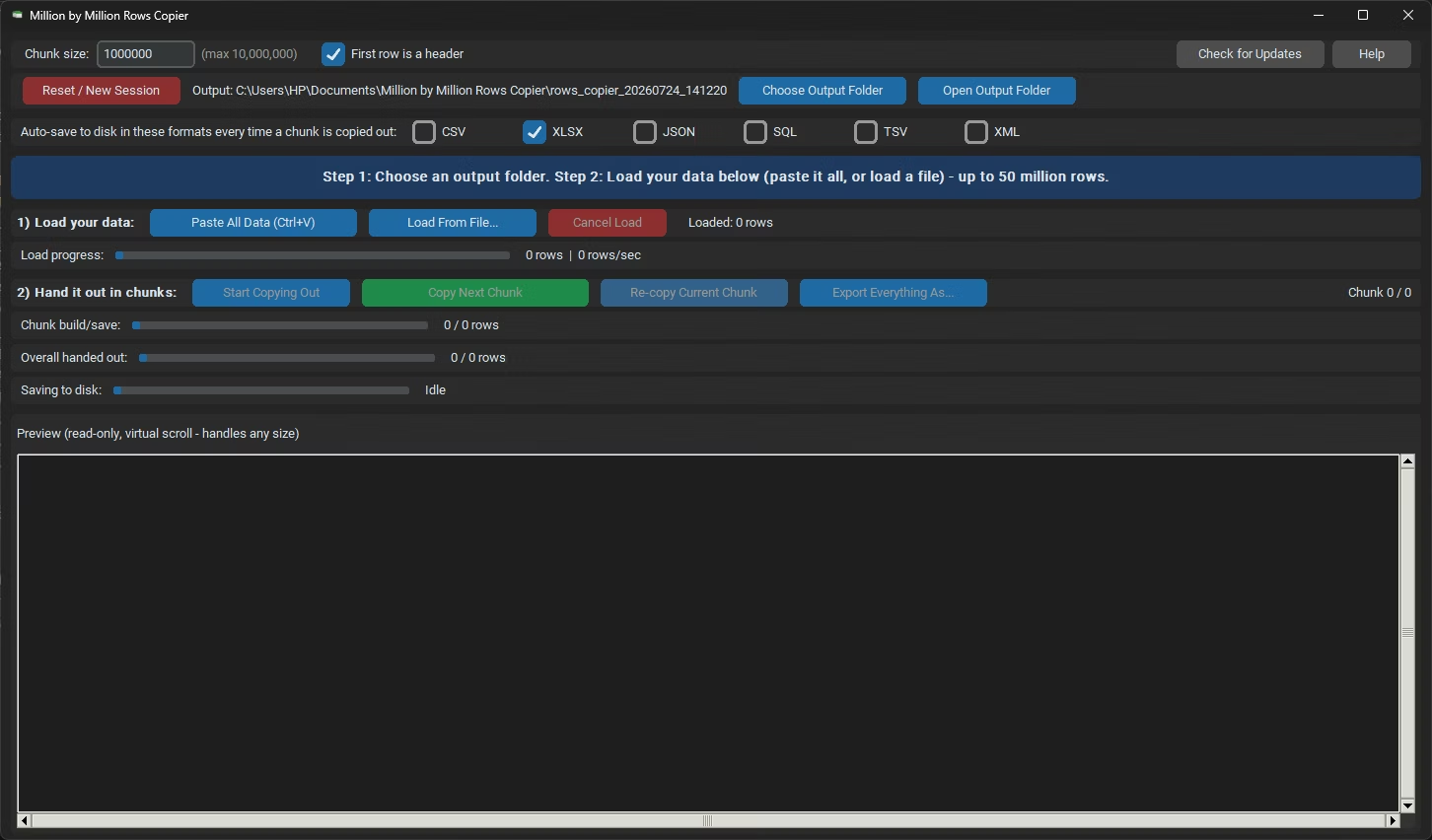
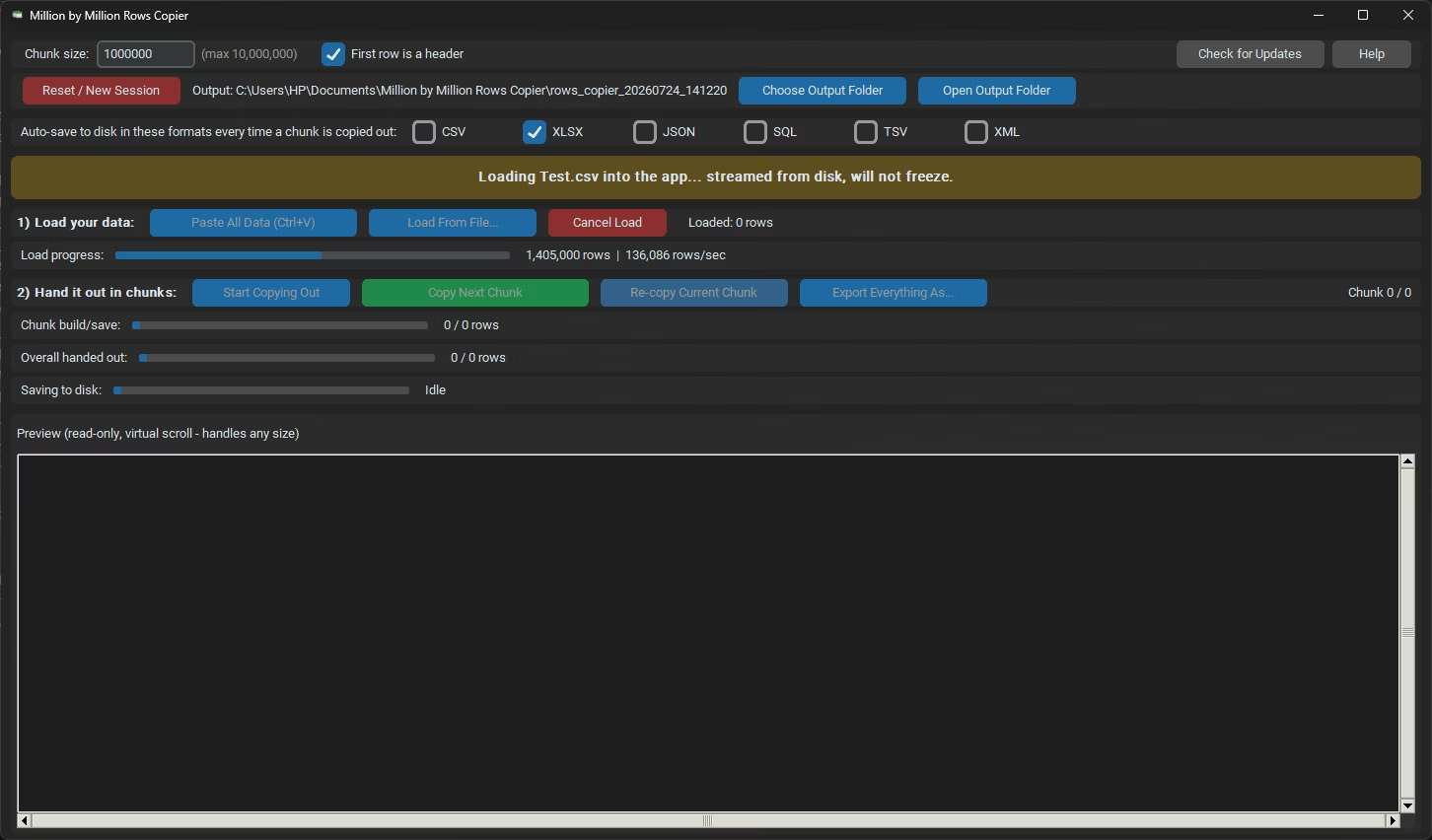
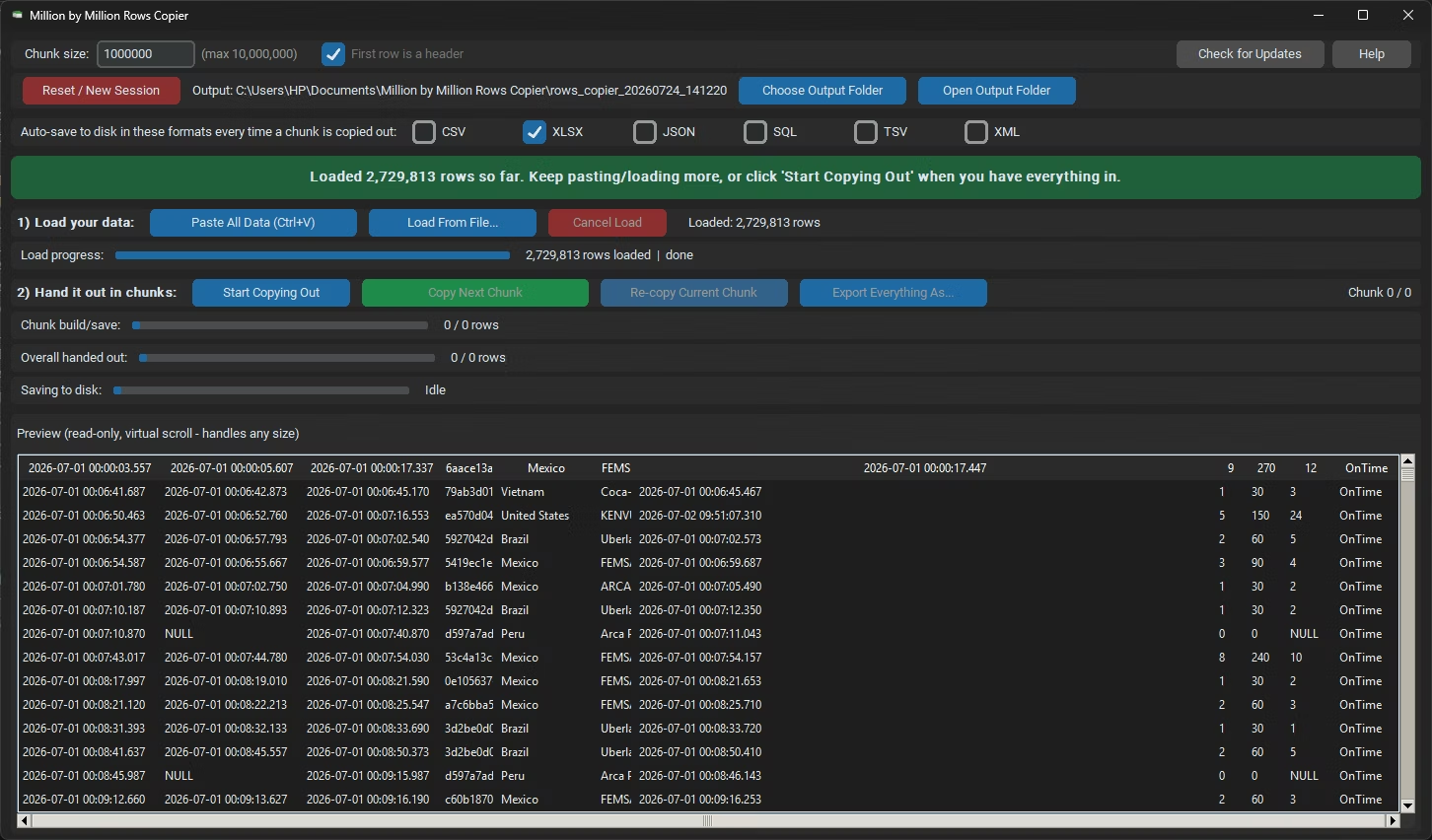
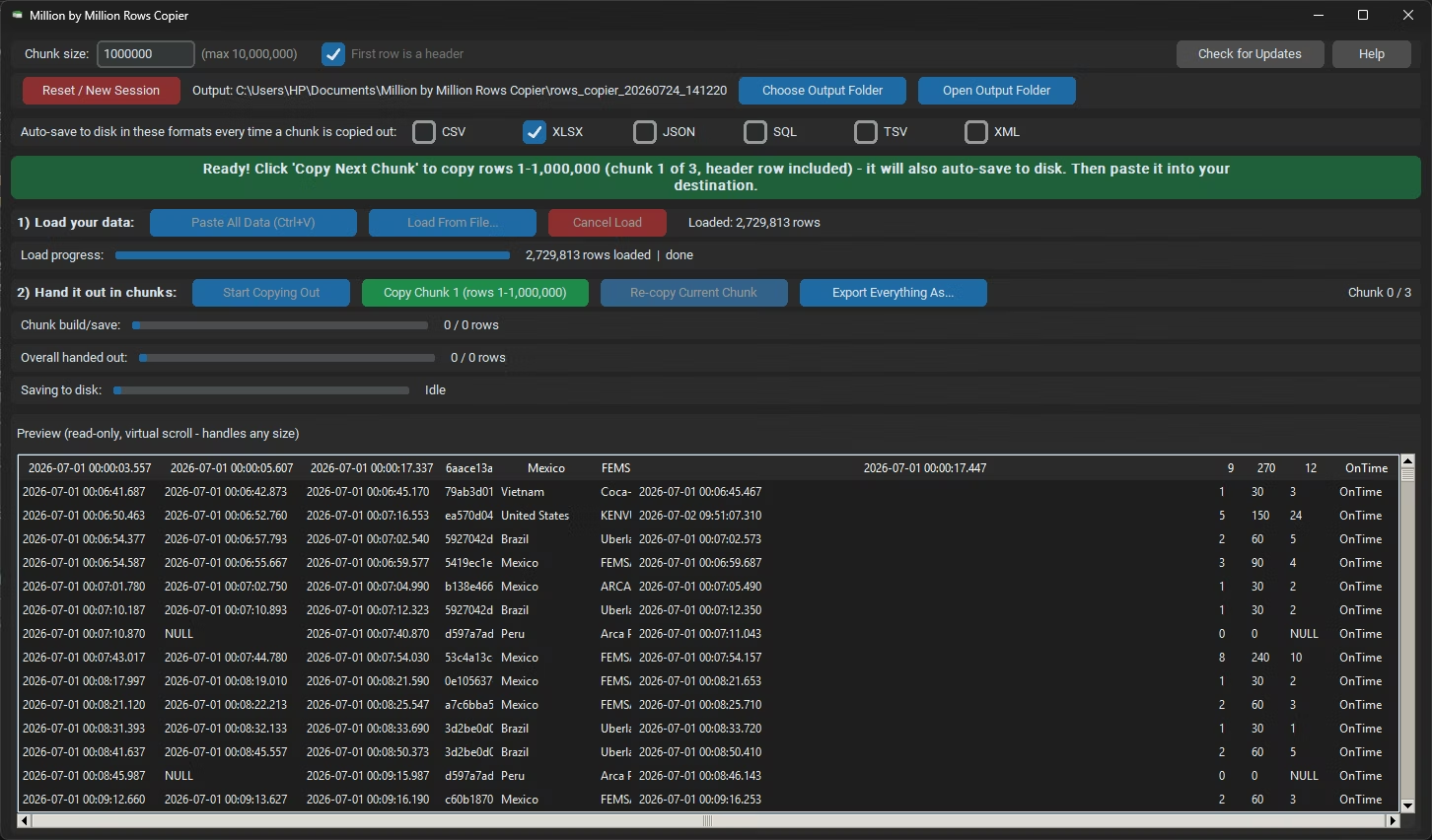
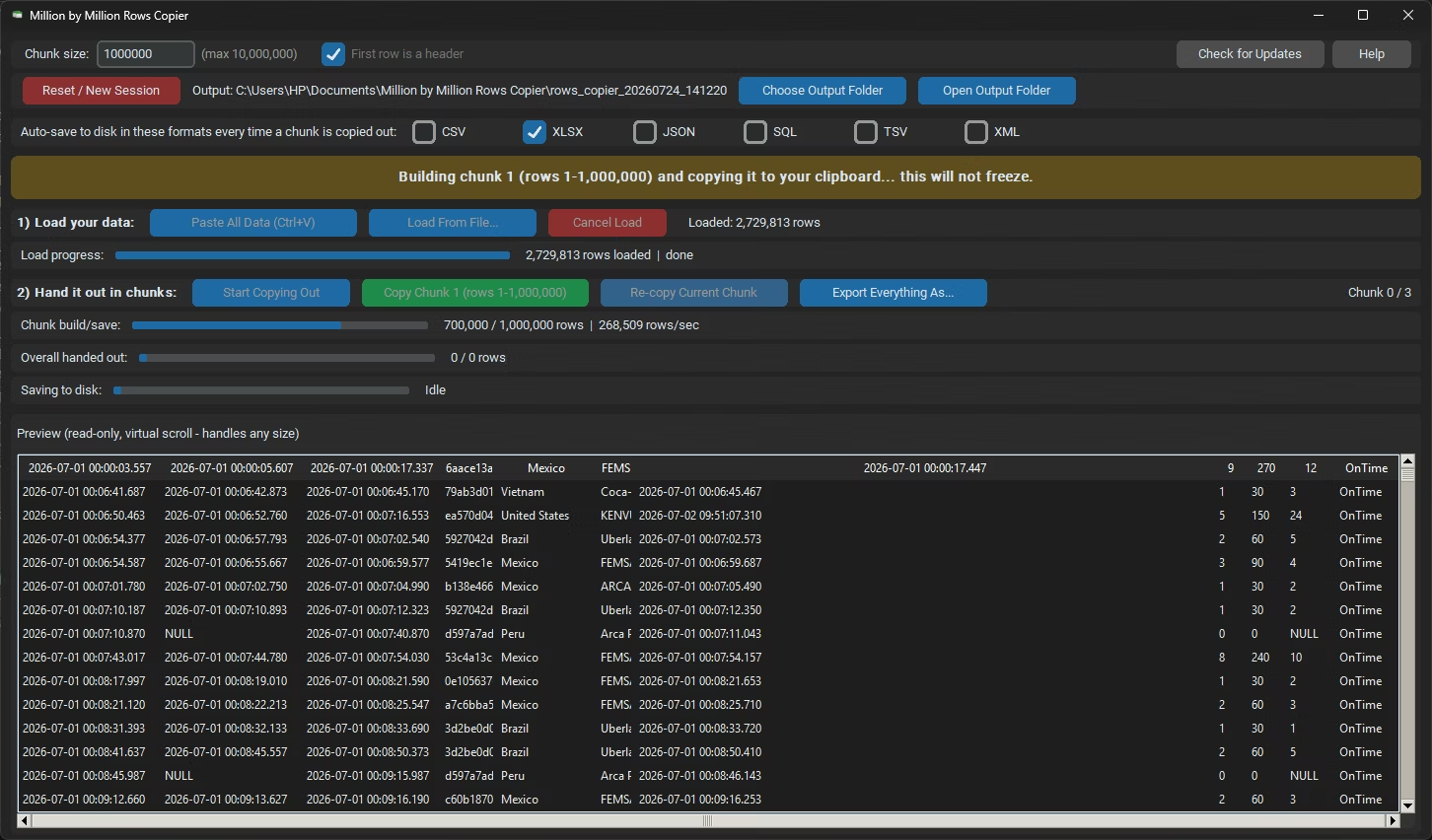
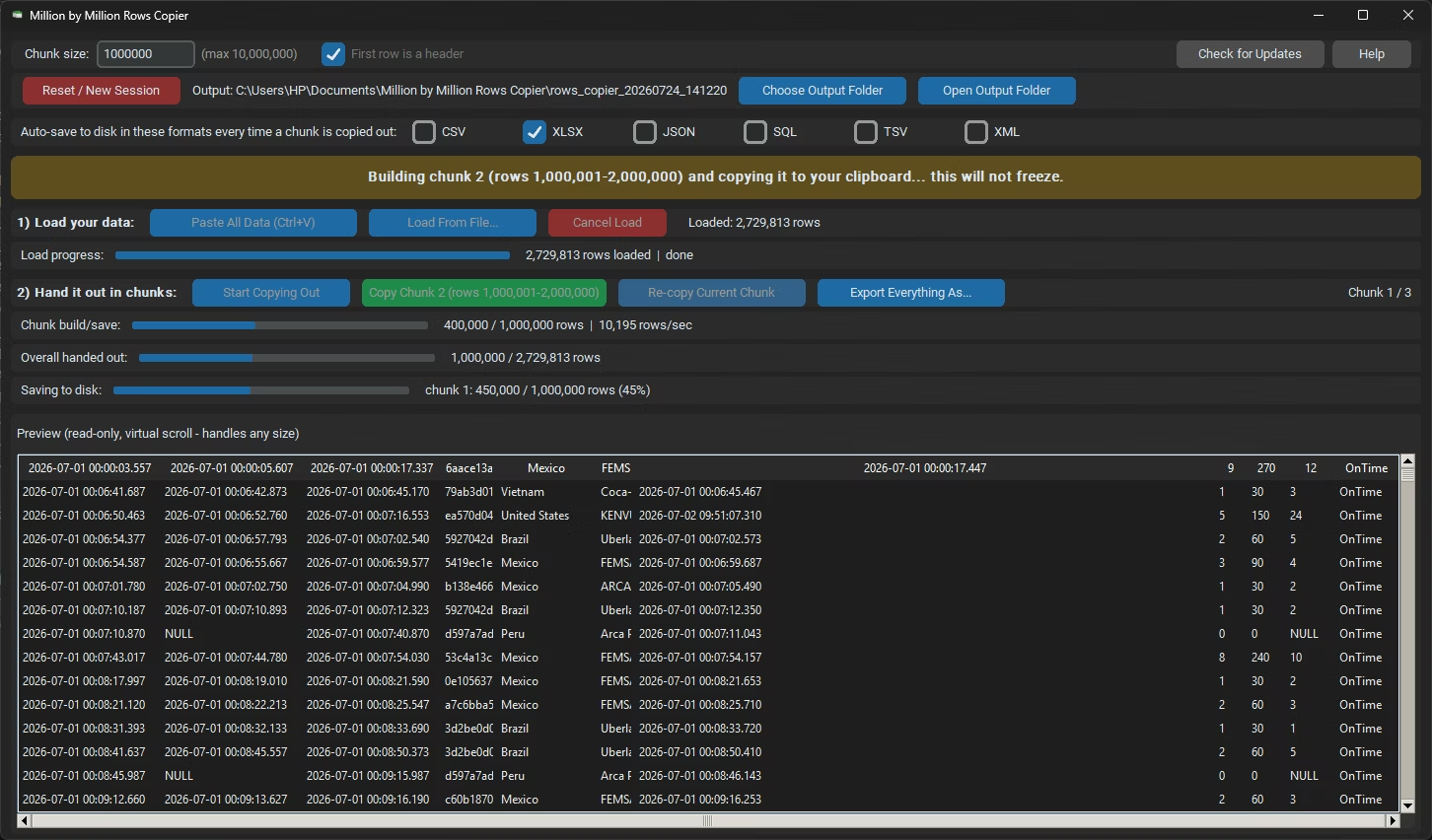
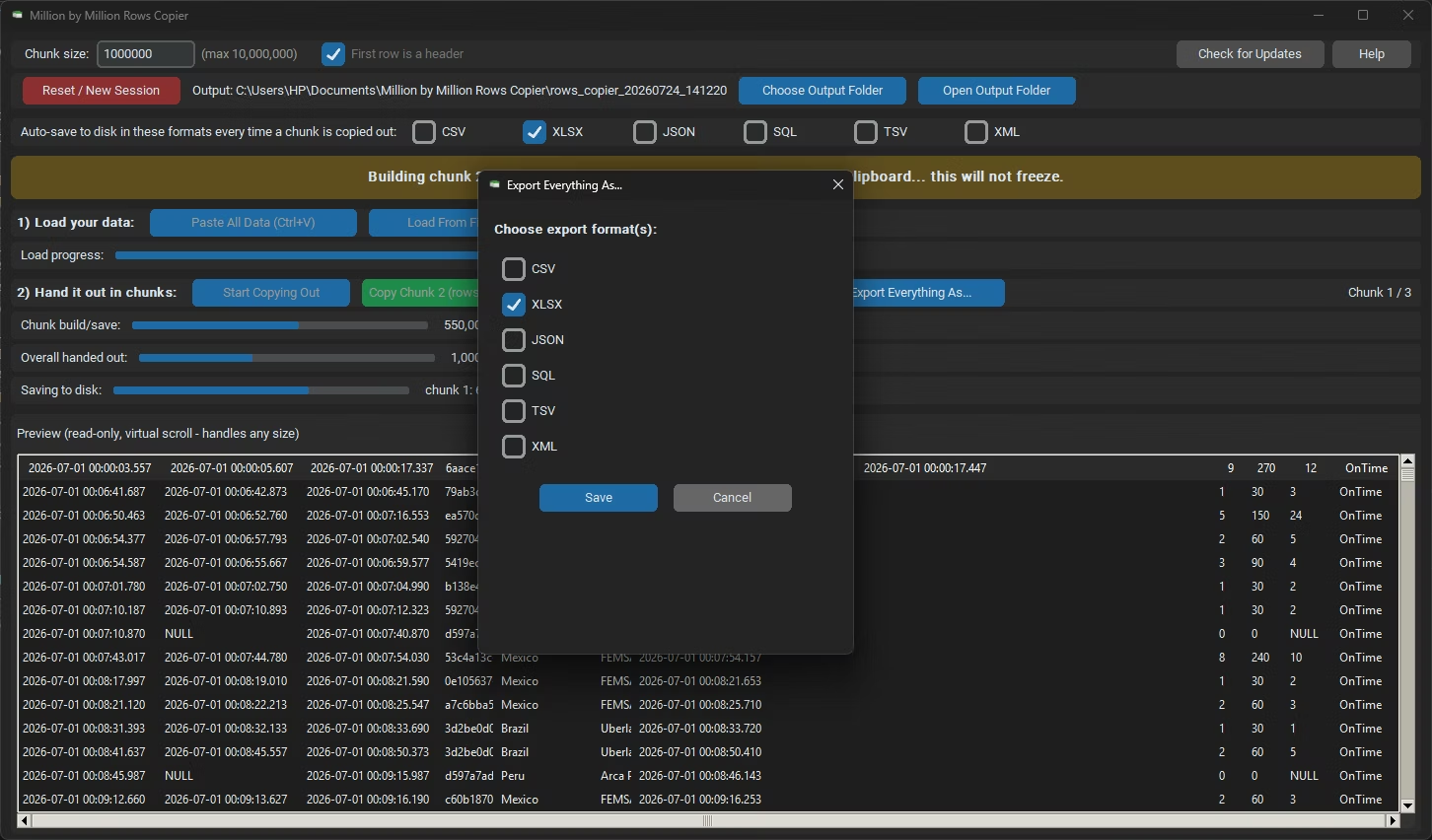
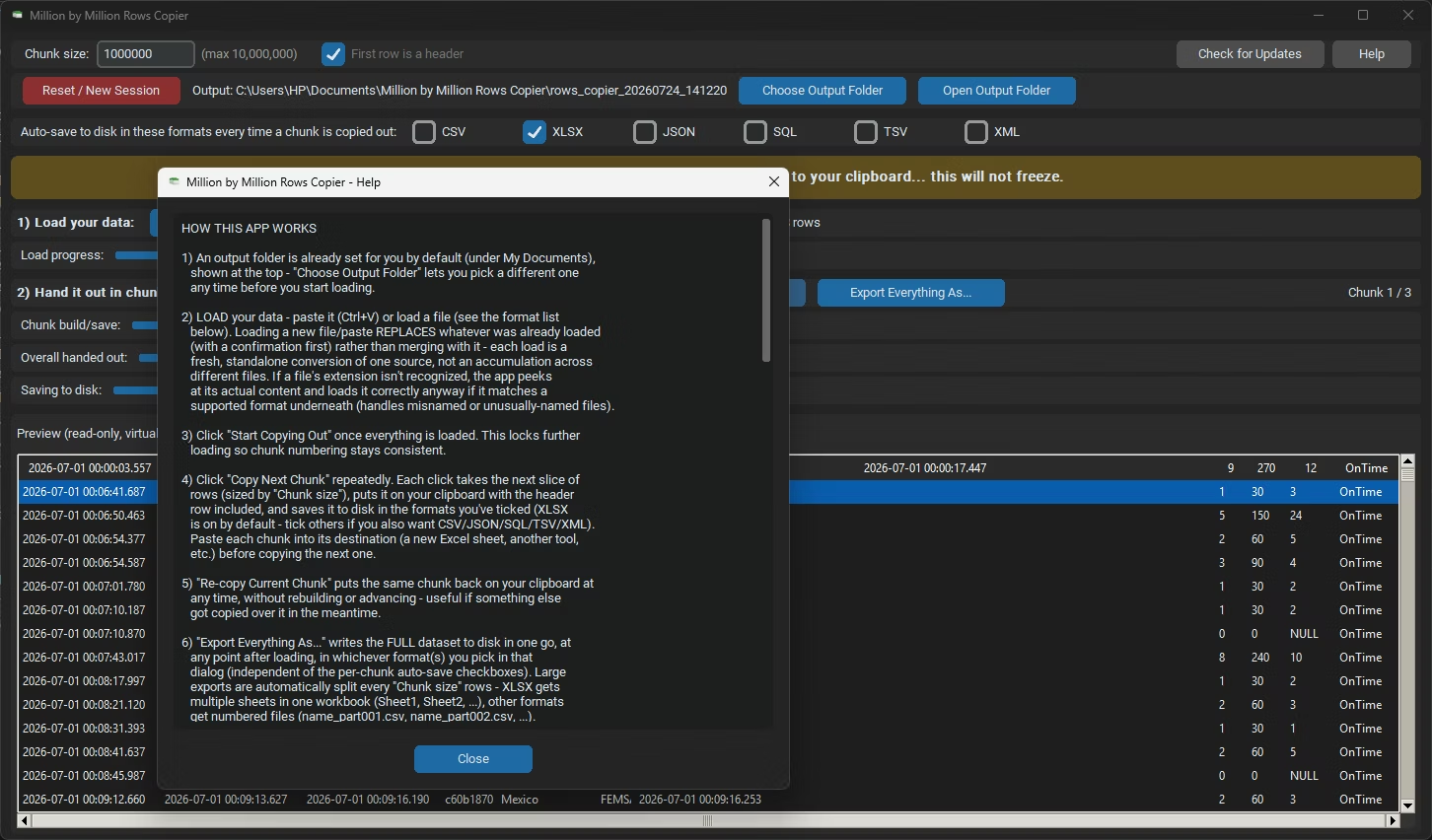
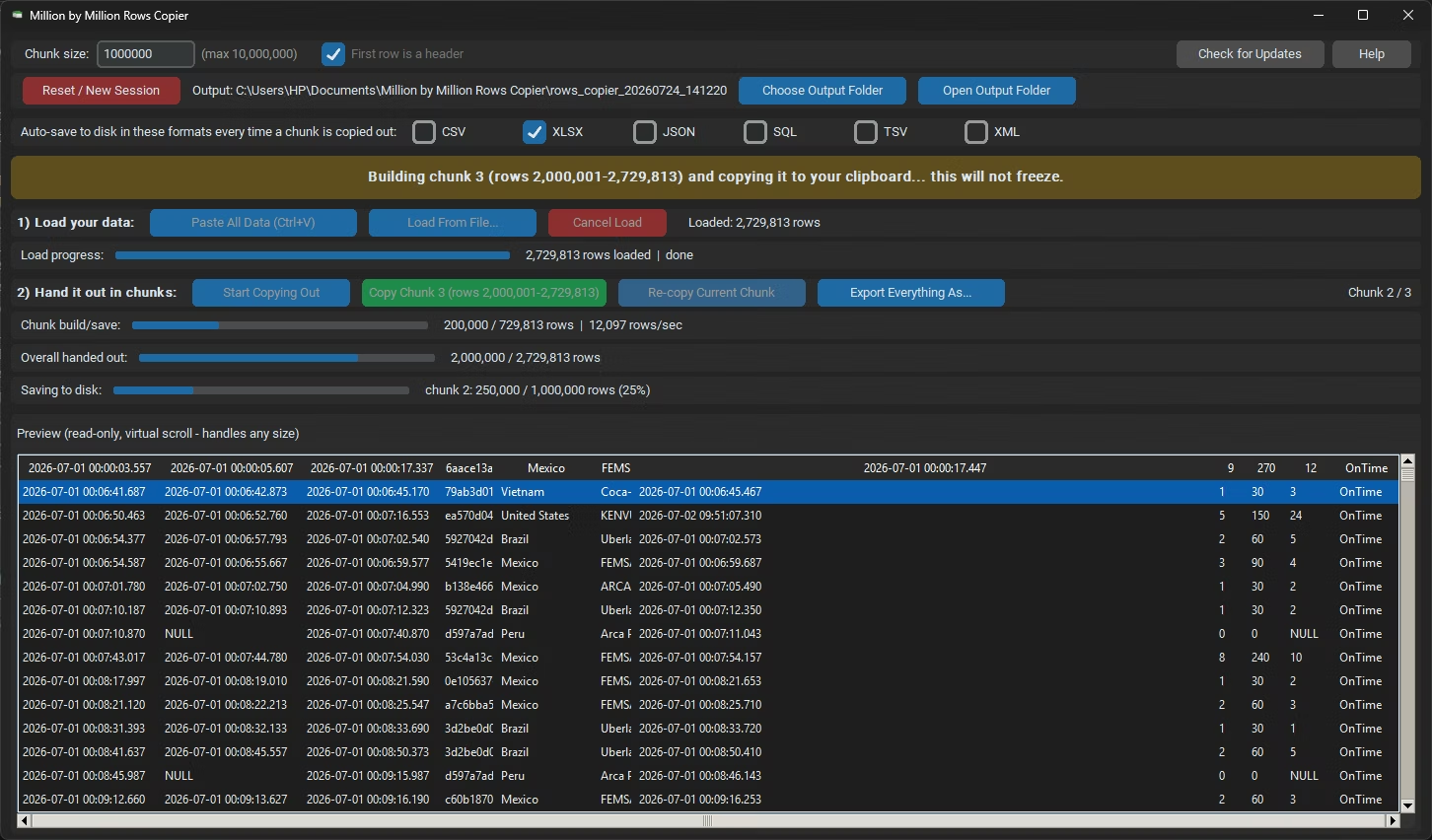
- Install Million by Million Rows Copier on your Windows PC.
- Paste your Excel data with Ctrl+V or load an XLSX or XLS file.
- Click Start Copying Out to lock the dataset in place.
- Click Copy Next Chunk to build the first Excel-safe chunk.
- Paste that chunk into a fresh Excel sheet.
- Click Copy Next Chunk for the next piece.
- Repeat until the entire Excel dataset is copied.
- Review the auto-saved XLSX chunks in your output folder.
- Use Re-copy Current Chunk if your clipboard gets overwritten mid-paste.
- Click Open Output Folder to review everything you've saved so far.
- Copies data in chunks that never exceed Excel's row limit
- Loads XLSX, XLS, and other spreadsheet formats directly
- Header row included automatically in every pasted chunk
- Auto-saves each chunk to disk as XLSX or other formats
- SQLite-backed storage handles datasets up to 50,000,000 rows
- Chunk size adjustable if 1,000,000 doesn't fit your workbook
- Runs fully offline aside from a one-time license check
- One-time purchase for Windows, with Gumroad license activation
- Choose your own output folder, or use the default under My Documents
- Works with files on local drives, external drives, and network shares
Why do large Excel datasets need to be copied in chunks?
A single Excel sheet is capped at roughly 1,048,576 rows, so any dataset larger than that must be split across multiple sheets or workbooks, which this app automates.
Will each chunk paste in as a proper table with headers?
Yes, the header row is included on the clipboard with every chunk, so each pasted chunk is a complete, self-describing table.
Can I load an XLSX file directly rather than pasting it?
Yes, XLSX and XLS files can be loaded directly, in addition to pasting data already on your clipboard.
Is there a backup of the data beyond what I paste into Excel?
Yes, every chunk is automatically saved to disk in your chosen formats, including XLSX, the moment it's copied.
Does this work on both Windows 10 and Windows 11?
Yes, Million by Million Rows Copier is built and tested for both Windows 10 and Windows 11.
Is my data safe when using this tool?
Yes, all processing happens locally on your PC; no data is ever uploaded, so proprietary or sensitive records stay fully under your control.
Where do saved chunks and exports go by default?
A default output folder under My Documents is set automatically at startup, though you can choose a different folder before loading begins.
Can I use this on files stored on an external or network drive?
Yes, files on local drives, external drives, or mapped network shares all load the same as any local file.
What happens if the app is closed partway through a session?
Each chunk is saved to disk automatically the moment it's copied, so a closed app or crash never loses more than the chunk that was in progress.
Is there a trial version available before buying?
Check the product page on turbo-soft.com for current trial availability and details.
Ready to copy your large Excel dataset safely, fully offline?