Standard copy and paste has a fundamental limitation: the moment you copy something new, whatever you had copied before disappears entirely. There's no going back, no history, just a single overwritten value that's simply gone.
Gwen is a copy paste manager that removes that limitation. It runs quietly in the system tray, automatically capturing text, images, files, and hex colors so that managing multiple copied items, rather than just the one most recent, becomes the normal way you work.
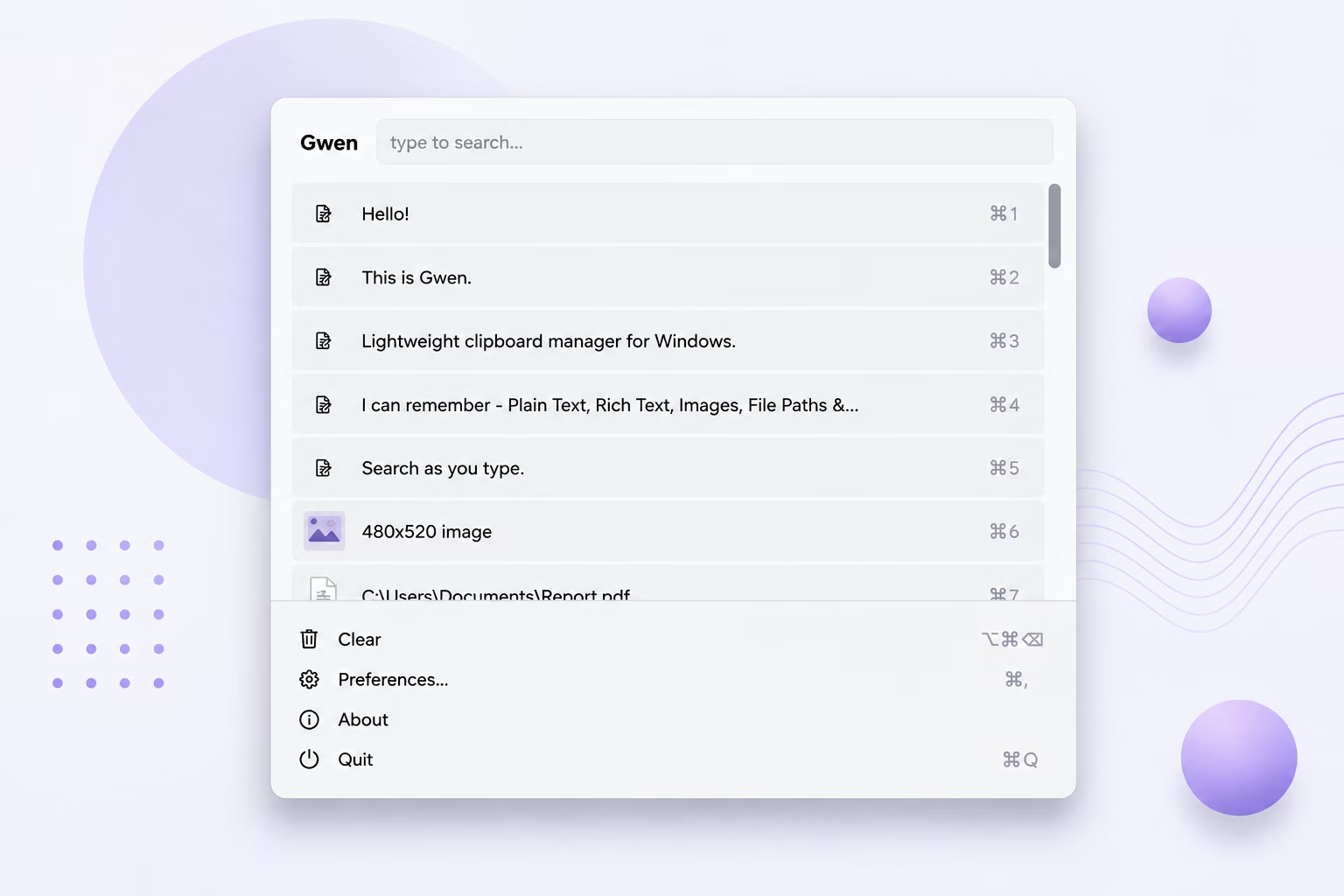
Press Ctrl+Shift+V and a popup opens right by your cursor, listing your recently managed items newest-first. Pick the one you need, by clicking, pressing Enter, or hitting a number key 1 through 9, and it pastes automatically into whatever you were working on.
Managing multiple items means never losing that address you copied two minutes ago just because you needed to copy a paragraph in between. Both stay accessible, along with everything else you've copied recently, up to your configured history limit.
Live search filters your managed items instantly as you type, and smart duplicate detection keeps the list from filling up with repeated identical entries, so managing many items stays practical even as your history grows throughout the day.
Everything runs entirely offline. Your managed copy paste items stay on your own PC, with the app's only network call being a one-time license check. Developers copying snippets, commands, and error messages; writers and editors juggling quotes and references; designers pulling hex colors and image assets; support and admin staff pasting the same canned responses and details repeatedly; researchers collecting excerpts from many sources; and anyone on Windows who copies and pastes enough that losing a clip is a daily annoyance all find the same underlying capability useful. Under the hood, a background thread checks Windows' clipboard-change counter a few times a second, and only reads what changed when that counter actually moves, which is what keeps the whole thing feeling instant rather than sluggish, however long it's been quietly running in your system tray.
- Install Gwen on your Windows PC.
- Let it run in the system tray, managing what you copy.
- Copy text, images, files, or colors freely throughout your work.
- Press Ctrl+Shift+V to see all your managed items.
- Use live search if you need to find something specific.
- Select the item you need, even from several copies ago.
- Watch it paste automatically into your current window.
- Keep working without worrying about losing an earlier copy.
- Check the About section for version info and updates.
- Use Change License if you ever need to re-activate.
- Never lose an earlier copy just because you copied something new
- Manages multiple items automatically as you work
- Text, images, files, and hex colors all captured
- Live search across all your managed items
- Smart duplicate detection keeps the list practical
- Selected items paste back automatically
- Runs fully offline, managing items only locally
- One-time purchase for Windows, with Gumroad license activation
- Delete individual entries anytime to keep your history relevant
- Consistent behavior across every Windows application, system-wide
Does copying something new erase my previous copies?
No, that's exactly the problem this manager solves; previous copies stay accessible in your history rather than being overwritten.
How many copied items can be managed at once?
Up to 200 by default, adjustable in preferences, with older items trimmed automatically beyond that limit.
Is finding a specific managed item difficult with a large history?
No, live search filters your managed items instantly as you type, so finding a specific one is quick.
What happens after I select a managed item?
It's written back to the clipboard and pasted automatically into whatever window you were working in.
Does this work on both Windows 10 and Windows 11?
Yes, Gwen is built and tested for both Windows 10 and Windows 11.
Is my clipboard data safe when using this app?
Yes, everything is stored locally on your own PC; nothing is uploaded or synced, so your copied content stays fully private.
Can I change the default hotkey if Ctrl+Shift+V conflicts with something else?
Yes, the global hotkey is configurable in preferences and takes effect immediately once changed.
Does the app work the same across every Windows application?
Yes, the global hotkey and paste-back mechanism operate at the system level, so behavior is consistent whether you're in a browser, an editor, a terminal, or any other Windows application.
Does the app show a preview for copied files, not just text and images?
Yes, file copies from Explorer are recorded as their path, or a "3 files" style summary for multiple selections.
Is there a trial version available before buying?
Check the product page on turbo-soft.com for current trial availability and details.
Can I use this alongside other clipboard-related tools?
Yes, since Gwen works passively through the standard Windows clipboard, it doesn't conflict with most other clipboard-aware applications running at the same time.
Will future updates change how my existing history is stored?
Check for Updates in the About section keeps you on the latest version, and your local history database persists across updates.
Ready to manage multiple copied items without losing any, fully offline?