Manually opening and re-saving every photo in a folder doesn't scale past a few files. A bulk photo converter automates that repetitive work, applying the same format, quality, and resize settings across an entire folder of photos automatically, with no per-file clicking.
Turbo Batch Image Converter Pro lets you point Batch Mode at a folder, set your target format once, and let the app automatically convert every photo inside it, including nested sub-folders, all processed locally on your Windows PC.
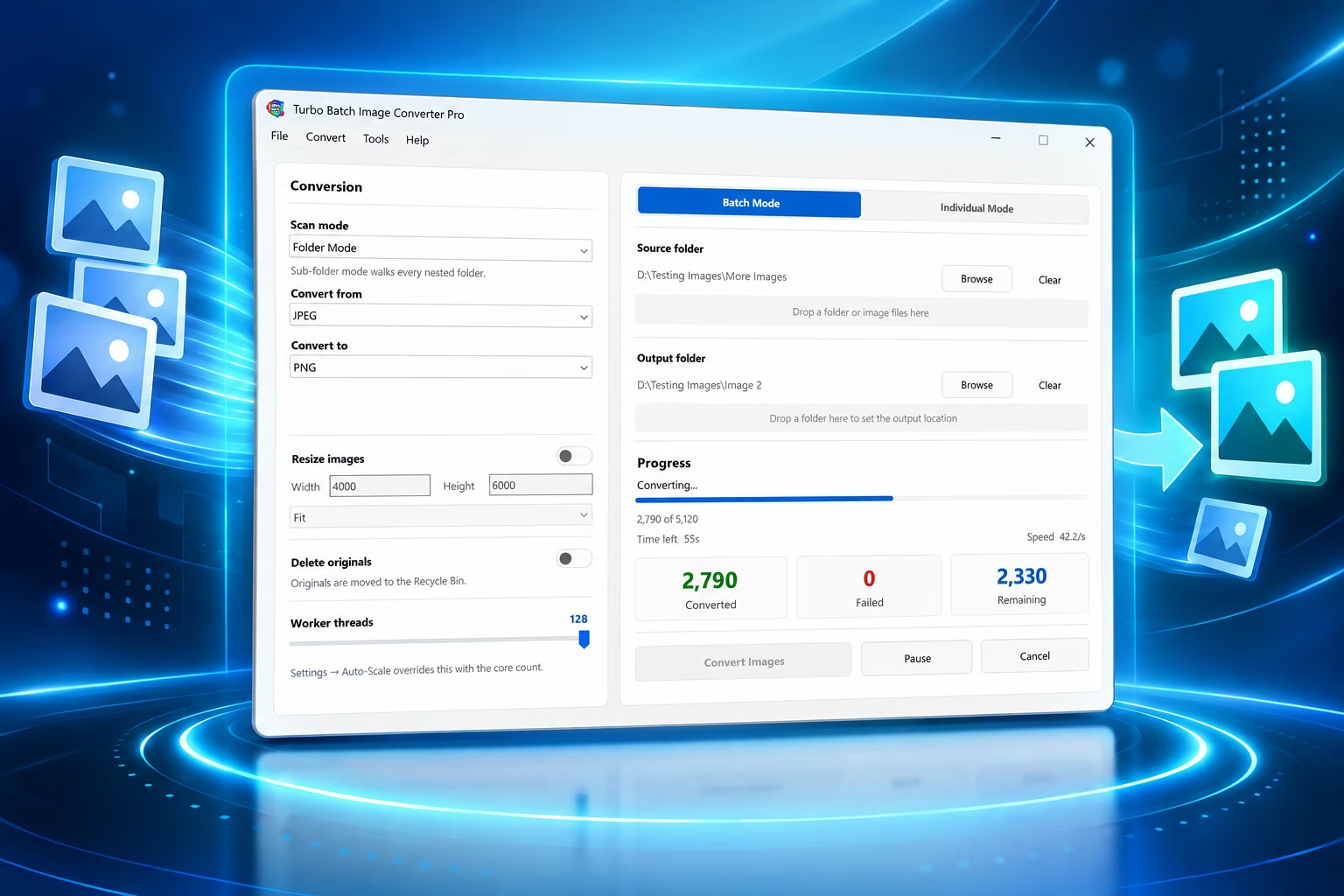
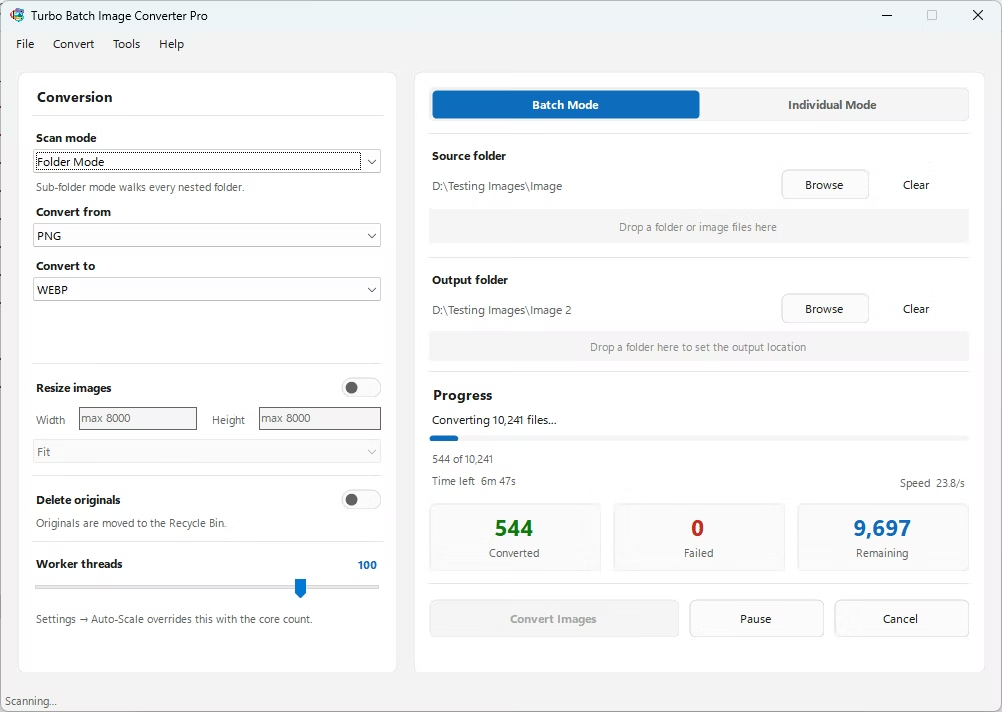
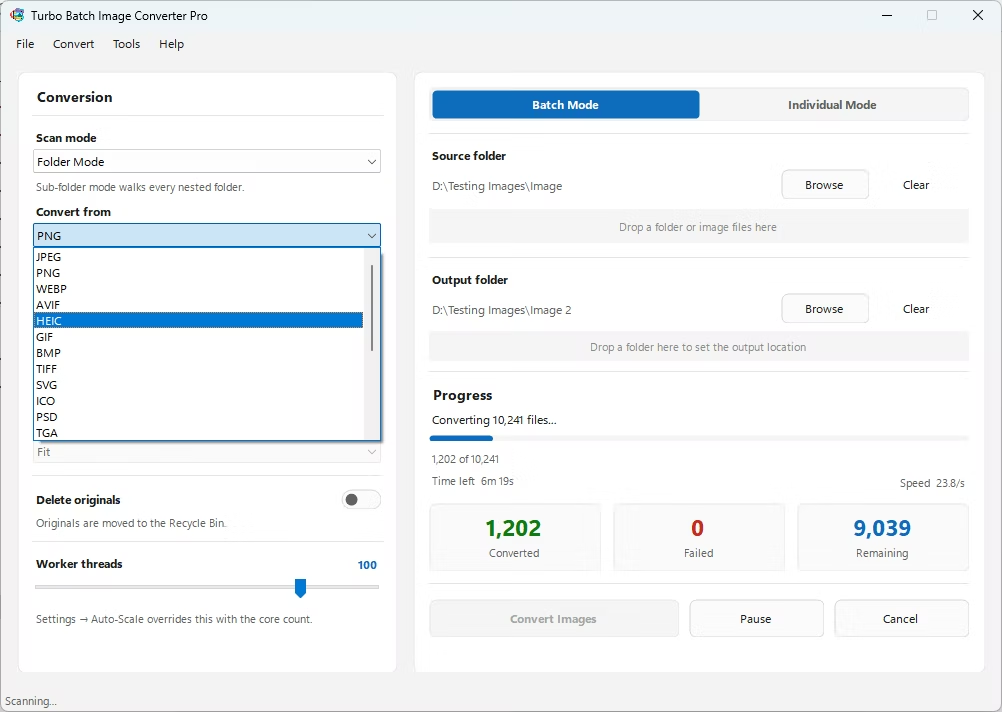
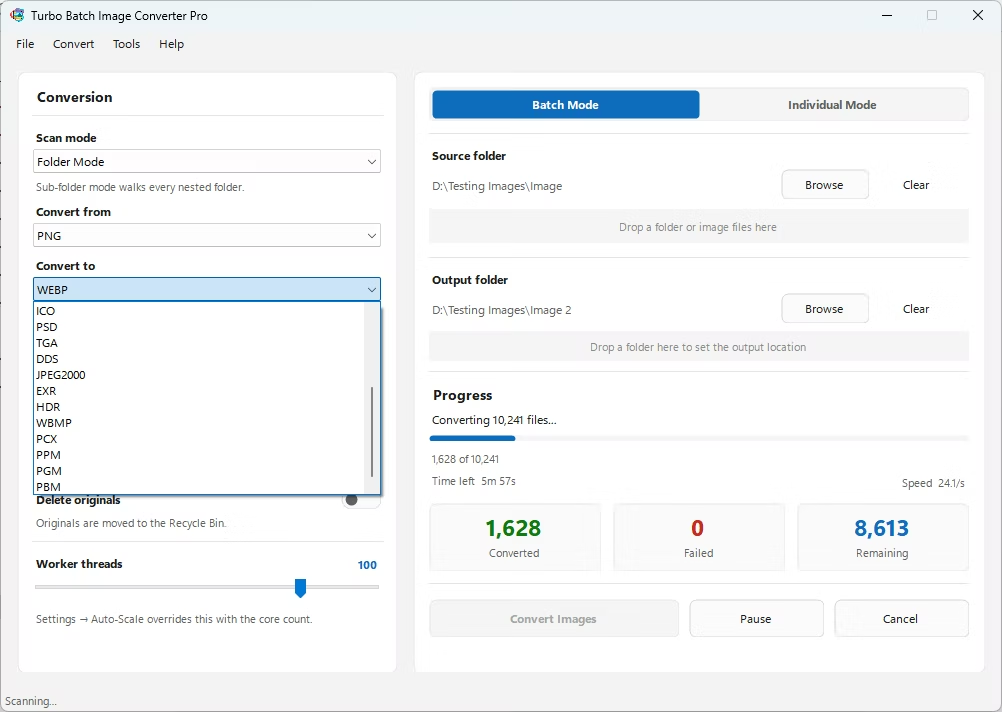
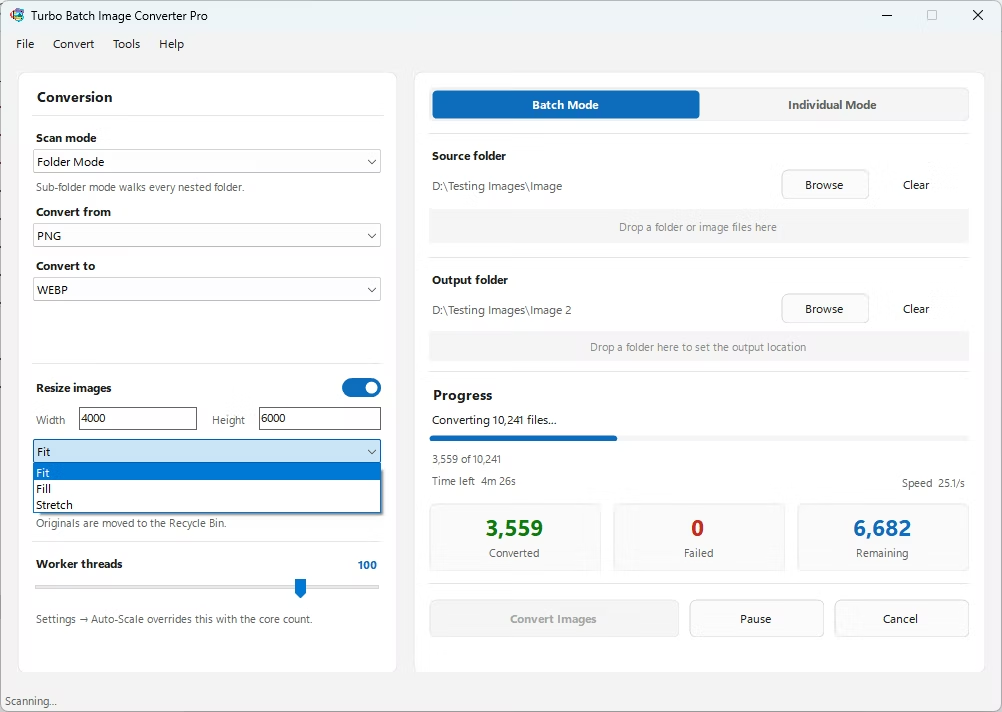
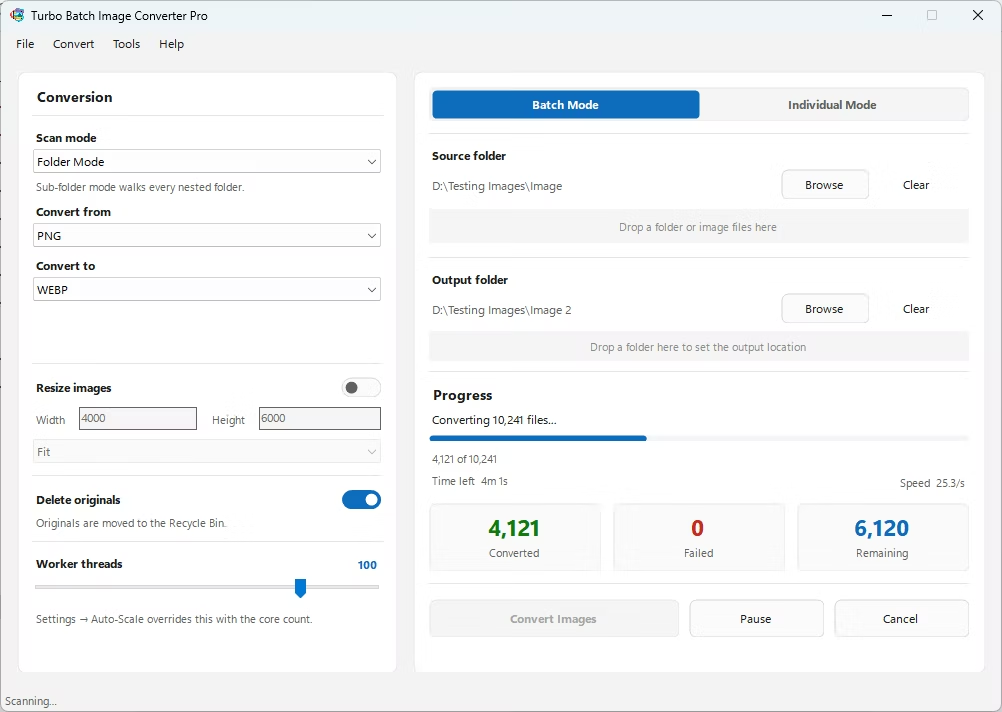
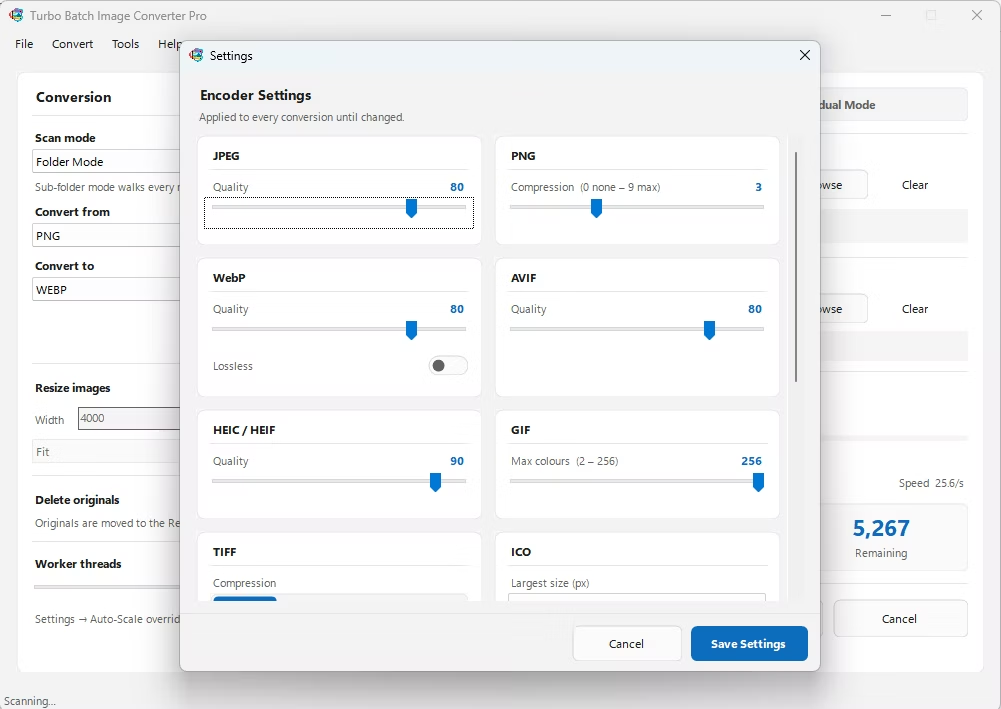
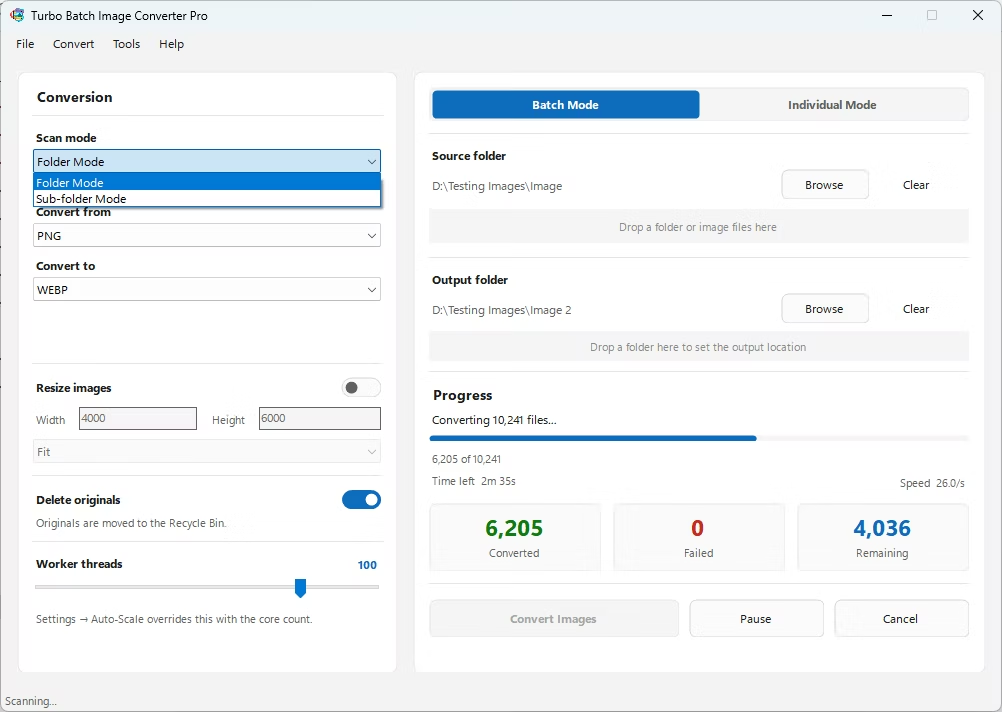
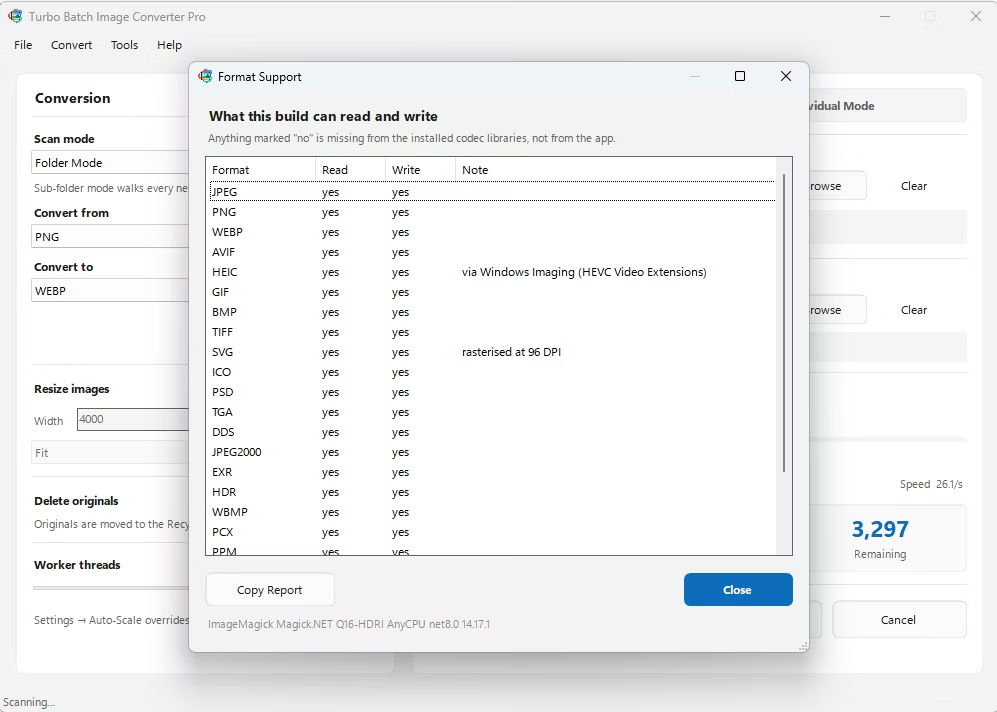
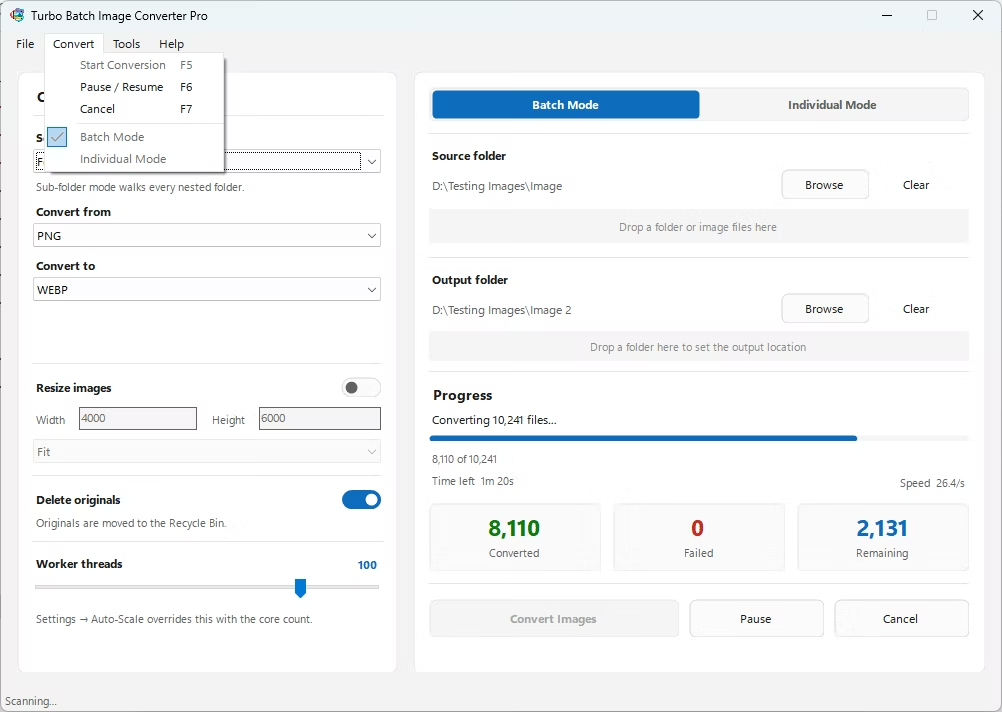
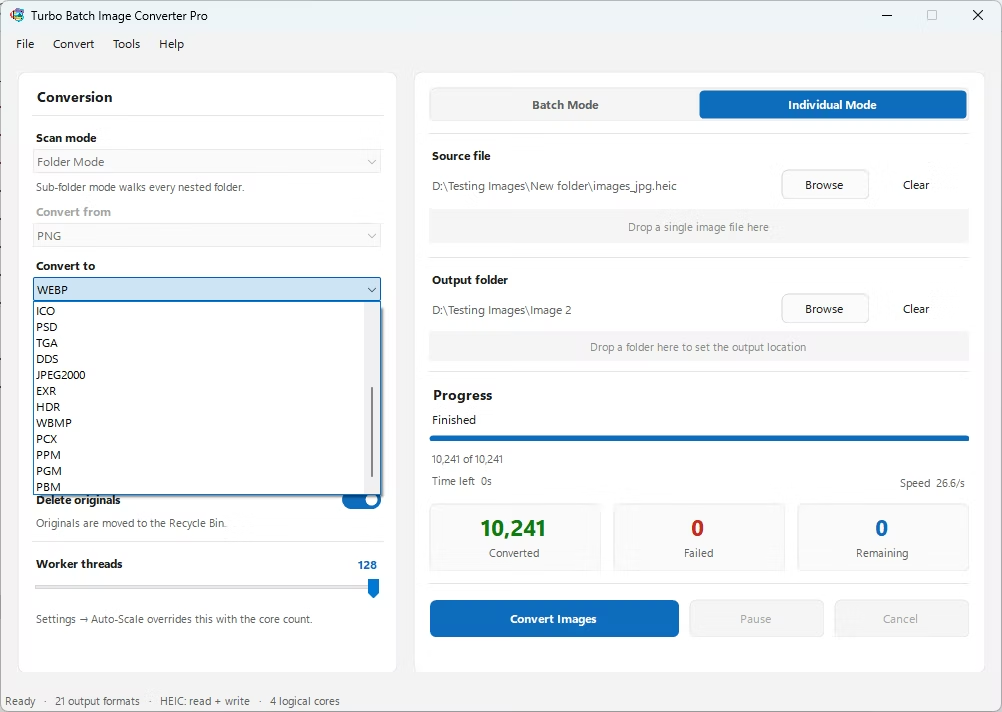
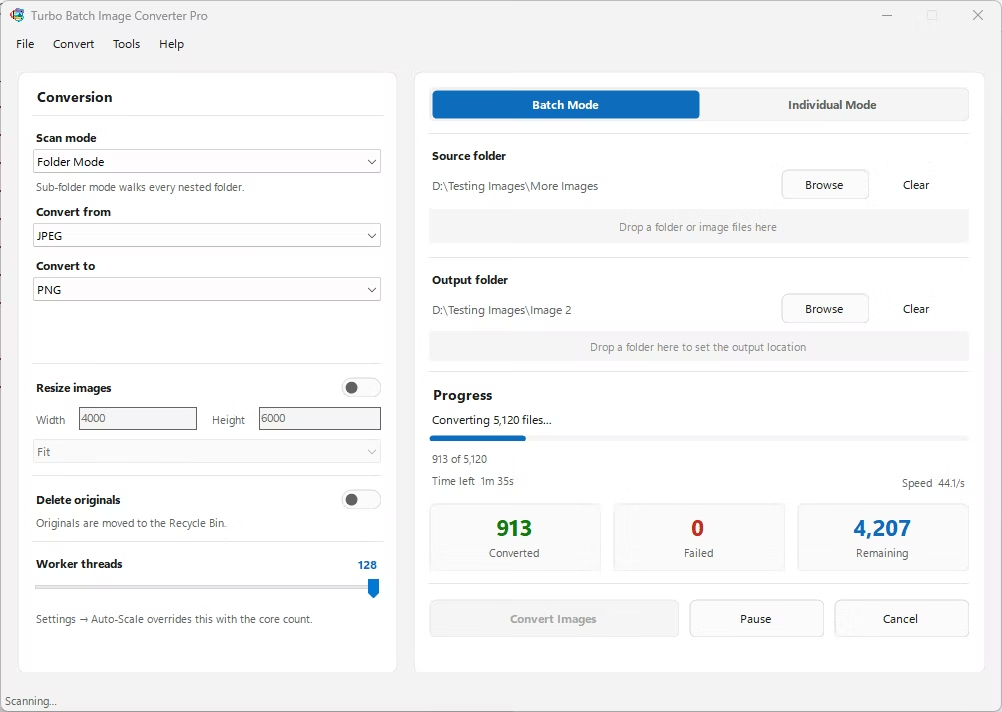
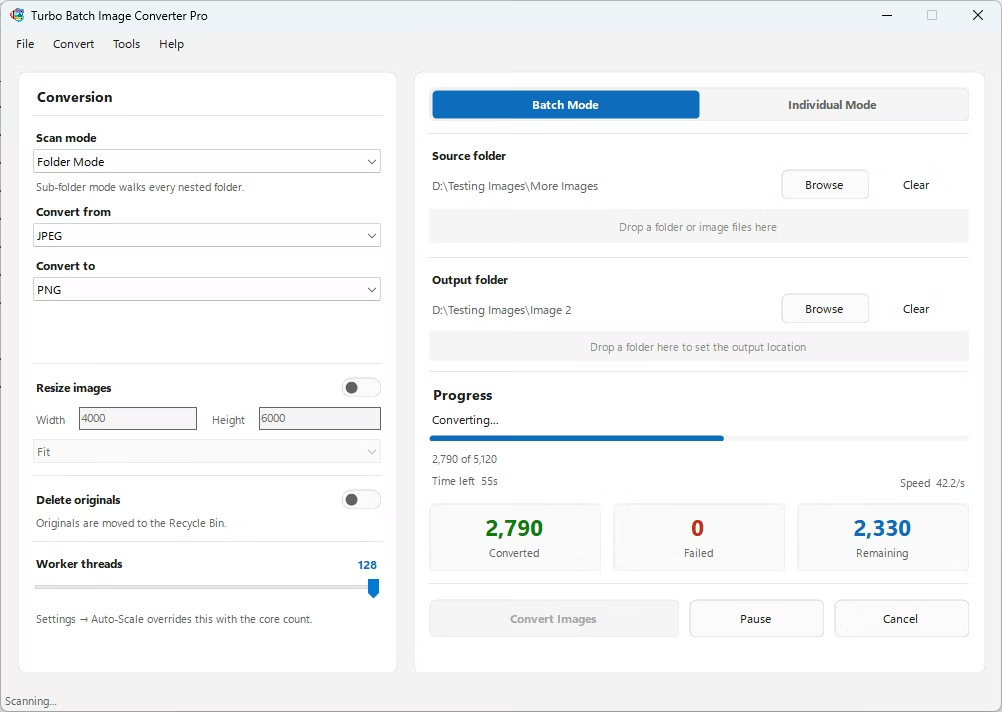
- Install Turbo Batch Image Converter Pro on your Windows PC.
- Open Batch Mode and select the folder containing your photos.
- Enable recursive scanning to include photos in sub-folders automatically.
- Set your target format and quality once for the whole batch.
- Click Convert and let the app process every photo automatically.
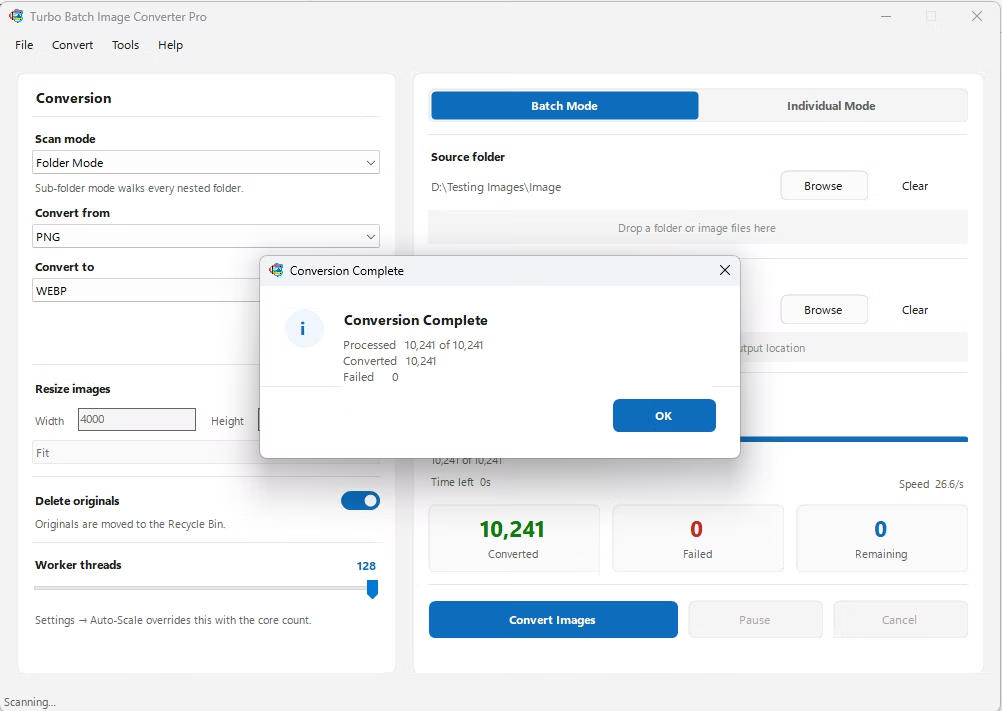
- Review the completion summary showing processed, converted, and failed counts.
- Automatically processes an entire folder of photos in one run
- Recursive sub-folder scanning covers nested photo libraries
- Consistent quality and resize settings applied across the whole batch
- Live progress dashboard with speed and time remaining
- Fully offline automatic processing, with no manual per-file work
Does automatic conversion require me to click through each photo?
No, once you set your format and settings, Batch Mode processes every photo in the selected folder automatically without further input.
Can it automatically include photos in sub-folders?
Yes, enable recursive folder scanning and every nested sub-folder is included in the automatic batch.
What happens if a photo fails to convert?
The completion summary reports processed, converted, and failed counts, so you can see exactly which files, if any, need attention.
Ready to convert multiple photos automatically, fully offline?