BMP stores image data completely uncompressed, while AVIF's AV1-based compression is among the most efficient available for everyday images, often producing files a fraction of the size of the equivalent BMP at visually comparable quality. Converting a batch of BMP screenshots, scans, or exports to AVIF can dramatically reduce storage requirements, which matters most once you're dealing with a folder full of BMP files rather than just one or two.
AVIF also supports a full alpha channel and up to 12-bit color, both well beyond what standard BMP offers, making it a genuine upgrade in capability as well as file size if your workflow benefits from either feature going forward.
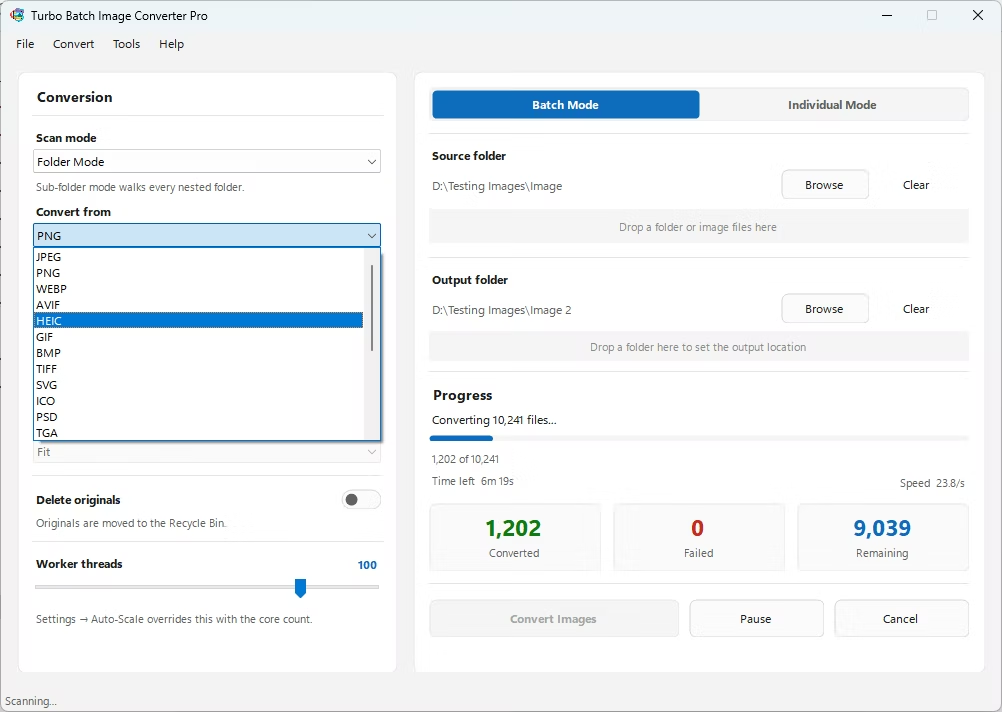
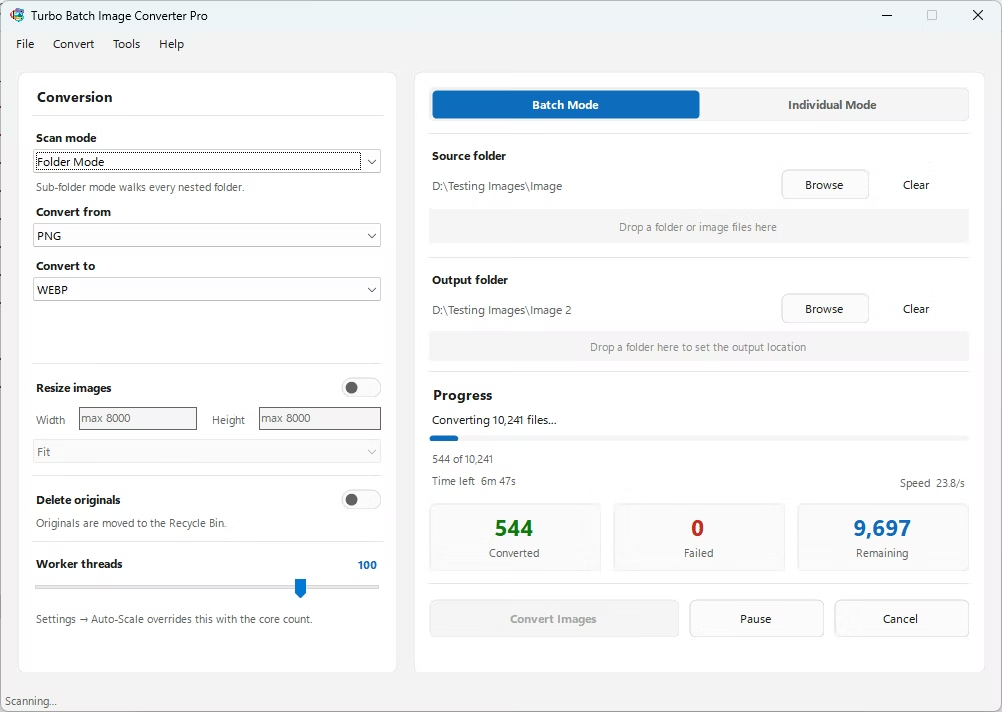
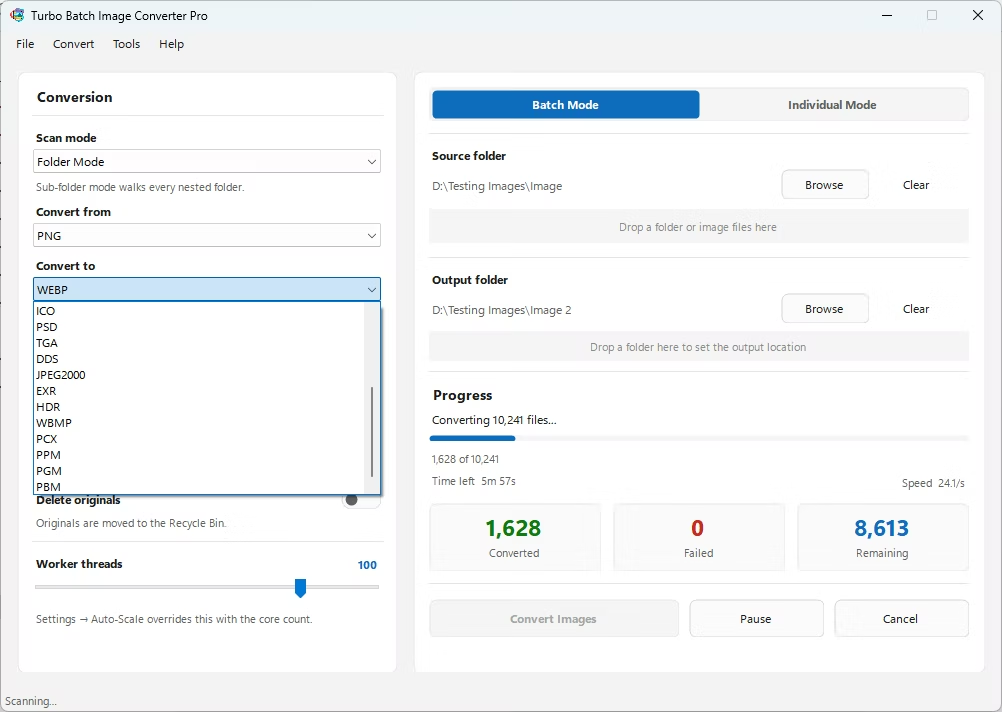
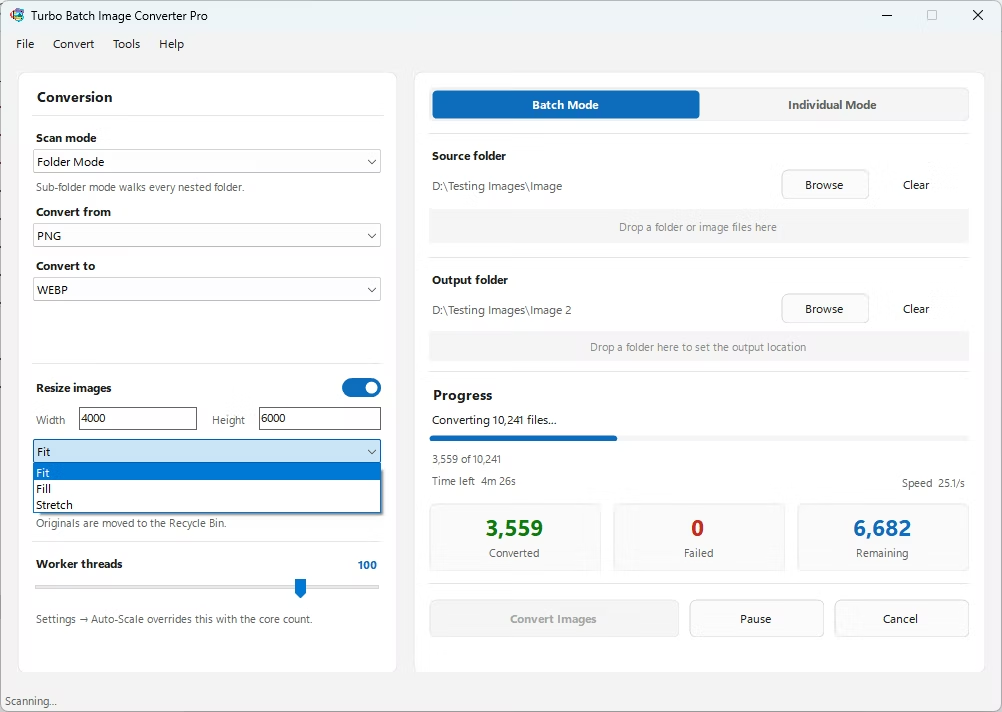
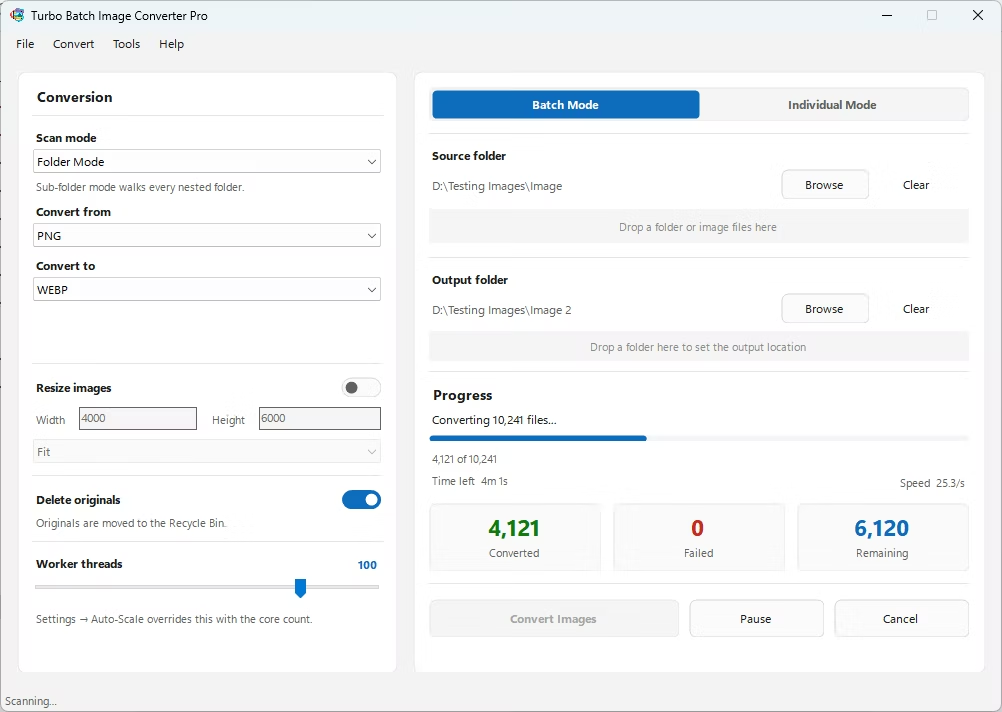
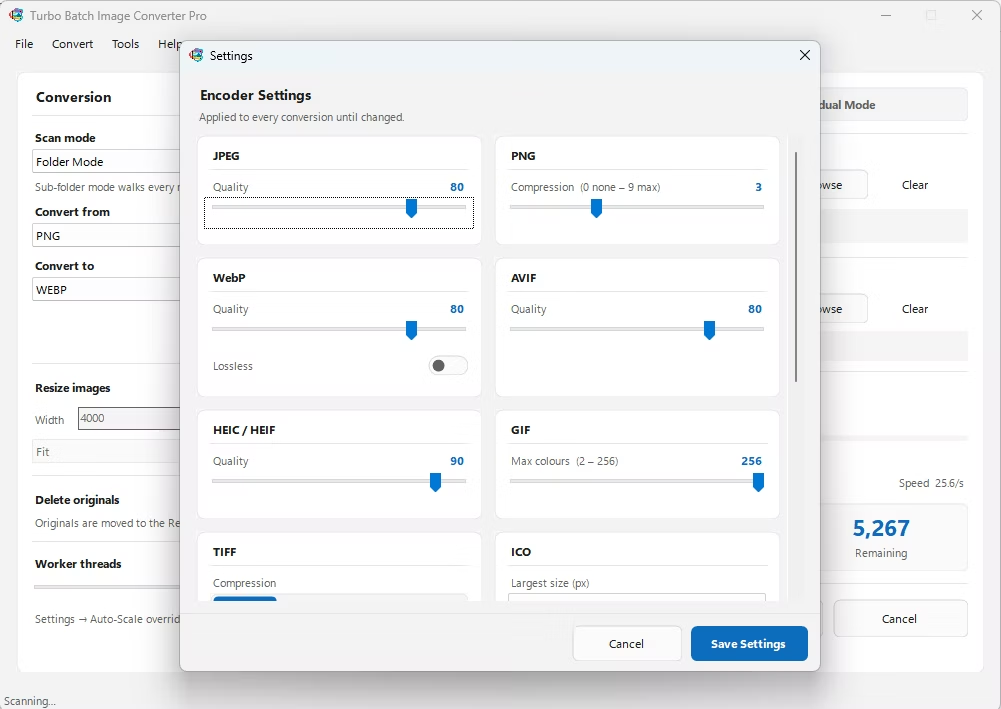
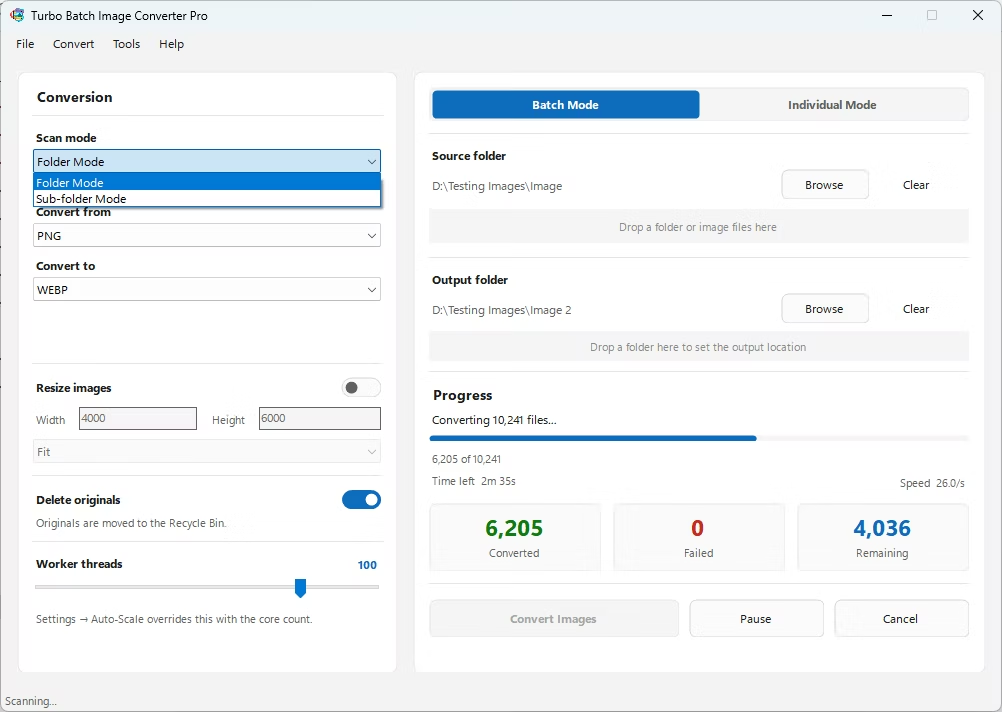
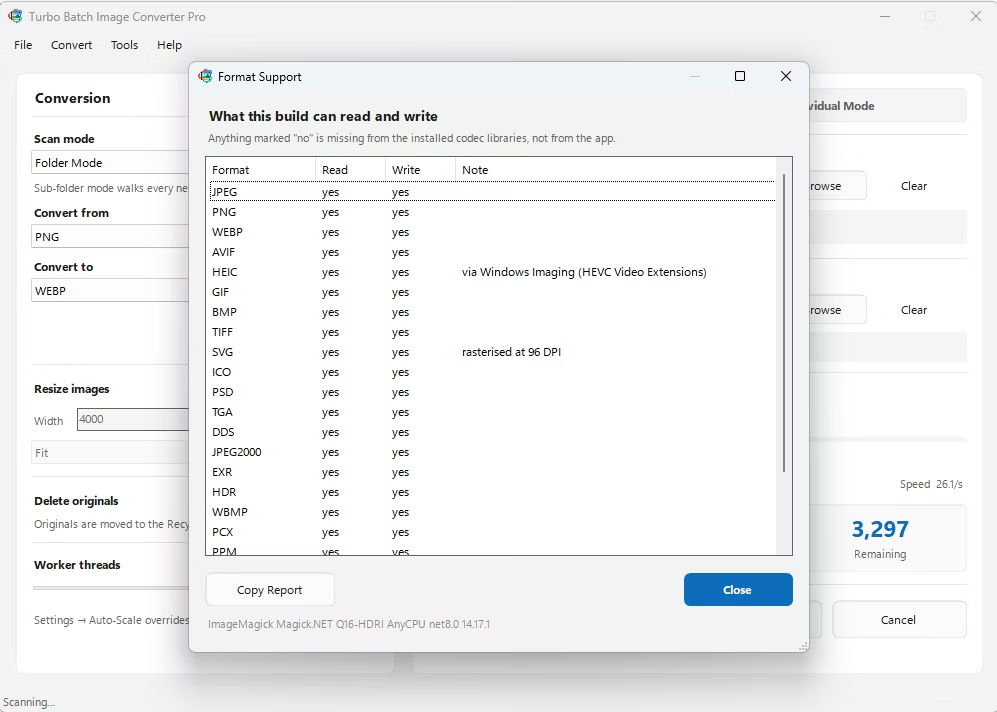
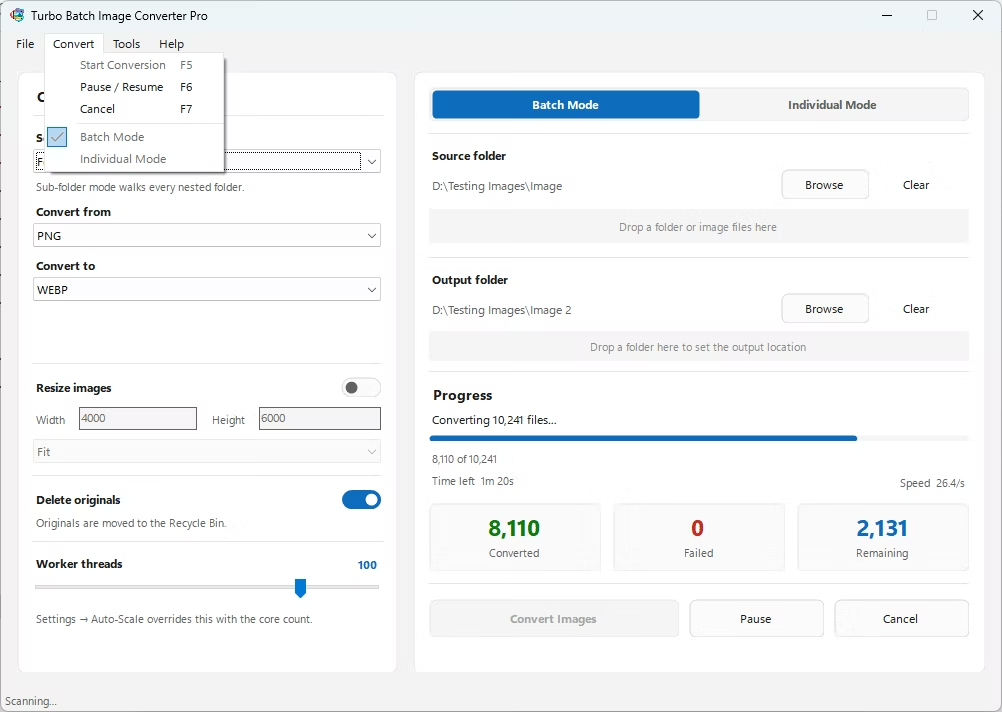
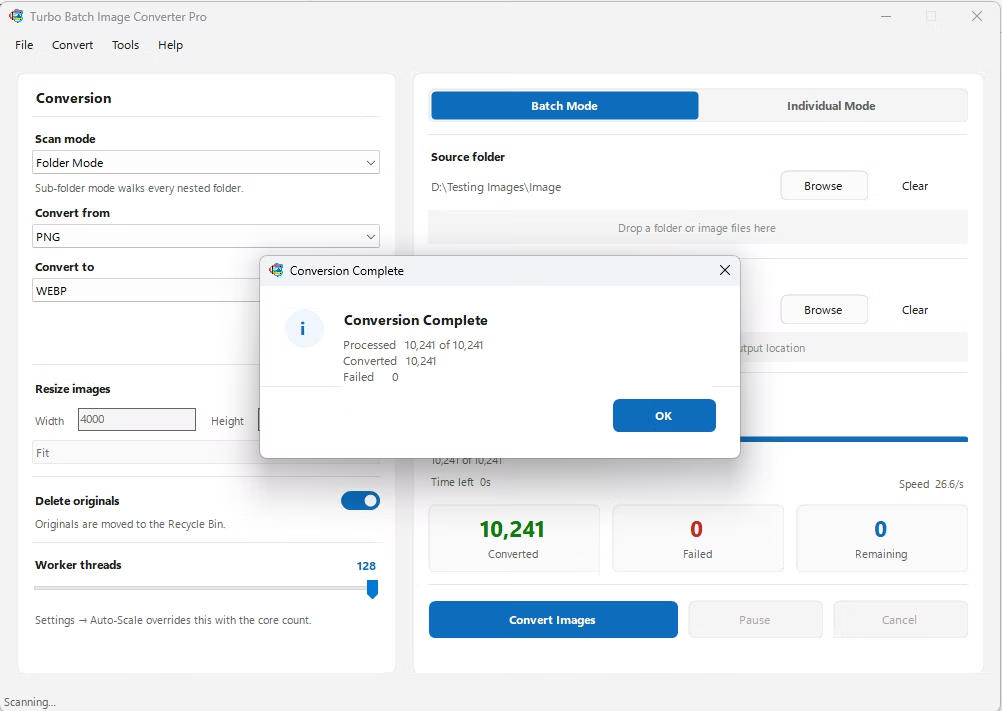
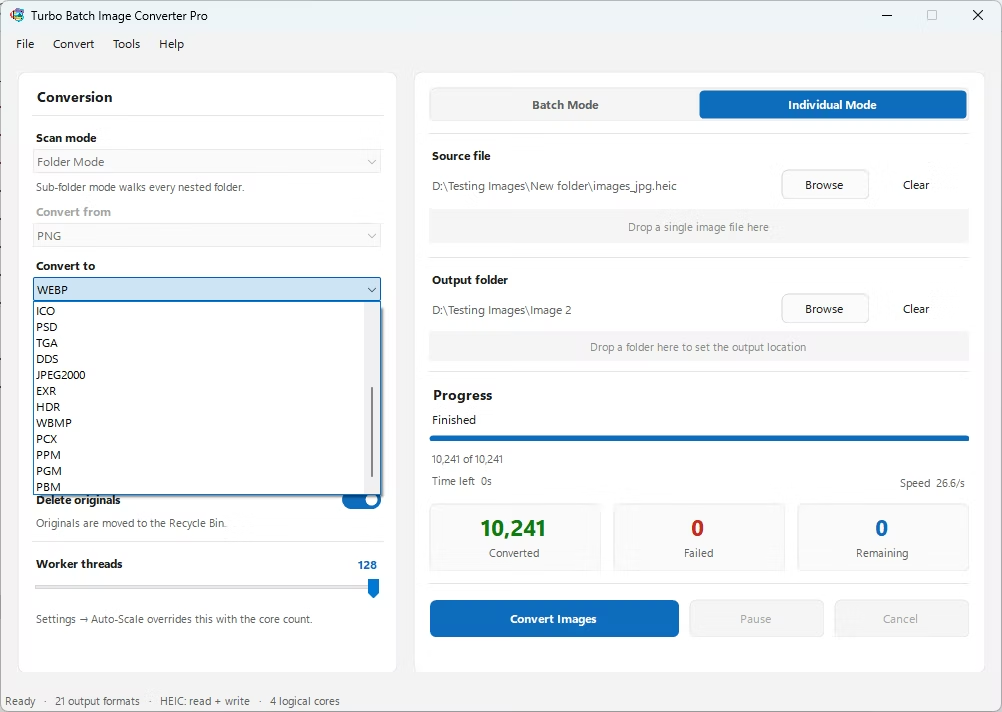
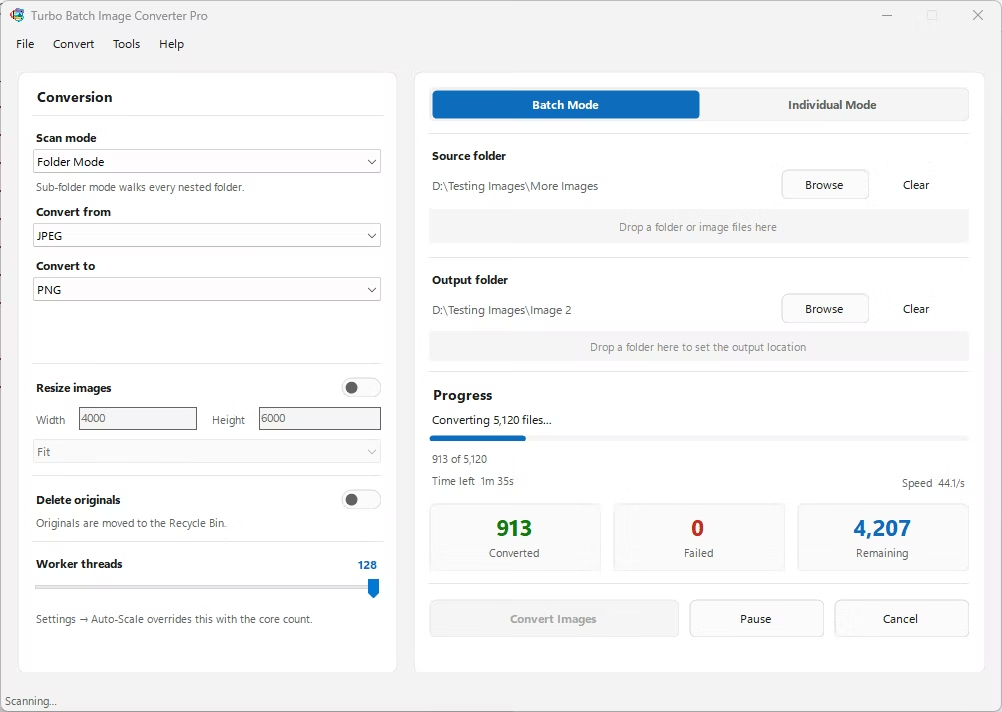
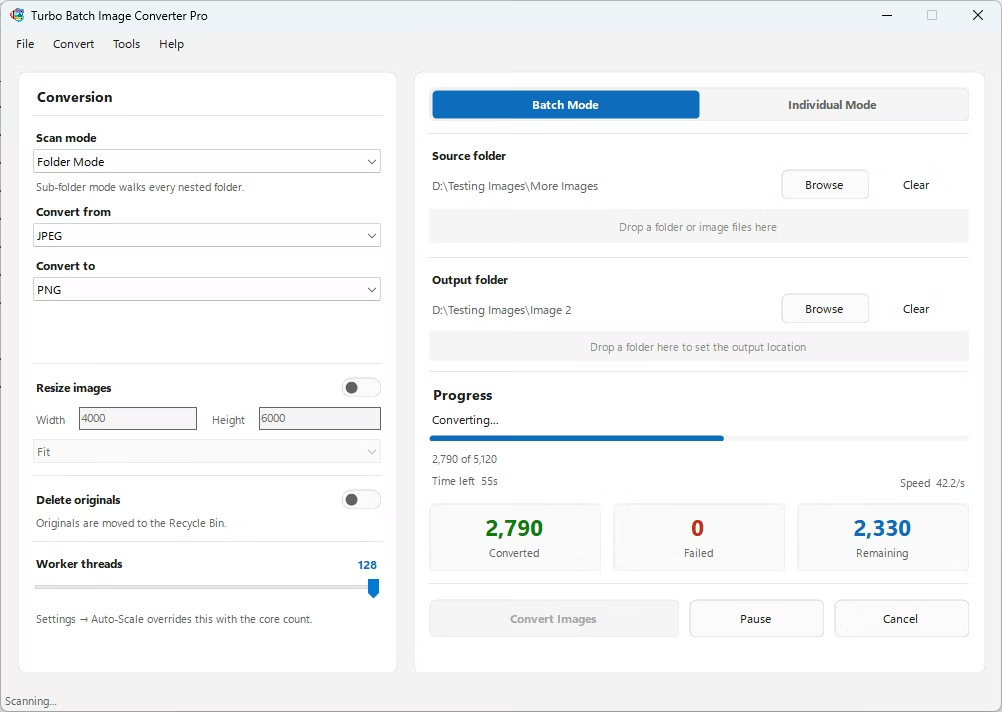
- Install Turbo Batch Image Converter Pro on your Windows PC.
- Open the app and select Batch Mode for multiple files, or Individual Mode for a single BMP.
- Drag your BMP file or folder into the app window, enabling recursive folder scanning if needed.
- Set the "From" format to BMP and the "To" format to AVIF.
- Adjust the quality setting to balance file size against visual detail.
- Click Convert. AVIF files are written to the output folder, fully offline.
- 100% offline — your images are never uploaded anywhere
- Bulk conversion of entire folders, including sub-folders, in one pass
- Dramatic file size reduction compared to uncompressed BMP
- Multi-core processing helps offset AVIF's heavier encoding cost
- Option to delete original BMP files automatically once converted
- No recurring subscription or hidden upload limits
How much smaller will my files be after converting to AVIF?
Significantly smaller in most cases, since BMP stores data completely uncompressed while AVIF uses some of the most efficient compression available, often shrinking files by 80 percent or more.
Do all browsers support AVIF?
All current major browsers support displaying AVIF images, though very old browser versions may not, so checking your specific audience's browser usage is worthwhile.
Can I convert an entire folder of BMP files to AVIF at once?
Yes, Batch Mode handles entire folders, including nested sub-folders, and scales conversion speed across multiple CPU cores.
Ready to convert your images offline, in bulk, with full privacy?