Large image files slow down websites, fill up storage, and make delivery to clients or teammates unwieldy. Compressing an entire folder while also converting to a more efficient format, such as JPG or WebP, tackles both problems together instead of running two separate tools.
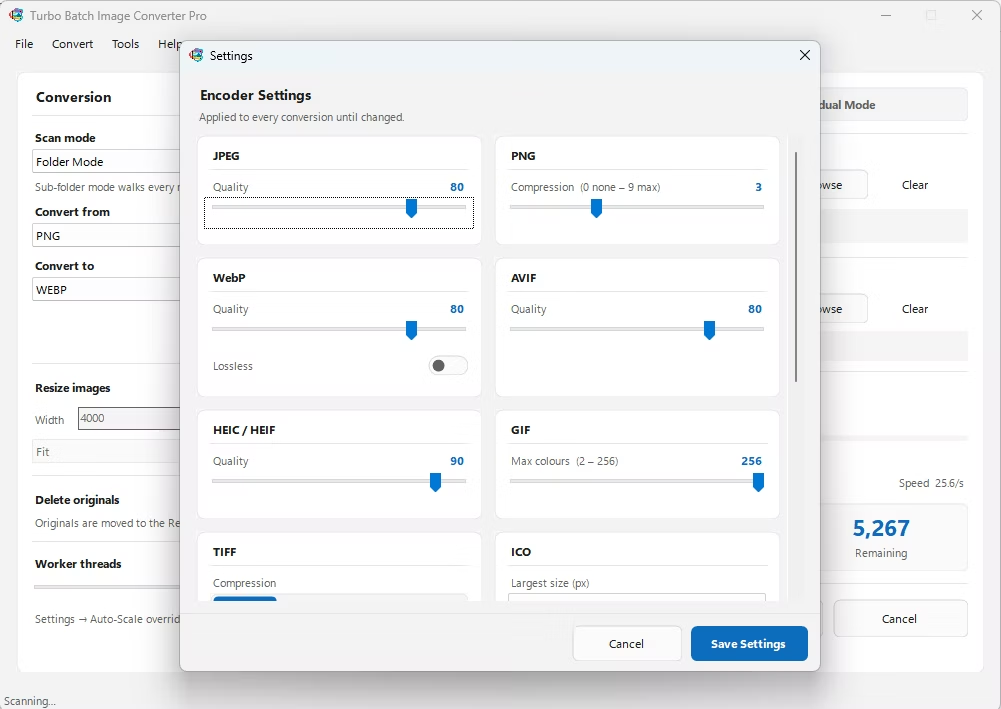
Turbo Batch Image Converter Pro lets you set per-format quality and compression settings while converting, so an entire folder of images can be shrunk and converted to a new format in a single batch run.
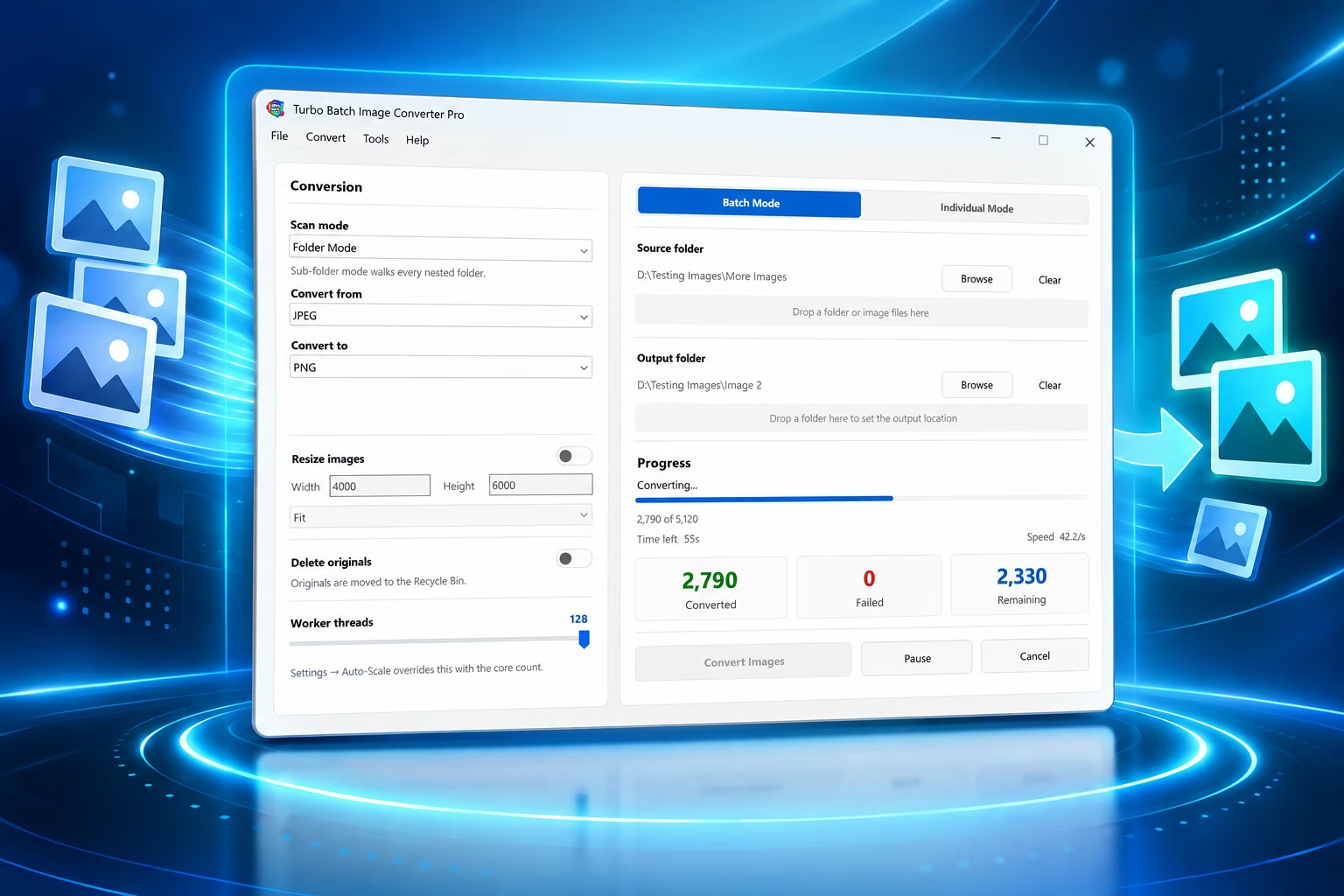
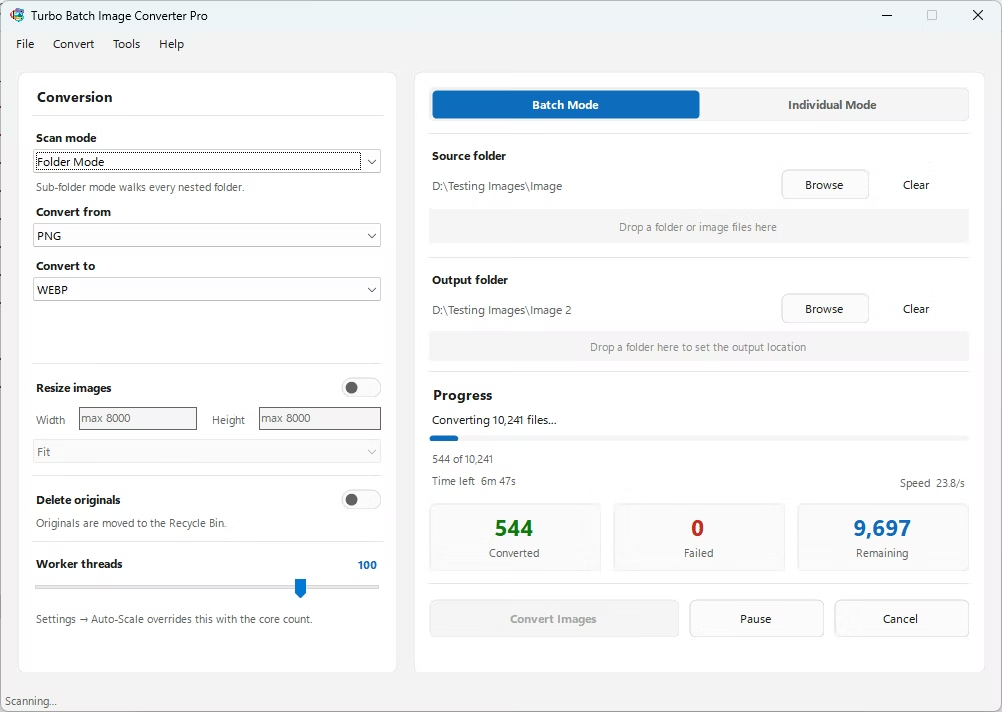
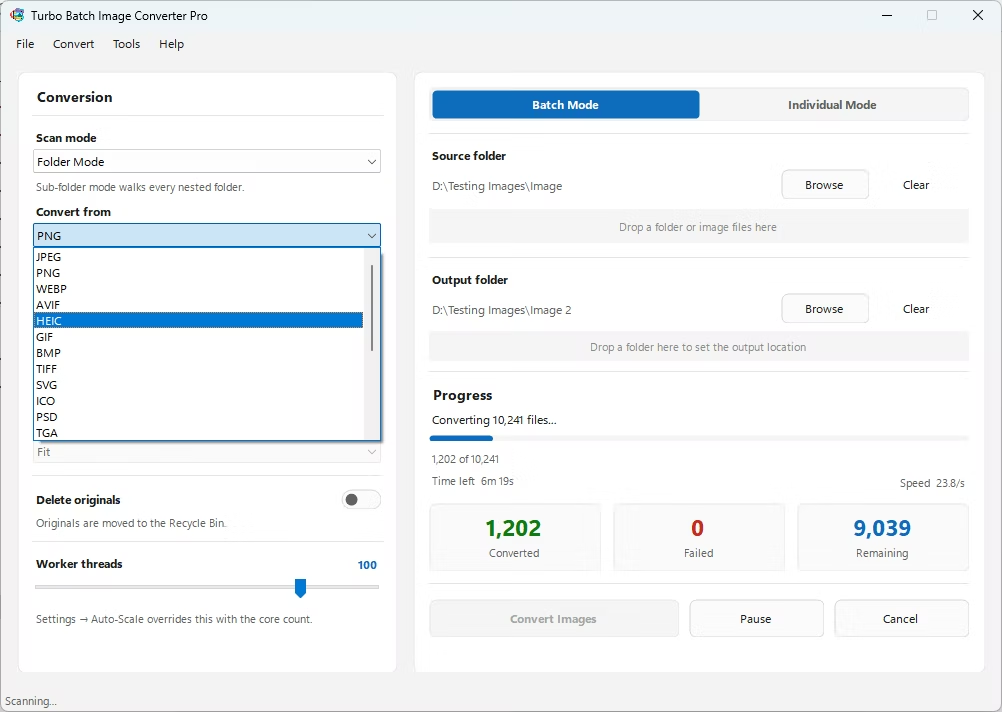
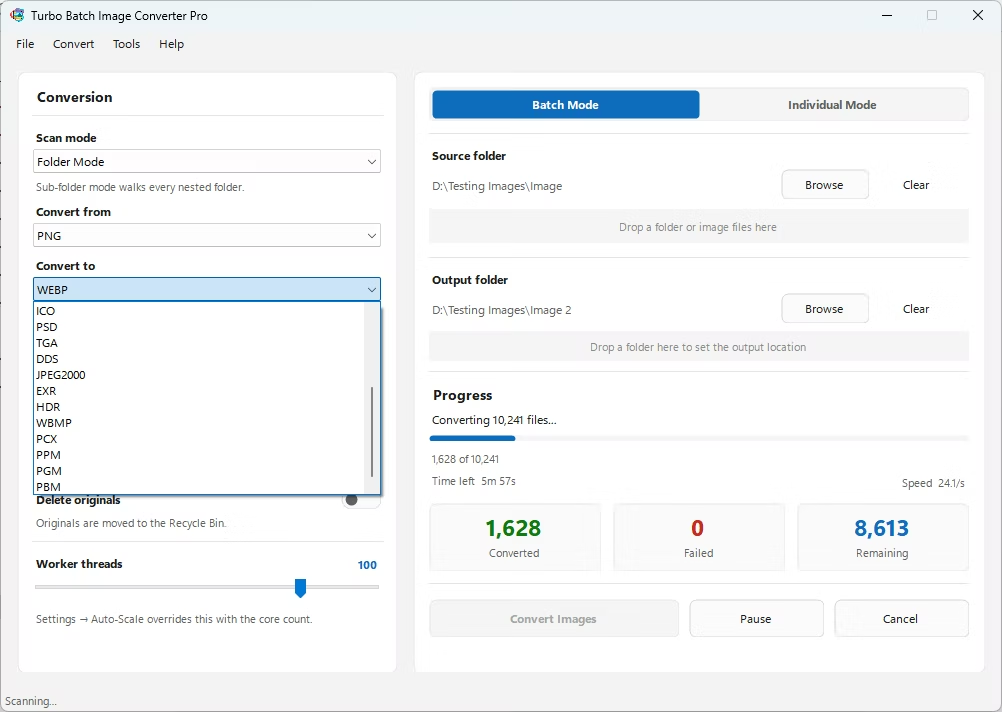
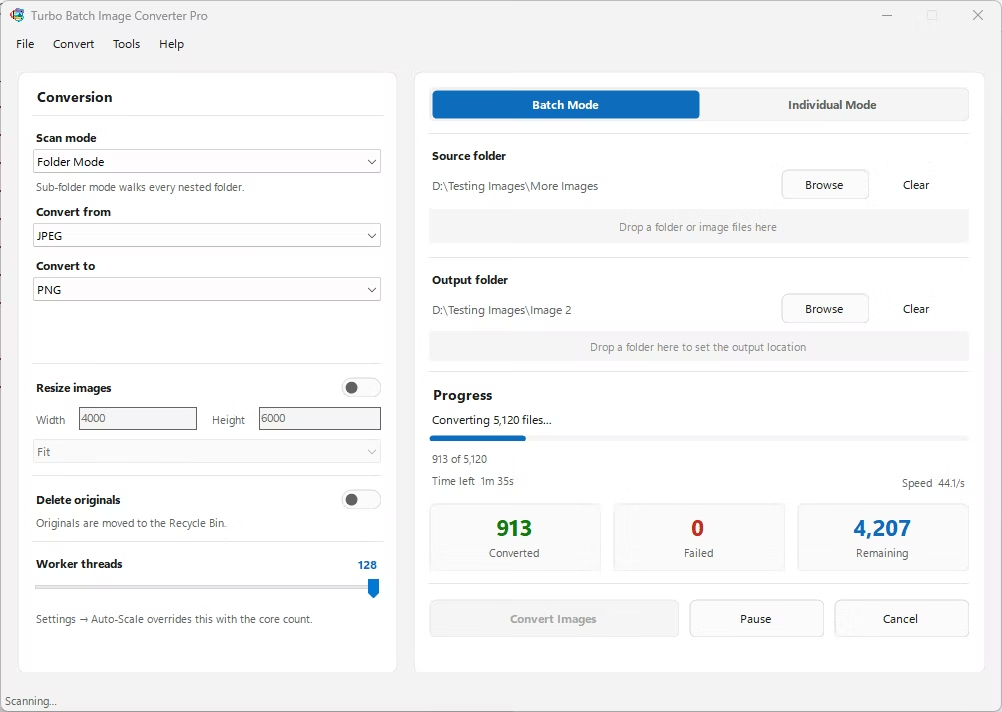
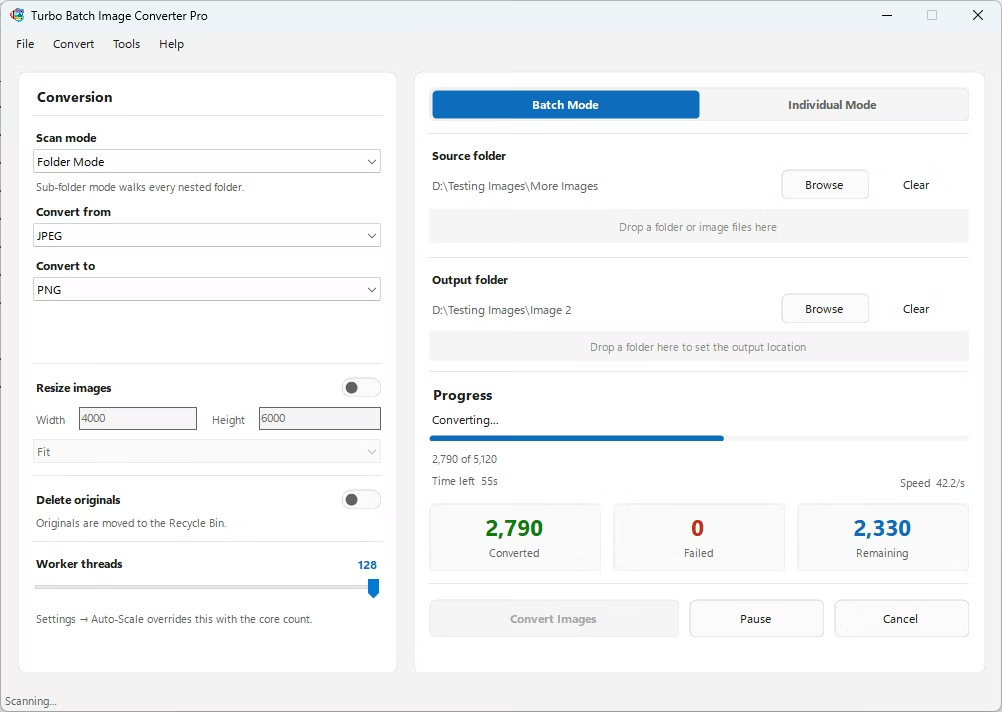
- Install Turbo Batch Image Converter Pro on your Windows PC.
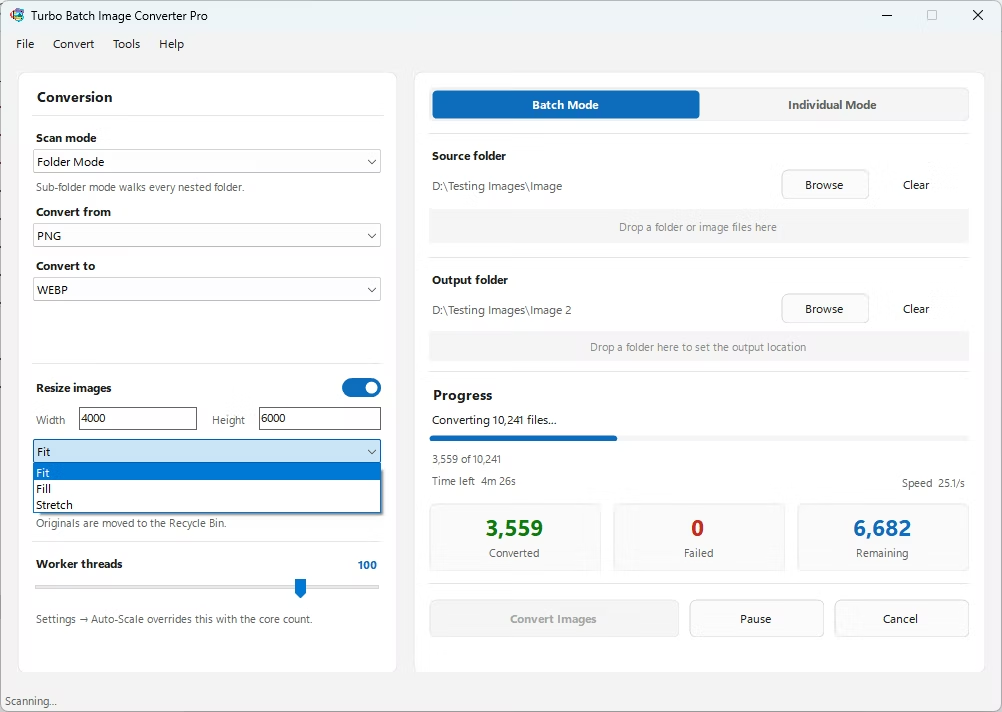
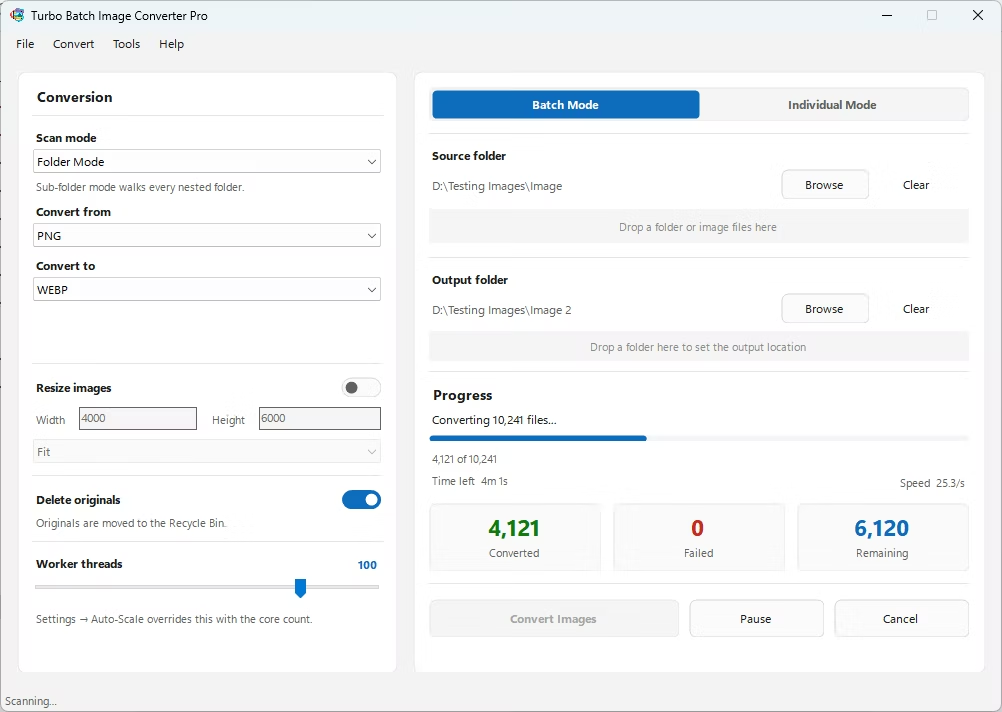
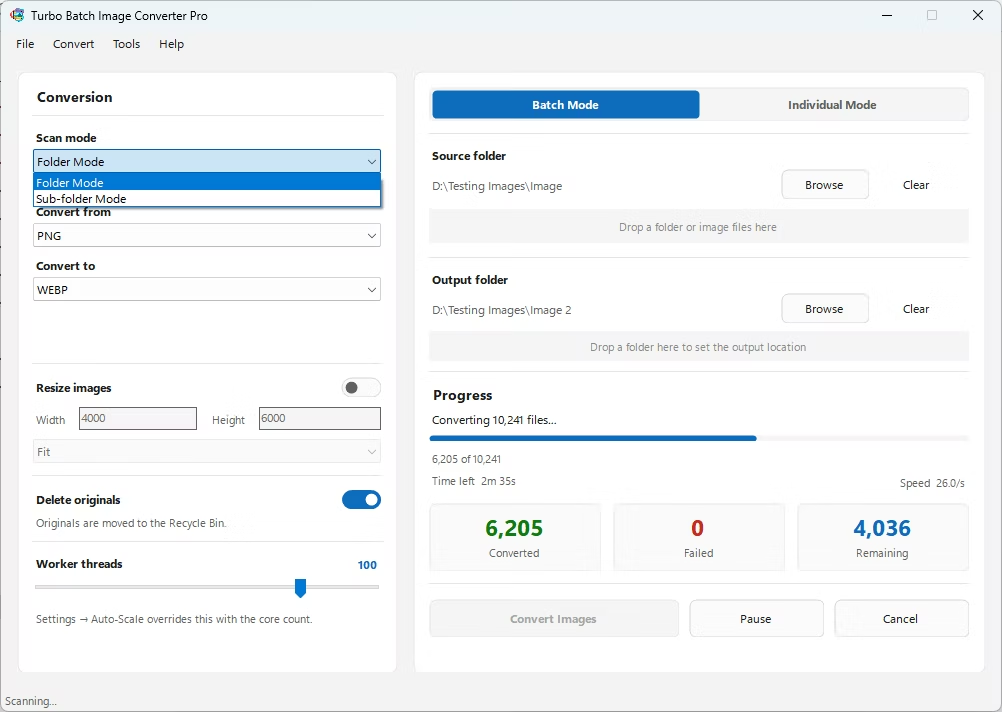
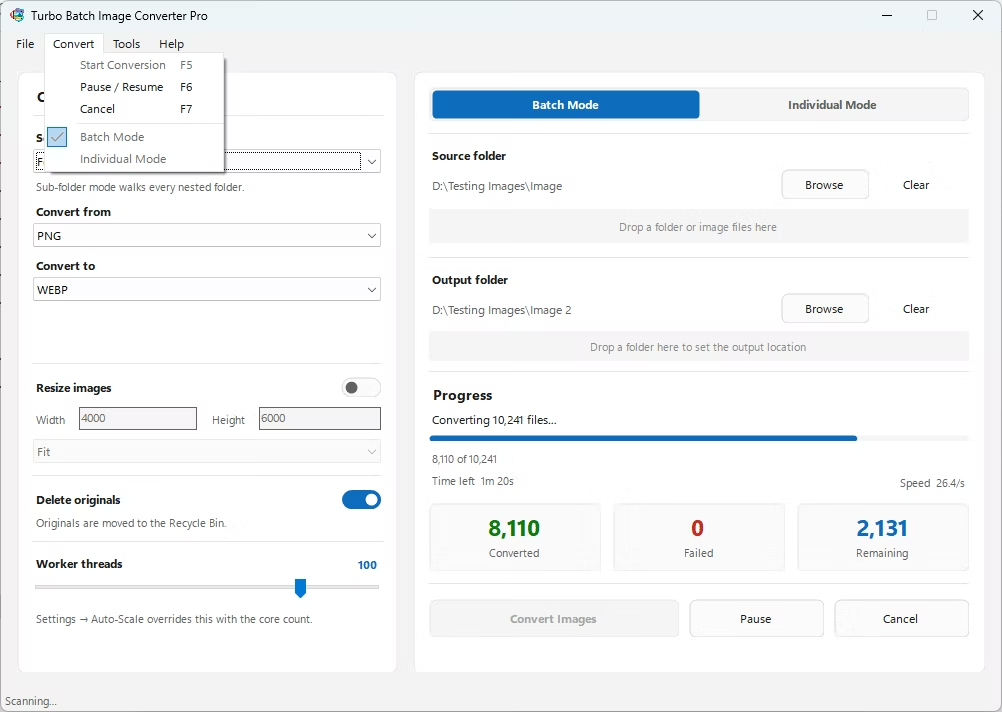
- Open Batch Mode and select your image folder.
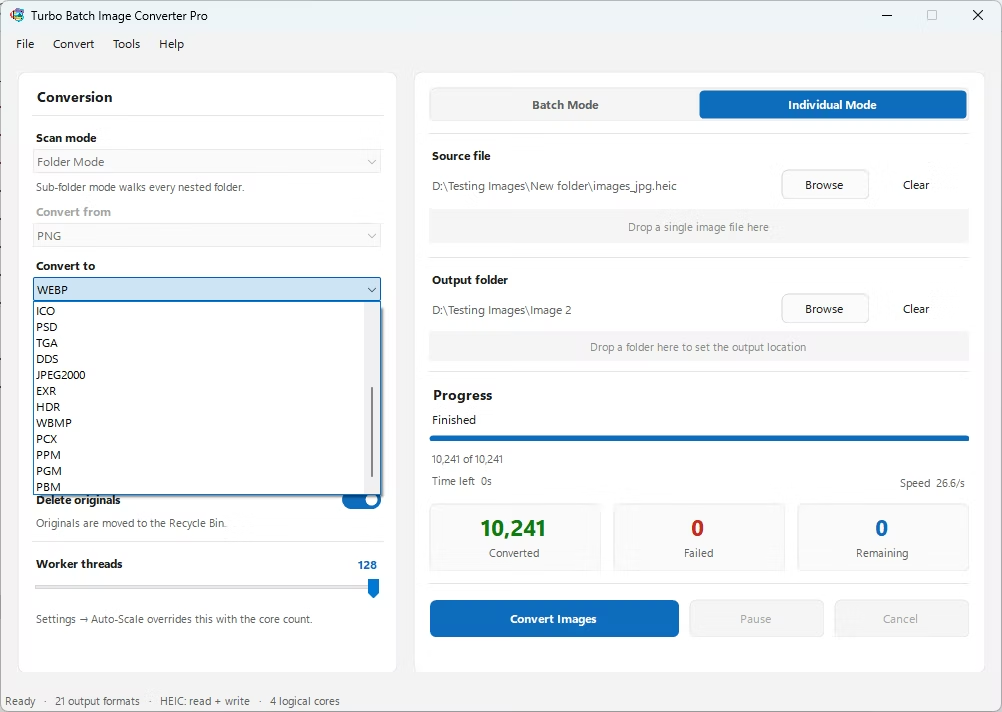
- Choose a compression-friendly target format, such as JPG or WebP.
- Adjust the quality slider to control the size-to-quality tradeoff.
- Optionally resize the batch at the same time to shrink files further.
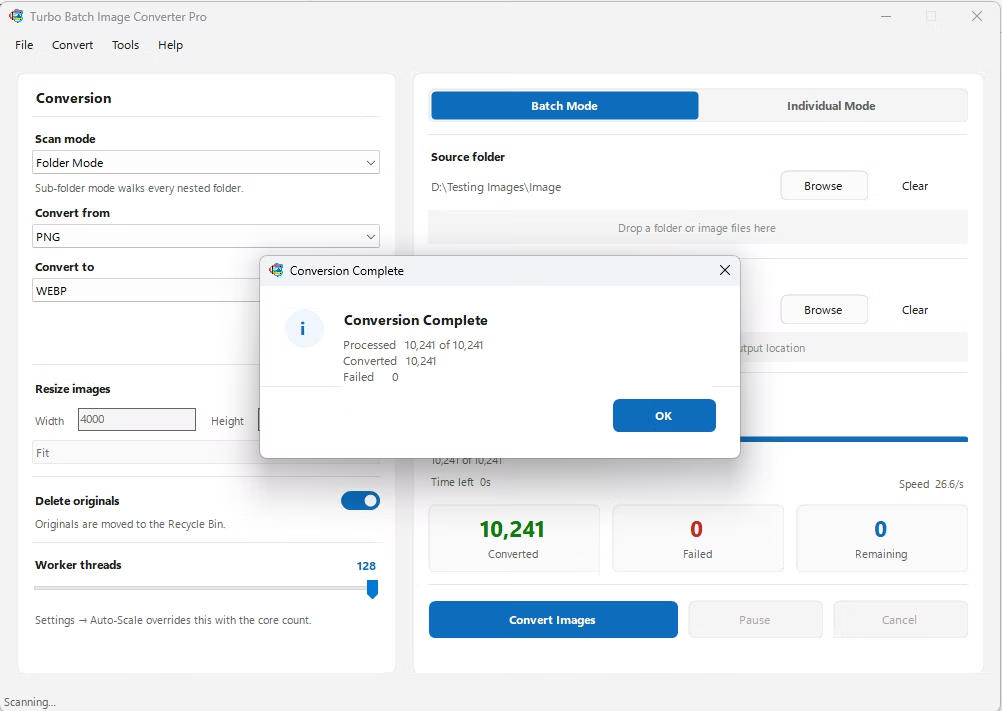
- Click Convert to compress and convert the whole folder at once.
- Compress and convert format together in a single pass
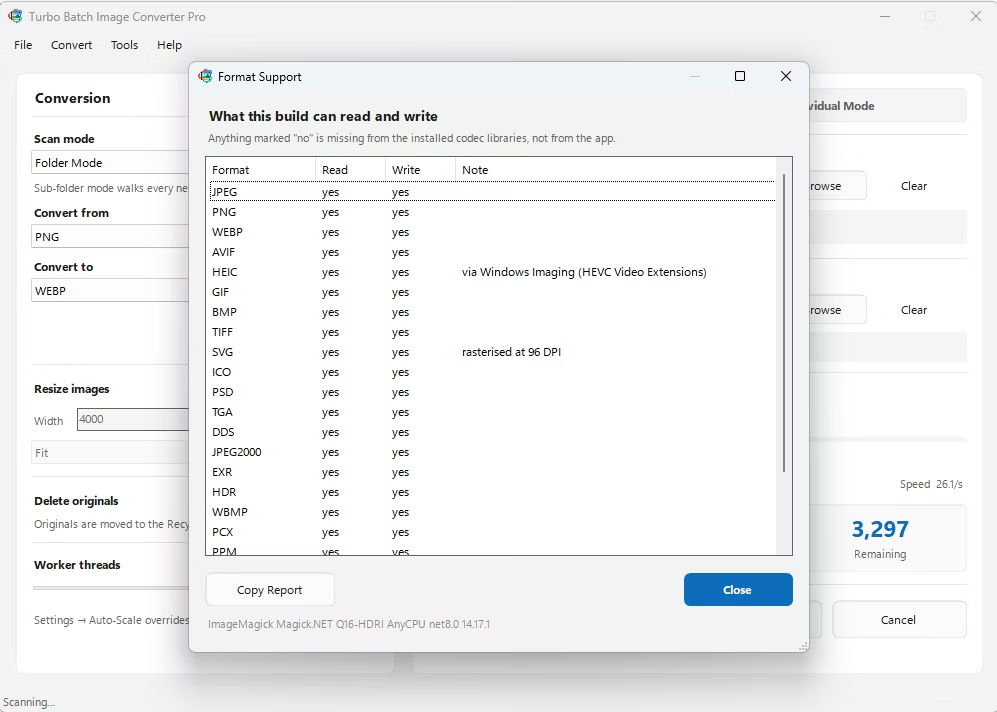
- Per-format quality settings for precise size control
- Optional resizing for further file size reduction
- Runs fully offline with no upload limits
- Multi-core engine scales up to 128 parallel workers
How much can file size be reduced through compression?
Reduction varies by image and quality setting, but converting to an efficient format with a moderate quality setting commonly cuts file sizes significantly.
Will compression noticeably reduce visual quality?
The quality slider lets you choose how aggressive compression is, so you can keep visible quality loss minimal if file size isn't extremely constrained.
Can I compress images without also converting the format?
Yes, you can keep the same output format and only adjust the quality setting to compress file size.
Ready to compress and convert your images together, fully offline?