A basic clipboard manager might remember a handful of recent text snippets, but a Windows workflow involves more than just text: images pulled from a browser, file paths copied in Explorer, hex colors grabbed from a design tool, all of it worth having a history of.
Gwen is an advanced clipboard manager that captures all of these content types automatically. Copy something and Gwen captures it the moment it lands on the clipboard, sorting each entry into text, image, file, or color, with copied images getting a real thumbnail preview and hex color codes shown with a live color swatch.
The advanced part isn't just content type detection; smart duplicate detection avoids cluttering your history with repeated identical entries, live search filters the list instantly as you type, and keyboard-first navigation lets you select any entry with a single number key press.
Preferences give you real control over how the tool behaves: change the global hotkey from the default Ctrl+Shift+V, set how many history items to keep, adjust how often Gwen polls the clipboard, and optionally clear history automatically every time the app restarts.
File copies in Explorer are recorded as their path, or a "3 files" style summary for multiple selections, and re-selecting a file entry pastes its path back as text, useful for quickly referencing where something was located.
Everything runs entirely offline on your own Windows PC. Your clipboard history is stored only locally, with Gwen's only network call being a one-time license check. Developers copying snippets, commands, and error messages; writers and editors juggling quotes and references; designers pulling hex colors and image assets; support and admin staff pasting the same canned responses and details repeatedly; researchers collecting excerpts from many sources; and anyone on Windows who copies and pastes enough that losing a clip is a daily annoyance all find the same underlying capability useful. Under the hood, a background thread checks Windows' clipboard-change counter a few times a second, and only reads what changed when that counter actually moves, which is what keeps the whole thing feeling instant rather than sluggish, however long it's been quietly running in your system tray.
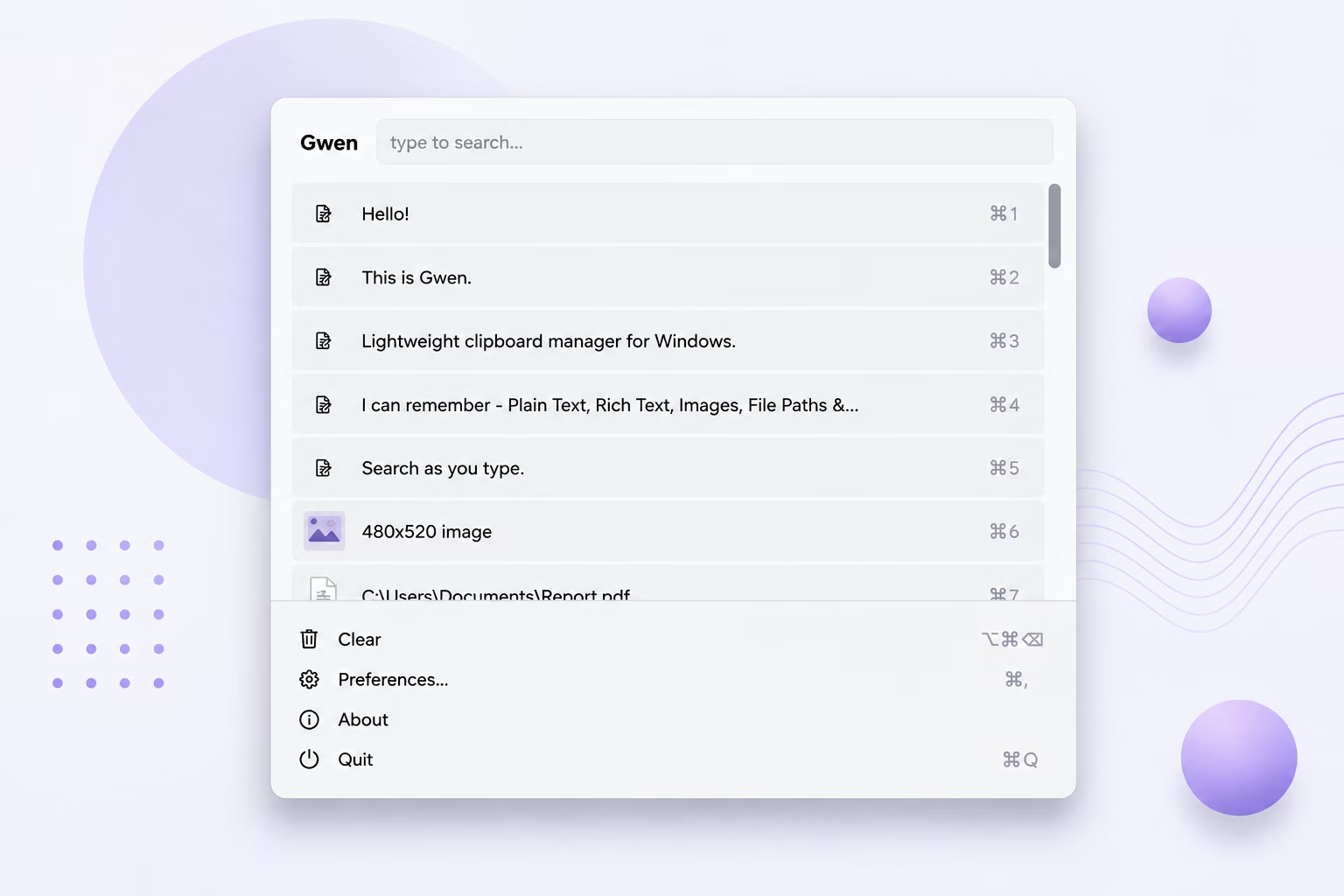
- Install Gwen on your Windows PC.
- Let it run in the system tray, capturing everything you copy.
- Copy text, images, file paths, or hex colors as usual.
- Press Ctrl+Shift+V to open the advanced history popup.
- Use live search to filter down to a specific entry.
- Select with a click, Enter, or a number key.
- Adjust preferences like hotkey or history size to fit your workflow.
- Delete entries individually to keep your history relevant.
- Check the About section for version info and updates.
- Use Change License if you ever need to re-activate.
- Captures text, images, files, and hex colors automatically
- Real thumbnail previews for copied images
- Live color swatches for detected hex codes
- Smart duplicate detection keeps history clean
- Configurable hotkey, history size, and poll interval
- Optional clear-on-restart for sensitive copies
- Runs fully offline, stored only on your own PC
- One-time purchase for Windows, with Gumroad license activation
- Delete individual entries anytime to keep your history relevant
- Consistent behavior across every Windows application, system-wide
Does this handle more than just plain text?
Yes, Gwen captures text, images, files, and hex colors automatically, each shown appropriately in the history list.
Can I change the default hotkey?
Yes, the global hotkey can be changed from the default Ctrl+Shift+V to whatever suits your muscle memory, taking effect immediately.
Does it detect hex colors automatically?
Yes, a copied six-digit hex code, with or without the leading #, is recognized and shown with a live swatch of that exact shade.
Can history be cleared automatically for privacy?
Yes, an optional setting wipes history every time Gwen restarts, useful if you sometimes copy passwords or tokens.
Does this work on both Windows 10 and Windows 11?
Yes, Gwen is built and tested for both Windows 10 and Windows 11.
Is my clipboard data safe when using this app?
Yes, everything is stored locally on your own PC; nothing is uploaded or synced, so your copied content stays fully private.
Can I change the default hotkey if Ctrl+Shift+V conflicts with something else?
Yes, the global hotkey is configurable in preferences and takes effect immediately once changed.
Does the app work the same across every Windows application?
Yes, the global hotkey and paste-back mechanism operate at the system level, so behavior is consistent whether you're in a browser, an editor, a terminal, or any other Windows application.
Does the app show a preview for copied files, not just text and images?
Yes, file copies from Explorer are recorded as their path, or a "3 files" style summary for multiple selections.
Is there a trial version available before buying?
Check the product page on turbo-soft.com for current trial availability and details.
Can I use this alongside other clipboard-related tools?
Yes, since Gwen works passively through the standard Windows clipboard, it doesn't conflict with most other clipboard-aware applications running at the same time.
Will future updates change how my existing history is stored?
Check for Updates in the About section keeps you on the latest version, and your local history database persists across updates.
Ready for an advanced clipboard history tool on Windows, fully offline?