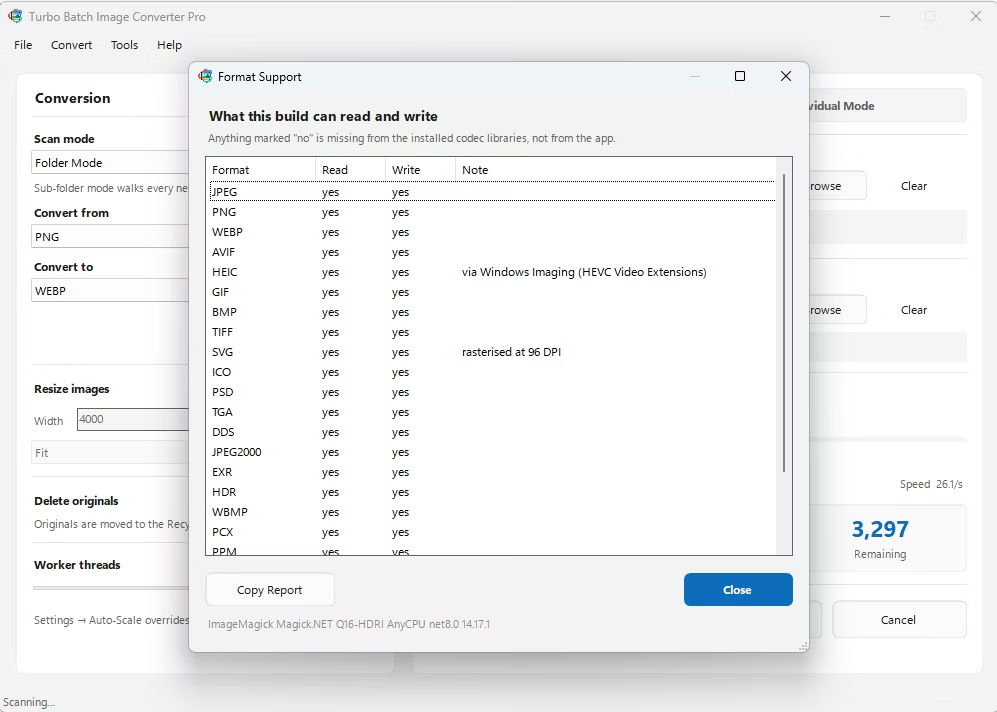
Turbo Batch Image Converter Pro is a fast, fully offline batch image converter and bulk image resizer for Windows 10 and Windows 11. It converts a single photo or an entire folder tree between 21 output formats and 22 input format families, including HEIC, AVIF, WebP, TIFF, PNG, JPG and 47 RAW camera formats, all on your own PC with no uploads and no file-size limits.
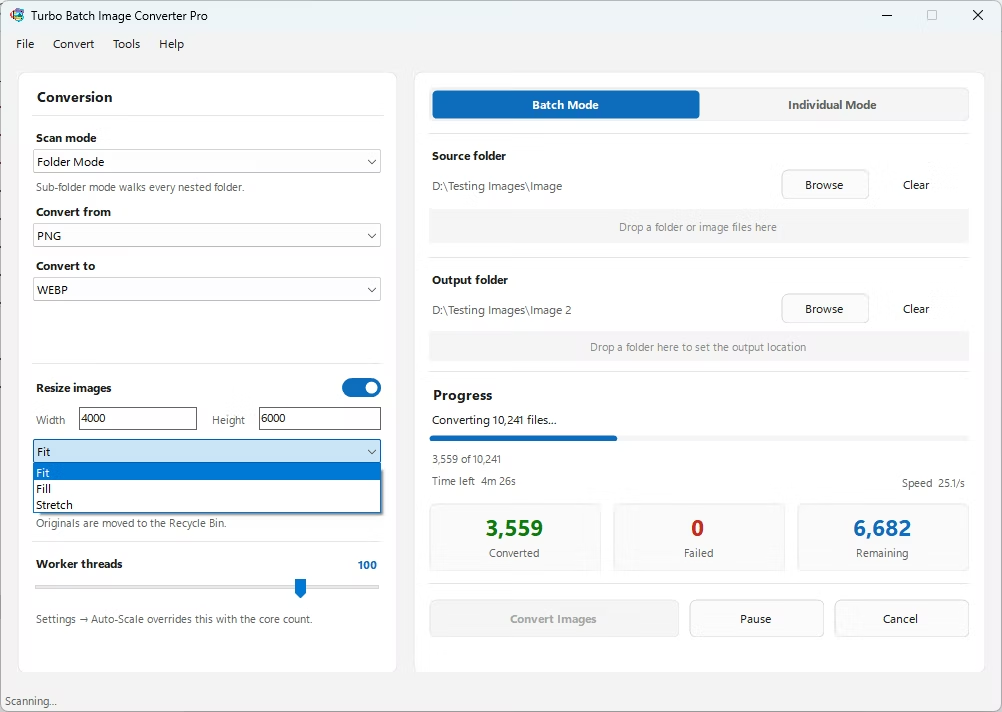
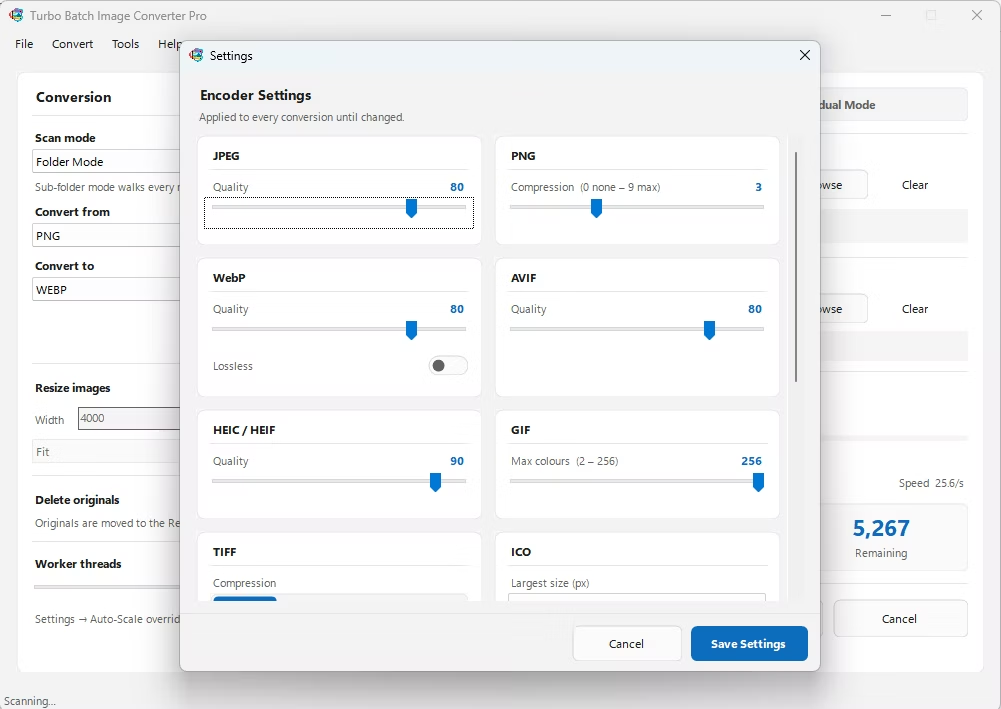
A multi-threaded engine scales up to 128 parallel workers, per-format quality settings give you precise control over every output, and built-in Fit, Fill, and Stretch resizing lets you convert and resize in a single pass, whether you're turning thousands of iPhone HEIC photos into JPG, batch-converting a RAW shoot for delivery, or migrating a website's images to WebP.
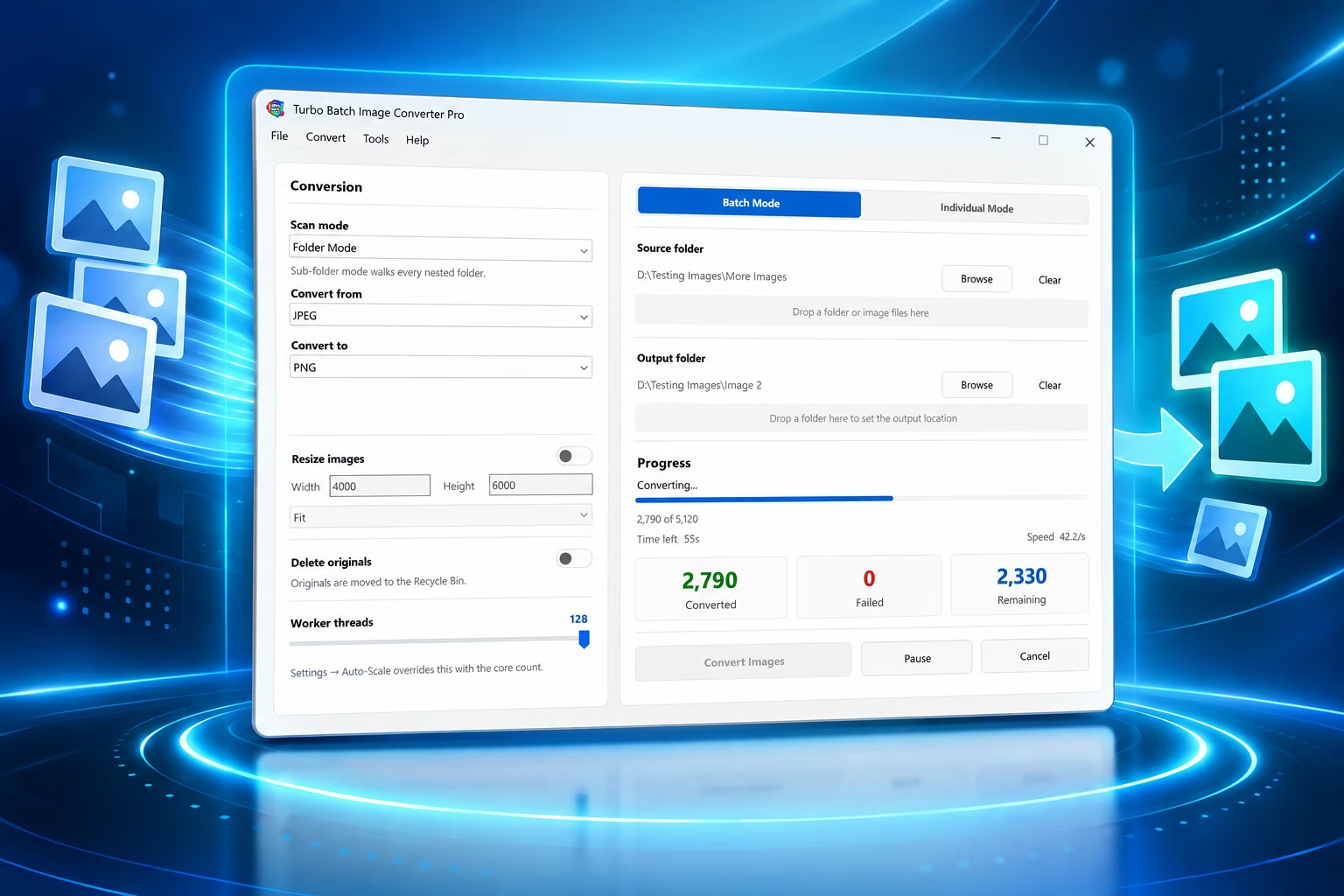
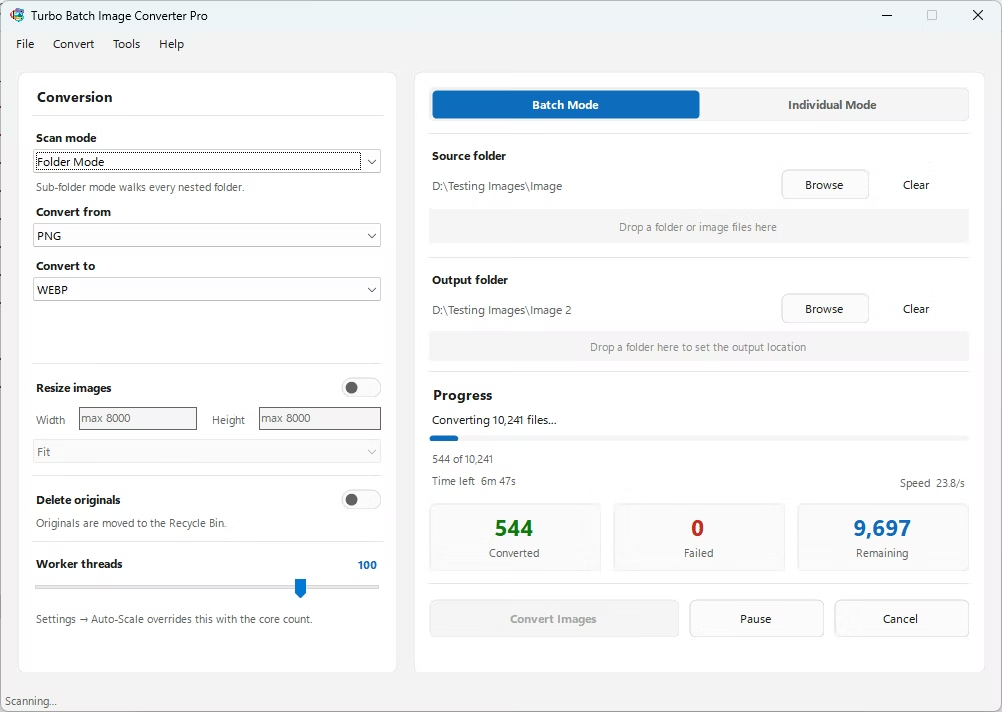
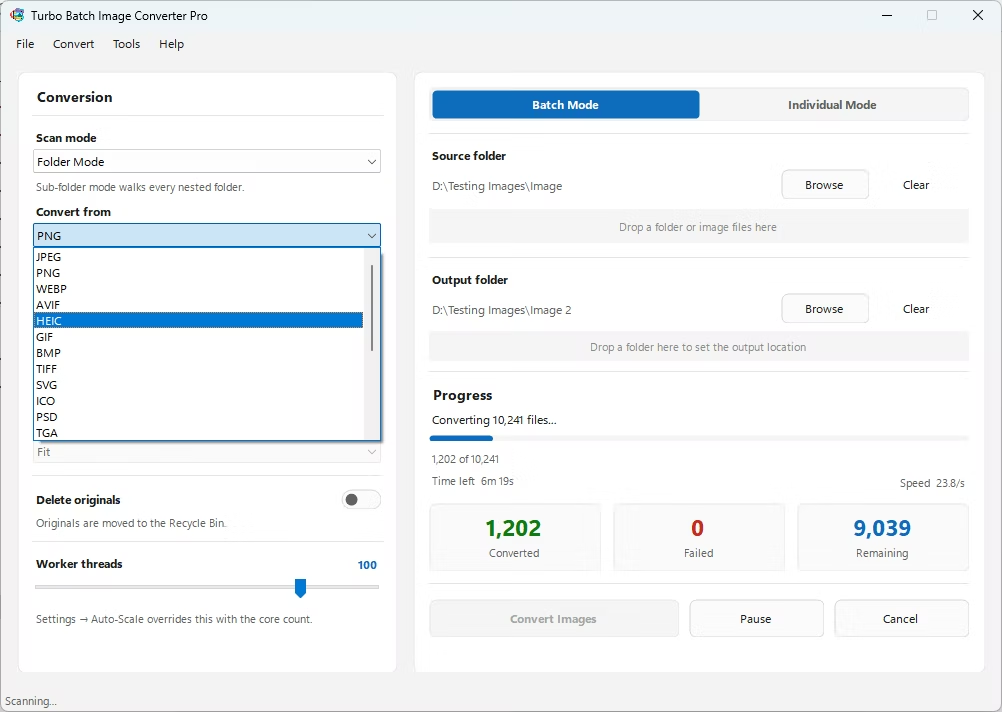
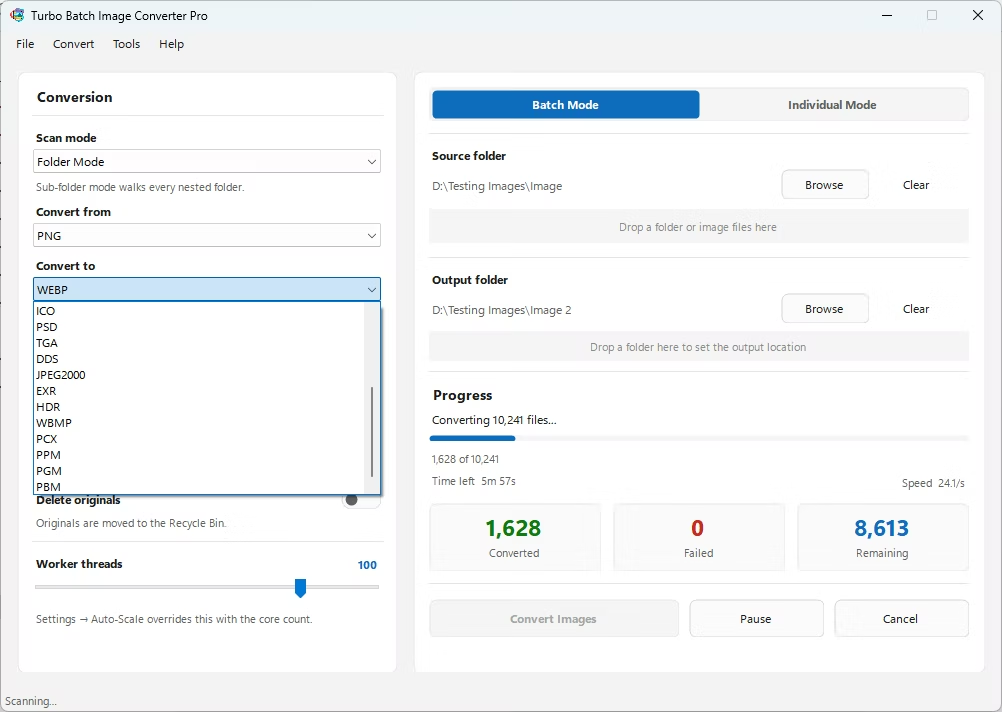
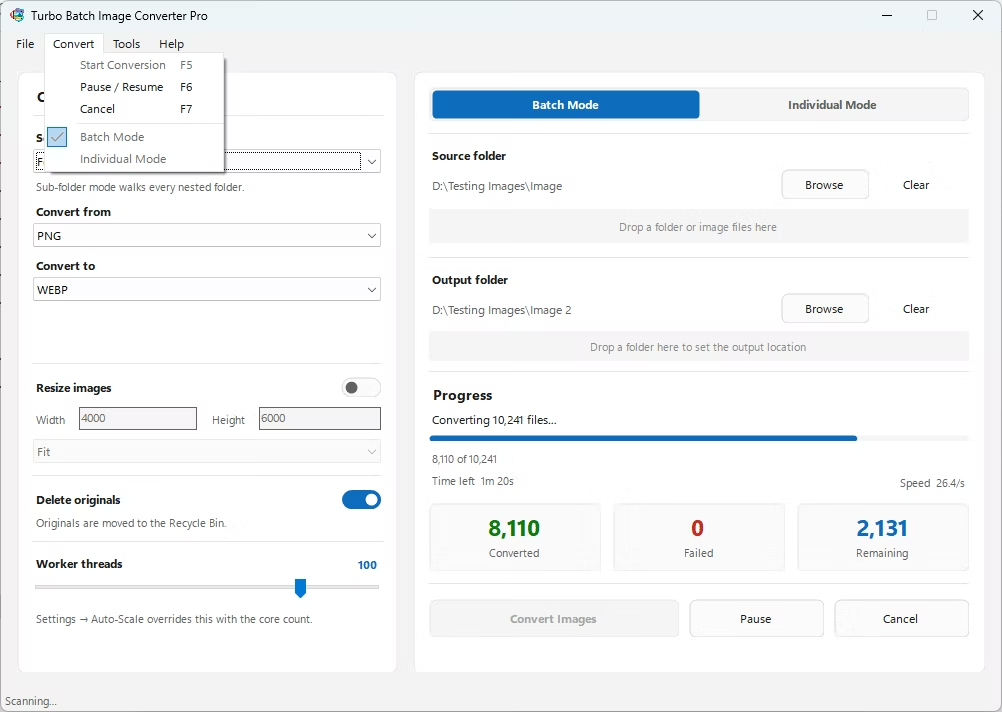
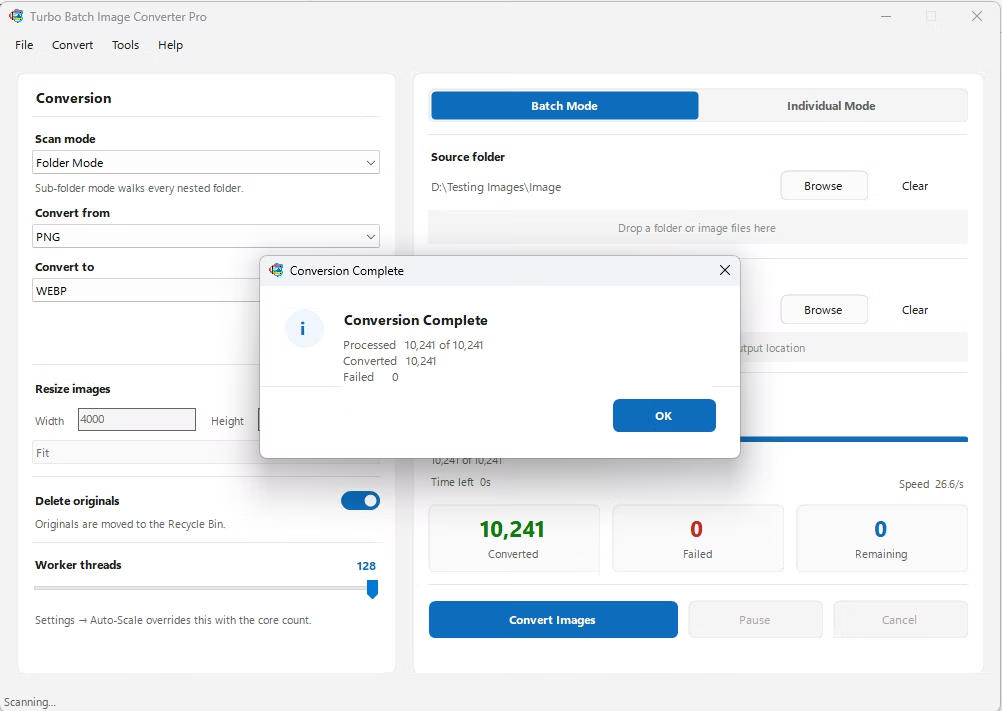
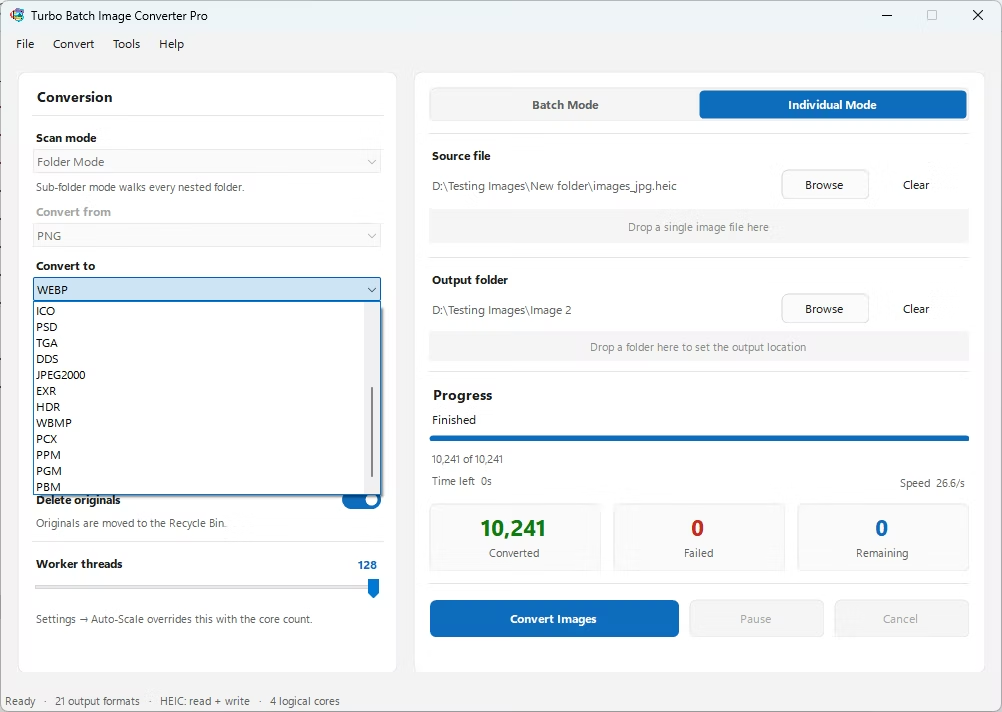
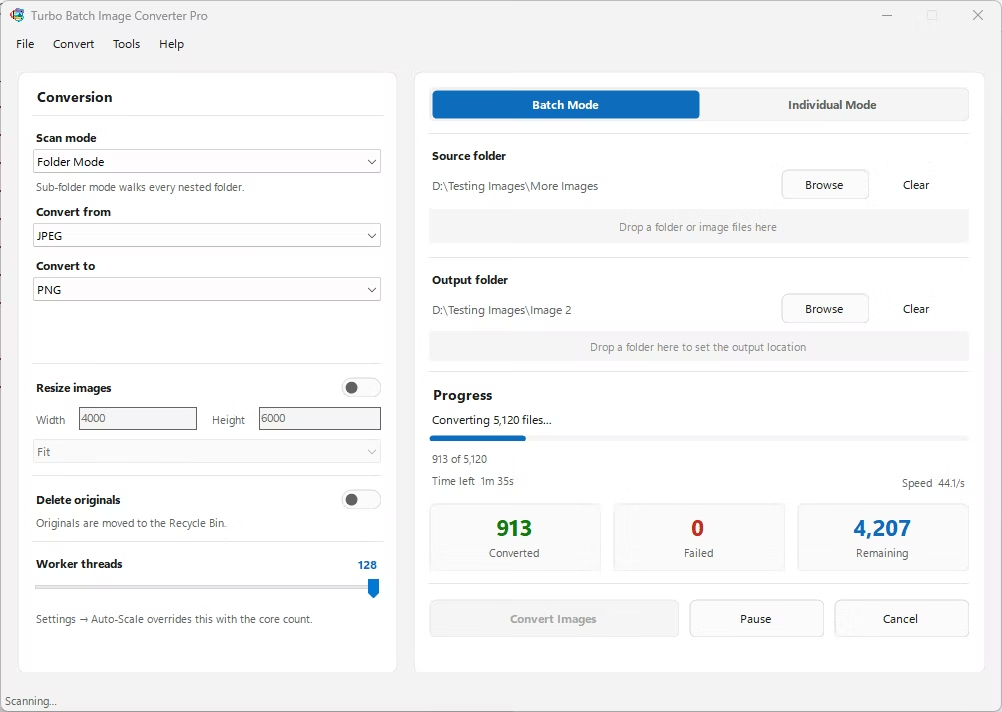
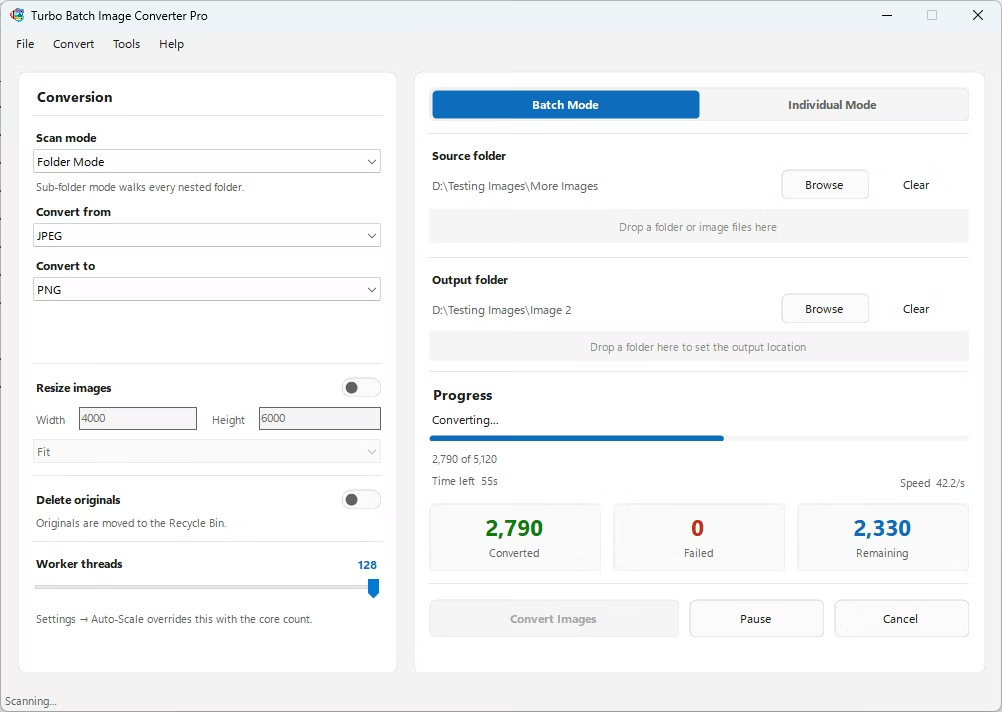
- Install Turbo Batch Image Converter Pro on your Windows 10 or Windows 11 PC.
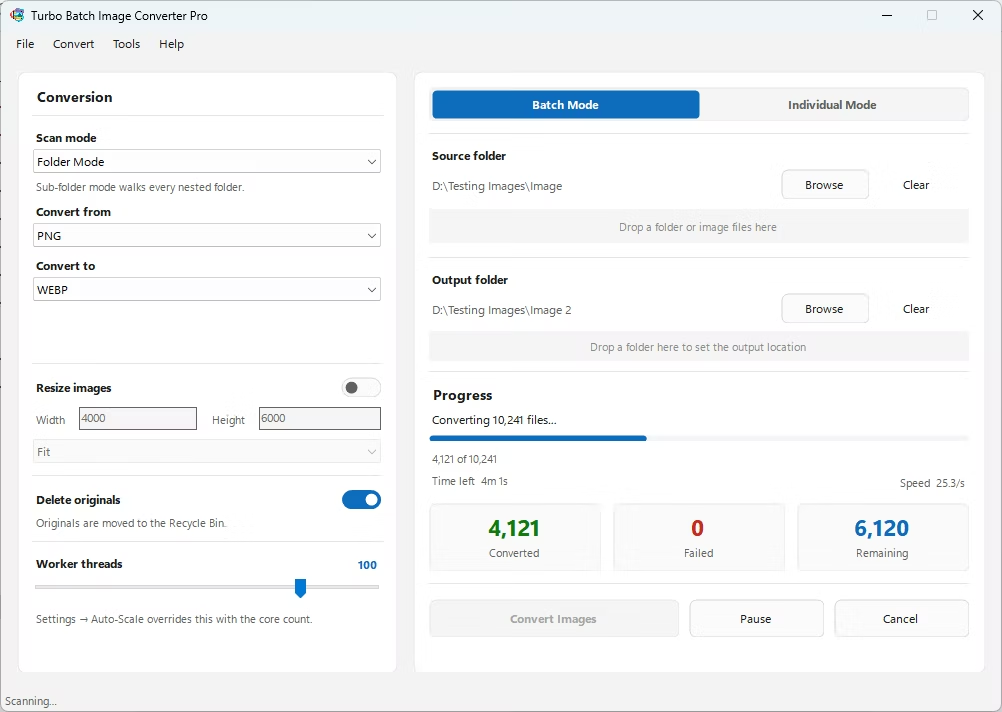
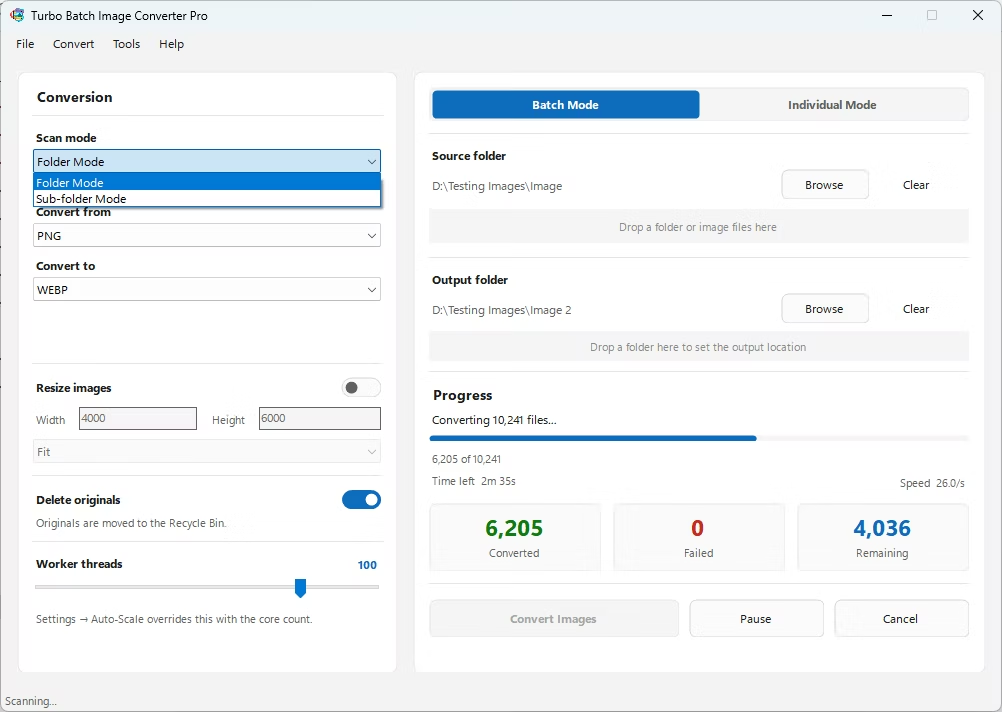
- Open the app and choose Batch Mode for a folder, or Individual Mode for a single file.
- Select your images, enabling recursive scanning for nested folders if needed.
- Choose your target format from 21 supported outputs.
- Adjust quality, compression, or resize settings to match your needs.
- Click Convert and let the app process your images, fully offline.
- 21 output formats and 22 input format families in one app
- Supports 47 RAW camera formats across major brands
- Multi-threaded engine scales up to 128 parallel workers
- Fit, Fill, and Stretch batch resizing alongside conversion
- Runs fully offline with no uploads and no file-size limits
What formats does Turbo Batch Image Converter Pro support?
It supports 22 input format families and 21 output formats, including HEIC, AVIF, WebP, TIFF, PNG, JPG, and 47 RAW camera formats.
Does it work without an internet connection?
Yes, all conversion happens locally on your PC with no uploads required.
Can it resize images while converting them?
Yes, Fit, Fill, and Stretch resize modes can be applied in the same batch as the format conversion.
Ready to convert your images with Turbo Batch Image Converter Pro?