TGA files from game development or 3D rendering pipelines are built for production use, not web delivery, while WebP was created by Google specifically for fast-loading websites, supporting both lossy and lossless compression in one format. Converting a TGA texture or render preview to WebP can shrink file size significantly compared to TGA's uncompressed or lightly compressed storage, making it a practical choice for publishing portfolio work or documentation online.
WebP also supports a full alpha channel, so transparency from your TGA source carries over, with lossless mode preserving exact quality and lossy mode shrinking files further if some compression is acceptable.
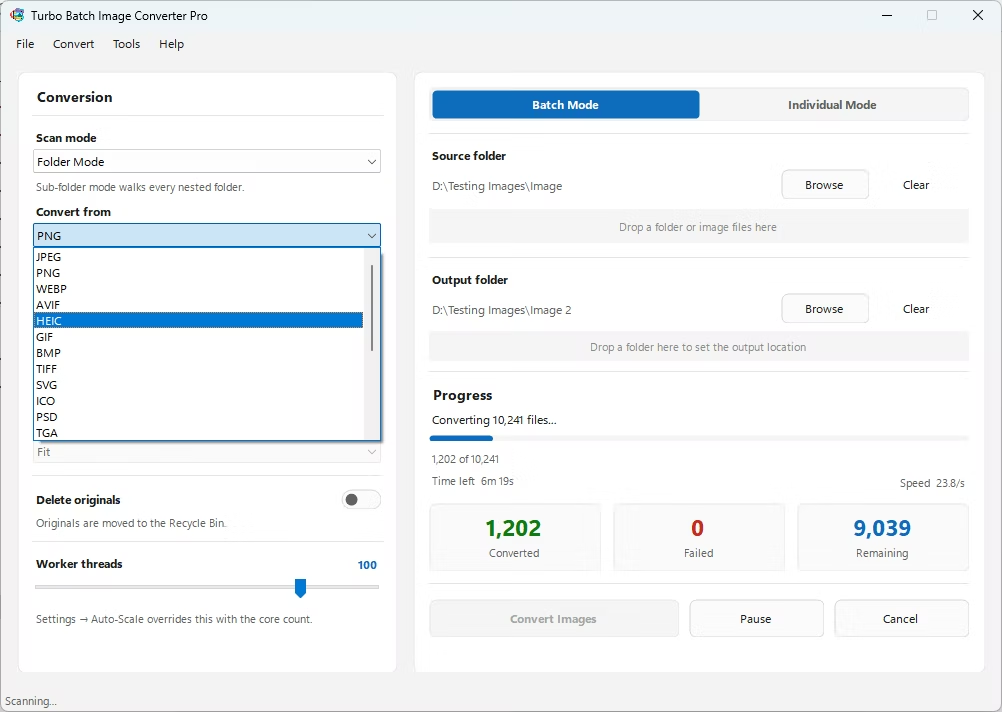
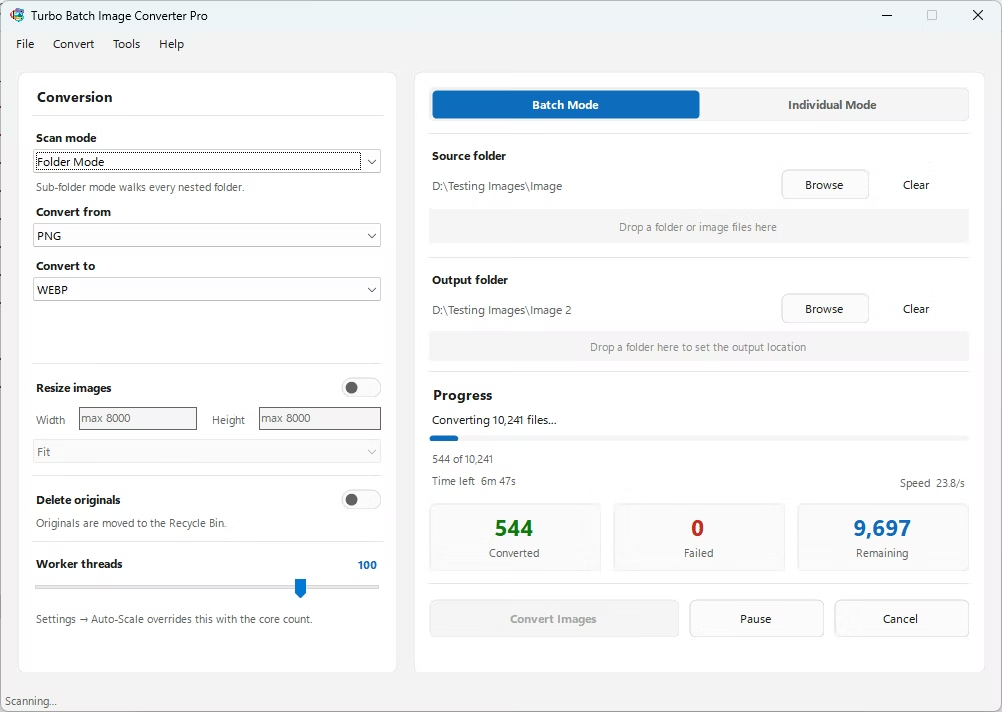
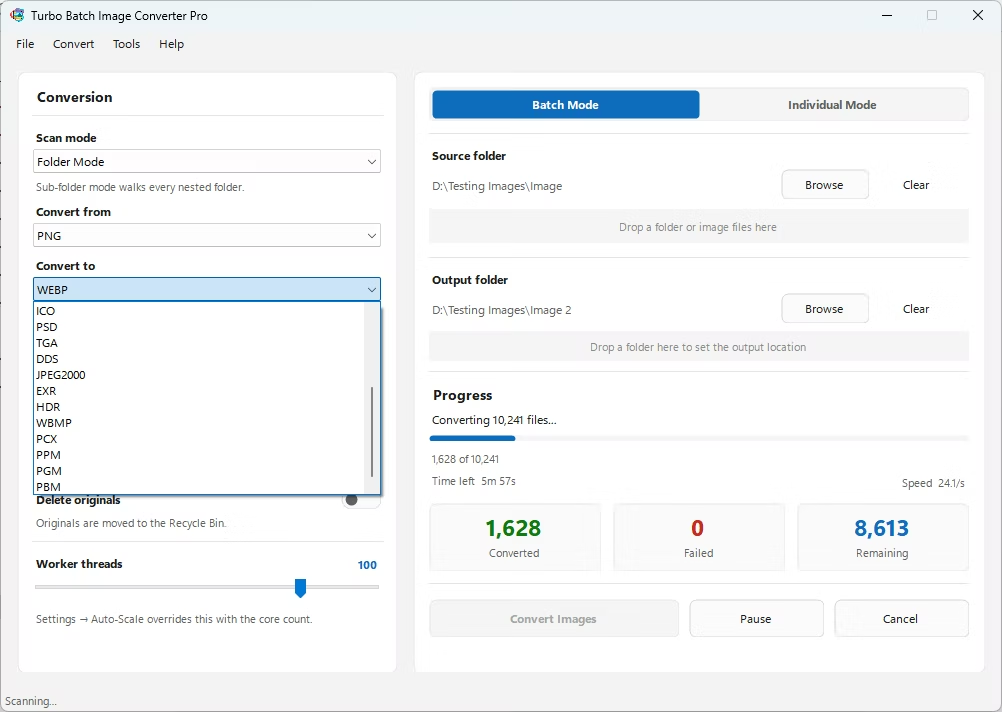
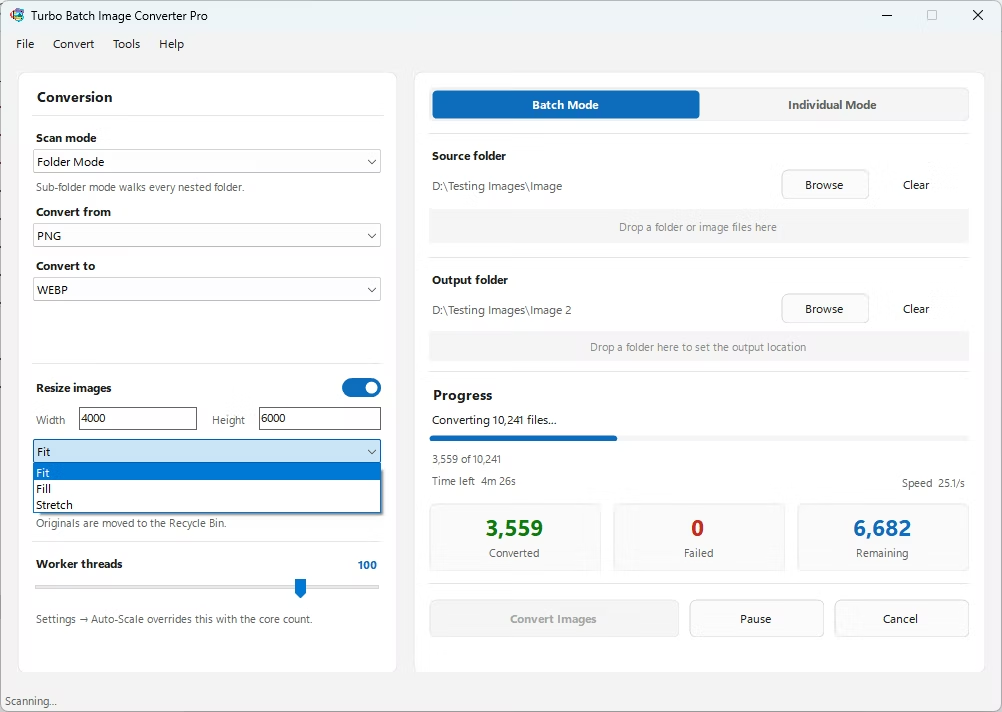
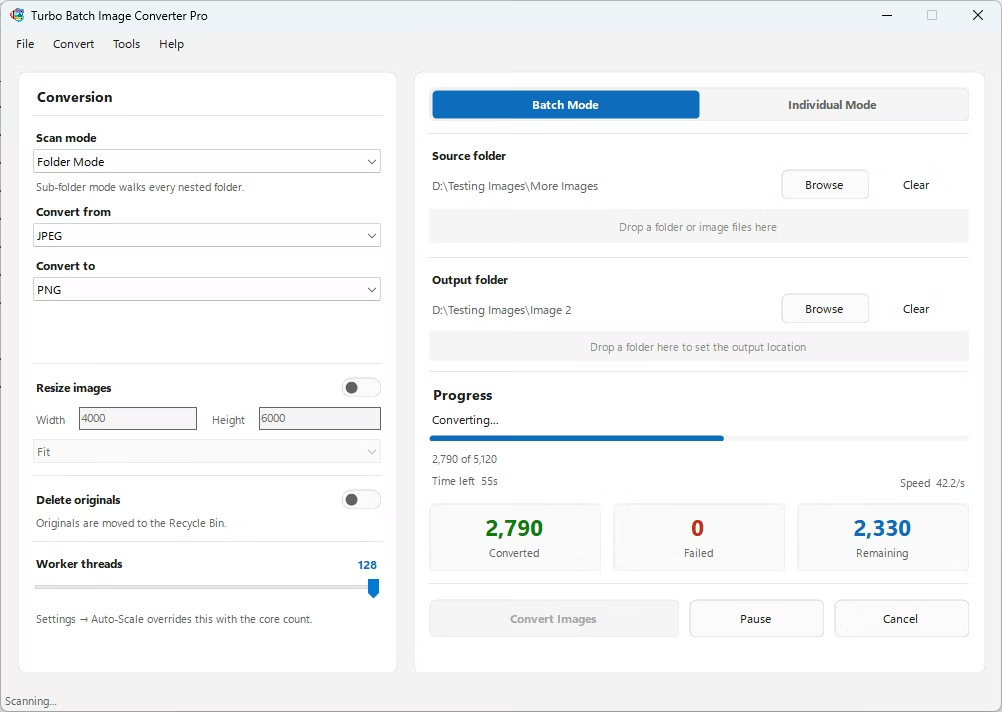
- Install Turbo Batch Image Converter Pro on your Windows PC.
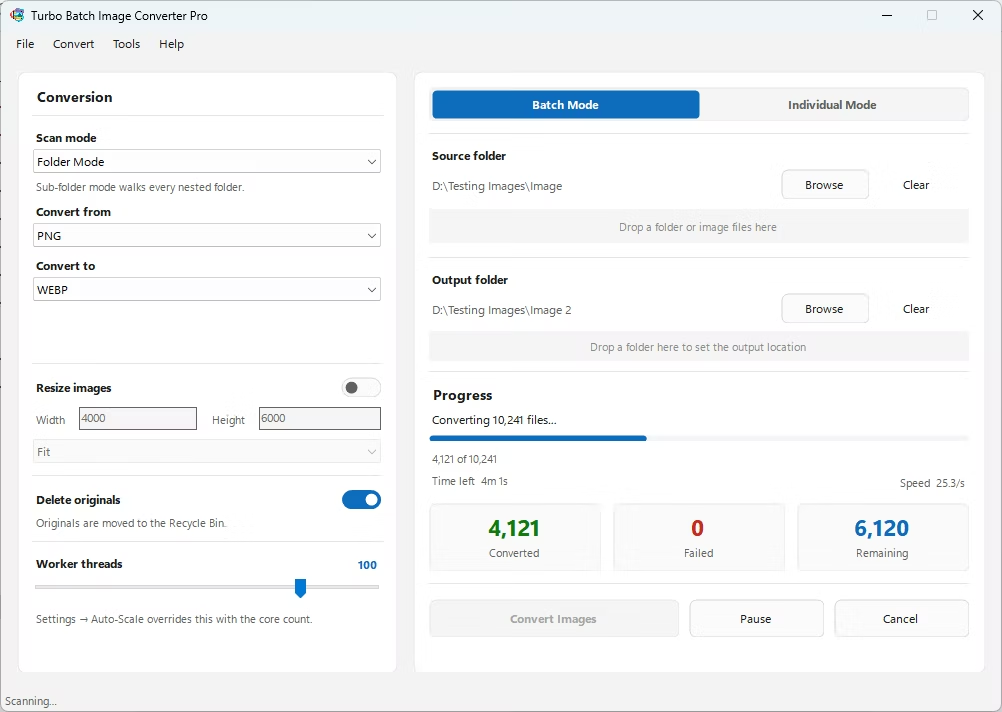
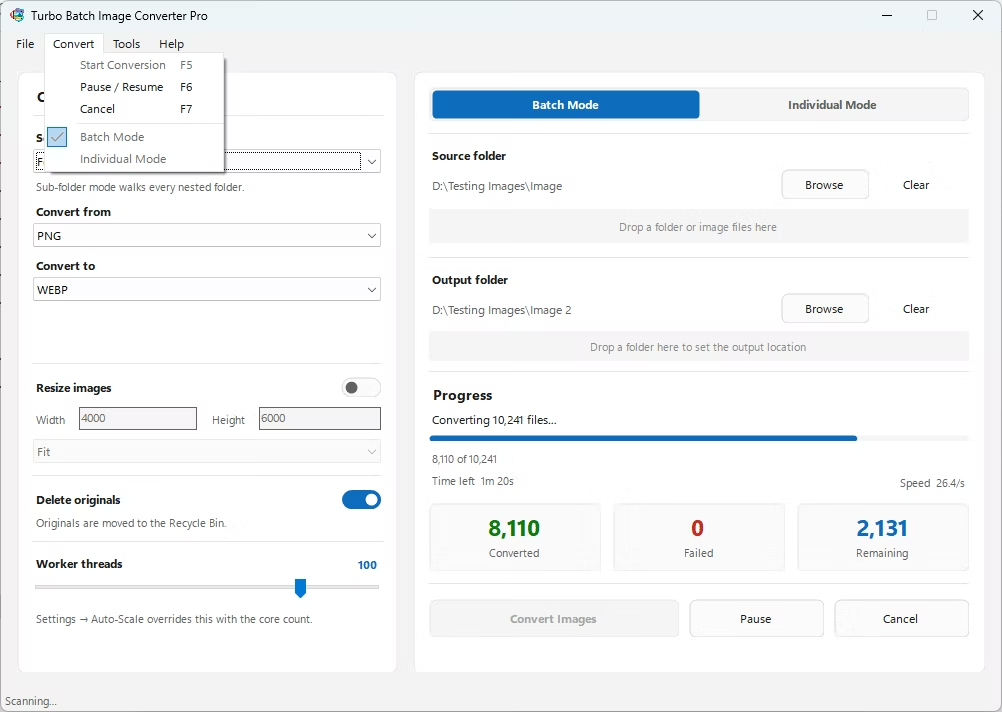
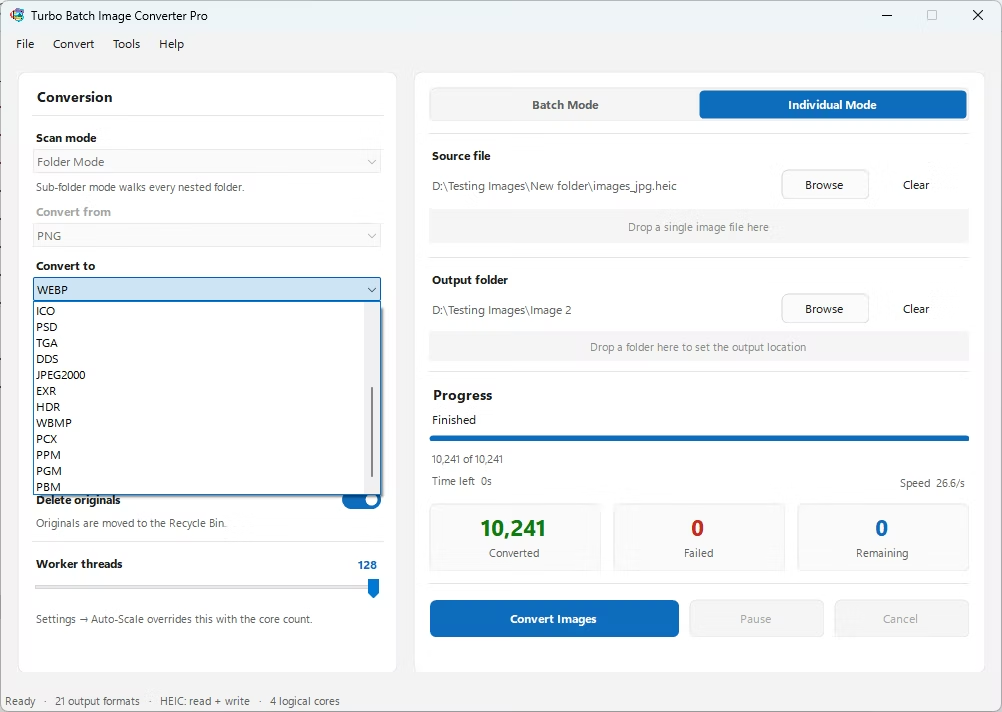
- Open the app and select Batch Mode for multiple files, or Individual Mode for a single TGA.
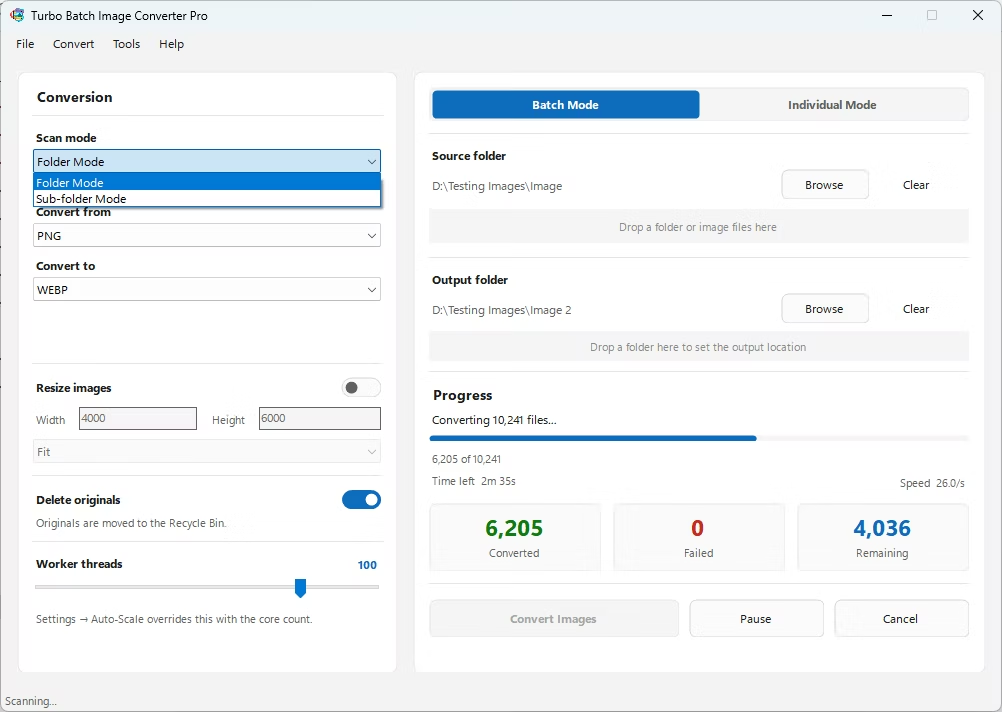
- Drag your TGA file or folder into the app window, enabling recursive folder scanning if needed.
- Set the "From" format to TGA and the "To" format to WebP.
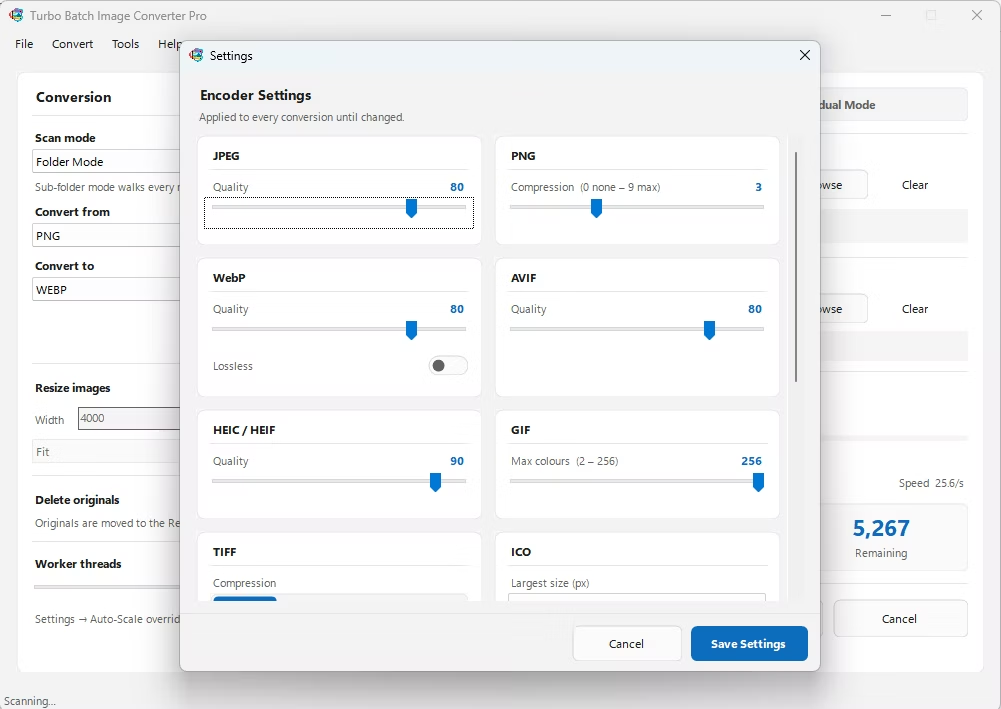
- Choose lossless mode to preserve exact quality, or lossy mode for smaller files.
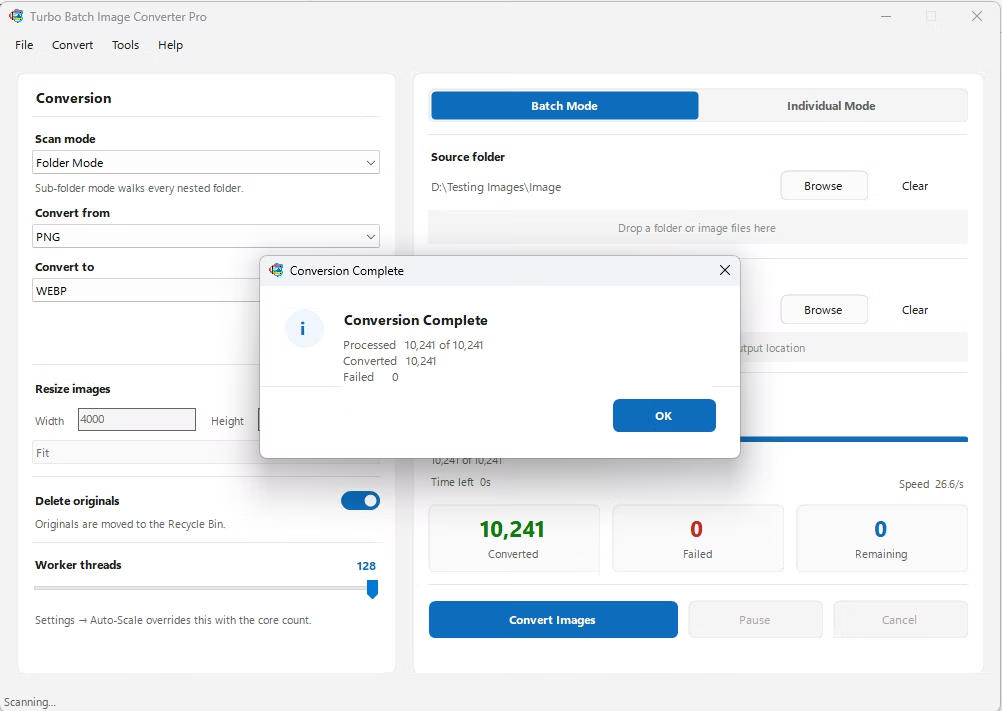
- Click Convert. WebP files are written to the output folder, fully offline.
- 100% offline — your textures and renders are never uploaded anywhere
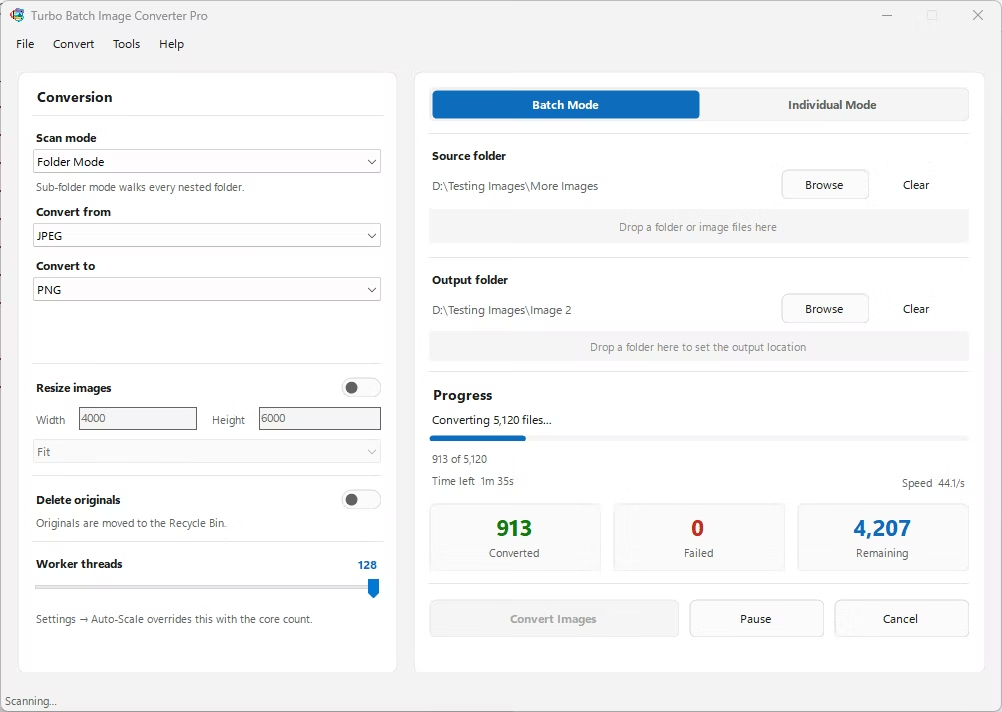
- Bulk conversion of entire folders, including sub-folders, in one click
- Preserves transparency from TGA's alpha channel
- Choice of lossless or lossy output depending on your quality needs
- Multi-core processing for fast handling of large batches
- Option to delete original TGA files automatically after conversion
Will my TGA's transparency carry over to WebP?
Yes, both formats support a full alpha channel, so transparency present in the original file transfers to the converted WebP.
Should I use lossless or lossy WebP for my production work?
Lossless preserves exact quality similar to PNG, while lossy mode shrinks files much further at the cost of some visual detail, so the right choice depends on your delivery needs.
Can I convert an entire texture folder to WebP at once?
Yes, Batch Mode handles entire folders, including nested sub-folders, and scales conversion speed across multiple CPU cores.
Ready to convert your images offline, in bulk, with full privacy?