Splitting a CSV file in half is a narrower, more specific version of the general splitting problem, and it comes up in situations where the goal is two roughly equal parts rather than a particular row count or file size. A common example is dividing a dataset for machine learning, where half the rows become a training set and the other half become a holdout or test set. Another is splitting a workload between two people or two systems - half the customer records go to one team, half to another, and the work of reviewing or processing them happens in parallel. A third is simply cutting a file that's twice as large as you'd like down to a manageable size, without needing to think in terms of a specific row count or megabyte target.
The tricky part with a manual approach is figuring out exactly where the midpoint falls. You'd need to know the total row count first, calculate half of it, and then somehow cut the file at that exact row while making sure the header ends up in both halves and no row gets counted twice or dropped at the boundary. Doing this in a text editor on a large file is impractical, and doing it in a spreadsheet program runs into the same row-count and memory limits that make big CSV files difficult to work with in the first place.
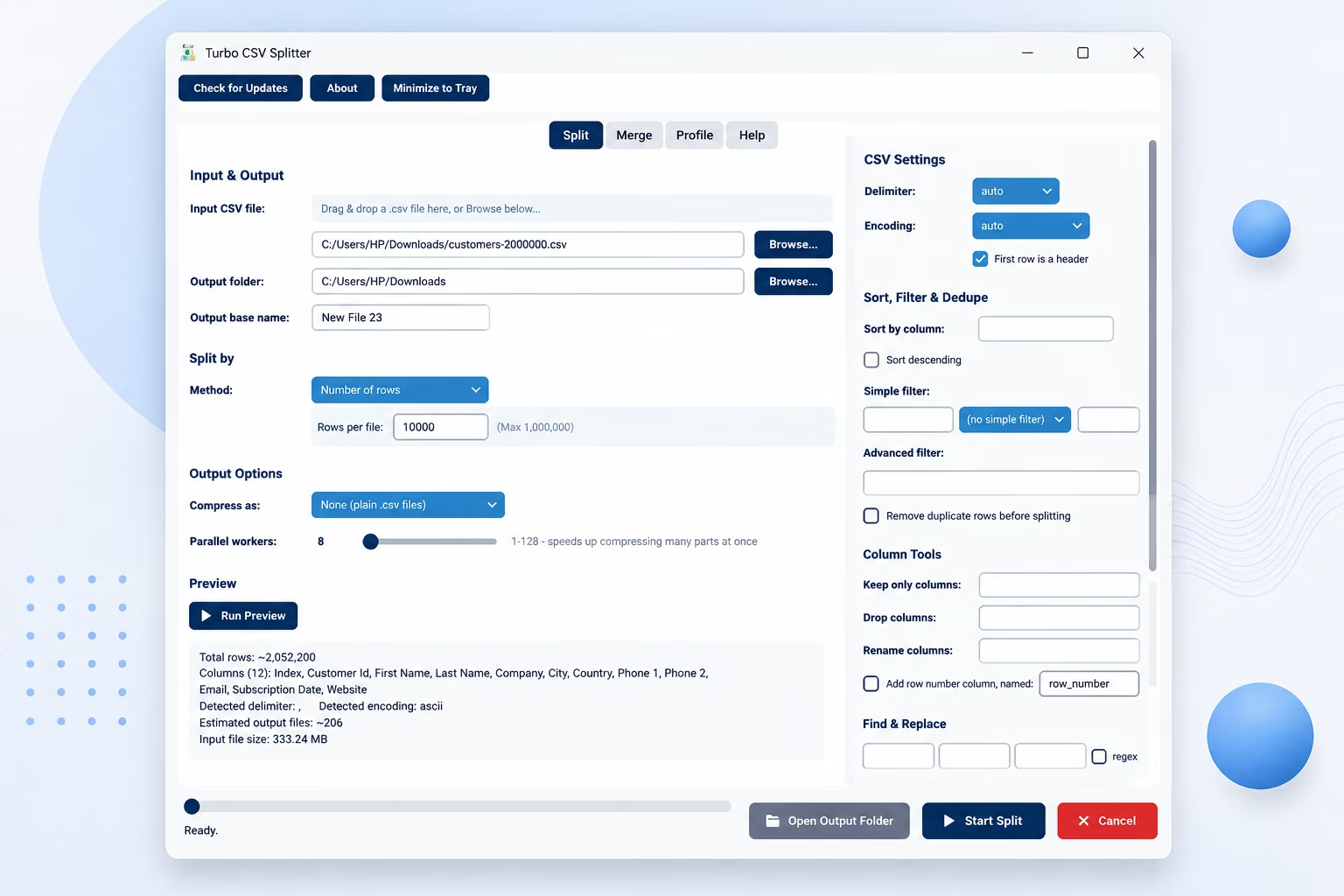
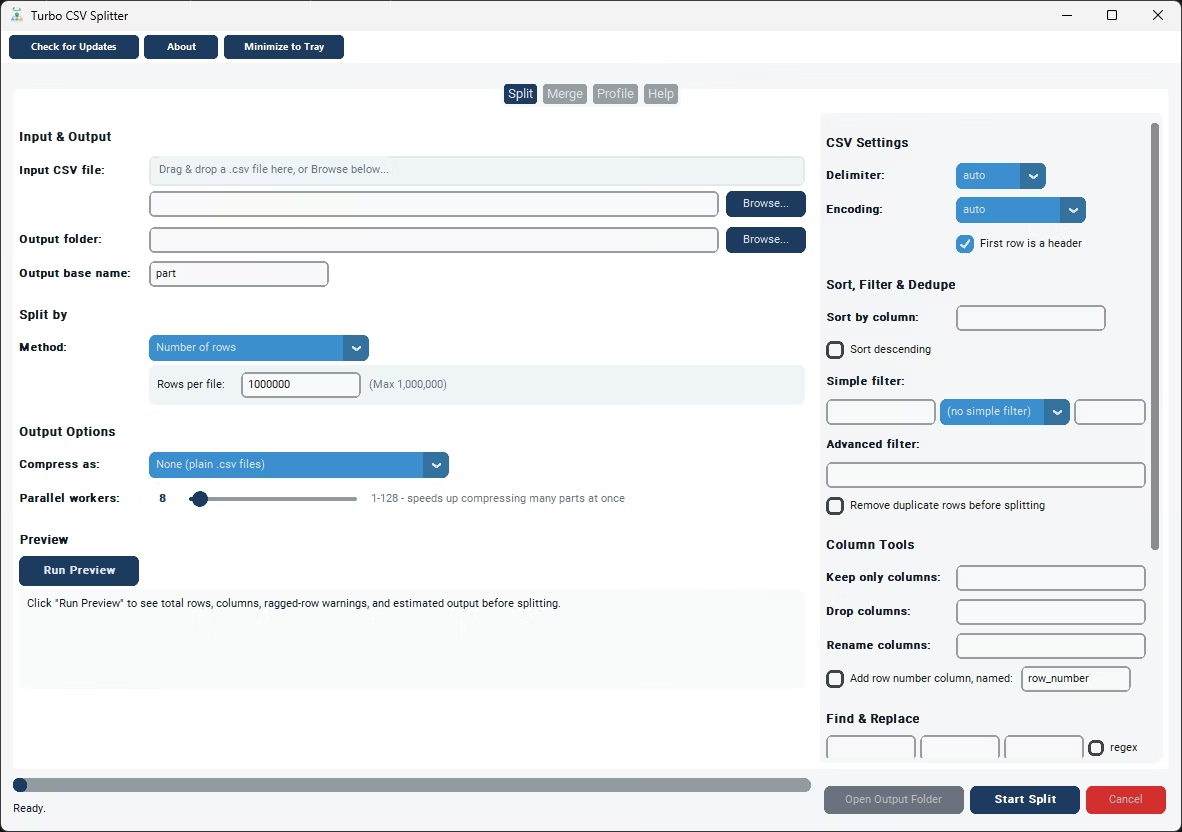
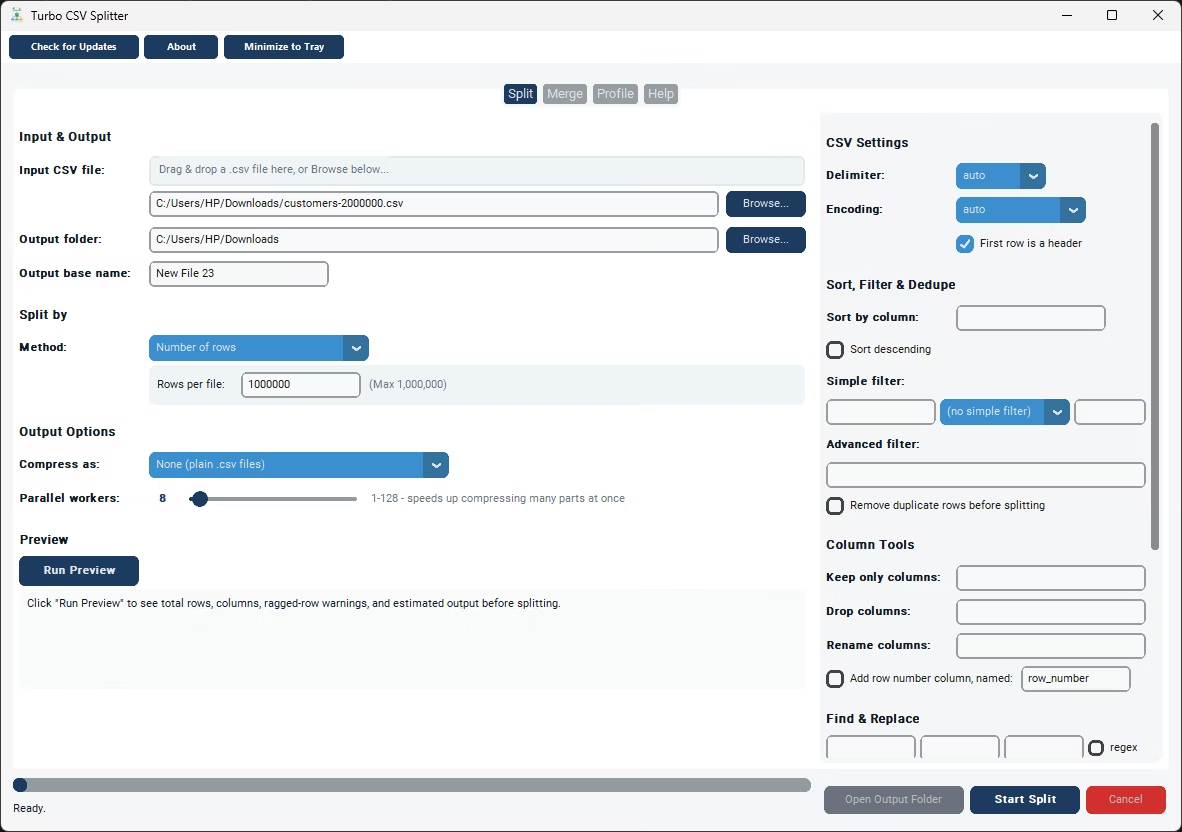
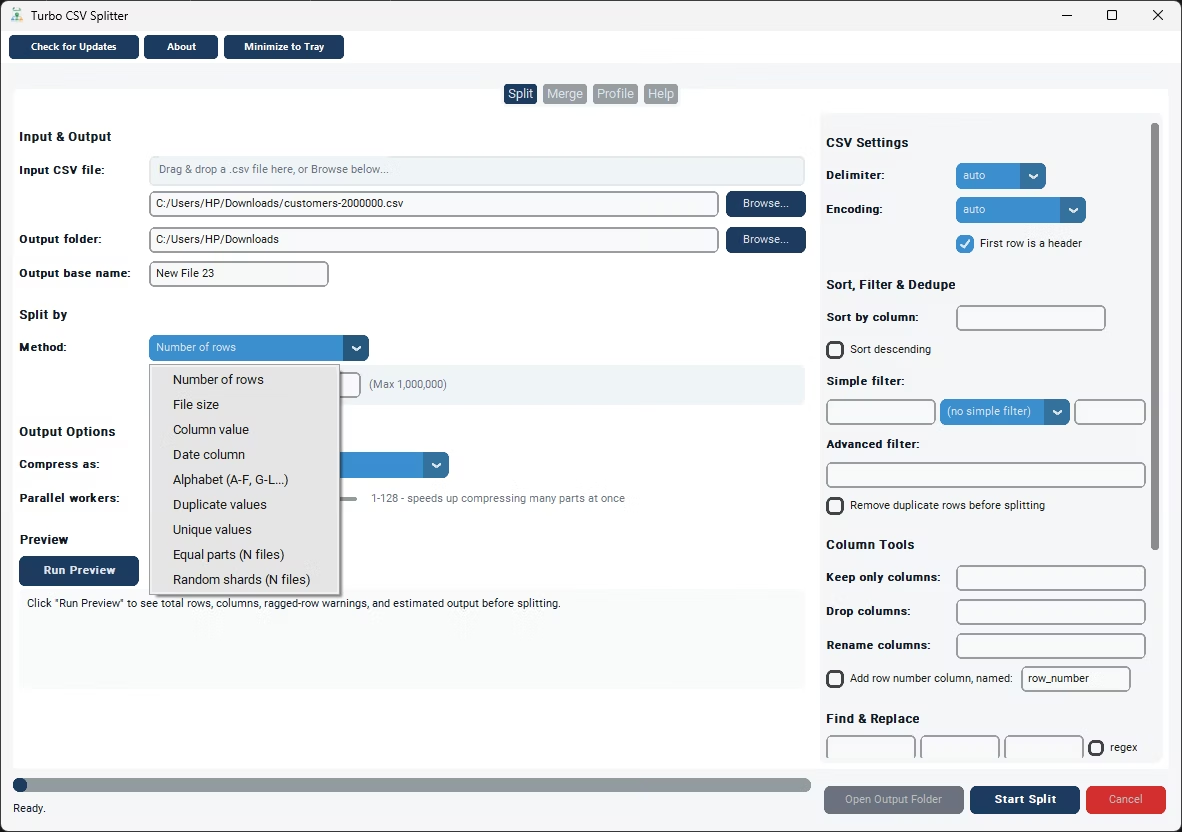
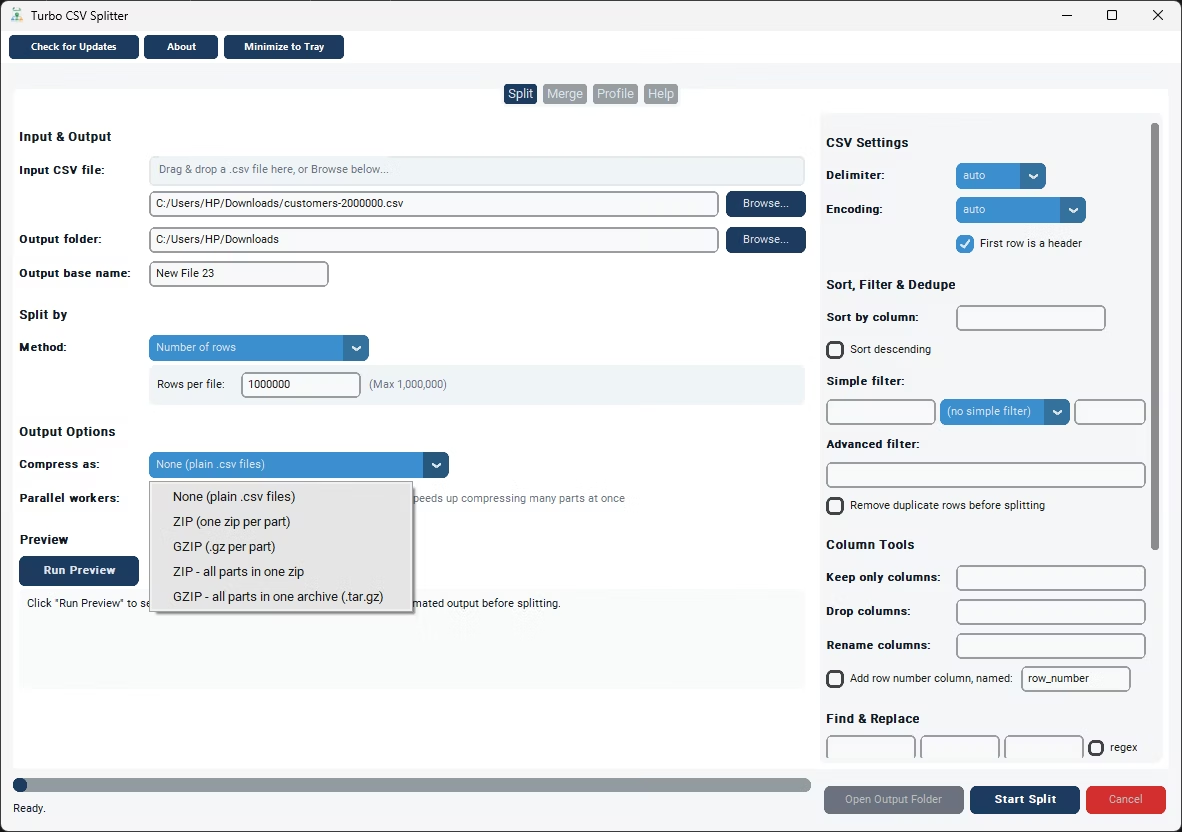
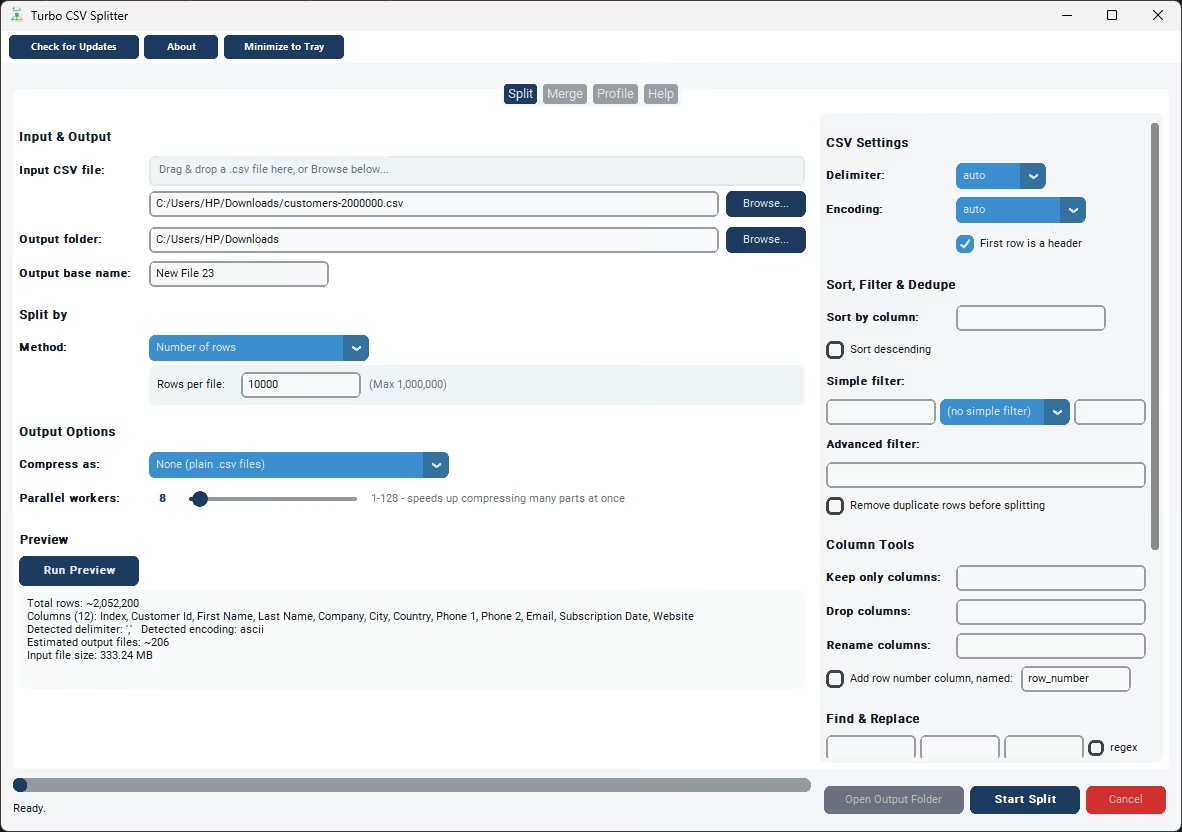
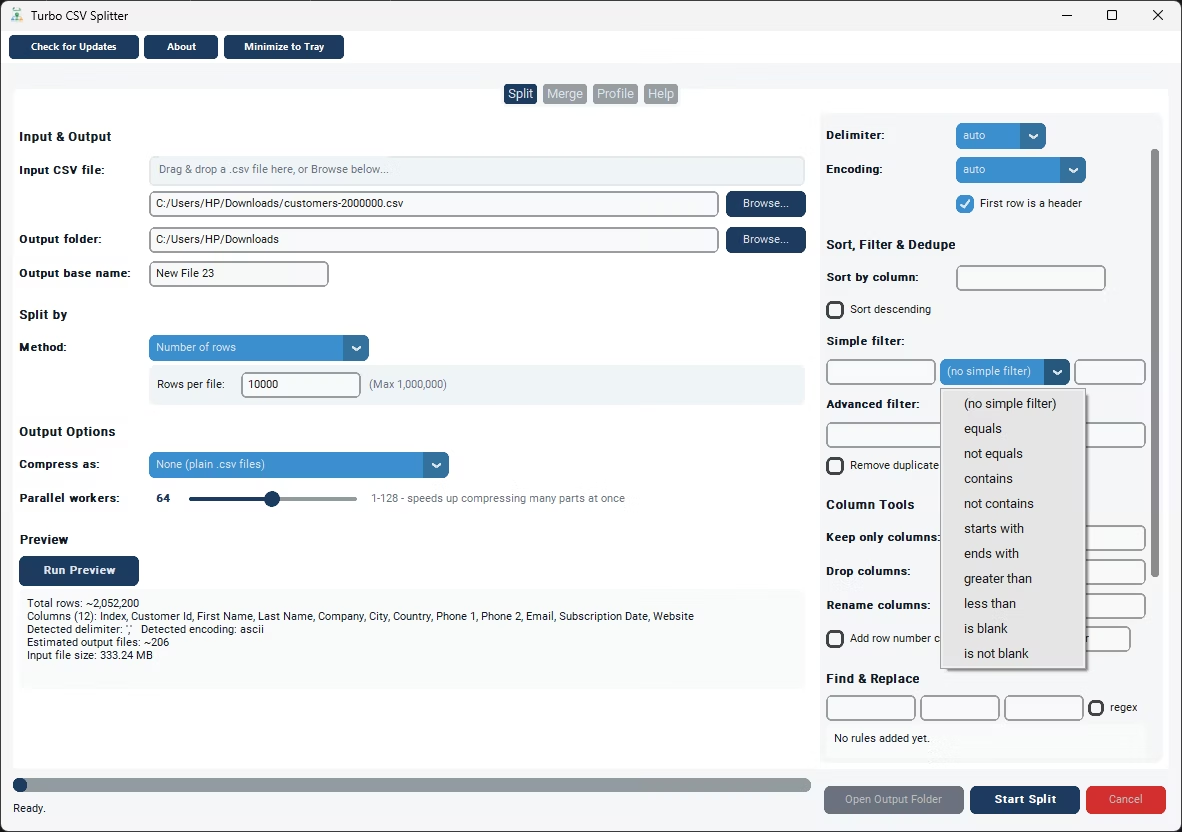
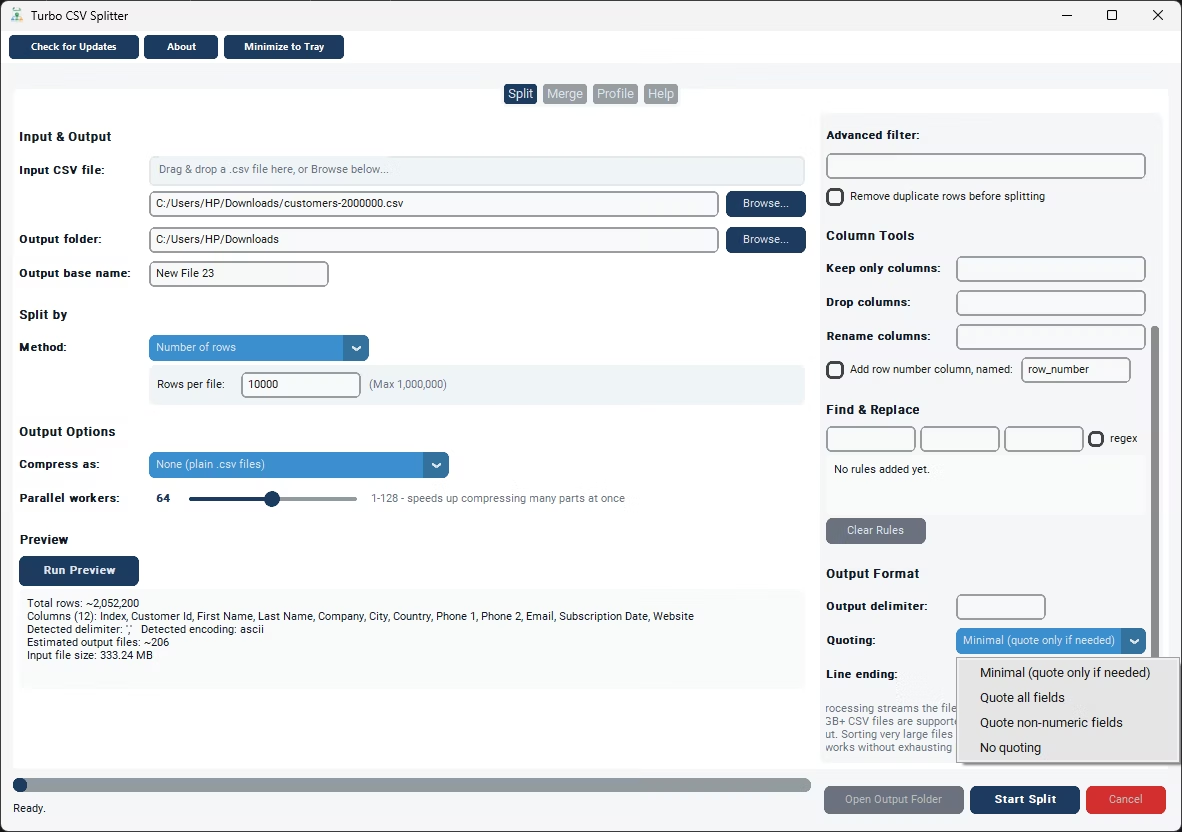
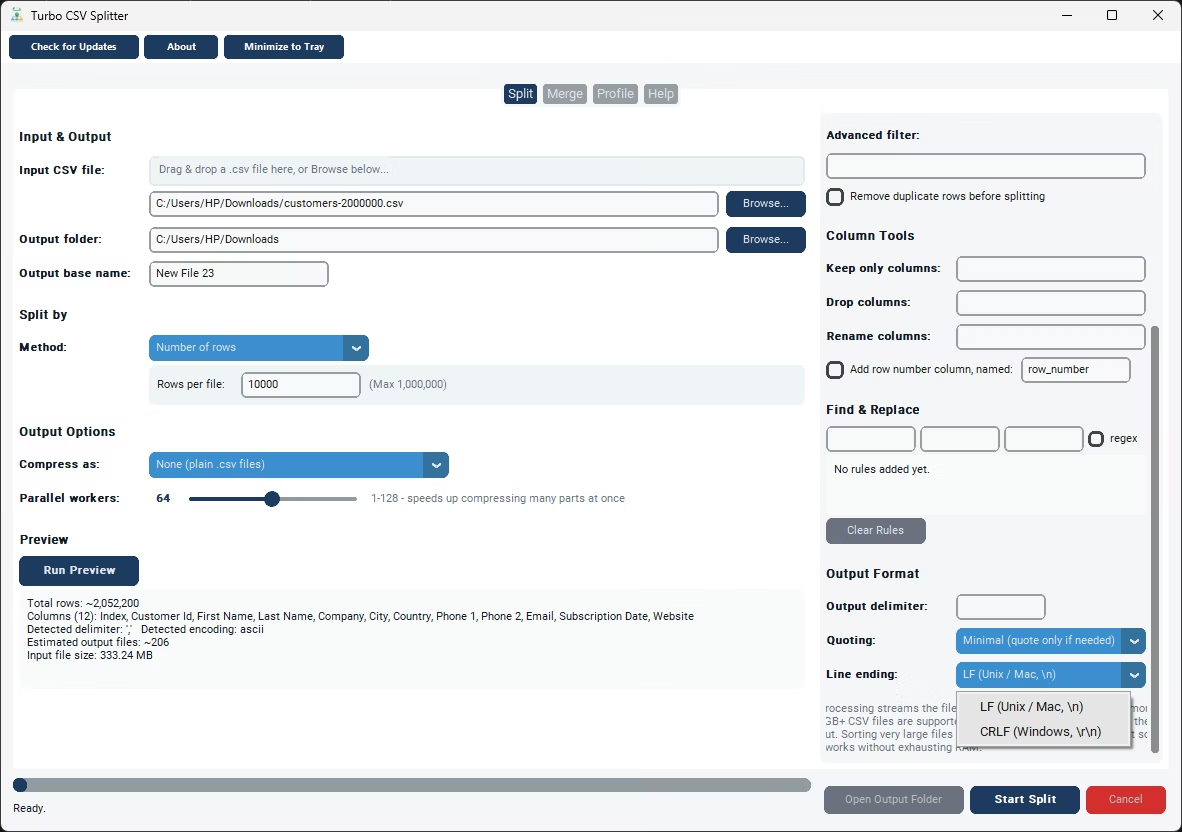
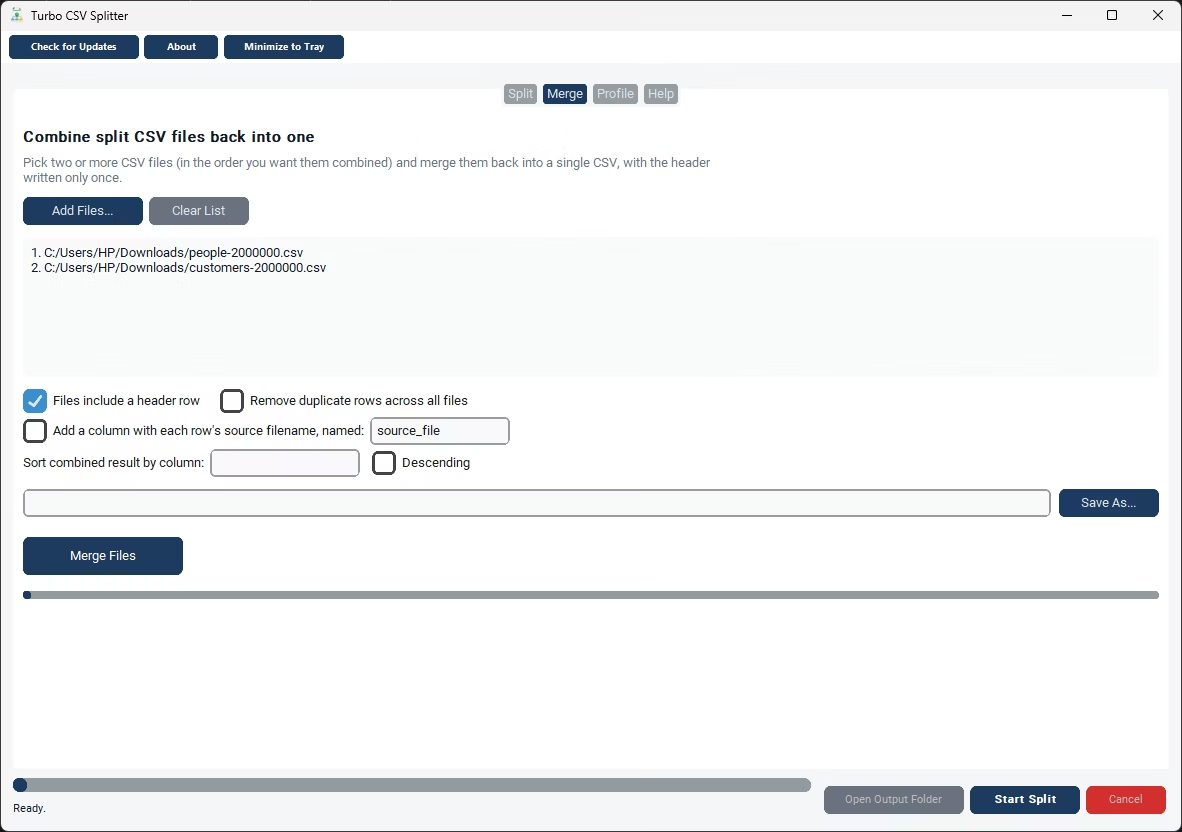
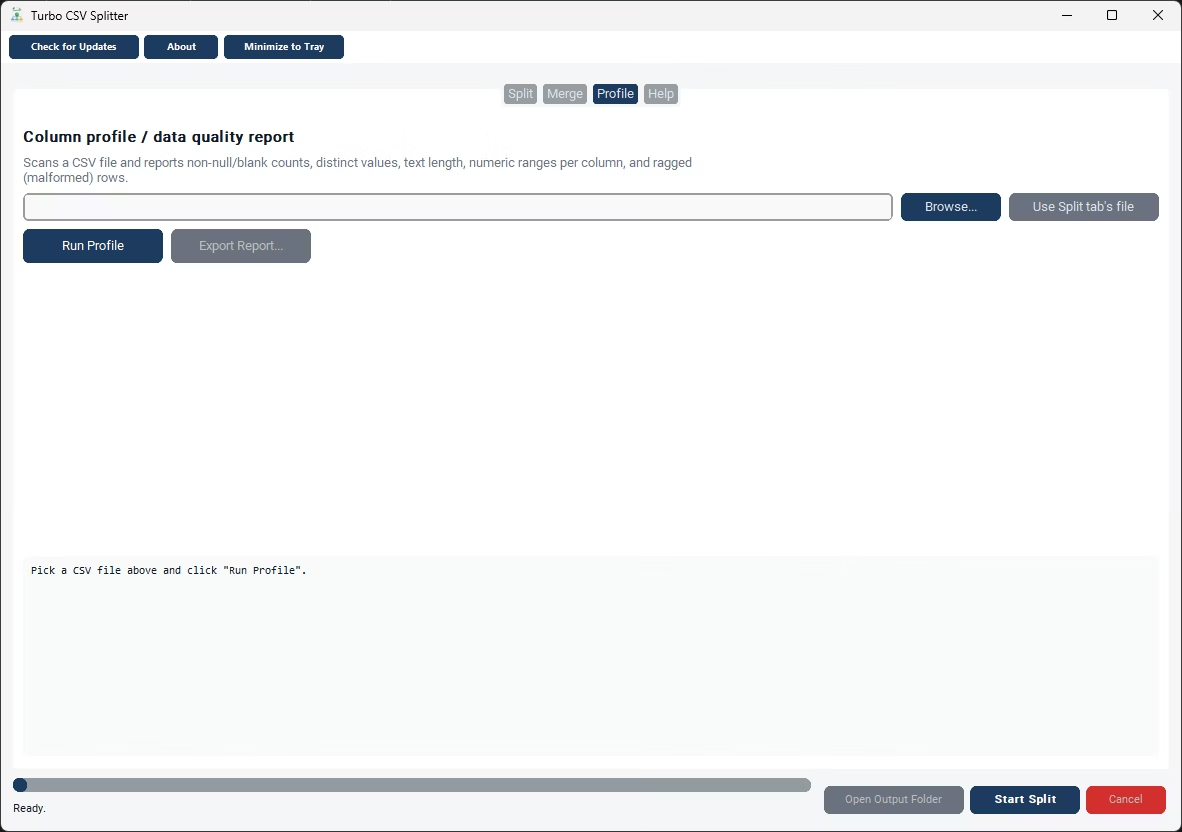
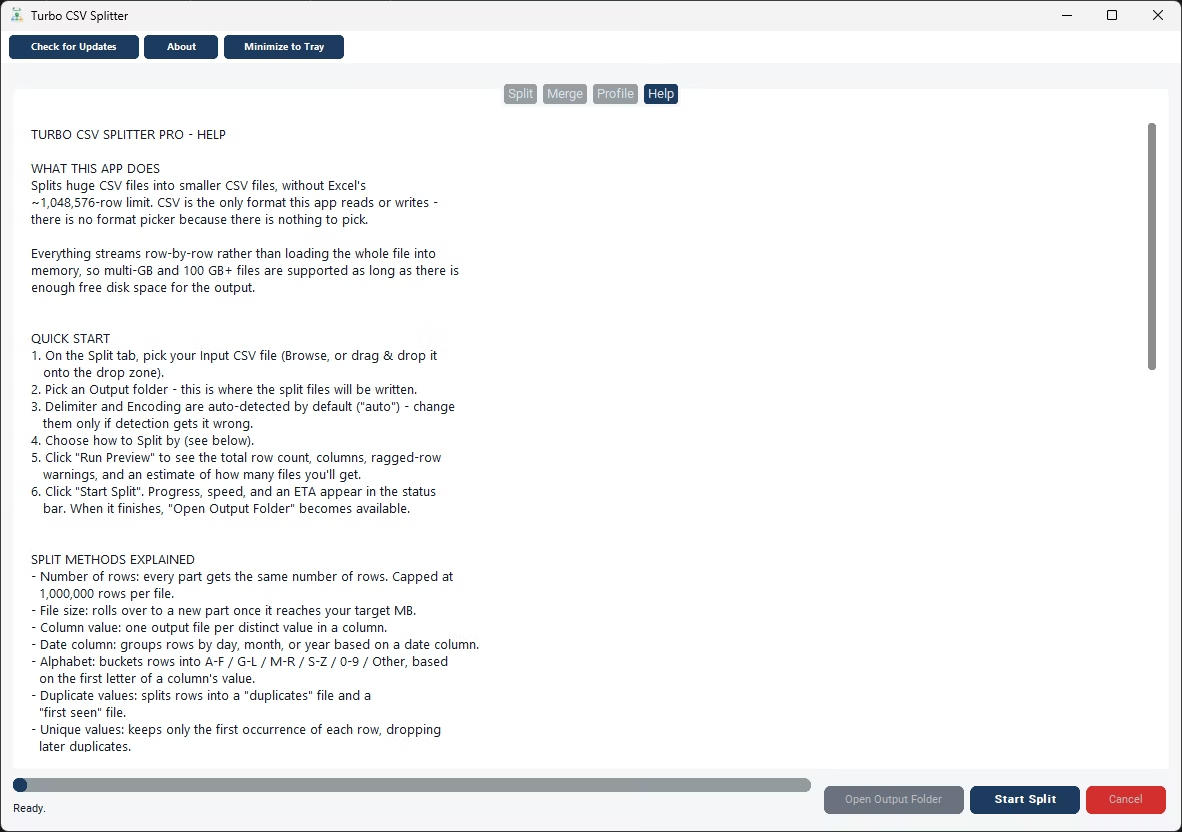
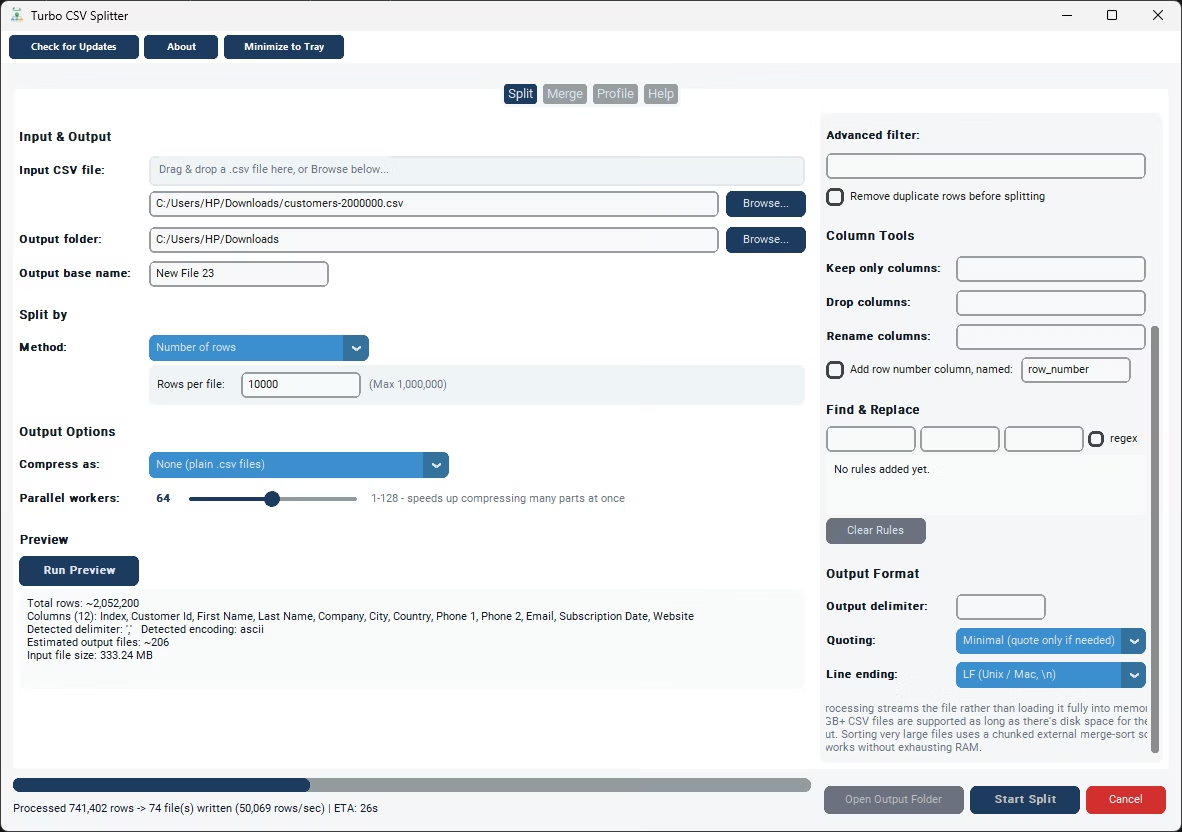
The most direct way to split a CSV file in half with Turbo CSV Splitter is the Equal Parts (N Files) method, set to 2. The app runs a quick row count first, works out the midpoint, and writes two output files that each contain the same header row and as close to an equal share of the data rows as the total count allows - if the row count is odd, one half simply ends up with a single extra row. Because this happens automatically, there's no need to know the total row count in advance or calculate anything yourself; you just tell the app you want 2 files and it handles the arithmetic.
If your idea of "half" isn't about row count but about a natural split in the data itself, other methods can produce a two-file result too. Column Value splits the file into one output file per distinct value found in a chosen column, so a column with exactly two possible values - active versus inactive customers, for example, or two office locations - naturally produces two files along that boundary rather than an arbitrary midpoint. Random Shards (N Files) set to 2 is the better choice if what you actually want is two random samples of roughly equal size rather than the first half and second half in original row order, which matters for machine learning splits where you don't want the training and test sets to reflect whatever order the source file happened to be in.
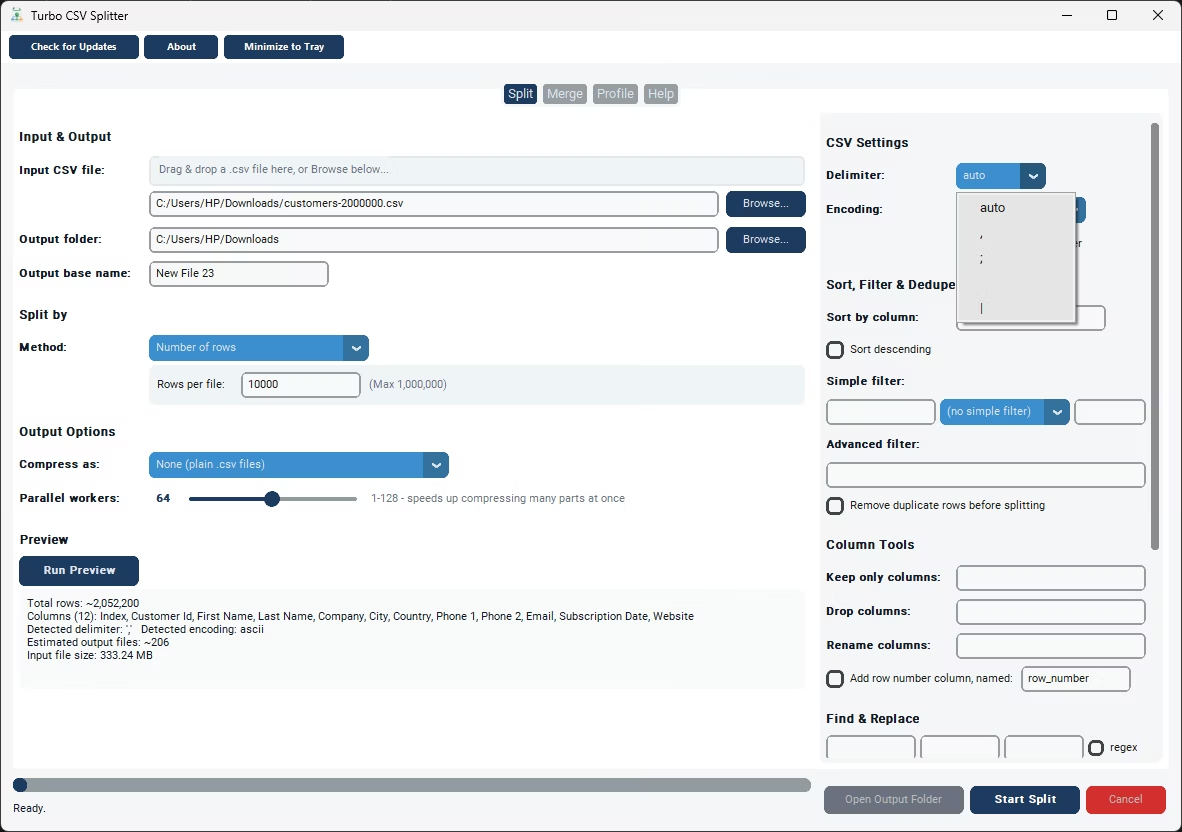
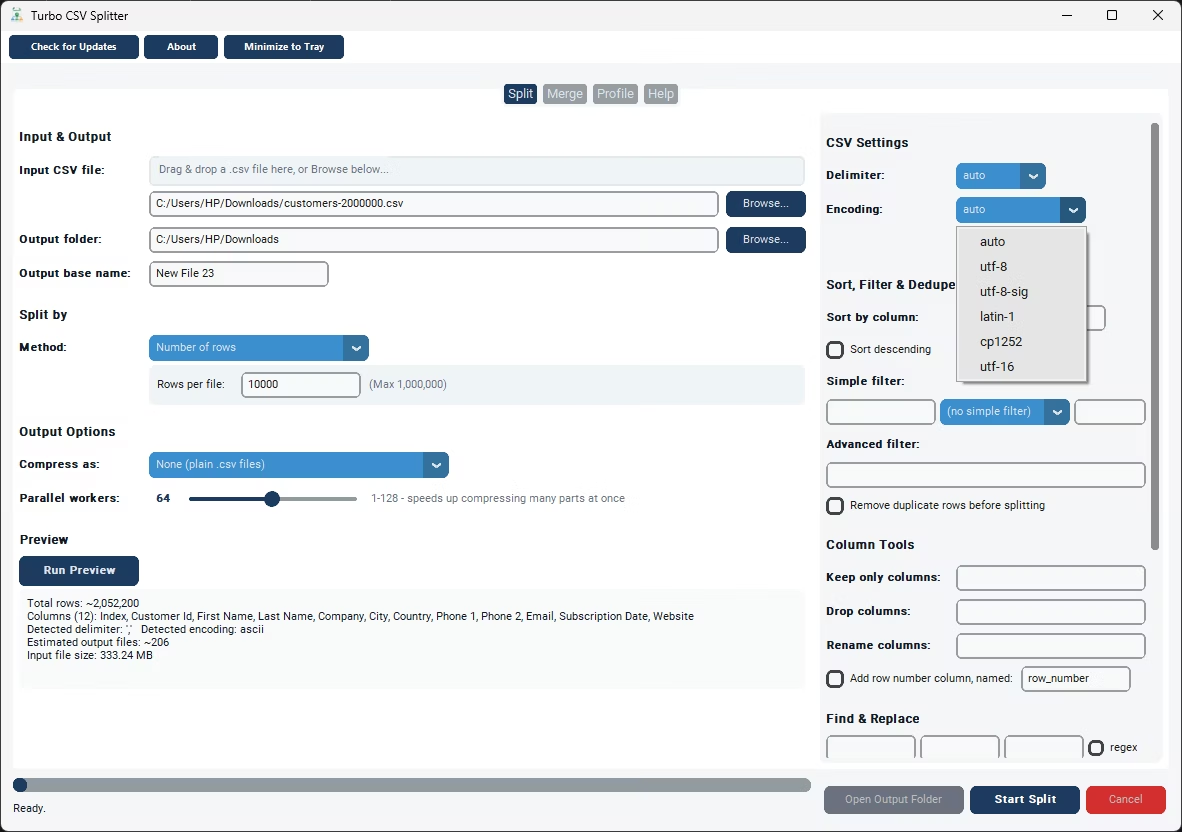
Whichever method fits your situation, the same streaming engine handles the underlying work, meaning a file with millions of rows splits into two halves just as reliably as a small one, with live progress shown as the job runs. Delimiter and encoding are auto-detected, and a Run Preview option lets you check the total row count before starting, so you know roughly how large each half will be ahead of time.
If your first attempt at a 50/50 split isn't quite what you needed - say, you wanted three parts instead of two, or a different column to define the split - there's no need to start over from scratch with a different tool. The same Equal Parts, Column Value, and Random Shards methods are simply re-run with different settings, and because the source file itself is never modified during a split, you can try more than one approach against the same original file until the output matches what you actually need.
- Install Turbo CSV Splitter and open the app.
- Browse to the CSV file you want to divide in half.
- Choose the Equal Parts (N Files) split method.
- Set the number of files to 2.
- Run Preview if you want to check the total row count first.
- Click Start Split to generate the two halves in your chosen output folder.
- Equal Parts method calculates the midpoint automatically - no manual row counting
- Random Shards method available for a randomized 50/50 split instead of original order
- Column Value method available for a natural two-way split based on your data
- Header row included in both resulting files
- Works the same way regardless of source file size
- Runs fully offline on your own Windows PC
Will both halves have exactly the same number of rows?
With the Equal Parts method set to 2, the app runs a quick row count first and divides the file into two roughly equal parts. If the total row count is odd, one half will simply have one more row than the other.
Do both halves keep the original column headers?
Yes. The header row from the source file is written into both output files, so each half opens as a complete, valid CSV on its own.
Can I split a file into halves based on a column instead of just row count?
Yes. Column Value splits the file into one output file per distinct value in a chosen column, which can produce a two-file split if the column only has two possible values, such as a Yes/No or Region A/Region B field.
What if I need more than two halves later?
The same Equal Parts method accepts any number of output files, not just two, so the identical workflow can produce three, four, or more equal parts if your needs change.
Ready to split your CSV files the easy way?