Some conversion tools bury basic tasks under menus of advanced settings you'll never touch. A simple batch image converter should let you pick a folder, pick a format, and convert, without wading through options you don't need.
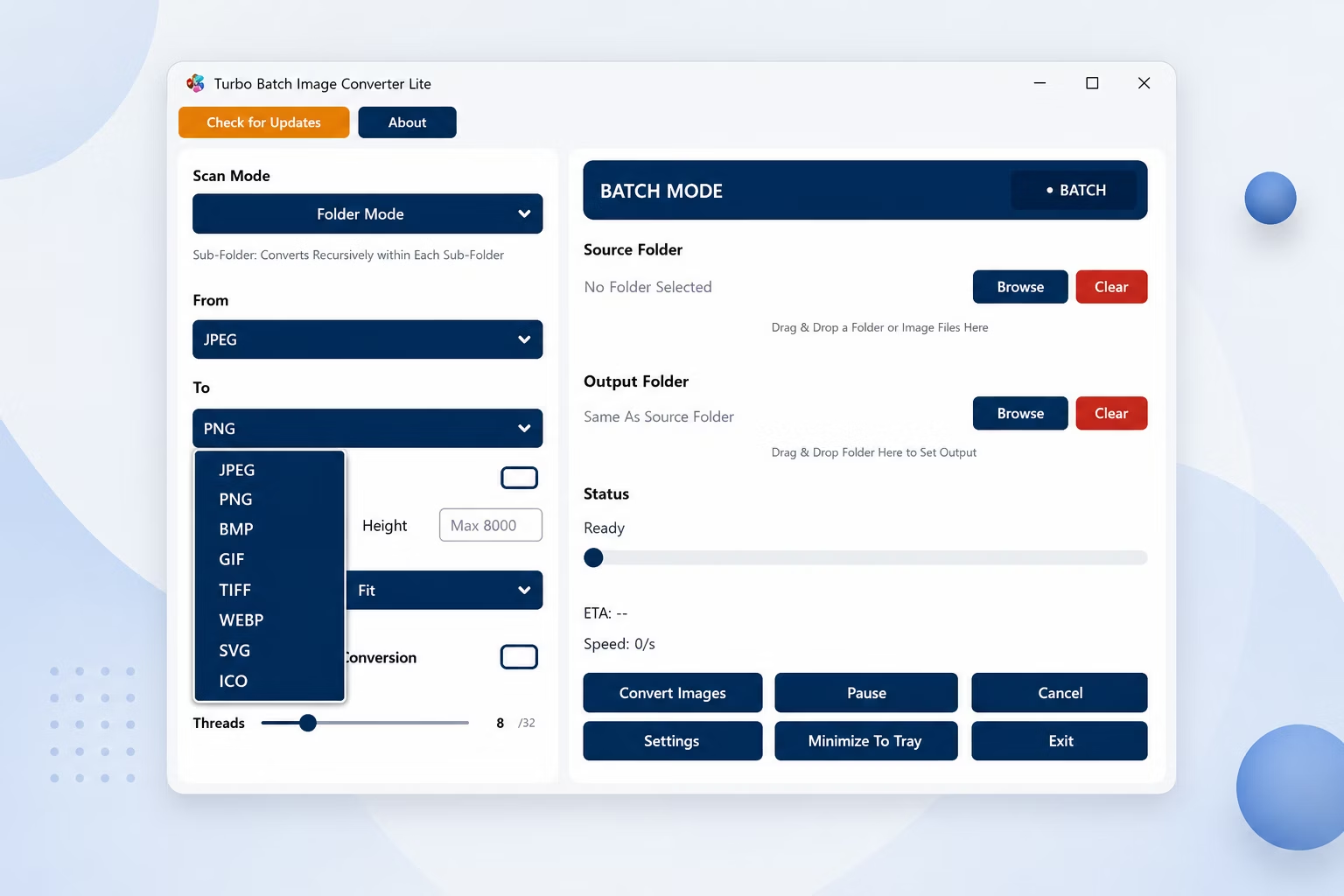
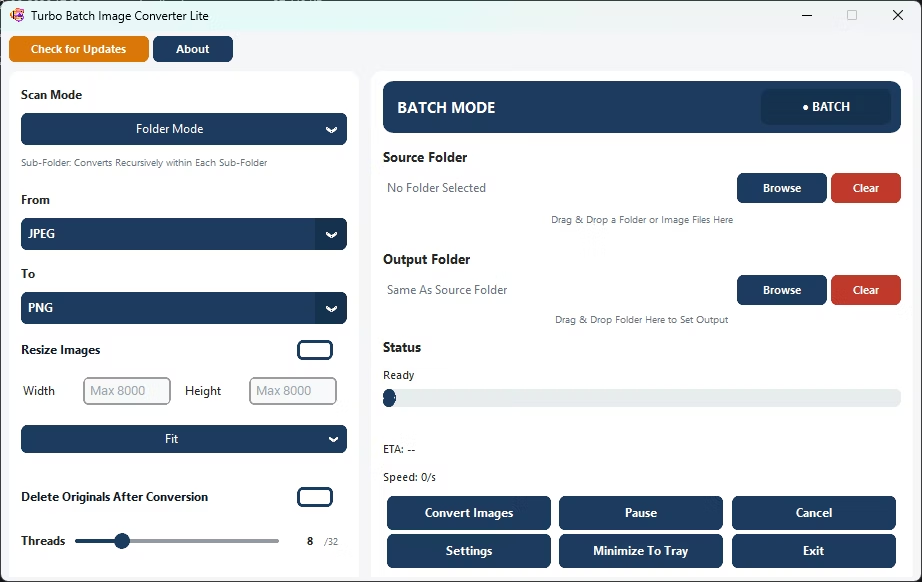
Turbo Batch Image Converter Lite keeps its interface simple: select a folder, choose your output format from JPEG, PNG, WebP, GIF, BMP, TIFF, SVG and ICO, and convert, with advanced options like resizing and quality tucked away for when you want them.
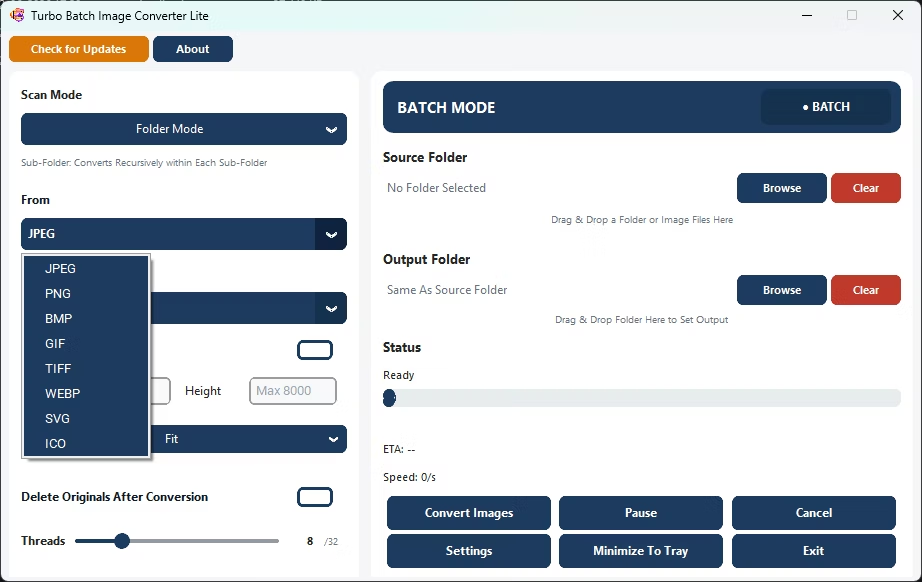
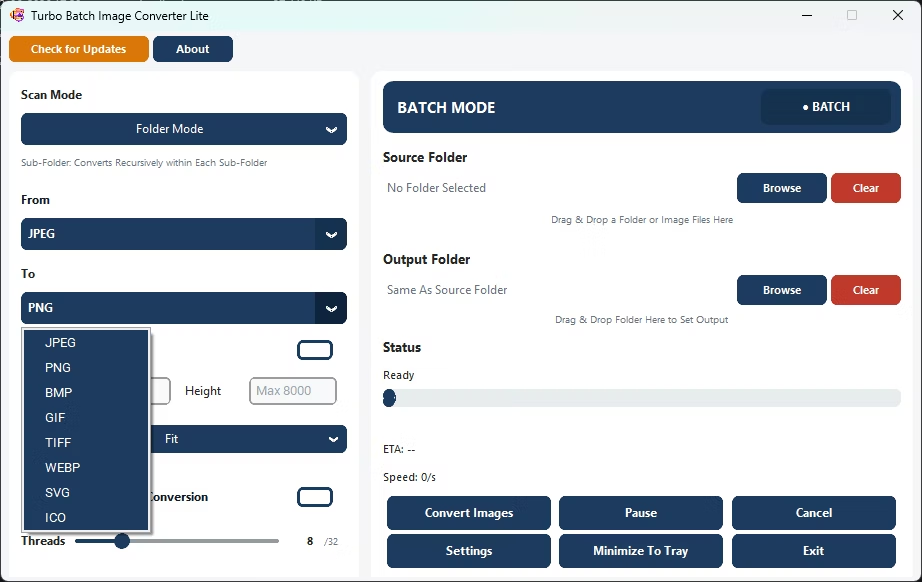
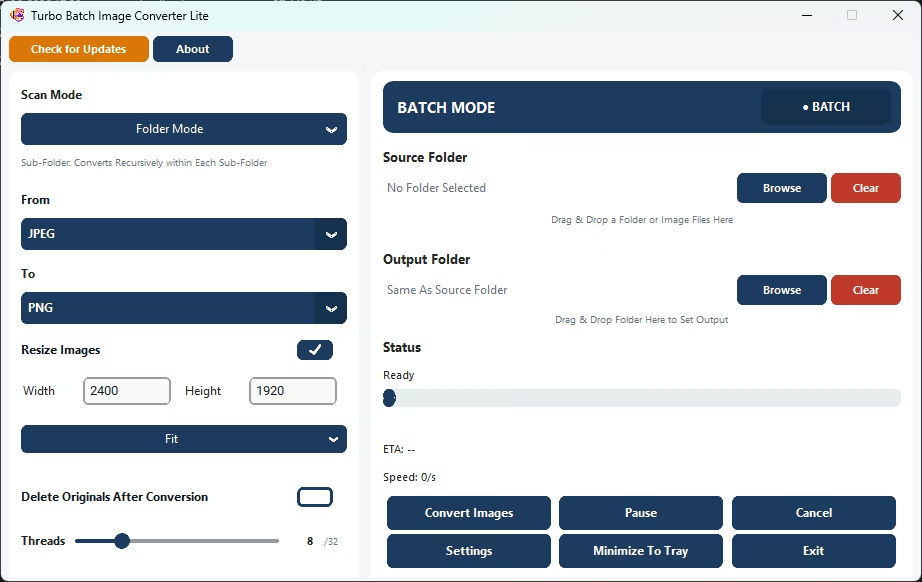
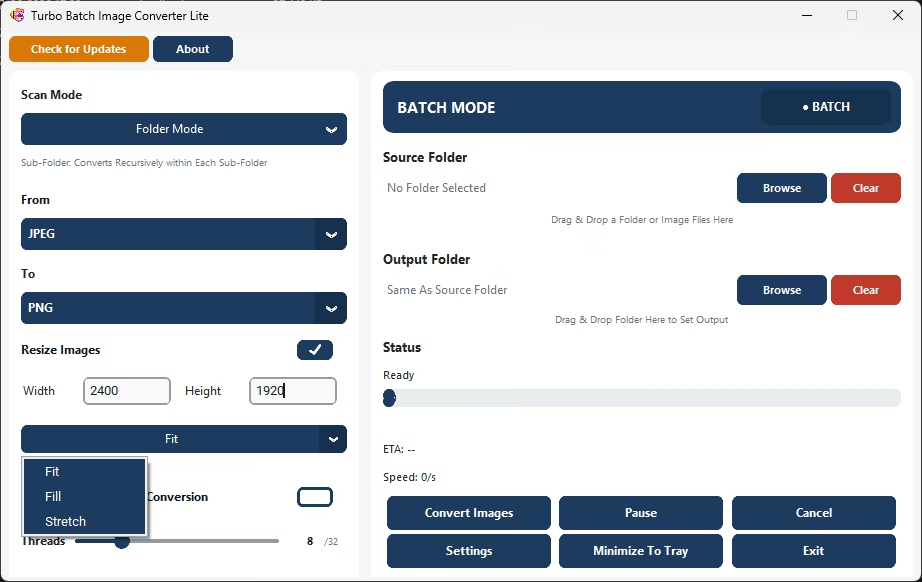
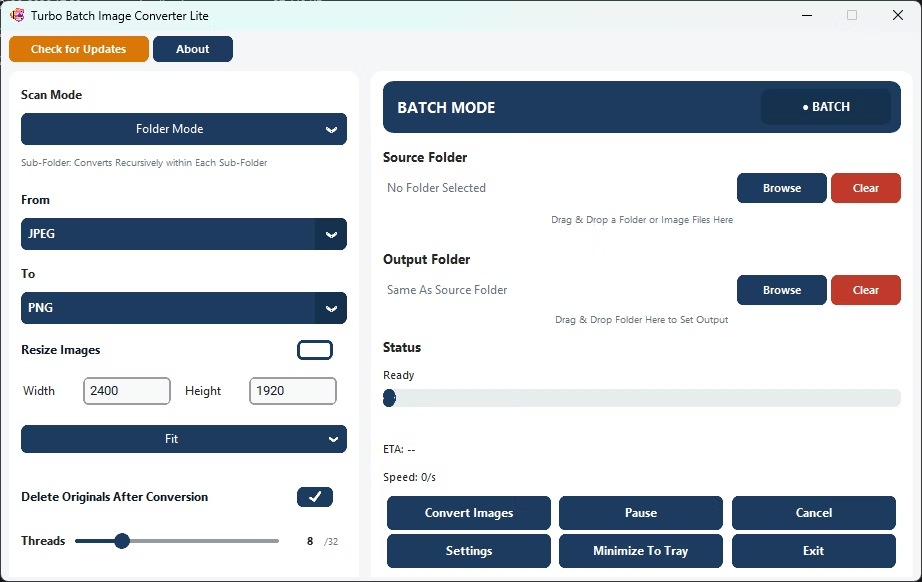
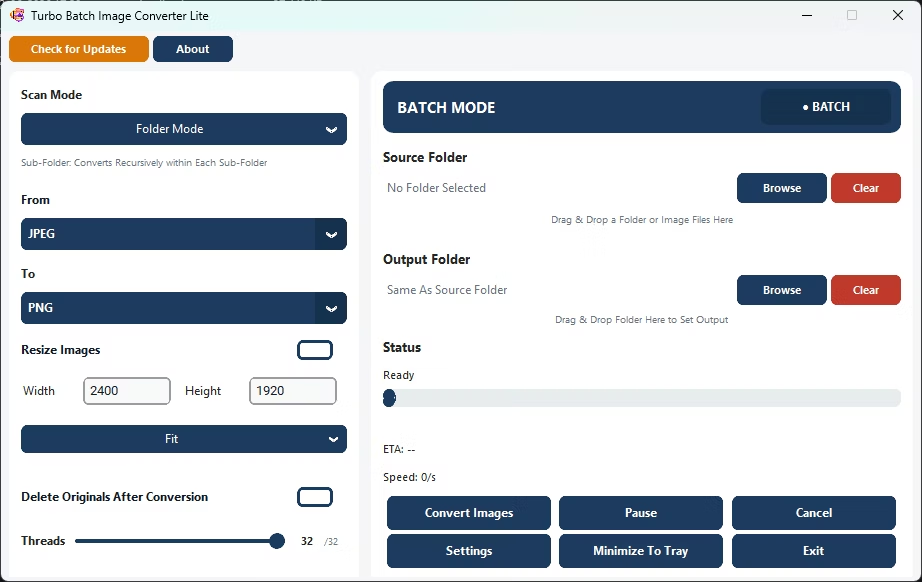
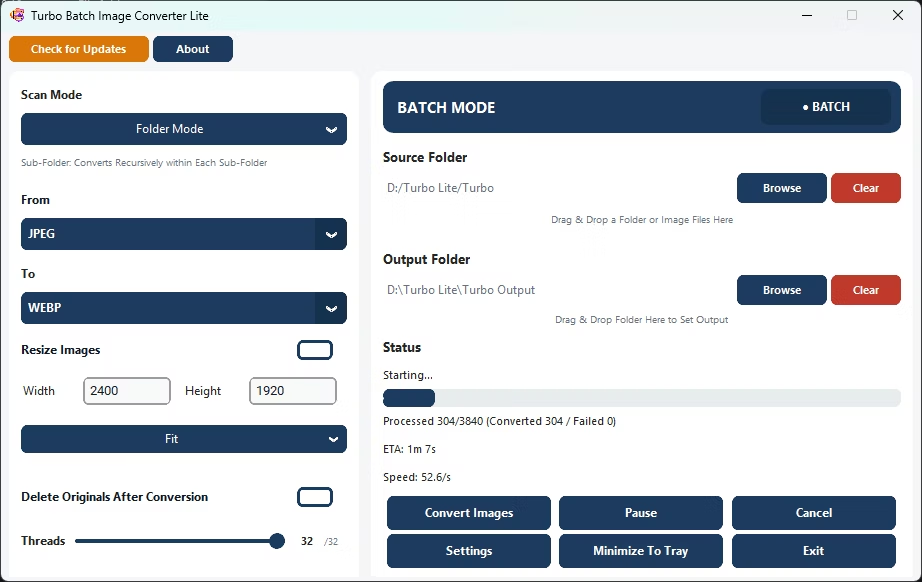
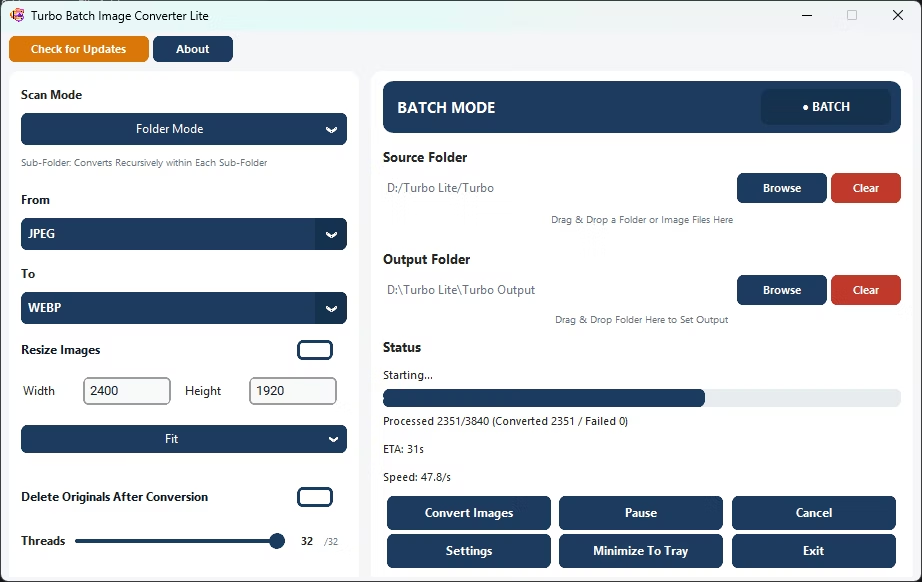
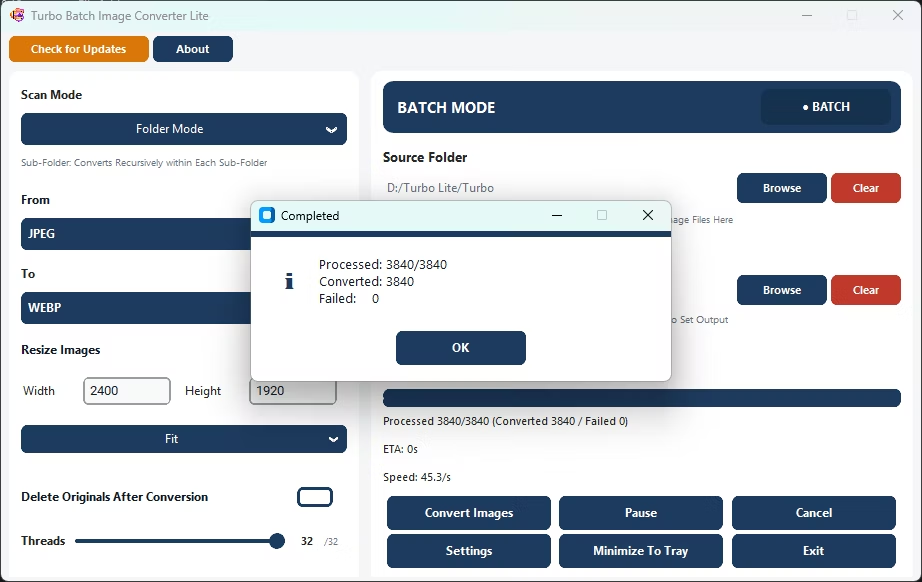
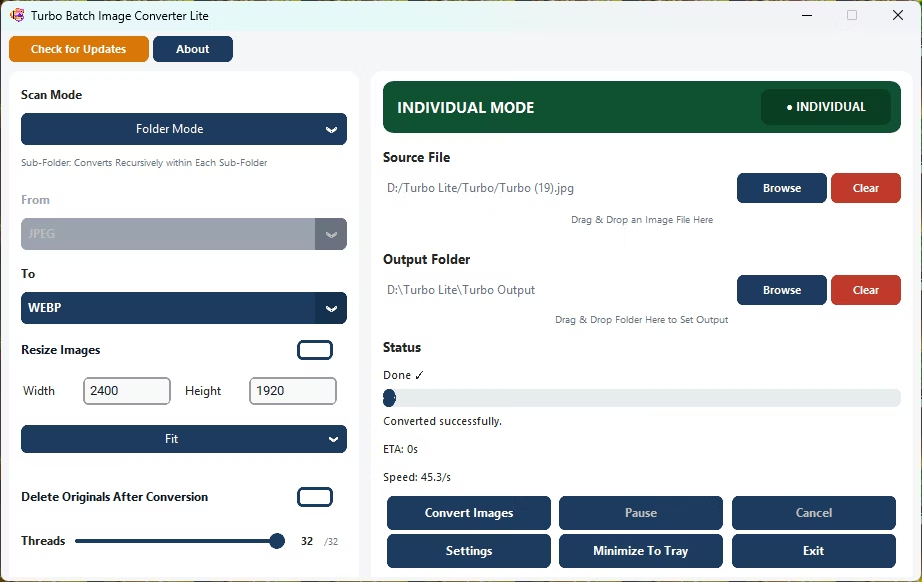
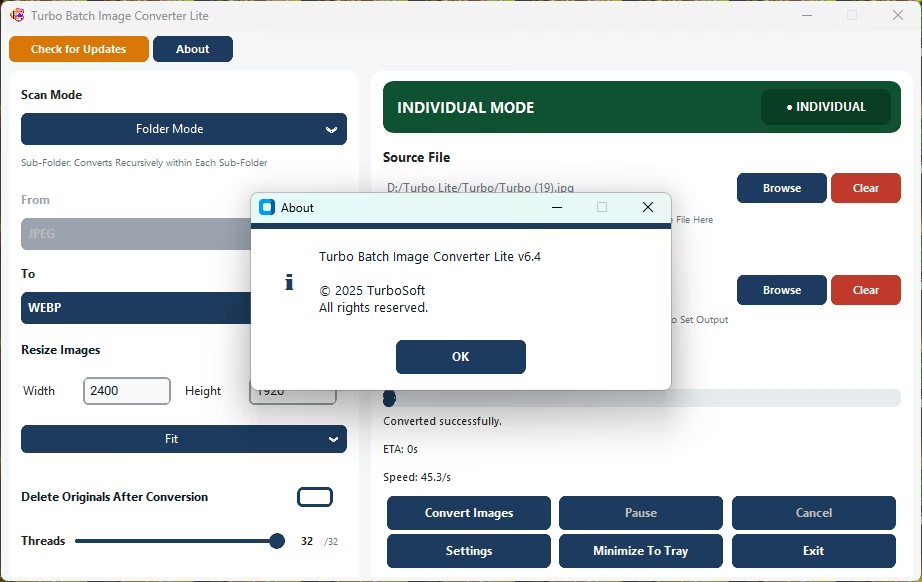
- Install Turbo Batch Image Converter Lite on your Windows PC.
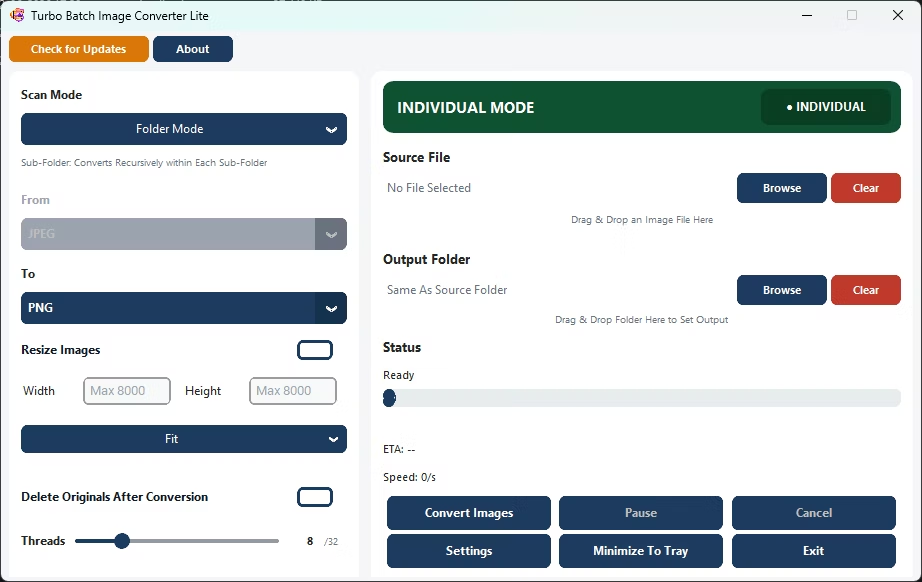
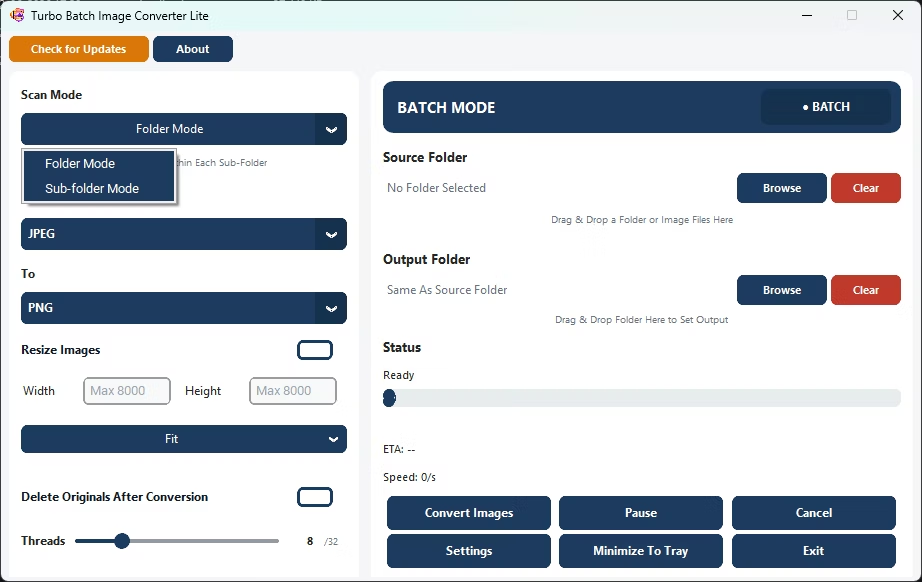
- Open Batch Mode and select your image folder.
- Choose your target format from the dropdown.
- Click Convert.
- That's it, your converted images appear in the output folder.
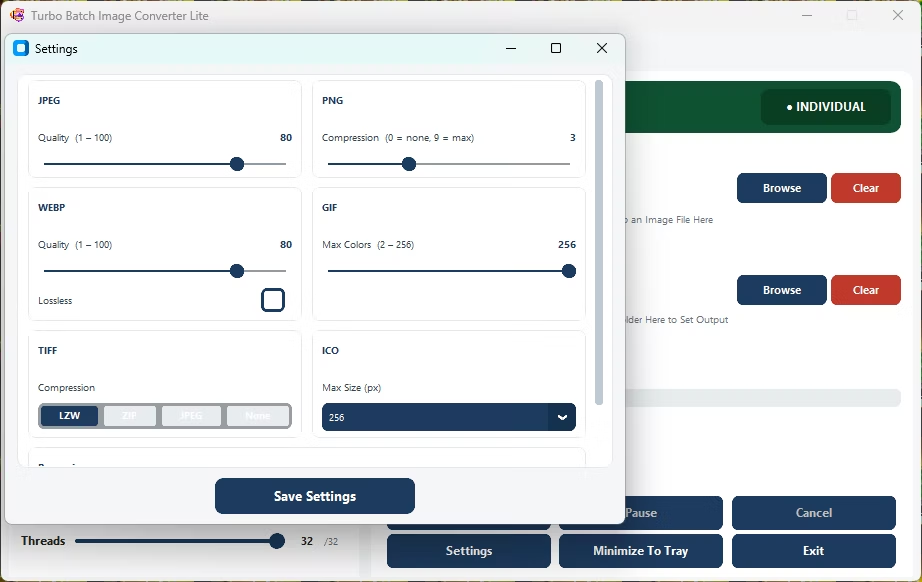
- Adjust quality or resize settings only if you want extra control.
- Straightforward folder-in, format-out workflow
- Advanced settings are optional, not required
- Covers the 8 formats most people actually use
- No watermarks, no subscription, no confusing menus
- Runs fully offline with no upload limits
Do I need to configure anything before converting?
No, you can select a folder, pick a format, and click Convert with the default settings.
Is there a learning curve to use this app?
The interface is designed to be simple enough to use without a tutorial for basic batch conversion.
Can I still access advanced settings if I want them?
Yes, resizing, quality, and worker count settings are available but never required for a basic conversion.
Ready for simple, easy bulk image conversion?