A sequential file renamer applies an ordered series of numbers across a group of files, keeping them sortable and easy to reference, whether that's scanned document pages, photos from a shoot, or exported reports that need to stay in a defined order.
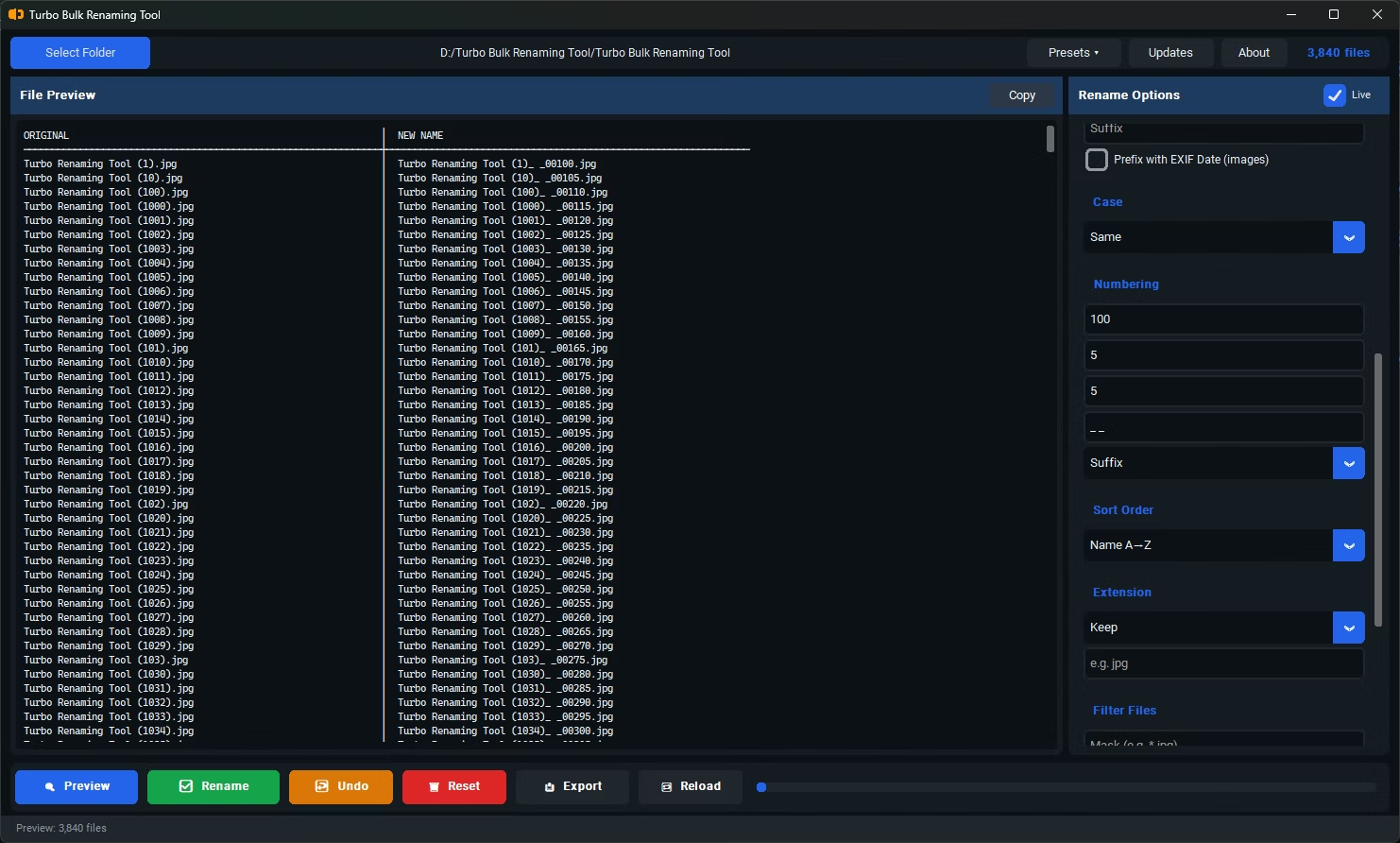
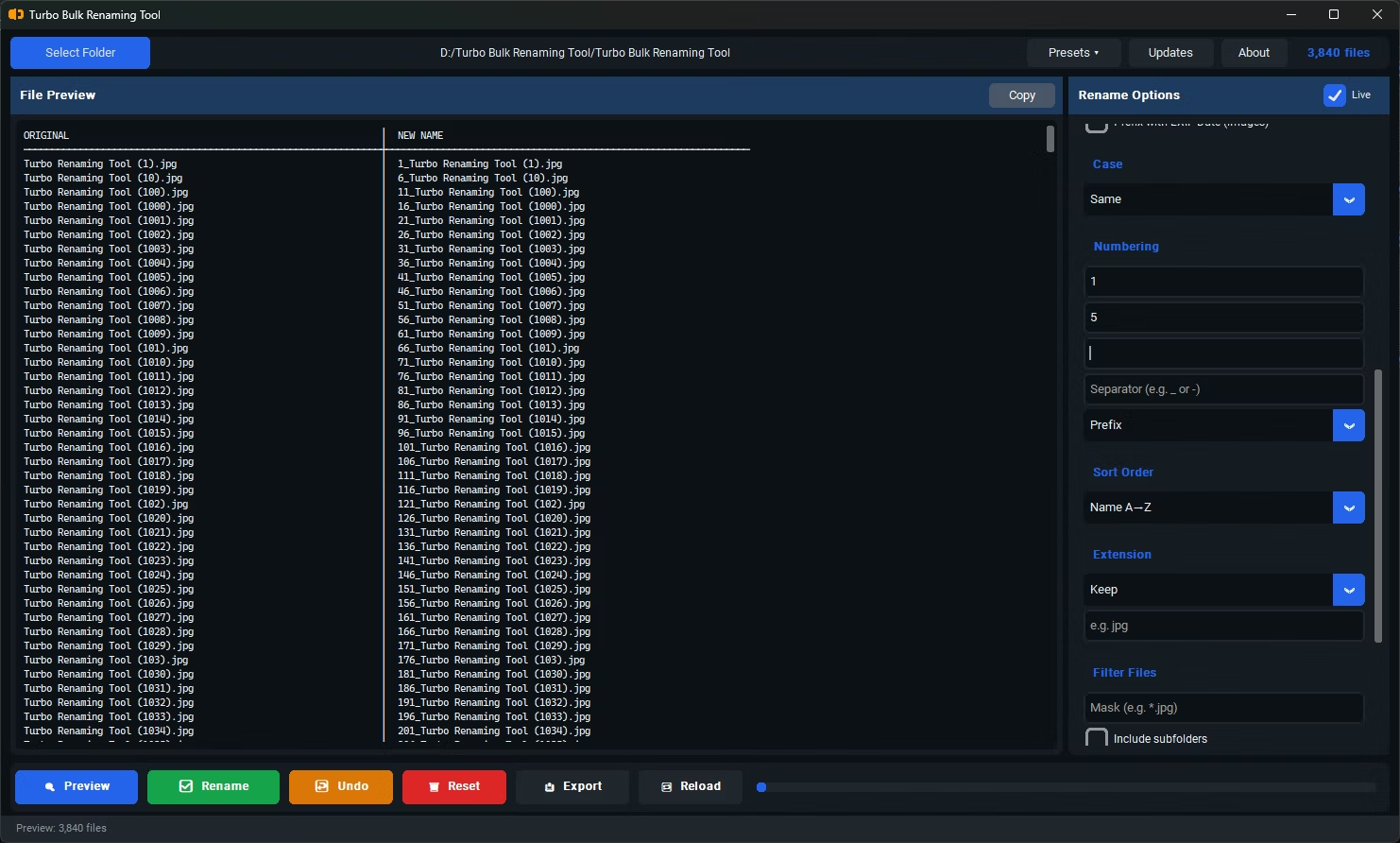
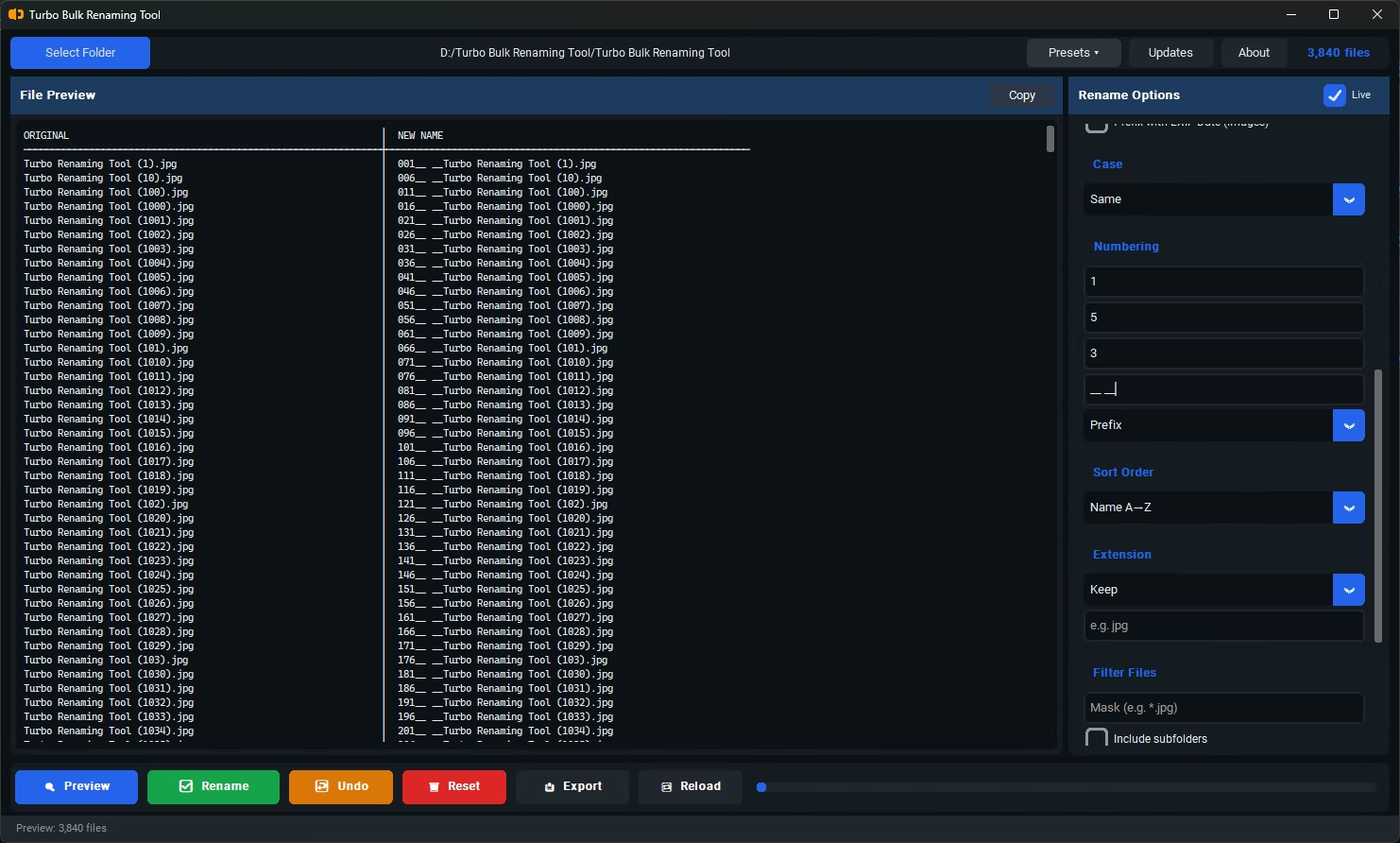
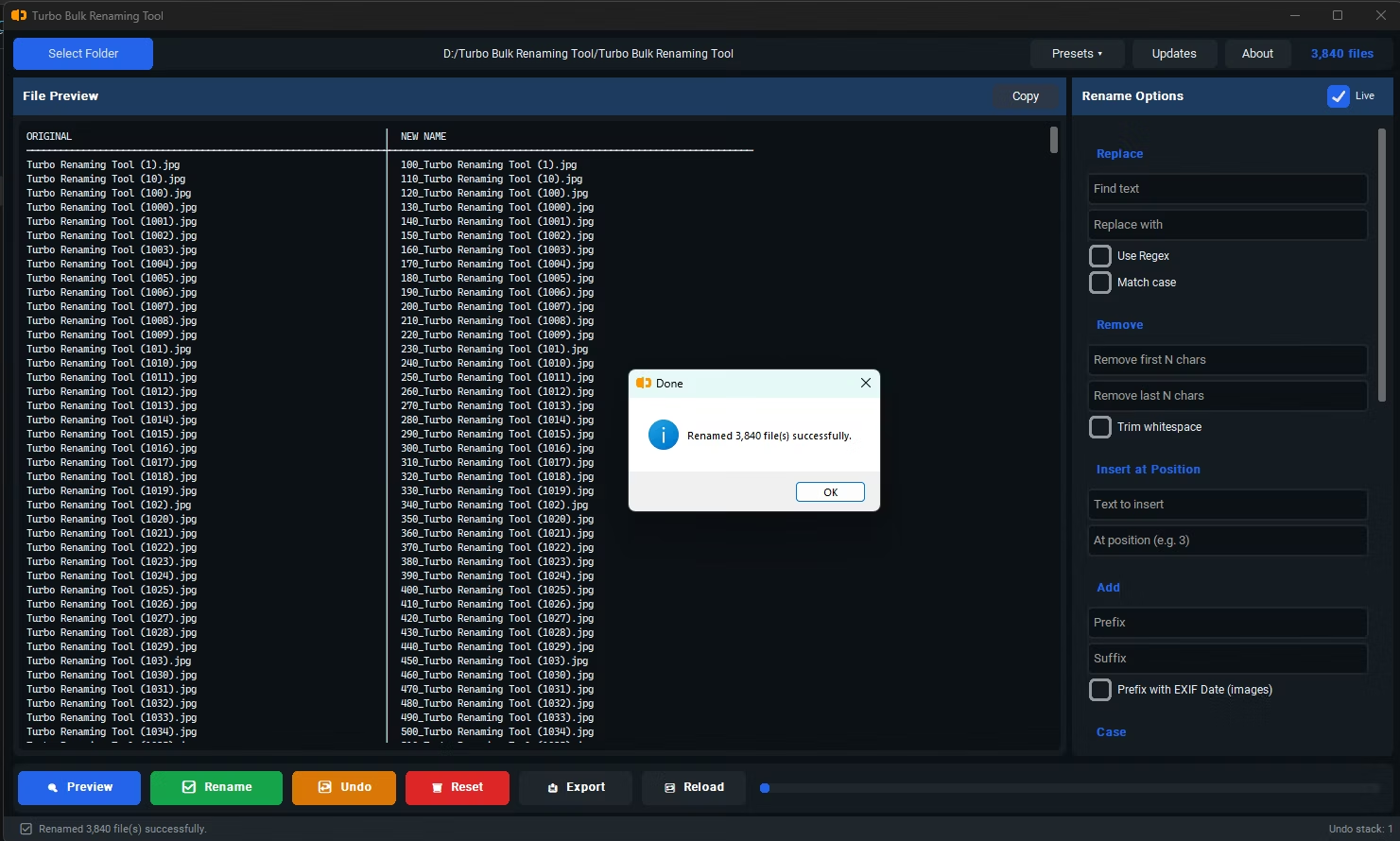
Turbo Bulk Renaming Tool builds that sequence with full control over the details: a custom start number, a configurable step between each file, zero-padding so the numbers sort correctly as text, and a choice of where in the filename the number appears.
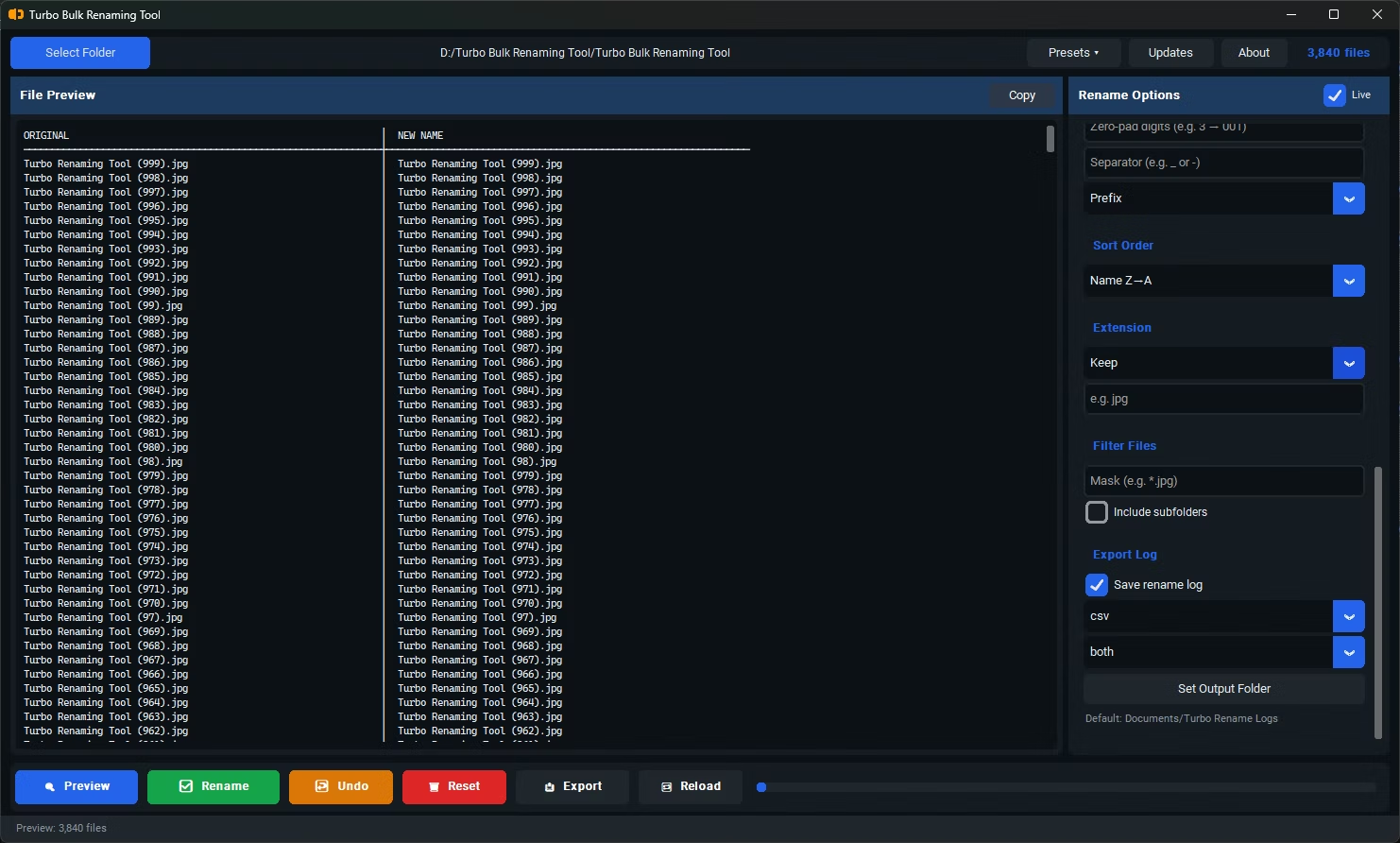
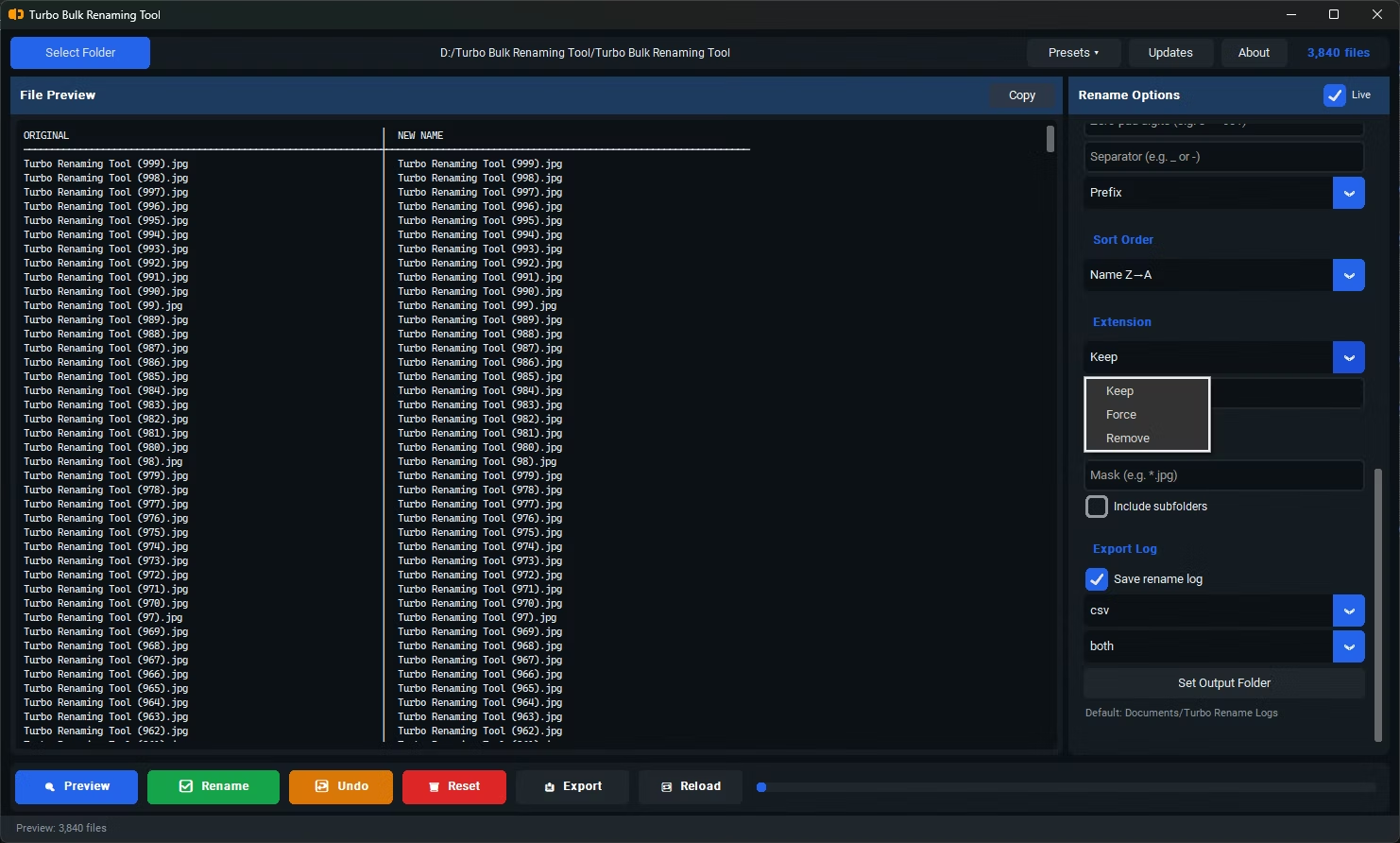
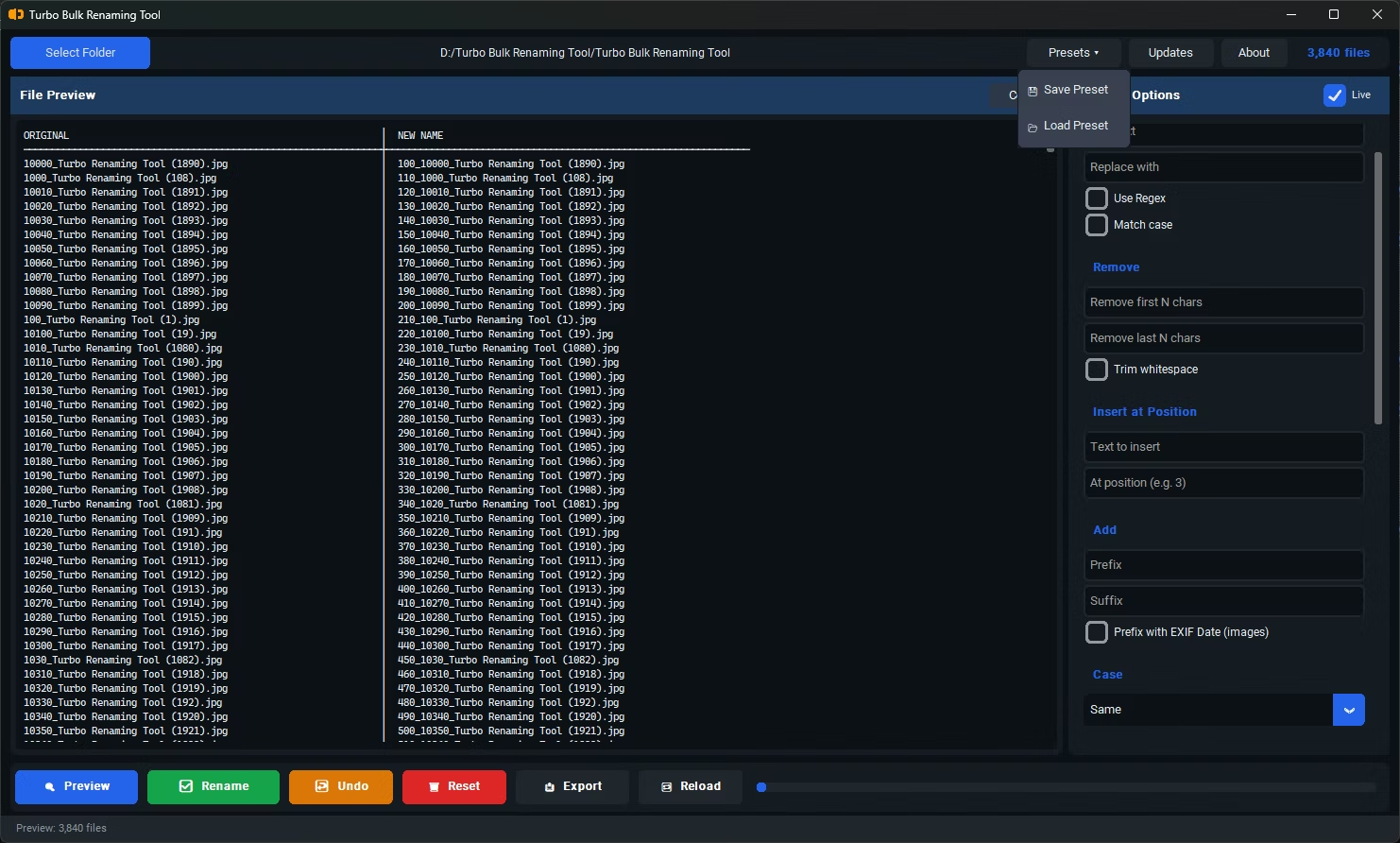
Sort order determines which file gets which number in the sequence, letting you number by original filename, by date, or by another attribute depending on what order actually matters for your files. The live preview shows the complete numbered sequence before you commit, and numbering can be combined with prefixes, suffixes, or find and replace for a fuller naming convention.
Beyond the core workflow built for sequential File Renamer, Turbo Bulk Renaming Tool includes the full renaming toolkit found throughout the application: regex-based find and replace for advanced pattern matching, EXIF date extraction for photo libraries, case conversion for consistent capitalization, character trimming to strip a fixed number of characters from either end of a filename, text insertion at any position, and recursive folder scanning that pulls in files from every nested sub-folder. Any of these tools can be layered on top of the rules described above, so a job that starts as a simple rename can grow into a complete naming convention without switching to a different application.
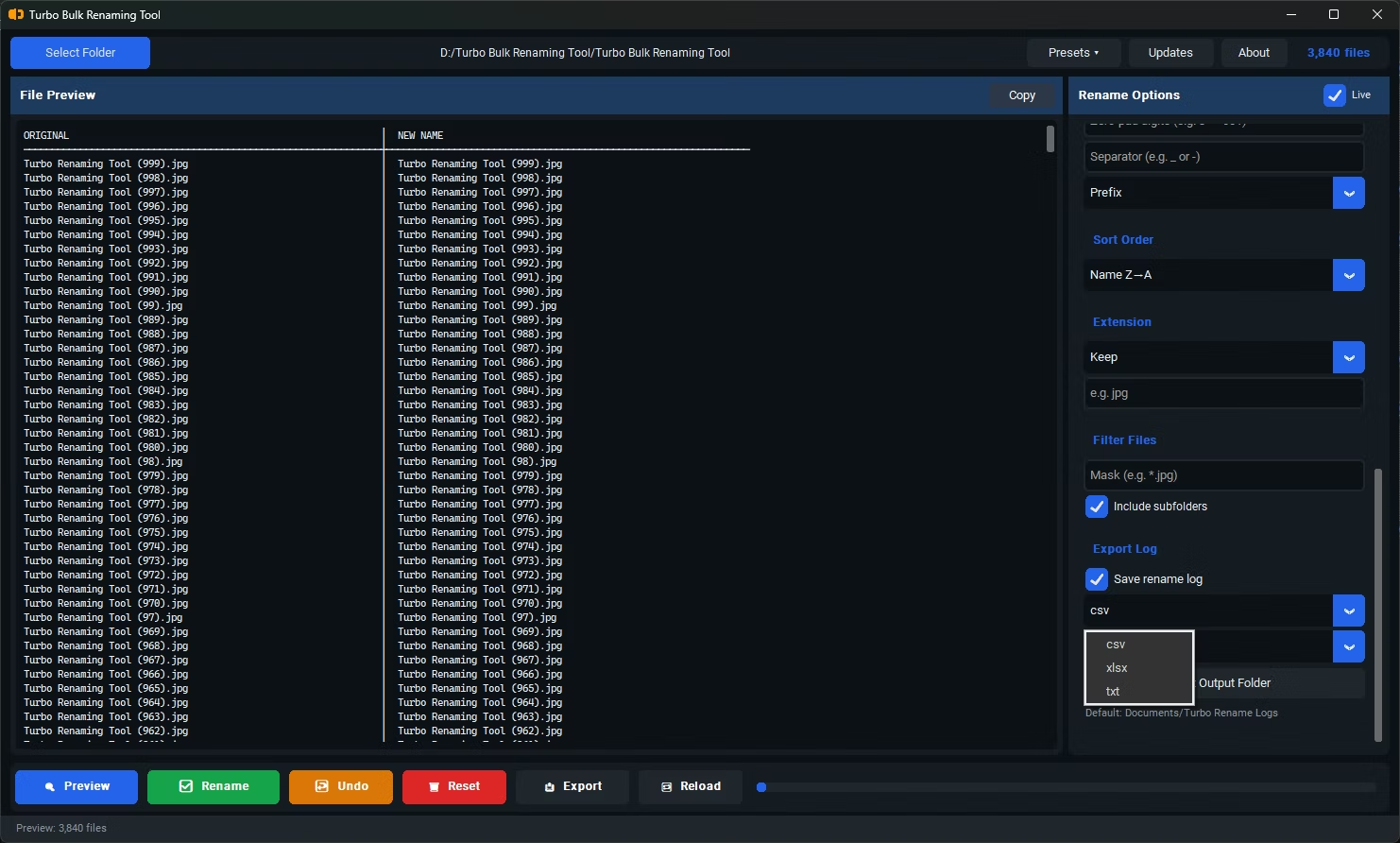
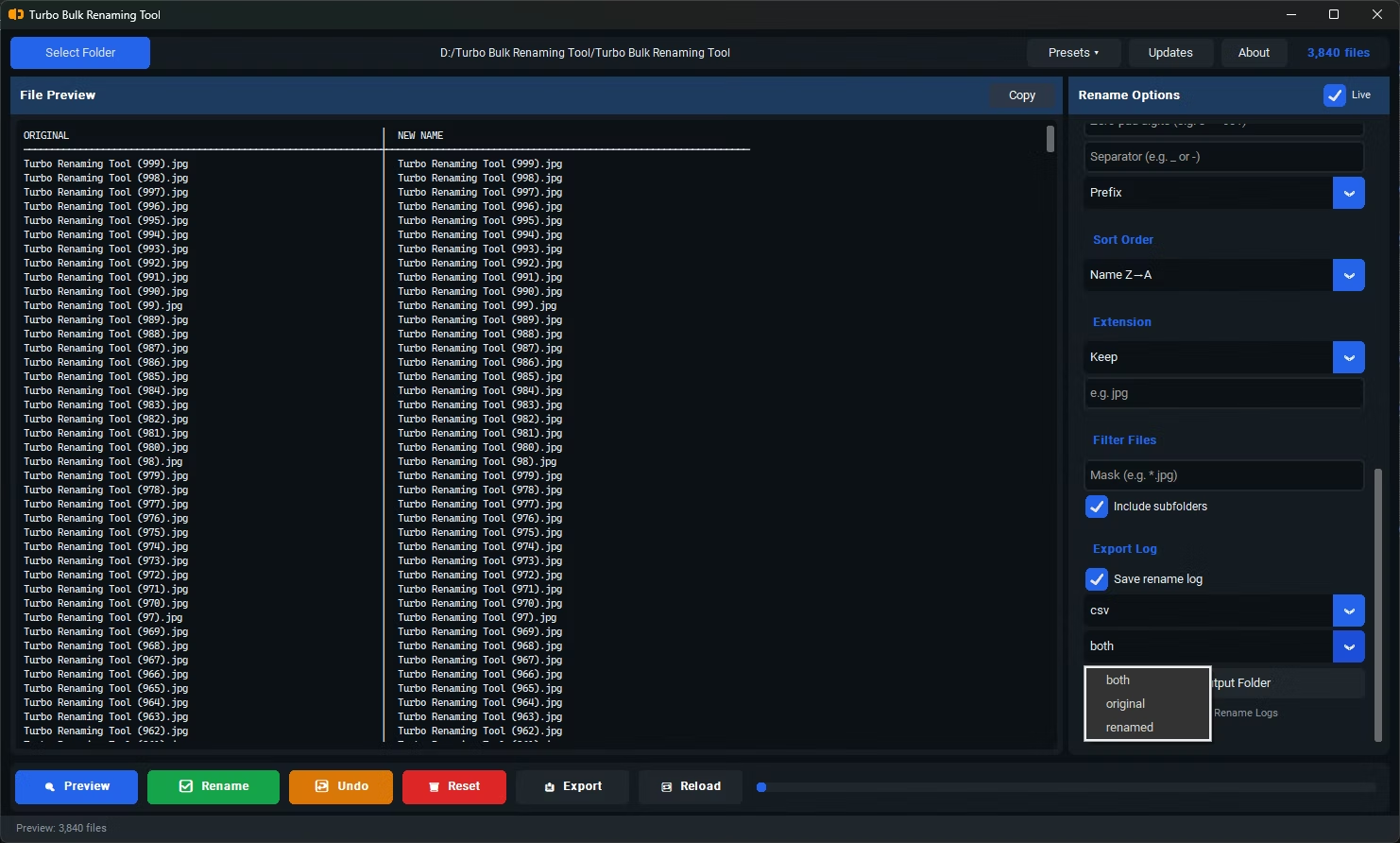
The application itself is a one-time purchase for Windows 10 and Windows 11, with no subscription, no watermarks added to renamed files, and no data ever leaving your PC during a rename operation. Every batch can be logged to CSV, XLSX, or TXT so you always have a written record of the original and new name for each file, and any combination of rules you build can be saved as a reusable preset, so a renaming job you configure today is ready to run again in a couple of clicks the next time the same kind of files come in.
For teams and individuals who rename the same kind of files repeatedly, the combination of live preview, saved presets, and exportable logs turns sequential File Renamer from an occasional chore into a routine, low-risk step in a larger workflow. You configure the rules once, confirm the result looks right, and from then on a job that used to take an afternoon of manual renaming takes a few clicks, with a clear written record left behind for anyone who needs to check exactly what changed and when.
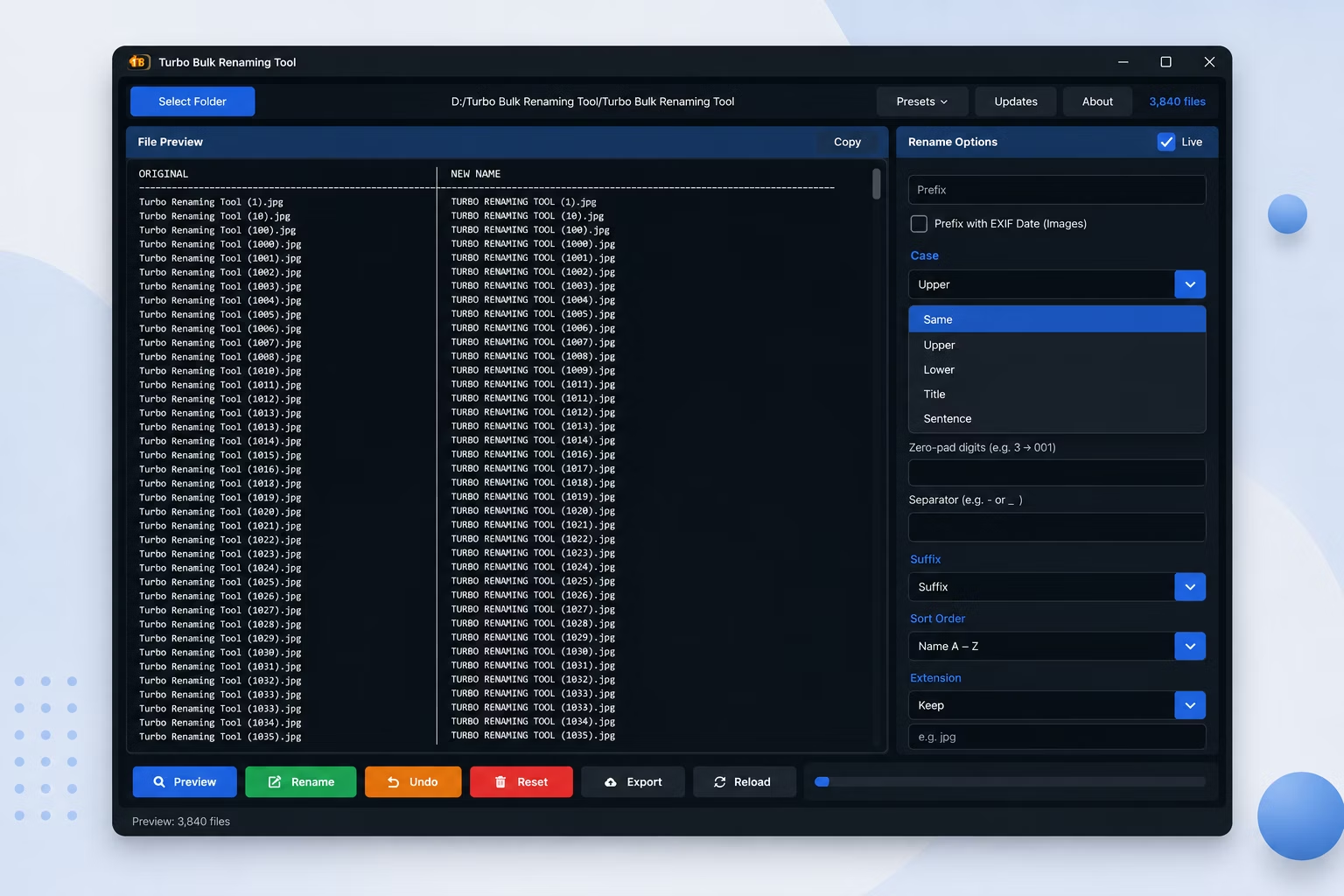
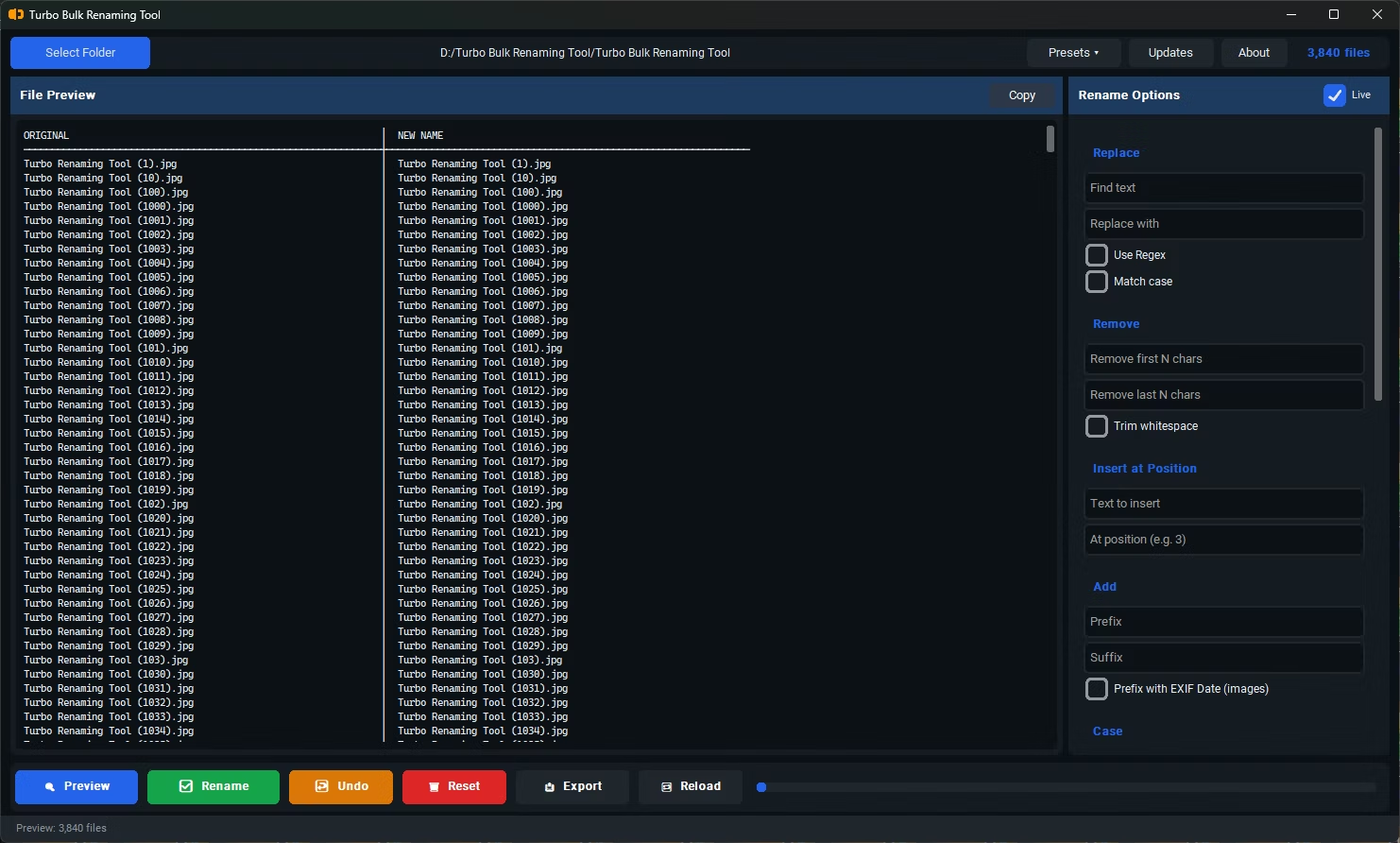
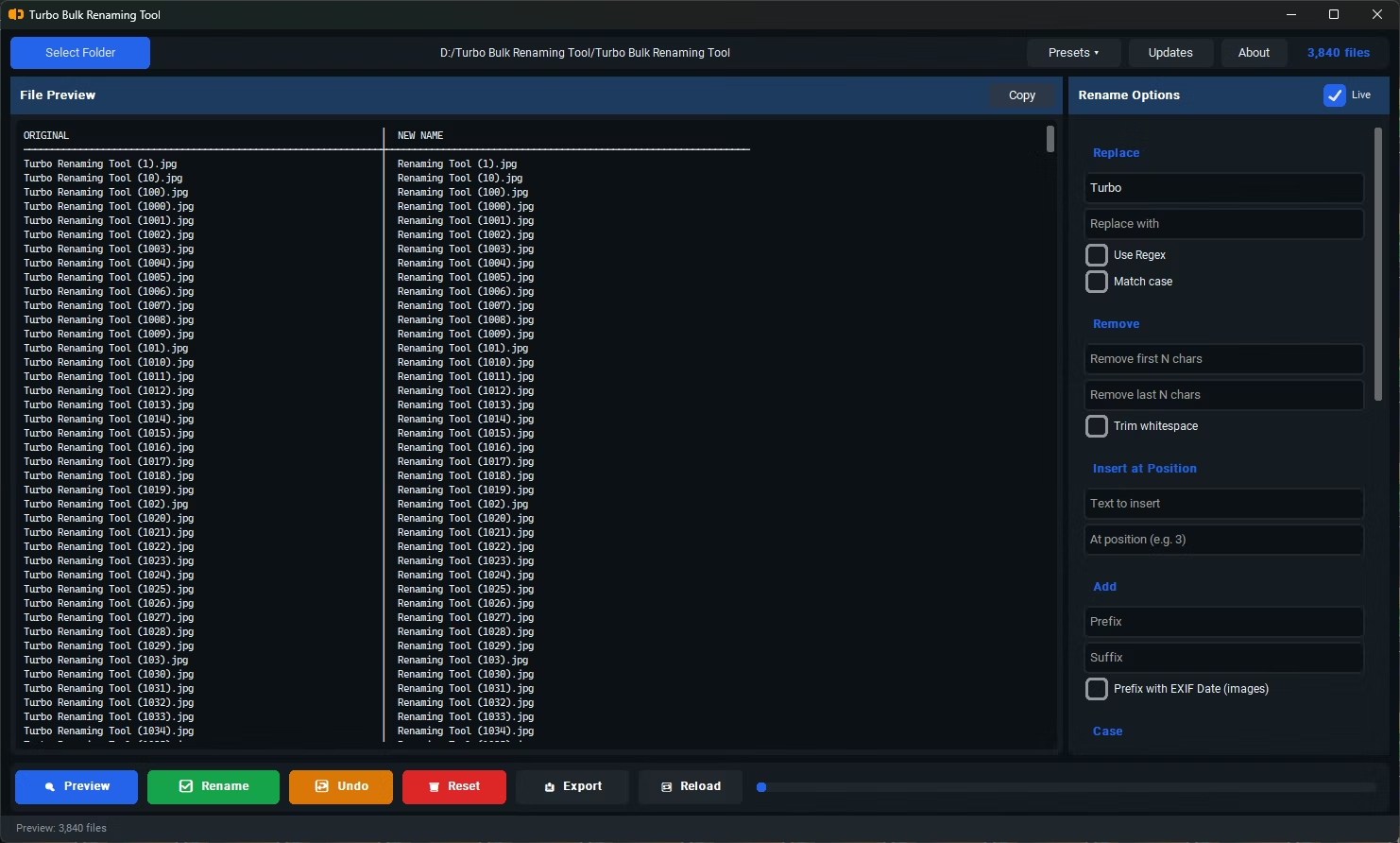
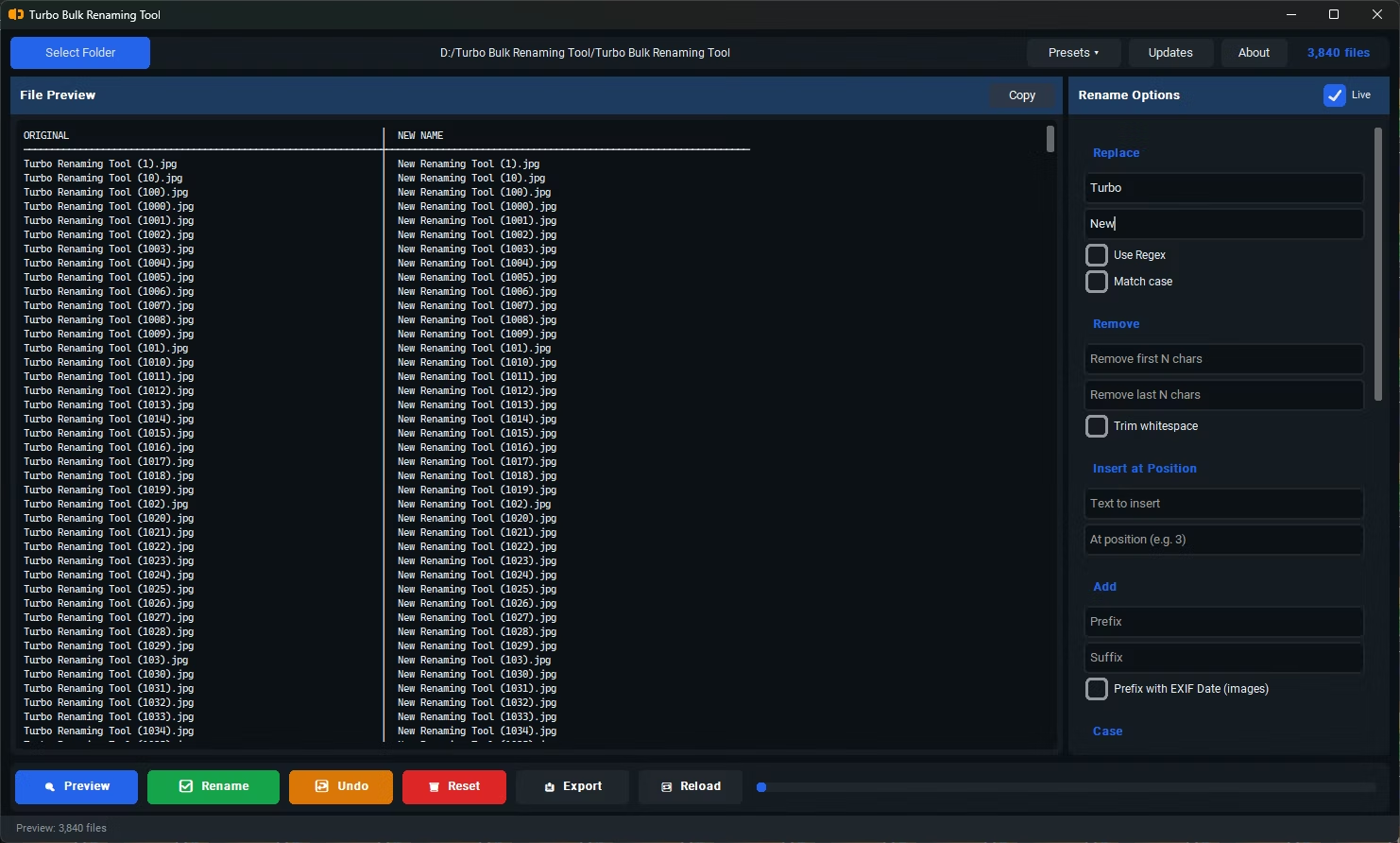
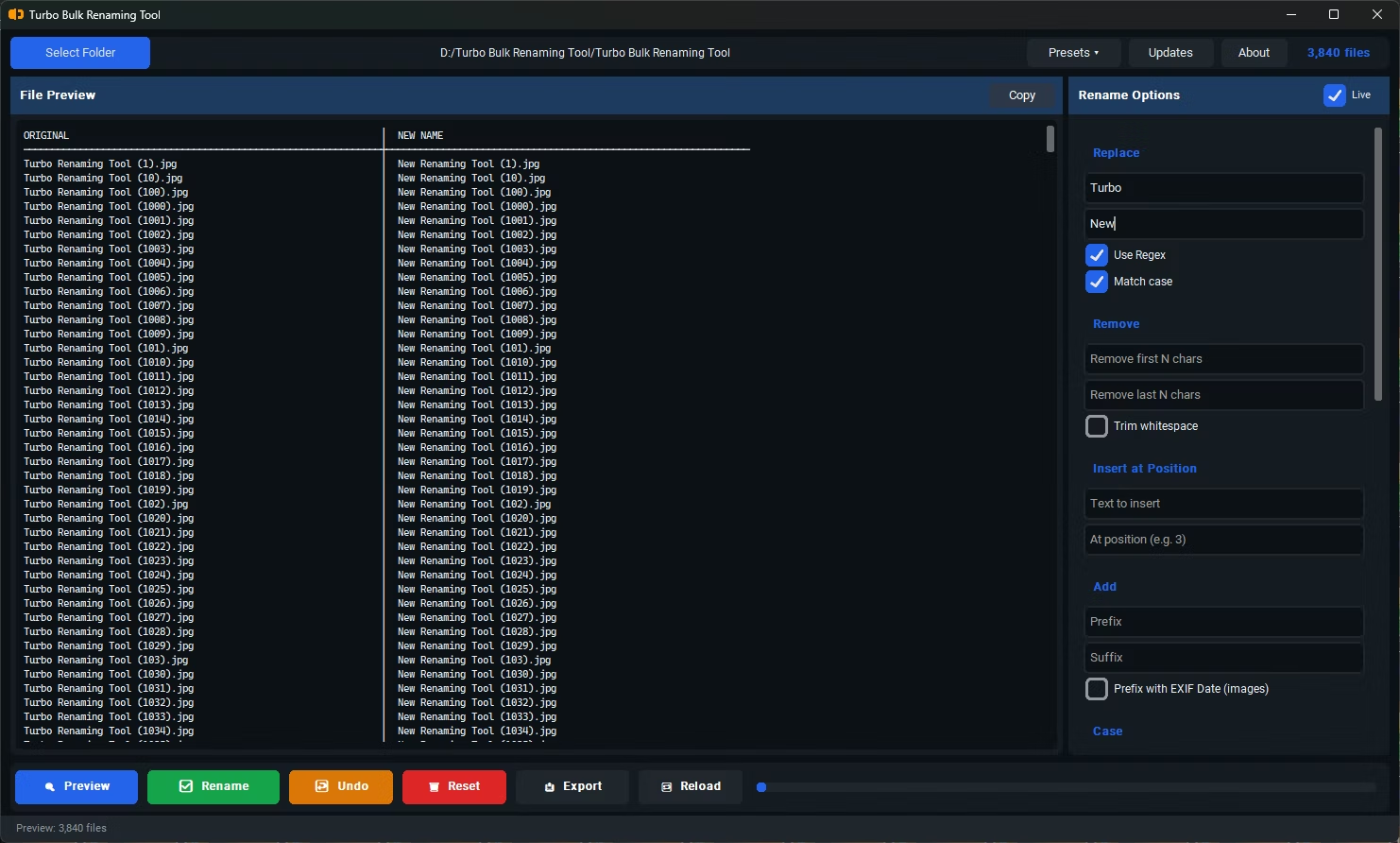
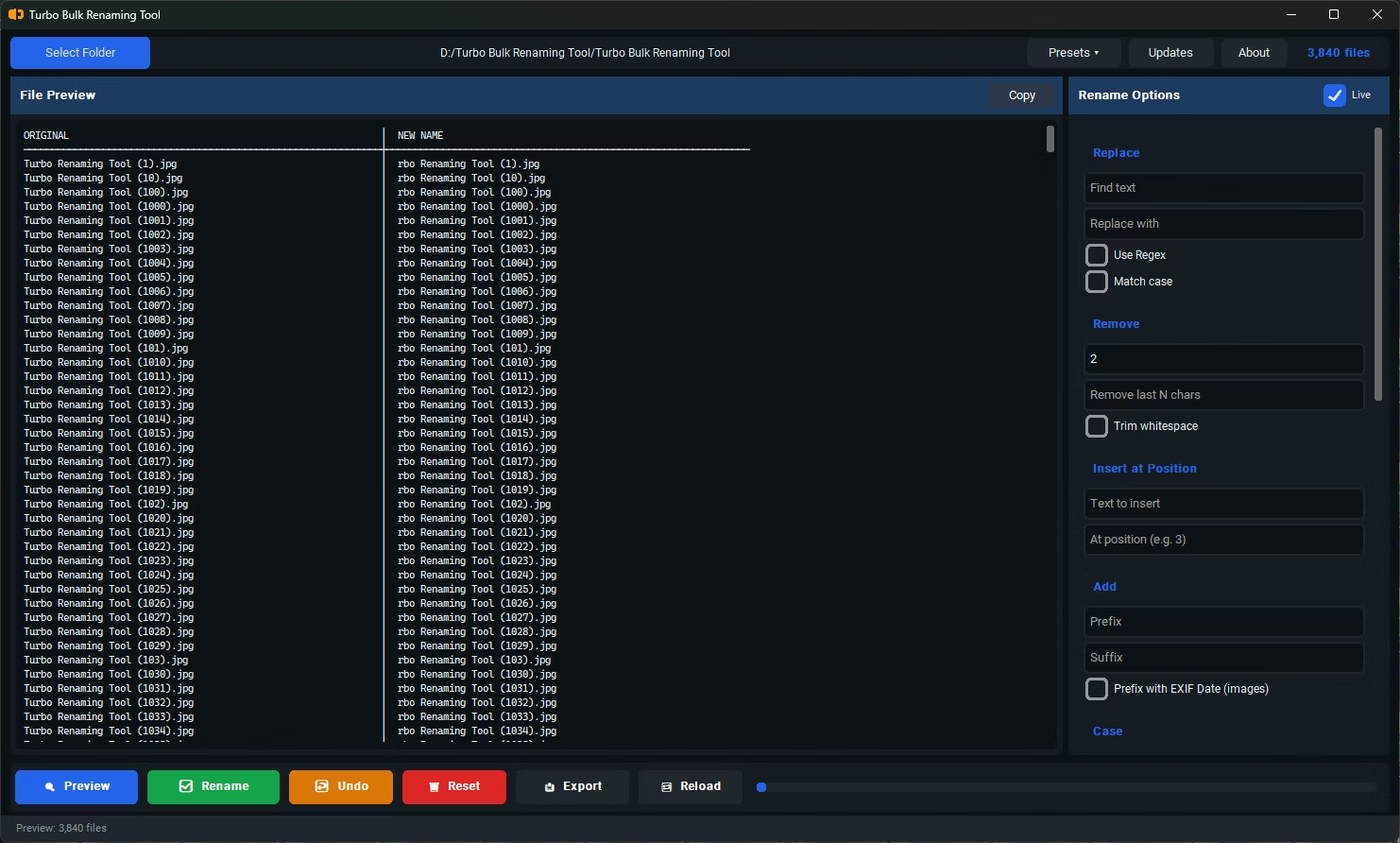
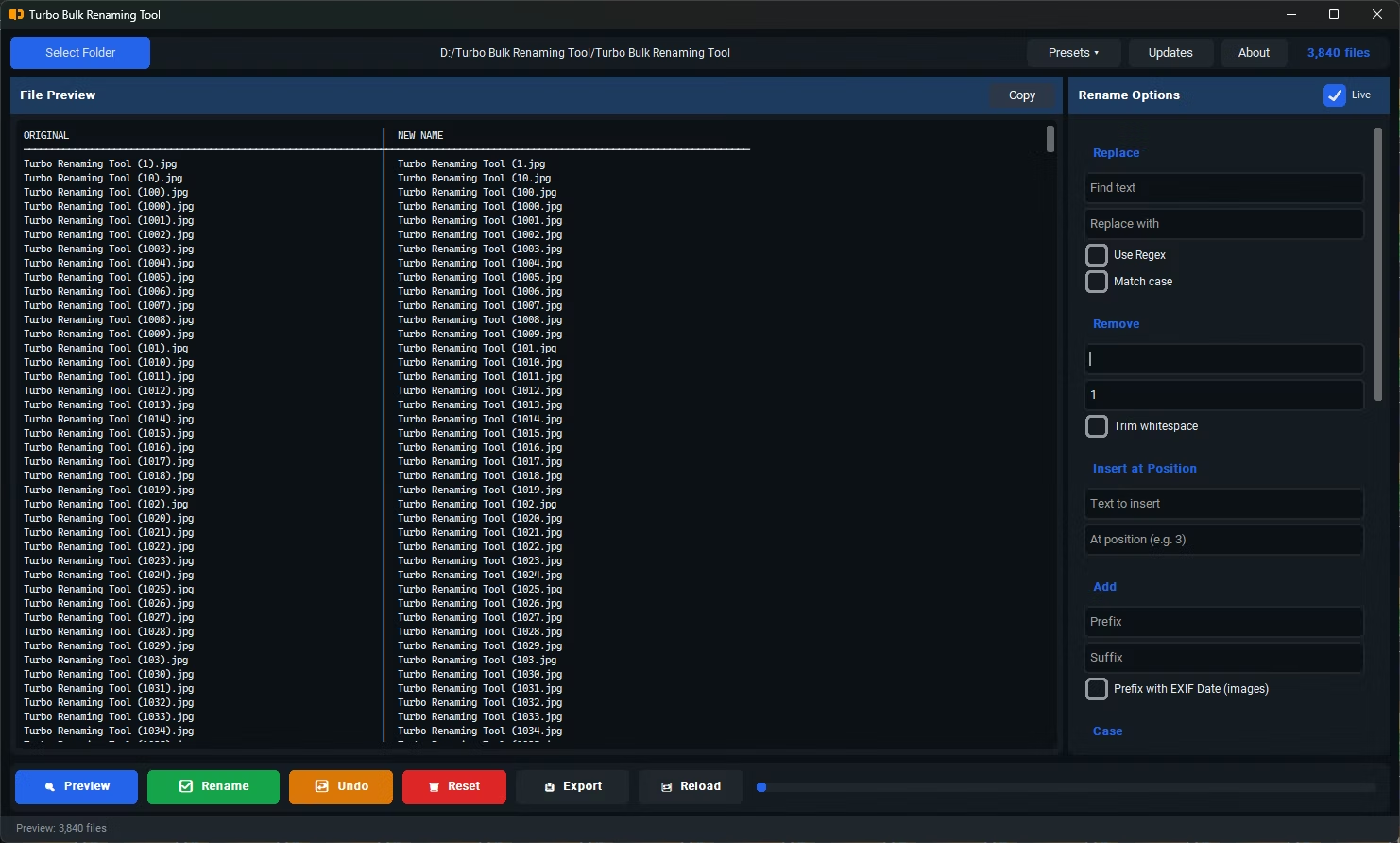
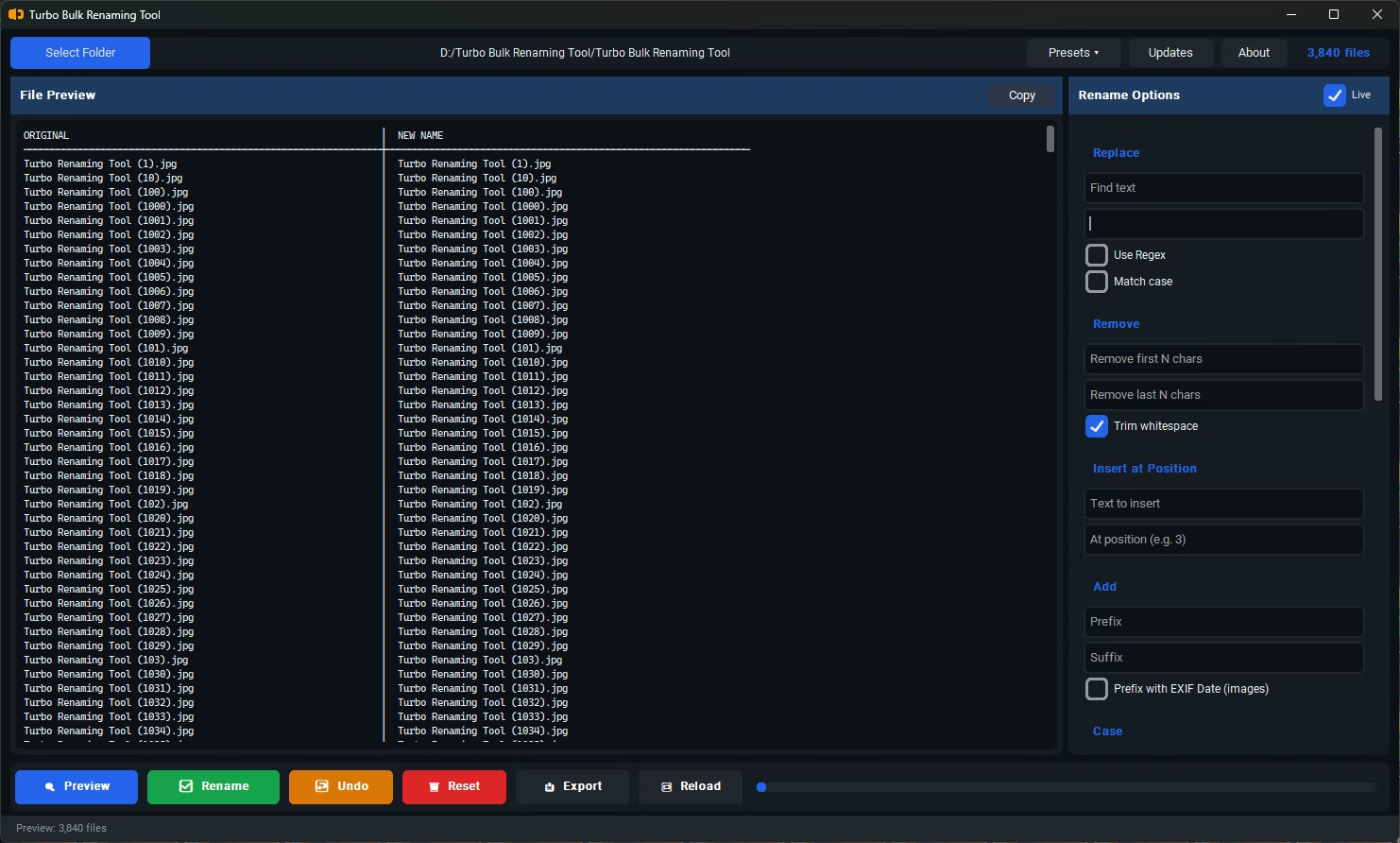
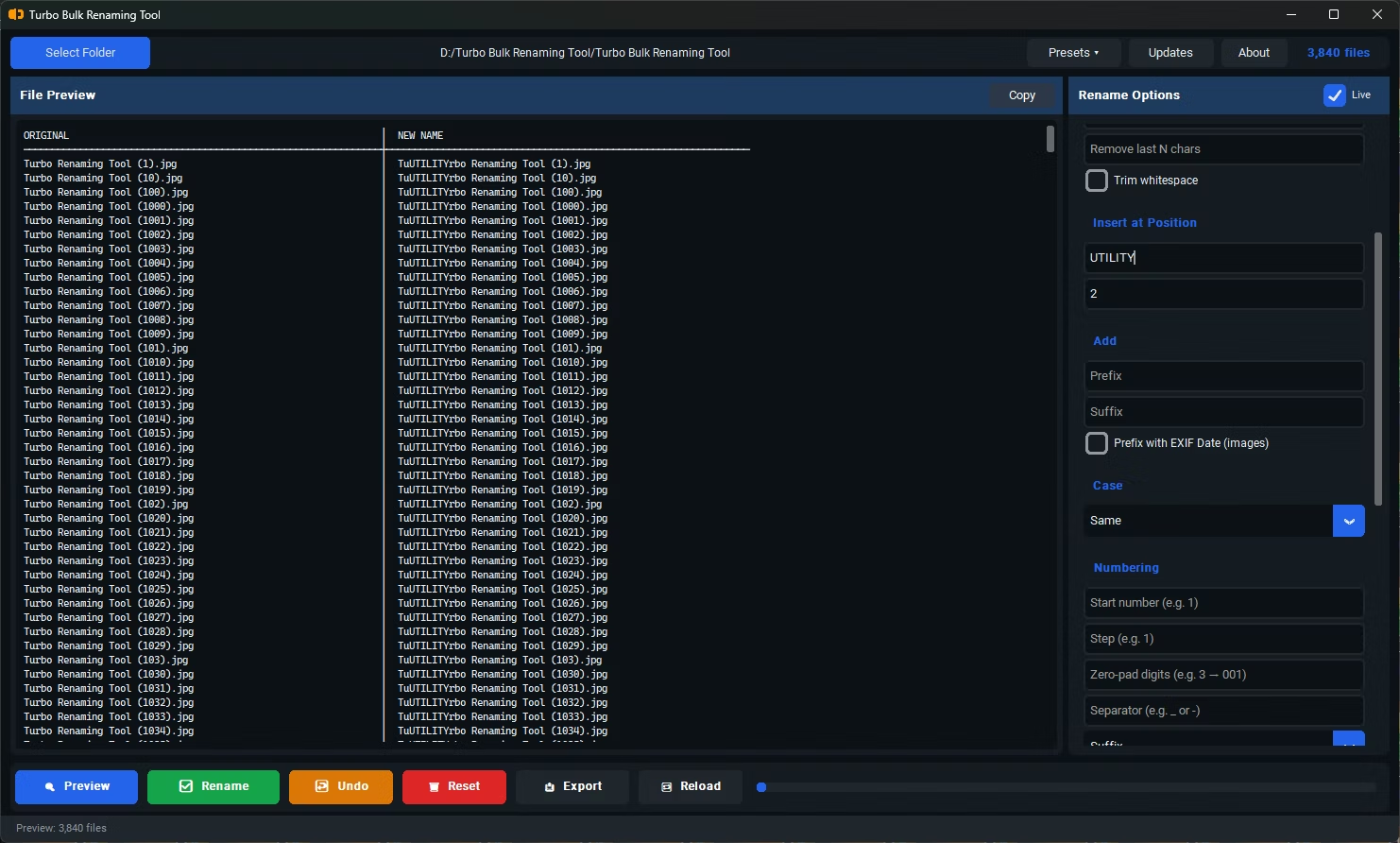
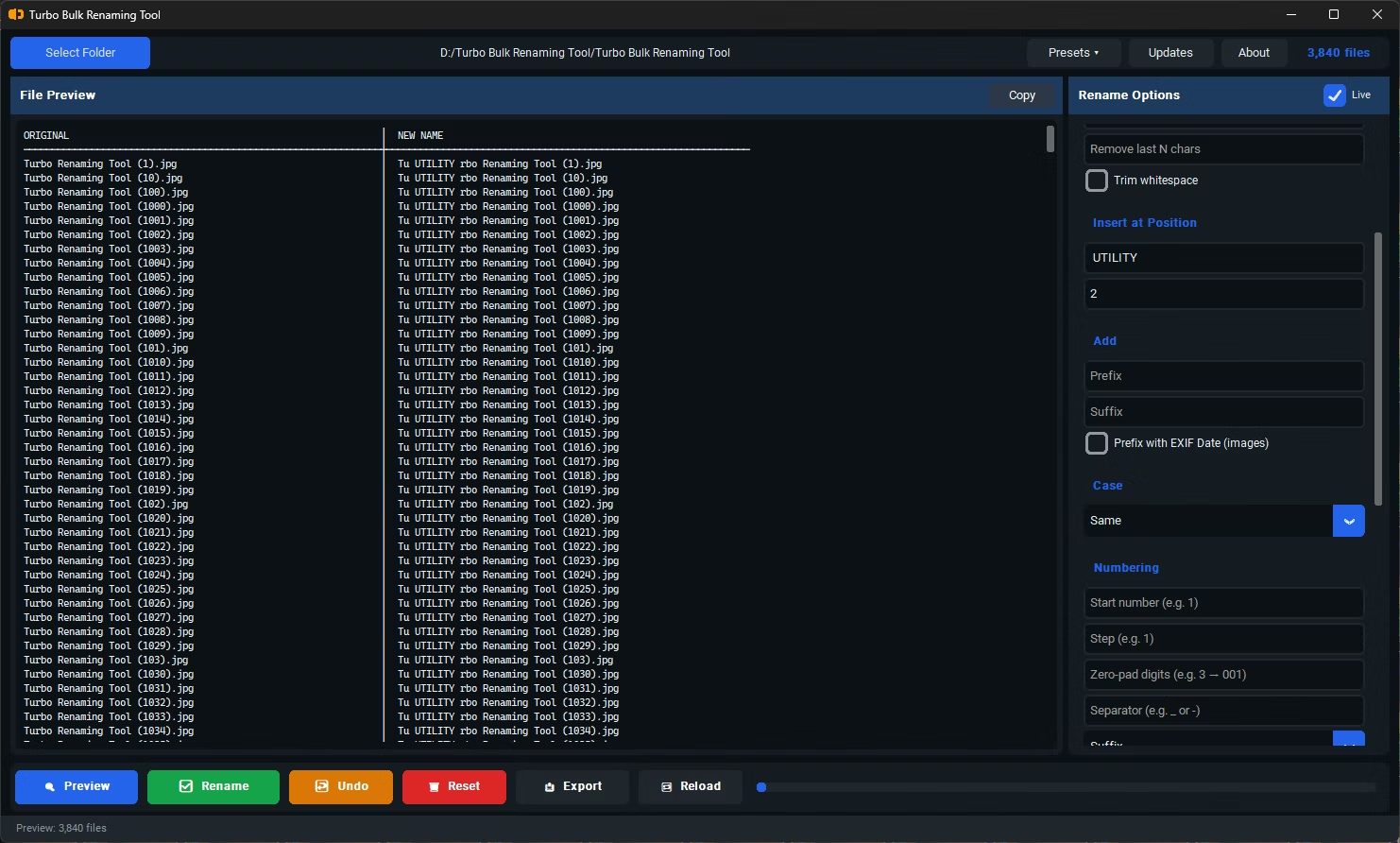
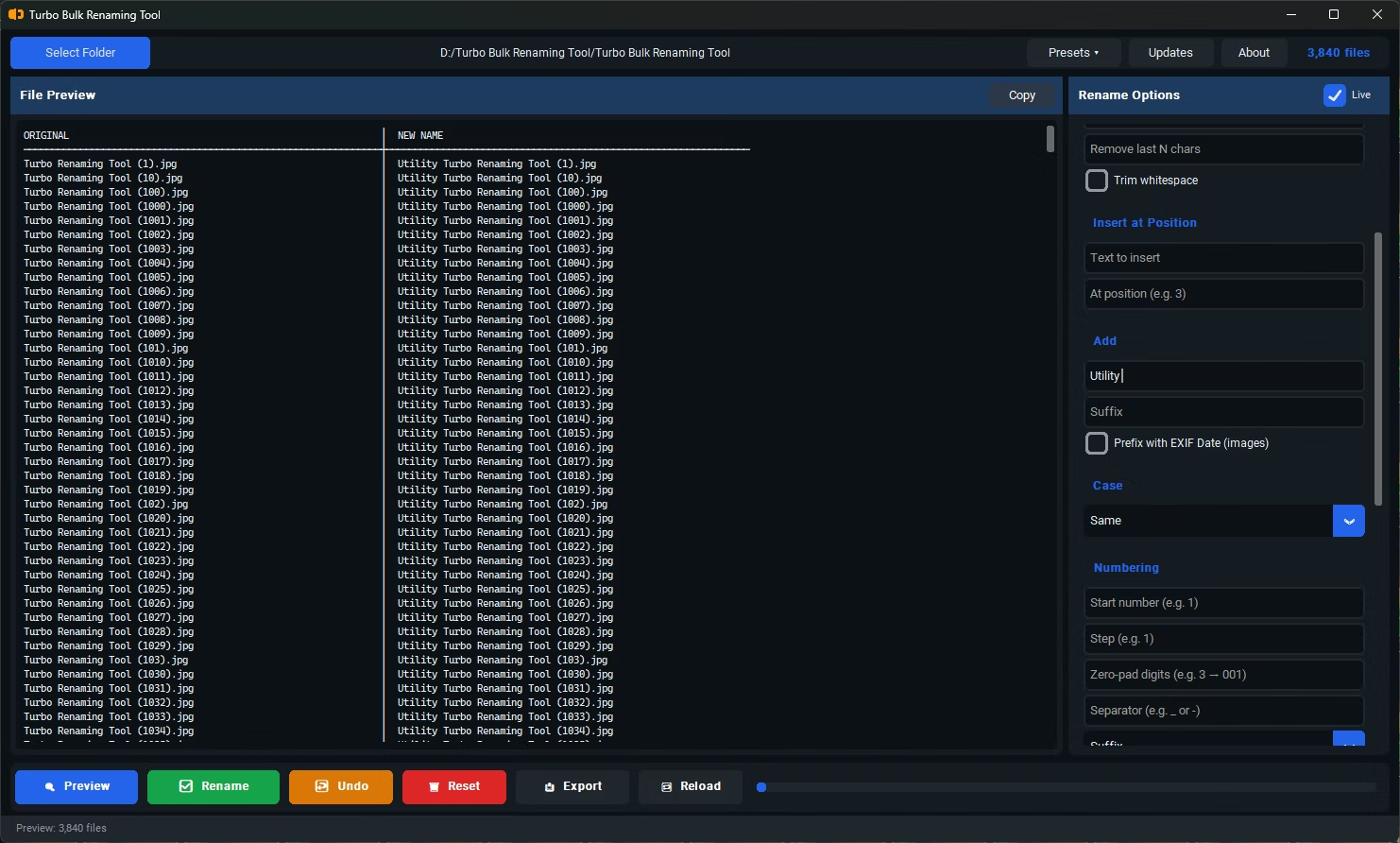
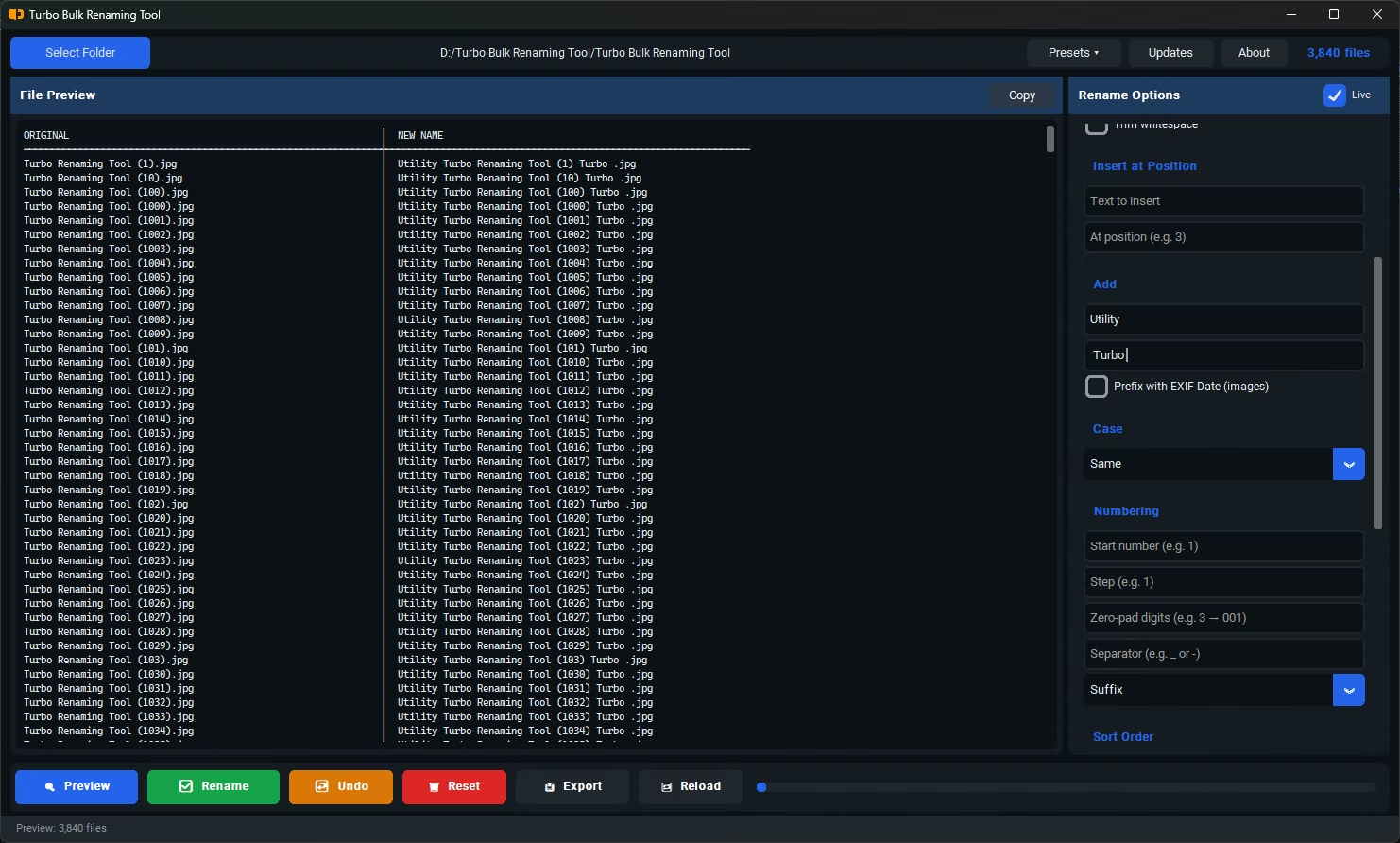
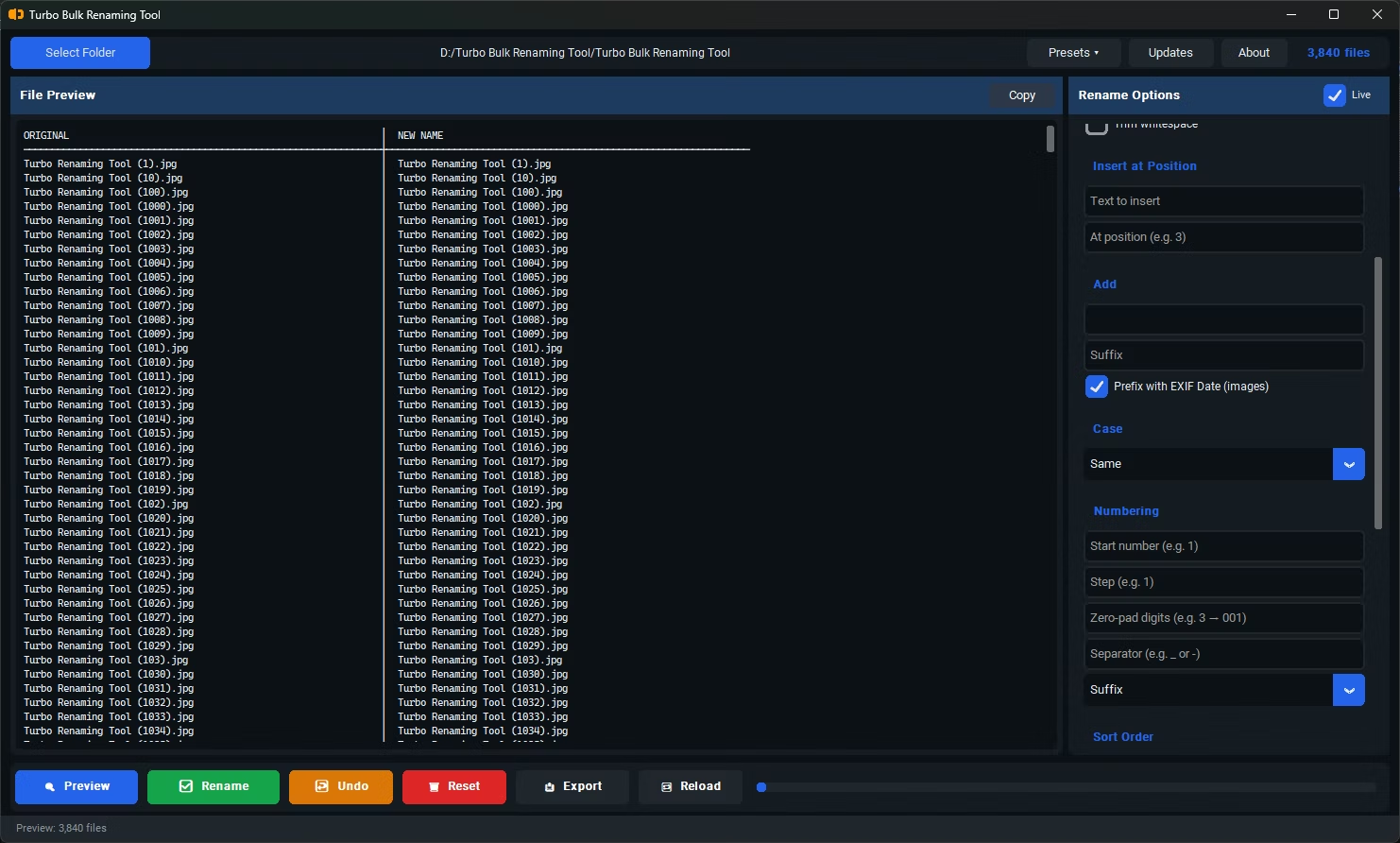
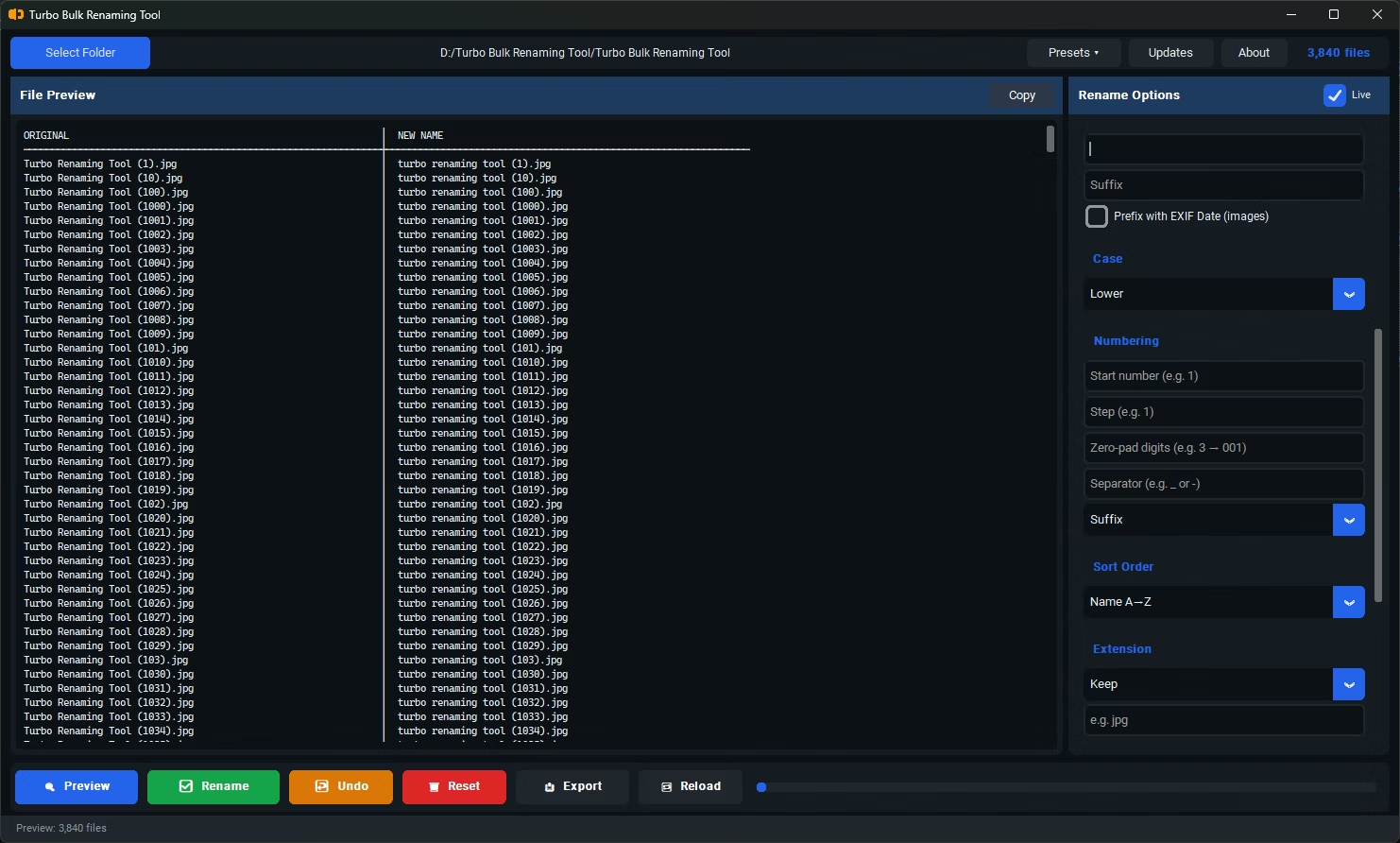
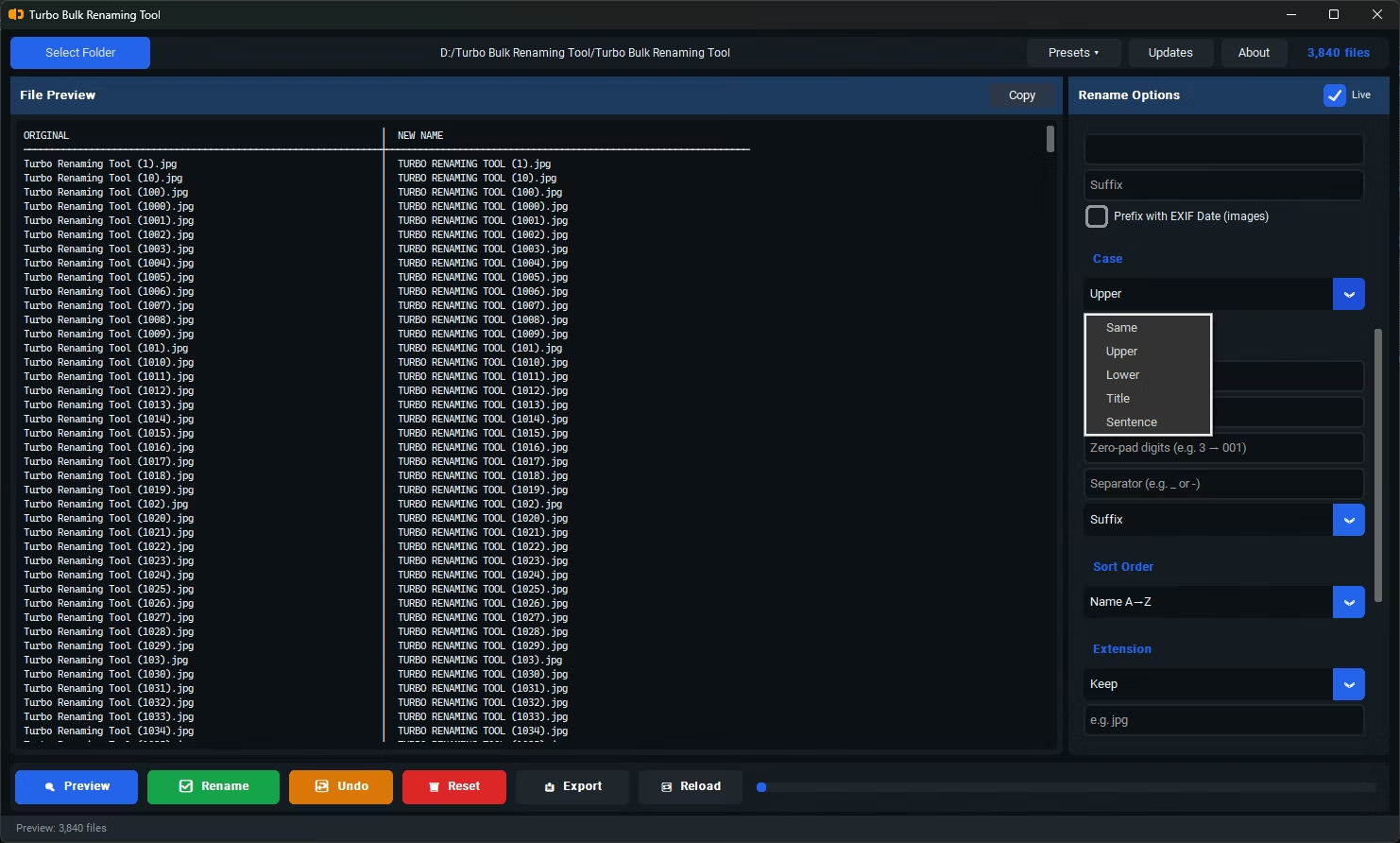
- Install Turbo Bulk Renaming Tool on your Windows PC.
- Select the files you want to number sequentially.
- Choose the Numbering rule.
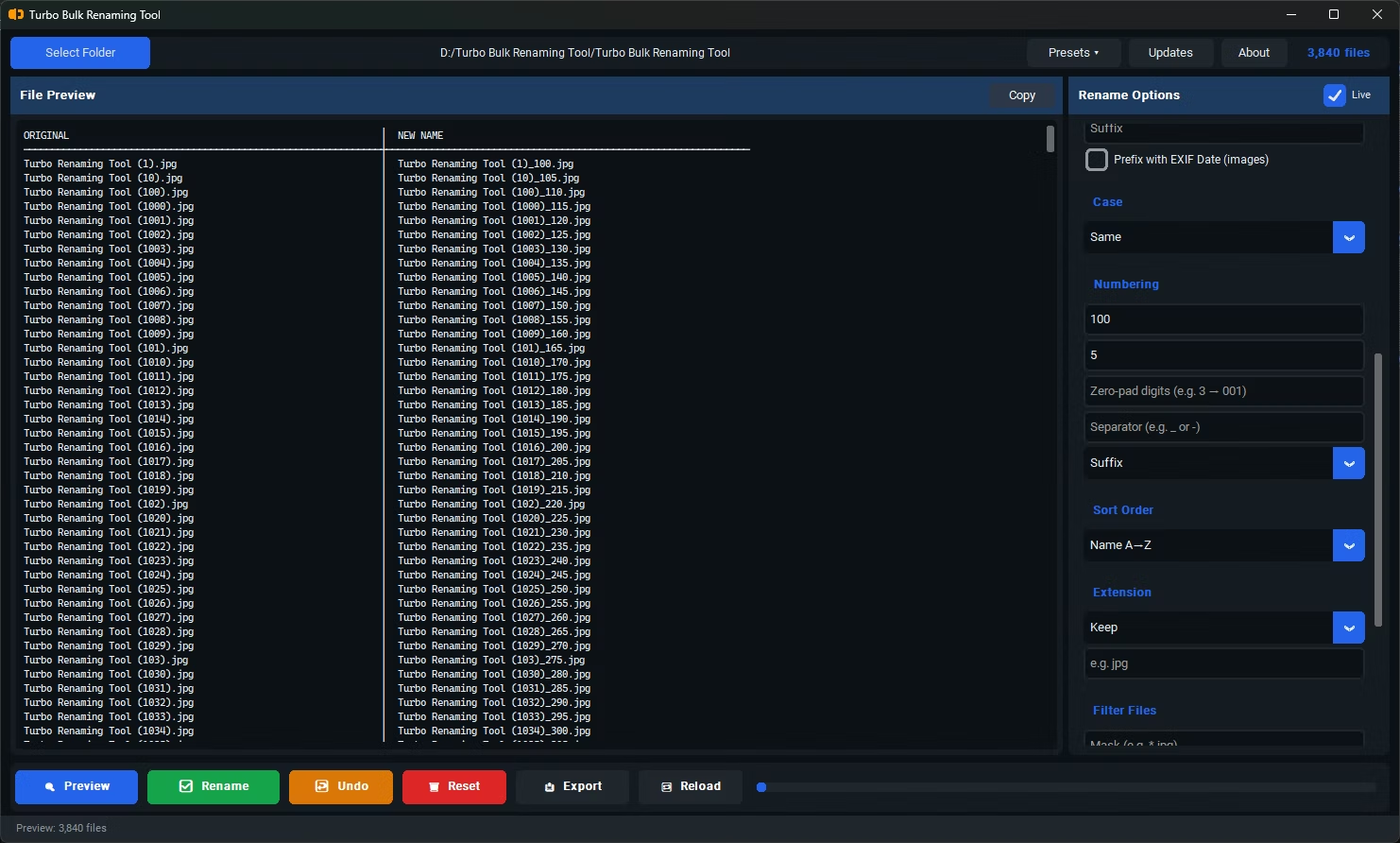
- Set your start number and step increment.
- Enable zero-padding for consistent number formatting.
- Set your sort order to control the numbering sequence.
- Review the live preview of the full sequence.
- Click Rename to apply the sequential numbering.
- Double-check the live preview one more time for any file that looks unexpected.
- Save your configuration as a preset if this is a job you expect to repeat.
- If you're renaming a recurring job, note down the settings or save them as a preset so the next run takes seconds.
- Builds a clean, ordered sequence across a group of files
- Custom start number and step increment
- Zero-padding for consistently formatted numbers
- Sort order controls which file gets which number
- Combine sequential numbering with other renaming rules
- Live preview confirms the full sequence before renaming
- Runs fully offline with no upload limits
- One-time purchase for Windows 10 and Windows 11, with no subscription or watermarks
- Save and reload full renaming configurations as presets for repeat jobs
- Straightforward installer with no extra dependencies to configure
- Works with files on local drives, external drives, and network shares
- Safe cancel support for stopping an in-progress rename mid-batch
- Clear, side-by-side original and new filename listing in every exported log
Can I control the gap between each number in the sequence?
Yes, the step setting lets you increase by more than one between each file if your sequence calls for it.
How does zero-padding help with sorting?
Zero-padding keeps every number the same length, such as 001 through 100, so files sort correctly as text rather than 1, 10, 100, 2, 20.
Can I choose which file in the folder gets number 1?
Yes, the sort order setting determines which file starts the sequence and how the rest follow.
Does sequential numbering work alongside a prefix or suffix?
Yes, numbering combines with prefix, suffix, and other rules in a single rename operation.
Does this work on both Windows 10 and Windows 11?
Yes, Turbo Bulk Renaming Tool is built and tested for both Windows 10 and Windows 11.
Is my data safe when using this tool?
Yes, all renaming happens locally on your PC; no files are uploaded or sent anywhere, so private or sensitive files stay fully under your control.
Can I try a renaming rule without permanently committing to it?
Yes, the live preview lets you experiment with any rule and see the exact result before you click Rename, so nothing changes until you're ready.
Do I need to install anything else for this to work?
No, the installer includes everything needed; there are no separate dependencies or plugins to set up.
Can I rename files stored on an external or network drive?
Yes, you can select files from local drives, external drives, or mapped network shares, the same as any folder on your PC.
Can I cancel a rename operation partway through?
Yes, safe cancel support lets you stop an in-progress rename, and any files already renamed at that point stay renamed while the rest keep their original names.
What if I select a mix of files and folders together?
You can rename files and folders in the same selection; the same rule set applies to both, and the live preview shows the result for each.
Can I see exactly what changed after a rename is finished?
Yes, the exported rename log lists the original and new name side by side for every file, giving you a complete record of the operation even after the fact.
Does the tool support both files and folders in the same rule set?
Yes, the same prefix, suffix, numbering, and find and replace rules apply equally whether your selection contains files, folders, or a mix of both.
Is there a trial version available before buying?
Check the product page on turbo-soft.com for current trial availability and details.
Ready to sequentially rename your files, fully offline and with full control?