PNG is a lossless format that preserves transparency and sharp edges. JPG is the universal photo format supported by every browser, phone, and printer. Whenever a folder of PNG files needs to move into a workflow, platform, or tool built around JPG, converting each file by hand doesn't scale past a handful of images.
Turbo Batch Image Converter Lite batch converts an entire folder of PNG files to JPG in one pass, including nested sub-folders, all processed offline on your own Windows PC with no upload limits.
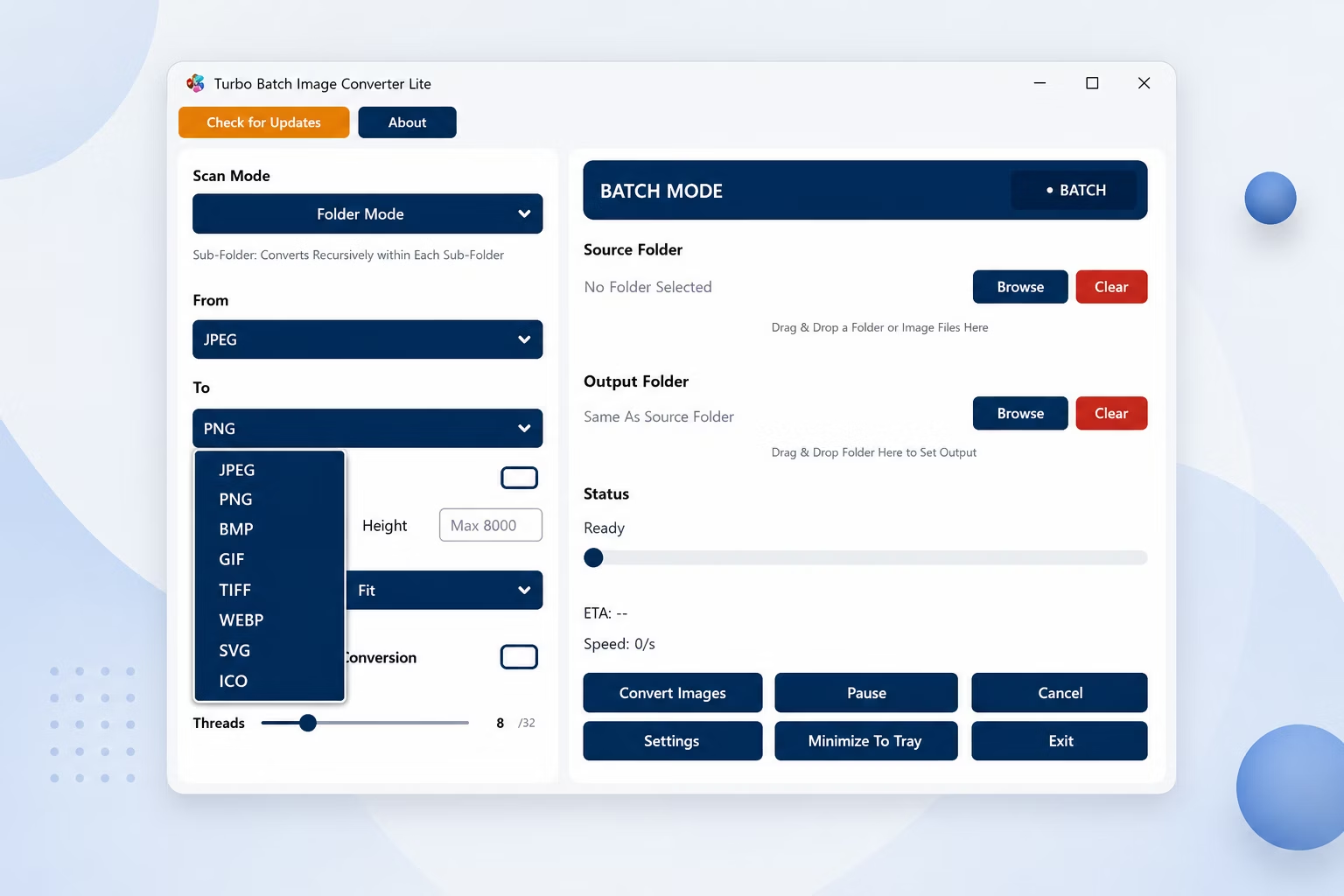
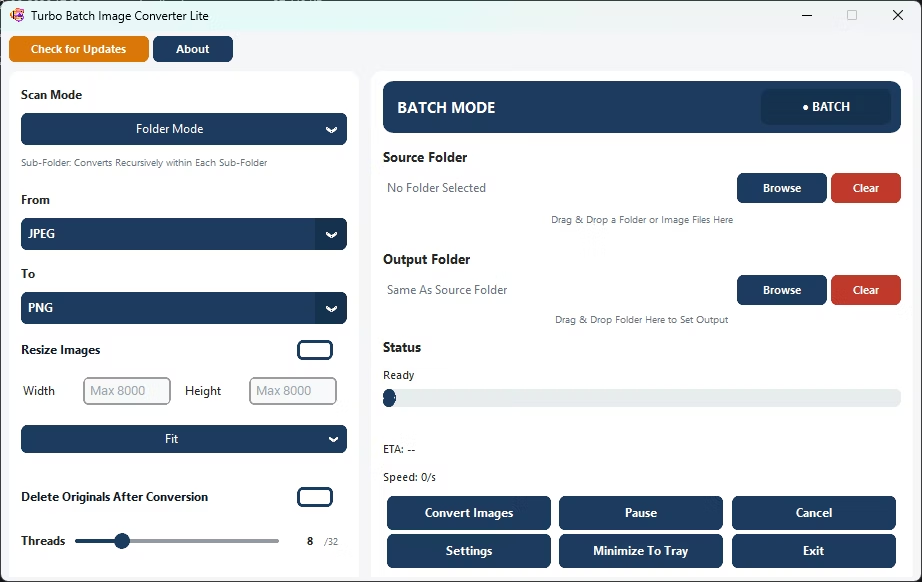
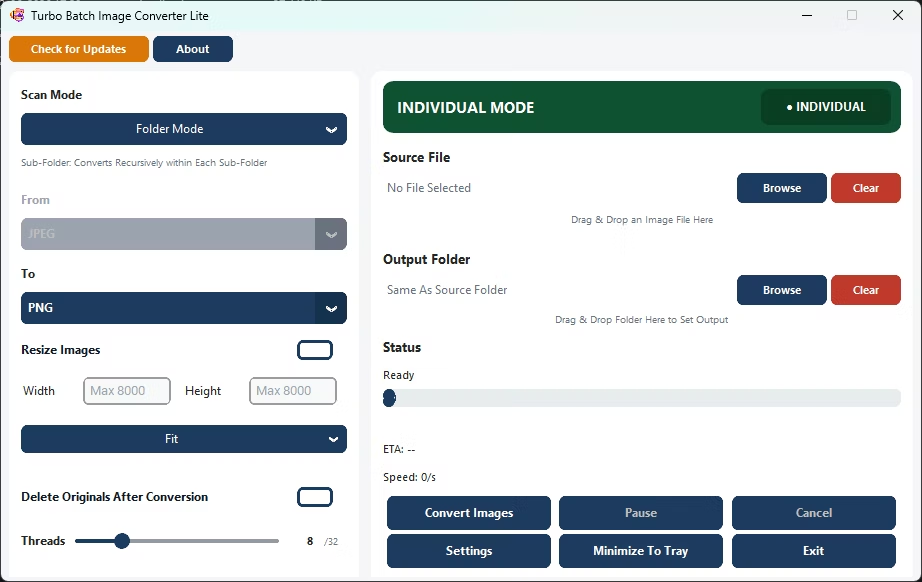
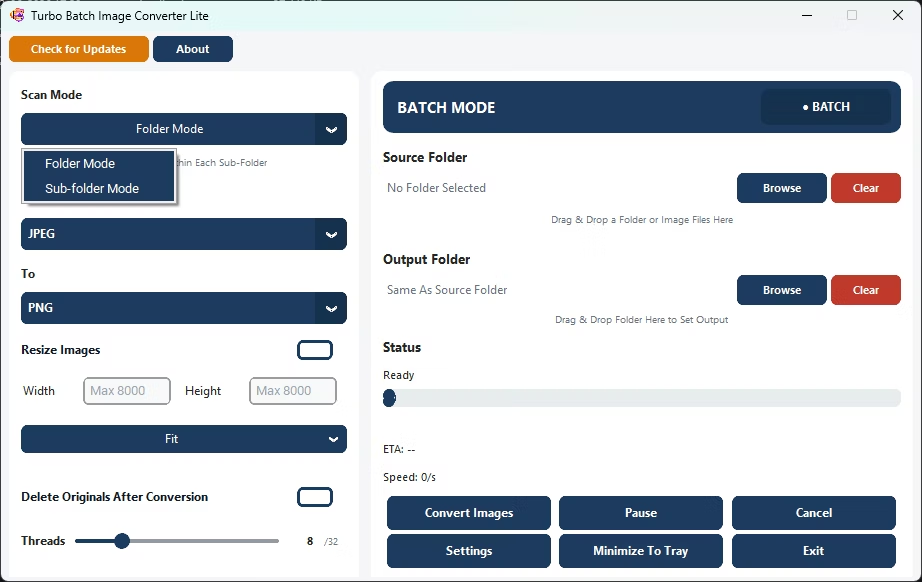
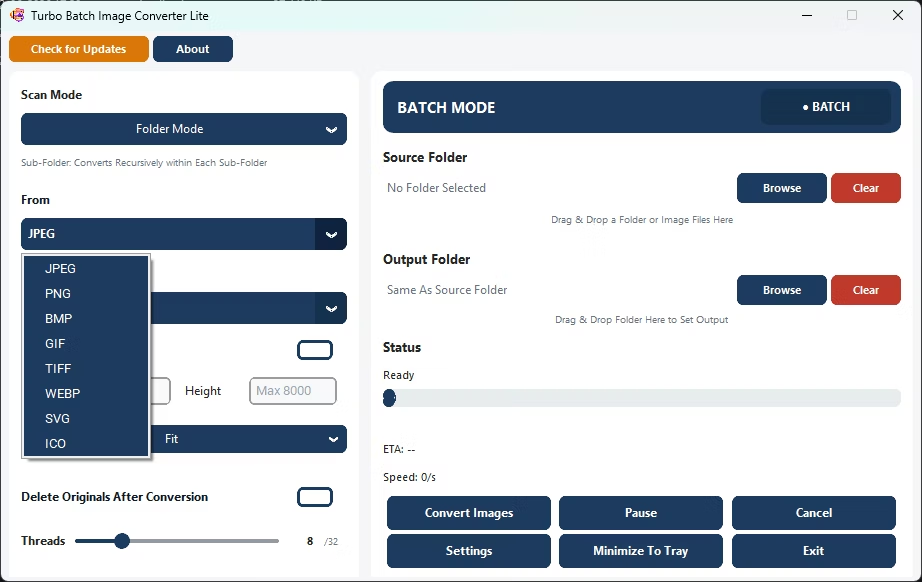
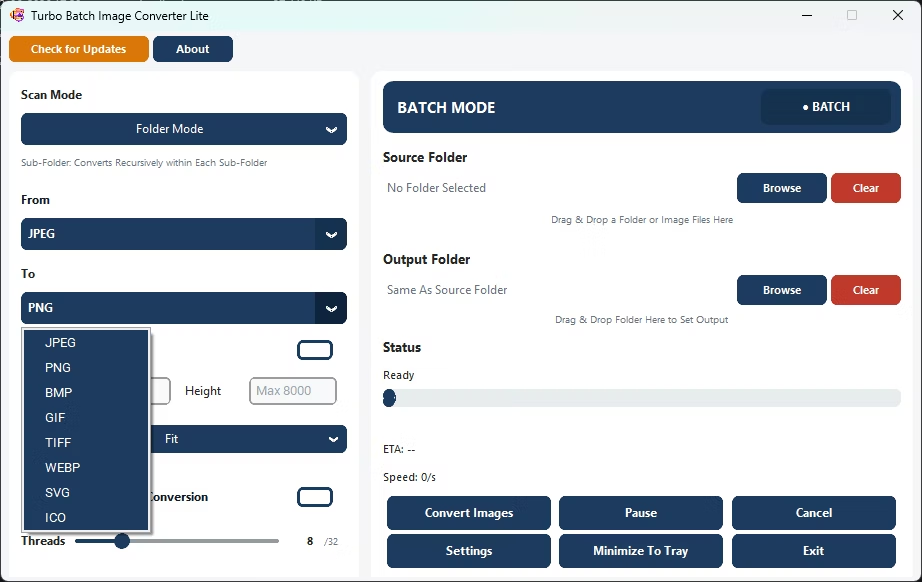
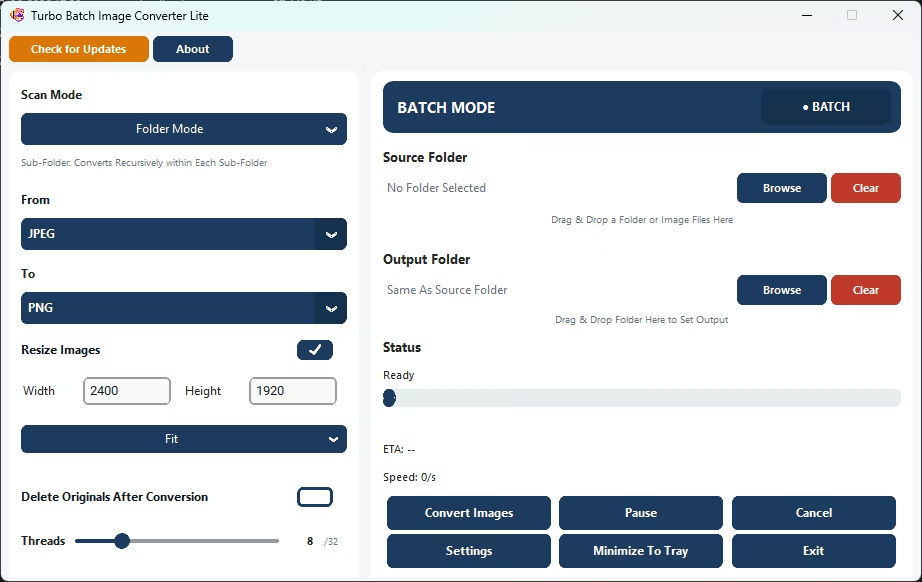
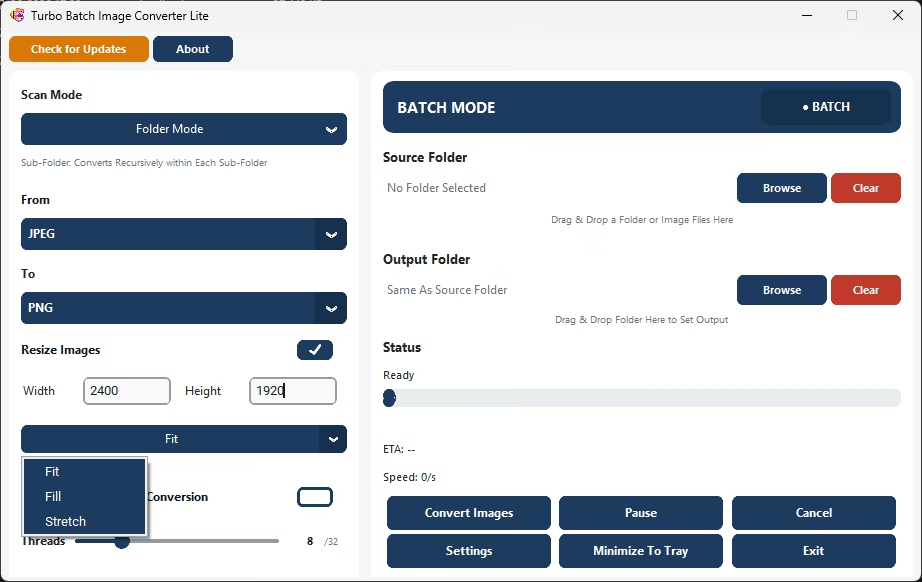
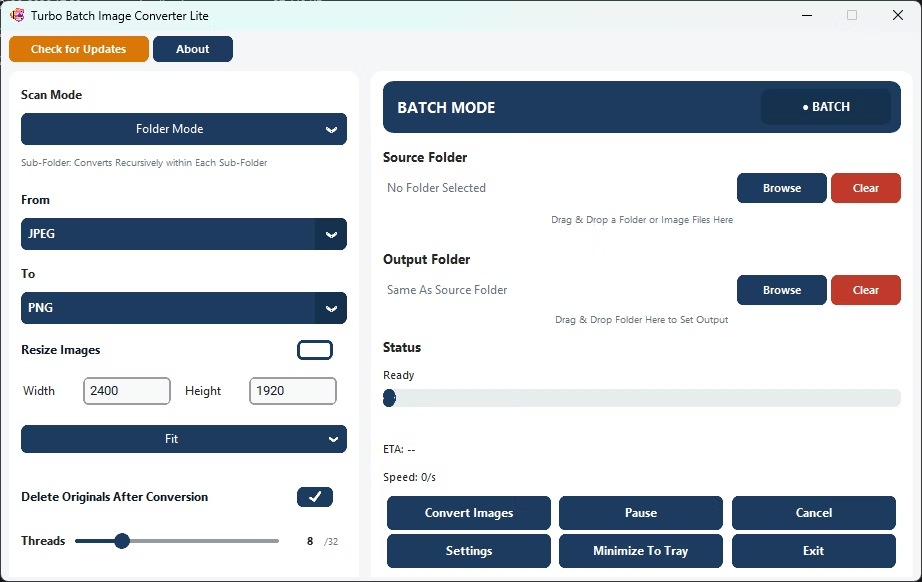
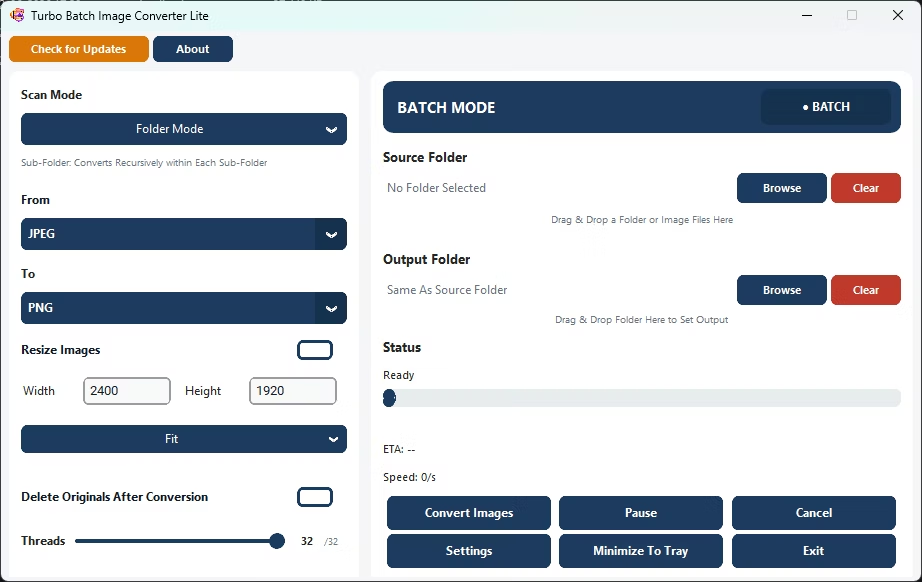
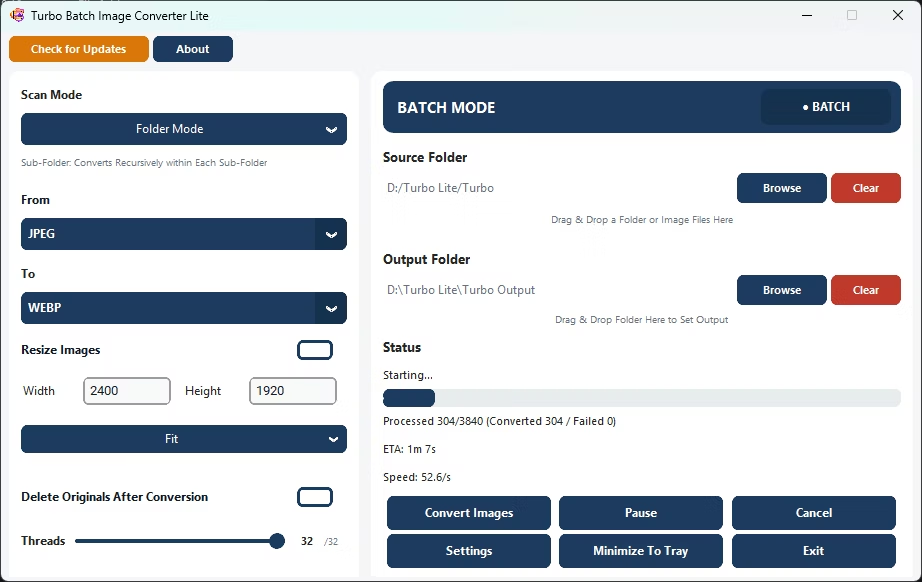
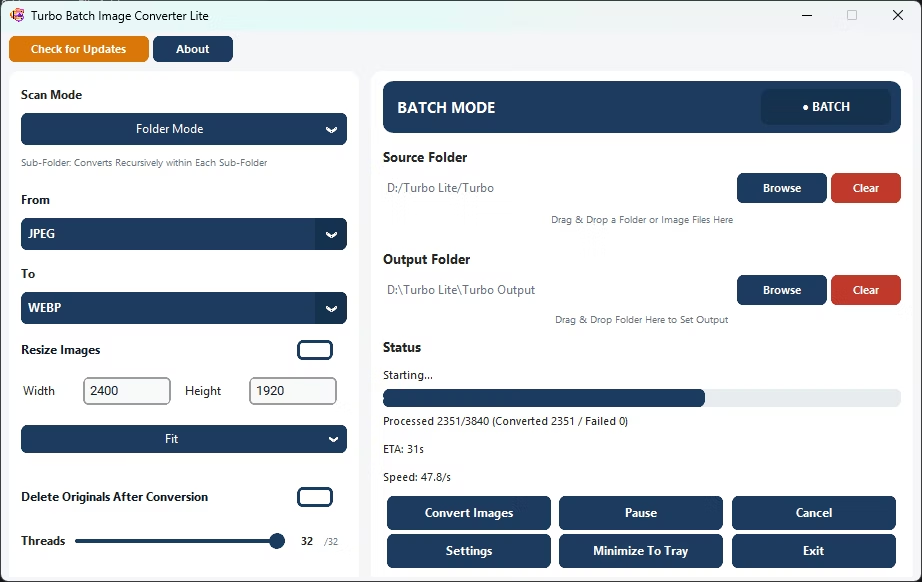
- Install Turbo Batch Image Converter Lite on your Windows PC.
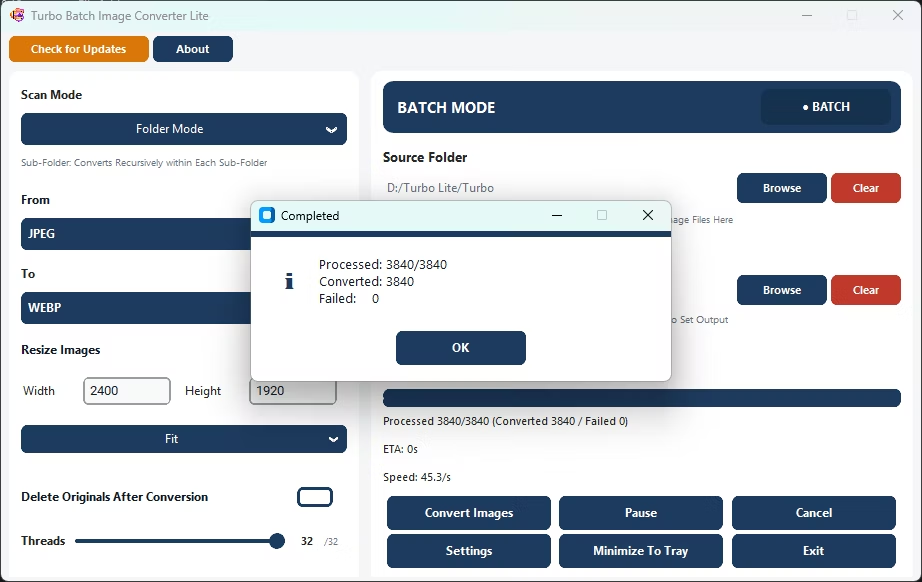
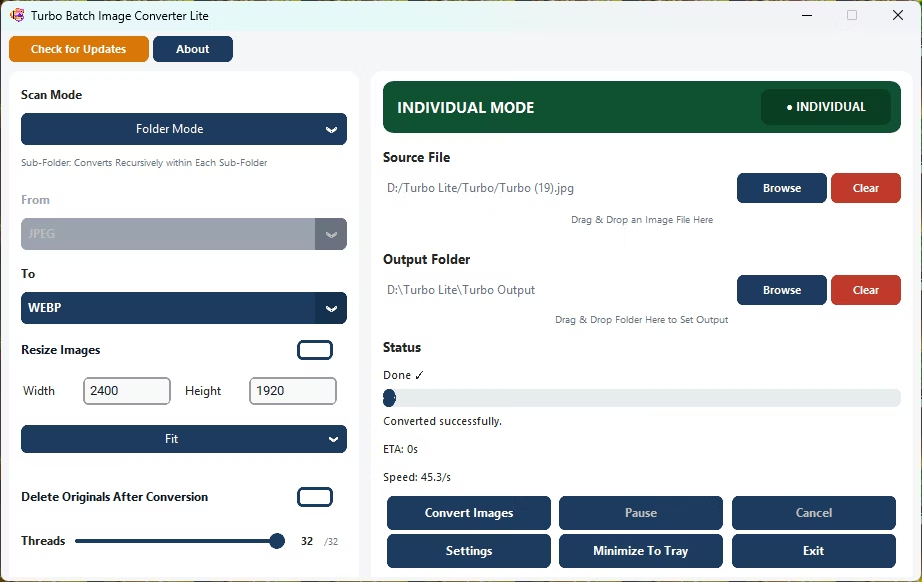
- Open the app and select Batch Mode for a folder, or Single Mode for one file.
- Drag your PNG files or folder into the app window, enabling recursive scanning if needed.
- Set the "From" format to PNG and the "To" format to JPG.
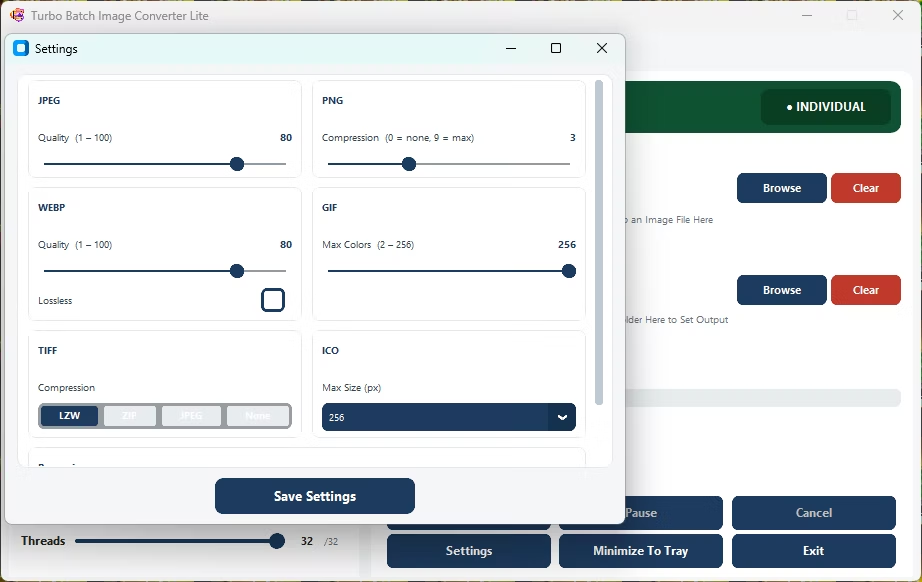
- Adjust the JPG quality or compression setting to balance file size against detail.
- Click Convert. Your JPG files are written to your output folder, fully offline.
- Converts an entire folder of PNG files to JPG in one batch
- Recursive sub-folder scanning for nested image libraries
- Adjustable JPG output quality
- Runs fully offline, so your images never leave your PC
- Multi-core engine scales up to 32 parallel workers
Does converting PNG to JPG affect my original files?
No, the converter reads your PNG files and writes new JPG files to your chosen output folder, leaving the originals untouched.
Can I convert an entire folder of PNG files to JPG at once?
Yes, Batch Mode processes an entire folder in one pass, including nested sub-folders if recursive scanning is enabled.
Will converting to JPG change my image quality?
JPG is a lossy format, so a quality slider lets you balance file size against visual detail.
Ready to batch convert your PNG files to JPG, fully offline and for free?