Convert Hundreds of Photos at Once
A photo collection that's grown into the hundreds needs a converter that treats the whole collection as one job, not hundreds of separate ones. A multiple photos converter processes the entire collection together.
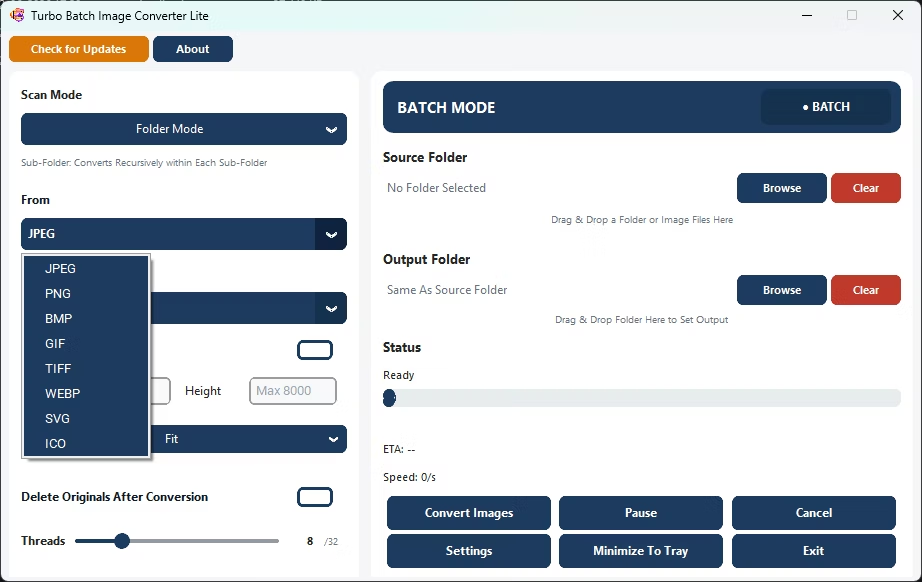
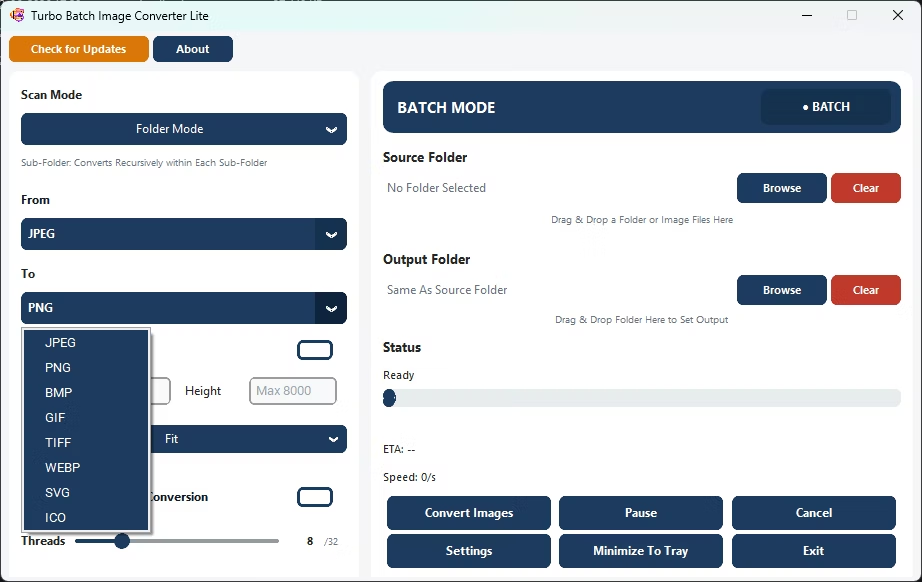
Turbo Batch Image Converter Lite converts hundreds of photos in a single batch, covering JPEG, PNG, WebP, GIF, BMP, TIFF, SVG and ICO, all processed offline on your own Windows PC.
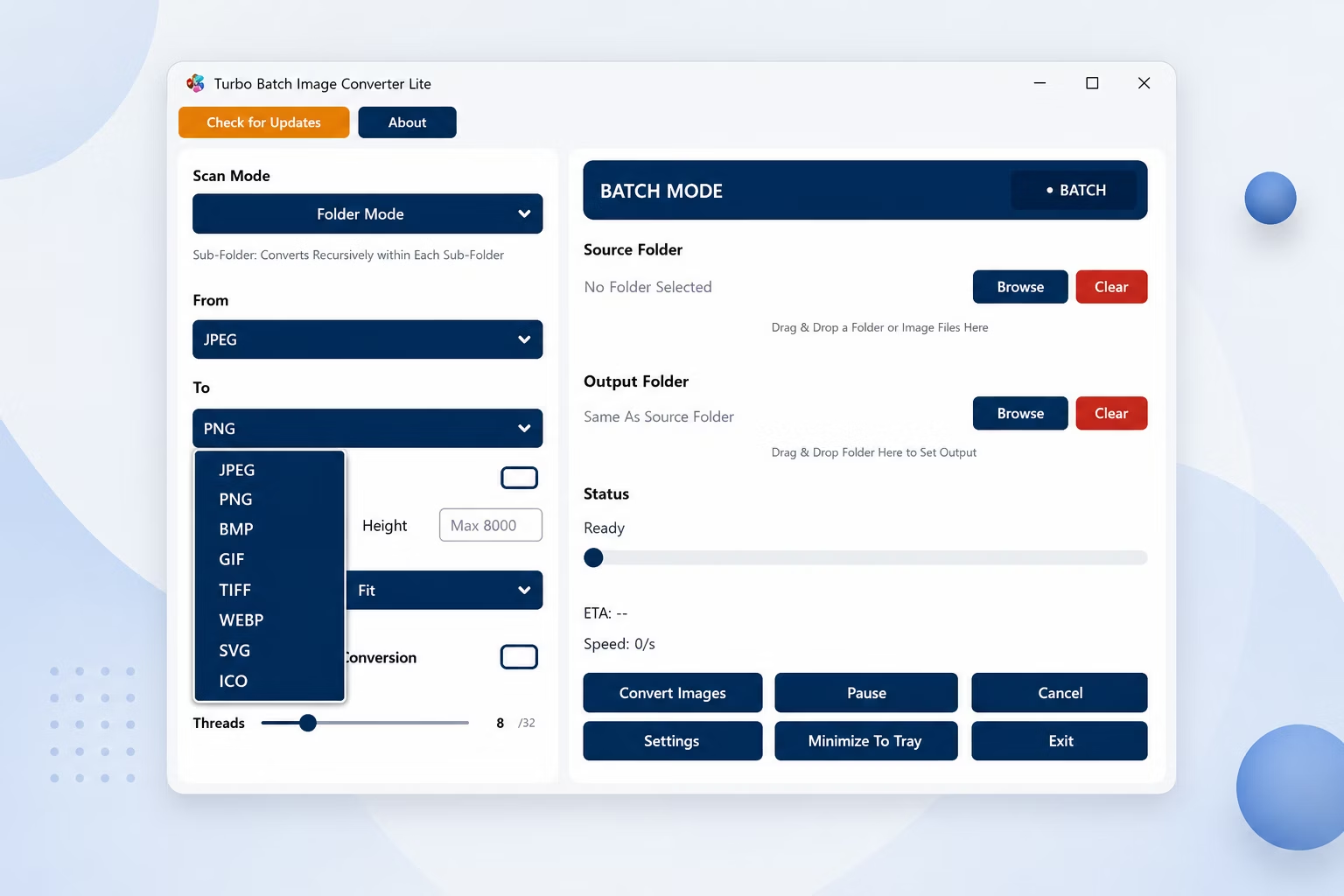
App Screenshots
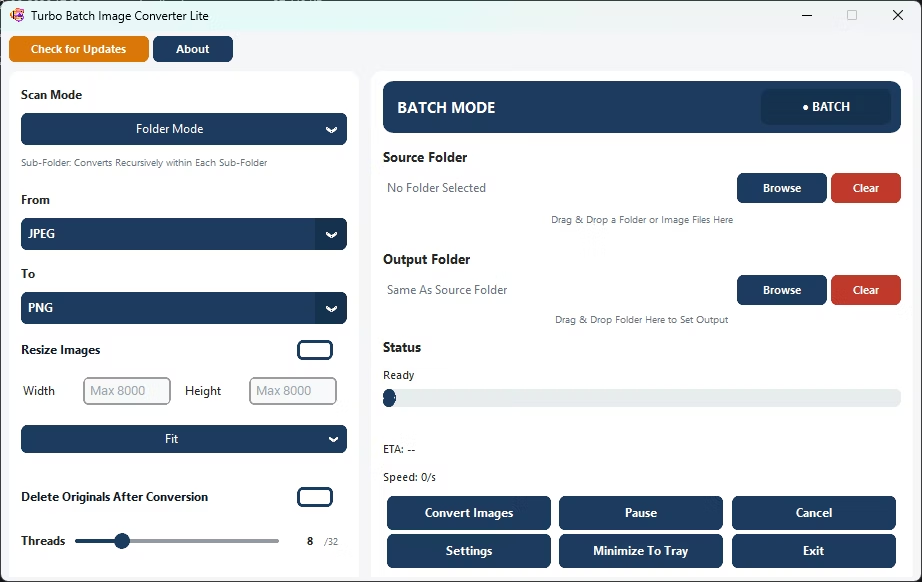
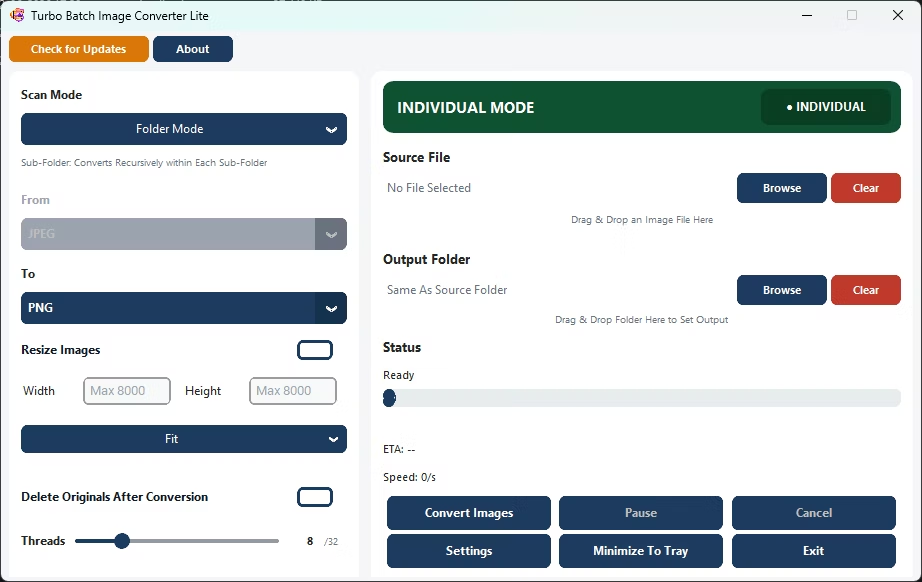
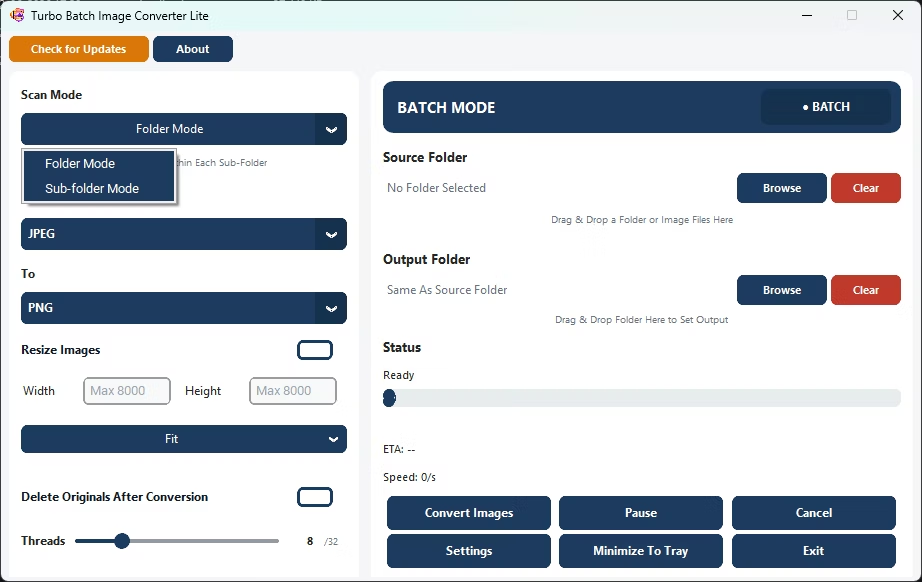
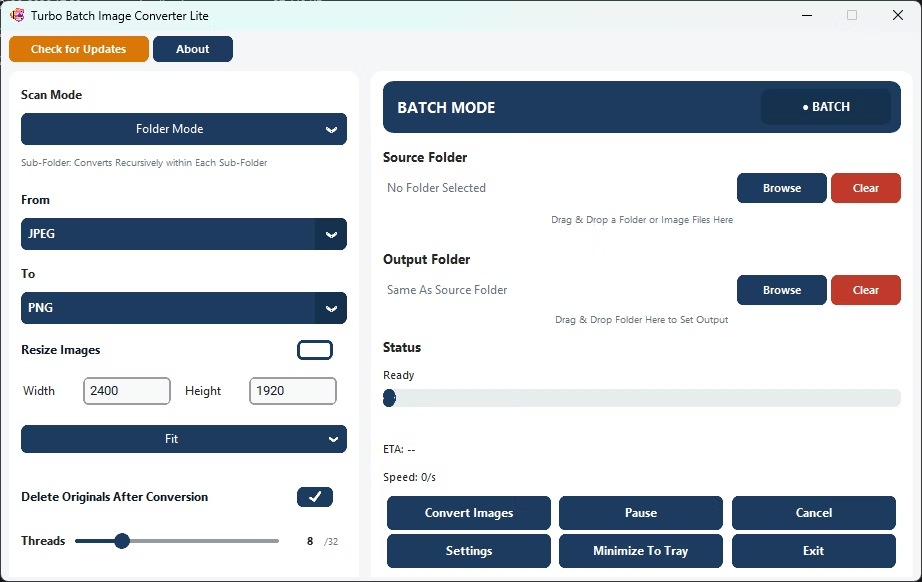
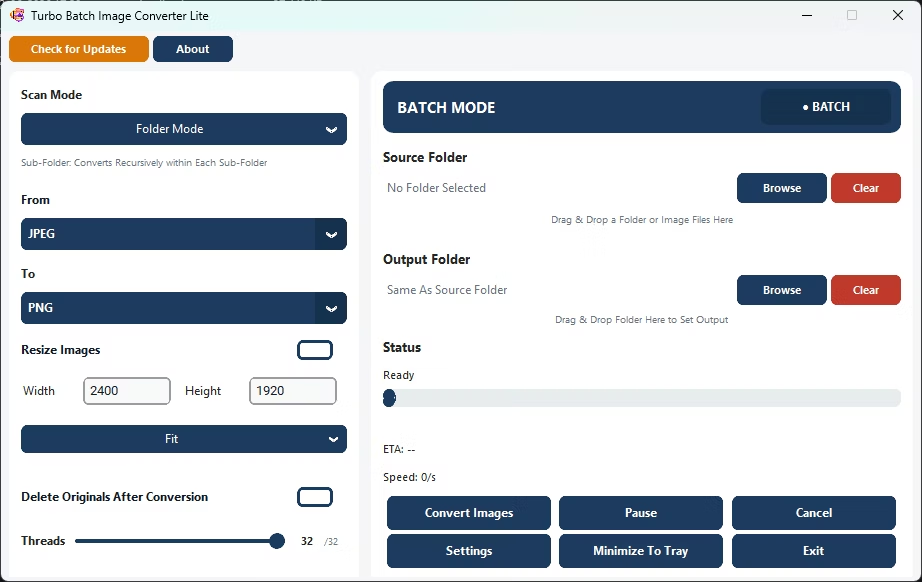
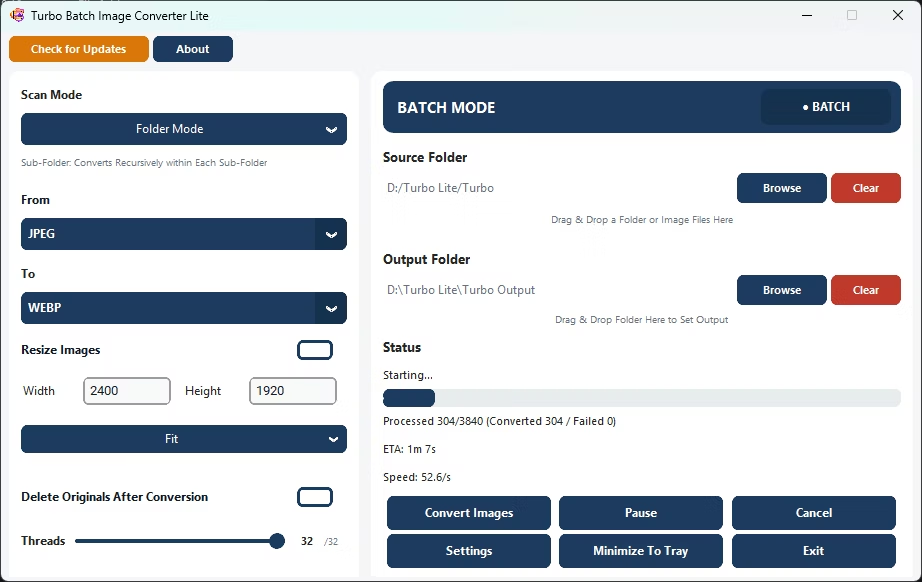
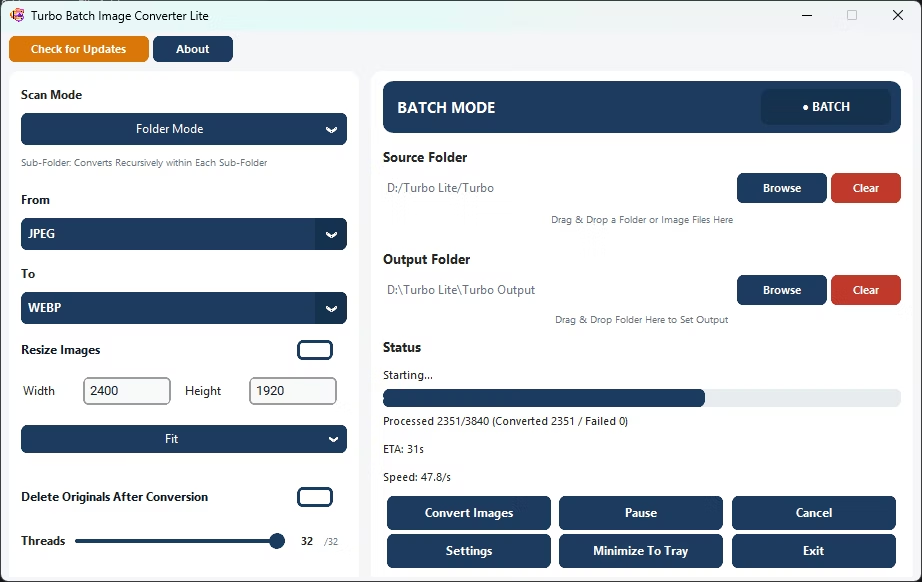
How to Convert Hundreds of Photos
- Install Turbo Batch Image Converter Lite on your Windows PC.
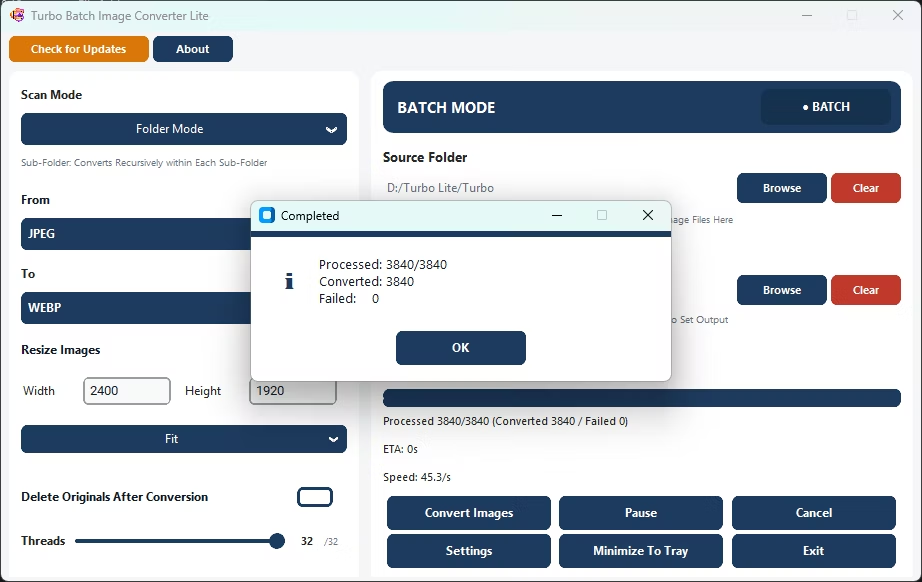
- Open Batch Mode and select your photo folder.
- Enable recursive scanning if photos span multiple sub-folders.
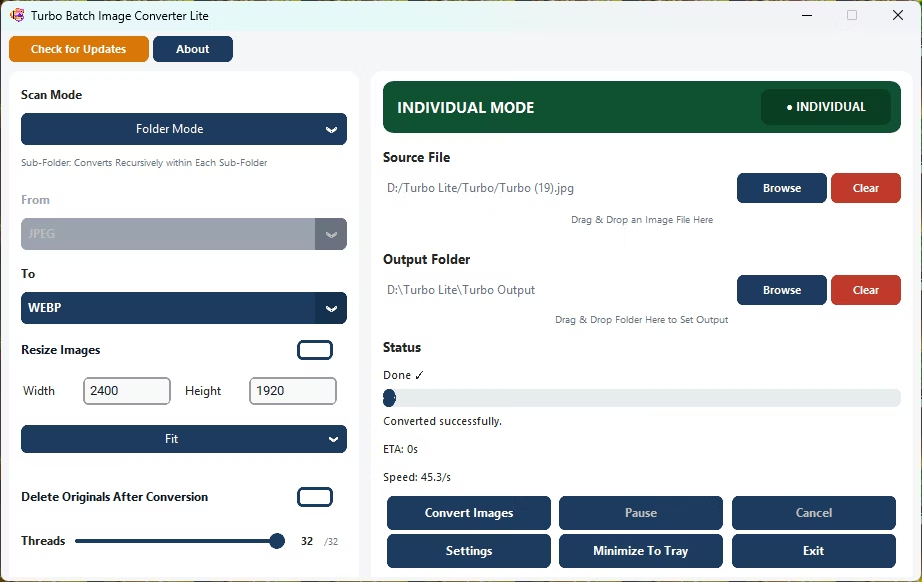
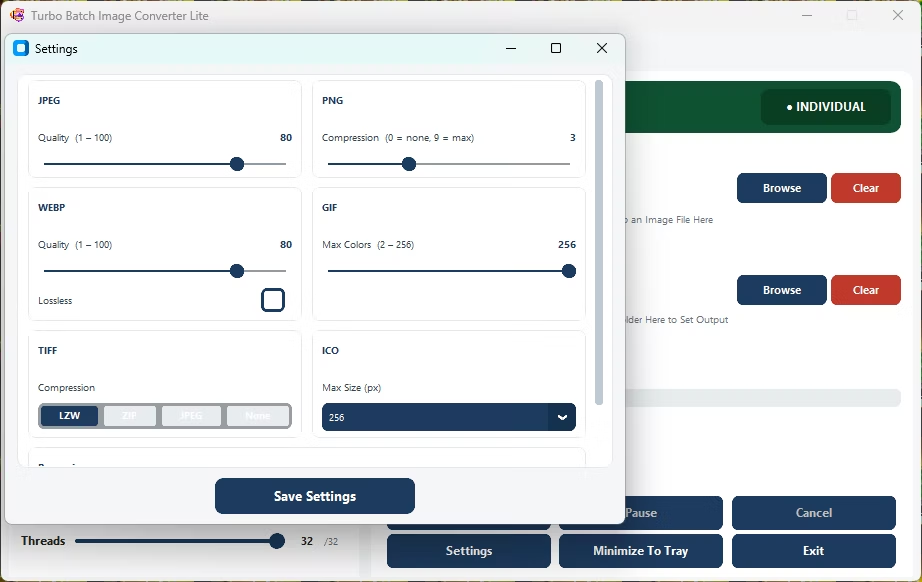
- Set your target format and quality.
- Click Convert and let the app process the whole collection.
- Review the completion pop-up once the batch finishes.
Why Use This Multiple Photos Converter
- Converts hundreds of photos in a single batch
- Recursive scanning covers photo collections across sub-folders
- Covers the 8 formats most people actually use
- Runs fully offline with no upload limits
- Multi-core engine scales up to 32 parallel workers
Frequently Asked Questions
Can I convert my whole photo collection in one go?
Yes, Batch Mode is designed to process an entire collection, including nested sub-folders, in one run.
Will converting hundreds of photos take a long time?
The multi-threaded engine, scaling up to 32 parallel workers, is built to keep large batches fast.
Does the app support resizing photos while converting?
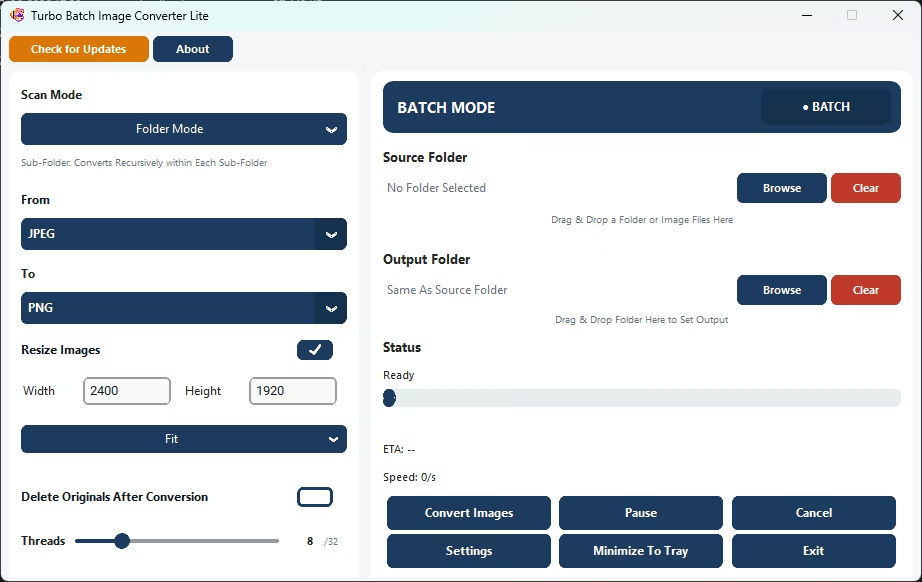
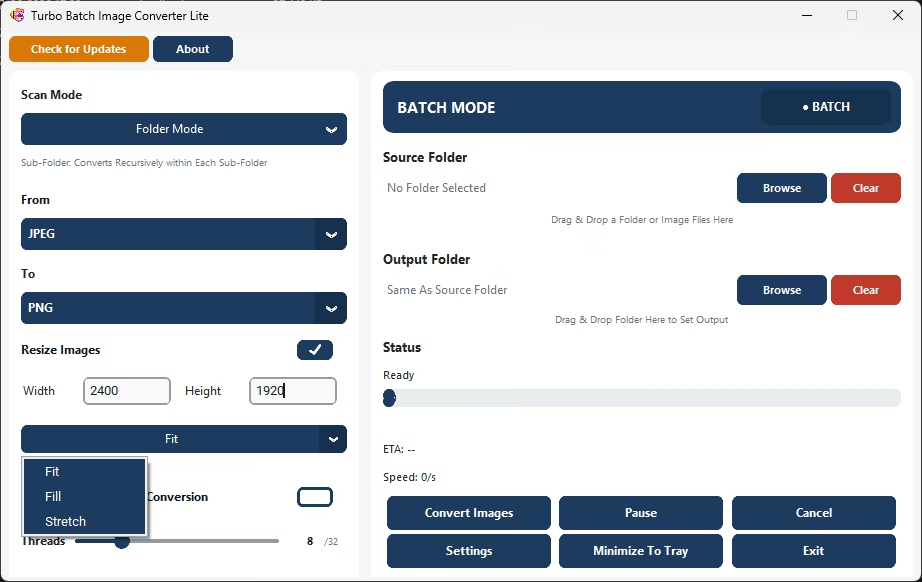
Yes, Fit, Fill, and Stretch resize modes are available alongside format conversion.
Ready to convert hundreds of photos at once, fully offline?