Juggling separate tools for different image formats wastes time. A multi-format image converter consolidates the formats people actually use into a single lightweight application.
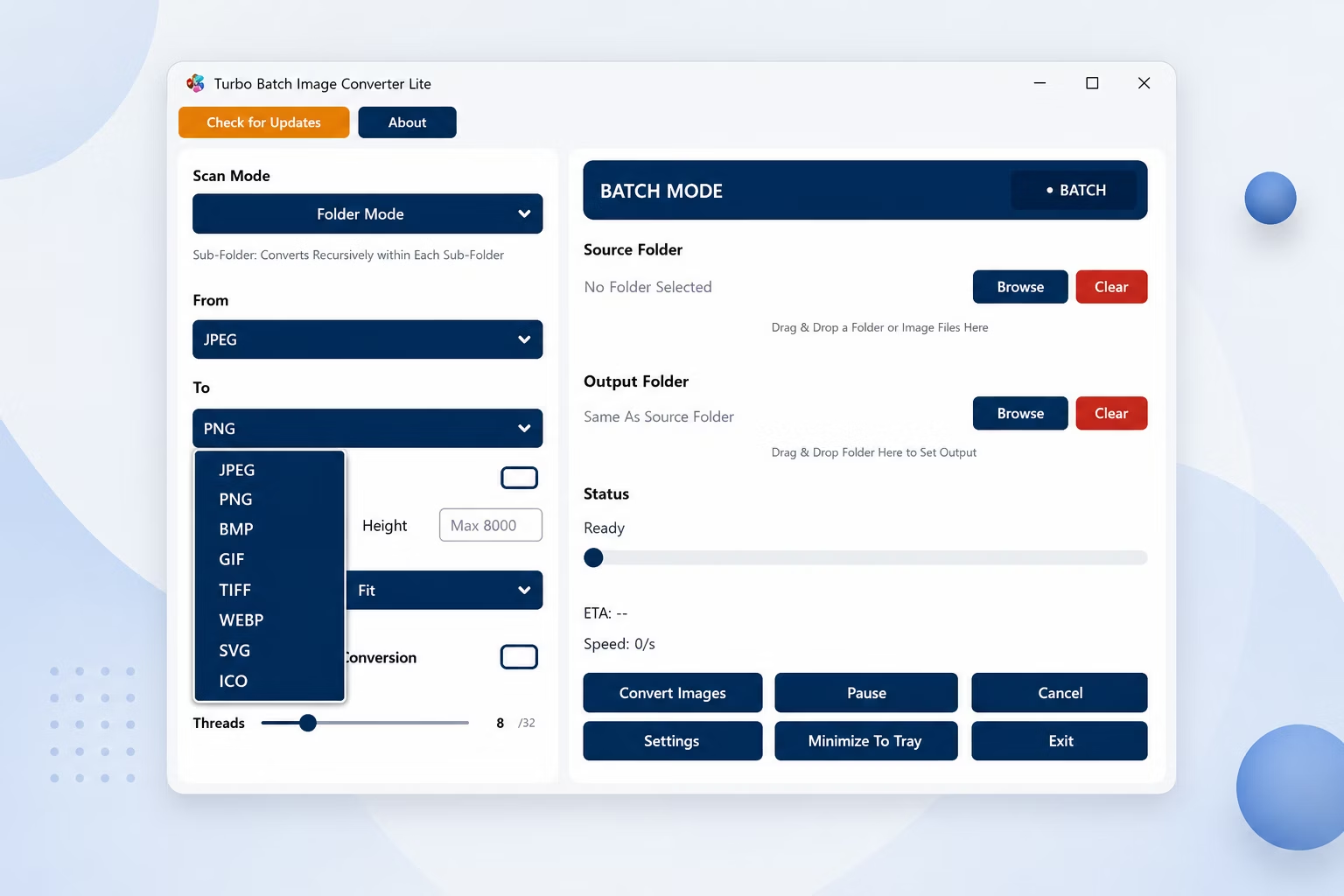
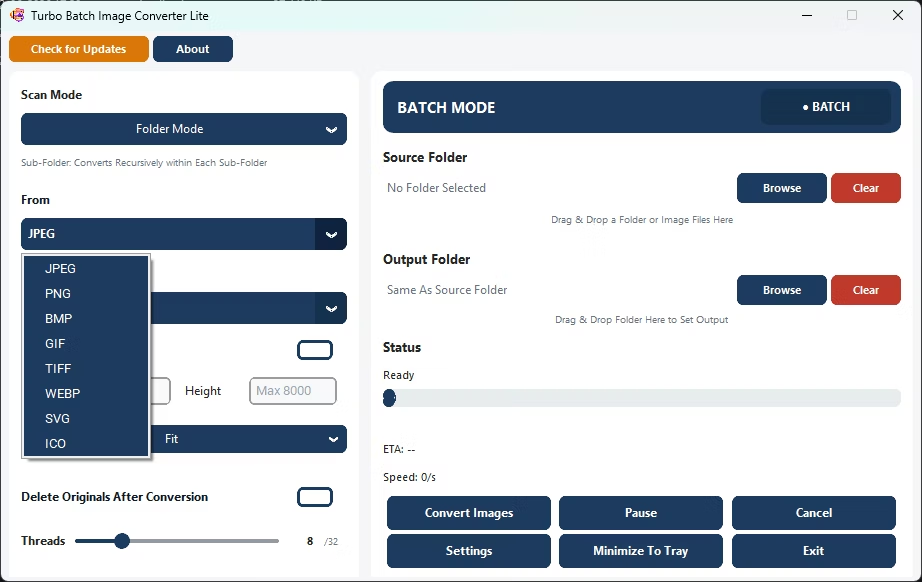
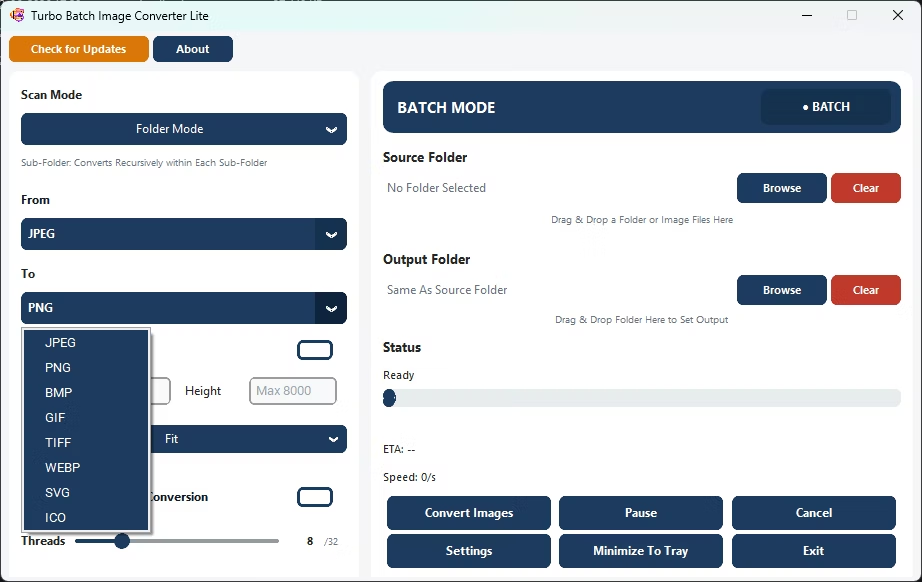
Turbo Batch Image Converter Lite supports JPEG, PNG, WebP, GIF, BMP, TIFF, SVG and ICO in one small Windows app, covering the formats used across web design, everyday photos, and document scans.
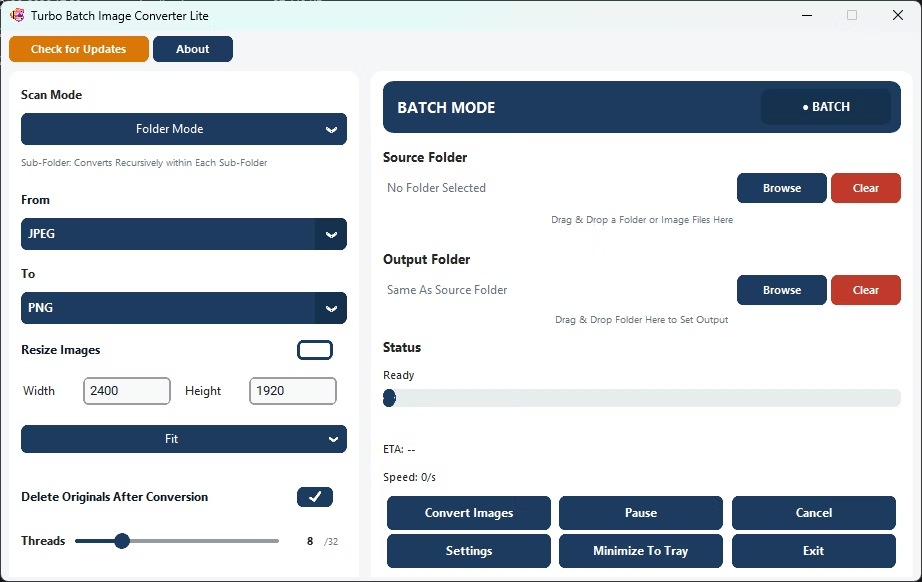
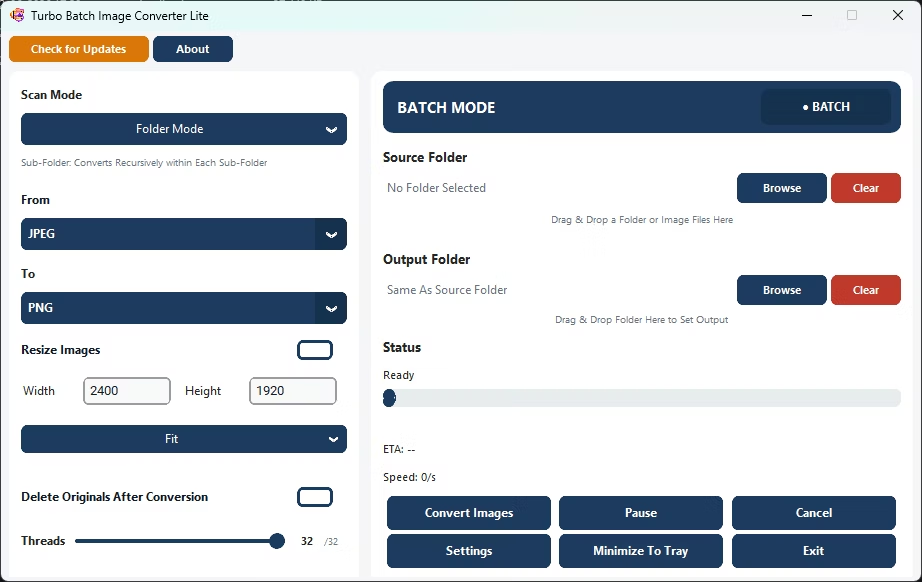
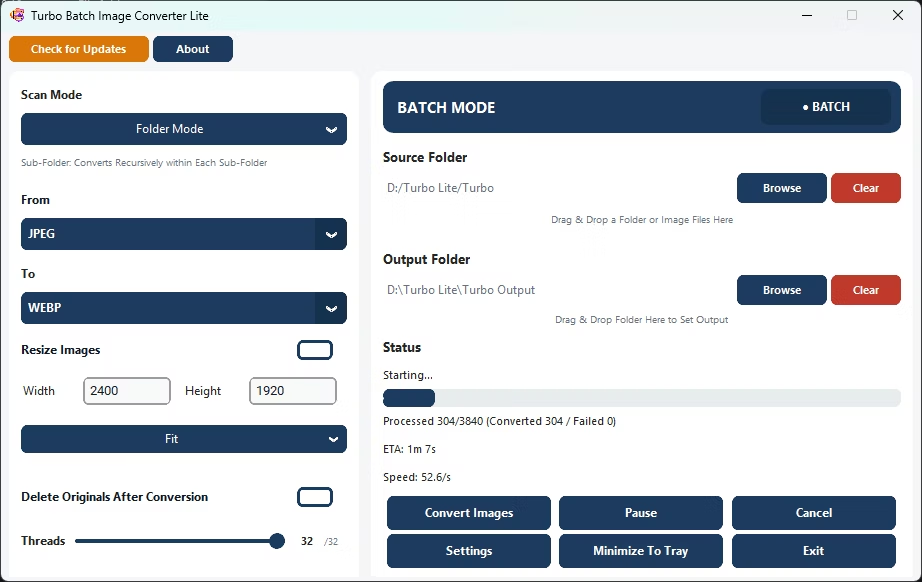
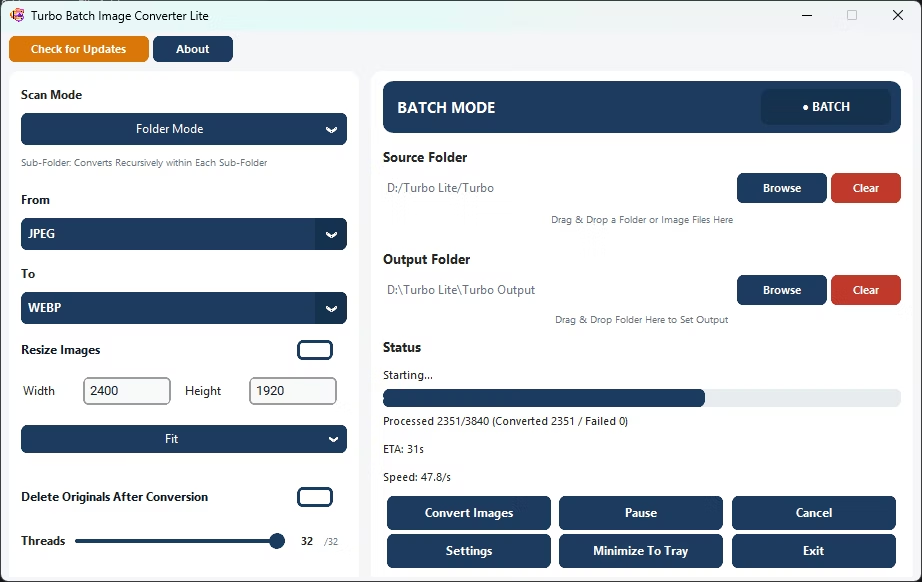
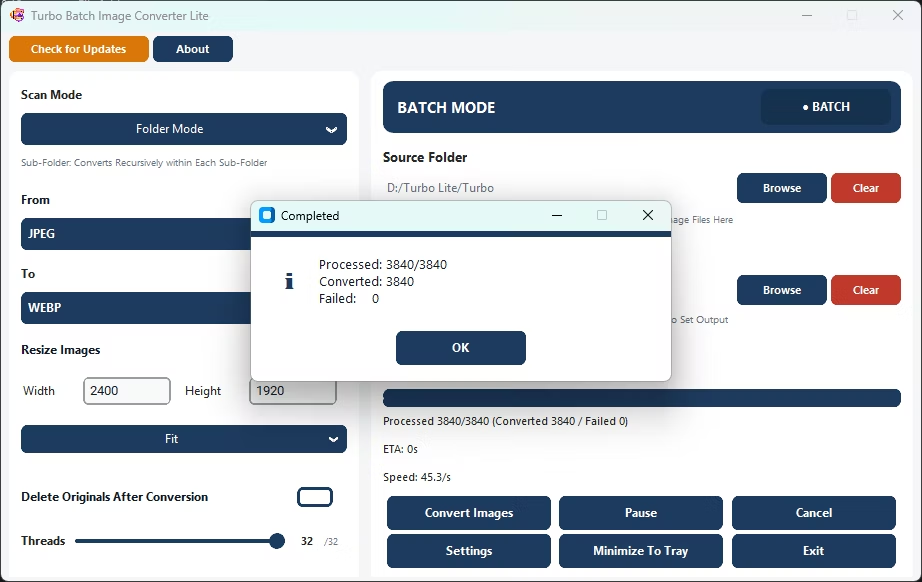
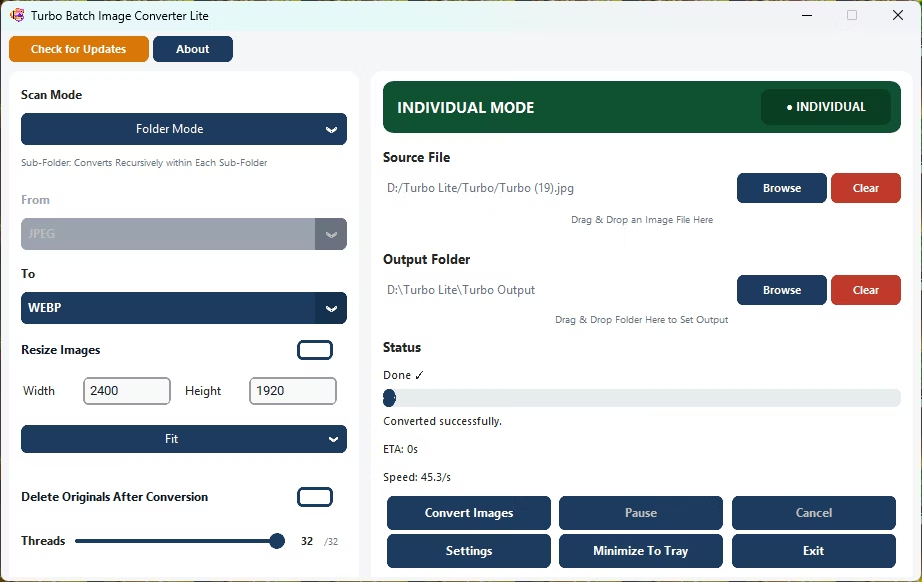
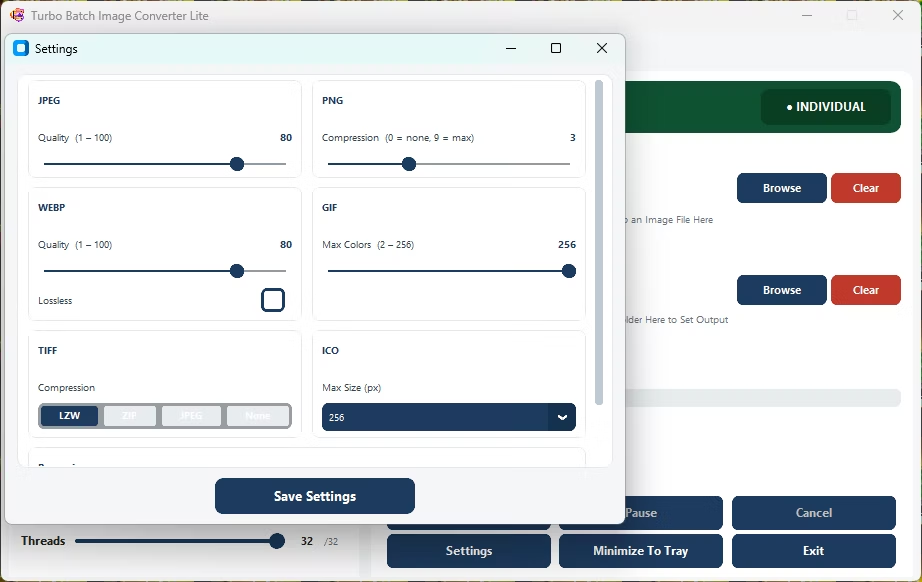
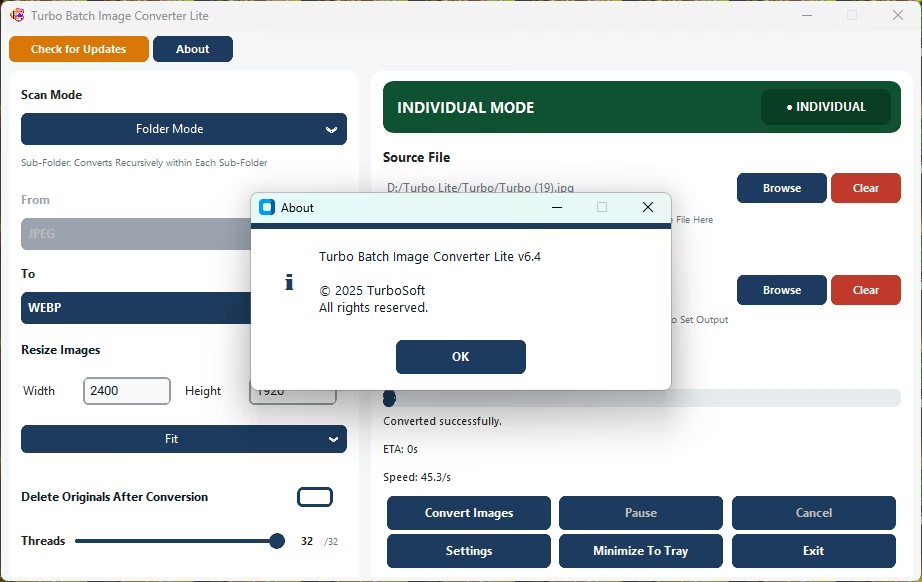
- Install Turbo Batch Image Converter Lite on your Windows PC.
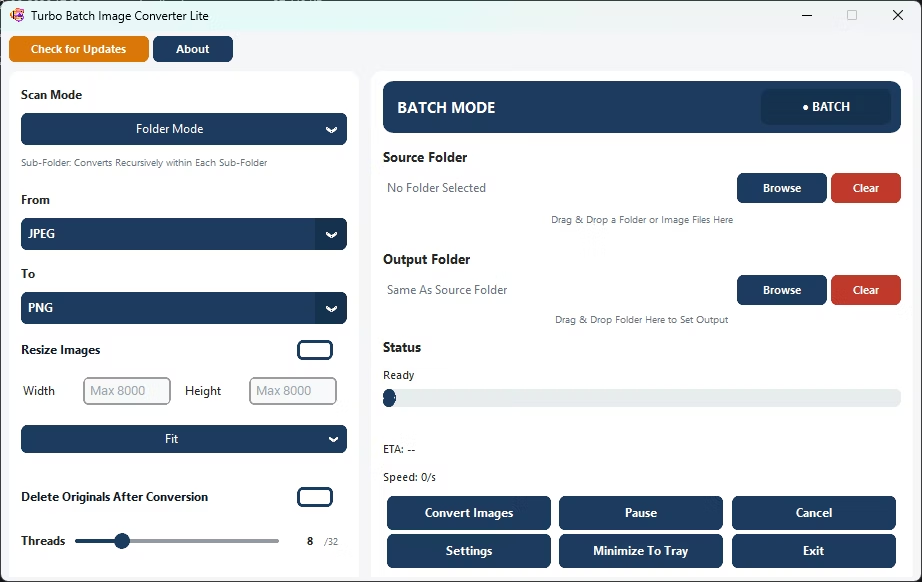
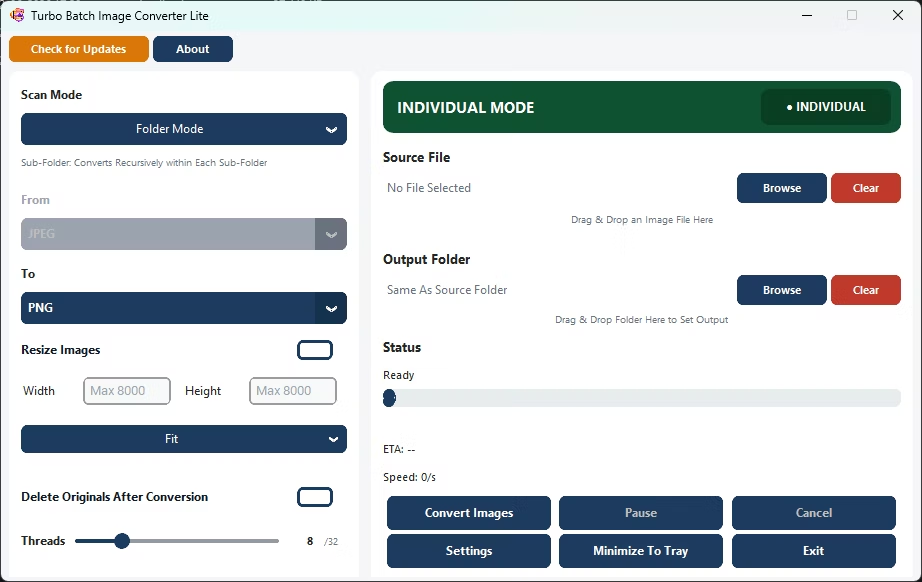
- Open Batch Mode or Single Mode depending on your job.
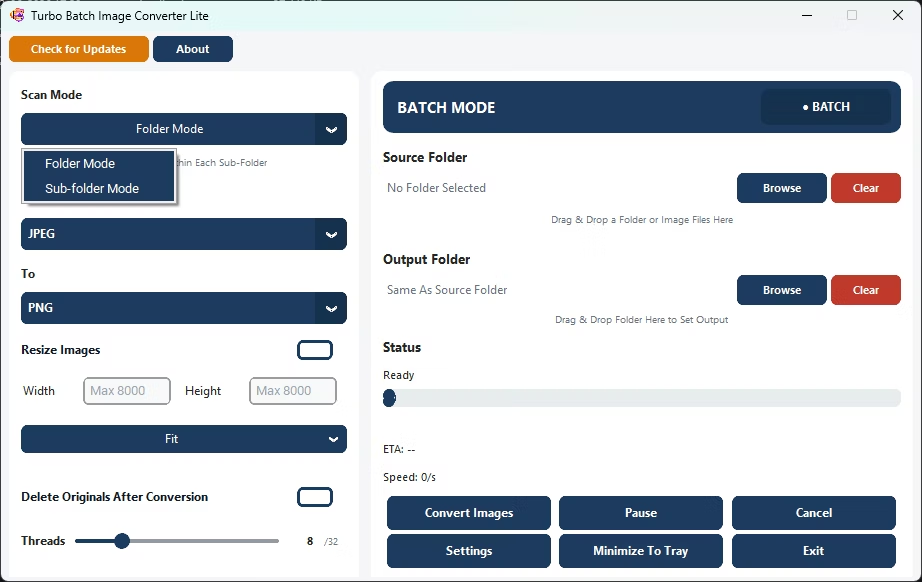
- Select your source format, or let mixed folders auto-detect.
- Choose your target format from the 8 supported outputs.
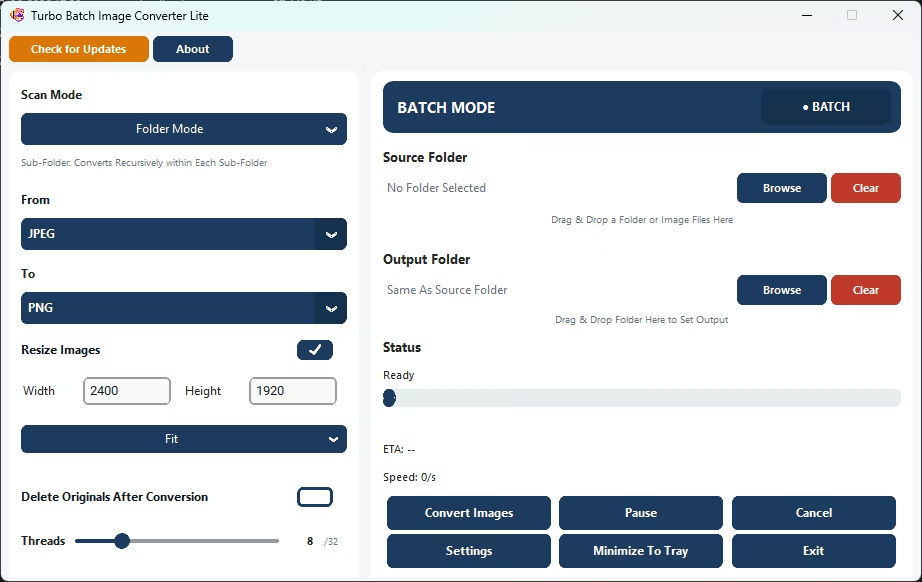
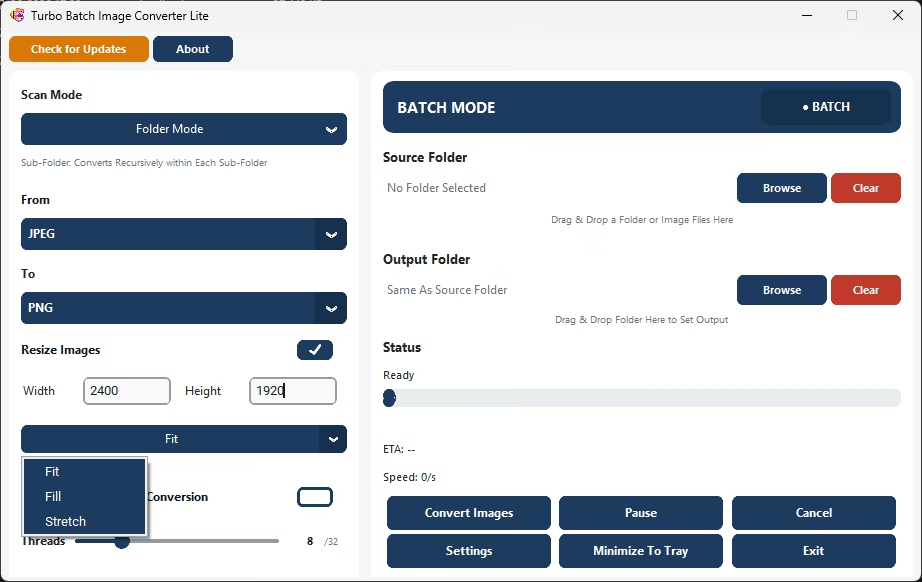
- Adjust quality or resize settings as needed.
- Click Convert to process your files in your chosen format.
- Supports 8 everyday formats in one lightweight app
- Covers JPEG, PNG, WebP, GIF, BMP, TIFF, SVG and ICO
- No need for separate tools for each format
- Runs fully offline with no upload limits
- Multi-core engine scales up to 32 parallel workers
How many formats does this app support?
It supports 8 everyday formats: JPEG, PNG, WebP, GIF, BMP, TIFF, SVG and ICO.
Does the app support RAW or HEIC?
No, Turbo Batch Image Converter Lite focuses on everyday formats; Turbo Batch Image Converter Pro adds RAW and HEIC support for photography workflows.
Is switching between formats easy in this app?
Yes, a simple "From" and "To" format selector handles the conversion direction.
Ready to convert between multiple image formats from one lightweight app?