Merging Excel files is a step up in complexity from merging plain CSV files, since each .xlsx file can contain multiple sheets, formatting, and its own structure. A reliable merge needs to read each workbook correctly and decide how its sheets should map into the final combined file.
Turbo Large Data Splitter reads .xlsx files directly, using a fast reading engine built for Excel's format, and combines the data from multiple workbooks into a single output file, either by stacking matching sheets together or keeping each source file as its own tab.
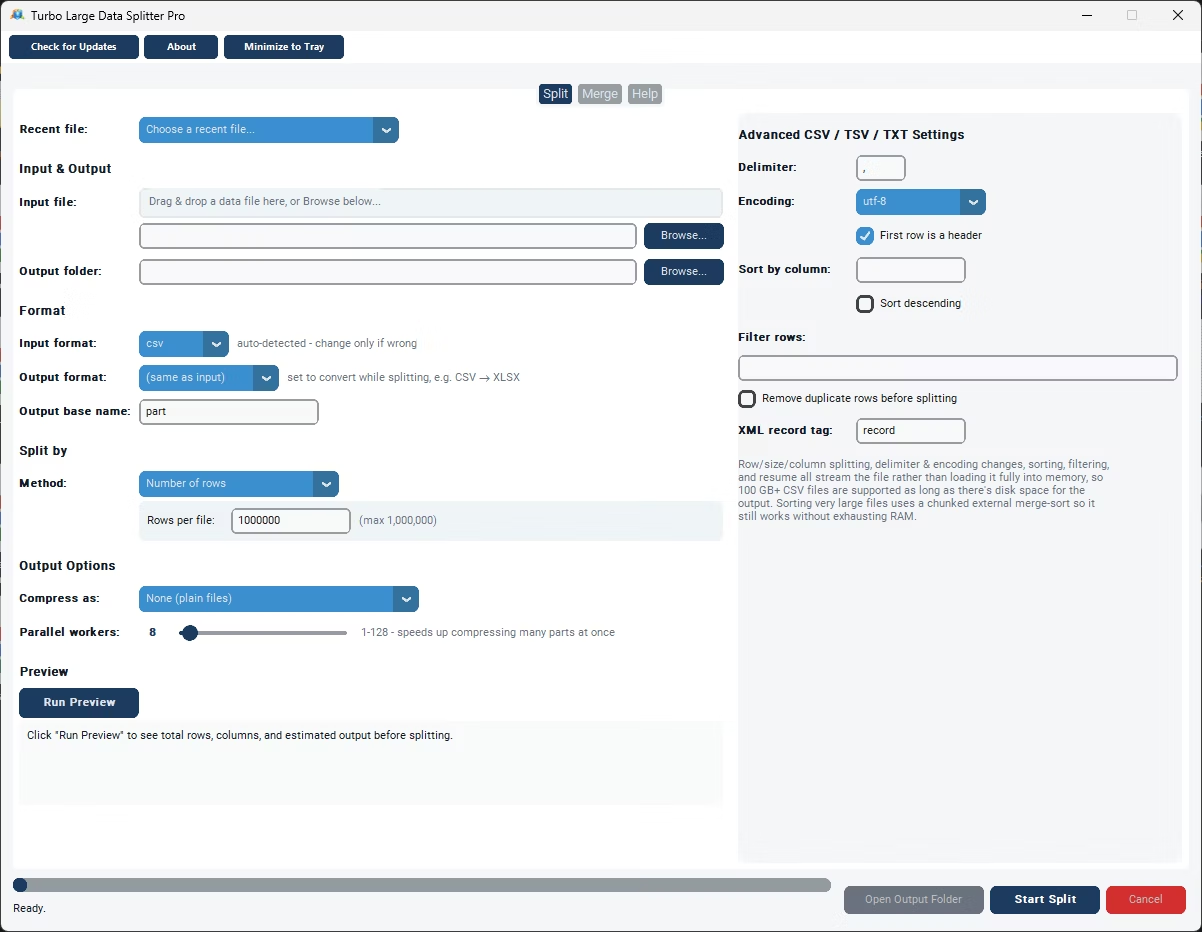
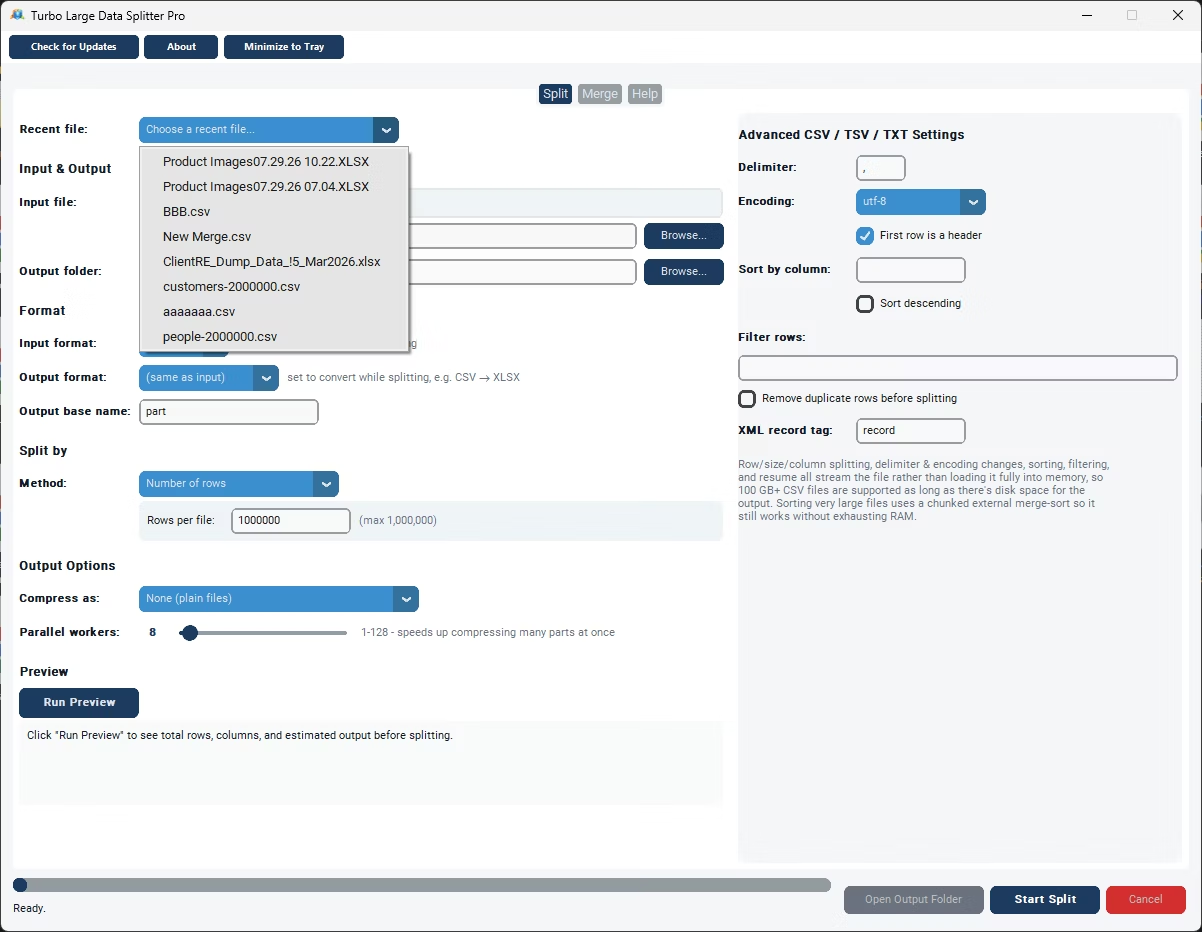
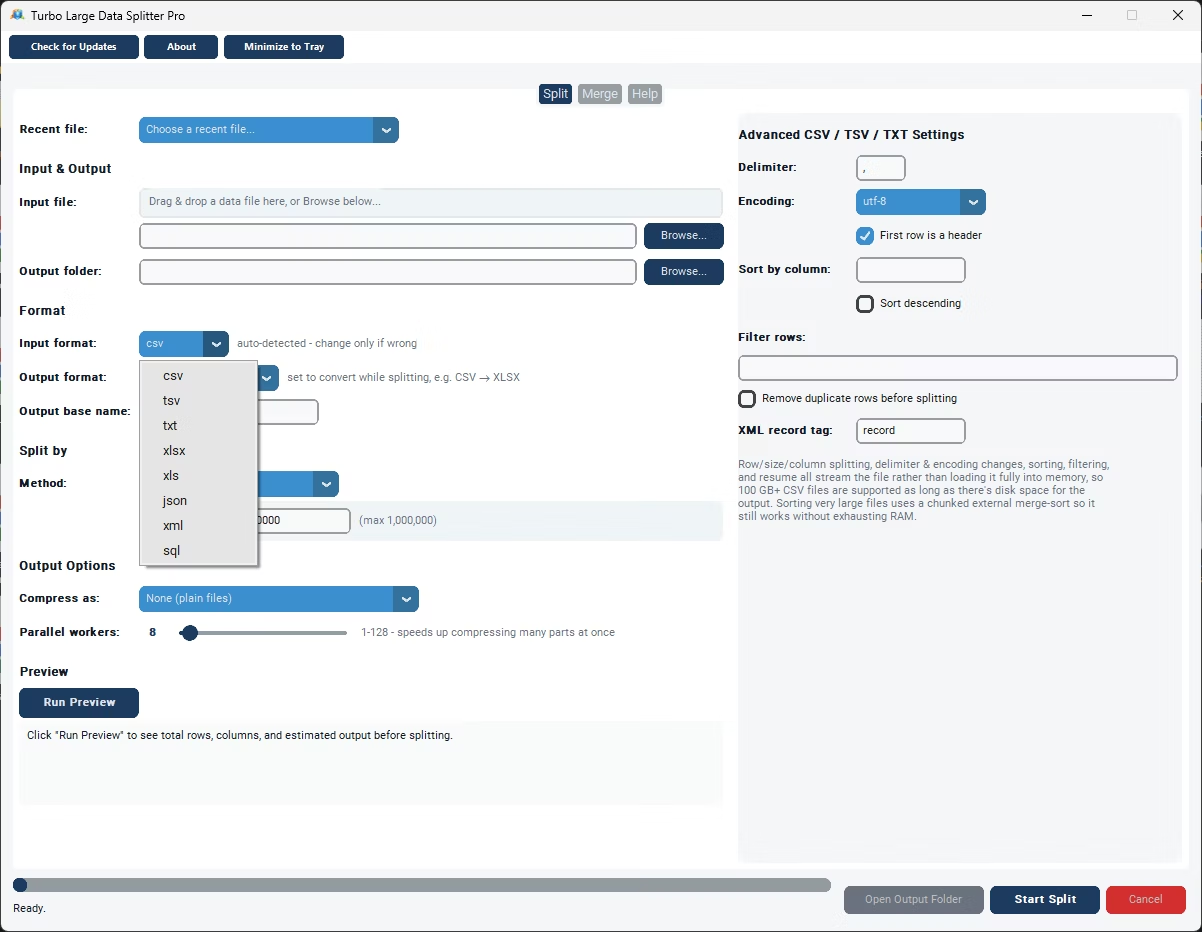
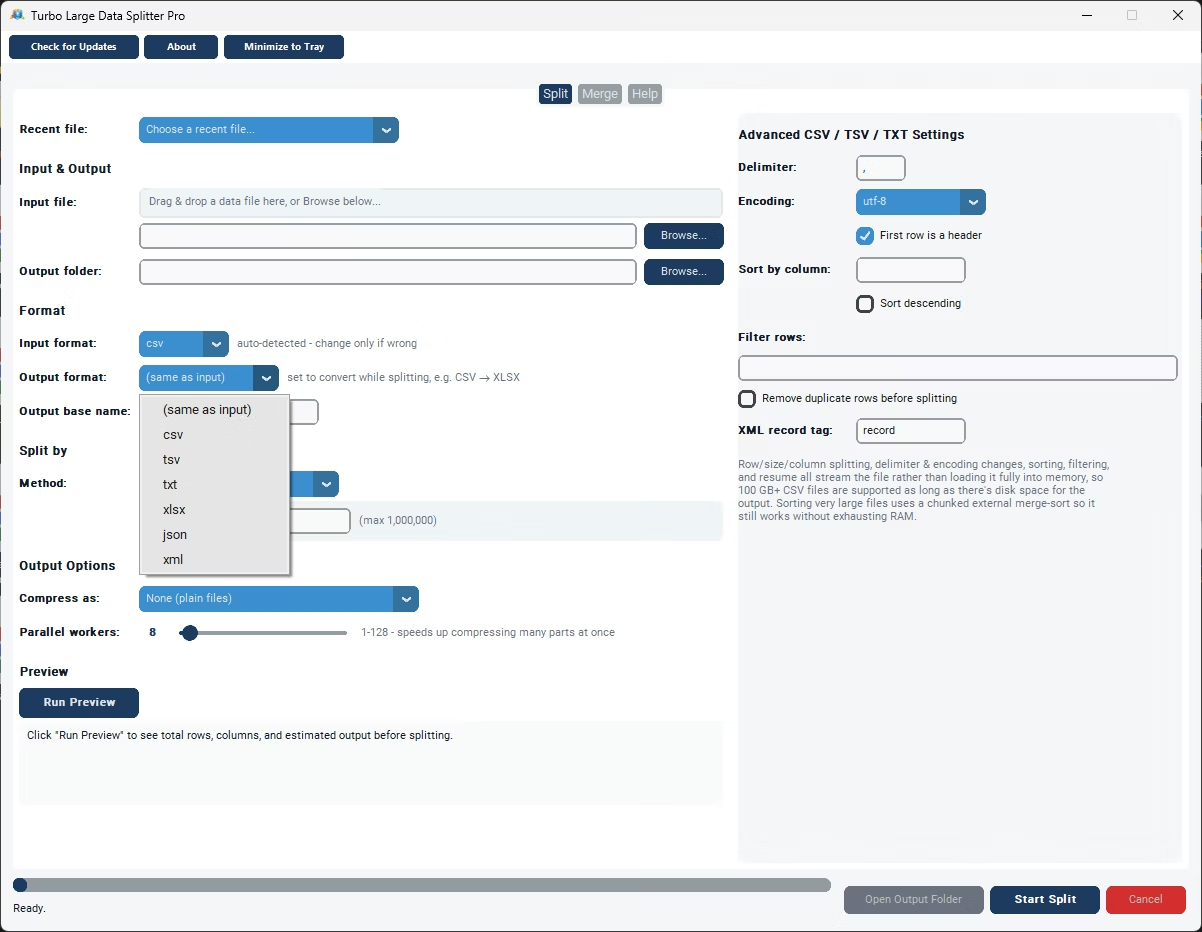
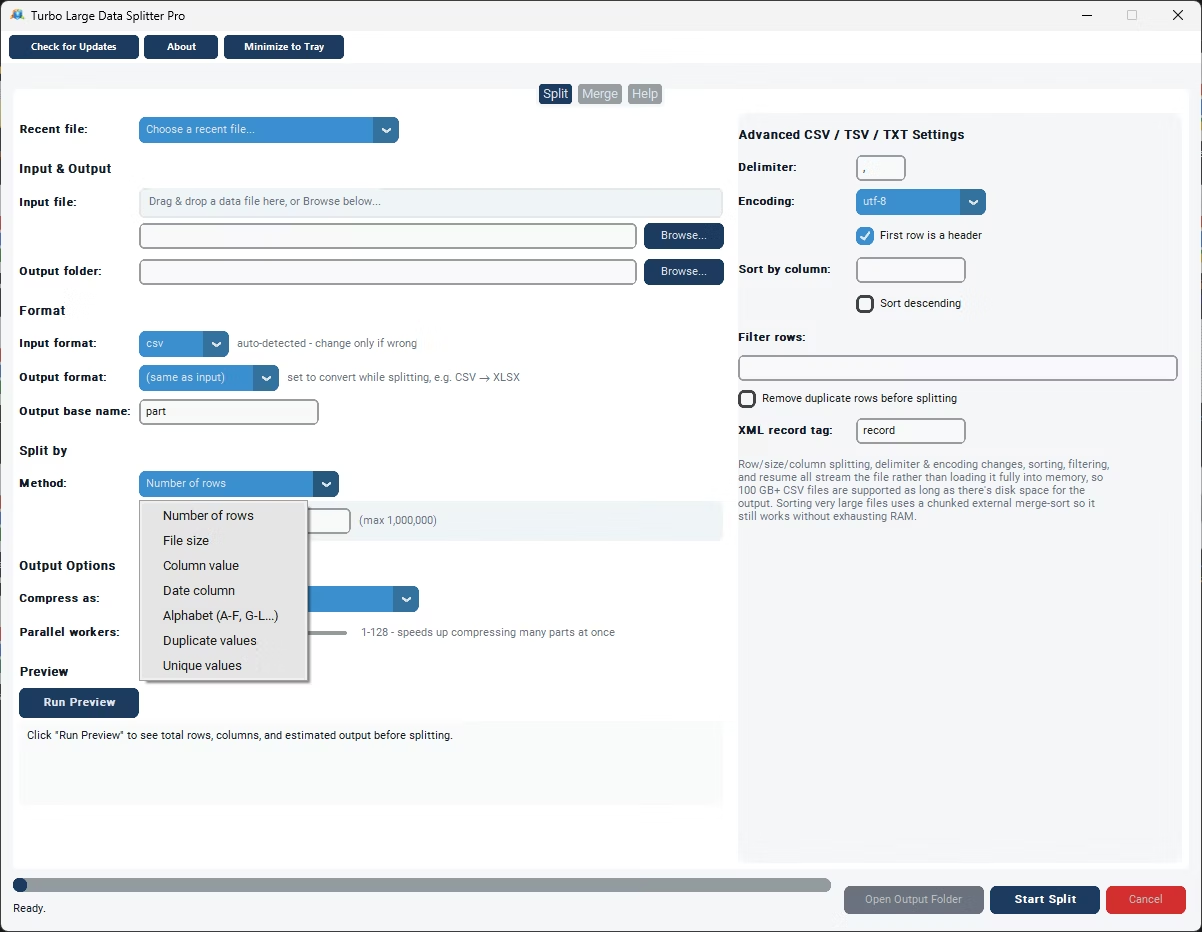
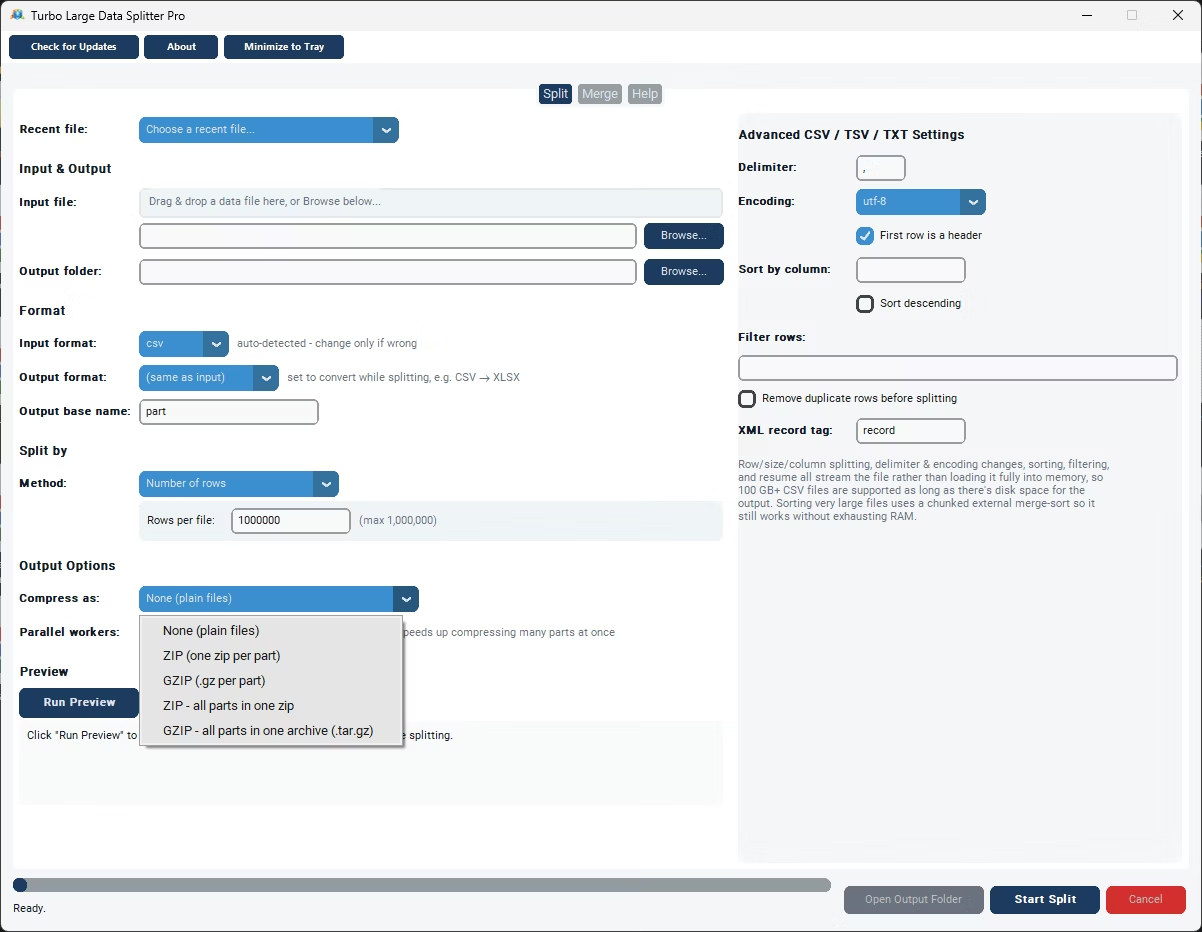
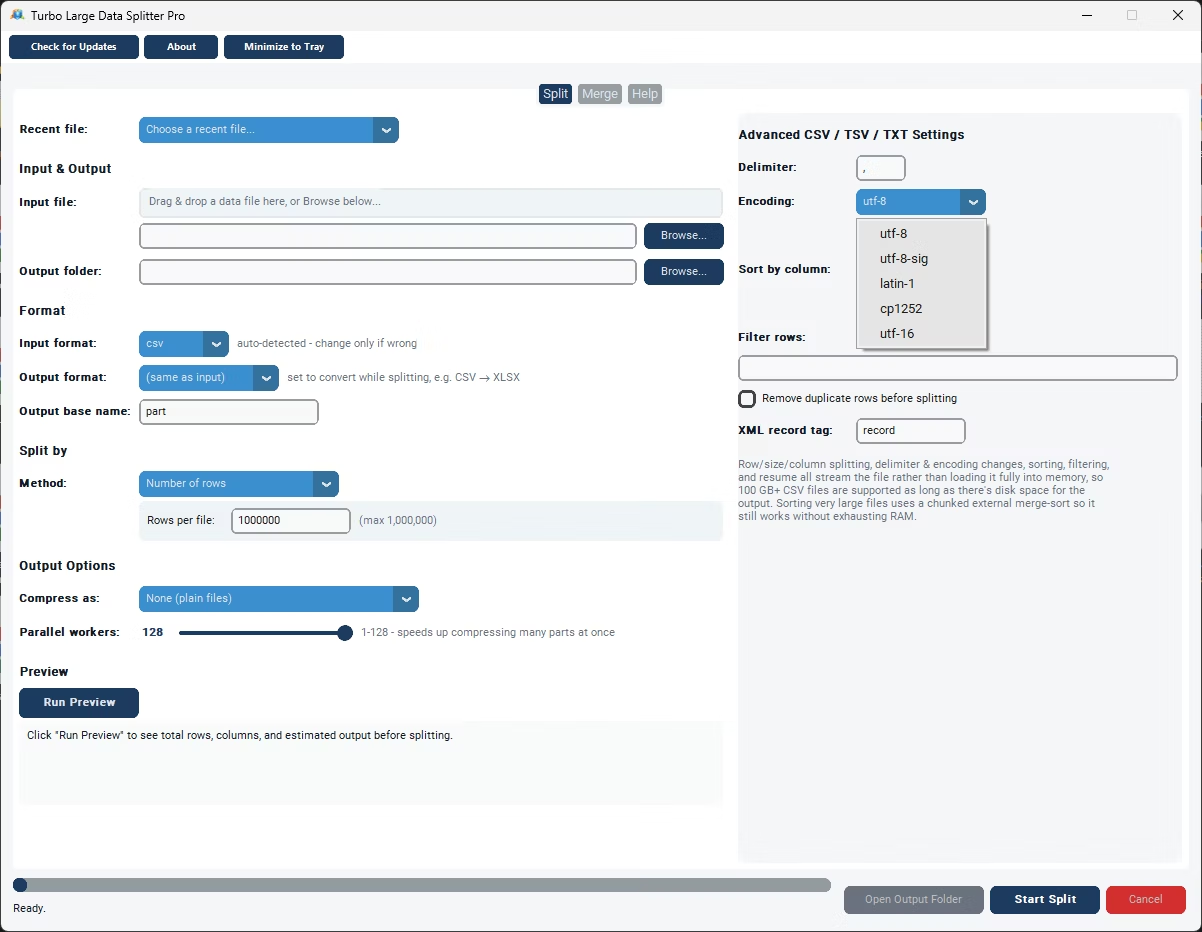
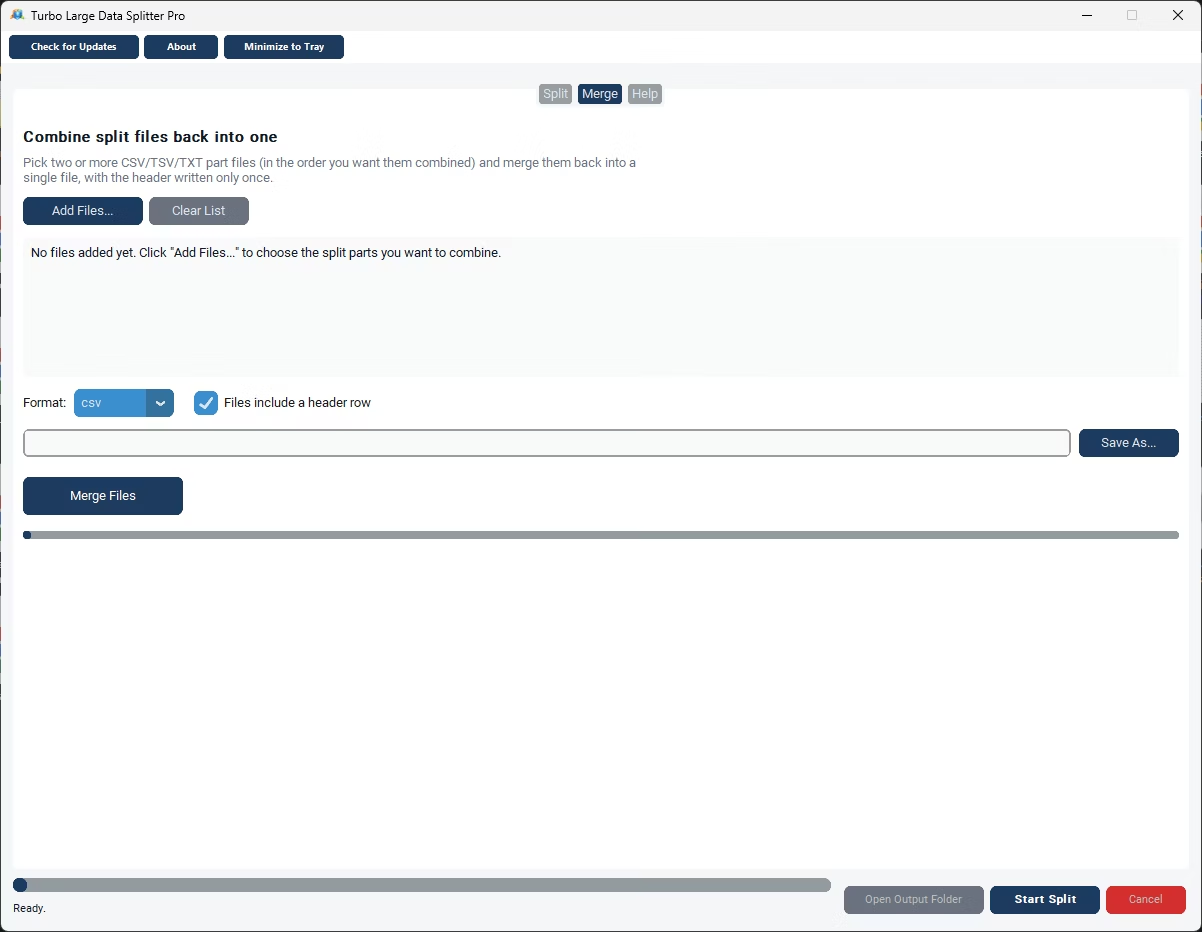
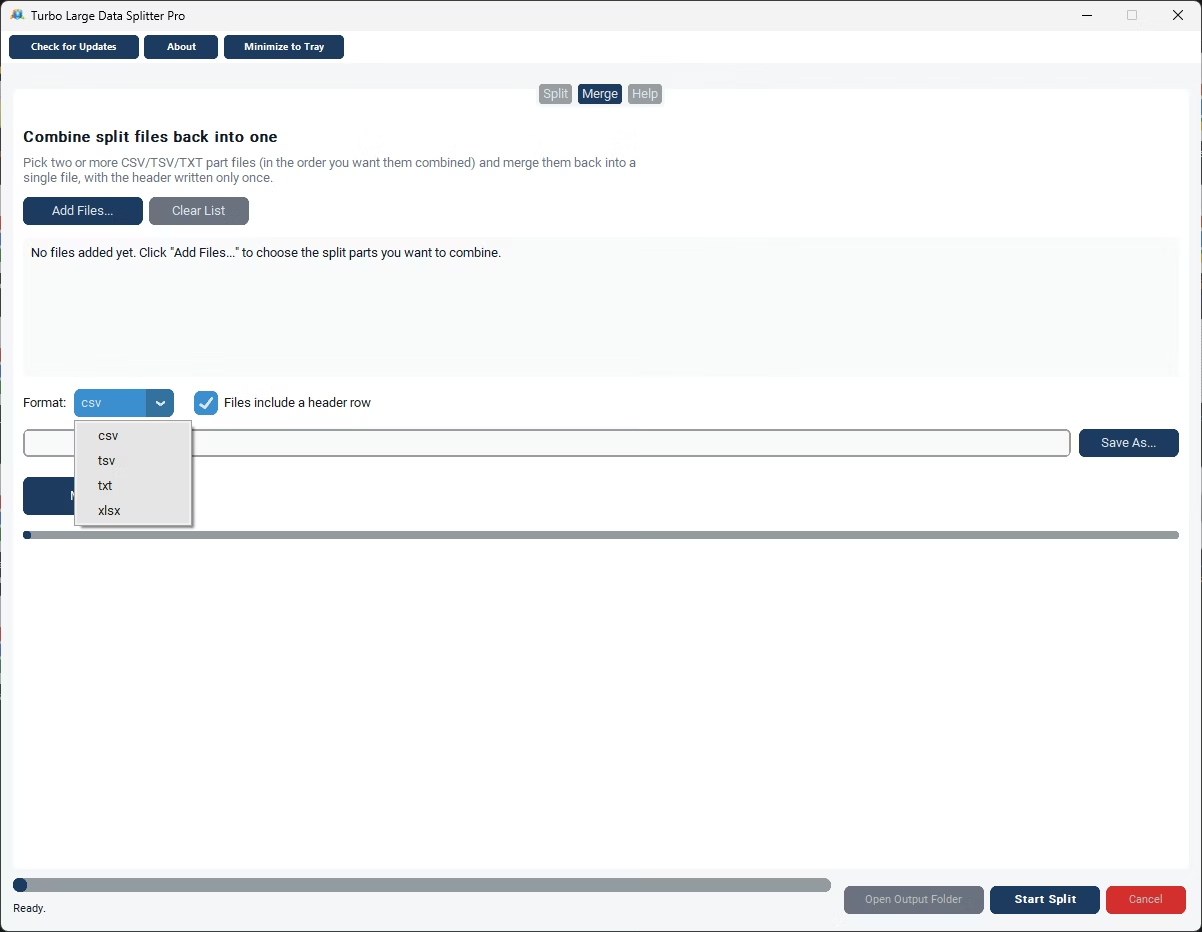
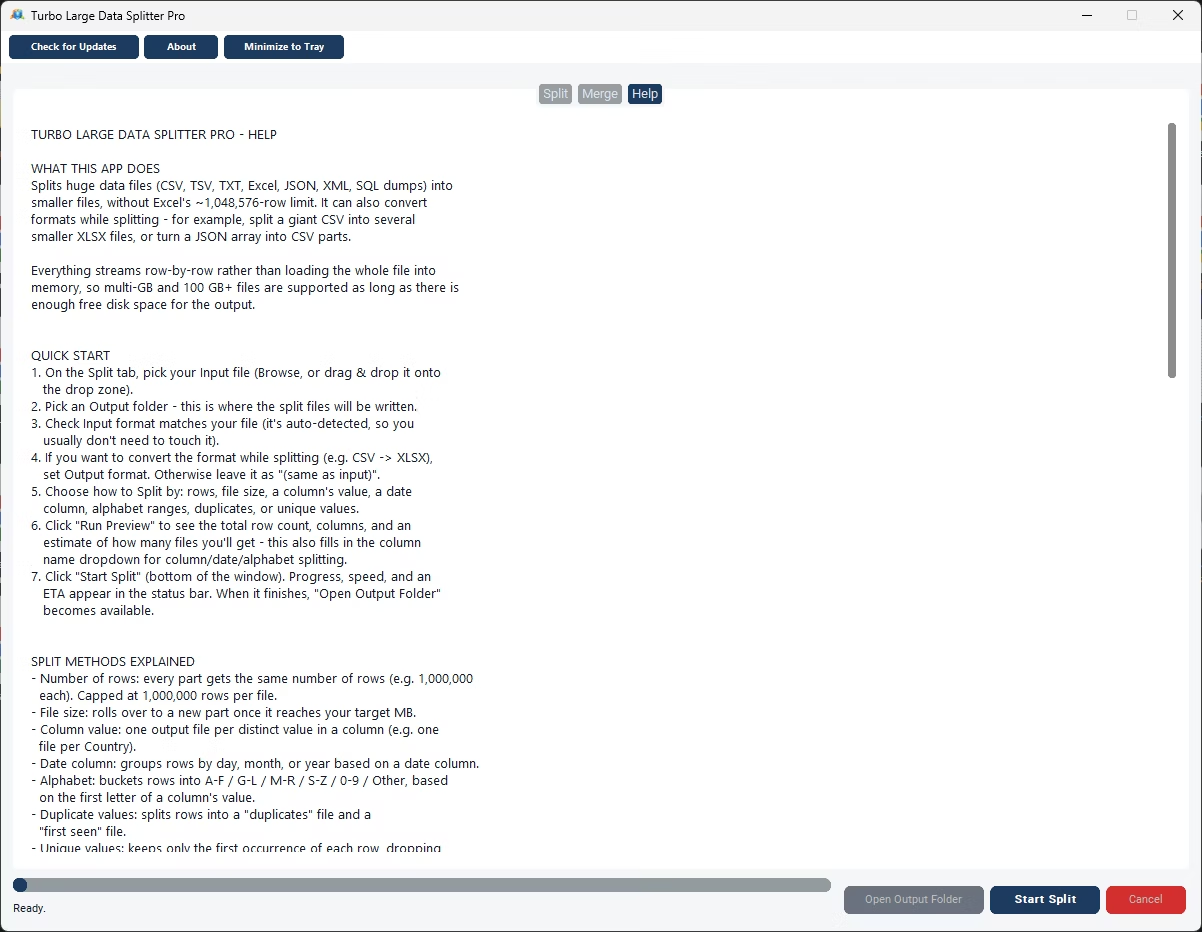
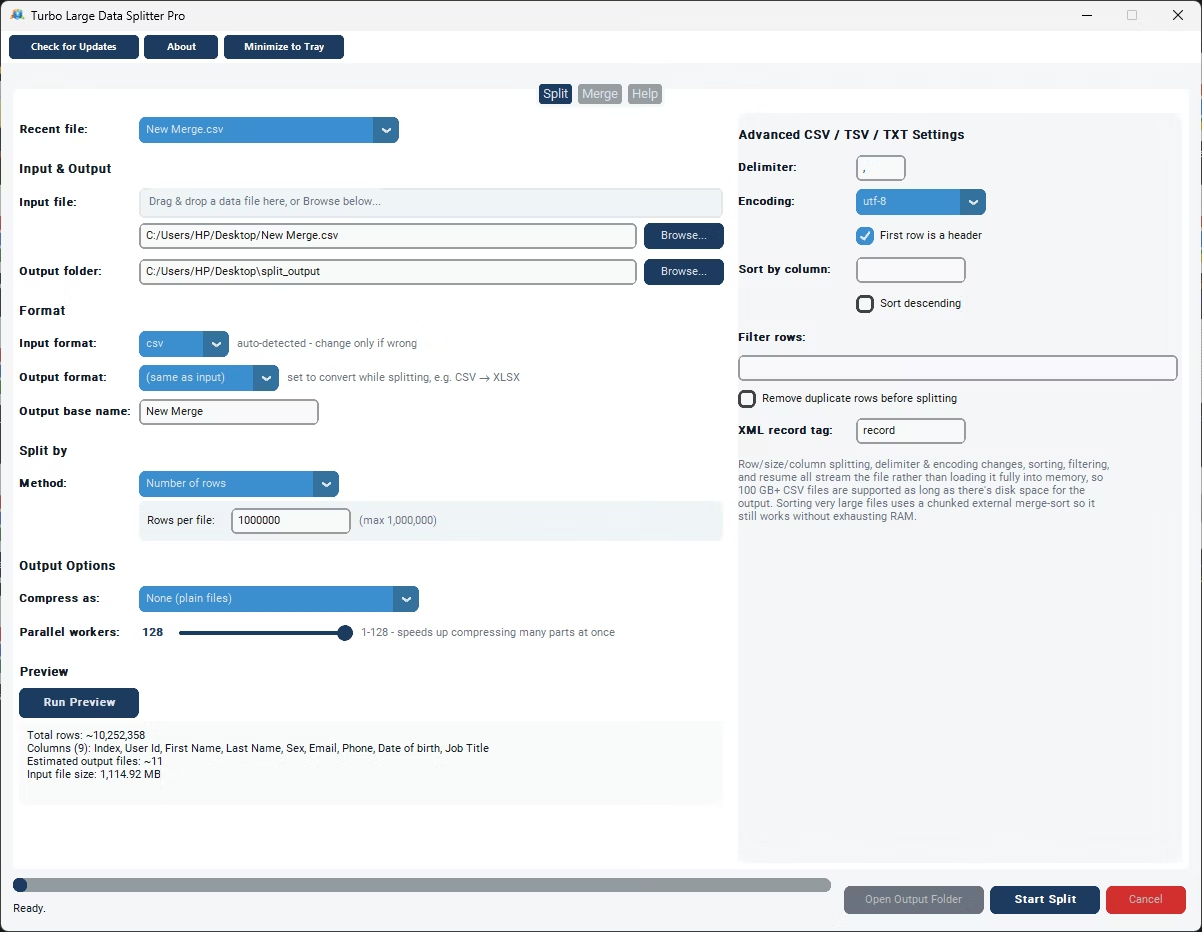
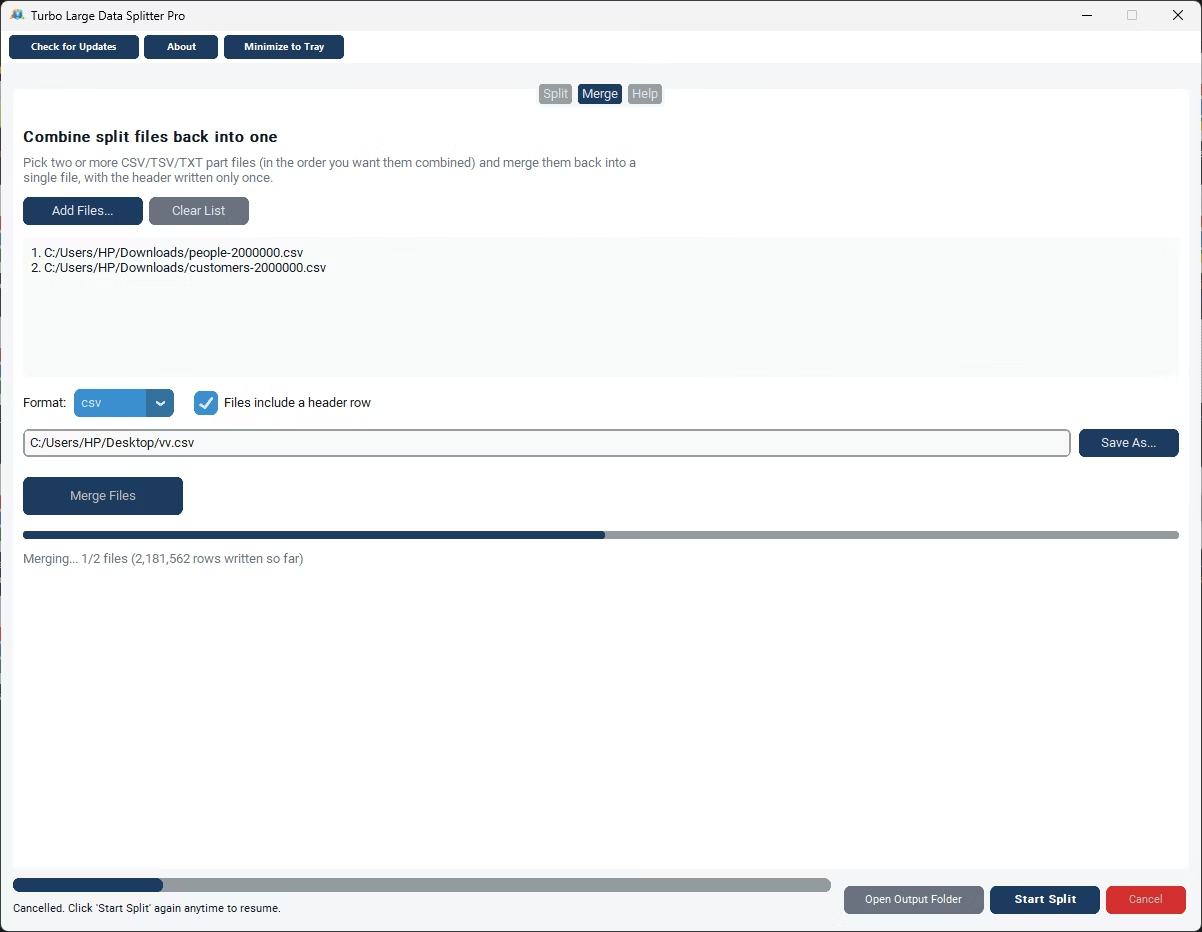
- Install Turbo Large Data Splitter on your Windows PC.
- Open the merge feature and add all the .xlsx files you want combined.
- Choose how the source sheets should map into the merged workbook.
- Review the detected columns across all files.
- Click Merge to build the combined Excel file.
- Save and open the resulting .xlsx workbook.
- Reads and merges .xlsx files directly
- Fast reading engine for large Excel workbooks
- Option to stack matching sheets or keep them separate
- No VBA macros or Excel add-ins needed
- Handles multiple large workbooks in one run
- Fully offline processing for data privacy
Does this work with .xls files as well as .xlsx?
The tool is built around the modern .xlsx format; older .xls files may need to be saved as .xlsx first for the best results.
What happens to formatting when merging Excel files?
The merge focuses on combining the underlying data correctly; formatting such as fonts and colors from the original files may not carry over exactly and can be reapplied afterward if needed.
Can I merge Excel files that have different sheet names?
Yes, you can review and map sheets manually if the names don't match automatically across the source files.
Ready to merge your Excel files into one combined workbook?