An Excel workbook that's grown too large to open comfortably, or that's hit its roughly 1,048,576-row-per-sheet ceiling, needs to be split before it's usable again, and doing that split without leaving Excel, or without a tool that understands the XLSX format properly, is genuinely difficult.
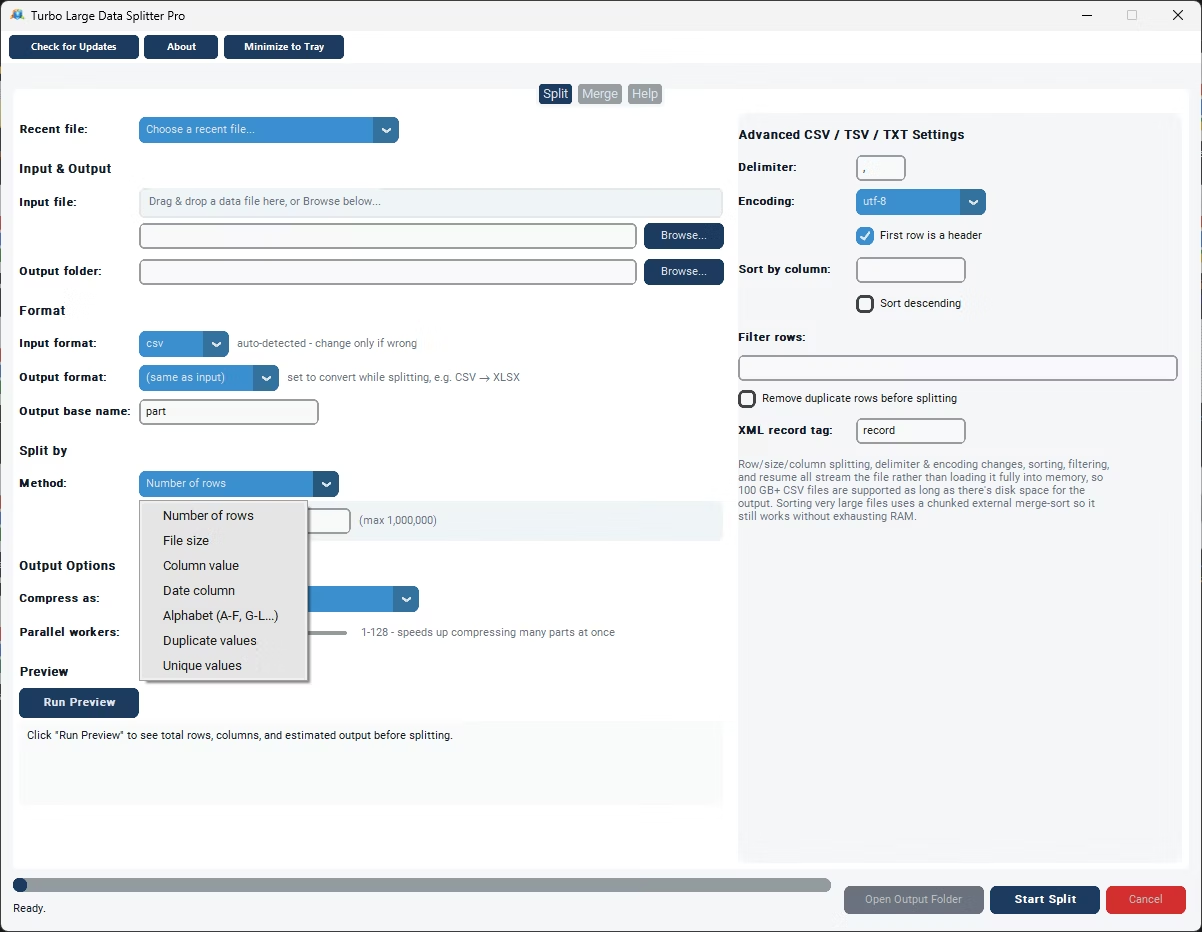
Turbo Large Data Splitter splits large Excel data files using seven methods, Number of Rows to divide by a fixed row count, File Size for a target megabyte size, Column Value for one file per category, Date Column for time-based grouping, Alphabet Ranges, and Duplicate or Unique Values for deduplication scenarios.
Splitting by row count removes Excel's own row-per-sheet ceiling directly, since each part becomes its own workbook once split, and XLSX workbooks with multiple sheets show a sheet selector automatically, so you can pick exactly which sheet to split out of a larger file.
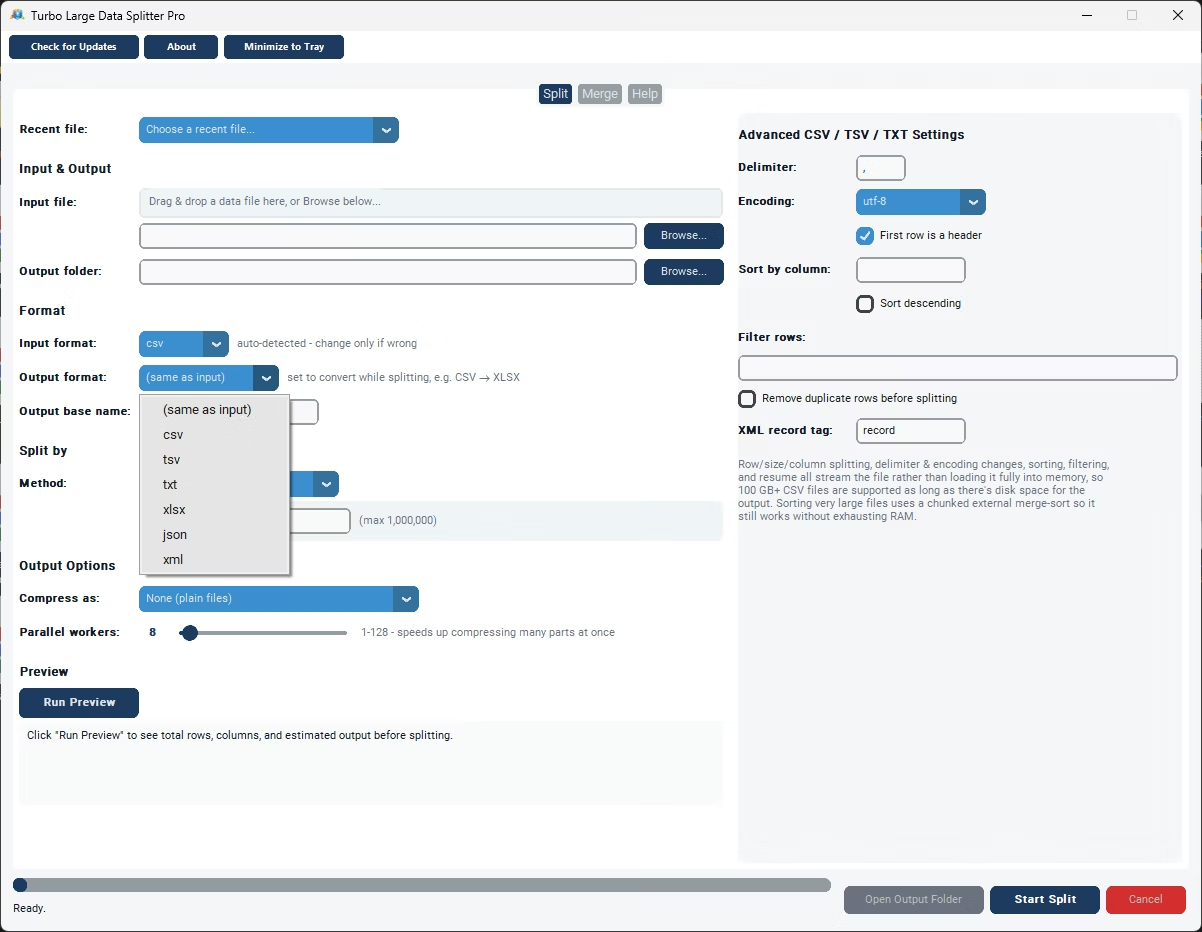
Output doesn't have to stay as Excel either, since input and output formats are independent settings, a large XLSX workbook can be split directly into CSV, JSON, TXT, TSV, or XML files if that better suits your next step.
The streaming engine handles XLSX efficiently, reading and writing in a single pass so large workbooks are processed without the memory issues that come from Excel itself trying to fully load an oversized file.
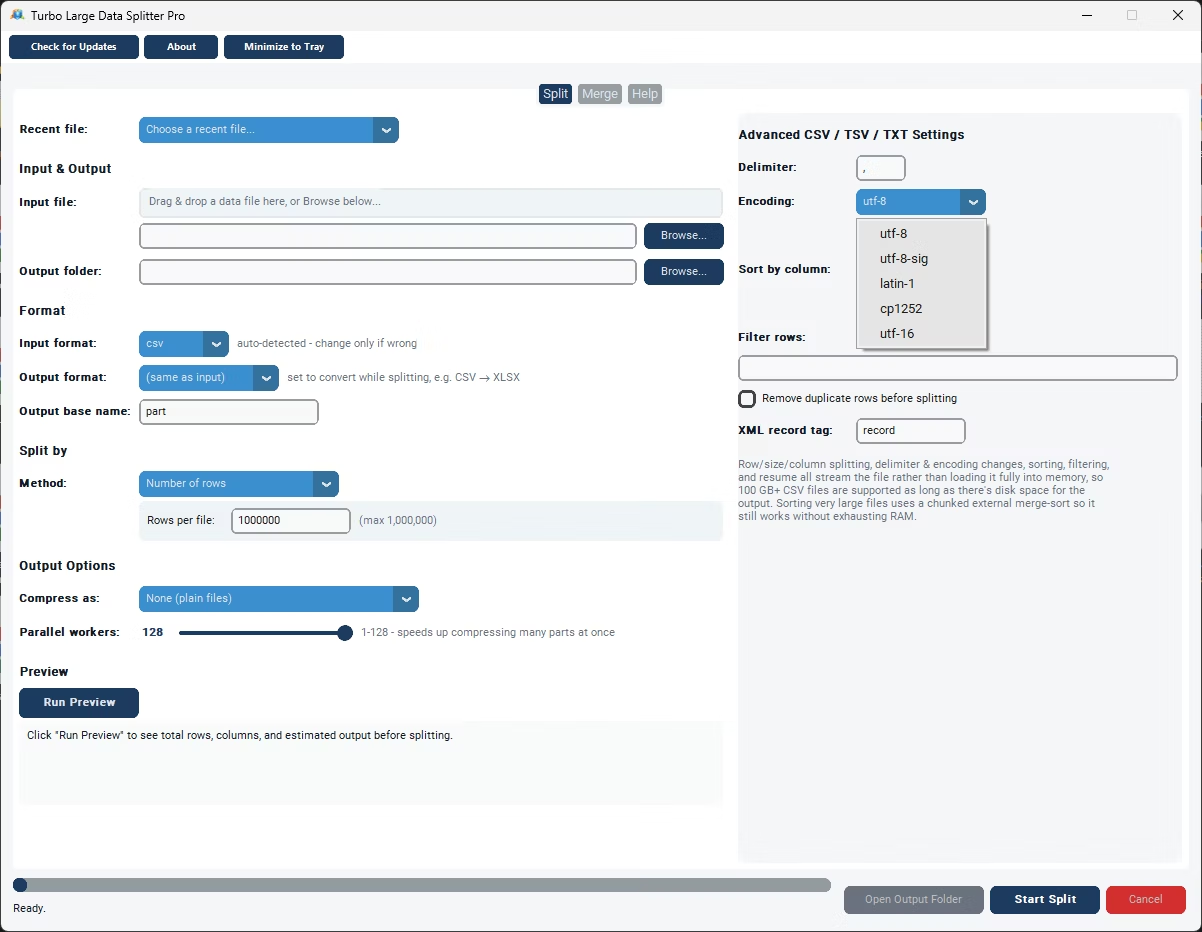
Everything runs offline, entirely on your own Windows PC, so splitting a large Excel data file containing sensitive business information never requires uploading it to an external service. Delimiter and encoding both default to Auto for relevant formats and are detected directly from the file itself, so you only need to touch them in the rare case detection gets something wrong, an unusual delimiter or a legacy encoding, for example. This makes the tool equally useful for data analysts working with irregular exports, developers automating a recurring pipeline step, e-commerce teams distributing catalog data by category, and anyone else who regularly runs into the practical limits of opening a large data file directly in a spreadsheet program.
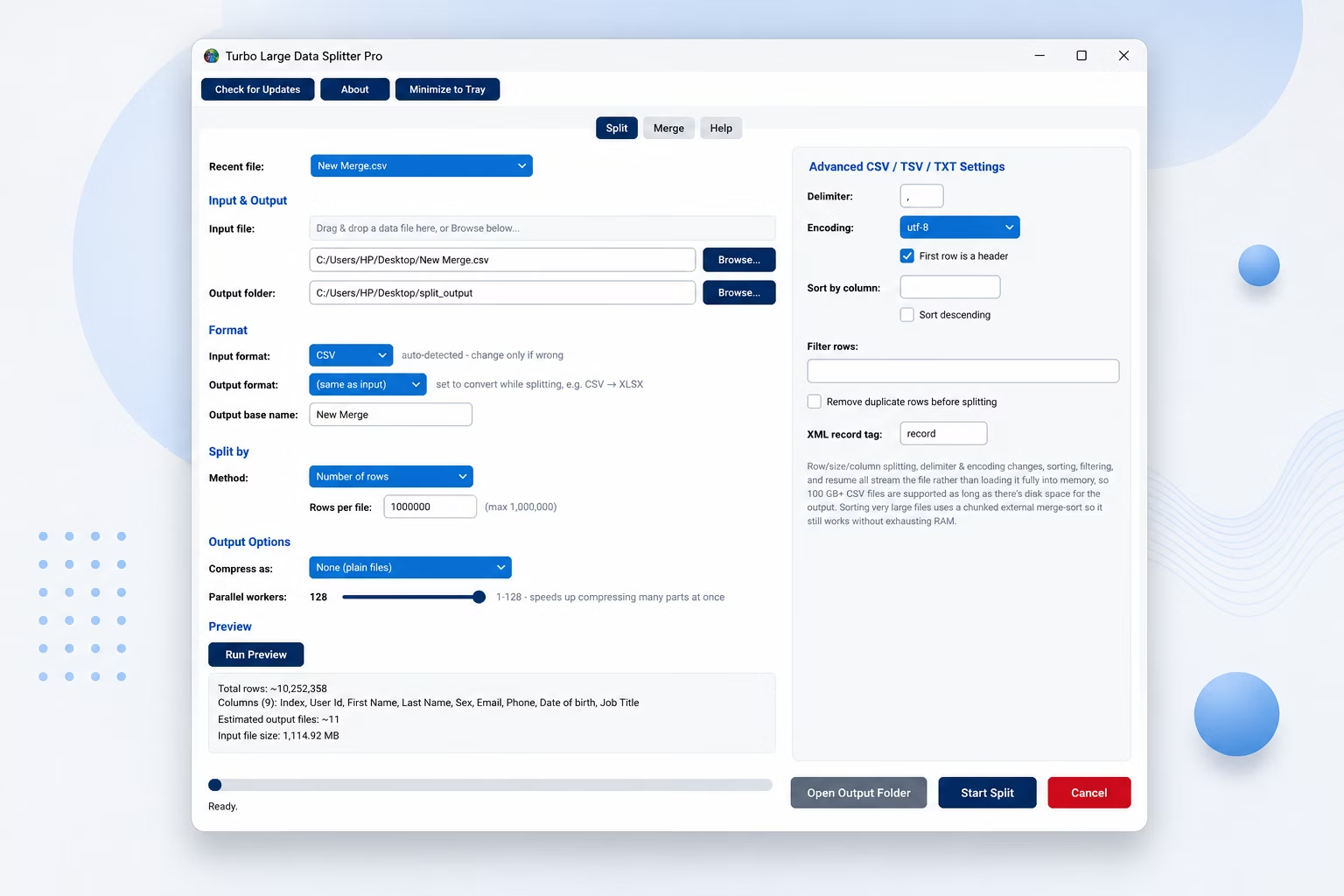
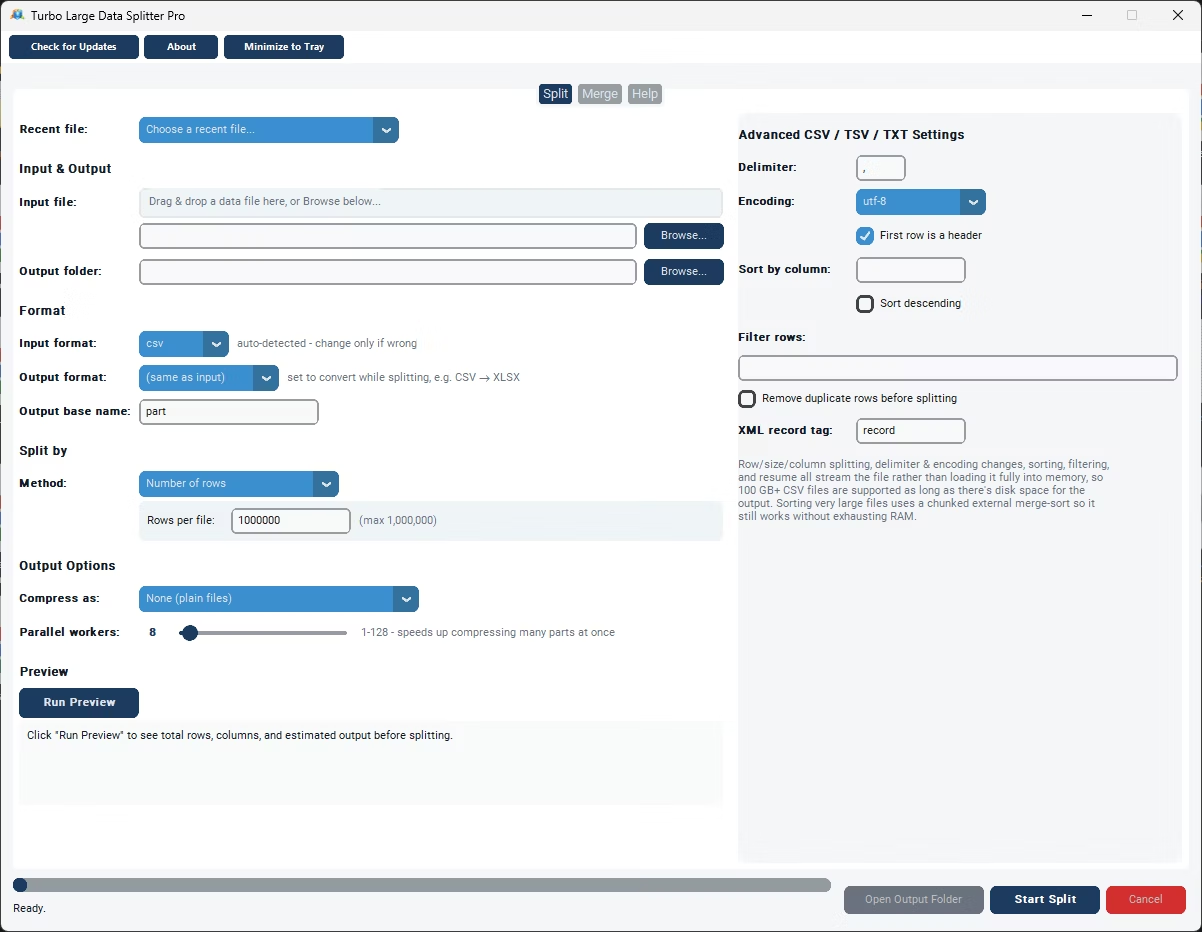
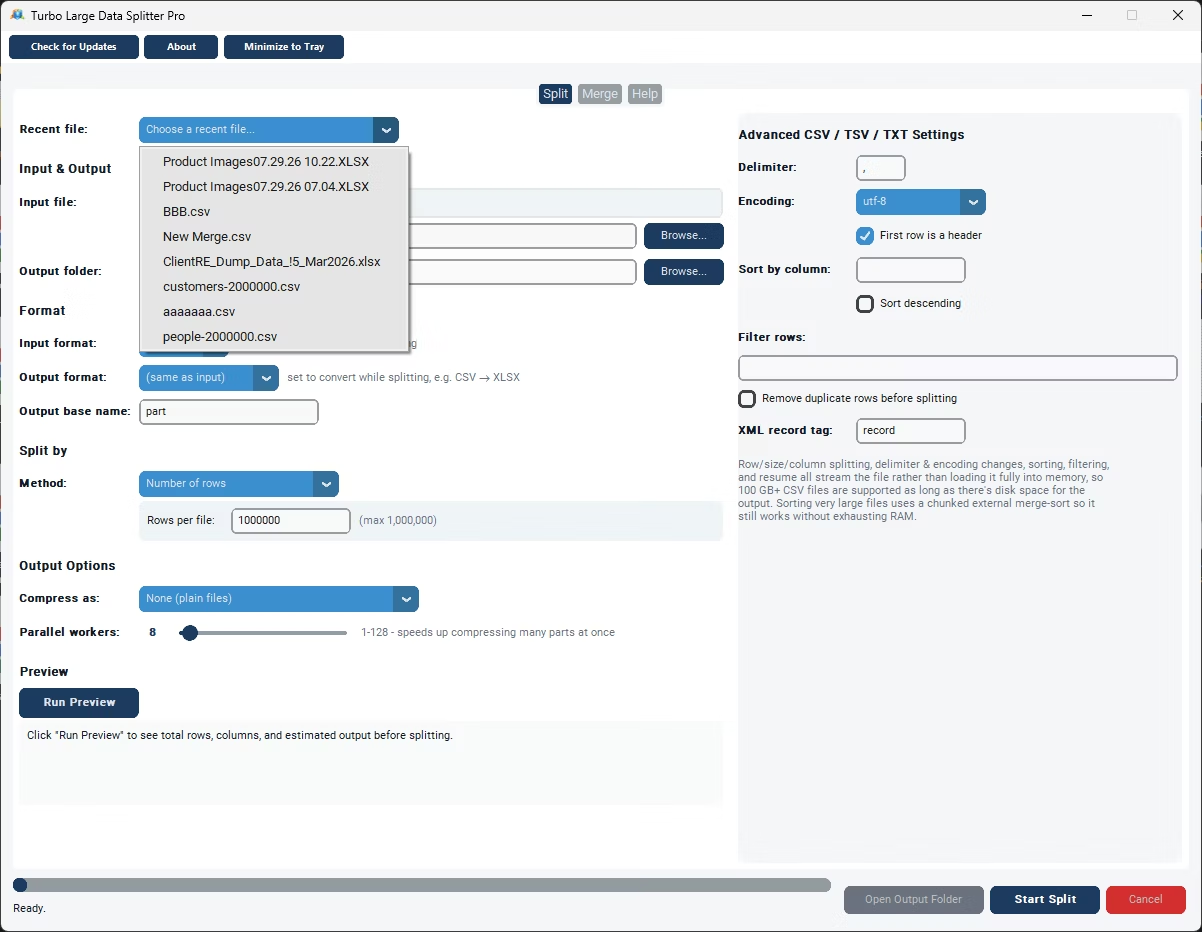
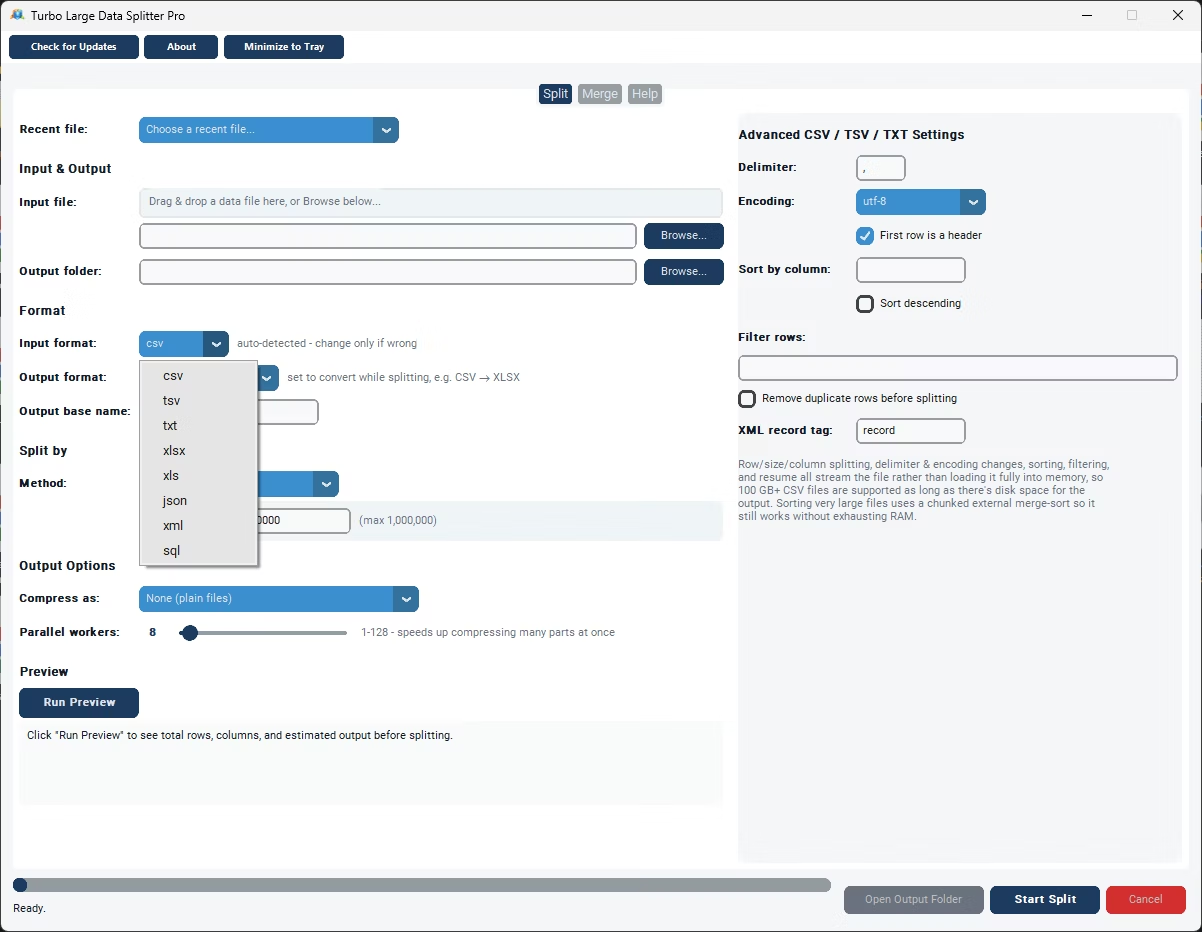
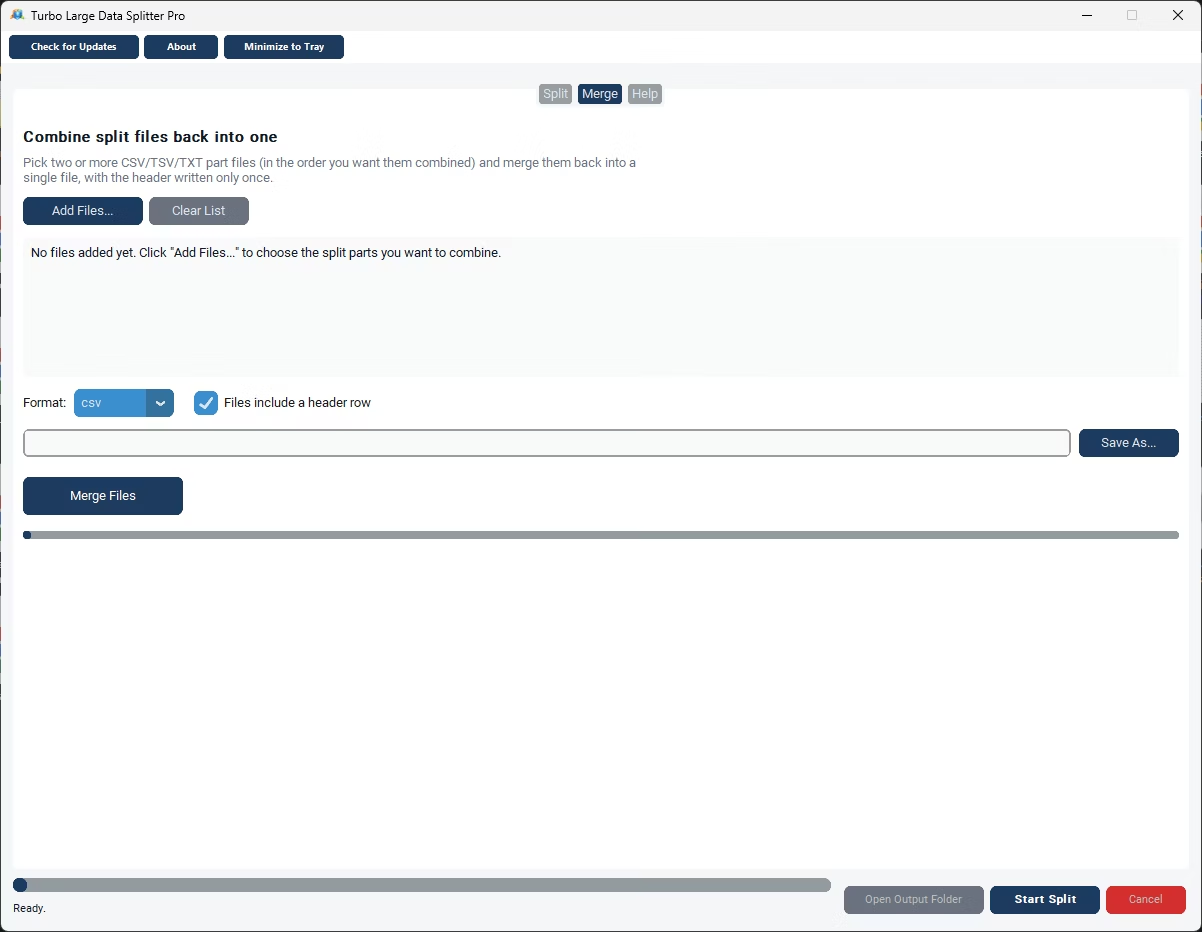
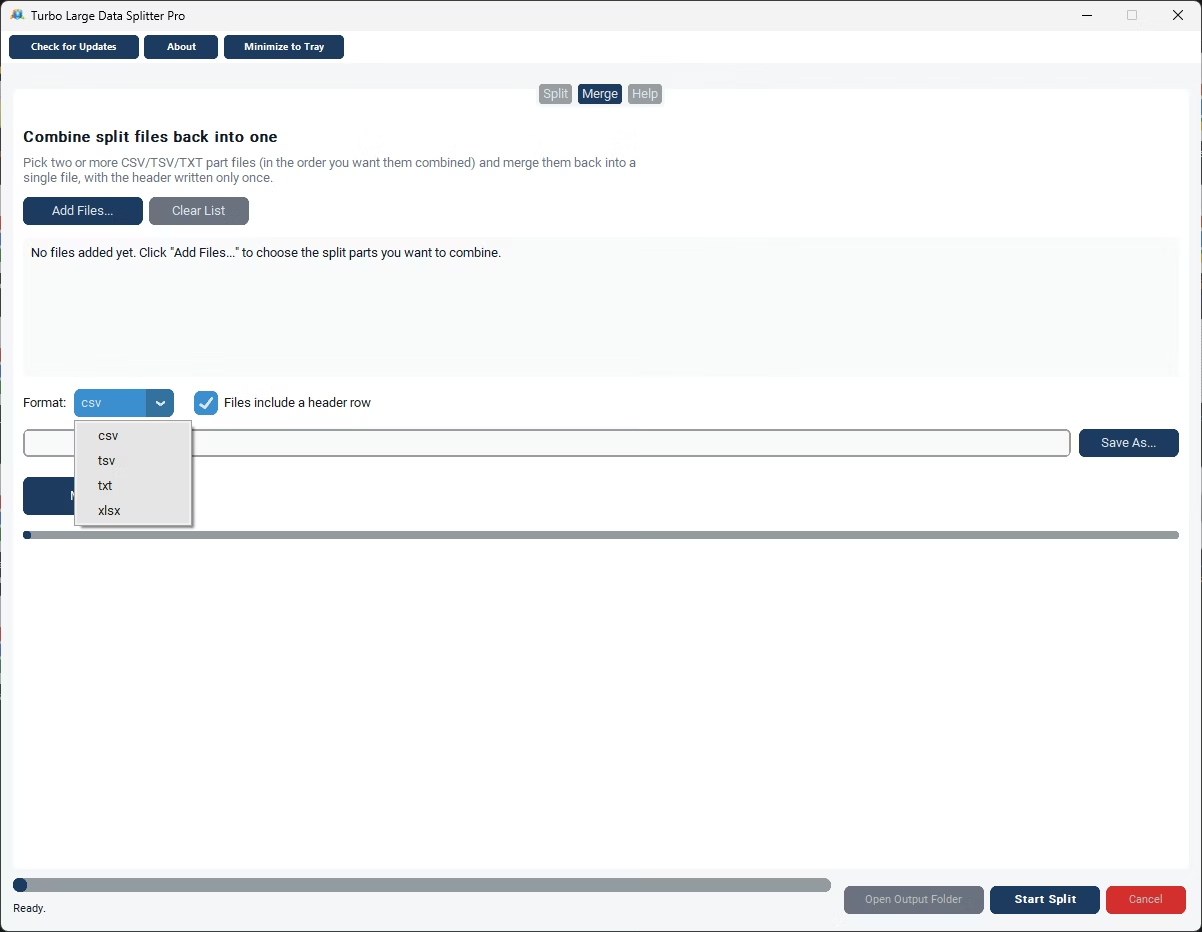
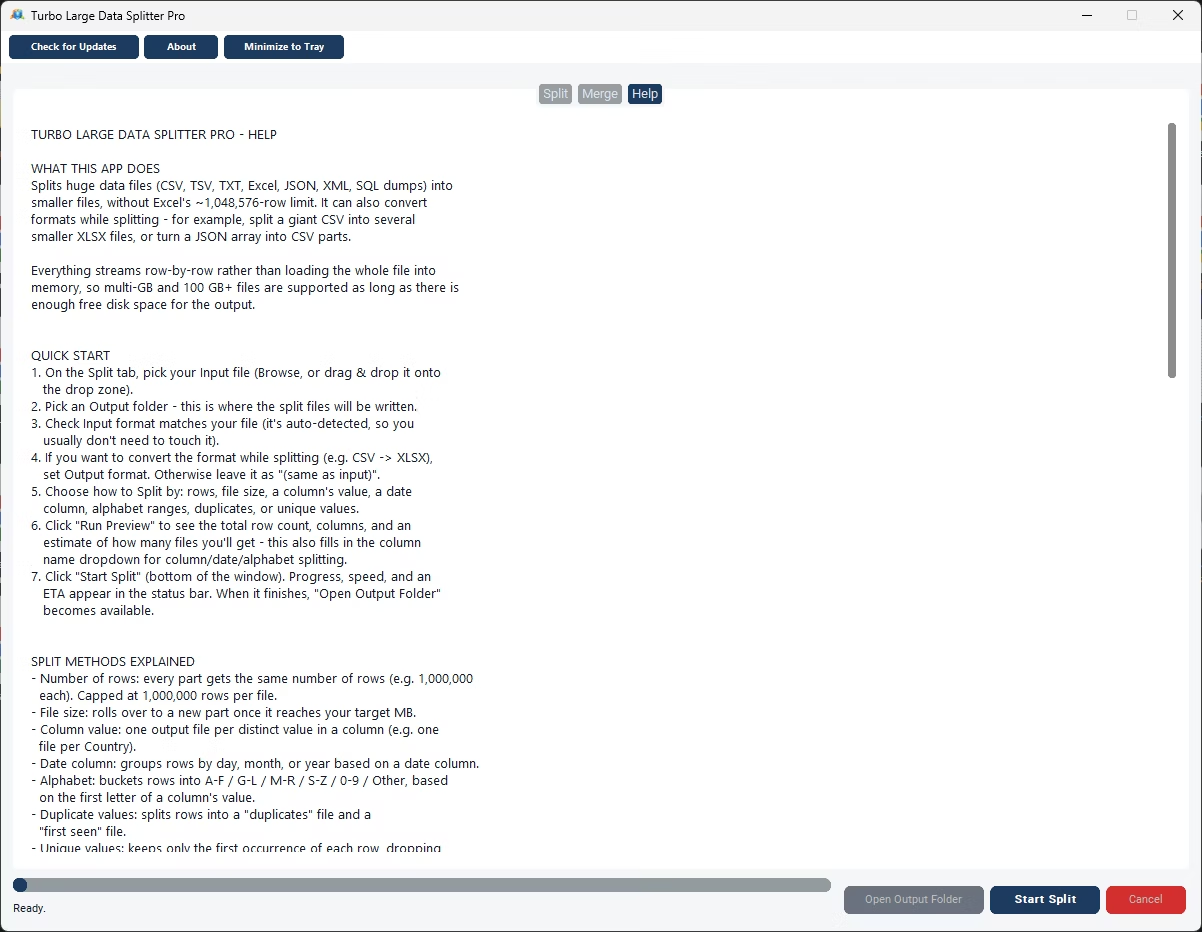
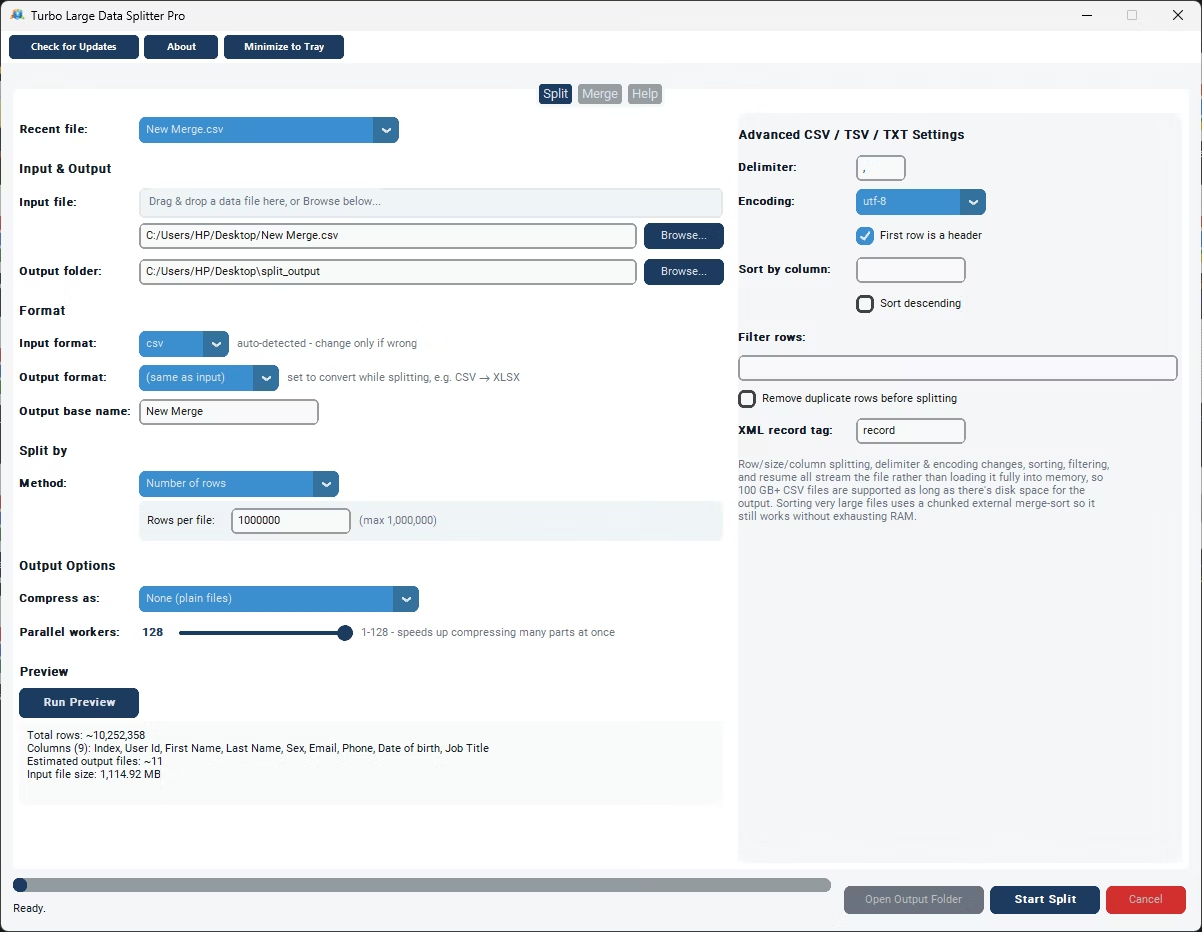
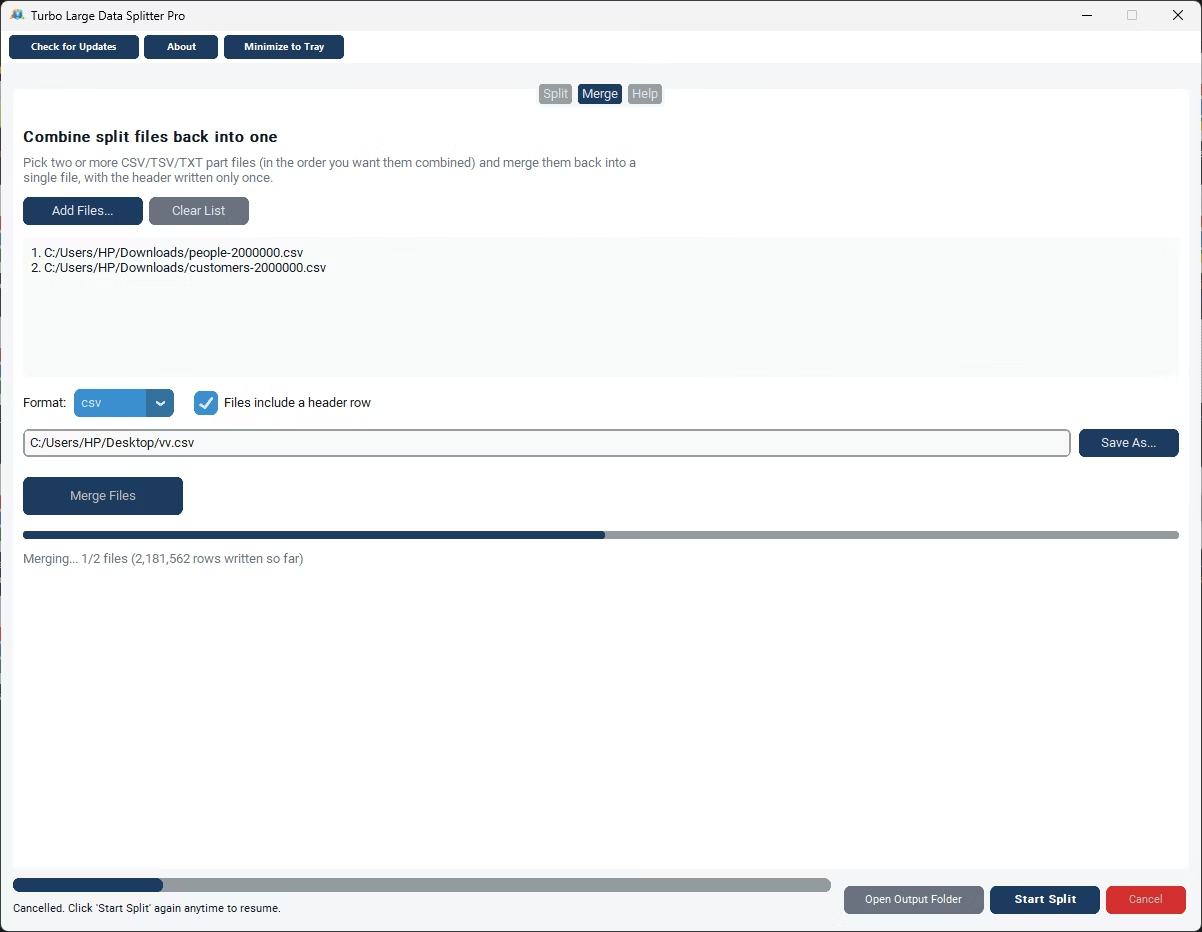
- Install Turbo Large Data Splitter on your Windows PC.
- Browse to or drag and drop your XLSX file.
- Choose a specific sheet if the workbook has multiple sheets.
- Choose your output folder and format.
- Select the split method matching your goal.
- Run Preview to confirm the setup.
- Click Start Split and monitor progress.
- Open the output folder once the split completes.
- Adjust the parallel worker slider if compressing many output parts.
- Check the status bar for the final row count and file count summary.
- Splits large Excel workbooks using seven distinct methods
- Removes Excel's roughly 1,048,576-row-per-sheet ceiling
- Sheet selector for multi-sheet XLSX workbooks
- Convert output to CSV, JSON, TXT, TSV, or XML if needed
- Streaming engine processes XLSX in a single pass
- Preview and live status bar for full visibility
- Runs fully offline with no uploads required
- One-time purchase for Windows, with Gumroad license activation
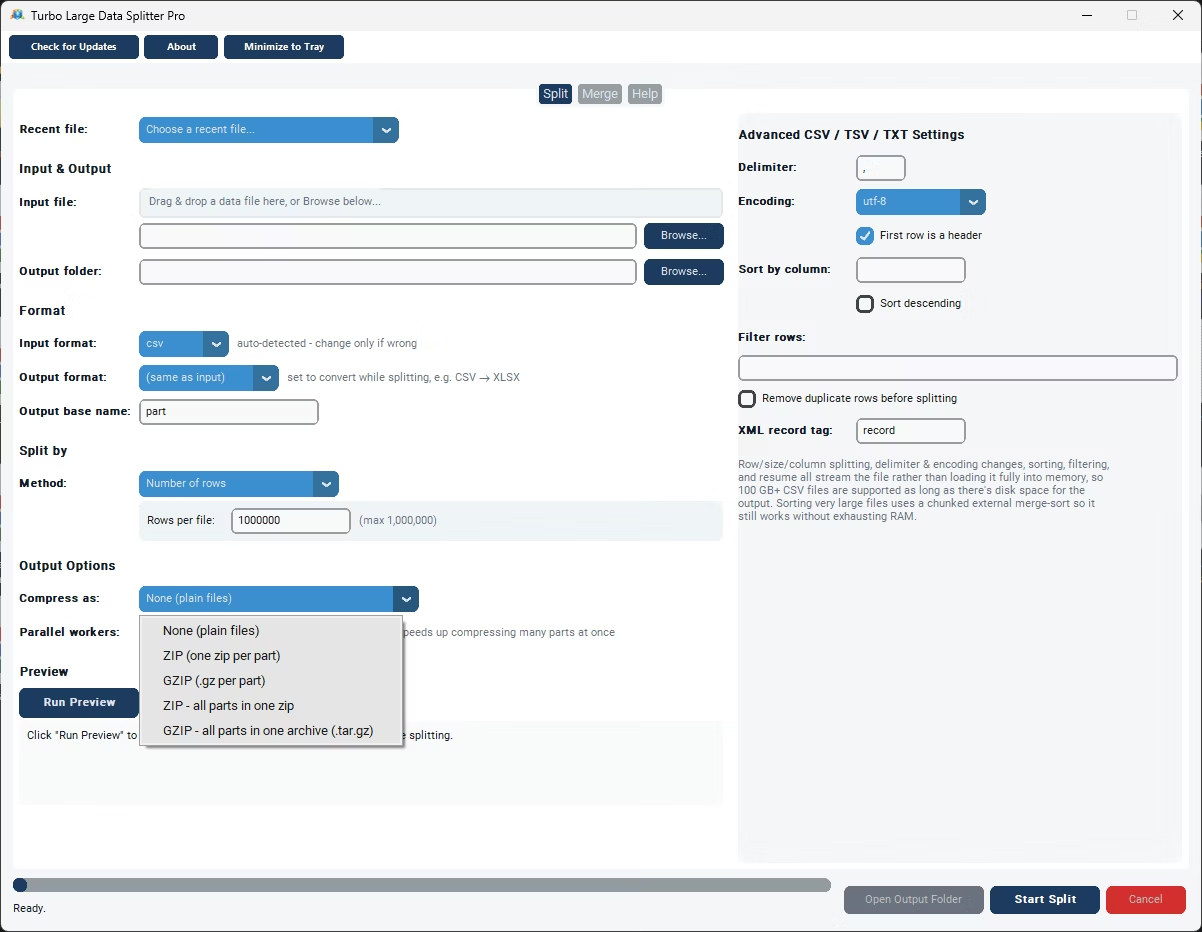
- Compression options: uncompressed, per-part ZIP/gzip, or a single bundled archive
- Works with files on local drives, external drives, and network shares
Can I choose which sheet to split from a multi-sheet workbook?
Yes, XLSX workbooks with multiple sheets show a sheet selector, so you can pick exactly which sheet to split.
Does splitting an Excel file by row remove its row limit?
Yes, splitting by row count means each resulting part becomes its own workbook, so the roughly 1,048,576-row-per-sheet ceiling no longer applies to any single output file.
Can I split an Excel file into a different output format?
Yes, output format is independent of input format, so a large XLSX file can be split directly into CSV, JSON, or other supported formats.
Is legacy .xls handled the same way as .xlsx?
Legacy .xls is read whole into memory rather than streamed, but that's fine since .xls itself caps at 65,536 rows, well within typical memory limits.
Does this work on both Windows 10 and Windows 11?
Yes, Turbo Large Data Splitter is built and tested for both Windows 10 and Windows 11.
Is my data safe when using this tool?
Yes, all processing happens locally on your PC; no files are ever uploaded, so proprietary or sensitive data stays fully under your control.
Can I compress the split output files?
Yes, you can leave parts uncompressed, zip or gzip each part individually, or bundle everything into a single ZIP or gzip archive, sped up by a parallel worker slider.
Can I use this on files stored on an external or network drive?
Yes, data files on local drives, external drives, or mapped network shares all work the same as any local file.
Can I cancel a split job partway through if I need to?
Yes, cancelling saves a checkpoint file in the output folder, so you can resume the job later exactly where it left off instead of starting over.
Is there a trial version available before buying?
Check the product page on turbo-soft.com for current trial availability and details.
Ready to split your large Excel data files, fully offline?