SVG describes images as mathematical shapes and paths rather than a fixed grid of pixels, which is why logos and icons saved as SVG stay perfectly sharp at any size. JPG is the opposite — a raster format made of fixed pixels — so converting a photographic JPG to SVG doesn't turn it into a true scalable vector graphic. Instead, the JPG's pixel data is embedded inside an SVG container using a base64-encoded image element, which produces a valid SVG file without actually vectorizing the photo's shapes.
This is still useful when a specific tool, plugin, or platform requires an SVG file as input even though the underlying content is photographic, since the wrapped JPG displays correctly wherever SVG is expected. For a true vector conversion of a logo or illustration into editable shapes, dedicated vectorization or auto-tracing software is the better tool for that specific job.
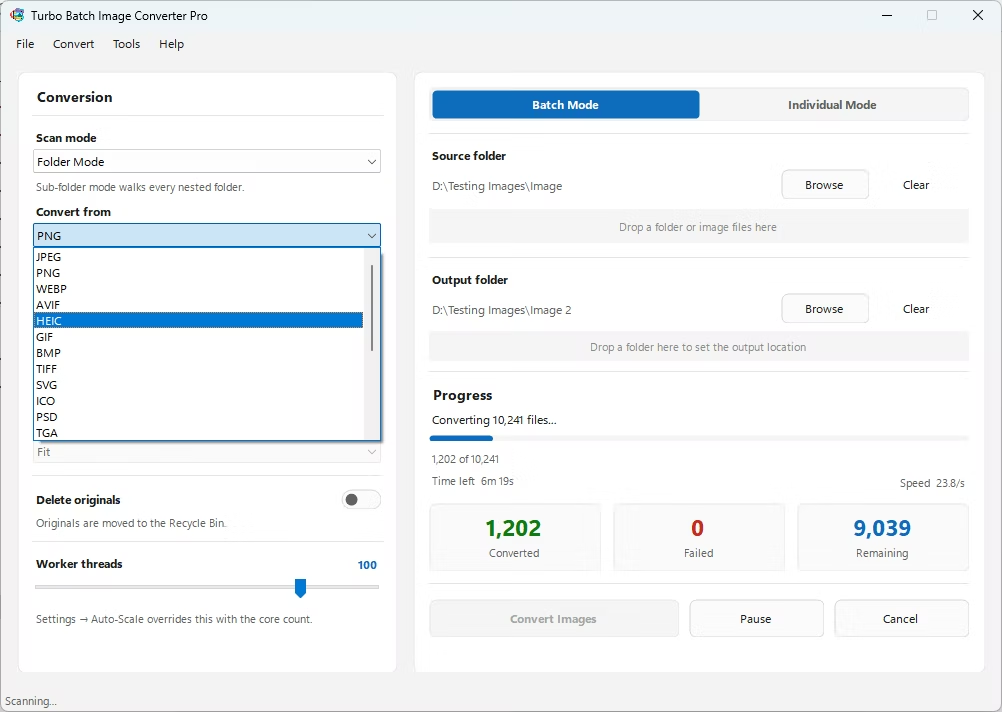
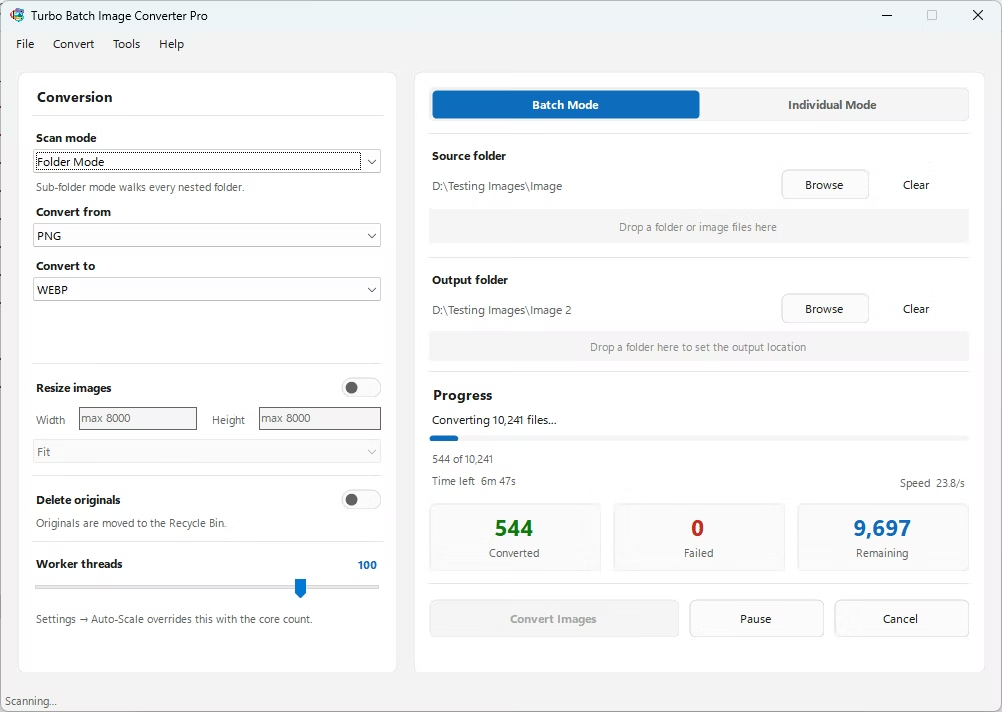
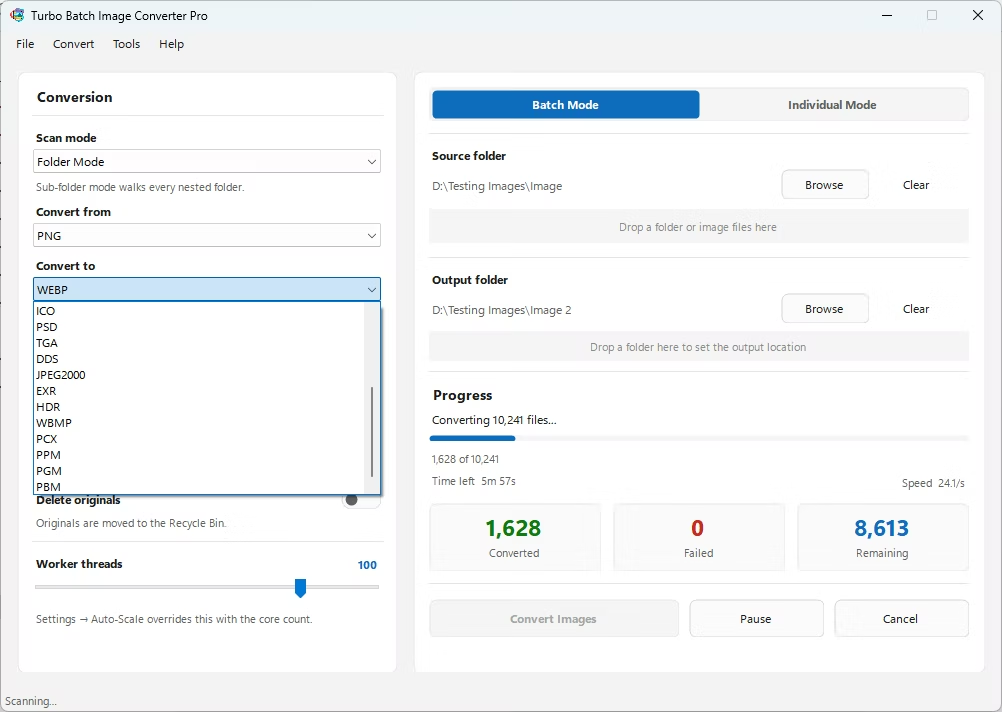
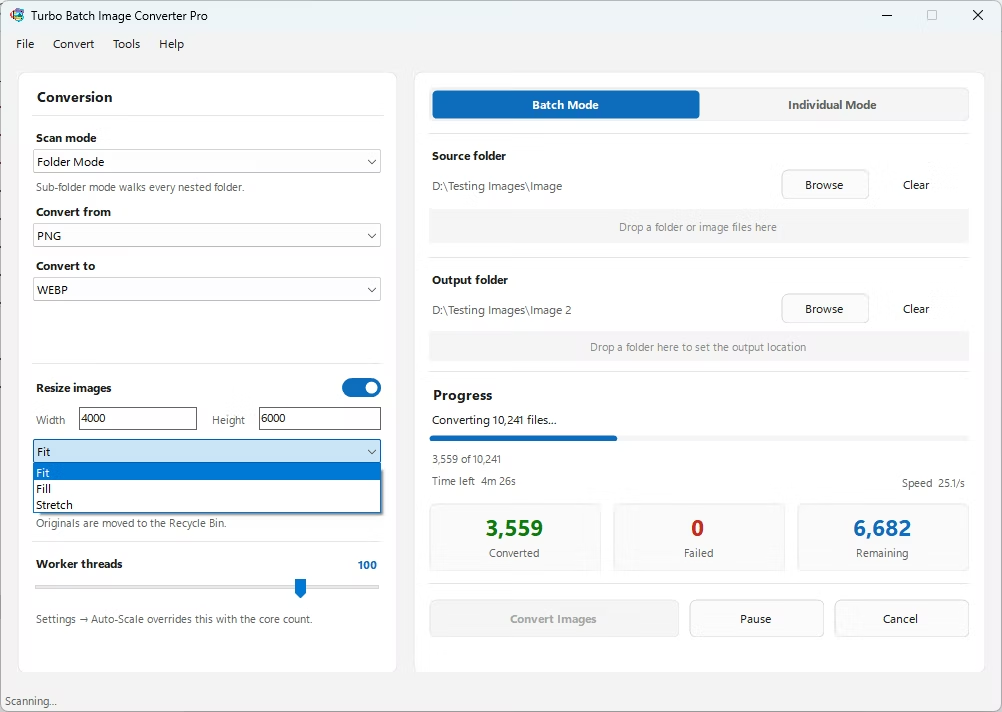
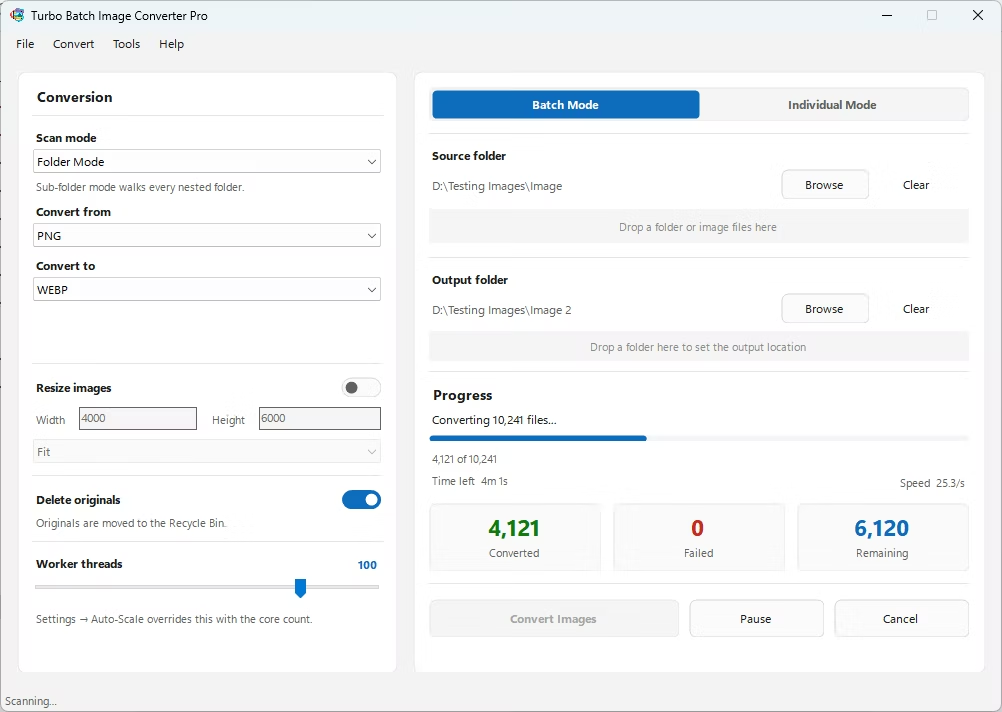
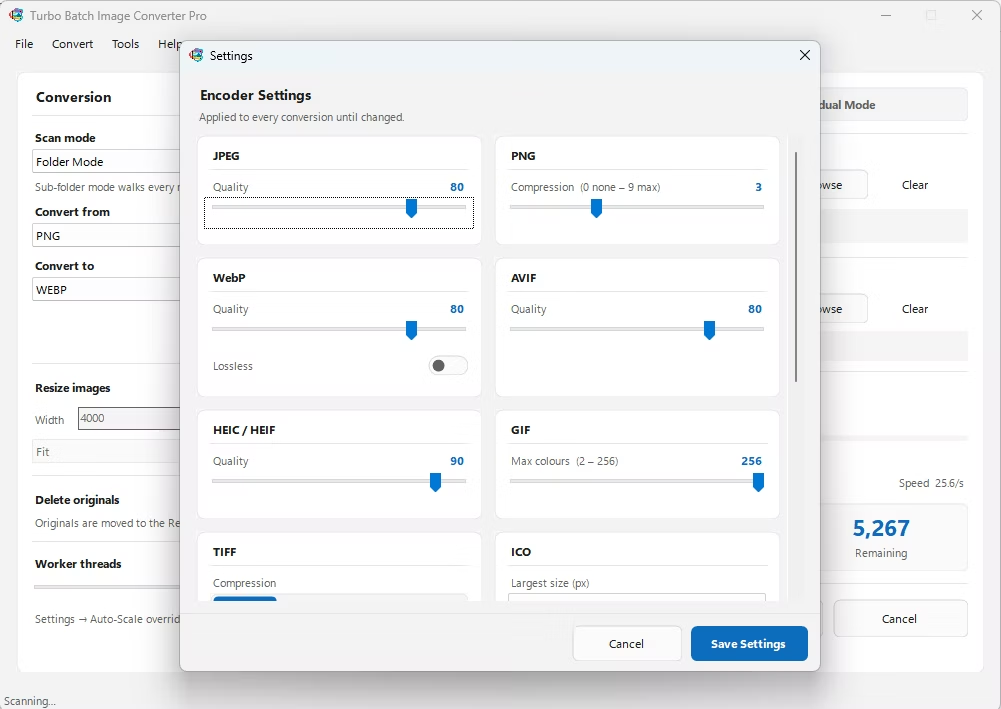
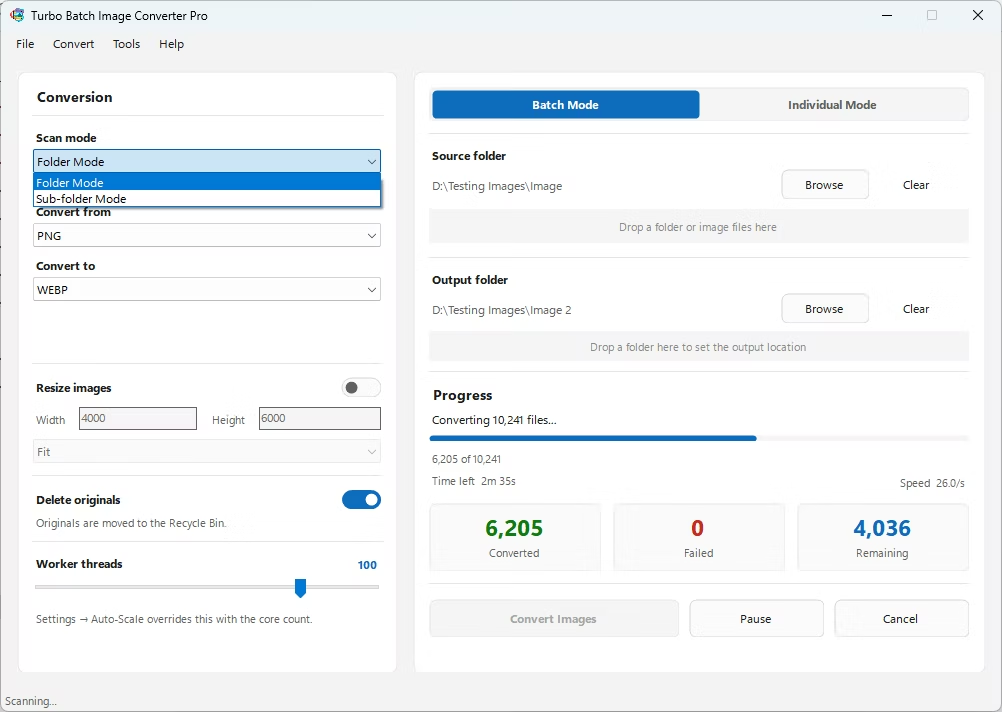
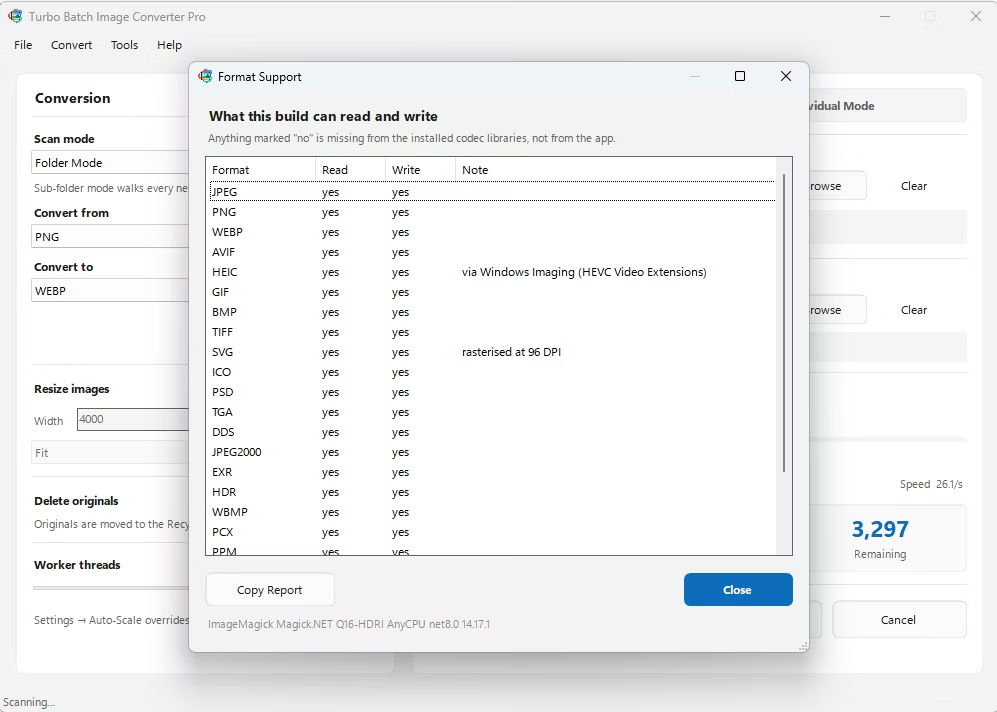
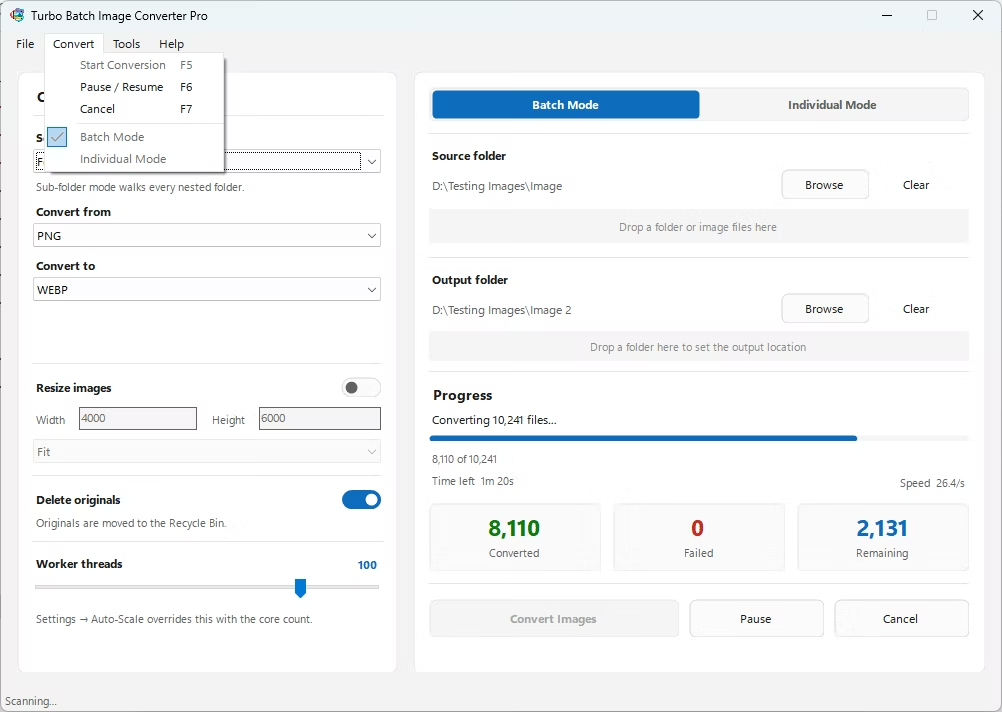
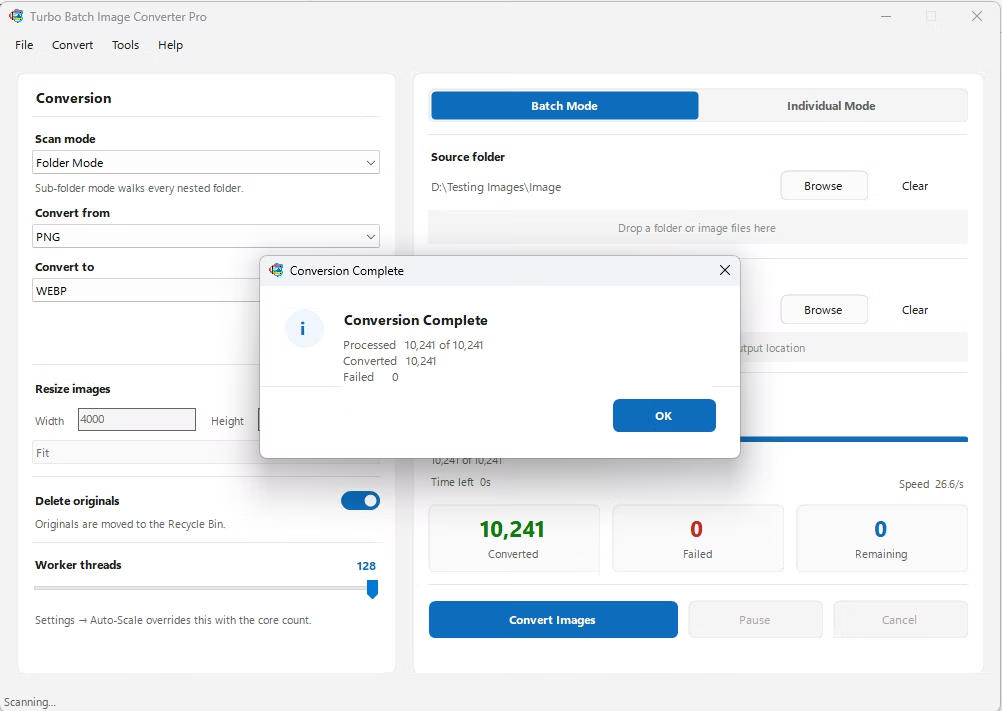
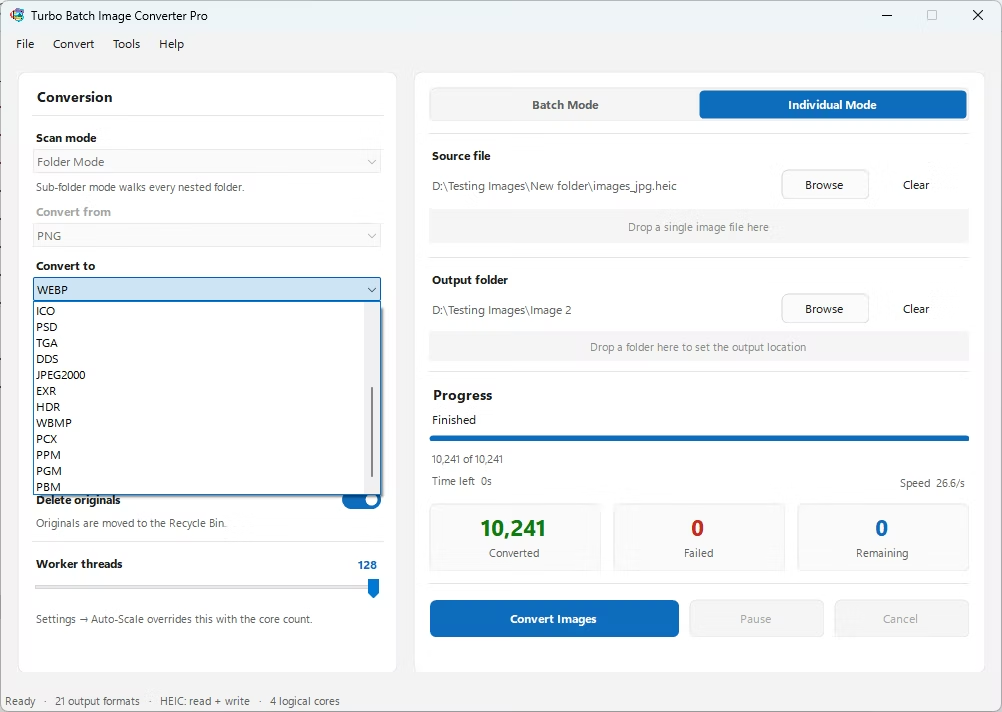
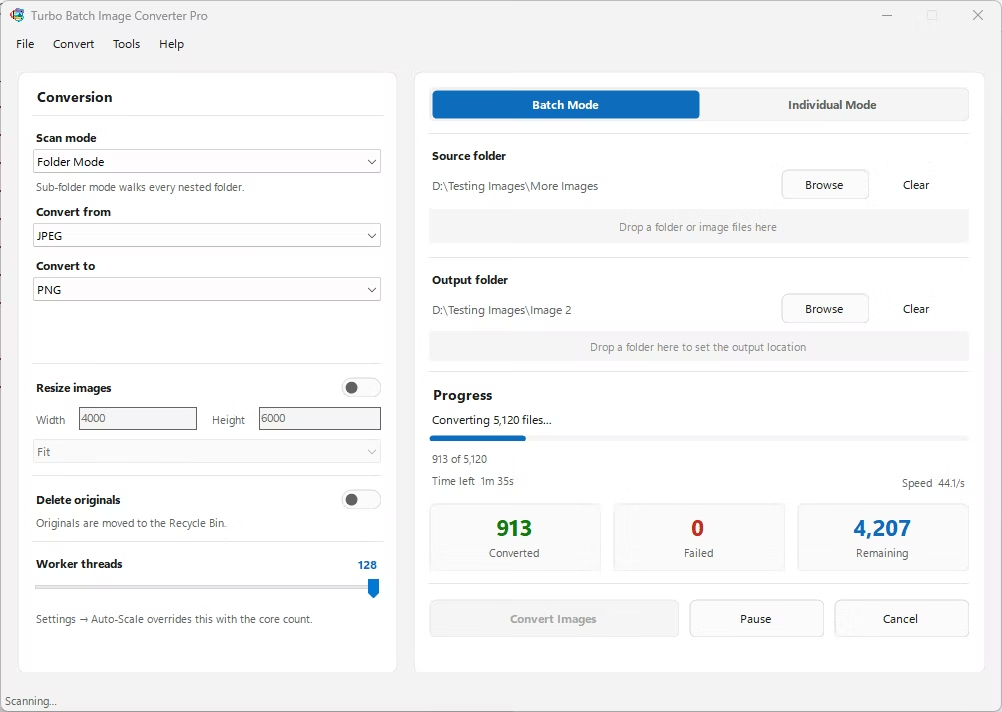
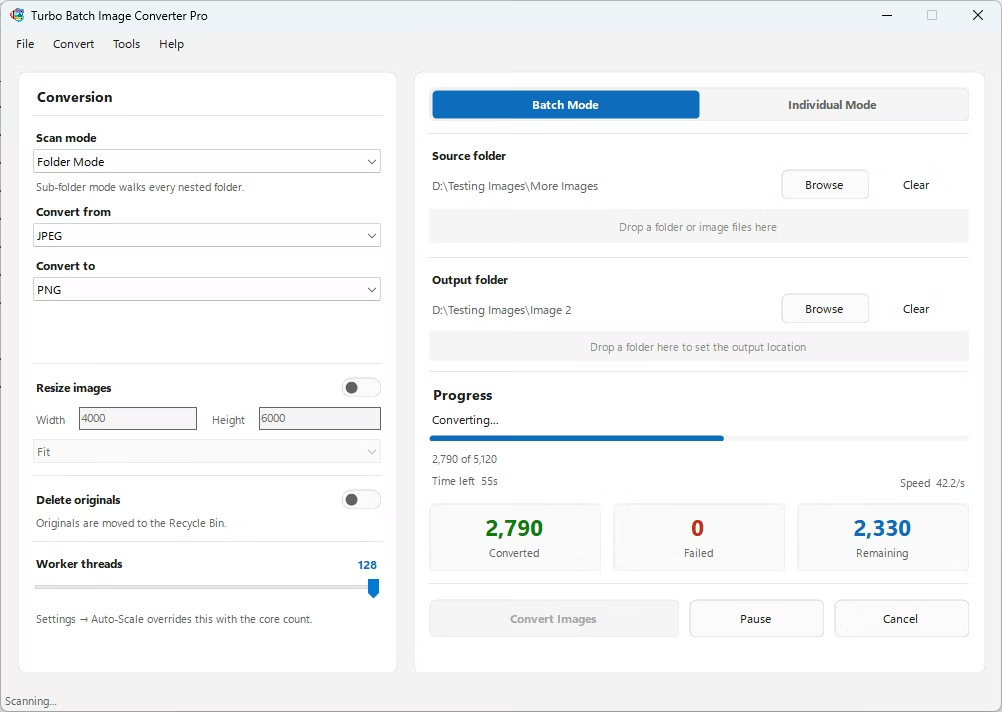
- Install Turbo Batch Image Converter Pro on your Windows PC.
- Open the app and select Batch Mode for multiple files, or Individual Mode for a single JPG.
- Drag your JPG file or folder into the app window, enabling recursive folder scanning if needed.
- Set the "From" format to JPG and the "To" format to SVG.
- Click Convert. Each JPG is embedded into a valid SVG container written to your output folder, fully offline.
- 100% offline — your images are never uploaded anywhere
- Bulk conversion of entire folders, including sub-folders, in one click
- Produces SVG files compatible with tools that specifically require SVG input
- Multi-core processing for fast handling of large batches
- Option to delete original JPG files automatically after conversion
- No recurring subscription or hidden upload limits
Will my JPG photo become an editable vector graphic?
No, a photographic JPG is embedded as pixel data within the SVG file rather than converted into vector shapes, since vectorization works best on simple graphics like logos rather than photographs with complex color detail.
Why would I need a JPG embedded in an SVG file?
Some software, plugins, or platforms specifically require SVG as an input format even when the underlying content is a raster image, making this wrapping step necessary for compatibility.
Will the resulting SVG file be smaller or larger than the original JPG?
Typically larger, since base64 encoding the image data inside the SVG container adds roughly 33 percent overhead compared to the raw JPG file size.
Ready to convert your images offline, in bulk, with full privacy?