Splitting a CSV file into multiple files sounds like it should require a script, but with the right tool it's really just a matter of choosing how you want the data divided and letting the app do the work. The two most common approaches are splitting by a fixed number of rows or splitting by a target file size.
This guide walks through the process using Turbo Large Data Splitter, a Windows desktop app built specifically for this task, so you can go from one large CSV file to several smaller, ready-to-use files in a couple of minutes.
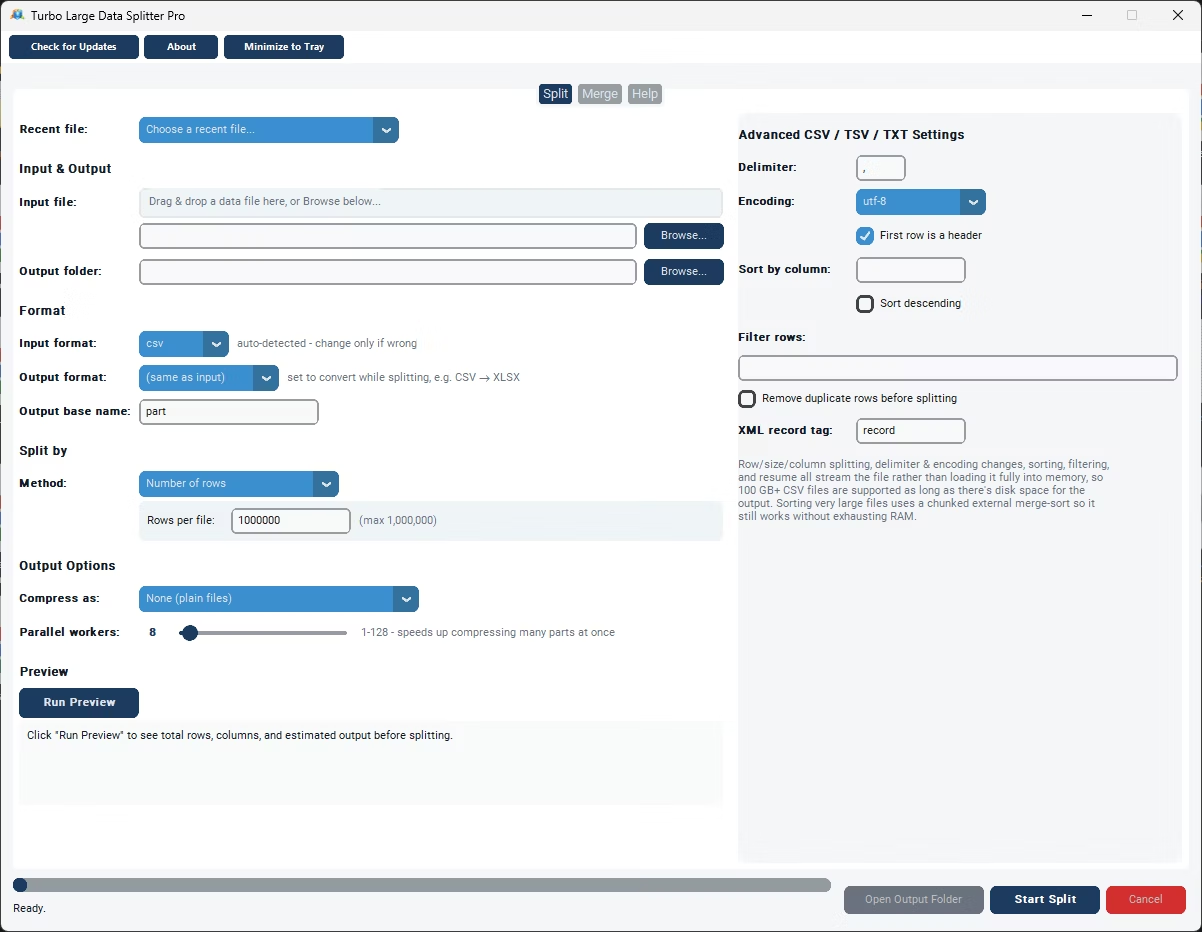
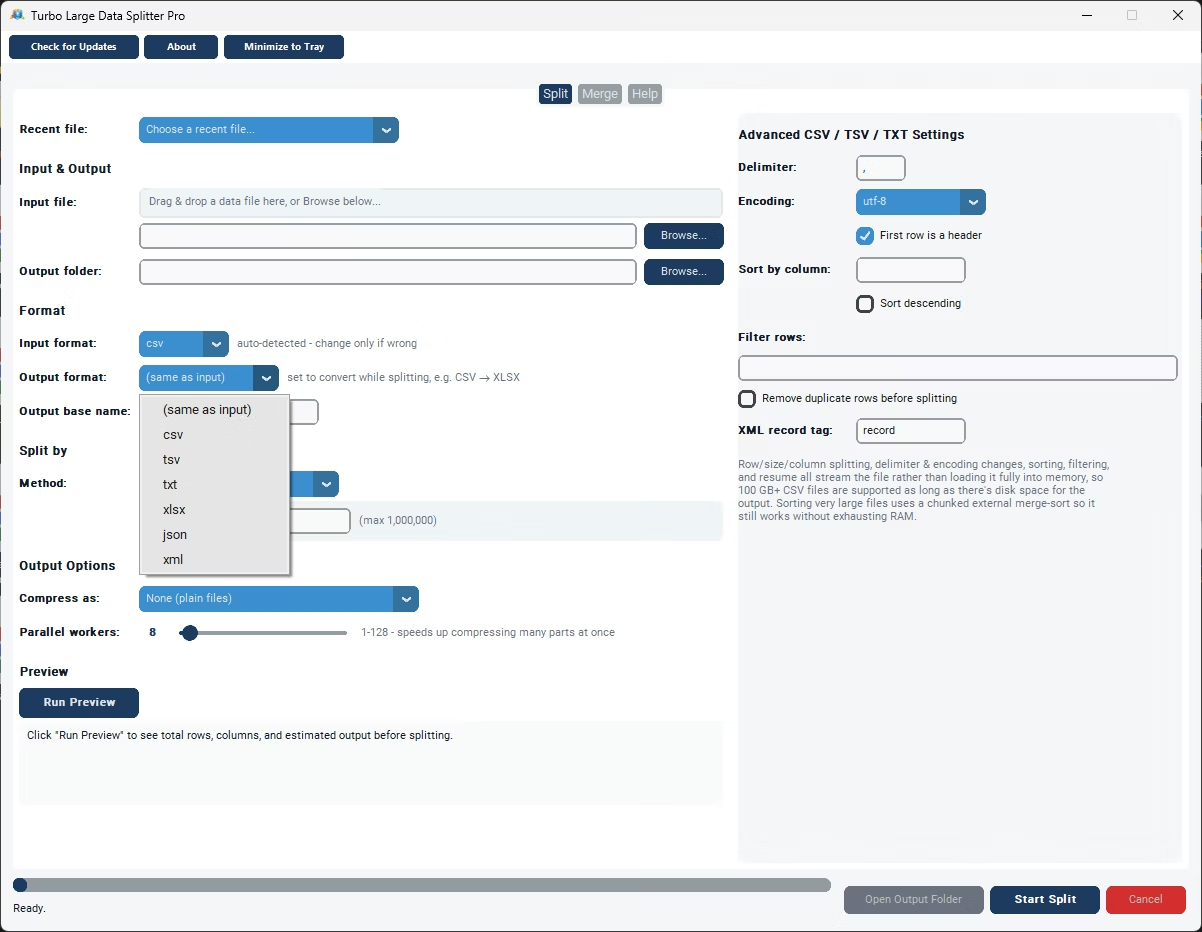
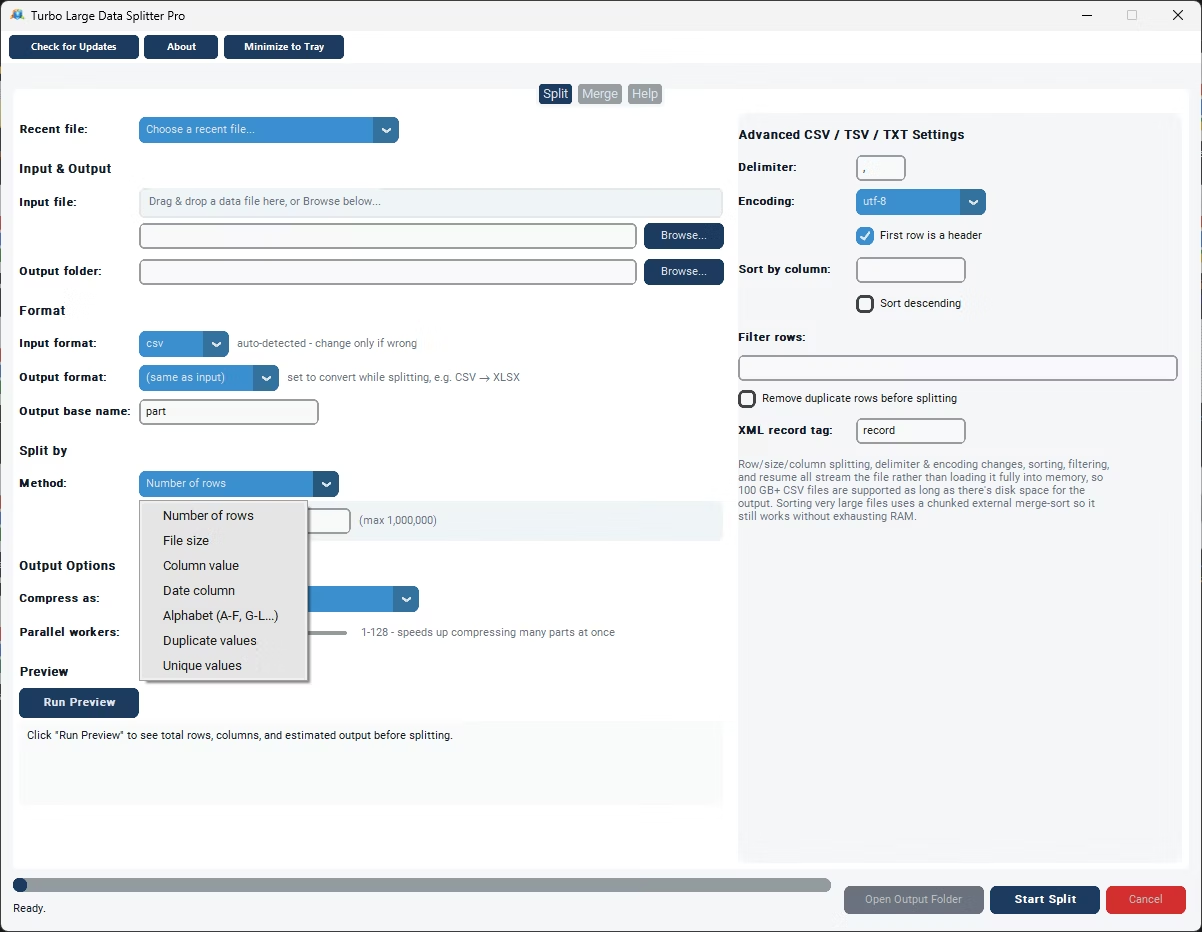
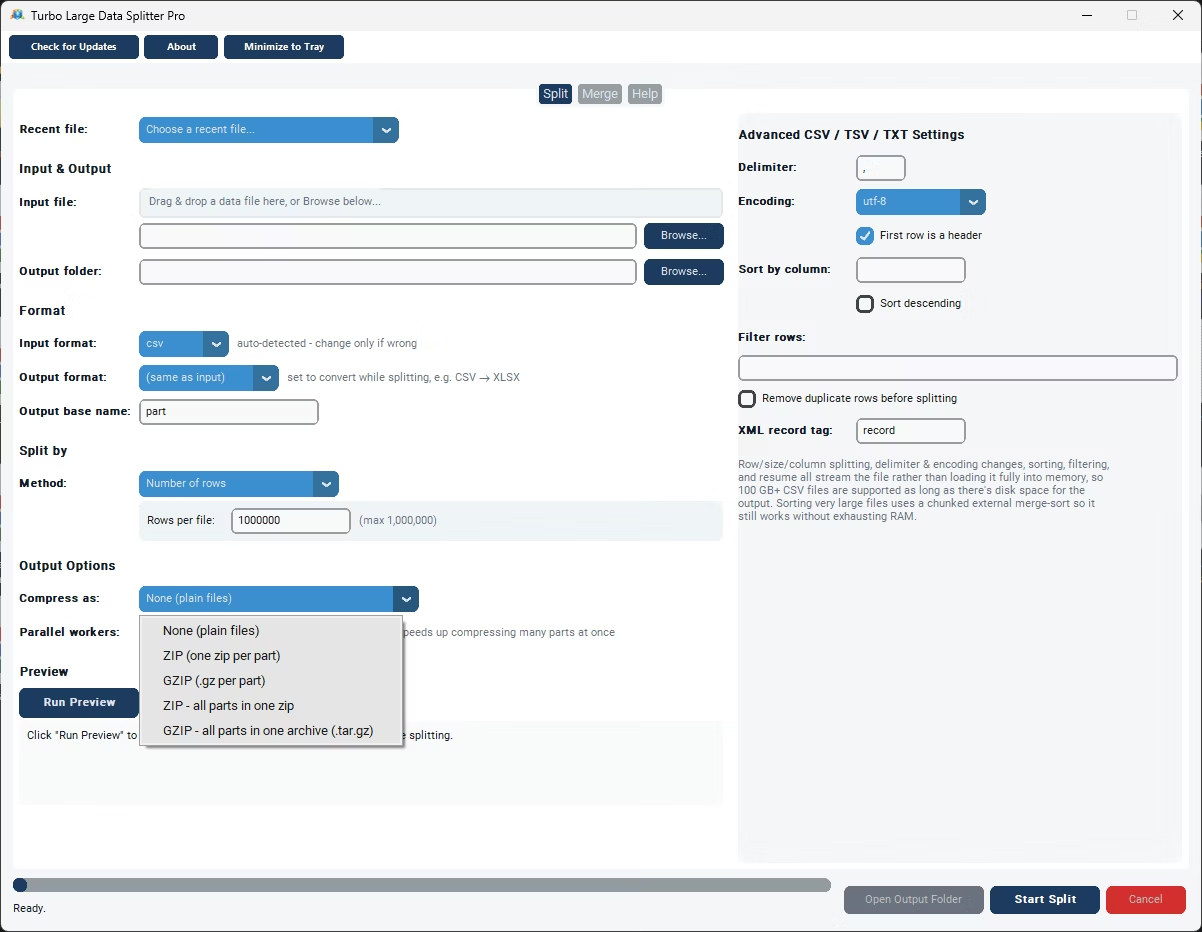
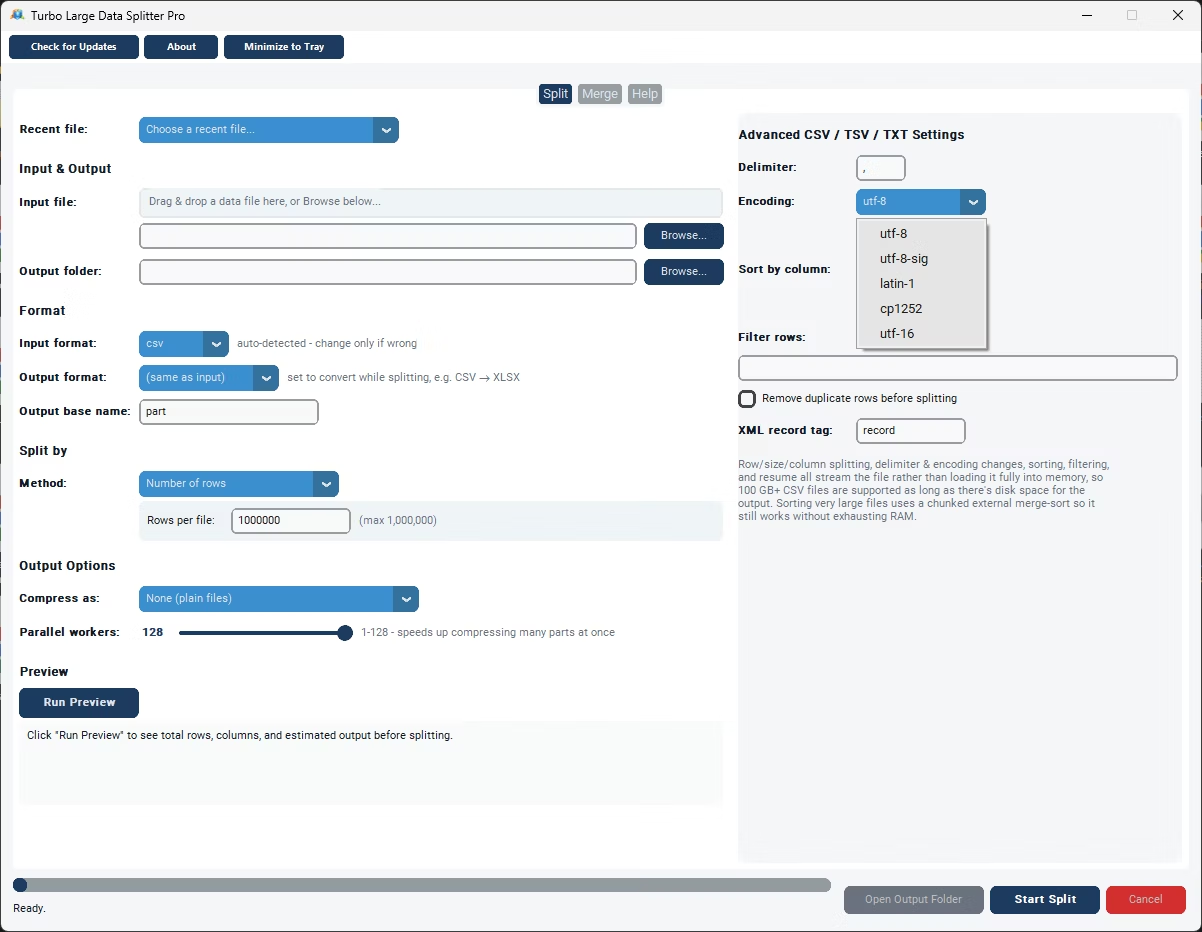
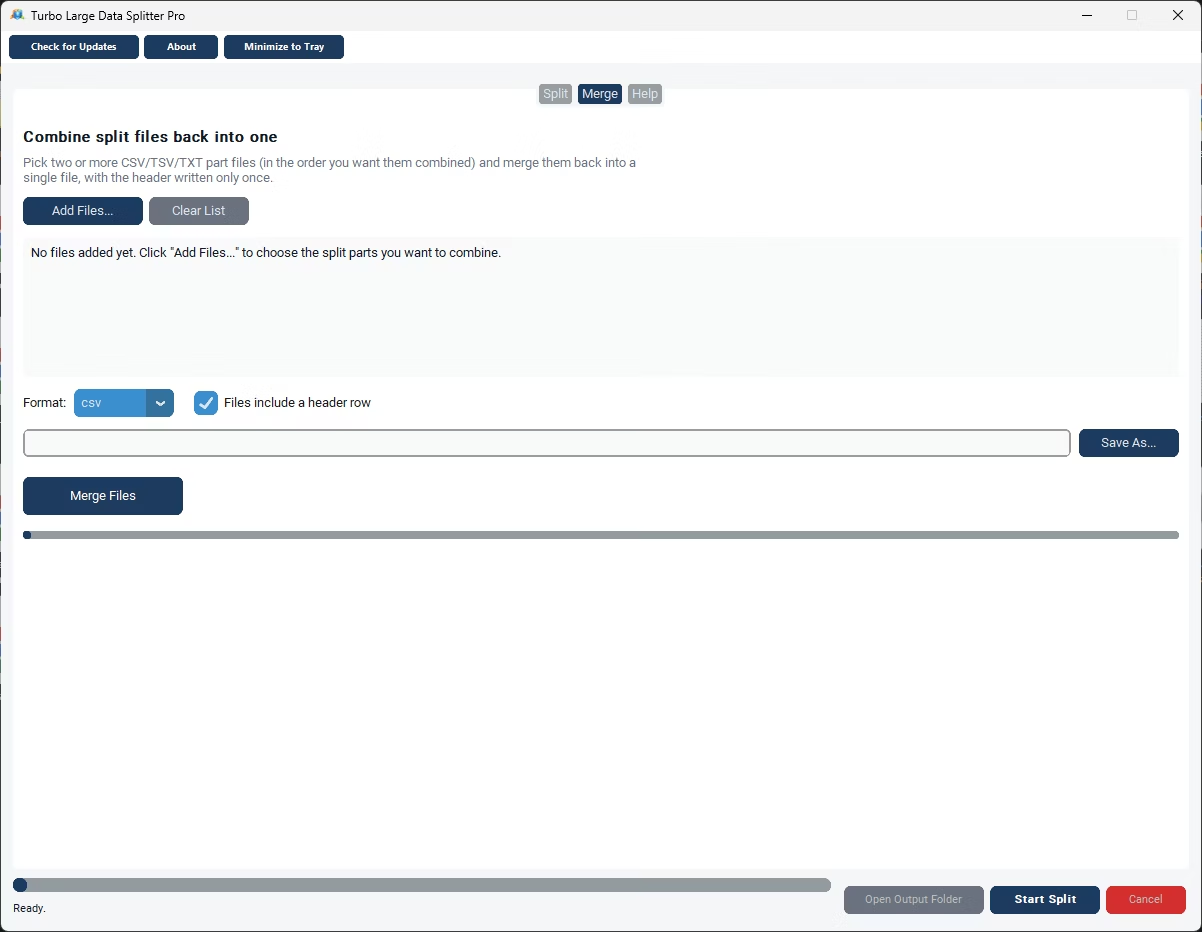
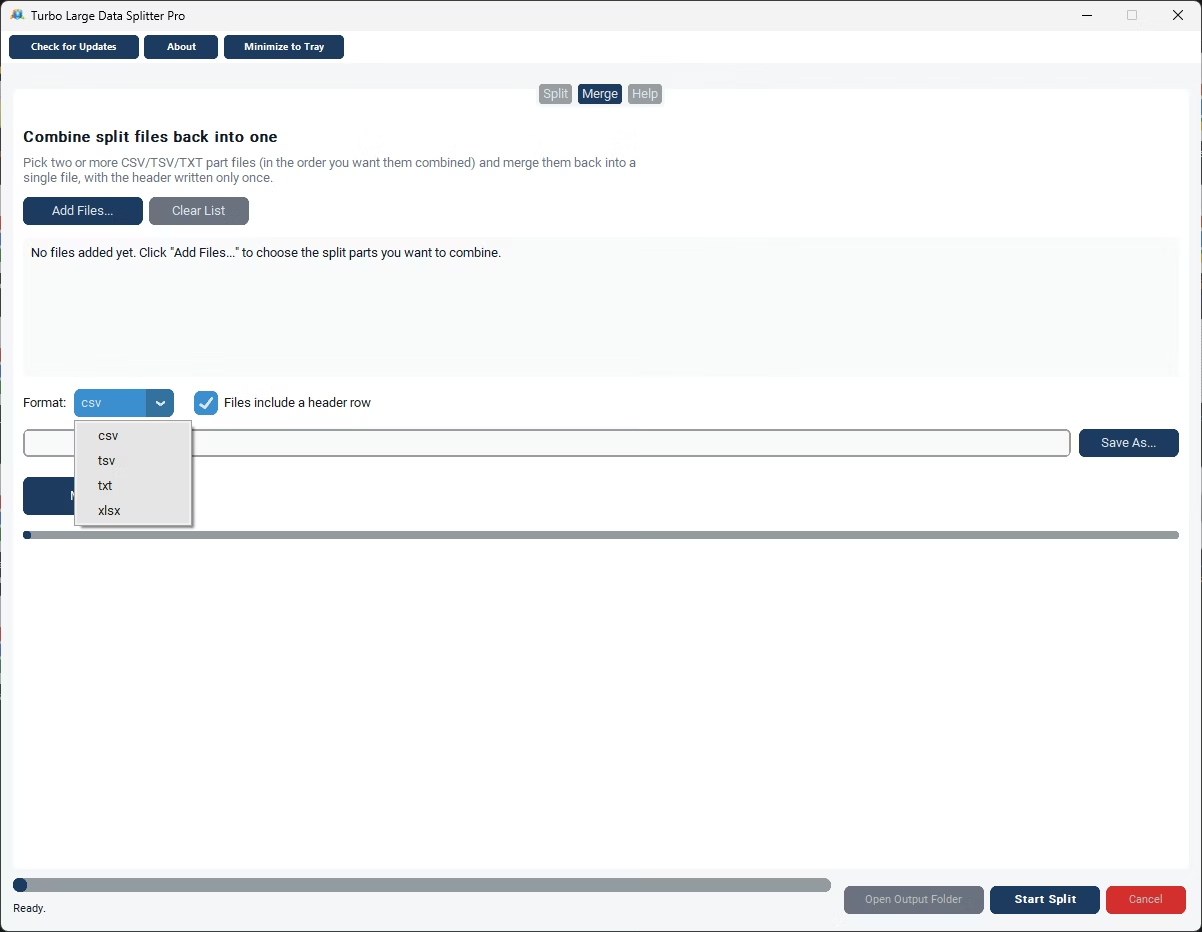
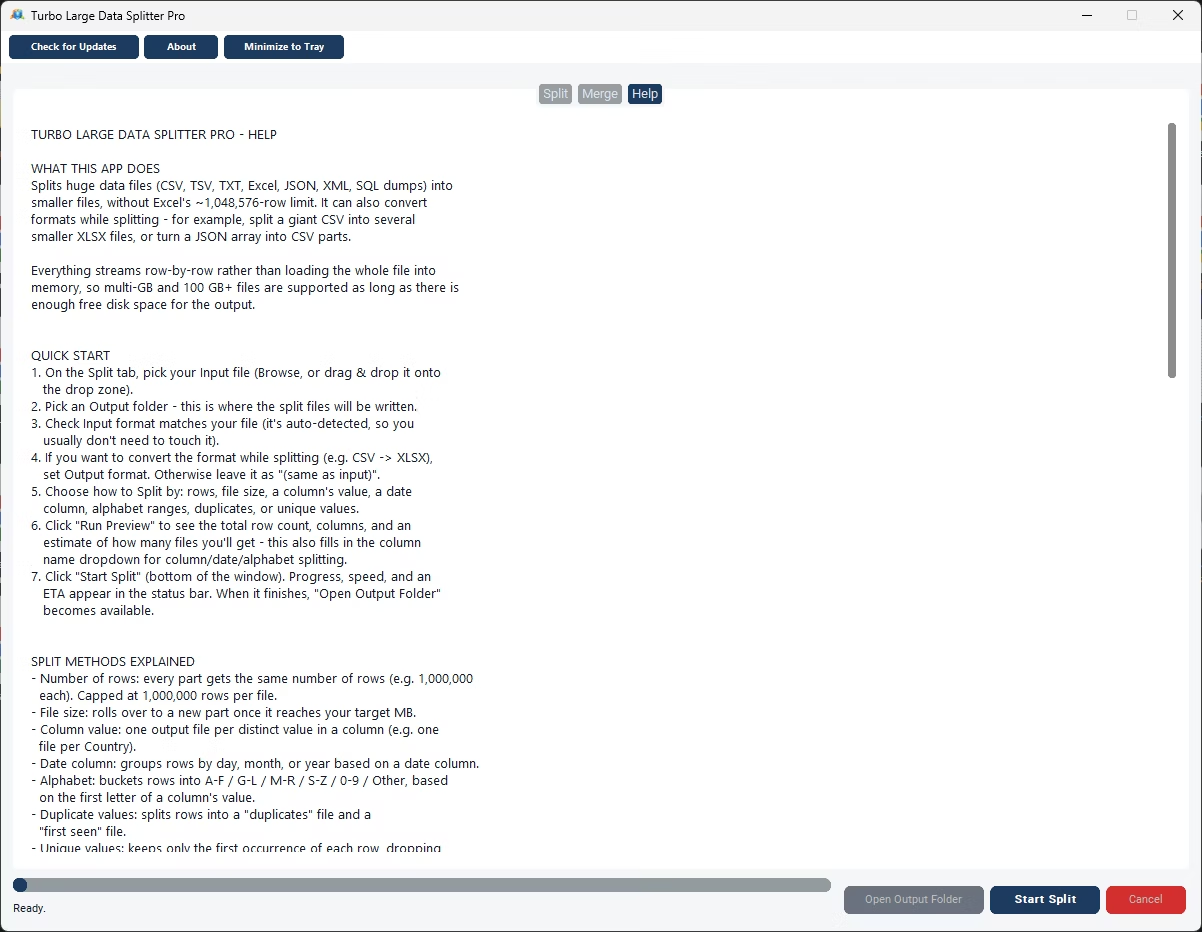
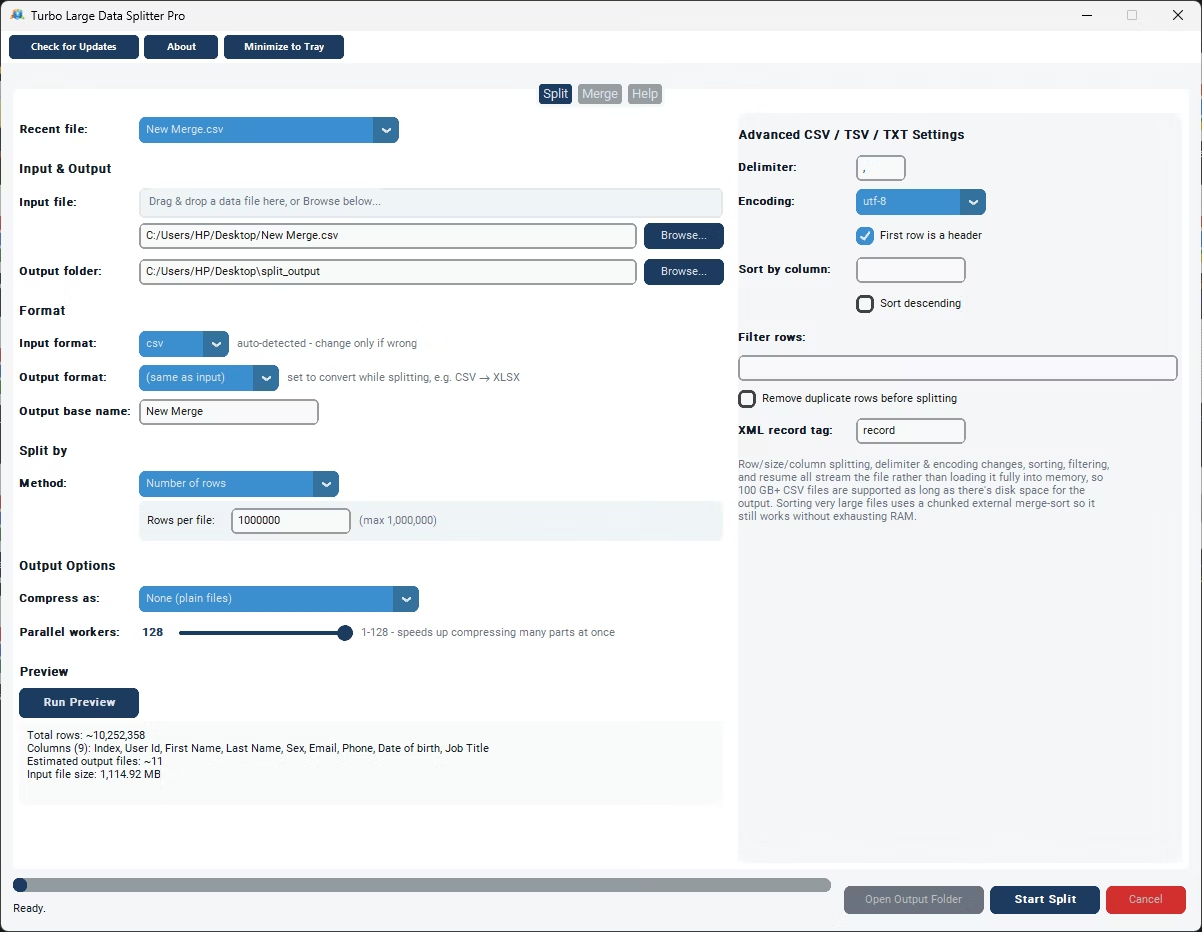
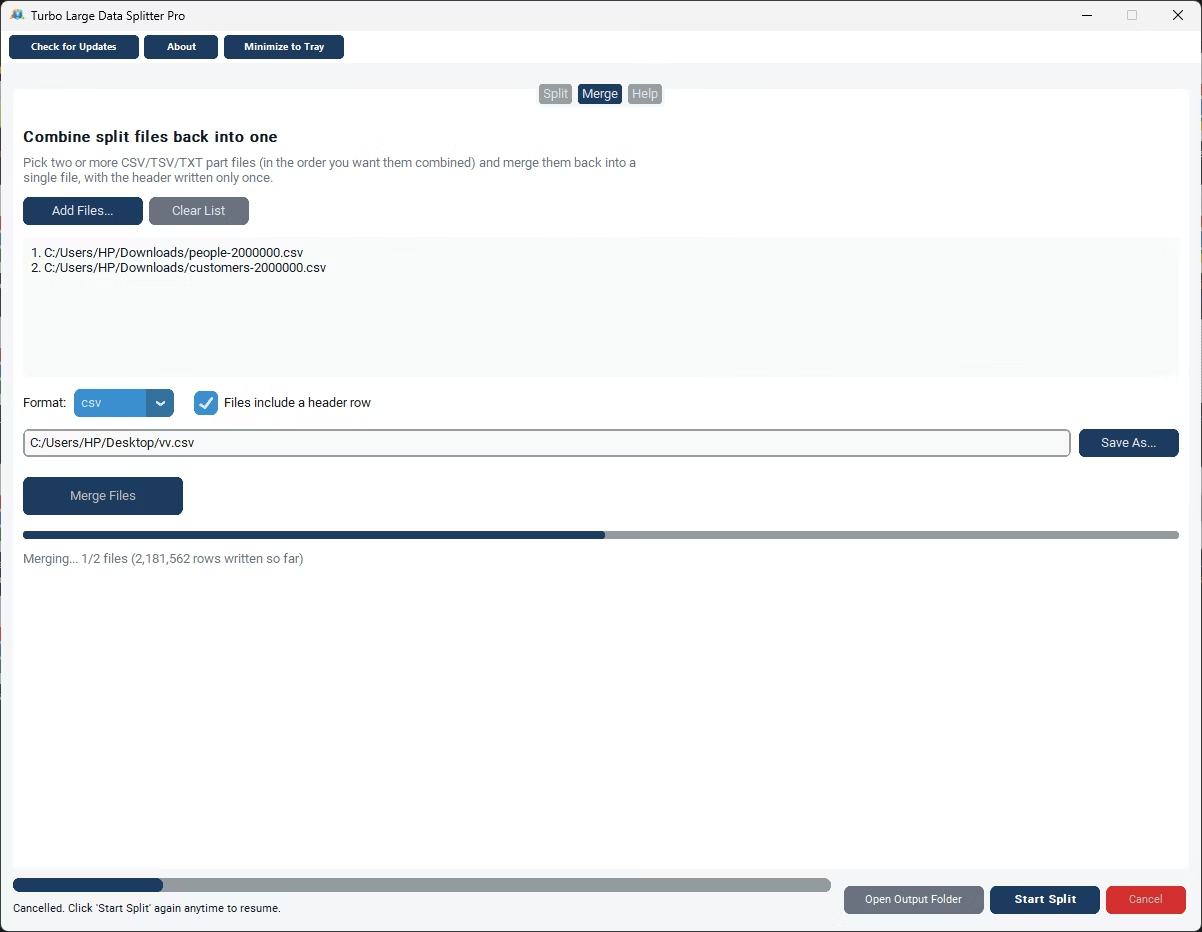
- Install Turbo Large Data Splitter on your Windows PC.
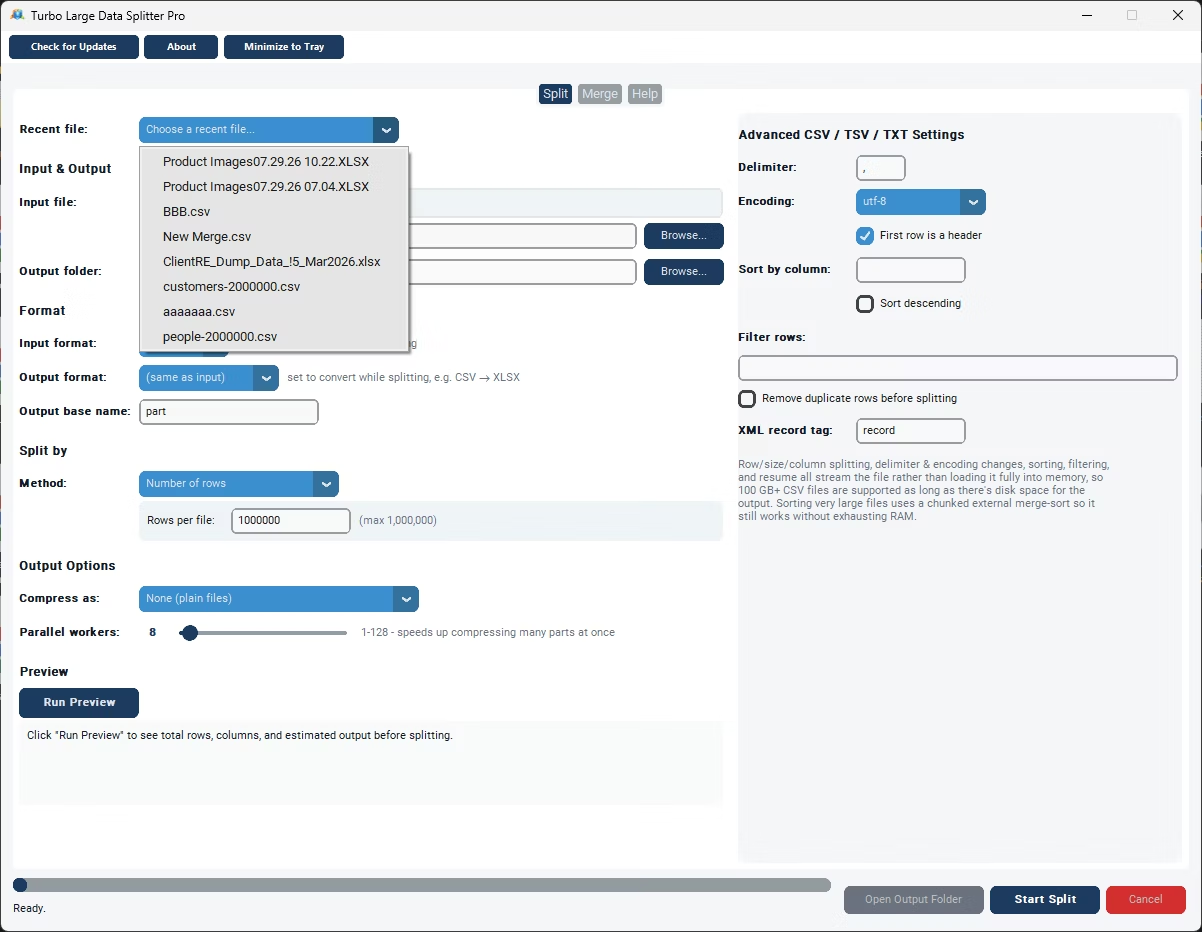
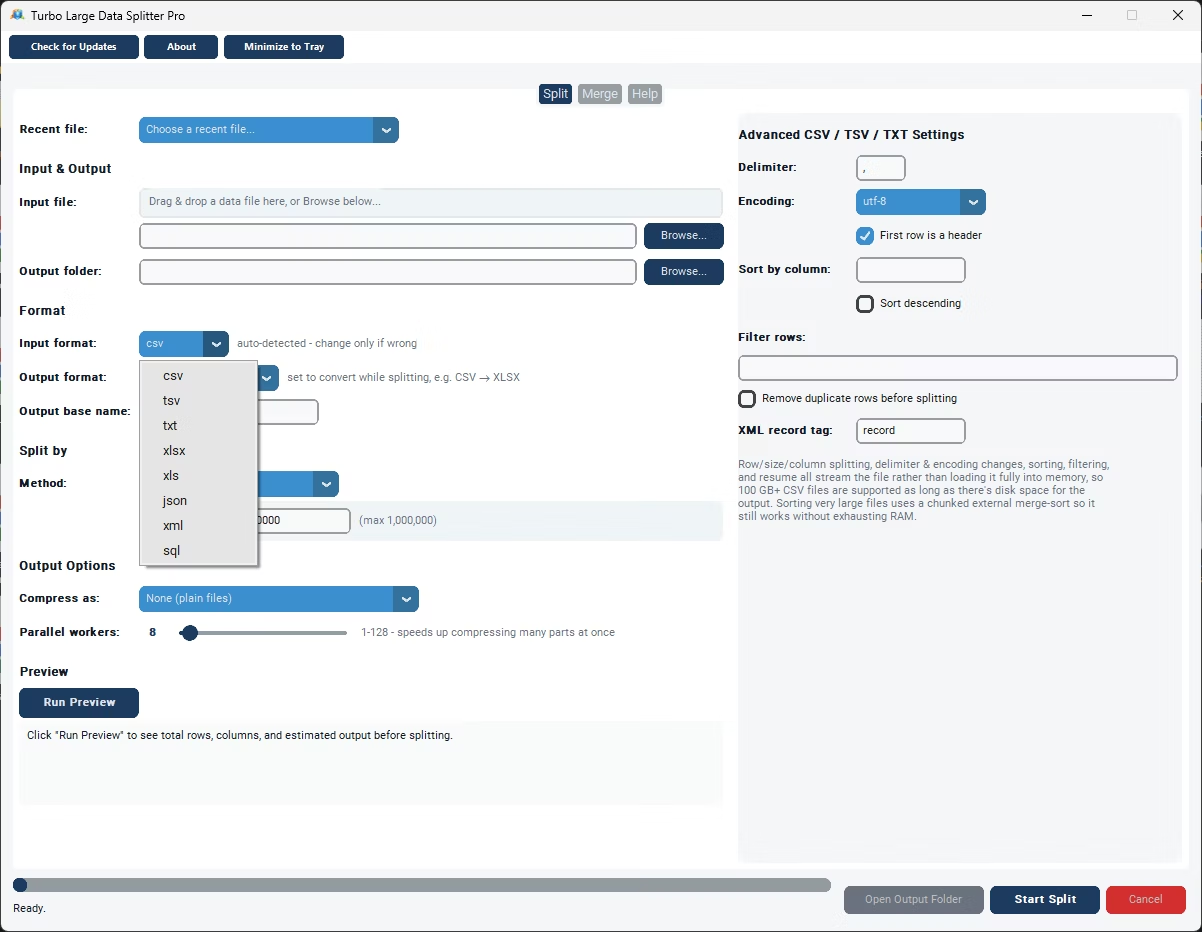
- Open the app and click to load your CSV file.
- Select "Split by rows" or "Split by size" depending on your needs.
- Enter the number of rows or the target size in megabytes.
- Choose whether each split file should repeat the header row.
- Click Split and check the output folder for your new files.
- Clear step-by-step workflow with no hidden settings
- Two split methods to match different requirements
- Optional header row repetition for standalone files
- Fast processing even on very large CSV files
- Works completely offline for full data privacy
- No coding or scripting knowledge required
What's the easiest way to split a CSV file without coding?
Using a dedicated desktop app like Turbo Large Data Splitter avoids scripting entirely, since the split method and values are set through a simple interface.
How long does it take to split a large CSV file?
Processing time depends on file size, but the app's chunked reading approach typically splits multi-million-row files in well under a minute.
Can I preview the file before splitting it?
Yes, the app shows a preview of the loaded data and detected columns before you confirm the split settings.
Ready to follow these steps and split your CSV file now?